
Affiliate levels let commission rates rise automatically with performance: instead of pricing commissions per product, Affiliate and Referral Program for WooCommerce assigns each affiliate a level, and the level sets their rate. Hit a referral or sales target, move up a level, earn more. This guide covers switching to levels mode, building your ladder, and how promotions happen. Part of the plugin documentation.
How levels mode changes commissions
↑ Back to topLevels are an either/or choice with the product rules. Normally the program prices commission from the commission rules — store-wide, per product, per category, per affiliate. In levels mode that entire ladder is set aside: the only thing that decides the rate is the level the affiliate holds. Each level pays either a Percentage of the eligible order line totals or a Fixed amount per item purchased.
Two commission-wide settings still apply in levels mode: products excluded under Exclude products from affiliate commission stay excluded, and Restrict commission on sale items still skips discounted products when enabled.
Levels are not ranks. A level replaces the commission rules and changes the rate on every sale; a rank sits on top of any commission model and pays a one-off bonus at a milestone. An affiliate can hold both. See Affiliate Ranks and Rank Bonuses.
Switch to levels mode
↑ Back to top- Go to: WooCommerce > Affiliate & Referral > Commission.
- Under Commission Based On:, choose Users instead of Products.
- Save Changes.
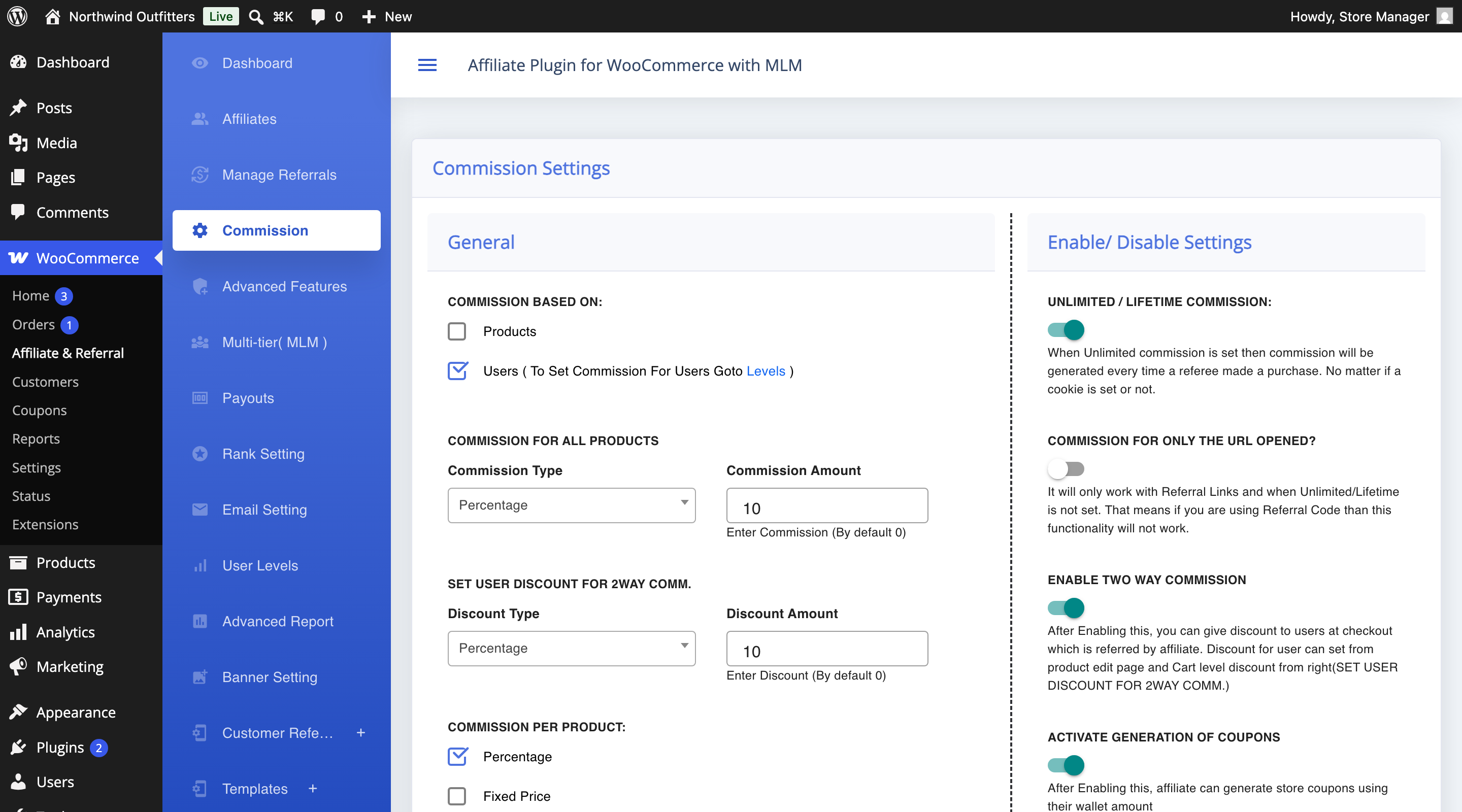
Until you make this switch, the User Levels screen reminds you with a notice to select the Users commission base — levels you create are only paid once the base is Users.
Build your level ladder
↑ Back to top- Go to: WooCommerce > Affiliate & Referral > User Levels.
- Click Add New Level.
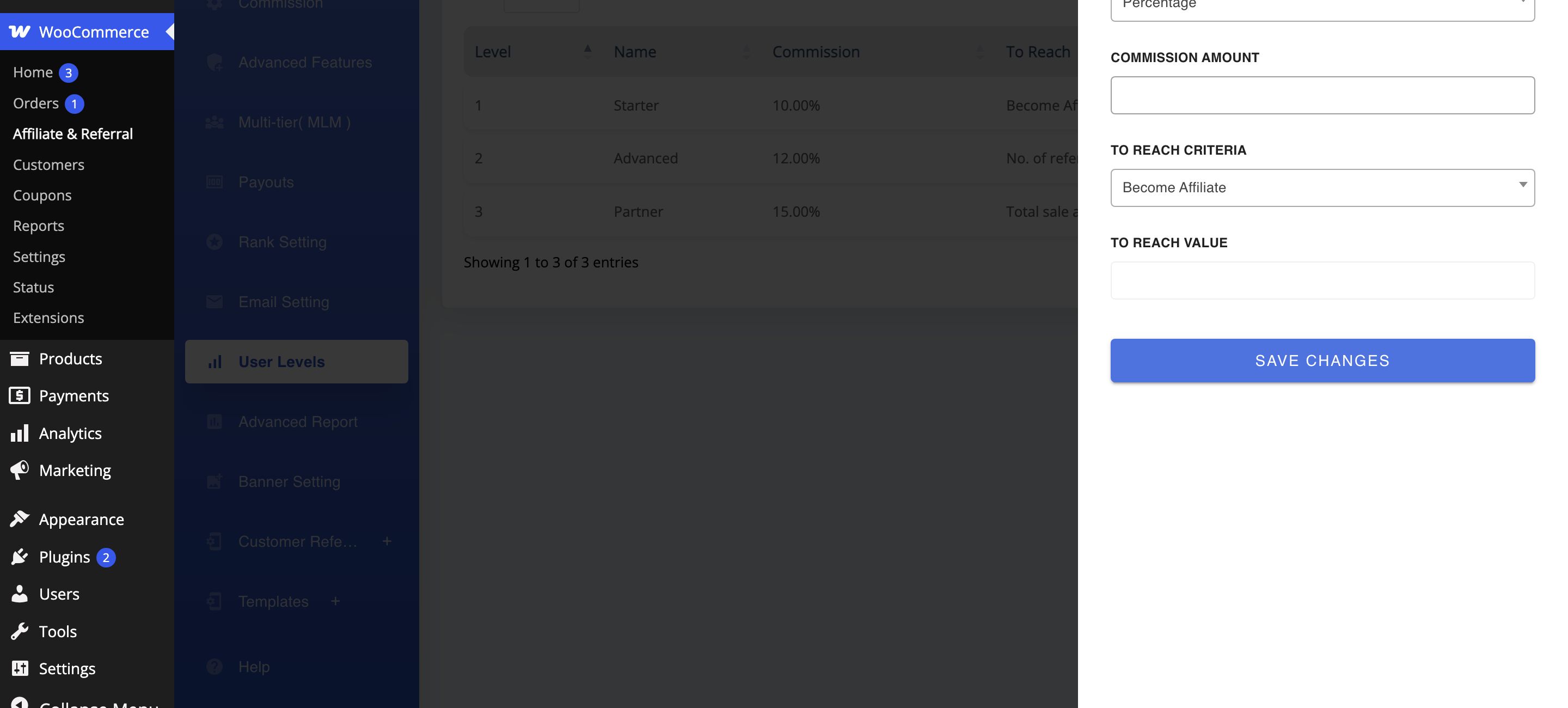
- Fill in the level and Save Changes.
- Level Name – what affiliates see on their dashboard.
- Commission Type – Percentage or Fixed.
- Commission Amount – the rate this level pays.
- To Reach Criteria – how the level is earned: Become Affiliate (the starting level everyone holds), No. of Referrals, or Total Sale Amount.
- To Reach Value – the referral count or sales total that earns it.
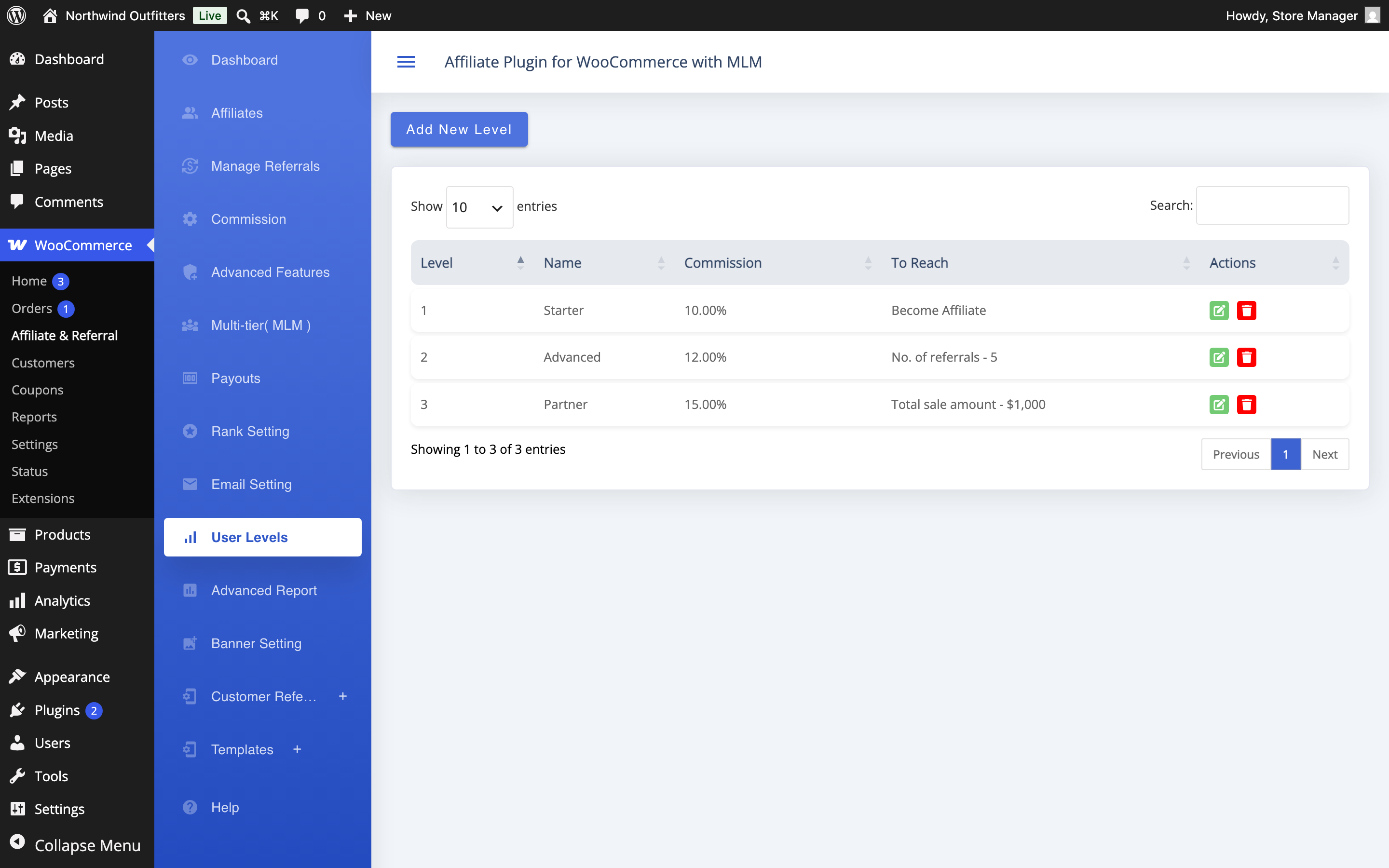
Make your first level a Become Affiliate level — it is the default every affiliate starts on. Then add one level per milestone, each with a better rate. As an example ladder: 10% on joining, 12% after 5 approved referrals, 15% after $1,000 in referred sales.
How promotions happen
↑ Back to topThe program re-evaluates an affiliate’s level every time one of their referrals is approved. It counts their approved referrals and their referred sales total, finds the highest level each of those earns, and assigns the better of the two. Because those totals only grow, affiliates move up the ladder as they perform — there is no automatic demotion.
You can also set a level by hand: open the affiliate under Users and pick their level on the profile, or use the Level column on the Affiliates screen. A hand-picked level lasts until the next referral approval, when the program recalculates from the affiliate’s real totals — so treat manual assignment as a temporary override, not a permanent grant.
Deleting a level moves every affiliate who held it down to the level before it. Check who holds a level — the Level column on the Affiliates screen — before removing rungs from the ladder.
FAQ
↑ Back to topDo my per-product commission rates still work in levels mode?
↑ Back to topNo. With Commission Based On: set to Users, the level is the only rate that applies — product, category and per-affiliate rules are ignored, and the commission box disappears from the product edit screen. See Commission per Product or Category.
How does a Fixed level rate count quantities?
↑ Back to topPer item. A $2 fixed level rate on an order line of three items pays $6 — different from product-rule fixed amounts, which pay once per order line. Keep that in mind when you price fixed levels.
Where does an affiliate see their level?
↑ Back to topOn their dashboard: the level name shows on their overview, and the commission tab shows the level rate that currently applies to them. More questions are answered in the Affiliate and Referral Program: FAQ.