
Price History Manager records what your products cost over time, and puts the figure the EU Omnibus Directive asks for in front of shoppers whenever you advertise a reduction. This page covers what the extension does, every setting it adds, how to configure it for common situations, and the technical surface it exposes to developers.
Overview
↑ Back to topPrice History Manager stores a record of each product’s regular and sale price every time the price changes, and again on a daily sweep of your catalog. From those records it works out the lowest price the product was offered at during a reference window, and shows that figure on your storefront as a line of text, a badge, or a chart.
The reference window is the part that matters for compliance. By default the extension measures the period that ends when your reduction takes effect, which is what the Omnibus Directive means by the prior price. A window that runs up to today would include the sale itself, so the lowest price would very often just be the sale price.
Variations of a variable product are tracked separately, each with its own history. Every record is stored in your own database, and nothing is sent to an outside service.
Requirements
↑ Back to top- WordPress 5.8 or higher
- PHP 7.4 or higher
- WooCommerce 9.0 or higher (tested up to 11.0)
- MySQL 5.6 or higher, or MariaDB 10.1 or higher
Action Scheduler handles the daily tracking sweep and the weekly cleanup. It ships with WooCommerce, so there is nothing extra to install.
There is no external service, no account to connect, and no API key. The extension only reads product prices, which are already public, and writes them to two tables in your own database.
Installation
↑ Back to topTo start using a product from WooCommerce.com, you can use the “Add to store” functionality on the order confirmation page or the My subscriptions section in your account.
- Navigate to My subscriptions.
- Find the Add to store button next to the product you’re planning to install.
- Follow the instructions on the screen, and the product will be automatically added to your store.
Alternative options and more information at:
Managing WooCommerce.com subscriptions.

There are no license keys to enter, no accounts to connect, and no setup wizard. Once the extension is active, two things are worth doing straight away:
- Go to WooCommerce > Settings > Products > Price History and turn on Enable Price History Tracking. Tracking is off until you switch it on, and no records are written before that.
- Decide on your reference window and where the figure should appear, using the settings described below.
History only exists from the moment tracking is switched on. See the FAQ for what your storefront shows in the meantime.
Usage
↑ Back to topEvery setting lives in one place: WooCommerce > Settings > Products > Price History. The screen is organized into four tabs: General, Display, Advanced, and Data. Until tracking is enabled, only the General tab is shown, because nothing else has anything to act on.
Each of the first three tabs has its own Save Changes button at the bottom. The Data tab has no save button, because everything on it acts immediately.
Individual products get their own panel too, on the product edit screen. That is covered in “Reviewing and correcting a product’s records” below.
General
↑ Back to topThis tab controls whether prices are recorded at all, what period the lowest price is measured over, and when the figure is shown.
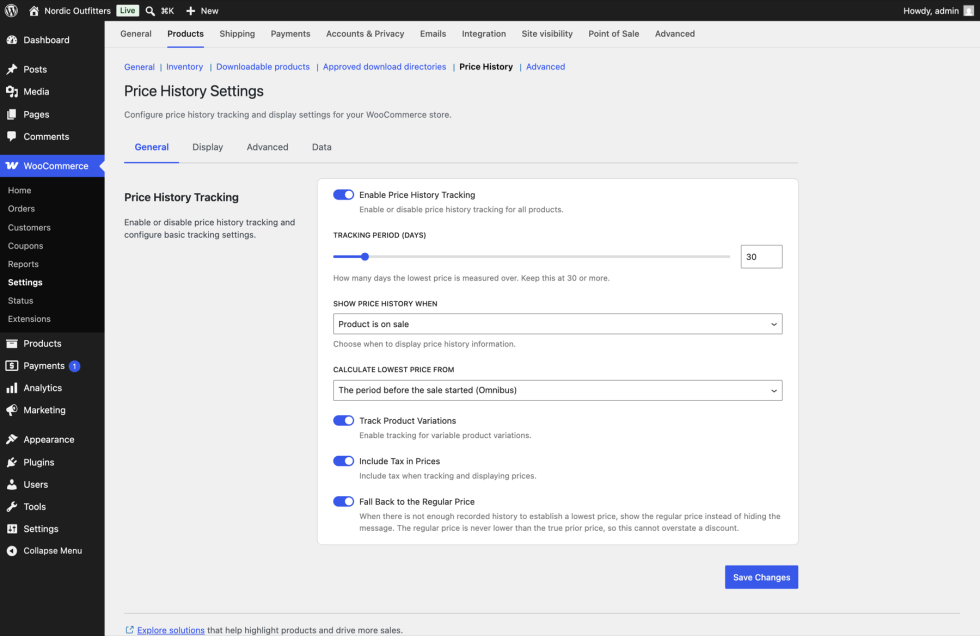
Enable Price History Tracking turns recording on and off for the whole store. It is off by default. With it off, no new records are written, nothing appears on the storefront, and the other three tabs are hidden. Existing records are kept. Switching tracking off pauses the extension and leaves the stored history alone.
Tracking Period (days) is how many days the lowest price is measured over. It accepts 1 to 365 days and defaults to 30. The Omnibus Directive asks for a period of at least 30 days, so leave this at 30 or higher unless you have a specific reason not to.
Changing this figure changes the answer immediately for every product. Your records stay exactly as they are. What moves is the window drawn over them, so the lowest price shown can change as soon as you save.
Show Price History When decides which products display the figure:
- Always shows it on every product, whether or not there is a reduction.
- Product is on sale shows it only while a sale price is active. This is the default, and it is the one that matches the legal requirement, which applies when a reduction is advertised.
- Price has dropped shows it when the current price is below the product’s average recorded price over the tracking period. This is a merchandising option rather than a compliance one, and it produces nothing until enough records exist to calculate an average.
Calculate Lowest Price From is the most important setting on the page.
- The period before the sale started (Omnibus) measures the window ending the moment your reduction took effect and reaching back by the tracking period. The record written at the instant the sale began holds the reduced price, so it is deliberately excluded. Otherwise a sale price could stand as evidence for itself. This is the default and the setting the Directive describes.
- The last X days, including the sale measures a window that ends now. Because an active reduction falls inside it, the lowest price shown is very often the sale price itself. It is a useful “cheapest recently” figure for merchandising, but it does not satisfy the Directive. Choosing it shows a warning on screen saying exactly that.
If a product is on sale but has no sale start date recorded, there is no reduction date to anchor to, and the window falls back to ending now. Setting a Sale price dates “from” date on the product is what gives the extension something to measure against.
Track Product Variations records a separate history for each variation of a variable product. It is on by default. With it off, only the parent product is recorded, and variation-level figures will not be available.
Include Tax in Prices records and displays prices with tax included, using your store’s tax settings. It is on by default and has no effect if taxes are disabled in WooCommerce. Change it with care: records written before the change keep the basis they were written with, so a store that flips this setting will have a history in two different bases.
Fall Back to the Regular Price decides what happens when there are no records inside the window, most commonly during your first weeks with the extension. With it on, the product’s own regular price is shown instead of nothing at all. The regular price always sits at or above the true prior price, so the figure you show can only ever understate a discount. It is on by default. With it off, products with no history in the window show nothing.
Display
↑ Back to topThis tab is where you choose which pages show the price history and what it looks like. It is split into three collapsible panels.
Display locations
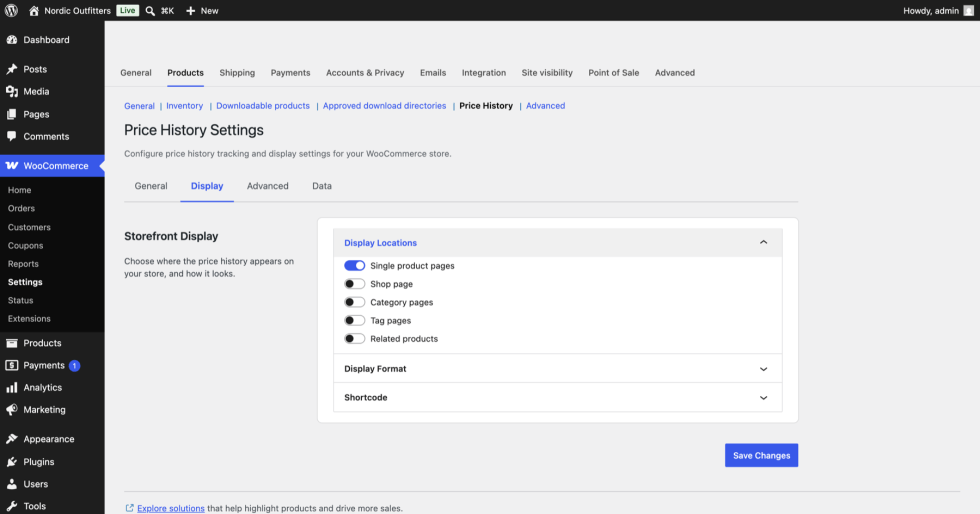
Five independent toggles, each covering one kind of page:
- Single product pages: on by default. This is where the figure most needs to appear.
- Shop page: off by default.
- Category pages: off by default.
- Tag pages: off by default.
- Related products: off by default.
On listing pages the output appears under each product’s title, which is a tighter space than a product page. Text is the format that sits most comfortably there.
Related products render inside the single-product template, so the two settings overlap there. Related products governs the block on its own: you can show the figure on the product page and keep it out of the related block, or the other way around.
Display format
The Format dropdown chooses between Text, Badge, and Chart. Whichever you pick, its own options appear directly beneath it, so you only ever see the settings for the format in use.
Text renders a single line of copy, styled by your theme.
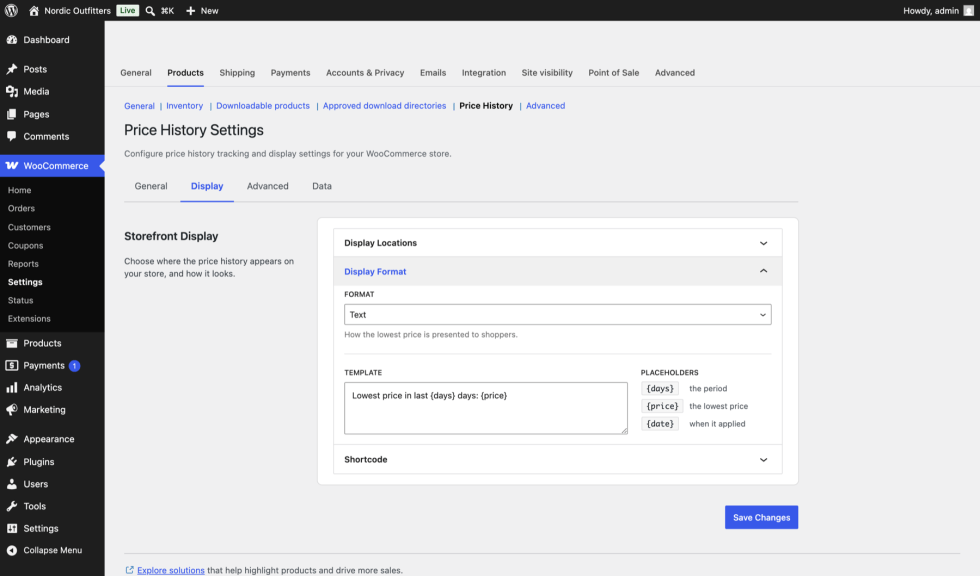
The Template field takes free text plus three placeholders, listed beside the field. Click any placeholder to copy it.
| Placeholder | Becomes |
|---|---|
{days} | The number of days actually measured |
{price} | The lowest price in the window, formatted in your store currency |
{date} | The date that lowest price applied |
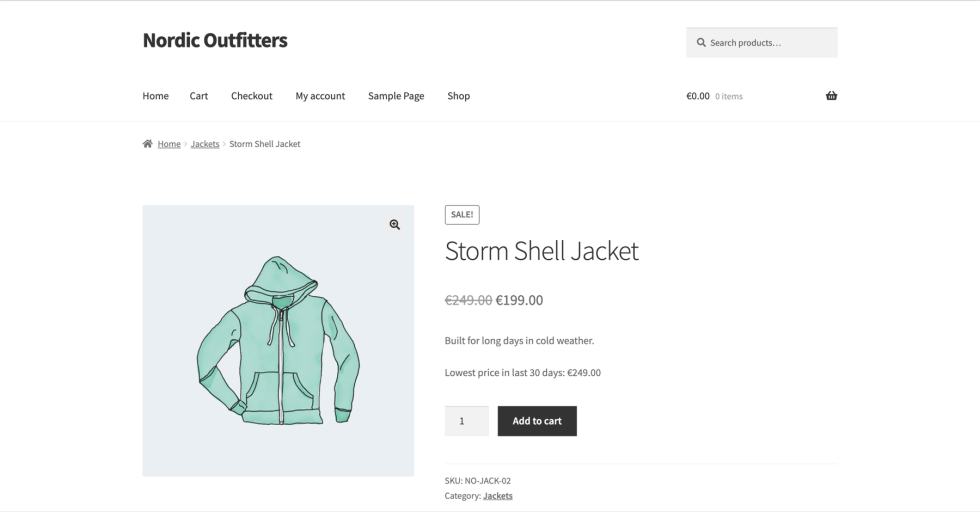
The default template is Lowest price in last {days} days: {price}.
Badge renders the figure as a colored badge, which suits stores that want the saving to read as a promotional element.
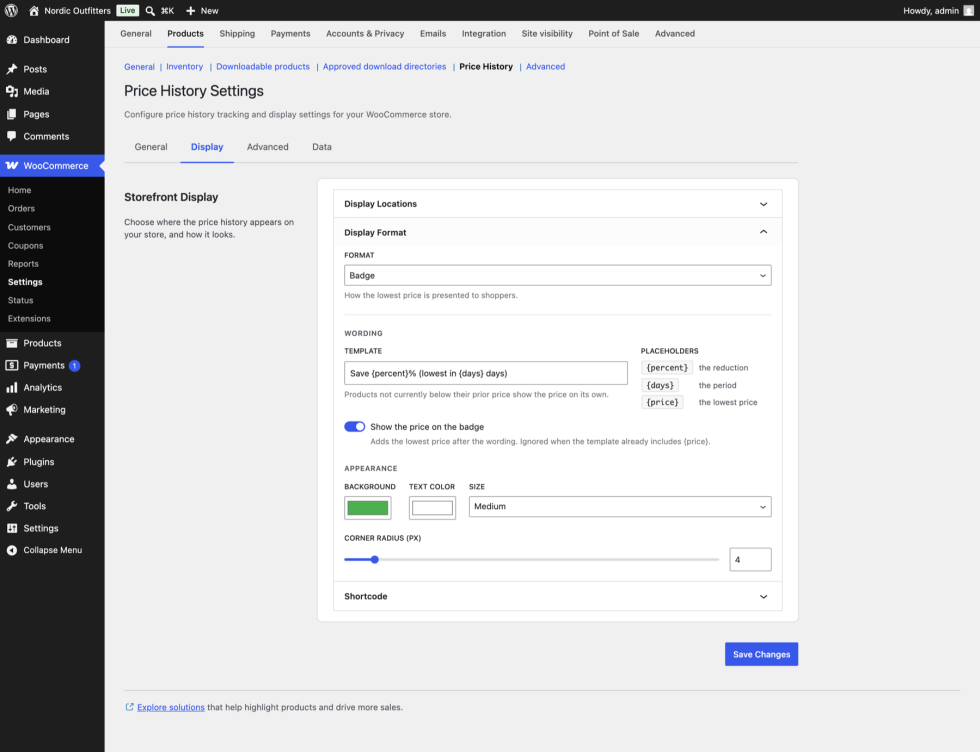
Under Wording, the Template accepts {percent}, {days}, and {price}. The default is Save {percent}% (lowest in {days} days). The percentage is calculated against the lowest price in the window, which is the same figure the text format shows.
A product that is not currently below its prior price has no percentage to state. Rather than dropping out of badge format, it falls back to wording that states the prior price on its own.
Show the price on the badge adds the lowest price as a second element after the wording. It is on by default and is ignored when your template already contains {price}, so the figure is never printed twice.
Under Appearance, Background and Text color are color pickers. Size offers Small, Medium (default), or Large. Corner radius (px) runs from 0 to 50 and defaults to 4.
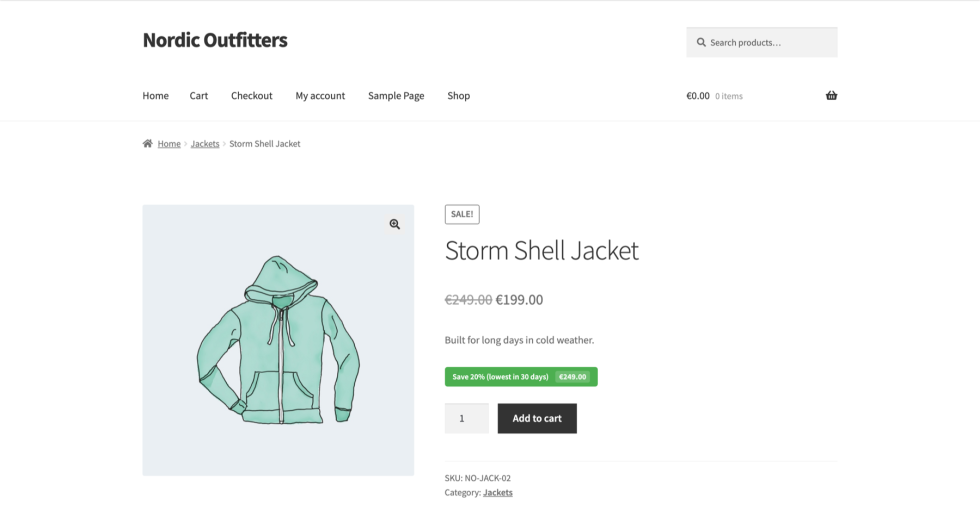
Chart draws an interactive price chart from the recorded history. Its options are grouped under three headings.
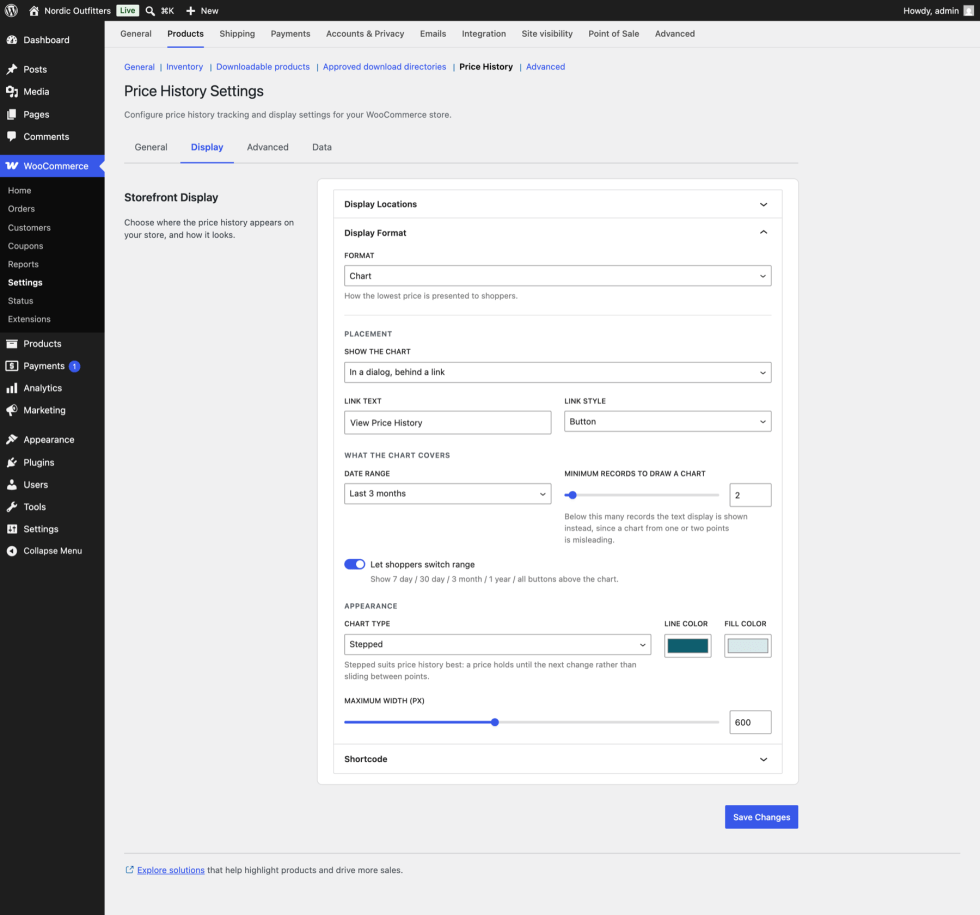
Under Placement, Show the chart offers two modes:
- In a dialog, behind a link: the default. The product page carries a link; the chart opens over the page when a shopper follows it. Link text defaults to
View Price History, and Link style renders it as a plain link or as a button. - Inline on the product page. The chart is drawn directly into the page. A Position dropdown then chooses where: in the product summary under the price, before the product meta (SKU and categories), after the product summary (the default), or after the whole product block.
Under What the chart covers:
- Date range sets how much history the chart draws. Options are: match the tracking period (default), last 7 days, last 30 days, last 3 months, last 6 months, last year, or all recorded history.
- Minimum records to draw a chart runs from 1 to 20 and defaults to 2. A product with fewer records than this shows the text format instead, because a chart drawn from a single point is a dot rather than a trend.
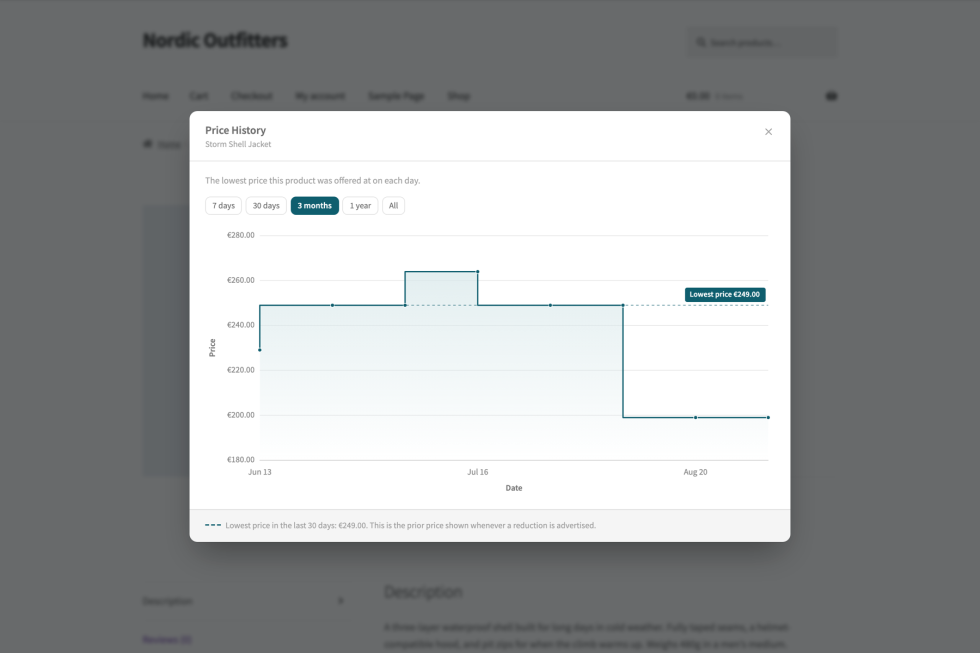
- Let shoppers switch range adds 7 day / 30 day / 3 month / 1 year / All buttons above the chart. It is off by default. Turning it on loads the full history so the buttons can actually reach it, and your chosen Date range becomes the view the chart opens on.
Under Appearance: Chart type offers Line (default), Stepped, or Bar. Stepped suits price history best, because a price holds until the next change rather than sliding gradually between recorded points. Line color and Fill color are color pickers, and Maximum width (px) runs from 200 to 1200, defaulting to 600.
The chart labels both axes, captions itself with what a point represents, and marks the advertised prior price with a dashed rule and a note explaining it. In dialog mode the chart is given at least 920 pixels of width regardless of the maximum width setting, since it has the screen to itself there.
Shortcode
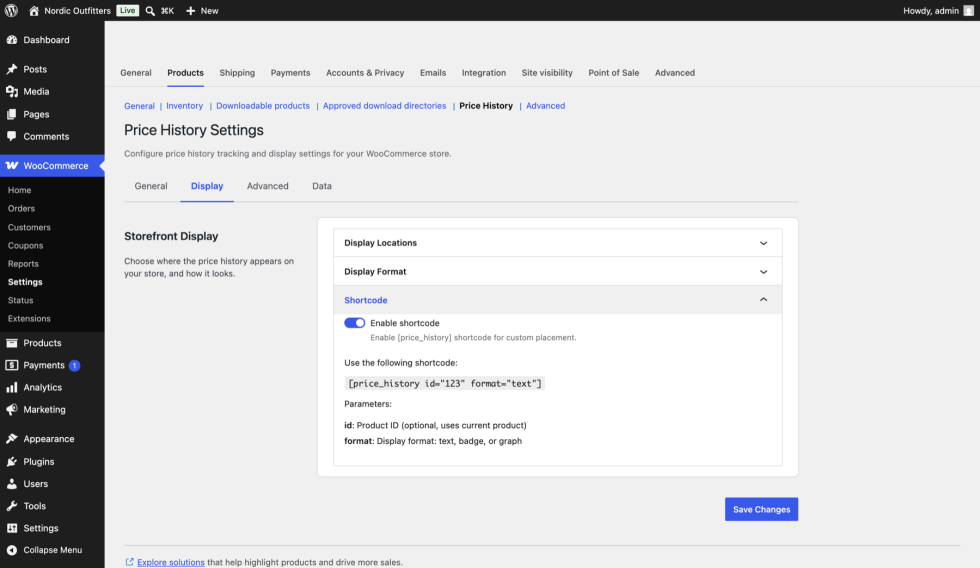
Enable shortcode controls whether [price_history] renders anything. It is on by default.
The shortcode takes two attributes:
id: the product ID. Optional; it uses the current product when omitted, which makes it useful inside a product template or a page that already has a product in context.format:text,badge, orgraph. Defaults totext. Anything else falls back totext.
For example: [price_history id="123" format="badge"]
The shortcode respects the same conditions as the automatic display. If tracking is off, or the product does not meet your Show Price History When rule, it renders nothing. It does not respect the display-location toggles, though, so it works on pages that are not product or archive pages.
Advanced
↑ Back to top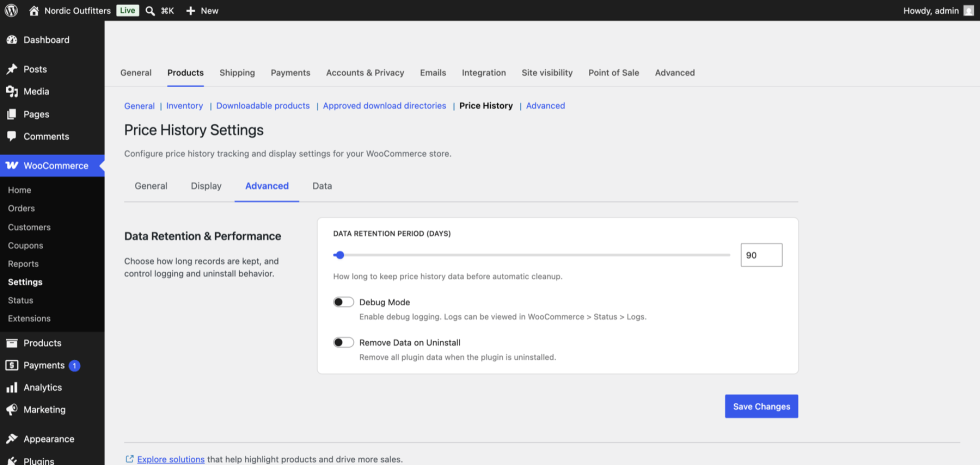
Data Retention Period (days) is how long records are kept before the weekly cleanup removes them. It runs from 30 to 3650 days in steps of 30, and defaults to 90.
Set this comfortably above your tracking period. Records older than the retention period are deleted permanently, and a retention period shorter than the window you are measuring would delete the evidence you need. Statistics derived from deleted records are cleared with them and rebuilt on the next price change.
Debug Mode writes tracking activity to the WooCommerce log: every price recorded, every price skipped and why, cleanup results, and errors. It is off by default. Turn it on when you are diagnosing a store where records are not appearing as expected, and turn it off again afterwards, because it logs on every product save, which adds up on a busy store. The screen shows a warning while it is on.
Remove Data on Uninstall decides what happens when the extension is deleted, not merely deactivated. It is off by default, so uninstalling leaves your recorded history in place in case you reinstall. With it on, deleting the extension drops both database tables, removes its options, and clears its cached values. The screen shows a warning while it is on.
Data
↑ Back to topThis tab reports on what has been stored and gives you tools to check, export, import, or clear it. Every action on this tab runs the moment you use it, so there is no Save button.
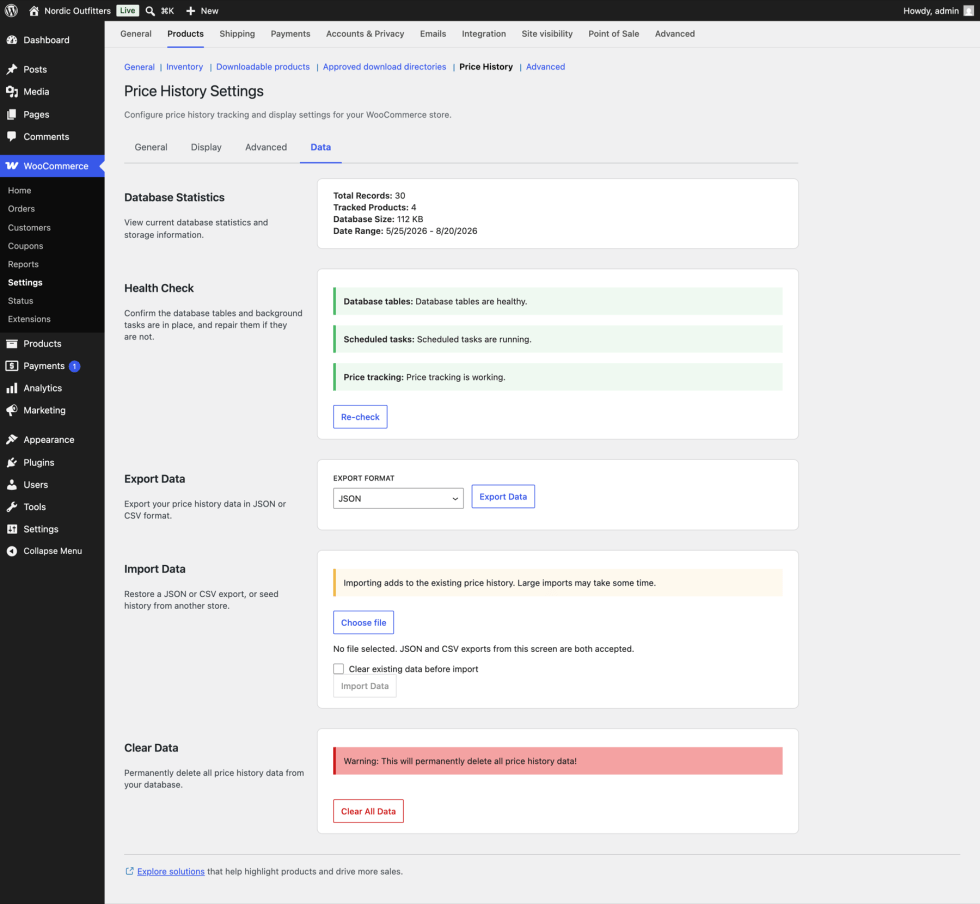
Database Statistics shows the total number of records, how many distinct products are tracked, how much space the two tables occupy, and the date range covered by your oldest and newest record. It is the quickest way to confirm tracking is actually working.
Health Check reports on three things:
- Database tables: whether the price history table exists.
- Scheduled tasks: whether the daily tracking and weekly cleanup actions are queued in Action Scheduler.
- Price tracking: whether anything at all has been recorded in the last 24 hours.
Re-check runs the check again. When any of the three is not healthy, a Repair button appears; it recreates missing tables and requeues missing scheduled tasks. Repair is safe to run on a healthy store, because it leaves existing tables alone and does not queue a second copy of a task that is already scheduled. It restores the machinery so that tracking resumes. Records that were already lost stay lost.
A tracking warning on a quiet store is not necessarily a fault. If no prices changed in the last 24 hours and the daily sweep found nothing new to record, there is genuinely nothing to report.
Export Data downloads your entire price history as JSON or CSV. Use it to keep an off-site copy of the evidence behind your advertised prior prices, or to move history to another site.
Import Data reads those files back. Choose a .json or .csv file and select Import Data. Records are added to what is already stored, so importing the same file twice leaves you with two copies of every row; tick Clear existing data before import when you are restoring rather than merging. The statistics above refresh once the import finishes, which is the quickest way to confirm the record count moved.
Clear Data permanently deletes every price record and every derived statistic in the store. It asks for confirmation first. There is no undo, so export before you clear.
Reviewing and correcting a product’s records
↑ Back to topEach product carries its own Price History tab in the Product data box on the product edit screen. It lists every price recorded for that product, newest first.
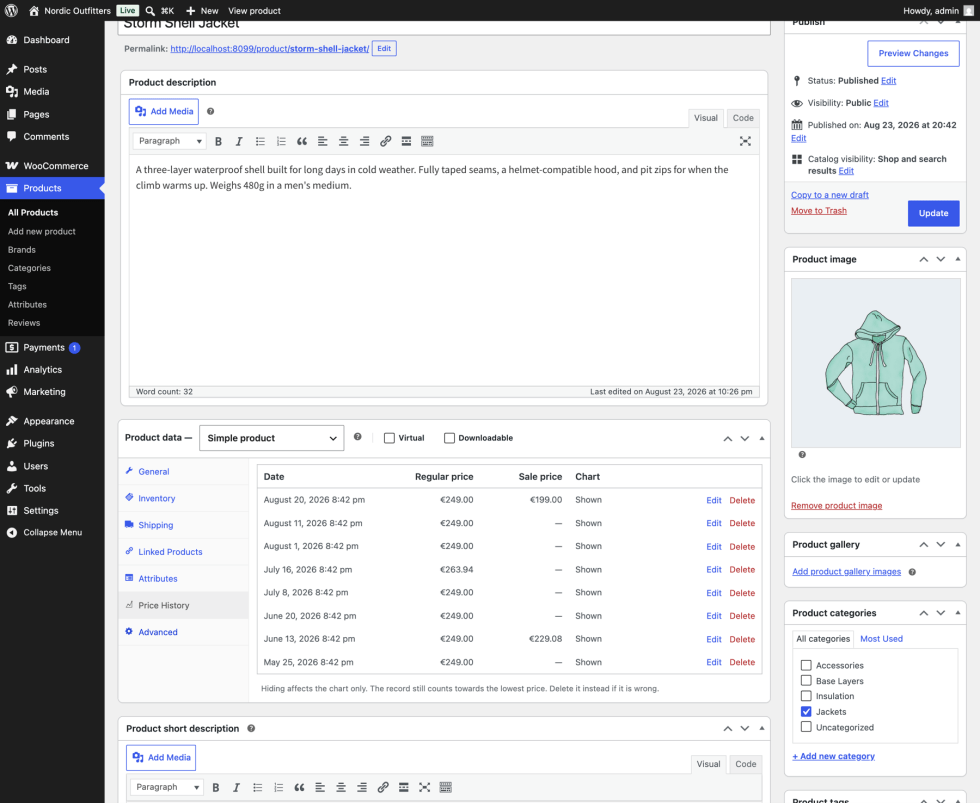
Each row shows the date and time, the regular price, the sale price (an em dash where none applied), and whether the record appears on the chart. Records are shown in the currency they were recorded in, so a history that spans a currency change still reads correctly.
Prices display as values rather than as a grid of open input fields. Select Edit on a row to turn it into fields, then Save or Cancel.
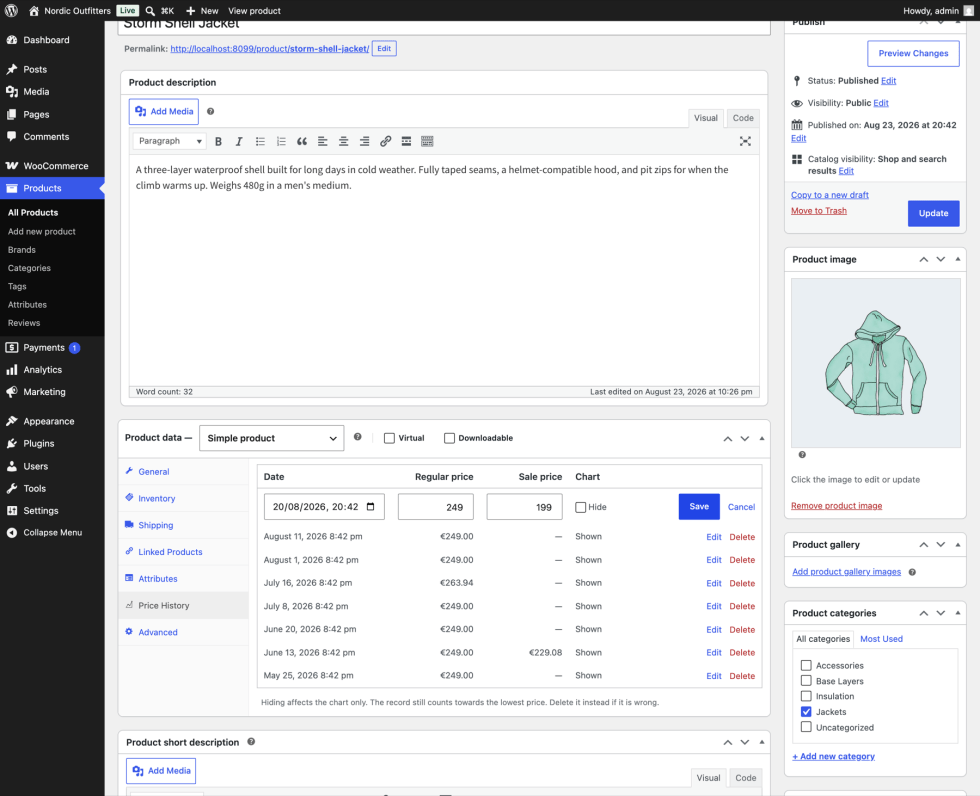
Four rules apply when saving an edited record. If one is broken, the row explains why rather than failing silently:
- A regular price is required.
- The sale price cannot be higher than the regular price.
- The date has to be readable.
- A price cannot be recorded in the future.
The price fields step in your store’s configured number of decimals, so they accept exactly the precision your store uses.
Hide removes a record from the chart only. It deliberately does not remove it from the lowest-price calculation. Dropping an inconveniently low record out of that figure would let a store advertise a bigger reduction than its own history supports, which is the practice the Directive exists to prevent. If a record is genuinely wrong, a mistyped price for instance, delete it instead. Deletions are written to the WooCommerce log with the user who made them.
Variable products get a panel per variation as well, inside each variation’s own settings, so you can review a single variation’s history without wading through the rest.
Long-running products can accumulate thousands of records. The table shows the 250 most recent and tells you how many exist in total.
Use cases
↑ Back to topAn EU store advertising a seasonal sale
↑ Back to topYou run a sale twice a year and need each reduced product to show its Omnibus prior price.
Set Enable Price History Tracking on, Tracking Period to 30 days, Calculate Lowest Price From to “The period before the sale started (Omnibus)”, and Show Price History When to “Product is on sale”. Leave Fall Back to the Regular Price on. Use the Text format on single product pages.
Then, when you set up the sale, give each product a Sale price dates “from” date. That date is what the window anchors to. Without it, the extension has no reduction date to measure against and falls back to measuring up to now.
A store that wants the saving to sell
↑ Back to topYou want the discount to read as a promotion rather than as a legal footnote.
Keep the compliance settings above, but set the format to Badge with a template like Save {percent}%, lowest in {days} days. Pick a background color that fits your theme, and leave Show the price on the badge on so the prior price appears alongside the percentage. Because the percentage is measured against the prior price, the number on the badge is the same one your compliance figure supports.
A store that wants shoppers to see the whole story
↑ Back to topYou sell products where price movement is part of the buying decision, and you want shoppers to be able to check for themselves.
Set the format to Chart, Show the chart to “In a dialog, behind a link”, Link style to Button, Chart type to Stepped, and turn on Let shoppers switch range. Set Date range to “Last 3 months” as the opening view; the range buttons let a shopper go further back. Raise Minimum records to draw a chart to 4 or 5 so newly listed products fall back to the text line until they have a real history.
A store on a large catalog
↑ Back to topYou have tens of thousands of products and want the extension to stay out of the way.
Leave the defaults in place. The daily sweep starts at 3:00 AM and works through the catalog in batches of 100 products, queued through Action Scheduler. Storefront figures are cached for an hour. Each price is written only when it has actually changed.
Set Data Retention Period to something like 180 days: long enough to cover your window comfortably, short enough to keep the tables in check. Leave Debug Mode off, since it logs on every product save.
A store that has just installed the extension
↑ Back to topYou have no history yet, and a sale starting next week.
Turn tracking on now, so the window has as many real days in it as possible by the time the sale starts. Leave Fall Back to the Regular Price on. Until records accumulate, your storefront shows the product’s regular price as the prior price. That figure always sits at or above the true prior price, so the discount you advertise stays conservative.
There are two ways to get records straight away. Import an existing history from Import Data on the Data tab. Or use the “Record a price snapshot now” ability described under Developer documentation.
Working with other W7S extensions
↑ Back to topPrice History Manager answers one question: what did this product cost before? These combinations from the W7S catalogue cover what sits around that answer.
Keep your own prior price apart from the manufacturer’s. RRP / MSRP Product Pricing displays a recommended retail or manufacturer’s suggested price alongside your own. The two figures answer different questions: an RRP is what somebody else thinks the product is worth, while the prior price is what your store actually charged. Only the second is what the Omnibus Directive asks for, so if you show both, keep the wording distinct enough that a shopper can tell which is which.
Choose where a discount lands. Smartlink Discount URLs builds links that add products to the cart and apply a discount on the way in. That discount lands in the cart, so the product itself keeps its listed price and the storefront stays quiet about prior prices. Use a sale price when you want the reduction advertised on the product page under the Directive, and a smartlink when you want a private, cart-level offer that leaves your advertised pricing alone.
Keep the tables in proportion. Archive Old Orders moves old orders out of the active list to keep a store fast, while keeping them accessible. Data Retention Period on the Advanced tab does the same job for the price tables. The same instinct applies to both, and the price tables deserve the attention: they grow on every price change, so on a store that reprices often they can outpace the orders entirely.
Ask about your prices instead of reading the tables. MCP (Model Context Protocol) for WooCommerce puts Claude or ChatGPT in front of your store, in plain language, with you deciding what they can reach. Your price history is one of the things they can be asked about, which the next section covers in full.
Asking an assistant about your price history
↑ Back to topMCP (Model Context Protocol) for WooCommerce is the W7S way to get an assistant talking to your store. It sets Claude up with one-click configuration, walks you through ChatGPT step by step, groups what an assistant can do into tool packs you switch on and off, and enforces permissions through WooCommerce API keys. Run it and the assistant that already handles your orders and products is sitting in the same conversation as your pricing questions.
Price History Manager supplies the price side of that conversation. It registers nine WordPress Abilities when the Abilities API is present, and any MCP connection that surfaces those abilities to an assistant can call them. Every one requires manage_woocommerce, the same permission the settings screen needs, so an assistant is limited to what the person who connected it could already do by hand.
What that makes possible:
| Ask | What answers it |
|---|---|
| “What was the lowest price for the Storm Shell Jacket in the 30 days before this sale started?” | get-prior-price |
| “Which products are on sale right now without enough recorded history to defend the prior price?” | audit-omnibus-compliance |
| “Show me every price change on product 412 since June.” | list-price-changes |
| “Is tracking actually running, and when did it last record anything?” | get-tracking-status |
| “Record a price snapshot for these forty products now.” | record-price-snapshot |
| “Switch the storefront display to the badge format.” | update-settings |
Two of these are worth knowing about before you need them. audit-omnibus-compliance ignores the regular-price fallback on purpose and reports where the recorded evidence is thin, so it settles the question worth settling the week before a sale: is this figure defensible? And record-price-snapshot is the supported way to seed history on a new install. It records current prices for up to 100 products at a time and skips any product whose price still matches its last record, so a second run is safe.
The full list, including the write abilities and what each returns, is under Developer documentation.
FAQ
↑ Back to topDoes this extension make my store compliant with the EU Omnibus Directive?
It gives you what the Directive asks for: the lowest price applied during a period of at least 30 days before a price reduction takes effect, displayed alongside the reduction. That is the default configuration.
It can only work from prices it has recorded, so it needs to have been running through the period you are evidencing. It is a tool for meeting the requirement, not legal advice.
Why does the lowest price look like my sale price?
Check Calculate Lowest Price From on the General tab. The second option, “The last X days, including the sale”, measures a window ending now, so an active reduction falls inside it. Switch to “The period before the sale started (Omnibus)”.
If you are already on the Omnibus setting, check that the product has a Sale price dates “from” date. Without one there is no reduction date to anchor to, and the window falls back to ending now.
I just installed the extension. Why is there no history?
There is nothing to show until prices change while the extension is running. Until then the regular price stands in, provided Fall Back to the Regular Price is on. The daily sweep also starts building a baseline from its first run.
Can I remove a price that was recorded by mistake?
Yes. The Price History tab on the product edit screen lists every record, and you can correct or delete individual rows.
Does hiding a record change the lowest price?
No, and that is deliberate. Hiding removes a record from the chart only; it still counts towards the lowest-price figure. Dropping an inconveniently low price out of the calculation would let a store advertise a bigger reduction than its own history supports. Delete the record if it is genuinely wrong.
Does it work with variable products?
Yes. Each variation is tracked separately as long as Track Product Variations is on, and each variation has its own history panel inside its settings on the product edit screen.
Will it slow down a large catalog?
The daily sweep works through the catalog in batches of 100 products, queued through Action Scheduler. Storefront figures are cached for an hour. A price is written only when it has actually changed. Old records are pruned according to your retention setting.
What happens if I change the tracking period?
Your records are untouched, but the window drawn over them moves, so the lowest price shown can change as soon as you save. Keep the period at 30 days or more for Omnibus purposes.
Where has my price history gone?
If the tables were lost in a partial restore or a migration that skipped custom tables, the Health Check panel on the Data tab has a Repair action that recreates them. Records that were lost cannot be recovered, but tracking resumes.
What happens when I deactivate or delete the extension?
Deactivating stops tracking and display, and leaves your data alone. Deleting removes data only if Remove Data on Uninstall is on; it is off by default.
Does deleting a product remove its history?
Permanently deleting a product removes its records, so the tables do not fill with rows pointing at products that no longer exist. Moving a product to the trash does not, because trashing is reversible and a restored product should still have its history.
Can AI assistants use this?
Yes. The extension registers nine WordPress Abilities, so an MCP connector can read price history, resolve prior prices, audit your on-sale products, and change settings. Every ability requires the same permission as the settings screen. See Working with other W7S extensions above for what that looks like in practice.
Does the price history show up on my shop and category pages?
Only if you turn those toggles on. Single product pages are on by default; the shop page, category pages, and tag pages are each off by default and each have their own toggle.
Can I show the price history on product pages but not in the related products block?
Yes. Single product pages and Related products are read separately, even though the related block renders inside the single-product template. Turn the first on and the second off. The reverse also works, if you want the figure only in the related block. Note that on a block theme the related-products block is built from WooCommerce’s Product Collection block, which the price history cannot attach to, so the figure does not appear there either way.
Developer documentation
↑ Back to topNamespace conventions: PHP classes are prefixed Price_History_, constants PRICE_HISTORY_MANAGER_, and the text domain is price-history-manager.
Extensibility surface
↑ Back to topThe extension registers no action or filter hooks of its own. Behavior is changed through the settings option, the REST API, or the Abilities layer described below.
[NEEDS INPUT: If hooks are planned for a future release, or if third parties are expected to extend display output, this section should say so. As of 1.2.0 the codebase contains no do_action() or apply_filters() calls outside the bundled marketplace library.]
Options
↑ Back to top| Option | Contents |
|---|---|
price_history_settings | All configuration, as a flat array. Booleans are stored as the strings yes and no. |
price_history_version | Plugin version last seen, used to trigger upgrade routines. |
price_history_db_version | Schema version, used to decide whether dbDelta() needs to run again. |
Price_History_Settings::schema() is the single authority for setting names, types, ranges, allowed values, and defaults. Price_History_Settings::get() returns the stored settings merged over the defaults, and Price_History_Settings::sanitize() validates a partial array against the schema, dropping unknown keys and keeping the current stored value where an incoming value cannot be used.
Database tables
↑ Back to topBoth tables are prefixed with the site’s $wpdb->prefix.
wc_price_history holds one row per recorded price: id, product_id, variation_id (0 for the product itself), regular_price and sale_price as decimal(19,4), price_date, currency, hidden, and created_at. Indexed on product_id, variation_id, price_date, and the composite (product_id, price_date).
wc_price_history_stats caches derived figures per product, variation, and period: min_price, min_price_date, max_price, max_price_date, avg_price, period_days, and last_updated, with a unique key on (product_id, variation_id, period_days).
The hidden column is applied when building chart data and nowhere else. It never affects the lowest-price calculation.
The reference window
↑ Back to topPrice_History_Window::resolve( $product, $mode, $period_days ) returns the window every part of the extension measures against, as array{ start, end, anchor, days } with MySQL datetimes. A null end means no upper bound.
Price_History_Window::MODE_PRIOR_PERIOD(prior_period) ends one second beforeget_date_on_sale_from(), reaching back$period_days. The anchor is reported assale_start, orsale_start_unknownwhen a product is on sale with no start date, ornowwhen it is not on sale.Price_History_Window::MODE_DAYS_AGO(days_ago) is an open-ended window starting$period_daysago.
Price_History_Window::resolve_from_settings() reads the mode and period straight from the stored settings. Price_History_Window::span_days() returns the number of whole days a window covers, which is what the {days} placeholder renders.
REST API
↑ Back to topAll routes live under the price-history/v1 namespace and require the manage_woocommerce capability.
| Route | Purpose |
|---|---|
/settings | Current settings, merged over defaults. |
/settings | Update settings. The body is sanitized against the schema; invalid values fall back to the stored value rather than failing the whole request. |
/history/{product_id} | Raw records for a product. Accepts a days parameter, defaulting to 30. |
/stats | Record count, tracked product count, oldest and newest record dates, and combined table size in bytes. |
/health | Status of the database tables, the scheduled tasks, and recent tracking activity. |
/repair | Recreates missing tables and requeues missing scheduled tasks. Idempotent. Returns the refreshed health payload. |
/export | Full history. Accepts format of json (default) or csv; CSV is returned base64-encoded. |
/import | Import records. Takes data, an optional format (json or csv), and an optional clear_existing of yes. Recalculates statistics afterwards. |
/clear | Truncates both tables and clears cached values. |
/import is what Import Data on the Data tab calls. It accepts the files /export produces, so an export from one store imports into another.
AJAX endpoints
↑ Back to topThe per-product panel uses two admin-ajax actions, both requiring manage_woocommerce and a price_history_panel nonce:
price_history_update_record: takesrecord_id,regular_price,sale_price,price_date, andhidden. Rejects a missing regular price, a sale price above the regular price, an unreadable date, and a date more than a minute in the future.price_history_delete_record: takesrecord_id. Always writes anotice-level log entry naming the user and the deleted values.
Both refresh the cached statistics and invalidate the storefront cache for the affected product afterwards.
WordPress Abilities (MCP)
↑ Back to topWhen the WordPress Abilities API is present, the extension registers a price-history-manager category and nine abilities. Each requires manage_woocommerce.
Read-only:
price-history-manager/get-settingsprice-history-manager/get-prior-priceprice-history-manager/get-product-price-historyprice-history-manager/list-price-changesprice-history-manager/audit-omnibus-complianceprice-history-manager/get-tracking-status
Write:
price-history-manager/update-settings: writes only the keys supplied, and returns what changed with old and new values.price-history-manager/record-price-snapshot: records current prices for up to 100 product IDs immediately. Products whose price has not changed since their last record are skipped, so repeated calls do not create duplicates. This is the supported way to seed history on a new install.price-history-manager/delete-price-history: deletes records for one product, or store-wide whenconfirmistrue.
audit-omnibus-compliance deliberately ignores the regular-price fallback and reports where the recorded evidence is thin, so it speaks to the strength of the evidence behind a figure, independently of what the storefront currently renders.
Scheduled tasks
↑ Back to topAll tasks run through Action Scheduler under the group price-history-manager.
| Hook | Schedule | Work |
|---|---|---|
price_history_daily_track_task | Daily from 3:00 AM | Queues the first batch of a full catalog sweep. |
price_history_track_batch_task | Async, chained | Records prices for 100 published products, then queues its own successor. |
price_history_cleanup_task | Weekly from Sunday 2:00 AM | Deletes records older than the retention period, drops orphaned statistics rows, and optimizes the tables when something was actually removed. |
Batches are keyed on an ascending product ID cursor rather than an offset, so a catalog that grows mid-run is still covered and a failure costs one batch rather than the whole sweep. Without Action Scheduler available, a sweep runs inline.
Price_History_Tracker::track_all_prices() is deprecated as of 1.2.0, because it loaded the whole catalog in one pass. Call Price_History_Cron::track_all_prices() instead.
Recording triggers
↑ Back to topPrices are recorded on woocommerce_update_product, woocommerce_new_product, woocommerce_product_set_sale_price, and woocommerce_variation_set_sale_price, in addition to the daily sweep. A record is skipped when the regular price is empty, or when both the regular and sale price match the last stored record after normalizing to four decimal places.
History is removed on woocommerce_delete_product and woocommerce_delete_product_variation, which fire on permanent deletion rather than on trashing.
Caching
↑ Back to topStorefront figures are stored in transients for one hour, keyed by a hash of the window bounds truncated to the hour, the calculation mode, and a per-product version stamp. Recording a price bumps that version stamp, which invalidates every key derived from it without having to know which window a given visitor’s key was built from.
Logging
↑ Back to topThe extension writes through wc_get_logger() under the source price-history-manager, visible at WooCommerce > Status > Logs. All logging is gated behind the Debug Mode setting, with one exception: record deletions from the product panel are always logged at notice level, since a deletion removes evidence behind a published figure.
Price_History_Debug::get_debug_info() returns a summary of versions, memory limit, and current tracking configuration.
Capabilities
↑ Back to topEvery administrative surface requires manage_woocommerce: the settings screen, the REST routes, the AJAX endpoints, the product panel, and the abilities.
HPOS
↑ Back to topThe extension declares compatibility with High Performance Order Storage (HPOS) via FeaturesUtil::declare_compatibility( 'custom_order_tables', ... ). It stores no order data, so the declaration is a statement of non-interference.
Privacy
↑ Back to topPrice_History_Privacy adds suggested text to the WordPress Privacy Policy Guide. The extension stores product pricing only, with no customer, order, or personal data, and sends nothing to external services.

