
Zapier Connector for WooCommerce links your store to Zapier in both directions. Store events reach your Zaps as they happen, and Zaps can create, update, and look up store data in return. Everything that travels either way is recorded in an activity log you can search, filter, and resend from in your own admin.
Overview
↑ Back to topZapier Connector for WooCommerce does three things. It sends store events to Zapier: orders, products, customers, coupons, and order notes, plus subscriptions, bookings, and memberships when those extensions are active. It accepts calls from Zapier so a Zap can create, update, or find store data. And it keeps an activity log of both directions, with automatic retries for failed deliveries and a resend button for any delivery.
A feed connects one store event to one Zap. You can create feeds two ways: through the W7S Connector for WooCommerce app on Zapier, which adds and removes feeds for you when you turn a Zap on or off, or by hand with the “Webhooks by Zapier” Catch Hook trigger.
Requirements
↑ Back to top- WordPress 6.9 or higher.
- PHP 7.4 or higher.
- WooCommerce 9.0 or higher. Tested up to WooCommerce 11.0.1.
- A Zapier account.
- HTTPS on your store. WordPress only offers application passwords over HTTPS, and Zapier signs in to your store with one. Feed webhook URLs must also start with
https://.
Optional, detected automatically when active:
- WooCommerce Subscriptions adds subscription and subscription note triggers and actions.
- WooCommerce Bookings adds booking triggers and actions.
- WooCommerce Memberships adds user membership and membership plan triggers and actions.
Installation
↑ Back to topTo start using a product from WooCommerce.com, you can use the “Add to store” functionality on the order confirmation page or the My subscriptions section in your account.
- Navigate to My subscriptions.
- Find the Add to store button next to the product you’re planning to install.
- Follow the instructions on the screen, and the product will be automatically added to your store.
Alternative options and more information at:
Managing WooCommerce.com subscriptions.

There is no license key to enter. After you activate the plugin, go to WooCommerce > Settings > Integration > Zapier. The Plugins screen also shows a Settings link under the plugin’s name.
If you are updating from version 1.0.0, your settings, feeds, and activity log move across on their own. Old links to the previous Advanced > Zapier address still open the right screen.
Usage
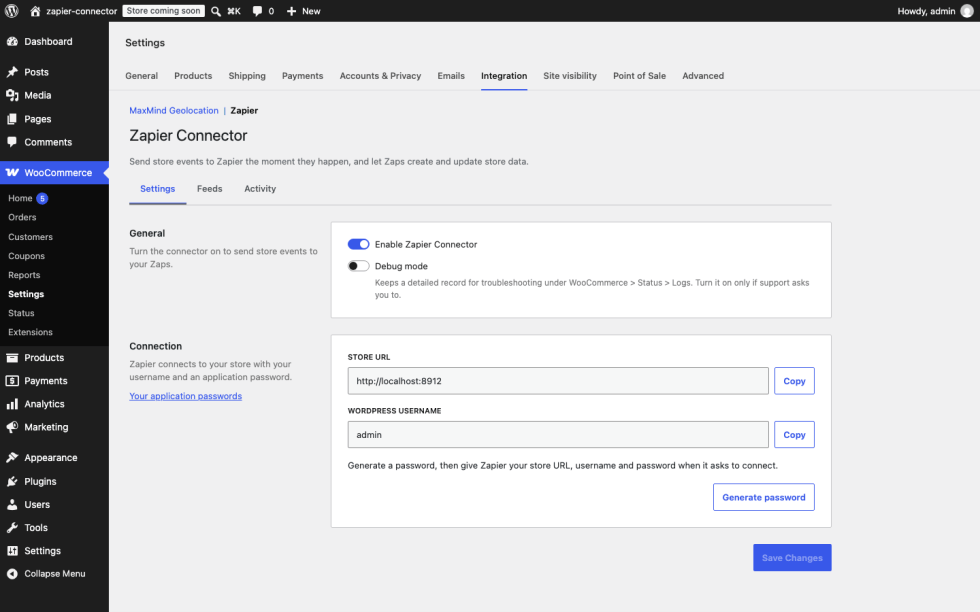
↑ Back to topAll settings live on one screen with three tabs: Settings, Feeds, and Activity. The Feeds tab, the Connection section, and Debug mode stay hidden until you turn the connector on.
Settings tab
↑ Back to topGeneral
Enable Zapier Connector is the master switch. While it is off, the store sends nothing to Zapier. Deliveries and retries already waiting in the queue are dropped when their turn comes, and your feeds stay exactly as they are. Use it to pause every outbound automation at once, for example during a migration or a bulk import, without removing anything. It is off by default.
The master switch only controls what your store sends. Zaps can still create and update store data while it is off, because those calls sign in with an application password. To stop inbound calls, revoke the password in the Connection section below.
Debug mode appears once the connector is on. It writes a detailed record of each delivery, including Zapier’s raw reply, to WooCommerce > Status > Logs under the source zapier-connector. Leave it off in normal use and turn it on when support asks you to.
Changes on this tab are saved with the Save Changes button. If you try to leave with unsaved changes, your browser warns you first.
Connection
This section appears once the connector is on. Zapier connects to your store with three details, which the section shows with a copy button beside each:
- Store URL, your site’s home address.
- WordPress username, the user you are signed in as.
- Application password, which you generate here.
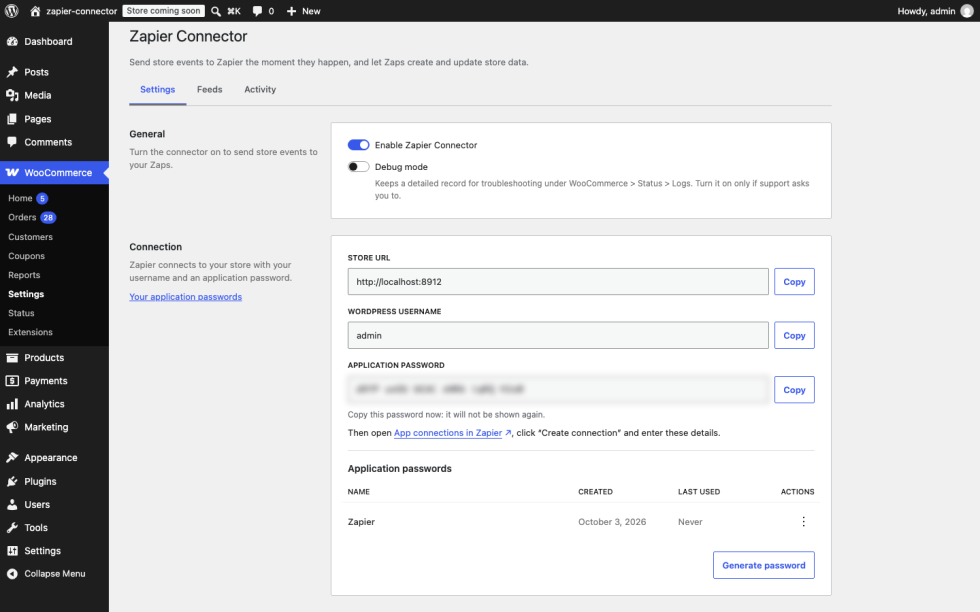
Press Generate password to create an application password named “Zapier” for your user. Copy it straight away, because it is shown only once. Then, in Zapier, open App connections, choose “Create connection”, and enter the three details.
An application password is not your login password. It is a separate credential for one connection, and you can revoke it at any time. Zaps then act on your store as the user who created the password, with that user’s permissions.
The section lists the passwords made here, with the date each was created and last used. Revoke removes one. Any Zap using it stops working until you connect it again with a new password. A link to Application Passwords in your profile covers any passwords made elsewhere.
Some conditions change what the section shows:
- If the site does not use HTTPS, the section asks you to turn HTTPS on first.
- If application passwords are turned off for the whole site, or for your account, the section says so and suggests who to ask.
- If your user cannot create customers through the WooCommerce REST API, a warning says Zaps using your password will not be able to create customers. This applies to shop managers on WooCommerce 9.0. Create the password as an administrator to allow it.
Feeds tab
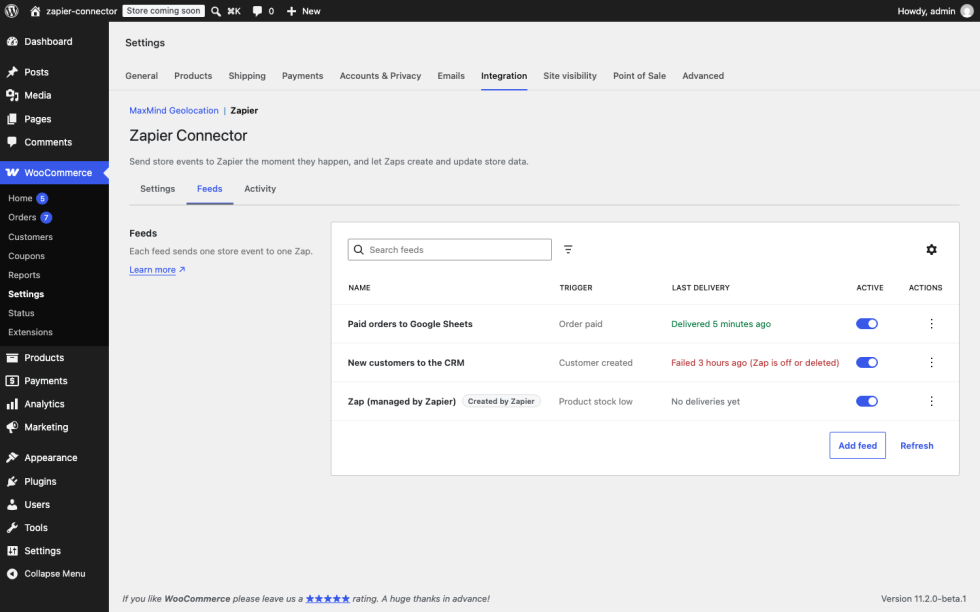
↑ Back to topThe Feeds tab appears once the connector is on. It lists every feed in a table you can search, filter, and sort. Each row shows the feed’s name, its trigger, its last delivery (delivered, failed with the reason, pending, or none yet), and an Active switch. Switching a feed on or off saves immediately. You can also filter feeds by status (Active or Paused), by who created them (Zapier or you), by trigger, and by how their last delivery went.
Each row offers three actions:
- Edit reopens the feed. For a feed Zapier created, only the name can change here. Its trigger and webhook URL belong to the Zap, so change them in Zapier.
- Send sample sends a sample delivery to the feed’s Zap.
- Remove deletes the feed. Its past deliveries stay in the activity log. For a feed Zapier created, removing it here leaves the Zap switched on in Zapier, waiting for events that never come, so turn the Zap off in Zapier instead. To pause a feed for a while, switch Active off rather than removing it.
Add a feed
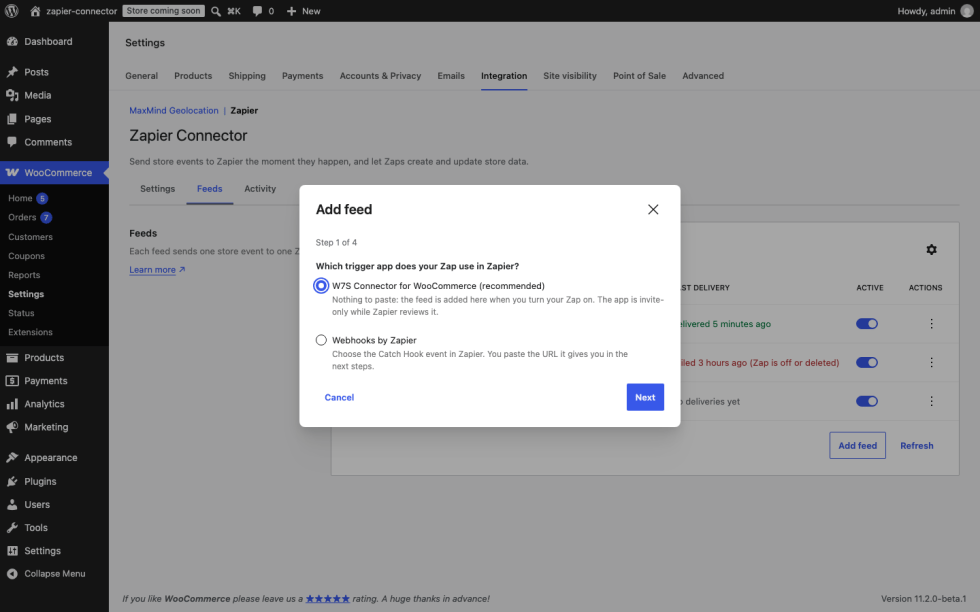
Press Add feed to open a short wizard. The first step asks which trigger app your Zap uses in Zapier.
With the W7S Connector for WooCommerce app (recommended). There is nothing to paste. The wizard shows three steps to follow in Zapier: accept the invite to the app, create a Zap with the app as its trigger, then sign in with the details from the Connection section and turn the Zap on. The feed appears in your list the moment the Zap is turned on, named “Zap (managed by Zapier)”. Turning the Zap off removes the feed. The settings screen does not check for new feeds by itself, so press Refresh beside Add feed if a new feed is not showing yet.
With Webhooks by Zapier. In Zapier, create a Zap with the “Webhooks by Zapier” trigger and the “Catch Hook” event. Then continue in the wizard:
- Trigger. Choose the store event that starts your Zap. Triggers are grouped by resource, and a search box narrows the list.
- Webhook URL. Paste the URL from your Zap’s Catch Hook step. It must start with
https://. If it does not point tohooks.zapier.com, the wizard warns you, and you can continue if that is what you meant. - Test. Press Send sample so your Zap can finish its trigger test with real fields to map. Give the feed a name if you like; an empty name uses the trigger’s name. Press Create feed to save.
Available triggers
The trigger list is built from your store each time you open it, so it matches the statuses and extensions you actually have.
- Orders: created, updated, paid, deleted, restored, status changed (any status), and one “status changed to” trigger for each order status registered on your store, including statuses added by other plugins. Pending payment and checkout draft have no trigger of their own, because every order passes through them.
- Products and variations: created, updated, deleted, restored, stock low, stock status changed (any status), and one trigger per stock status.
- Customers: created, updated, and deleted.
- Coupons: created, updated, deleted, and restored.
- Order notes: created and deleted.
- Subscriptions (with WooCommerce Subscriptions): created, updated, status changed, one trigger per subscription status, renewed, renewal failed, switched, and deleted. Subscription notes: created and deleted.
- Bookings (with WooCommerce Bookings): created, ordered, updated, cancelled, deleted, restored, status changed, and one trigger per booking status.
- Memberships (with WooCommerce Memberships): user membership created, updated, status changed, one trigger per membership status, transferred, and deleted. Membership plans: created, updated, deleted, and restored.
Each delivery carries the object as your store’s WooCommerce REST API describes it, so the fields match what WooCommerce itself uses. “Deleted” triggers are the exception: the object is gone, so they send its ID only. Note triggers send the note itself.
Import webhooks from another Zapier extension
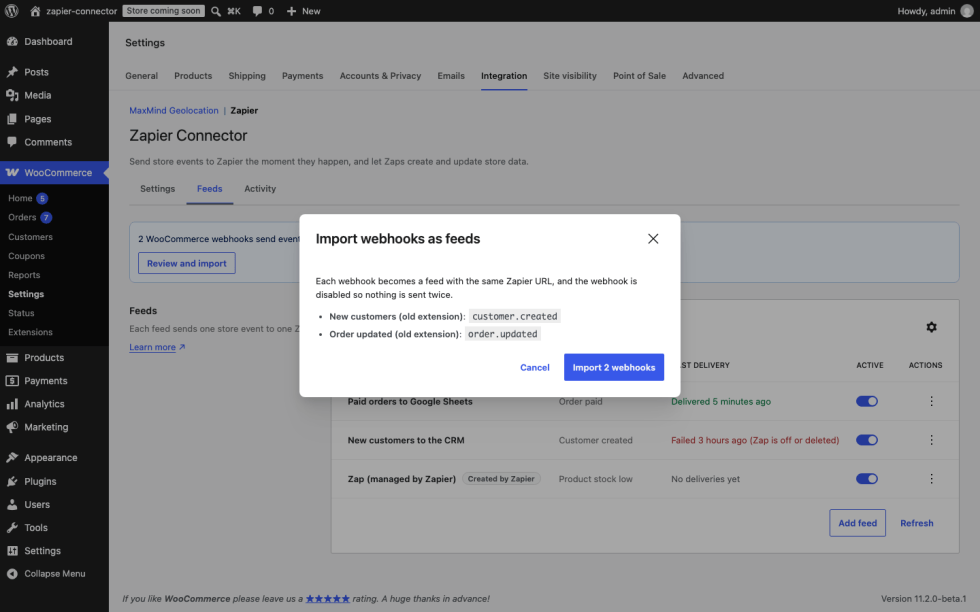
If your store already sends events to Zapier through WooCommerce webhooks created by another extension, a notice at the top of the Feeds tab counts them and offers Review and import.
The review window lists each webhook with its event. Importing turns each one into a feed aimed at the same Zapier URL, so your existing Zaps keep receiving events with nothing to change in Zapier. The original webhooks are disabled at the same time, so nothing is delivered twice.
Webhooks whose event has no match here are listed with the reason and skipped. Webhooks already imported are skipped too. Zaps triggered on subscriptions deserve a check afterwards: the previous extension sent subscriptions in an older format, so a mapped field may now sit under a different name.
Activity tab
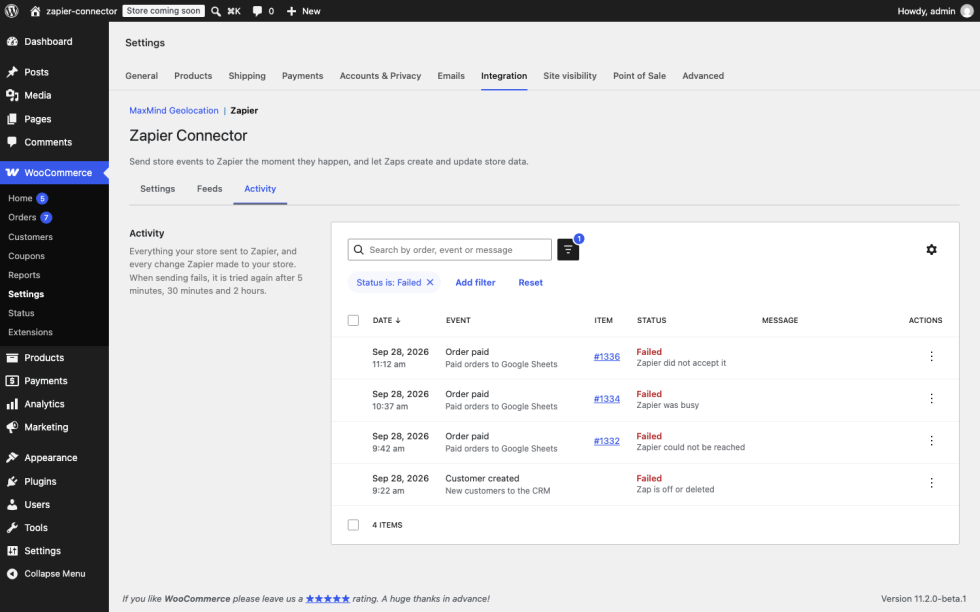
↑ Back to topThe Activity tab records everything your store sent to Zapier and every change Zapier made to your store, newest first. By default each row shows the date, the event, the item it concerned, and the status, plus the message on a wide screen. You can add columns for direction, feed, attempt, duration, and message.
You can search by order number, event, or message. Filters narrow the list by status (success, failed, or pending), direction (to Zapier or from Zapier), event, feed, and date. Where the item still exists, a link opens it: the order, subscription, product, customer, or coupon.
Failed deliveries explain themselves in plain words, for example “Zap is off or deleted”, “Zapier was busy”, “Zapier did not accept it”, or “Zapier could not be reached”.
View details shows exactly what was sent or received. Very large payloads are kept only in part, and the details window says so.
Resend sends a delivery again with the payload exactly as it was first sent. That is what you want after fixing a broken Zap: the event arrives as it happened, not as the item looks now. You can also select several rows and resend them together. Rows that cannot be resent, such as calls from Zapier, are skipped and counted.
Retries
A delivery that fails because Zapier could not be reached, or because Zapier returned a server error, is tried again after 5 minutes, then 30 minutes, then 2 hours. Each try is its own row, labelled “Retry 1 of 3” and so on, so a delivery that failed twice before succeeding tells its whole story. A delivery Zapier refused, for example because the Zap is off or deleted, is not retried, because trying again would not help.
When a feed keeps failing
If five deliveries in a row fail for good on the same feed, the feed pauses itself and writes a line in the activity log saying so. This usually means the Zap was deleted or turned off in Zapier while its feed remained here. Without this safeguard, your store would keep calling a dead address.
To recover, check the Zap still exists and is on, then switch the feed back on with its Active switch. One successful delivery resets the count.
How long activity is kept
Rows are kept for 90 days and removed by a daily cleanup.
System status
↑ Back to topWooCommerce > Status includes a Zapier Connector section with the plugin version, whether the connector is on, the number of active feeds, success and failure counts from the activity log, and the resources detected. It is made to be pasted into a support conversation.
Use cases
↑ Back to topEvery paid order in a spreadsheet and a team channel
↑ Back to topCreate a Zap with the W7S Connector for WooCommerce app and the Order paid trigger. Add two actions in Zapier: add a row to a spreadsheet and post a message to your team channel. Turn the Zap on and its feed appears on the Feeds tab. Each paid order now reaches both places, and the Activity tab confirms every delivery.
If you take cash on delivery or bank transfers, use Order status changed to Processing instead. See the FAQ for why.
Chase failed subscription renewals
↑ Back to topWith WooCommerce Subscriptions active, build a Zap on Subscription renewal failed. Have it create a task in your CRM and alert whoever handles billing. The delivery carries the full subscription as your store’s REST API describes it, so the customer, the amount, and the next payment date are all there to map.
Restock alerts that reach the right person
↑ Back to topOn the products that matter, enable stock management and set a low stock threshold in the product’s Inventory settings. Then build a Zap on Product stock low and send it wherever your buying happens: a channel, a task board, or an email to your supplier. WooCommerce only raises this event when stock management is on for the product and a low stock amount applies.
Reward a customer automatically
↑ Back to topThis one runs the other way. When someone submits a form, or reaches a milestone in your CRM, have the Zap run the create coupon action with a code built from their name. The coupon exists on your store moments later, and the call appears on the Activity tab marked “From Zapier”.
Keep a fulfillment system and your orders in step
↑ Back to topWhen your warehouse marks a parcel as shipped, have the Zap update the order’s status to Completed and add an order note. If you set the note to be visible to the customer, WooCommerce emails it, just as it does for a note written by hand on the order screen.
Working with other W7S extensions
↑ Back to topZapier Connector for WooCommerce sends Zapier what happens on your store, so the more your store records, the more your Zaps can act on. These combinations from the W7S catalog add events worth automating: custom fulfillment steps, fraud reviews, pickup orders, and refund requests. One of them lets an AI assistant check on your Zaps for you. None of them need special setup between the extensions, apart from choosing which tools your assistant gets. Each one works side by side with the settings described above.
Check on your Zaps from a chat. MCP (Model Context Protocol) connects Claude or ChatGPT to your store with tools for orders, customers, products, refunds, and reports. Zapier Connector for WooCommerce publishes 13 tools of its own alongside them, for reading the activity log, checking the connector’s status, listing triggers, managing feeds, and resending deliveries. Install MCP, go to WooCommerce > Settings > MCP, and connect your assistant from the Connection tab. Then add the Zapier Connector tools you want from the Add tools tab. Ask “Which Zapier deliveries failed today, and why?” and the assistant reads the same log you see on the Activity tab. Because MCP also reaches your orders, it can open the order behind a failed delivery in the same conversation. Feed webhook URLs reach the assistant cut to their last ten characters, since anyone holding a full URL can post into the Zap. A read-only API key covers every tool that only looks, including the list of webhooks you could import. Create a key with write access when you want the assistant to create feeds, send samples, resend deliveries, or change settings.
Give each fulfillment step its own Zap. Order Workflows adds custom order statuses such as “In Production”, “Ready for Pickup”, or “Out for Delivery”. The trigger list is read from your store each time you open it, so every custom status appears as its own Order status changed to trigger. Build a Zap on Order status changed to Ready for Pickup to text the customer, or on Out for Delivery to add the order to your driver’s route sheet. It works the other way too. A Zap’s update order action can move an order into a custom status using the slug you set in Order Workflows, so a warehouse system can push orders to the next step. If you add a status after your feeds are set up, open Add feed again to find its trigger.
Get fraud reviews to the right person. Shop Defender checks orders before payment is taken and can block them, put them on hold, or flag them. When it holds or flags an order, it adds an admin note with the risk details. Build a Zap on Order note created and add a Zapier filter on the note text, so only Shop Defender’s notes go through, then send them to whoever reviews risky orders. Each note delivery carries its order ID, so the Zap can fetch the full order with the find order action before it posts. Blocked checkouts never become orders, so nothing is sent for them.
Prepare pickup orders, then record the cash. Cash Payment on Pickup lets customers order online and pay in cash when they collect. Its orders start in On hold by default, and you move them to Processing or Completed once the cash is in hand. Orders like these usually don’t fire Order paid, as the FAQ explains, so build on status triggers instead. A Zap on Order status changed to On hold tells staff to get the order ready. A second Zap on Order status changed to Completed adds the sale to your cash book. Bank transfers land in On hold too, so add a Zapier filter on the order’s payment method title to keep the two apart. If you changed the gateway’s default order status, use that status’s trigger instead.
FAQ
↑ Back to topHow quickly do events reach Zapier?
↑ Back to topEach event is queued the moment it happens and sent by the WooCommerce queue, so there is no polling interval to wait for. On most stores it arrives within seconds to a minute. On a quiet store, or one with WP-Cron turned off, the queue may run less often, so deliveries can take longer.
Will this slow down my checkout?
↑ Back to topNo. Deliveries run in the background, away from the customer’s request, so a slow or unreachable Zap cannot slow a sale.
A Zap did not run. Where do I look?
↑ Back to topStart on the Activity tab and search for the order number. If the delivery is there with a failed status, the event fired and the reason tells you what went wrong on Zapier’s side. If the delivery is not there at all, check three things: the connector is switched on, an active feed uses that exact trigger, and the feed has not paused itself after repeated failures, which the log records as its own line.
Why did “Order paid” not fire for some orders?
↑ Back to topThat trigger follows WooCommerce’s own “payment complete” event, which payment gateways raise when a payment goes through. Orders paid by cash on delivery, bank transfer, or marked as paid by hand usually move to Processing or On hold without that event. For those, use Order status changed to Processing or Order status changed to Completed instead.
I created a Zap but no feed appeared.
↑ Back to topThe feed is created when the Zap is turned on, not while it is a draft. If it is on and the list still looks unchanged, press Refresh beside Add feed. The screen does not check for new feeds by itself.
Why does the payload look different from when the event happened?
↑ Back to topThe first delivery is built from the item as it is when the queue sends it, usually moments after the event. Retries and resends reuse that first payload exactly, so they never drift.
Whose permissions are used to build the data sent to Zapier?
↑ Back to topThe feed’s owner: the user who created it, or who last saved it. If that user is removed or loses access to WooCommerce, deliveries fail with “The store could not gather this item’s details to send”. Edit and save the feed as another store manager to fix it.
Can I use my custom order statuses?
↑ Back to topYes. The trigger list is read from your store when you open it, so a status registered by another plugin appears as its own trigger.
I already use another Zapier extension. Do I have to rebuild my Zaps?
↑ Back to topUsually not. The importer on the Feeds tab points feeds at the same Zapier URLs your webhooks already use, so your Zaps keep running. See “Import webhooks from another Zapier extension” above.
Does turning the connector off stop Zaps from changing my store?
↑ Back to topNo. The master switch stops what your store sends to Zapier. Zaps that write to your store sign in with an application password, and they keep working until you revoke that password in the Connection section.
Are failed calls from Zapier logged?
↑ Back to topThe Activity tab records calls from Zapier that succeeded. When a call is refused, for example because a required field is missing, Zapier receives the error and shows it in the Zap’s history, but no row is added here.
Does it work with HPOS and the block checkout?
↑ Back to topYes. Both are declared compatible.
What happens if I deactivate the plugin?
↑ Back to topDeliveries waiting in the queue are cancelled and nothing further is sent. Feeds, settings, and the activity log are kept, so reactivating picks up where you left off.
What happens if I delete the plugin?
↑ Back to topDeleting the plugin removes its settings, feeds, activity log, and scheduled tasks, on every site of a network. It also revokes the application passwords created in the Connection section, so Zaps using them stop working. Passwords you created yourself in your profile are left alone.
Does it work on a multisite network?
↑ Back to topYes. Each site keeps its own feeds, settings, and activity log. Activating across a network sets up every site, and a site added later is set up when it is created.
Which data leaves my store?
↑ Back to topOnly what the triggers you chose carry: the item as your store’s REST API describes it, sent to the URL of the Zap behind each feed. Nothing is sent anywhere else, and nothing is sent at all while the master switch is off. For safety, the plugin refuses webhook URLs that point to your own network, as WooCommerce’s own webhooks do.
Developer documentation
↑ Back to topAdmin screen
↑ Back to topThe settings screen is a React app registered as a WC_Integration (ZAPC_Integration, id zapier-connector) and mounted at admin.php?page=wc-settings&tab=integration§ion=zapier-connector. The optional subtab query argument (settings, feeds, or activity) opens a tab directly. Requests to the 1.0.0 address (tab=advanced§ion=zapier-connector) redirect here with subtab preserved.
REST API
↑ Back to topAll routes live under the zapier-connector/v1 namespace and require the manage_woocommerce capability. Clients authenticate as a normal WordPress user, in practice with an application password.
Routes consumed by the settings screen:
| Route | Method | Purpose |
|---|---|---|
/settings | GET, POST | Read and partially update enabled and debug_mode. Feeds are not read or written here. |
/feeds | GET, POST | List feeds, or create one (trigger and url required, name and active optional). Returns 201 with warnings. |
/feeds/{id} | GET, POST, PUT, PATCH, DELETE | Read, update, or delete one feed. trigger and url are ignored when updating a managed feed. |
/triggers | GET | Triggers grouped by resource. |
/history | GET | Activity log, paginated (page, per_page up to 100) and filterable by search, trigger, feed_id, resource, direction, status, date_after, date_before, orderby, and order. Returns rows, total, and total_pages, plus X-WP-Total headers. |
/history/{id} | GET | One row with its payload. |
/history/{id}/resend | POST | Replay one outbound delivery with its stored payload. |
/history/resend | POST | Replay up to 100 deliveries (ids). Returns results, each with id, success, http_status, new_id, and skipped_reason (not_found, inbound, no_payload, or no_target_url). |
/import | GET, POST | Preview importable webhooks, or run the import (disable_webhooks, default true). |
/test-feed | POST | Send a sample payload (url, trigger). |
Routes consumed by the Zapier app:
| Route | Method | Purpose |
|---|---|---|
/ping | GET | Connection test. Returns plugin, version, enabled, and store. |
/hooks | POST | REST Hook subscribe (trigger, target_url). Creates a managed feed and returns its id. |
/hooks/{id} | DELETE | Unsubscribe. Removes the feed. Idempotent. |
/samples | GET | Recent real payloads for a trigger (limit, default 3, maximum 10), or a stub on an empty store. |
/hook-triggers | GET | Flat trigger list for dynamic dropdowns, optionally filtered by resource. |
/actions/{resource} | POST | Create an object. |
/actions/{resource}/{id} | PUT, PATCH | Update an object. |
/actions/{resource}/find | GET | Find one object. |
Action routes delegate to WooCommerce’s own REST endpoints as the authenticated user, so request bodies take the same fields as those endpoints. {resource} is one of order, product, customer, coupon, and order_note, plus subscription and subscription_note with WooCommerce Subscriptions, user_membership and membership_plan with WooCommerce Memberships, and booking with WooCommerce Bookings.
Note resources take their parent as order_id, subscription_id, or parent_id, in the body for writes and in the query string for lookups.
The find route accepts id for any resource (a note also needs its parent, as above), or one lookup key per resource, and returns the first match:
customer:email(searched across all roles).product:sku.coupon:code.order:number, passed to the orders endpoint’ssearch, so it also matches order numbers from numbering plugins.subscriptionanduser_membership:customer_id.membership_plan:slug.
Successful action calls are logged with direction in and trigger keys such as order.create, order.update, and order.find. Errors from the delegated WooCommerce endpoint are returned unchanged and are not logged.
Error codes
↑ Back to topFeed, settings, history, and ability errors use zapier_connector_missing_<field>, zapier_connector_invalid_<field>, zapier_connector_<resource>_not_found, zapier_connector_forbidden, and zapier_connector_not_initialized. The action routes still return zapc_unknown_resource (404), zapc_missing_lookup (400), zapc_missing_parent (400), and zapc_not_found (404).
Filters
↑ Back to topzapier_connector_resources filters the list of ZAPC_Resource instances. Use it to add a resource with its own triggers, or to remove one. It runs once per request and the result is cached. The plugin can first read it on init at priority 5, so add the filter earlier, for example on plugins_loaded.
add_filter( 'zapier_connector_resources', function ( $resources ) {
    $resources[] = new My_Custom_Resource();
    return $resources;
} );
A resource extends ZAPC_Resource and implements get_key(), get_label(), get_rest_base() (the wc/v3 base used to build payloads, or null), and get_triggers(). Each trigger is an array with key, label, and hooks, and optionally status, an accept callback that gates the event, and a resolve callback that returns the object ID or IDs. A resource may define build_payload( $object_id, $trigger_key, $args ) to build its payload when the event fires. Custom resources gain triggers only: the action routes serve the fixed resource list above.
zapier_connector_max_consecutive_failures sets how many final delivery failures in a row pause a feed. Default 5.
add_filter( 'zapier_connector_max_consecutive_failures', function () {
    return 10;
} );
zapier_connector_history_retention_days sets how many days of activity the daily cleanup keeps. Default 90.
add_filter( 'zapier_connector_history_retention_days', function () {
    return 365;
} );
The plugin also filters w7s_mcp_is_write_operation to tell the w7s MCP connector which of its abilities write.
Deliveries
↑ Back to topListeners are attached on init only for triggers that have an active feed, and only while the master switch is on. The same trigger fires once per object per request.
Deliveries are queued in Action Scheduler on the zapier_connector_deliver hook, group zapier-connector, and visible under WooCommerce > Status > Scheduled Actions. The payload is built at delivery time with an internal GET to the resource’s wc/v3 route, as the feed’s owner (user_id, the last user to save the feed). Deleted objects send { "id": … }, and notes send the note built at fire time. Retries carry the payload of the first attempt.
Each delivery is a wp_safe_remote_post() with a 15-second timeout and these headers:
Content-Type: application/jsonX-Zc-Trigger: the trigger key.X-Zc-Store-Url: the store’s home URL.X-Zc-Delivery-Ver: the plugin version.
A 2xx response is a success. A transport error or a 5xx response is retried as a single scheduled action after 300, 1800, and 7200 seconds. Any other status is final. Final failures count toward the feed’s pause threshold, stored in the zapc_feed_failures option. A success resets the count.
The daily history cleanup runs on WP-Cron as zapier_connector_history_cleanup.
Data storage
↑ Back to topSettings live in the zapc_settings option: enabled, debug_mode, and the feeds array. Each feed has id (12 hex characters), name, trigger, url, active, managed (created by Zapier), and user_id.
The {prefix}zapc_history table holds one row per delivery attempt and per inbound action, with date_gmt, direction, feed_id, trigger_key, resource, object_id, target_url, status, http_status, message, attempt, duration_ms, and payload. Payloads are capped at 64 KB, because the log is a diagnostic and not an archive. The schema version is stored in zapc_db_version and upgraded on plugins_loaded.
Application passwords created from the Connection section carry the app ID 0ba0003b-3d9a-4db8-be4a-add3f0841749. The screen lists, and uninstall revokes, only passwords with that ID.
Logging
↑ Back to topWith Debug mode on, the plugin writes to the WooCommerce logger under the source zapier-connector, readable at WooCommerce > Status > Logs. Entries cover each delivery result with Zapier’s response, payloads that could not be built, and feeds paused after repeated failures.
MCP tools (WordPress Abilities API)
↑ Back to topThe plugin registers 13 abilities in the zapier-connector category through the Abilities API that ships with WordPress 6.9. Any MCP connector can discover them with wp_get_abilities(). Each requires manage_woocommerce, and each is marked public for MCP. The plugin registers the abilities only; it does not run an MCP server.
| Ability | Type |
|---|---|
zapier-connector/get-settings | Read. Webhook URLs are cut to their last ten characters, since anyone holding one can post into the Zap. |
zapier-connector/list-triggers | Read. |
zapier-connector/list-activity | Read. |
zapier-connector/get-activity-entry | Read. Includes the payload. |
zapier-connector/get-status | Read. Connector state, feed counts, and delivery counts for the last 24 hours. |
zapier-connector/list-import-candidates | Read. |
zapier-connector/create-feed | Write. |
zapier-connector/update-feed | Write, idempotent. |
zapier-connector/delete-feed | Write, destructive. |
zapier-connector/send-sample | Write. Sends a delivery. |
zapier-connector/resend-delivery | Write. Sends a delivery. |
zapier-connector/update-settings | Write, idempotent. |
zapier-connector/import-webhooks | Write, destructive. Disables the source webhooks by default. |
Activation, deactivation, and uninstall
↑ Back to topActivation creates the history table, on every site when network-activated. Sites created later on a network where the plugin is network-active get the table on wp_initialize_site.
Deactivation cancels queued zapier_connector_deliver actions and clears the cleanup event. Options and the table are kept.
Uninstall deletes zapc_settings, zapc_db_version, zapc_feed_failures, and woocommerce_zapier-connector_settings, unschedules deliveries and the cleanup event, drops the history table on every site, and revokes the plugin’s application passwords for every user.

