
Archive Old Orders for WooCommerce moves older orders out of your live WooCommerce order tables and into a separate archive. Your Orders screen stays short and quick to load, and you can still view, export, or restore any archived order when you need it. This guide walks you through every setting, shows a few common ways stores set it up, explains how it fits with other W7S extensions, and covers the developer tools that come with it.
Overview
↑ Back to topArchive Old Orders for WooCommerce copies orders that match your rules (age and order status) into a set of archive database tables, then removes them from WooCommerce’s live order tables. Archived orders no longer appear under WooCommerce > Orders. They appear under WooCommerce > Orders Archive instead, where you can view, export, restore, or permanently delete them.
Archiving runs in the background on a schedule you control. You can also archive individual orders by hand from the Orders screen, or in bulk from the command line with WP-CLI. Optional settings let customers see their archived orders in My Account, and let you permanently delete archived orders after a retention period.
Requirements
↑ Back to top- WordPress 6.4 or later.
- PHP 7.4 or later.
- WooCommerce 9.0 or later. WooCommerce must be installed and active.
- Action Scheduler, which ships with WooCommerce. If Action Scheduler is not available, the extension falls back to WP-Cron and shows an admin notice.
- A user account with the
manage_woocommercecapability (Administrators and Shop Managers have this by default) to change settings and manage archived orders. - A writable
wp-content/uploads/folder, which the extension uses for export files.
The extension works with both High-Performance Order Storage (HPOS) and the legacy posts-based order storage. It also works when HPOS compatibility mode (data synchronization) is turned on, in which case orders are archived from both storage systems.
Installation
↑ Back to topTo start using a product from WooCommerce.com, you can use the “Add to store” functionality on the order confirmation page or the My subscriptions section in your account.
- Navigate to My subscriptions.
- Find the Add to store button next to the product you’re planning to install.
- Follow the instructions on the screen, and the product will be automatically added to your store.
Alternative options and more information at:
Managing WooCommerce.com subscriptions.
There are no other setup steps such as API keys or account connections. Archiving is turned off when you first install the extension, so nothing happens to your orders until you turn it on. Follow the steps in the Usage section below to configure it.
Usage
↑ Back to topHow archiving works
↑ Back to topEach archiving run looks for orders that are older than the number of days you set and that have one of the order statuses you selected. Age is based on the date the order was created. For each matching order, the extension copies the order, its items, notes, and related data into the archive tables. It then removes the order from the live WooCommerce tables.
Scheduled runs process 50 orders at a time. They also stop early if the server is close to its PHP time limit, so an order is never cut off halfway through. If a run stops early, the next run picks up where it left off.
If an order cannot be archived, the extension leaves it in place, adds the order note “Automated order archival failed. Please archive the order manually.”, and skips that order on future scheduled runs. You can still archive it by hand.
When you archive an order by hand, the extension adds an order note recording the username of the person who archived it. The note is kept with the archived order.
Archived orders are removed from WooCommerce’s reporting tables along with the rest of the order data. This means archived orders no longer count toward WooCommerce Analytics reports.
Order Archive settings
↑ Back to topGo to WooCommerce > Settings > Advanced > Order Archive. The page has three sections: General, Advanced, and Export. Select Save Settings at the bottom of the page after making changes.
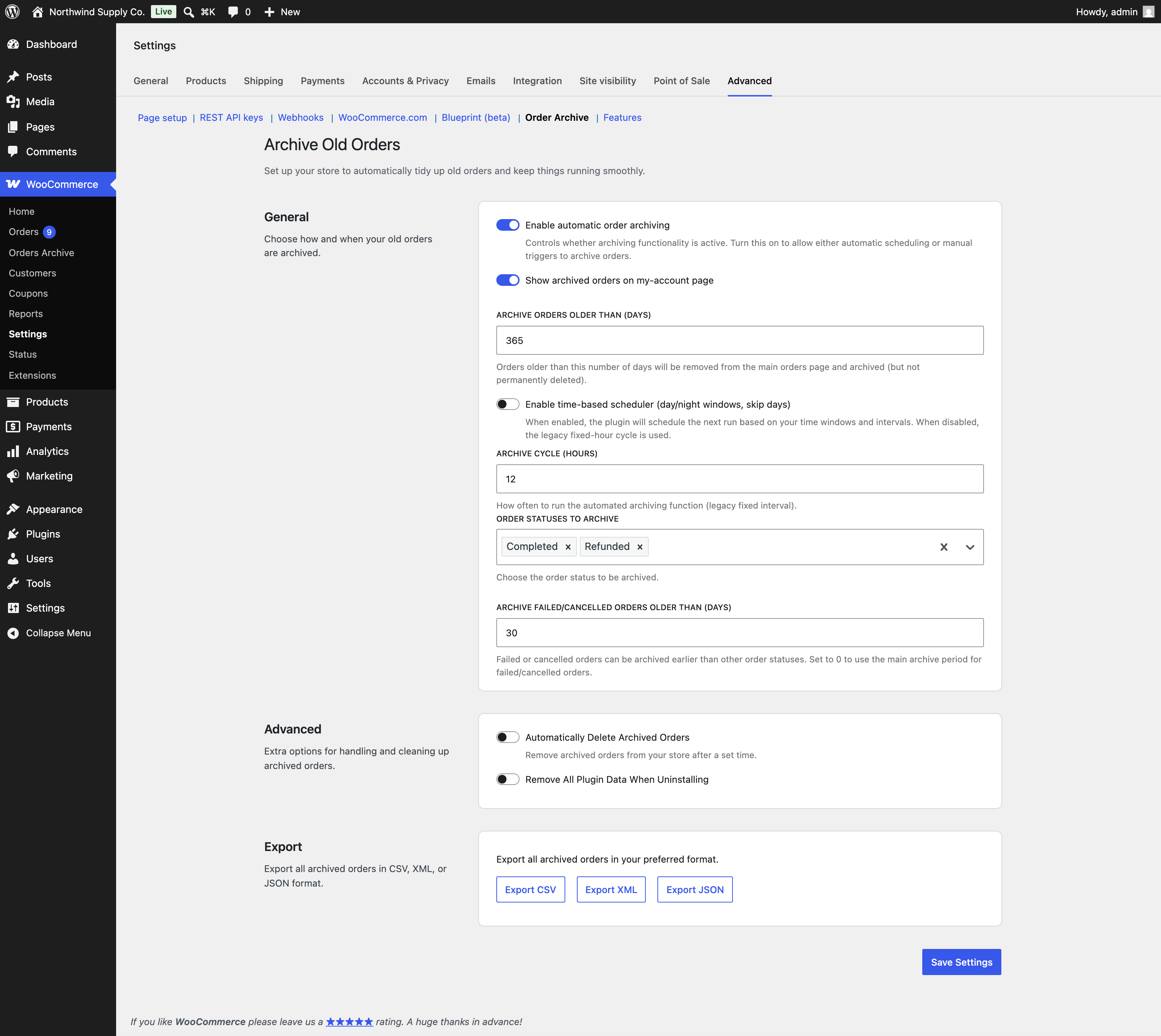
General settings
Most General settings only appear after you turn on Enable automatic order archiving.
Enable automatic order archiving turns scheduled archiving on or off. While it is off, no background archiving runs. It is off by default. Manual archiving from the Orders screen and WP-CLI still work while this is off.
Show archived orders on my-account page adds an Archived Orders tab to the customer’s My Account area. Customers can then see a list of their archived orders and open each one to view its details. It is off by default. See “What your customers see” below.
Archive Orders Older Than (Days) sets how old an order must be before it is archived. The age is counted from the order’s creation date. The default is 365 days. Pick a number that keeps the orders your team still works with, such as open returns or recent disputes, in the live list.
Enable time-based scheduler (day/night windows, skip days) switches between two ways of scheduling runs. When it is off, archiving runs at a fixed interval set by Archive cycle (Hours). When it is on, you set a daytime window with its own interval, a nighttime interval, and days to skip. Use it when you want archiving to run more often during quiet hours and less often while your store is busy. It is off by default.
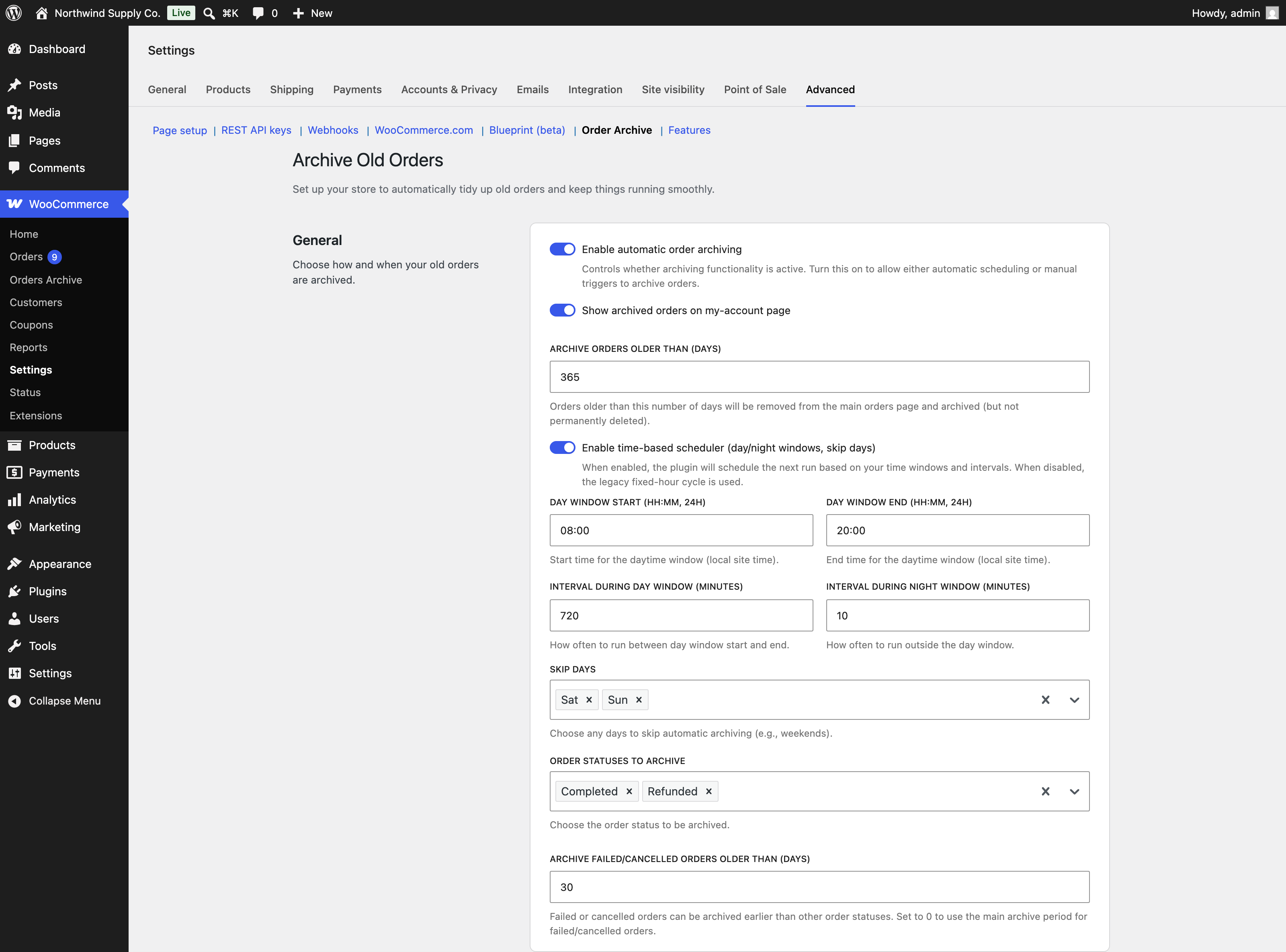
These fields appear only when the time-based scheduler is on:
- Day window start (HH:MM, 24h) and Day window end (HH:MM, 24h) define your daytime window in your site’s time zone. The defaults are 09:00 and 17:00. You can type times like 9, 905, or 17.00 and the field corrects them to HH:MM when you leave it.
- Interval during day window (minutes) is how often archiving runs inside the day window. The default is 5 minutes. If you set it longer than the window itself, the next run waits until the window ends.
- Interval during night window (minutes) is how often archiving runs outside the day window. The default is 60 minutes. A run is always scheduled for the moment the day window opens.
- Skip days lists days of the week with no archiving at all. On a skipped day, the next run moves to the start of the day window on the next day that is not skipped.
Archive cycle (Hours) appears only when the time-based scheduler is off. It sets how often archiving runs, from 0.5 hours (every 30 minutes) to 24 hours, in steps of 0.5. The default is 12 hours.
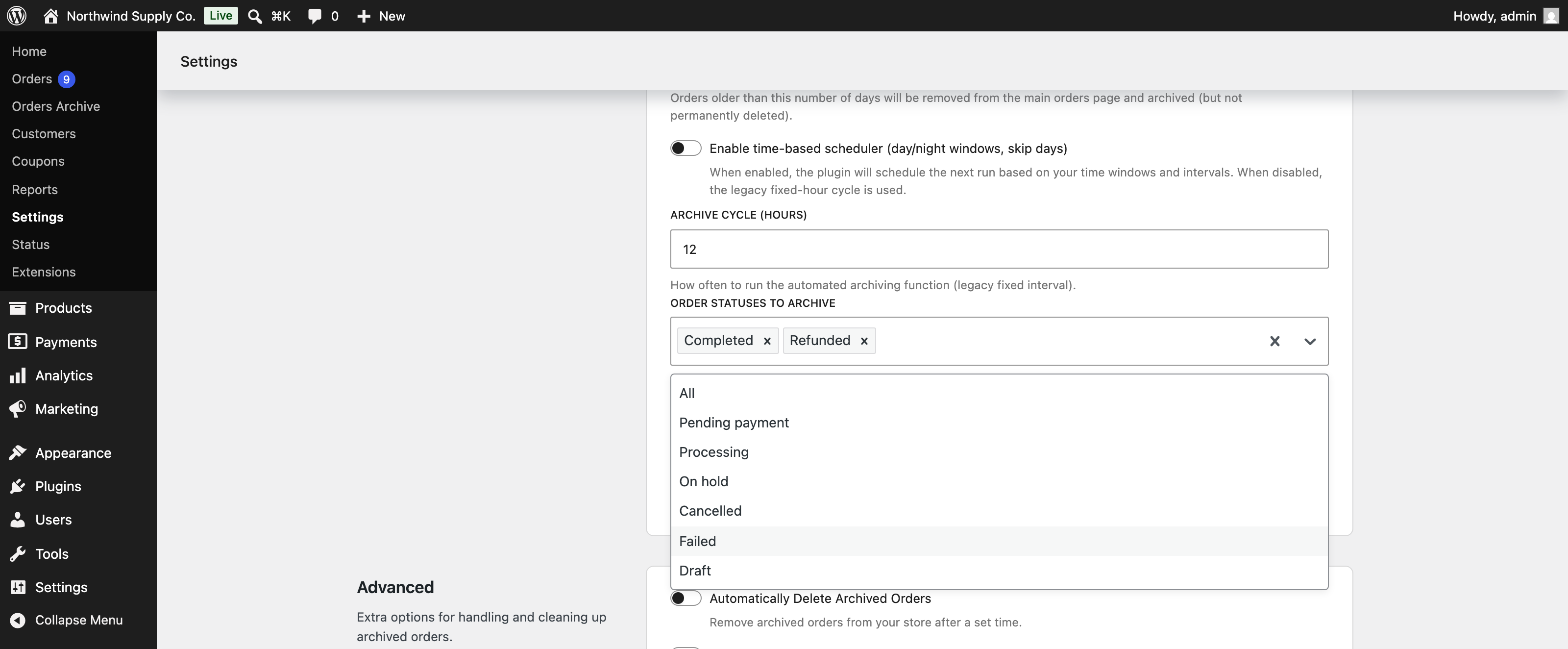
Order Statuses to Archive lets you choose which order statuses are eligible. The list includes WooCommerce’s core statuses, any custom statuses registered on your store, and an All option. If you leave this field empty, every status is eligible, the same as choosing All. Choose only the statuses you are sure you no longer need in the live list. Completed and Refunded are common choices.
Archive Failed/Cancelled Orders Older Than (Days) gives failed and cancelled orders their own, usually shorter, threshold. These are often abandoned checkouts that clutter the list without being useful. When you set a value above 0, each run also archives failed and cancelled orders older than this number of days, whether or not you selected those statuses above. The default is 0, which turns this extra pass off. With 0, failed and cancelled orders are only archived if you selected them in Order Statuses to Archive, and then at the main threshold.
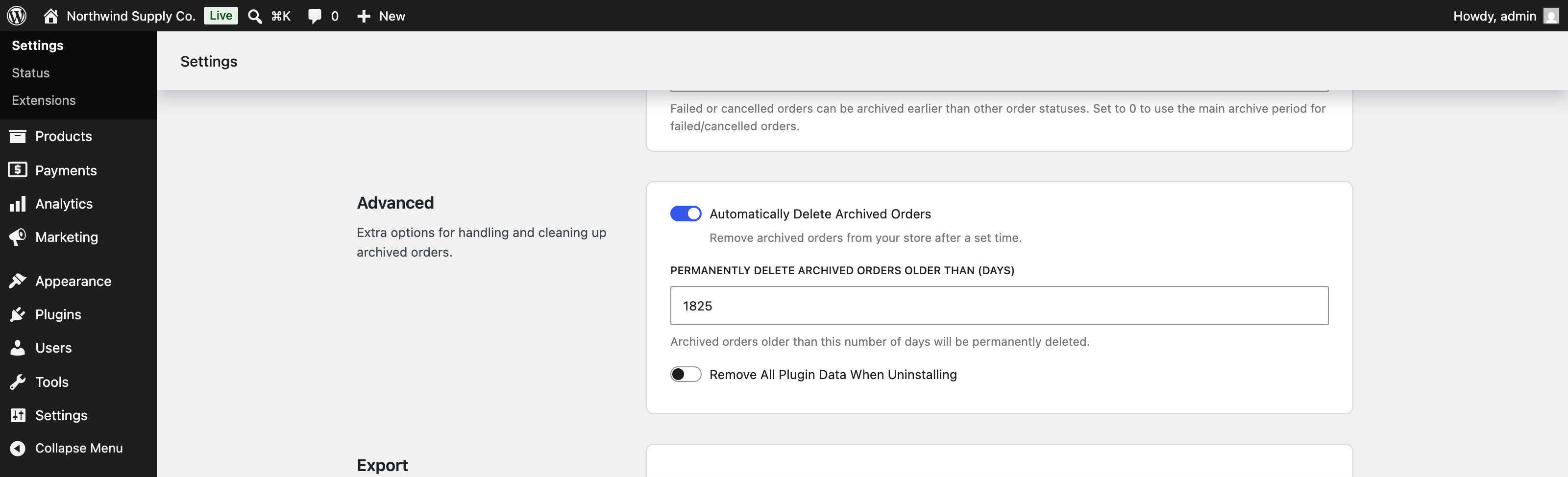
Advanced settings
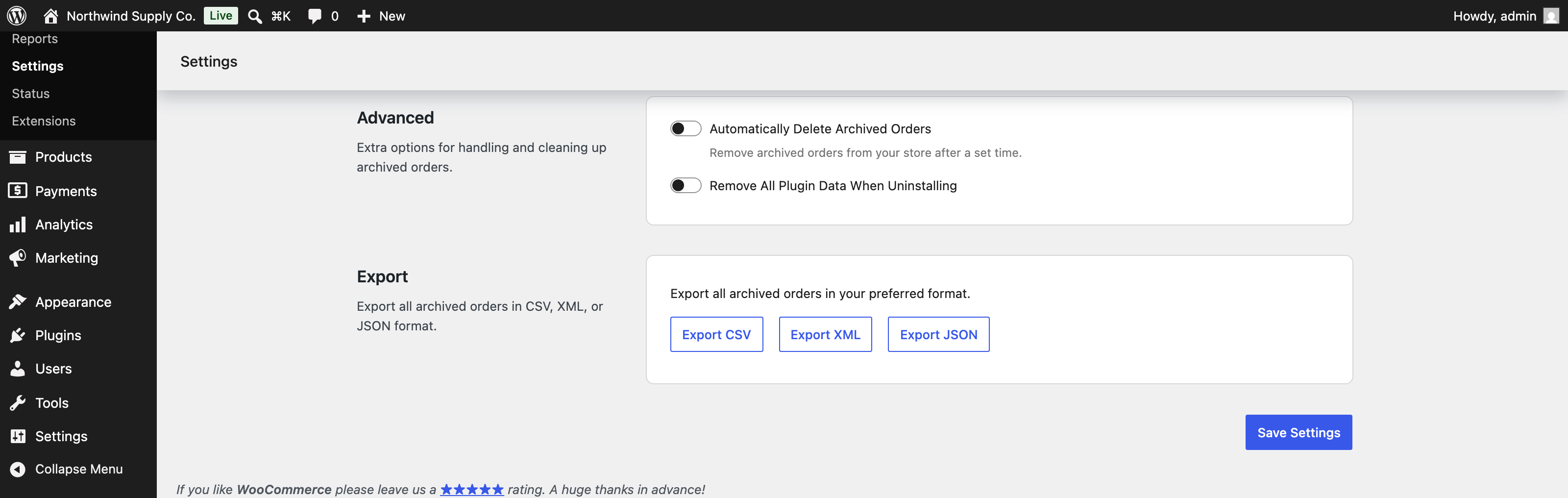
Automatically Delete Archived Orders turns on permanent deletion of archived orders after a retention period. It is off by default. Use it if your data retention policy says order records should not be kept forever.
Permanently Delete Archived Orders Older Than (Days) appears when automatic deletion is on. Archived orders are deleted once they have been in the archive for this many days. The count starts on the date each order was archived, not the date it was placed. The field is designed for a minimum of 90 days. The deletion job runs twice a day and handles up to 500 orders per run.
Before each deletion run, the extension writes the orders it is about to delete to a CSV file in wp-content/uploads/archive-old-orders/. The file name starts with aoo-deleted-archived-orders- followed by the date and time. If that file cannot be written, nothing is deleted in that run.
Remove All Plugin Data When Uninstalling controls what happens when you delete the extension from WP Admin > Plugins. When it is on, the archive tables and all extension settings are removed, which permanently deletes every archived order. When it is off, the archive tables stay in your database. It is off by default. Deactivating the extension never removes data. Only deleting it does.
Export
The Export section downloads every archived order as a single file. Select Export CSV, Export XML, or Export JSON. Large archives are processed in batches, so the download can take a few minutes to start. If you have no archived orders yet, this section says so and the buttons do not appear.
Exports include the order number, date, status, currency, totals, customer details, billing and shipping addresses, line items, shipping and payment method, taxes, coupons, discounts, fees, and order notes.
Archive orders manually
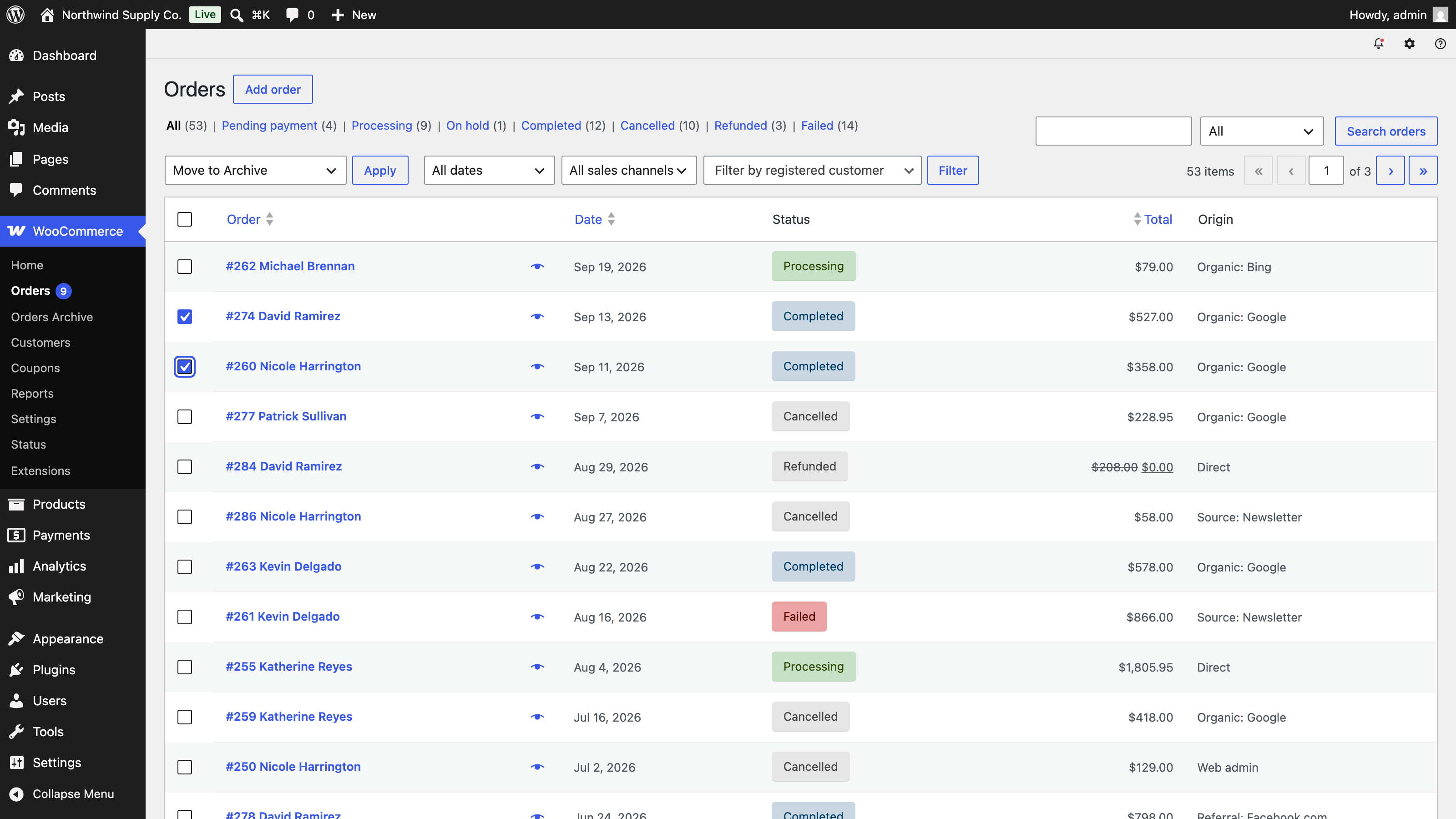
↑ Back to topYou can archive any order right away, whatever its age or status, from the WooCommerce Orders screen. There are three ways to do it:
- On WooCommerce > Orders, select one or more orders, choose Move to Archive from the Bulk actions menu, and select Apply.
- On WooCommerce > Orders, select the Archive Order button in the order’s Actions column.
- While editing an order, choose Move to Archive from the Order actions box and select the update button.
If a scheduled run is in progress at that moment, the manual archive is skipped. Wait a few minutes and try again.
The Orders Archive screen
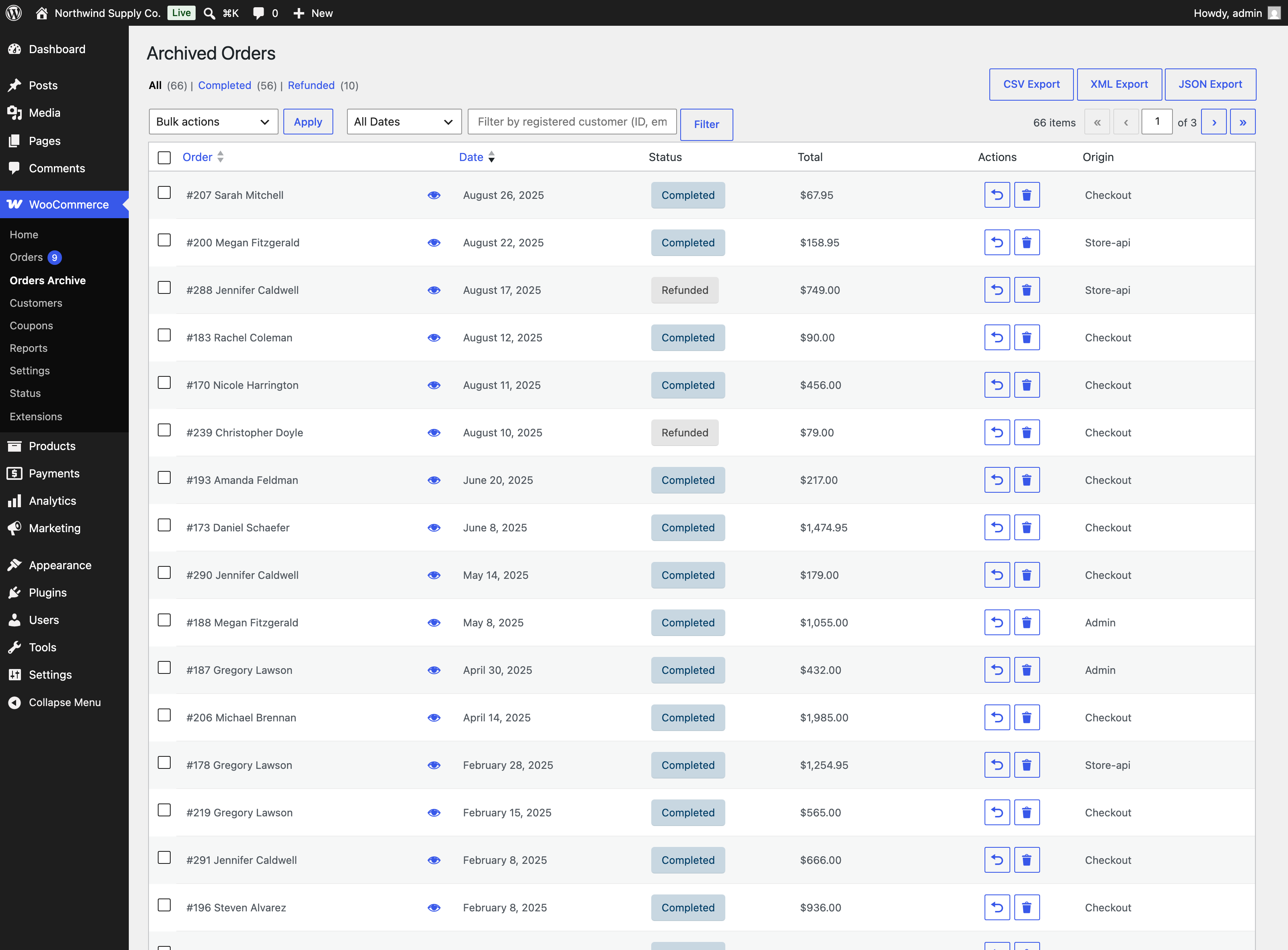
↑ Back to topGo to WooCommerce > Orders Archive to work with archived orders. The list shows 30 orders per page, with the order number and customer name, date, status, total, action buttons, and origin (how the order was created, such as checkout or admin).
You can narrow the list in a few ways:
- Status links above the table filter by order status and show a count for each.
- The month dropdown filters by the month the order was placed.
- The search field matches customer name, email address, customer ID, or order ID. Name searches match the start of a first or last name, so “Kub” finds “Kubstrup”.
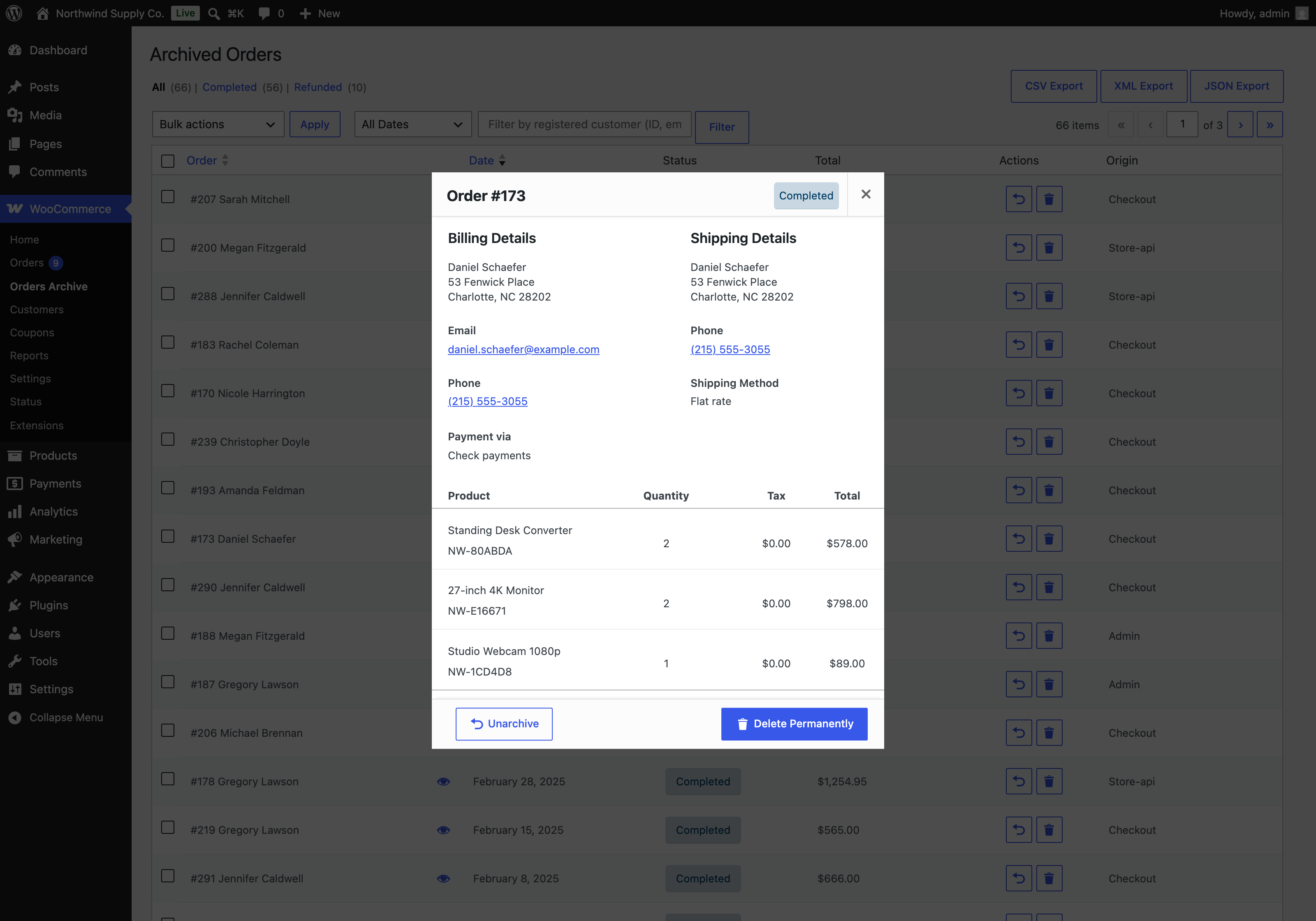
For a single order, select the eye icon next to the order number to view billing and shipping details, contact details, shipping and payment method, and line items. From that view, or from the Actions column, you can Unarchive the order or Delete Permanently.
For several orders at once, select them and use the Bulk actions menu: Export to CSV File, Export to XML File, Unarchive Orders, or Permanently Delete.
Unarchiving moves the order back to WooCommerce > Orders with its original data. Restored orders are marked so that scheduled archiving and WP-CLI skip them from then on. If you want to archive a restored order again, do it manually.
Run an archiving cycle now
↑ Back to topYou do not have to wait for the next scheduled run. To start one right away:
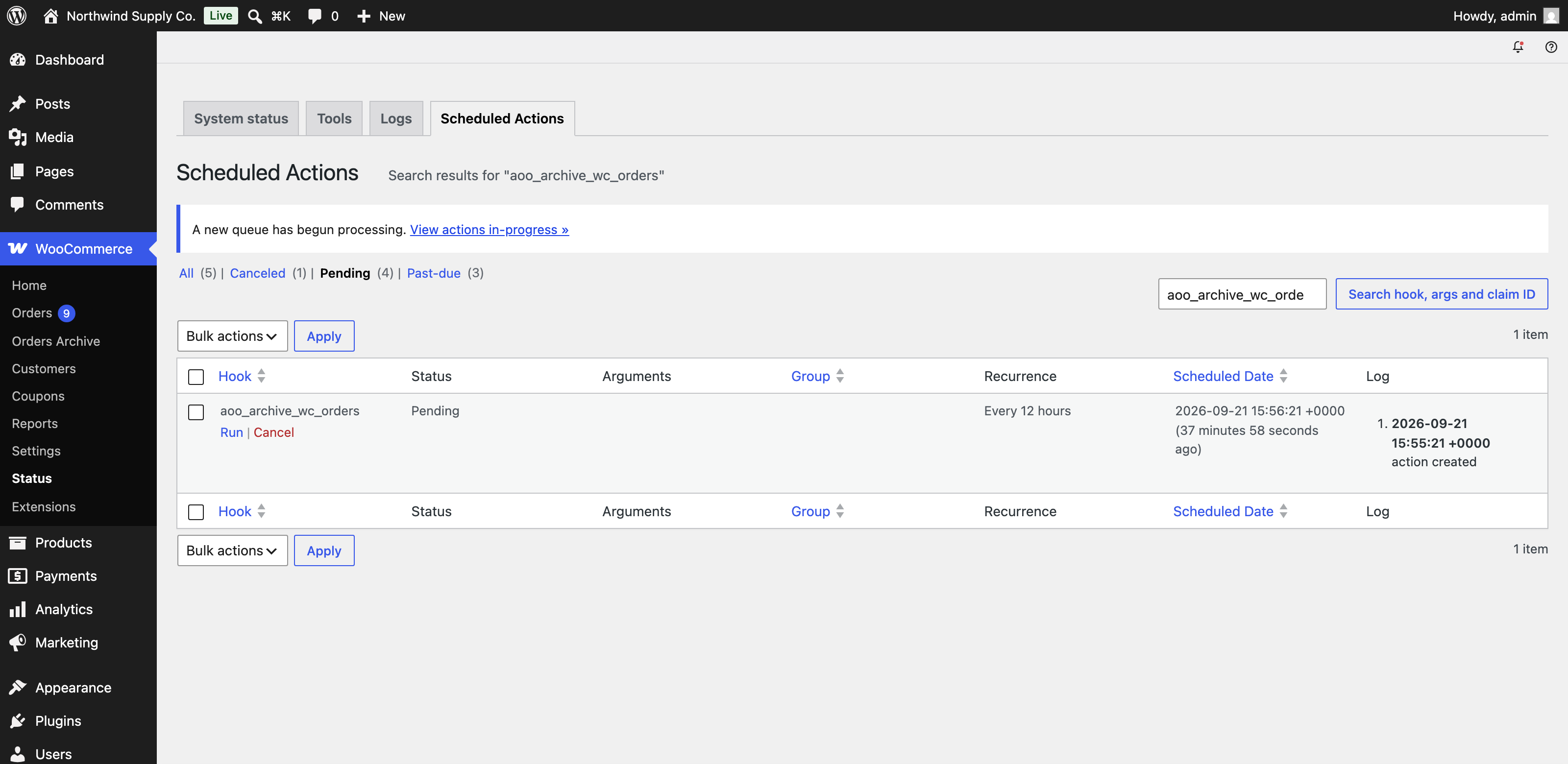
- Go to WooCommerce > Status > Scheduled Actions.
- Search for
aoo_archive_wc_orders. - Hover over the pending action and select Run.
The run only archives orders if Enable automatic order archiving is on.
What your customers see
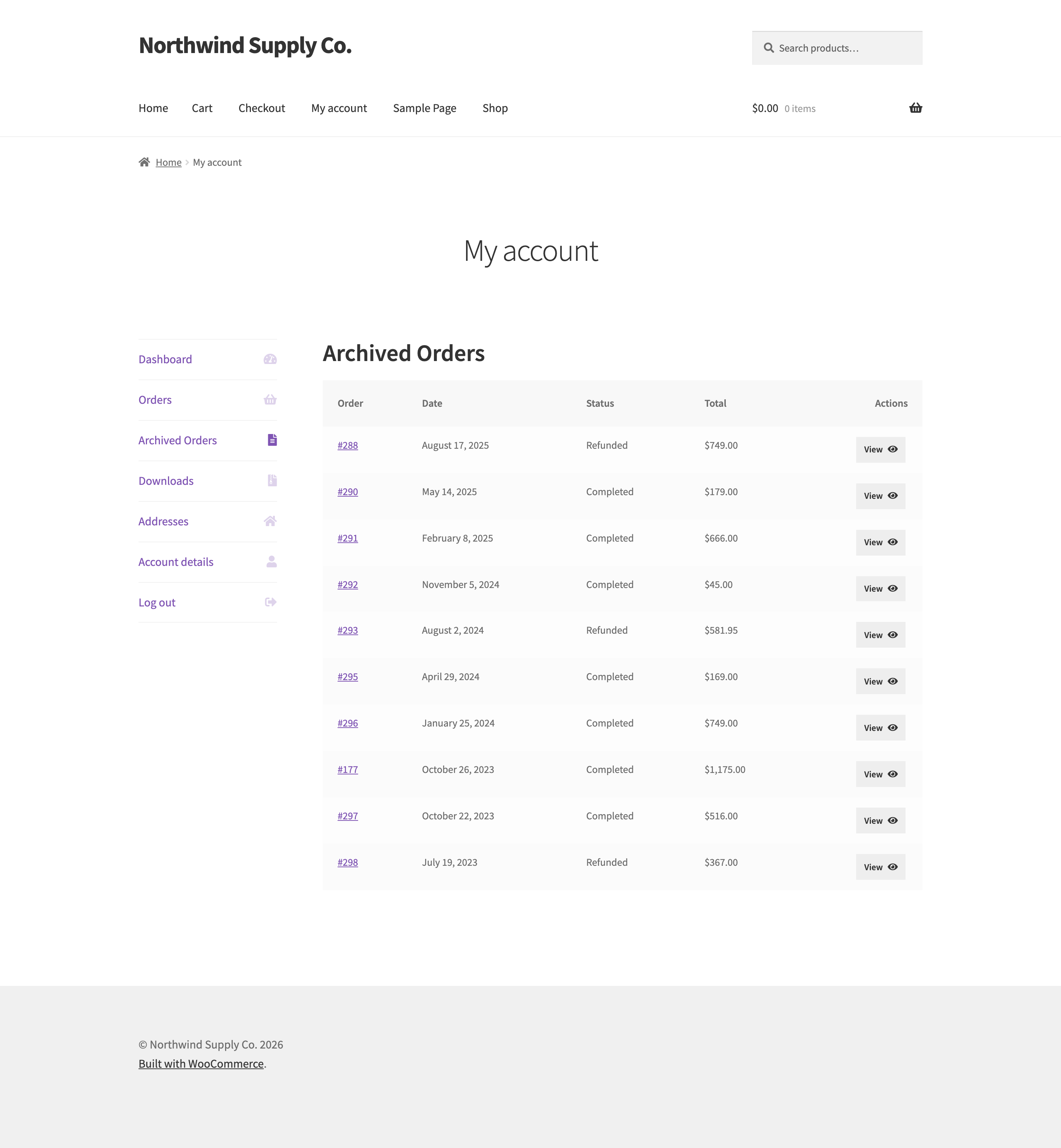
↑ Back to topWhen Show archived orders on my-account page is on, customers see an Archived Orders tab in My Account. It lists their archived orders 10 at a time with the order number, date, status, and total. Selecting View shows the order details using your store’s normal order details layout.
The regular Orders tab in My Account only shows orders that are still in the live tables. If the setting is off, customers cannot see their archived orders at all.
Use cases
↑ Back to topClear a large backlog on a store with years of orders
↑ Back to topPeter’s store has 100,000 orders placed over six years. The Orders screen is slow, and his store still uses legacy order storage because of a third-party plugin. He wants everything completed or refunded that is older than a year out of the live list as soon as possible.
- In the Order Archive settings, turn on Enable automatic order archiving, set Archive Orders Older Than (Days) to 365, and choose Completed and Refunded in Order Statuses to Archive.
- Set Archive cycle (Hours) to 0.5. Each run archives 50 orders, so this clears about 100 orders an hour on its own.
- To go faster, have a developer or your host run the WP-CLI command, which can handle up to 500 orders per run. Preview first with
wp wc-order-archive archive --before=365 --status=wc-completed,wc-refunded --dry-run, then run it without--dry-runrepeatedly until no orders match.
Once the backlog is cleared, the scheduled runs keep up with new orders as they reach a year old. See the Developer documentation section for ways to raise the batch sizes.
Archive only outside business hours
↑ Back to topA busy store wants archiving to stay out of the way while staff are processing orders during the day.
- Turn on Enable time-based scheduler.
- Set Day window start to 08:00 and Day window end to 20:00.
- Set Interval during day window (minutes) to 720. Because that is longer than the window, archiving runs once as the window opens and not again until it closes.
- Set Interval during night window (minutes) to 10, so archiving runs every 10 minutes overnight.
- If weekends are your busiest days, add Sat and Sun to Skip days. No archiving runs on those days.
Clear abandoned checkouts quickly while keeping completed orders longer
↑ Back to topA store wants completed orders in the live list for a full year, but failed and cancelled orders from abandoned checkouts are just noise after a month.
- Set Archive Orders Older Than (Days) to 365.
- In Order Statuses to Archive, choose Completed and Refunded.
- Set Archive Failed/Cancelled Orders Older Than (Days) to 30.
Each run now archives completed and refunded orders older than a year, then failed and cancelled orders older than 30 days.
Keep order records for a fixed retention period
↑ Back to topA store’s data retention policy says order records should be deleted after seven years. The store archives completed orders after two years, and deletes them once they have been in the archive for five more.
- Set Archive Orders Older Than (Days) to 730 and choose Completed in Order Statuses to Archive.
- Turn on Automatically Delete Archived Orders.
- Set Permanently Delete Archived Orders Older Than (Days) to 1825. Remember that this count starts when an order is archived, not when it was placed.
Before each deletion, a CSV copy of the deleted orders is written to wp-content/uploads/archive-old-orders/. Decide whether to keep or remove those files based on your own policy. Check your legal requirements before choosing retention periods. This extension does not decide them for you.
Hand archived orders to your accountant
↑ Back to topAt year end, your accountant wants last year’s archived orders in a spreadsheet.
- Go to WooCommerce > Orders Archive.
- Choose each month from the month dropdown and select Filter.
- Select the orders you need and choose Export to CSV File from the Bulk actions menu.
To export every archived order in one file instead, use the Export section of the Order Archive settings.
Working with other W7S extensions
↑ Back to topArchive Old Orders for WooCommerce keeps your live order list short by moving older orders somewhere safe. Other extensions in the W7S catalog read that live order list too, so a few settings choices make them work well side by side. None of these combinations need any special setup between the extensions.
Check your order list with an assistant before you set a threshold. MCP (Model Context Protocol) connects Claude or ChatGPT to your store with tools for orders, customers, products, refunds, and reports. Those tools read WooCommerce’s live order tables, so they see what is still under WooCommerce > Orders. That makes them handy before you turn archiving on. Ask how many completed orders older than two years are still in your list, or which orders have sat in Processing or On hold for more than 90 days. Those stuck orders would be archived too if you left Order Statuses to Archive empty, so it is worth dealing with them first. After archiving, if your assistant cannot find an older order, it has most likely been archived. Look it up under WooCommerce > Orders Archive.
Keep refundable orders in the live list. Self-Service Refunds lets customers request refunds from My Account within a time limit you set, from 1 to 365 days. An archived order is no longer in WooCommerce’s live tables or in the customer’s regular Orders tab, so it cannot be refunded until you restore it. Set Archive Orders Older Than (Days) comfortably longer than your refund window, with room for requests that take a while to process. For example, with a 30-day refund window, archiving at 90 days or more keeps every refundable order where both extensions can reach it.
Tidy customers and orders without them working against each other. Shop Cleaner removes stale data such as expired transients and sessions, and can remove customers who have no orders or only failed or cancelled orders. Archiving slims the order tables, and Shop Cleaner handles much of the rest of the database. Be careful with its customer cleanup once orders are archived. A loyal customer whose orders have all been archived can look like a customer with no orders. Preview the customer list before running that cleanup, and check any names you recognize under WooCommerce > Orders Archive. Deleting a customer account also means that customer can no longer see their archived orders in My Account.
FAQ
↑ Back to topDoes archiving delete my orders?
↑ Back to topNo. Archiving moves orders out of WooCommerce’s live tables into the extension’s own archive tables in the same database. You can view, export, or restore them at any time. Orders are only permanently deleted if you delete them yourself, turn on automatic deletion, or uninstall the extension with Remove All Plugin Data When Uninstalling turned on.
Why did orders with a status I did not choose get archived?
↑ Back to topCheck two things. If Order Statuses to Archive is empty, every status is eligible. And if Archive Failed/Cancelled Orders Older Than (Days) is above 0, failed and cancelled orders are archived at that threshold even if you did not select those statuses.
I turned on archiving but nothing has happened yet. Why?
↑ Back to topArchiving runs in the background, so the first run happens at the next scheduled time. With the default Archive cycle of 12 hours, that can take a while. To start a run now, follow “Run an archiving cycle now” above. Also check that at least one order is older than your threshold and has an eligible status.
Will archived orders still show up in WooCommerce Analytics?
↑ Back to topNo. Archived orders are removed from WooCommerce’s reporting tables, so Analytics reports no longer include them. If you rely on Analytics for multi-year comparisons, keep a longer threshold or export your data first.
I restored an order. Will it be archived again automatically?
↑ Back to topNo. Restored orders are marked so scheduled runs and the WP-CLI archive command skip them. You can still archive a restored order by hand from the Orders screen.
An order has a note saying automated archival failed. What should I do?
↑ Back to topThe extension could not finish archiving that order, so it left the order in place and will not retry it automatically. Archive it by hand from the Orders screen. If it fails again, check the logs under WooCommerce > Status > Logs for the auto_order_archive source.
Is it compatible with High-Performance Order Storage (HPOS)?
↑ Back to topYes. The extension declares HPOS compatibility. It detects which storage your store uses and archives from it. It also handles stores running HPOS with compatibility mode (data synchronization) turned on.
What happens to archived orders if I deactivate or delete the extension?
↑ Back to topDeactivating leaves everything in place. When you reactivate, your archive is still there. Deleting the extension removes the archive only if Remove All Plugin Data When Uninstalling is on. Export your archive before deleting the extension either way.
Can I undo a permanent deletion?
↑ Back to topNo. Permanently deleted orders are gone. Automatic deletion writes a CSV copy of each batch to wp-content/uploads/archive-old-orders/ before deleting, but that file is for your records and cannot be imported back. Deleting from the Orders Archive screen or with WP-CLI does not write a copy.
Can I archive orders that belong to a subscription?
↑ Back to topThe extension archives orders, not subscription records. If you use WooCommerce Subscriptions, the subscriptions themselves stay in place, but their parent and renewal orders are ordinary orders and can be archived like any other. Once archived, those orders no longer show in the subscription’s related orders. Choose a threshold longer than your longest billing cycle, and test on a staging site first.
Is the extension translation-ready?
↑ Back to topYes. All text uses the archive-old-orders text domain, and translations for 17 languages are bundled in languages/: Arabic, Chinese (China), Danish, Dutch, Finnish, French, German, Greek, Hebrew, Indonesian, Japanese, Korean, Portuguese (Brazil), Russian, Spanish, Swedish, and Turkish.
Where do I get help?
↑ Back to topOpen a ticket from your WooCommerce.com account. Include the relevant entries from WooCommerce > Status > Logs under the auto_order_archive source if archiving is not behaving as expected.
Who can see and manage archived orders?
↑ Back to topAnyone with the manage_woocommerce capability, which by default means Administrators and Shop Managers. The same capability is required to change settings and run exports.
Developer documentation
↑ Back to topThis section covers the extensibility surface of Archive Old Orders for WooCommerce. Hooks, options, and functions use the aoo_ prefix. Unless noted otherwise, filters that return sizes or durations are cast to integers by the extension. Code lives in includes/, with admin screens in includes/admin/, the list table and legacy data store in includes/classes/, the REST controller in includes/rest/, and WP-CLI in includes/class-wp-cli-order-archive.php.
How an archiving run works
↑ Back to topA scheduled run, fired by the aoo_archive_wc_orders action, does the following:
- Returns early unless
aoo_enable_wc_order_archiveison. - Resolves the threshold from
aoo_archive_orders_before_x_days, falling back to 365. - Normalizes
aoo_allowed_order_statusestowc-prefixed slugs.all, or an empty array, removes the status filter. - Takes the advisory lock (see Concurrency). If the lock is held, the run does nothing.
- Queries
wc_get_orders()fortype => shop_order,date_created < (now - threshold), ordered by ID ascending, limited toaoo_auto_archive_orders_per_cycle, excluding orders withaoo_unarchivemeta. - Copies each order into the archive tables for the active storage (HPOS or posts), and for both when HPOS compatibility mode is on. Orders that copied successfully are deleted from the live tables. Orders that failed are rolled back, flagged with
aoo_unarchive, and given an order note. - Runs a second pass for
wc-failedandwc-cancelledwhenaoo_archive_failed_cancelled_orders_before_x_daysis above 0 and differs from the main threshold. - Stamps
aoo_last_auto_archival, releases the lock, and firesaoo_rollback_partially_archived_records. - With the time-based scheduler on, queues a continuation run if the time budget was hit, then fires
aoo_schedule_next_archive.
Manual archiving (bulk action, row button, order action) skips steps 1, 2, 3, 5, and 7 and the time budget. It archives exactly the orders selected.
Scheduled actions
↑ Back to top| Hook | Type | When | Purpose |
|---|---|---|---|
aoo_archive_wc_orders | Recurring, or single when the time-based scheduler is on | Every Archive cycle, or at the next computed window time | Runs archiving |
aoo_auto_delete_archived_orders | Recurring | Every 12 hours (aoo_change_cleanup_frequency) while automatic deletion is on and the retention period is above 0 | Writes a CSV backup, then permanently deletes expired archived orders |
aoo_auto_soft_delete_archived_orders | Recurring | Every 12 hours while automatic deletion is on and aoo_delete_archived_orders_after_x_days is above 0 | Removes expired archived orders without a backup. See Options |
aoo_schedule_next_archive | WP-Cron single event | Every 5 minutes while Action Scheduler is unavailable | Retries scheduling through Action Scheduler |
All three Action Scheduler hooks fall back to WP-Cron single events when the Action Scheduler functions are not loaded. Fallback scheduling is logged with a [FALLBACK] prefix.
Action hooks
↑ Back to topaoo_schedule_next_archive
Fires after each archiving run and after settings are saved through the REST route, when both the time-based scheduler and archiving are on. The extension’s own callback computes the next run time and schedules a single aoo_archive_wc_orders action, keeping exactly one pending. No arguments.
Hook into it to run something on the same cadence as archiving, or fire it yourself to re-seed the schedule after changing options directly.
// Re-seed the archive schedule after changing scheduler options in code.
update_option( 'aoo_interval_night_minutes', 10 );
if ( function_exists( 'as_unschedule_all_actions' ) ) {
	as_unschedule_all_actions( 'aoo_archive_wc_orders' );
}
do_action( 'aoo_schedule_next_archive' );
aoo_rollback_partially_archived_records
Fires at the end of every scheduled archiving run, whether or not orders were archived. The extension uses it to find and remove orphaned rows in the archive tables left behind by an interrupted run. No arguments.
aoo_export_xml_extend
Fires after each order is appended to an XML export, for both full and selected exports.
| Argument | Type | Description |
|---|---|---|
$xml | SimpleXMLElement | The <orders> root of the batch being built. Exports are streamed in batches, so this is not the whole file. The order just added is its last <order> child |
$order_data | array | The values exported for the order, after aoo_export_order_data |
// Add an ERP reference to each exported order.
add_action( 'aoo_export_xml_extend', function ( $xml, $order_data ) {
	$orders = $xml->order;
	$last   = $orders[ count( $orders ) - 1 ];
	$last->addChild( 'erp_reference', 'ERP-' . $order_data['id'] );
}, 10, 2 );
Filter hooks: archiving and scheduling
↑ Back to topaoo_auto_archive_orders_per_cycle
Orders processed per scheduled run. Applied separately to the main pass and the failed/cancelled pass, so a run can archive up to twice this number. Also used to size the lock timeout.
| Argument | Type | Description |
|---|---|---|
$per_run | int | Default 50 |
add_filter( 'aoo_auto_archive_orders_per_cycle', function () {
	return 200;
} );
Raise this in steps and watch the auto_order_archive log for run durations. The time budget below stops a run early if a batch is too large for your PHP time limit, so an oversized value slows nothing down, but it does not help either.
aoo_archive_copy_time_budget
Wall-clock budget, in seconds, for one scheduled run. The run stops between orders once the budget is spent, and the remaining orders wait for the next run.
| Argument | Type | Description |
|---|---|---|
$budget | int | 70% of max_execution_time, clamped to at least 10 and at most 5 seconds below the limit. 50 when there is no limit |
// A real server cron with no PHP time limit: allow longer runs.
add_filter( 'aoo_archive_copy_time_budget', function () {
	return 240;
} );
aoo_archive_continuation_delay
Seconds to wait before a follow-up run when a scheduled run hits its time budget with orders remaining. Only applies with the time-based scheduler on.
| Argument | Type | Description |
|---|---|---|
$delay | int | Default 60. Values below 30 are raised to 30 |
aoo_change_archive_frequency
Interval of the recurring schedule used when the time-based scheduler is off. Only read when the recurring action is first scheduled, so clear the pending aoo_archive_wc_orders action after changing it.
| Argument | Type | Description |
|---|---|---|
$frequency | int | Archive cycle (Hours) converted to seconds |
aoo_next_archive_timestamp
The computed time of the next run when the time-based scheduler is on. Return a Unix timestamp. Values in the past are moved to 60 seconds from now.
| Argument | Type | Description |
|---|---|---|
$timestamp | int | The computed next run time |
$config | array | day_start, day_end (HH:MM strings), interval_day, interval_night (minutes), skip_days (array of mon to sun) |
$now | int | The base time the calculation started from |
// Never run archiving during a nightly backup window (02:00 to 03:00 site time).
add_filter( 'aoo_next_archive_timestamp', function ( $ts ) {
	$hour = (int) wp_date( 'G', $ts );
	if ( 2 === $hour ) {
		$ts = strtotime( wp_date( 'Y-m-d 03:00:00', $ts ) . ' ' . wp_timezone_string() );
	}
	return $ts;
} );
Filter hooks: deletion
↑ Back to topaoo_delete_batch_size
Archived orders handled per automatic deletion run, for both the permanent and the legacy soft-delete job.
| Argument | Type | Description |
|---|---|---|
$batch_size | int | Default 500. Values below 1 are raised to 1 |
aoo_change_cleanup_frequency
Interval of both deletion jobs. Only read when the recurring actions are first scheduled.
| Argument | Type | Description |
|---|---|---|
$frequency | int | Default 43200 (12 hours) |
Filter hooks: exports
↑ Back to topaoo_export_order_data
Filters the values exported for one order, in every format.
| Argument | Type | Description |
|---|---|---|
$order_data | array | Keyed values for the order |
$order | WC_Order | The archived order, loaded from the archive tables |
$format | string | csv, json, or xml |
Keys available by default: id, number, date, status, currency, total, user_id, customer_name, email, phone, format_b_address, b_postcode, b_country, format_s_address, s_postcode, s_country, items, shipping_method, payment_method, tax_total, coupons, discount_total, fees, shipping_total, shipping_tax, and order_notes. XML exports also add b_company, b_name, b_address_1, b_address_2, b_city, b_state, and the matching s_ keys.
In CSV exports, only keys listed in aoo_export_csv_field_order are written. To add a CSV column, filter all three hooks together:
add_filter( 'aoo_export_order_data', function ( $data, $order, $format ) {
	$data['vat_number'] = $order->get_meta( '_billing_vat_number' );
	return $data;
}, 10, 3 );

add_filter( 'aoo_export_csv_field_order', function ( $fields ) {
	$fields[] = 'vat_number';
	return $fields;
} );

add_filter( 'aoo_export_csv_headers', function ( $headers ) {
	$headers[] = 'VAT Number';
	return $headers;
} );
JSON exports write $order_data as-is, so new keys appear automatically. XML exports write a fixed set of child elements, so use aoo_export_xml_extend to add nodes.
aoo_export_csv_headers
| Argument | Type | Description |
|---|---|---|
$headers | string[] | CSV header labels, in column order |
The same header is used for the backup written before automatic deletion.
aoo_export_csv_field_order
| Argument | Type | Description |
|---|---|---|
$field_order | string[] | Keys of $order_data written to each CSV row, in column order |
aoo_export_batch_size and aoo_export_all_batch_size
| Filter | Default | Used by |
|---|---|---|
aoo_export_batch_size | 50 | Exporting selected orders from the Orders Archive screen |
aoo_export_all_batch_size | 500 | Full exports from the settings page |
Both values are also passed to the admin scripts, which use them to size their progress steps.
Filter hooks: Orders Archive screen
↑ Back to topaoo_archived_order_statuses
Statuses shown as filter links above the list. Statuses found only in the archive tables (for example from a deactivated custom status plugin) are added after this filter.
| Argument | Type | Description |
|---|---|---|
$statuses | array | Default wc_get_order_statuses() |
aoo_view_archived_orders_column_list and aoo_view_archived_orders_sortable_columns
| Filter | Argument | Default |
|---|---|---|
aoo_view_archived_orders_column_list | array $columns | cb, order_id, order_date, order_status, order_total, wc_actions, origin |
aoo_view_archived_orders_sortable_columns | array $columns | order_id and order_date, each as array( key, false ) |
A new column needs a matching property on each row. Add it through one of the row filters below. The list table’s default column handler escapes and prints the property with the same name.
aoo_archived_orders_hpos_display_list, aoo_archived_orders_legacy_display_list, and aoo_return_archived_orders_list
Filter the rows for the current page. The storage-specific filter runs first, then aoo_return_archived_orders_list for either storage.
| Argument | Type | Description |
|---|---|---|
$display_list | stdClass[] | One object per row with order_id, order_number, cust_name, order_date (GMT), order_status (without wc-), order_status_disp, order_total, order_currency, origin, and wc_actions |
// Add a Payment column to the Orders Archive list.
add_filter( 'aoo_view_archived_orders_column_list', function ( $columns ) {
	$columns['payment'] = __( 'Payment', 'your-textdomain' );
	return $columns;
} );

add_filter( 'aoo_return_archived_orders_list', function ( $rows ) {
	foreach ( $rows as $row ) {
		$order        = aoo_wc_get_order( $row->order_id );
		$row->payment = $order ? $order->get_payment_method_title() : '';
	}
	return $rows;
} );
Loading full order objects per row adds queries. Keep additions light on large archives.
aoo_archived_order_details
Filters the data returned to the order details view on the Orders Archive screen.
| Argument | Type | Description |
|---|---|---|
$response | array | status, header_text, order_id, status_slug, order_status, billing_addr, billing_company, billing_email, billing_phone, shipping_addr, shipping_method, payment_method, items_list |
$order | WC_Order | The archived order |
The view renders only the keys it knows, so new keys need matching JavaScript to display.
aoo_archived_orders_name_search
Controls how the search box matches customer names. Added in 1.6.6.
| Argument | Type | Description |
|---|---|---|
$mode | `string | false` |
$term | string | The search term as typed |
// Small archive: allow matching the middle of a name.
add_filter( 'aoo_archived_orders_name_search', function () {
	return 'contains';
} );
Filter hooks: WP-CLI limits
↑ Back to top| Filter | Default | Caps |
|---|---|---|
aoo_wp_cli_archive_max_limit | 500 | --limit for archive |
aoo_wp_cli_unarchive_max_limit | 500 | --limit for unarchive-all |
aoo_wp_cli_delete_max_limit | 2000 | --limit for delete-all |
add_filter( 'aoo_wp_cli_archive_max_limit', function () {
	return 2000;
} );
WP-CLI commands
↑ Back to topAll commands live under wp wc-order-archive. The archive and unarchive-all commands take the same lock as scheduled runs.
archive
Archives eligible orders from the live tables. Ignores the Enable automatic order archiving setting and skips orders flagged with aoo_unarchive. Adds an order note to each order before moving it.
| Option | Description |
|---|---|
--limit=<number> | Orders to process. Default 100, maximum 500 (filterable) |
--before=<days> | Age threshold, above 0. Defaults to aoo_archive_orders_before_x_days, or 365 |
--status=<slug[,slug]|all> | Statuses, for example wc-completed,wc-refunded. Defaults to aoo_allowed_order_statuses. all removes the filter |
--dry-run | List matching order IDs and change nothing |
The command processes one batch per call. To clear a backlog, call it in a loop and stop when nothing matches:
# Archive completed orders older than a year, 500 at a time.
while wp wc-order-archive archive --limit=500 --before=365 --status=wc-completed --dry-run | grep -q "Order #"; do
	wp wc-order-archive archive --limit=500 --before=365 --status=wc-completed
done
unarchive
Restores specific orders and flags them with aoo_unarchive.
| Option | Description |
|---|---|
--order-id=<id[,id]> | Up to 100 IDs |
--order-number=<number[,number]> | Up to 100 order numbers, resolved to IDs |
unarchive-all
Restores archived orders in batches, after a confirmation prompt.
| Option | Description |
|---|---|
--limit=<number> | Batch size. Default 100, maximum 500 (filterable) |
--status=<slug|all> | Status filter, for example wc-completed |
--customer=<user_id> | Customer filter |
--date=<m-Y> | Month filter, for example 05-2024 |
--dry-run | Count matches only |
--yes | Skip the confirmation prompt |
delete
Permanently deletes one archived order after showing its details and asking for confirmation. No backup is written.
| Option | Description |
|---|---|
--order-id=<id> | Archived order ID |
--order-number=<number> | Archived order number, resolved to an ID |
delete-all
Permanently deletes archived orders in batches, oldest first, after a confirmation prompt. Added in 1.6.2. No backup is written, so export first.
| Option | Description |
|---|---|
--before=<days> | Deletes archived orders whose original order date is older than this many days. Defaults to aoo_cleanup_archived_orders_after_x_days. --before=0 deletes every archived order and must be passed explicitly |
--limit=<number> | Batch size. Default 500, maximum 2000 (filterable) |
--dry-run | Count matches only |
--yes | Skip the confirmation prompt |
This command measures age from the order date. The scheduled deletion job measures it from the archive date. The same number of days can therefore select different orders.
list
Prints archived orders as a table with order number, customer, order date, status, total, and origin.
| Option | Description |
|---|---|
--limit=<number> | Rows per page. Default 30, maximum 50 |
--page=<number> | Page number. Default 1 |
inspect
Prints one archived order with addresses, items, and totals.
| Option | Description |
|---|---|
<order-number> | Archived order number (positional) |
--order-id=<id> | Archived order ID |
--order-number=<number> | Archived order number |
--compact | Print each address on one line |
stats
Prints the total number of archived orders, the time of the last scheduled archiving run, and counts per status. No options.
REST API
↑ Back to topThe settings screen reads and writes through one route in the aoo/v1 namespace.
| Method | Route | Description |
|---|---|---|
GET | /wp-json/aoo/v1/settings | Returns every setting, archived_order_count, and three aoo_debug_marker_* fields describing which count function ran |
POST | /wp-json/aoo/v1/settings | Updates any subset of settings from a JSON body, then clears and re-seeds the archiving schedule |
Both methods require manage_woocommerce. Cookie-authenticated requests need a wp_rest nonce in the X-WP-Nonce header. Application passwords also work.
The body uses option names as keys. The route sanitizes each field:
| Field type | Fields | Handling |
|---|---|---|
| Toggles | aoo_enable_wc_order_archive, aoo_enable_wc_archived_orders_page, aoo_enable_auto_scheduler, aoo_enable_auto_cleanup_archiva, aoo_delete_data_on_uninstall | Any truthy value is stored as on, anything else as an empty string |
| Day counts and minutes | aoo_archive_orders_before_x_days, aoo_archive_failed_cancelled_orders_before_x_days, aoo_cleanup_archived_orders_after_x_days, aoo_delete_archived_orders_after_x_days, aoo_interval_day_minutes, aoo_interval_night_minutes | Cast to integer, minimum 0. No other bounds are enforced |
| Archive cycle | aoo_archive_frequency | Accepts a comma or period decimal, rounded to 0.5 and clamped to 0.5 to 24 |
| Times | aoo_window_day_start, aoo_window_day_end | Must match H:MM or HH:MM within 00:00 to 23:59, otherwise reset to 09:00 or 17:00 |
| Skip days | aoo_skip_days | Array filtered to mon to sun, deduplicated |
| Statuses | aoo_allowed_order_statuses | Array of strings passed through sanitize_text_field() |
# Turn on archiving at 540 days for completed orders, with an application password.
curl -X POST https://example.com/wp-json/aoo/v1/settings \
	-u "admin:xxxx xxxx xxxx xxxx xxxx xxxx" \
	-H "Content-Type: application/json" \
	-d '{"aoo_enable_wc_order_archive":true,"aoo_archive_orders_before_x_days":540,"aoo_allowed_order_statuses":["wc-completed"]}'
Helper functions
↑ Back to topThese functions are loaded in WP Admin and WP-CLI. They are not a formal public API and may change, so check with function_exists() or method_exists() before calling them.
| Function | Returns | Description |
|---|---|---|
aoo_is_archived( int $order_id ) | bool | Whether the order exists in the archive tables for the active storage |
aoo_wc_get_order( int $order_id ) | WC_Order|false | Loads a live order, or falls back to reading the order from the archive tables |
aoo_is_hpos_enabled() | bool | Whether HPOS is the active order storage |
aoo_get_order_id_by_number( int $number ) | int | Resolves an order number to an archived order ID, or 0 |
AOO_Archive_Orders_Action::aoo_run_archive_process( array $order_ids ) | int[] | Archives the given orders and returns the IDs archived. Take the lock first |
Aoo_View_Archived_Orders_Functions::aoo_unarchive_order( int $order_id ) | bool | Restores one archived order |
aoo_is_order_archived() also exists, but it only checks that wc_get_order() returns nothing, so it reports true for IDs that were never orders. Use aoo_is_archived() instead.
// Archive orders flagged by your own process, respecting the extension's lock.
if ( function_exists( 'aoo_acquire_lock' ) && class_exists( 'AOO_Archive_Orders_Action' ) && aoo_acquire_lock() ) {
	$archived = AOO_Archive_Orders_Action::aoo_run_archive_process( $order_ids );
	aoo_release_lock();
}
Logging
↑ Back to topThe extension writes to the WooCommerce logger with the source auto_order_archive, at the info level. Find the logs under WooCommerce > Status > Logs.
| Prefix or message | Meaning |
|---|---|
Archived N orders in X seconds | A scheduled main pass finished |
Archived N orders with failed/cancelled status in X seconds | A scheduled failed/cancelled pass finished |
Time budget reached with orders remaining | A continuation run was queued |
[MAIN] [DEBUG] and [FAILED/CANCELLED] [DEBUG] | Query arguments and matched order IDs for each pass |
[FALLBACK] | Scheduling fell back to WP-Cron |
[WARN] ... another archive process is running | A manual or CLI archive was skipped because of the lock |
N orders permanently deleted | A scheduled deletion run finished |
Debug entries are verbose on large stores. There is no setting to turn them off.
Options
↑ Back to top| Option | Setting | Default |
|---|---|---|
aoo_enable_wc_order_archive | Enable automatic order archiving | off |
aoo_enable_wc_archived_orders_page | Show archived orders on my-account page | off |
aoo_archive_orders_before_x_days | Archive Orders Older Than (Days) | 365 |
aoo_enable_auto_scheduler | Enable time-based scheduler | off |
aoo_window_day_start | Day window start | 09:00 |
aoo_window_day_end | Day window end | 17:00 |
aoo_interval_day_minutes | Interval during day window | 5 |
aoo_interval_night_minutes | Interval during night window | 60 |
aoo_skip_days | Skip days (mon to sun) | empty |
aoo_archive_frequency | Archive cycle (Hours) | 12 |
aoo_allowed_order_statuses | Order Statuses to Archive | empty (all statuses) |
aoo_archive_failed_cancelled_orders_before_x_days | Archive Failed/Cancelled Orders Older Than (Days) | 0 |
aoo_enable_auto_cleanup_archiva | Automatically Delete Archived Orders | off |
aoo_cleanup_archived_orders_after_x_days | Permanently Delete Archived Orders Older Than (Days) | 0 |
aoo_delete_data_on_uninstall | Remove All Plugin Data When Uninstalling | off |
Toggles store on or an empty string. Internal options include aoo_last_auto_archival (timestamp of the last scheduled run), aoo_auto_scheduler_mode, aoo_archived_orders_date_filters (cached month list, refreshed daily), and aoo_order_archive_locked_at.
aoo_delete_archived_orders_after_x_days has no field in the settings screen. Before version 1.5 it held the archive threshold. It is now read by the aoo_auto_soft_delete_archived_orders job, which runs only while automatic deletion is on. When it is above 0, that job removes archived orders from the archive tables once they have been archived for that many days, without writing a CSV copy.
Database tables
↑ Back to topArchive tables are created with CREATE TABLE ... LIKE the WooCommerce table they mirror, so they share its columns and indexes. The extension adds its own indexes for search and retention on top.
| Archive table | Mirrors |
|---|---|
{prefix}aoo_archived_orders | wc_orders |
{prefix}aoo_archived_orders_meta | wc_orders_meta |
{prefix}aoo_archived_order_addresses | wc_order_addresses |
{prefix}aoo_archived_order_operational_data | wc_order_operational_data |
{prefix}aoo_archived_order_stats | wc_order_stats |
{prefix}aoo_archived_order_product_lookup | wc_order_product_lookup |
{prefix}aoo_archived_order_tax_lookup | wc_order_tax_lookup |
{prefix}aoo_archived_order_coupon_lookup | wc_order_coupon_lookup |
{prefix}aoo_archived_posts | posts (legacy storage) |
{prefix}aoo_archived_postmeta | postmeta (legacy storage) |
{prefix}aoo_archived_wc_order_items | woocommerce_order_items |
{prefix}aoo_archived_wc_order_itemmeta | woocommerce_order_itemmeta |
{prefix}aoo_archived_comments | comments (order notes) |
{prefix}aoo_archived_commentmeta | commentmeta |
{prefix}aoo_orders_archive_meta | The extension’s own table. Records the archive date per order and drives scheduled deletion |
Download permissions (woocommerce_downloadable_product_permissions) and the download log are not moved. Because the tables live in the WordPress database, standard database backups include them.
Order meta and notes
↑ Back to topaoo_unarchive(value1) is added when an order is restored from the archive, or when automatic archiving fails for it. Orders with this meta are excluded from scheduled archiving and the WP-CLIarchivecommand. Delete the meta to make an order eligible again.- Manual archiving adds the note “Order archived via Admin by username: {user_login}” before the order is moved, so the note is kept in the archive.
- A failed automatic archive adds the note “Automated order archival failed. Please archive the order manually.”
My Account endpoints and templates
↑ Back to topWhen Show archived orders on my-account page is on, the extension registers two My Account endpoints on EP_PAGES:
archived_orderslists the customer’s archived orders, 10 per page, with Next Page and Previous links.view-archived-order/{order_id}shows one archived order.
Both render WooCommerce’s own templates through wc_get_template(): myaccount/view-order.php and order/order-details.php. Theme overrides of those templates apply to archived orders too, and the usual woocommerce_order_details_* and woocommerce_view_order actions fire.
Admin actions and AJAX endpoints
↑ Back to topThe extension adds these to WooCommerce screens:
- Bulk action
aoo_archive_orderon the legacy (edit-shop_order) and HPOS (woocommerce_page_wc-orders) order lists. - Order action
aoo_archive_orderin the edit order screen, handled onwoocommerce_order_action_aoo_archive_order. - Row action
aoo_archivethroughwoocommerce_admin_order_actions.
AJAX handlers, all requiring manage_woocommerce and a nonce: aoo_archive_single_order, aoo_view_archived_order, aoo_unarchive_order, aoo_delete_archived, aoo_export_all_csv, aoo_export_all_xml, aoo_export_all_json, aoo_export_selected_csv, and aoo_export_selected_xml. These are internal to the admin screens and not intended for integrations. Use WP-CLI or the helper functions instead.
Export files
↑ Back to top- Full and selected exports are built in
wp-content/uploads/asaoo-archived-orders-{dMY}.{csv|xml|json}. The file is deleted when the download goes through the extension’saoo_download_filehandler. - Backups written before automatic deletion go to
wp-content/uploads/archive-old-orders/asaoo-deleted-archived-orders-{dMY}-{H_i}.csvand are not removed by the extension.
Concurrency
↑ Back to topScheduled runs, manual archiving, and the WP-CLI archive and unarchive-all commands share a MySQL advisory lock (GET_LOCK( 'aoo_order_archive', 0 )). Scheduled runs and manual archiving that cannot take the lock return immediately instead of waiting. A lock older than about 12 minutes is treated as stale. Copies use INSERT IGNORE, and an order already present in the archive is finished rather than copied again, so a run interrupted mid-order is safe to repeat.
Uninstall
↑ Back to topuninstall.php does nothing unless aoo_delete_data_on_uninstall is on. When it is, it drops every archive table listed above and deletes the extension’s options, then flushes the object cache. Deactivation never removes data.
Capabilities
↑ Back to topThe settings screen, the Orders Archive screen, the REST route, every AJAX handler, and export downloads require manage_woocommerce. The My Account endpoints only show a customer their own archived orders.
Compatibility declarations
↑ Back to topThe extension declares compatibility with custom_order_tables (HPOS), orders_cache, and cart_checkout_blocks through FeaturesUtil::declare_compatibility() on before_woocommerce_init.

