
Product Dependencies for WooCommerce lets you sell a product only to customers who already own, or are currently buying, something else. You build the rules inside the product editor, and the extension enforces them everywhere a product can reach an order. Customers are told what they need before they click, shown what they already have, and given one button that adds the rest.
Overview
↑ Back to topProduct Dependencies for WooCommerce restricts who can buy a product, based on what the customer has bought before, what is in their cart right now, what they subscribe to, what they have spent, or what role they hold. You add one or more rules to a product in the Dependencies tab of the product editor. Each rule holds conditions and an outcome, and you choose what happens when a rule is not met: refuse the purchase and explain, remove the buy button, hide the product from the store, or add the missing item to the cart instead of refusing. Rules are checked on the product page, in the classic and block-based cart and checkout, when a customer re-orders, and inside Product Bundles, Composite Products, and Mix and Match containers.
Requirements
↑ Back to top- WordPress 6.5 or higher
- PHP 8.1 or higher
- WooCommerce 9.4 or higher, installed and active
- Tested up to WooCommerce 11.0.1
The extension checks these before it loads anything else. If PHP is too old, or WooCommerce is missing or too old, the extension stays inactive and shows an admin notice naming the exact problem, rather than causing a fatal error.
Two condition types depend on other extensions. Subscription conditions need WooCommerce Subscriptions, and membership conditions need WooCommerce Memberships. Neither is required. Without them, those conditions simply do not appear in the condition menu, and everything else works as normal.
The extension declares compatibility with High Performance Order Storage (HPOS) and with the cart and checkout blocks. No external service, API key, or account is needed.
Installation
↑ Back to topTo start using a product from WooCommerce.com, you can use the “Add to store” functionality on the order confirmation page or the My subscriptions section in your account.
- Navigate to My subscriptions.
- Find the Add to store button next to the product you’re planning to install.
- Follow the instructions on the screen, and the product will be automatically added to your store.
Alternative options and more information at:
Managing WooCommerce.com subscriptions.

There are no extra setup steps. There is no license key to enter, no account to connect, and no setup wizard. Once the extension is active, a Dependencies tab appears in the product editor and a Dependencies screen appears under WooCommerce in the menu.
If your store previously used the older WooCommerce Product Dependencies plugin, its rules are migrated automatically the first time you load WP Admin after activation. The migration runs once, skips any product where you have already built new rules, and leaves the old data exactly where it was, so nothing is lost if you decide to switch back.
Usage
↑ Back to topRules live on individual products. You build them in the product editor, and you review them across the whole catalog from one screen under WooCommerce.
The Dependencies tab
↑ Back to topOpen a product for editing and select the Dependencies tab in the Product data panel. The tab appears for simple products, variable products, and for Product Bundles, Composite Products, and Mix and Match containers.
A product with no rules shows a single line telling you that anyone can buy it. Select Add rule to start.
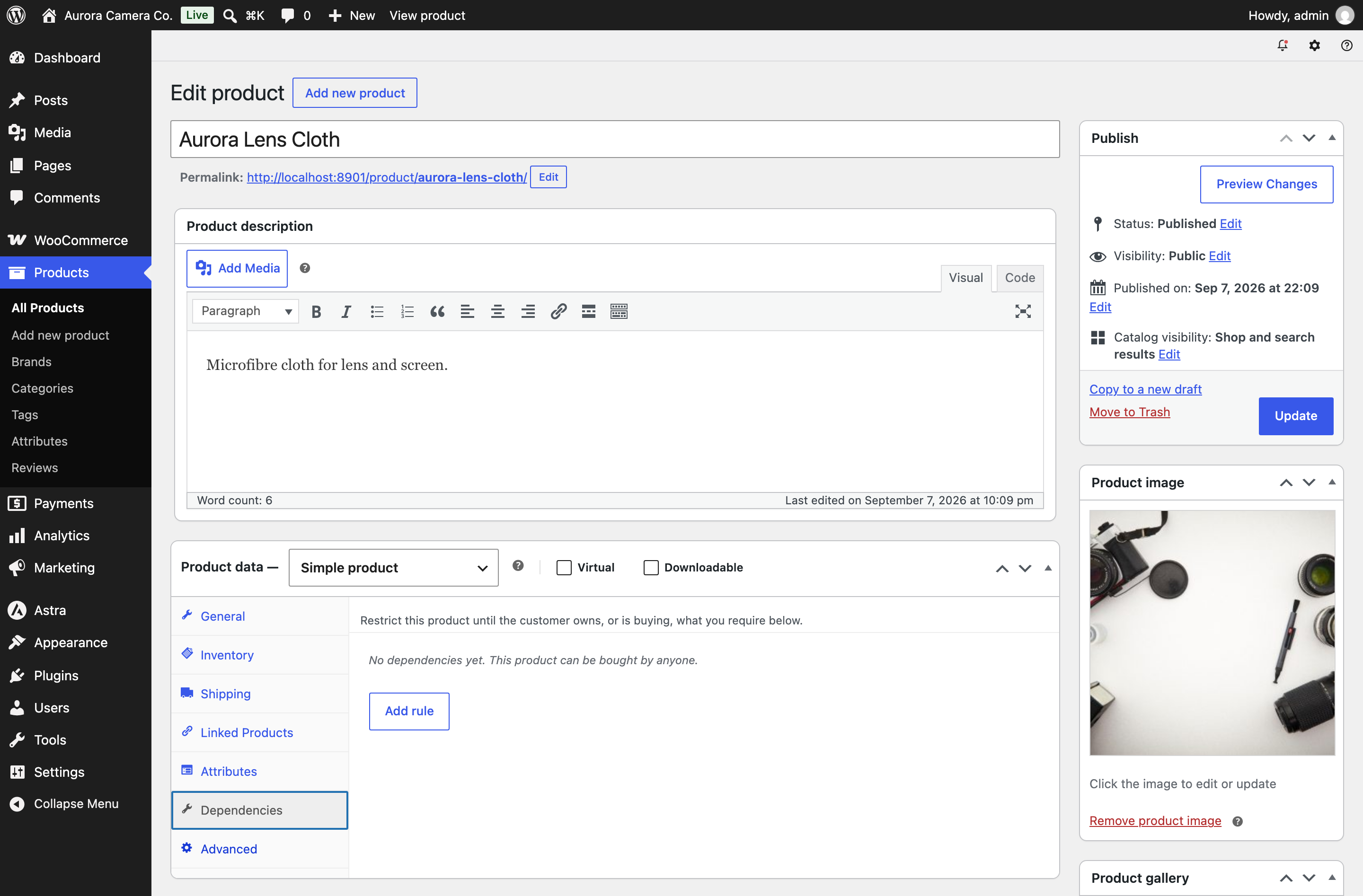
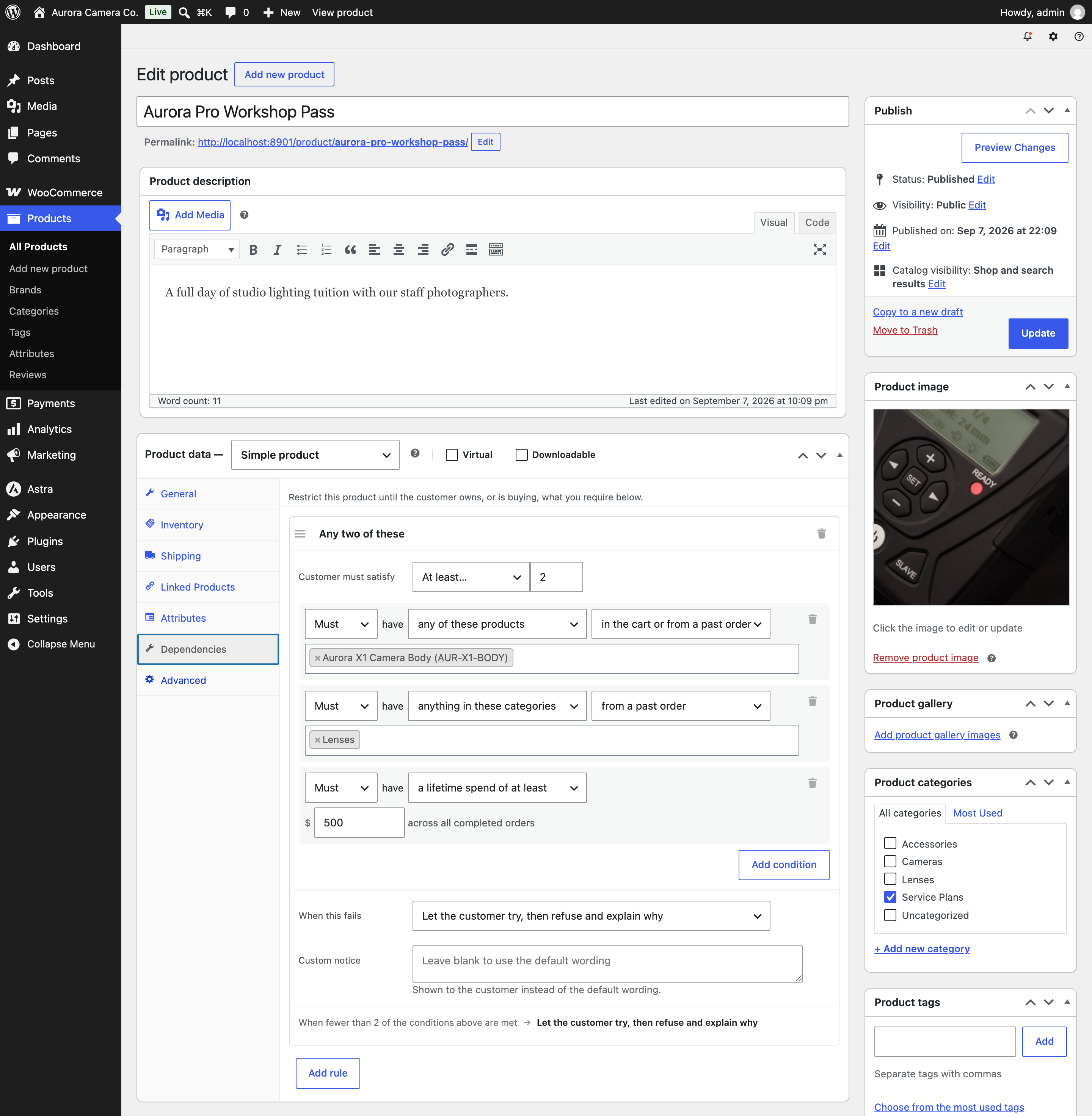
A product can carry as many rules as you need. Every rule must pass for the customer to buy the product, so rules combine with AND. That matters when more than one rule fails at the same time, because the topmost failing rule decides what the customer sees. Drag a rule by its handle to change the order. The panel tells you this on screen as soon as a second rule exists.
Naming a rule
↑ Back to topEach rule is headed “Rule 1”, “Rule 2”, and so on. Select the heading to rename it. A name is optional, and it is worth adding once a product carries several rules, because the name is what you see on the audit screen and in the logs.
Deciding how conditions combine
↑ Back to topCustomer must satisfy controls how the conditions inside one rule combine:
- Any one condition treats the conditions as alternatives. This is the default.
- Every condition requires all of them.
- At least requires a number you set. The number is capped at the count of conditions in that rule, because asking for more conditions than exist would create a rule nobody could ever satisfy.
Writing a condition
↑ Back to topEach condition reads as a sentence, left to right, so there is nothing to decode:
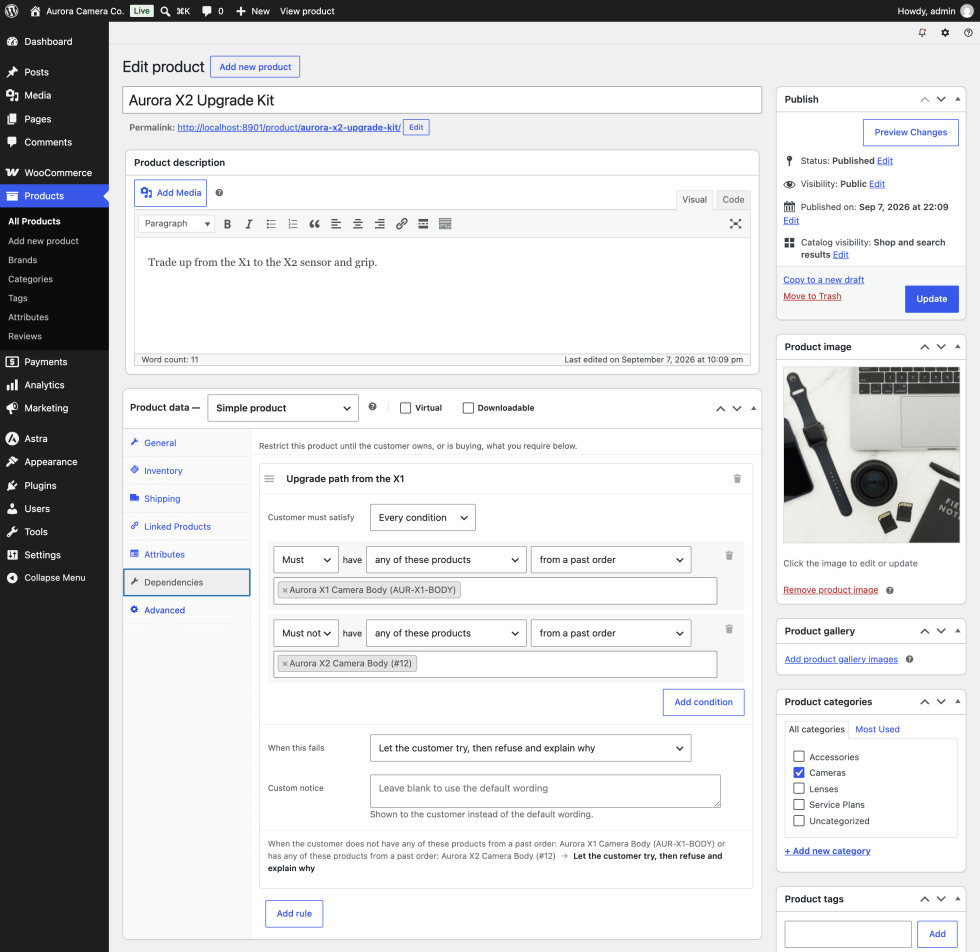
Must or Must not → have → what is required → where it counts from.
Choosing Must not inverts the condition. That is how you build an upgrade path or a new-customer-only offer, by requiring that the customer does not already have something.
The condition menu is split into two families.
What they are buying, or have bought:
- any of these products requires one of the products or variations you pick.
- anything in these categories requires a purchase from one of the categories you pick.
- anything with these tags requires a purchase carrying one of the tags you pick.
- anything with these [attribute] values appears once per global product attribute your store has defined. A store with no global attributes sees no entries here.
Conditions in this family carry a second dropdown that decides where the match counts from:
- in the cart or from a past order is the default, and matches either.
- from a past order matches only completed purchase history. A customer cannot satisfy it by adding something to the cart.
- in the cart right now matches only the current cart. Past purchases do not count.
About the customer:
- an active subscription to any of these requires a live subscription to one of the products you pick, not merely a purchase that happened once and lapsed. Requires WooCommerce Subscriptions. The product picker for this condition only offers products that can actually be bought on a subscription, so you cannot pick something that could never match.
- an active membership of any of these plans requires active membership of one of the plans you pick. Requires WooCommerce Memberships.
- a lifetime spend of at least requires a minimum total spend across the customer’s paid orders. The figure comes from WooCommerce’s own customer total, which already excludes refunds, so it agrees with what you see on the customer’s profile. Guests always count as zero.
- one of these user roles requires the customer to hold one of the roles you pick. Guests hold no roles.
These four are facts about the customer rather than about a purchase, so the source dropdown does not apply and is hidden.
A condition with nothing selected in it is treated as satisfied rather than as a gate. That is deliberate. A half-finished rule lets a purchase through instead of locking a product for reasons nobody can explain.
If you have a saved rule that uses a subscription or membership condition and you later deactivate that extension, the condition stays in place and is marked “(extension not active)” in the menu. Saving the product will not silently rewrite it into something else.
Choosing what happens when a rule fails
↑ Back to topWhen this fails sets the outcome:
- Let the customer try, then refuse and explain why. The product stays visible with a working buy button. The requirement is shown on the product page, and adding to the cart is refused with an explanation. This is the default.
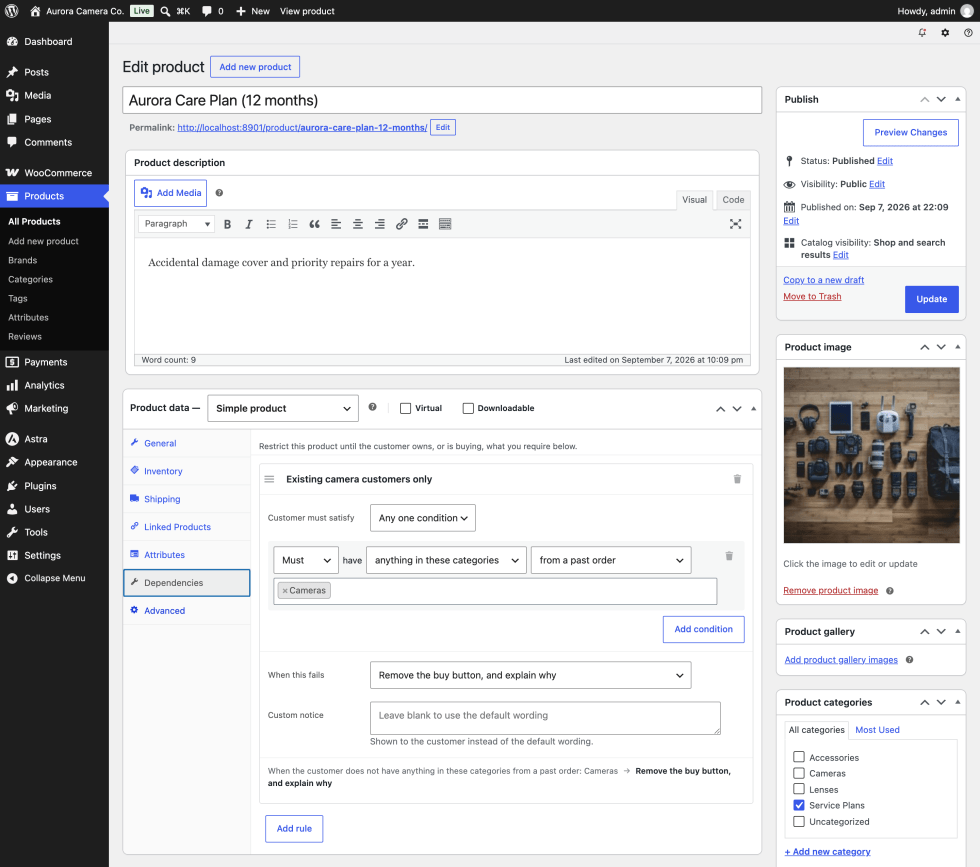
- Remove the buy button, and explain why. The product stays visible and priced, but is not purchasable. The requirement is shown in place of the buy form.
- Hide this product from the store. The product is removed from the shop, from search, from Query Loops, and from the sitemap for that customer. Your own admin screens are never filtered, so you can always find a product you have hidden.
- Add what is missing to the cart as well. Instead of refusing, the missing prerequisite is added to the cart alongside the product.
The last option is only selectable when the rule could actually act on it, and is marked “(nothing here can be added)” when it cannot. Adding to a cart can only satisfy a positive product condition that is not restricted to past orders. A category condition names no single product to add, a “must not” condition has no additive fix, and a past-order condition cannot be met by adding anything. Every condition in the rule has to qualify, because adding is all or nothing: if one missing item cannot be supplied, nothing is added and the sale is refused instead.
Writing your own message
↑ Back to topCustom notice replaces the wording shown to the customer. Leave it blank and the extension composes the message itself, naming the specific products or categories still missing, linking them where it can, and inviting a logged-out visitor to log in so their purchase history can be checked.
The field is hidden when the rule hides the product, since a hidden product never speaks to the customer. When the rule adds missing items to the cart, the field is still available but only used in the fallback case where nothing can be added and the sale is refused.
What the customer sees
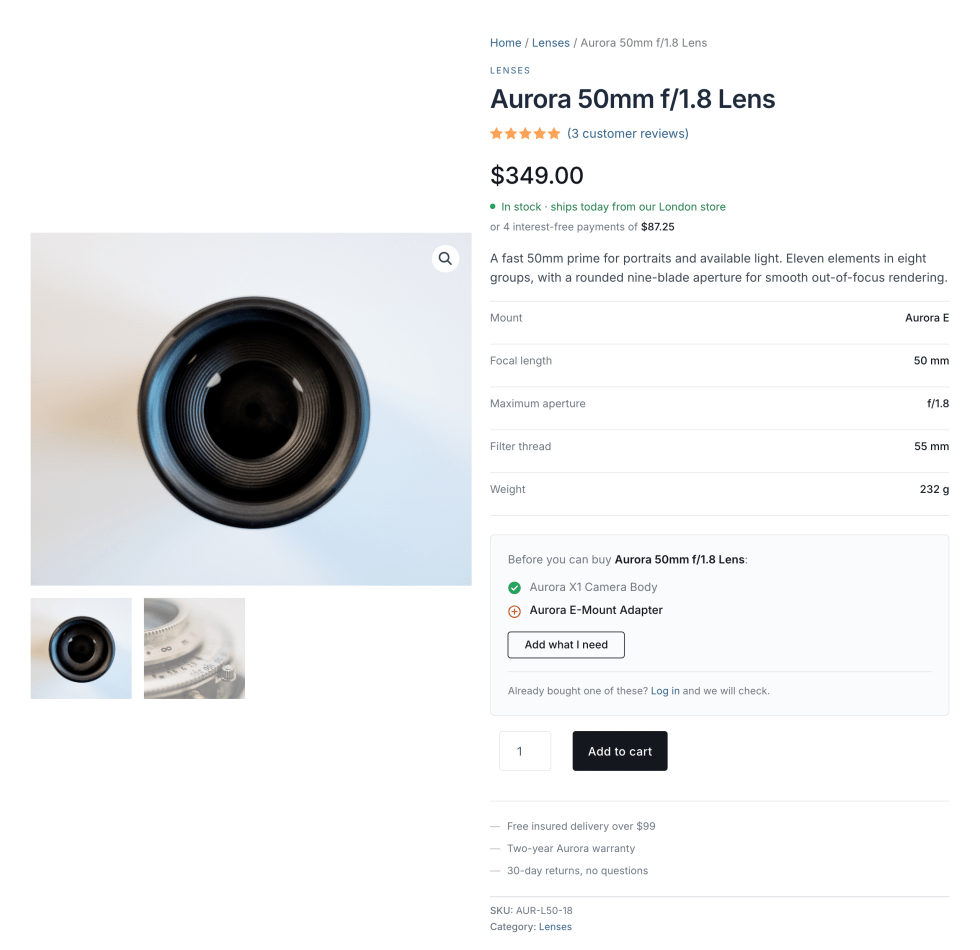
↑ Back to topOn a gated product page, a panel appears above the buy form listing every requirement in the failed rule. Requirements the customer already meets are ticked, and the ones still outstanding are marked. Showing both matters when a customer is partway through a multi-step requirement, since progress is more useful than another demand.
Where the requirement can be resolved by adding to the cart, the panel carries an Add what I need button. Selecting it adds the prerequisites and returns the customer to the product with a confirmation. It deliberately does not add the gated product itself. Unlocking clears the way, and buying stays the customer’s decision.
A logged-out visitor whose requirement depends on purchase history also gets a prompt to log in, since logging in may change the answer.
The Dependencies audit screen
↑ Back to topGo to WooCommerce > Dependencies for one list of every product carrying rules, with the number of rules, the outcome of the first rule, and a short summary of what each requires. Select a product name to open it for editing. Access needs the manage_woocommerce capability.
The same screen answers the question support gets asked most: why could this particular customer not buy this particular product? Enter a Product ID and a Customer ID, then select Check. Use 0 as the customer ID to test a logged-out visitor. The answer is yes or no, and a no is accompanied by the exact wording that customer would have seen.
The preview runs the same evaluation as the storefront against the same facts, so it cannot drift from what a customer actually experiences.
Managing rules in bulk
↑ Back to topRules travel with WooCommerce’s own product CSV importer and exporter. The exporter offers a Dependencies column, which holds the product’s rules as JSON in a single cell, and the importer maps that column back automatically. An empty cell clears a product’s rules. A column that is absent from the file leaves existing rules untouched, so a partial import cannot strip gating from every product it passes.
Rules are also available on the REST API as a dependencies field, on both wp/v2/products and wc/v3/products. See the developer section for the shape of the field.
Orders created in WP Admin
↑ Back to topOrders you create or edit by hand in WP Admin are not checked by default. A shop manager taking an order over the phone often has a good reason to override a rule, so the extension does not get in the way unless you ask it to.
Turning the check on makes it report rather than block. It records which line items fail and why, without stopping you from saving the order.
Use cases
↑ Back to topAn accessory that needs its base unit. You sell a camera lens that only fits one camera body. On the lens, add a rule with one condition: Must have any of these products → Camera Body → in the cart or from a past order. Set the outcome to add what is missing to the cart, so a customer who wants the lens gets the body added rather than a refusal. A returning customer who already owns the body is unaffected.
A service plan for existing customers only. You sell an annual support plan that only makes sense alongside a product from your Software category. On the plan, add a rule with one condition: Must have anything in these categories → Software → from a past order. Set the outcome to remove the buy button and explain why. Customers see the plan and its price, understand why it is not available to them yet, and are prompted to log in if they have bought before.
A members-only product nobody else needs to see. You stock a wholesale-only line. On each product, add a rule with one condition: Must have an active membership of any of these plans → Wholesale. Set the outcome to hide the product from the store. The line disappears from the shop, search, and sitemap for everyone else, while staying fully visible to you in WP Admin.
A new-customer-only introductory offer. You run a discounted starter kit that existing customers should not be able to buy again. On the kit, add a rule with one condition: Must not have any of these products → Starter Kit → from a past order. Set the outcome to refuse and explain, and write a custom notice pointing repeat customers at your regular range.
A refill that requires either the machine or an active subscription. You sell coffee pods that should only go to customers with your machine or an active coffee subscription. On the pods, add one rule set to Any one condition, holding two conditions: Must have any of these products → Coffee Machine → from a past order, and Must have an active subscription to any of these → Monthly Coffee Plan. Either one is enough. Set the outcome to refuse and explain, and the panel will show the customer both routes in.
Working with other W7S extensions
↑ Back to topProduct Dependencies decides who is allowed to buy a product. These combinations from the W7S catalog cover what happens around that decision: keeping the rules pointing at products that still exist, keeping the facts behind a rule true, and answering questions about your gates without opening every product.
Retire a prerequisite without breaking everything that depends on it. Discontinued Products Manager retires a product while keeping its URL, its SEO value, and a route to a replacement, instead of deleting it. That matters here because a rule pointing at a deleted product is skipped and logged, which quietly ungates everything that depended on it. Before you retire anything, open WooCommerce > Dependencies and search the Requires column for the product you are about to pull. Retiring rather than deleting keeps every rule that names it intact and still enforceable while you repoint them.
Keep a subscription gate from turning into a lost customer. Subscription Churn Saver intercepts a cancellation and offers a discount or a pause instead. Pair it with the an active subscription to any of these condition and a cancellation stops being a silent access change. A customer who cancels loses whatever that subscription unlocked, and a pause keeps them inside the gate while they think about it. Worth having in place before you gate anything substantial on a live subscription rather than on a past purchase.
Understand what a refund does to a spend gate. Self-Service Refunds lets customers request refunds from My Account instead of opening a ticket. The a lifetime spend of at least condition reads WooCommerce’s own customer total, which excludes refunds, so a refunded order lowers that figure and can relock a product the customer could buy yesterday. That is usually the behavior you want. If it is not, gate on a specific product purchase instead of on spend, since a past purchase is not undone by the refund in the same way.
Gate on age and on purchase history at the same time. Age Verification Manager checks that a customer is old enough, and remembers the answer against their account rather than only in a cookie. The two extensions restrict different things and stack cleanly: age verification asks who the customer is allowed to be, and a dependency rule asks what they have already bought. On a product that needs both, expect the age gate first and the prerequisite panel after it, since the age check runs before the customer reaches the product page.
Send a customer straight into a satisfied cart. Smartlink Discount URLs builds a URL that adds products to the cart and applies a discount in one click. Combine it with a condition set to in the cart right now and a campaign link can arrive with the prerequisite already in the cart, so the gated product is unlocked before the customer sees it. This is the outbound version of the Add what I need button, useful for emails and ads where you want the customer to land on a working buy button rather than an explanation.
Ask about your gates instead of clicking through products. MCP (Model Context Protocol) connects Claude or ChatGPT to your store over the WooCommerce REST API. Because this extension registers its rules as a dependencies field on wc/v3/products, an assistant reading your catalog can see them, which means you can ask which products are gated, which ones require a category you are about to rename, or which rules still point at a discontinued line. The audit screen answers the first of those; an assistant answers the ones you did not think to build a screen for.
FAQ
↑ Back to topDo I need the older WooCommerce Product Dependencies extension installed?
No. This is a standalone extension. If you used the older one, its rules are migrated automatically the first time you load WP Admin, and its own data is left exactly where it was so you can go back if you want to.
What happens if a rule points at a product I deleted?
The condition is skipped and a note is written to the WooCommerce logs. A broken rule lets a purchase through rather than locking a product nobody can explain.
Does hiding a product hide it from me too?
No. Admin screens are never filtered, so you can always find and edit a product you have hidden from customers.
Can a lapsed requirement stop a customer renewing a subscription?
No. When WooCommerce Subscriptions is active, renewal and resubscribe carts skip dependency checks entirely. Otherwise a customer whose subscription lapsed could be blocked from buying the very renewal that would restore it.
Do rules apply to products inside a bundle?
Yes. Product Bundles, Composite Products, and Mix and Match containers are all checked as items are configured and again at cart and checkout. Everything else in the same container counts as being bought together, so a gated product and its prerequisite can be sold as one bundle.
Do rules apply when a customer re-orders a previous order?
Yes. The whole order is treated as what the customer is buying, so the outcome does not depend on which line item happens to be processed first.
Do variations inherit their parent’s rules?
Yes. A variation with no rules of its own uses the parent product’s rules. A variation is never satisfied by its own parent, and a variable product is never satisfied by one of its own variations, so a product cannot unlock itself.
Does a spend or role condition work for guests?
No. Both depend on a customer account. A guest counts as zero spend and holds no roles, so those conditions will not pass until they log in.
How do I remove all rules from a product?
Delete each rule in the Dependencies tab using the trash icon on the rule header, then update the product. You can also clear the Dependencies cell in a CSV import.
What happens to my rules if I delete the extension?
Deleting the extension removes its rules, its options, and its temporary data. It does not touch anything the older WooCommerce Product Dependencies extension stored, so a store that migrated across can still go back.
Developer documentation
↑ Back to topThe extension is namespaced under W7S\ProductDependencies and autoloads from src/. Rules are stored in a single product meta key, _wcpd_ruleset, as a versioned array. Schema version 2 is current; version 1 is implicitly the loose meta keys written by WooCommerce Product Dependencies 2.0.1, which are read only by the migrator.
Action hooks
↑ Back to topwcpd_register_conditions
Fires once per request, before any ruleset is read, passing the ConditionRegistry. Register a factory to add a condition type that the evaluator, the serializer, REST, and CSV all understand.
add_action( 'wcpd_register_conditions', function ( $registry ) {
    $registry->register( 'loyalty', fn( array $spec ) => new My_Loyalty_Condition( $spec ) );
} );
A factory that throws is recorded and written to the log rather than fatalling, so a broken add-on is visible instead of silently disabling rules.
Filter hooks
↑ Back to topwcpd_condition_kinds
Filters the authoring menu in the product editor. Keyed by kind slug, each entry takes label, type, target, source, and optionally taxonomy and requires. target selects the value field and accepts product, category, tag, subscription, membership, amount, or role. label must be a noun phrase, because the panel supplies the verb. A malformed entry loses its menu row rather than breaking the panel. This is the authoring companion to wcpd_register_conditions: a type registered without a kind still evaluates, imports, and exports, it simply has no menu entry.
wcpd_facts_subscribed_product_ids
Passes ( array $ids, int $user_id ). Supplies the product IDs a customer holds a live subscription to. WooCommerce Subscriptions answers this when active, counting active and pending-cancel statuses.
wcpd_facts_membership_plan_ids
Passes ( array $ids, int $user_id ). Supplies the membership plan IDs a customer actively belongs to. WooCommerce Memberships answers this when active.
wcpd_product_is_subscribable
Passes ( bool $subscribable, WC_Product $product ). Decides whether a product can appear in the subscription condition’s product picker. Defaults to true for subscription product types. All Products for Subscriptions extends it to any product carrying a subscription scheme.
wcpd_json_search_found_subscription_products
Passes ( array $products, string $term ). Filters the results returned by the subscription condition’s product search, keyed by product ID.
wcpd_skip_evaluation
Passes ( bool $skip, int $product_id ). Return true to bypass enforcement for the current request. WooCommerce Subscriptions uses this to exempt renewal and resubscribe carts.
wcpd_suppress_notice
Passes ( bool $suppress, int $product_id ). Return true to stop this extension adding its own refusal notice, without changing the refusal itself. WooCommerce Memberships uses this when it has already explained the same denial in its own words.
wcpd_skip_catalogue_filtering
Passes ( bool $skip, WP_Query $query ). Return true to leave a particular query unfiltered by the hide outcome.
wcpd_rule_taxonomies
Passes ( array $taxonomies ). The taxonomies a rule may refer to. Defaults to product_cat, product_tag, and every registered global attribute taxonomy.
wcpd_prerequisites_template_html
Passes ( ?string $html, WC_Product $product, PrerequisiteSummary $summary, string $unlock_url ). Return a string to replace the rendered prerequisites panel entirely. For styling, override the template instead.
wc_pd_dependency_relationship
Read, not provided. This is the legacy filter from WooCommerce Product Dependencies 2.0.1, honored during migration so a store that set AND through it keeps that behavior.
Template override
↑ Back to topCopy templates/product-dependencies/prerequisites.php to yourtheme/woocommerce/product-dependencies/prerequisites.php. The template receives $product, $summary, $unlock_url, and $notice.
WP-CLI
↑ Back to topwp wcpd audit [--format=<format>]
Lists every product carrying rules, with product ID, name, rule count, the first rule’s outcome, and a summary. Formats are table, csv, json, and yaml.
wp wcpd can-buy <product> <customer>
Answers whether a customer can buy a product, and prints the plain-text explanation when the answer is no. Pass 0 as the customer ID for a logged-out visitor.
Both commands call the same code as the audit screen in WP Admin, so the two cannot disagree.
REST API
↑ Back to topThe dependencies field is registered on the product post type, so it is available on both wp/v2/products and wc/v3/products in the view and edit contexts. Its shape is an object with a read-only integer schema and an array of rules. Each rule carries id, label, relationship, effect (one of block, hide, show_locked, auto_add), notice, and conditions.
relationship is any, all, or at_least:<n>. Each condition carries type, negate, and the keys its type needs: ids and source for product, term (which also takes taxonomy), subscription, and membership; min for spend; roles for role. source is owned, cart, or either.
Writes are capability-checked against edit_product independently of the endpoint’s own check. A malformed payload is rejected outright rather than partially applied, and rules with no conditions are discarded, matching the product editor’s behavior. A rule written over REST may claim auto_add where no condition supports it; it behaves as a block, and the editor renders it as one.
CSV
↑ Back to topThe importer and exporter use the wcpd_dependencies column, labeled Dependencies, holding the same structure as the REST field encoded as JSON. An unparseable cell skips the rules for that row rather than aborting the import.
Options and storage
↑ Back to top_wcpd_ruleset(post meta): a product’s rules. Deleted rather than stored empty, so “has rules” stays a cheap existence check.wcpd_legacy_migration_version(option): guards the one-time migration from WooCommerce Product Dependencies 2.0.1.wcpd_validate_admin_orders(option):yesorno, defaultno. Enables reporting of dependency violations on orders created or edited in WP Admin.wcpd_order_violations_<order_id>(transient): violations recorded for one admin-edited order, kept for an hour.
Uninstall removes the meta key, both options, and the extension’s transients. It deliberately leaves the legacy _tied_products and _tied_categories meta in place.
Logging
↑ Back to topThe extension logs under the source product-dependencies. Find it at WooCommerce > Status > Logs. Every refusal is recorded with the product, the customer, the failed rule IDs, and the unmet conditions, so support can answer “why could this customer not buy it?” from the log rather than by trying to reproduce the cart. Condition types that fail to build are logged as warnings naming the type.
Capabilities
↑ Back to top- The audit screen requires
manage_woocommerce. - Saving rules from the product editor or over REST requires
edit_productfor that product. - The subscription product search requires
edit_products.

