
This page is a tour of the screens your team uses every day to look after customer wallets: the Overview, the Wallets list, a single customer’s wallet screen, the Transactions list, and the wallet tools on WordPress user screens. It is for store owners and shop managers.
Where to find it
↑ Back to topEverything lives under WooCommerce > Elite Balance. The screen has up to six tabs:
| Tab | What it is for |
|---|---|
| Overview | What needs attention, the key figures, the latest activity, finding a wallet, and quick actions. This is the default tab. |
| Wallets | Every wallet, with search, views, bulk actions, and export. The Bulk operations screen and each customer’s wallet screen open under this tab. |
| Transactions | The full ledger with filters and CSV export. |
| Withdrawals | The withdrawal queue. Shown only while withdrawals are enabled or any request exists. See Withdrawals. |
| Earning | Earning rules. Shown only while earning is enabled or any rule exists. See Earning Rules and Cashback. |
| Tools | Migration from another wallet plugin and, at the end, the Support section with your site information. |
The Settings link with the gear icon, on the right of the tabs, opens WooCommerce > Settings > Elite Balance.
Administrators and shop managers can use these screens. Access is controlled by the rb_elbal_manage_wallets capability, which Elite Balance gives to those two roles on activation. Users without it do not see the menu, the wallet columns, or the wallet card on user profiles.
The Overview
↑ Back to top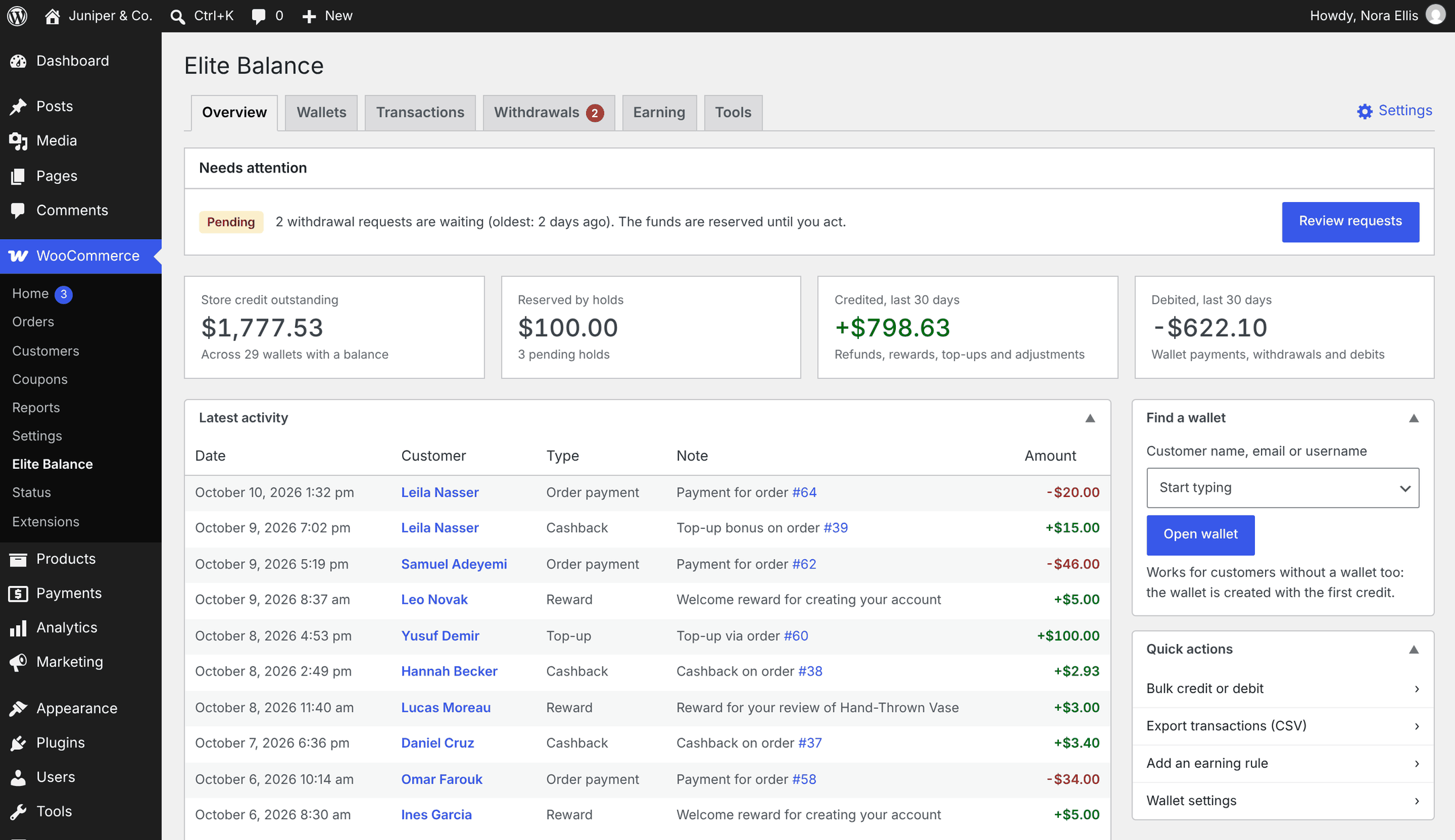
Needs attention
↑ Back to topThis box appears only when something is waiting for you, and lists the most urgent item first. Elite Balance adds items for pending withdrawal requests (with the age of the oldest), reward reversals on the Earning tab that could not fully recover the awarded credit, and migration states (another wallet plugin’s data found on the site, a migration running in the background, or a finished migration whose totals differ). Each item has a button that takes you to the right screen.
Figures
↑ Back to top| Tile | What it shows |
|---|---|
| Store credit outstanding | The total of all wallet balances, across the wallets that hold money. Click it to open the With a balance view of the Wallets list. |
| Reserved by holds | Money reserved by pending holds (unpaid orders using partial payment, and open withdrawal requests), with the number of holds. |
| Credited, last 30 days | Everything added to wallets in the last 30 days: refunds, rewards, top-ups, and adjustments. |
| Debited, last 30 days | Everything taken out in the last 30 days: wallet payments, withdrawals, and debits. |
Latest activity, Find a wallet, and Quick actions
↑ Back to top- Latest activity: the last 10 transactions across all wallets, with a View all transactions link.
- Running now: appears only while a bulk operation is in progress, with live progress.
- Find a wallet: type a customer’s name, email, or username and click Open wallet. This also works for customers who have no wallet yet; the wallet is created with the first credit.
- Quick actions: Bulk credit or debit, Export transactions (CSV), Add an earning rule (while the Earning tab is shown), and Wallet settings.
After a migration from another wallet plugin finishes, a one-line notice with a link to the report appears at the top of the Overview until you dismiss it.
The Wallets list
↑ Back to topThe Wallets tab lists every customer who has a wallet. A wallet is created the first time a customer receives funds, so customers who never had a credit are not listed; open them with Find a wallet instead.
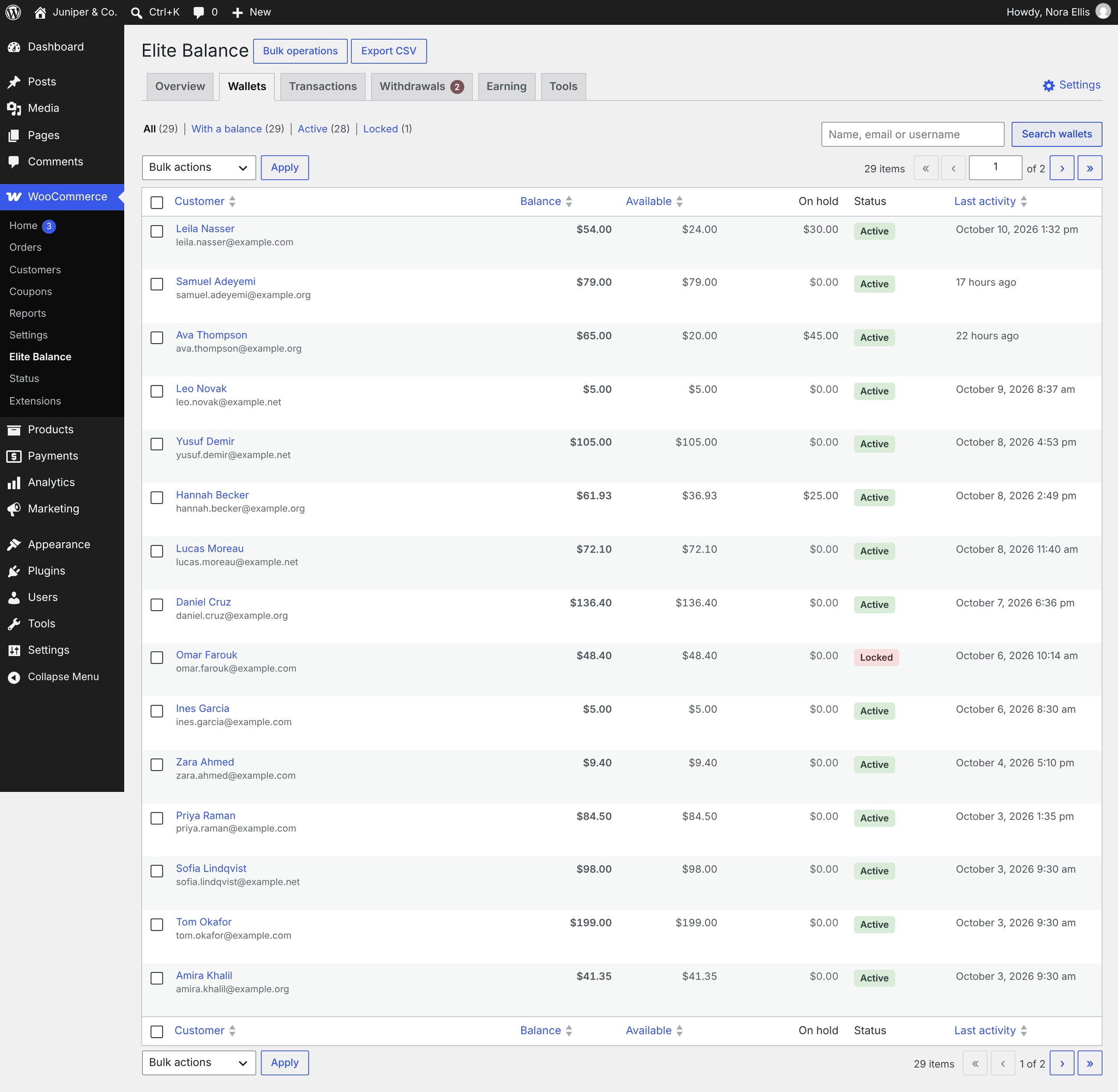
- Views: All, With a balance, Active, and Locked, each with a count.
- Columns: Customer (name and email), Balance, Available (balance minus holds), On hold, Status (Active or Locked), and Last activity. Last activity shows a relative time such as “17 hours ago” during the first day, then the date.
- Sorting: click Customer, Balance, Available, or Last activity. The list starts with the most recent activity first.
- Search wallets: matches name, email, or username, and the user ID when you type a number.
- Row actions: Open wallet, Transactions (the Transactions list filtered to this customer), Orders (the WooCommerce orders list filtered to this customer), and Edit user.
- Rows per page: set it in Screen Options at the top right (default 20, up to 200).
Bulk actions on selected wallets
↑ Back to topTick wallets, choose an action from Bulk actions, and click Apply:
- Lock selected and Unlock selected apply immediately.
- Credit selected… and Debit selected… never run straight from the list. They open a confirmation screen that lists the selected customers with their current balance, and asks for the amount to add to or remove from each wallet, a Reason (required), an optional note, and whether to notify the customers by email (off by default). A debit also asks you to type the per-wallet amount again before it runs.
The confirmed operation runs in the background and appears in the Operation history. See Bulk Operations and CSV Import.
Export the list
↑ Back to topExport CSV beside the heading downloads the wallets in the current view and search. The file has these columns: wallet_id, user_id, user_login, user_email, display_name, balance, on_hold, available, currency, status, and last_activity_utc (UTC).
A customer’s wallet screen
↑ Back to topOpen a wallet with Open wallet, by clicking a customer’s name in any Elite Balance list, from Find a wallet, or from the WordPress Users list. All wallets at the top takes you back to the list.

Header
↑ Back to top- The customer’s name, a status pill (Active, Locked, or No wallet yet), username, and email.
- Quick links: Edit user, All transactions, Orders, and, when they apply, Withdrawals and Earlier activity. Most links show a count.
- The figures: Balance, Available to spend (balance minus holds), On hold, and Last activity.
- A locked wallet shows “This wallet is LOCKED: new spending is refused. Credits and in-flight order captures still work.”
Transaction history
↑ Back to topThe main column lists every transaction of this wallet, 20 per page, with Date, Type, Amount, Balance after, Reference, and Note. Export CSV downloads this customer’s transactions. If the customer’s history was migrated from another wallet plugin, an Earlier wallet activity section below it shows the old plugin’s log, read only; the balance it led to is the Migrated balance entry in the history above. See Migrating from Another Wallet Plugin.
Adjust a balance
↑ Back to topUse the Adjust balance box in the sidebar:
- Choose Credit (add funds) or Debit (remove funds).
- Enter the Amount.
- Pick a Reason (required), or choose Other (type your own) and type one (up to 150 characters).
- Optionally add a Note (optional detail, kept in the ledger).
- Leave Email the customer (when the wallet emails are enabled) ticked to send the Wallet credited or Wallet debited email, or untick it to stay silent.
- Click Apply adjustment. For a debit, your browser asks you to type the exact amount again. If it does not match, nothing changes (“The typed amount did not match. Nothing was changed.”).
The adjustment is saved as an Admin adjustment transaction. The ledger note combines the reason and the note, and the Reference column shows who made it (“By …”).
- What the customer sees: the transaction appears as “Balance adjustment” on their wallet page. Your reason and note stay internal; they are not shown on the wallet page or in emails.
- Customers without a wallet: a credit creates the wallet.
- Limits: a debit cannot exceed the available balance and is refused on a locked wallet.
- Double submissions: submitting the same form twice (a double click or a refresh) changes the balance once and shows “This form was already submitted; the balance was not changed again.”
Tip: Change the preset reasons under WooCommerce > Settings > Elite Balance > General, Adjustment reasons (one per line). The defaults are Goodwill, Support resolution, Correction, and Promotion.
Holds
↑ Back to topThe Holds box lists money reserved in this wallet, with Reference, Amount, and Expires. Holds come from unpaid orders that use partial payment and from open withdrawal requests; the reference links to the order or the request. When there are none it says “No active holds. Funds reserved for unpaid orders or withdrawal requests show here.” Holds are captured or released by the order or the withdrawal, not from this box.
Lock or unlock a wallet
↑ Back to topThe Wallet status box shows the status and when the wallet was opened, with a Lock wallet or Unlock wallet button. Lock a wallet to freeze spending, for example during a dispute.
| While a wallet is locked | Examples |
|---|---|
| Refused | Paying with the wallet at checkout, partial payments, manual and bulk debits, new withdrawal requests. |
| Still allowed | Credits (adjustments, refunds to wallet, top-ups, rewards), capturing money already reserved for an order, transferring or rejecting a withdrawal that was already open, and reversing cashback on a refunded order. |
You can also lock and unlock many wallets at once from the Wallets list.
The Transactions list
↑ Back to topThe Transactions tab is the full ledger, newest first. Every balance change is one row that is never edited or deleted.
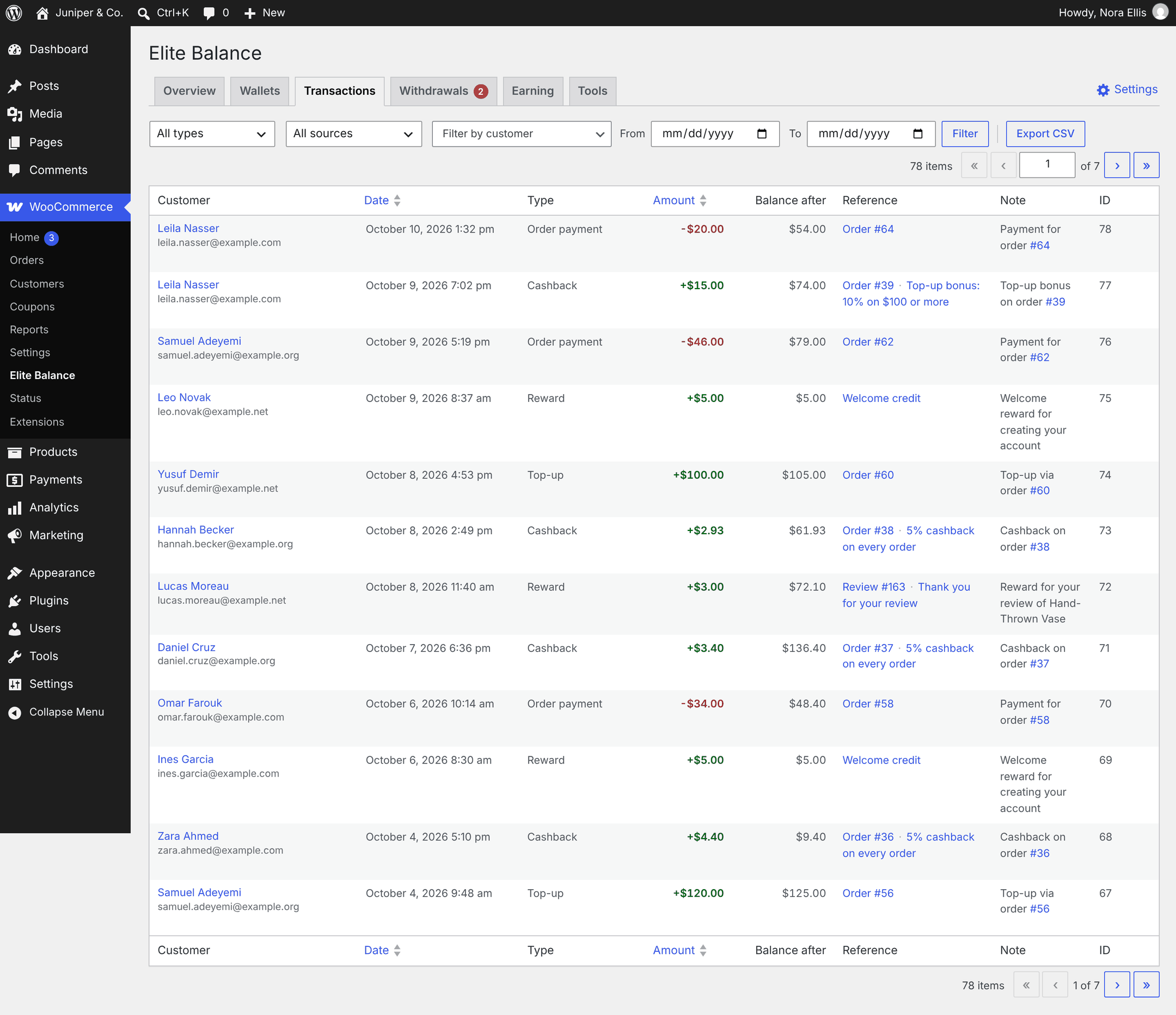
- Columns: Customer, Date, Type, Amount (signed and colored), Balance after, Reference, Note, and ID. Sort by Date or Amount.
- Screen Options: rows per page (default 20, up to 200) and which columns to show. Every column except Customer can be hidden.
- Row actions: Wallet, Orders, and Only this customer.
Filters
↑ Back to top- All types: one of the transaction types below.
- All sources: Order payments, Refunds, Manual adjustments (every admin adjustment, including bulk operations and WP-CLI), or Bulk operations only.
- Filter by customer: search for a customer by name or email.
- From and To: dates in your store’s time zone, each covering the whole day.
Click Filter to apply and Clear filters to reset. Links from other screens can also narrow the list to one bulk operation (“Showing one bulk operation.”) or one earning rule (“Showing one earning rule.”).
Transaction types
↑ Back to top| Type | What it records |
|---|---|
| Credit | A credit made through the developer API without a more specific type. |
| Debit | A debit made through the developer API without a more specific type. |
| Order payment | Money taken for an order: a full wallet payment, or the wallet part of a partial payment. |
| Refund to wallet | A refund sent to the wallet from an order. |
| Top-up | Funds the customer added through a top-up order. |
| Withdrawal | A withdrawal you marked transferred. |
| Cashback | Cashback on an order or a top-up bonus from an earning rule. |
| Reward | A signup, review, or birthday reward from an earning rule. |
| Reward reversal | Cashback taken back after the earning order was refunded or cancelled. |
| Admin adjustment | A manual credit or debit by staff, from a single wallet, a bulk operation, a CSV import, or WP-CLI. |
| Migrated balance | An opening balance imported from another wallet plugin. |
The Reference column
↑ Back to topReference tells you where a transaction came from: the order (Order #64), the withdrawal request, the product review, the staff member (“By Store Manager”), a Bulk operation link that shows every row of that operation, the earning rule’s name, or Migration.
Export transactions
↑ Back to topExport CSV downloads every row that matches the current filters. The same export is available as a quick action on the Overview, and for one customer on their wallet screen. Columns: id, created_at_utc, user_id, user_login, user_email, type (the internal type key, for example hold_capture), amount, balance_after, currency, reference_type, reference_id, note, and actor_id.
Note: The export includes the full internal note, including staff reasons, so treat the file as internal. Cells that begin with =, +, – or @ are prefixed with an apostrophe so spreadsheet apps do not run them as formulas.
Wallet tools on the Edit user screen
↑ Back to topOpen any user at Users > All Users and click the user (or open your own Profile):
- A Wallet row near the top shows the available balance, the status, and the last activity, with Open wallet, Transactions, and Credit or debit links.
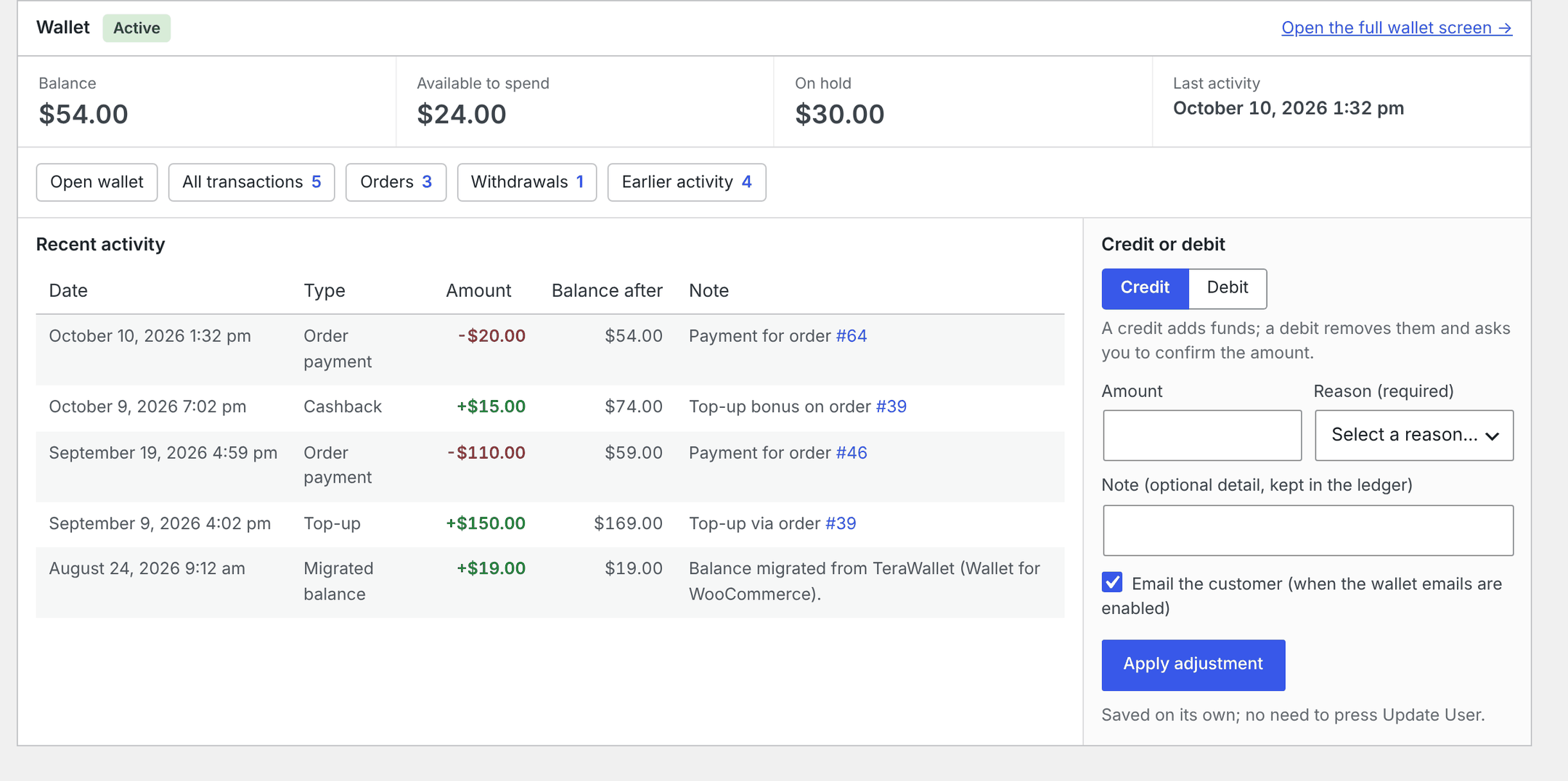
- Further down, the Wallet card shows the same figures as the wallet screen, the quick links, Recent activity (the last five transactions, with a View all link when there are more), and a Credit or debit form. Open the full wallet screen links to the wallet screen.
The Credit or debit form works exactly like Adjust balance on the wallet screen, including the required reason and the typed confirmation for debits. Click Apply adjustment; you do not need to press Update User.
The WordPress Users list
↑ Back to top- A Wallet balance column shows each user’s balance with a Manage wallet link, or “No wallet” with an Add funds link.
- Under each username, the row actions include Wallet and, for users who have a wallet, Transactions.
Dates and time zones
↑ Back to top- All Elite Balance admin screens show dates in your store’s time zone (Settings > General) and your site’s date and time format. Hover over a date to see the exact time in UTC.
- The From and To filters on the Transactions list are store dates.
- CSV exports always use UTC; the date columns end in
_utc.
For developers
↑ Back to toprb_elite_balance_overview_attentionandrb_elite_balance_overview_quick_actionsadd items to the Overview;rb_elite_balance_overview_topfires above it.rb_elite_balance_admin_wallet_linksadds quick links to the wallet screen and the Edit user card;rb_elite_balance_admin_wallet_after_historyfires under a customer’s history.rb_elite_balance_admin_transaction_referencechanges the Reference column;rb_elite_balance_adjustment_reasonschanges the reason list.rb_elite_balance_capability_mapchanges which roles receiverb_elbal_manage_walletson activation.
See Developer Reference.