
Referral links are how your affiliates send you traffic: every affiliate in Affiliate and Referral Program for WooCommerce gets a personal referral code, and any store address carrying that code credits them for what the visitor buys. This guide covers where affiliates create links, linking to one product, downloading a product feed, sharing, and the settings you control. Part of the Affiliate and Referral for WooCommerce documentation.
What a referral link looks like
↑ Back to topA referral link is an ordinary page on your store with the affiliate’s code attached, such as https://example.com/shop/?rtwapwcm_aff=AB12CD. Each affiliate’s Referral Code is on the Payout tab of their dashboard. When someone opens the link, the click is recorded and the affiliate is remembered for your cookie period; how the sale is credited later is covered in How Referral Tracking and Attribution Work.
The parameter is named rtwapwcm_aff by default. To brand it — for example partner or ref — go to: WooCommerce > Affiliate & Referral > Advanced Features > General and change Slug in Affiliate Link. Links that carry the old name stop being recognized, so choose the name before your affiliates start promoting.

Turn any page into a referral link
↑ Back to top- The affiliate opens their dashboard and chooses Affiliate Tools > Generate Link.
- Under Enter Url and generate your link, they paste any address on your store — a sale page, a category, a blog post.
- They click Generate Link. The link appears with their code attached, ready to copy.
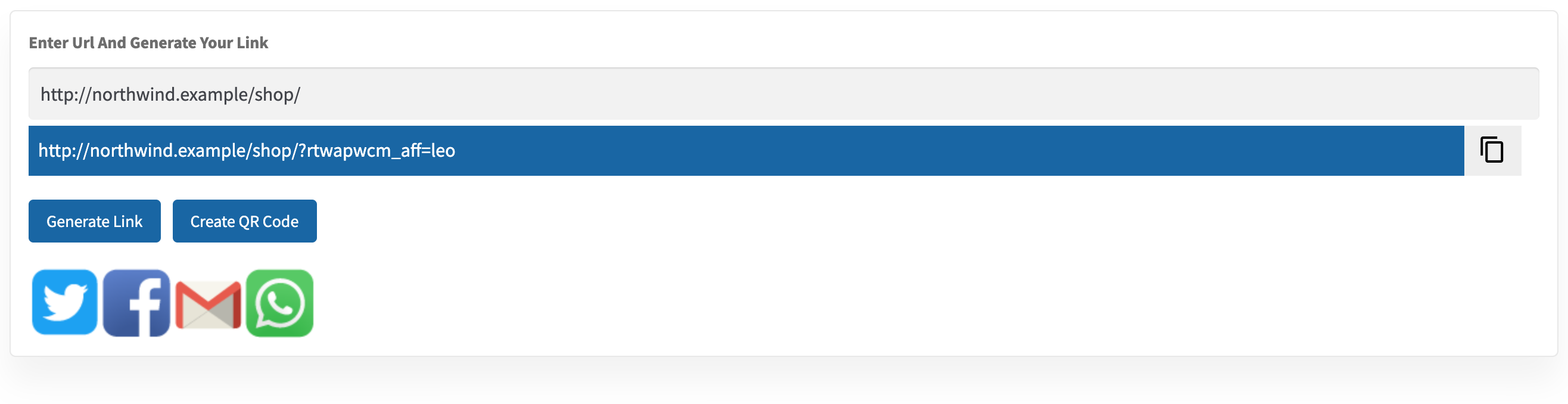
Below the link, sharing buttons post it to Twitter, Facebook or WhatsApp, or open an email draft. The buttons appear when Social Media Share Buttons is on under Bonuses > Bonus settings. Links shared this way carry a share marker, so they can also earn a sharing bonus if you pay one; see Signup, Click, Sharing and Lead Bonuses for Affiliates.
Link a specific product
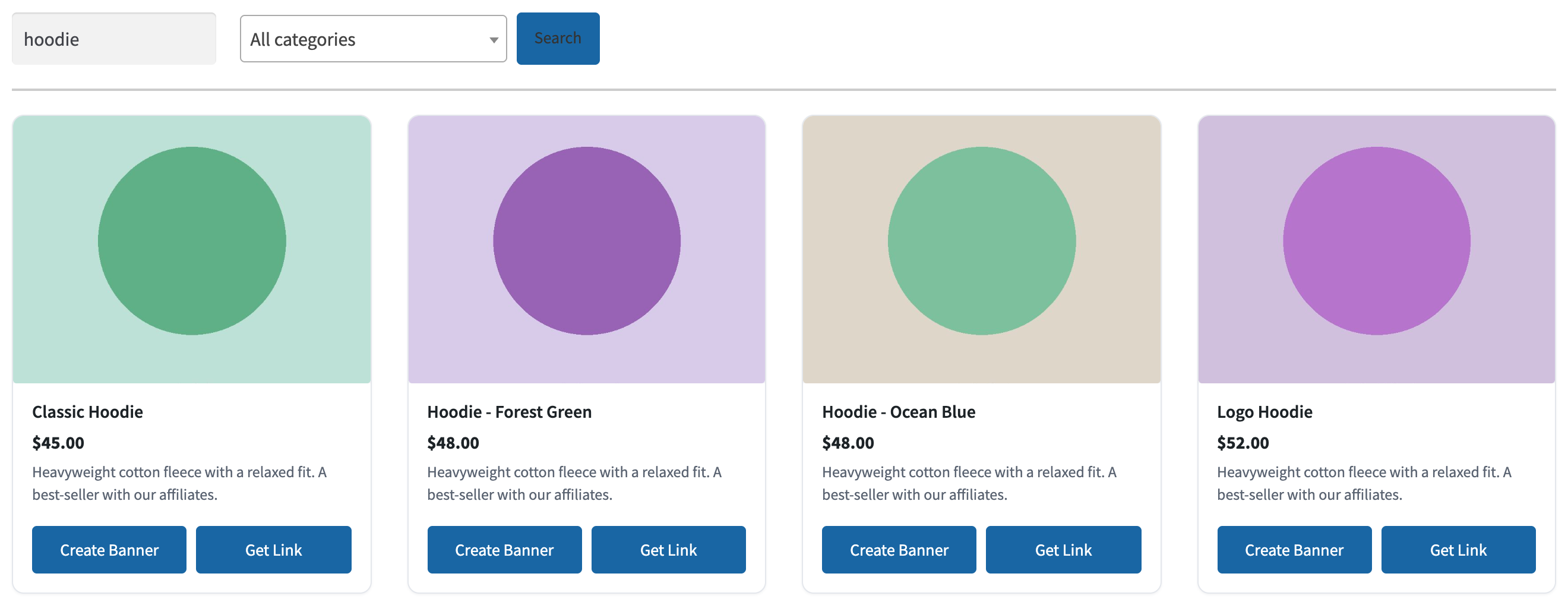
↑ Back to topTo link one product, the affiliate opens Banner > Create Banner, types a name into Search Products, optionally picks a category, and searches. Each matching product has a Get link button that gives a referral link straight to that product’s page — the natural choice when they review or demonstrate one item. The Create banner button beside it turns the same product into an ad creative; see How to Create Affiliate Banners and Creatives.
Product links can also limit what earns commission. With Commission for only the URL opened? on, on the Settings tab of the Commission screen, a link shared from a product page pays commission only on that product; anything else in the same order earns nothing. A commission rule can make an exception with Pays even when the affiliate shared a different product link. The setting applies to referral links only — not to coupons, checkout codes or lifetime customers.
Download a product feed with referral links
↑ Back to topAffiliates who list your products on their own site can download them ready-linked. On their dashboard they choose Extra > Download, pick a Product category and click Download CSV. The file lists up to 12 published products from that category, each with its referral link, category, description and price.

QR codes for offline sharing
↑ Back to topA generated link can become a downloadable QR code with Create QR code — for flyers, packaging or a market stall. That flow, including the setting that turns it on, has its own guide: QR Codes for Referral Links.
Affiliates should always share links made on their dashboard. Tracking looks up the referral code in the link — a hand-built address with a username or a guessed parameter opens the page but credits nobody.
FAQ
↑ Back to topCan an affiliate link to any page of my store?
↑ Back to topYes. Generate Link accepts any address on your site, so affiliates can send traffic to the page that fits their audience — not just product pages.
Do the sharing buttons pay a bonus?
↑ Back to topThey can. If you set a sharing bonus, a purchase that comes through a link shared with those buttons earns it, within the limits you set; sharing on its own earns nothing. See Signup, Click, Sharing and Lead Bonuses for Affiliates.
What happens if the visitor uses an affiliate coupon after clicking a link?
↑ Back to topThe affiliate whose coupon is on the order is credited, whichever came first. The full order of precedence is in How Referral Tracking and Attribution Work, and more questions are answered in the Affiliate and Referral Program: FAQ.

