
Self-Service Refunds for WooCommerce lets your customers ask for a refund themselves, from their account or from a guest form, instead of emailing your support team. This guide walks you through setting it up, explains every setting, and shows a few ways stores use it.
Overview
↑ Back to topSelf-Service Refunds for WooCommerce adds a Refund button to eligible orders in My Account and a guest refund form you can place on any page with a shortcode or a block. Customers can ask for a full order refund or, if you allow it, a refund for specific items. Each request is either processed straight away through the order’s payment gateway or placed in a new Refund requested order status for you to approve or reject. You decide which happens using global limits, per-customer controls, and condition-based rules.
Requirements
↑ Back to top- WordPress 6.0 or higher.
- PHP 7.4 or higher.
- WooCommerce 5.0 or higher. The extension stops activating if WooCommerce is not active.
- To process refunds automatically, the order’s payment gateway must support refunds in WooCommerce. Orders paid with a gateway that does not support refunds always go to manual review, and you complete those refunds in the gateway itself.
- The guest refund form sends a verification code by email, so your store must be able to send email reliably.
- The extension is compatible with High Performance Order Storage (HPOS) and with the cart and checkout blocks.
Installation
↑ Back to topTo start using a product from WooCommerce.com, you can use the “Add to store” functionality on the order confirmation page or the My subscriptions section in your account.
- Navigate to My subscriptions.
- Find the Add to store button next to the product you’re planning to install.
- Follow the instructions on the screen, and the product will be automatically added to your store.
Alternative options and more information at:
Managing WooCommerce.com subscriptions.

There are no license keys or accounts to connect. After activating the extension:
- Go to WooCommerce > Settings > Refunds.
- Select Enable self service refund requests and click Save changes. Nothing appears for customers until you do this.
- If you want to accept requests from guests, add the guest refund form to a page. See Add the guest refund form.
Usage
↑ Back to topAll the settings live in one place: WooCommerce > Settings > Refunds. The screen has four tabs: General, Refund Rules, Request Presets, and Decline Presets. Each tab has its own Save changes button, and changes to presets and rules save as you make them.
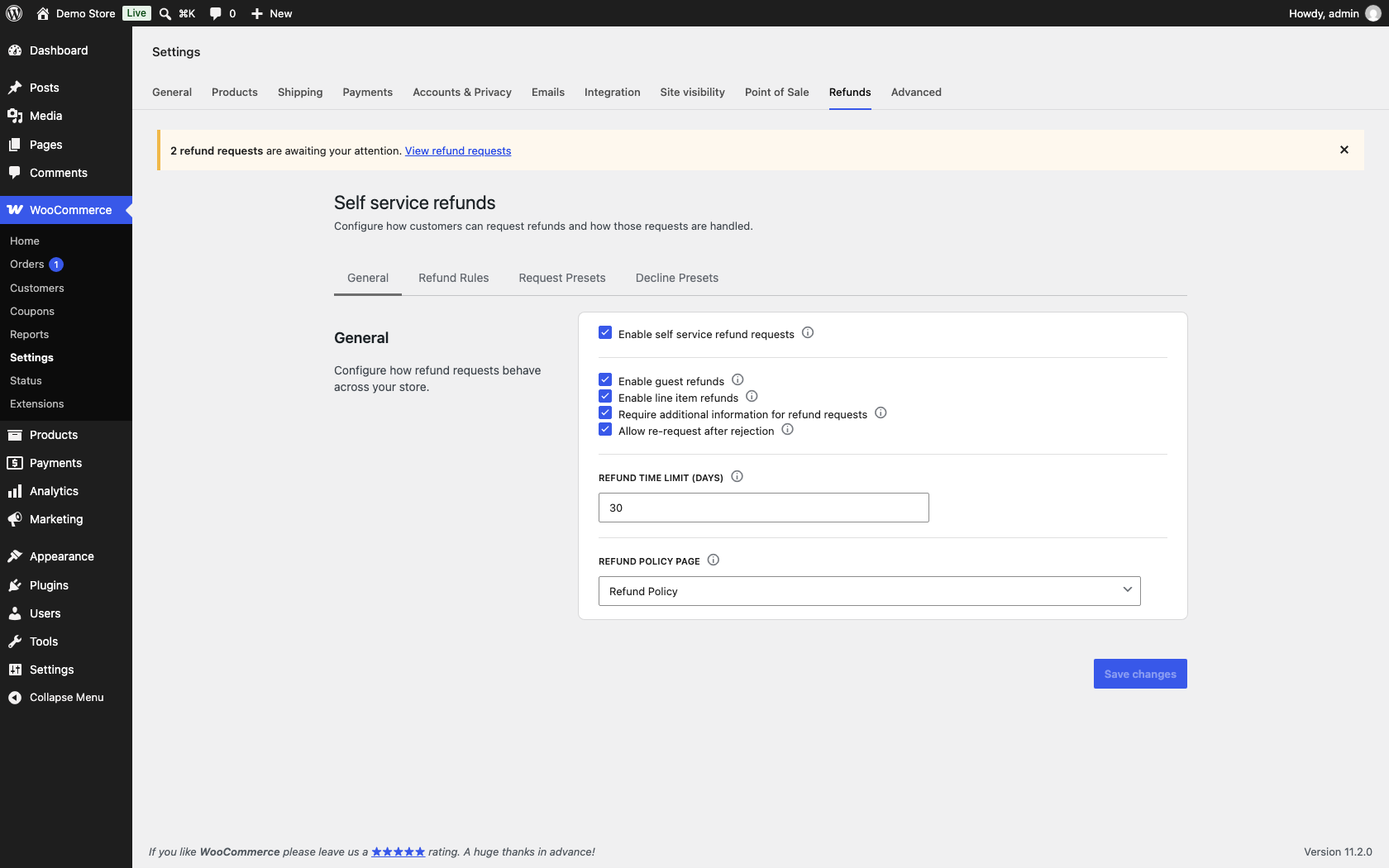
General settings
↑ Back to topThese settings control who can ask for a refund, what they can ask for, and when.
Enable self service refund requests This is the main switch. When it is off, customers see no refund buttons, the guest form does not load, and the other tabs are hidden. It is off by default so you can configure everything first.
Enable guest refunds Lets people who are not logged in request a refund through the guest refund form. When it is off, the form shows a short message saying guest refunds are disabled. It is on by default once the main switch is on.
Enable line item refunds Lets customers choose specific items and quantities instead of refunding the whole order. Full order refunds are always available and cannot be turned off. The partial option only appears on orders that have two or more line items, or one item with a quantity of two or more. It is on by default.
Require additional information for refund requests Makes the Additional Details text box mandatory. When it is off, the box is optional. This is separate from the Refund Reason dropdown, which is always required whenever you have at least one request preset. It is off by default.
Allow re-request after rejection Lets a customer submit a new request for an order after you rejected an earlier one. When it is off, the refund button disappears from that order once you reject a request. It is on by default.
Refund time limit (days) How many days after the order date a customer can ask for a refund. The default is 30 and the maximum is 365. Set it to 0 to remove the time limit entirely.
Refund policy page Choose the page that holds your refund policy. A link to it appears on the refund request form and the guest form, asking customers to read it before submitting. Leave it empty to show no link.
Refund rules and automatic refunds
↑ Back to topThe Refund Rules tab decides whether a request is refunded straight away or waits for you to review it.
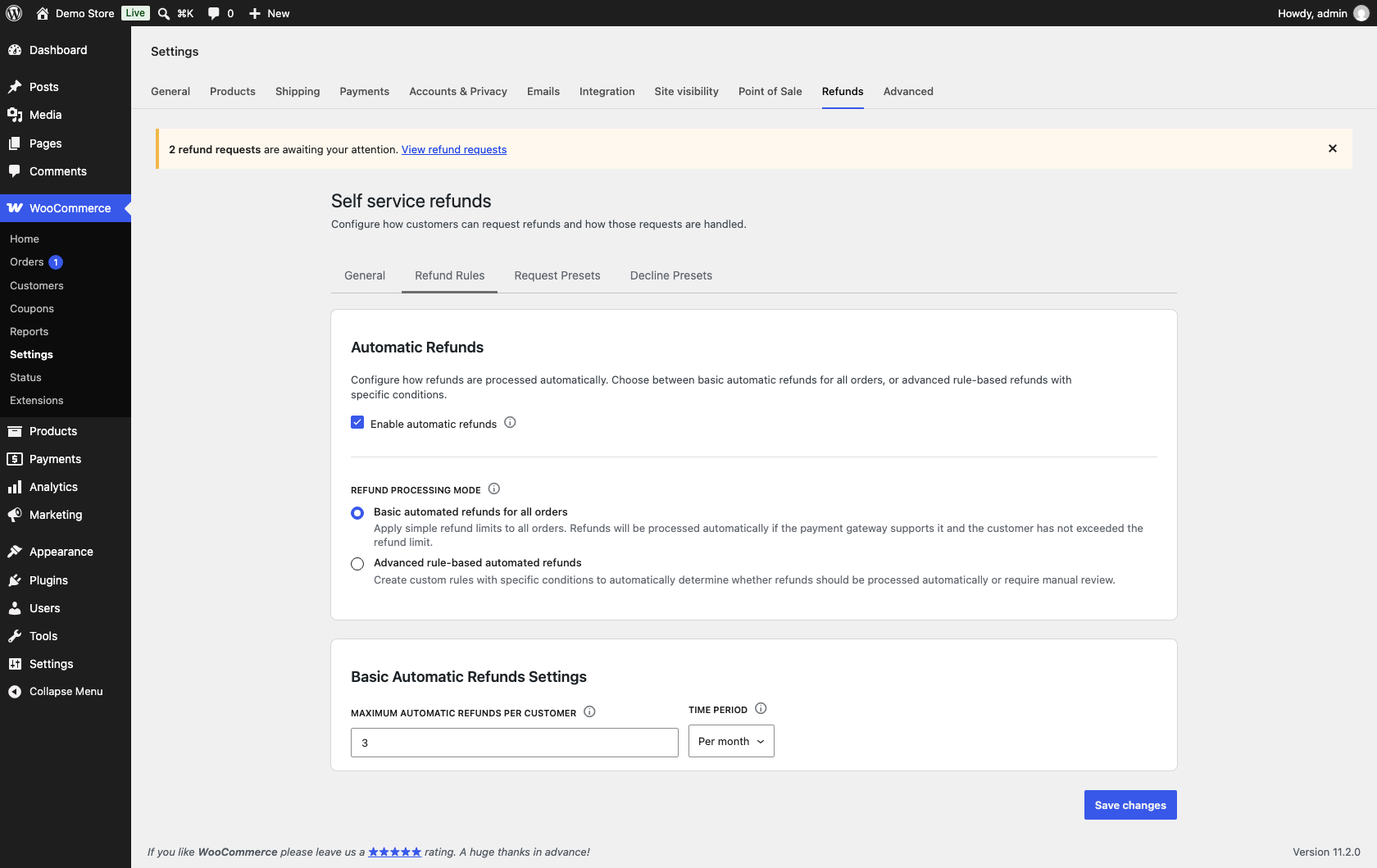
Enable automatic refunds When this is on, a request can be refunded immediately through the payment gateway. When it is off, every request goes to manual review, whatever your limits or rules say. It is on by default.
Refund processing mode Appears when automatic refunds are on. It saves as soon as you pick an option. Choose one of two modes:
- Basic automated refunds for all orders: every request is refunded automatically until a customer goes over the limit you set.
- Advanced rule-based automated refunds: your custom rules decide each request. A request that matches no rule goes to manual review.
The two modes do not combine. In Basic mode your rules are ignored, and in Advanced mode the per-customer limit is not used.
Whichever mode you choose, the extension checks each request in this order:
- If Enable automatic refunds is off, the request goes to manual review.
- If the customer has Disable automatic refunds set on their profile, the request goes to manual review.
- In Basic mode, the request goes to manual review if the customer is over their limit. In Advanced mode, the first matching rule decides, and no match means manual review.
- If the payment gateway does not support refunds, the request goes to manual review.
Anything that gets through all four checks is refunded straight away.
Basic automatic refunds settings
These settings appear when you choose Basic mode.
Maximum automatic refunds per customer How many requests a customer can have refunded automatically within the time period. Once they go over it, further requests in that period go to manual review. Set it to 0 for no limit, which is the default. The maximum is 9999. Logged-in customers are counted by account, and requests made through the guest form are counted by billing email address.
Time period The window the limit applies to: Per day, Per week, Per month, or Per year. The default is per month. The count resets at the start of each new period.
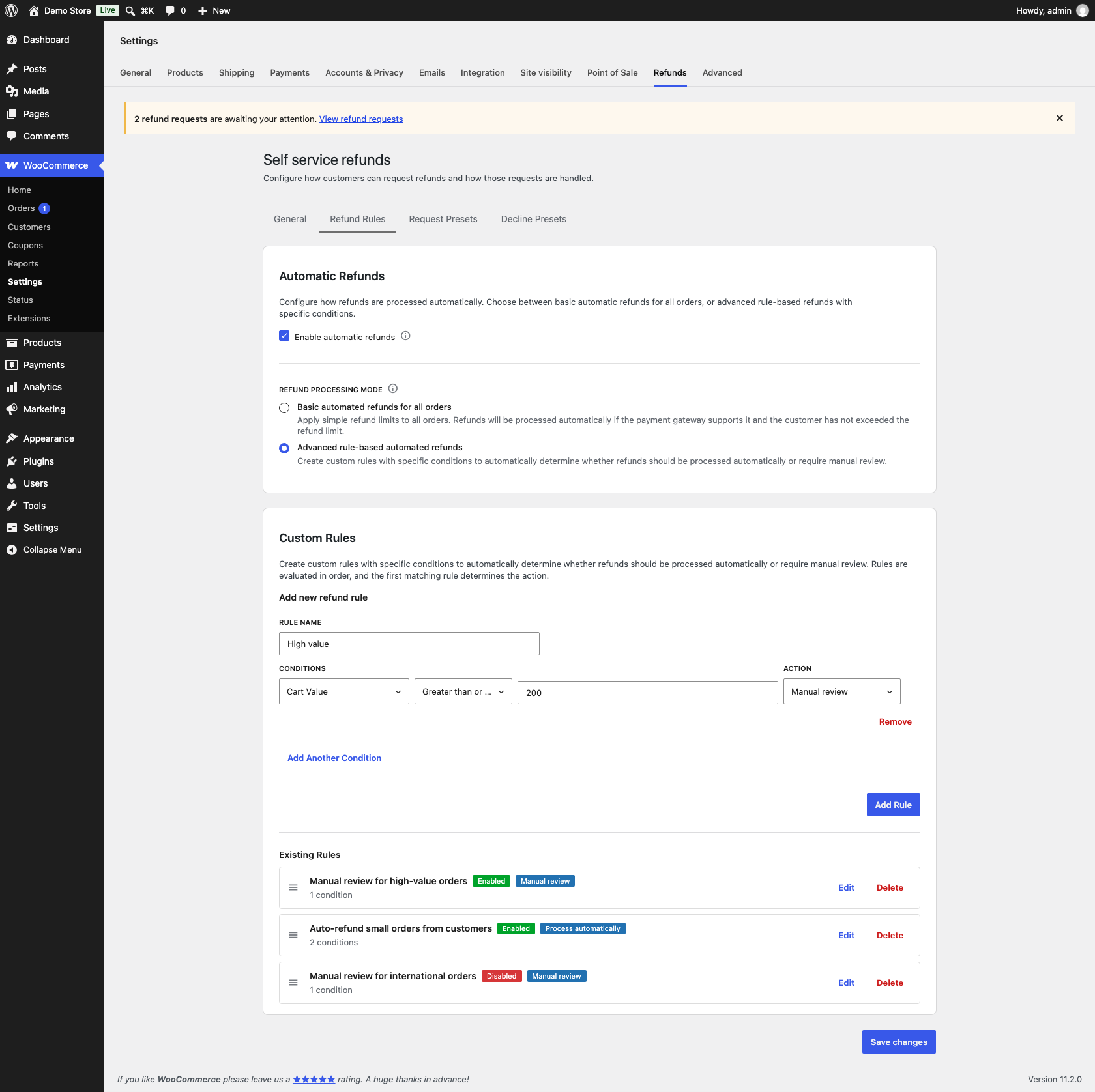
Custom rules
These settings appear when you choose Advanced mode. Each rule has a name, one or more conditions, and an action.
- Enter a Rule Name.
- Add a condition. Pick a condition type, an operator, and a value.
- Click Add Another Condition to add more. All conditions in a rule must match for the rule to apply.
- Choose an Action: Process automatically or Manual review.
- Click Add Rule.
Rules are checked in the order shown under Existing Rules, and the first rule that matches decides what happens. Drag rules to change their order. A rule with no conditions matches every order, so it works well as a catch-all at the bottom of the list. You can turn a rule off with its Enabled checkbox without deleting it.
These are the conditions you can use:
| Condition | Operators | What it checks |
|---|---|---|
| Billing Country | Is, Is not | The order’s billing country. |
| Shipping Country | Is, Is not | The order’s shipping country. |
| Shipping Zone | Is, Is not | The shipping zone that matches the shipping address. |
| Shipping Method | Is, Is not | The shipping method used on the order. |
| Payment Method | Is, Is not | The payment gateway used. Only enabled gateways are listed. |
| User Role | Is, Is not | The customer’s role. Guests only match “Is not”. |
| Product Category | Is, Is not | Whether any item in the order is in the category. |
| Product Tag | Is, Is not | Whether any item in the order has the tag. |
| Product Type | Is, Is not | Whether any item in the order is of that type. |
| Brand | Is, Is not | Whether any item in the order has the brand. Only available when product brands exist on your store. |
| Order Status | Is, Is not | The order’s current status. |
| Cart Item Count | Equals, Less than, Greater than, Less than or equal, Greater than or equal | The number of line items in the order. |
| Cart Quantity Count | Same as above | The total quantity of all items. |
| Cart Value | Same as above | The order total, not the amount being refunded. |
Every rule checks the whole original order, even when the customer asks for a partial refund. A Process automatically rule still sends the request to manual review if the payment gateway does not support refunds.
When a rule decides a request, the extension adds a private order note naming the rule and its conditions, so you can see why it was handled that way.
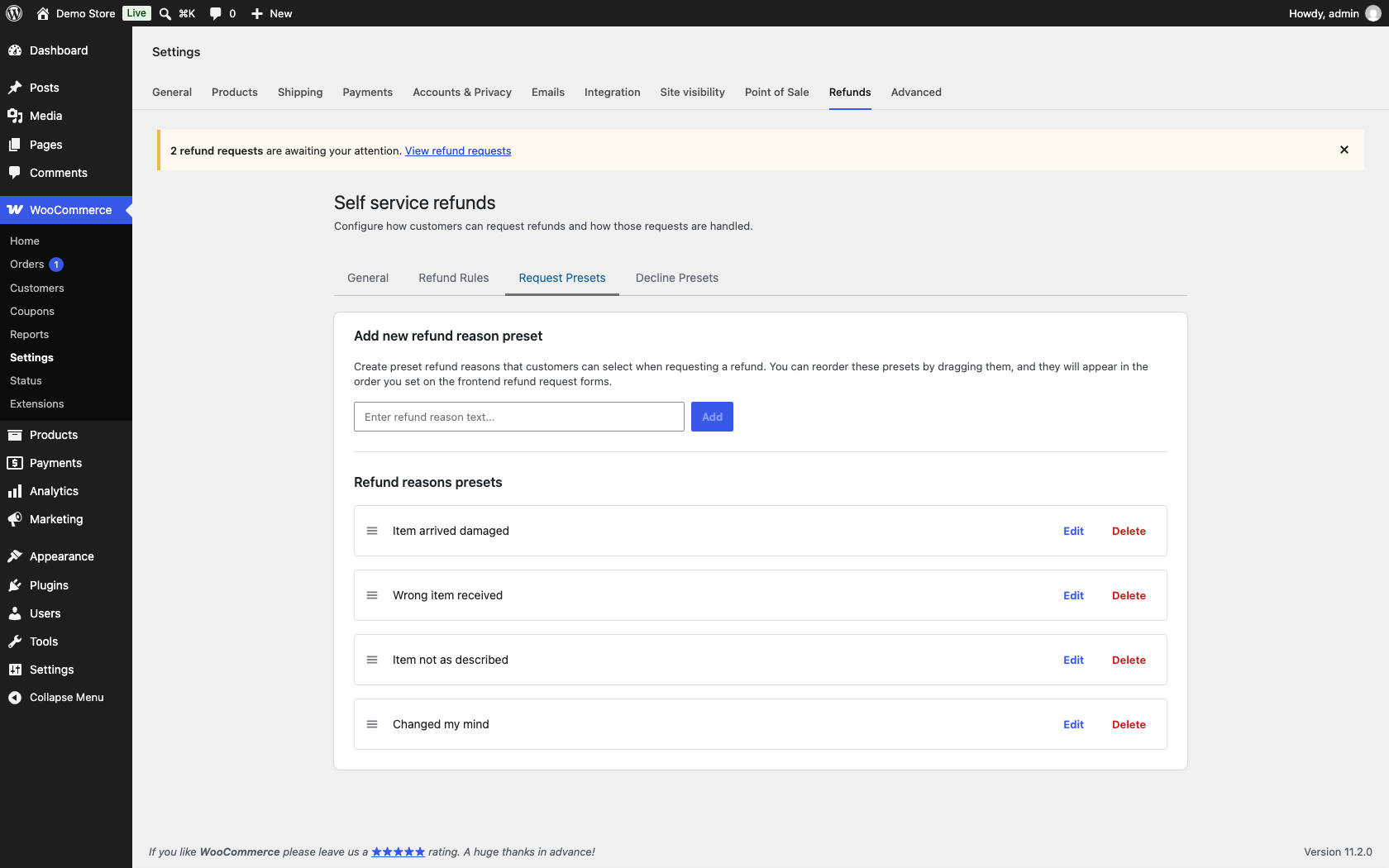
Request presets
↑ Back to topThe Request Presets tab holds the reasons customers choose from in the Refund Reason dropdown. Type a reason and click Add. Edit or delete any reason, and drag them into the order you want customers to see.
The extension starts you off with six reasons written for software and digital products, such as “Too hard to set up.” Change them to suit what you sell. If you delete them all, the dropdown no longer appears on the form. The reasons customers pick feed the Refund Reasons report.
Decline presets
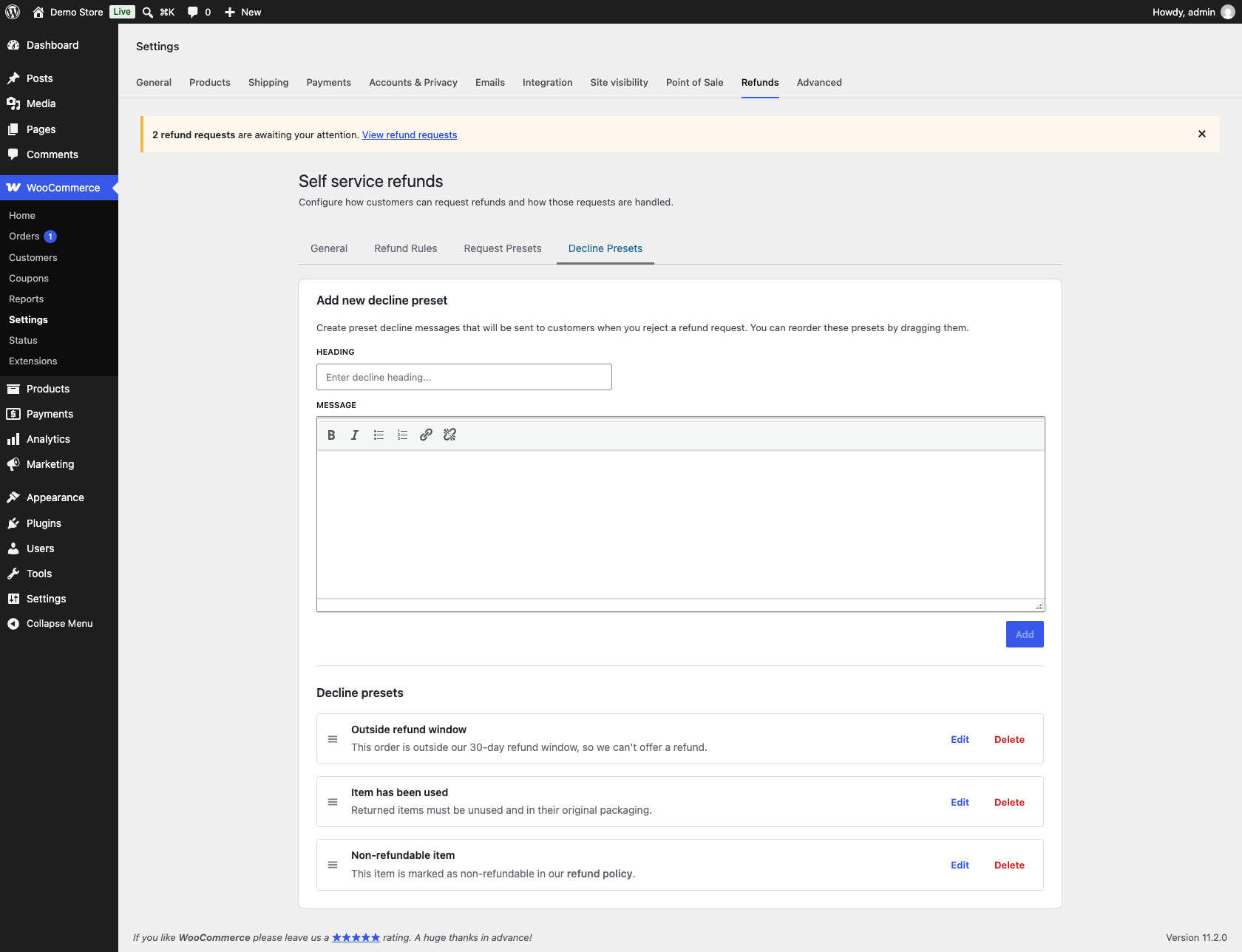
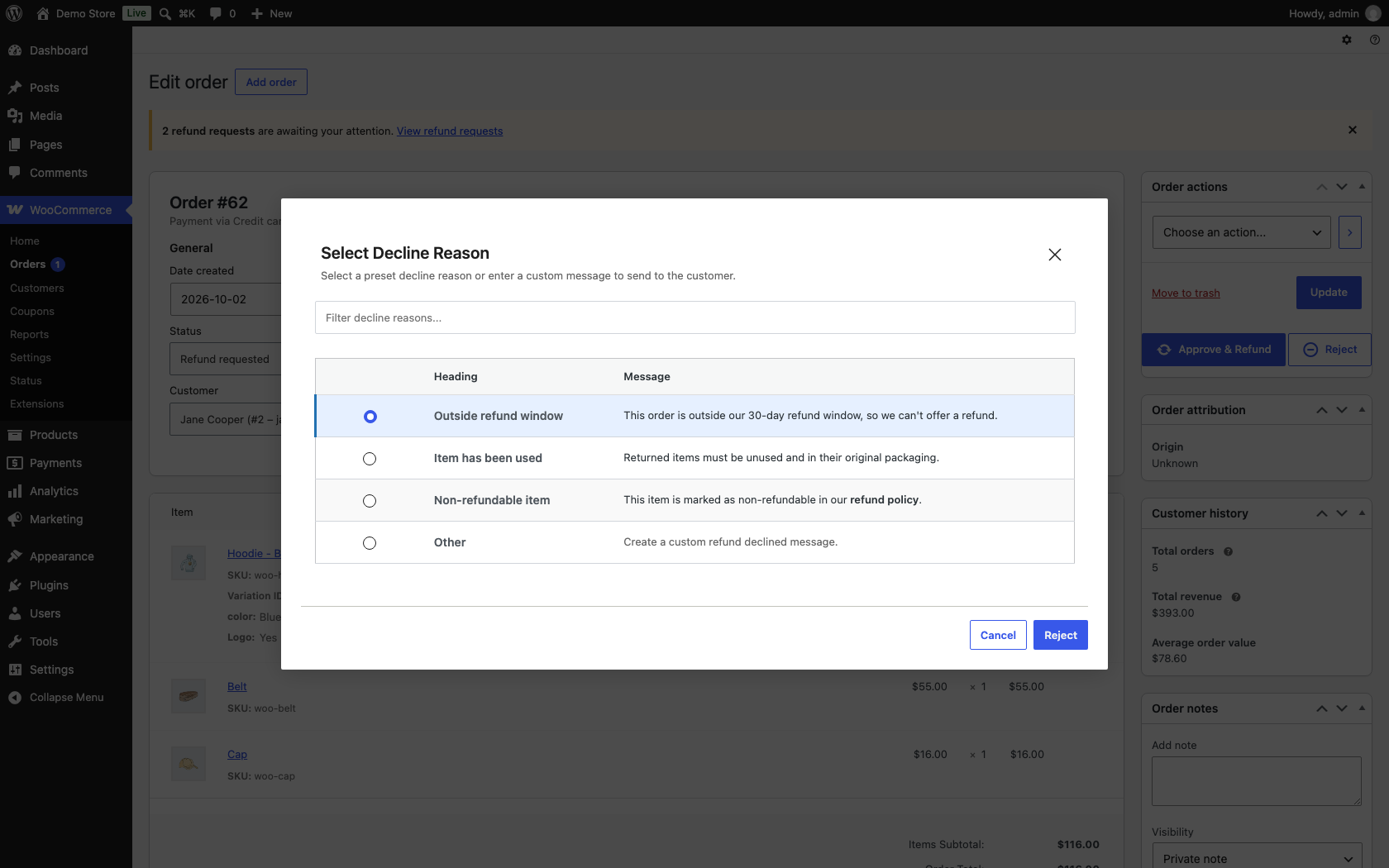
↑ Back to topThe Decline Presets tab holds ready-made messages you can send when you reject a request. Each preset has a Heading and a Message, and the message supports rich text. Add, edit, delete, and reorder them the same way as request presets.
Five presets are included to start with, such as “Outside refund timeframe.” When you reject a request, you can pick one of these or write a custom message instead.
Product settings
↑ Back to topYou can stop specific products from being refunded through the extension.
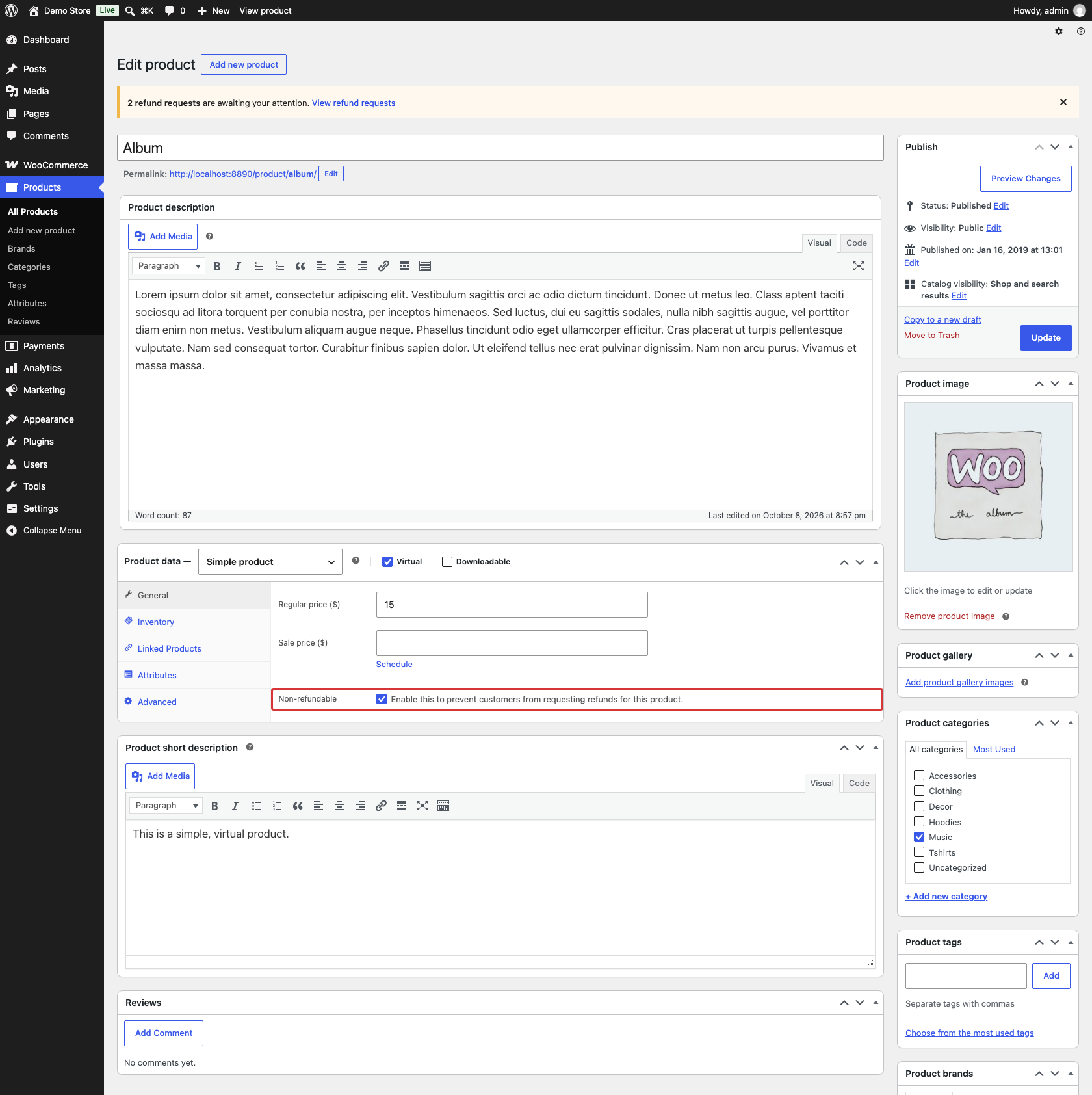
- For simple, grouped, and variable products, open the product and select Non-refundable in the General tab of the Product data panel. On a variable product this covers every variation.
- To mark only some variations, leave the product unchecked and select Non-refundable on each of those variations instead.
Customers cannot request a full order refund for an order that contains a non-refundable product. They can still request a partial refund for the other items. If every item in the order is non-refundable, the refund button does not appear.
Customer controls
↑ Back to topEach customer’s profile has a Self-Service Refunds section. Go to Users, edit a customer, and scroll down.
Disable automatic refunds Sends every request from this customer to manual review, in both Basic and Advanced mode.
Block refund requests Removes the refund button from all of this customer’s orders in My Account, so they cannot submit new requests. You can still refund their orders yourself.
Refund request limit Overrides the global Maximum automatic refunds per customer for this customer when they request from My Account in Basic mode. Leave it empty to use the global limit, set 0 for no limit, or enter a number.
Refund counter Shows how many requests this customer has made in the current period. Click Reset counter to set it back to 0.
Block refund requests and Disable automatic refunds also apply when a registered customer uses the guest refund form. The extension matches the order to its customer account, or to the account with the same email as the order’s billing email.
What your customers see
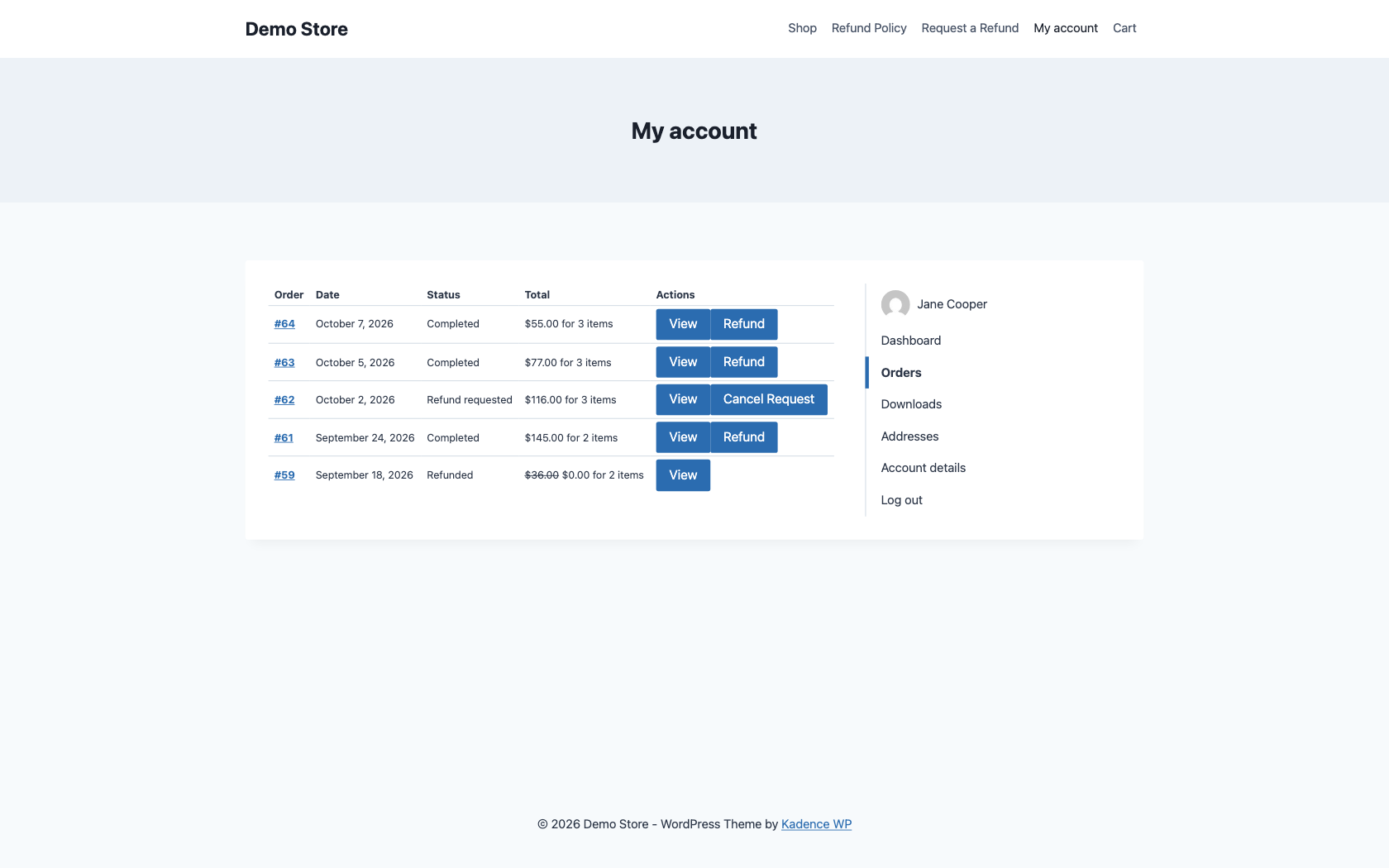
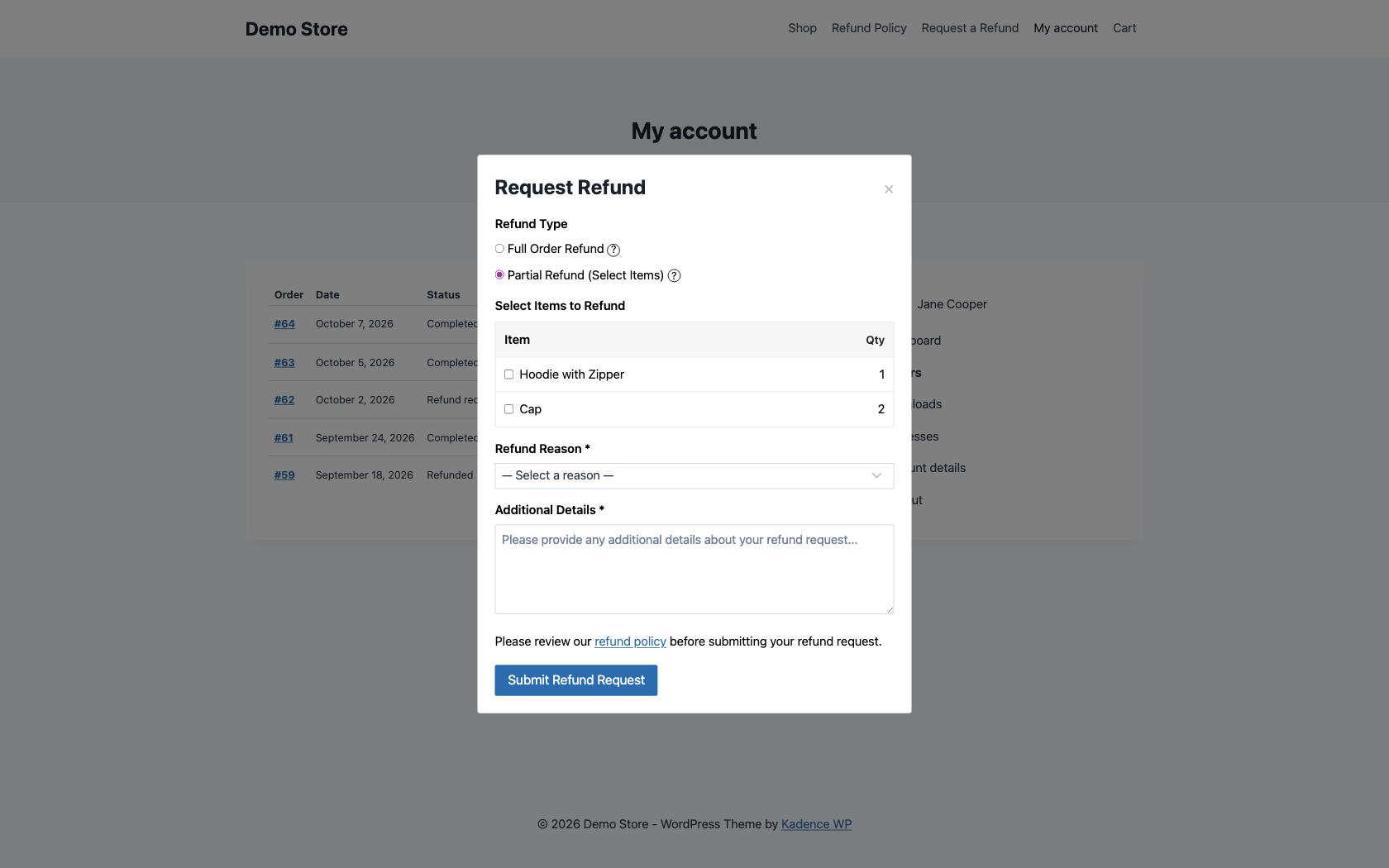
↑ Back to topIn My Account Eligible orders show a Refund button in My Account > Orders and on the order’s detail page. Clicking it opens a form where the customer chooses a full or partial refund, selects items and quantities for a partial refund, picks a reason, and adds any details. An order is eligible when all of these are true:
- The order status is Processing or Completed.
- The order still has an amount left to refund.
- The order is within your refund time limit.
- The customer is not blocked, and there is no rejected request blocking a new one.
- At least one item in the order is refundable.
While a request waits for review, the button changes to Cancel Request so the customer can withdraw it. The order detail page also shows a Refund Request History with every request, its status, the reason, and any decline message you sent.
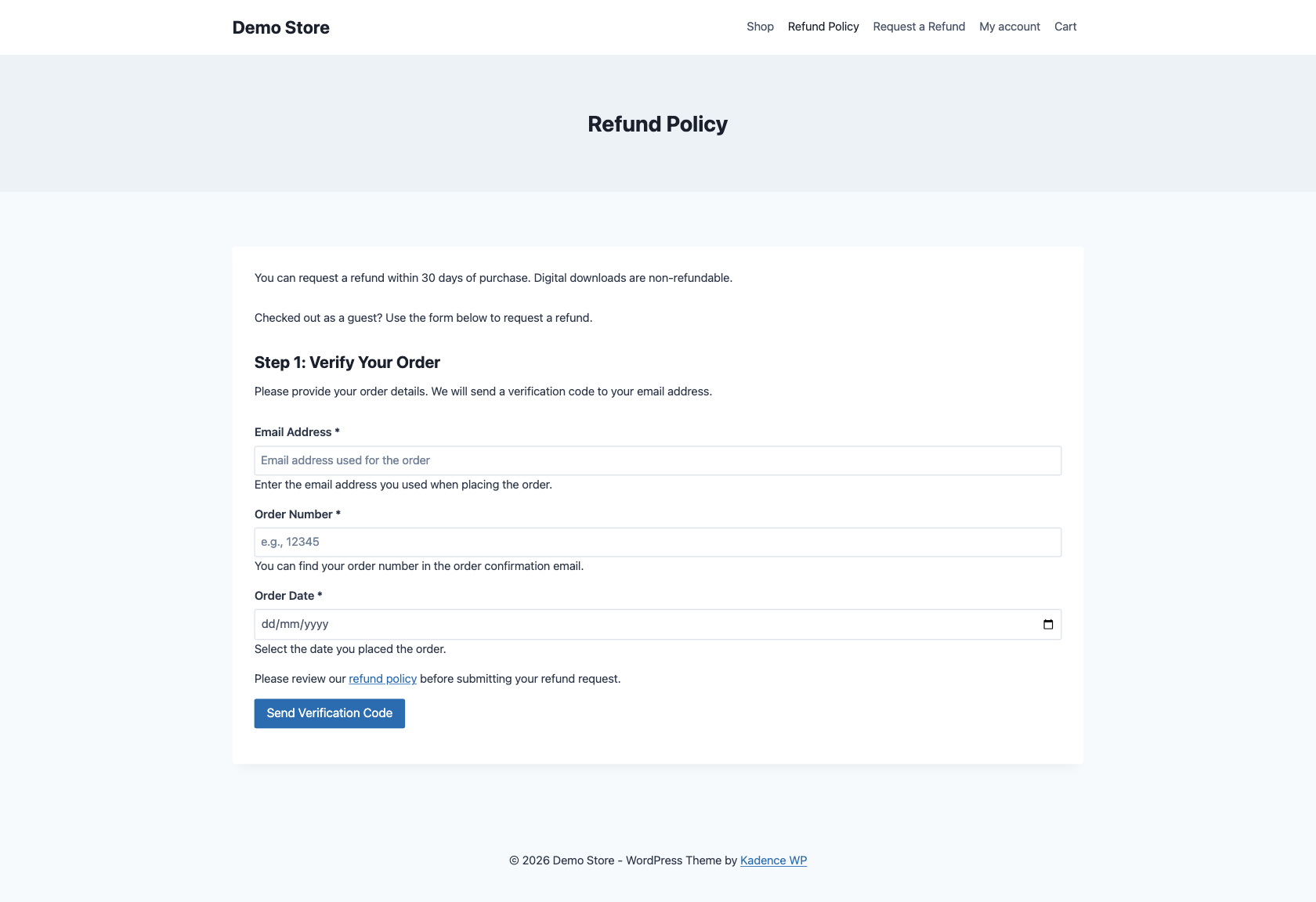
Add the guest refund form
Guests use a three-step form:
- They enter their email address, order number, and order date. The date may be off by one day to allow for time zones.
- They enter the six-digit code sent to the order’s billing email. The code expires after 15 minutes, and they can request a new one.
- They choose what to refund, pick a reason, and submit.
To add the form, use the shortcode or the block:
- Shortcode:
[ssr_guest_refund]. Change the heading withtitle, or hide it withshow_title="no". For example,[ssr_guest_refund title="Return an order"]. - Block: search for Guest Refund Form in the block inserter. You can adjust its background color, border, border radius, and padding.
A good place for the form is your refund policy page. Any customer whose details match an order can use it, including customers with accounts.
Manage refund requests
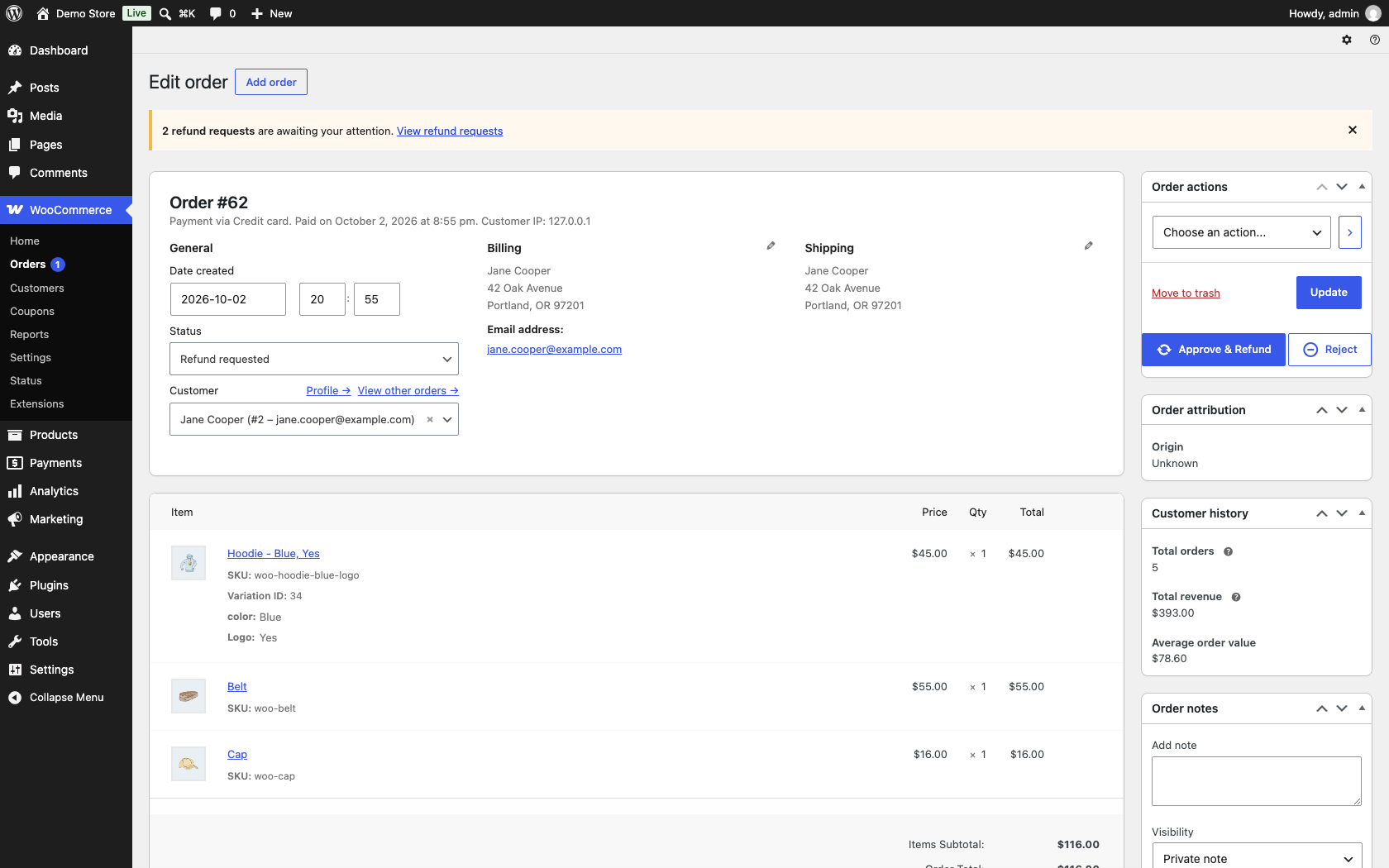
↑ Back to topWhen a request needs review, the order moves to the Refund requested status and a notice at the top of WP Admin tells you how many requests are waiting.
On the order edit screen you will find two buttons:
- Approve & Refund creates the refund through the payment gateway after you confirm. This cannot be undone.
- Reject opens a window where you choose a decline preset or select Other to write a custom heading and message. The customer receives it by email, and the order returns to its previous status.
Approve and reject actions are also available from the orders list. If the payment gateway does not support refunds, the approve button is disabled. Refund the customer in your gateway, then create the refund in WooCommerce as you normally would. The extension marks the request as processed automatically.
After a full refund the order moves to Refunded. After a partial refund it goes back to its previous status so the rest of the order can continue. Refunded items are restocked.
Email notifications
↑ Back to topThe extension adds five emails to WooCommerce > Settings > Emails. You can turn each one on or off, change its subject, heading, and extra content, and change the recipient for the admin emails.
| Sent to | When | |
|---|---|---|
| Refund Request – Customer refund request | Customer | Every time they submit a request. |
| Refund Request – Admin refund request | Admin | When a request is processed automatically. |
| Refund Request – Admin refund manual approval | Admin | When a request needs your review. |
| Refund Request – Customer refund declined | Customer | When you reject a request. |
| Guest Refund – Verification code | Guest | When they ask for a verification code. |
The admin emails go to your site’s admin email address unless you change the recipient. From an order’s Order actions menu you can resend the request and rejection emails.
Refund reasons report
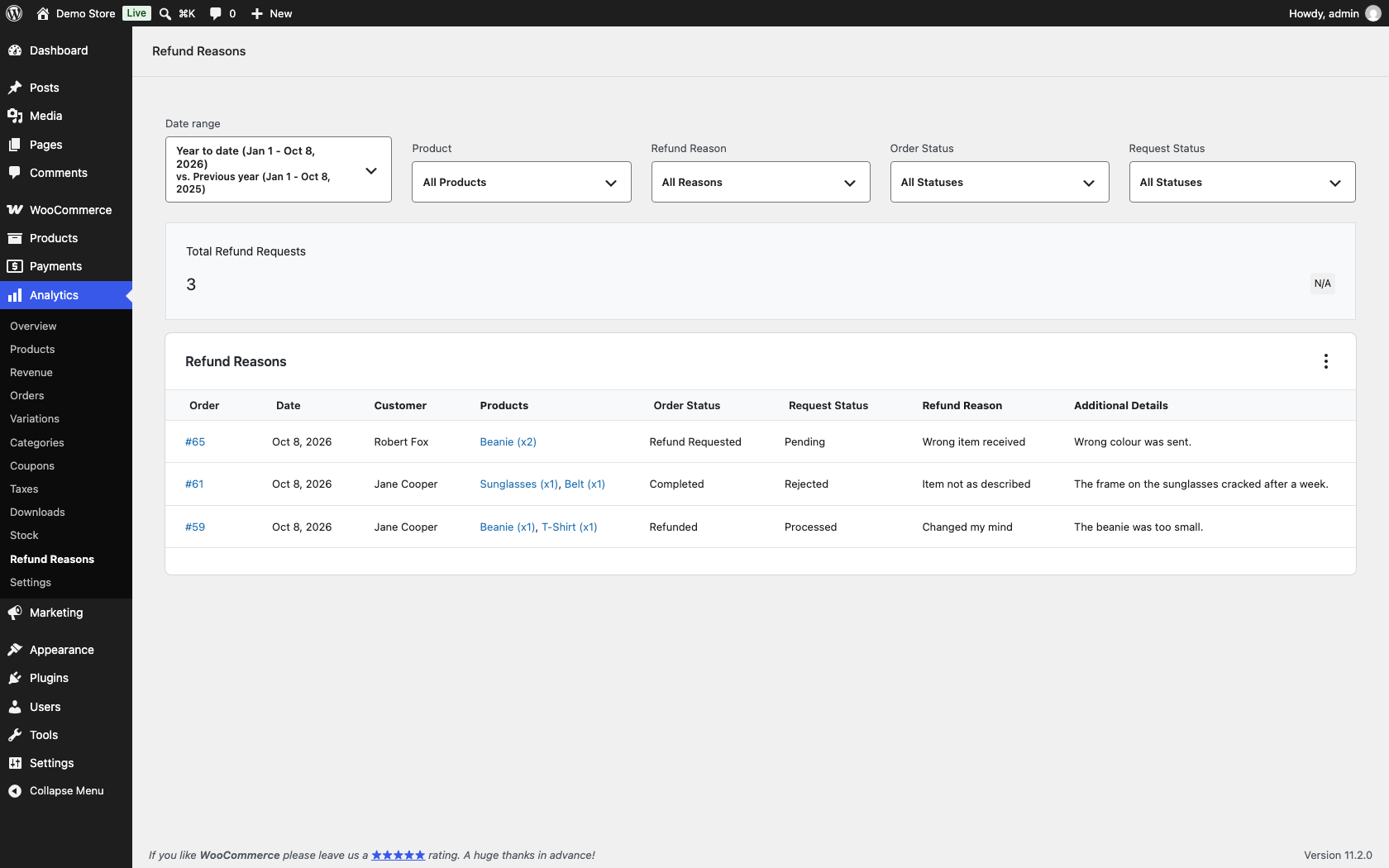
↑ Back to topGo to WooCommerce > Analytics > Refund Reasons to see every refund request with its date, order, customer, product, reason, order status, and request status, plus a total count.
Use the date range picker at the top to choose a period. You can also narrow the list by Refund Reason, Product, Order Status, or Request Status (pending, processed, or rejected). This shows which reasons come up most and which products get the most requests.
Manage refunds with an AI assistant
↑ Back to topOn sites where the WordPress Abilities API is available, the extension registers tools that an AI assistant connected through a Model Context Protocol (MCP) plugin can use. They let the assistant list and view refund requests, approve or reject pending requests, and list your request and decline presets.
If you use w7s MCP, the tools appear as the Self-Service Refunds tool pack under w7s MCP > Tool Packs. The pack is off until you enable it. Approving and rejecting move real money and email customers, so enable these tools only if you want an assistant to act on requests. Every tool requires a user who can manage WooCommerce.
Use cases
↑ Back to topA small shop that wants to see every request
↑ Back to topYou sell handmade goods and want to look at each refund before money moves.
- Enable self service refund requests: on.
- Enable automatic refunds: off.
- Refund time limit (days): 30.
- Refund policy page: your returns policy page.
- Edit the request presets to match physical goods, such as “Arrived damaged” and “Wrong size.”
Customers request refunds without emailing you, every request lands in Refund requested, and you approve or reject with a preset.
A digital product store with fast automatic refunds
↑ Back to topYou sell software and want refunds handled instantly, with a safety limit.
- Enable automatic refunds: on.
- Refund processing mode: Basic.
- Maximum automatic refunds per customer: 2, Per year.
- Enable line item refunds: on, so customers can refund one product from a bundle order.
- Allow re-request after rejection: off.
Most refunds complete straight away. A customer asking for a third refund in a year goes to manual review so you can check for abuse.
High-value orders always get a human check
↑ Back to topYou are happy to auto-refund small orders but want to review anything large.
- Refund processing mode: Advanced.
- First rule, “High value”: condition Cart Value Greater than or equal 200, action Manual review.
- Second rule, “Everything else”: no conditions, action Process automatically.
Orders of 200 or more always wait for you. Every other order matches the catch-all rule and is refunded straight away.
Final sale items and repeat refunders
↑ Back to topYou run seasonal sales and some items cannot be returned.
- Mark clearance products as Non-refundable in their product settings.
- For a customer who refunds too often, edit their profile and select Disable automatic refunds, or Block refund requests if you want them to contact you directly.
Customers can still refund other items from the same order, and you keep control over the accounts that need it.
Guest checkout without a support inbox
↑ Back to topMost of your customers check out as guests.
- Enable guest refunds: on.
- Add
[ssr_guest_refund]or the Guest Refund Form block to your refund policy page. - Keep Guest Refund – Verification code enabled in WooCommerce > Settings > Emails.
Guests verify themselves through their order email, so only someone with access to that inbox can request a refund.
Working with other W7S extensions
↑ Back to topSelf-Service Refunds for WooCommerce takes refund requests off your inbox and gives each one a clear decision. These combinations from the W7S catalog help with the parts around that decision: working through the queue, checking the facts before you approve, and dealing with customers who take advantage. None of them need special setup between the extensions. Each one works side by side with the settings described above.
Work through the refund queue from a chat. MCP (Model Context Protocol) connects Claude or ChatGPT to your store with tools for orders, customers, products, and reports, alongside the Self-Service Refunds tools described in Manage refunds with an AI assistant. That puts a whole review in one conversation. Ask which requests are waiting, have the assistant read each order and why it was held, add an order note, then approve the clear cases and reject the rest with a decline preset. Start with a read-only key while you try it, and add write access when you want the assistant to approve or reject. With action logging on in MCP for WooCommerce, every approval and rejection the assistant makes is recorded with the time and the key behind it.
Stop repeat refunders at checkout. Block refund requests on a customer’s profile stops them asking for refunds, but they can still place new orders, sometimes under a new email address. Shop Defender checks orders before payment is taken and can block them, put them on hold, or flag them, based on rules for email addresses, phone numbers, IP addresses, and billing or shipping addresses. When a customer keeps ordering and refunding, add rules for their details at WooCommerce > Settings > Advanced > Shop Defender, set to hold or block. Use the Refund Reasons report to spot the pattern first, then decide.
Show what the customer agreed to. A rejection is easier to stand behind when you can show the terms the customer accepted. Terms & Conditions Tracker records every checkout consent with a timestamp and the version of the document accepted, and shows it in a Consent & Legal Agreements panel on the order screen. If your refund terms are part of your Terms & Conditions page, the tracker keeps a snapshot of the page as the customer saw it, even if you edit it later. Check that panel before you reject a request as outside your policy, and set Refund policy page in this extension to the same page so customers see the terms again when they ask.
Check delivery before refunding a parcel that never arrived. Order Shipment Tracking adds tracking numbers and carrier tracking links to orders, and shows them to customers in My Account. Add a request preset such as “Parcel never arrived” so these requests are easy to spot. When one comes in, follow the tracking link on the order before you approve, and reject with a decline preset if the carrier shows the parcel was delivered. Customers who can track their own parcels in My Account also tend to ask for fewer refunds while a parcel is simply late.
Let insurance cover lost parcels. Shipping Insurance Manager offers shipping insurance at checkout, so a lost parcel becomes a claim instead of a loss you absorb. Keep larger orders on manual review, for example in Advanced mode with a rule that sends orders above a certain Cart Value to Manual review, so you can check whether a lost parcel was insured before you refund it yourself.
FAQ
↑ Back to topDoes the extension refund the money automatically?
↑ Back to topIt can. When automatic refunds are on, the order’s payment gateway supports refunds, and no limit or rule sends the request to review, the refund is created straight away through the gateway. Otherwise the order moves to Refund requested and waits for you.
Can I use a per-customer limit and rules together?
↑ Back to topNo. Basic mode uses the limit and ignores rules. Advanced mode uses rules and ignores the limit. If you need both, pick Advanced and turn individual customers’ automatic refunds off from their profiles when they refund too often.
Why did a request go to manual review when I expected it to be refunded?
↑ Back to topCheck the private order notes. The extension adds a note explaining why, such as automatic refunds being off, the customer being over their limit, a rule requiring review, no rule matching in Advanced mode, or the gateway not supporting refunds.
Which payment methods support automatic refunds?
↑ Back to topAny gateway that supports refunds inside WooCommerce. Methods like bank transfer or cash on delivery do not, so requests for those orders always go to manual review and you refund the customer outside WooCommerce.
What is included in a full order refund?
↑ Back to topThe full remaining order total, including shipping, fees, and tax. A partial refund covers the selected items and their tax, but not shipping.
Are refunded items restocked?
↑ Back to topYes. Stock is returned for refunded items, the same as when you tick restock in a manual WooCommerce refund. Developers can change this with the ssr_wc_create_refund_args filter.
Can customers request a refund on an order that is still processing?
↑ Back to topYes. Orders in Processing and Completed status are eligible. Developers can change the list with the ssr_refundable_order_statuses filter.
Can a customer request more than one refund on the same order?
↑ Back to topYes, as long as there is still an amount left to refund and no request is pending. For example, a customer can refund one item now and another later.
What happens if I reject a request?
↑ Back to topThe order returns to its previous status, the customer gets an email with your decline heading and message, and the request shows as Declined in their refund history. Whether they can try again depends on Allow re-request after rejection.
Can customers cancel a request?
↑ Back to topYes. While a request is pending review, the refund button becomes Cancel Request.
How do I stop one customer from requesting refunds?
↑ Back to topEdit the customer under Users and select Block refund requests in the Self-Service Refunds section.
A guest says they never got the verification code. What should they check?
↑ Back to topThe code goes to the billing email on the order, and it expires after 15 minutes. Ask them to check their spam folder and use Resend Code. Also check that Guest Refund – Verification code is enabled in WooCommerce > Settings > Emails. The form allows five attempts every 15 minutes.
Does it work with my theme?
↑ Back to topThe My Account buttons use standard WooCommerce order actions, so they work with themes that support WooCommerce. The guest form works anywhere you can add a shortcode or block.
What happens if I turn off self-service refunds or uninstall the extension?
↑ Back to topTurning off Enable self service refund requests hides all customer-facing features and also removes the Refund requested order status, so approve or reject any pending requests first. Uninstalling deletes the plugin settings and all refund request data stored on your orders, including refund history. Refunds already created in WooCommerce are not affected.
Developer documentation
↑ Back to topSettings and stored data
↑ Back to topSettings are stored in options and managed through the settings screen at admin.php?page=wc-settings&tab=ssr_refunds, which is a React app saving over REST.
| Option | Contents |
|---|---|
ssr_settings | Main settings array: enable_self_service_refund_requests, enable_guest_refunds, enable_line_item_refunds, enable_automatic_refunds, require_refund_reason, allow_rerequest_after_rejection, refund_time_limit, auto_refund_limit, auto_refund_limit_interval, refund_mode (basic or advanced), refund_policy_page_id. enable_full_order_refunds is always forced to true. |
ssr_refund_reasons | Request presets: array of id, text, order. |
ssr_decline_presets | Decline presets: array of id, heading, message, order. |
ssr_refund_rules | Rules: array of id, name, enabled, action (process_automatically or manual_review), conditions, order. |
Settings are cached under the object cache key ssr_settings_cached for one hour and cleared on save.
Order meta (HPOS-safe) uses the _ssr_ prefix, including _ssr_refund_history, _ssr_refund_previous_status, _ssr_refund_pending_reason, _ssr_refund_rejected, _ssr_refund_decline_heading, and _ssr_refund_decline_message. Product and variation meta: _ssr_non_refundable (yes). User meta: _ssr_disable_auto_refunds, _ssr_block_refund_requests, _ssr_user_refund_limit, _ssr_refund_counter, _ssr_refund_counter_period.
The extension registers the order status wc-refund-requested. It is only registered while enable_self_service_refund_requests is on.
Processing decision
↑ Back to topSSR_Rules_Evaluator::decide_refund_processing() decides every request, for both My Account and the guest form. It escalates to manual review, in order of precedence, when enable_automatic_refunds is off, when the customer’s _ssr_disable_auto_refunds meta is set, when the mode check fails (Basic: limit exceeded; Advanced: no matching rule or a manual_review rule), or when the gateway does not support refunds.
Use SSR_Admin_Settings::get_refund_mode( $settings ) to read the mode. When refund_mode was never stored, it returns advanced if any enabled rule exists and basic otherwise.
For the guest form, per-customer meta is read from the order’s customer, or from the registered user whose email matches the order’s billing email.
Action hooks
↑ Back to top| Hook | Arguments | Fires when |
|---|---|---|
ssr_refund_processed | $order_id, $refund_id, $refund_details | A customer or guest request is refunded automatically. |
ssr_refund_escalated_to_admin_review | $order_id, $user_id, $escalation, $refund_details | A logged-in customer’s request is sent to manual review. |
ssr_guest_refund_escalated_to_admin_review | $order_id, $email, $escalation, $refund_details | A guest request is sent to manual review. |
ssr_refund_pending_approved | $order_id, $refund_id, $admin_user_id, $refund_details | An admin approves a pending request. |
ssr_refund_pending_rejected | $order_id, $admin_user_id | An admin rejects a pending request. |
ssr_refund_pending_cancelled | $order_id, $user_id, $request_id | A customer cancels a pending request. |
ssr_log_refund_request | $order_id, $user_data, $refund_details | After a logged-in customer’s request is logged. |
ssr_log_guest_refund_request | $order_id, $user_data, $refund_details | After a guest request is logged. |
ssr_email_sent | $type, $order_id, $email | An extension email is sent. |
ssr_email_failed | $type, $order_id, $email | An extension email fails to send. |
$escalation contains escalate, count, limit, reason (automatic_refunds_disabled, gateway_no_refunds, limit_exceeded, user_disabled, or rule_requires_manual_review), and matched_rule when a rule triggered it. $refund_details contains type (full or partial), line_items, reason, refund_reason_id, and order.
Example: post to a Slack webhook or another system when a request needs review.
add_action( 'ssr_refund_escalated_to_admin_review', function ( $order_id, $user_id, $escalation ) {
    if ( 'limit_exceeded' === $escalation['reason'] ) {
        // Notify your fraud review process.
    }
}, 10, 3 );
Filter hooks
↑ Back to top| Filter | Arguments | Purpose |
|---|---|---|
ssr_refundable_order_statuses | $statuses | Order statuses that can be refunded. Default completed, processing. Validation also includes refund-requested. |
ssr_is_order_refundable | $eligible, $order_id, $order | Final eligibility check when a request is submitted. |
ssr_can_order_be_refunded | $can, $order | Whether the Refund button shows in My Account. |
ssr_line_item_refundable | $can, $item, $order | Whether a specific line item can be refunded. |
ssr_refund_time_limit | $days, $order | Time limit for logged-in customer requests. Return 0 for no limit. |
ssr_guest_refund_time_limit | $days, $order | Time limit for guest requests. |
ssr_wc_create_refund_args | $args, $order, $context | Arguments passed to wc_create_refund(). Defaults include refund_payment => true and restock_items => true. |
ssr_refund_note_message | $message, $order, $user_data, $refund_details | The order note added for each request. |
ssr_sanitize_requested_line_items | $normalized, $raw_line_items, $order | Requested line items as [ item_id => qty ] after sanitizing. |
ssr_guest_refund_should_escalate | $escalate, $email, $counter, $limit | Whether a guest request exceeds the automatic refund limit. |
ssr_non_refundable_product_types | $types | Product types that show the Non-refundable checkbox. Default simple, grouped, variable. |
ssr_rate_limit_max_attempts | $max | Requests per window for logged-in customers. Default 5. |
ssr_rate_limit_time_window | $seconds | Rate limit window for logged-in customers. Default 15 minutes. |
ssr_guest_rate_limit_max_attempts | $max | Guest attempts per window, tracked by IP address. Default 5. |
ssr_guest_rate_limit_time_window | $seconds | Guest rate limit window. Default 15 minutes. |
ssr_bypass_rate_limit | $bypass, $identifier | Skip rate limiting for logged-in customers. Users with manage_woocommerce are always exempt. |
ssr_bypass_rate_limit_in_debug | $bypass, $identifier | Whether rate limiting is skipped when WP_DEBUG is true. Default true. |
Example: keep refunded items out of stock.
add_filter( 'ssr_wc_create_refund_args', function ( $args ) {
    $args['restock_items'] = false;
    return $args;
} );
Example: allow 60 days for orders containing a specific product.
add_filter( 'ssr_refund_time_limit', function ( $days, $order ) {
    foreach ( $order->get_items() as $item ) {
        if ( 123 === $item->get_product_id() ) {
            return 60;
        }
    }
    return $days;
}, 10, 2 );
REST routes
↑ Back to topAll routes require manage_woocommerce unless noted.
| Route | Methods | Purpose |
|---|---|---|
ssr/v1/settings | GET, POST/PUT | Read and save ssr_settings. |
ssr/v1/refund-reasons | GET, POST | List and create request presets. |
ssr/v1/refund-reasons/{id} | POST/PUT, DELETE | Update or delete a request preset. |
ssr/v1/refund-reasons/reorder | POST/PUT | Reorder presets. Body: { "order": [ids] }. |
ssr/v1/decline-presets | GET, POST | List and create decline presets. |
ssr/v1/decline-presets/{id} | POST/PUT, DELETE | Update or delete a decline preset. |
ssr/v1/decline-presets/reorder | POST/PUT | Reorder decline presets. |
ssr/v1/refund-rules | GET, POST | List and create rules. |
ssr/v1/refund-rules/{id} | POST/PUT, DELETE | Update or delete a rule. |
ssr/v1/refund-rules/reorder | POST/PUT | Reorder rules. |
wc-analytics/reports/refund-reasons | GET | Report data. Accepts after, before, refund_reason_id, product_id, order_status, request_status, orderby, order, page, per_page. Requires view_woocommerce_reports or manage_woocommerce. |
Customer-facing requests use admin-ajax.php actions protected by nonces: ssr_process_refund, ssr_get_order_items, ssr_cancel_refund, and ssr_get_pending_request_id for logged-in customers, and ssr_guest_send_verification, ssr_guest_verify_token, ssr_guest_get_order_items, and ssr_guest_refund for guests.
Abilities API
↑ Back to topThe extension registers six abilities through the WordPress Abilities API. Registration uses the Abilities API only, with no dependency on a particular MCP plugin, so any consumer of wp_get_abilities() can use them, including MCP (Model Context Protocol) and the WooCommerce MCP adapter. The code lives in includes/class-ssr-mcp-abilities.php, and the hooks are added in SSR_Plugin::define_mcp_hooks().
Registration. SSR_MCP_Abilities::register_abilities() runs on wp_abilities_api_init, and on abilities_api_init for early Abilities API builds. It returns early when wp_register_ability() does not exist, and skips registration when self-service-refunds/list-requests is already registered, so the abilities are registered once even if both hooks fire. None of the hooks are added while enable_self_service_refund_requests is off, so the abilities only exist while self-service refunds are enabled.
Names and category. Ability names use the self-service-refunds/ prefix, exposed as SSR_MCP_Abilities::PREFIX. All six use the woocommerce-rest category.
Permissions. Every ability uses SSR_MCP_Abilities::check_permission(), which requires manage_woocommerce. Approve and reject run as the current user, and that user is recorded as the admin who acted.
Meta. Every ability sets meta.show_in_rest to true, meta.mcp to array( 'public' => true, 'type' => 'tool' ), and meta.expose_in_deprecated_woocommerce_mcp to true. Annotations are set as follows:
| Ability | Label | readonly | destructive | Input |
|---|---|---|---|---|
self-service-refunds/list-requests | List refund requests | true | false | status, page, per_page |
self-service-refunds/get-request | Get refund request | true | false | order_id |
self-service-refunds/approve-request | Approve refund request | false | true | order_id |
self-service-refunds/reject-request | Reject refund request | false | true | order_id, decline_preset_id, decline_heading, decline_message |
self-service-refunds/list-refund-reasons | List refund reasons | true | false | None |
self-service-refunds/list-decline-presets | List decline presets | true | false | None |
Errors. Abilities return a WP_Error in these cases:
| Code | Status | When |
|---|---|---|
ssr_mcp_forbidden | 403 | The current user lacks manage_woocommerce. |
ssr_order_not_found | 404 | order_id is missing, or is not an order. |
ssr_no_refund_request | 404 | The order has never had a self-service refund request. |
ssr_decline_preset_not_found | 404 | reject-request received a decline_preset_id that does not exist. |
ssr_decline_reason_incomplete | 400 | reject-request received only one of decline_heading and decline_message. |
not_pending | none | approve-request or reject-request ran on an order that is not in Refund requested status. |
gateway_no_refunds | none | approve-request ran on an order whose gateway does not support refunds. |
already_refunded | none | approve-request ran on an order with nothing left to refund. |
approve-request also passes on any error WooCommerce or the payment gateway returns while creating the refund.
The request object
list-requests returns one request object per order, and get-request, approve-request, and reject-request return a single one with extra fields.
| Field | Type | Description |
|---|---|---|
order_id | integer | The order ID. |
order_number | string | The order number shown to customers. |
order_status | string | The order status without the wc- prefix, for example refund-requested. |
request_status | string | pending while the order is in Refund requested status, otherwise the status of the latest history entry: processed, rejected, or cancelled. unknown when there is no history. |
refund_type | string | full or partial. |
reason | string | The additional details the customer typed. |
refund_reason_id | integer | The ID of the request preset the customer picked, or 0. |
refund_reason_text | string | The text of that preset, from the latest history entry. |
requested_date | string | When the latest request was made, in site time (Y-m-d H:i:s). |
requested_by | string | The customer’s name and email, or Guest (email) for guest requests. |
currency | string | The order currency. |
order_total | number | The order total. |
total_refunded | number | The amount already refunded. |
remaining_refundable | number | The amount still refundable, rounded to the store’s price decimals. |
payment_method | string | The payment gateway ID. |
gateway_supports_refunds | boolean | Whether the gateway can refund through WooCommerce. When false, approve-request fails with gateway_no_refunds. |
edit_url | string | The order’s edit screen in WP Admin. |
get-request adds these fields:
| Field | Type | Description |
|---|---|---|
line_items | array | For a partial refund, the items requested. Each has item_id, name, quantity, and total (including tax). Empty for a full refund. |
pending_reason | string | The note explaining why the request was held for review, such as a rule that matched or the gateway not supporting refunds. |
history | array | Every request on the order, oldest first. Each entry can include request_id, date, status, refund_type, reason, refund_reason_text, requested_by_string, processed_date, refund_id, refund_amount, rejected_date, decline_heading, decline_message, and line_items. Fields that do not apply to an entry are left out. |
self-service-refunds/list-requests
| Input | Type | Required | Description |
|---|---|---|---|
status | string | No | pending (default) returns orders in Refund requested status. all returns every order that has had a request, whatever happened to it. |
page | integer | No | Page number. Default 1. |
per_page | integer | No | Requests per page. Default 20, minimum 1, maximum 50. |
Results are ordered by order date, newest first. Output: requests (an array of request objects), page, per_page, total, and total_pages.
self-service-refunds/get-request
| Input | Type | Required | Description |
|---|---|---|---|
order_id | integer | Yes | The order ID. |
Returns the request object with line_items, pending_reason, and history. Works for any order that has had a request, not only pending ones.
self-service-refunds/approve-request
| Input | Type | Required | Description |
|---|---|---|---|
order_id | integer | Yes | The order ID. |
Runs SSR_Refund_Handler::admin_process_pending_refund(), the same method as Approve & Refund on the order screen. It creates the refund with wc_create_refund() through the gateway, restocks items, updates the history, moves the order to Refunded or its previous status, and fires ssr_refund_pending_approved. Returns the updated request object, as get-request would.
self-service-refunds/reject-request
| Input | Type | Required | Description |
|---|---|---|---|
order_id | integer | Yes | The order ID. |
decline_preset_id | integer | No | A decline preset to send. When set, decline_heading and decline_message are ignored. |
decline_heading | string | No | A custom decline heading. Needs decline_message too. Passed through sanitize_text_field(). |
decline_message | string | No | A custom decline message. Needs decline_heading too. Passed through wp_kses_post(), so basic HTML is allowed. |
With no preset and no custom heading or message, the request is rejected without a decline message. Runs SSR_Refund_Handler::admin_reject_pending_refund(), the same method as Reject on the order screen. It returns the order to its previous status, emails the customer, and fires ssr_refund_pending_rejected. Returns the updated request object.
self-service-refunds/list-refund-reasons
Takes no input. Returns reasons, an array of objects with id (integer) and text (string), in display order. These are the IDs stored as refund_reason_id.
self-service-refunds/list-decline-presets
Takes no input. Returns presets, an array of objects with id (integer), heading (string), and message (string, may contain HTML), in display order. Pass an id to reject-request as decline_preset_id.
MCP for WooCommerce tool pack
When MCP (Model Context Protocol) is active (the W7S_MCP_Tool_Packs class exists), SSR_MCP_Abilities::register_pack() registers the tool pack ssr_self_service_refunds for the self-service-refunds/ prefix, labelled “Self-Service Refunds” in the Orders category. Each ability is listed separately so it gets its own toggle. The pack is registered on init at priority 21, after MCP for WooCommerce fills its pack list at priority 20, and again on w7s_mcp_register_tool_packs. The abilities stay hidden from assistants until the store owner switches the pack on.
MCP for WooCommerce classifies tools by name for read-only API keys. list-* and get-* count as reads. approve-request and reject-request are not recognized read verbs, so they count as writes and a read-only key cannot run them.
Run an ability from PHP
You can call the abilities from your own code with wp_get_ability(). The permission callback checks the current user, so run this where that user has manage_woocommerce.
// Reject pending requests that are past a 60-day window with a saved decline preset.
$list   = wp_get_ability( 'self-service-refunds/list-requests' );
$reject = wp_get_ability( 'self-service-refunds/reject-request' );

if ( $list && $reject ) {
    $result = $list->execute( array( 'status' => 'pending', 'per_page' => 50 ) );

    if ( ! is_wp_error( $result ) ) {
        foreach ( $result['requests'] as $request ) {
            $order = wc_get_order( $request['order_id'] );

            if ( $order && $order->get_date_created()->getTimestamp() < strtotime( '-60 days' ) ) {
                $reject->execute(
                    array(
                        'order_id'          => $request['order_id'],
                        'decline_preset_id' => 3, // ID from list-decline-presets.
                    )
                );
            }
        }
    }
}
wp_get_ability() returns null when the ability is not registered, which is the case when the Abilities API is not available or self-service refunds are turned off.
Shortcode and block
↑ Back to top- Shortcode
[ssr_guest_refund]with attributestitle(default “Request a Refund”) andshow_title(yesorno). - Block
ssr/guest-refund, server-rendered, with attributesbackgroundColor,borderColor,borderWidth,borderRadius, andpadding.
Email templates
↑ Back to topThe five emails are WC_Email subclasses with these IDs: ssr_customer_refund_request, ssr_admin_refund_request, ssr_admin_refund_escalation, ssr_customer_refund_rejection, and ssr_guest_verification. Templates live in templates/emails/ with plain-text versions in templates/emails/plain/. Placeholders are {site_title} and {order_number}.
Templates load through wc_get_template() with the default template path, so you can override them from a theme. Copy a file to yourtheme/woocommerce/emails/ and keep the same file name, for example yourtheme/woocommerce/emails/ssr-customer-refund-rejection.php.
Logging
↑ Back to topThe extension logs under the source self-service-refunds. Find the logs in WooCommerce > Status > Logs. It records each refund request at info level, failed guest verification attempts at warning level, email failures and unexpected errors at error level, and plugin deactivation.
Capabilities
↑ Back to top- Settings, presets, rules, approve, and reject:
manage_woocommerce. - Refund Reasons report:
view_woocommerce_reportsormanage_woocommerce. - Customer controls on user profiles:
edit_userfor that user.
Uninstall
↑ Back to topUninstalling deletes ssr_settings, ssr_activated_time, ssr_version, all order and post meta beginning with _ssr_, and the rate limit and guest counter transients.

