
Shop Defender for WooCommerce checks orders for fraud during checkout and decides whether each one should be blocked, held for review, flagged, or let through. This guide covers setup, every setting, some common configurations, answers to frequent questions, and the extension points developers can use.
Overview
↑ Back to topShop Defender checks every checkout against two things: rules you write, and an automatic risk score. A rule matches one detail of an order, such as the email address, IP address, country, or payment method, and then blocks, holds, flags, or allows the order. The risk score adds up points for signals like a disposable email address or a mismatched billing and shipping country. When the score reaches a threshold, the order is held or blocked.
All checks run on your own server. Shop Defender does not send order or customer data to an outside service. Every decision is saved to a log you can review in WooCommerce Analytics, and the result is shown on each order.
- Block, hold, flag, or allow orders with rules based on 12 order details
- Score each order automatically with six adjustable risk signals
- Works with both the classic checkout and the block-based checkout
- Review every decision in a Security Logs report under WooCommerce Analytics
Requirements
↑ Back to topTo use Shop Defender, you need:
- WordPress 5.8 or later
- WooCommerce 7.0 or later, installed and active
- PHP 7.4 or later
- MySQL 5.6 or later
You don’t need any other accounts or API keys. The extension supports High Performance Order Storage (HPOS), the classic checkout, and the block-based checkout. It also works on multisite, where each site keeps its own rules and logs.
The optional AI assistant features need WordPress 6.9 or later, because they rely on the WordPress Abilities API. You also need a plugin that exposes abilities to MCP clients, such as w7s MCP. See Use Shop Defender with an AI assistant.
Installation
↑ Back to topTo start using a product from WooCommerce.com, you can use the “Add to store” functionality on the order confirmation page or the My subscriptions section in your account.
- Navigate to My subscriptions.
- Find the Add to store button next to the product you’re planning to install.
- Follow the instructions on the screen, and the product will be automatically added to your store.
Alternative options and more information at:
Managing WooCommerce.com subscriptions.

When you activate Shop Defender, it creates its database tables and saves default settings. Protection is off by default. No orders are checked until you turn it on:
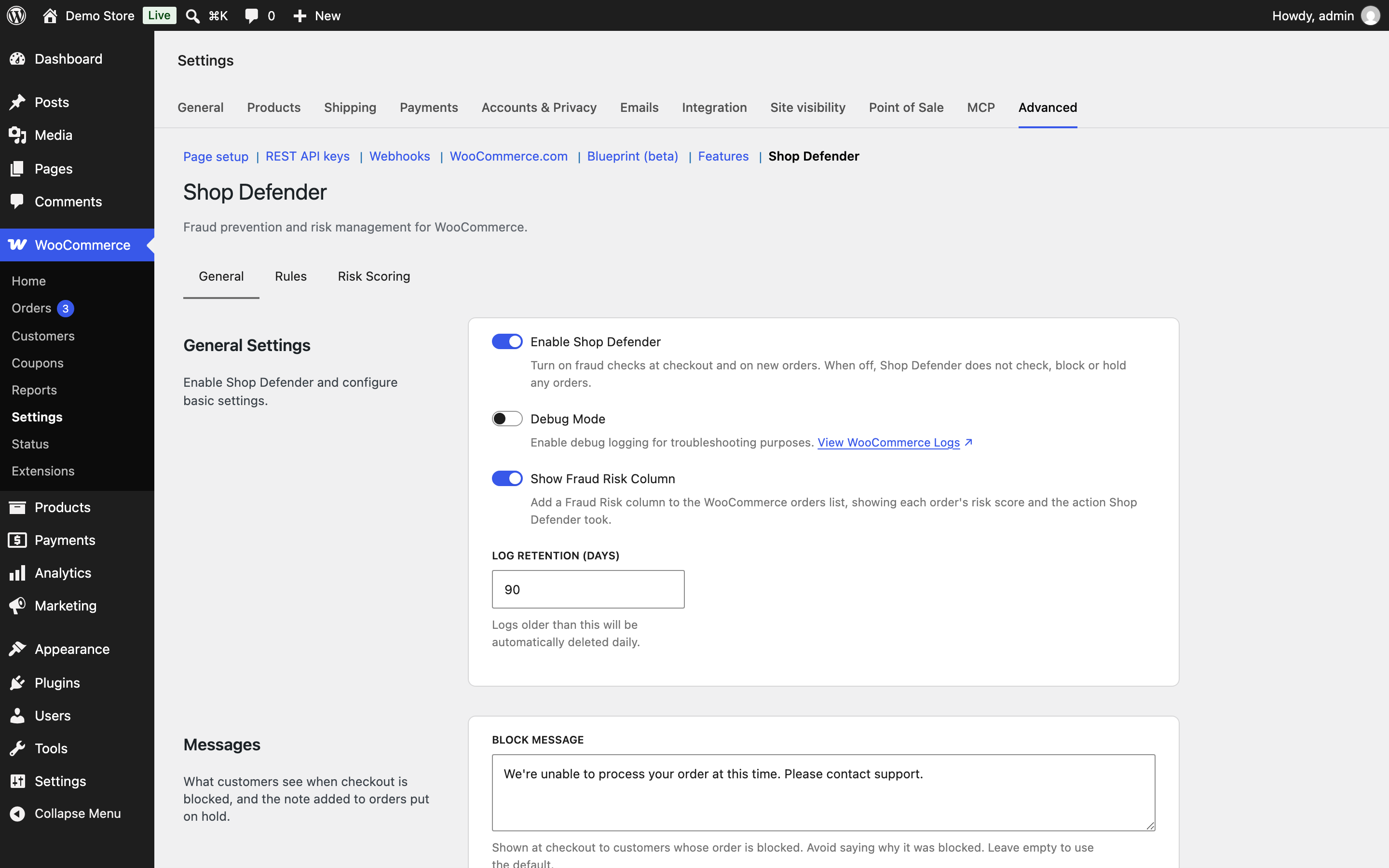
- Go to WooCommerce > Settings > Advanced > Shop Defender. The Settings link on the Plugins screen goes to the same place.
- On the General tab, turn on Enable Shop Defender.
- Select Save Changes.
The default risk settings start working right away. You can add rules whenever you’re ready.
Usage
↑ Back to topAll settings live in one screen at WooCommerce > Settings > Advanced > Shop Defender. It has three tabs: General, Rules, and Risk Scoring. On the General and Risk Scoring tabs, changes are saved when you select Save Changes. That button saves both tabs together. On the Rules tab, each rule is saved the moment you select Save Rule. If you try to leave the page with unsaved changes, your browser asks you to confirm first.
Only people with the capability chosen under Who can manage Shop Defender can see this screen. The default is Shop Manager.
How Shop Defender decides what to do
↑ Back to topKnowing the order of checks makes the rest of the settings easier to follow.
Each checkout gets one of four outcomes:
- Block: The checkout stops. The customer sees your block message and no order is created. Nothing is charged.
- Hold: The order goes ahead. After the customer pays (or chooses an offline method like Cash on Delivery), the order is set to On hold instead of Processing, with a private note saying why. You then review it and release or cancel it.
- Flag: The order goes through normally. Shop Defender adds a private order note with the risk score so you know to look at it.
- Allow: The order goes through with no action.
Shop Defender chooses the outcome like this:
- Rules first. If any active rule matches, the rule decides. When several match, the strongest action wins: Allow, then Block, then Hold, then Flag. If two rules have the same action, the newer one wins.
- Then the risk score. If no rule matches, the risk score decides. At or above the block threshold, the order is blocked. At or above the hold threshold, it’s held. Any score above 0 but below the hold threshold is flagged. A score of 0 is allowed.
The risk score is calculated for every order, even when a rule decides. Matched rules also raise the score shown on the order. A Block rule sets it to at least the block threshold, a Hold rule to at least the hold threshold, and a Flag rule to at least 20.
General tab
↑ Back to top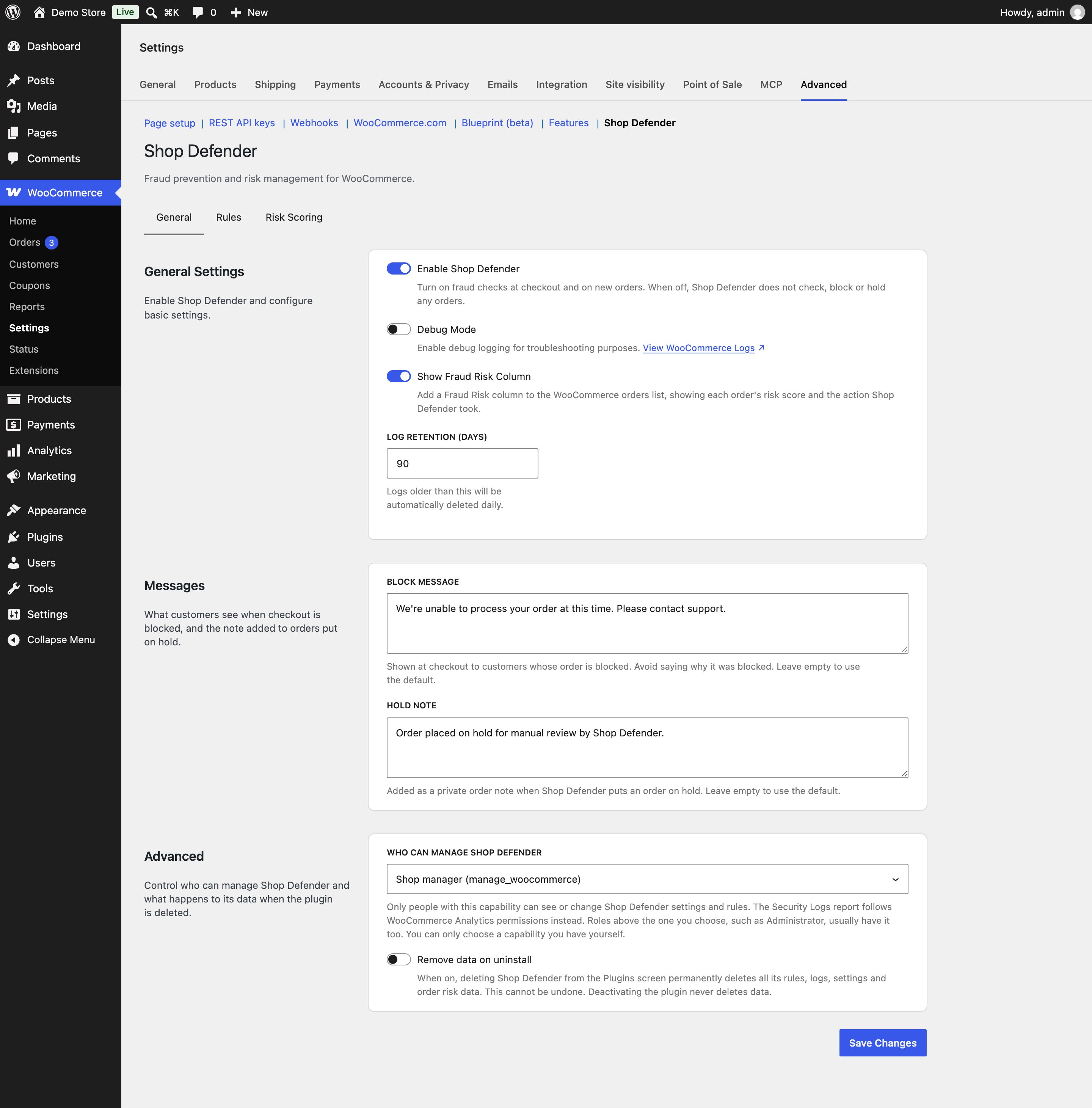
The General tab has three panels: General Settings, Messages, and Advanced.
General settings
Enable Shop Defender Turns all fraud checks on or off. When it’s off, Shop Defender doesn’t check, block, hold, or flag any orders. The Fraud Risk Assessment box and the Fraud Risk column are also hidden. Your rules, settings, and logs are kept. Default: off.
Debug Mode Writes detailed troubleshooting entries to the WooCommerce logs, including each rule checked and the decision made. Use it when a rule isn’t behaving as you expect. Turn it off afterward. These entries include customer details like email, address, and IP address. The link under the toggle opens WooCommerce > Status > Logs. Default: off.
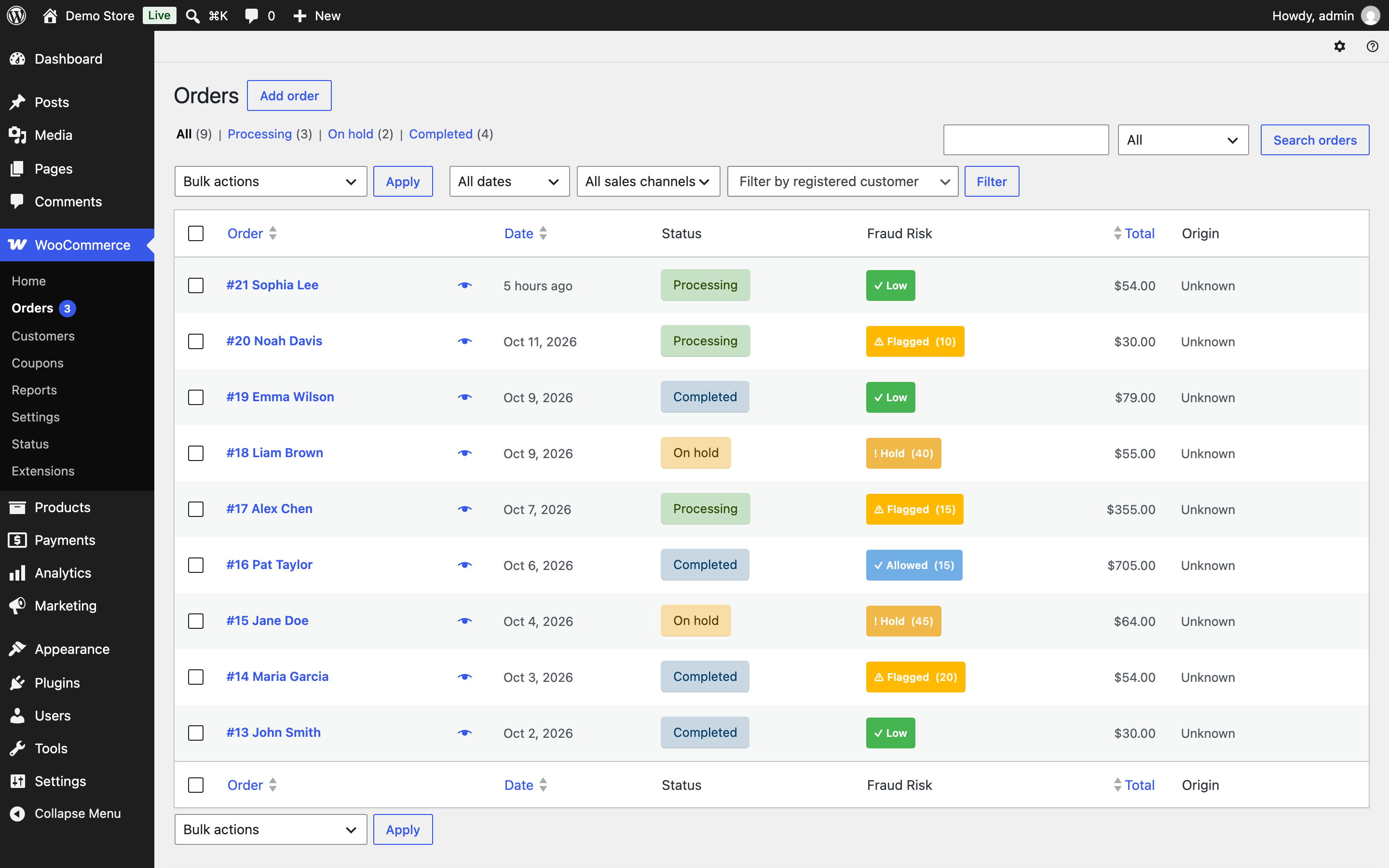
Show Fraud Risk Column Adds a Fraud Risk column to the orders list, next to the order status. The column shows a colored badge with Shop Defender’s action and the score, such as “Flagged (25)”. Orders that Shop Defender hasn’t checked show a dash. Default: off.
Log Retention (days) How long Shop Defender keeps its fraud logs. Older logs are deleted once a day. You can enter 1 to 365 days. Keep in mind that the Failed IP History signal counts recent blocked and held entries in these logs. If you set retention shorter than the Failed IP Days Window, that signal can only look back as far as the logs go. Default: 90.
Messages
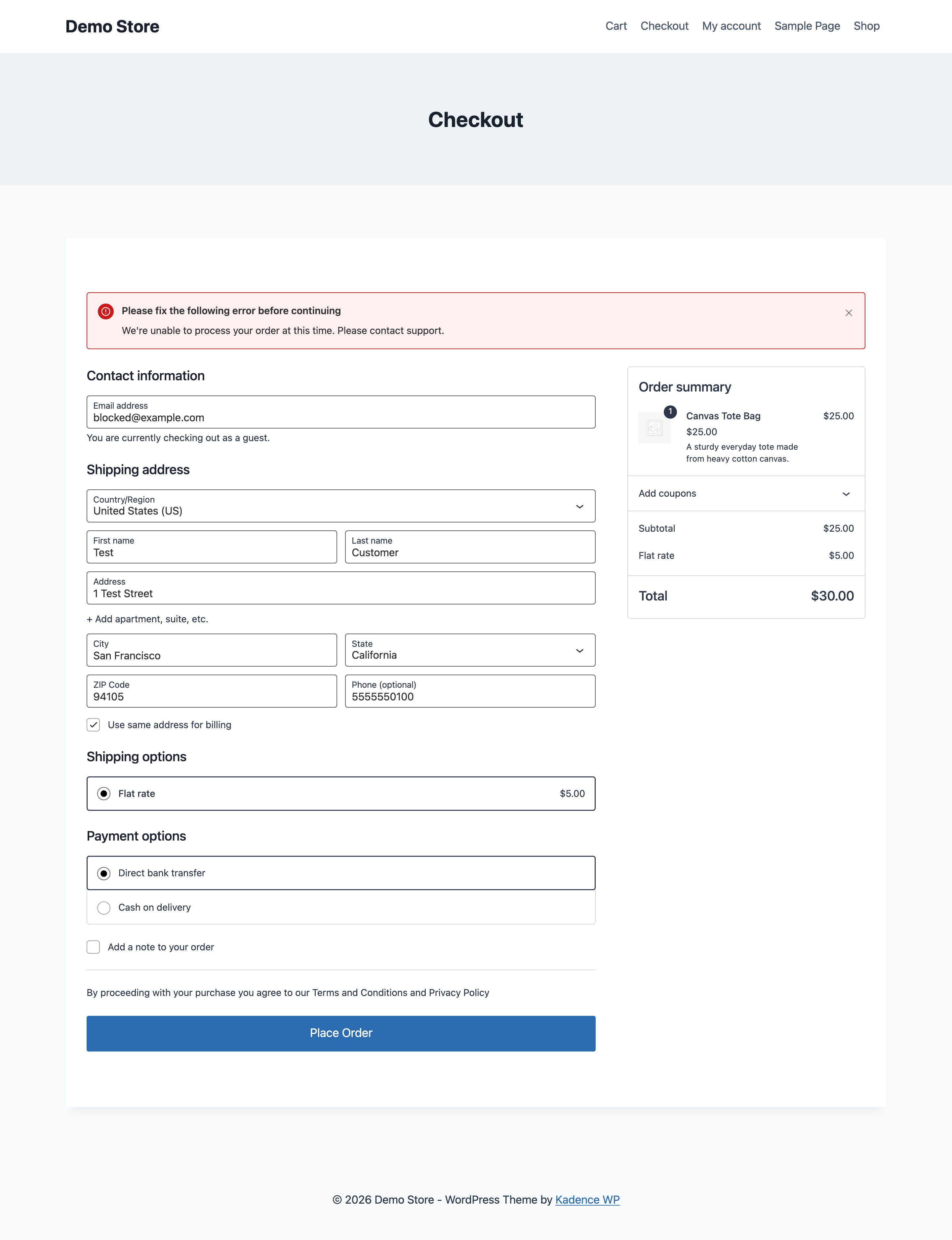
Block message The message customers see at checkout when their order is blocked. Keep it neutral and don’t explain why, so someone testing your store learns nothing useful. Leave it empty to use the default: “We’re unable to process your order at this time. Please contact support.”
Hold note The private order note added when Shop Defender puts an order on hold. Only store staff can see it. Leave it empty to use the default: “Order placed on hold for manual review by Shop Defender.”
Advanced
Who can manage Shop Defender Picks the capability someone needs to see and change Shop Defender’s settings and rules, and to use its tools through an AI assistant. The choices are listed by role, for example “Shop Manager (manage_woocommerce)” or “Administrator (manage_options)”. Roles above the one you pick usually have the capability too. You can only choose a capability you have yourself, so you can’t lock yourself out. The Security Logs report doesn’t use this setting. It follows the normal WooCommerce Analytics permissions. Default: Shop Manager (manage_woocommerce).
Remove data on uninstall When this is on, deleting Shop Defender from the Plugins screen permanently removes its rules, logs, settings, and the risk data saved on orders. When it’s off, all of that stays in your database in case you reinstall. Deactivating the plugin never deletes data. Default: off.
Rules tab
↑ Back to topRules let you act on orders that match a specific detail. Each rule has a type, a match type, a pattern, an action, and an optional expiry date. Rules start working at checkout as soon as you save them.
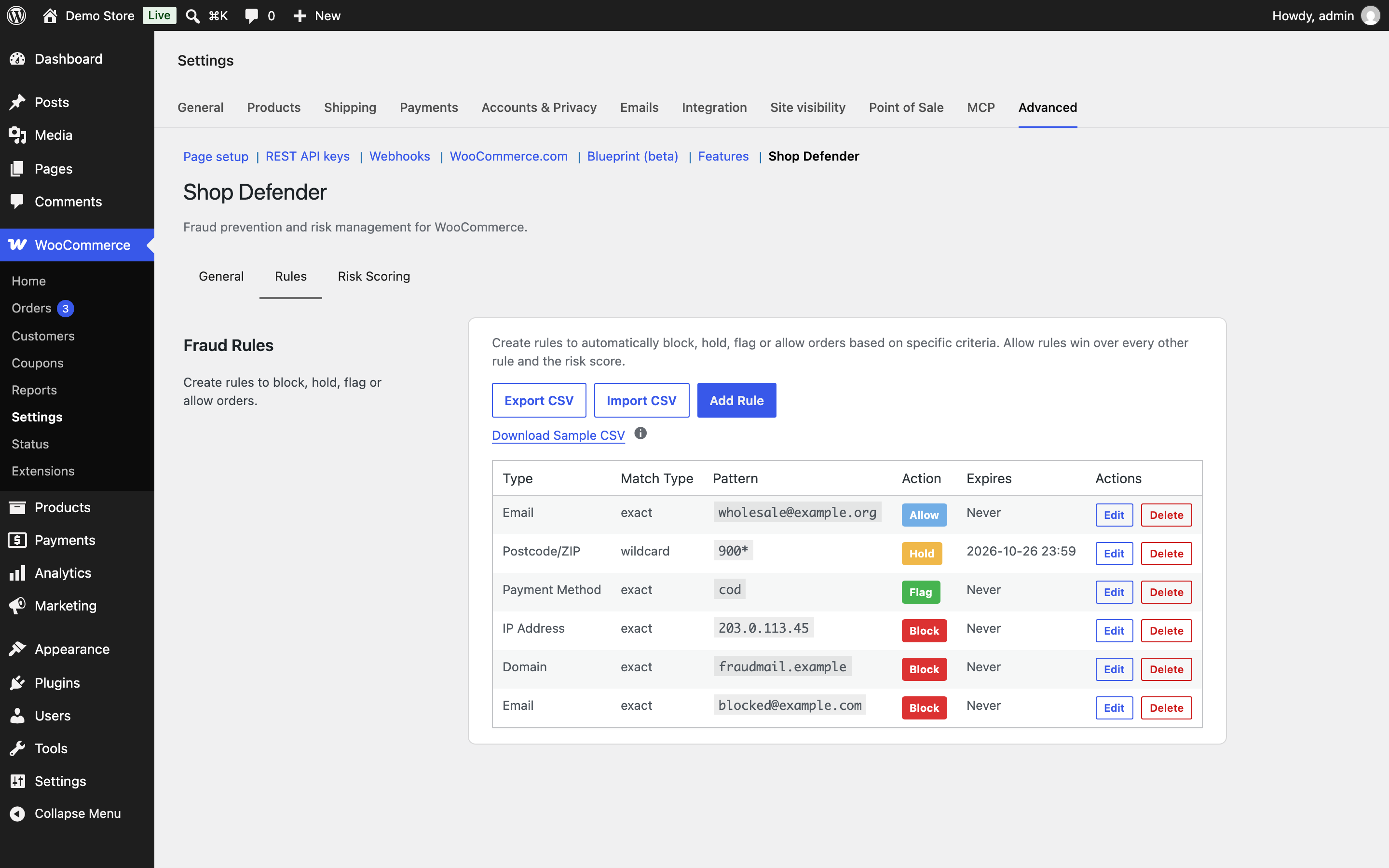
The rules table lists each rule’s type, match type, pattern, action, and expiry. Expired rules are shown faded and stop applying. Use Edit to change a rule or Delete to remove it.
Add or edit a rule
Select Add Rule to open the rule form.
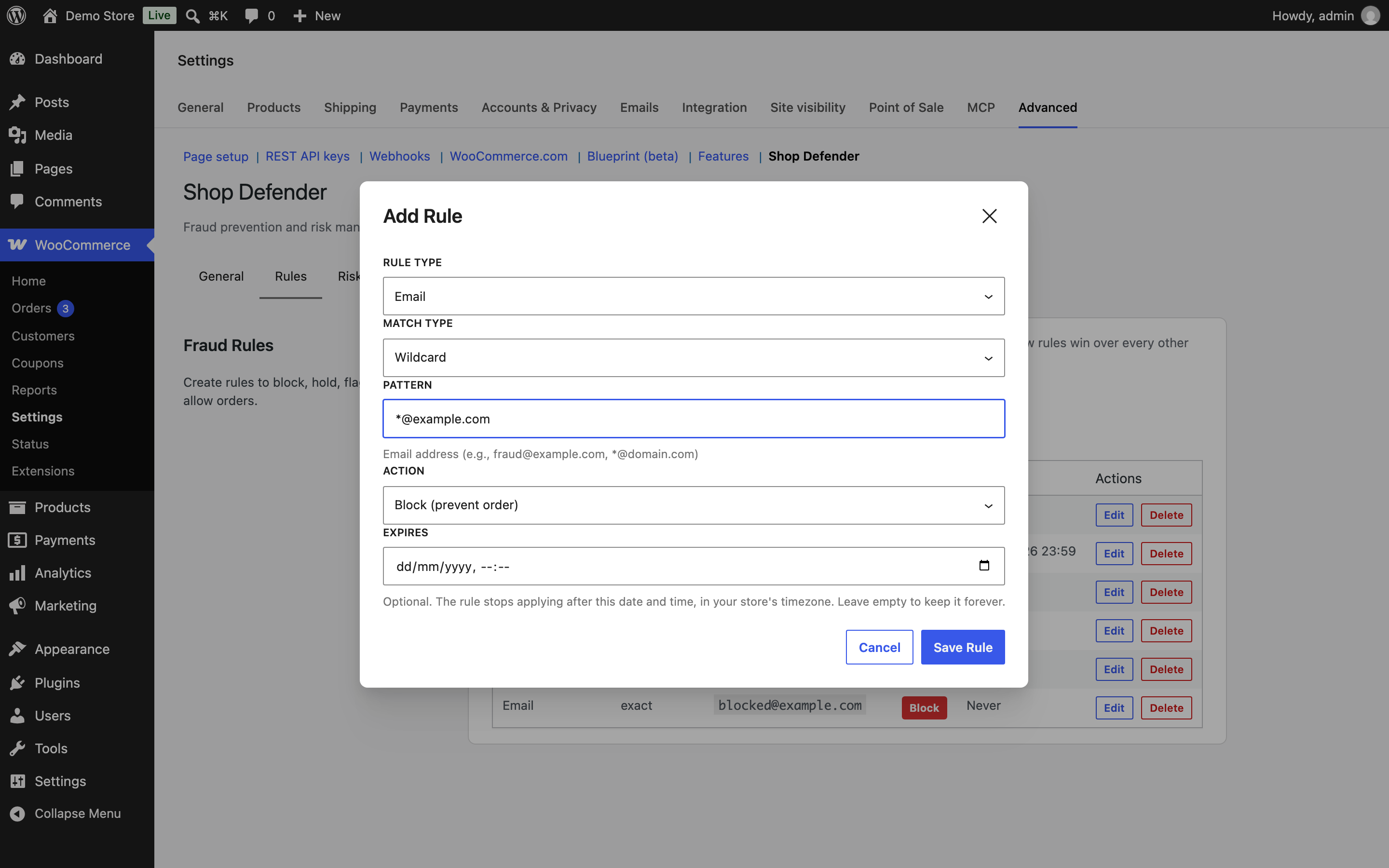
Rule Type The order detail the rule checks. Billing details are used first. Shipping details are used when billing is empty.
| Rule type | What it checks |
|---|---|
| The billing email address | |
| Domain | The part of the billing email after the @, such as example.com |
| Phone | The billing phone number, with everything except digits and + removed |
| IP Address | The customer’s IP address |
| Name | The billing first and last name together, such as jane doe |
| Address | Address line 1, address line 2, city, postcode, and state together |
| Country | The country |
| State/Province | The state or province code, such as CA |
| Postcode/ZIP | The postcode or ZIP code |
| City | The city |
| Payment Method | The payment method ID, such as cod, bacs, or stripe |
| Shipping Method | The shipping method ID, such as flat_rate or local_pickup |
Match Type How the pattern is compared. Every match type ignores upper and lower case.
- Exact: The value has to equal the pattern.
- Contains: The value has to include the pattern anywhere.
- Wildcard:
*stands for any text and?stands for one character. For example,*@example.commatches every address at that domain, and900*matches every postcode starting with 900. - Regex: A regular expression. You can enter it with or without delimiters. Without them, Shop Defender treats it as
/pattern/i. Shop Defender won’t save a pattern that isn’t valid.
Country rules always use Exact, so the Match Type field is hidden for them.
Pattern The value to match. For a Country rule, you pick the country from a list instead. The help text under the field changes with the rule type and gives an example.
Action What happens to a matching order: Block, Hold, Flag, or Allow. These work as described in How Shop Defender decides what to do. An Allow rule overrides every other rule and the risk score. The order still shows its risk score and reasons, marked as allowed by rule, so you can see what was overridden.
Expires Optional. The date and time the rule stops applying, in your store’s timezone. Leave it empty to keep the rule forever. This is handy for temporary measures, such as holding orders from one region during a promotion.
Import and export rules
Export CSV downloads all your rules as a CSV file with the columns Type, Match Type, Pattern, Action, and Expires At.
Import CSV adds rules from a file in the same format. You can use this to copy rules from one store to another. Download Sample CSV gives you a template to start from.
- Type, Match Type, and Action use the lowercase values from the form, for example
email,wildcard, andblock. - Expires At is optional. Leave it empty for no expiry, or use the format
YYYY-MM-DD HH:MM:SSin your store’s timezone. Files with only the first four columns still import. - Put any pattern that contains a comma in double quotes.
- Rules you already have, and repeated rows in the file, are skipped.
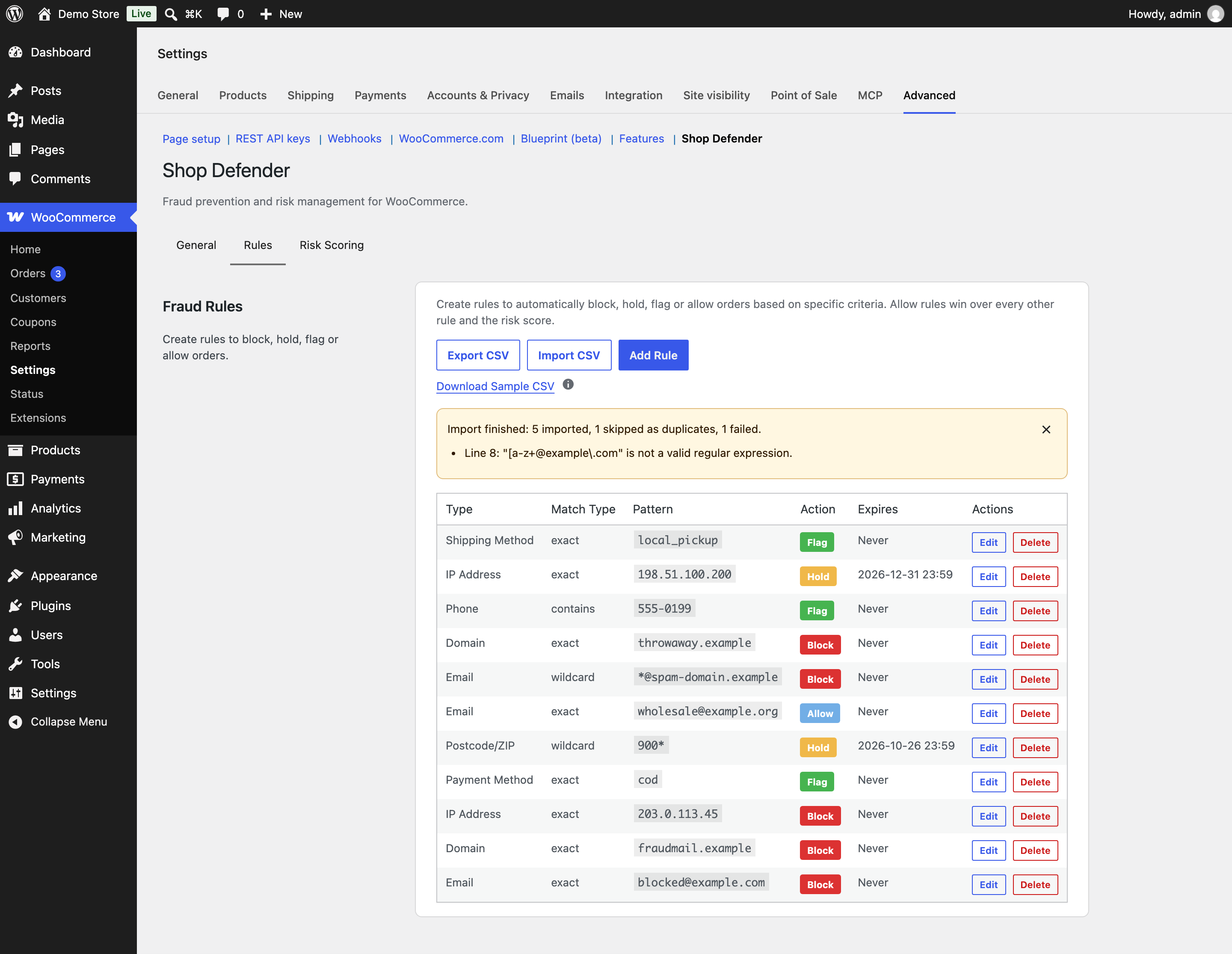
When the import finishes, Shop Defender shows how many rules were imported, skipped, or failed. It lists the line number and reason for each failure.
Risk Scoring tab
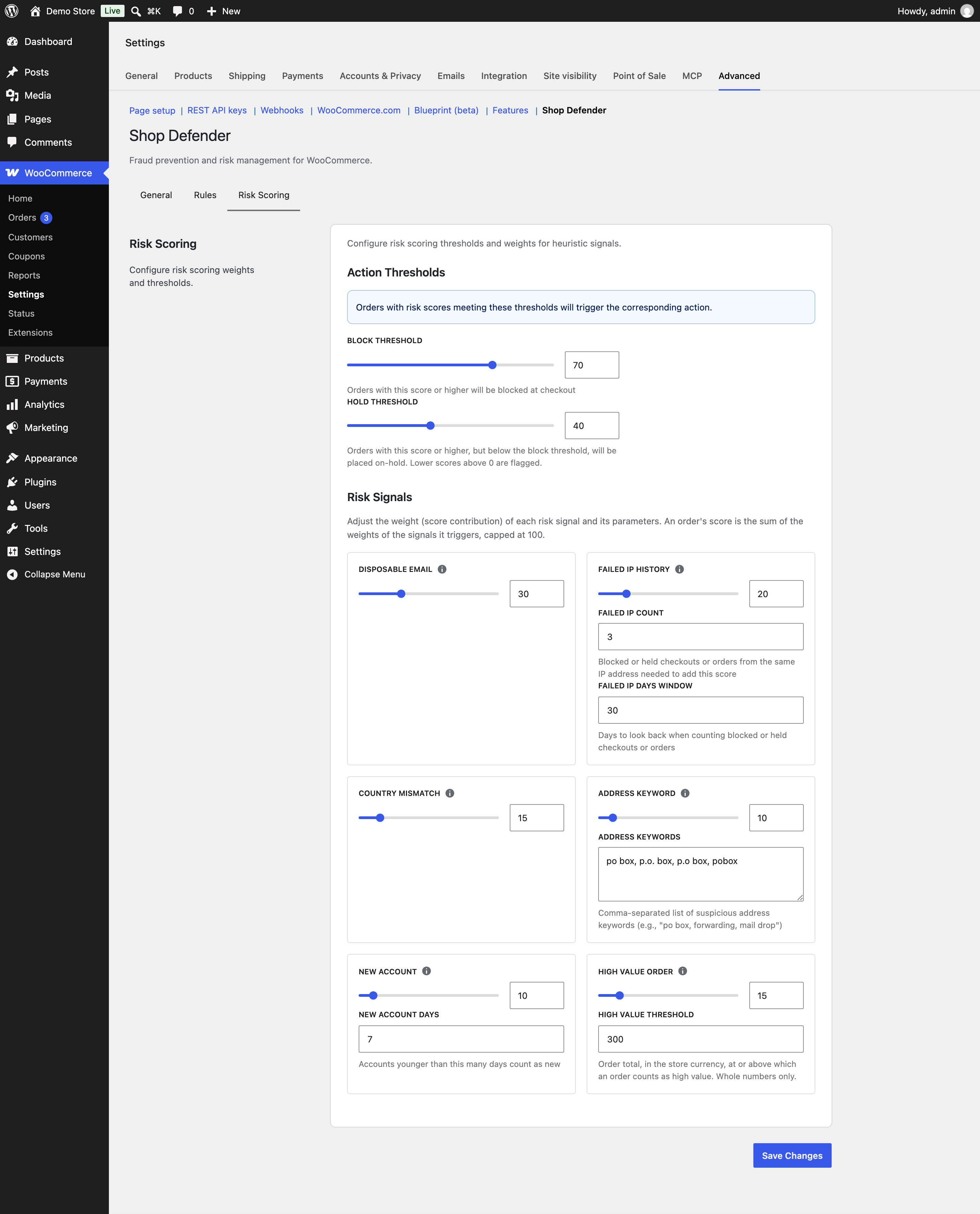
↑ Back to topThe risk score is a number from 0 to 100. Each signal an order triggers adds its weight to the score. The total is capped at 100. Setting a signal’s weight to 0 turns that signal off.
Action thresholds
Block Threshold Orders scoring this much or more are blocked at checkout. Default: 70.
Hold Threshold Orders scoring this much or more, but less than the block threshold, are put on hold. It has to be lower than the block threshold. Shop Defender won’t save it otherwise. Default: 40.
Any order with a score above 0 that’s below the hold threshold is flagged. Because of this, a single low-weight signal is enough to flag an order. With the default weights, a large order on its own scores 15 and gets flagged.
Risk signals
Disposable Email Adds its weight when the billing email uses a known disposable or temporary email provider, or a subdomain of one. Shop Defender includes a list of nearly 10,000 of these domains. Default weight: 30.
Failed IP History Adds its weight when Shop Defender has already blocked or held a set number of checkouts or orders from the same IP address within a set number of days. This catches repeat attempts from the same source. Default weight: 20.
- Failed IP Count: How many blocked or held attempts are needed. Must be at least 1. Default: 3.
- Failed IP Days Window: How many days back to count. Must be at least 1. Default: 30.
Country Mismatch Adds its weight when the billing country and shipping country are different. Orders without a shipping country, such as digital-only orders, aren’t checked. Default weight: 15.
Address Keyword Adds its weight when the billing or shipping address contains any of your keywords. Case doesn’t matter. Default weight: 10.
- Address Keywords: A comma-separated list. Default:
po box, p.o. box, p.o box, pobox. You might add terms like “forwarding” or “mail drop” if parcel forwarders are a problem for you.
New Account Adds its weight when a logged-in customer’s account is newer than a set number of days. Guest orders aren’t checked. Default weight: 10.
- New Account Days: Accounts younger than this count as new. Must be at least 1. Default: 7.
High Value Order Adds its weight when the order total is at or above a set amount. Default weight: 15.
- High Value Threshold: The order total, in your store currency, that counts as high value. Whole numbers only. Default: 300.
Fraud risk on the order screen
↑ Back to topWhen Shop Defender is enabled, each order’s edit screen has a Fraud Risk Assessment box in the sidebar. It shows the outcome (Low Risk, Flagged, On Hold, Blocked, or Allowed by Rule), the risk score, and each reason that added to the score. Orders placed before you enabled Shop Defender show “No fraud assessment data available for this order.”
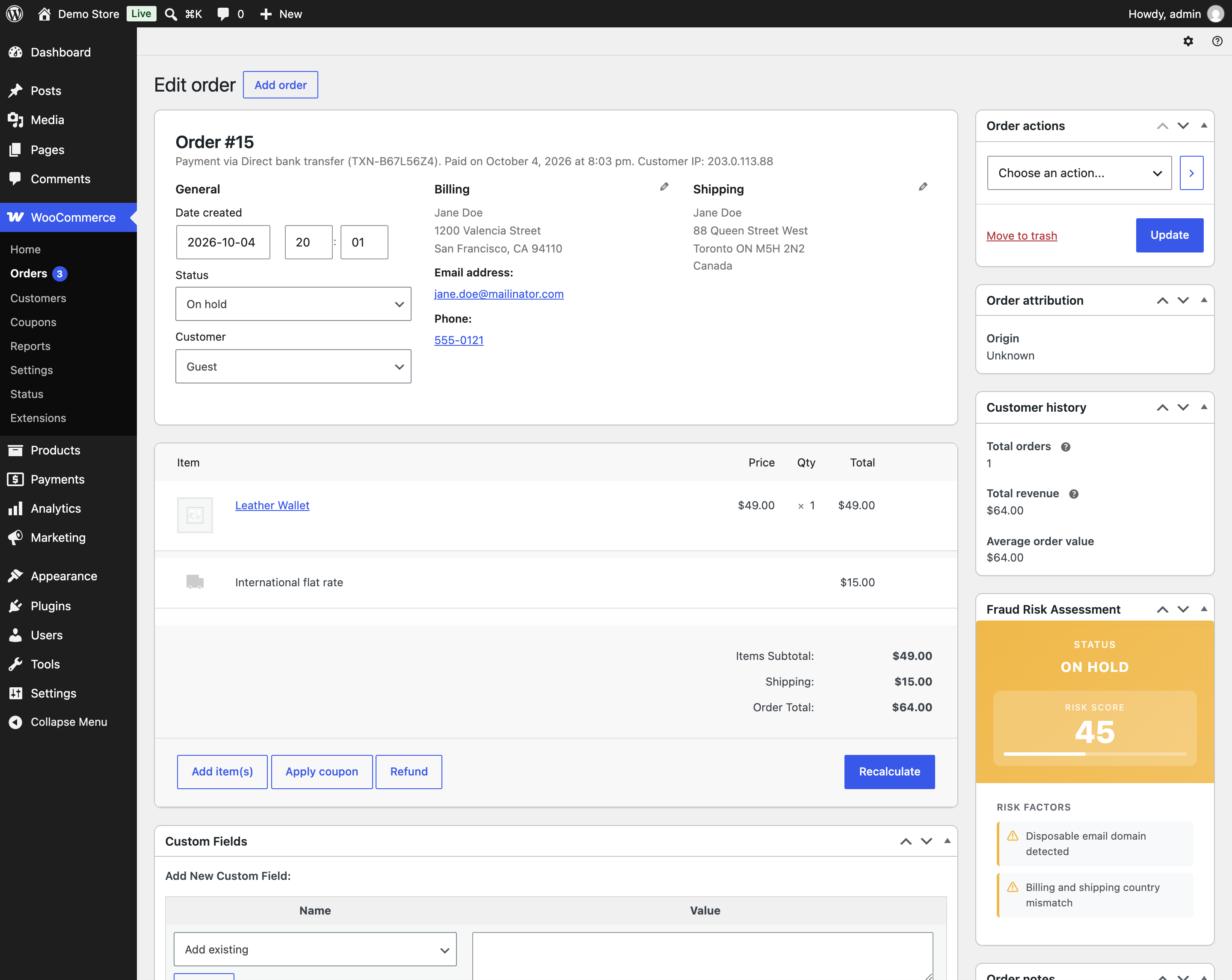
The order notes also record what happened. A held order gets your hold note, and a flagged order gets a note like “Shop Defender flagged this order with a risk score of 25.”
To release a held order, change its status to Processing as you normally would. Shop Defender treats a status you set by hand as your decision and won’t put that order back on hold.
Security Logs report
↑ Back to topEvery check is recorded. Go to WooCommerce > Analytics > Security Logs to review them. The report works like the other reports in WooCommerce Analytics.
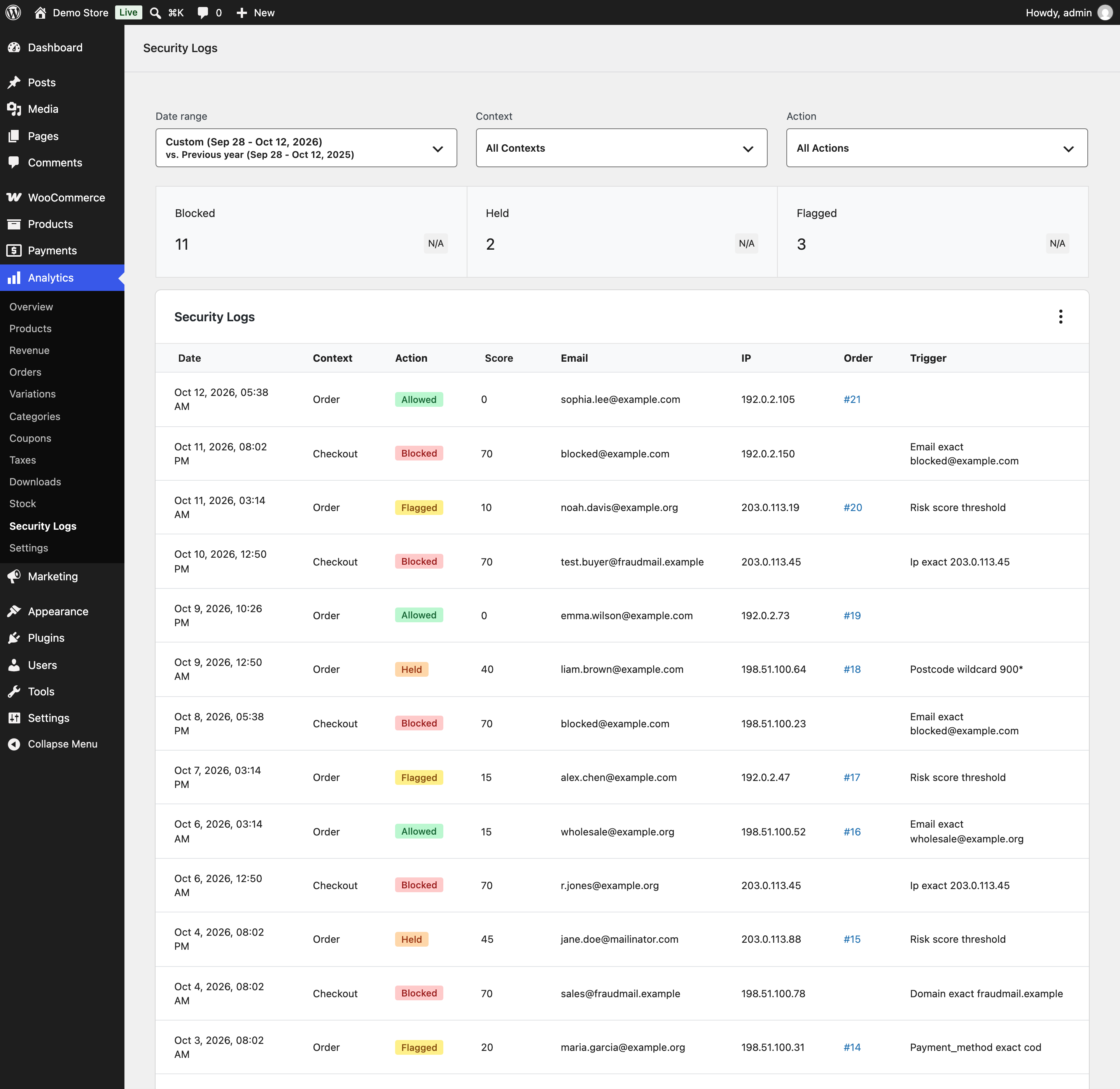
At the top are totals for blocked, held, and flagged checks in the selected date range. The table shows the date, context, action, score, email, IP address, order, and trigger for each check.
- Context: “Checkout” means the check stopped the checkout before an order was created. “Order” means the check ran on an order that exists.
- Trigger: “Rule” means a rule decided. “Heuristic” means the risk score decided.
Use the date range picker and the Context and Action filters to narrow the list. You can sort by date or score. Anyone who can view WooCommerce Analytics can see this report.
Use Shop Defender with an AI assistant
↑ Back to topOn WordPress 6.9 or later, Shop Defender offers 20 tools to AI assistants like Claude and ChatGPT through the WordPress Abilities API. You can ask questions like “how much fraud did we see this week?” or “test this order against my rules,” and manage rules and settings in plain language.
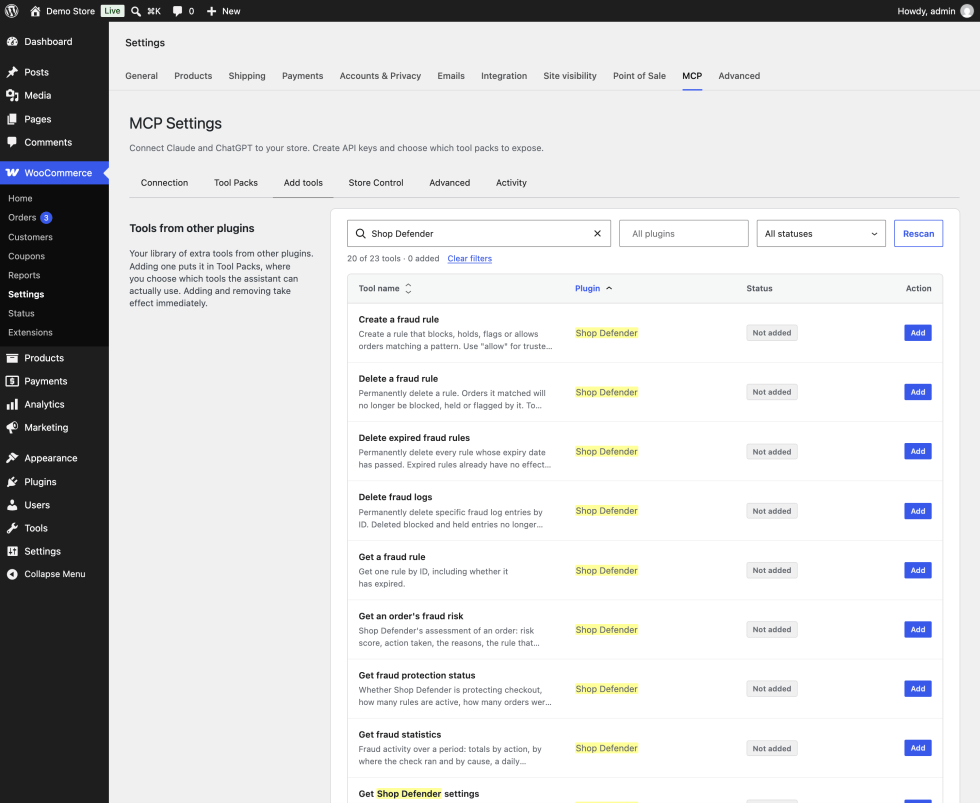
To use them, install a plugin that exposes abilities to MCP clients. In w7s MCP, go to WooCommerce > Settings > MCP > Add tools and add the Shop Defender tools you want. None of them are available to the assistant until you add them. The assistant has the same permissions as the user it connects as, and that user needs the capability chosen under Who can manage Shop Defender.
Each tool is labeled read-only, write, or destructive, so your MCP client can ask you before it deletes rules or logs or turns protection off. New rules created this way report how many checks from the last 30 days they would have matched. Block, Hold, and Allow rules that would match every order are refused.
Use cases
↑ Back to topTurn on sensible protection for a small store
↑ Back to topYou run a small store and want basic protection without much setup.
- Turn on Enable Shop Defender and keep the default risk settings.
- Turn on Show Fraud Risk Column so you can see each order’s status in the orders list.
- For the first couple of weeks, check WooCommerce > Analytics > Security Logs every few days. If lots of good orders are being held, raise the Hold Threshold or lower the weight of the signal causing it.
With the defaults, an order needs several warning signs together to be held or blocked. For example, a disposable email (30) with a billing and shipping country mismatch (15) scores 45, so the order is held.
Stop a known fraudster from coming back
↑ Back to topSomeone has placed several fraudulent orders using different addresses at the same email domain, always from the same IP address.
- Add a rule: Rule Type Domain, Match Type Exact, Pattern the domain, Action Block.
- Add a rule: Rule Type IP Address, Match Type Exact, Pattern the IP address, Action Block.
- If they use a particular phone number, add a Phone rule with Action Block. Enter the number with digits and
+only, such as+15551234567.
Each blocked attempt is logged. That also feeds the Failed IP History signal for any other attempts from the same IP address.
Let a trusted customer through
↑ Back to topA regular wholesale customer ships to a PO box and gets held every time because of the Address Keyword signal.
- Add a rule: Rule Type Email, Match Type Exact, Pattern the customer’s email address, Action Allow.
Their orders now go through, whatever their score. The Fraud Risk Assessment box still shows the score and reasons, marked as allowed by rule. Allow rules override everything, so only use them for customers you trust.
Review risky orders during a sale
↑ Back to topYou’re running a weekend sale and want to look over orders from a region with past chargeback problems before you ship, without turning those customers away.
- Add a rule: Rule Type Postcode/ZIP, Match Type Wildcard, Pattern the postcode prefix followed by
*(for example900*), Action Hold. - Set Expires to the end of the sale.
Matching orders are put on hold after payment so you can check them. The rule stops applying when the sale ends.
Confirm Cash on Delivery orders by phone
↑ Back to topCash on Delivery orders are a common target for fake orders. You want to call the customer before you ship any of them.
- Add a rule: Rule Type Payment Method, Match Type Exact, Pattern
cod, Action Hold.
Every Cash on Delivery order is put on hold with your hold note, so it’s not processed until you’ve confirmed it and changed the status. Because a matching rule decides before the risk score, these orders are held whatever their score. If you’d rather only be reminded, set the action to Flag instead.
Working with other W7S extensions
↑ Back to topShop Defender decides whether an order should go through. These W7S extensions work around that decision, either by giving Shop Defender cleaner data to check or by covering things it doesn’t.
MCP (Model Context Protocol)
↑ Back to topMCP (Model Context Protocol) connects Claude, ChatGPT, or another AI assistant to your store. With it, you can add Shop Defender’s 20 tools under WooCommerce > Settings > MCP > Add tools and run your fraud protection in plain language. You could ask “which email domains were blocked most this month?” or “would this customer be held if they ordered again?” The assistant can test a rule against the last 30 days of checks before it creates the rule. Your MCP client asks you first before anything destructive happens, like deleting rules or turning protection off. See Use Shop Defender with an AI assistant.
[SCREENSHOT: An AI assistant conversation asking “How much fraud did my store see this week?” with the Shop Defender status summary in the answer. Alt text: “An AI assistant answering a question about the store’s recent fraud activity.”]
Phone Number Validation
↑ Back to topPhone Number Validation checks phone numbers as customers type them and saves valid numbers in international E.164 format, such as +14155552671. That makes Shop Defender’s Phone rules more dependable. Every number for the same customer arrives in the same shape, so an Exact rule with the pattern +14155552671 matches them all, however the customer typed it. If you turn off Always allow checkout in Phone Number Validation, it also stops orders with invalid numbers before they reach Shop Defender’s checks.
Terms & Conditions Tracker
↑ Back to topTerms & Conditions Tracker records when each customer agreed to your terms at checkout, with the timestamp, IP address, and a copy of the document they agreed to. Shop Defender records why an order was held or flagged. Together, they give you the evidence you need if a customer disputes a charge. You can show the order passed your fraud checks or was reviewed, and that the customer accepted your terms.
Biometric Passkey Login
↑ Back to topBiometric Passkey Login lets customers sign in with a fingerprint, face scan, or security key instead of a password. Shop Defender’s New Account signal treats young accounts as riskier, but it can’t tell when an older account has been taken over with a stolen password. Passkeys can’t be phished or reused from a data breach, so they help close that gap for customers who set one up.
Cash Payment on Pickup
↑ Back to topCash Payment on Pickup lets customers pay in cash when they collect their order. To review these orders before you prepare them, add a Shop Defender rule with Rule Type Payment Method, Match Type Exact, the gateway’s ID as the Pattern, and Action Hold or Flag. You can find the ID by opening the payment method under WooCommerce > Settings > Payments. Cash Payment on Pickup sets new orders to On hold by default. Shop Defender adds its hold note and log entry when that happens, so held orders are easy to spot in the Fraud Risk column.
FAQ
↑ Back to topDoes Shop Defender work with the block-based checkout?
↑ Back to topYes. It supports both the classic checkout and the block-based checkout, and uses the same customer IP address on both.
What does the customer see when their order is blocked?
↑ Back to topThey see your block message as an error at checkout, and no order is created. You can change the message under General > Messages.
What’s the difference between Hold and Flag?
↑ Back to topA held order is set to On hold after payment, so you have to release it before it’s processed. A flagged order goes through normally and gets a private note and a badge so you know to take a look.
Why are so many orders flagged?
↑ Back to topAny order with a score above 0 that’s below the hold threshold is flagged. One signal is enough. For example, an order at or above the high value threshold scores 15 and gets flagged. If that’s too noisy, lower or zero the weights of the signals you don’t care about, or raise the High Value Threshold.
Which rule wins when several rules match?
↑ Back to topThe rule with the strongest action: Allow, then Block, then Hold, then Flag. If two rules have the same action, the newer one wins. So a newer Hold rule never overrides an older Block rule.
Can a rule check more than one detail, like country and payment method together?
↑ Back to topNo. Each rule checks one detail. To act on combinations of signals, use the risk score, where each signal adds its own weight. Keep in mind that when a rule matches, the rule decides and the risk score thresholds aren’t used for that order.
How do I write a shipping method rule?
↑ Back to topUse the method ID, such as flat_rate, local_pickup, or free_shipping, to match every rate of that method. To match one specific rate, use the method ID and the rate’s instance number, such as flat_rate:3.
How do I find a payment method ID?
↑ Back to topGo to WooCommerce > Settings > Payments and open the payment method. The ID is shown in the page address after section=. Common IDs are cod (Cash on Delivery), bacs (Direct bank transfer), and cheque (Check payments).
My phone rule isn’t matching. Why?
↑ Back to topShop Defender removes spaces, dashes, and brackets from the customer’s phone number before checking it, keeping only digits and +. Write your pattern the same way. Use +15551234567 rather than +1 (555) 123-4567, or use a Contains match with just the digits.
What happens to an order that’s already been paid?
↑ Back to topShop Defender never cancels a paid order. If an order would be blocked after payment, it’s put on hold with a note asking you to refund it if it’s fraudulent, or release it if it isn’t.
How do I release a held order?
↑ Back to topChange its status to Processing or Completed in the usual way. Shop Defender won’t put it back on hold.
Does Shop Defender check orders I create in WP Admin?
↑ Back to topOrders created in WP Admin or through the WooCommerce REST API are checked when payment completes, for example when the customer pays through the order payment page. If such an order would be blocked, it’s put on hold instead, because it’s already paid.
Will turning Shop Defender off delete my rules?
↑ Back to topNo. Turning off Enable Shop Defender or deactivating the plugin keeps your rules, settings, and logs. Data is only removed if Remove data on uninstall is on and you delete the plugin.
Does Shop Defender send customer data anywhere?
↑ Back to topNo. All checks run on your server and the logs are stored in your WordPress database. If you connect an AI assistant, it can read the data that the tools you added expose. Shop Defender also adds suggested text to your privacy policy guide under Settings > Privacy.
Can I use it on a multisite network?
↑ Back to topYes. Each site has its own rules, settings, and logs.
Developer documentation
↑ Back to topThis section covers the extension points available in Shop Defender 1.1.0. Customizations belong in a custom plugin or a child theme’s functions.php, not in Shop Defender’s own files.
Decision object
↑ Back to topSeveral hooks receive or return a decision object (stdClass) with these properties:
| Property | Type | Description |
|---|---|---|
action | string | block, hold, flag, or allow |
trigger | string | rule, heuristic (risk score), or none |
rule_id | int\ | null |
score | int | Risk score, 0 to 100 |
notes | string[] | Human-readable reasons, shown in the Fraud Risk Assessment box |
The $context array holds the checked order details. Keys include email, domain, phone, ip, user_id, name, billing_country, shipping_country, country, state, city, postcode, address, billing_address, shipping_address, payment_method, shipping_method, shipping_method_instance, order_total, and order_id. Not every key is present in every check. order_id only exists once an order has been created. order_total is missing in the early block-based checkout check, which runs before the cart is loaded.
Filters
↑ Back to topshopdefender/decision
Filters the final decision before Shop Defender acts on it. Runs on every check, at checkout and on orders.
$decision(object): The decision object.$context(array): The checked details.
Return the decision object.
// Never block, only hold, orders from logged-in customers.
add_filter( 'shopdefender/decision', function ( $decision, $context ) {
	if ( 'block' === $decision->action && ! empty( $context['user_id'] ) ) {
		$decision->action  = 'hold';
		$decision->notes[] = 'Downgraded from block: logged-in customer';
	}
	return $decision;
}, 10, 2 );
shop_defender_risk_signals
Filters the list of triggered risk signals before they’re added up. Use it to add your own signals or remove built-in ones. Each signal is an array with weight (int) and message (string). The summed score is capped at 100.
$signals(array): Triggered signals.$context(array): The checked details.
add_filter( 'shop_defender_risk_signals', function ( $signals, $context ) {
	if ( ! empty( $context['email'] ) && preg_match( '/\d{6,}@/', $context['email'] ) ) {
		$signals[] = array(
			'weight'  => 15,
			'message' => 'Email address contains a long run of digits',
		);
	}
	return $signals;
}, 10, 2 );
Replaces the deprecated shopdefender/risk/signals filter.
shop_defender_disposable_domains
Filters the list of disposable email domains, a plain array of lowercase domain names. A listed domain also covers its subdomains. The list is built once per request.
add_filter( 'shop_defender_disposable_domains', function ( $domains ) {
	$domains[] = 'throwaway.example';
	return array_diff( $domains, array( 'a-domain-you-trust.example' ) );
} );
Replaces the deprecated shopdefender/disposable_domains filter.
Actions
↑ Back to top| Hook | Arguments | Fires when |
|---|---|---|
shopdefender/blocked | $context, $decision | A checkout is blocked, either during classic checkout validation, during the block-based checkout request, or when the order is checked before payment |
shopdefender/held | $context, $decision | A hold is applied to an order, after payment is attempted, or when a paid order that would have been blocked is held instead |
shopdefender/flagged | $context, $decision | An order is flagged, before payment or when payment completes |
shopdefender/blocked can fire before an order exists, so $context['order_id'] may be missing.
shopdefender/blocked
// Write every blocked checkout to the WooCommerce logs under its own source.
add_action( 'shopdefender/blocked', function ( $context, $decision ) {
	wc_get_logger()->warning(
		sprintf(
			'Blocked %s from %s (score %d, trigger %s)',
			$context['email'] ?? 'unknown email',
			$context['ip'] ?? 'unknown IP',
			$decision->score,
			$decision->trigger
		),
		array( 'source' => 'my-fraud-alerts' )
	);
}, 10, 2 );
shopdefender/held
// Email the store admin when an order is held for review.
add_action( 'shopdefender/held', function ( $context, $decision ) {
	wp_mail(
		get_option( 'admin_email' ),
		sprintf( 'Order #%d held for review', $context['order_id'] ?? 0 ),
		implode( "\n", $decision->notes )
	);
}, 10, 2 );
shopdefender/flagged
// Tag flagged orders so staff can filter for them.
add_action( 'shopdefender/flagged', function ( $context, $decision ) {
	if ( empty( $context['order_id'] ) ) {
		return;
	}
	$order = wc_get_order( $context['order_id'] );
	if ( $order ) {
		$order->update_meta_data( '_my_needs_review', 'yes' );
		$order->save();
	}
}, 10, 2 );
When checks run
↑ Back to top- Classic checkout:
woocommerce_after_checkout_validation(blocks only), thenwoocommerce_checkout_order_processedat priority 100. - Block-based checkout:
rest_authentication_errorsat priority 100 on Store API checkout POST requests (blocks only, returns a 403 and deletes the draft order), thenwoocommerce_store_api_checkout_order_processed. - Holds are recorded before payment in the
_sd_hold_pendingorder meta and applied once payment is attempted. They’re applied throughwoocommerce_payment_complete_order_status, through thecod,bacs, andchequeprocess payment status filters, or on the next automatic status change to on-hold, processing, or completed. A status change made by hand in WP Admin clears the pending hold. - Orders not checked at checkout are checked on
woocommerce_payment_complete. A block there becomes a hold.
None of these hooks are registered while protection is disabled.
REST API
↑ Back to topNamespace: shop-defender/v1. Every route needs the capability set in Who can manage Shop Defender (manage_woocommerce by default).
| Route | Methods | Description |
|---|---|---|
/settings | GET, POST/PUT/PATCH | General settings. Updates merge with stored values. |
/risk-settings | GET, POST/PUT/PATCH | Risk thresholds, weights, and signal settings. Scores are validated as 0 to 100, threshold_hold must be below threshold_block, and counts must be at least 1. |
/messages | GET, POST/PUT/PATCH | block_message and hold_note. An empty string restores the default. |
/rules | GET, POST | List or create rules. GET returns active rules. Pass status=expired or status=all for others. |
/rules/{id} | GET, POST/PUT/PATCH, DELETE | Read, update, or delete one rule. |
/logs | GET, DELETE | GET filters by context, action, email, ip, and order_id, with limit (default 50) and offset. DELETE takes days to prune older logs (0 deletes all) or ids to delete specific entries. |
Rule fields: type, operator (block, hold, flag, allow), match_type (exact, contains, wildcard, regex), pattern, and expires_at (Y-m-d H:i:s in the site timezone, or null, an empty string, or never for no expiry).
The Security Logs report reads from GET /wc-analytics/reports/fraud-logs, which needs view_woocommerce_reports or manage_woocommerce. It accepts after, before, context_filter, action_filter, orderby (id, created_at, score, context, action), order, page, and per_page (up to 100).
Abilities API
↑ Back to topOn WordPress 6.9 and later, or with the Abilities API feature plugin, Shop Defender registers 20 abilities in the shop-defender category. Each ability is named shop-defender/{id}, for example shop-defender/get-status. Every ability needs the capability set in Who can manage Shop Defender. They’re registered with show_in_rest and mcp.public set to true, and annotated readonly, destructive, and idempotent to match the Type column. In w7s MCP, the tools are listed as ability_shop_defender_{id} with hyphens replaced by underscores.
| Ability | Type | Description | Inputs |
|---|---|---|---|
get-status | Read | Whether protection is on, how many rules are active, blocked, held, flagged, and allowed counts for the last 24 hours, 7 days, and 30 days, and the current thresholds | None |
list-rules | Read | Lists rules, newest first | type, operator, match_type, search (text in the pattern), status (active by default, expired, or all), limit (1 to 200, default 50), offset |
get-rule | Read | Gets one rule, including whether it has expired | id (required) |
list-logs | Read | Lists fraud logs, newest first. Customer details such as address, phone, and name are only included when include_details is true | context, action, trigger_type, email, ip, after, before, include_details, limit, offset |
get-order-risk | Read | An order’s score, action, reasons, matching rule, and every log entry for it | order_id (required) |
evaluate | Read | Runs the checks without saving anything and reports what would happen and why | order_id for an existing order, or customer details such as email, phone, ip, name, user_id, billing and shipping fields, payment_method, shipping_method, and order_total |
get-stats | Read | Totals by action, context, and trigger, a daily breakdown, and the most frequent IP addresses, emails, email domains, countries, payment methods, and rules in blocked, held, and flagged checks | days (1 to 365, default 30), limit (1 to 50, default 10) |
get-settings | Read | General settings, risk settings, and messages | None |
create-rule | Write | Creates a rule and reports how many checks from the last 30 days it would have matched. Block, Hold, and Allow rules whose pattern matches every value are refused | type, operator, match_type, pattern (all required), expires_at |
update-rule | Write | Changes a rule. Fields left out keep their values, and expires_at set to never removes the expiry. Reports recent matches like create-rule | id (required), plus any rule field |
import-rules | Write | Creates up to 500 rules in one call. Duplicates of existing rules are skipped and invalid rules are reported | rules (array of rule objects, required) |
update-risk-settings | Write | Changes thresholds, weights, and signal settings. Only the fields sent are changed | Any of the risk settings, at least one required |
update-messages | Write | Changes the block message and hold note | block_message, hold_note |
update-general-settings | Write | Changes log retention, debug mode, and the orders list column | retention_days (1 to 365), debug_mode, show_risk_column |
recheck-order | Write | Re-runs the checks on an order, saves the new score and reasons, and adds an order note. Doesn’t change the order status | order_id (required) |
delete-rule | Destructive | Permanently deletes a rule | id (required) |
delete-expired-rules | Destructive | Permanently deletes every expired rule | None |
delete-logs | Destructive | Permanently deletes log entries by ID | ids (up to 500, required) |
prune-logs | Destructive | Permanently deletes logs older than a number of days. 0 deletes every log and needs confirm_all | older_than_days (required), confirm_all |
set-protection | Destructive | Turns protection on or off for the whole store | enabled (required) |
Shop Defender also filters w7s_mcp_is_write_operation and w7s_mcp_is_destructive_ability, so w7s MCP labels each tool by the Type column instead of guessing from its name.
Logging
↑ Back to topShop Defender keeps two kinds of logs.
- Fraud logs are stored in the
{prefix}sd_logstable and shown in WooCommerce > Analytics > Security Logs. Each entry records the context (checkoutororder), action (blocked,held,flagged,allowed), trigger, rule ID, score, email, IP address, order ID, and the full checked details as JSON inmeta. The dailyshop_defender_prune_logscron event deletes entries older than the retention setting. - Debug logs are written through the WooCommerce logger with the source
shop-defender, only when Debug Mode is on. Find them under WooCommerce > Status > Logs. They contain customer personal data.
Data storage
↑ Back to top| Type | Name | Contents |
|---|---|---|
| Table | {prefix}sd_rules | Rules, with site_id, type, operator, match_type, pattern, expires_at, created_at, and created_by |
| Table | {prefix}sd_logs | Fraud logs |
| Option | shop_defender_settings | enabled, debug_mode, show_risk_column, retention_days, min_capability, remove_data_on_uninstall |
| Option | sd_settings_risk | Thresholds, weights, and signal settings |
| Option | sd_settings_messages | block_message, hold_note |
| Option | shop_defender_version | Installed version |
| Order meta | _sd_risk_score, _sd_action_taken, _sd_risk_details, _sd_trigger_details, _sd_hold_pending | Stored decision for each order. Works with both HPOS and posts storage. |
Rules and logs are scoped by site_id on multisite. Rules and log queries are cached in the shop_defender object cache group for up to five minutes.

