
Phone Number Validation for WooCommerce checks the phone numbers your customers type at checkout and saves every valid number in one consistent international format. This guide walks you through installing the extension, every setting on its settings screen, how to use it with an AI assistant, a few common store setups, and the hooks developers can use to adjust its behavior.
Overview
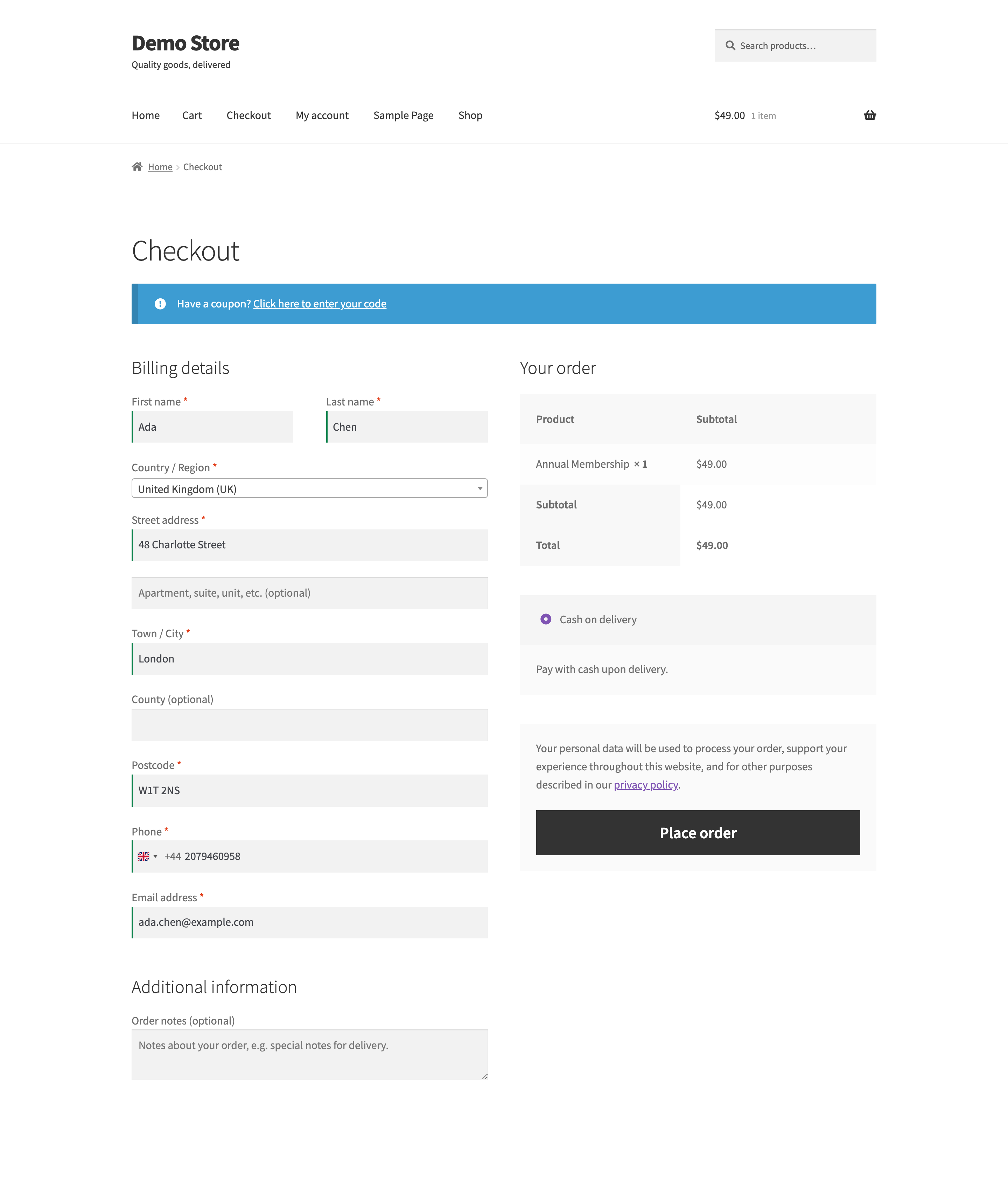
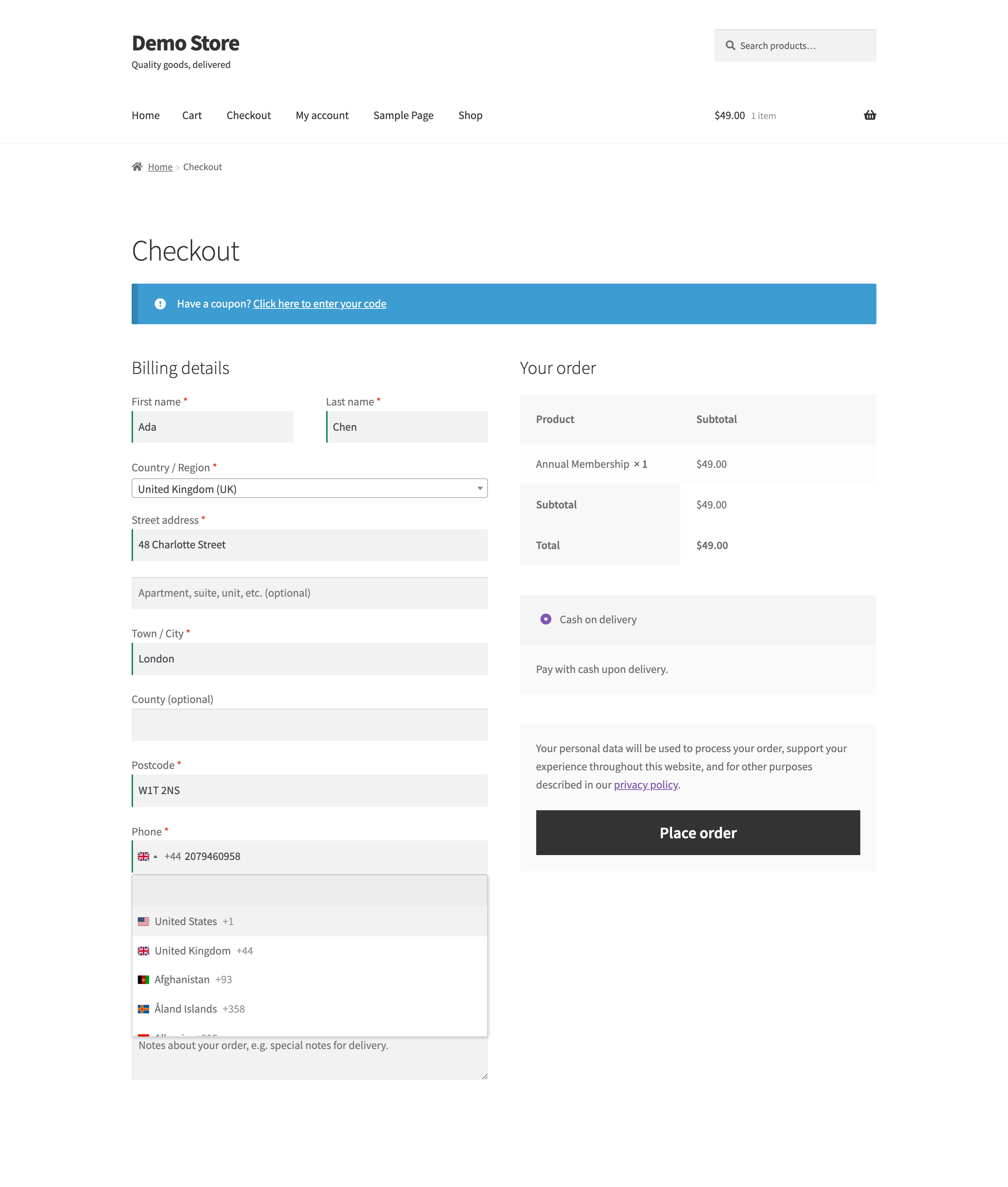
↑ Back to topPhone Number Validation for WooCommerce replaces the plain phone field on your checkout with an international phone input. Customers pick their country from a flag dropdown and the extension checks the number against that country’s numbering rules as they type. When the order is placed, the number is saved in E.164 format, which is the plus sign, the country code, and the digits with no spaces (for example +14155552671).
The same phone input also appears on the My Account address forms, the admin order editor, and the billing and shipping phone fields on WordPress user profiles. On the admin side, the extension adds Call, WhatsApp, SMS, and Copy buttons to orders, shows phone numbers in order emails, and warns you when the same phone number shows up on orders from different customers. It also publishes a set of tools that an AI assistant such as Claude or ChatGPT can use to validate numbers, look up orders by phone, and change the extension’s settings.
Requirements
↑ Back to topTo use Phone Number Validation for WooCommerce, you need:
- WordPress 6.4 or later
- PHP 7.4 or later
- WooCommerce 9.0 or later, installed and active
- An active WooCommerce.com subscription for the extension, with your store connected to WooCommerce.com
The extension doesn’t need any external account, API key, or third-party service. Validation runs in your customers’ browsers and on your own server.
Optional, and only needed if you want to use the extension through an AI assistant:
- Phone Number Validation for WooCommerce 1.9.0 or later, which adds the assistant tools
- The WordPress Abilities API, which ships with WordPress 6.9 and later and is also bundled with recent versions of WooCommerce
- A connector that exposes those tools to your assistant, such as MCP (Model Context Protocol)
Without these, everything else works exactly as described here.
The extension declares compatibility with High-Performance Order Storage (HPOS) and with the WooCommerce Cart and Checkout blocks. It works with the classic shortcode checkout too.
If you use the Checkout block, the phone field must be turned on in the block’s settings. If it is off, the extension shows an error notice in the WordPress Admin dashboard (WP Admin) with an Edit Checkout Block button that takes you to the checkout page editor.
Usage
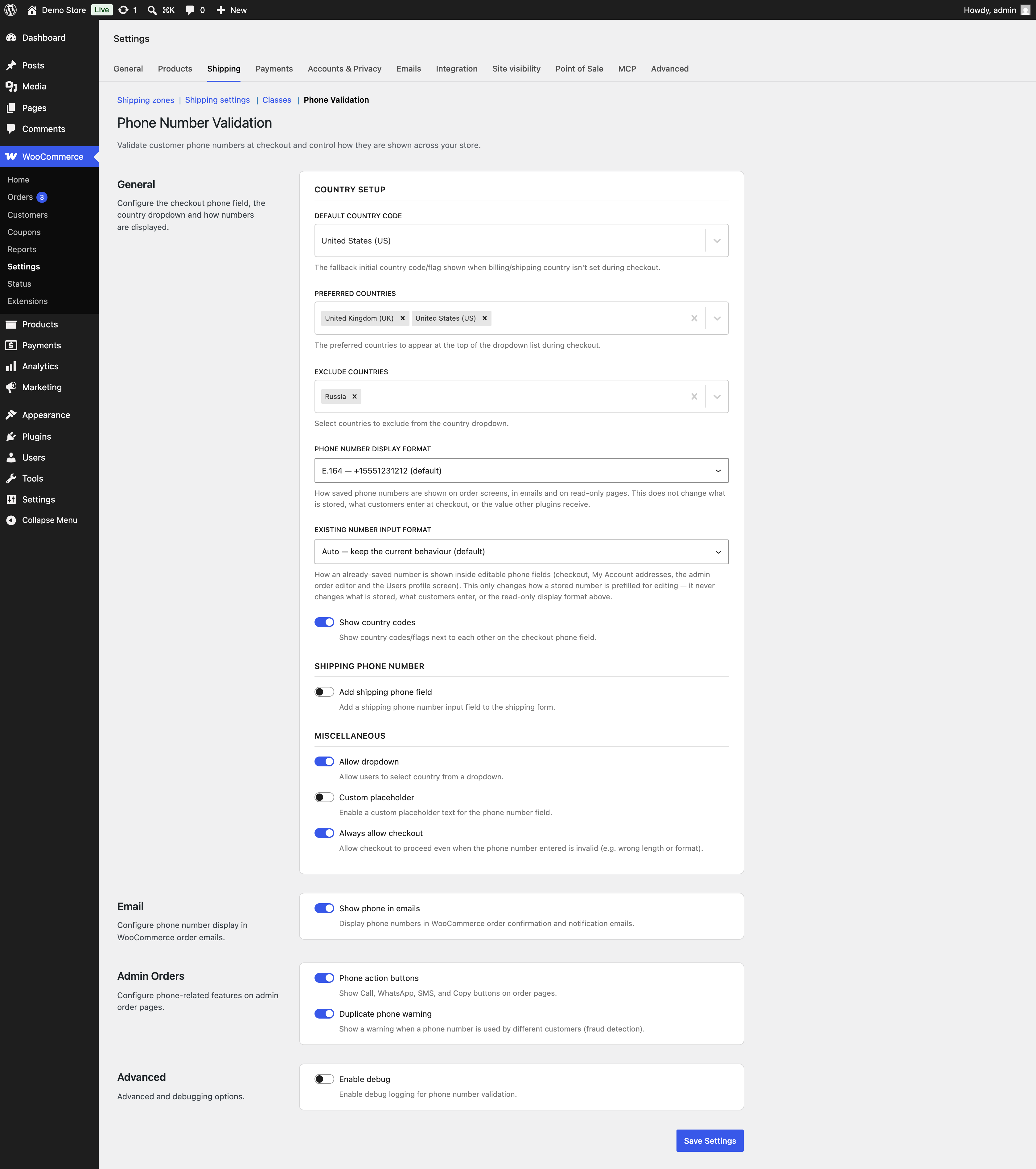
↑ Back to topAll settings live on one screen at WooCommerce > Settings > Shipping > Phone Validation. The screen is split into four sections: General, Email, Admin Orders, and Advanced. Changes are not saved until you select Save Settings at the bottom of the screen.
General: country setup
↑ Back to topThese settings control which countries customers can pick and how numbers look.
Default country code sets the flag and dial code the phone field starts on when the extension has nothing better to go on. For logged-in customers, the country saved in their billing address takes priority. On the classic checkout, the country selected in the billing address form also takes priority when the customer has no saved phone number. The default is United States. Set this to the country most of your customers order from. The AI assistant tools also use this country to read numbers typed without a country code.
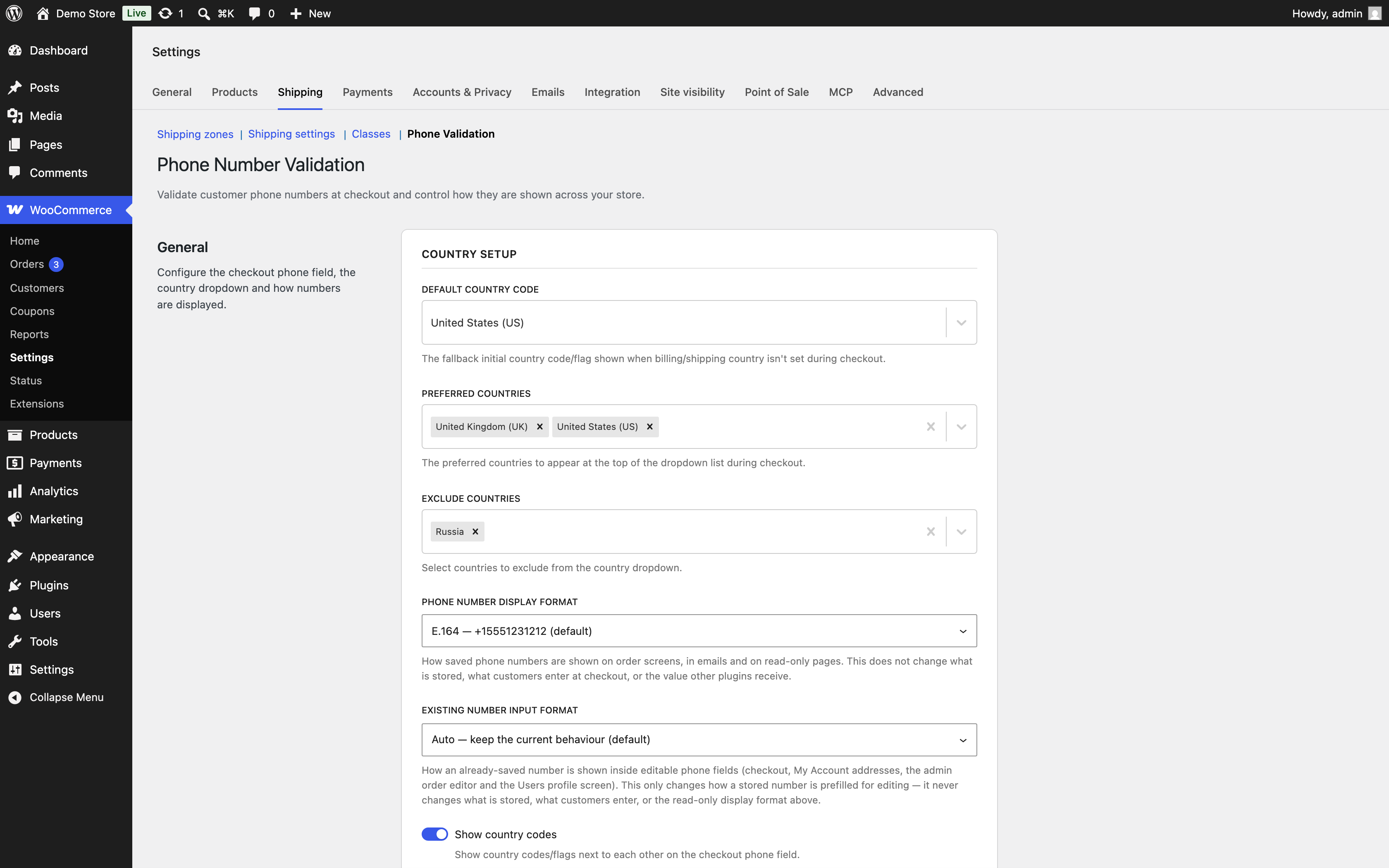
Preferred countries pins the countries you choose to the top of the flag dropdown, above the full alphabetical list. The default is United States and United Kingdom. Add the countries you ship to most often so customers find them quickly. Leave it empty to show only the alphabetical list.
Exclude countries removes countries from the flag dropdown so customers can’t select them. The default excludes Russia. If you don’t want to exclude any country, clear this field and save.
Phone number display format controls how saved numbers appear on read-only screens: the admin order screen, order emails, the order confirmation page, and the order view in My Account. You can choose between three options:
- E.164 shows the number exactly as stored, for example
+15551231212. This is the default. - International adds spacing and keeps the country code, for example
+1 555-123-1212. - National shows the number the way it’s written inside its own country, for example
(555) 123-1212.
This setting changes only what people see. The stored value stays in E.164, so shipping labels, SMS services, and other extensions that read the phone number receive the same value whichever option you choose.
Existing number input format controls how an already saved number is shown when it’s loaded into an editable phone field. This applies to returning customers at checkout, the My Account address forms, the admin order editor, and user profiles in WP Admin. You can choose between three options:
- Auto keeps the behavior from earlier versions of the extension, which follows the Show country codes setting. This is the default.
- National shows the saved number in national format, for example
(555) 123-1212. - International shows the saved number in international format, for example
+1 555-123-1212.
Like the display format, this setting never changes the stored number.
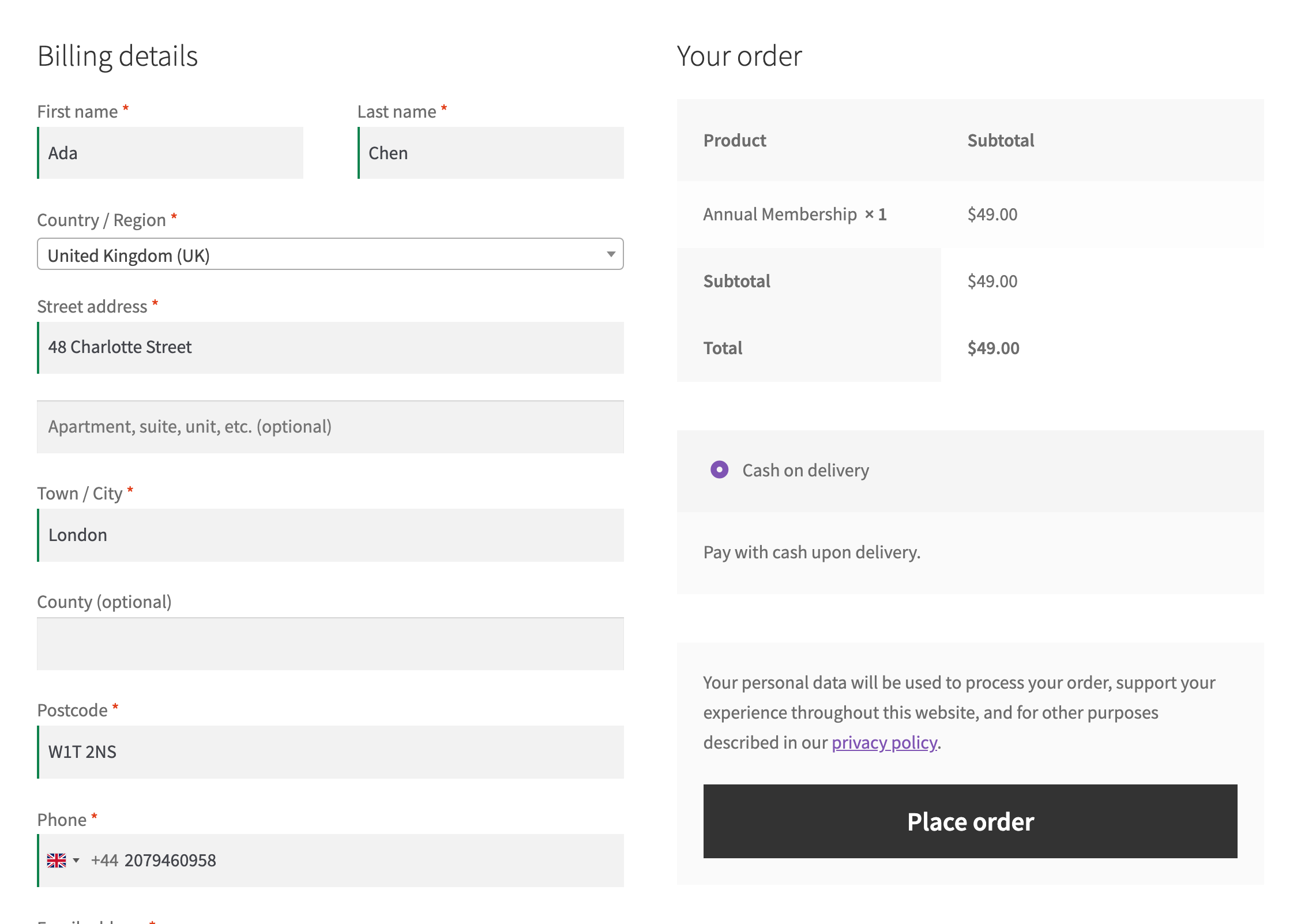
Show country codes shows the dial code (for example +44) next to the flag, separate from the number the customer types. It’s on by default. With it on, customers type only their local number. With it off, the flag still shows but the dial code is part of the number field.
General: shipping phone number
↑ Back to topThis group only appears when your checkout page uses the classic shortcode checkout. The Checkout block handles its own shipping phone field, so these options are hidden when the extension detects the Checkout block on your checkout page.
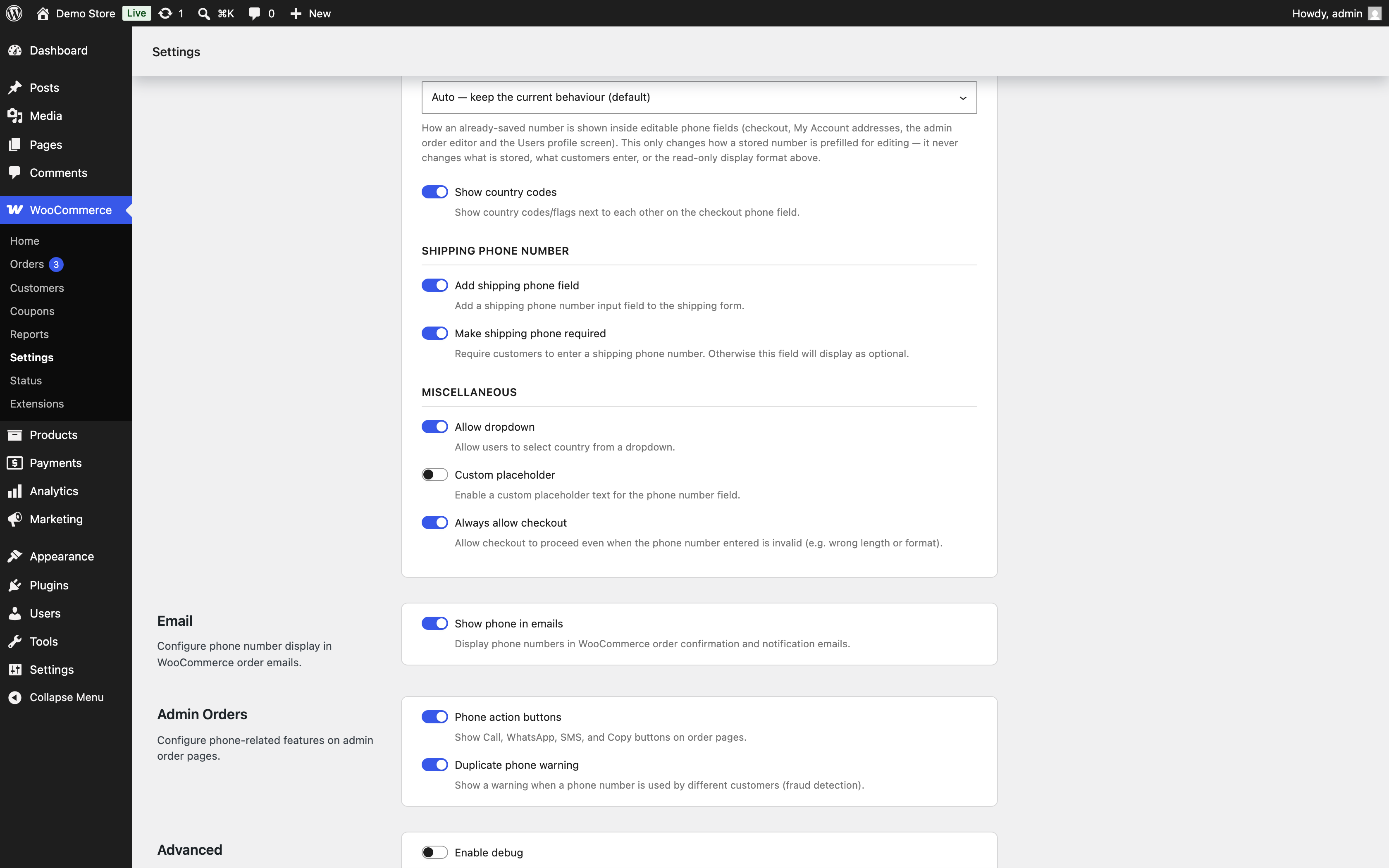
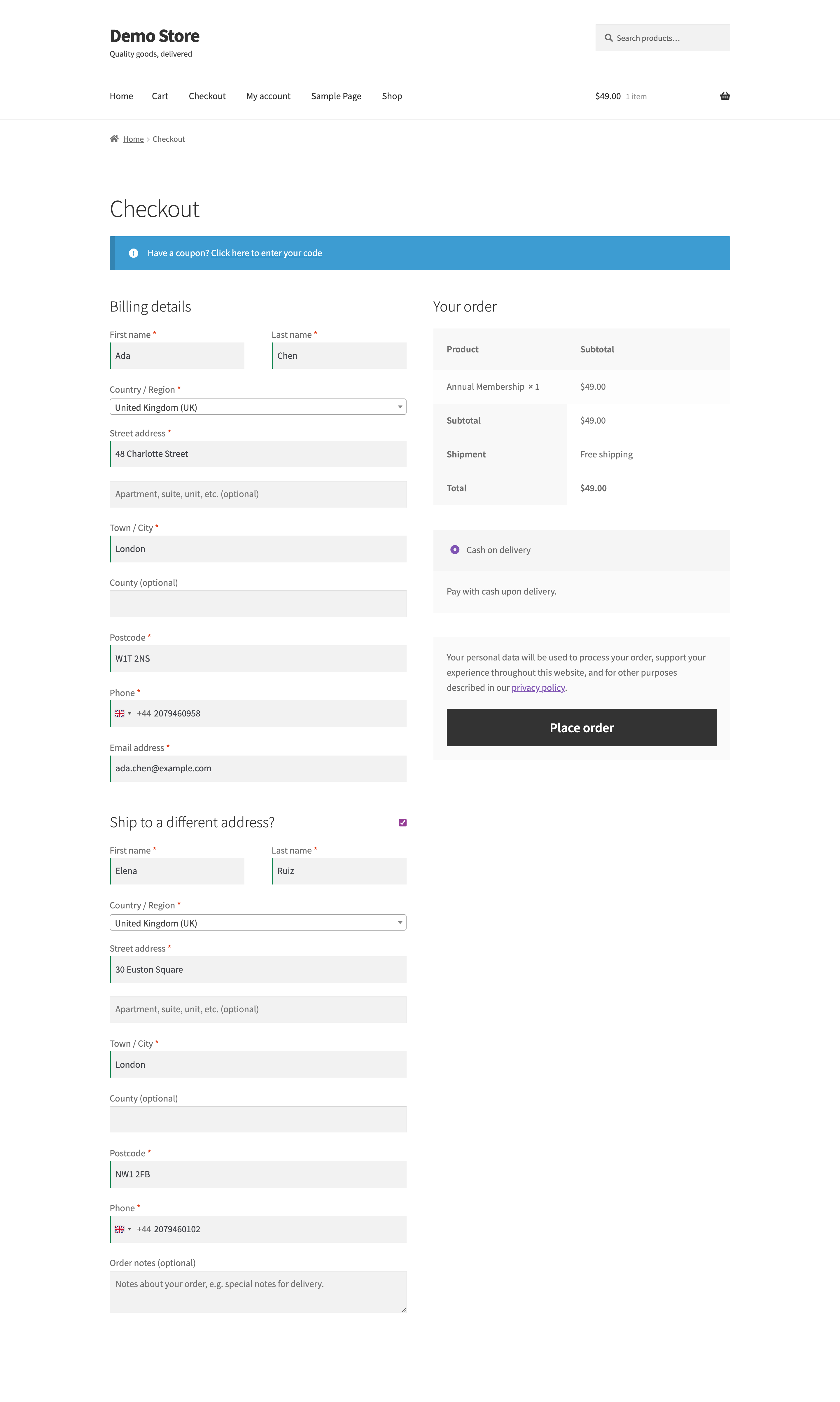
Add shipping phone field adds a separate phone field to the shipping address form on the classic checkout. It’s off by default. Turn it on if the person receiving a delivery is often not the person paying, such as with gift orders. The field only shows when your store ships to addresses other than the billing address. If Shipping location(s) at WooCommerce > Settings > General is set to force shipping to the customer’s billing address, the field doesn’t appear. With this setting on, a shipping phone field is also added to the shipping address form in My Account.
Make shipping phone required appears once the shipping phone field is on. It makes the shipping phone mandatory at checkout when the customer chooses to ship to a different address. It’s off by default, so the field shows as optional. This setting doesn’t make the field required in My Account.
General: miscellaneous
↑ Back to topAllow dropdown lets customers open the flag list and pick a country. It’s on by default. Turn it off if you only sell in one country and don’t want customers changing the flag. The phone field then stays on the country set by Default country code or the customer’s address.
Custom placeholder lets you replace the example number shown inside an empty phone field. It’s off by default, and the field shows an example number for the selected country. When you turn it on, a Phone input placeholder text box appears. Whatever you enter there is shown in every phone field instead of the example number. If you turn on Custom placeholder and leave the text box empty, the phone field shows no placeholder at all.
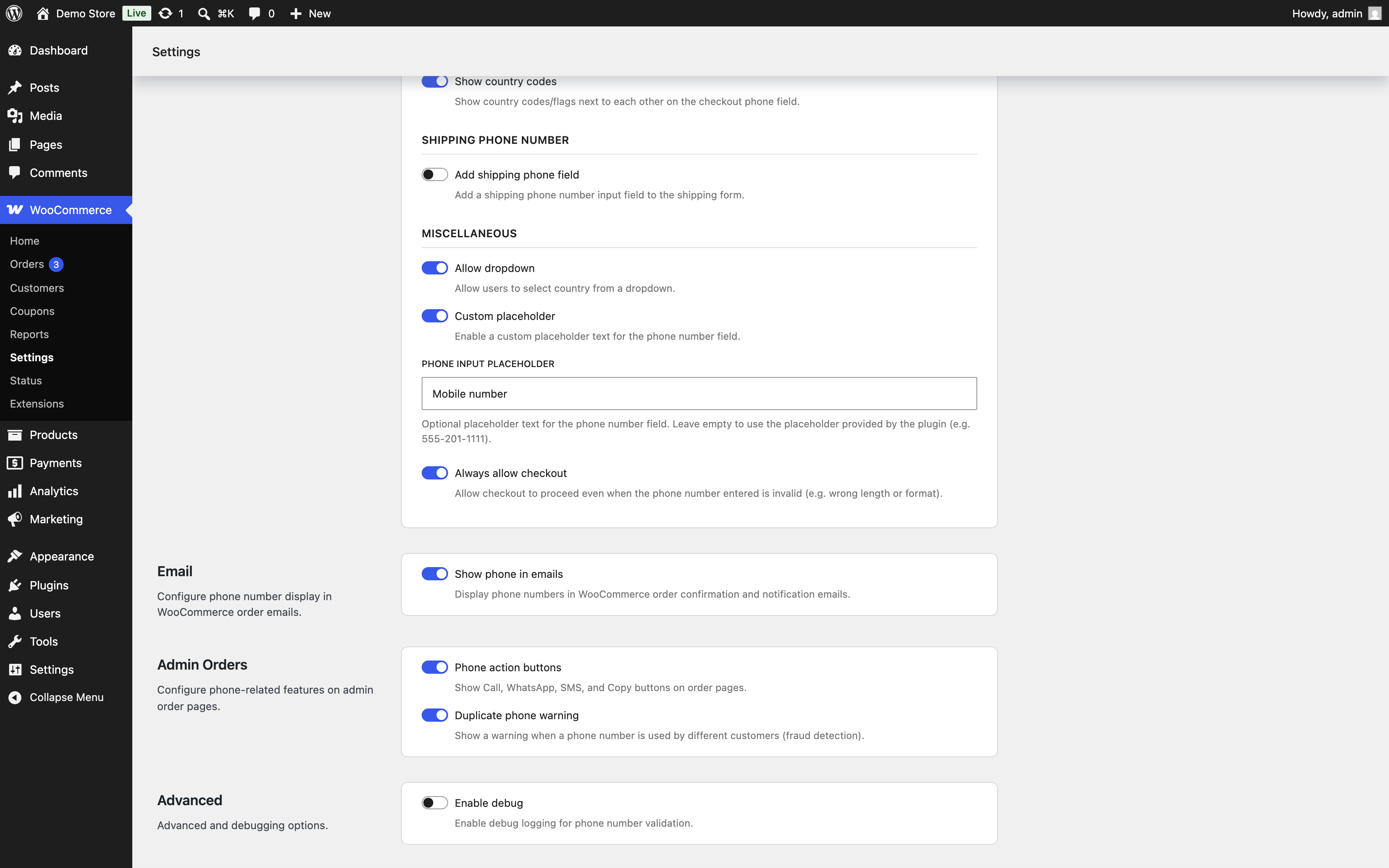
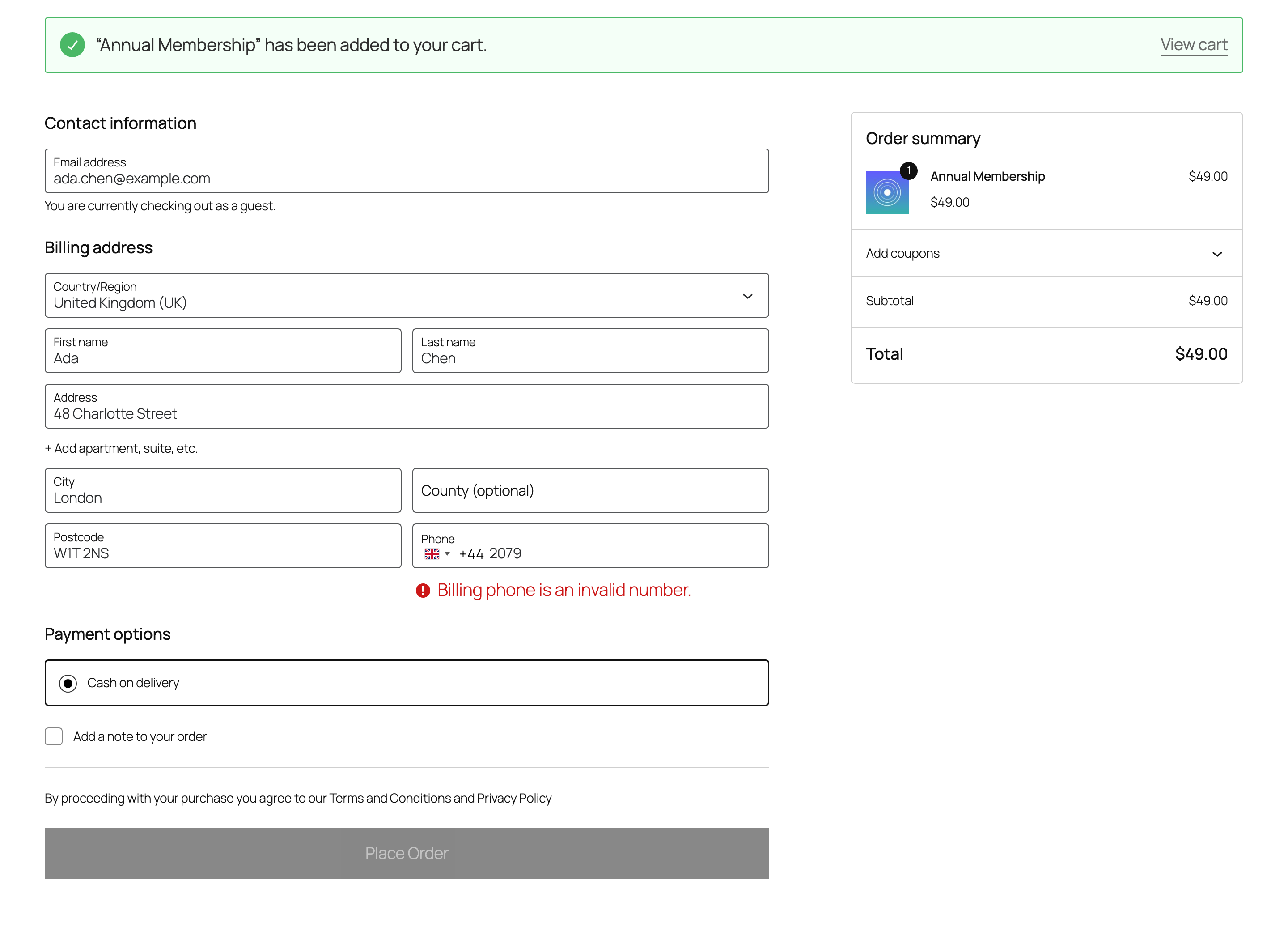
Always allow checkout decides what happens when a number fails validation. It’s on by default.
- When it’s on, customers still see a validation message under the phone field, but they can place the order anyway. Invalid numbers are also accepted when customers save addresses in My Account and when you save orders in WP Admin.
- When it’s off, the classic checkout stops the order with an error notice until the number is fixed. On the Checkout block, the Place Order button is disabled while the number is invalid. My Account address saves are also blocked, and saving an order in WP Admin with an invalid number shows an error notice.
Turn this off if you rely on reaching customers by phone and would rather lose an order than get a wrong number. Leave it on if a missed sale costs you more than a wrong number.
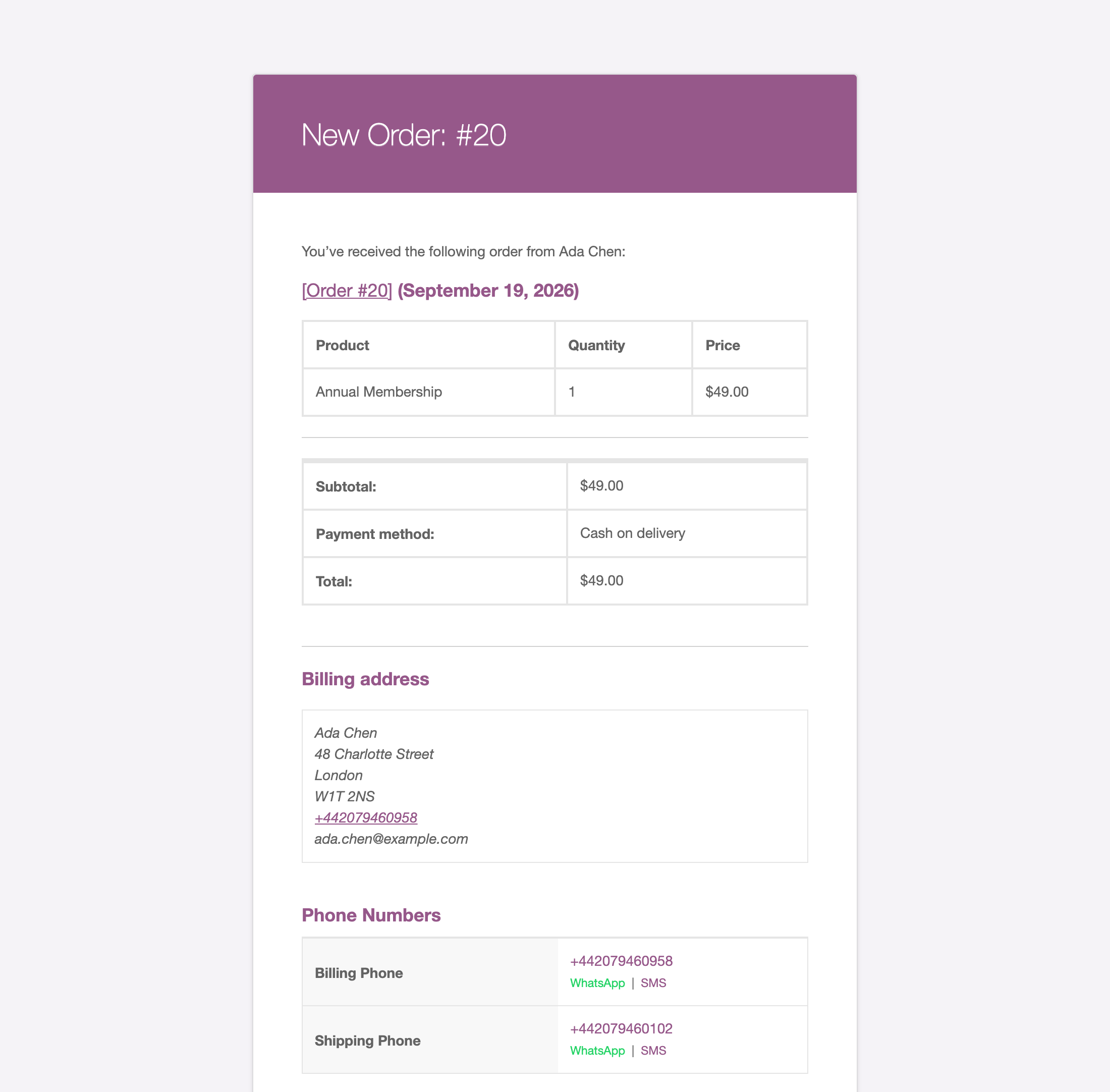
Show phone in emails adds a Phone Numbers section to WooCommerce order emails. It’s on by default. The section lists the billing phone and, when it differs, the shipping phone. Each number is a tap-to-call link. In emails sent to the store admin, each number also has WhatsApp and SMS links. Numbers follow the Phone number display format setting.
Admin orders
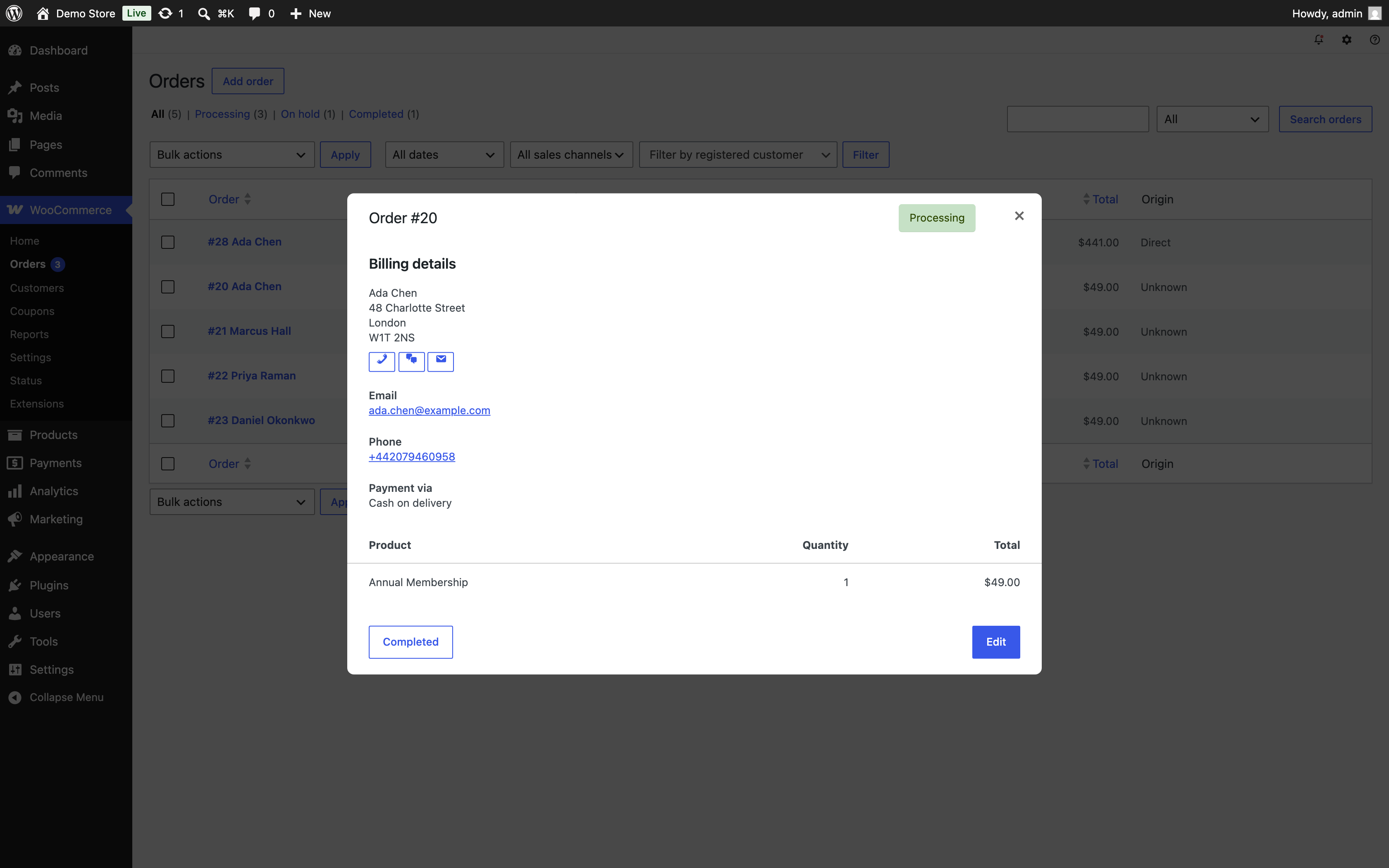
↑ Back to topPhone action buttons adds Call, WhatsApp, SMS, and Copy buttons under the billing and shipping addresses on the order edit screen. It’s on by default. Call and SMS open your device’s phone or messaging app. WhatsApp opens a chat with the customer’s number. Copy puts the number on your clipboard. With this setting on, the order preview in the orders list also shows Call, WhatsApp, and SMS buttons under the billing address.
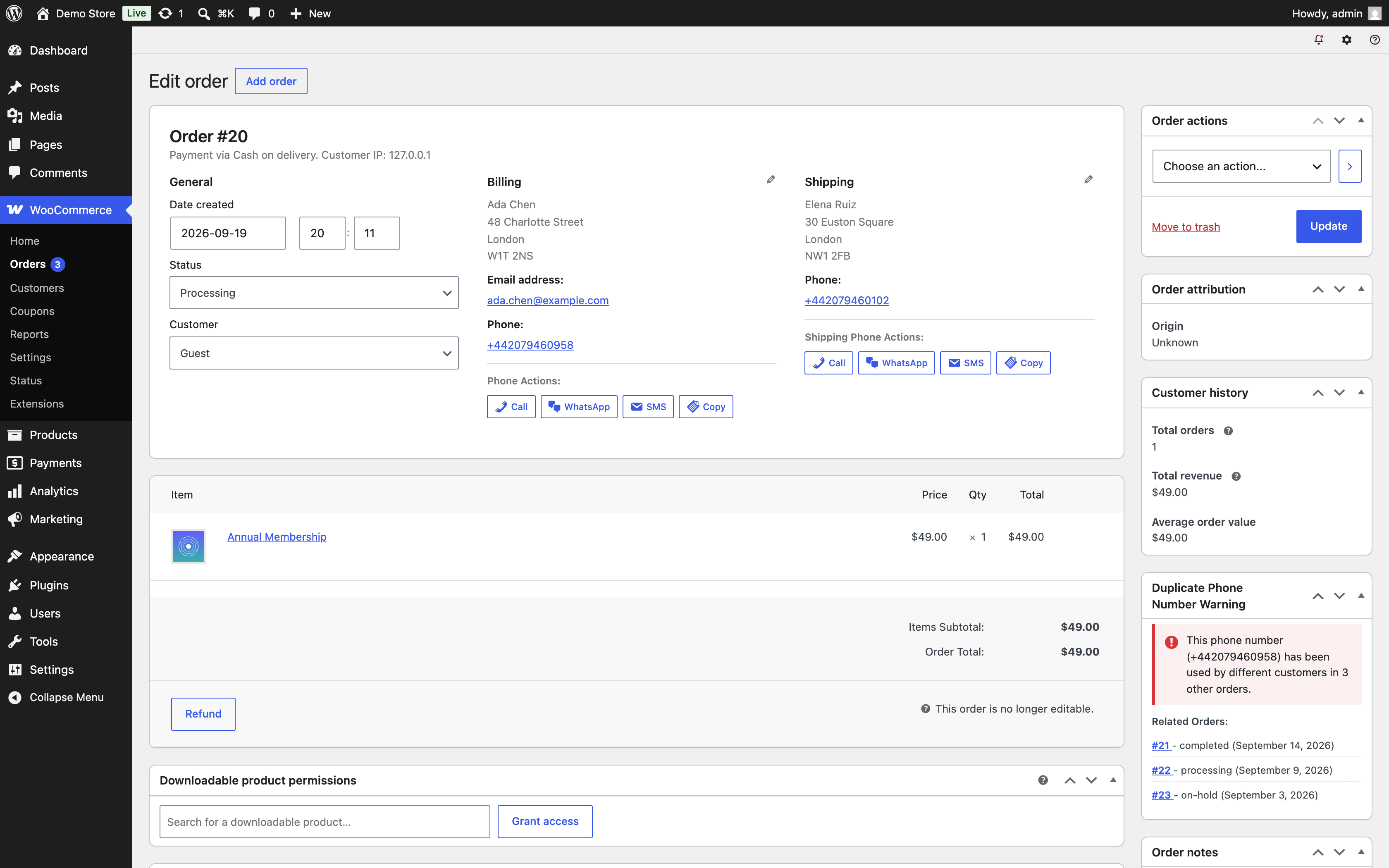
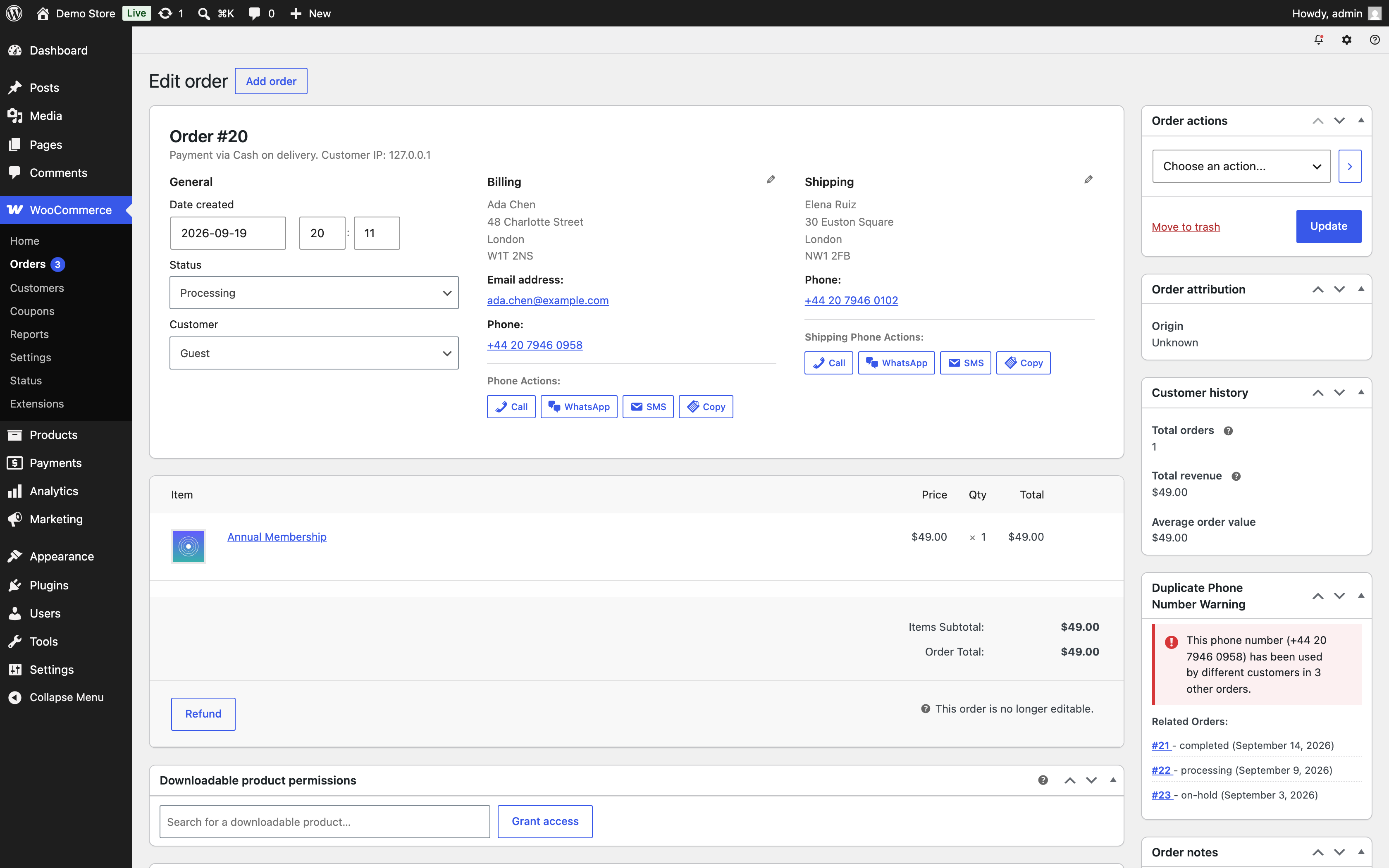
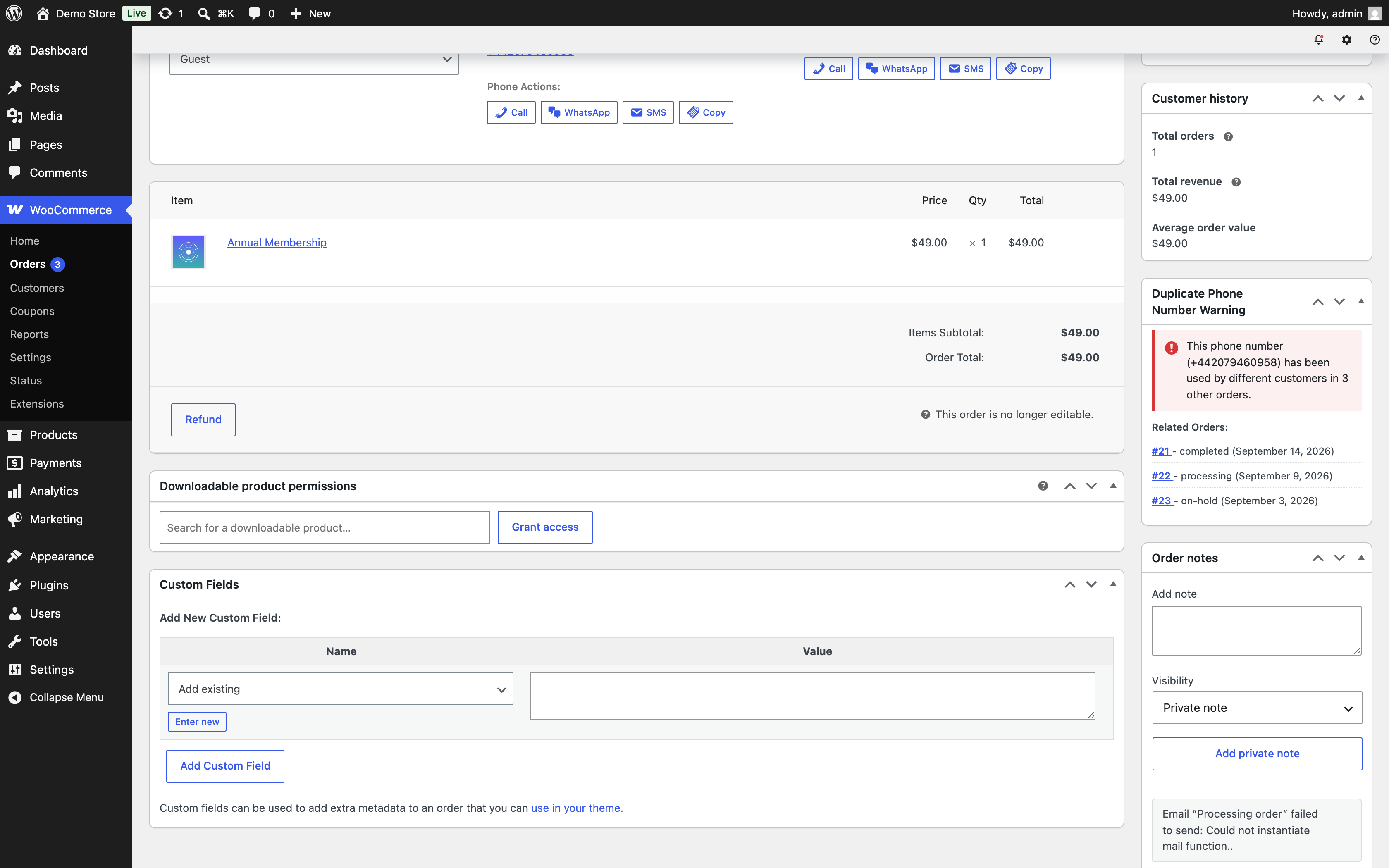
Duplicate phone warning adds a Duplicate Phone Number Warning box to the side of the order edit screen when the order’s billing phone has been used on orders from other customers. It’s on by default. The extension treats an order as coming from a different customer when both the customer account and the billing email differ from the current order. The box lists up to 10 of the related orders with their status and date, with a link to each. This helps you spot repeat fraud attempts that use new emails and accounts but the same phone number.
Advanced
↑ Back to topEnable debug writes validation errors and admin order phone warnings to the WooCommerce logs. It’s off by default. Turn it on while troubleshooting, then view the entries at WooCommerce > Status > Logs under the phone-number-validation source. Turn it off again when you’re done.
Other places the phone input appears
↑ Back to topThe extension doesn’t need any settings for these, but it helps to know where it shows up:
- My Account > Addresses: the billing phone field, and the shipping phone field if you enabled it, use the same flag input and save numbers in E.164.
- Admin order editor: when you create or edit an order in WP Admin, the billing and shipping phone fields use the flag input and are checked before you save.
- User profiles: the Billing Phone and Shipping Phone fields at Users > Edit user use the flag input and save in E.164.
Use an AI assistant
↑ Back to topFrom version 1.9.0, Phone Number Validation for WooCommerce publishes its tools through the WordPress Abilities API. That lets an AI assistant such as Claude or ChatGPT check numbers, look up orders by phone, and manage the extension’s settings in plain language. The extension doesn’t talk to the assistant itself. It publishes the tools, and a connector makes them available.
MCP (Model Context Protocol) is the W7S connector for this. Install it, go to WooCommerce > Settings > MCP, and connect Claude or ChatGPT from the Connection tab. The Add tools tab lists the tools Phone Number Validation publishes. Add the ones you want your assistant to use. Each connection runs under a WooCommerce API key, and the key’s permission is enforced on every call. An assistant using a read-only key can look things up but can’t change anything, so start with one and create a key with write access when you want the assistant to change settings.
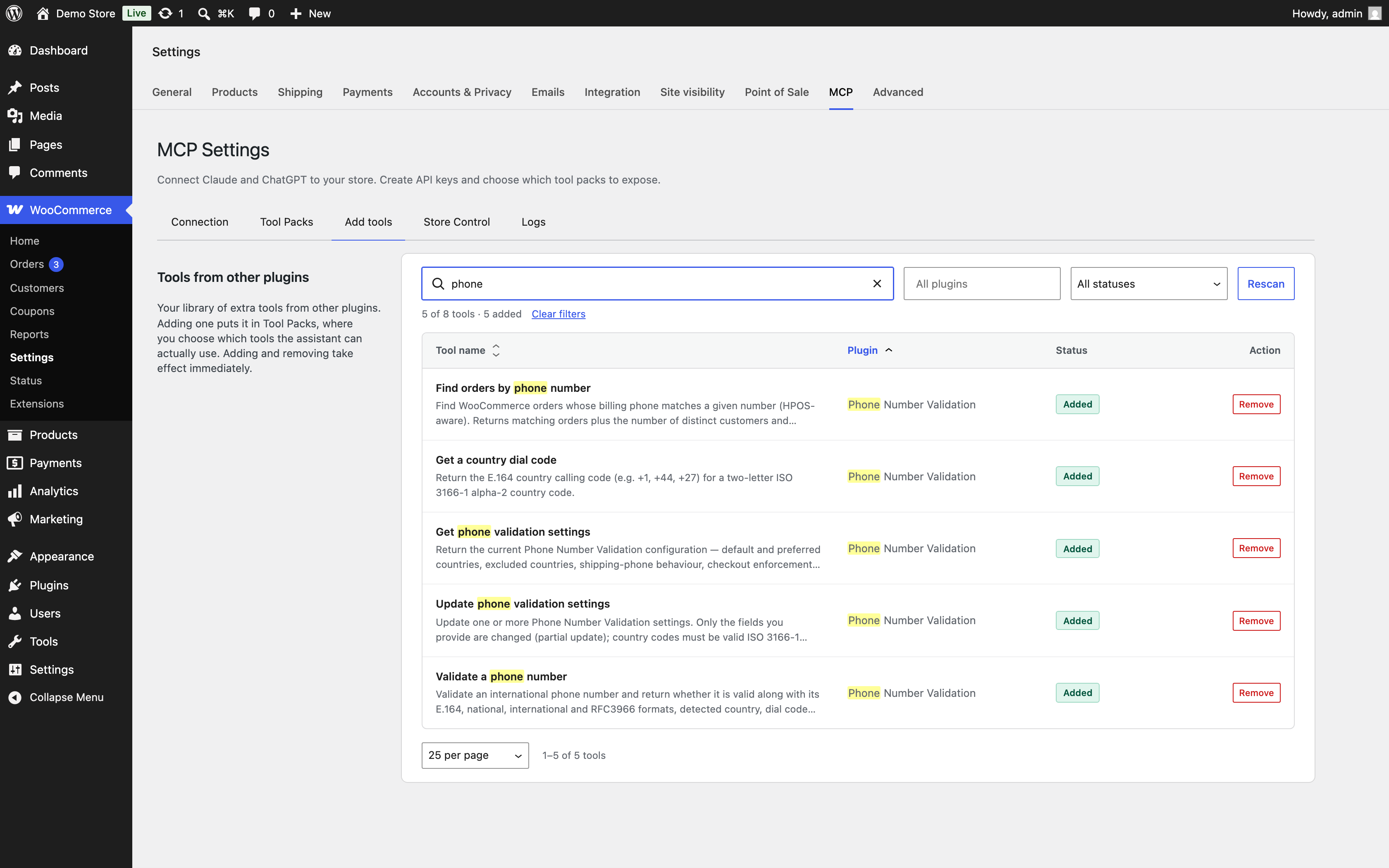
MCP also gives your assistant its own tools for orders, customers, products, and reports. Together with the Phone Number Validation tools, that means the assistant can find an order by the caller’s number, then read the order, add an order note, or update it, all in one conversation.
A few things apply to every tool:
- They only work for users who can manage WooCommerce, such as Administrators and Shop managers. The WooCommerce API key your connector uses needs to belong to one of those users.
- They’re grouped in a category called Phone Number Validation.
- They’re available as soon as the extension is active. There’s nothing to switch on in the extension’s own settings.
Tools that look things up
These four tools only read. They never change your store.
Validate a phone number checks any number and tells you whether it’s valid. It returns the number in E.164, national, international, and tel-link formats, along with the country it belongs to, its dial code, and the type of line, such as mobile, fixed-line, toll-free, or VoIP. If the number doesn’t start with a plus sign, the assistant can say which country to read it for. Otherwise the tool uses your Default country code. Try asking “Is 020 7946 0958 a valid UK number, and is it a mobile?” or “Format 0821234567 for South Africa in E.164.”
Find orders by phone number finds orders whose billing phone matches a number, newest first, up to 50 at a time. For each order it gives the order number, status, date, customer ID, masked billing email (for example j***@example.com), and billing phone. It also counts how many different customer accounts and email addresses used the number, and flags a possible fraud signal when more than one customer account did. Give the number in international form, with the country code, because stored numbers include it. Try asking “A customer is calling from +44 20 7946 0958. Which orders are theirs?” or “Has this phone number been used by more than one customer?”
Get phone validation settings returns the extension’s current configuration, including the default, preferred, and excluded countries, the shipping phone options, Always allow checkout, the placeholder, and every toggle on the settings screen, plus the installed version. Assistants use it to understand how your checkout behaves before answering questions or making changes. Try asking “Do we block checkout when a phone number is invalid?”
Get a country dial code returns the calling code for a country, for example +27 for South Africa. Try asking “What’s the dialing code for Portugal?”
Tools that make changes
This tool changes your store, so it needs an API key with write access.
Update phone validation settings changes one or more settings in a single step. Only the settings the assistant mentions are changed, and everything else stays as it is. Country codes must be valid two-letter codes such as PT or ZA. If any value in the request is invalid, nothing is saved and the assistant is told what was wrong. The tool can change every setting on the settings screen except Phone number display format and Existing number input format, which you set in WP Admin. Try asking “Make Portugal the default country, put Spain and France at the top of the list, and stop customers checking out with an invalid number.”
Every change made through this tool is saved to the same settings you see at WooCommerce > Settings > Shipping > Phone Validation, so you can check or undo it there.
Use cases
↑ Back to topA local store with one main country
↑ Back to topA bakery in Portugal delivers only within the country. Set Default country code to Portugal, clear Preferred countries, and turn off Allow dropdown so the field always stays on Portugal. Leave Show country codes on so customers only type their local number. Set Phone number display format to National so staff see numbers the way they dial them.
An international store that ships worldwide
↑ Back to topAn online clothing shop sells across Europe and North America. Set Preferred countries to the shop’s biggest markets, for example Germany, France, United Kingdom, and United States, so they sit at the top of the dropdown. Leave Exclude countries empty, or list only the countries you don’t ship to. Set Phone number display format to International so every number on the order screen clearly shows its country.
A delivery business that must be able to call the customer
↑ Back to topA furniture store books delivery slots by phone and can’t deliver without a working number. Turn off Always allow checkout so invalid numbers block the order. Make sure the billing phone field is required in your checkout settings. On the classic checkout, turn on Add shipping phone field and Make shipping phone required so the person receiving the delivery can be reached too. Leave Phone action buttons on so staff can call or WhatsApp the customer straight from the order.
A gift shop that wants both numbers without blocking sales
↑ Back to topA flower shop sells lots of gift orders. Turn on Add shipping phone field, but leave Make shipping phone required and Always allow checkout at their defaults so no sale is lost. Leave Show phone in emails on so the shipping phone appears in the new order email, ready for the courier.
A support team that answers the phone
↑ Back to topA homeware store takes a lot of calls about existing orders. Connect Claude through MCP (Model Context Protocol) with a read-only API key and add the Find orders by phone number tool. When a customer calls, staff ask the assistant which orders belong to the caller’s number and get the order numbers and statuses without searching WP Admin. Leave Duplicate phone warning on, so an order that shares its number with other customers stands out on the order screen too.
Working with other W7S extensions
↑ Back to topPhone Number Validation for WooCommerce makes sure the number on each order is real and stored the same way every time. These combinations from the W7S catalog put that number to work: answering questions about orders, stopping repeat fraud, and reaching customers when a delivery or pickup depends on it. None of them need special setup between the extensions. Each one works side by side with the settings described above.
Look up any order by phone, from a chat. MCP (Model Context Protocol) connects Claude or ChatGPT to your store with tools for orders, customers, products, refunds, and reports, alongside the Phone Number Validation tools described in Use an AI assistant. That puts a whole support task in one conversation. Ask which orders came from a caller’s number, have the assistant check the latest order’s status, and add an order note recording the call. Because every number is stored in E.164, the lookup matches the same number however the customer typed it at checkout. Start with a read-only key while you try it, and add write access when you want the assistant to update orders or change phone settings.
Turn a duplicate warning into a rule. The Duplicate Phone Number Warning shows you when one number is behind orders from several customers, but it only warns. Shop Defender checks orders before payment is taken and can block them, put them on hold, or flag them, based on rules that include phone numbers. When the warning box points to a number you don’t trust, add a Phone Number rule for it at WooCommerce > Settings > Advanced > Shop Defender, set to hold or block. Future orders with that number are stopped at checkout instead of discovered afterward. If you’re unsure whether a number is shared innocently, ask your assistant with Find orders by phone number first, then decide.
Make same-day delivery reachable. Uber Direct Shipping brings live Uber Direct rates and delivery tracking to your checkout for same-day local orders. When a delivery happens within hours, a wrong number means a failed drop-off with no time to fix it. Turn off Always allow checkout so orders can’t go through with an invalid number, and make sure your billing phone field is required. On the classic checkout, turn on Add shipping phone field as well, so the person receiving the parcel can be reached when they’re not the buyer.
Tell customers their pickup is ready. Cash Payment on Pickup lets customers order online and pay in cash when they collect. Those orders only work if you can let the customer know when to come in. With Phone action buttons on, the order screen gives you Call, WhatsApp, and SMS buttons next to the billing address, so staff can send a “ready for collection” message straight from the order. Set Phone number display format to National if your team reads numbers aloud to customers on the phone.
Keep the courier in the loop when something goes wrong. Shipping Insurance Manager offers shipping insurance at checkout, so a lost parcel becomes a claim instead of an argument. Claims move faster when you can reach the customer to confirm details. With Show phone in emails on, every order email carries a tap-to-call number, and admin emails add WhatsApp and SMS links, so whoever handles the claim has a verified way to contact the customer without opening WP Admin.
FAQ
↑ Back to topWhere are the settings?
↑ Back to topGo to WooCommerce > Settings > Shipping > Phone Validation. You can also select Settings under the extension on the Plugins screen.
Does it work with the Checkout block?
↑ Back to topYes. The extension works with both the classic shortcode checkout and the Checkout block. On the Checkout block, make sure the phone field is turned on in the block settings. The shipping phone options on the settings screen only apply to the classic checkout, because the Checkout block has its own phone field settings.
Why can customers still check out with an invalid number?
↑ Back to topAlways allow checkout is on by default. Customers see a validation message but can still place the order. Turn it off at WooCommerce > Settings > Shipping > Phone Validation if you want invalid numbers to block checkout.
I turned off Always allow checkout, but customers still check out without a phone number. Why?
↑ Back to topThe extension validates numbers that customers type. It doesn’t make the phone field required. If your billing phone field is optional, customers can leave it empty. Make the billing phone field required in your checkout field settings, or in the Checkout block settings.
What format are phone numbers saved in?
↑ Back to topEvery number is saved in E.164 format, for example +14155552671. This is the format most SMS, shipping, and CRM services expect. The Phone number display format setting changes how numbers look on screen and in emails, but never what’s stored.
Will changing the display format affect my other extensions or integrations?
↑ Back to topNo. The display format only changes what people see on order screens, in emails, and on the order pages in My Account. Other extensions and integrations still receive the stored E.164 value.
What happens to phone numbers saved before I installed the extension?
↑ Back to topExisting numbers aren’t rewritten in bulk. When an older number without a country code is displayed on an order, the extension adds the country code based on the order’s billing or shipping country. The stored value is updated to E.164 the next time the order or address is saved through a validated phone field.
Why did I get a Duplicate Phone Number Warning for a returning customer?
↑ Back to topThe warning only counts orders where both the customer account and the billing email differ from the current order. A returning customer who checks out as a guest with a new email address, or a family sharing one phone, can trigger it. Treat the warning as a prompt to take a closer look, not proof of fraud.
Can I stop certain countries from being selected?
↑ Back to topYes. Add them to Exclude countries. Russia is excluded by default. Clear the field and save if you want every country available.
Do I need an AI assistant to use the extension?
↑ Back to topNo. Everything in this documentation works from WP Admin. The AI assistant tools added in version 1.9.0 are optional, and they need the WordPress Abilities API and a connector such as MCP (Model Context Protocol).
My assistant can’t find an order by phone number. Why?
↑ Back to topGive the number in international form, with the country code, for example +27 82 123 4567. Stored numbers include the country code, so a national number with a leading zero, such as 082 123 4567, won’t match. Spaces, dashes, and brackets are fine, because the tool ignores them. Also check that the API key your connector uses belongs to a user who can manage WooCommerce.
Can the assistant change how numbers are displayed?
↑ Back to topNo. The assistant can change every other setting, but Phone number display format and Existing number input format are only available at WooCommerce > Settings > Shipping > Phone Validation.
How do I troubleshoot validation problems?
↑ Back to topTurn on Enable debug in the Advanced section, reproduce the issue, then go to WooCommerce > Status > Logs and open the log with the phone-number-validation source. Turn debug off again when you’re done.
I see a notice asking me to connect my store or renew. What should I do?
↑ Back to topThe extension checks your WooCommerce.com subscription. Connect your store to WooCommerce.com, or renew the subscription if it has expired. Managing WooCommerce.com subscriptions explains how.
Is it compatible with High-Performance Order Storage (HPOS)?
↑ Back to topYes. The extension declares HPOS compatibility, and the duplicate phone warning and the order lookup tool work with both HPOS and legacy order storage.
Is the extension translation-ready?
↑ Back to topYes. All text uses the phone-number-validation text domain, and translations for 17 languages are bundled in languages/.
Where do I get help?
↑ Back to topOpen a ticket from your WooCommerce.com account.
Developer documentation
↑ Back to topThis section covers the extensibility surface of Phone Number Validation for WooCommerce. Hooks and options use the pnv_ prefix. PHP classes live under the PNV\Phone_Number_Validation namespace.
Filter hooks
↑ Back to toppnv_order_phone_e164
Filters the E.164 phone value immediately before it’s written to an order during checkout. Fires for both classic and block checkout, once per phone type, and can fire more than once per order as the value passes through the save path.
| Argument | Type | Description |
|---|---|---|
$phone | string | The E.164 value, for example +14155552671 |
$order | WC_Order | The order being saved |
$type | string | billing or shipping |
// Store shipping numbers without the leading plus for a legacy courier integration.
add_filter( 'pnv_order_phone_e164', function ( $phone, $order, $type ) {
	return 'shipping' === $type ? ltrim( $phone, '+' ) : $phone;
}, 10, 3 );
Returning a value that doesn’t start with + affects how the extension displays and normalizes the number later, so change the format with care.
pnv_display_phone
Filters the display-formatted phone number wherever the extension renders a stored number for reading: order emails, the duplicate warning box, and the values sent to the order screen and order page reformatters. Also applied by pnv_format_phone_for_display().
| Argument | Type | Description |
|---|---|---|
$formatted | string | The value after the configured display format is applied |
$phone | string | The raw stored E.164 value |
$style | string | The active style: e164, international, or national |
// Show numbers from the store's own country in national format, and leave the rest as configured.
add_filter( 'pnv_display_phone', function ( $formatted, $phone, $style ) {
	$dial = \PNV\Phone_Number_Validation\Country_Dial_Codes::get_dial_code( WC()->countries->get_base_country() );

	if ( '' !== $dial && 0 === strpos( $phone, '+' . $dial ) ) {
		return \PNV\Phone_Number_Validation\Phone_Display_Format::format( $phone, 'national' );
	}

	return $formatted;
}, 10, 3 );
pnv_phone_placeholder
Filters the placeholder passed to the phone input on checkout, My Account, and the admin order editor. Receives the custom placeholder text when Custom placeholder is on, or null when it’s off. Return null to let the phone library show its example number for the selected country, a string to use as the placeholder, or an empty string for no placeholder.
| Argument | Type | Description |
|---|---|---|
$placeholder | string|null | The configured placeholder, or null |
// Use a translatable placeholder regardless of the admin setting.
add_filter( 'pnv_phone_placeholder', function ( $placeholder ) {
	return __( 'Mobile number', 'your-textdomain' );
} );
When the filter returns null, the front-end scripts also check for a global window.pnvCustomPhonePlaceholder( example, countryData ) function and use its return value if it returns a string.
// Prefix the library's example number with a hint.
window.pnvCustomPhonePlaceholder = function ( example, countryData ) {
	return 'e.g. ' + example;
};
pnv_exclude_countries
Filters the list of countries removed from the flag dropdown. Receives an array of uppercase ISO 3166-1 alpha-2 codes built from the Exclude countries setting.
| Argument | Type | Description |
|---|---|---|
$countries | string[] | Uppercase country codes to exclude |
// Always keep Russia available, whatever the setting says.
add_filter( 'pnv_exclude_countries', function ( $countries ) {
	return array_values( array_diff( $countries, array( 'RU' ) ) );
} );
pnv_preferred_dial_country
Filters which country flag is chosen when a number’s dial code is shared by several countries.
| Argument | Type | Description |
|---|---|---|
$map | array | Dial code (digits only) to lowercase country code. Default array( '44' => 'gb', '1' => 'us', '7' => 'ru' ) |
// Prefer the Canadian flag for +1 numbers.
add_filter( 'pnv_preferred_dial_country', function ( $map ) {
	$map['1'] = 'ca';
	return $map;
} );
pnv_country_dial_code
Filters the dial code returned for a country. The extension uses it when it converts a national number to E.164 on the server, when the Get a country dial code tool runs, and to decide which country codes the Update phone validation settings tool accepts.
| Argument | Type | Description |
|---|---|---|
$dial | string | Dial code without the plus sign, or empty if the country is unknown |
$country_code | string | The country code as passed in |
// Add Antarctica, which isn't in the bundled table.
add_filter( 'pnv_country_dial_code', function ( $dial, $country_code ) {
	if ( '' === $dial && 'AQ' === strtoupper( $country_code ) ) {
		return '672';
	}
	return $dial;
}, 10, 2 );
Action hooks
↑ Back to toppnv_init
Fires once while the extension bootstraps, after its classes are loaded and instantiated. It runs when the plugin file is included, so a callback must be registered before Phone Number Validation for WooCommerce loads, for example from a must-use plugin.
// wp-content/mu-plugins/pnv-tweaks.php
// Remove the phone action icons from the order preview but keep them on the order edit screen.
add_action( 'pnv_init', function () {
	remove_filter(
		'woocommerce_admin_order_preview_get_order_details',
		array( \PNV\Phone_Number_Validation\Admin\Order_Enhancements::get_instance(), 'add_phone_to_order_preview' ),
		10
	);
} );
Template function
↑ Back to toppnv_format_phone_for_display( string $phone ): string formats a stored E.164 number using the configured Phone number display format and the pnv_display_phone filter. It returns the input unchanged if the number can’t be formatted, so its output is always safe to echo. Use it in PDF invoice, packing slip, or theme templates so their phone numbers match the rest of the store.
if ( function_exists( 'pnv_format_phone_for_display' ) ) {
	echo esc_html( pnv_format_phone_for_display( $order->get_billing_phone() ) );
}
Abilities API
↑ Back to topVersion 1.9.0 registers five abilities through the WordPress Abilities API. Registration uses the Abilities API only, with no dependency on a particular MCP plugin, so any consumer of wp_get_abilities() can use them, including MCP (Model Context Protocol) and the WooCommerce MCP adapter. The code lives in includes/mcp/: class-abilities.php registers the abilities, class-phone-validator.php wraps the phone number library, and class-order-phone-lookup.php runs the order search.
Registration. Abilities::register() runs when the plugin loads, as long as WooCommerce is active. If wp_register_ability() doesn’t exist yet, it loads the Abilities API from WordPress core (wp-includes/abilities-api.php) or, failing that, from the copy bundled with WooCommerce. It then hooks:
wp_abilities_api_categories_initto register the categorywp_abilities_api_initto register the abilitiesabilities_api_categories_initandabilities_api_init, the hook names used by early Abilities API builds
Guards make sure the category and abilities are registered once even if both sets of hooks fire. Nothing is registered when the Abilities API isn’t available.
Names and category. Ability names use the phone-number-validation namespace, for example phone-number-validation/validate-phone. All five belong to the phone-number-validation category, labelled “Phone Number Validation”. The class exposes the namespace as Abilities::PREFIX.
Permissions. Every ability uses Abilities::check_permission(), which requires manage_woocommerce.
Meta. Every ability sets meta.show_in_rest to true and meta.mcp to array( 'public' => true, 'type' => 'tool' ). Annotations are set as follows:
| Ability | Label | readonly | idempotent | destructive |
|---|---|---|---|---|
phone-number-validation/validate-phone | Validate a phone number | true | true | false |
phone-number-validation/find-orders-by-phone | Find orders by phone number | true | true | false |
phone-number-validation/get-settings | Get phone validation settings | true | true | false |
phone-number-validation/update-settings | Update phone validation settings | false | true | false |
phone-number-validation/get-country-dial-code | Get a country dial code | true | true | false |
Errors. Abilities return a WP_Error in these cases:
| Code | Status | When |
|---|---|---|
pnv_mcp_forbidden | 401 or 403 | The current user lacks manage_woocommerce. The status comes from rest_authorization_required_code() |
pnv_invalid_input | 400 | phone_number or country is empty |
pnv_woocommerce_missing | 500 | find-orders-by-phone runs without WooCommerce loaded |
pnv_invalid_settings | 400 | update-settings received an invalid value. The message lists every problem |
pnv_no_changes | 400 | update-settings received no recognized fields |
phone-number-validation/validate-phone
Parses and validates a number with libphonenumber.
| Input | Type | Required | Description |
|---|---|---|---|
phone_number | string | Yes | The number, in national or international form |
country | string | No | ISO 3166-1 alpha-2 region used to read national numbers. Defaults to the pnv_initial_country option |
Output:
| Field | Type | Description |
|---|---|---|
input | string | The number as passed in |
valid | boolean | Whether the number is valid for its region |
e164 | string | E.164 format, for example +442079460958 |
national | string | National format, for example 020 7946 0958 |
international | string | International format, for example +44 20 7946 0958 |
rfc3966 | string | tel: URI, for example tel:+44-20-7946-0958 |
country | string | Region detected from the number |
dial_code | string | Country calling code with a plus, for example +44 |
number_type | string | One of fixed-line, mobile, fixed-line-or-mobile, toll-free, premium-rate, shared-cost, voip, personal-number, pager, uan, voicemail, or unknown |
errors | string[] | Parse or validation messages. Empty for a valid number |
A number that can’t be parsed doesn’t return a WP_Error. It returns valid: false, empty format fields, and the parser message in errors. A parseable but invalid number returns its formats, valid: false, and an error explaining that the number isn’t valid for the region.
phone-number-validation/find-orders-by-phone
Finds shop_order records whose billing phone contains the digits of the input.
| Input | Type | Required | Description |
|---|---|---|---|
phone_number | string | Yes | The number to search for |
limit | integer | No | Orders to return. Default 20, minimum 1, maximum 50 |
The input is reduced to digits only. The query strips spaces, dashes, brackets, and + from the stored billing phone and matches with LIKE '%digits%', ordered newest first. It uses wc_orders and wc_order_addresses when HPOS is enabled, and posts and postmeta otherwise. Because stored numbers carry a country code, pass the number in international form. A national number with a leading trunk zero won’t match its E.164 record.
Output:
| Field | Type | Description |
|---|---|---|
count | integer | Orders returned |
distinct_customers | integer | Distinct customer_id values. All guest orders count as one customer (ID 0) |
distinct_emails | integer | Distinct billing emails, compared case-insensitively |
possible_fraud_signal | boolean | true when distinct_customers is greater than 1 |
orders | array | One object per order, described below |
Each order object has order_id (integer), order_number (string), status (string), date_created (ISO 8601), customer_id (integer), billing_email (masked to the first character of the local part, for example j***@example.com), and billing_phone (as stored).
phone-number-validation/get-settings
Takes no input and returns the current configuration as an object. version holds the installed plugin version. The other fields map to options as follows:
| Field | Type | Option |
|---|---|---|
default_country | string | pnv_initial_country |
preferred_countries | string[] | pnv_preferred_countries |
excluded_countries | string[] | pnv_exclude_countries |
shipping_phone_enabled | boolean | pnv_add_shipping_phone |
shipping_phone_required | boolean | pnv_make_shipping_phone_required |
always_allow_checkout | boolean | pnv_always_allow_checkout |
separate_dial_code | boolean | pnv_separate_dial_code |
allow_dropdown | boolean | pnv_allow_dropdown |
show_phone_in_emails | boolean | pnv_show_phone_in_emails |
phone_actions_enabled | boolean | pnv_enable_phone_actions |
duplicate_warning_enabled | boolean | pnv_enable_duplicate_warning |
debug_enabled | boolean | pnv_enable_debug |
custom_placeholder_enabled | boolean | pnv_enable_custom_placeholder |
phone_placeholder | string | pnv_phone_placeholder |
pnv_display_format and pnv_input_display_format aren’t included.
phone-number-validation/update-settings
Applies a partial update. The input accepts any of the fields listed for get-settings except version, and the schema sets additionalProperties to false.
- Country fields are uppercased and trimmed, then checked against the dial code table (so
pnv_country_dial_codecan extend what’s accepted). - Country lists must be arrays. Empty entries are dropped and duplicates removed.
- Booleans accept
true,false,1,0, and the stringsyes,no,true,false,1, and0. They’re stored asyesorno. phone_placeholderis passed throughsanitize_text_field().
Every provided field is validated before anything is written. If any field fails, the ability returns pnv_invalid_settings and no option changes. On success it returns updated (the field names that were written) and settings (the same object get-settings returns).
phone-number-validation/get-country-dial-code
| Input | Type | Required | Description |
|---|---|---|---|
country | string | Yes | ISO 3166-1 alpha-2 country code |
Output: country (uppercased input), dial_code (with a plus, or empty when unknown), and found (boolean). The value comes from the bundled table through pnv_country_dial_code.
Run an ability from PHP
You can call the abilities from your own code with wp_get_ability(). The permission callback checks the current user, so run this in a context where that user has manage_woocommerce.
$ability = wp_get_ability( 'phone-number-validation/find-orders-by-phone' );

if ( $ability ) {
	$result = $ability->execute(
		array(
			'phone_number' => '+44 20 7946 0958',
			'limit'        => 10,
		)
	);

	if ( is_wp_error( $result ) ) {
		wc_get_logger()->error( $result->get_error_message(), array( 'source' => 'my-phone-lookup' ) );
	} elseif ( $result['possible_fraud_signal'] ) {
		wc_get_logger()->warning(
			sprintf( 'Number used by %d customers across %d orders.', $result['distinct_customers'], $result['count'] ),
			array( 'source' => 'my-phone-lookup' )
		);
	}
}
wp_get_ability() returns null when the ability isn’t registered, which is the case when the Abilities API isn’t available.
REST routes
↑ Back to topBoth routes require the manage_woocommerce capability.
| Method | Route | Description |
|---|---|---|
GET | /wp-json/phone-number-validation/v1/settings | Returns every setting, keyed by option name |
POST | /wp-json/phone-number-validation/v1/settings | Updates settings. Toggles are sent as yes or no, country lists as arrays of ISO 3166-1 alpha-2 codes |
GET | /wp-json/phone-number-validation/v1/license-status | Returns the WooCommerce.com subscription status for the extension |
The settings screen uses the settings route. Unlike the update-settings ability, it covers pnv_display_format and pnv_input_display_format too.
Stored data
↑ Back to topOrder data
- The billing and shipping phone are saved through the standard
WC_Ordersetters in E.164 format. _billing_phone_validand_shipping_phone_validorder meta hold the validated E.164 value.
Options
| Option | Type | Default |
|---|---|---|
pnv_initial_country | ISO 3166-1 alpha-2 code | US |
pnv_preferred_countries | array of codes | array( 'US', 'GB' ) |
pnv_exclude_countries | array of codes | array( 'RU' ) |
pnv_display_format | e164, international, national | e164 |
pnv_input_display_format | auto, national, international | auto |
pnv_separate_dial_code | yes / no | yes |
pnv_add_shipping_phone | yes / no | no |
pnv_make_shipping_phone_required | yes / no | no |
pnv_allow_dropdown | yes / no | yes |
pnv_enable_custom_placeholder | yes / no | no |
pnv_phone_placeholder | string | empty |
pnv_always_allow_checkout | yes / no | yes |
pnv_show_phone_in_emails | yes / no | yes |
pnv_enable_phone_actions | yes / no | yes |
pnv_enable_duplicate_warning | yes / no | yes |
pnv_enable_debug | yes / no | no |
Logging
↑ Back to topWhen pnv_enable_debug is yes, the extension logs through wc_get_logger() with the source phone-number-validation. Checkout and My Account validation errors and admin order phone warnings are logged at info level. Failures while saving validated phones on admin orders are logged at error level. Logs are available at WooCommerce > Status > Logs. Ability calls aren’t logged by the extension. MCP (Model Context Protocol) can record them in its own optional action log.
Duplicate detection details
↑ Back to topThe duplicate warning strips everything except digits and + from the current order’s billing phone, then searches other shop_order records whose billing phone contains that value. It uses the wc_orders and wc_order_addresses tables when HPOS is enabled and the postmeta table otherwise. Orders with the same customer ID or the same billing email as the current order are excluded. The query returns at most 50 orders and the box displays the first 10.
Capabilities
↑ Back to topThe settings screen, the settings and license REST routes, all abilities, and the WP Admin notices require manage_woocommerce. The user profile phone input loads only for users who can edit_user on the profile being edited.

