
Once your program is running, you need to know what it is producing. Affiliate and Referral Program for WooCommerce keeps a running scoreboard on its own dashboard and lets you take the underlying data out as a spreadsheet whenever you need it. This guide covers the figures on that dashboard, what each one counts, and how to export your affiliates and their commissions. Part of the Affiliate and Referral for WooCommerce documentation.
The program scoreboard
↑ Back to topGo to: WooCommerce > Affiliate & Referral > Dashboard. The cards across the top answer the questions you are most likely to be asked in a monthly review:
- Total affiliates – how many people are signed up to promote you.
- Total Referrals – how many earnings the program has recorded, of every kind — sales, multi-tier commission and bonuses — whatever their status.
- Total Commission – what those earnings add up to, leaving out rejected and refunded ones. It includes everything still waiting for your approval, so it is the number to budget against.
- Approved Commission – earnings you have approved, which were added to affiliate wallets.
- Pending Commission – earnings waiting for your decision; see Approve, Reject and Manage Referrals.
- Rejected Commission – what you turned down, kept visible so the numbers reconcile.
- Payout Paid and Payout Pending – withdrawal requests you have paid, and requests still waiting. These come from the payout side, not from commission approval; see Pay Affiliates via PayPal, Stripe and Bank.
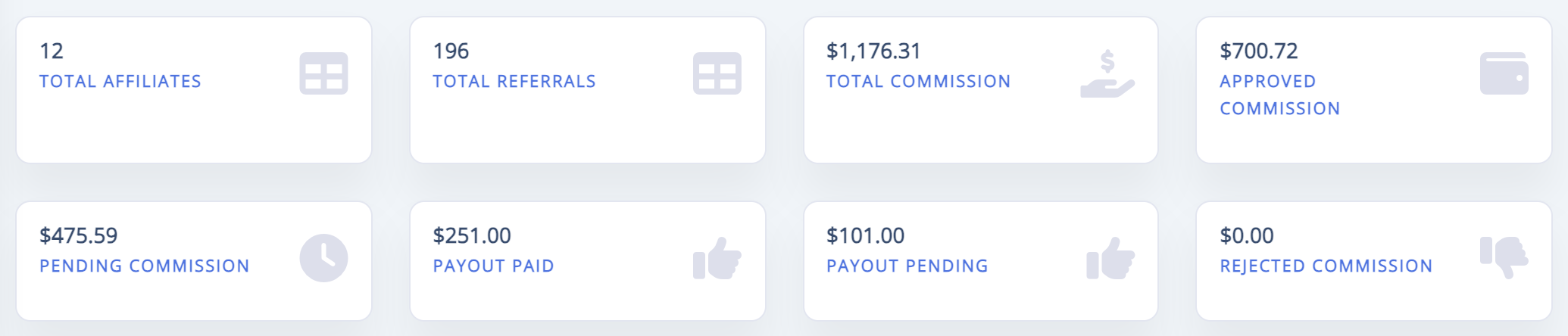
These cards cover your affiliate program. Rewards from the customer refer-a-friend program are left out on purpose — it is a separate program with its own balances; see Set Up a Refer a Friend Program in WooCommerce.
Clicks, purchases and conversion
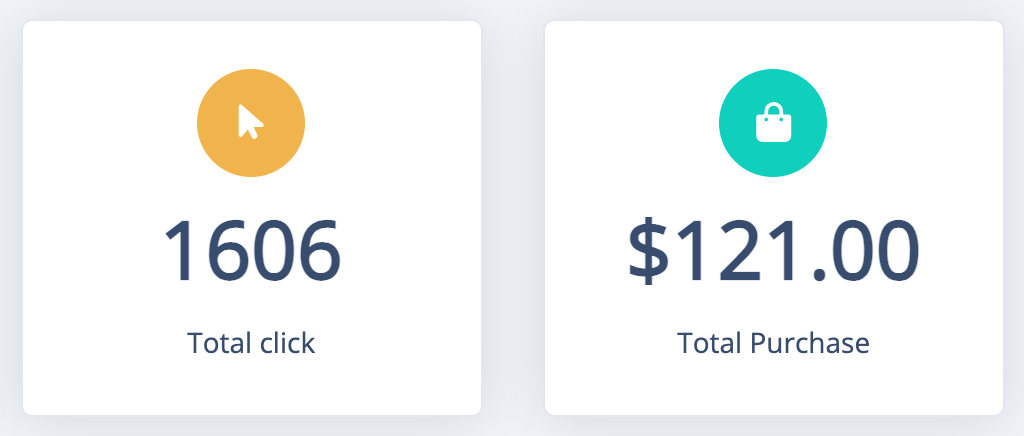
↑ Back to topThree tiles further down measure how well the traffic your affiliates send converts:
- Total click – how many times affiliate referral links have been opened.
- Total Purchase – how many of those visits ended in an order. It is a count of orders, even though it is shown with your currency symbol.
- Conversion Ratio – the second as a percentage of the first.
These tiles count referral links only; see How to Create and Share Referral Links. A sale credited through an affiliate coupon still earns commission and appears in every commission figure above, but it has no link click to count, so it does not move the conversion ratio; see How to Track Affiliate Sales with Coupon Codes.
Recent activity and your strongest affiliates
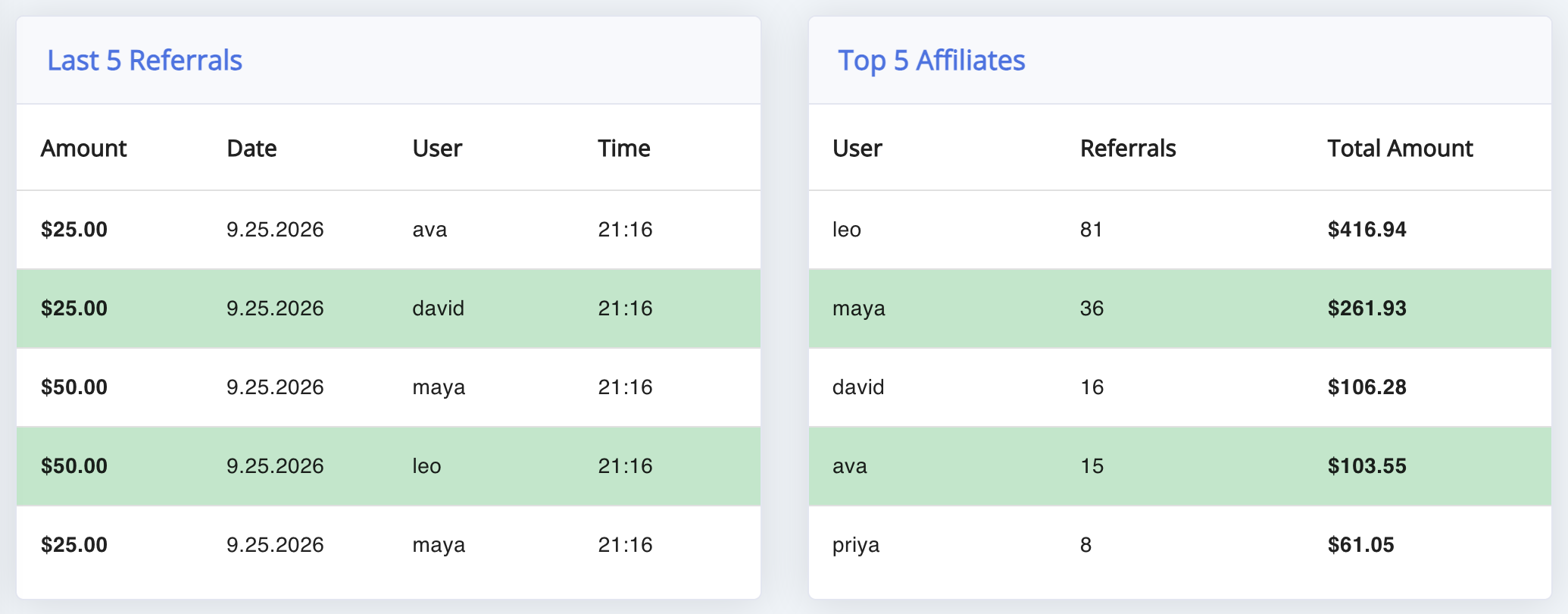
↑ Back to topTwo short tables close the dashboard. Last 5 Referrals lists the most recent earnings with their Amount, Date, User and Time — a quick check that tracking still works after a change. Top 5 affiliates ranks your partners by what they have earned, with User, Referrals and Total Amount: the shortlist worth a bonus, a better rate or a personal email.
For the full picture behind these summaries — every earning, its type, its status and the order it came from — work from the ledger described in Approve, Reject and Manage Referrals, or open a single affiliate’s record as described in How to Approve and Manage Your Affiliates.
Export your commission records
↑ Back to topGo to: WooCommerce > Affiliate & Referral > Manage Referrals. Under Filter & Export Referral Table, set a From: and To: date and take the result as CSV or PDF. Generate Referral CSV downloads every commission record as a spreadsheet, one row per earning:
- Order ID – the order the commission came from, so you can reconcile against WooCommerce.
- Affiliate ID and Affiliate Name – who earned it.
- Request Date – when the earning was recorded.
- Amount – the commission.
- Device – desktop, mobile or tablet, or empty when the device was unknown.

Export your affiliate list
↑ Back to topGo to: WooCommerce > Affiliate & Referral > Affiliates. Two exports sit above the table:
- Export All Affiliates CSV – the complete roster as one file, whatever the table shows: Affiliate ID, Username, Name, Email, Phone, Role, Affiliate Status, Level, Level locked, Groups, Parent Id, Parent Name, Mlm Comm., Paid Amt, Unpaid Amt, Wallet Balance, Currency, Referral Code, Payment Method and Registration Date.
- Filter & Export Affiliate Table – narrows the table by date and exports what you see as CSV or PDF, with the data columns you have chosen under Columns.
Parent Id and Parent Name name the affiliate who recruited each member, which makes the full file a flat copy of your multi-tier network, one row per member; see How to Set Up MLM in Your Affiliate Program.

These exports are one-way. Editing a downloaded file and uploading it does not create or change affiliates, commissions or payouts. Treat the files as reporting and accounting copies, and make every change on the screens themselves.
What affiliates can export themselves
↑ Back to topAffiliates with a multi-tier network of their own get one export on their dashboard: Download Full MLM Sales CSV, listing every member below them with their sales and commission totals. It covers only their own network, so no affiliate can export anyone else’s figures. Their referral table also offers Export CSV and Export PDF of their own earnings.
FAQ
↑ Back to topDoes Total Commission include earnings I have not approved yet?
↑ Back to topYes. Total Commission counts pending, approved and paid earnings together and leaves out only rejected and refunded ones, so it is a liability figure rather than a paid figure. Compare it with Approved Commission to see how much is already committed, and with Payout Paid to see how much has left your account.
Why is my conversion ratio lower than my sales suggest?
↑ Back to topThe ratio compares purchases to clicks on referral links. Sales credited another way — an affiliate coupon, a checkout code, or a customer already tied to an affiliate by lifetime commission — count in your commission totals but bring no click with them. See How Referral Tracking and Attribution Work.
Can I upload a spreadsheet of affiliates or commissions?
↑ Back to topNo. The exports are downloads only. Affiliates join through the registration form or are added by you, and a one-off earning can be added with Enter Referral Manually on the Manage Referrals screen. See Affiliate Registration Form Setup in WooCommerce and Switching from Another Affiliate Plugin.
Where do I see one affiliate’s own numbers?
↑ Back to topOpen them from the Affiliates screen: each record has its own referrals, payouts and traffic. Affiliates see their figures on their own dashboard; see Affiliate Dashboard and Affiliate Area Guide. More questions are answered in the Affiliate and Referral Program: FAQ.

