
Order Delivery Date Pro for WooCommerce is a powerful yet flexible extension to help you manage complex logistics and delivery schedules. The built-in features let you meet peak-hour deliveries and regular-day deliveries in a breeze. Set practical and feasible delivery schedules and let your customers choose the delivery method and time from the slot.
With Order Delivery Date Pro you can:
- create different delivery schedules,
- set charges for Weekdays & special dates,
- manage local pickup dates
- notify customers once the order is ready
- Sync all order details with your Google Calendar in real time
Installation
↑ Back to topTo start using a product from WooCommerce.com, you can use the “Add to store” functionality on the order confirmation page or the My subscriptions section in your account.
- Navigate to My subscriptions.
- Find the Add to store button next to the product you’re planning to install.
- Follow the instructions on the screen, and the product will be automatically added to your store.
Alternative options and more information at:
Managing WooCommerce.com subscriptions.

Delivery Schedule
↑ Back to topHow do I set my delivery schedules?
↑ Back to topWe know that many of you have some complex delivery needs and for the same you require to create a delivery schedule that matches your needs. Order Delivery Date Pro ensures that all of this is possible in one single place.
From your store’s WP Admin dashboard, navigate to WooCommerce > Order Delivery Date > Settings > Delivery & Pickup Schedule, as shown below:

This is the default delivery schedule. All the different settings that have been enabled here will be applied to all the products by default. To edit this delivery schedule, you can click on the Edit option (pencil icon) under Actions.
Once you click on it, you will see various dropdowns that will let you configure different settings such as offering delivery dates, time slots, setting up holidays, or even next-day delivery charges.
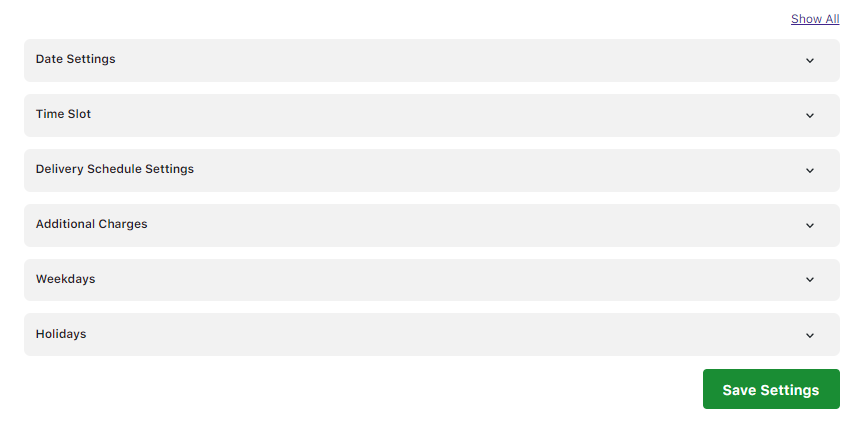
For instance, clicking the Date Settings dropdown displays the following:
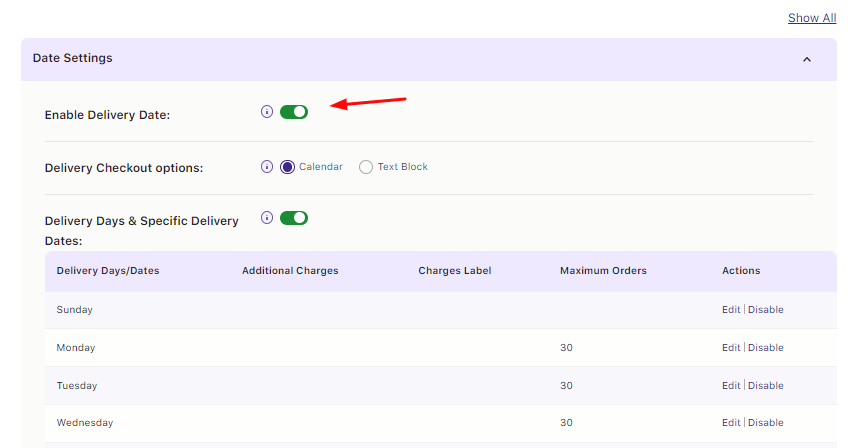
If you enable the toggle the delivery date, then your customers will be able to select a delivery date for all the products that are available on your store. Once you’re done setting up all the other settings, you can click the Save Settings button.
Please Note: The default delivery schedule cannot be enabled and disabled like a custom delivery schedule. However, store owners can edit the default delivery schedule and turn off the ‘Enable delivery date’ setting.
Moving on, you will also get an option to set up different Custom Delivery Schedules. Let’s say that you wish to have different different delivery days enabled for a specific product category such as ‘Clothing’, then you can create a custom delivery schedule for it. You can create and enable as may different custom delivery schedules similar to the one shown here:
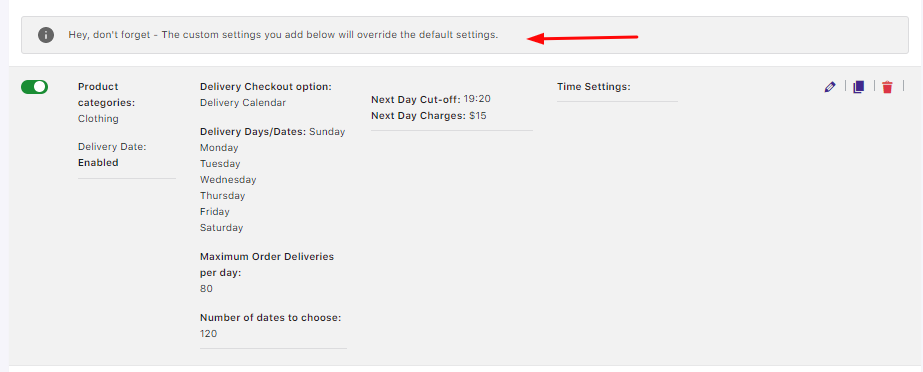
To create it, you can scroll down and find the ‘Add custom delivery schedule’ option.
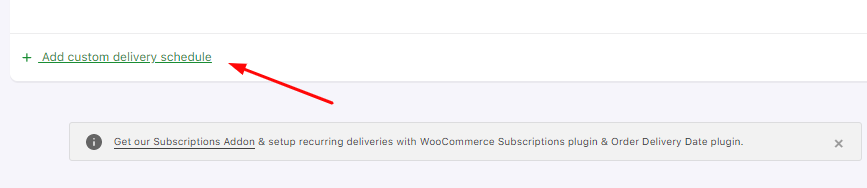
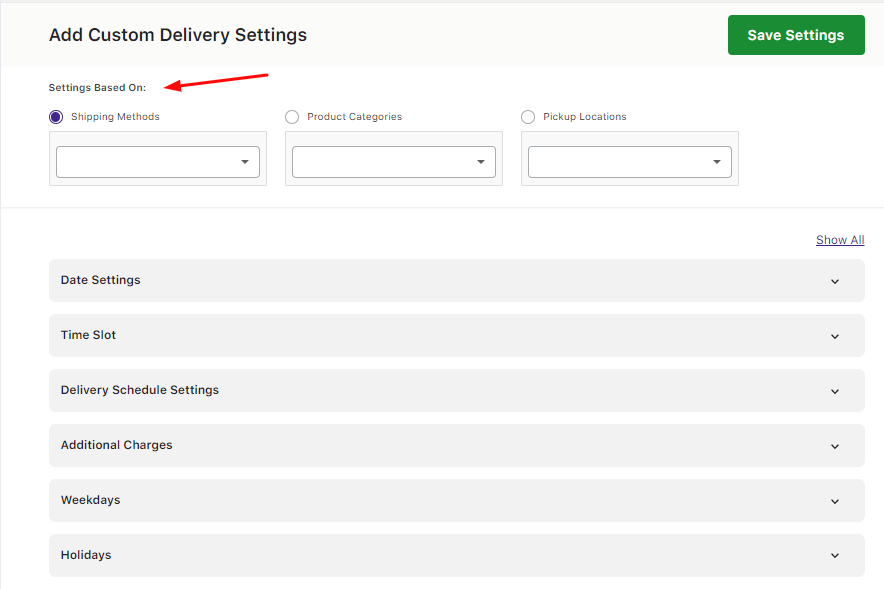
Click on it and you’ll see the same dropdowns that will help you set up different settings such as time slots, dates, holidays and so on. But along with this, you’ll get the option to choose what these custom settings would be based on. The options available are:
- Shipping Methods
- Product Categories
- Product Categories and Shipping Methods
- Pickup Locations and Product Categories
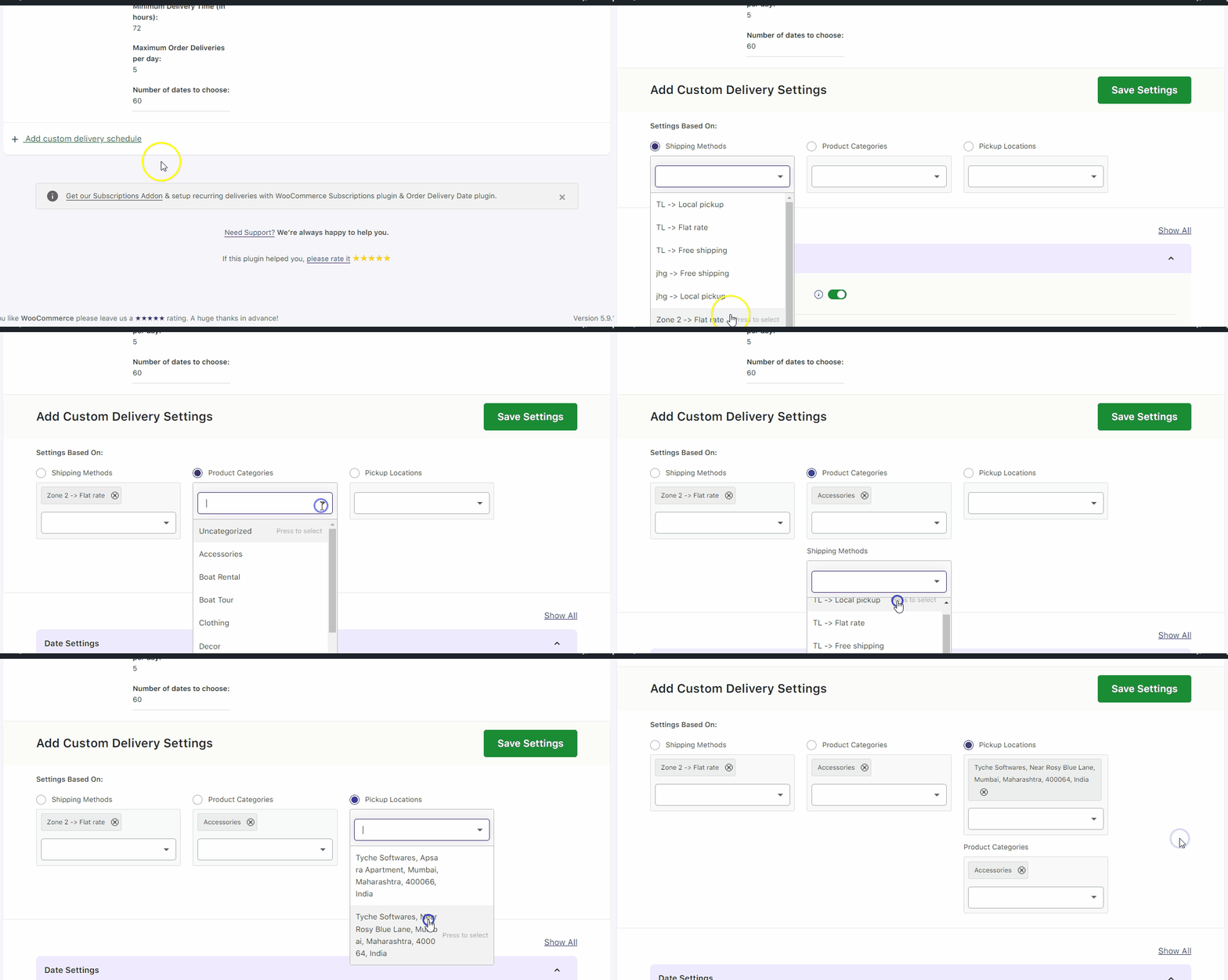
Here’s how you can choose the options based on your requirements:
Once you’re done configuring the settings, you can click the Save Settings button and your Custom Delivery Schedule would be created. Depending on whether you wish to disable a custom delivery schedule for some time or not, you can use the toggle to enable and disable the schedules:
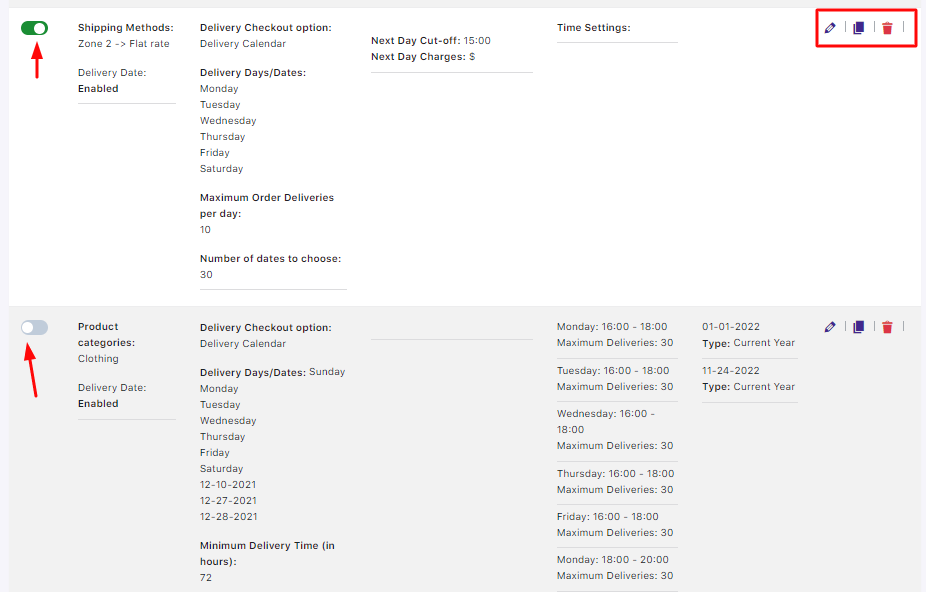
In the top right corner, you will also find three different settings. When you click on the pencil icon, you’ll be able to edit the custom delivery schedule.
When you click on the Duplicate icon, the same custom delivery schedule will be created again. You can edit it after it if needed. This is immensely helpful if you have already created a custom delivery schedule and wish to apply to different Product Category or Shipping Method or Pickup Location.
Lastly, the Trash icon can be used if you wish to delete a custom delivery schedule.
To summarise, Order Delivery Date Pro offers you the ability to set up different custom delivery schedules as per your specific requirements. It also comes with a default delivery schedule which can be used for all your products.
How do I create a custom delivery schedule using default WooCommerce shipping methods?
↑ Back to topSome online stores require their delivery schedules to cater to specific shipping methods. For this, Order Delivery Date Pro gives you the ability to create custom delivery schedules with different WooCommerce’s default shipping methods.
Here’s how you can do so:
From your WP Admin dashboard, navigate to Order Delivery Date > Settings > Delivery Schedule.
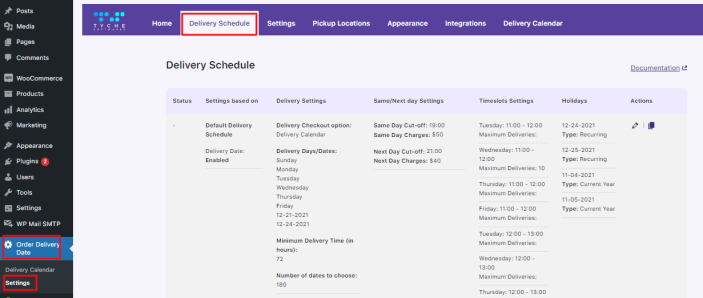
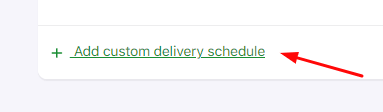
Scroll down and click the Add custom delivery schedule option.
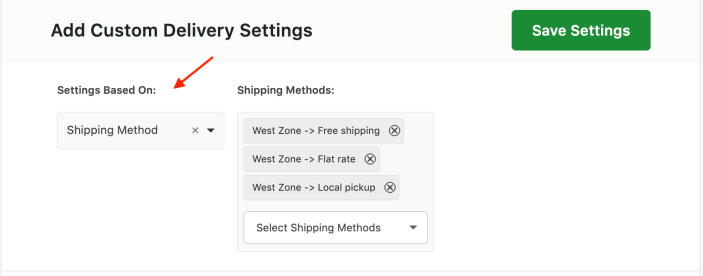
Here, you need to select ‘Shipping Methods’ from the Settings Based On dropdown. Then, use the Shipping Method dropdown to choose the applicable methods. You can select multiple shipping methods from the dropdown. For example, for this custom delivery schedule, we’ll go with West Zone and select Free shipping, Local Pickup and even Flat Rate:
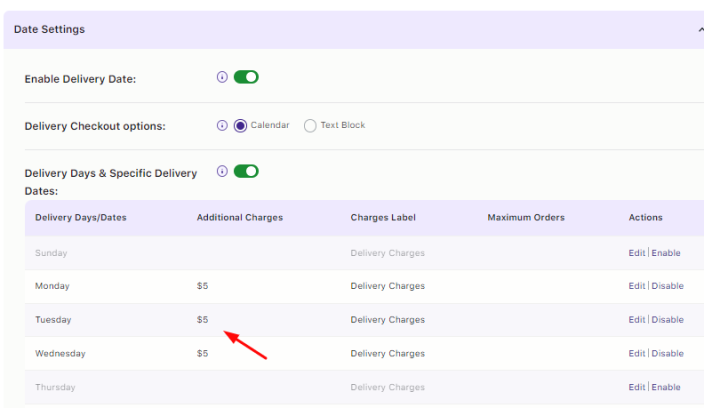
Once selected, you can add the delivery date & time settings for shipping methods by clicking the different dropdowns. For instance, after clicking the ‘Date Settings’ dropdown, we’ve enabled Monday, Tuesday and Wednesdays with a $5 additional charge.
In this way, we’ll add all the other individual settings as required from other dropdowns like Date Settings, Time Settings, Holidays, etc. Click the Save Settings button. once done.
Once the settings are saved, they are displayed as shown below:
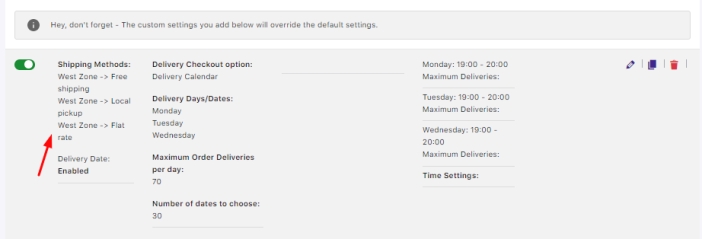
You can even click the Pencil icon located on the right-hand corner to edit this custom delivery schedule. It will redirect you to the page to edit the settings with the populated settings added for the shipping methods.
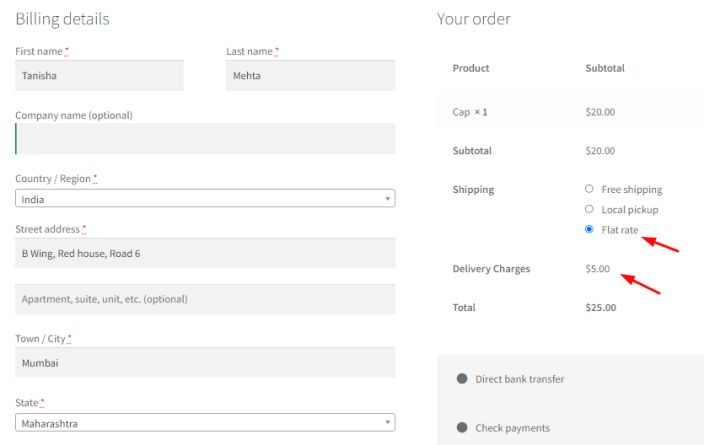
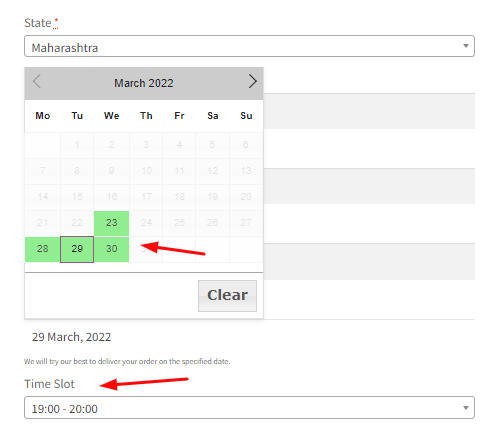
After adding the products to their cart, when the customer goes to the Checkout Page and chooses their preferred shipping method, they get to select those delivery dates and times that were added by you for this custom delivery schedule.
For instance, after selecting a shipping method, the customer is offered only those dates available on Mondays, Tuesdays and Wednesdays. Along with this, the time slot 7 PM to 8 PM is also available. Since the customer chooses the day Tuesday, 29th March 2022, they’re also charged a $5 additional fee.
How do I create a custom delivery schedule using default WooCommerce shipping methods?
↑ Back to topSome online stores require their delivery schedules to cater to specific shipping methods. For this, Order Delivery Date Pro gives you the ability to create custom delivery schedules with different default WooCommerce shipping methods.
Here’s how you can do so:
From your store’s WP Admin dashbard, go to Order Delivery Date > Settings > Delivery Schedule.
Scroll down and click Add custom delivery schedule.
Here, you need to select ‘Shipping Methods’ from the Settings Based On dropdown. Then, use the Shipping Method dropdown to choose the applicable methods. You can select multiple shipping methods from the dropdown. For example, for this custom delivery schedule, we’ll go with West Zone and select Free shipping, Local Pickup and even Flat Rate:
Once selected, you can add the delivery date and time settings for shipping methods by clicking the different dropdowns. For instance, after clicking the ‘Date Settings’ dropdown, we’ve enabled Monday, Tuesday, and Wednesdays, with a $5 additional charge.
In this way, we’ll add all the other individual settings as required from other dropdowns like Date Settings, Time Settings, Holidays, etc. Click the Save Settings button. once done.
Once the settings are saved, they are displayed as shown below:
You can even click the Pencil icon located on the right-hand corner to edit this custom delivery schedule. It will redirect you to the page to edit the settings with the populated settings added for the shipping methods.
After adding the products to their cart, when the customer goes to the Checkout page and chooses their preferred shipping method, they get to select those delivery dates and time that were added by you for this custom delivery schedule.
For instance, after selecting a shipping method, the customer is offered only those dates available on Mondays, Tuesdays and Wednesdays. Along with this, the time slot 7 PM to 8 PM is also available to choose. Since the customer chooses the day Tuesday, 29th March 2022, they’re also charged a $5 additional fee.
How would the custom delivery schedules in different combinations work?
↑ Back to topThe delivery schedule section allows you to create multiple custom delivery schedules according to your requirements. These delivery schedules can work in different combinations to achieve your desired business goal.
Earlier, we’d give priority to the schedules added for shipping methods even if the settings were added for both product categories and shipping methods. But now we allow customers to add both of these in combination, thereby achieving better results for the different schedules that you add for your online store.
Let’s have a look at all the different scenarios of the combinations of different delivery schedules work:
a. Only Shipping Method
↑ Back to topThis is a scenario where you add settings for only Shipping Methods.
When the product is added to the cart and a shipping method is selected for delivery, then the settings added for that shipping method in the backend will appear.
If the shipping method that is selected in the cart, does not have any settings added in the backend, then the general settings will be applied.
b. Only Product Categories
↑ Back to topThere are 3 scenarios in this segment:
b1. Settings added for Product Category A
When the product of Category A is selected in the cart, the settings added for this product category will be applied for the delivery.
b2. Two settings added for Product Category A
When the product of Category A is selected and there are 2 custom settings added for this category, then the last added settings of Category A will be considered.
For instance, say we have added 1st setting for Product Category A, where delivery takes place on Mondays and Tuesdays, and in the 2nd setting, the delivery takes place on Saturdays and Sundays.
Now if the customer adds a product from Category A to the cart then the last added settings will be considered. As per the example we shared above, the calendar on the Checkout page will show Saturdays and Sundays enabled and the rest of all days will be disabled.
b3. Settings added for Product Category A + Settings added for Product Category B
This scenario comprises of 2 products of different categories added with their respective settings.
When a customer adds the product of Category A, then delivery settings added for Category A will be considered on checkout. Similarly, if the product of Category B is selected then the settings of Product Category B will be applied.
In a case where the customer selects products of both categories, i.e: Category A and Category B, then the common settings among them will be considered.
Example: Category A – Art with delivery days as Mondays, Tuesdays and Wednesdays.
Category B – Personalised Gifting with delivery days as Wednesdays, Thursdays and Fridays.
If products from both categories are added then delivery days available on the front end will be all Wednesdays.
c. Product Categories with Shipping Methods
↑ Back to topHere, you can select a Shipping Method for Product Categories. This can be done under the Custom Delivery Settings section. When you select Product Categories, a new field of Shipping Methods option is added as shown below:
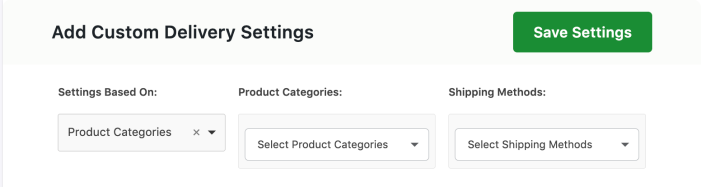
Adding Shipping method for selected Product Category
This setting enables the selection of a product category and a shipping method in combination.
There are different scenarios considered under this segment which are as follows:
c1. Product Category A + Shipping Method 1
If we have added delivery settings for Product Category A and Shipping Method 1 and the customer selects the product of the same Category A and selects the same Shipping Method 1 in the cart, then delivery settings added for Product Category A and Shipping Method 1 will be applicable.
If the customer selects a product of Category A in the cart but does not select the same Shipping Method added to the category, then default delivery schedule settings will be considered.
Example: Category A – Art and Shipping Method 1 – Free Shipping. So, if the customer selects a product of Category A and selects the Flat Rate Shipping option (other than Free Shipping), then default delivery schedule settings will be applied.
c2. (Product Category A + Shipping Method 1) + Product Category A
If we add the product of Category A to the cart and select Shipping Method 1, then the delivery settings added for Product Category A + Shipping Method 1 will be applicable.
If we add the product of Category A and select Shipping Method 2, then the settings added for Product Category A will be applicable.
Example: Category A – Art + Shipping Method 1 – Free Shipping where delivery takes place on Saturdays and Sundays, Shipping Method 2 – Flat Rate Shipping where delivery takes place on Mondays only, Category A – delivery on Wednesdays only.
So when a customer adds the product of Category Art and selects Free Shipping, then the calendar on checkout will show Saturdays and Sundays enabled.
But when a customer adds the product of Category Art and selects Flat Rate Shipping, then the calendar on checkout will show Wednesdays enabled. This is because settings added for Category A will be applicable.
c3. (Product Category A + Shipping Method 1) + (Product Category A + Shipping Method 2)
Let’s say you have added settings for combination Product Category A + Shipping Method 1 (Free Shipping), where delivery takes place on Saturdays and Sundays. Along with this, you’ve added settings for the combination Product Category A + Shipping Method 2 (Flat Rate Shipping), where delivery takes place on Mondays and Tuesdays.
If a customer adds the product of Category A and selects Shipping Method 1, then the settings added for the combination Product Category A and Shipping Method 1 will be applied. According to our example, when a customer adds the product of Category A and selects Free Shipping, the checkout calendar will show Saturdays and Sundays enabled.
Similarly, if a customer adds the product of Category A and selects Flat Rate Shipping, then the checkout calendar will show Mondays and Tuesdays; as settings added for Category A, and Shipping Method 2 will be applied here.
But, if a customer adds the product of Category A and selects a shipping method other than Shipping Method 1 and Shipping Method 2, then the Default delivery Settings will be considered.
c4. (Product Category A + Shipping Method 1) + Product Category B
Consider Product Category A is Art, Shipping Method 1 is Free Shipping and Product Category B is Personalised Gifting. The delivery for this is available on Mondays, Tuesdays, and Wednesdays.
Settings for Product Category B are set to delivery available on Wednesdays and Saturdays only.
A customer selects a product of Category A and selects Shipping Method 1 during checkout, so the calendar will show settings added for Category A + Shipping Method 1 (Free Shipping). Hence all Mondays, Tuesdays, and Wednesdays will be shown as available for delivery.
If a customer adds a product of Category A but selects Shipping Method other than Shipping Method 1, then Default delivery settings will be applicable.
If the customer adds a product of Category B to the cart and selects Shipping Method other than Shipping Method 1, then the settings of Category B will be considered. This means that all Wednesdays and Saturdays will be enabled in the calendar for taking deliveries.
If the customer adds products of both Category A and Category B to the cart and selects Shipping Method 1 (Free Shipping), then common settings will be considered. For example, as mentioned earlier Product Category A delivers on Mondays, Tuesdays, and Wednesdays while Product Category B delivers on Wednesdays and Saturdays. The common delivery for both the products is Wednesdays. Therefore, all Wednesdays will be enabled in the calendar for taking deliveries.
Let’s say that both your Product Categories do not have a common delivery day between them. For example, Category A delivers on Mondays and Tuesdays while Category B delivers only on Saturdays. If this happens, then the delivery calendar would show no delivery weekdays as enabled. Thus, the customer will not see any available delivery weekdays in their calendar.
Also, if a customer adds products of Category A and Category B both in the cart and selects Shipping Method other than Shipping Method 1 (Free Shipping) then settings of Category B will be considered, which means all deliveries will be undertaken on only Wednesdays and Saturdays.
c5. (Product Category A + Shipping Method 1) + (Product Category B + Shipping Method 1)
The delivery for the settings of the combination Product Category A + Shipping Method 1 (Free Shipping) are Mondays, Tuesdays, and Wednesdays. For combination Product Category B + Shipping Method 1 (Free Shipping), delivery takes place on Thursdays, Fridays, and Saturdays.
Your customer adds the product of Category A and selects Shipping Method 1, then delivery settings of combination Product Category A + Shipping Method 1 (Free Shipping) will be applied.
Similarly, if the customer adds the product of Category B and selects Shipping Method 1, then settings of combination Product Category B + Shipping Method 1 (Free Shipping) will be applied.
But, if the customer adds a product of Category A or Category B in the cart and selects Shipping Method other than Shipping Method 1 (Free Shipping), then Default delivery Settings will be considered.
Also, say products of both Categories A and B are added to the cart and Shipping Method 1 (Free Shipping) is selected, then settings common for both combinations will be applied. Let us understand this scenario with an example as shown below:
Combination 1: Product Category A (Art) and Shipping Method 1 (Free Shipping) – Mondays, Tuesdays and Wednesdays.
Combination 2: Product Category B (Personalised Gifting) and Shipping Method 1 (Free Shipping) – Saturdays, Sundays and Mondays.
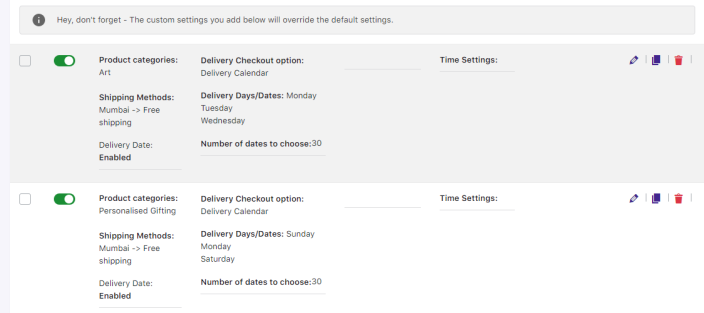
Settings added for both combinations
Now say we select products of both categories in the cart and select Free Shipping Method as shown below:
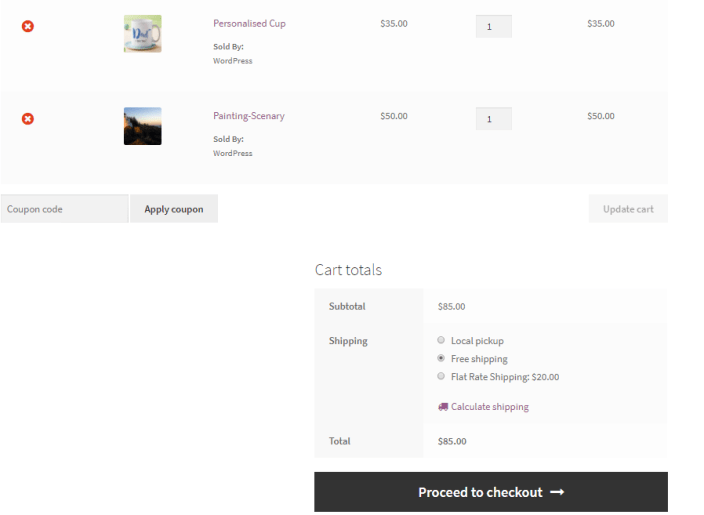
Products and Shipping methods on Cart page
The calendar on checkout page will display all Mondays as enabled since the common settings of these combinations would be considered. This is shown in the below calendar:
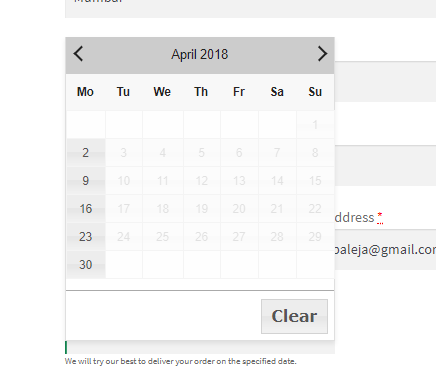
Calendar showing all Mondays available for delivery
c6. (Product Category A + Shipping Method 1) + (Product Category B + Shipping Method 2)
In this scenario, there are settings added for 2 Product Categories namely Category A: Art and Category B: Personalised Gifting and 2 Shipping Methods namely Shipping Method 1 – Free Shipping and Shipping Method 2 – Flat Rate Shipping.
Now say the customer adds a product of Category A and selects Shipping Method 1, then custom settings of Product Category A + Shipping Method 1 will be considered.
Similarly, if the customer adds a product of Category B and selects Shipping Method 2, then custom settings of Product Category B + Shipping Method 2 will be considered.
If the customer adds products of both Categories, say Category A and Category B in the cart and selects Shipping Method 1, then the settings added for Product Category A + Shipping Method 1 will be considered.
Likewise, if the customer adds products of both Categories, say Category A and Category B in the cart and selects Shipping Method 2, then the settings added for Product Category B + Shipping Method 2 will be considered.
If the customer adds products from Category A and Category B but selects Shipping Method other than Shipping Method 1 and Shipping Method 2, then the Default delivery Settings will be applicable.
d. Only Shipping Classes
↑ Back to topif settings are added for the Shipping Classes and one of the classes is selected at the checkout, then the respective custom settings of the selected Shipping class will be displayed.
If multiple products with different shipping classes are added to the cart, then common settings of the products and shipping classes will be applicable.
If selected product and shipping classes have no custom settings added then in such a case the Default delivery settings will appear.
e. Shipping Methods and Product Categories
↑ Back to topIf settings of a Shipping Method is added, and that shipping method gets selected by the customer on the cart page, then its respective settings will be applicable. In this case, if another shipping method is selected then the settings of the selected Product Categories will be considered.
Example – Say the product Wall Painting of Art Category is added to the cart and Flat Rate Shipping method is selected by the customer. If settings for Flat Rate Shipping are added in the backend, then custom settings of Flat Rate Shipping will be considered. However, if the settings are not added for Flat Rate Shipping, then delivery settings of the Art category will be applied.
If selected Shipping Methods and Product Categories do not have any custom settings added for it, then the Default delivery settings will be applied.
f. Shipping Classes & Product Categories
↑ Back to topHere, you have to add settings for Shipping Method and Product Categories separately from the Custom Settings Tab. Once these settings gets saved, below is the settings page of how it appears in the backend:
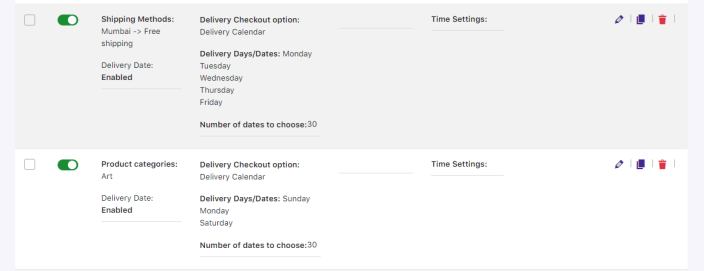
Settings page displaying added settings
Unlike the Shipping Methods, if the selected product in the cart has the settings added for its product category and shipping class both, then priority will be given to the Product Category settings. Otherwise, settings of Shipping Class will be considered.
If custom settings for Shipping Class 1 and Product Category A are added in the backend and say the customer adds the product of Category A in the cart and selects the same Shipping Class, then the settings of Product Category A will be considered.
Moreover, if the customer adds the product of Category B whose settings are not added in the backend and selects Shipping Class 1, then the settings added for Shipping Class 1 will be considered.
However, if the Category of the product added to the cart and selected Shipping Class on the Cart page is other than Product Category A and Shipping Class 1 (the ones whose settings are added in the backend), then the Default delivery Settings will be applied.
g. Common Settings
↑ Back to topThis implies that the custom settings are common in nature when applied for Shipping Methods, Product Categories, Shipping Classes as well as Time Slot settings.
Here for all the above-explained cases, wherever common settings were considered, the following scenarios will be applicable:
- Common Delivery Days: When there is common setting applicable for delivery days, common days between the two will be considered. For instance, if settings of Category A shows delivery on Saturdays only and Category B shows delivery on Saturdays and Sundays, then here common delivery day will be considered which is a Saturday.
- Highest Delivery Charges: When there are common delivery days selected for delivery, the delivery charges which are highest will be considered.
- Minimum Delivery Time in Hours: When there is a common setting applicable for this case, then the one with highest Minimum Delivery Time in Hours will be considered during checkout.
- Same day delivery cut-off time: When a common delivery day is considered due to common settings, the highest Same day delivery cut-off time will be applicable. For instance, for a common delivery day Monday, the delivery cut-off time is set as 10pm and 12pm. The Same day delivery cut-off time will be considered as 12 PM.
- Next day delivery cut-off time: Similarly, when a common delivery day is considered due to common settings, the highest Next day delivery cut-off time will be applicable.
- Time Slots: If there are no common time slots then No timeslots are available message will be displayed.
These different settings combinations can help you achieve the results you want by catering to your online business requirements.
How do I create a custom delivery schedule with default WooCommerce shipping classes?
↑ Back to topTo group different products on their type, Shipping classes become extremely important. They’re often used in shipping methods to provide different rates and settings for different classes of products. For instance, you can use shipping to group different product types like bulk items or small items. Based on them, delivery date and time can be set separately for each of them.
So let’s see how you can create a custom delivery schedule with default WooCommerce Shipping Classes.
Go to Order Delivery Date > Settings > Delivery Schedule.

Scroll down and click Add custom delivery schedule.

Select ‘Shipping Methods’ and choose the shipping class from the drowpdown. We’ll add the shipping class ‘Bulk Items‘ which was added in the settings under WooCommerce. You can go with multiple multiple shipping classes as well.
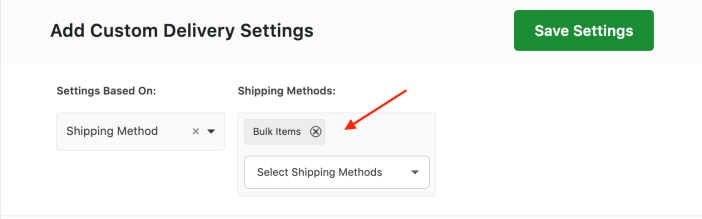
Following this, you can add the delivery date & time settings for shipping classes from the different dropdowns available. This page merges all the settings on the individual settings drowpdowns like Date Settings, Time Settings, Holidays, etc. Configure the ones you require and click the ‘Save Settings’ button.
Once the settings are saved they’ll be displayed like this:
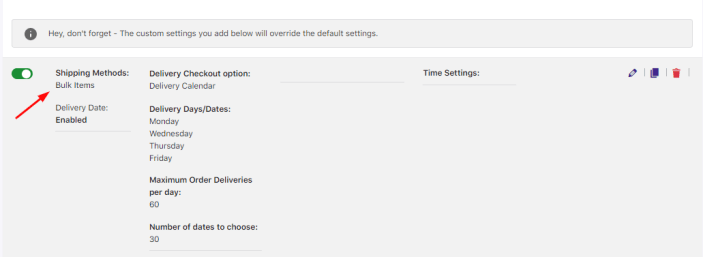
You can click the Pencil icon in the table to edit this custom delivery schedule. It will let you edit the settings with the populated settings added for the shipping classes.
As per the settings added for the shipping class, the delivery date and time will be enabled on the Checkout page of the selected order.
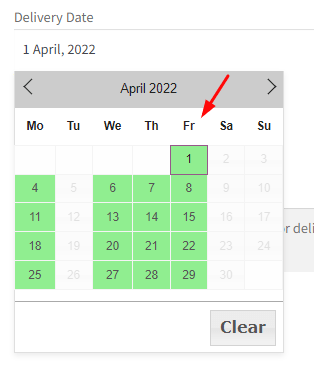
In this instance, for Bulk Items the delivery is enabled for Monday, Wednesday, Thursday and Friday as shown in the above image.
Hence, when you want to select the delivery date and time for the product on checkout page, the calendar will show only these days available:
Important Notes:
- If the settings for shipping methods are added which are different from the settings of shipping classes, then priority will be given to the settings of shipping methods.
For instance, for the above example delivery for Shipping Classes is enabled for Monday, Wednesday, Thursday and Friday. But if the delivery days set for Shipping Methods was enabled for Tuesday, Saturday and Sunday, then the calendar on the checkout page will consider the settings of Shipping Methods.
Therefore, only Tuesday, Saturday and Sunday will be enabled on the calendar of Checkout page as priority will be given to shipping methods over shipping classes. - Let’s say that a product has a shipping class assigned to it. When this product is added to the cart, then the settings added for that shipping class under the custom delivery schedule will be loaded.
- If there are 2 products added to the cart with 2 different shipping classes then settings of the shipping class that has higher minimum delivery time will be taken into consideration on the Checkout page.
How do I create a custom delivery schedule with default WooCommerce product categories?
↑ Back to topCreating custom delivery schedules based on different product categories is simple; here’s how:
Navigate to Order Delivery Date > Settings > Delivery Schedule.
Scroll down and click Add custom delivery schedule.
Choose the ‘Product Categories’ option and select the categories you wish to add.
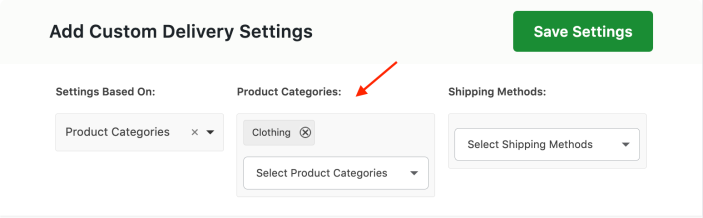
We’ll go with the Product Category ‘Clothing’ from the dropdown. You can choose multiple Product Categories if you wish.
Following this, use the different dropdowns such as Date, Time, Holiday Settings, etc to enter all your delivery requirements.
Once you’ve filled that and clicked on ‘Save Settings’, all the data will appear like this:
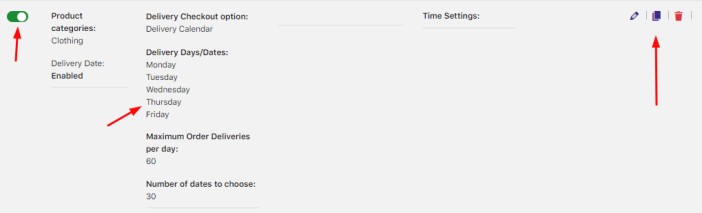
You can use the toggle to enable or disable this custom delivery schedule. In the right-hand top corner, you would find 3 icons. You can use the Pencil icon to edit any aspect of the delivery schedule. You can use the Duplicate icon to create an identical delivery schedule. Lastly, you can use the Trash icon to delete this schedule.
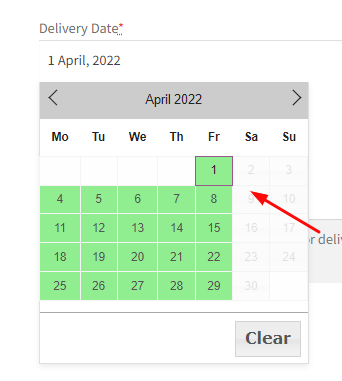
As per the settings added for the product category of the product that was added to the cart, the delivery date and time will be enabled on the Checkout page. In this instance, for product ‘Scarf’, the delivery is enabled for Monday, Tuesday, Wednesday, Thursday, and Friday as shown in the above image. Hence this will reflect on the calendar of Checkout page as shown below:
Keep in mind:
- If there are multiple products selected in the cart and the minimum delivery time for each are set as different, then the settings of the product whose minimum delivery time is higher will be considered.
For example, let’s say that a customer has added 2 products in the cart:
Product 1: Minimum delivery time – 24 hours. Product Category settings: Monday, Tuesday and Wednesday delivery days.
Product 2: Minimum delivery time – 36 hours. Product Category settings: Thursday and Friday delivery days.
The delivery calendar on the checkout page will show all the dates of Thursday and Friday enabled while the rest would be disabled, thus giving priority to the settings of Product 2. - When there are multiple products added to the cart then common delivery settings will get applied.
This means if Product Category 1 is added in the cart with delivery days selected as Monday, Tuesday, & Wednesday while Product Category 2 has delivery days as Wednesdays & Saturdays, then the calendar on the checkout page will show only Wednesdays enabled for delivery. - When you add multiple products in the cart where some have a product category assigned while others don’t, then the settings of the product whose category is defined will be taken into consideration.
So for instance, Product 1 has category assigned but no category is assigned for Product 2. The settings of Product 1 will be considered and accordingly delivery days will be enabled on the calendar of checkout page. - When settings for shipping methods as well as product categories are added in the Custom Delivery Schedule, then the priority will be given to the settings of shipping methods.
- When the settings for both shipping methods and product categories are added in the Custom Delivery schedule, and if any shipping method is selected which does not have Settings added for it, then the default Settings will be displayed in the delivery calendar.
How do I create a custom delivery schedule specific to postcodes?
↑ Back to topOrder Delivery Date Pro helps you set up custom delivery schedules for the different shipping zones based on zip/postcodes.
This document will cover-
- Adding shipping zones based on ZIP/postcodes
- Setting delivery schedules specific to postcodes
Let us first understand the process of setting WooCommerce shipping zones based on postal codes.
What are shipping zones?
↑ Back to topA shipping zone refers to a geographical area where you ship the products that have been ordered online. This could be a country, a group of countries, specific states/provinces or ZIP/postcodes.
When a customer places an order online, they can see the Shipping Methods available for the area mentioned by the customer for delivery. It can match only one zone.
For instance, let’s say that you’ve created these zones in WooCommerce:
Zone Name – Domestic
Zone Region – South America, postcode 2 020
Shipping Method – Flat Rate Shipping
Zone Name – Europe
Zone Region – Belgium, postcode 201*
Shipping Method – Flat Rate Shipping
So, when a customer from South America with postcode 2 020 places an order, Flat Rate shipping method will be available on the checkout page.
a. Adding Shipping Zones based on ZIP/Postcodes
↑ Back to topThis mode of setting shipping zone based on ZIP/postcodes defines the most specific geographic shipping areas for delivery. They’re extremely useful for businesses that offer an In-Store Pickup facility.
In WooCommerce, you are allowed to add multiple shipping zones with each of these zones having its own shipping methods set.
Let us have a look at how this can be done:
1. Creating Shipping Zones
Go to WooCommece > Settings > Shipping > Shipping Zones. Click the Add Shipping Zone button:

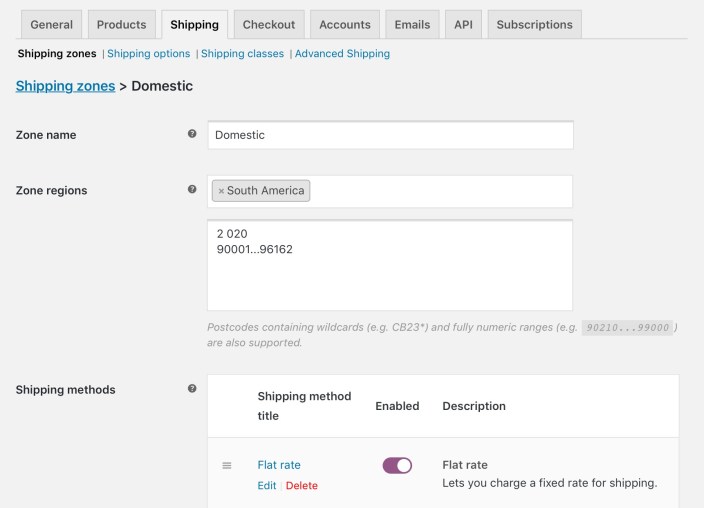
Add details like zone name and region with its postcode. Here, regions can be either continents, countries, states or provinces.
2. Adding ZIP/Postcodes
To create shipping zones based on zip/postcodes, you need to click on the Limit to specific ZIP/postcodes link below the Zone regions field as shown below:
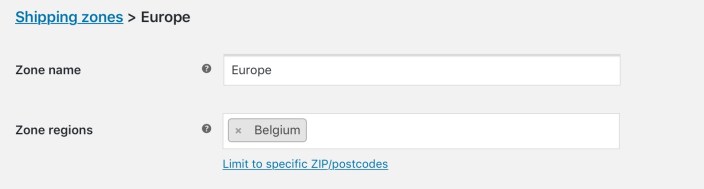
This way you can further narrow down to match the customer to its zone. For instance, you can set one local zone and select specific set of postcodes or range of postcodes as shown in the image above in point no.1. You can even set wildcards for setting ZIP/postcodes.
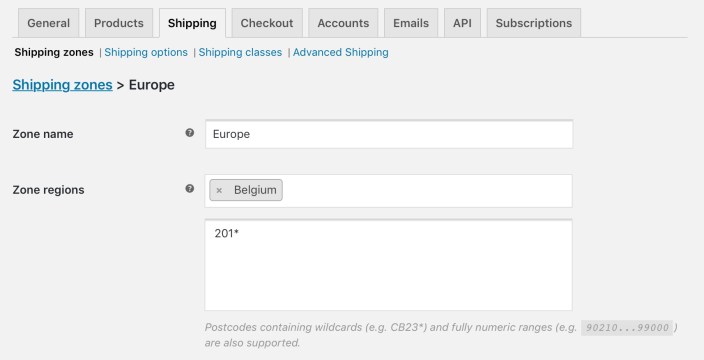
Below image shows the postcode set for the Belgium region using wildcards:
Important Notes:
- Postcode refers to a single code like 55200.
- Range of postcodes refers to that with a starting code and ending code where all the codes within them are considered, like 90210…99000
- Use of wildcards refers to all codes starting with a specific set of letters and numbers, like CB23*.
3. Selecting Shipping Methods
Select the Shipping Methods to be available for this shipping zone and click on Save:
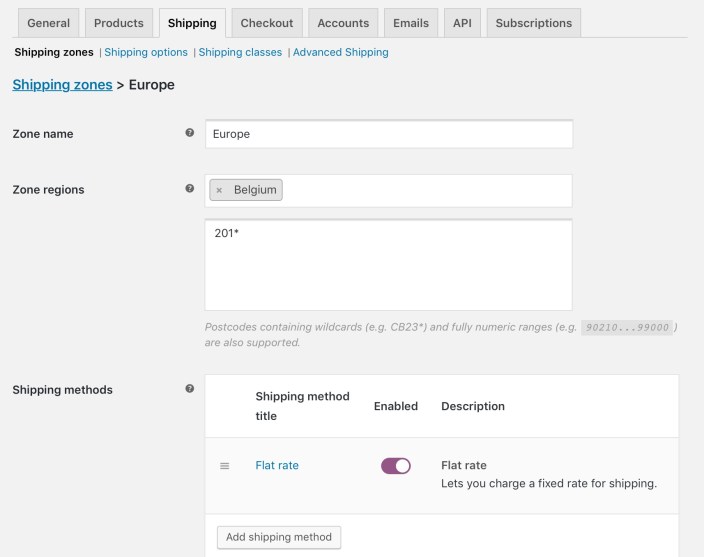
For instance, the below image shows all the added shipping zones based on ZIP/postcodes and its shipping methods:
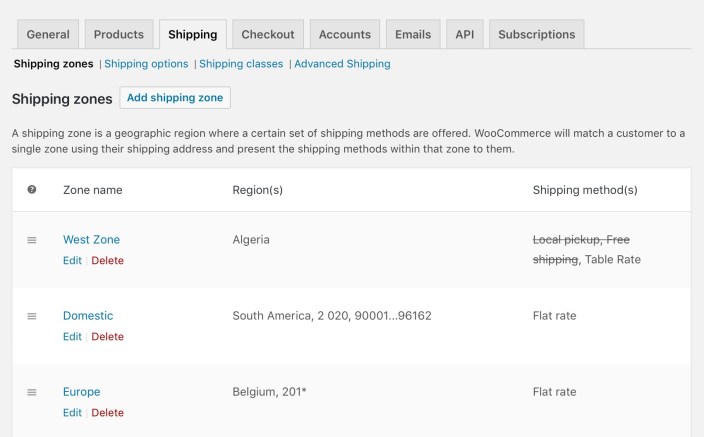
This shows 3 different shipping zones namely West Zone, Domestic, and Europe with regions and postcodes added for them.
Let’s say a customer from South America orders online and requests shipping to an area with postcode 2 020 or ranging between 90001 to 96162. Based on our settings, Flat-Rate Shipping Method will be displayed on the Checkout page.
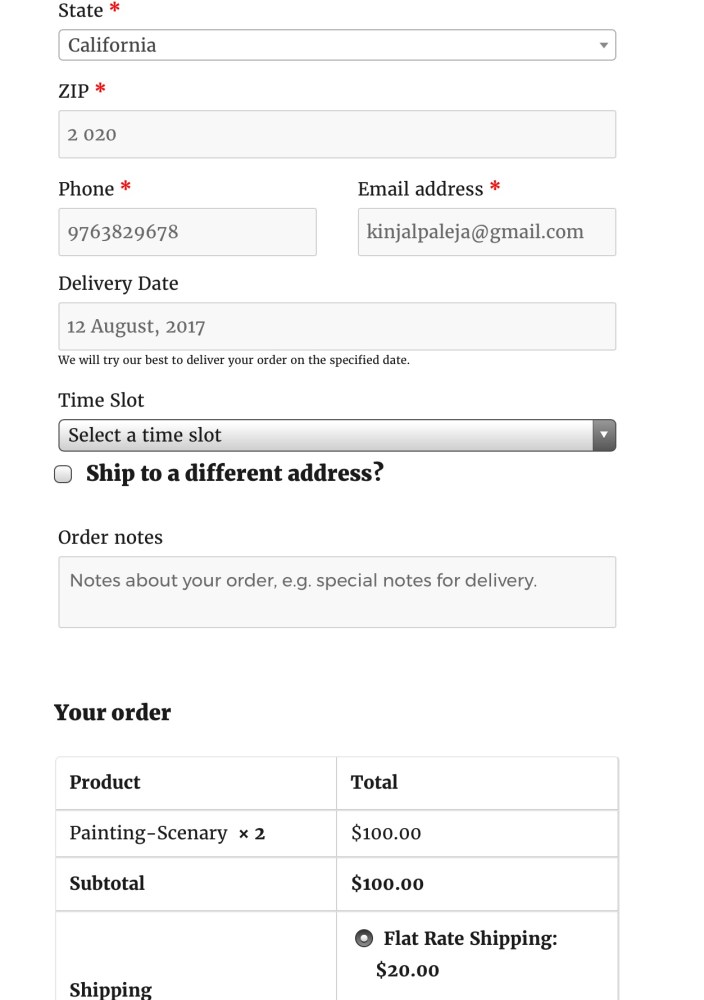
Similarly when a customer from Belgium places an order to be shipped to an address with a postcode starting with 201, then Flat Rate shipping method will appear on the checkout page.
b. Creating delivery schedules with postcodes
↑ Back to topLet’s start with an instance. We want to create a delivery schedule for the Domestic zone. We’ll create it with the postcodes.
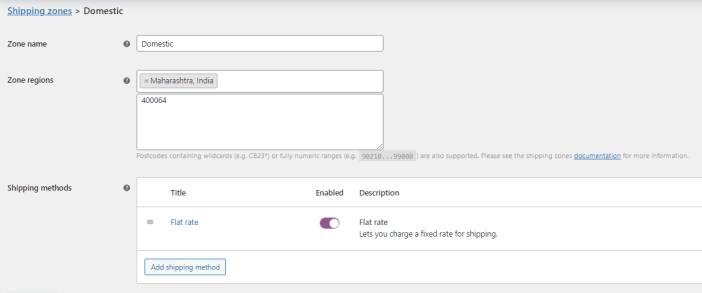
Then, go to Order Delivery Date -> Settings -> Delivery Schedule.
Scroll down and find the ‘Add custom delivery schedule’ button. Click on it.
Go to Shipping Methods and select the added Shipping Zone. We’ll go with Domestic which means that all the settings added for Flat Rate shipping method will be considered.
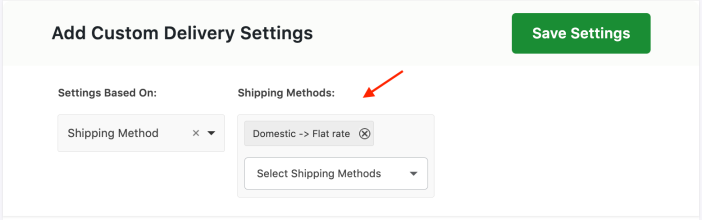
Based on this you can configure the delivery date and time settings from the different dropdowns such as Date, Time, Holidays, etc.
Once done, your schedule will look like this:
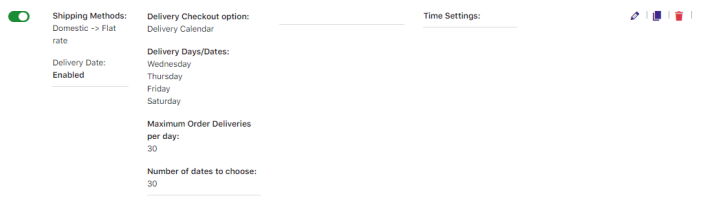
When the customer adds an item to the cart and if the address on the Checkout page has the PIN code that’s been added in your shipping zone, then Flat Rate shipping method will be displayed as shown below:
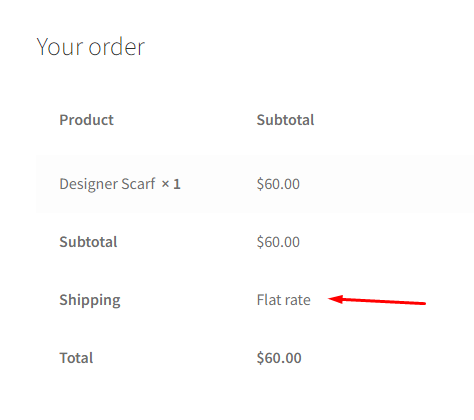
Along with this, the delivery calendar will show the delivery days of Flat Rate shipping method enabled and rest disabled.
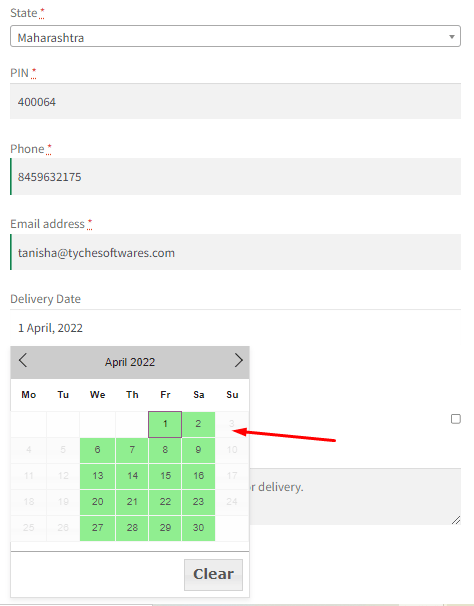
Note: When the postcode added on the checkout page does not match with the ones added in WooCommerce shipping zones, then default delivery schedules will be considered.
Based on what you learned today, it’s time to now create your custom delivery schedules using these added postcodes.
How do I let customers choose between delivery or pickup at checkout?
↑ Back to topLet’s say that you want to offer delivery only on Saturday and Sunday, but you also wish to offer Pickup on all weekdays.
There are two ways to do this, either using the WooCommerce Shipping Methods or using this extension directly.
a. Using WooCommerce shipping methods
b. Using this extension directly
a. Using WooCommerce Shipping Methods
↑ Back to topFirst, we’ll set up Delivery and Local Pickup WooCommerce Shipping Methods.
The first thing we need to do is add Delivery and Pickup as shipping methods in your shipping zone.
Go to WooCommerce > Settings > Shipping section.
Select the Shipping Zones tab and add both of these methods.
You can either add Free shipping or Flat rate shipping for the Delivery shipping method based on your requirements.
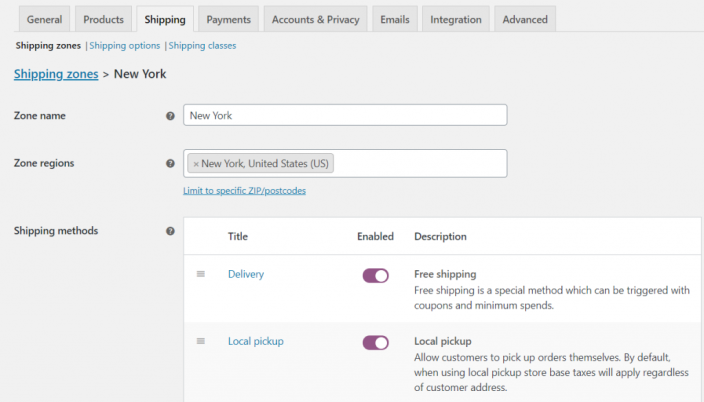
Shipping methods added in a shipping zone
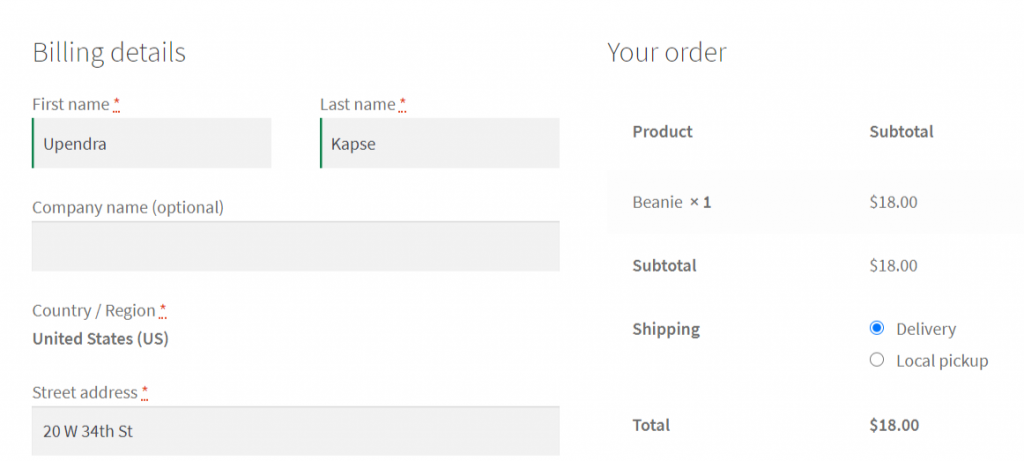
This will allow customers to choose between Delivery and Pickup on the Checkout page:
Shipping method selection on the checkout page
Next, we’ll set up the default Shipping Method.
Since Delivery is your default shipping method on the checkout page, you will set up your delivery schedule for Saturday and Sunday deliveries.
For this, go to the default Delivery Schedule by going to Order Delivery Date -> Settings -> Delivery Schedule -> Default Delivery Schedule.
Click the pencil icon and edit it so that Delivery Days are Saturdays and Sundays.
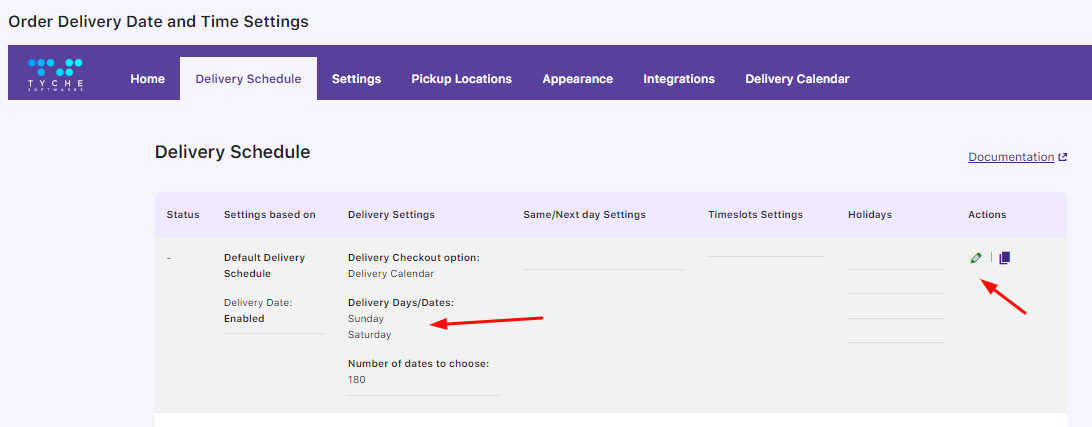
Editing the default delivery schedule
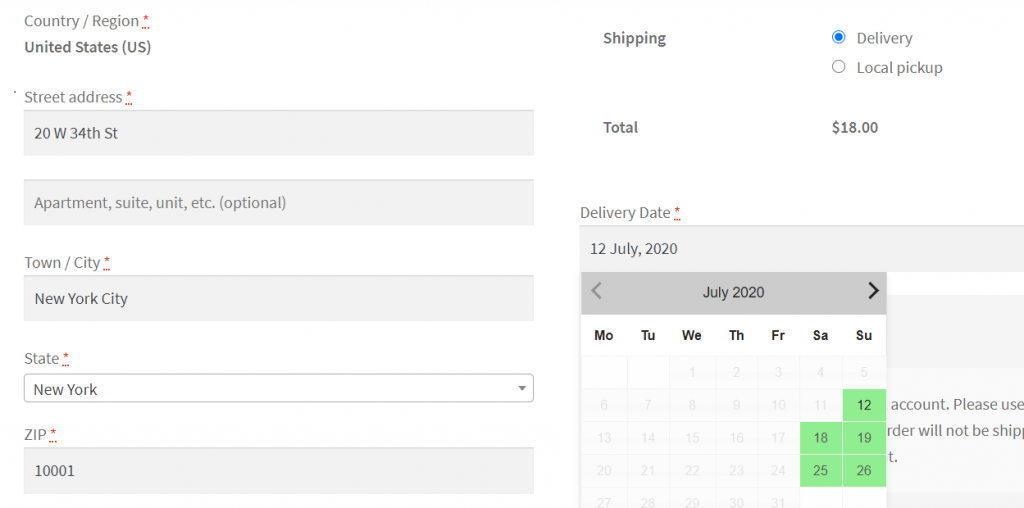
When the Delivery shipping method is selected on the checkout page only Saturday and Sunday will be available for selection as the Delivery Date:
Checkout Page
Now, it’s time to set up a Pickup schedule that’s available on all weekdays.
Create a custom delivery schedule based on the Local Pickup shipping method and enable all the weekdays.
Go to Order Delivery Date -> Settings -> Delivery Schedule -> Add a new custom delivery schedule.
Creating custom delivery schedule
Select Shipping method from the Settings Based On dropdown, then pick the created Shipping Method.
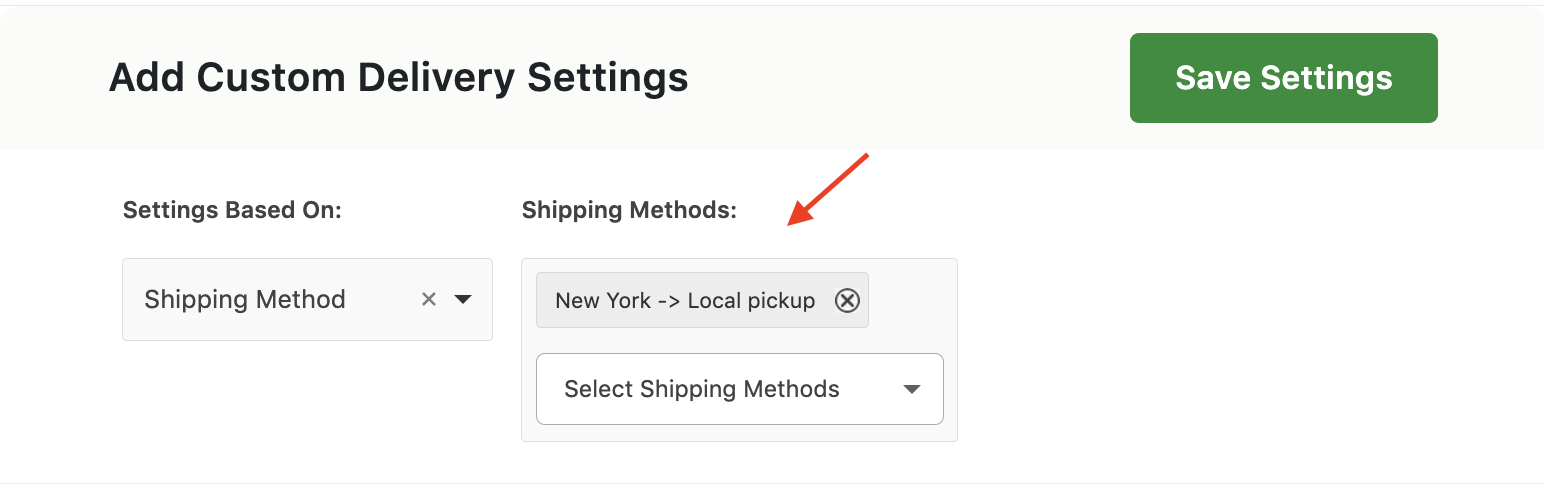
Choosing Local pickup
Add the delivery days as all the Weekdays. Your Custom Delivery schedule will look like this:
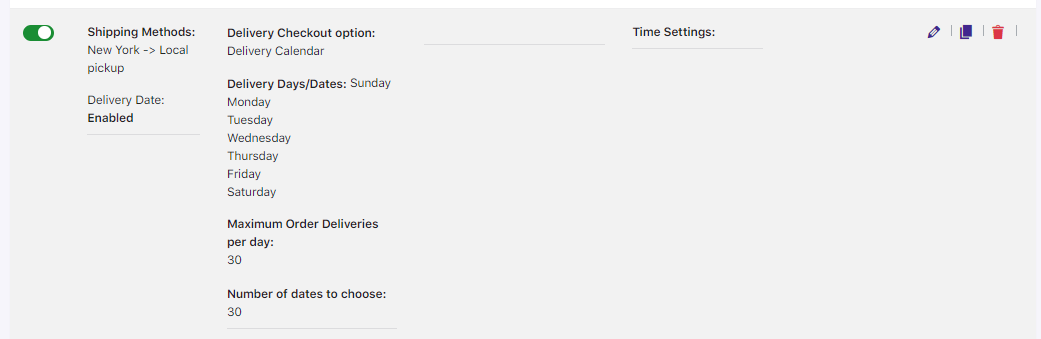
Pickup shipping method delivery schedule
You can also choose to set the label for the date and time field while creating this schedule.
Additionally, you can set a Field Note Text to provide customers with helpful context for their chosen delivery or pickup schedule.
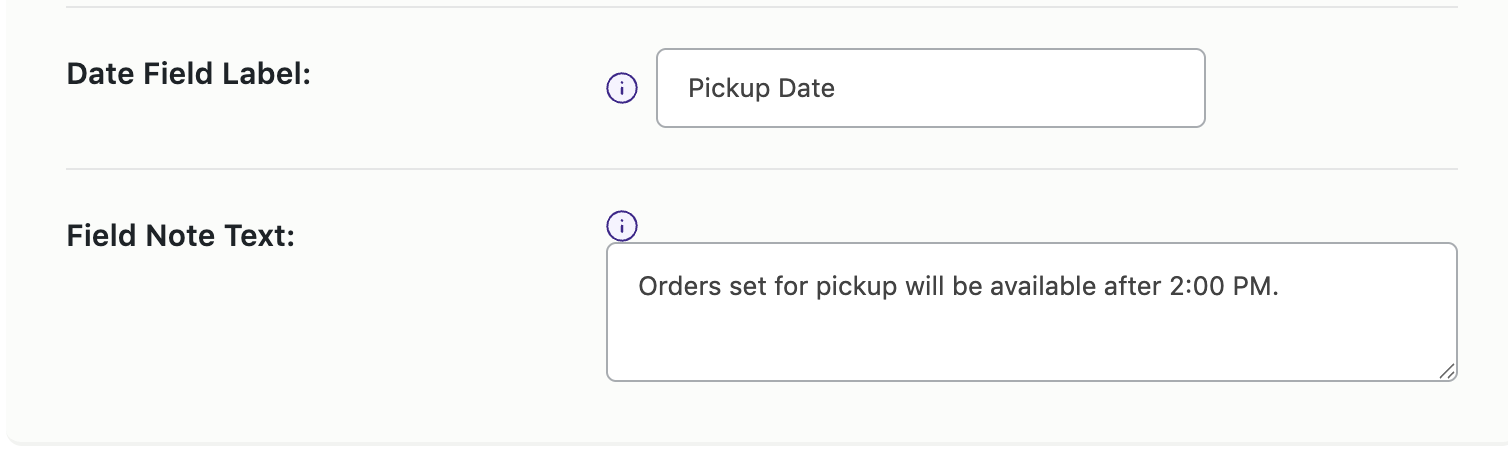
Example, Orders set for pickup will be available after 2:00 PM.
When the customer selects the Local Pickup shipping method on the checkout page, they will see all the weekdays available for selection.
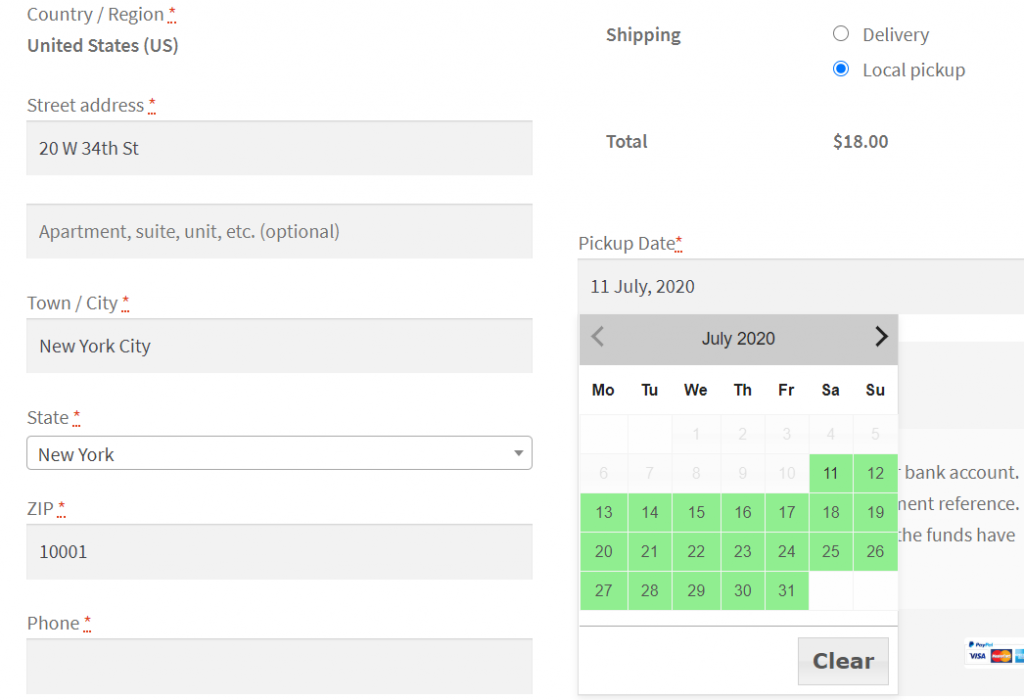
The date field label will also change to Pickup Date:
Checkout Page
Note: In the above screenshots of the checkout page, the delivery date field appears below the shipping method selection because it has been set to Fields placement on the Checkout page: under Order Delivery Date -> Settings -> Appearance to Between Your Order & Payment Section.
This is done so that the customers don’t have to change the date selection again based on their shipping method selection if we display the date field before the shipping method selection on the checkout page.
b. Using the extension directly
↑ Back to topGo to Order Delivery Date > Settings > Delivery Schedule > Add custom delivery schedule as shown below:
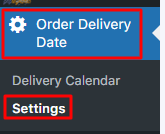

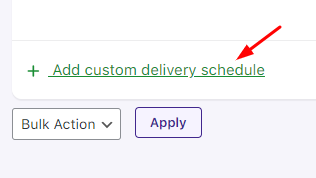
Pathway for creating custom delivery schedules
You will create 2 custom delivery schedules, one for the Delivery Order type and the other for the Pickup Order type.
Let’s start with the Order Type – Delivery.
Choose the Order Type radio button and select Delivery from the dropdown.
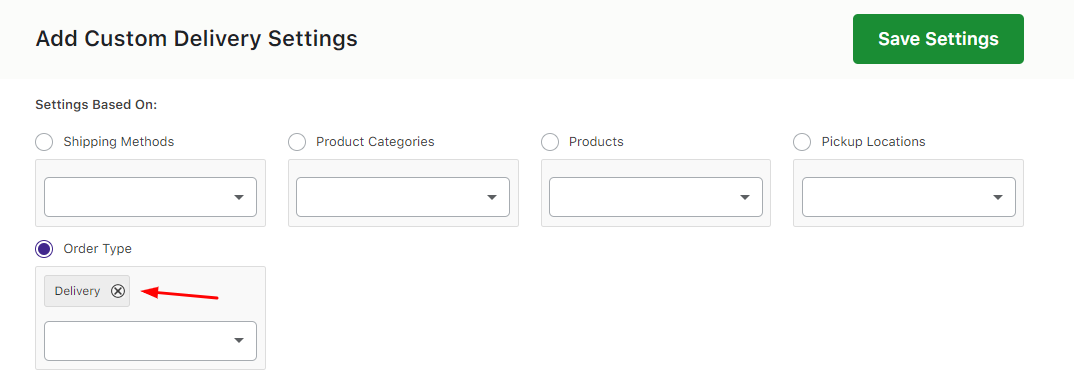
Selecting Delivery as Order Type
Configure your delivery days. In this case, if the customer selects Delivery order type, they would get to choose delivery dates available on Sundays and Saturdays.
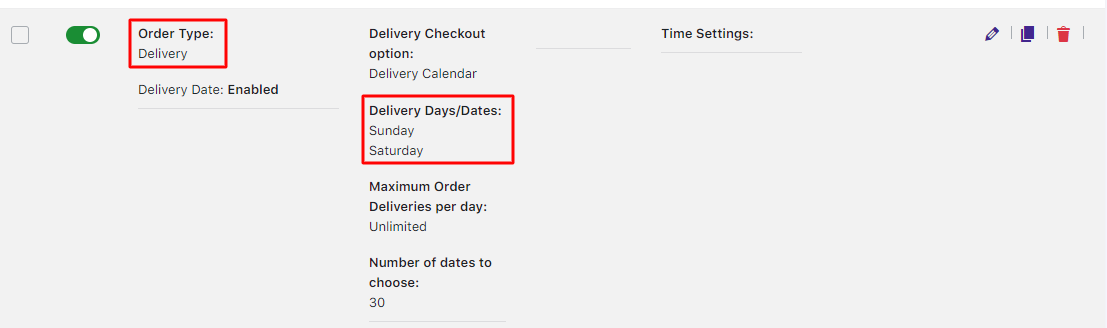
Custom delivery schedule for Delivery order type
Similarly, you will create a custom delivery schedule for the Pickup Order type.
Create another custom delivery schedule and this time, go with Order Type – Pickup as shown:
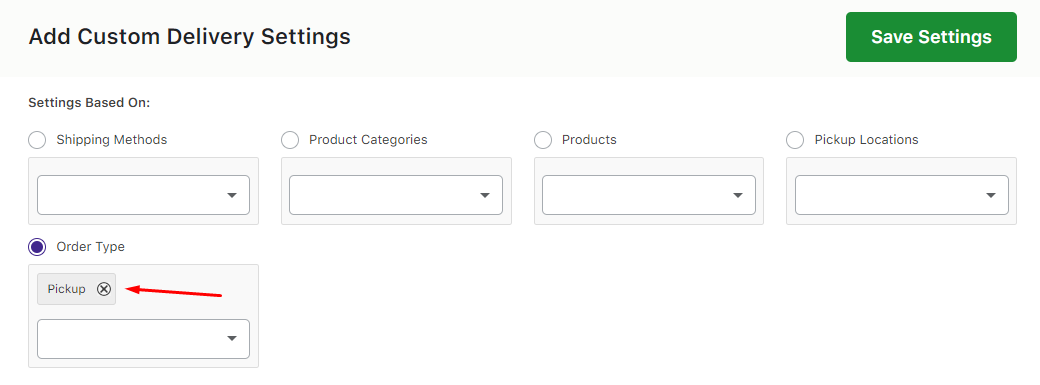
Selecting Pickup as Order Type
In this case, the delivery dates added are all the weekdays:
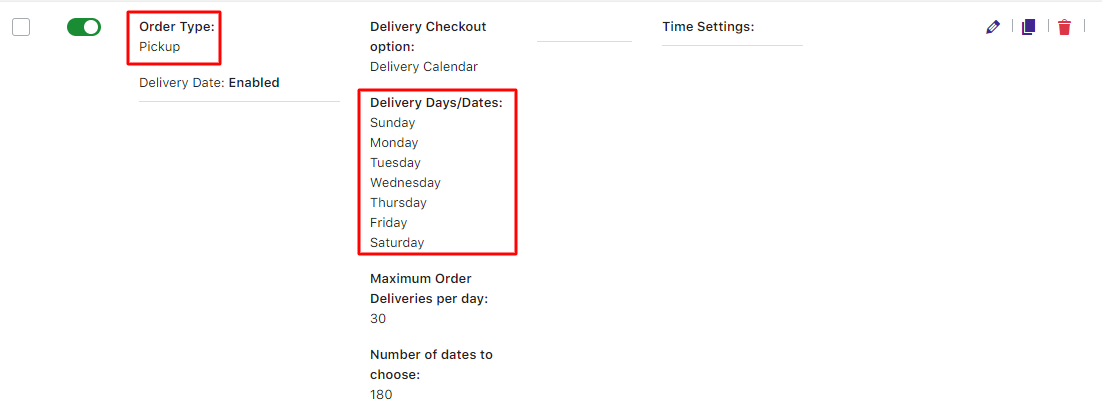
Custom delivery schedule for Pickup order type
In order to change the placement and the labels of order type fields, go to Settings > Order Type.
Please make sure to enable both the schedules as shown below:
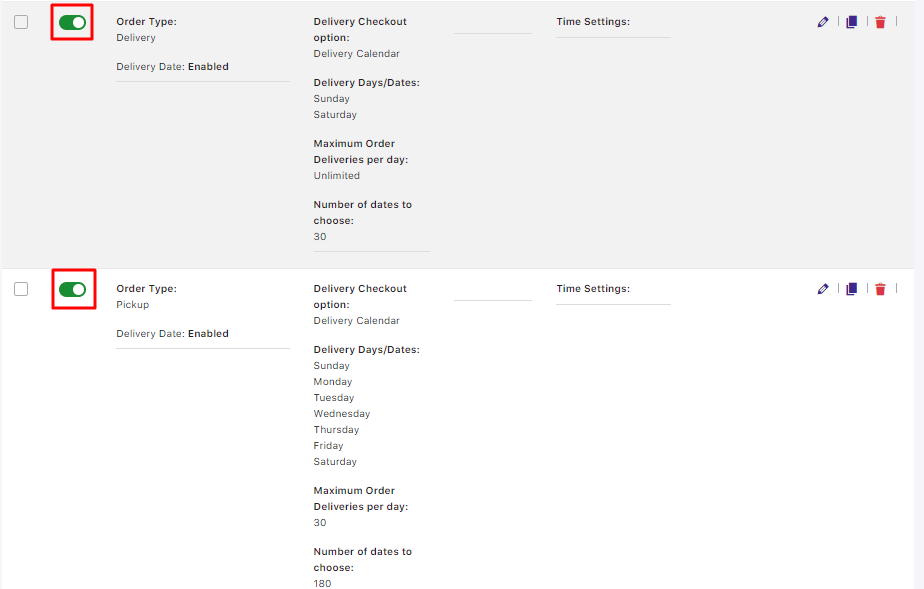
Custom delivery schedules for Delivery and Pickup order type
To the above delivery schedule, you can also configure the Delivery Date and Time field labels along with the Field Note Text specific to the selected Order Type.
For example:
- Pickup Schedule: Pickups are available from Monday to Friday between 9:00 AM and 5:00 PM. Please bring your order confirmation.
- Delivery Schedule: Your delivery may take up to 3 business days to arrive.
- Default Schedule: We’ll do our best to meet your selected date and time preferences.
This flexibility ensures that customers receive relevant and clear instructions based on their chosen method of order fulfillment.
Once done, you’re good to go.
When the customer chooses the Delivery Order type on the Checkout Page, they will get to see Saturdays and Sundays enabled in the delivery calendar:
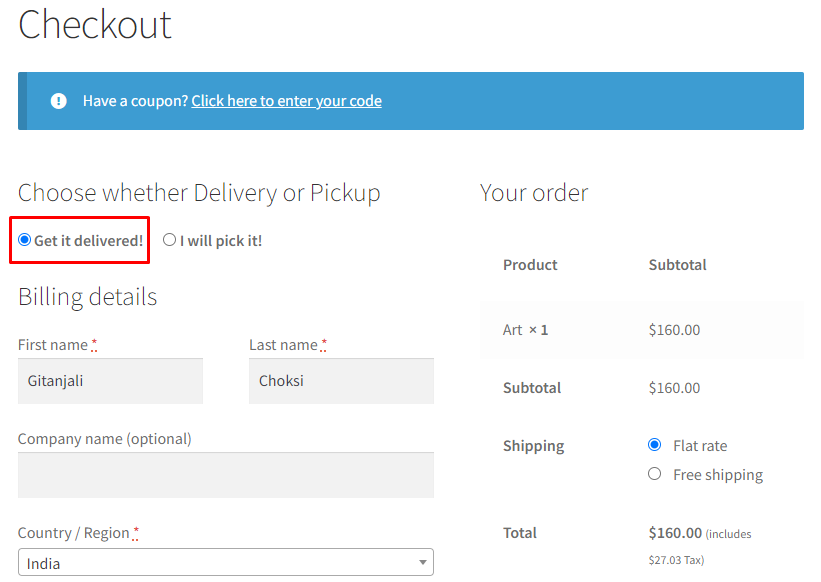
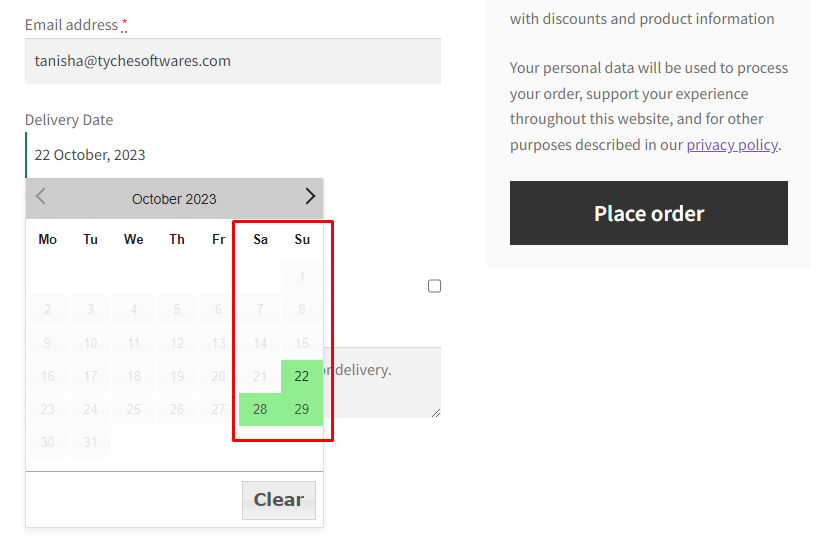
Checkout Page
After selecting the delivery date, you will see the delivery details along with the order type on the Order Details page:
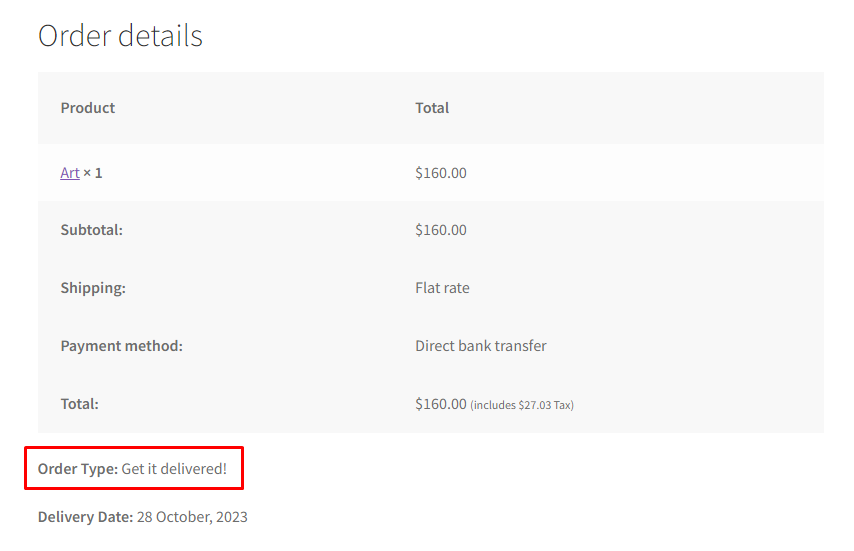
Order Details Page
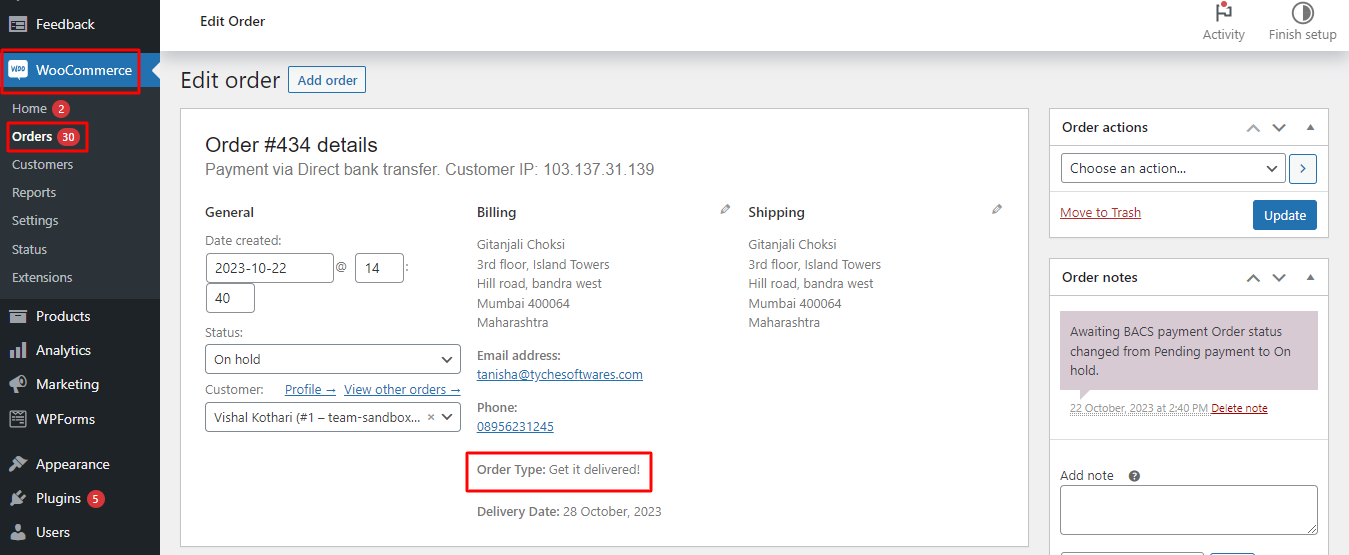
The same will be available on the Edit Order page on the backend for the admin as shown below:
When the customer chooses the Pickup order Type on the Checkout Page, they will get to select the Pickup Location and all the weekdays available in their delivery calendar:
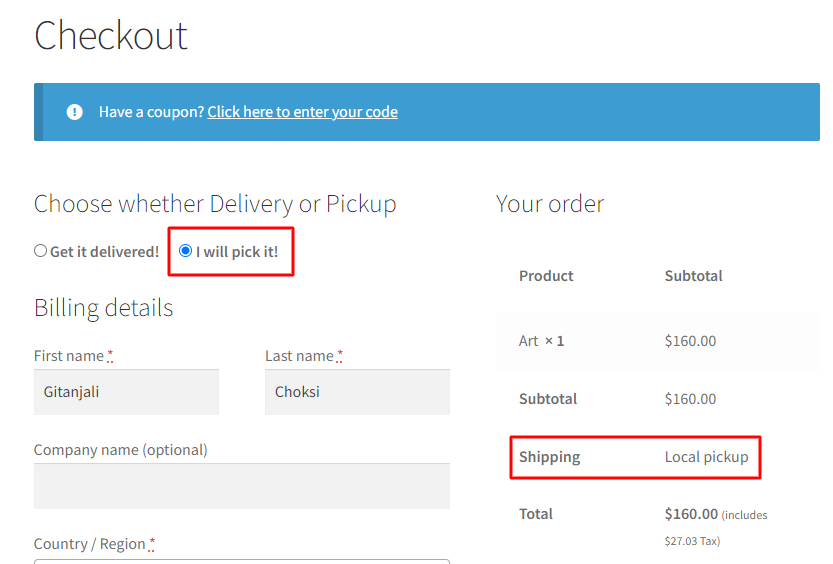
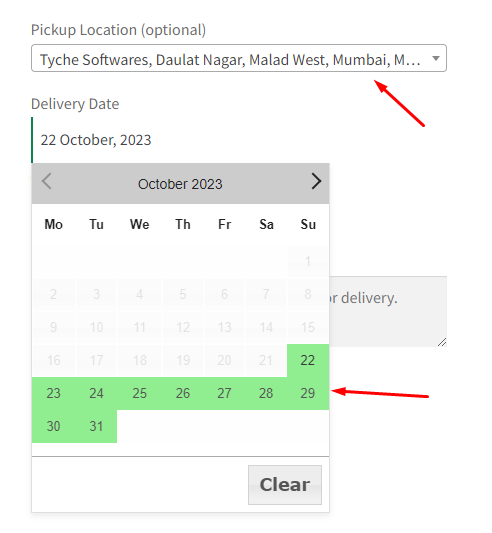
Checkout Page
Once a date has been chosen, they will get to see the order type on the Order Details page.
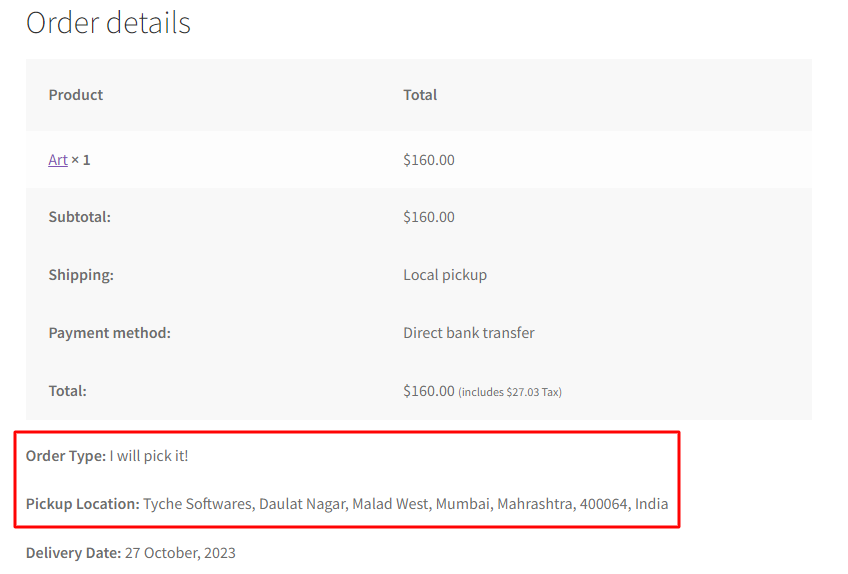
Order Details Page
The same information would be available on the Edit Order for the admin.
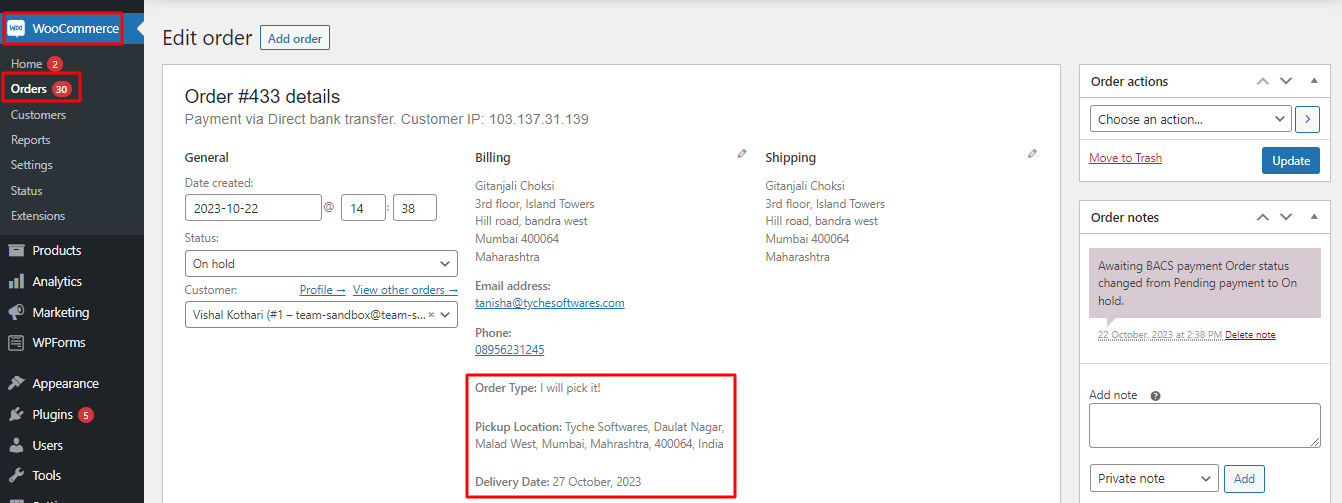
Thus, in these two ways, you can let your customers choose between Delivery or Pickup.
How do I create a delivery schedule based on pickup locations?
↑ Back to topCreating a delivery schedule based on pickup locations is now a task of few simple clicks!
The very first thing you’ll need to do is add your pickup locations. Learn how to add pickup locations.
Once they’ve been added, you’ll go to Order Delivery Date > Settings > Delivery Schedule.

Scroll down and click Add custom delivery schedule.
Select Pickup Locations from the Settings Based On dropdown. Then, choose the desired locations from the Pickup Locations list.
The dropdown will display all pickup locations you’ve added earlier.
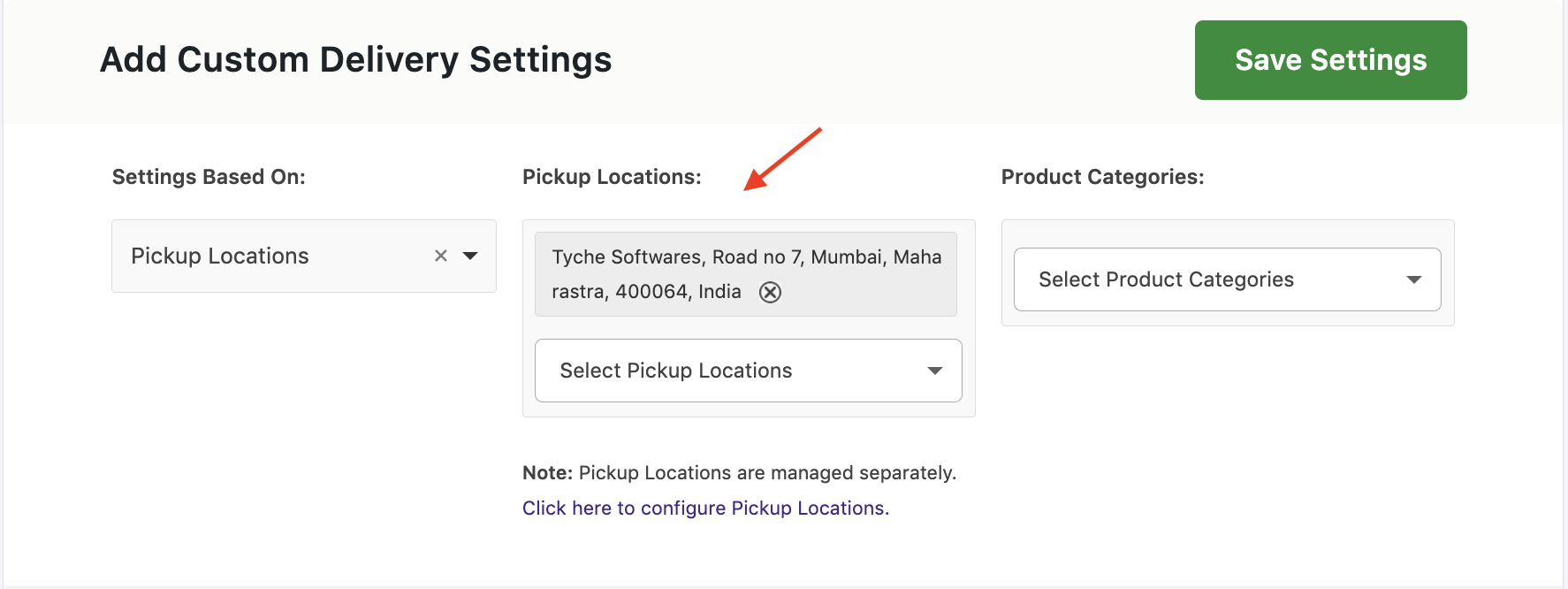
Enter the delivery details for this delivery schedule. We’ve added Delivery Days as Weekdays and Timeslots as 7 PM to 7:30 PM and 7:30 PM to 8 PM as shown below:
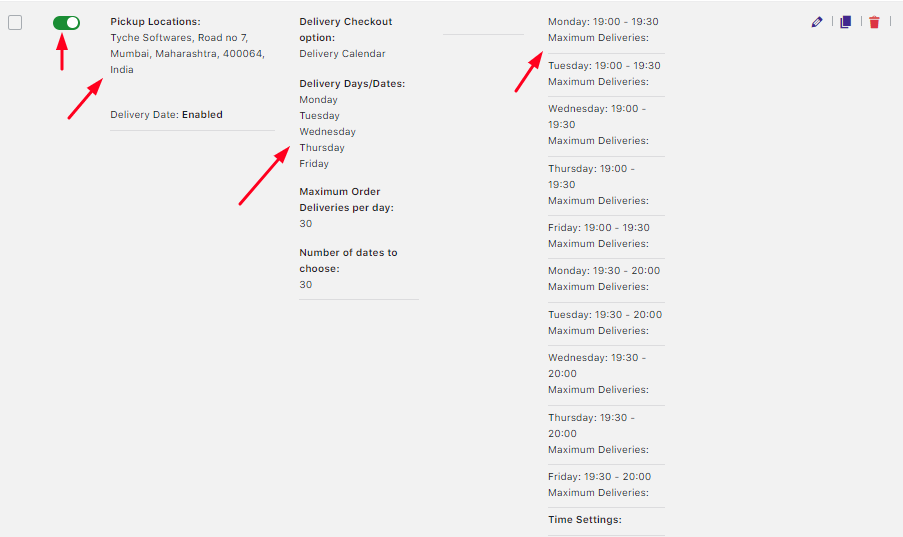
When your customer selects the pickup locations, they’ll see available delivery date and time options on the Checkout page. These options were prepared by you in your custom delivery schedule:
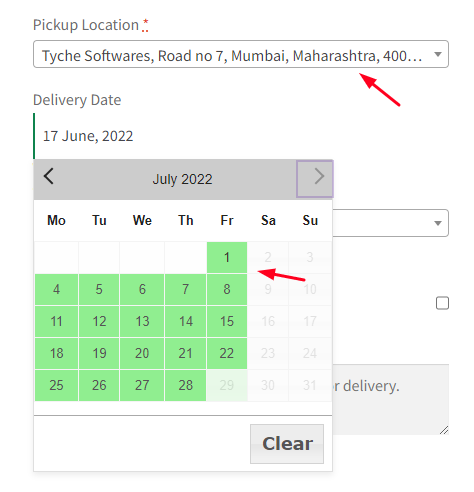
Delivery Dates available as Weekdays
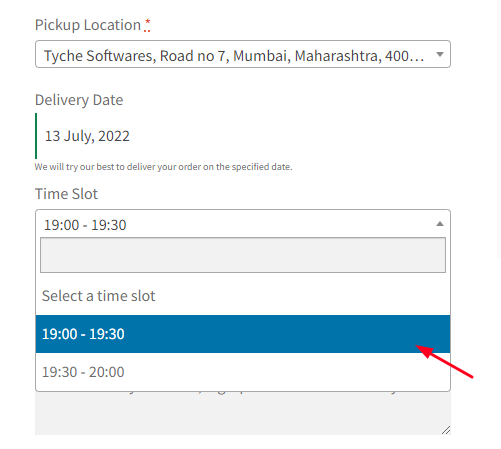
Delivery Timeslots
In this way, your custom delivery schedule based on Pickup Locations is ready!
How do I create a delivery schedule based on pickup locations and product category?
↑ Back to topAs of v9.25.0 of Order Delivery Date Pro for WooCommerce, you can now add Pickup locations for specific product categories in the Custom Delivery Settings.
For instance, let’s say that you have 3 or more Pickup locations. You now wish to add custom delivery settings based on Product categories corresponding to the exact Pickup locations from where they can be brought. With our plugin, it can be done!
Firstly, you can add your different Pickup locations by going to Order Delivery Date > Pickup locations. For example, here we’ve added the following two pickup locations:
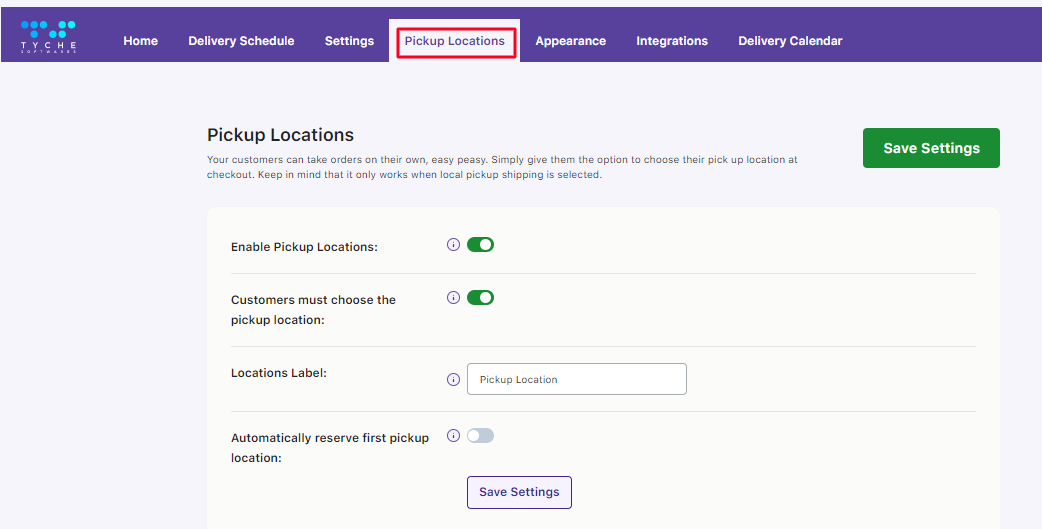
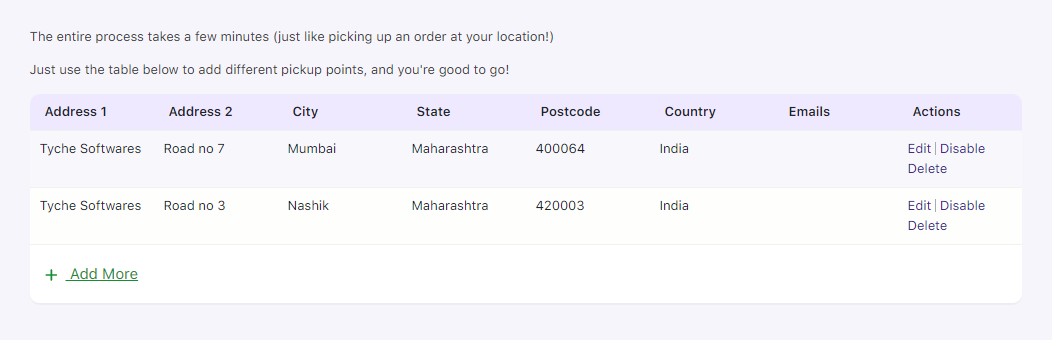
After adding your different Pickup locations, you can go to the Custom Delivery Settings tab. Once you have enabled the Custom Delivery option you can go to Delivery Schedule > Add Custom Delivery Settings button.
Here, select Pickup Locations from the Settings Based On dropdown. Then, choose the desired locations from the Pickup Locations dropdown.
The dropdown will display all pickup locations you’ve added earlier.
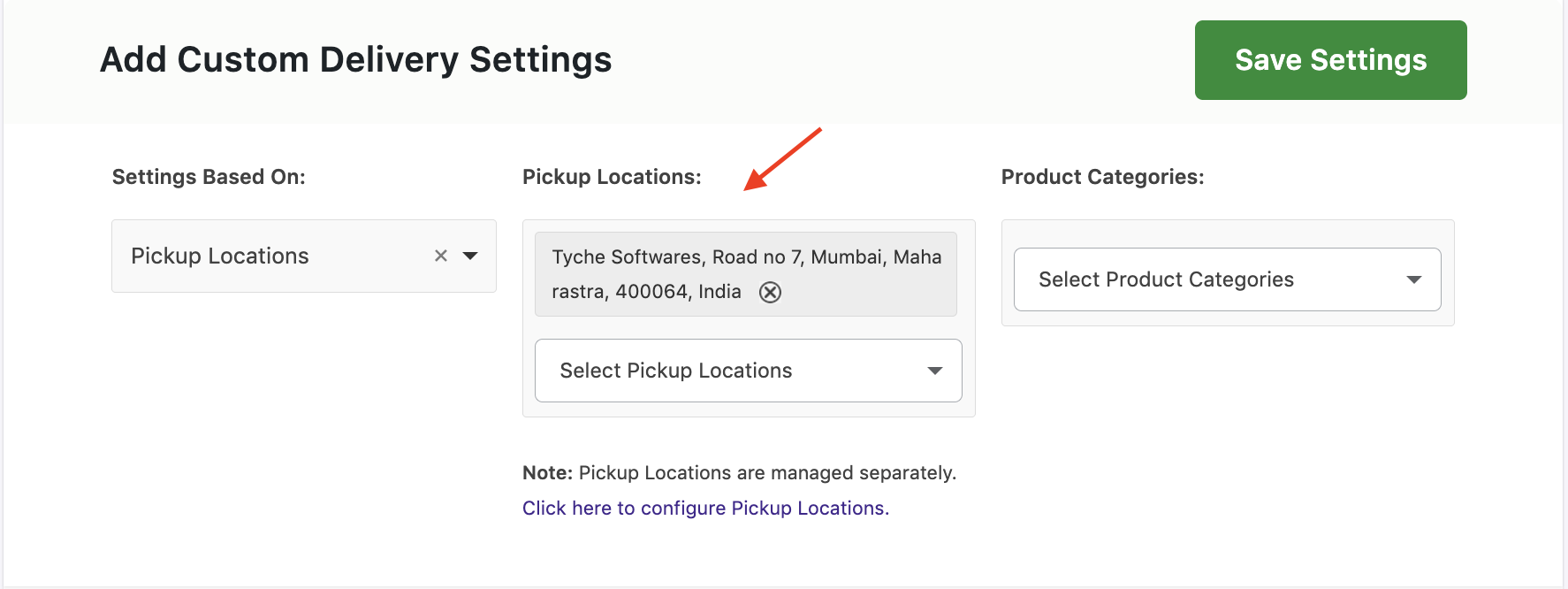
For example, we selected the first Pickup Location. Following this, under ‘Product Categories’ we chose ‘Clothing’ as you can see below:
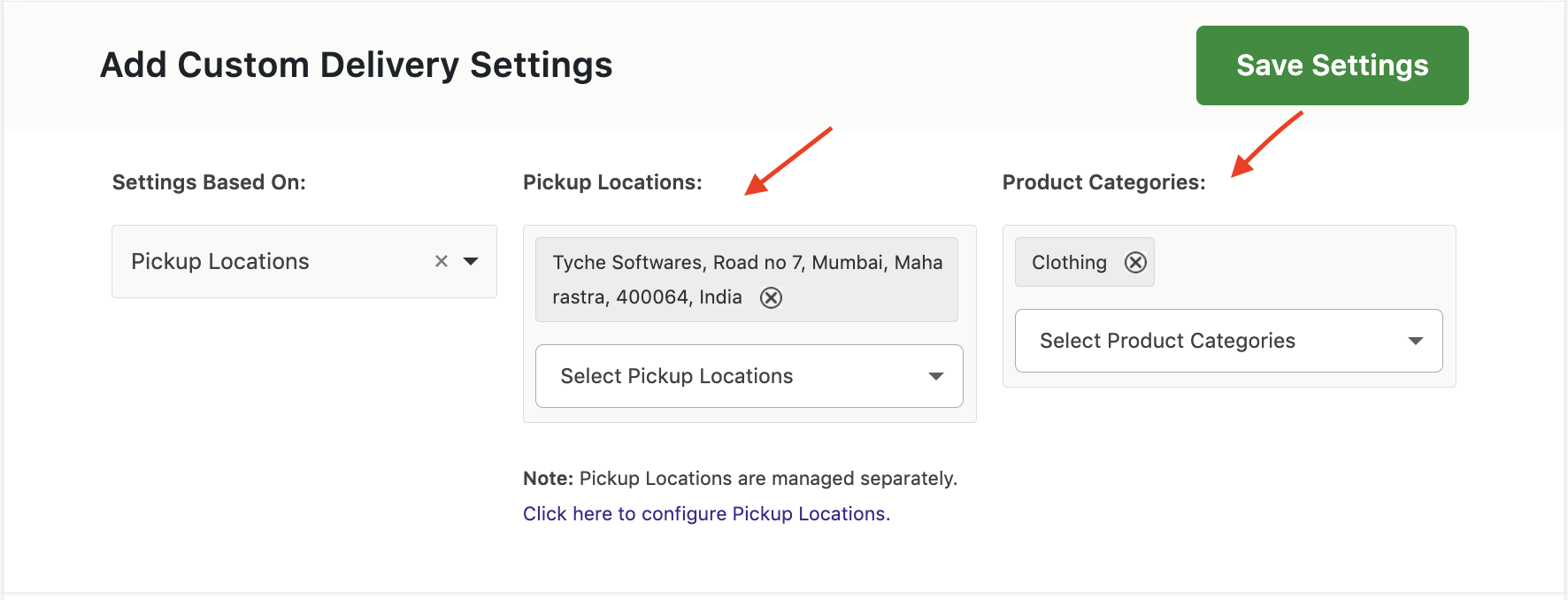
Following this, we have also added other custom settings for time slots and delivery days. After making all of your custom settings here’s how it will appear:
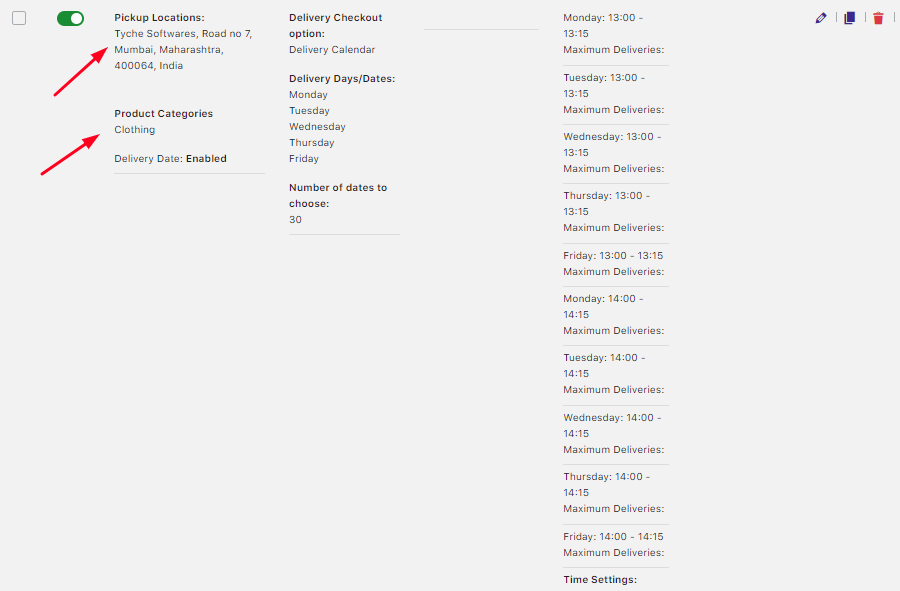
This particular custom pickup schedule would be applied when a customer chooses any product from the Clothing Product Category and the first Pickup Location.
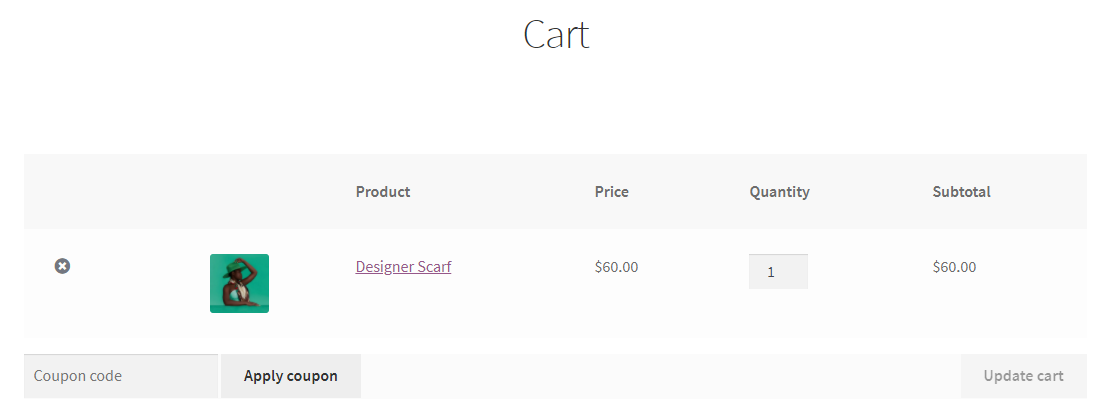
On the front-end, whenever a customer chooses the first pickup location we set for a Clothing category product, they will get delivery options as Weekdays, i.e (all Mondays to Fridays) and Time slot options as 13:00-13:15 and 14:00 -14:15. Here is how the Cart Page will appear when a customer chooses first pickup location for a Clothing category product.
Product added to the cart that belongs to the Product Category ‘Clothing’
Here is how the custom delivery settings by Pickup Locations & Product category will appear on the checkout page:
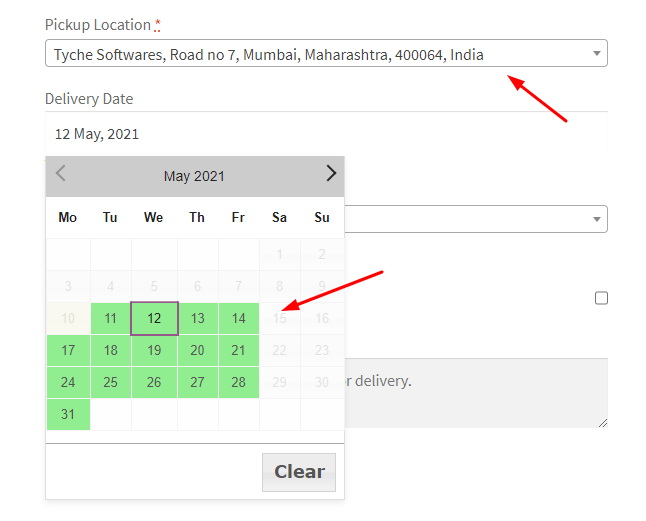
Pickup Location selected as the first one & delivery dates are all the weekdays on the checkout page
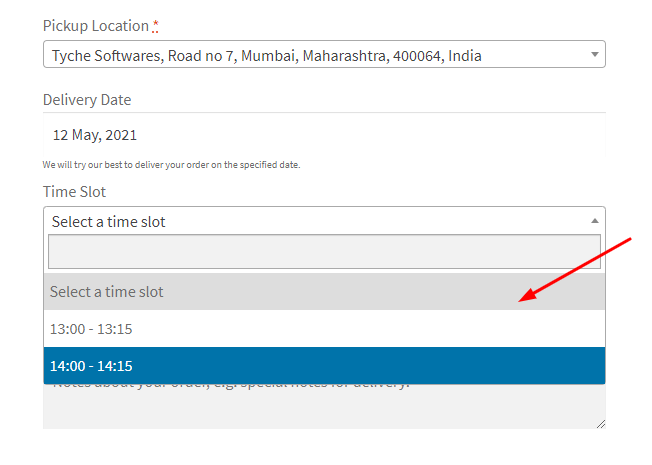
Time slots on the Checkout page
Different scenarios
↑ Back to topLet’s have a look at the different scenarios for this setting.
Our Pickup Locations:
- Pickup Location A- ‘Tyche Softwares, Road No 7’
- Pickup Location B – ‘Tyche Softwares, Road No 3’
Our Product Categories:
- Product Category A – Clothing
- Product Category B – Accessories
Case 1:
↑ Back to topCustom Delivery Settings 1 for Pickup Location A + Product Category A
Custom Delivery Settings 2 for Pickup Location B + Product Category B
In this case, we have two custom delivery settings based on two different Pickup Locations that have been applied and for each of them, we have added a different product category. For example:
For our 1st Custom Delivery Settings, we have added the Pickup Location as ‘Tyche Softwares, Road No 7’ while our Product Category is ‘Clothing’. The delivery days for these are Weekdays and the time slots are 13:00 to 13:15 and 14:00 to 14:15 as shown below:
For our 2nd Custom Delivery Settings, we have added the Pickup Location as ‘Tyche Softwares, Road No 3’ while our Product Category is ‘Accessories’. The delivery days for these are Weekdays and the time slots are 15:00 to 15:15 and 16:00 to 16:15 as shown below:
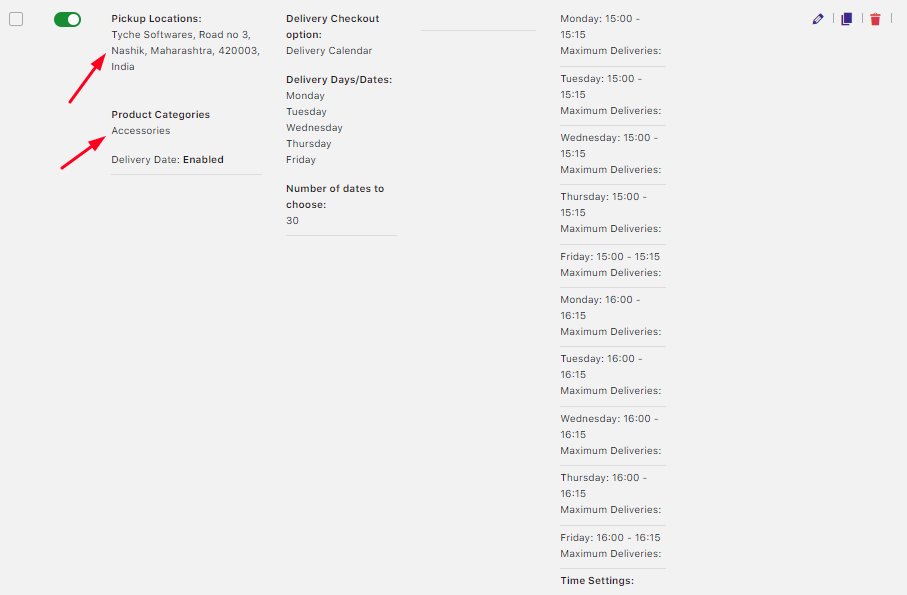
Let’s say that a customer has added a product from Product Category A and Product Category B. For example, they have added a ‘Designer Scarf’ from the ‘Clothing’ Product category and ‘Sunglasses’ from the ‘Accessories’ Product category. When this happens, they will get to choose between two Pickup locations.
So, whichever pickup location they choose, they will get to view the delivery settings of that Pickup location. This is because the Pickup location settings are overwritten over everything else.
So, if your customer chooses Pickup Location A, which is ‘Tyche Softwares, Road No 7’, then they will get to view the delivery date as Weekdays & time slots as 13:00 to 13:15 and 14:00 to 14:15. After selecting our pickup location, we have chosen our delivery date as 14th July which is a Wednesday.
Here are the time slots that we will get to view on the frontend:
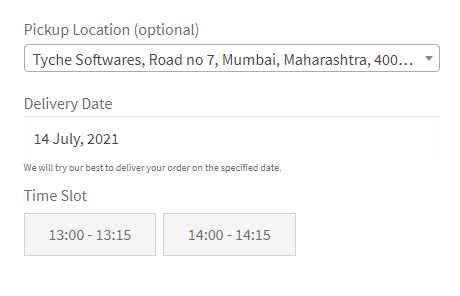
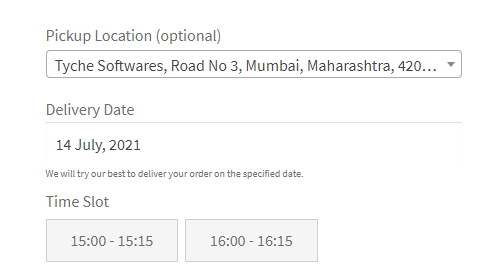
If the customer chooses Pickup Location B, then which is ‘Tyche Softwares, Road No 3’, then they will get to view the delivery date as Weekdays & time slots as 15:00 to 15:15 and 16:00 to 16:15 like this:
Case 2:
↑ Back to topCustom Delivery Settings 1 for Pickup Location A + Product Category A
Custom Delivery Settings 2 for Pickup Location A + Product Category B
In this case, we have two custom delivery settings based on the same Pickup Locations and for each of them, we have added a different product category. For example:
For our 1st Custom Delivery Settings, we have added the Pickup Location as ‘Tyche Softwares, Road No 7’ while our Product Category is ‘Clothing’. The delivery days for these are Weekdays and the time slots are 13:00 to 13:15 and 14:00 to 14:15 as shown below:
For our 2nd Custom Delivery Settings, we have added the Pickup Location as ‘Tyche Softwares, Road No 7’ while our Product Category is ‘Accessories’. The delivery days for these are Weekdays and the time slots are 15:00 to 15:15 and 16:00 to 16:15 as shown below:
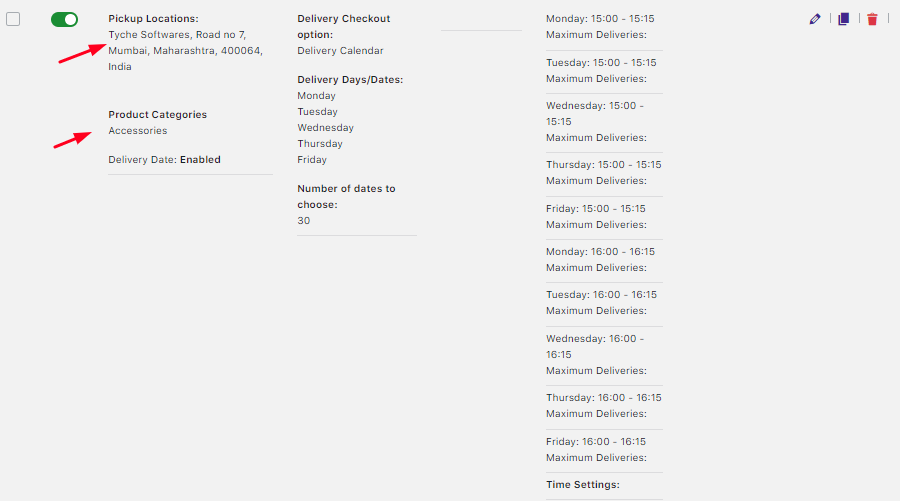
Let’s say that a customer has added a product from Product Category A and Product Category B. For example, they have added a ‘Designer Scarf’ from the ‘Clothing’ Product category and ‘Sunglasses’ from the ‘Accessories’ Product category.
Regardless of what they choose as their product, they will be displayed with all the Pickup Location options if they choose to select that as their shipping method. If they decide to choose Pickup Location A, which is ‘Tyche Softwares, Road No 7’ then they will get to view the delivery date as Weekdays.
This is because the delivery days settings are common for both our product categories. However, the customer will not get to select a time slot because the two product categories have two different time slots.
Here’s how it will appear on the front-end:
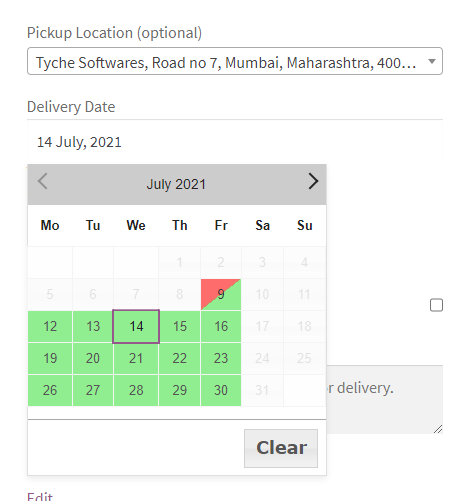
Delivery Date as Weekdays
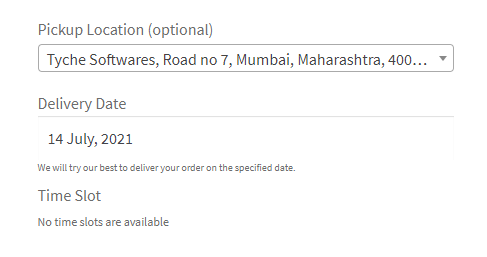
Time slots unavailable
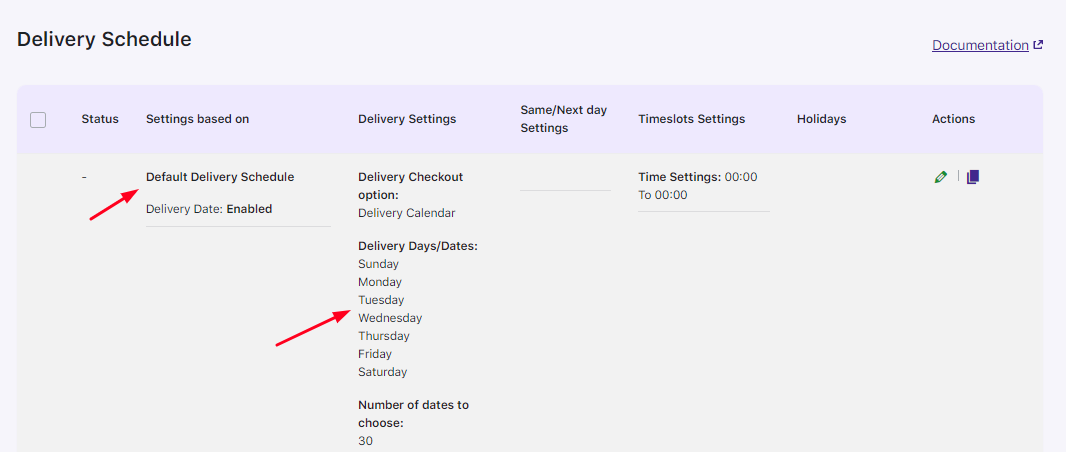
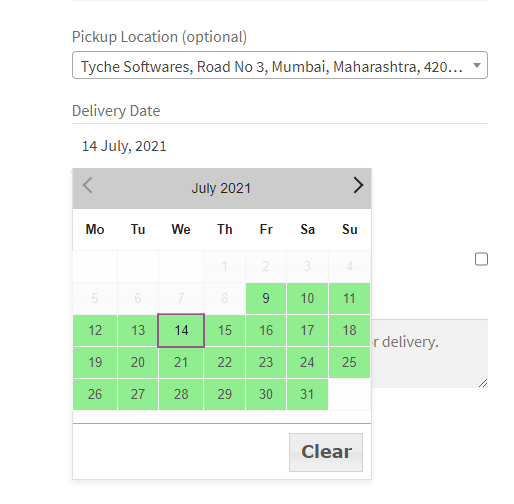
If the customer chooses to go with Pickup Location B, which is ‘Tyche Softwares, Road No 3’ then they will get to view the delivery days and time set by you under the Default Delivery schedule. In our case, we have set our delivery days as All days without settings any time slots as such:
On the front-end, the customer will see the following displayed:
How to create custom delivery schedule based on user roles?
As of v11.0.0 of the Order Delivery Date Pro for WooCommerce, you can now create custom delivery schedules for specific user roles within their store. This enhancement is aimed at providing store owners with the flexibility to set specific delivery options for different user groups.
For instance, a store owner might want to offer special delivery days for premium members while restricting or disabling delivery options for other user roles, such as guest users or standard members. This is possible using Order Delivery Date Pro.
This feature is particularly useful for stores that cater to various customer segments. It ensures that delivery options are optimized according to each group’s needs and privileges.
Here’s how you can create them:
Go to Order Delivery Date -> Settings -> Delivery Schedule.
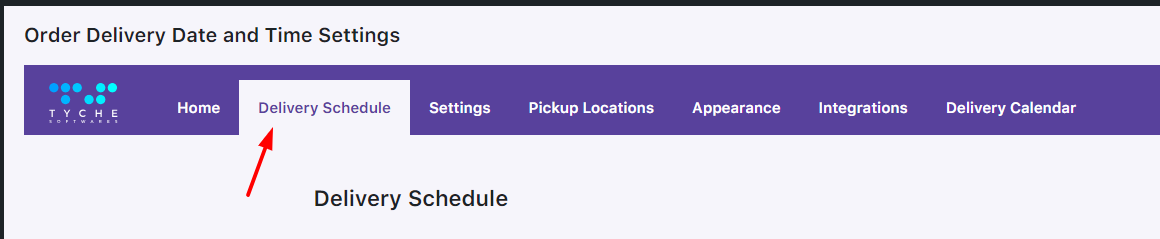
Scroll down and click Add custom delivery schedule.

Choose the ‘User Role’ option and select the user roles you wish to add. You can select multiple user roles if needed.
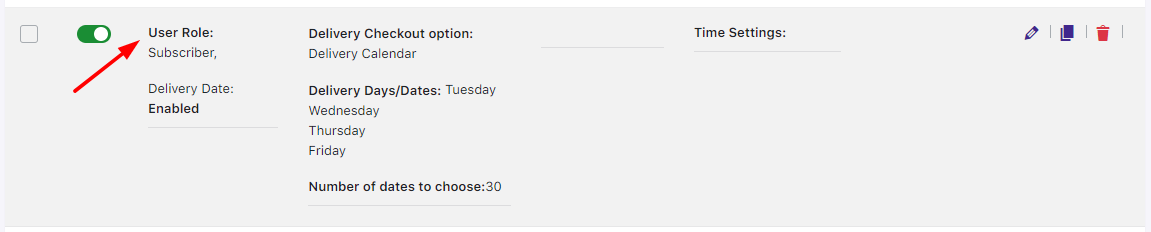
Let’s say you want to offer a special delivery schedule for Subscriber. So, you will need to choose Subscriber from the dropdown. Use the different settings, such as Date, Time, Holiday Settings, etc. to define the delivery schedule according to the needs of the selected user role. For example, if you want to offer limited delivery options for Subscribers (e.g. deliveries only on Tuesday to Friday), you would set the schedule accordingly.
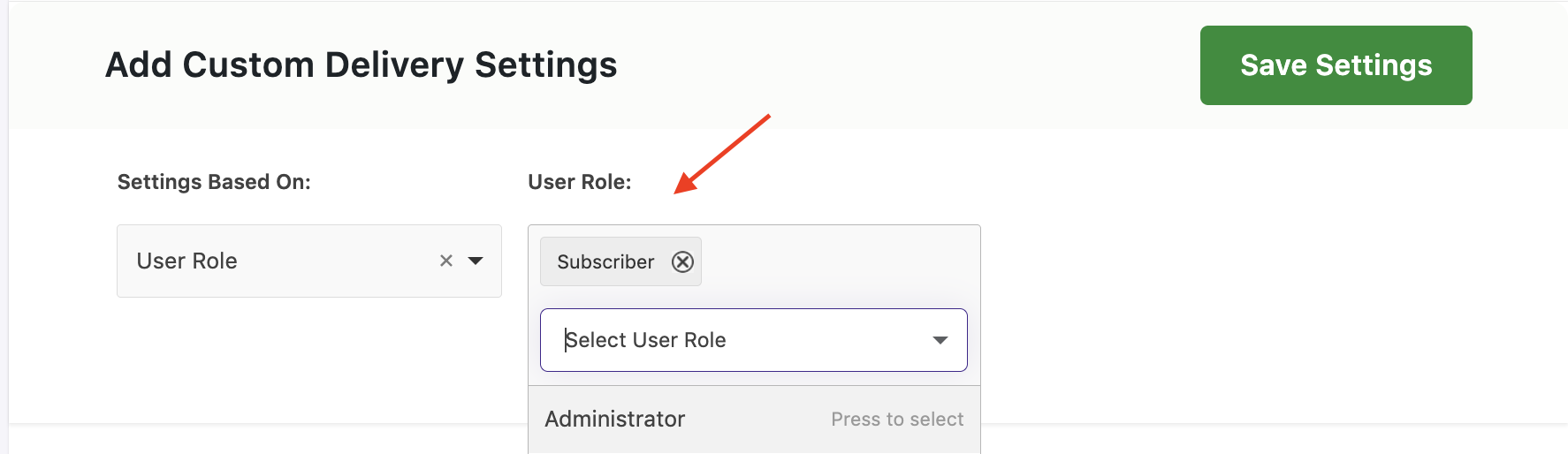
Once you’ve filled in all the necessary details, click Save Settings.
After saving, the new custom delivery schedule will appear in the list. You can enable or disable this schedule using the toggle switch.
Now, when a subscriber logs in and proceeds to checkout, they will only see the specified delivery options according to the schedule you configured.
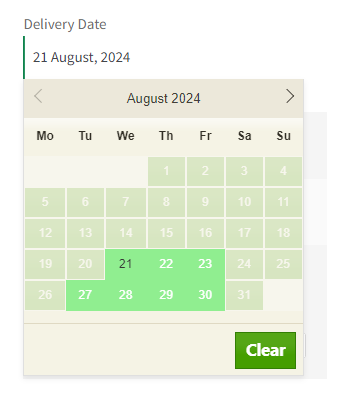
Hence, you can configure these schedules easily through this extension’s settings, prioritize them over other rules (like product categories or shipping methods), and manage them through a user-friendly interface. This ensures that different user roles receive delivery options that best suit their needs.
How do I create a delivery schedule with WooCommerce Advance Shipping?
↑ Back to topTo set the advanced shipping rate for order deliveries, you can use the third-party WooCommerce Advanced Shipping extension. Its compatibility with this extension can help you display the settings added for this shipping rates on the front-end.
Here’s how it works:
1. Settings for Advanced Shipping Rates
↑ Back to topTo view all the added Advanced Shipping Rates, go to WooCommerce > Shipping > Advanced Shipping. Using Order Delivery Date Pro, you can add the delivery date and time settings for each of these shipping rates.
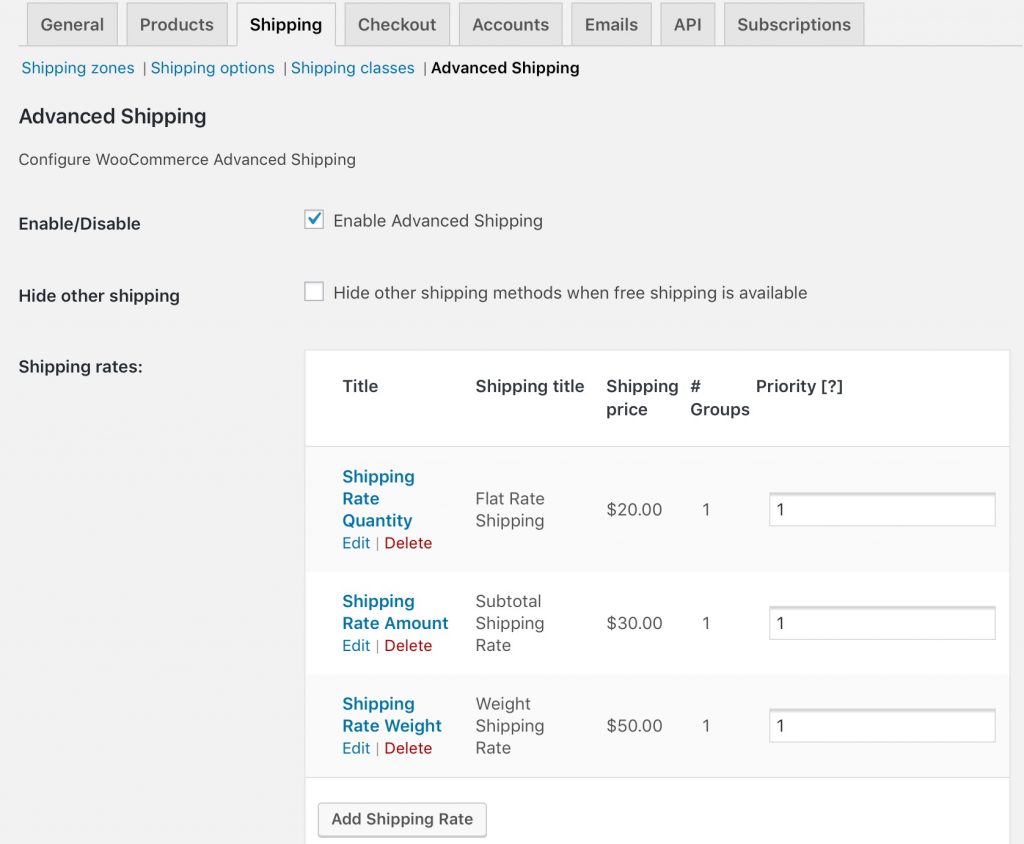
Enable the ‘Advanced Shipping’ setting and enter your rates according to your needs.
2. Adding Delivery settings for the selected Advanced Shipping Rate
↑ Back to topOnce you’ve added all the advanced Shipping rates, you can view them by going to your custom delivery schedule. Go to Order Delivery Date Pro > Delivery Schedule > Add Custom Delivery Schedule > Shipping Methods.
For instance, you can add delivery date and time settings for the selected shipping rate which is ‘Flat Rate Shipping’ as shown below:
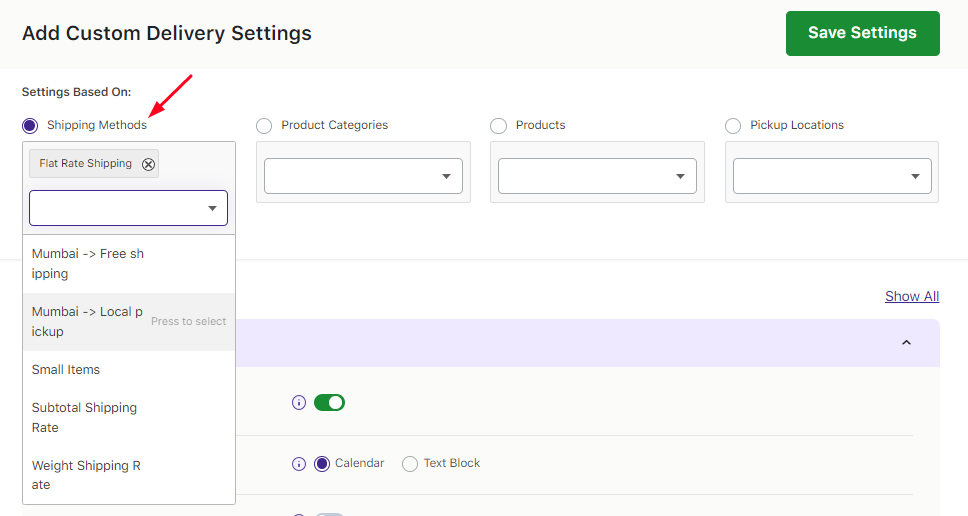
Selecting the Advanced Shipping rate from the dropdown
The delivery date and time settings for Flat Rate Shipping once entered will be displayed shown below:
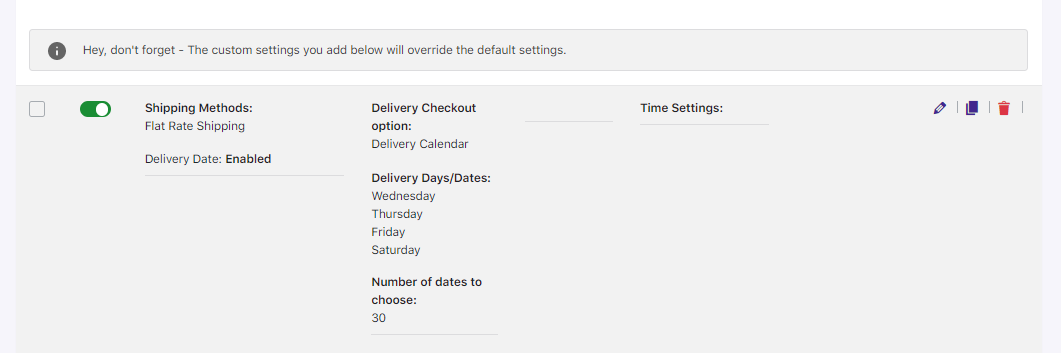
Adding delivery settings for Flat Rate Shipping
This tells us that the delivery will take place only on Wednesday, Thursday, Friday and Saturday. This will reflect on the checkout page when Flat Rate Shipping condition is met.
3. Front-end Display
↑ Back to topWhen your customer selects items in the shopping cart and adds 2 quantities of it, Flat Rate Shipping settings will be effective. This is because of the condition entered at the time of adding this Shipping Rate is met.
Here’s the cart page once the product and its quantity are selected. One can also view the additional amount here as shown below:
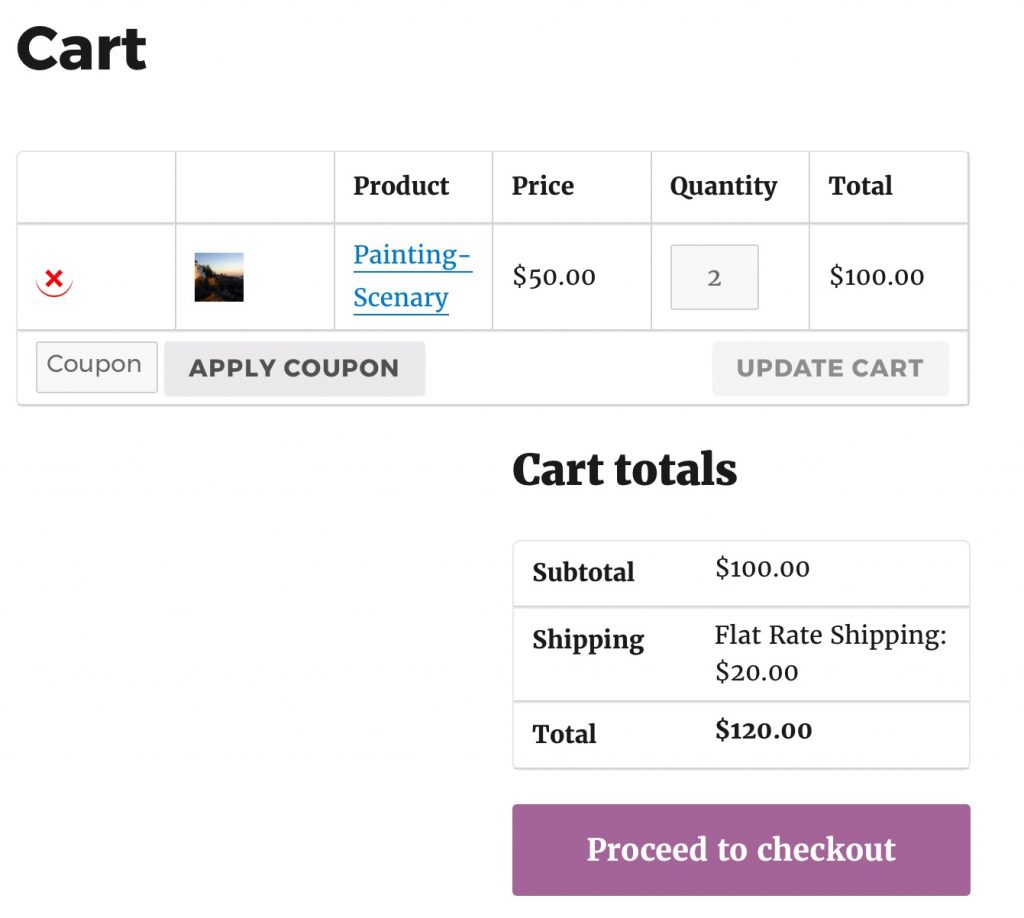
Cart Page showing Flat Rate Shipping
The same delivery dates will be enabled and displayed on the Checkout Page:
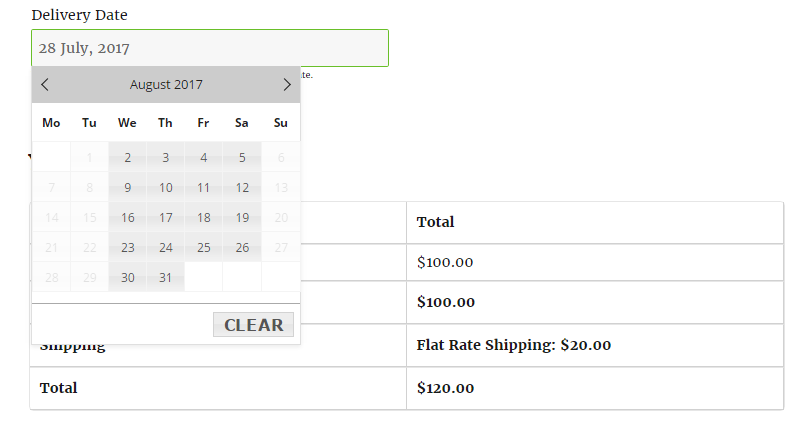
Checkout Page displays enabled delivery days as per the settings
To conclude, this compatibility will help you increase the usability and effectiveness of our plugin as per your advanced shipping rate settings!
How do I create a delivery schedule using the WooCommerce Table Rate Shipping extension?
↑ Back to topWooCommerce’s Table Rate Shipping extension helps you set a Table Rate Shipping method for different shipping zones. Its compatibility with Order Delivery Date Pro for WooCommerce displays the settings added for this shipping method on the front end.
Let’s see how this works:
1. Activate Table Rate Shipping Method
↑ Back to topYou can activate the Table Rate Shipping Method under WooCommerce > Shipping > Shipping Zones as shown below:
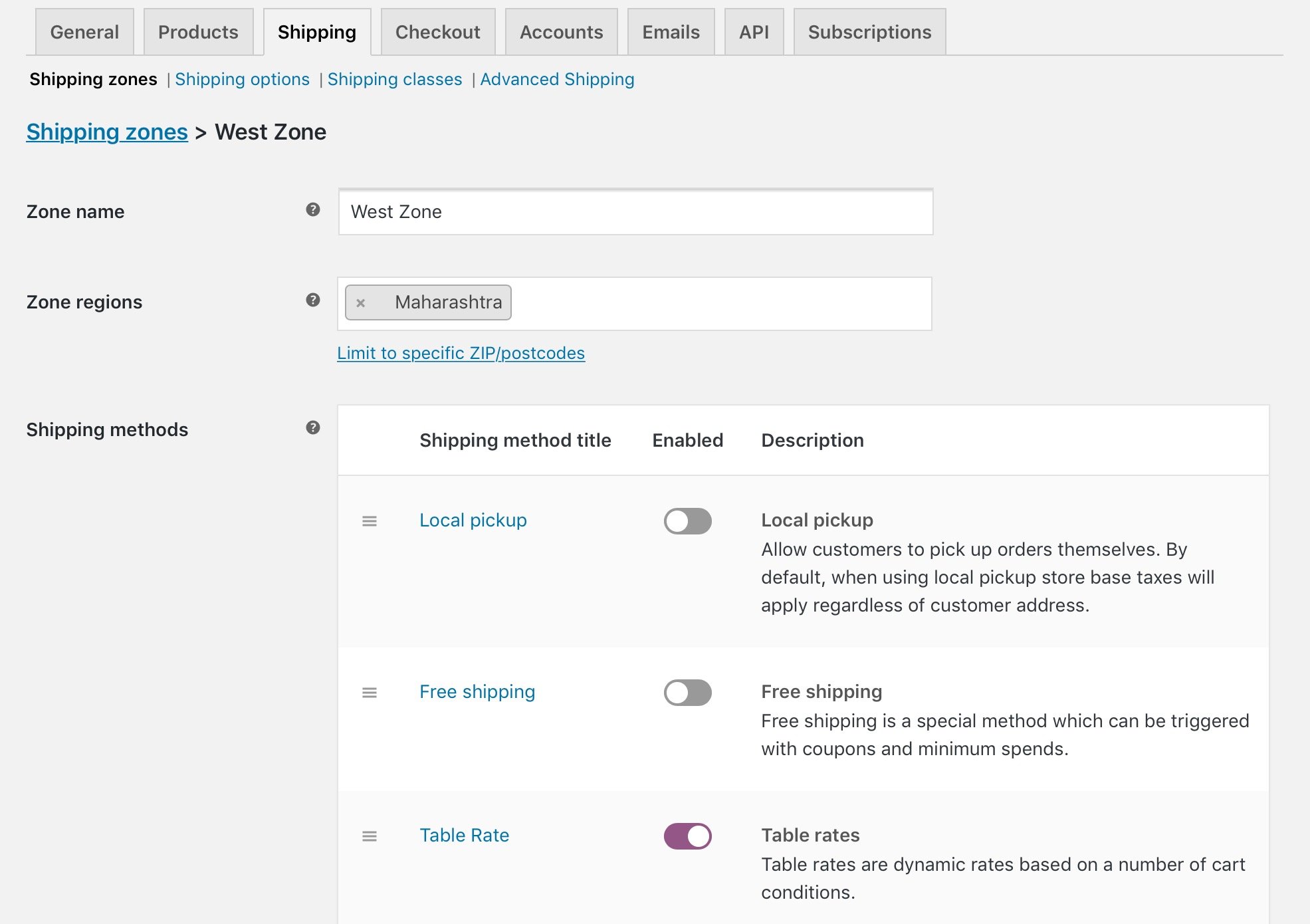
Table Rate Shipping method activated
The condition for this Shipping method is set to the total item price range between 0 to 100. Only then the Bulk Item Method option will be enabled.
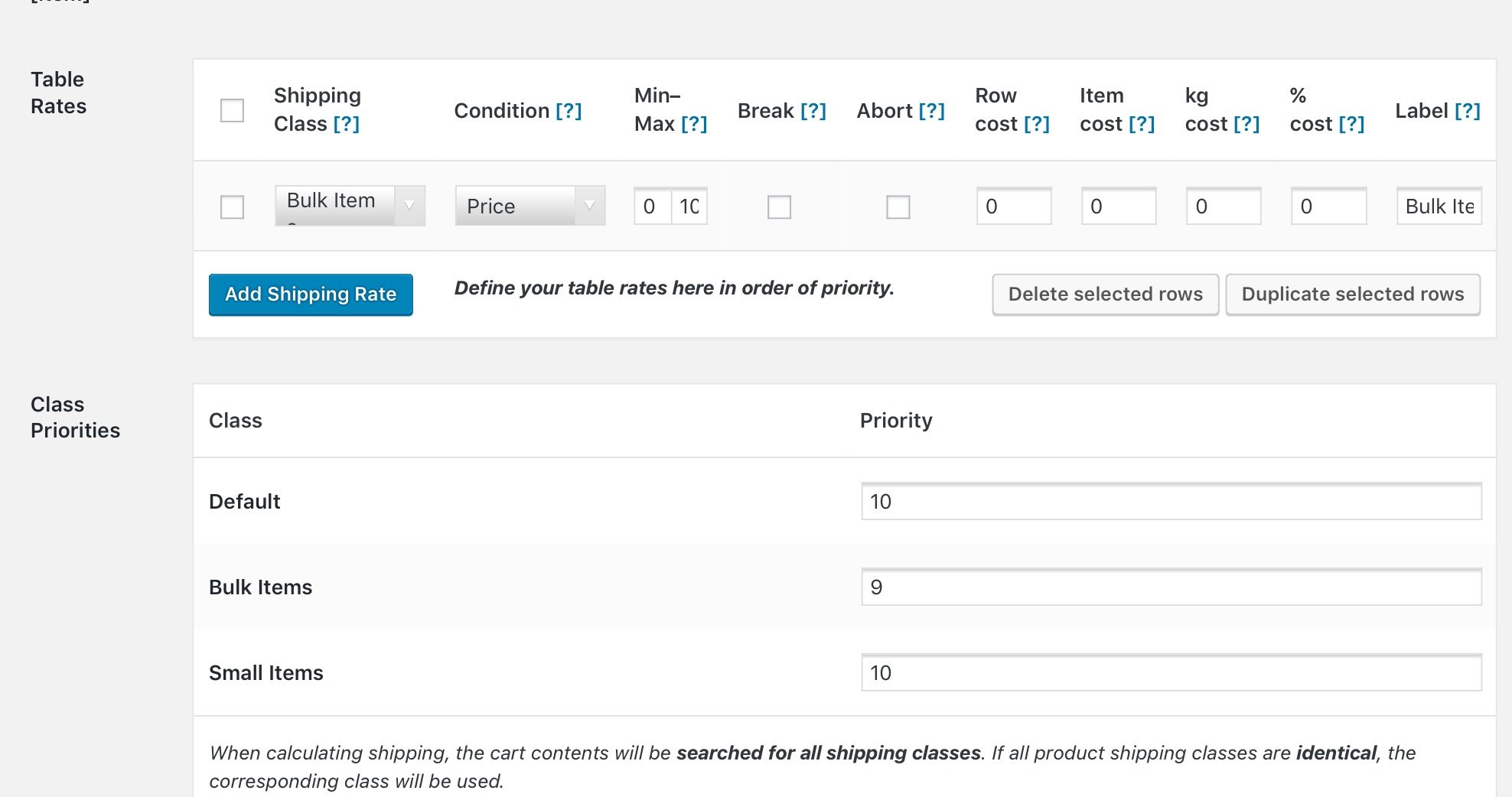
Condition set for Bulk Item Method
Once the shipping method is activated, you can go to Order Delivery Date > Delivery Schedules > Add New custom delivery schedule.
The Table Rate Shipping method will appear in the dropdown of Shipping Methods as shown below:
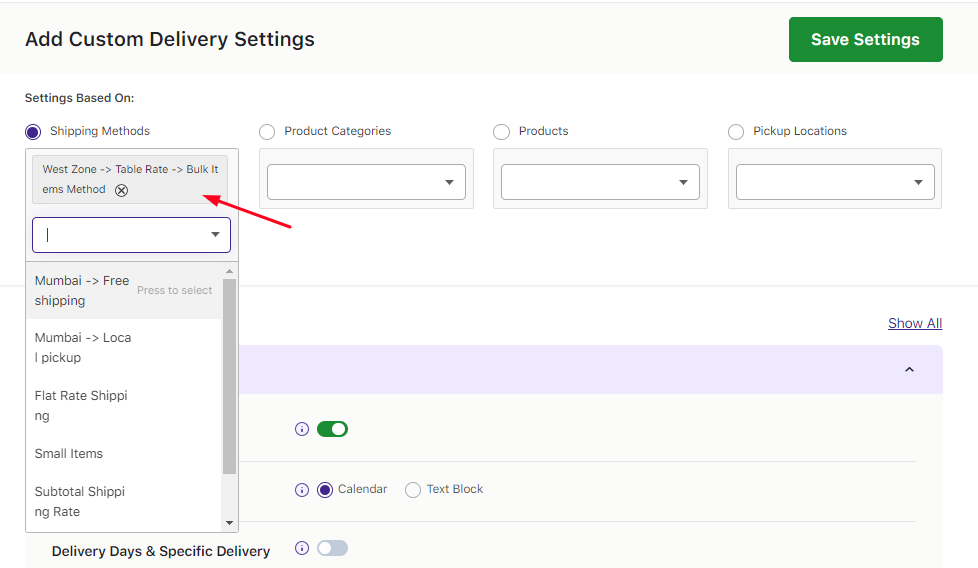
Bulk Items Method selected from the dropdown
2. Add settings for the selected Bulk Items Method
↑ Back to topAfter selecting the shipping method, you can add delivery date and time settings for it. Once they’re saved, they will appear like this:
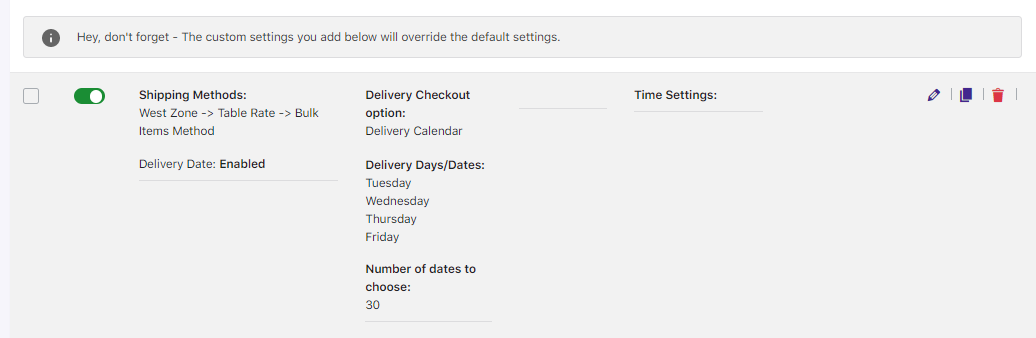
Display of delivery date and time settings for Bulk Items Method
This tells us that the delivery can take place only on Tuesday, Wednesday, Thursday, and Friday as per the settings added. This will reflect on the checkout page when Bulk Items Method condition is met.
3. Front-end display
↑ Back to topWhen you select items in the shopping cart, Bulk Items Method option will appear as shown below:
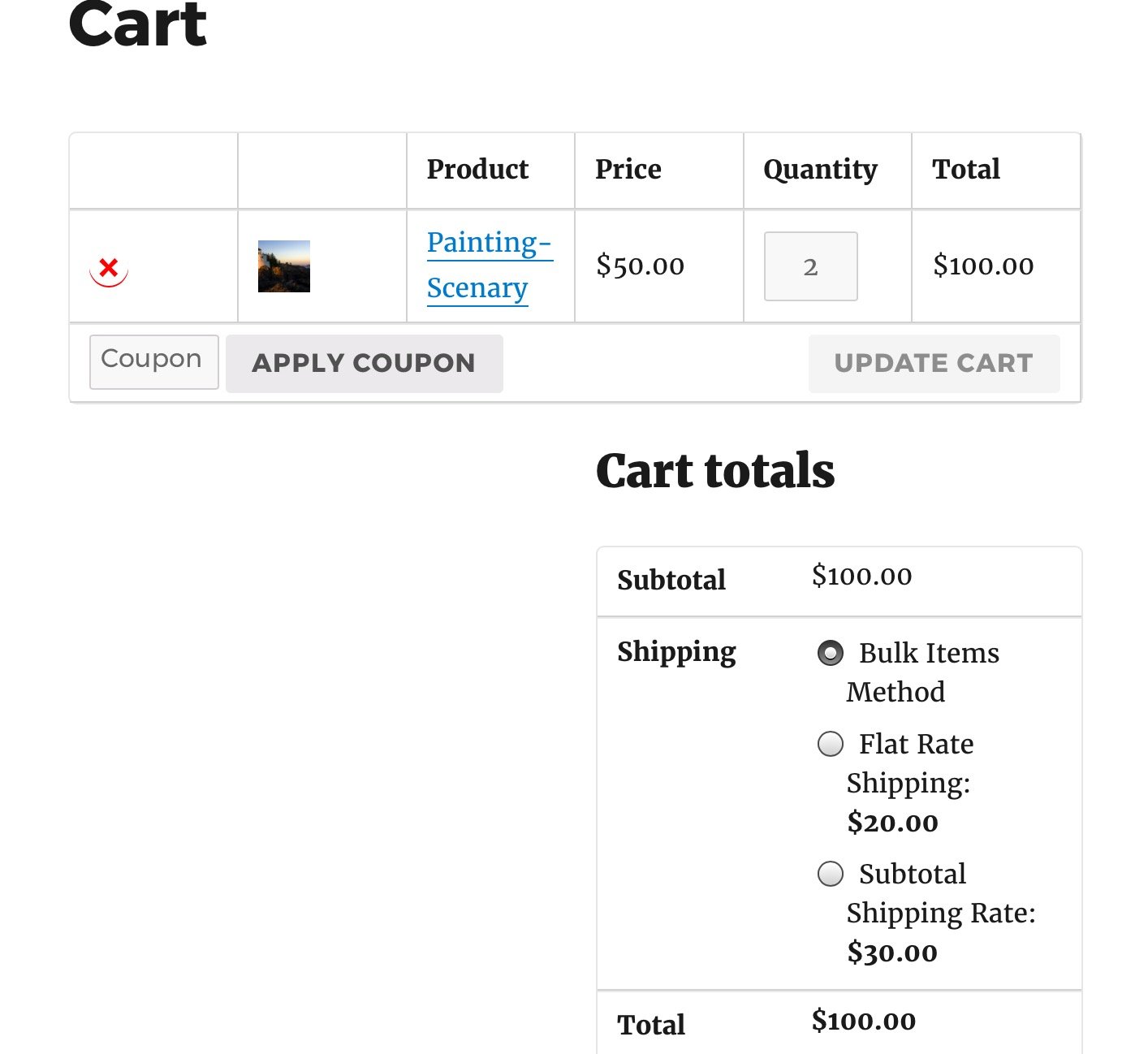
Bulk Items Method selected on cart page
Once the Bulk Items Method option is selected on cart page, all the settings for this method will be displayed on checkout page as shown here:
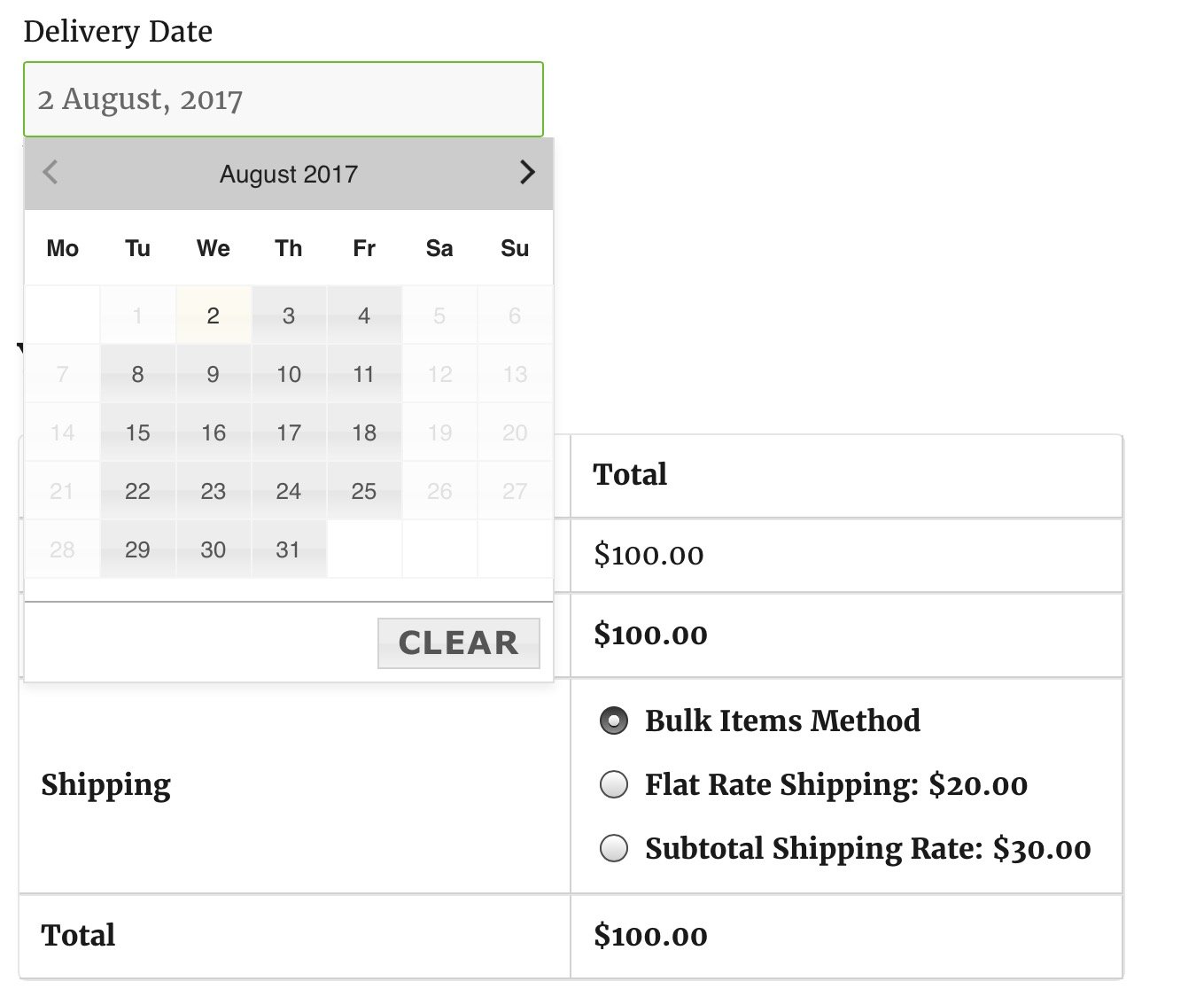
Checkout page showing delivery days enabled as per the settings
The deliveries can only take place between Tuesday to Friday since those were the settings we’d added for Bulk Items Method
To conclude, make use of this compatibility to tackle with all kind of order delivery hassles in quick and easy manner.
How do I create a delivery schedule with WooCommerce USPS Shipping Method?
↑ Back to topOrder Delivery Date Pro for WooCommerce is compatible with the largest delivery network in the United States: USPS Shipping Method. This extension allows customers to choose their delivery date and time for all USPS shipping deliveries and for different shipping zones.
1. Activate the extension
Firstly, we’ll install and activate the extension. This will add a new link called USPS under the Shipping tab at WooCommerce > Settings as shown below:

USPS link added
Next step is to set up shipping zone and add the shipping method under Shipping zones. For instance, let’s consider the shipping zone West Zone and add a new shipping method USPS as shown below:
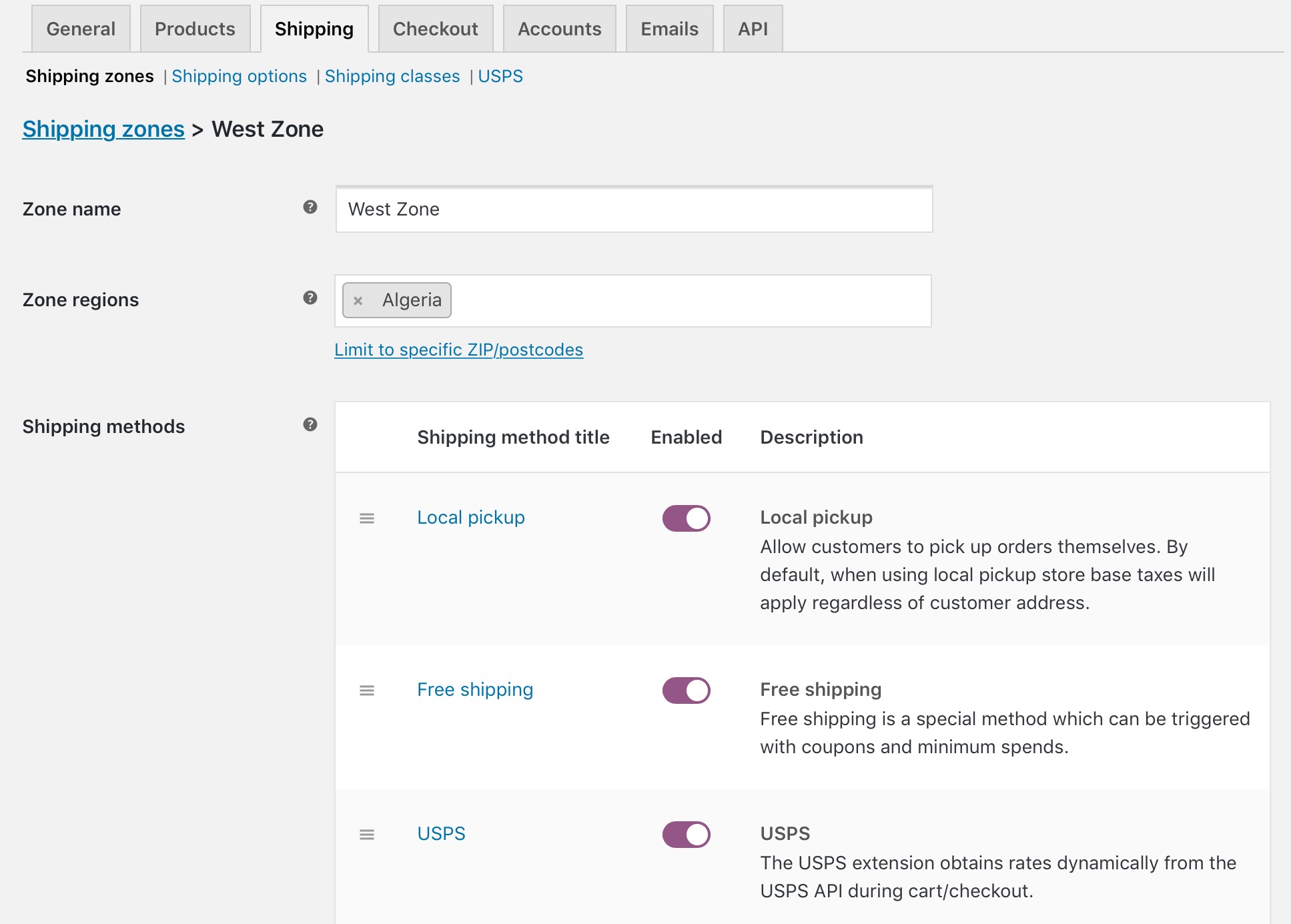
USPS added to West Zone
This tells us that whenever an order has to be delivered to the West Zone-Algeria region, the shipping method USPS will be shown under shipping methods.
With the same above instance, let us add delivery settings to this shipping method from Order Delivery Date Pro for WooCommerce plugin. For this, go to Order Delivery Date > Delivery Schedules > Add New Custom delivery schedule. Here you select West Zone > USPS > Priority Mail Express Flat Rate from the dropdown and add delivery settings.
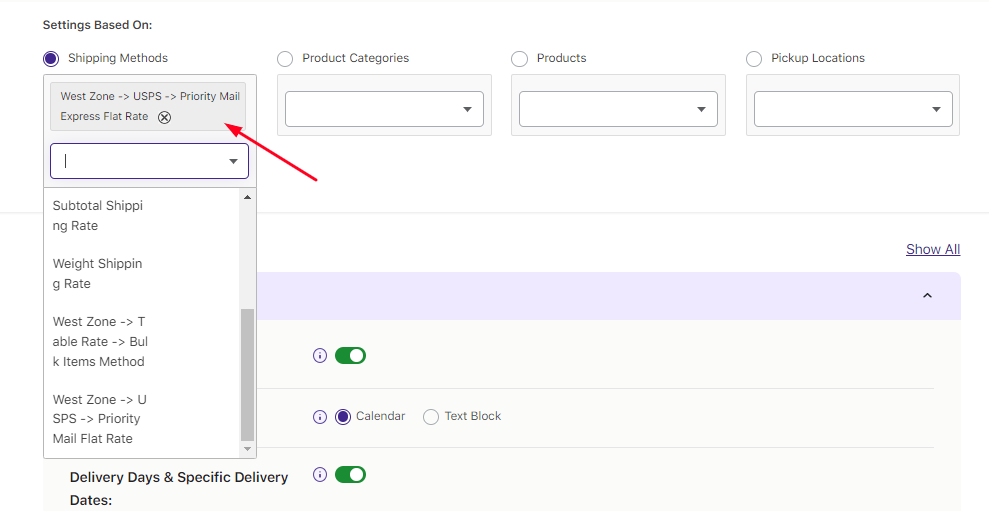
Shipping method dropdown
Once the settings have been added, they’ll appear as such:
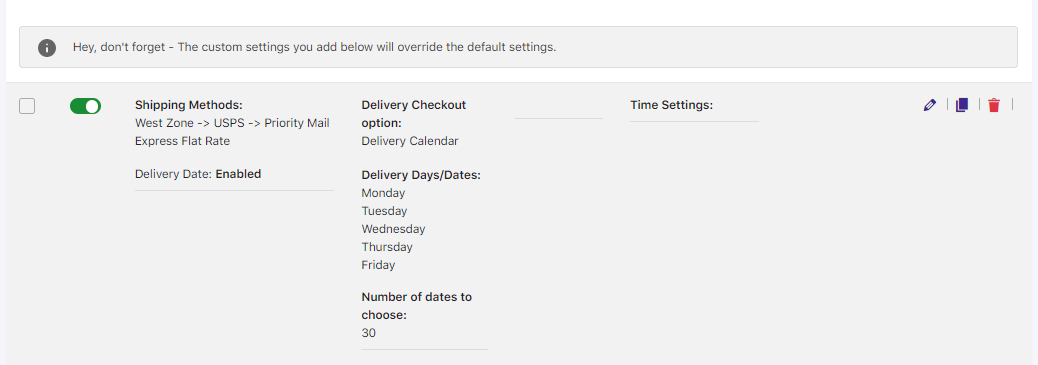
Delivery settings added to shipping method
As you can see, the Priority Mail Express Flat Rate shipping allows delivery only on weekdays from Monday to Friday. This means when customer selects a desired delivery date and time on the checkout page, only weekdays will be enabled to be selected, as shown below:
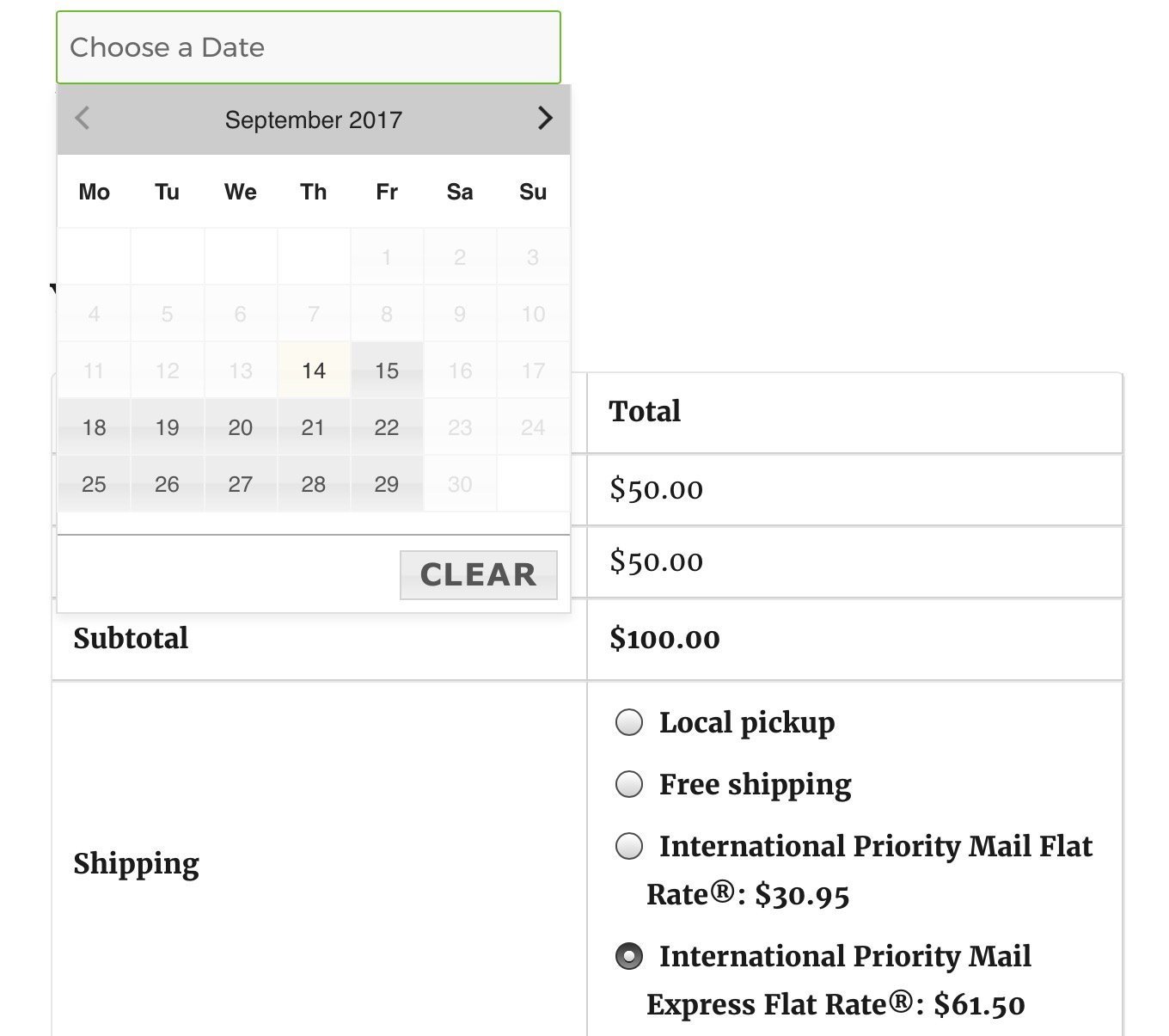
Dates enabled on the calendar as per the settings
Similarly, the shipping options for USPS shipping method also show up as International Priority Mail Flat Rate and International Priority Mail Express Flat Rate based on the added delivery settings.
How do I create a delivery schedule with the Table Rate Shipping for WooCommerce extension by Bolder Elements?
↑ Back to topThe third-party Table Rate Shipping for WooCommerce extension by Bolder Elements also helps us set Table Rate Shipping method for different shipping zone. Its compatibility with Order Delivery Date Pro for WooCommerce displays the settings added for this shipping method, on the front end.
Let’s see how this works.
1. Activate Table Rate Shipping Method
↑ Back to topGo to WooCommerce > Settings > Shipping > Shipping Zones to activate the extension:
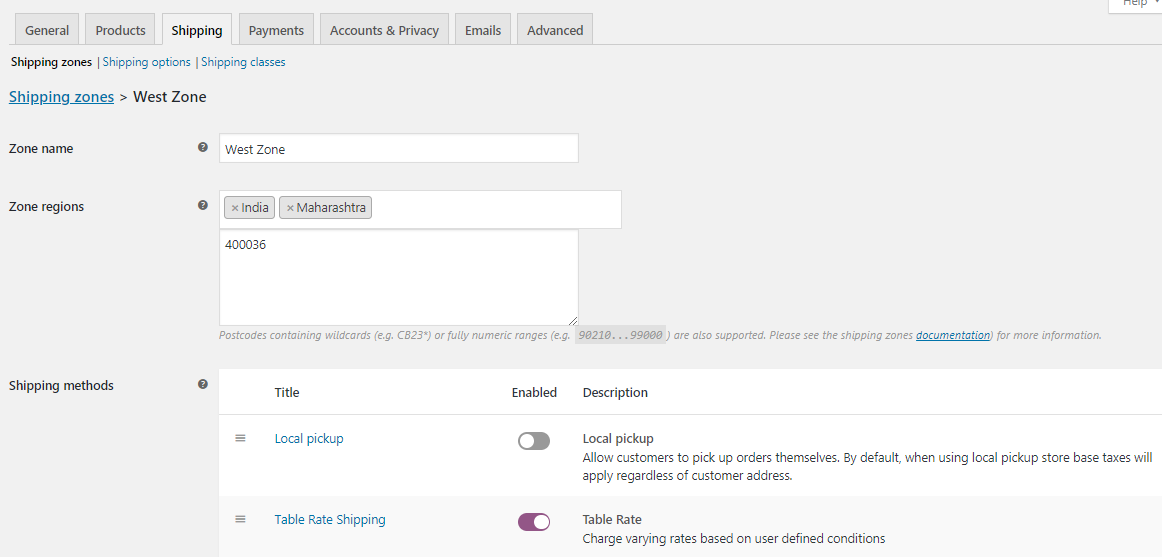
Table Rate Shipping method activated
The condition for this Shipping method is set as: When the Subtotal is greater than and equals to 100, then Bulk Item Shipping option will be enabled.
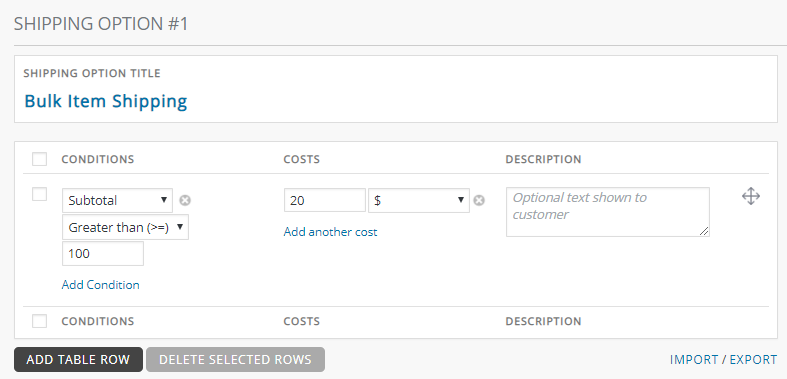
Condition set for Bulk Item Shipping
Once the shipping method is activated, you can go to Order Delivery Date > Delivery Schedule > Add custom delivery schedule > Shipping Methods.
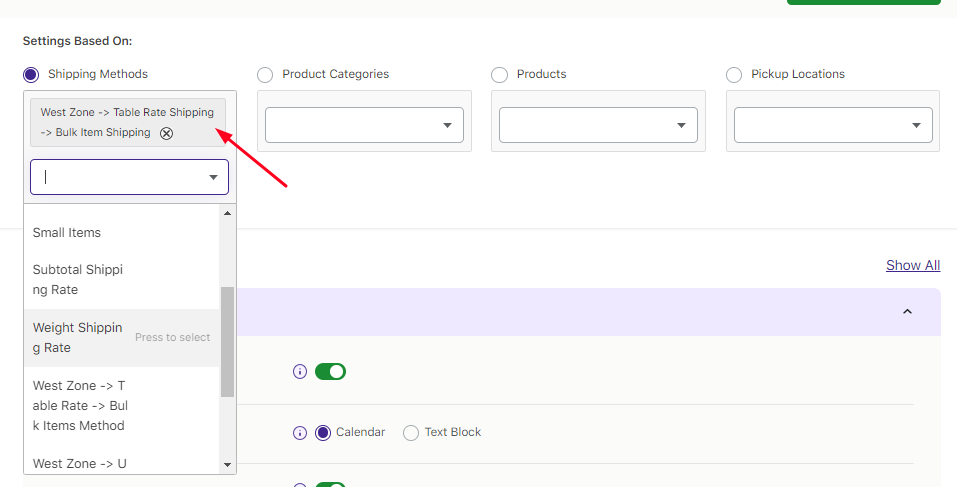
Bulk Items Shipping selected from the Dropdown
2. Add settings for the selected Bulk Items Shipping option
↑ Back to topAfter selecting the shipping method, you can add delivery date and time settings for it. Once filled, it will appear like this:
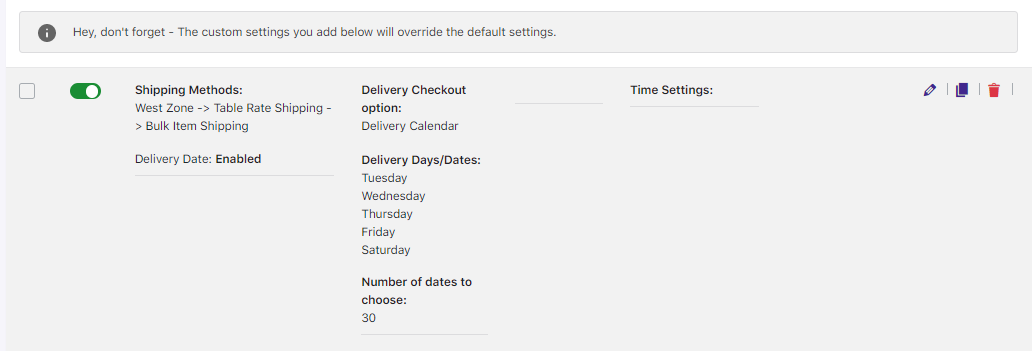
Display of delivery date and time settings for Bulk Items Shipping
This tells us that the delivery will take place on Tuesday, Wednesday, Thursday, Friday ,and Saturday as per the settings added. This will reflect on the frontend Checkout page when Bulk Items Shipping condition is met.
3. Front-end display
↑ Back to topWhen the customer selects items in the shopping cart, the Bulk Items Shipping option will appear on the Cart page if the condition for this shipping method is met. In the below instance the Subtotal for selected items is $200 which is more than $100.
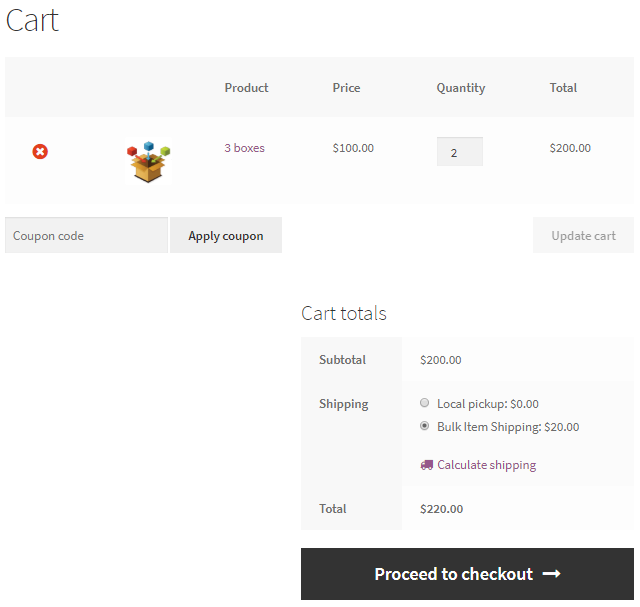
Bulk Items Shipping selected on Cart page
Since the customer chooses the Bulk Items Shipping option on the Cart page, all the settings for this method are displayed on Checkout page as shown below:
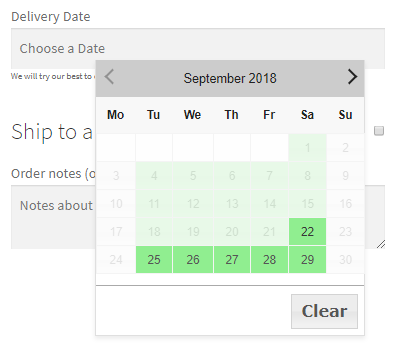
Checkout page showing delivery days enabled as per the settings
It will show delivery days of Bulk Items Shipping option enabled which is between Tuesday to Saturday.
How do I create a delivery schedule based on products and shipping methods?
↑ Back to topFor some online businesses, it is vital to have separate delivery schedules for specific products. That’s because some products will have unique delivery requirements which are not applicable to all the products in your store.
With Order Delivery Date Pro, you can easily create custom delivery schedules based on different products as well as separate shipping methods.
1. Creating a delivery schedule based on products and shipping methods
↑ Back to topGo to Order Delivery Date > Settings > Delivery Schedule.
Scroll down and click Add custom delivery schedule.
Choose the ‘Products’ option. You will also find an option for Shipping Methods. Based on your requirements, you can choose the Products and Shipping Methods. After saving the settings, they will be implemented on the front end.
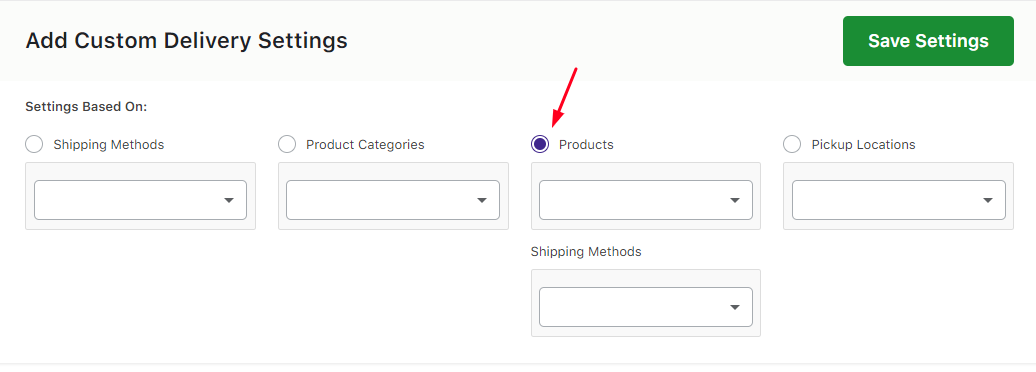
Different scenarios are considered with the products and the shipping methods under this segment. Here’s a look at them:
1. Product A + Shipping Method 1
2. (Product A + Shipping Method 1) + Product A
3. (Product A + Shipping Method 1) + (Product A + Shipping Method 2)
4. (Product A + Shipping Method 1) + Product B
5. (Product A + Shipping Method 1) + (Product B + Shipping Method 1)
6. (Product A + Shipping Method 1) + (Product B + Shipping Method 2)
1. Product A + Shipping Method 1
| Products | Delivery days of Shipping Method-1(Mumbai -> Free Shipping) |
|---|---|
| Product A (Art) | Sunday and Saturday |
*Default delivery settings are set as all days of the week and a few time slots.
Let’s say that you have added settings for Product A and Shipping Method 1 in the back-end, as shown here:

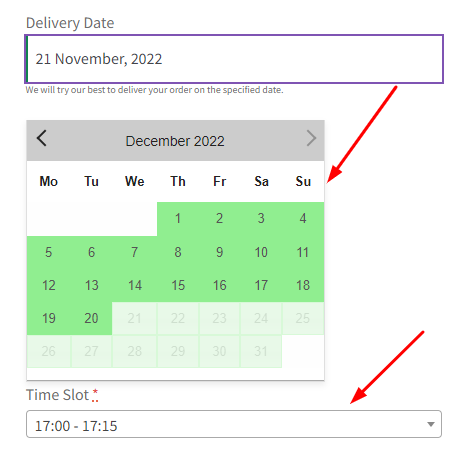
When the customer selects Product A (Art) and selects this same Shipping Method 1 in the cart, then settings added for Product A and Shipping Method 1 will be applicable. This would mean that the customer can only select the delivery dates that fall on Sunday and Saturday on the checkout delivery date calendar:
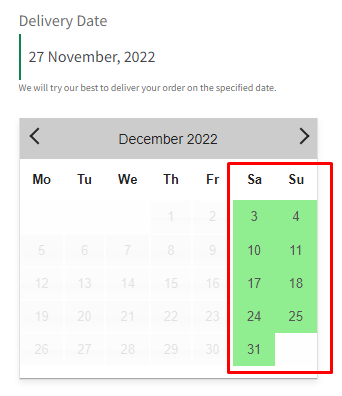
*If the customer adds Product A to the cart but does not select the same Shipping Method 1 on the cart/checkout page delivery date calendar, then the Default Delivery Settings will be considered.
For instance, if your default delivery settings have all the days and some time slots enabled (as shown in the image), your customer will get only these options on the checkout delivery date calendar.
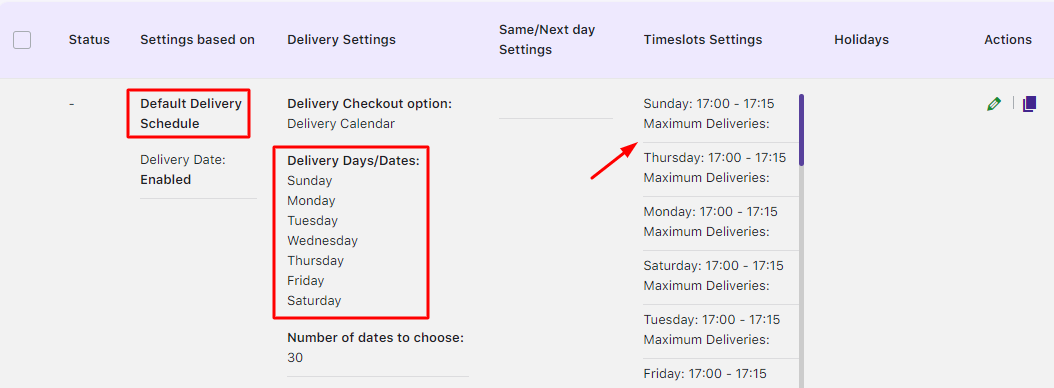
The checkout delivery date calendar will look this:
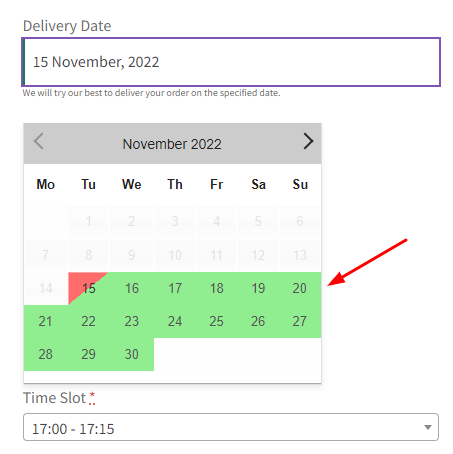
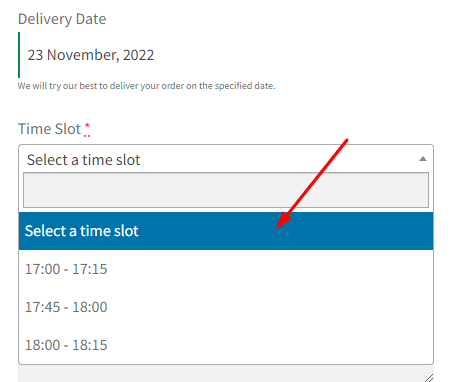
Similarly, corresponding timeslots that were added in the default delivery settings will be shown.
2. (Product A + Shipping Method 1) + Product A
| Products | Delivery days of Shipping Method-1 (Mumbai -> Free Shipping) | Custom Delivery Days |
| Product A (Art) | Saturdays and Sundays | Wednesdays |
*Default delivery settings are set as all days of the week and a few time slots.
If a customer adds Product A to the cart and selects Shipping Method 1, then the above-mentioned Product A + Shipping Method 1 will be applied.
In another instance,
- say you have a separate custom delivery schedule for Product A.
- Along with Shipping Method 1, you also have an alternate Shipping Method 2.
If your customer selects Shipping Method 2 for Product A (which has a customer delivery schedule), then the custom delivery schedule will be applied to the checkout delivery date calendar.
Example: Product A (Art) + Shipping Method 1 (Mumbai -> Free Shipping), where delivery takes place on Saturdays and Sundays.
The custom delivery schedule for Product A – Art is set for Wednesdays:

When your customer adds the Product ‘Art’ and selects Mumbai -> Free Shipping, then the checkout delivery date calendar will show Saturdays and Sundays as enabled.
But when your customer adds the same product and selects Mumbai -> Flat Rate Shipping (i.e. Shipping Method-2), then the checkout delivery date calendar will show Wednesdays as enabled. This is because the settings added for Product A will be applied in this case.
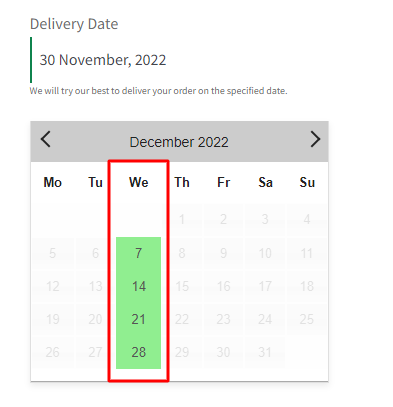
3. (Product A + Shipping Method 1) + (Product A + Shipping Method 2)
| Products | Delivery days of Shipping Method-1 (Mumbai -> Free Shipping) | Delivery days of Shipping Method-2 (Mumbai -> Flat Rate Shipping) |
| Product A (Art) | Saturdays & Sundays | Mondays & Tuesdays |
*Default delivery settings are set as all days of the week and a few time slots.
In this scenario, for the combination Product A (Art) + Shipping Method 1 (Mumbai -> Free Shipping), you have enabled the delivery dates on Saturdays and Sundays.
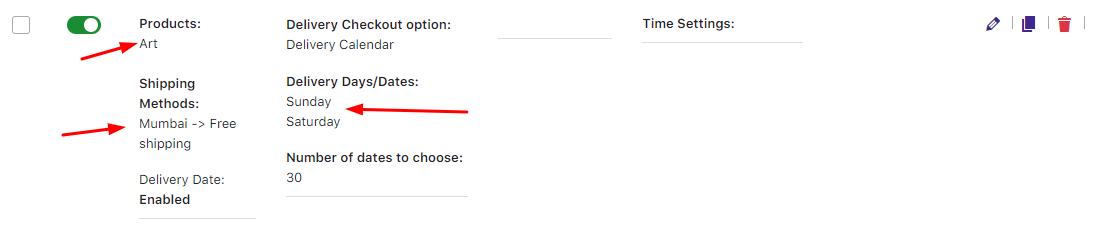
For another combination- Product A (Art) + Shipping Method 2 (Mumbai -> Flat Rate), you have enabled the delivery dates on Mondays and Tuesdays.
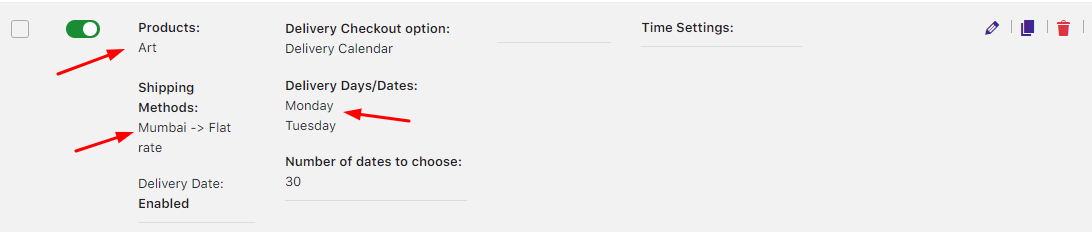
Now, if a customer adds Product A and selects Mumbai -> Free Shipping Method 1, then the settings added for the same combination will be applied. On the checkout delivery date calendar, Saturdays and Sundays will be enabled.
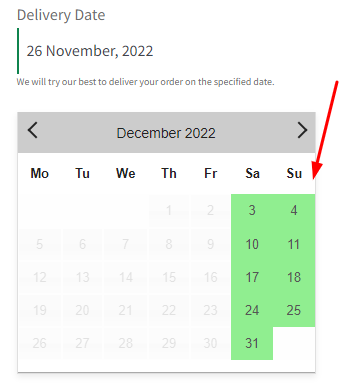
Similarly, if a customer adds Product A and selects Mumbai -> Flat Rate Shipping, then the corresponding combination delivery dates, Mondays and Tuesdays, will be enabled.
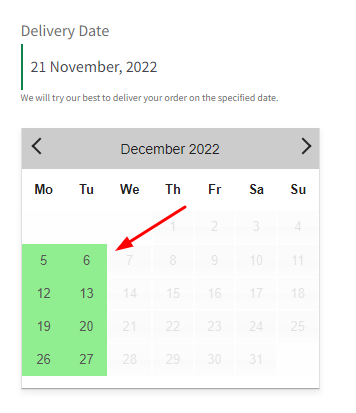
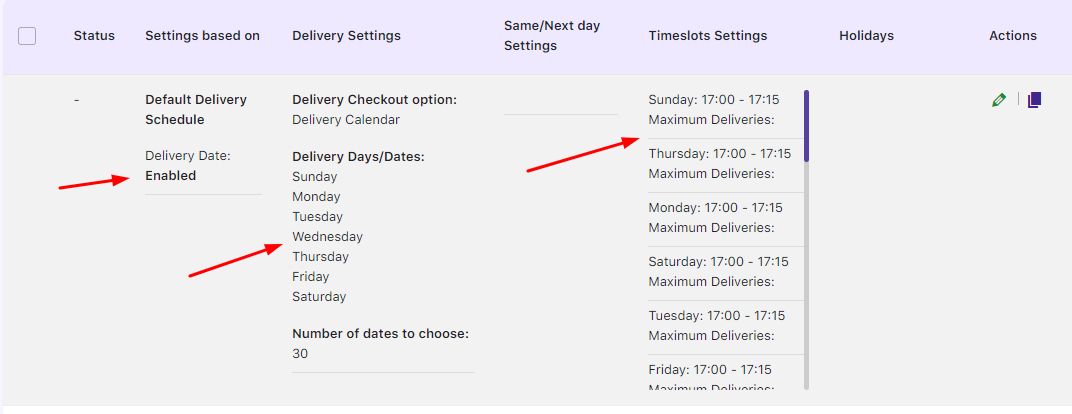
But supposedly, if a customer adds Product A and selects a shipping method other than Shipping Method 1 and Shipping Method 2, then Default Delivery Settings will be considered.
4. (Product A + Shipping Method 1) + Product B
| Products | Delivery days of Shipping Method-1 (Mumbai -> Free Shipping) | Custom Delivery Days |
| Product A(Art) | Mondays, Tuesdays,Wednesdays | – |
| Product B(Personalized Cup) | – | Wednesdays, Saturdays |
*Default delivery settings are set as all days of the week and a few time slots.
Let’s consider that Product A is Art while the Shipping Method 1 is Mumbai -> Free Shipping. Delivery days added for combination Product A + Free Shipping are Mondays, Tuesdays, and Wednesdays.
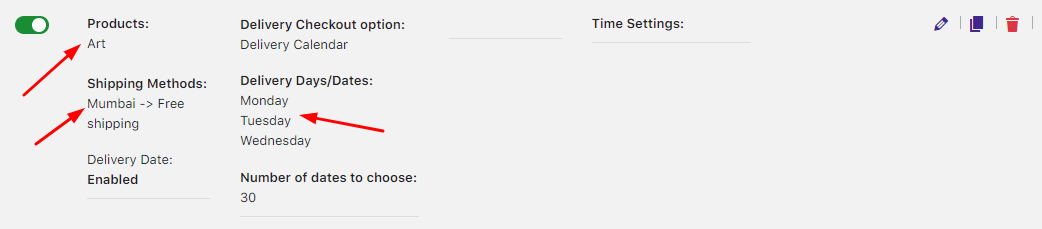
You have also added Product B which is a Personalized Cup. Delivery days added for Product B are set to delivery available on Wednesdays and Saturdays only.

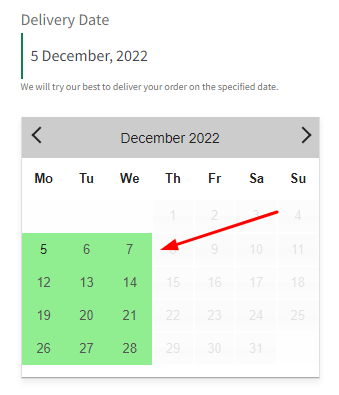
If your customer selects Product A and selects Shipping Method 1, then the checkout delivery date calendar will show settings added for Category A + Shipping Method 1 (Mumbai -> Free Shipping). Hence all Mondays, Tuesdays, and Wednesdays will be shown available for delivery.
If a customer adds a product of Product A but selects Shipping Method other than Shipping Method 1, then Default delivery settings will be applicable.
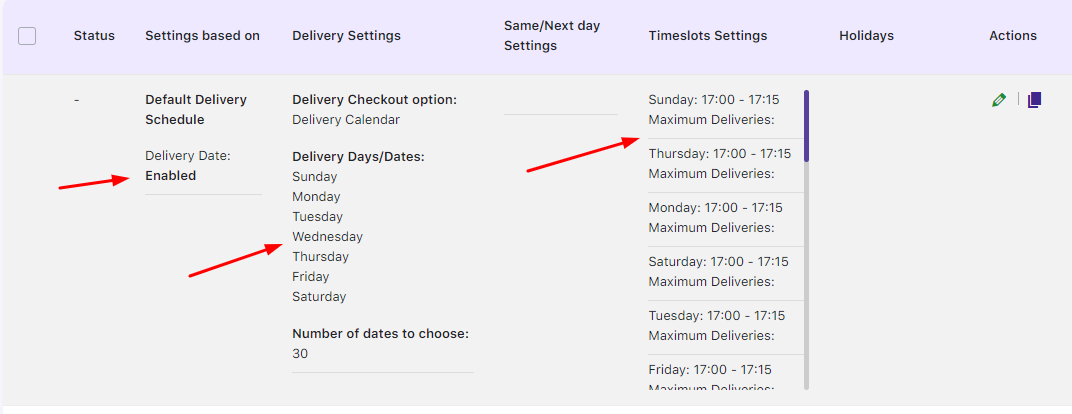
Default delivery settings
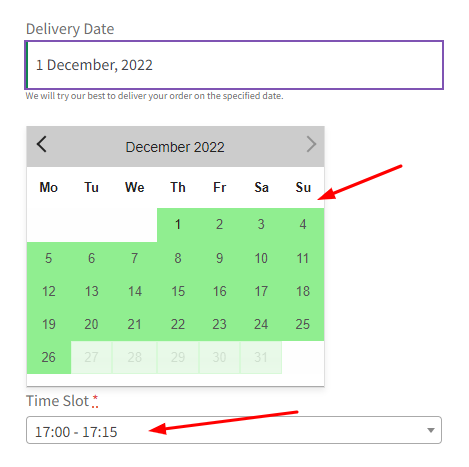
But if the Default Delivery setting is disabled and no other custom delivery schedule is enabled for only the Product, then if the customer selects any other Shipping Method, the result would be no checkout delivery date calendar:
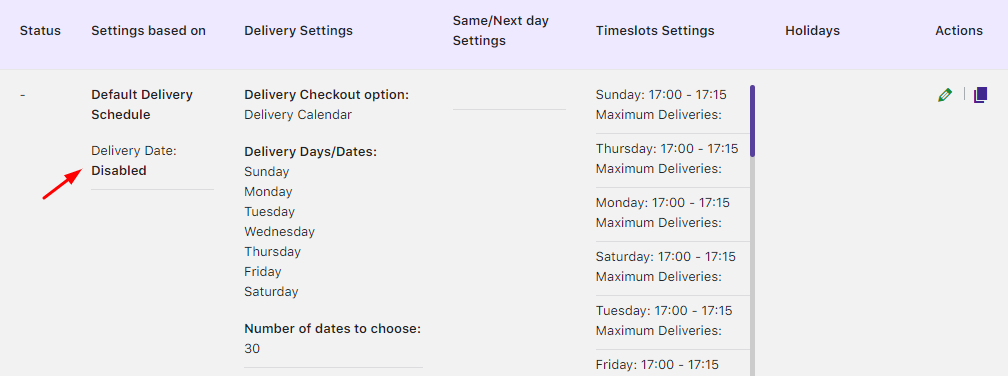
Default Delivery Schedule disabled
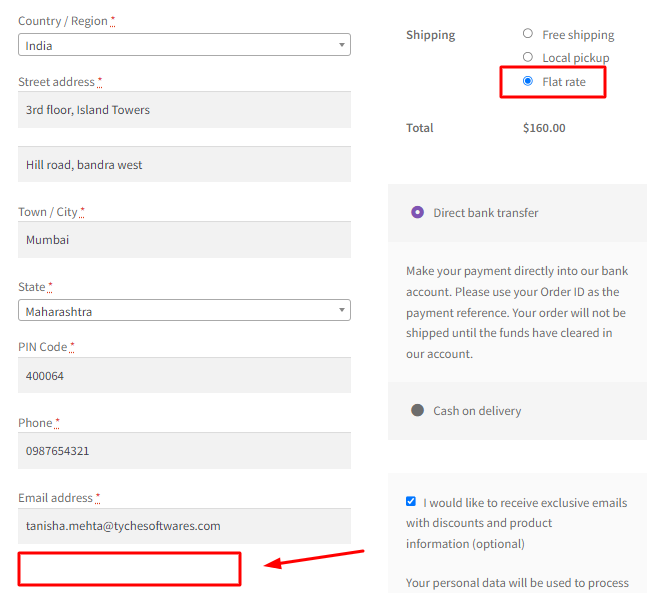
Delivery calendar unavailable when other Shipping Method selected
If a customer adds Product B in the cart and selects Shipping Method other than Shipping Method 1, then the settings of Product B will be considered which means all Wednesdays and Saturdays will be enabled in the checkout delivery date calendar
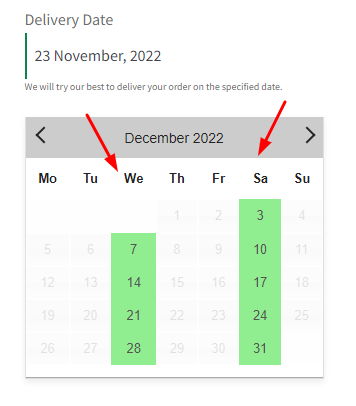
If a customer adds both Product A and Product B in the cart and selects Shipping Method 1 (Mumbai -> Free Shipping), then the common settings will be considered.
For example, as mentioned earlier Product A delivers on Monday, Tuesday, and Wednesday while Product B delivers on Wednesdays and Saturdays.
The common delivery days for both the products are Wednesdays. Therefore, all Wednesdays will be enabled in the checkout delivery date calendar.
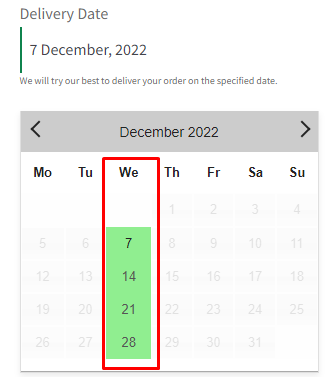
Also, if a customer adds products of Product A and Product B both in the cart and selects Shipping Method other than Shipping Method 1 (Free Shipping) then settings of Product B will be considered, which means all deliveries will be undertaken on only Wednesdays and Saturdays.
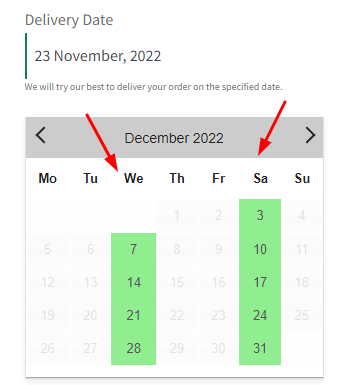
Let’s assume that both your Products do not have any common delivery days.
| Products | Delivery days of Shipping Method-1 (Mumbai -> Free Shipping) | Custom Delivery Days |
| Product A (Art) | Mondays, Tuesdays | – |
| Product B (Personalized Cup) | – | Saturdays |
*Default delivery settings are set as all days of the week and a few time slots.
For instance, Product A delivers on Mondays and Tuesdays while Product B delivers only on Saturdays as shown below:
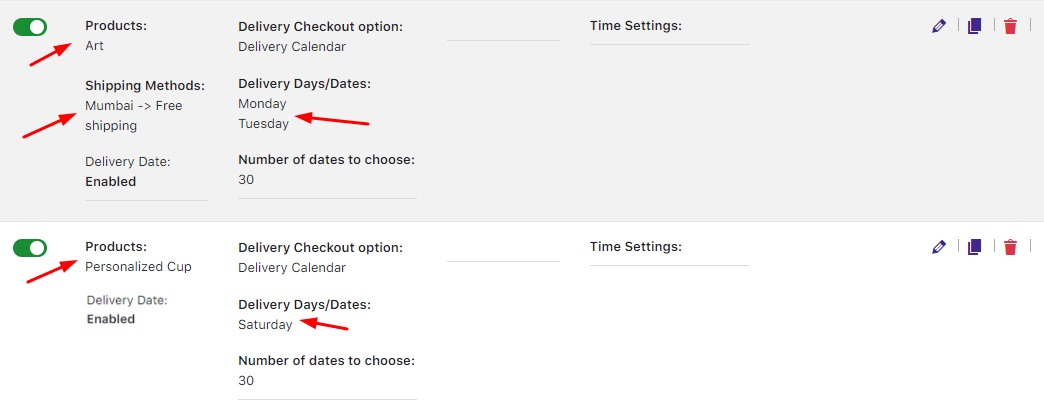
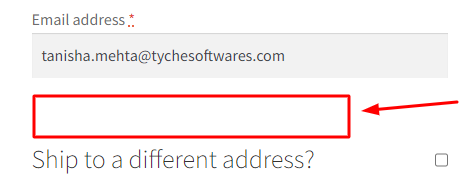
In this case, the checkout delivery date calendar would show no delivery weekdays enabled. Thus, the customer will not see any available delivery weekdays.
5. (Product A + Shipping Method 1) + (Product B + Shipping Method 1)
| Products | Delivery days of Shipping Method-1 (Mumbai -> Free Shipping) |
| Product A (Art) | Mondays, Tuesdays, Wednesdays |
| Product B (Personalized Cup) | Wednesdays, Thursdays, Fridays, Saturdays |
*Default delivery settings are set as all days of the week and a few time slots.
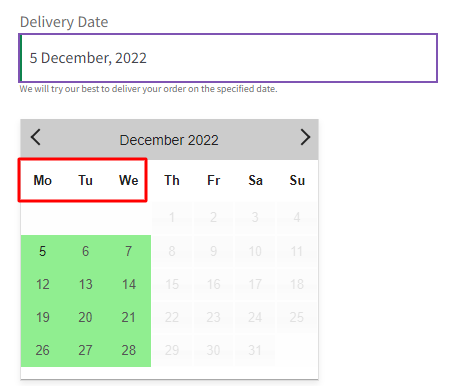
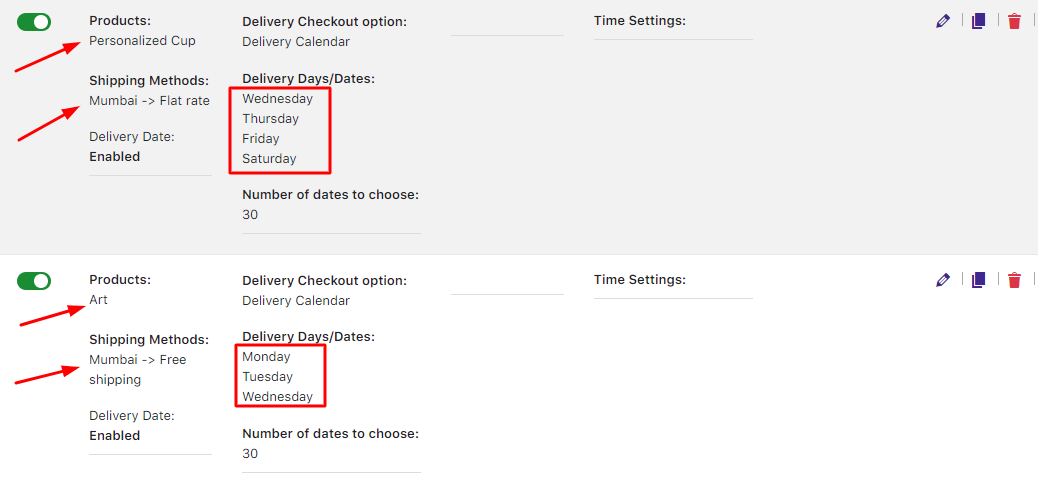
You have added settings for combination Product A (Art) + Shipping Method 1 (Mumbai -> Free Shipping), where delivery takes place on Mondays, Tuesdays and Wednesdays.
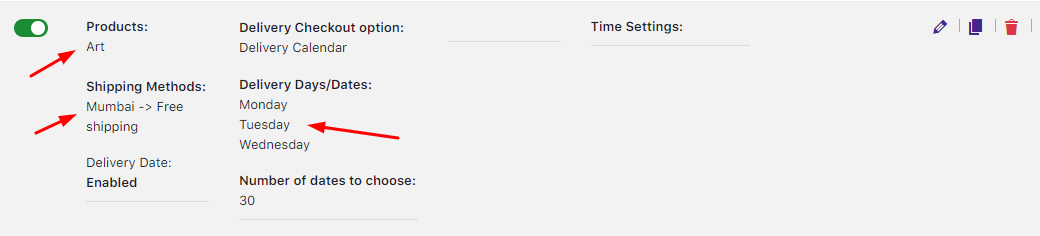
If the customer adds Product A and selects Shipping Method 1, then settings of combination Product A (Art) + Shipping Method 1 (Mumbai -> Free Shipping) will apply.
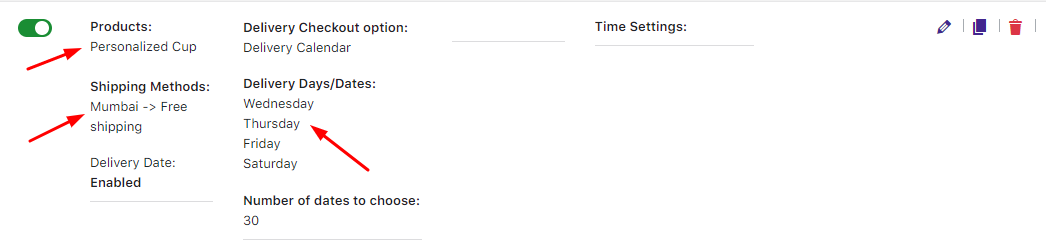
In this scenario, another combination of settings added are for Product B (Personalized Cup) + Shipping Method 1 (Mumbai -> Free Shipping), where delivery takes place on Wednesdays,Thursdays, Fridays and Saturdays.
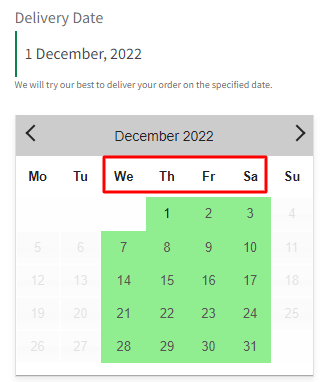
If customer adds Product B and selects Shipping Method 1, then settings of combination Product B (Personalized Cup) + Shipping Method 1 (Mumbai -> Free Shipping) will apply.
But if customer adds Product A or Product B in the cart and selects Shipping Method other than Shipping Method 1 (Mumbai -> Free Shipping), then Default Delivery Settings will be considered.
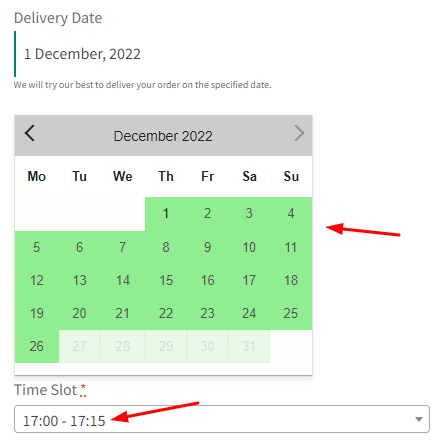
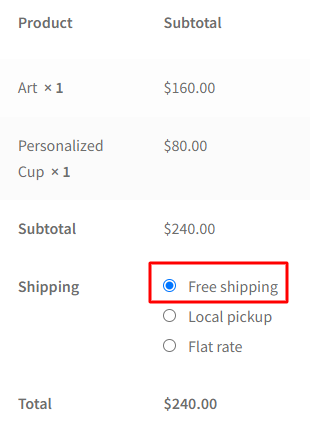
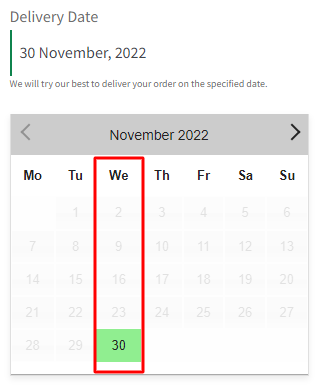
Also, let’s say that both Products A and B are added to the cart and Shipping Method 1 (Mumbai -> Free Shipping) is selected, then settings common for both combinations will be applicable. I.E:
Combination 1: Product Category A (Art) and Shipping Method 1 (Mumbai -> Free Shipping) – Mondays, Tuesdays and Wednesdays.
Combination 2: Product Category B (Personalised Cup) and Shipping Method 1 (Mumbai -> Free Shipping) – Wednesdays,Thursdays, Fridays and Saturdays.
Common Days: Wednesdays
6. (Product A + Shipping Method 1) + (Product B + Shipping Method 2)
| Products | Delivery days of Shipping Method-1 (Mumbai -> Free Shipping) | Delivery days of Shipping Method-2 (Mumbai -> Flat Rate Shipping) |
| Product A (Art) | Mondays, Tuesdays,Wednesdays | – |
| Product B(Personalized Cup) | – | Wednesdays, Thursdays, Fridays, Saturdays |
*Default delivery settings are set as all days of the week and a few time slots.
In this scenario, there are settings added for 2 Products namely Product A (Art) and B (Personalised Cup) and 2 Shipping Methods namely Shipping Method 1 (Mumbai -> Free Shipping) and Shipping Method 2 (Mumbai -> Flat Rate Shipping).
Your customer has added Product A and selected Shipping Method 1. In this case, the custom settings of Product A + Shipping Method 1 will be considered.
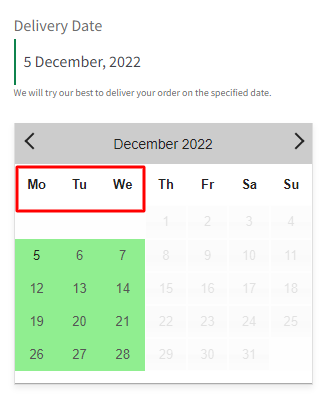
Similarly, if customer adds a product of Product B and selects Shipping Method 2, then custom settings of Product B + Shipping Method 2 will be considered.
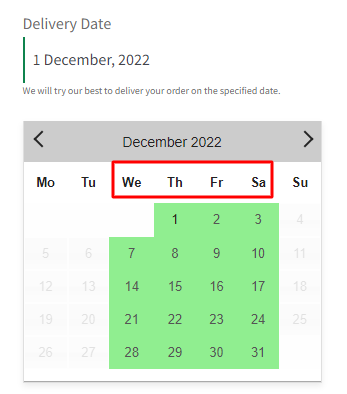
If customer adds products of both Products, say Product A and Product B in the cart and selects Shipping Method 1, then the settings added for Product A + Shipping Method 1 will be considered.
Similarly, if customer adds both the products, say Product A and Product B in the cart and selects Shipping Method 2, then the settings added for Product B + Shipping Method 2 will be considered.
If customer adds products from Product A and Product B but selects Shipping Method other than Shipping Method 1 and Shipping Method 2, then Default Delivery Settings will be applicable.
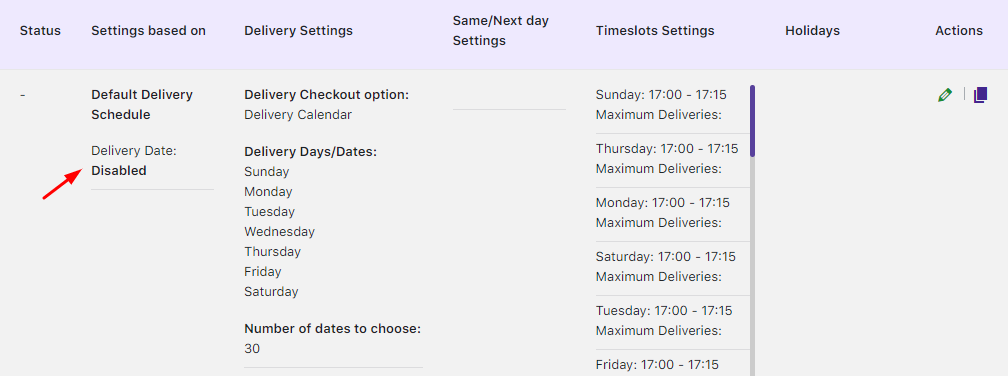
Default delivery schedule
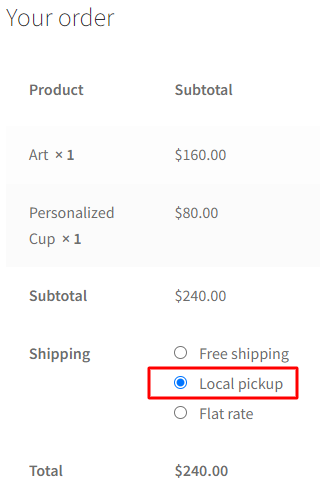
Selection of shipping method other than 1 and 2
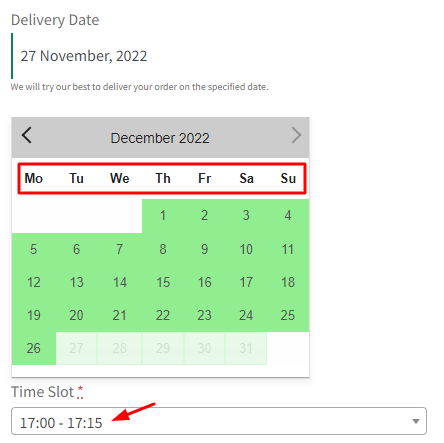
Delivery calendar display
In this manner, the custom delivery schedules of Products and Shipping Methods will work out in different scenarios.
How do I create a custom delivery schedule with Flexible Shipping for WooCommerce by WP Desk?
↑ Back to topThe third-party Flexible Shipping for WooCommerce extension by WP Desk provides advanced shipping functionalities for WooCommerce stores. It allows you to calculate shipping costs based on weight and/or cart total. Its compatibility with Order Delivery Date Pro lets you set custom delivery settings for shipping methods for different shipping zones.
Let us have a look at how this works.
1. Activate Flexible Shipping Method
↑ Back to topGo to WooCommerce -> Settings -> Shipping -> Shipping Zones to activate it. Enable the toggle for Flexible Shipping as shown below:
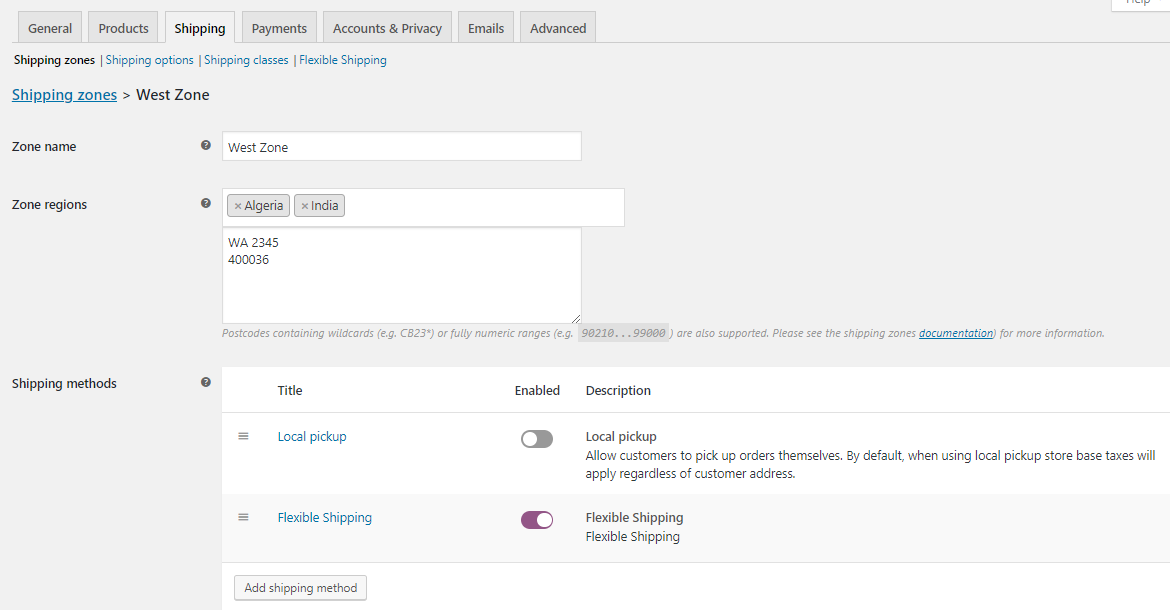
Flexible Shipping method activated
Now, edit this shipping method by clicking on Edit option. It will take you to the Flexible Shipping page as shown below:
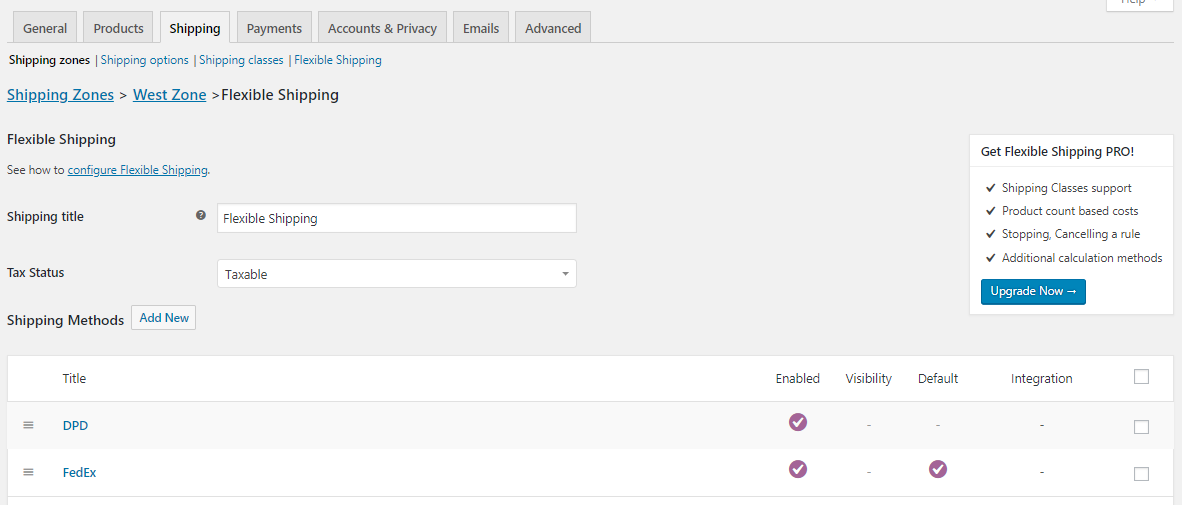
Flexible Shipping method page
Here there are 2 Shipping methods added namely DPD and FedEx. These would be displayed on the frontend when their conditions will be met.
The condition for DPD Shipping method is set as:
- When the Price ranges between $100 to $500, then $20 will be charged additionally for shipping.
- When the Price will range between $501 to $1000, then $40 will be charged additionally.
- If Weight is between 1 kg to 10 kgs, then charge of $10 will be applicable.
All of these are shown below:
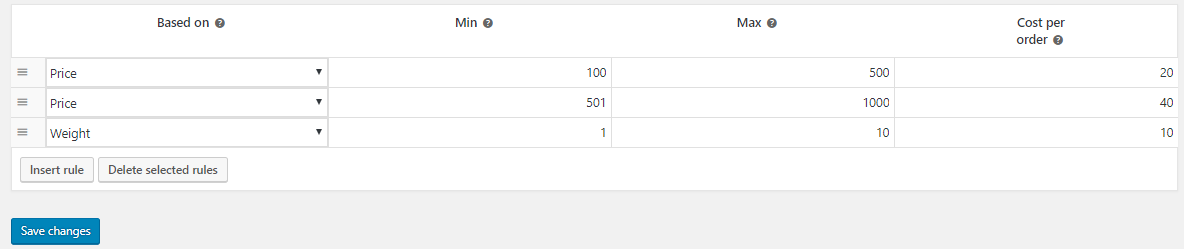
Condition set for DPD Shipping method
The condition for FedEx Shipping method is set as
- When the Price ranges between $10 to $500, $10 will be charged for shipping.
- When Weight ranges between 5 kgs to 15 kgs, then $15 will be charged additionally
All of these are shown below:

Condition set for FedEx Shipping method
Once the shipping methods are activated, these will appear in the dropdown of Shipping Methods under Custom Delivery Schedule of the Order Delivery Date Pro for WooCommerce plugin.
For this, simply go to Order Delivery Date > Delivery Schedule > Add custom delivery schedule > Shipping Methods:
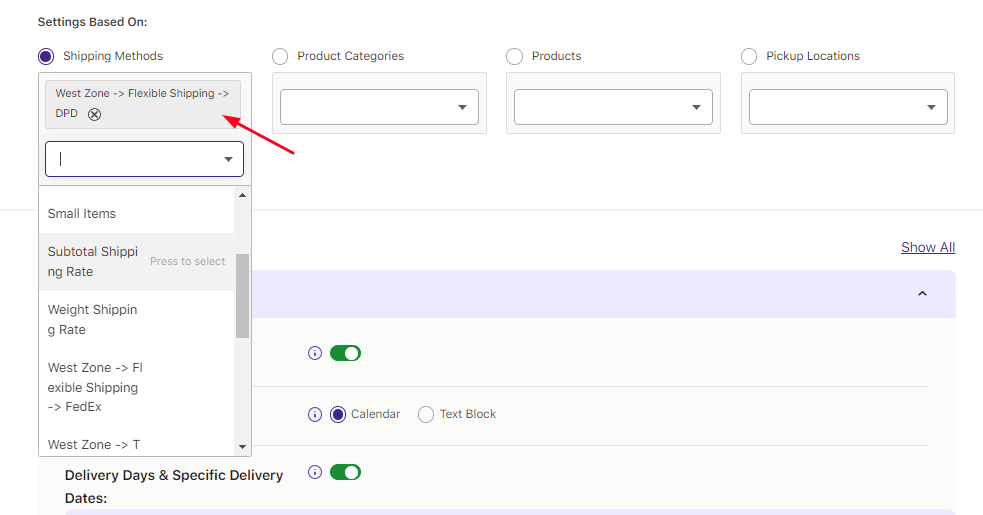
Flexible Shipping – DPD selected from the Dropdown
2. Add settings for the selected Flexible Shipping options
↑ Back to topAfter selecting the shipping method, you can add delivery date & time settings for it. For instance, we’ve added settings for DPD Shipping method as shown here:
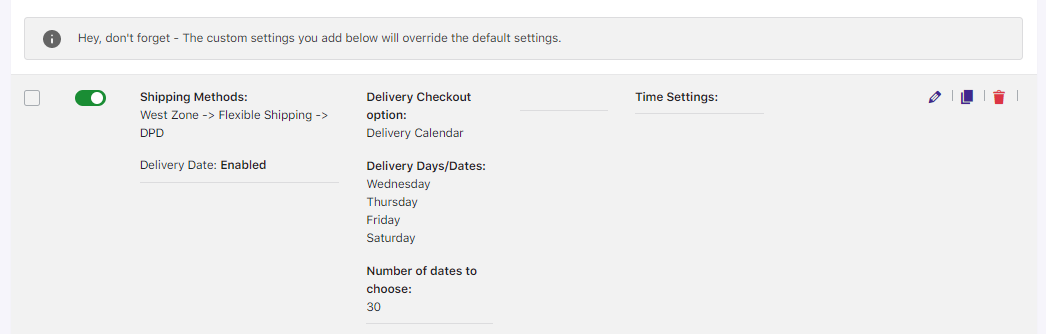
Display of delivery date and time settings for Flexible Shipping – DPD shipping method
This tells us that the delivery can take place on Wednesday, Thursday, Friday and Saturday when DPD Shipping condition is met.
3. Frontend Display
↑ Back to topWhen the customer chooses an item in the shopping cart, Flexible Shipping option appears on the Cart page with both the shipping methods displayed as the conditions of both shipping methods are met.
DPD shipping method is displayed because the Price for selected item is $500 which ranges between $100 to $500. Thus, the charge of $20 is added to the total.
Similarly, FedEx Shipping method is displayed because the Price for selected item is $500 ranges between $10 to $500; a charge of $10 is shown.
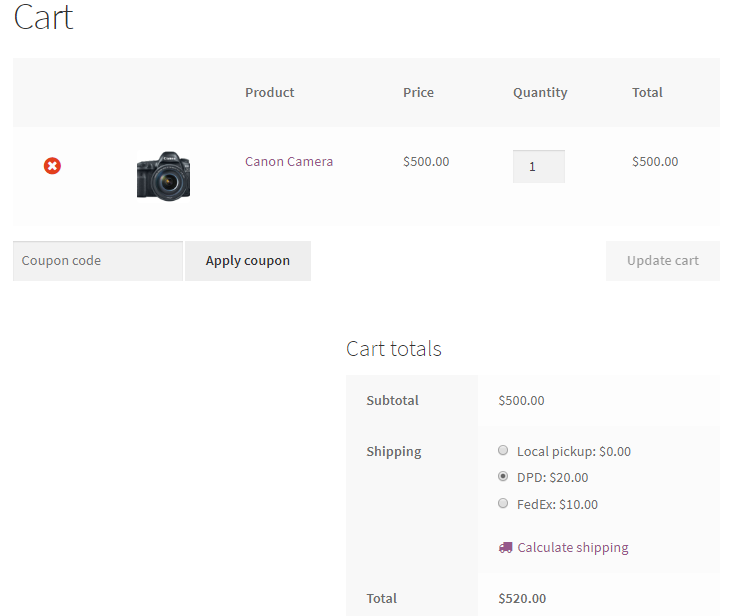
DPD Shipping method selected on Cart page
We’ll move forward by selecting the DPD option on the Cart page. The delivery settings added for DPD will appear on the Checkout page calendar as shown below:
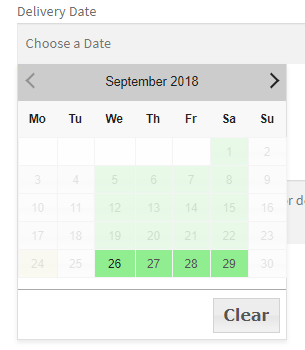
Checkout page showing delivery days enabled as per the settings
As per the settings added in the backend, deliveries will take place between Wednesday to Saturday, hence only those days are enabled in the calendar.
To conclude, use this compatibility of Order Delivery Date Pro for WooCommerce plugin with Flexible Shipping for WooCommerce plugin by WP Desk toallows customer to opt for desired shipping option for order delivery!
How do I create a delivery schedule with UPS Shipping Method by WooCommerce?
↑ Back to topUPS Shipping Method by WooCommerce allows you to get shipping rates from the UPS API. Its compatibility with Order Delivery Date Pro allows customers to choose their delivery date and time for all UPS shipping deliveries and for different shipping zones.
Let’s seehow this works.
1. Activate UPS Shipping Method
Go to WooCommerce > Settings > Shipping > Shipping Zones to activate the extension.
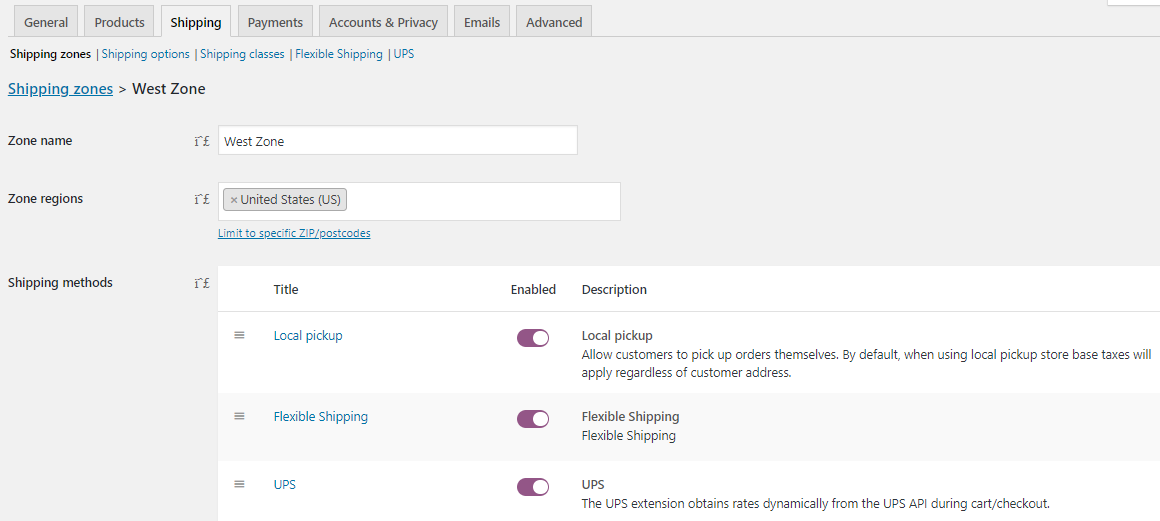
UPS Shipping method activated
Click on Edit option for UPS Shipping Method and enable services as per the requirement as shown below:
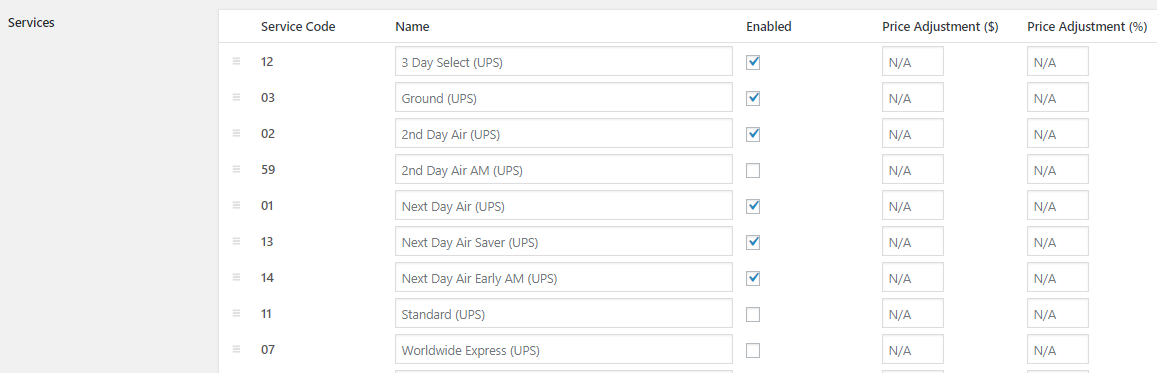
Enabling services on the Edit UPS page
We’ll also add dimensions for the Custom Boxes on the same page as shown below:

Adding dimensions for Custom Boxes
Thus, when the above dimensions of the box matches the dimensions of the selected product in the frontend, custom delivery settings will be enabled.
Please also note that the services which are enabled will appear in the dropdown list under Order Delivery Date > Delivery Schedule > Add new custom delivery schedule > Shipping Methods. The ones which are not enabled will not be displayed.
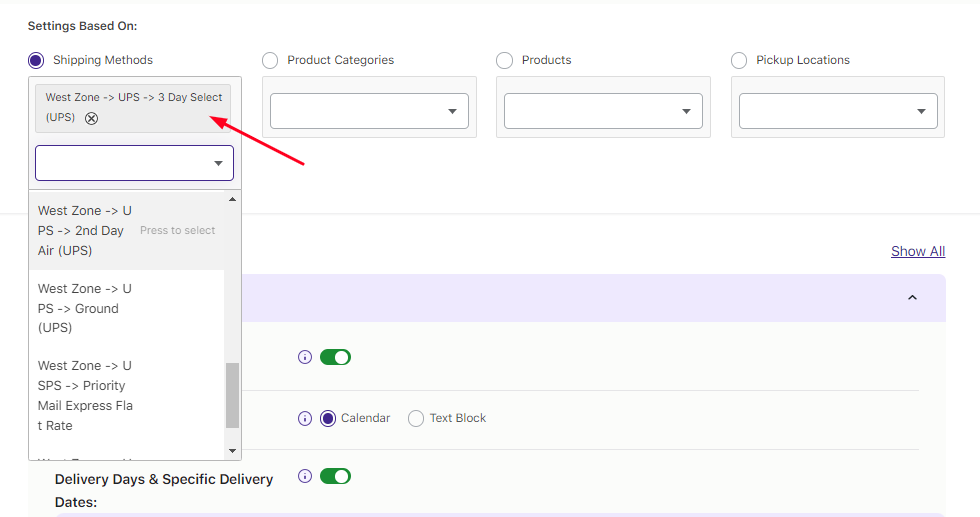
3 Day Select (UPS) selected from the dropdown
2. Add settings for the selected 3 Day Select (UPS) option
↑ Back to top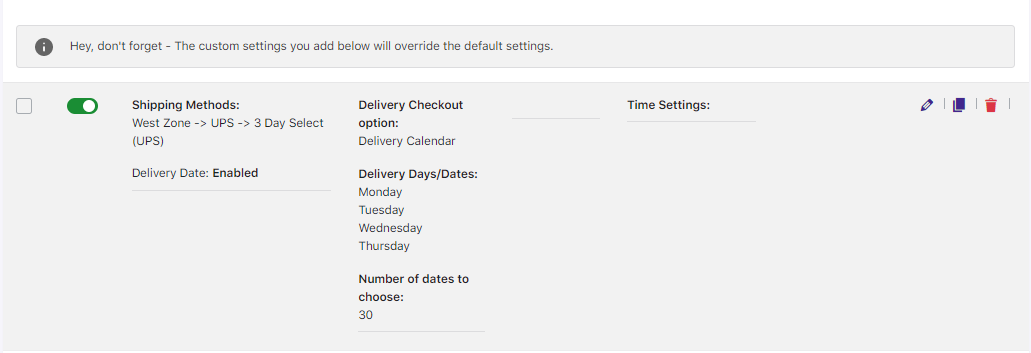
After selecting the shipping method, you can add delivery date and time settings for it. They’ll appear like this:
Delivery date and time settings for 3 Day Select (UPS) option
This tells us that the delivery will take place only on Mondays, Tuesdays, Wednesdays, and Thursdays as per the settings added. This will reflect on the Checkout page when UPS Shipping Method condition is met.
3. Front-end display
↑ Back to topWhen the customer selects an item in the shopping cart, UPS Shipping Methods will appear on the Cart page. This is because, the dimensions set in the backend for the selected product Packed Meal met the condition for UPS Shipping Method as shown below:
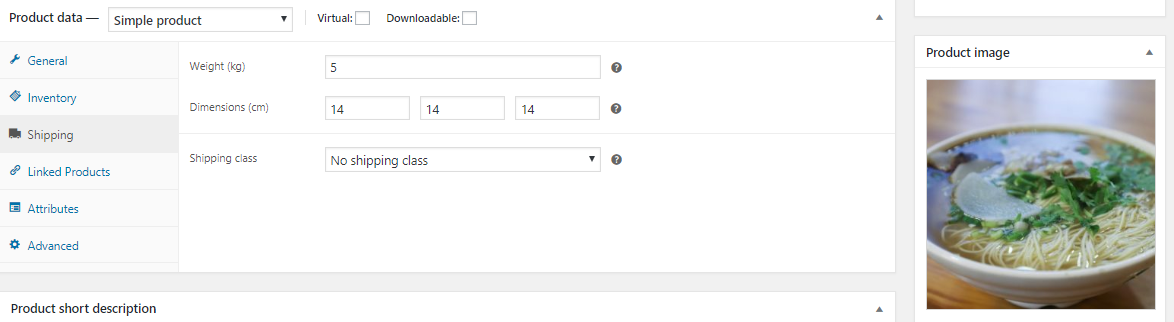
Dimensions set in the back-end for Packed Meal
When customer selects 3 Day Select (UPS) option on the Cart page,the total shows additional charge of $77.05 added to the product price as shown below:
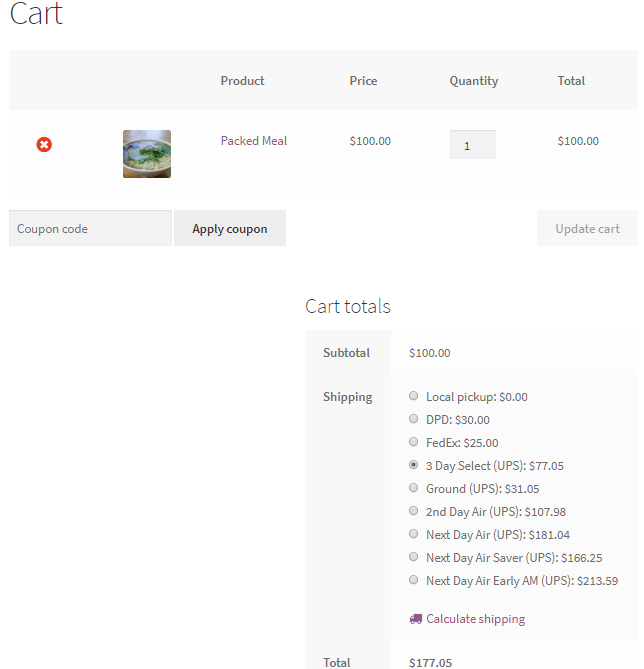
UPS Shipping Methods displayed on Cart page
The Custom delivery schedules added for 3 Day Select (UPS) Shipping Method will be displayed on the Checkout page.
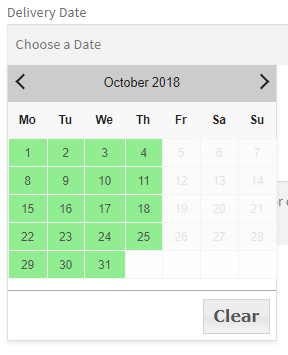
Checkout page showing delivery days enabled as per the settings
As per the settings added in the back-end, deliveries can take place between Monday to Thursday, hence you can see only those days enabled in the calendar.
To summarise, the compatibility functionality of Order Delivery Date Pro for WooCommerce with UPS Shipping for WooCommerce will help customers avail the facility of selecting their desired delivery date and time from range of shipping options! This will help the shop owners to provide additional service to their customers for better order delivery experience.
To learn more about the different settings that can be configured while you create delivery schedules, review our documentation for Order Delivery Date settings and Common Delivery Schedule settings.
Is it possible to configure delivery to a certain postal code on different days?
Yes, you can deliver to different zip codes on different days. This is possible by creating custom delivery schedules.
Can I control available delivery dates based on customer location, such as state, city, or ZIP code?
Yes. You can control delivery availability based on where the customer is located by creating different delivery schedules for different shipping zones. Each zone can have its own delivery days, cut-off times, and minimum preparation time.
Can I set different delivery dates for different product categories?
Yes — you can create custom delivery schedules for each product category, so different types of products can have their own delivery dates.
Can I exclude weekends from delivery since we only deliver on workdays?
Yes. You can choose which days should be available for delivery. Simply disable Saturday, Sunday, or any other days when you do not offer delivery, and customers will only be able to select the remaining working days.
Can I set a minimum preparation or handling time before delivery?
Yes. You can set a minimum preparation time so customers can only choose delivery dates or time slots after that buffer period has passed. This is especially useful for businesses like bakeries, restaurants, grocery stores, and local delivery services that need time to prepare, pack, or process orders before delivery or pickup.
Is the delivery date & time displayed in the order confirmation emails?
Yes, the Delivery Date and Time will be displayed in the order notification emails sent to the customers as well as the admin.
Can I set cut-off times and extra charges for same-day or next-day delivery?
Yes. You can configure cut-off times for same-day and next-day delivery or pickup, and also add additional charges for these options.
Can I charge extra for deliveries on holidays or special dates?
Yes! You can set additional delivery charges for specific dates. For example, you might charge an extra $10 for deliveries on Christmas. Customers choosing that date at checkout will automatically see the extra charge applied.
Can customers see available delivery dates on the product page before adding items to their cart?
Yes. In the Pro version, you can show available delivery dates on product pages via the Delivery Date Availability Calendar widget so customers know when each product can be delivered before checkout. This helps them plan their order and avoid surprises at the cart or checkout stage.
Can I set different working days for my company and my shipping provider?
Yes. You can define separate working days for your own company and your shipping company, so the plugin can handle delivery schedules accurately without conflicts.WP Admin dashboard. Firstly, you need to enable Enable Delivery Time capture, then select Delivery From Time and Delivery To Time from their respective dropdowns. In this manner, the time range will be created and time sliders will be displayed on the calendar with the set time range on the checkout page.
Can I set different preparation times for delivery and pickup orders?<br><br>
Yes. You can set different preparation times for delivery and pickup by creating separate delivery schedules and assigning them to each shipping method.
Can I control how far in advance customers can select a delivery date?
Yes. You can decide how far in advance customers are allowed to select a delivery date. For example, you can allow delivery dates only for the next 7, 14, or 30 days — depending on how far ahead you want to accept orders.
Can I let customers choose a delivery time range?
Yes. You can let customers select a preferred time range for their booking. For example, they could choose a slot between 9 AM and 6 PM. This gives customers flexibility while helping you manage availability and schedule resources efficiently.
Can I offer two or more delivery time slots on the same day?
Yes. You can create multiple delivery time slots for the same day, such as afternoon and evening deliveries.
Can I set different fees for different delivery time ranges?
Yes. You can allow customers to select their preferred delivery time range at checkout and configure separate fees for each time range based on your business requirements.
Can I make the delivery date & time selection fields optional?
Yes. The delivery date and time fields can be set as optional. When the ‘Mandatory field’ option is disabled, customers will be able to proceed to checkout and place their order without making a selection.
Can I show an estimated delivery date as text instead of the delivery date field at checkout?
Yes. You can display an estimated delivery date on the checkout page instead of the delivery date field, making it simpler for customers to see when their order is expected.
Can I hide the delivery date for pre-order products?
Yes. You can group all pre-order products under a separate product category and disable the delivery date for that category. When a pre-order item is added to the cart, the delivery date field will be hidden at checkout.
Can I offer both delivery and in-store pickup on my store?
Yes! You can let customers choose between Delivery and Pickup directly on the checkout page.
Is the plugin compliant with GDPR guidelines?
Yes. We have made every effort to make our plugin compliant with GDPR guidelines. It does not collect or process customers’ personal data without user consent.
Can admins and customers sync delivery date and time slots with Google Calendar?
Yes! Admins can export delivery events to their Google Calendar, and customers can add their selected delivery or pickup dates to their own calendars.
Is the plugin compatible with WooCommerce HPOS (High-Performance Order Storage)?
Yes. The plugin is fully compatible with WooCommerce HPOS, so you can continue using its features without any issues on sites using the latest WooCommerce order storage system.
Questions and support
↑ Back to topPlease fill out this pre-sales form.

