Smart Coupons provide a powerful, “all-in-one” solution for gift cards, store credits, discount coupons, and vouchers extending the core functionality of WooCommerce coupons.
Linking coupons with specific products in WooCommerce can be really helpful. It’s a smart way to offer discounts, cashbacks, or special deals for particular products on their next purchase. This is a great way to encourage repeat purchases and reward your customers with your store.
This documentation explains how to link coupons with a product in the current order so they can be redeemed by customers on their next orders.
Steps to link coupons to a product
↑ Back to top- Go to the WordPress Admin panel > Marketing > Coupons.
- Create coupons by following the steps here, later (set discount type, restrictions, limits, etc.).
- Navigate to Products and edit the product you want to link with the coupon.
- Look for ‘Coupons’ under the General tab.
- Search and select the coupons (you have created in your store) from the suggestions displayed. You can link multiple coupons as needed.
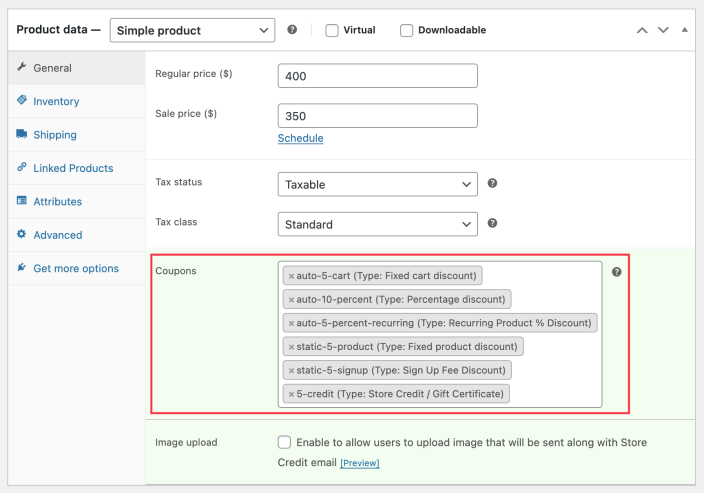
- Set up all other details for the product.
- Select Update or Publish to save changes.
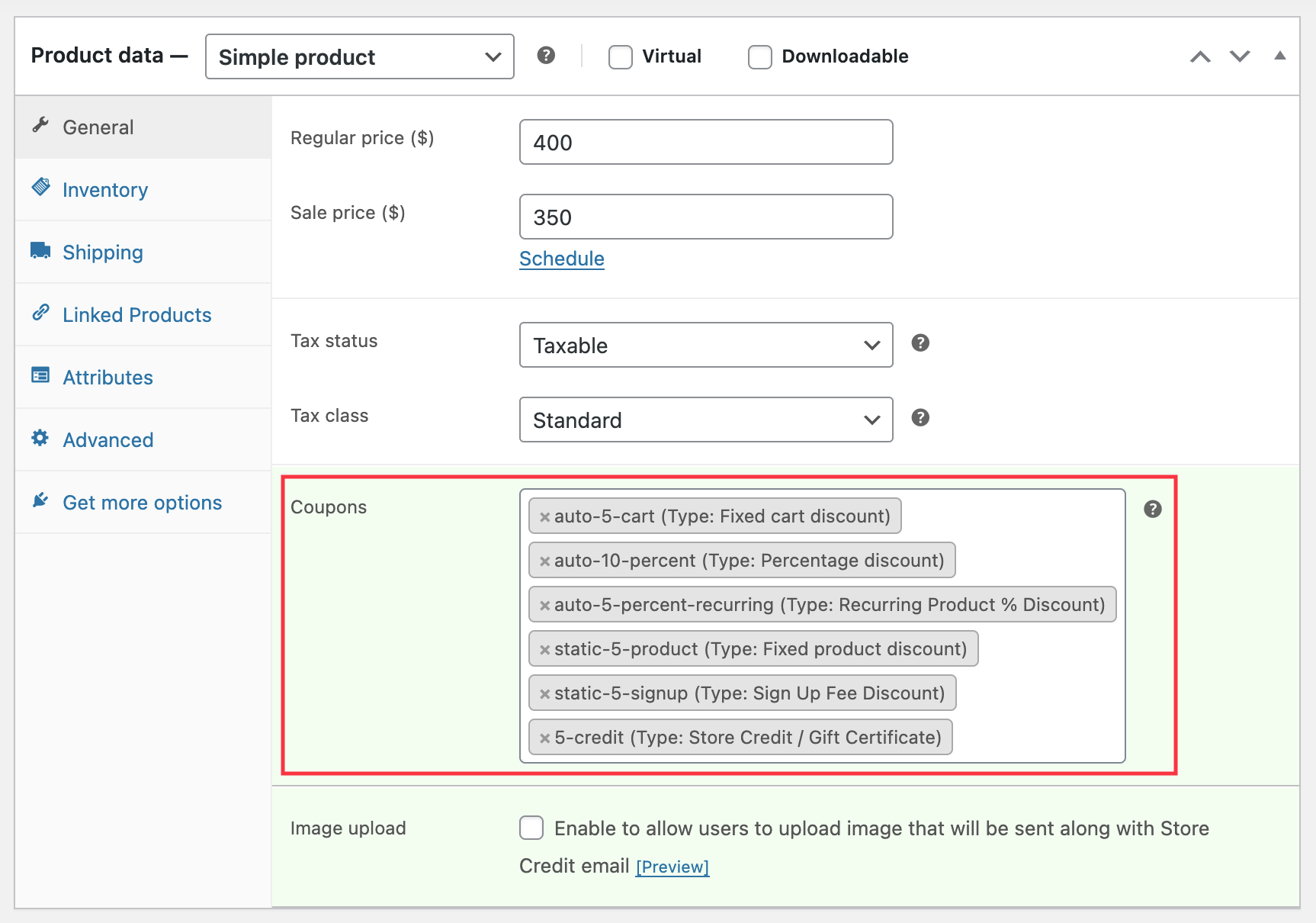
That’s it.
Once a customer purchases this product, all the corresponding coupons linked to this product, either a copy of the coupon or the coupon itself, will be available to the customer.
How to see linked coupons in the product admin panel
↑ Back to top- Go to the WordPress Admin panel > Products.
- Search for the products for which you want to check the linked coupons.
- You can find the linked coupons under the “Linked coupons” column.
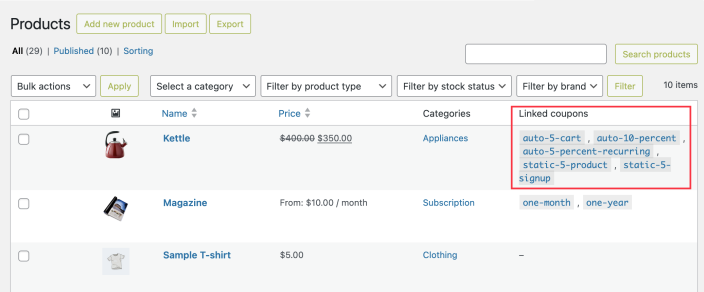
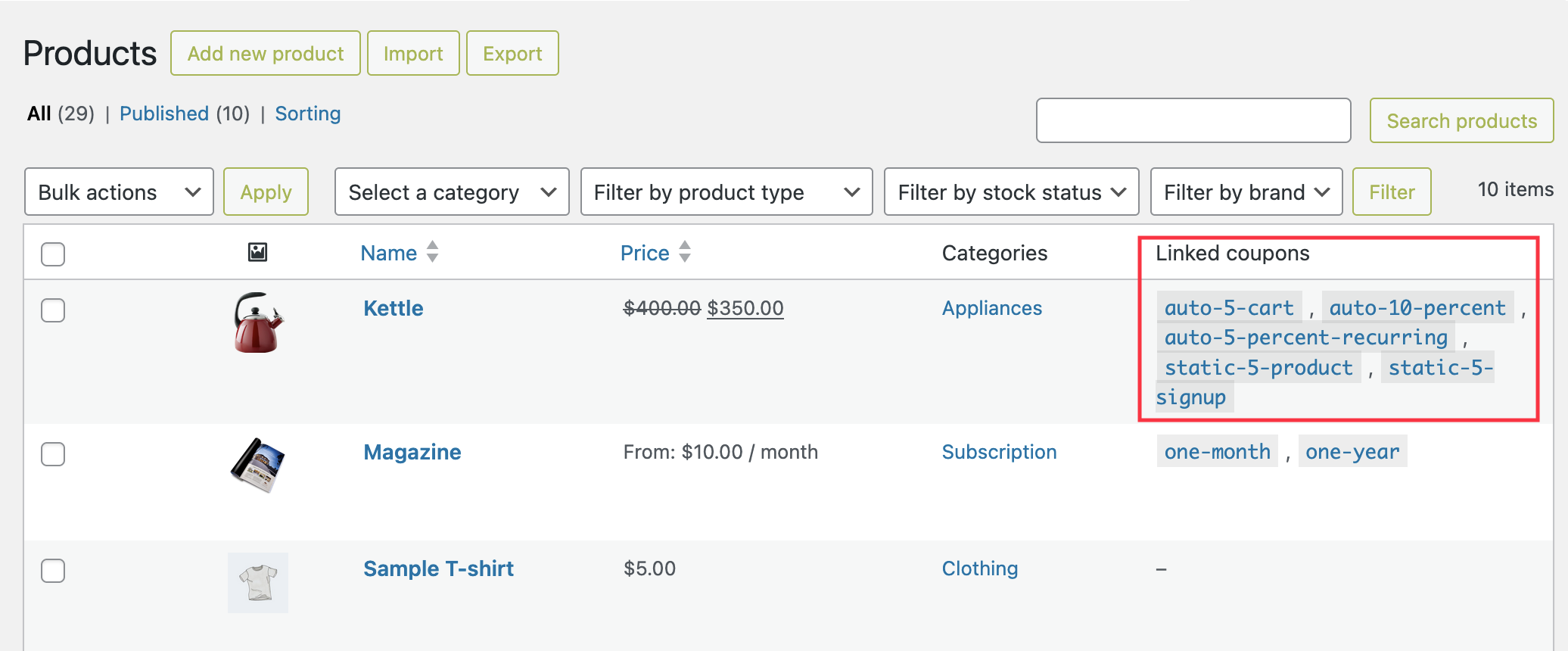
That’s it. You can see all coupons linked to a product on the product admin panel.
How to show coupon details to customers
↑ Back to topYour customers can find the coupons linked to the products on the frontend by enabling the following setting:
- Navigate to the WooCommerce > Settings.
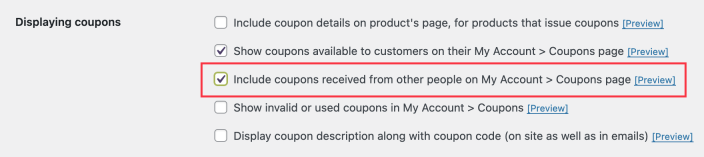
- Open the ‘Smart Coupons‘ tab, scroll down to find the ‘Displaying coupons‘ section.
- Enable the “Include coupon details on product’s page, for products that issue coupons” option.
- Save the changes.
That’s it. Once enabled, your customer will be able to see what kind of coupons the customer would receive after purchasing that product.