Smart Coupons provide a powerful, “all-in-one” solution for gift cards, store credits, discount coupons and vouchers extending the core functionality of WooCommerce coupons.
This documentation explains how to set up auto apply coupons using the Smart Coupons plugin, eliminating the need for users to enter or copy-paste coupon codes!
Auto apply coupons let you automatically apply a coupon for users, no code entry required. It’s perfect for seasonal sales, special events, loyal customers, or any promotion where you want a smooth checkout experience.
Turn on auto apply feature
↑ Back to top- Go to WooCommerce > Settings > Smart Coupons
- Find Auto apply coupons.
- By default, it’ll be enabled. But if it’s not & you want this feature on your store, enable Auto apply coupons
- Save the setting. That’s it.
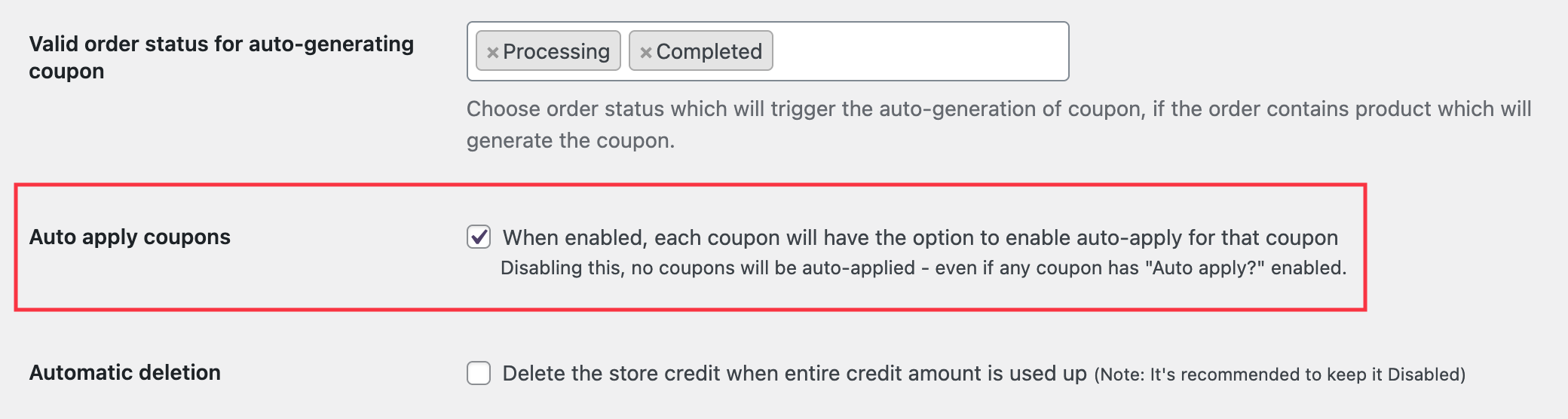
Note: If this setting is not available, make sure you’re using the latest version of the Smart Coupons plugin.
Steps to create an auto apply coupons
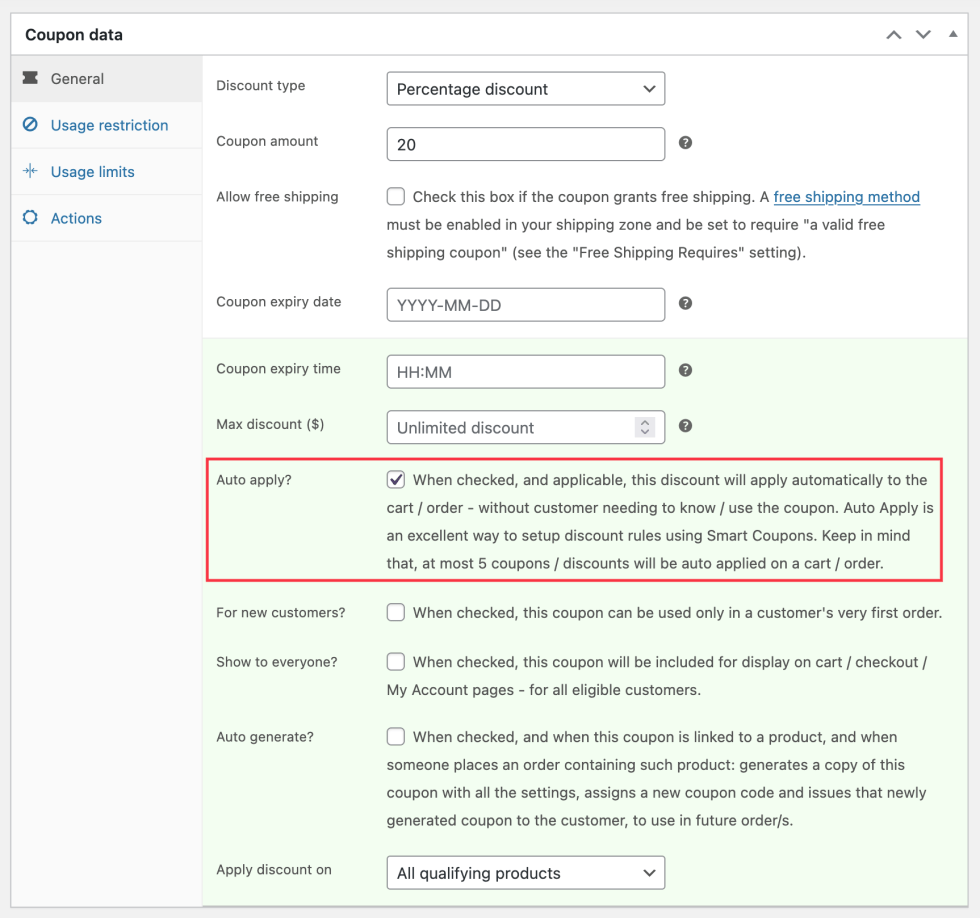
↑ Back to top- Go to Marketing > Coupons > Add coupon (or edit an existing one).
- Set the discount type, coupon amount, expiry date and time, and other details.
- Enable the Auto apply? option.
- Add any restrictions (products, user roles, payment methods, etc.) for your auto apply coupon.
- Publish/Update the coupon.
That’s it.
Important notes for auto apply coupons
↑ Back to top- The auto apply feature will trigger only when there’s a product in the cart.
- Smart Coupons will check the validity and all the restrictions and limits set for the coupons before auto applying them.
For example – If you restrict a coupon to “Customer” user role and “Stripe” payment gateway, the plugin will first verify whether these restrictions are met and then apply the coupon. - By default, up to 5 coupons can be auto applied at a time, even if more coupons have the Auto apply? option enabled. If required, you can extend this limit using the following steps:
- Open your website’s database.
- Go to table ‘{prefix}options‘ (e.g. wp_options).
- Search for a record having option_name like ‘wc_sc_max_auto_apply_coupons_limit‘
- If you find it, set its corresponding option_value as the number of auto apply coupons allowed to be applied.
- If you don’t find it, insert a record in the same table with option_name as ‘wc_sc_max_auto_apply_coupons_limit‘ and option_value as the number of auto apply coupons allowed to be applied. That’s it.
- Your users can remove any auto applied coupon if they wish to. But if you don’t want them to remove the auto applied coupons, there are 2 methods. You can choose any one method that you’re comfortable with:
- Using a custom snippet: Add the following code snippet to your website:
add_filter('wc_sc_is_auto_apply_coupon_removable', function(){ return 'no'; });
To safely add any code snippets to your website, you can follow the documentation here. - Making changes in the database: Follow these steps:
- Open your website’s database.
- Go to table ‘{prefix}options‘ (e.g. wp_options).
- Search for a record having option_name like ‘wc_sc_auto_apply_coupon_removable‘
- If you find it, set its corresponding option_value as ‘no‘.
- If you don’t find it, insert a record in the same table with option_name as ‘wc_sc_auto_apply_coupon_removable‘ and option_value as ‘no‘. That’s it.
- Using a custom snippet: Add the following code snippet to your website:
- You can bulk generate coupons with the auto apply feature.
- Auto apply feature works with subscription coupons as well.
What can’t auto apply
↑ Back to top- Gift cards and store credits cannot be auto applied.
- Auto apply will not be enabled for coupons that are linked to a product. This means that when you issue any coupon with a product purchase, that coupon will need to be manually applied by the users on their next purchase.