
The affiliate dashboard is the affiliate area of your WooCommerce store: where partners get their referral link, see what they earn, request payment and manage their details. Affiliate and Referral Program for WooCommerce creates it for you, with two layouts, your own colors and renameable menu items. This guide walks through what affiliates see and what you can change. Part of the Affiliate and Referral for WooCommerce documentation.
Where the dashboard lives
↑ Back to topActivation creates an Affiliate Dashboard page carrying the [rtwapwcm_affiliate_page] shortcode. That one page adapts to whoever opens it: a signed-out visitor sees the registration form, a signed-in customer sees the Become an Affiliate invitation, and an affiliate sees the dashboard itself. See Affiliate Registration Form Setup in WooCommerce.
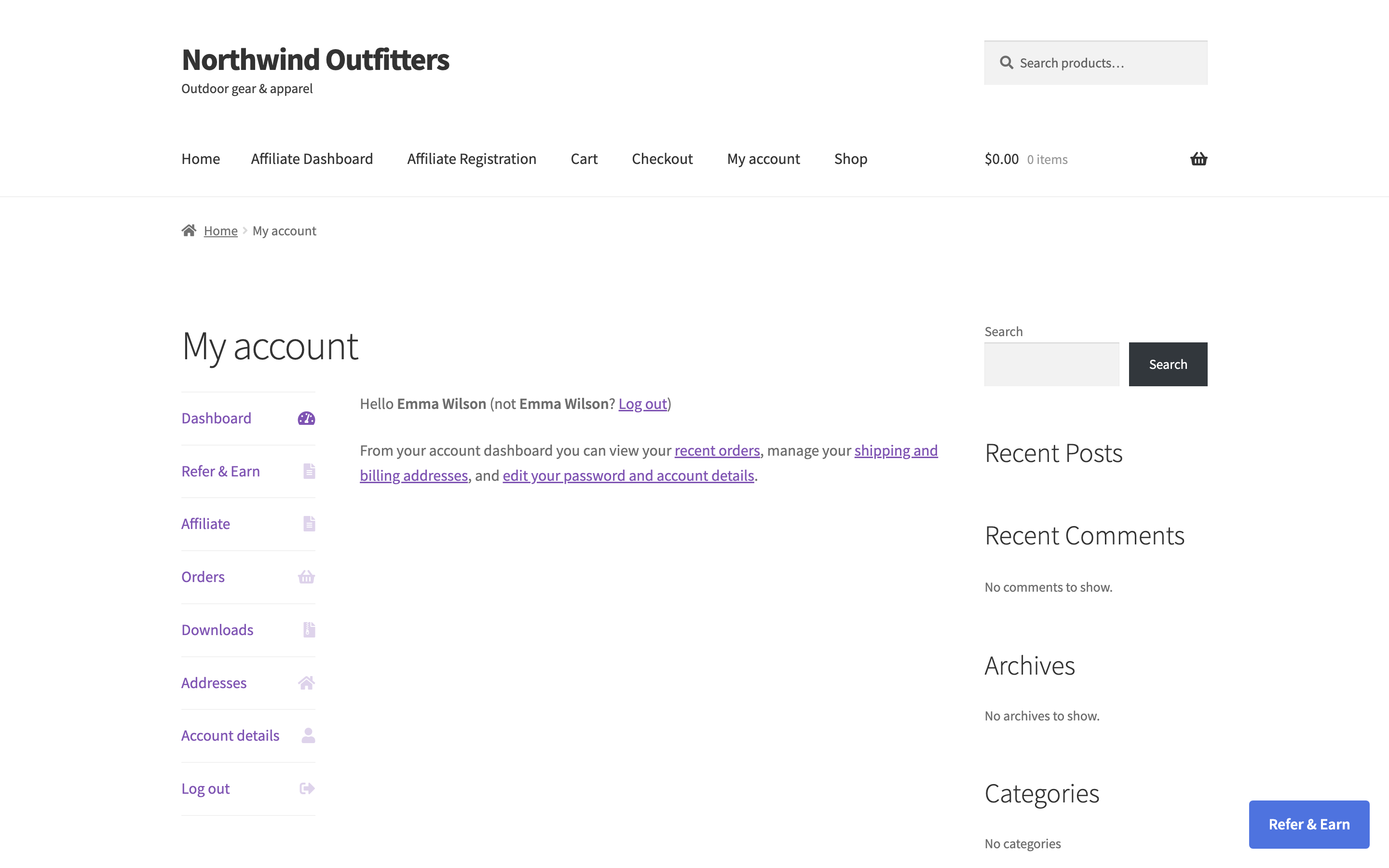
To put the dashboard within easy reach, go to: WooCommerce > Affiliate & Referral > Advanced Features > General and turn on Show under My Account. An Affiliate item then appears in the customer’s My Account menu and takes them straight there.
What affiliates find inside
↑ Back to topBoth layouts carry the same menu. Items in groups open from their group name:
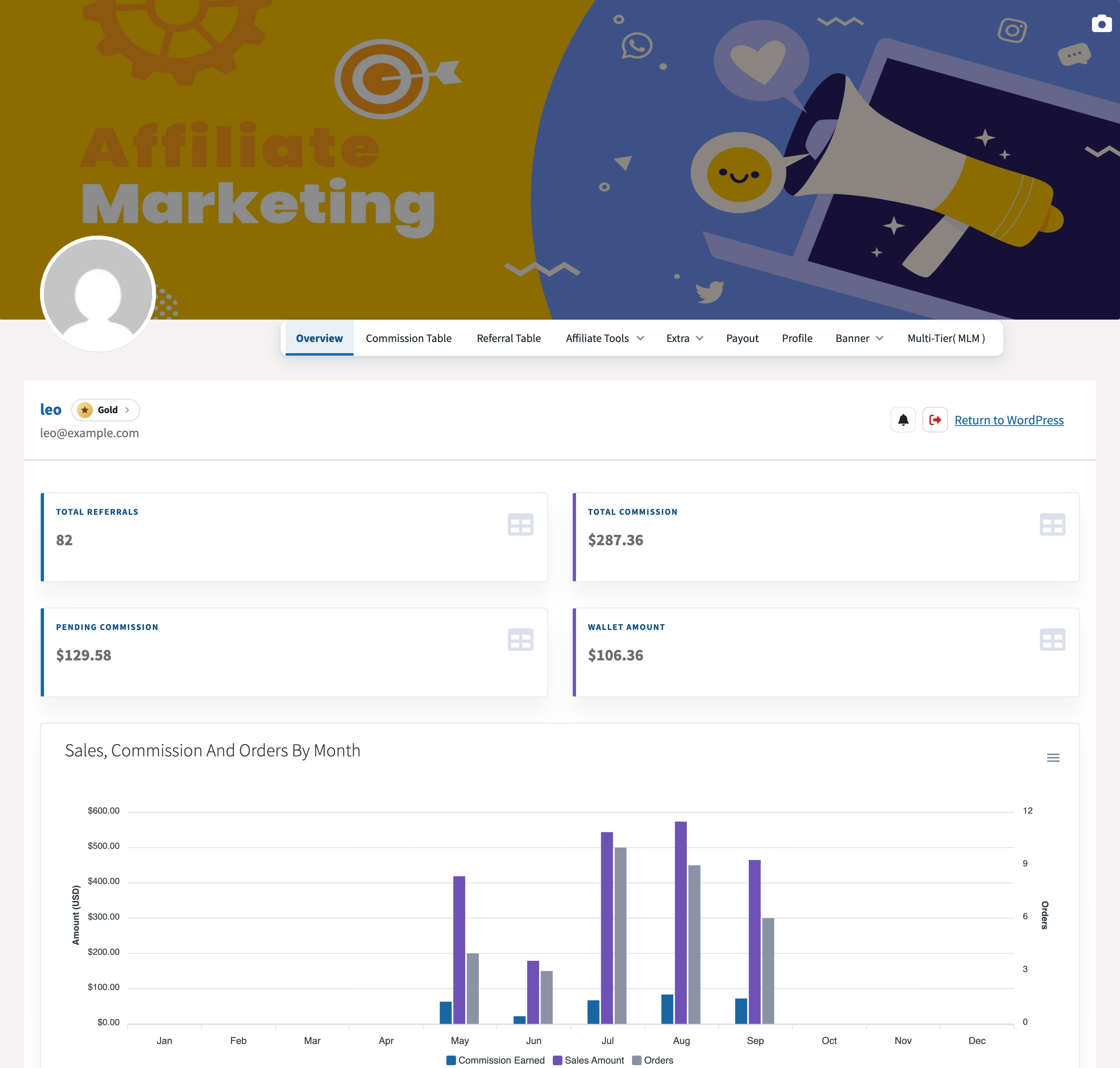
- Overview – a Share and earn card (titled Your link and coupon, or Your referral link while affiliate coupon referrals are off) with the affiliate’s referral link to your Shop page and their referral coupon, each with a copy button; a share icon in the top bar offers the same from every tab. Then the Total Referrals, Total Commission, Pending Commission and Wallet Amount cards, with charts of sales, commission and orders by month and of purchases by device.
- Commission Table – what the affiliate earns, explained in plain words; see the next section.
- Referral Table – every earning with its type, amounts, order status, customer, date and status, with Export CSV and Export PDF.
- Affiliate Tools – Generate Link for referral links and their QR codes, Referral Discounts for the offers the affiliate can pass on to customers, and Coupon Generate for turning wallet balance into a store coupon when you allow it.
- Extra – Report, with clicks, purchases and conversion for each link and a day-by-day table, and Download, a product feed with the affiliate’s referral links.
- Payout – the affiliate’s Referral Code, their payment method, the withdrawal request and the Withdrawal Transaction Table.
- Profile – name, phone, any extra registration fields, and password.
- Banner – Custom Banner for creatives you upload, once you have added some, and Create Banner for product banners with copy-and-paste HTML.
- Multi-tier( MLM ) – their network and per-level rates, shown only when multi-tier commission is on. See How to Set Up MLM in Your Affiliate Program.
When the affiliate holds a level, an Affiliate level badge sits beside their name in the dashboard header. Each tool has its own guide: How to Create and Share Referral Links, How to Create Affiliate Banners and Creatives and Pay Affiliates with Store Credit and Wallets.
What the Commission Table shows
↑ Back to topThe Commission Table answers “what do I earn?” from your commission rules, in up to three blocks:
- Your earning rates – the Standard commission, then any Product rates, Category rates, Special commission opportunities that apply when an order meets a condition, offers Starting later, and products Excluded from commission. Commission rules to know explains that each product earns one rate, never several added together. View all rules lists every rule that applies to the affiliate in the order it is checked, and View details opens one of them.
- Your affiliate levels – each level with what it gives and what it takes, marking the Current level and the Next level. Shown when you use levels; see Performance-Based Affiliate Commission with Affiliate Levels.
- Bonuses – each performance bonus with its Amount, what it takes under To earn it, and Your status. See Performance Bonuses and Rank Rewards for Affiliates.
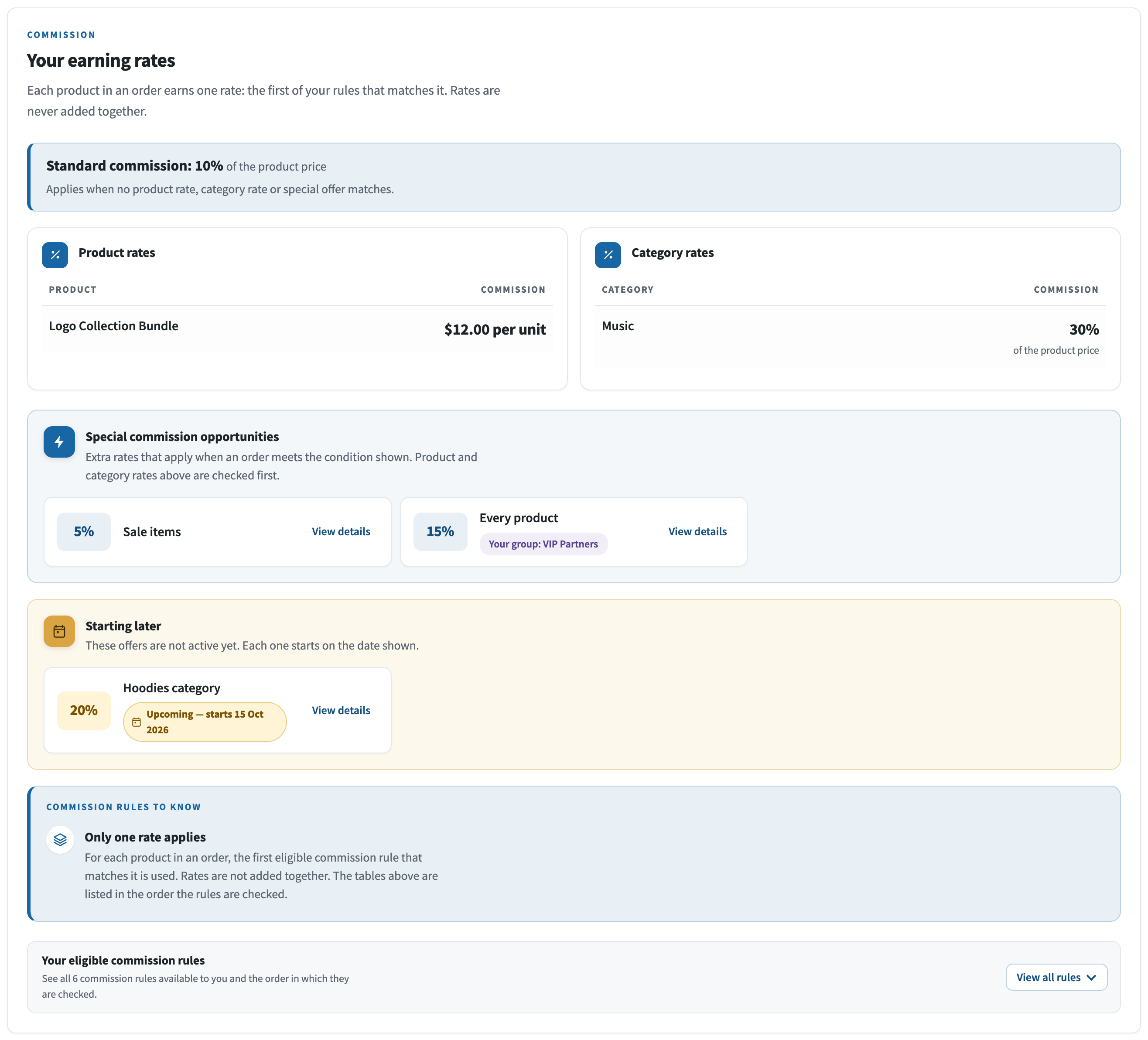
The blocks follow your rules as you change them, so affiliates always see the current rates. Stores that have not converted to commission rules yet show the earlier commission tables here; see Upgrading to Version 3.0.0 and Converting to Commission Rules.
Choose a layout and its colors
↑ Back to topGo to: WooCommerce > Affiliate & Referral > Advanced Features > General and set Affiliate Page Template:
- Template 1 – a cover image with a horizontal menu, inside your theme, so your header, footer and navigation stay around it. Each affiliate can upload their own cover image. On narrow screens the menu folds into a compact menu.
- Template 2 – a left sidebar with a fixed top bar that takes over the whole page: your theme’s header and footer are replaced by the plugin’s own full-screen layout.
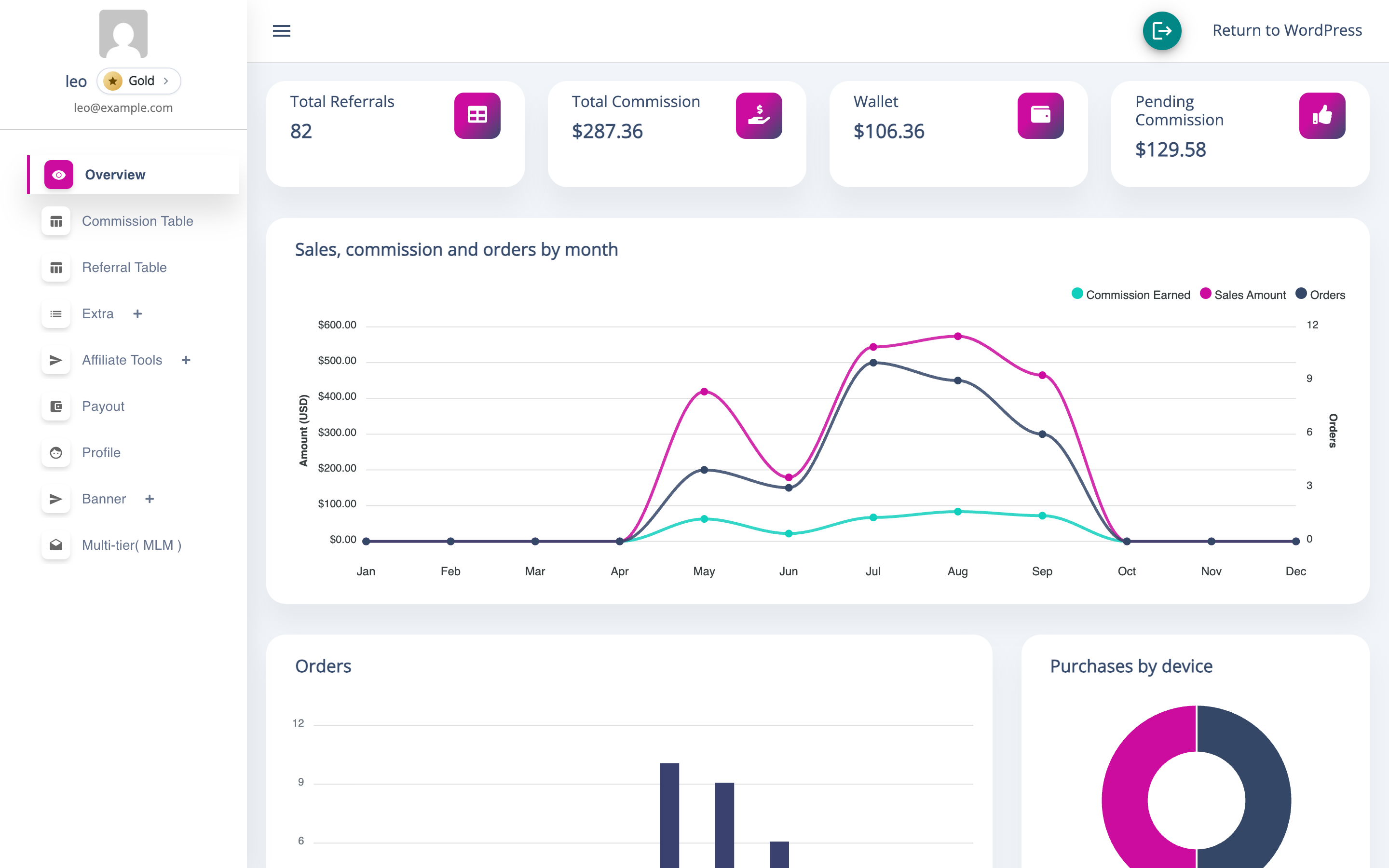
Under Template Color Base, the color fields follow the template you choose:
- Template 1 – Primary Color for the navigation, buttons, links and the first chart series, and Secondary Color for supporting highlights and the second chart series. Use the default colors puts both back. Success, warning and error colors keep their own meaning, and a note warns you when white text would be hard to read on your primary color.
- Template 2 – Primary Color, Primary Color Opaque and Secondary Color.
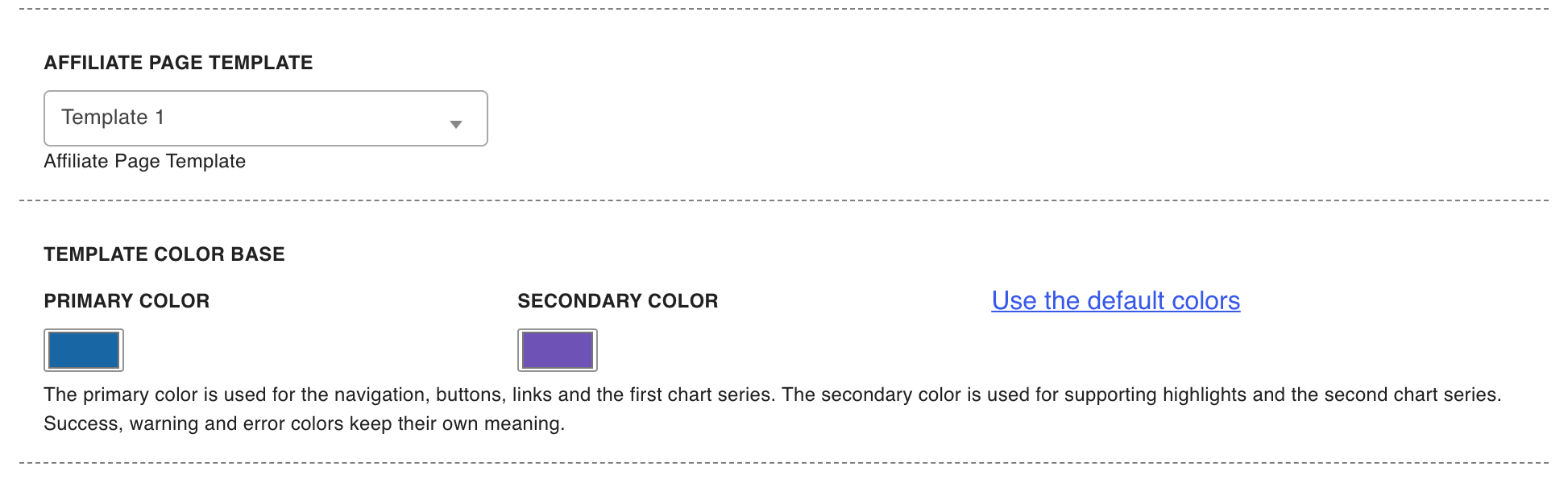
The full-page takeover is the difference to weigh. Template 2 gives affiliates an app-like workspace with no store navigation; Template 1 keeps them inside your store, close to shopping. Announcements to affiliates appear on Template 1 only.
Rename the menu items
↑ Back to topGo to: WooCommerce > Affiliate & Referral > Advanced Features > Labels to put your own words on the dashboard, for example to translate them:
- Label for Tab “Overview”, “Affiliate Tools”, “Download”, “Payout”, “Profile”, “Custom Banner” and “MLM” – rename those menu items. Leave a field empty to keep the built-in name.
- Label for Tab “Commissions” – names the group that holds the Commission Table and Referral Table in Template 1’s compact menu.
- Title for button “Become an Affiliate”, Title for Section “Benefits for being an Affiliate” and the benefits list – the invitation shown to customers who are not affiliates yet.
- Title for “Successful Registered user” – the message shown after an affiliate registers.
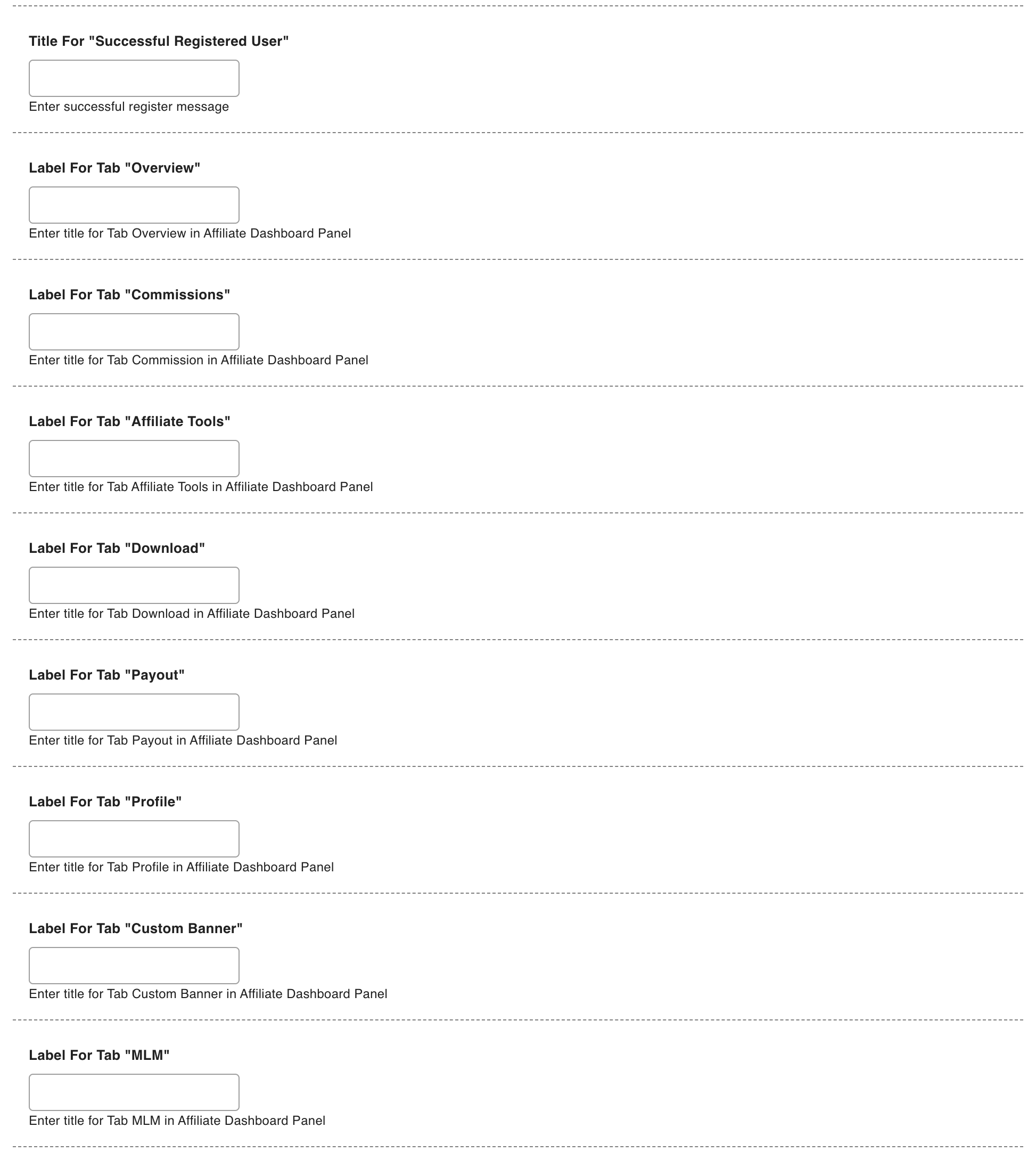
The other items keep their built-in names. For styling beyond the template colors, use the Custom Css box on the General tab.
Send affiliates an announcement
↑ Back to topGo to: WooCommerce > Affiliate & Referral > Advanced Features > Notification, click Add Notification, and enter a title and message under Notification Details. Every affiliate sees it under the bell in their dashboard header, with a count of unread announcements — a simple way to tell your partners about a new product or a seasonal rate.
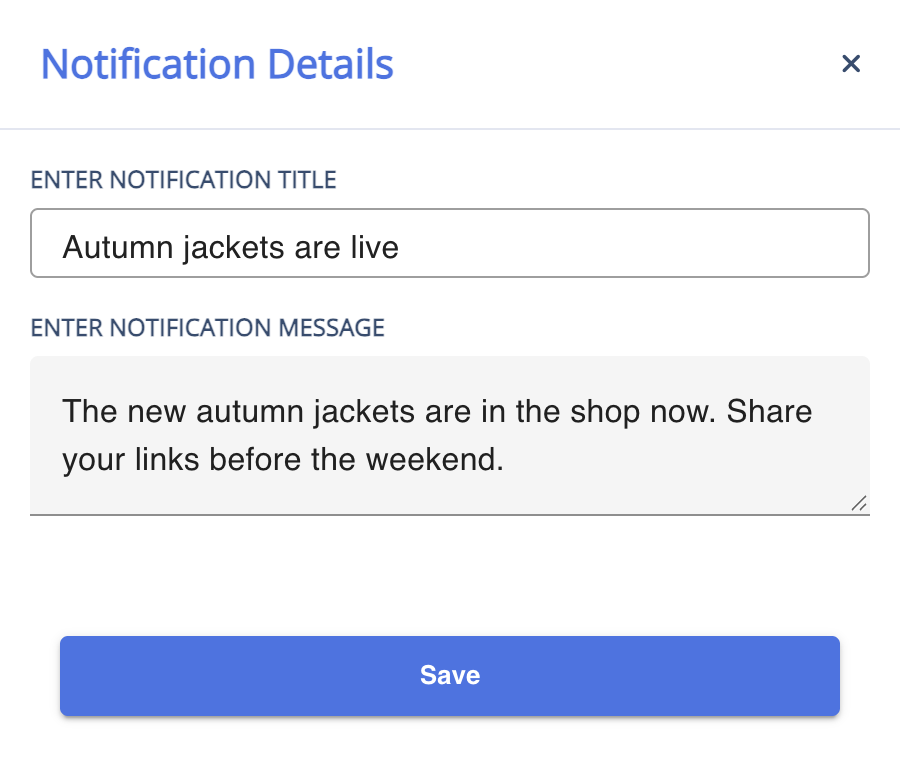
Announcements are shown on Template 1 only. If your dashboard uses Template 2, affiliates have no bell to see them in — use the affiliate emails instead. Announcements are plain text, so write the full message rather than relying on a link.
Put the dashboard where you want it
↑ Back to topThree shortcodes let you place the affiliate experience yourself:
- [rtwapwcm_affiliate_page] – the dashboard, including the registration and become-an-affiliate screens.
- [rtwapwcm_aff_reg_page] – the registration form on its own.
- [rtwapwcm_cust_ref_button] – the Refer & Earn button for the separate customer referral program; see Set Up a Refer a Friend Program in WooCommerce.
FAQ
↑ Back to topCan I change the dashboard’s colors?
↑ Back to topYes, on both layouts. Under Template Color Base, Template 1 takes a primary and a secondary color, and Template 2 takes primary, primary opaque and secondary. For anything else, use the Custom Css box.
Can I set a cover image for every affiliate?
↑ Back to topNo — the cover image on Template 1 is uploaded by each affiliate for their own dashboard. There is no store-wide cover setting.
Can affiliates change their email address?
↑ Back to topNo. Username and email are fixed on the Profile tab; affiliates can update their name, phone number and password there. Change an email address for them in Users.
Does the My Account link show for customers who are not affiliates?
↑ Back to topYes. It takes them to the Become an Affiliate invitation, which gives existing customers a direct path into your program.

