
Send customers a reminder before a saved card expires and include a personalized coupon they can use on a future purchase.
Before you begin
↑ Back to top- Install and activate AutomateWoo, and check the saved card expiry notifications guide for payment gateway compatibility.
- Create a private template coupon with the discount and restrictions you want to offer. Follow the personalized coupons guide to set it up.
- Find the address of your store’s My account > Payment methods page so you can link customers to it.
Create the workflow
↑ Back to top- Go to AutomateWoo > Workflows > Browse presets.
- Find Credit cards: Expiry reminder (with coupon) and select Create workflow. The workflow opens with a disabled status.
- Under Trigger, confirm Customer Before Saved Card Expiry is selected. Set Days before expiry to the number of days you want to give customers. The preset uses seven days.
- Optionally, set Time of day for the daily check. If you leave it blank, the check runs at midnight in the site’s time zone.
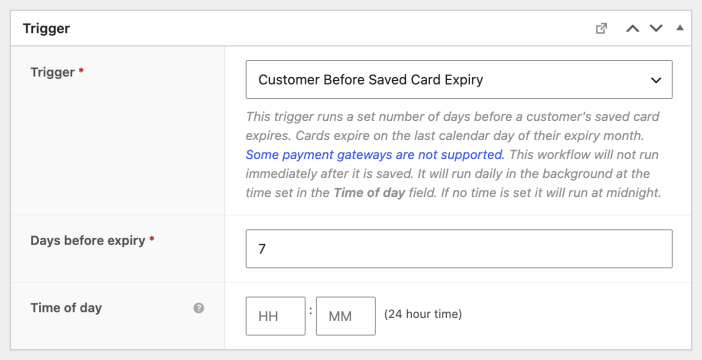
AutomateWoo treats the final day of a card’s expiry month as its expiration date. The trigger checks matching saved cards daily and the workflow runs once per card.
Customize and test the email
↑ Back to top- In the Send Email action, leave the prefilled customer email variable in To. Review the subject, heading, and message, and make sure the reminder interval and discount match your settings.
- In the Variables panel, select customer.generate_coupon. Choose your template coupon and, if needed, set an expiry and usage limit. Select Copy to clipboard, then paste the variable into the email in place of the preset’s placeholder. The personalized coupons guide explains the available options.
- Check the update-account button’s destination. The preset points to your store’s home page; change the link to the page where customers can manage their payment methods if that is where you want to send them.
- Select Preview and check the message and link. The preview shows a mock coupon that cannot be used. Select Send Test to generate a test coupon, then check its discount, restrictions, expiry, and usage limit. Open the payment-method link as a signed-in customer.
- Check that the workflow’s marketing opt-in and unsubscribe settings match your store’s requirements. When you’re ready, change Status to Active and select Save.
A coupon is promotional content. Do not enable Is transactional? solely to bypass unsubscribe or marketing-consent checks. If a customer doesn’t receive a reminder, check that their gateway is compatible and that the card is saved to their account.
Questions and support
↑ Back to topSomething missing from this documentation? Still have questions and need assistance?
- If you have a question about a specific extension or theme you’d like to purchase, contact us to get answers.
- If you already purchased this product and need some assistance, get in touch with a Happiness Engineer via our support page and select this product’s name from the Product dropdown.

