AutomateWoo includes a preset for following a repeat purchase with product recommendations. It starts after an order is completed, confirms that the customer also placed a recent earlier order, waits one hour, and sends a non-transactional email with related products.
Before you begin
↑ Back to top- Review how WooCommerce chooses related products and cross-sells. The preset uses related products, but you can switch it to the cross-sells configured on your products.
- Use a customer with at least two paid orders when testing. The preset checks the customer’s second-last paid order, so a first-time customer cannot qualify.
- Treat this as a marketing message. Review your store’s marketing opt-in and unsubscribe settings before activating the workflow.
Create the workflow from the preset
↑ Back to top- Go to AutomateWoo > Workflows.
- Select Browse presets.
- Find Cross sell: Target repeat customers, then select Create workflow.
- Keep the workflow Disabled while you configure and preview it.
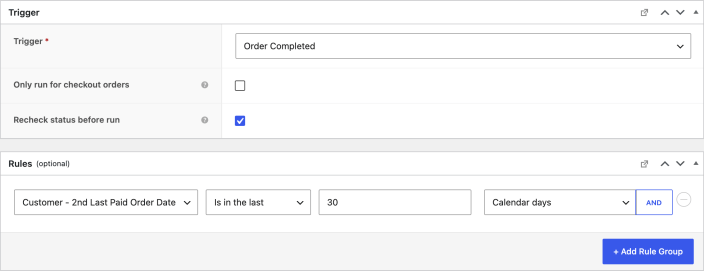
The preset creates this configuration:
- Trigger: Order Completed starts the workflow when an order reaches Completed status.
- Rule: Customer – 2nd Last Paid Order Date is in the last 30 calendar days.
- Timing: The email is delayed by one hour.
- Validation: AutomateWoo rechecks the order status and rules before the queued run.
- Action: Send Email sends a non-transactional recommendation email.
Customize the email
↑ Back to topThe preset addresses the email to the customer’s email address. Update its subject, heading, preheader, and message to match your store’s voice. Keep Is transactional? disabled so AutomateWoo applies your marketing opt-in and unsubscribe settings.
The email content uses the order.related_products variable. This variable inserts related products for the items in the completed order and excludes products already in that order. It displays up to eight products by default.
To recommend the cross-sells configured directly on those products instead, replace it with the order.cross_sells variable using the Variables panel. That variable also excludes products in the completed order and displays up to eight by default. Either variable can return no products when no eligible recommendations are available, so check your product relationships before activating the workflow.
Test and activate the workflow
↑ Back to top- Save the workflow as Disabled. Select Preview in the Send Email action and choose an appropriate test order. Check the message and recommendations.
- For an end-to-end test, use a staging store with test customers and email delivery under your control. Set the workflow to Active and save it. Disabled workflows do not queue events.
- Complete a test order for a customer whose preceding paid order was within the last 30 calendar days. Check AutomateWoo > Queue for the delayed event, then check AutomateWoo > Logs after it runs.
- If no email is sent, check the order status, the customer’s earlier paid order, the marketing opt-in settings, and whether eligible related products exist. After testing, disable the staging workflow.
- When you’re satisfied with the setup, set the workflow to Active on your store and select Save.
Adjust the 30-day rule and one-hour delay to suit your products and buying cycle. A longer interval may work better for replenishable products, while a shorter interval may suit products that are commonly purchased together.
Questions and support
↑ Back to topSomething missing from this documentation? Still have questions and need assistance?
- If you have a question about a specific extension or theme you’d like to purchase, contact us to get answers.
- If you already purchased this product and need some assistance, get in touch with a Happiness Engineer via our support page and select this product’s name from the Product dropdown.