Ask customers to review their purchases with an automatic email after an order is completed.
Create the workflow
↑ Back to top- Go to AutomateWoo > Workflows > Browse presets.
- Find Reviews: Remind customers to leave a review and select Create workflow. The new workflow opens with a disabled status.
- Under Trigger, confirm Order Completed is selected. The preset rechecks the order status before a queued workflow runs.
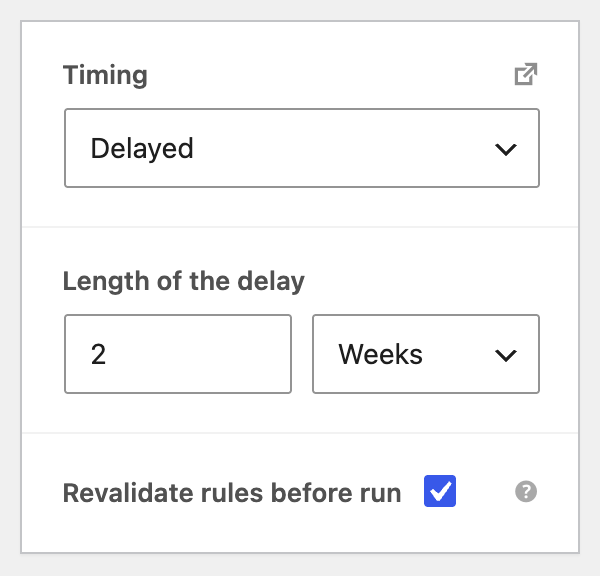
- Under Timing, review the delay. The preset waits two weeks after the order is completed; adjust it to give customers enough time to receive and use their purchases.
Customize and test the email
↑ Back to top- In the Send Email action, leave the prefilled customer email variable in To. Review the subject, heading, and message.
- Keep the prefilled order-items variable in the email. It uses the Review Product Rows template to show purchased products with a Leave a review button for each product.
- Select Preview in the action header and check the message, products, and links. Send a test email to yourself if needed, and confirm customers can reach the review form on your product pages.
- Review your store’s marketing opt-in and unsubscribe settings. When you’re ready, change Status to Active and select Save.
Make sure product reviews are enabled in your store and on the products you want customers to review. The reminder is queued when an order is completed, so the delay starts from that status change.
Questions and support
↑ Back to topSomething missing from this documentation? Still have questions and need assistance?
- If you have a question about a specific extension or theme you’d like to purchase, contact us to get answers.
- If you already purchased this product and need some assistance, get in touch with a Happiness Engineer via our support page and select this product’s name from the Product dropdown.