
Product Prices by User Role for WooCommerce plugin allows you to display WooCommerce product prices as per user roles. So you can setup different prices for different user groups. Similarly, you can also modify the shipping charges based on user roles.
WooCommerce product prices can be set globally or on a per product basis using this plugin.
Installation
↑ Back to topTo start using a product from WooCommerce.com, you can use the “Add to store” functionality on the order confirmation page or the My subscriptions section in your account.
- Navigate to My subscriptions.
- Find the Add to store button next to the product you’re planning to install.
- Follow the instructions on the screen, and the product will be automatically added to your store.
Alternative options and more information at:
Managing WooCommerce.com subscriptions.

Setup and Configuration
↑ Back to topPrice per user role can be set at global level as well as product level. Global level settings can be found under WooCommerce > Settings > Product Prices by User Roles. Below are the sections and their usage.
General Settings
↑ Back to top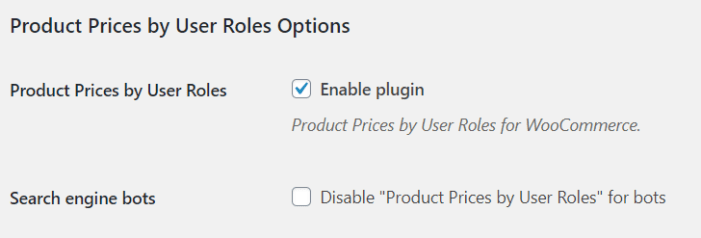
Product Prices by User Roles – Enables/disables the plugin. By default this option is enabled.
This option is enabled by default. This means that the Product Prices By User Roles for WooCommerce Pro plugin is enabled and you can now set up product prices as per user roles.
If you disable this option, then the Multipliers and Per Product settings will not be functional. As a result, the actual prices of the WooCommerce products will be displayed on the front end and not the prices set as per the user role.
For instance, you set the multipliers setting for Admin role to 2. In this case, when an admin selects a particular product, the price on the front end for the selected product should show double its actual price set.
However, if you disable WooCommerce Price by User Role option, then the product price of that product will display its actual price and not the price set for the user role.
This is because the Multiplier setting is not applicable if WooCommerce Price by User Role option is disabled.
Search Engine Bots – Enables/disables product prices set by user roles for bots. There will be instances where search engines will crawl through the site and display the product prices in search results. Setting this option will disable the prices to be tracked. By default this options is not set.
Additional General SettingsWooCommerce Product prices can be set globally or on per product basis using Product Prices By User Roles for WooCommerce Pro plugin. When you are setting it globally, you will need to set a price multiplier for each user role which is possible through Multipliers settings. You can also hide product prices for selected user roles using this setting. It works with variable products too.
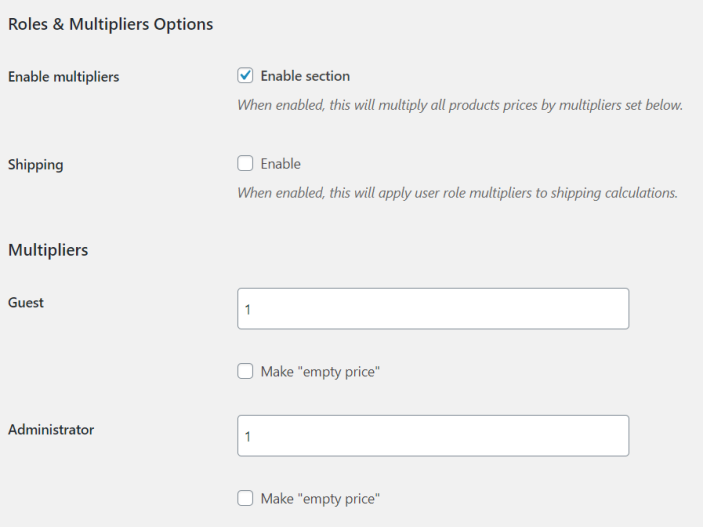
Enable Multipliers – When enabled, this will multiply all products prices by multipliers set below. This option is enabled by default.
Shipping – When enabled, this will apply user role multipliers to shipping calculations.
Additional Roles & Multipliers Use CasesPer Product Options
↑ Back to top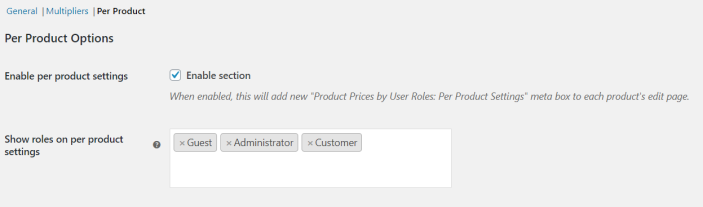
Enable per Product Settings
Enable per product settings option is enabled by default. This setting will add a new Price by User Role: Per Product Settings meta box to each Product’s Edit page.
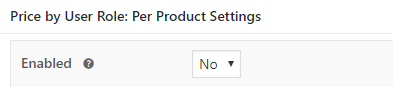
Price by User Role: Per Product Settings meta box
By default, the Price by User Role: Per Product Settings option is disabled.
To enable it, select Yes from Enabled drop down and click on the Update button on Edit Product page.
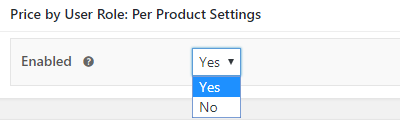
Enabling the setting
You will see that the different user roles that you have for your online store get displayed with 4 options each: Regular price, Sale price, Make “empty price” and Adjustment Type.
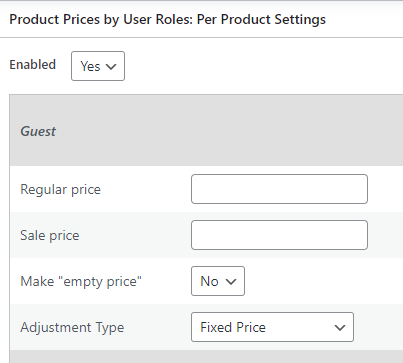
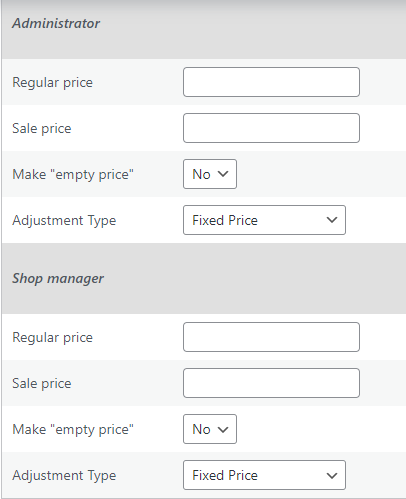
Price options for all user roles
The above screenshot shows an example where it displays only 3 user roles but this setting will display all user roles on the product’s Edit page which are present on your store or under global settings.
Additional Per Product OptionsRule Based Pricing
↑ Back to topManaging user role-based pricing can be time-consuming when updating each product individually. To streamline this process, we have introduced a new feature, Rule Based Pricing, which enables store owners to set the pricing rules across multiple products or categories in bulk based on user roles.
How does this work?
↑ Back to topTo access this feature, go to: WooCommerce → Settings → Product Prices by User Roles → Rule Based Pricing. You can create multiple rules here to meet your specific pricing requirements.
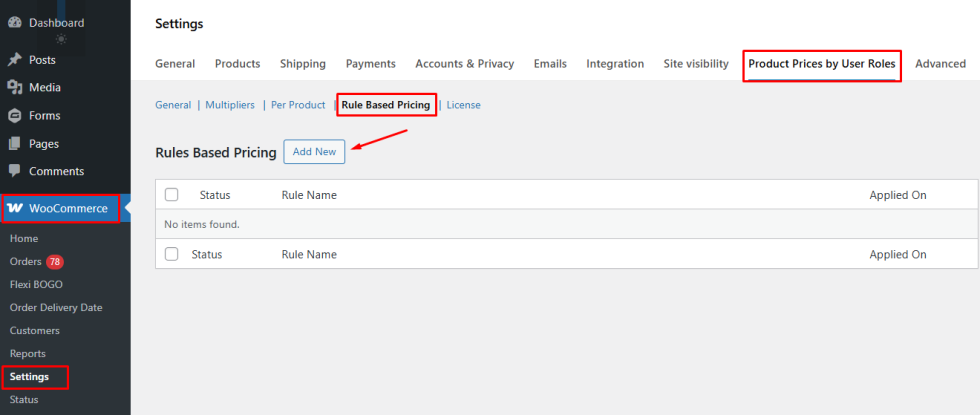
You can click on the “Add New” button to create a rule. Each rule lets you set:
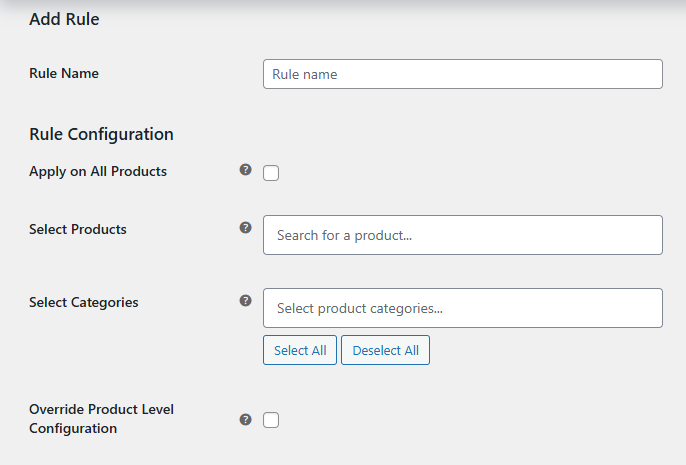
- Rule Name
- Rule Configuration
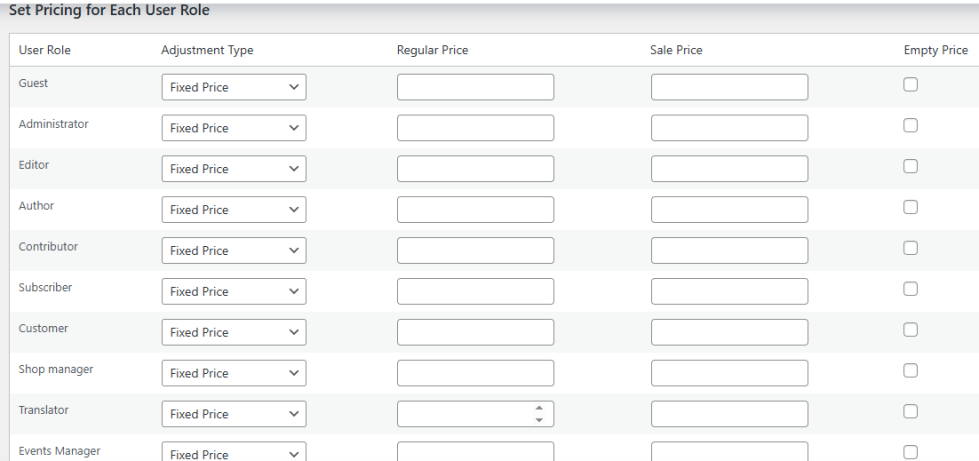
- Set Pricing for Each User Role
1. Rule Name:
↑ Back to topYou can give your pricing rule a name to identify it later.
2. Rule Configuration:
↑ Back to topThe “Rule Configuration” allows you to specify how the pricing rules are applied to your products. You can choose to apply rules globally or target specific products or categories, with options to override individual product settings if needed.
i. Apply on All Products:
This will apply the set rule to every product in your store.
ii. Select Products:
This allows you to choose specific products to which the rule will be applied.
iii. Select Categories:
This will apply the rule to all products within selected categories.
iv. Override Product Level Configuration:
This option allows you to replace existing product-specific settings with a new rule.
3. Set Pricing for Each User Role
↑ Back to topIn this section, you can define how prices should be adjusted for each user role. You’ll see a table with the following columns:
- User Role
- Adjustment Type
- Enter a Regular Price
- Enter a Sale Price for products
- Empty Price
Adjustment Type provides various options in the dropdown for the prices:
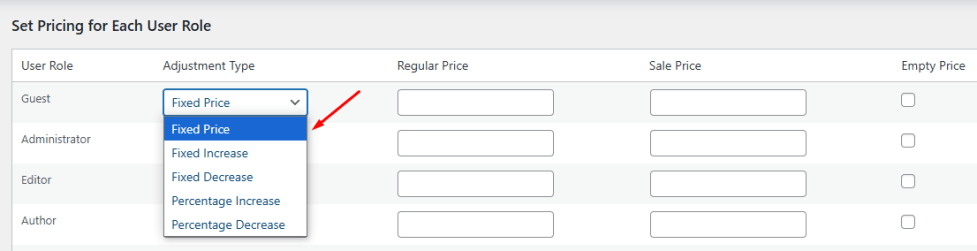
I. Fixed Price: You can set a new fixed price for the product.
ii. Fixed Increase: You can add a fixed amount to the original price.
iii. Fixed Decrease: You can subtract a fixed amount from the original price.
iv. Percentage Increase: You can increase the price by a percentage.
v. Percentage Decrease: You can decrease the price by a percentage.
These settings let you easily manage custom pricing for different customer groups in one place.
Below are some example scenarios showing how Rule-Based Pricing works based on user roles.
Scenario 1: Apply on All Products
For instance, if you enable the setting “Apply on All Products” and set up a 10% price increase for the Guest user role.
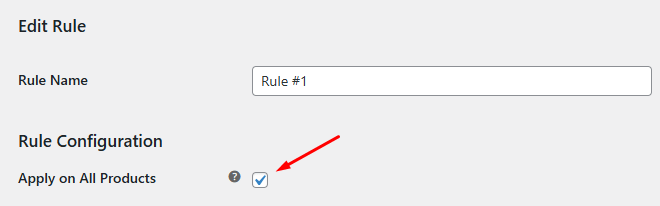

Suppose the product’s price is 500, and if the guest user visits that product. Then, it will show the 10% increased price, i.e., $550.

Scenario 2: Select Products
I have created another rule with the “Select Products” option and selected the specific products.
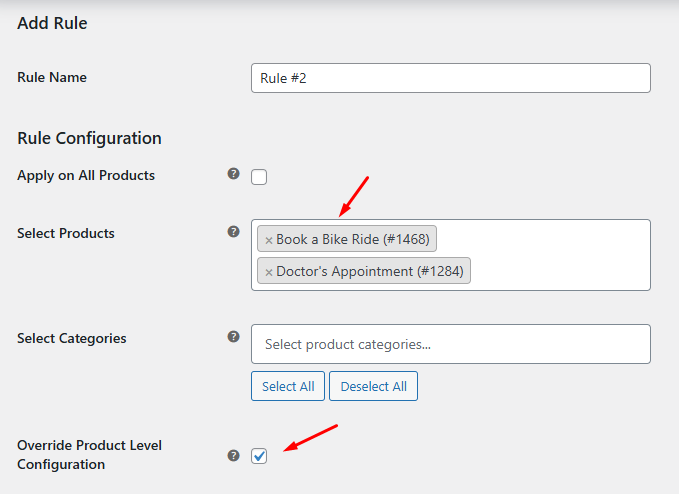
I have also enabled the “Override Product Level Configuration” setting in that rule. So any role-based prices set at the product level are ignored.
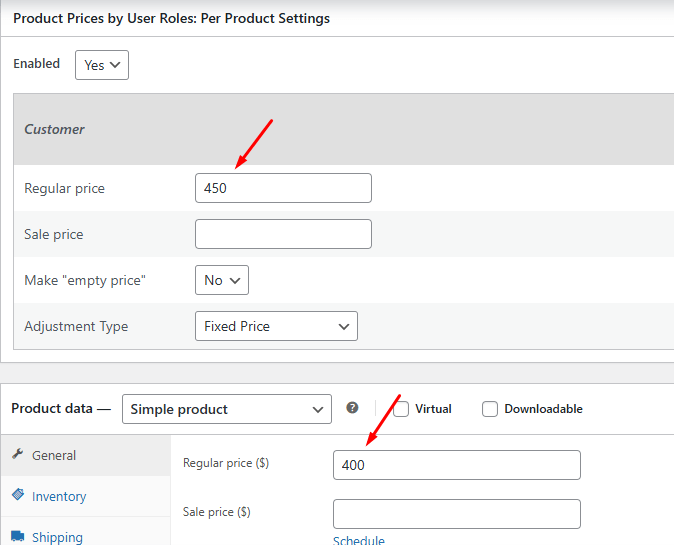
I have set up the Adjustment Type as “Fixed Decrease” and set the regular price as 100 for the Customer user role.

When a customer views a selected product like a Doctor’s Appointment, they see the discounted price set by the rule.

Scenario 3: Select Categories
Case 1- When the “Override Product Level Configuration” setting is enabled:
Create a rule to apply rule-based pricing to a specific product category only. In this example, select the ‘Beauty Products’ category so that the pricing rules apply to all products assigned to this category.

I have set up the Adjustment Type as “Fixed Price” and set the regular price as 400 for the Events Manager user role.

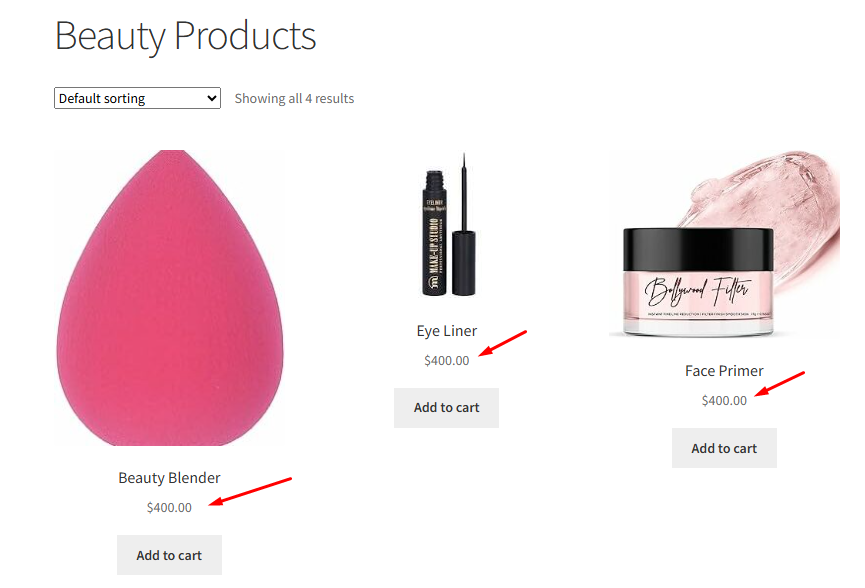
I have also enabled the “Override Product Level Configuration” setting in that rule. So even if product-level prices exist, the rule’s price is used. Now, all products in that category show $400 for users with the Events Manager role.
Case 2- When the “Override Product Level Configuration” setting is disabled:
Let’s take the same example as above, but this time with the “Override Product Level Configuration” setting disabled.
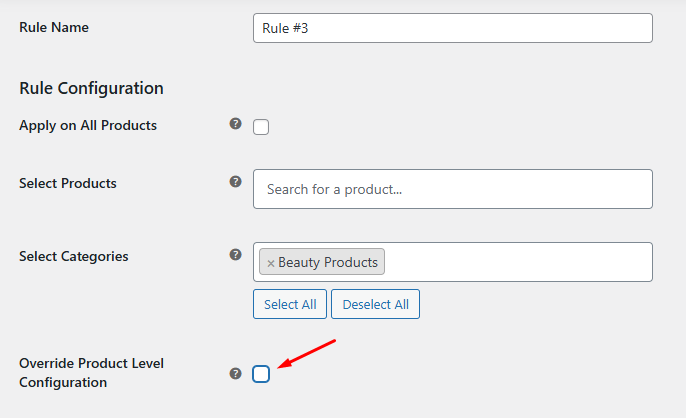

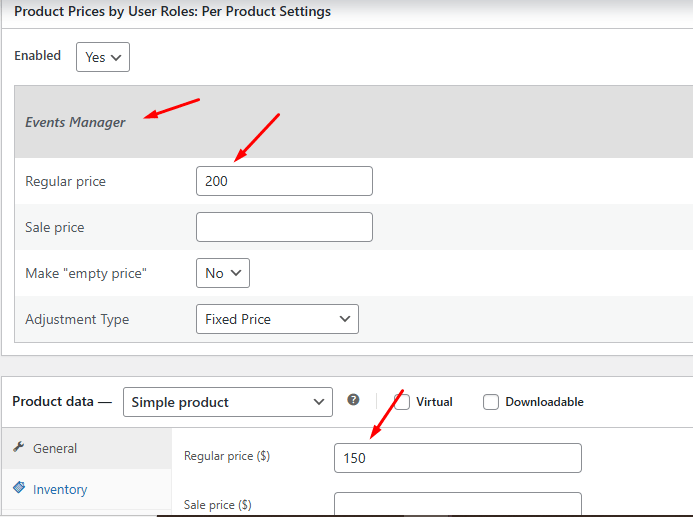
You create a rule to apply role-based pricing to the “Beauty Products” category, setting a Fixed Price of $400 for the Events Manager user role. This rule applies to all products in that category.
However, one of the products in this category already has a user-role price set at the product level — in this case, $200 for Events Manager.When visiting the category as an Events Manager user:
- The product with a price set at the product level will display $200 (product-level pricing takes priority).
- All other products in the category without product-level pricing will follow the rule-based price of $400.
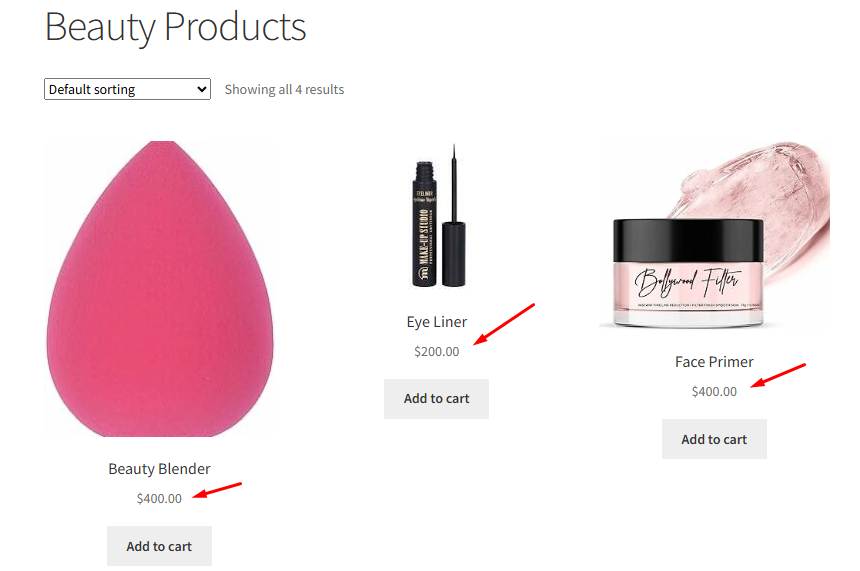
This shows that when override is disabled, product-level settings take precedence over rule-based pricing.
Scenario 4: Min/Max Quantity in Rule-Based Pricing
You can now define minimum and maximum quantity ranges when creating role-based pricing rules. This ensures that the special price is applied only when the quantity of a product in the cart falls within the specified range.
For example, let’s say you create a rule for the Wholesaler user role with the Adjustment Type set to Fixed Price at $90, while the regular price of the product remains $100. In this rule, you define the Minimum Quantity as 5 and the Maximum Quantity as 10.
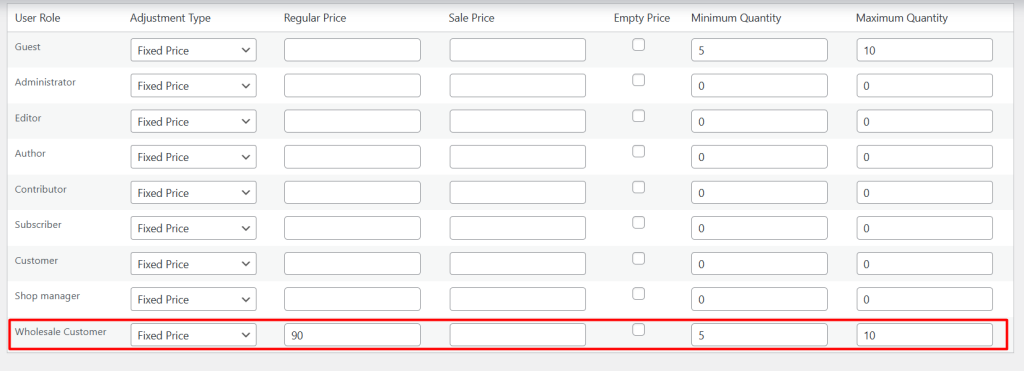
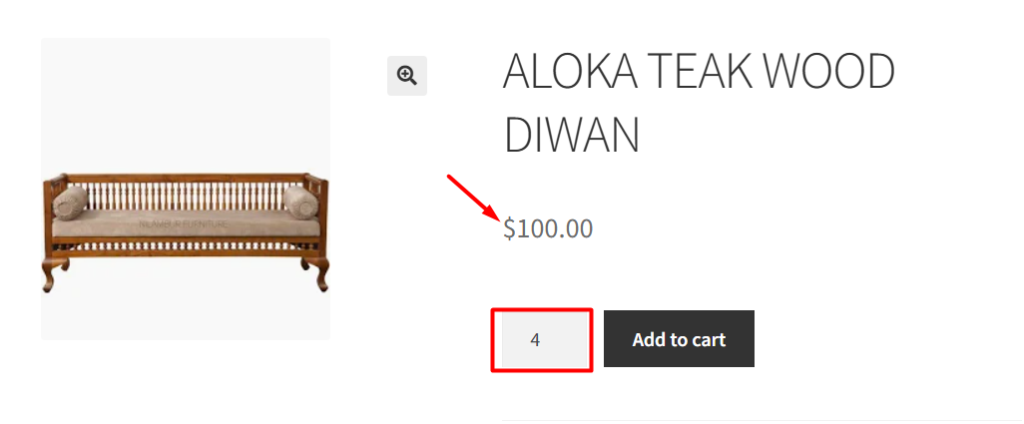
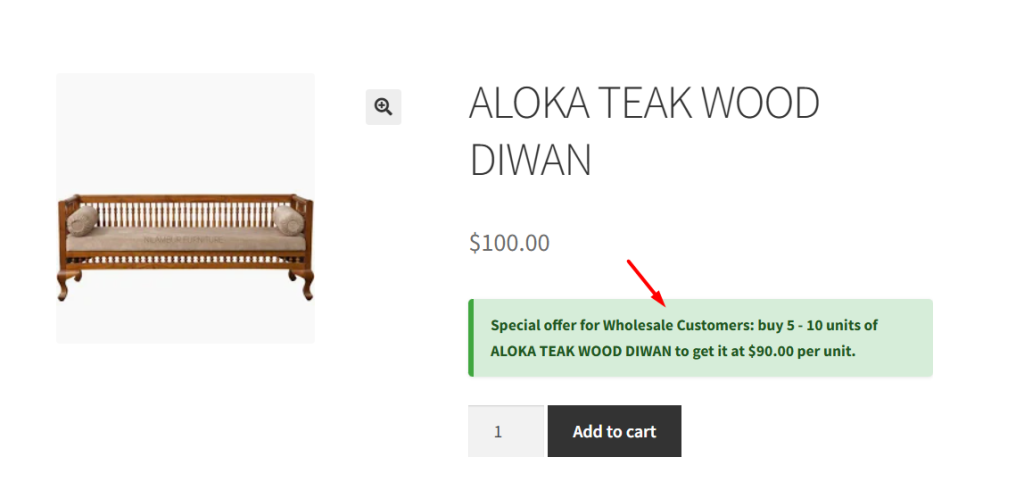
Let’s take the product ALOKA TEAK WOOD DIWAN, which has a regular price of $100. A rule is created for the Wholesale Customer role with a Fixed Price of $90, applicable only when the product quantity in the cart is between 5 and 10 units.
When a wholesaler adds 5 units of the product to the cart, the rule is applied, and the price per unit is displayed as $90.

However, if the wholesaler adds fewer than 5 units or more than 10 units, the rule does not apply, and the product continues to display its regular price of $100.
Showing Quantity-Based Messages on the Product Page
To show quantity-based messages: Go to WooCommerce → Settings → Product Prices by User Roles → Messages tab. Enable the message option ‘Display messages on Frontend’.
Edit the message text using merge codes/placeholders:
- {role} = user role name
- {range} = quantity range you set (e.g. 5–10)
- {product} = product name
- {price} = special price per unit
Save the changes, and on the frontend, it might display as: Special offer for Wholesalers: buy 5-10 units of ALOKA TEAK WOOD DIWAN to get it at $90 per unit.
Conclusion
↑ Back to topThe Rule Based Pricing feature makes it easy to manage role-based prices in bulk across your store. Whether you’re updating all products, specific items, or entire categories, you can now do it in just a few clicks, saving time and ensuring consistent pricing for every user.
User Role Selection on Add/Edit Order Page
↑ Back to topIn addition to dynamically adjusting product prices on the front end based on user roles, the Product Prices by User Roles for WooCommerce Pro plugin now lets you apply the same role-based pricing when creating or editing orders from the WooCommerce admin.
How does this work?
↑ Back to topWhen you manually create a new order or edit an existing one in WooCommerce, you’ll now see a checkbox labeled “Set a user role for this order?” on the Add/Edit Order page of WooCommerce.
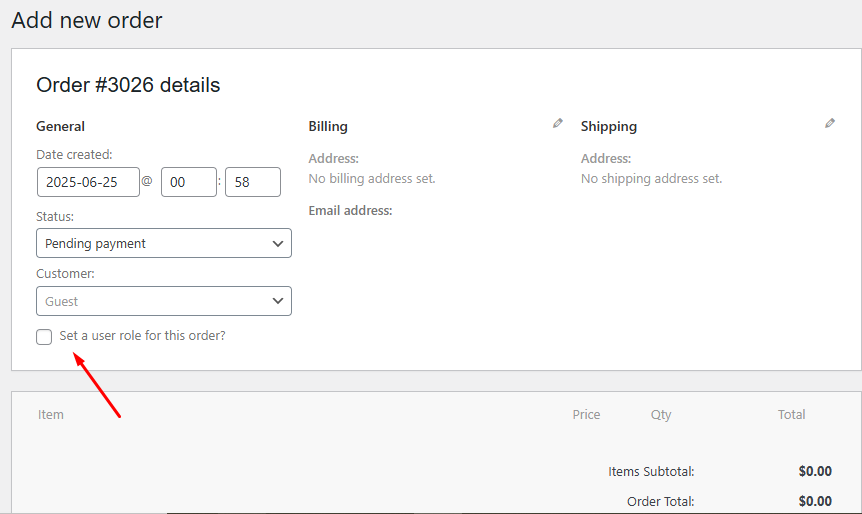
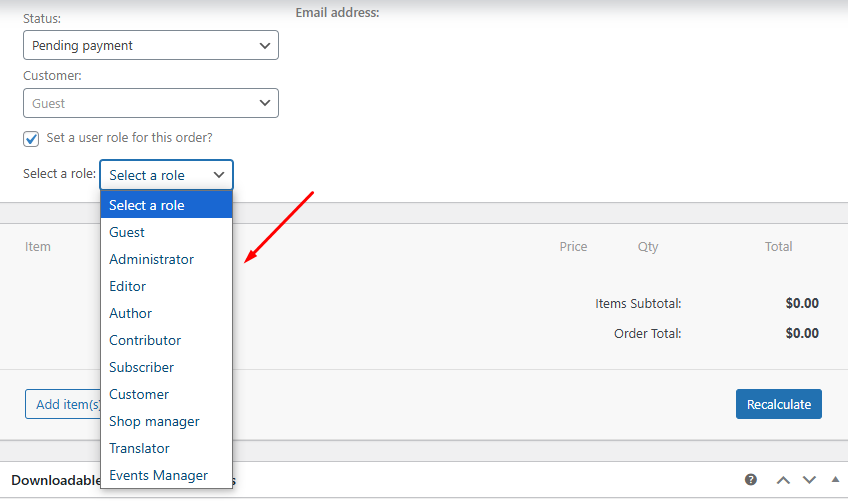
Once this checkbox is enabled, a “Select a role” dropdown appears, allowing you to choose from all available user roles (e.g., Guest, Wholesaler, Customer, etc.).
- Once enabled, a “Select a role” dropdown appears with all available user roles.
- You can choose the desired role for that order. After selecting a role, the appropriate role-based pricing will be automatically applied to the products added to the order.
Suppose you’re manually creating an order for a product that has special pricing set for the Guest role. You can simply:
- Check the “Set a user role for this order?” box.
- Select Guest from the dropdown.
- Add the product to the order.
- The system will automatically apply the Guest pricing set for that product.
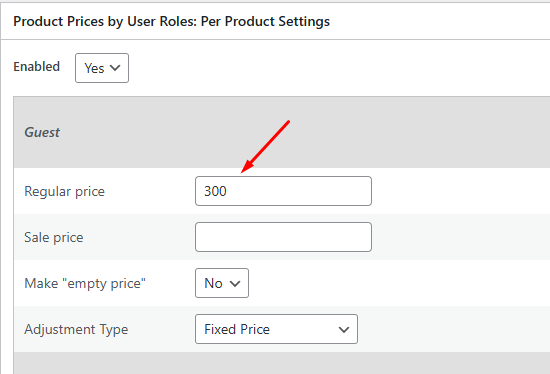
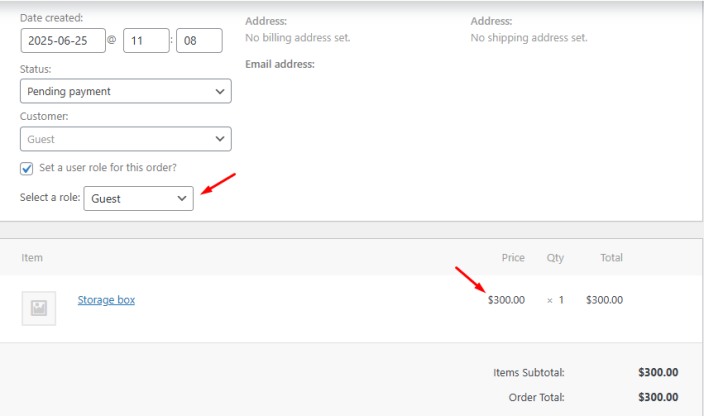
The user role selection feature lets store admins apply role-based pricing when creating or editing existing orders, keeping prices consistent on both the frontend and backend.
FAQ’s
↑ Back to topView all FAQ’s from here.
Questions & Support
↑ Back to topHave a question before you buy? Please fill out this pre-sales form.

