Refer a Friend is an AutomateWoo add-on. To use it, you must install and activate AutomateWoo.
Refer a Friend rewards existing customers, called advocates, when a referred friend completes a purchase. Choose Coupon based to give the friend a coupon and reward the advocate, Link based to reward only the advocate, or Coupon and link based to support both sharing methods.
Refer a Friend settings
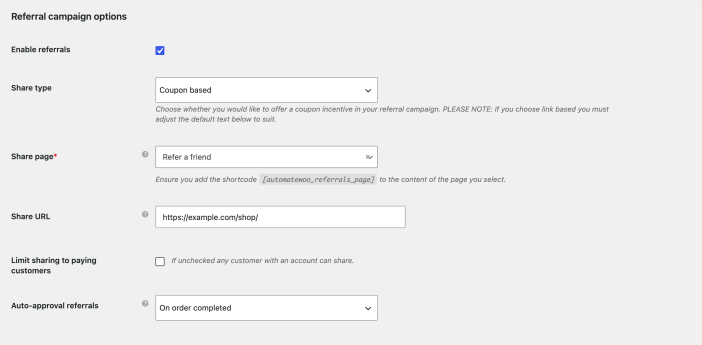
↑ Back to topGo to WP Admin > AutomateWoo > Settings > Refer A Friend. Use Share type to select the campaign type, choose the page that contains your referral form, enter the URL advocates should share, and decide when referrals are approved.
Set up a share page
↑ Back to topCreate a dedicated page for advocates to invite their friends. Add the [automatewoo_referrals_page] shortcode to the page and include a brief explanation of your referral campaign. Do not use your home, cart, or checkout page as the referral page.
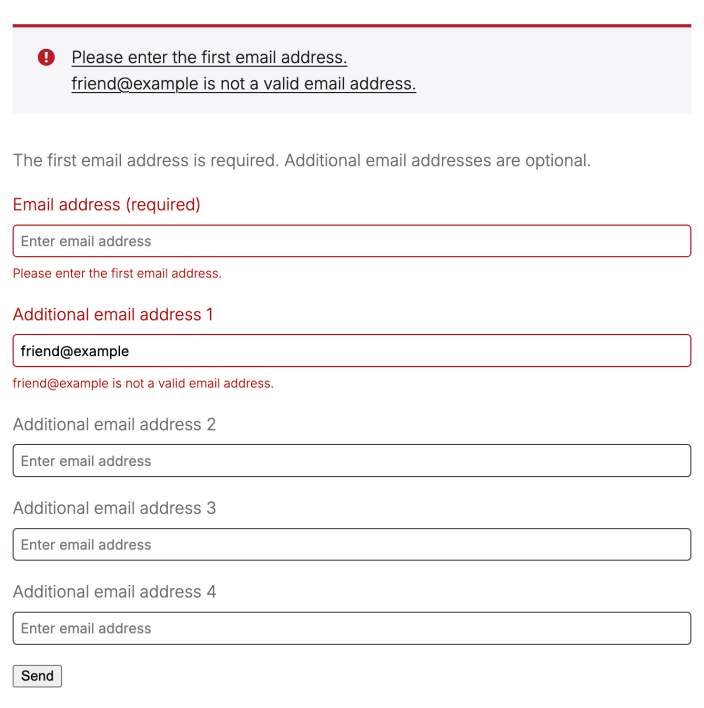
The first email address is required; additional email addresses are optional. If an advocate submits the form with a missing or invalid email address, the form displays an error summary and a message beside each affected field. These messages remain visible until the email addresses are corrected.
Use the share widget
↑ Back to topThe share widget is a compact version of the share page. It appears on the order confirmation page by default, and you can also enable it in order emails or new account emails. Add [automatewoo_referrals_share_widget] to display it on another page. In workflow emails, use the {{ customer.referral_widget }} variable.
Developer customizations: Change the account share-link text, change the Referrals account-tab title, change the number of referral email fields, or personalize the referral invite sender name.
Configure coupon-based referrals
↑ Back to topCoupon-based referrals give the referred friend a coupon and reward the advocate with store credit after an approved referral.
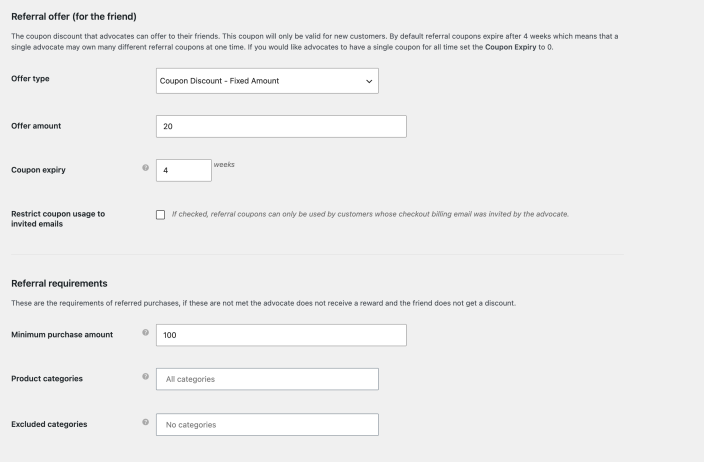
Step 1 — Configure the referral offer and requirements. Choose a fixed or percentage coupon discount, set the offer amount and expiry, and decide whether the coupon is restricted to invited email addresses. Under Referral requirements, set any minimum purchase or category rules. Set Coupon expiry to 0 if each advocate should keep one coupon code indefinitely.
Developer customizations: Change referral coupon length, change the referral coupon prefix, or allow referral coupons with other offers.
Step 2 — Choose the advocate’s reward. Select a fixed store credit amount or a percentage of the friend’s order total. You can also require a minimum purchase before the advocate uses their store credit.
Step 3 — Configure the share widget. Choose where the widget appears and update its heading and paragraph text to match your campaign.
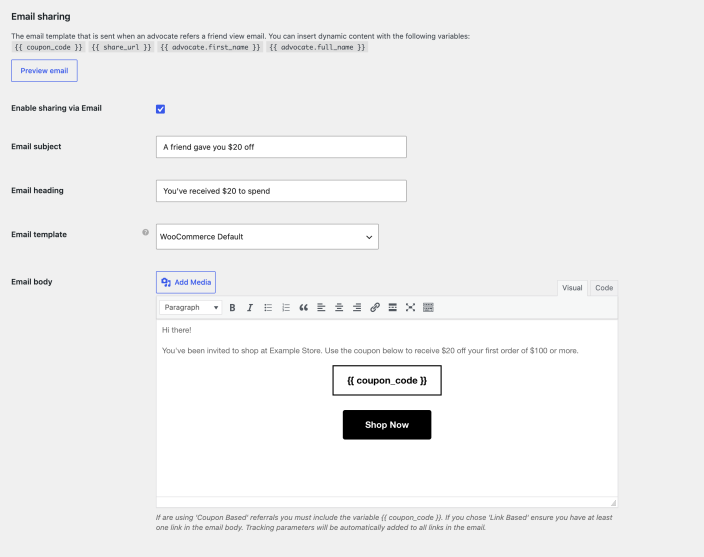
Step 4 — Choose the sharing options. Enable Facebook, X, WhatsApp, or email sharing, then customize the default text. Coupon-based social and email messages must include the {{ coupon_code }} variable.
When the campaign is ready, select Enable referrals at the top of the settings page and save your changes.
Configure link-based referrals
↑ Back to topLink-based referrals reward the advocate without giving the referred friend a coupon. Choose Link based under Share type, then set the query parameter used in referral URLs and the number of weeks each share link remains active. Set Share link expiry to 0 if each advocate should use one link indefinitely.
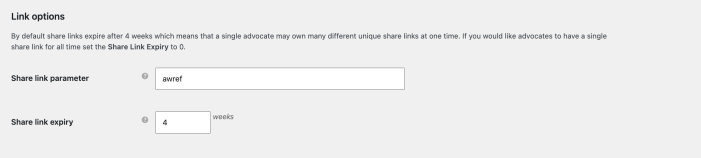
The share page, approval process, advocate reward, widget, social sharing, and email sharing settings work the same way as described above. Remove {{ coupon_code }} from link-based widget, social, and email text. Include at least one link in the email body so AutomateWoo can add the advocate’s tracking parameter.
When the campaign is ready, select Enable referrals at the top of the settings page and save your changes.
Frequently asked questions
↑ Back to topHow do I know whether a referral was successful?
Advocates can view successful referrals under My Account > Referrals.
Can this add-on be network-activated on WordPress multisite?
No. Network activation under My Sites > Network Admin > Plugins can cause the following error on subsites:
AutomateWoo - Refer A Friend is inactive. AutomateWoo plugin directory name is not correct.
Activate the add-on separately on each subsite instead.
Does the add-on include fraud detection?
Yes. Refer a Friend includes these fraud checks:
- Matching IP addresses — If the advocate and customer use the same IP address, the referral is marked as potentially fraudulent and blocked from auto-approval. A matching address does not always indicate fraud, such as when co-workers share an IP address.
- Matching cookies — If the advocate’s referral cookie is present, the referral coupon cannot be used.
- Matching email addresses — The billing email address is checked against previous orders when a referral coupon is used. If a match is found, the coupon cannot be used.