WooCommerce Square is powerful and lets you customize your customers’ experience from start to finish. There are a couple of options to help ensure you meet your customers’ needs and increase conversions.
Card payment experience
↑ Back to topCard payment Settings are configured via WooCommerce > Settings > Payments > Square. See Payment Settings documentation for the full information.
Accepted card logos
↑ Back to topThese card logos would be displayed to customers as accepted during checkout.
Here’s how the card logos would appear on the checkout page when using the Classic checkout:
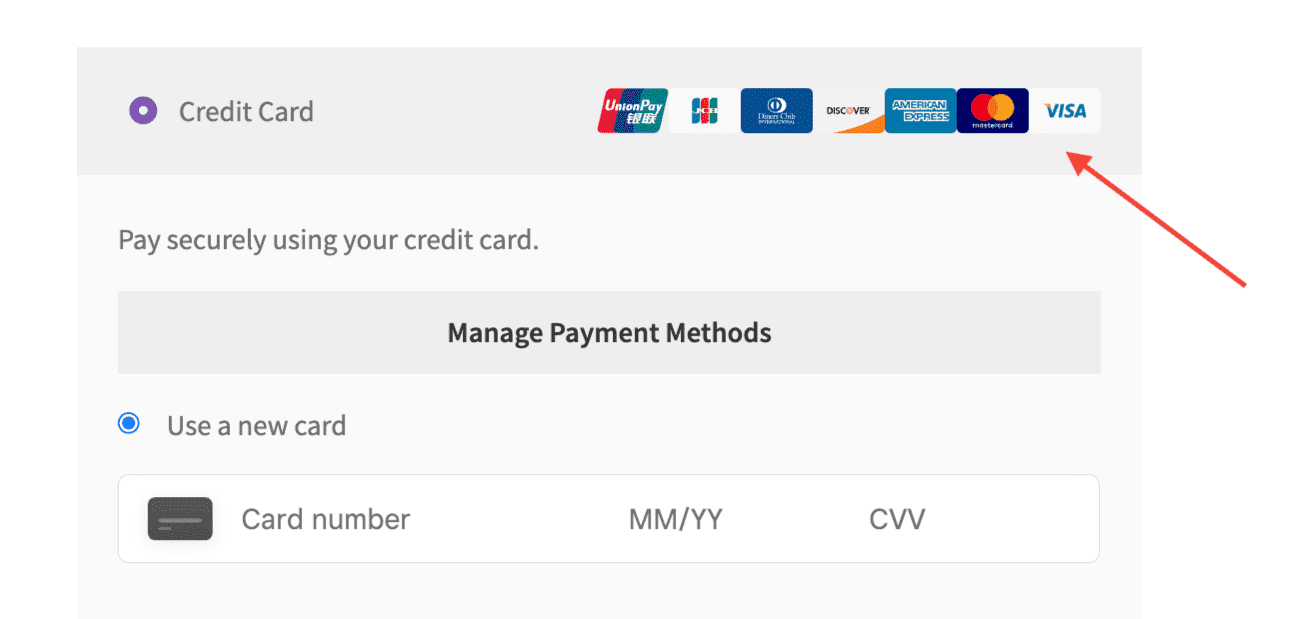
Accepted card logos are not supported in block Checkout.
Customer profiles enabled
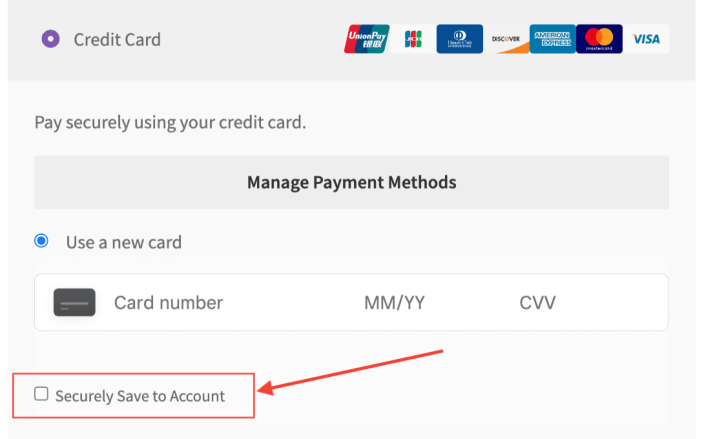
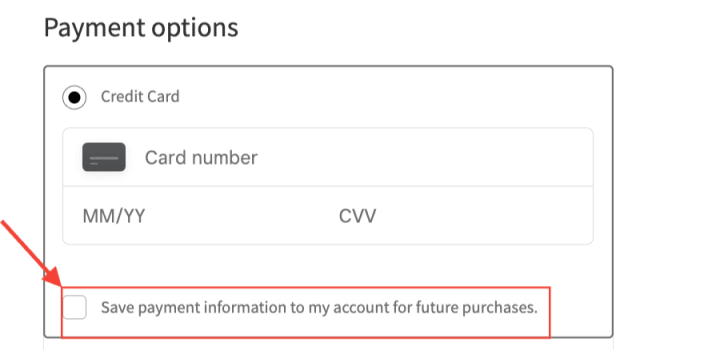
↑ Back to topWhen this feature is enabled in the payment settings, a checkbox will appear under the credit card field area that customers can use to securely save their card in Square. Once customers save their card, they can use it to make purchases without re-entering their card data.
Here’s what the option the customer would see looks like on the Checkout page using the Classic Checkout and block Checkout:
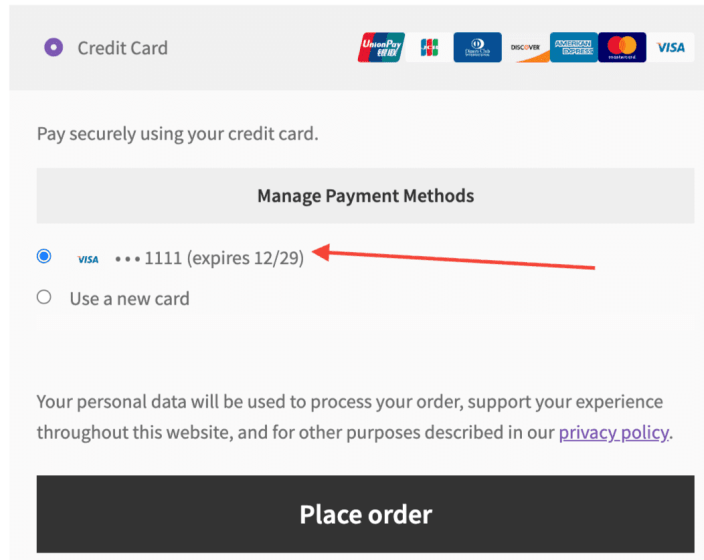
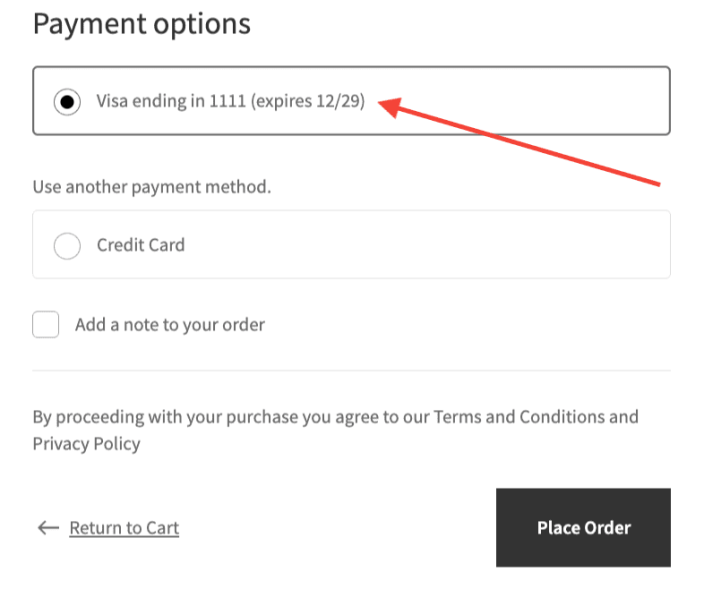
Paying with a saved card
↑ Back to topOnce customers save their payment information, they can use the saved payment information to pay for future purchases.
Here’s what the saved payment information would look like on the checkout page using the Classic Checkout and block Checkout:
Gift cards
↑ Back to topWhen Gift Cards are enabled, a field is displayed on the Checkout page to allow customers to enter their gift cards.
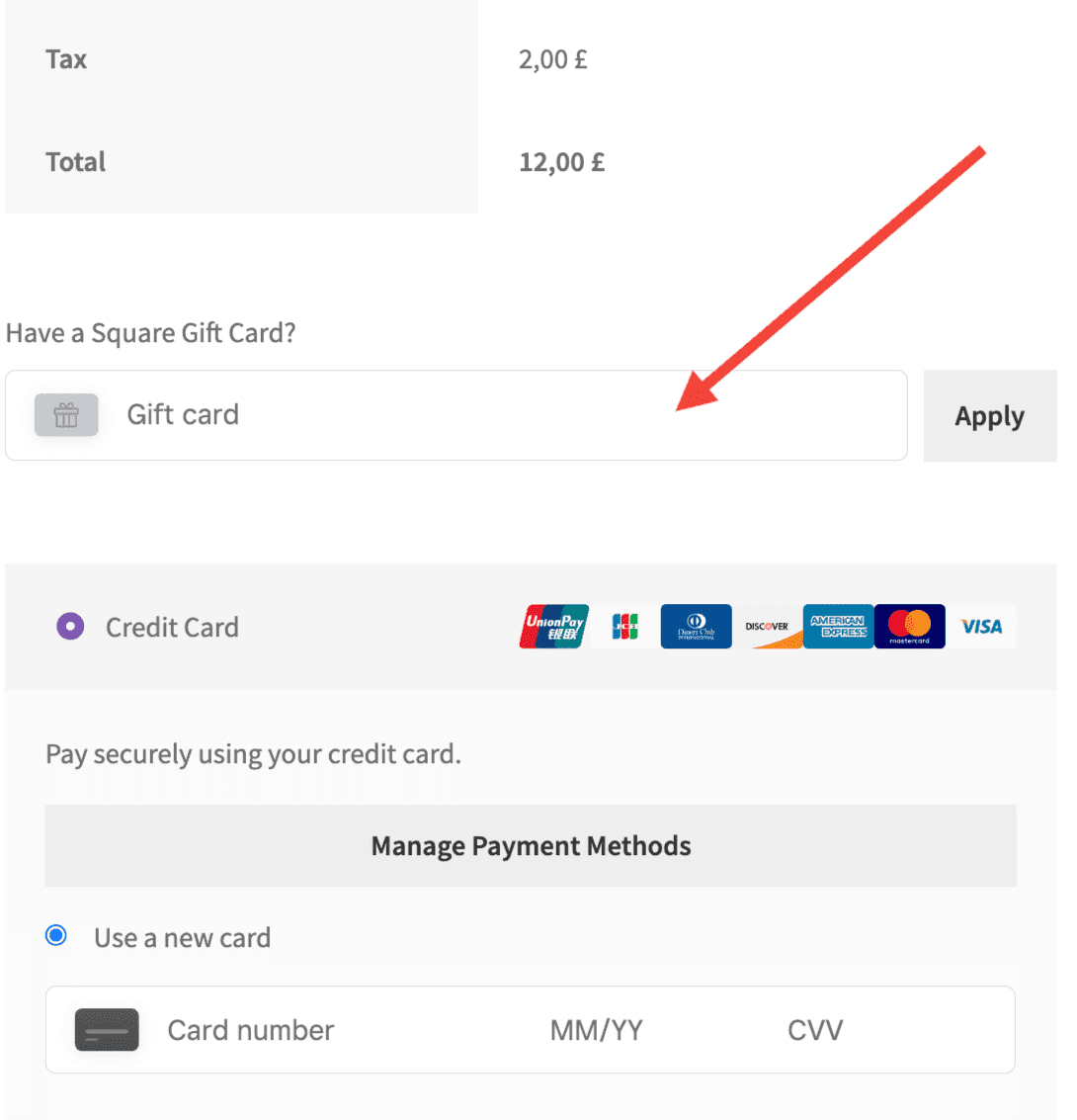
Please note that Gift Cards are currently not supported in block Checkout.
Paying entirely using gift card
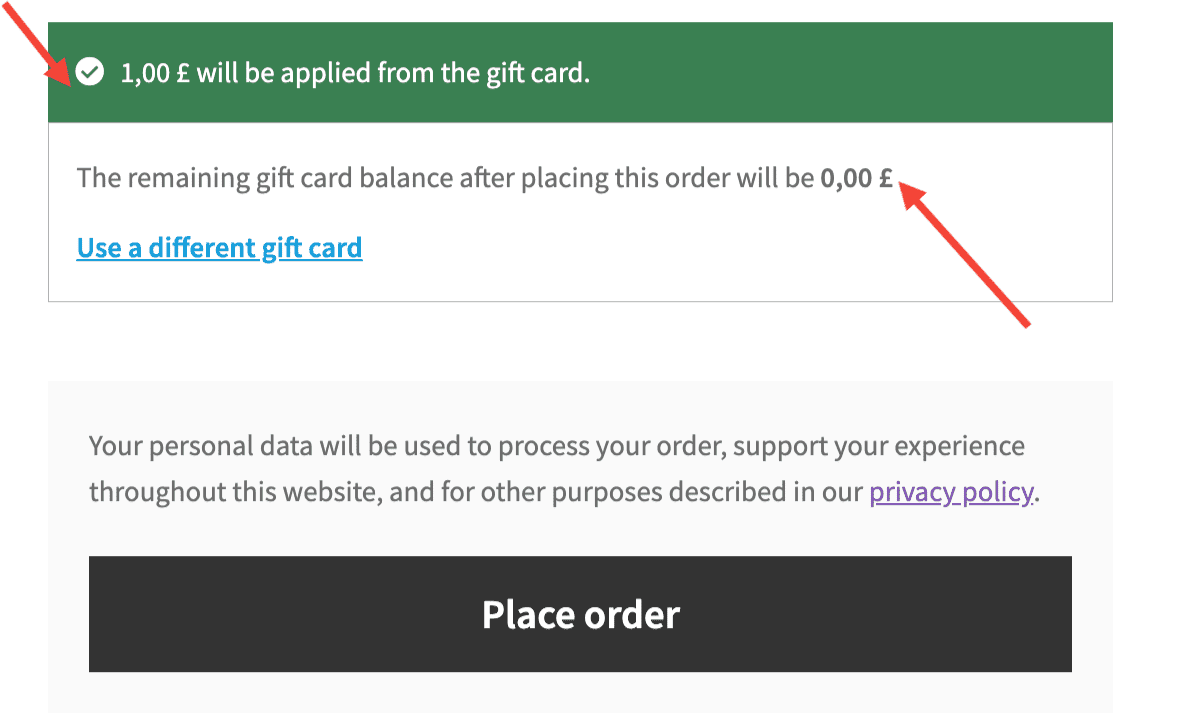
↑ Back to topIf a customer’s gift card has sufficient balance to pay for the entire order, the credit cards field will be hidden after the gift card is applied. A notice box will appear indicating the amount from the gift card that will be used for the order, as well as the amount remaining in the gift card after placing the order.
Payments split between credit card and gift card
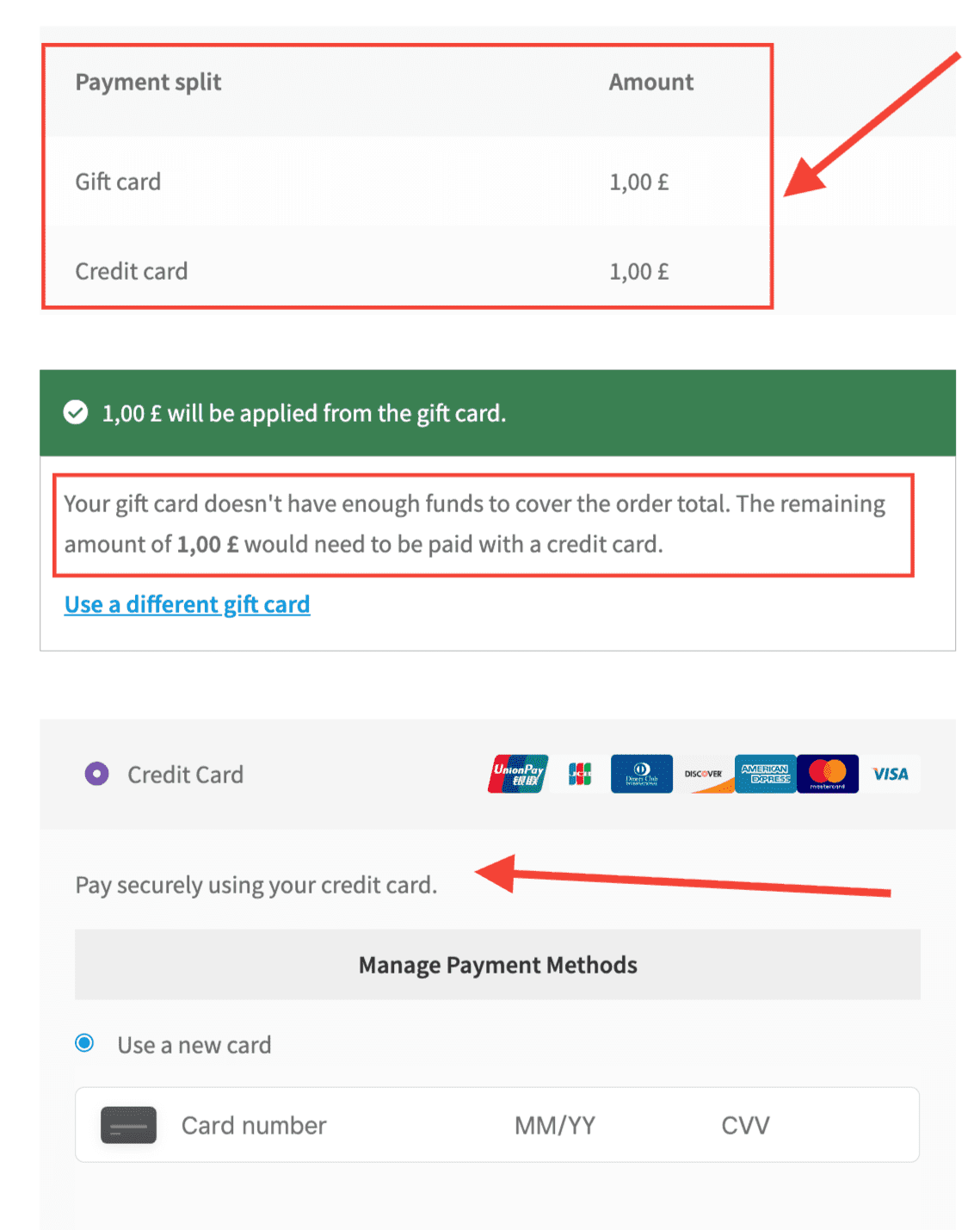
↑ Back to topIf the gift card doesn’t cover the entire order, payments can be split between the gift card and a credit card. Customers would see a section for payment split amounts, as well as a section stating that they don’t have enough funds on the gift card to cover the entire order amount and that they’ll need to pay with a credit card.
Invalid gift card number
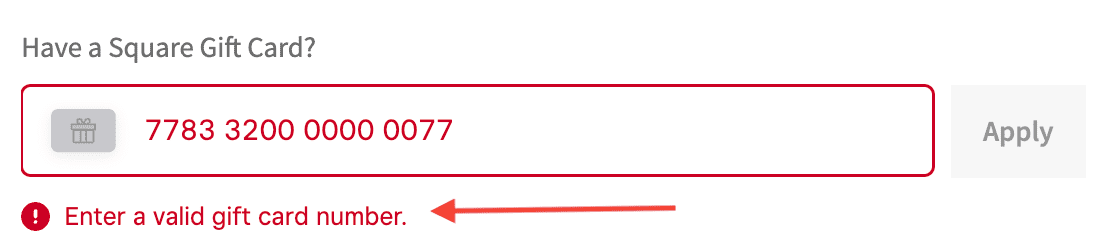
↑ Back to topIf a customer adds an invalid gift card number, the gift card number field will show a red border, and a notice will appear below it, mentioning Enter a valid gift card number.