Weights improve the relevance in product search results, based on search keyword matches in product titles, excerpts (product short descriptions), contents, tags, categories, product attributes and their SKU.
Weights can also be set for specific products and product categories, to fine-tune the order in which products appear in product search results.
The use of Search Weights can have a significant impact on the relevance of product search results. You must enable the option to use weights before they are taken into account. The option must be enabled so that additional settings for search weights are displayed when products and product categories are edited.
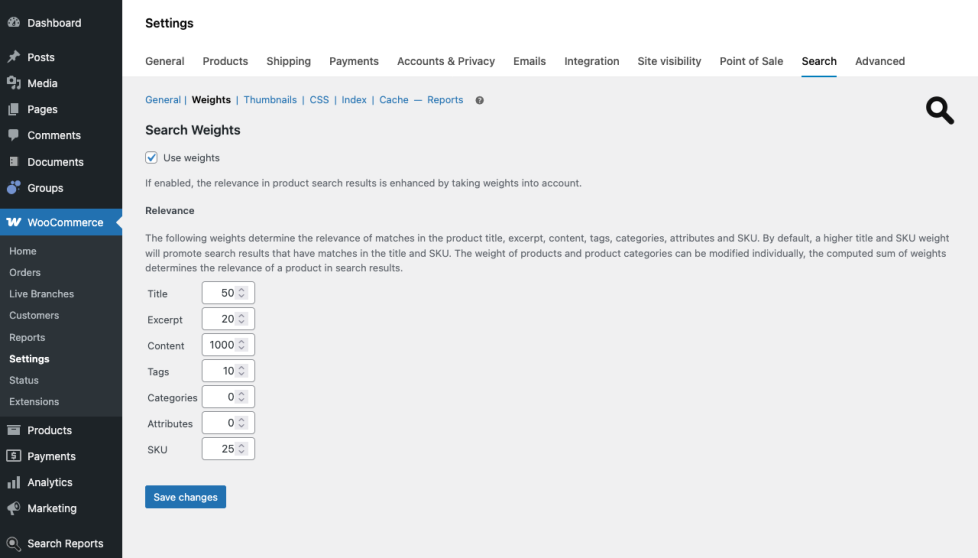
Use weights
↑ Back to topTo enable the use of weights, go to WooCommerce > Settings > Search, check the option Use weights and save the changes.

If you have just enabled weights and want to see the effect that has on searches immediately, you need to flush the active Caches. For stores with lots of traffic, this should preferrably be done during low traffic hours, to avoid any performance impact on searches for customers.
Relevance
↑ Back to topThe weight settings determine the relevance of matches in the product title, short description (excerpt), its content and its related tags.
Weights can be set for the following product elements:
- Title – this affects the relevance of a product when its title matches one or more search keywords
- Excerpt – for matching keywords in the product’s short description
- Content – when matching search keywords are found in the product’s content
- Tags – where search keywords match tags that are related to a product
- Categories – where search keywords match categories that are related to a product
- Attributes – when there is a matching attribute term related to a product
- SKU – when the SKU matches the search
By default, a set of weights is provided which assign a higher relevance to products with matches in the title, short description or related tags, while leaving matches in the product content at their default.
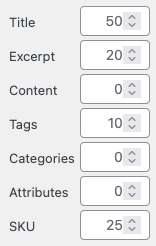
The relatively high title weight used by default, will promote search results that have matches in the title substantially, compared to matches in other aspects of the product.
Note that the search weight of products and product categories can be modified individually, the computed sum of weights determines the relevance of a product in search results.
Setting the Search Weight of specific Products
↑ Back to topIf search weights are enabled, their value can be adjusted individually for each product. Positive values will promote the relevance of a product when it appears in product search results, while negative values will demote it. If a product’s search weight is set to 0 or is not specified, its relevance is determined by the general values for matching keywords only.
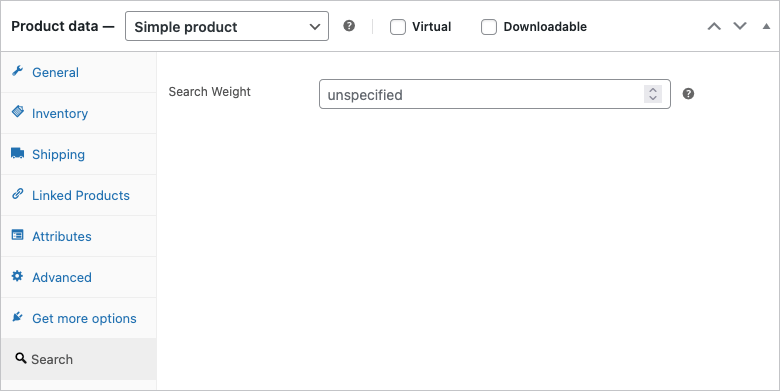
To set the search weight of a specific product, go to Products and edit the desired product. Under Product Data > Search, adjust the Search Weight. The value will be added to the product’s sum of weights when it appears in product search results and will adjust its position with respect to the search weights of other products that also appear as results.
Setting the Search Weight of specific Product Categories
↑ Back to topIf enabled, search weights can be set for product categories. These are used to adjust the relevance of all products that belong to a category.

To set the search weight of a category, go to Products > Categories and edit the desired category. Set a positive value to promote all products in the category or a negative value to demote them. The value is added to the product’s sum of weights similar to how a product’s individual search weight impacts its overall relevance. If a product belongs to several categories for which weights have been set, the maximum value is taken into account. For example, if a product belongs to Category A with a search weight set to 100 and Category B’s search weight 200, the product’s category search weight will be 200.
As of version 3, the weights are accumulative through the hierarchy of categories. This means that any child category’s weight will be the sum of its ancestors’ weights and its own assigned weight. As you may use both positive and negative weights, this allows you to fine-tune specific sub-categories as needed. For example, you could promote a specific sub-category for seasonal demand by adding a positive weight to it, while demoting others assigning a negative weight.
As an example, assume you have a root category Clothing and two sub-categories Shirts and Pants. If we assign a weight of 100 to the Clothing category and do not assign any particular weight to either the Shirts or Pants sub-categories, both will inherit the weight of 100. But if we assign 25 to Shirts and -10 to Pants, the resulting effective weight will be 125 for Shirts and 90 for Pants.
How Search Weights Work
↑ Back to topSearch Weights are calculated by summing weights based on matches in the product title, description, content and other factors as described above, plus category weights and individual product weights. To help you understand how this works, we provide the following examples.
To make things easier to understand, we have simplified the examples and include only the title, excerpt, content and tags in our considerations.
Assuming the default settings under WooCommerce > Search > Weights > Relevance
| Title | 50 |
| Excerpt | 20 |
| Content | 0 |
| Tags | 10 |
- A search keyword found in the title adds 50.
- A matching keyword in the excerpt adds 20.
- As the weight for content is set at 0, matches in the product’s content will not increase or decrease the relevance in search results.
- A matching tag adds 10.
Matches are counted only once per keyword. For example, whether a keyword is found 1 or 2 times in the excerpt, it will only add 20. For a search with two keywords, if both keywords are found at least once in the excerpt, each will add 20.
Given a search keyword, a match that counts towards the sum is any word that is the keyword or starts with the keyword.
If a product or a product category defines a specific weight, it is added to the weights obtained based on these settings.
Let’s assume these three products :
- Product ID : 1
- Title: Yellow Banana
- Excerpt: A fruity experience full of joy
- Content: The yellow banana is a tasteful experience for the connoisseur and sweeter than the green banana.
- Tags: fruit, yellow, banana, sweet
- Product ID : 2
- Title: Green Apple
- Excerpt: It’s pretty sour!
- Content: An apple a day keeps the doctor away. This is a fresh green apple, other varieties such as red or yellow apples are also available. Perfect for smoothies and cake.
- Tags: fruit, green, apple, sour
- Product ID : 3
- Title: Red Orange
- Excerpt: Great for juice and cakes!
- Content: The Red Orange is the prettier variety of the ordinary Orange, with a deep red color and intense flavor. Ideal for fresh juice in the morning!
- Tags: red, orange, juice, fruit
- Search Weight: 11 – Note that this product has a specific search weight defined.
Here are some example searches and computed weights. Only the computed weights of products that are included in search results are shown.
| Search | Matching Products |
| fruit | Yellow Banana Red Orange Green Apple |
| red fruit | Red Orange Green Apple |
| green fruit | Green Apple Yellow Banana |
| fruit cake | Red Orange Green Apple |
- Search #1 : fruit
Yellow Banana : matches “fruit” in excerpt and tags. Weight = 20 + 10 = 30
Green Apple : matches “fruit” in tags. Weight = 10
Red Orange : matches “fruit” in tags, adds product search weight. Weight = 10 + 11 = 21
Results in order of relevance: Yellow Banana (30), Red Orange (21), Green Apple (10)
- Search #2 : red fruit
Green Apple : matches “red” in content, “fruit” in tags. Weight = 10
Red Orange : matches “red” in title, content and tags, “fruit” in tags, adds product search weight. Weight = 50 + 10 + 10 + 11 = 81
Results in order of relevance: Red Orange (81), Green Apple (10)
- Search #3 : green fruit
Yellow Banana : matches “green” in content, “fruit” in excerpt and tags. Weight = 20 + 10 = 30
Green Apple : matches “green” in title, content and tags, “fruit” in tags. Weight = 50 + 10 + 10 = 70
Results in order of relevance : Green Apple (70), Yellow Banana (30)
- Search #4 : fruit cake
Green Apple : matches “fruit” in tags, “cake” in content. Weight = 10
Red Orange : matches “fruit” in tags, “cake” in excerpt, adds product search weight. Weight = 10 + 20 + 11 = 41
Results in order of relevance : Red Orange (41), Green Apple (10)