
Use Composite Products scenarios to guide shoppers through compatible choices. You can also use Product Bundles inside a component when shoppers need to choose several optional products from the same group.
Scenarios
↑ Back to topHow scenarios work
↑ Back to topA scenario has conditions and one or more actions. Conditions check the products or variations selected in earlier components. Actions can hide individual options or entire components. For other actions, see Conditional Images for Composite Products or use custom code. Scenario conditions work with product and variation selections.
Create a scenario
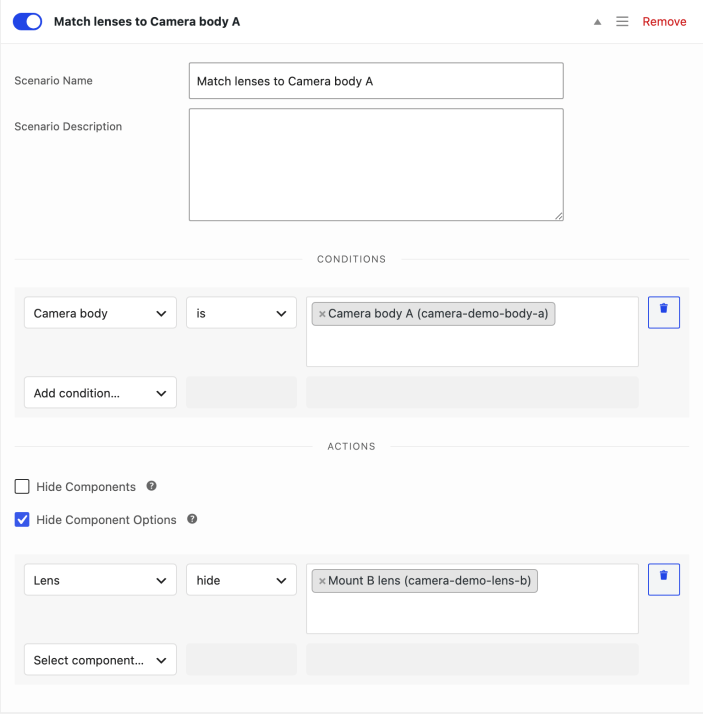
↑ Back to topEdit the composite product and go to Product data > Scenarios. Select Add Scenario, give it a name, and add a description if other store managers need context. Under Conditions, add the relevant component and choose is, is not, or any. Select the products or variations that should match. Use No Selection if the condition should match an empty component. Under Actions, select what the scenario should hide, then save the product.
Hide component options
↑ Back to topConfigure the action
↑ Back to topChoose Hide Component Options. Add the later component and use hide to exclude selected options or hide all except to keep only the selected options. Hide No Selection on an optional component if the matching condition should require a choice. Hidden options are removed from the choices by default. You can show them as unavailable with a snippet.
Example camera kit
↑ Back to topA camera kit offers two camera bodies and two lenses. In the first scenario, set Camera body to is Camera body A, then hide Mount B lens in the Lens component. In the second scenario, match Camera body B and hide Mount A lens. Preview the product and switch between bodies to confirm that only the compatible lens remains available. The camera kit demo shows a similar setup.
Hide an entire component
↑ Back to topIn the scenario, choose Hide Components instead of Hide Component Options. Select which later components should disappear when the condition matches. Save the composite and test both a matching and a nonmatching choice in the product preview.
Let shoppers choose multiple accessories
↑ Back to topEach component takes one option. To offer a choice of several accessories together, use a Product Bundle as the component’s option.
- Create a bundle with the camera bag, lens cover, and dust blower. Mark each item Optional and set the bundle’s catalog visibility to Hidden.
- In the composite, create an Accessories component and make the bundle its only option. Set the component to optional if shoppers can skip accessories. See the camera kit with accessories demo.
- In the component’s advanced settings, under Selected Option, enable Hide Title and Hide Thumbnail to focus the product page on the accessories.
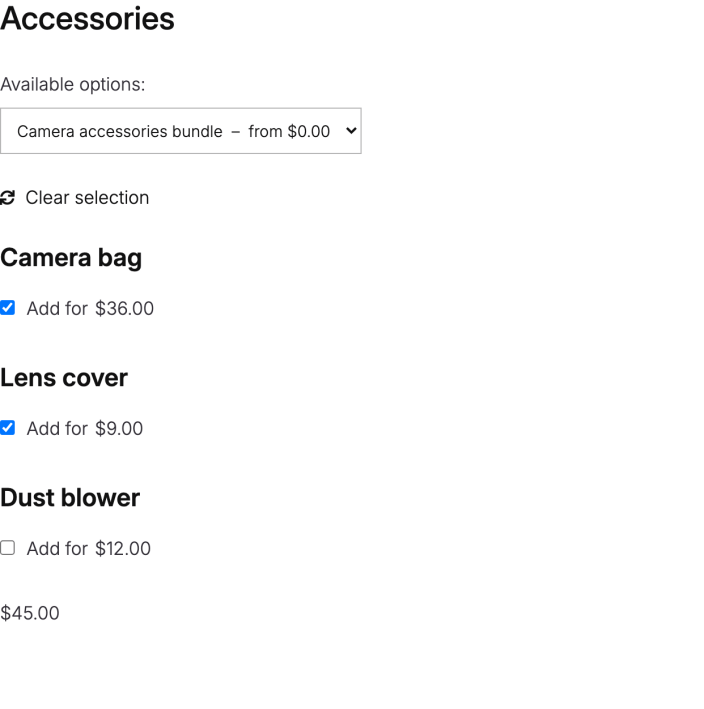
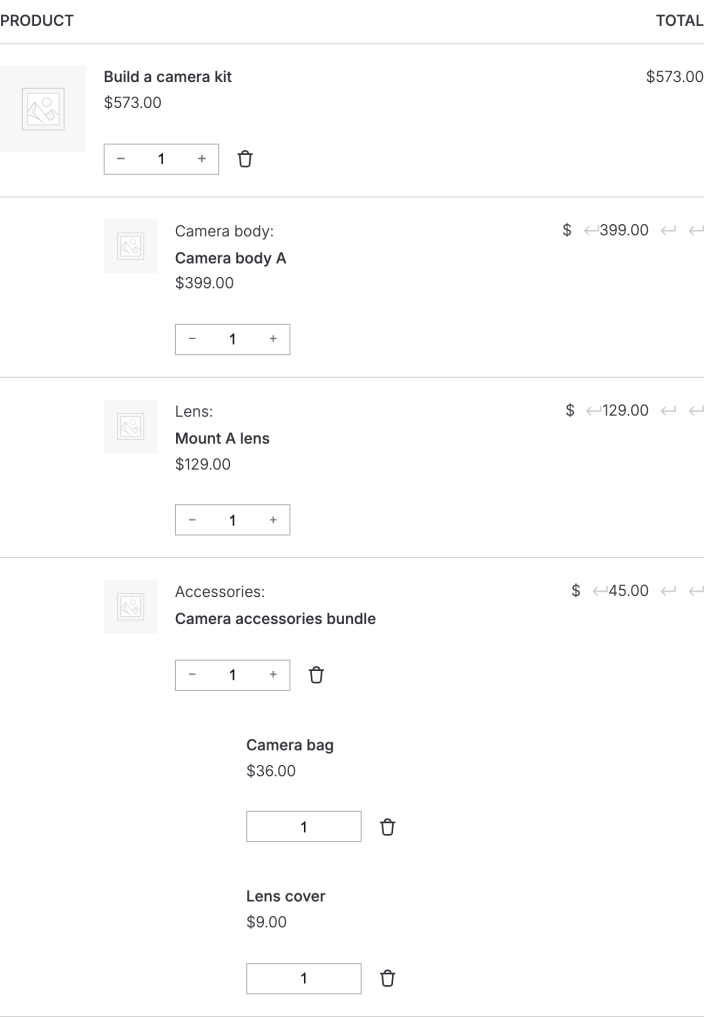
Preview the kit, select more than one accessory, and add the kit to your cart. Under the bundle’s Item Grouping settings, Grouped keeps the bundle’s grouping visible. With None, the component remains in the cart and the bundle title is hidden. For None, the bundle itself must be virtual, with no base price and no assembled shipping. Check the cart layout with your own theme.
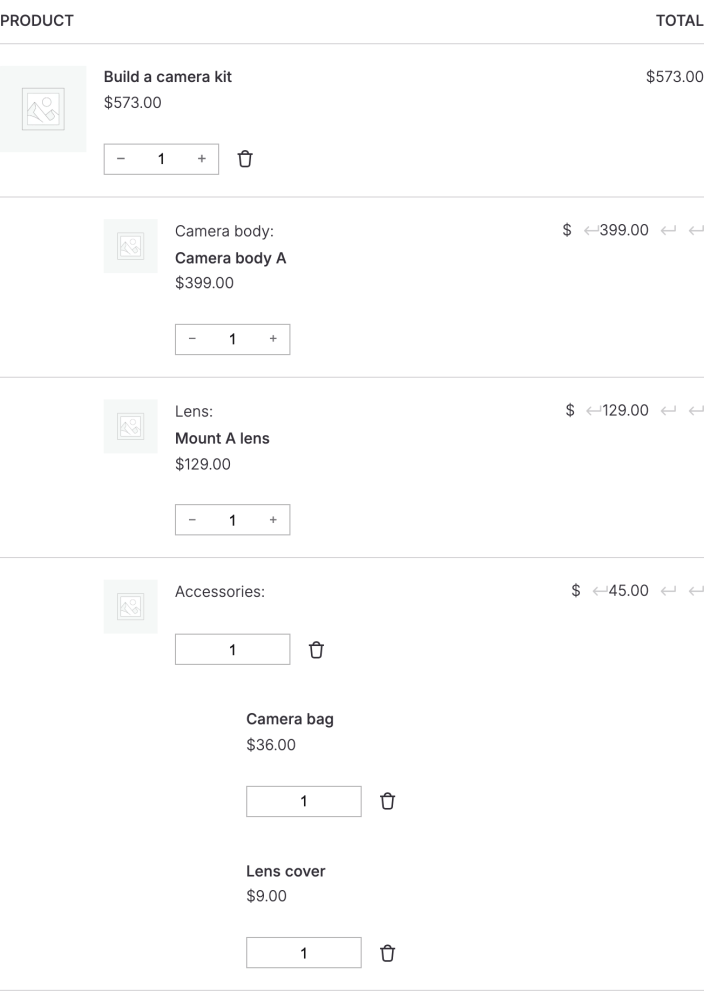
Component pagination, sorting, and filtering apply to component options. Here the bundle is the option, so those controls and scenarios don’t act on its individual accessories.
Questions & Support
↑ Back to topFor questions before purchasing, contact Sales. If you already use Composite Products, contact support.