Requirements
↑ Back to topIn order to use the bulk-order-form-for-woocommerce there are a few requirements:
| WooCommerce 3.8+ | (4.0+ recommended) |
| PHP 5.3+ | (7+ recommended) |
| WordPress Tested | (Upto 5.9+) |
Installation Guide
↑ Back to top- Log in to your WordPress Admin Panel.
- Navigate to the WordPress Admin Dashboard > Plugins > Add New.
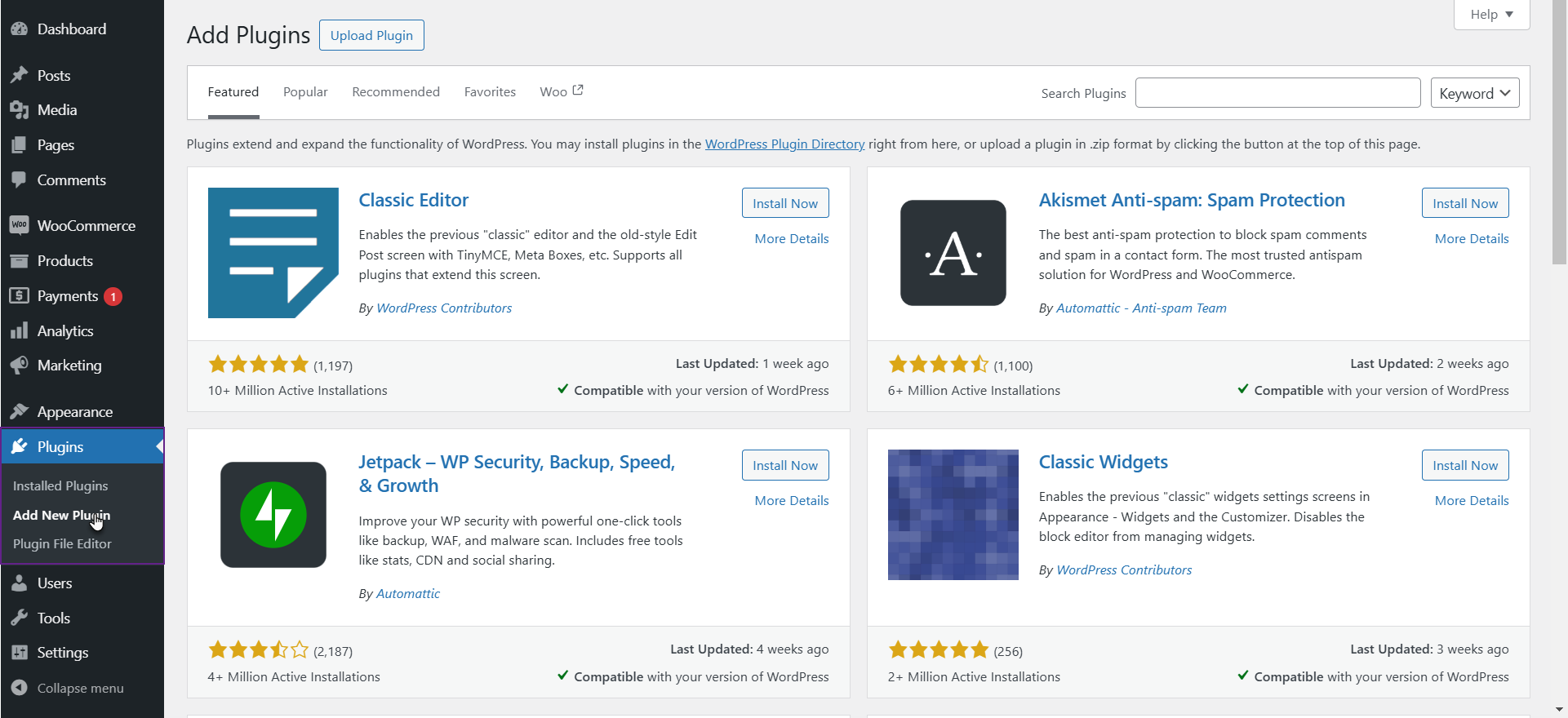
- Click the Upload Plugin button on the top left corner of your screen.
- Next, click the Choose File button in the box that appears below.
- Select the zip file that you have downloaded and upload it.
- Click on the Activate Plugin button.
Getting Started
↑ Back to topProduct Table Settings
↑ Back to top- Go to WooCommerce > Product Table.
- Click Add New.

- Enter Table Title.
- Drag & Drop the Columns into the Dotted Box.
- Click on the Columns to Edit.
The product table will be consisting of these columns which are dropped into the dotted area and will be displayed at the front end.
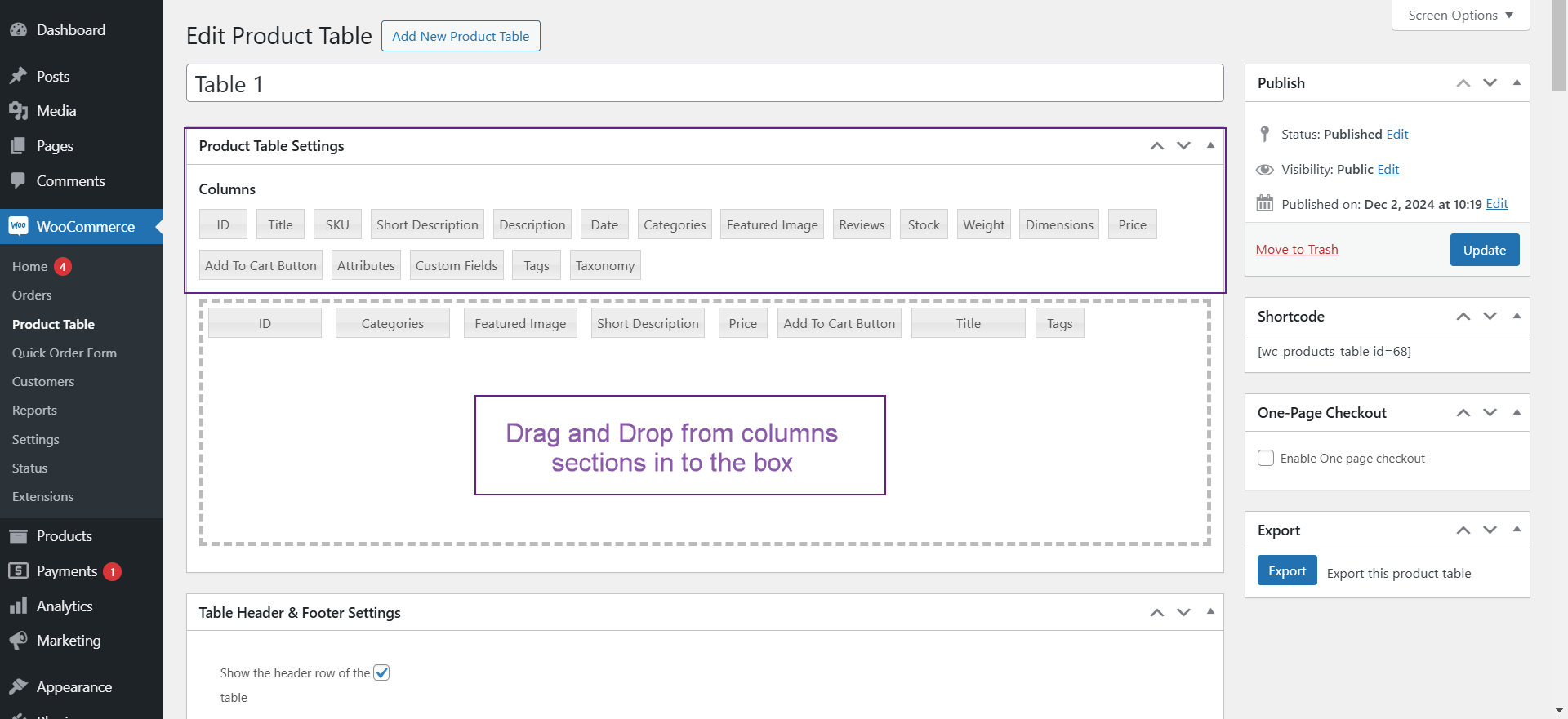
NOTE: only the columns tags present in the dotted area are editable. Columns tags which are outside the dotted are not editable.
Columns types
↑ Back to topProduct ID
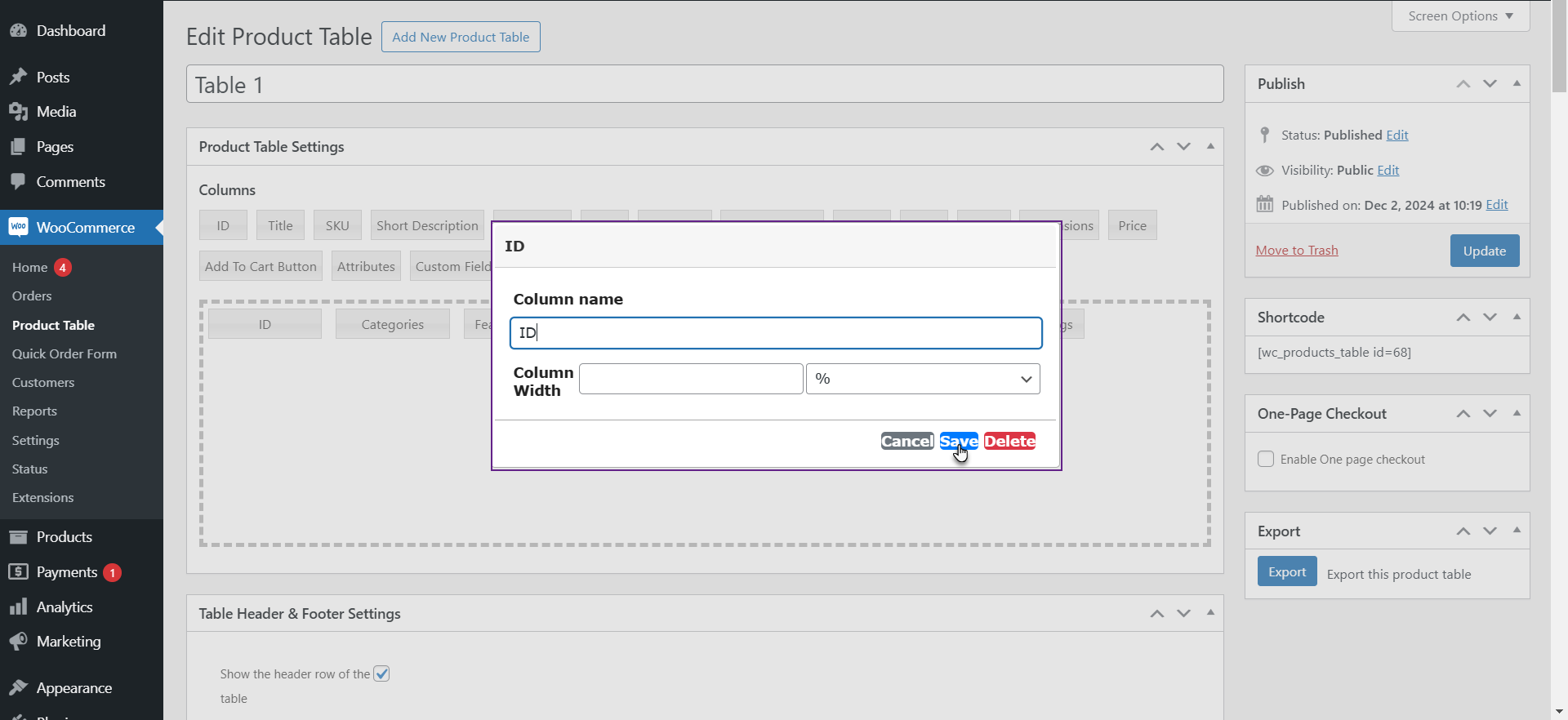
- Enter column name and width (in percentage or in pixels). It is not necessary to enter column width.
- Save Changes.
Product Title
- Enter column name and width (in percentage or in pixels). It is not necessary to enter column width.
- Select whether to link the product title to the product single page or not.
- Save changes.

Product SKU
- Enter column name and width (in percentage or in pixels). It is not necessary to enter column width.
- Save Changes.

Short Description
- Enter column name and width (in percentage or in pixels). It is not necessary to enter column width.
- Save Changes.

Product Description
- Enter column name and width (in percentage or in pixels). It is not necessary to enter column width.
- Enter Description character length in numeric for e.g (10).
- Save Changes.

Product Published Date
- Enter column name and width (in percentage or in pixels). It is not necessary to enter column width.
- Select Date Format to display.
- Save Changes.

Product Category
- Enter column name and width (in percentage or in pixels). It is not necessary to enter column width.
- Save Changes.

Featured Image
- Enter column name and width (in percentage or in pixels). It is not necessary to enter column width.
- Select whether to link product title to the product single page or not.

- Once done, click on the Featured Image, and click on the Expand Image dropdown option, select Yes.
- Click on the Save button.

Front-End Impact
- Go to the website.
- Navigate to the Product Table page.
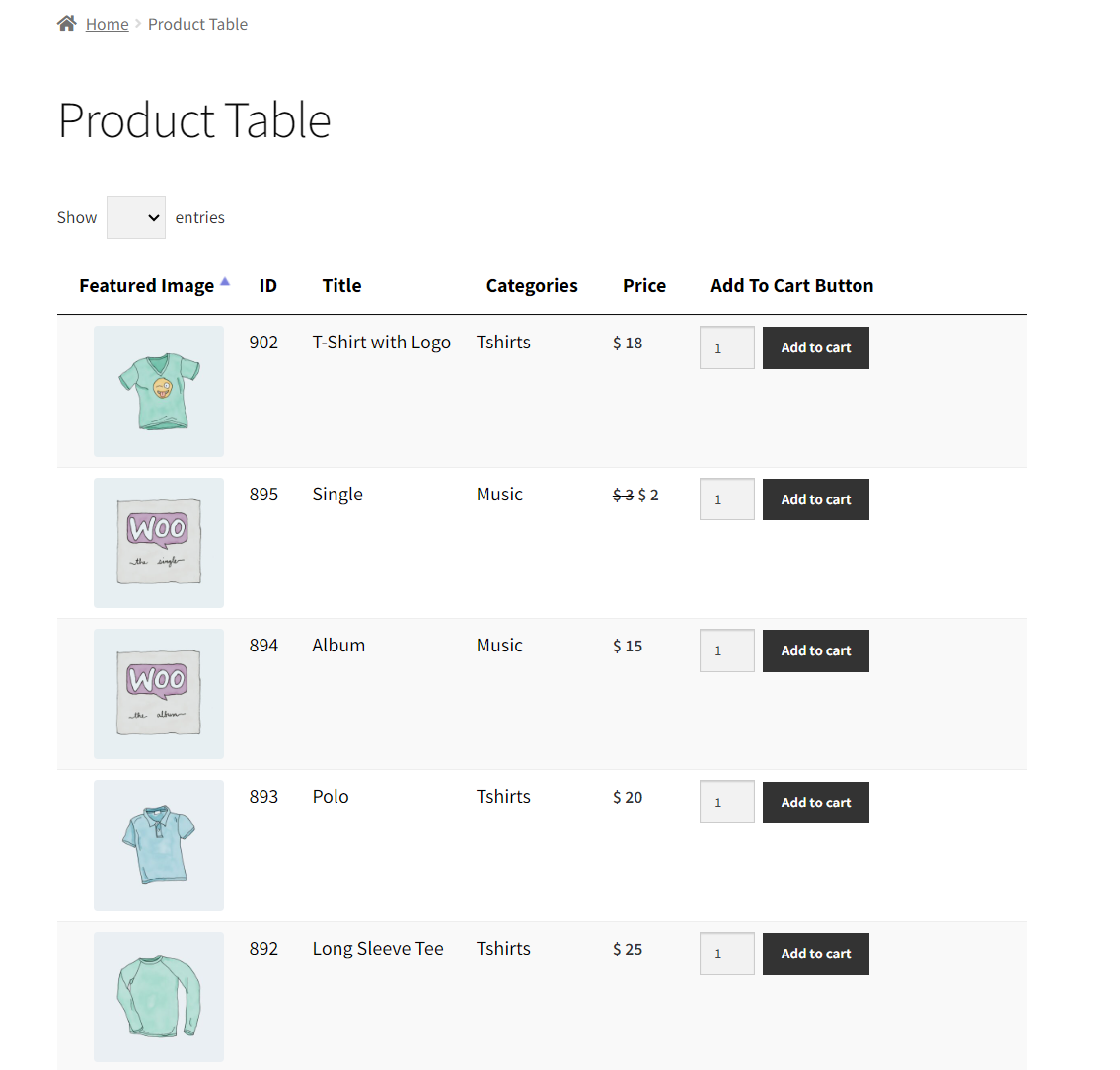
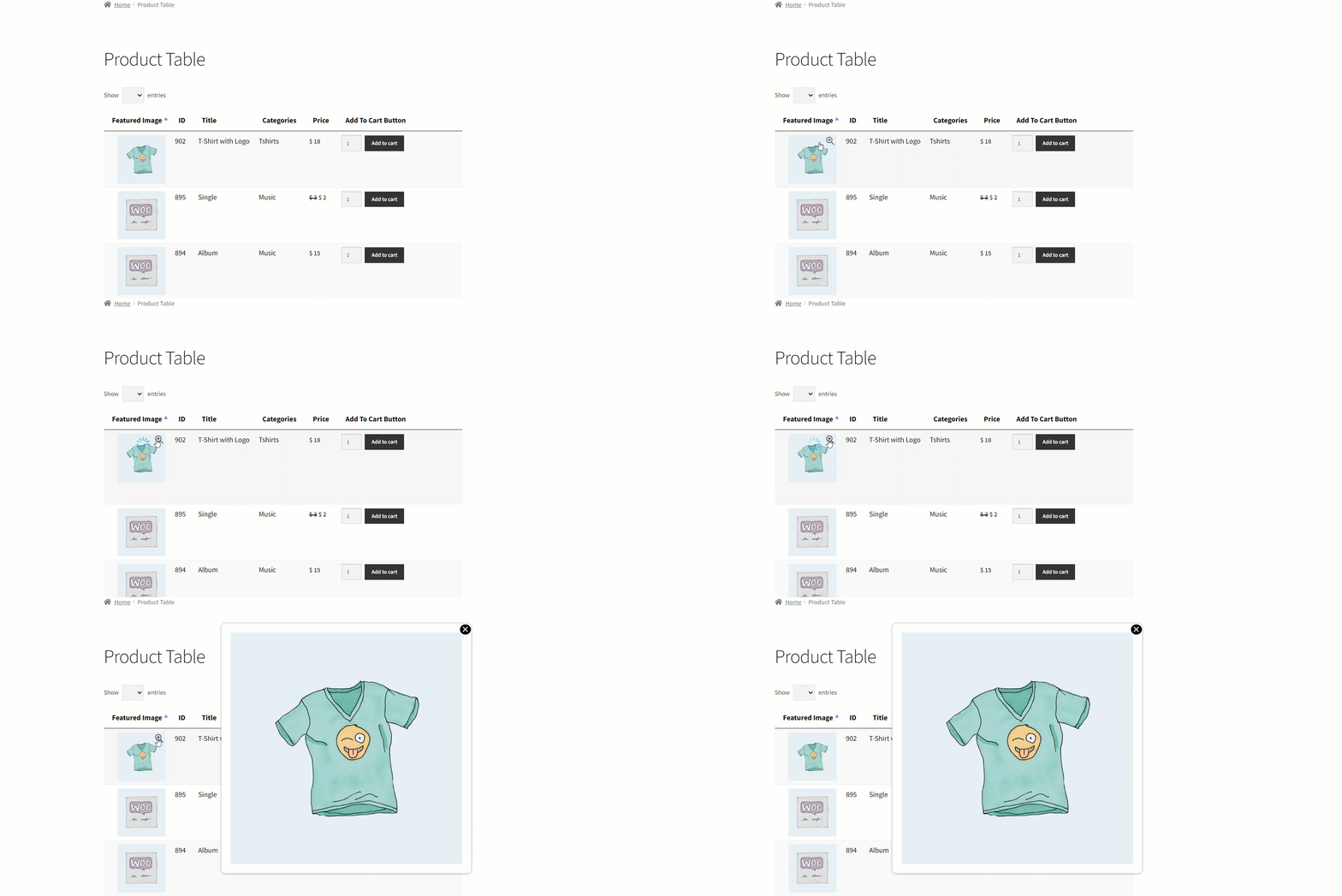
- When you hover your cursor over the Featured Image, a Magnify icon will appear. Click on the Magnify icon to zoom in on the image.
Product Reviews
- Enter column name and width (in percentage or in pixels). It is not necessary to enter column width.
- Save Changes.

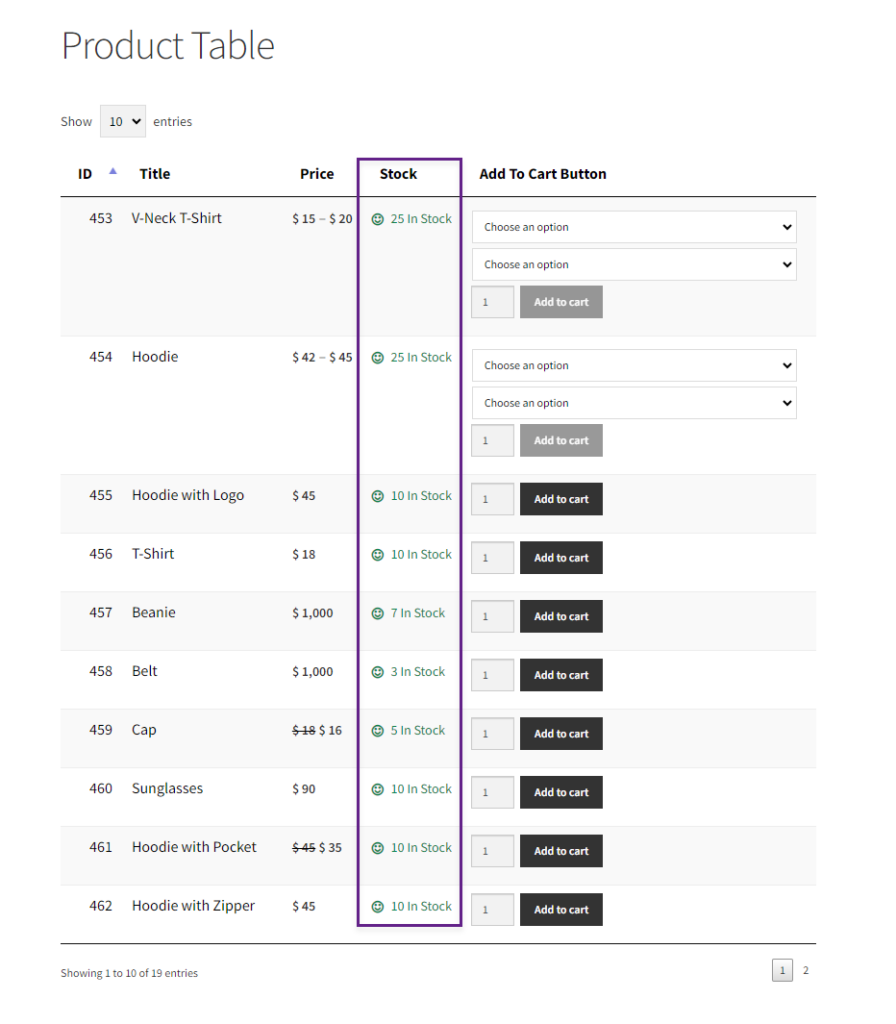
Stock Status
- Enter column name and width (in percentage or in pixels). It is not necessary to enter column width.

- Click on the Stock Column to edit.
- Stock column settings will appear.
- Check mark the Show Stock Level radio button.
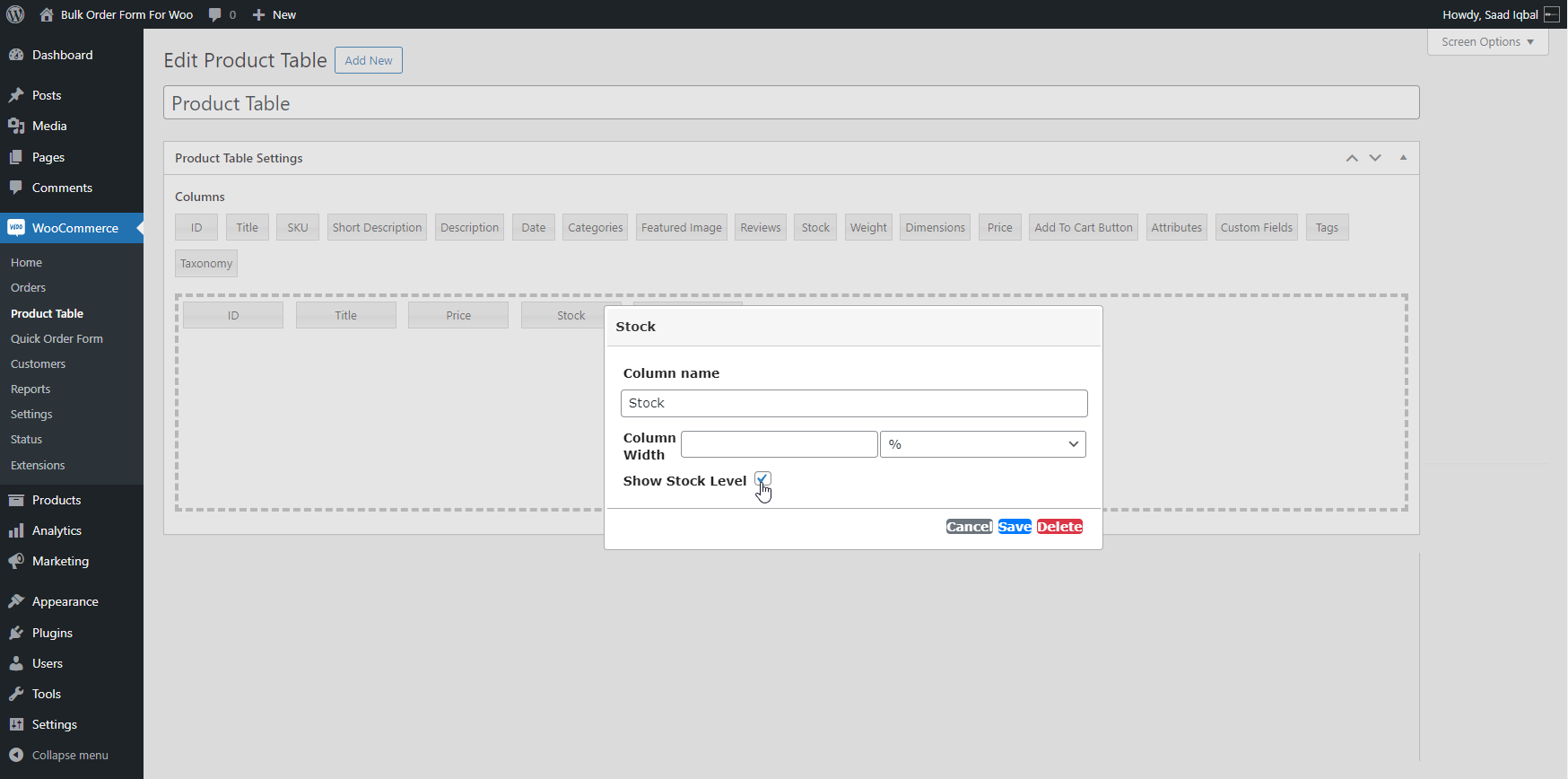
NOTE: The stock will be displayed when the user checks this Show Stock Level, and the Stock management and Product stocks are added to the product edit page settings
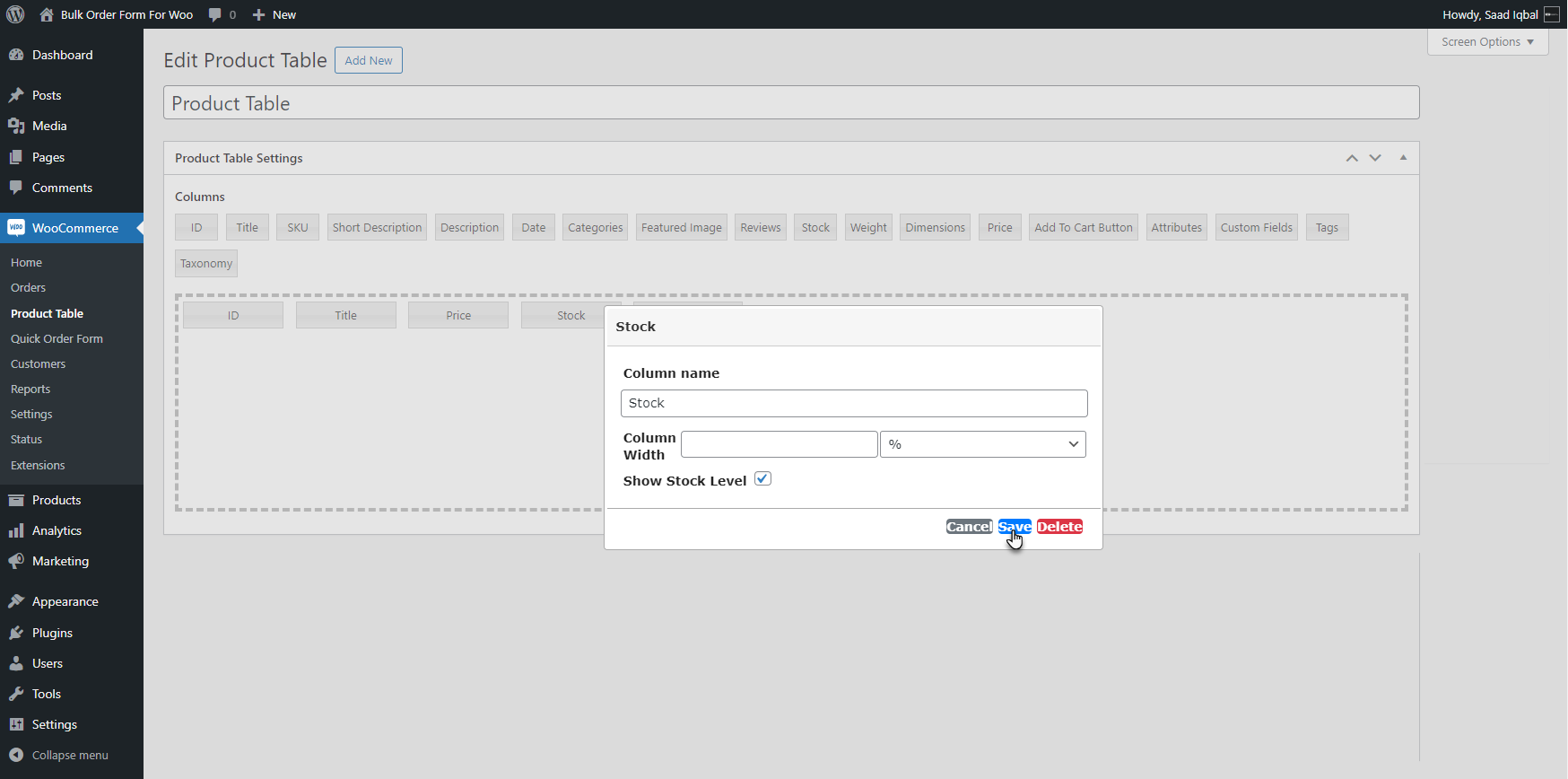
- Click on the Save button to save changes.
Front End Impact
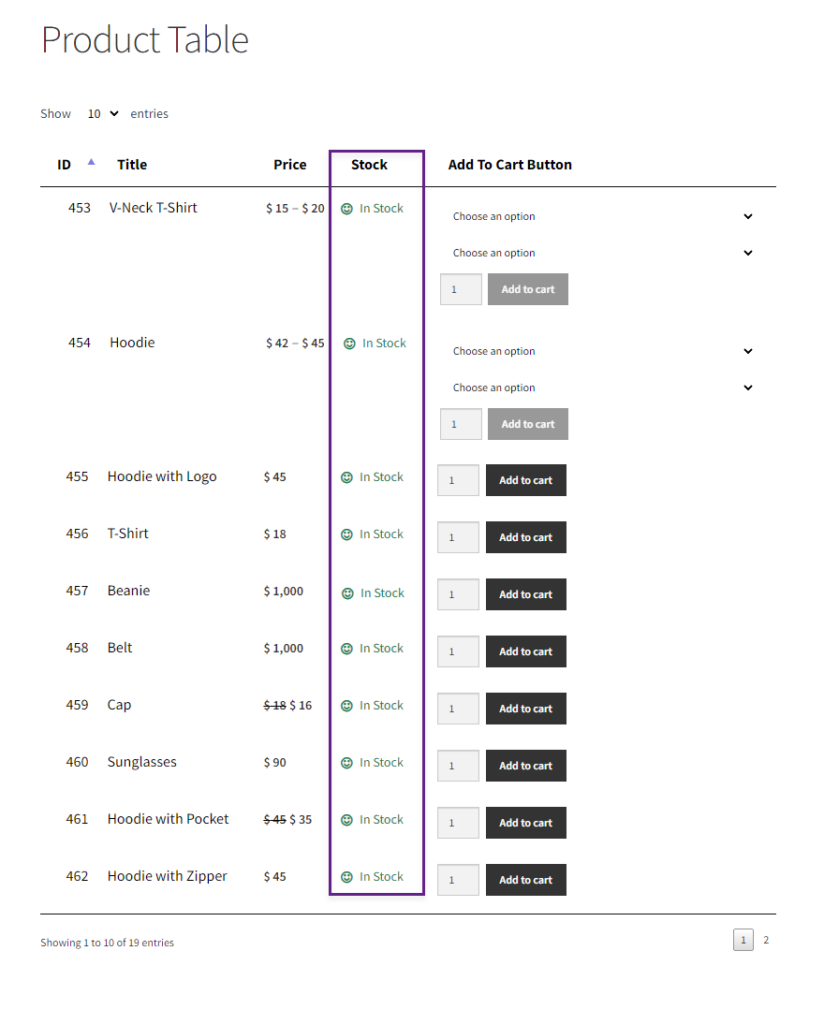
- Go to the Product Table page.
- Product Table will appear with all the products.
Before
After
Product Weight
- Enter column name and width (in percentage or in pixels). It is not necessary to enter column width.
- Save Changes.

Product Dimensions
- Enter column name and width (in percentage or in pixels). It is not necessary to enter column width.
- Save Changes.

Product Pricing
- Enter column name and width (in percentage or in pixels). It is not necessary to enter column width.
- Save Changes.

Display Add to Cart Button
- Enter column name and width (in percentage or in pixels). It is not necessary to enter column width.
- Select Add to Cart button types (Simple add to cart button, Multiple select checkbox & both options).

- Select Add to Cart button position with multi checkbox option.

- Select to show/hide quantity field. It is recommended to show the quantity field.
- Save Changes

Quick View
- Navigate to the Product Table and then add the Add to Cart element.
- Once done, click on it.

- A popup will appear.
- Go to the Add to cart button Types option.

- Click on the Add to cart button Types option, and a dropdown menu will appear.
- Select Quick View from the dropdown menu.

- Once done, click on the Save button.

- Now, click on the Publish/ Update button.

Front-End Impact
- On the website, navigate to the Product Table page.
- A Quick View column will appear.
- Click on the Quick View button against any product according to your requirements.

- A popup will appear and the Single Product page of that respective product will appear.
- Click on the Add to Cart button to add this product in your cart.

Product Attributes
- Enter column name and width (in percentage or in pixels). It is not necessary to enter column width.
- Save Changes.

Custom Fields
- Enter column name and width (in percentage or in pixels). It is not necessary to enter column width.
- Enter the Custom Field key if you have custom fields in WooCommerce Product.
- Save Changes.

Product Tags
- Enter column name and width (in percentage or in pixels). It is not necessary to enter column width.
- Save Changes.

Product Taxonomy
- Enter column name and width (in percentage or in pixels). It is not necessary to enter column width.
- Enter the Taxonomy ID.
- Save Changes.

Quick View
↑ Back to top- Navigate to the WordPress Admin Dashboard > WooCommerce > Product Table > Add New Product Table/Edit Product Table.

- The Edit Product Table screen will appear. Locate the Quick View option in the available columns.

- Drag and drop the Quick View column into the Product Table Columns section.

- Optionally, the admin can modify the label of the Quick View column as needed by clicking on the Quick View option.

- Click the Update button to save the changes.

Front End Impact
- Login to your account.
- Go to the Product page. A Quick View button will appear in the Quick View Column. Click on the Quick View button.

- A popup will appear with the Product details for a quick product view.

Bulk Selection
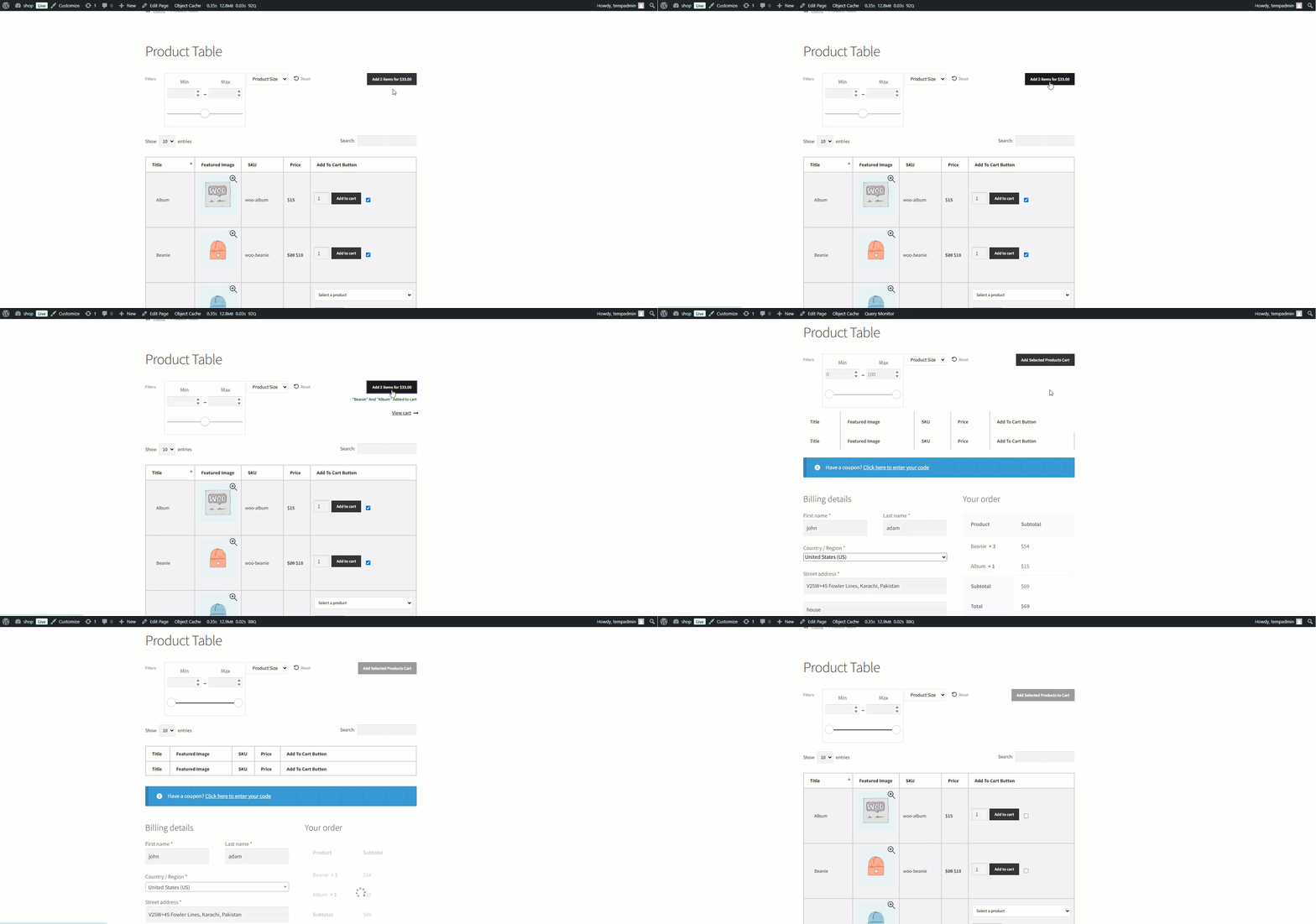
↑ Back to topThis feature enables customers to select multiple products simultaneously using checkboxes and add them to the cart in bulk. The Add to Cart button displays the total number of selected products, along with their combined total price.
- Navigate to WooCommerce > Product Table.
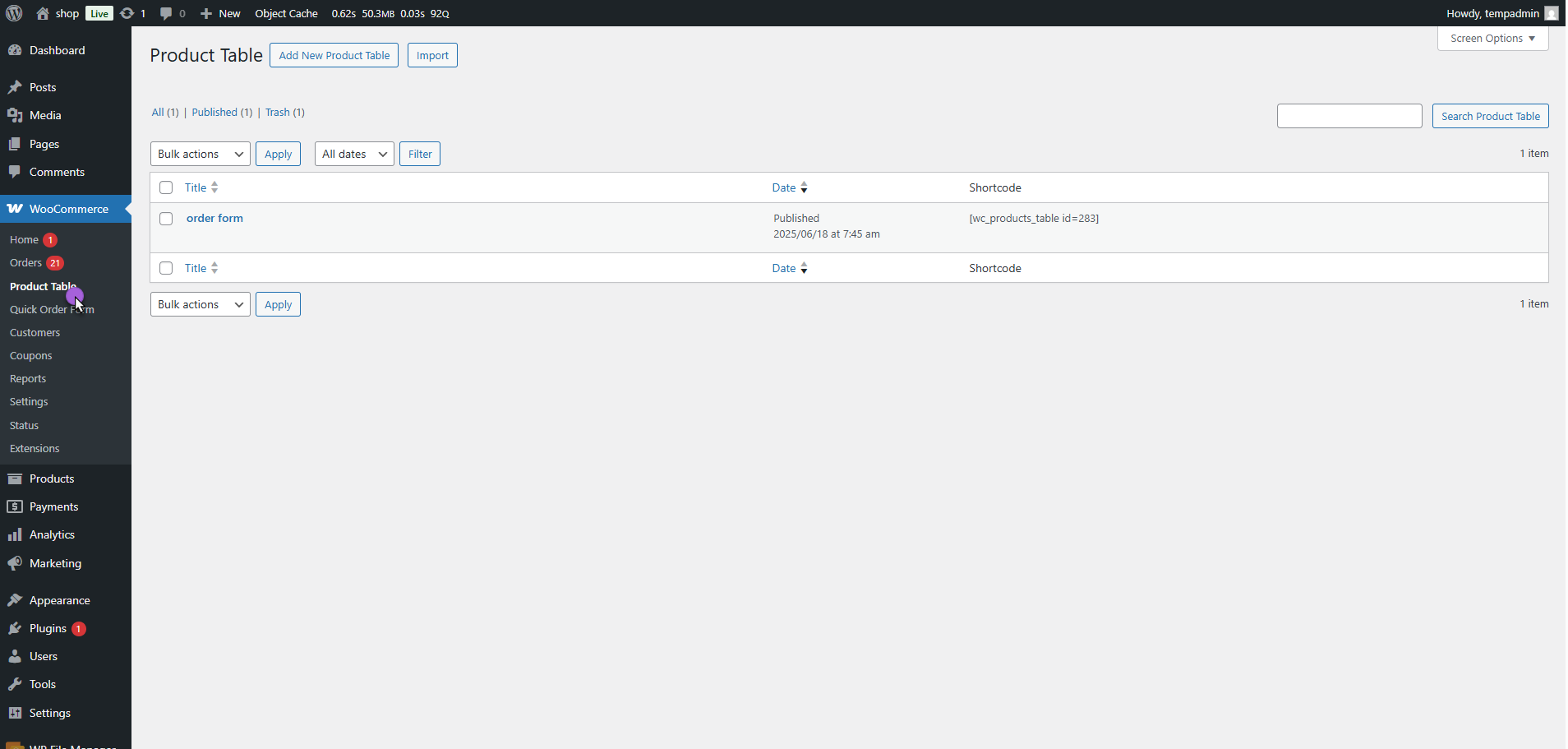
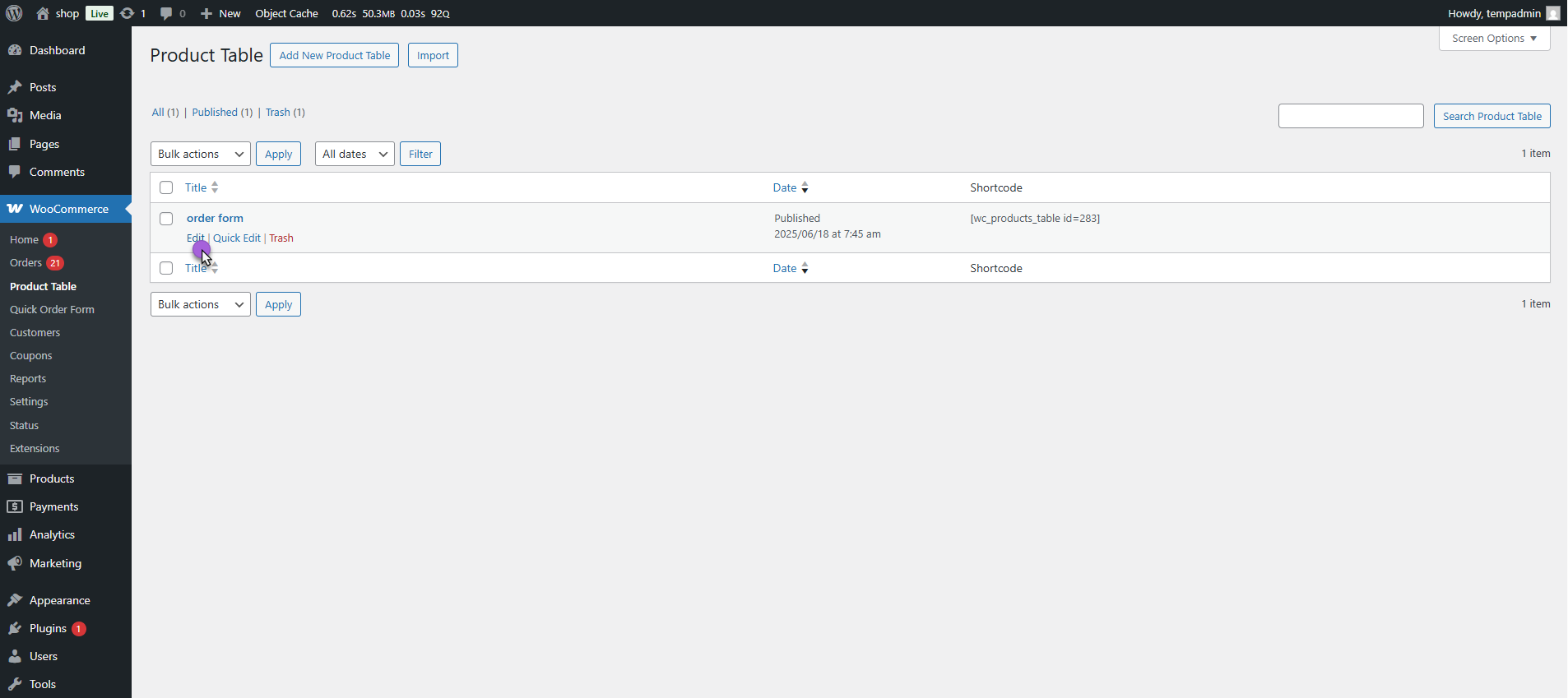
- Edit an existing table or Create a new table.
- Go to Product Table Settings > Add to Cart Button.
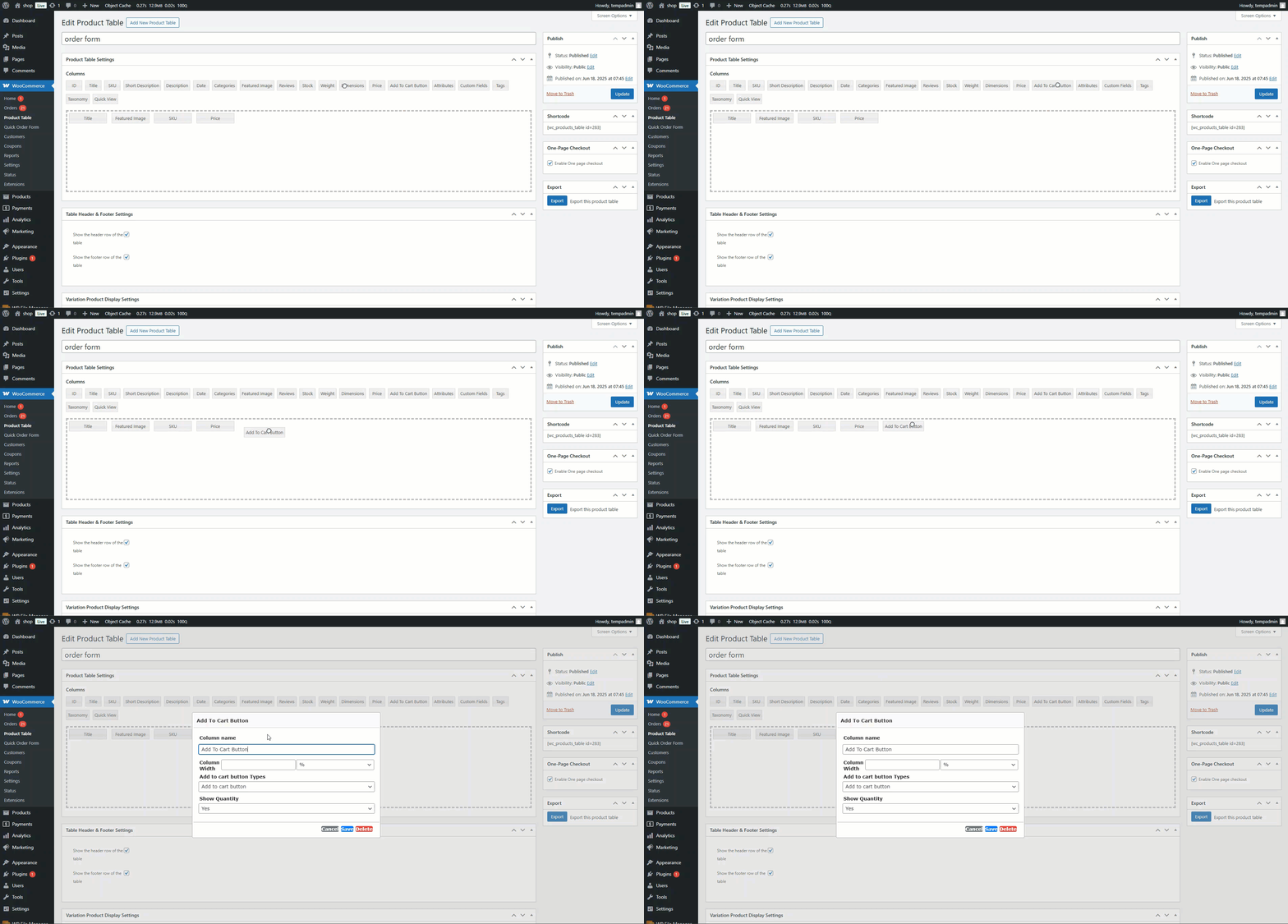
- From the Add to cart button Types, select:
- Multi-Select Checkboxes
- or Both Button and Checkbox
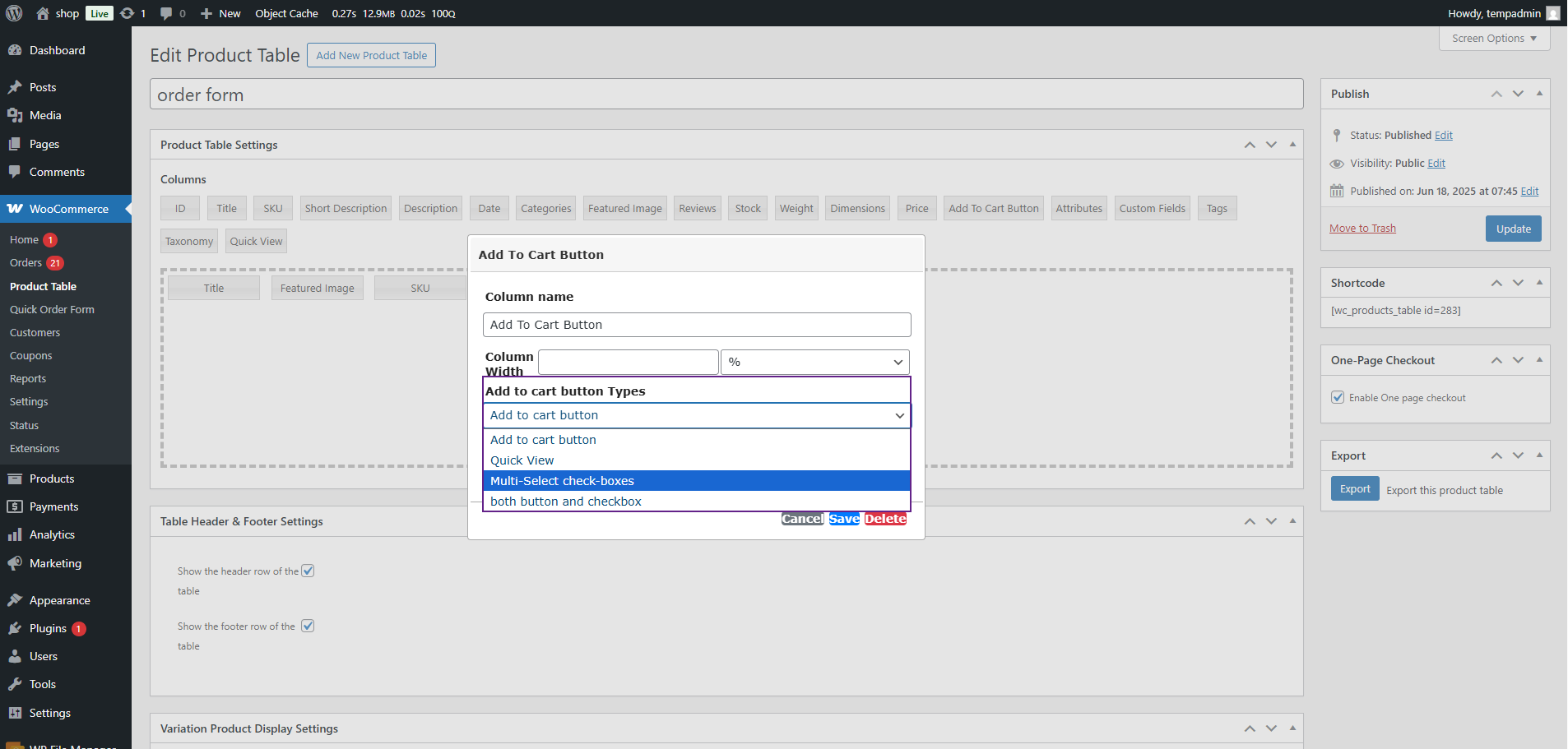
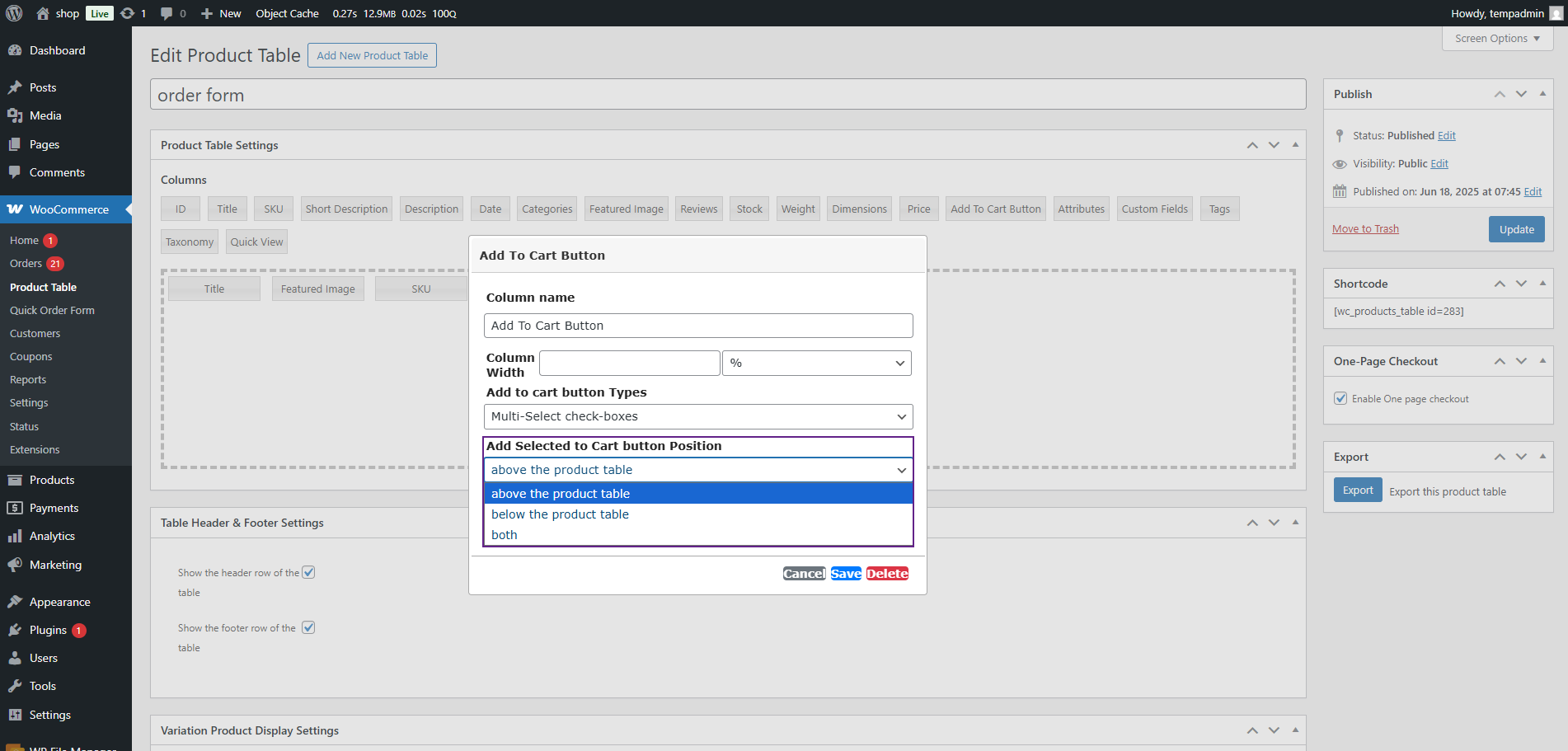
- Configure the Position of the Add Selected to Cart button.
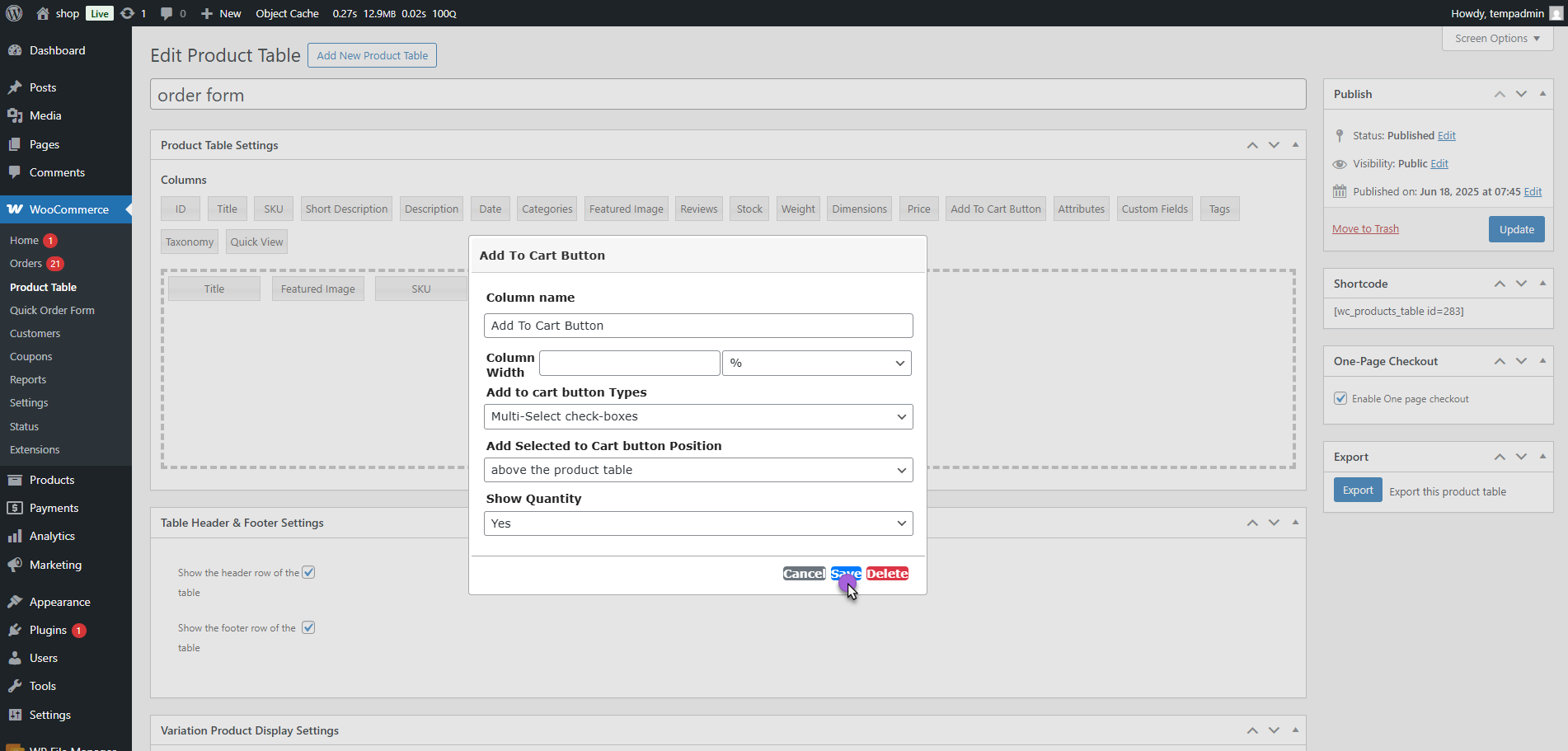
- Click on the Save button.
Front-End Impact
- Go to the Website.
- Navigate to the Product Table page.
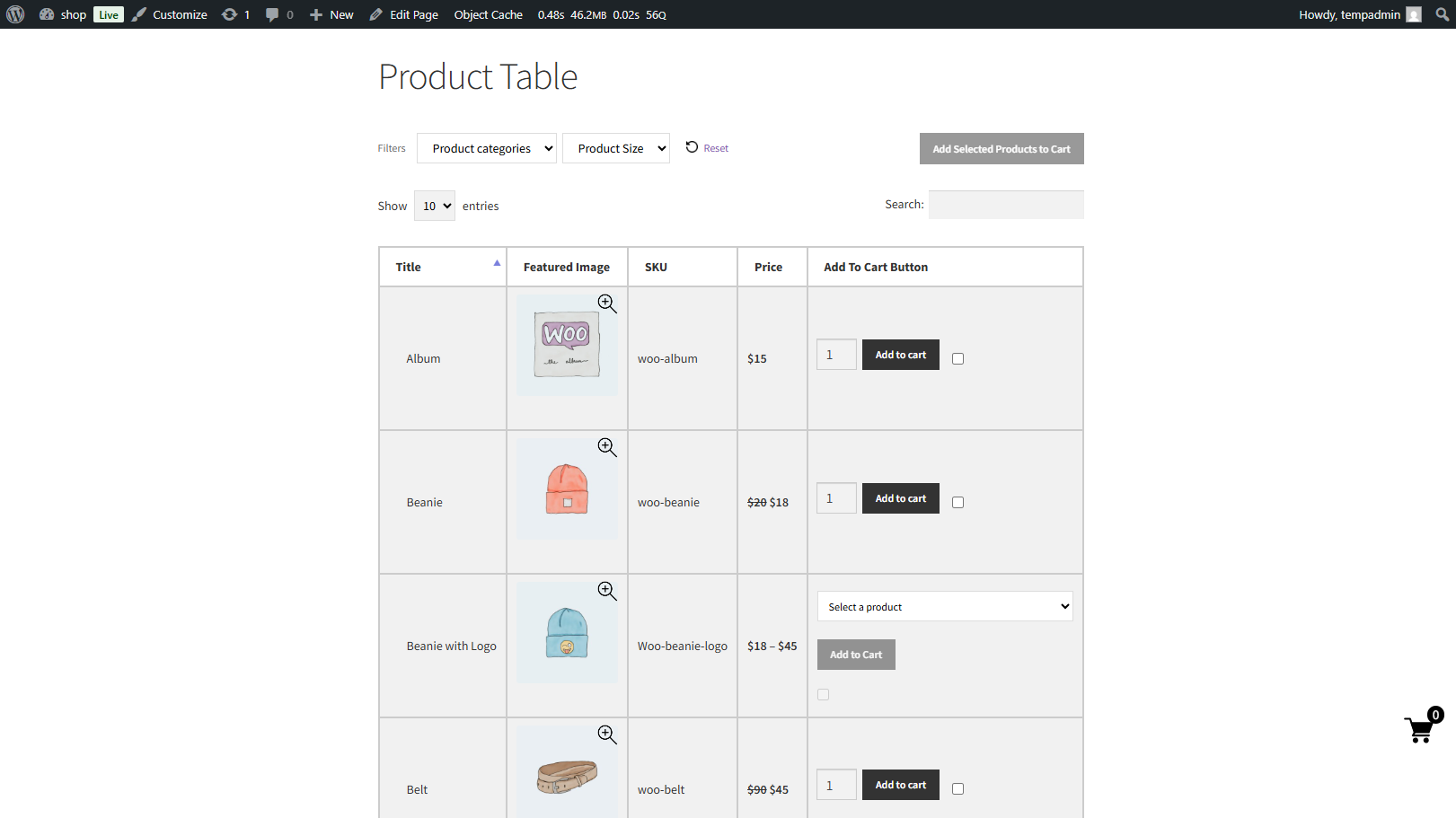
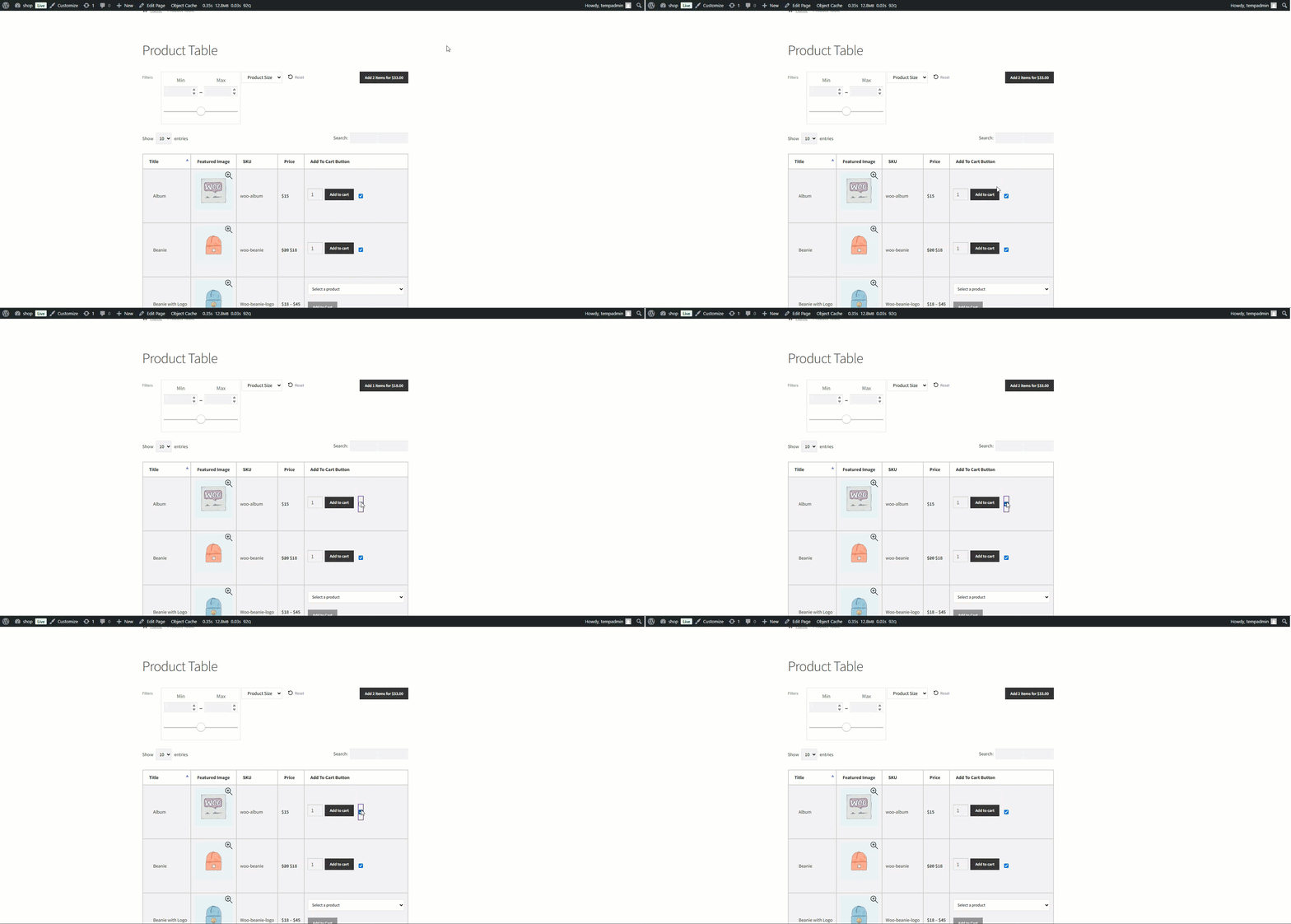
- Select products using the multi-selection check boxes.
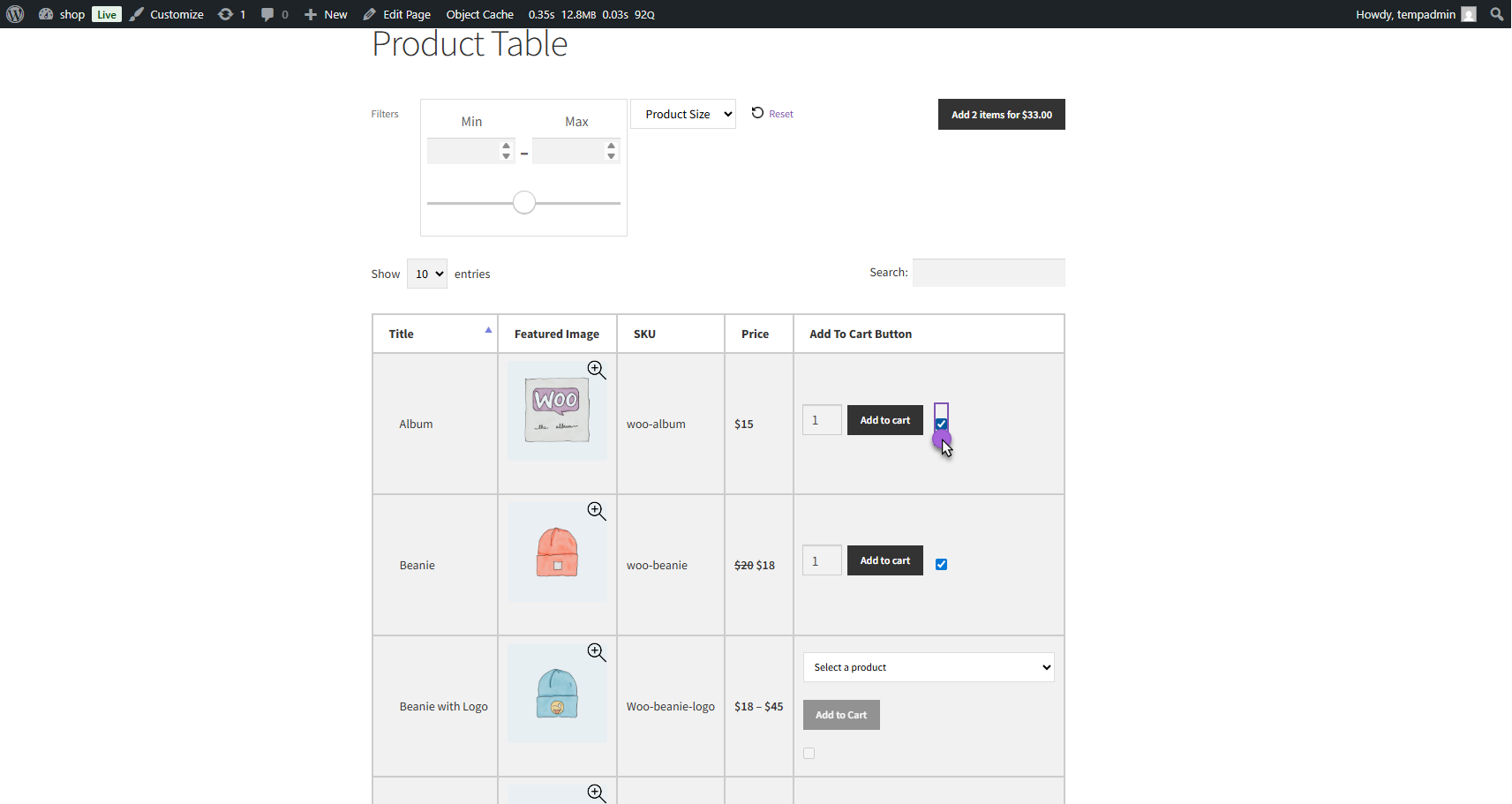
- The Add to Cart button will update dynamically to show:
- The total number of selected products.
- The combined total price.
- Click Add Selected Products to Cart to add all selected products to the cart at once.
Header & Footer Settings
↑ Back to top- Enable/Disable the header & footer row of the product table.

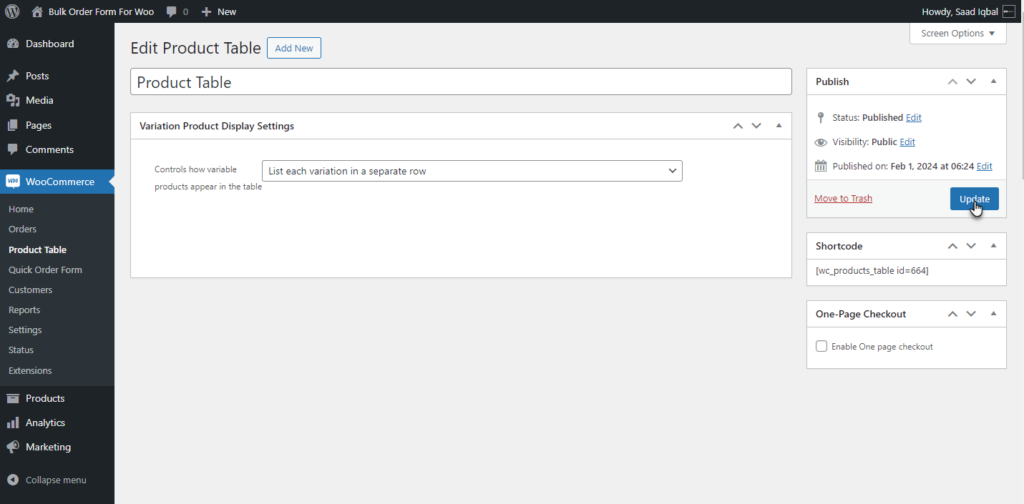
Variation Display Product Settings
↑ Back to topControl from the dropdown menu of Variation Product Display Settings tab.
- Dropdown: Display variable product variations in a dropdown.
- Separate Product: Display variations of products separately on another row.
- Select Option: Add a Select Option button which will be redirected to a single product page.

- Select List each variation in a separate row option from the drop-down list.
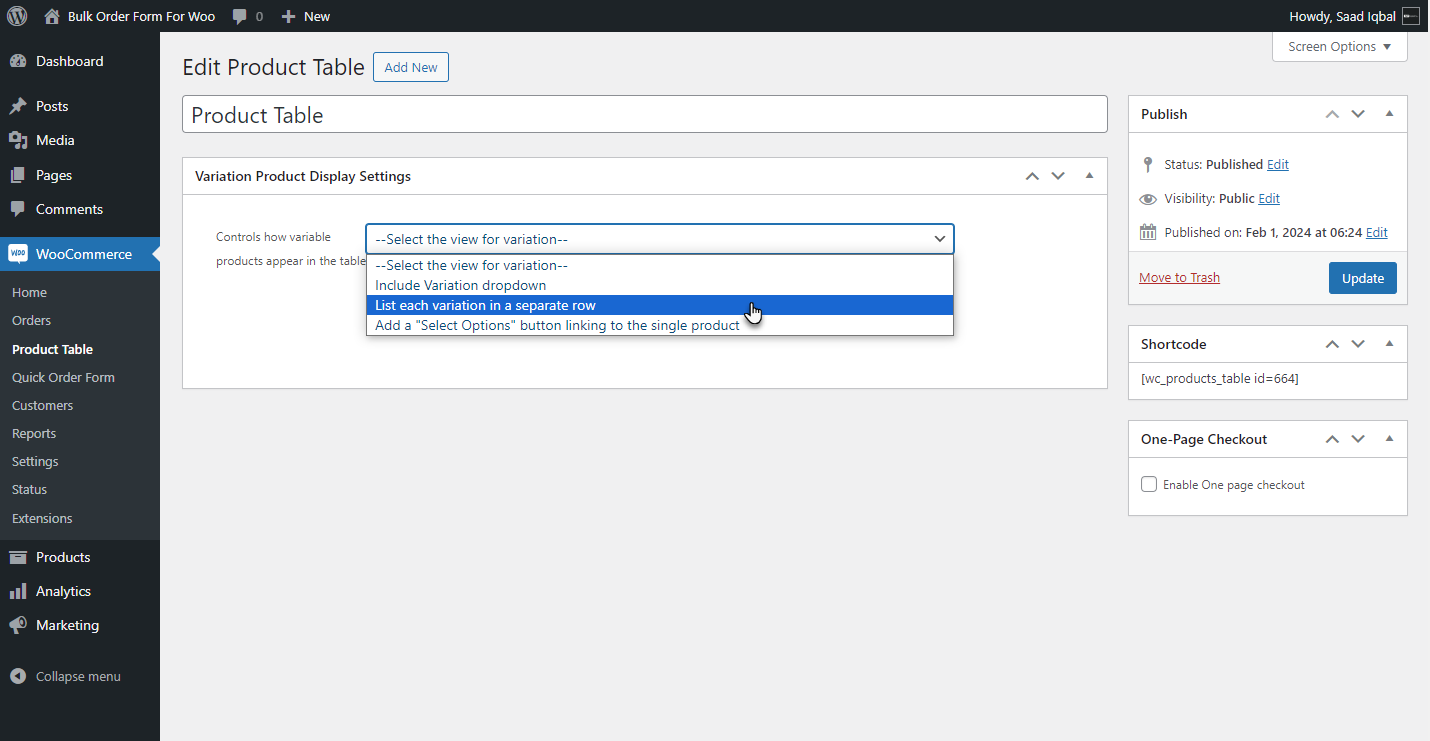
- Click on the Update button to publish changes.
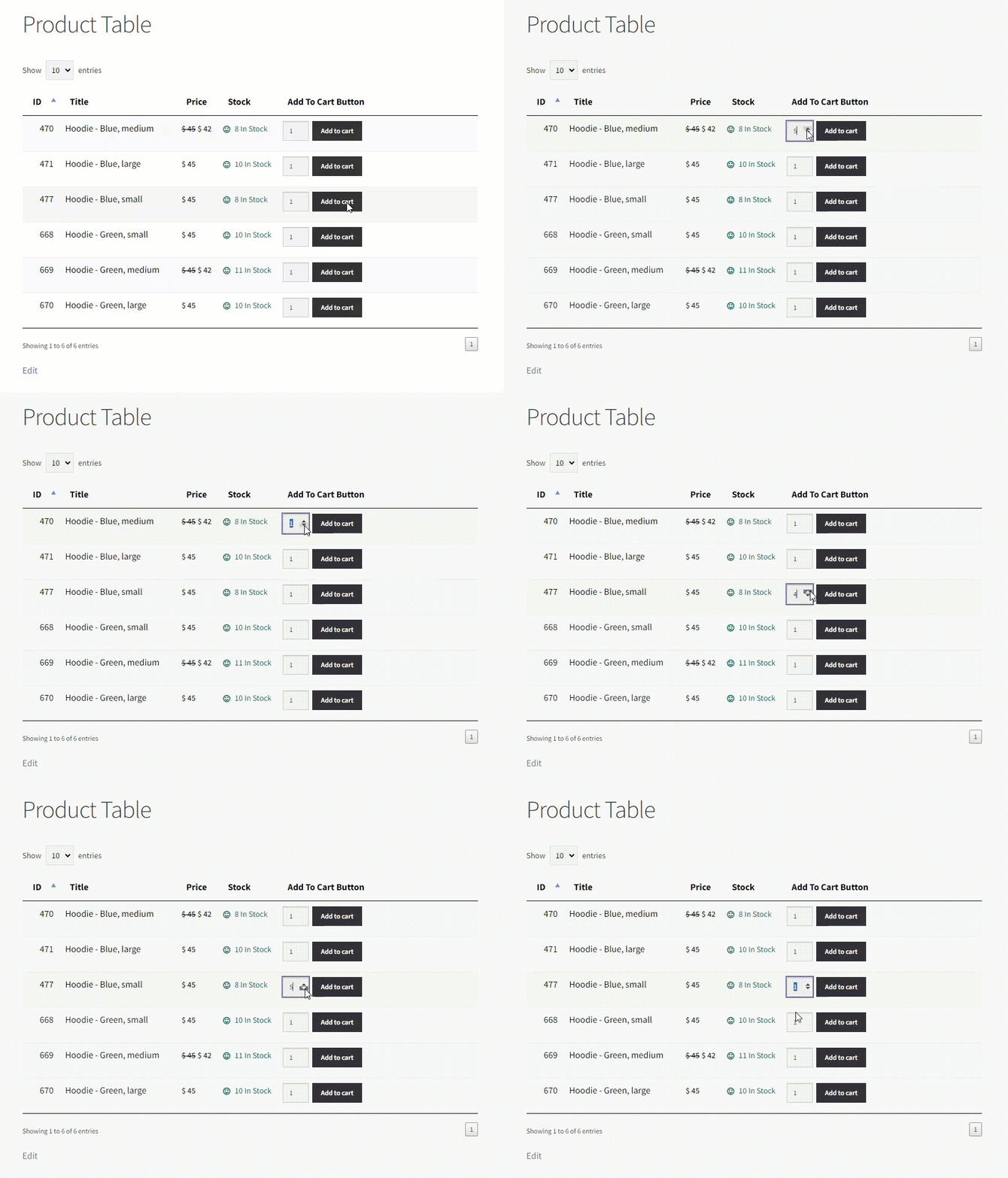
Front-End Impact
- Go to the Product Table page.
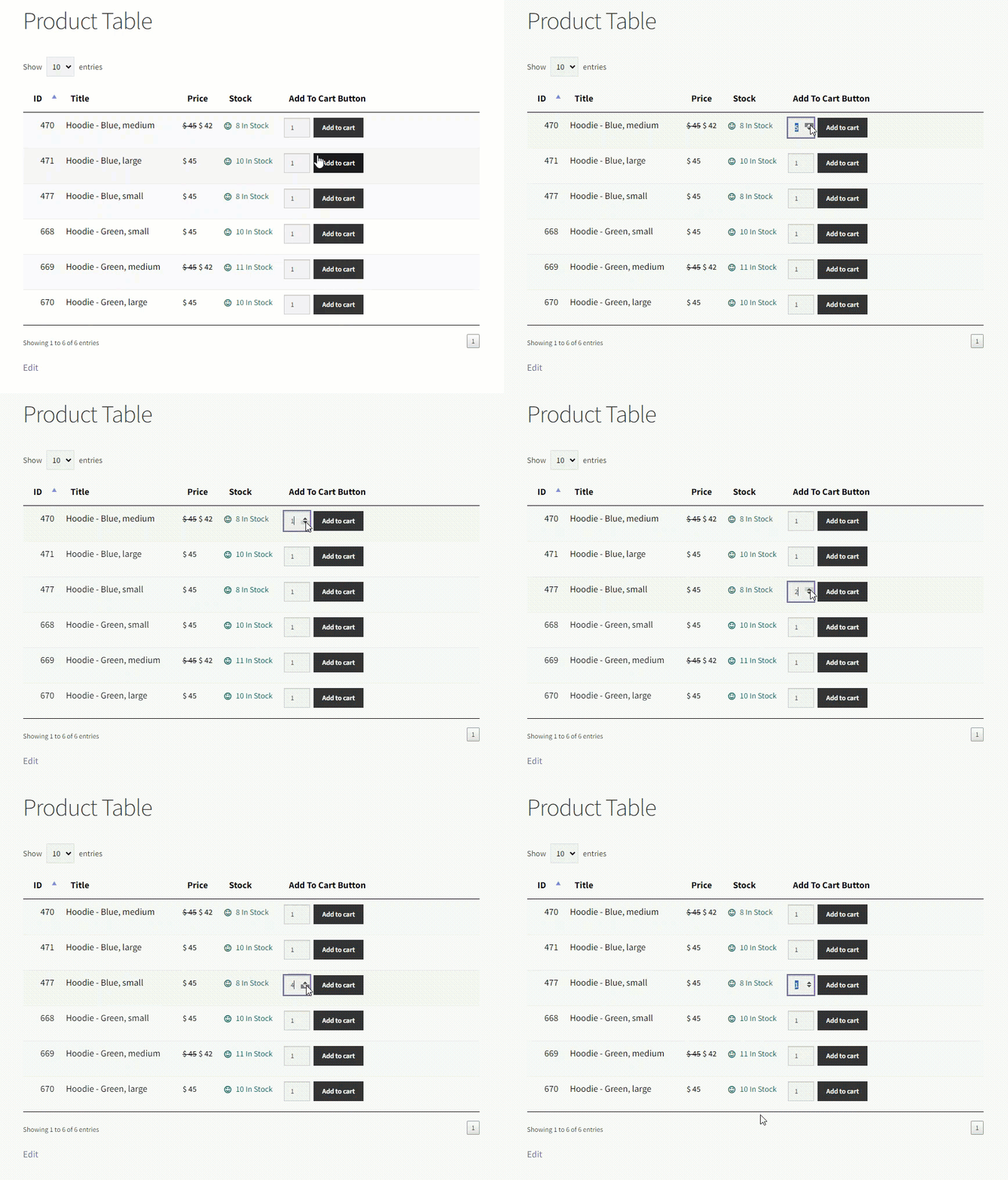
- The Product Table will appear with all the products.
Before
After
User Role Restriction in Product Table
↑ Back to top- Navigate to the WordPress Admin Dashboard > WooCommerce > Product Table > Add New Product Table/Edit Product Table.

- Locate the User Role Restriction meta box on the Edit Product Table screen.

- Select the User Roles to which this product table will be visible in the User Roles dropdown list.

- Select the individual users for whom the product table will be visible in the Users dropdown list.

- Click the Update button to save the changes.

Front End Impact
Allowed User Role/User
- When the allowed User Role/User will navigate to the product table page. The product table will be visible.

Restricted User Role/User
- When the restricted User Role/User visits the product table page, the Product table page will be hidden.

Product Table Controls
↑ Back to top- Enable/disable the number of product dropdown lists.
- Show/hide the total number of products counted.
- Show/hide pagination for multiple pages. Restrict users to a single page.

Select how to display the pagination option in the product table if you have multiple pages:
- Page number only: Only numbers will be displayed for pagination like (1,2,3,4,5).
- Previous & Next Button: Two buttons will be displayed below the product table there will be no page numbers.
- Previous and Next buttons, plus page numbers: Display buttons along with page numbers below the product table.
- First, Previous, Next and Last buttons: Display four buttons first will take users to the very first page and last will take users to the last page of product table.
- First, Previous, Next and Last buttons, plus page numbers: Display all four buttons along with page numbers.
- First and Last buttons, plus page numbers: Display first and last page buttons with page number options.

- Enter message text for no product found when searched.
- Enable/disable table content wrap option.
- Adjust the scroll height of the product table when navigating between pages.

Control Table Size Setting
↑ Back to top- Set the limit to the number of products to be appeared in product page on per page.
- Set the limit to show maximum number of product in the table.

Control Table Content Settings
↑ Back to top- Enable/disable to display content generated by other shortcodes in the product table.

Guest User
- This feature enables the admin to hide the product price from the Guest Users.
- Go to WordPress Admin Dashboard > WooCommerce > Product Table.
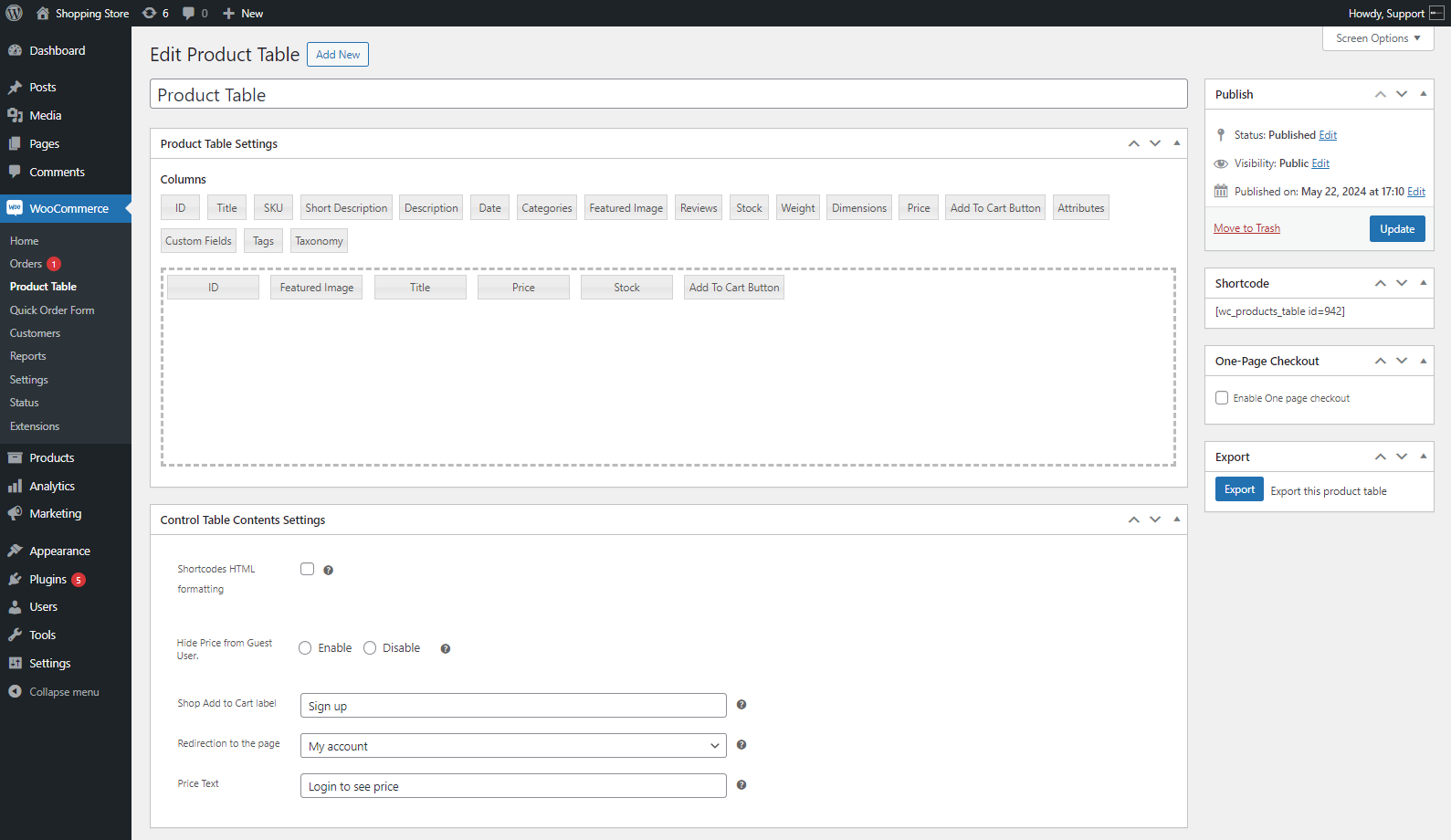
- Navigate to Control Table Content Settings.
- Enable the Hide Price Guest User Option. This will hide the Product Price and Add to Cart buttons from Guest Users.
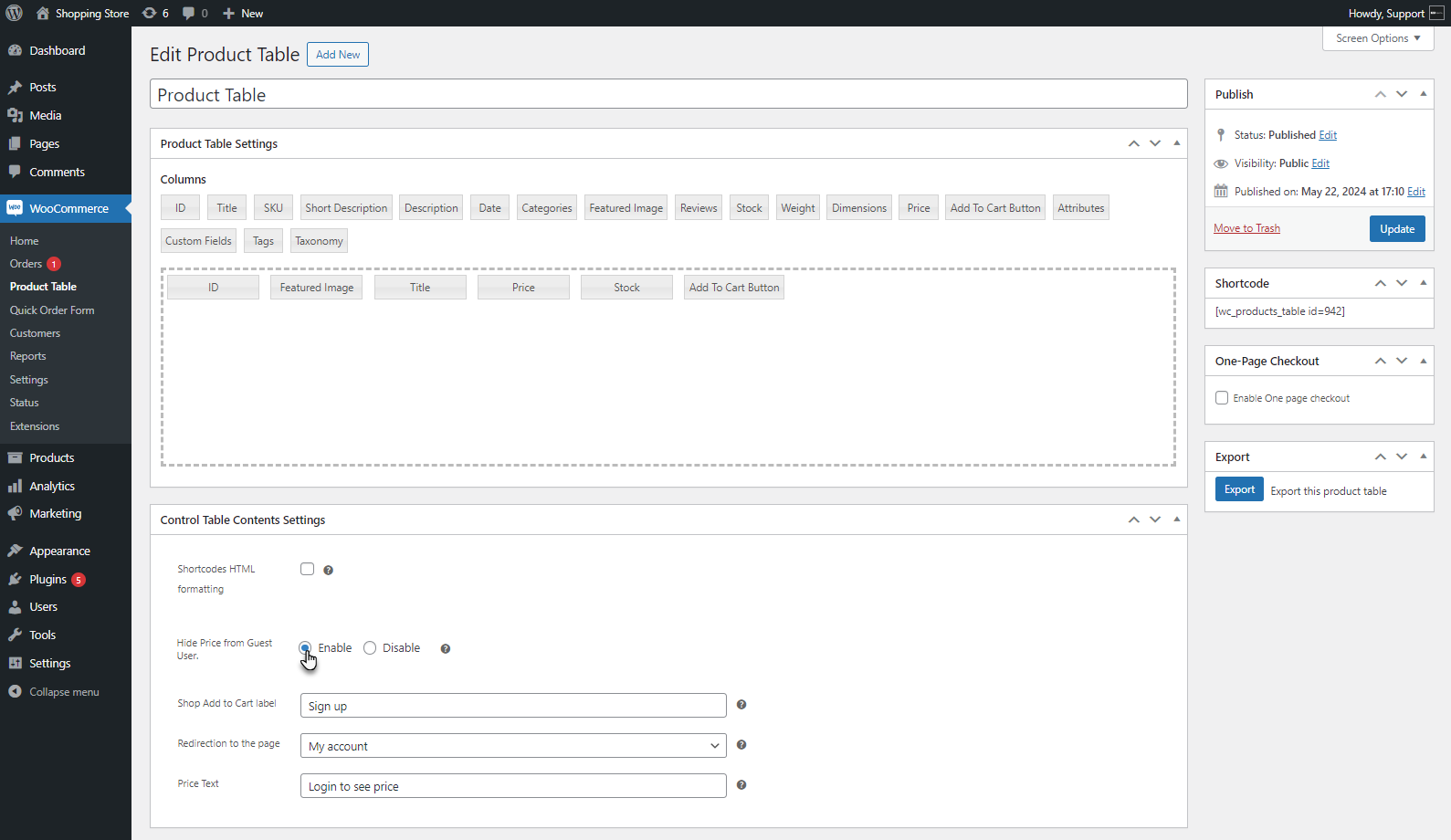
- The admin can change the Add to Cart Label on the Shop page.
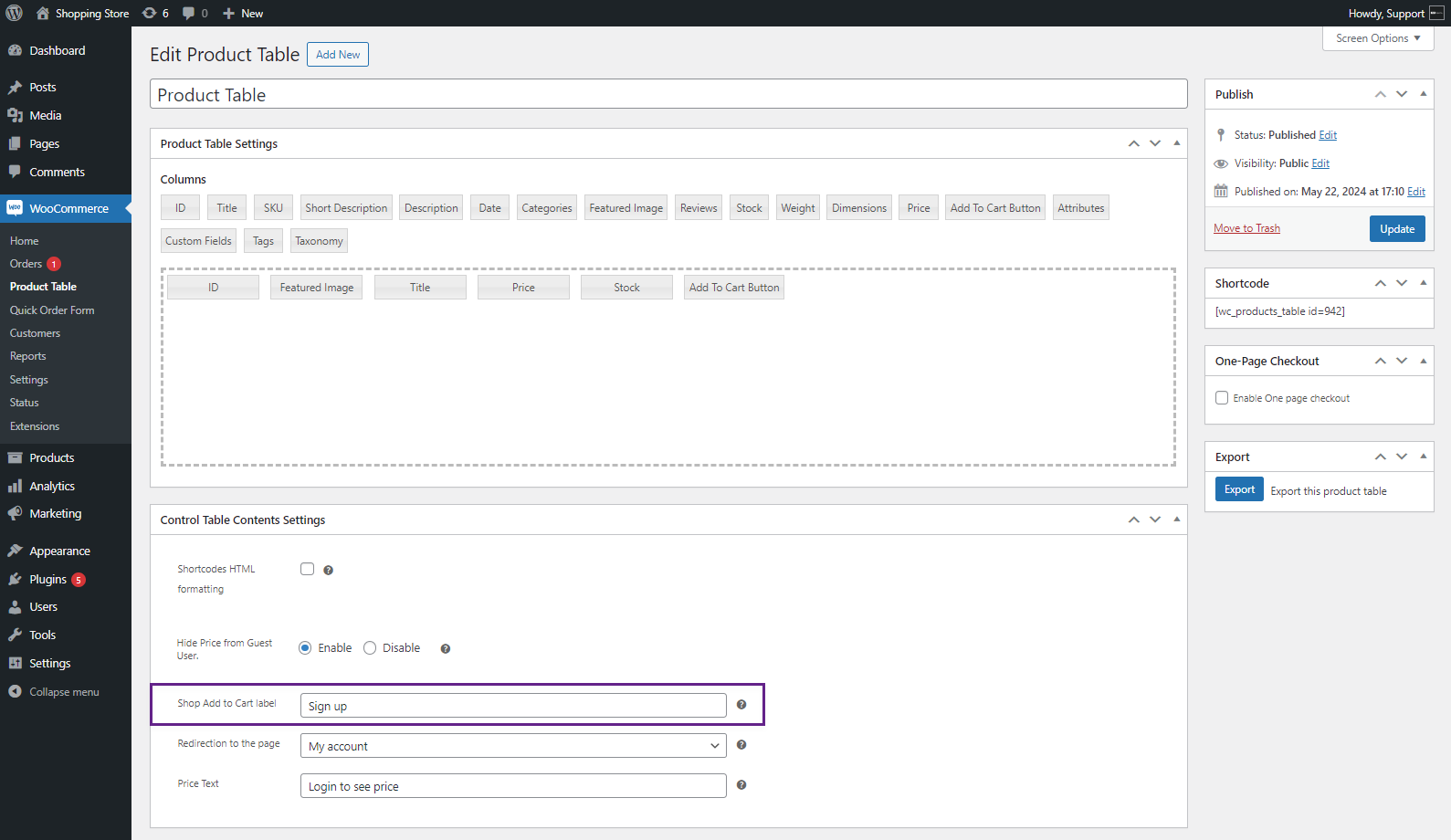
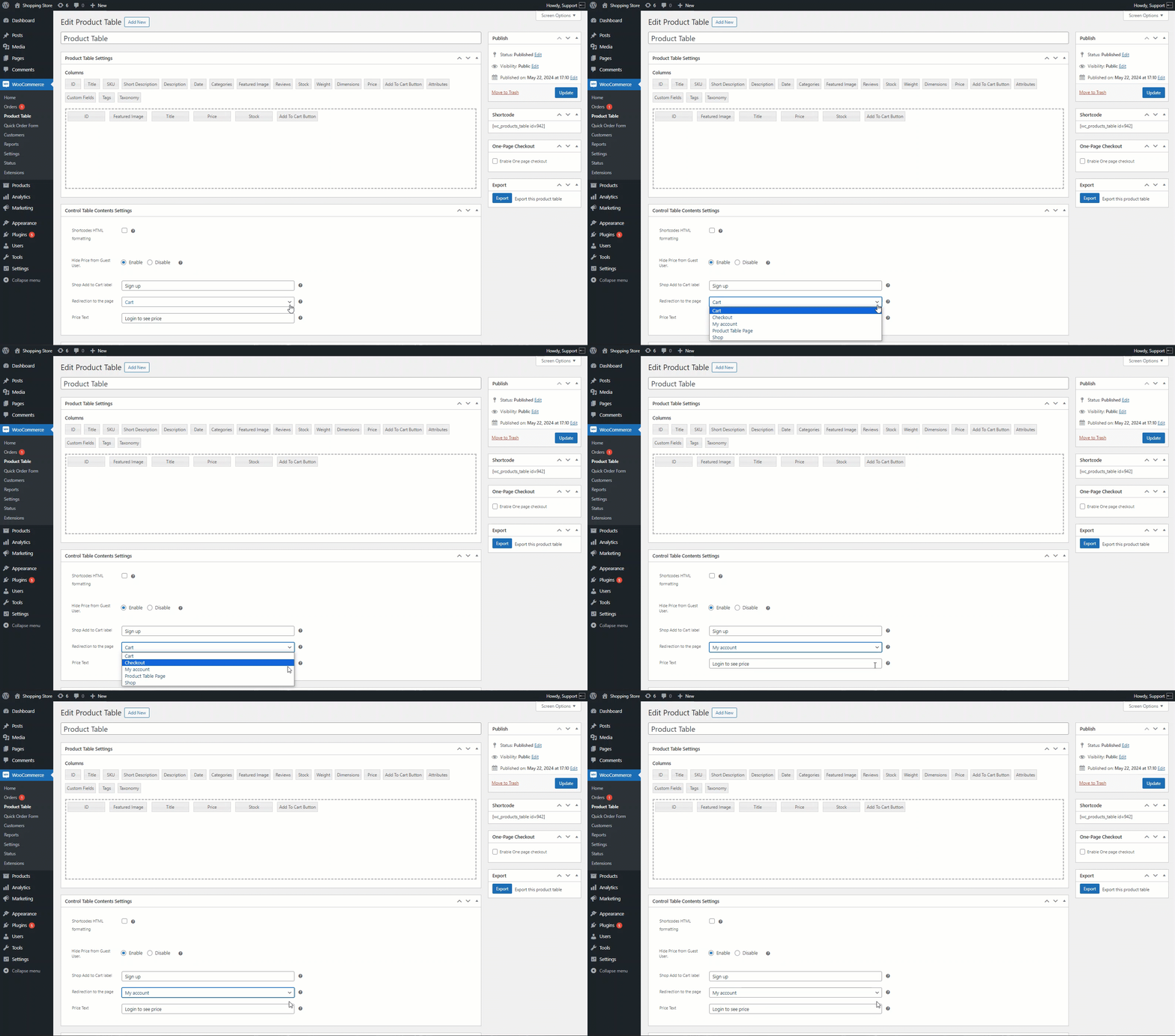
- The admin can redirect the Guest User to a specific page when clicking the button.
- The admin can change the Price text of the product on the Shop page and Product Table page.
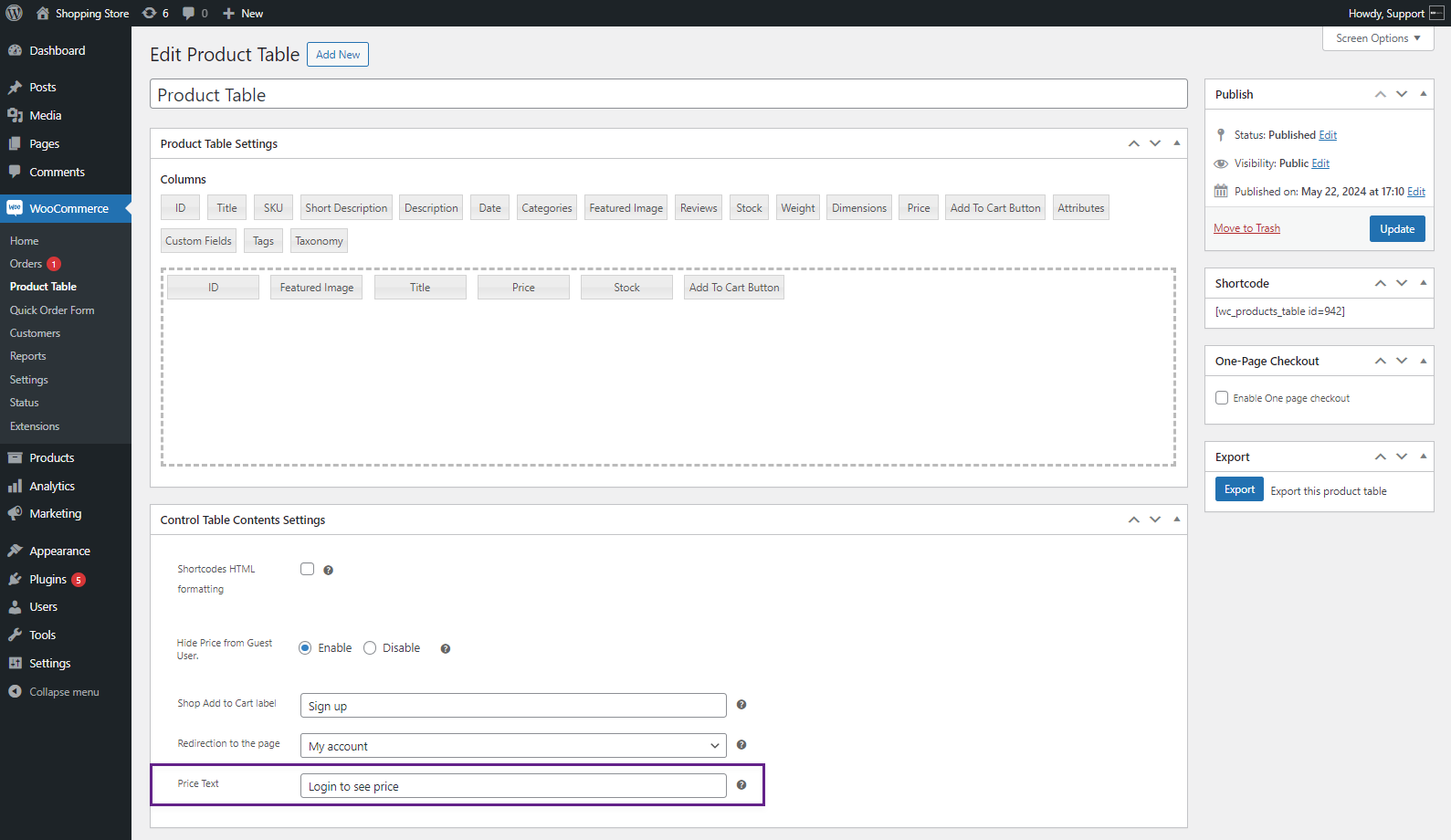
- Click on the update button to save the changes.
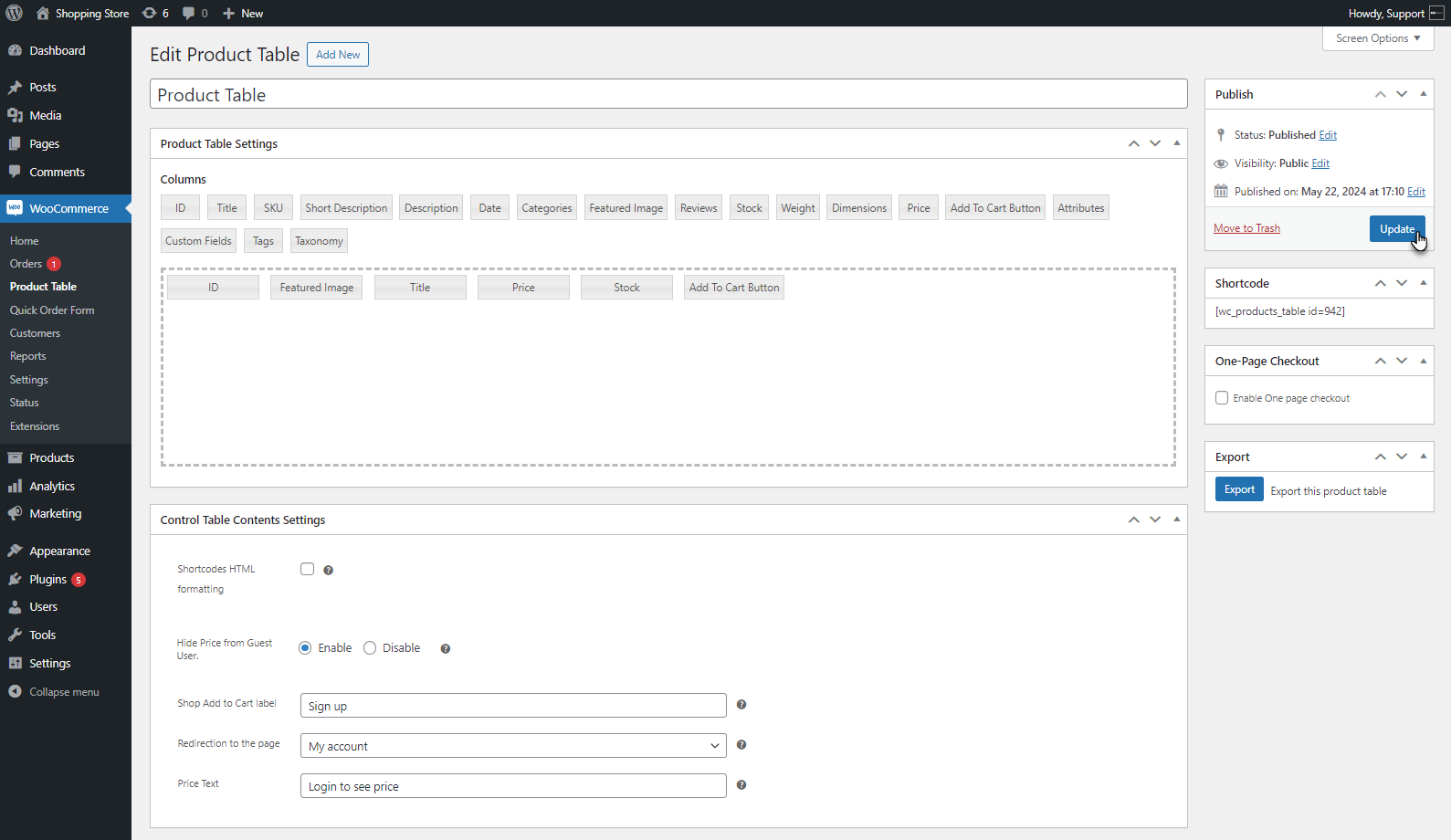
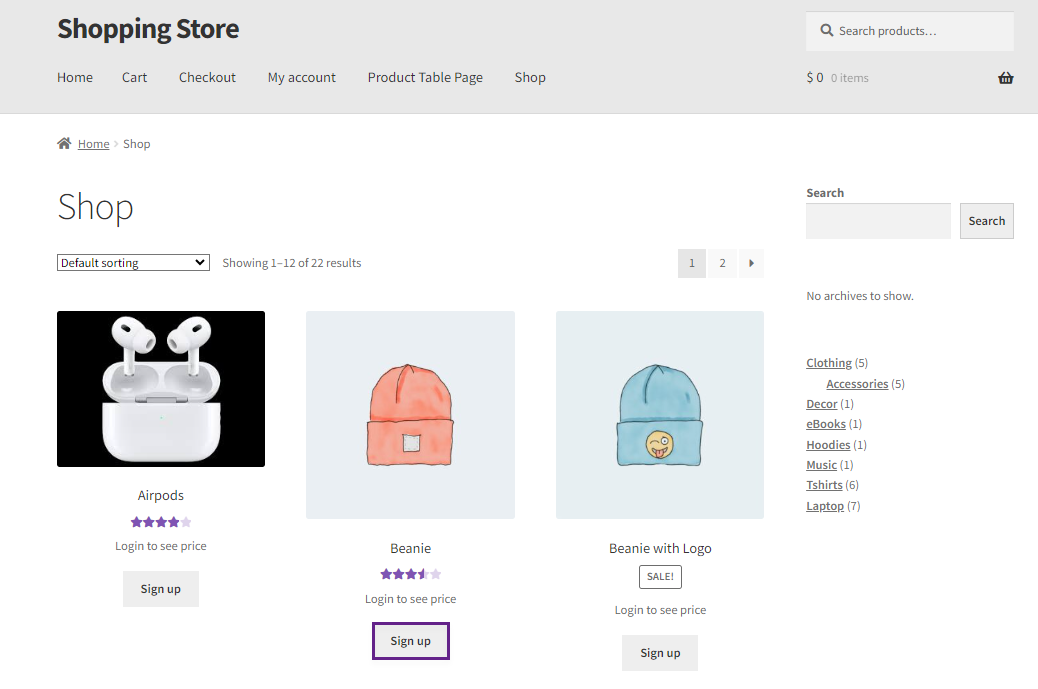
Front End Impact
- Go to the Shop Page. The Add to Cart button text is changed.
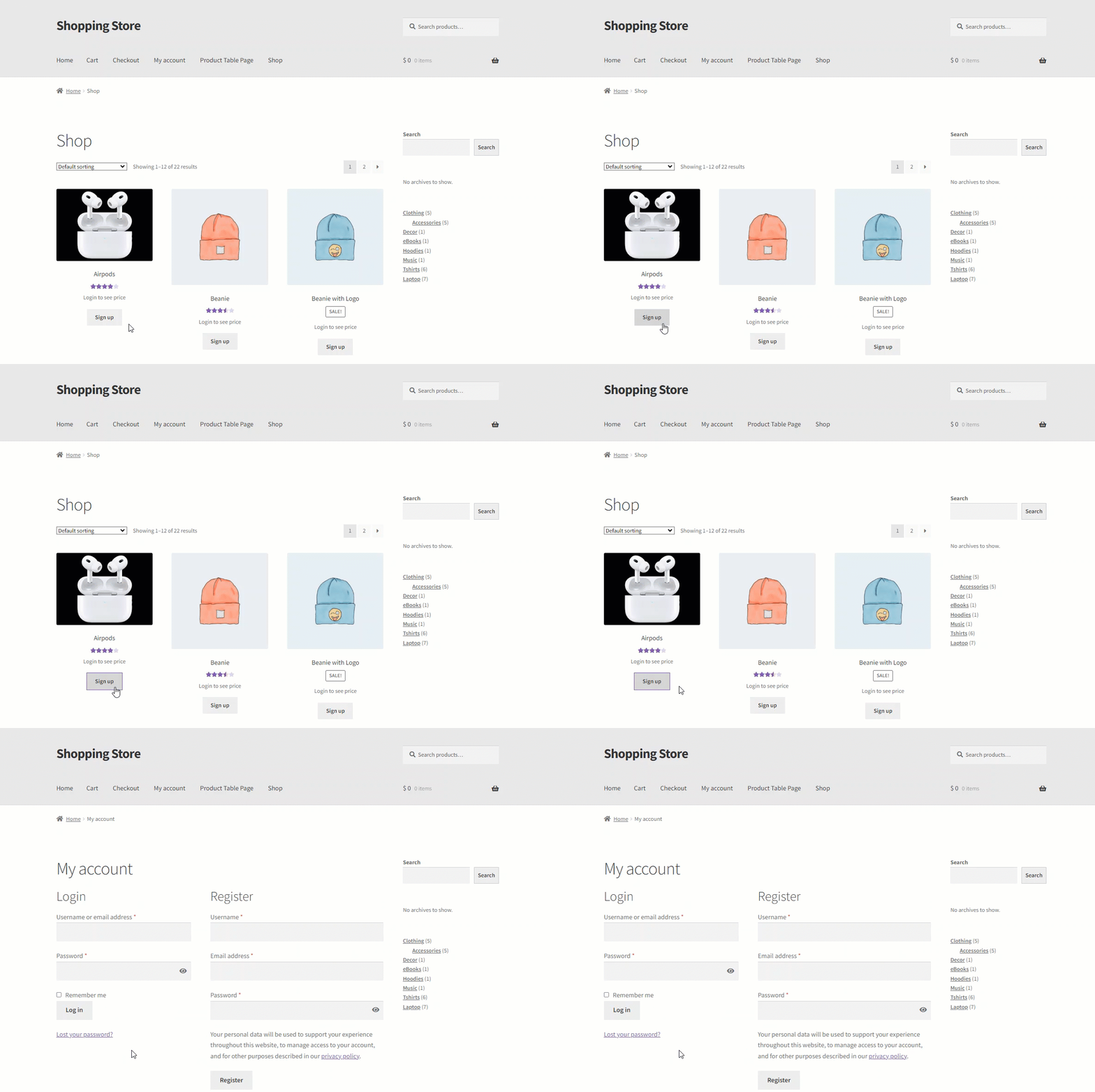
- Upon clicking the Sign up button, the Guest user will be redirected to the page set by the admin.
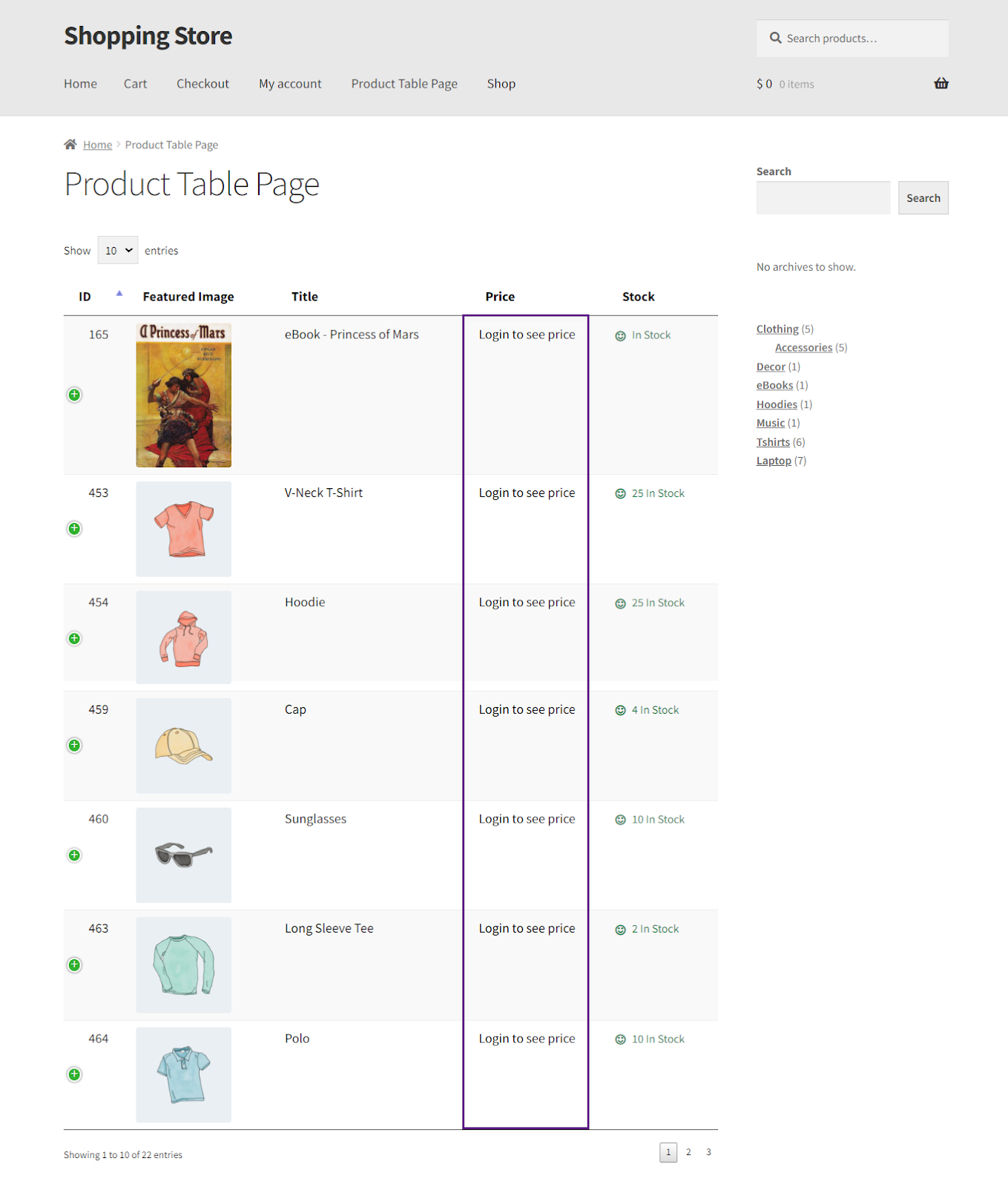
- Navigate to the Product Table Page.
- The price of the product will be hidden from the Guest User.
Advanced Search Settings
↑ Back to top- Show/hide the search box field.
- Set filtration on table load with the filter search term.
- Show/hide filters.
- Add filter dropdown list according to categories, tags, color, sort by, price and size.
- Show option to reset filter.
- Custom column filter.
- Perform a filter: a filter will be performed on the table when clicked on a certain column.
- Load the archive page: when performing filter, it will redirect the user to relevant Pages

Enhanced Search Functionality
- Checkmark the checkbox to enable the Search Box to appear on the Product Table page on the Front-End.

Front-End Impact
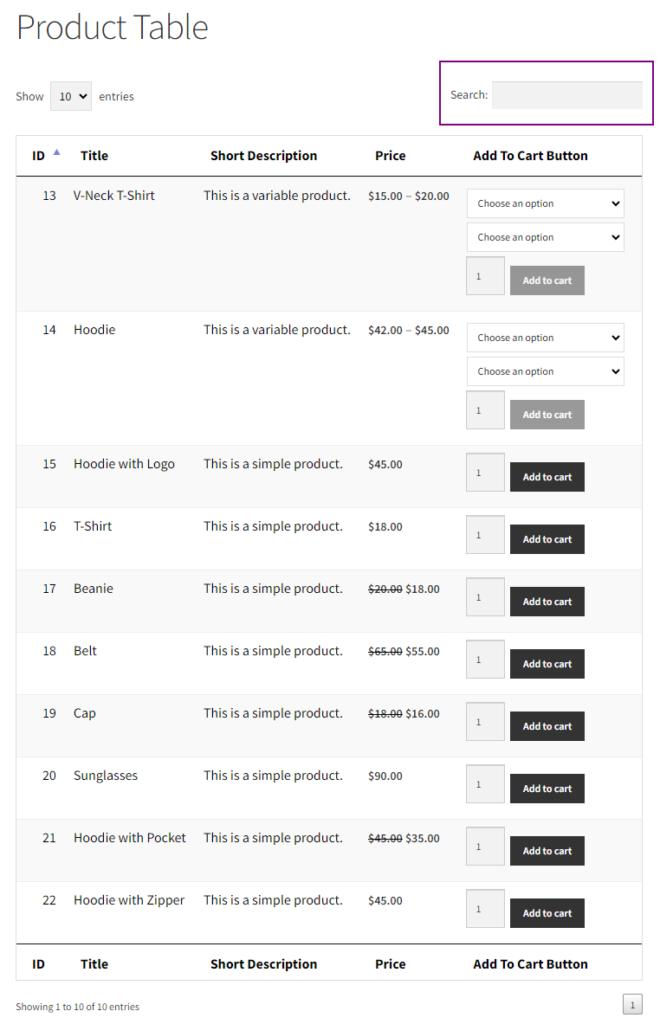
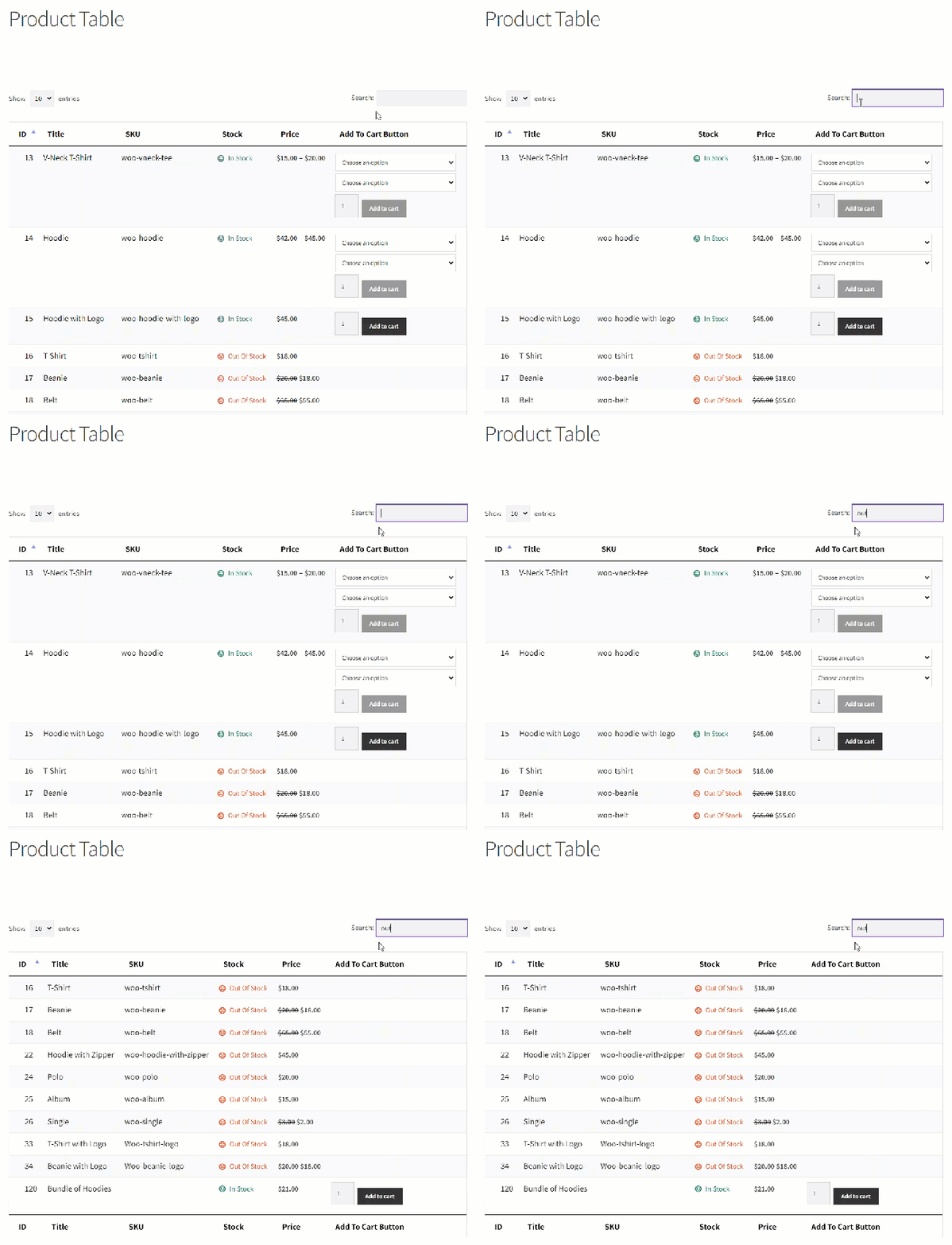
- You can search any item by searching the customizable fields used in the Product Table, such as SKU, Title, and Stock.
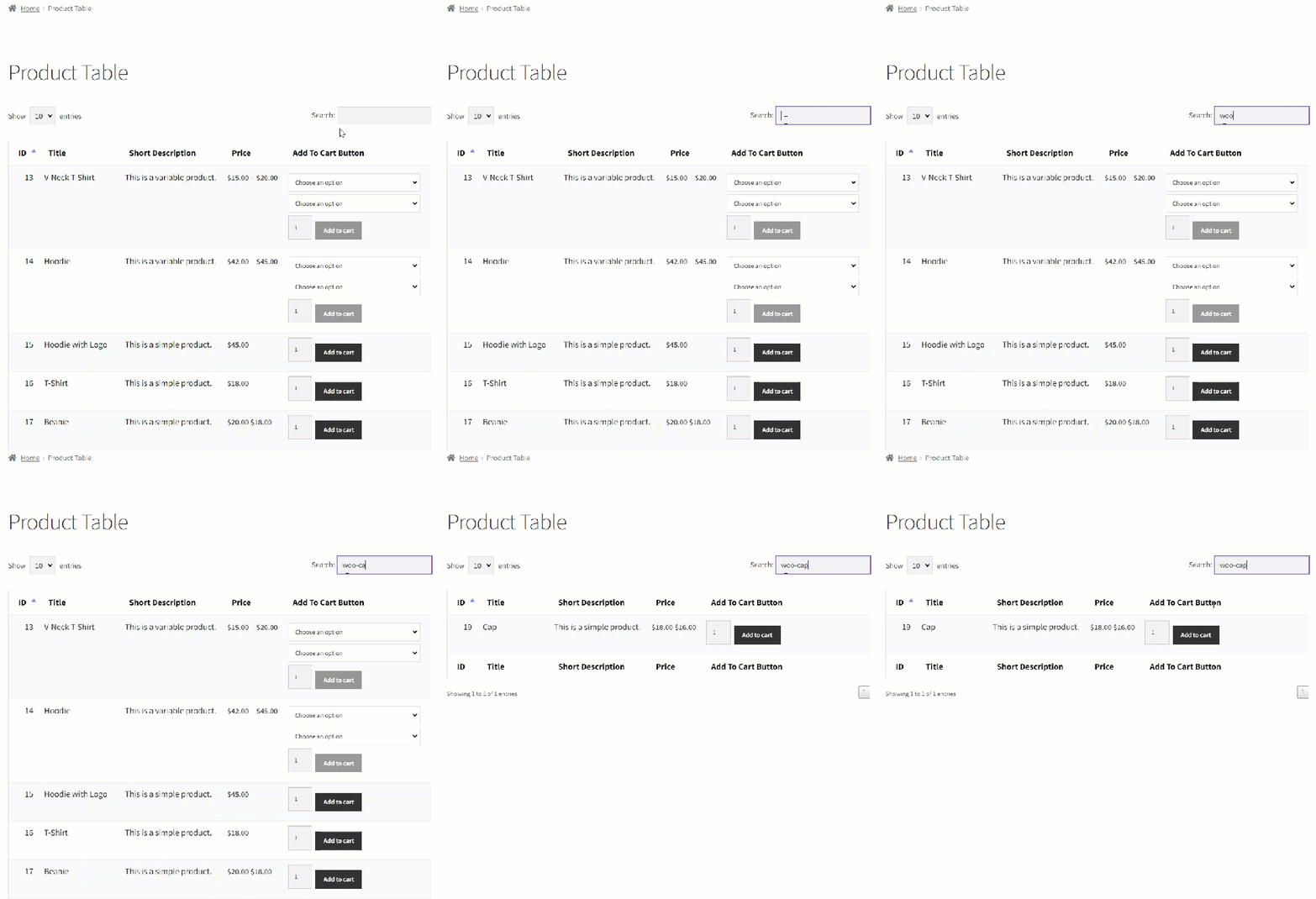
SKU – Search Functionality
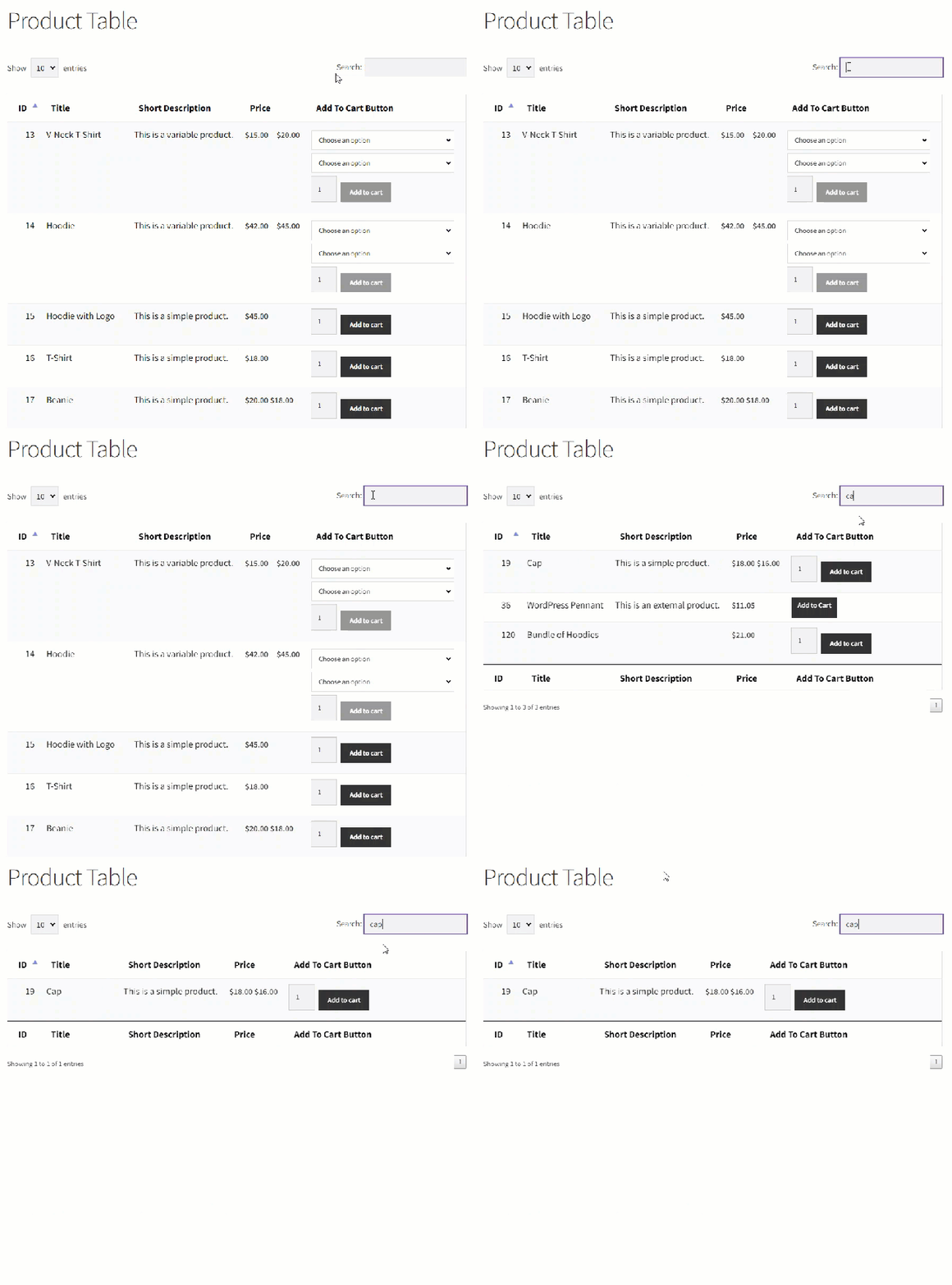
Title – Search Functionality
In-stock – Search Functionality
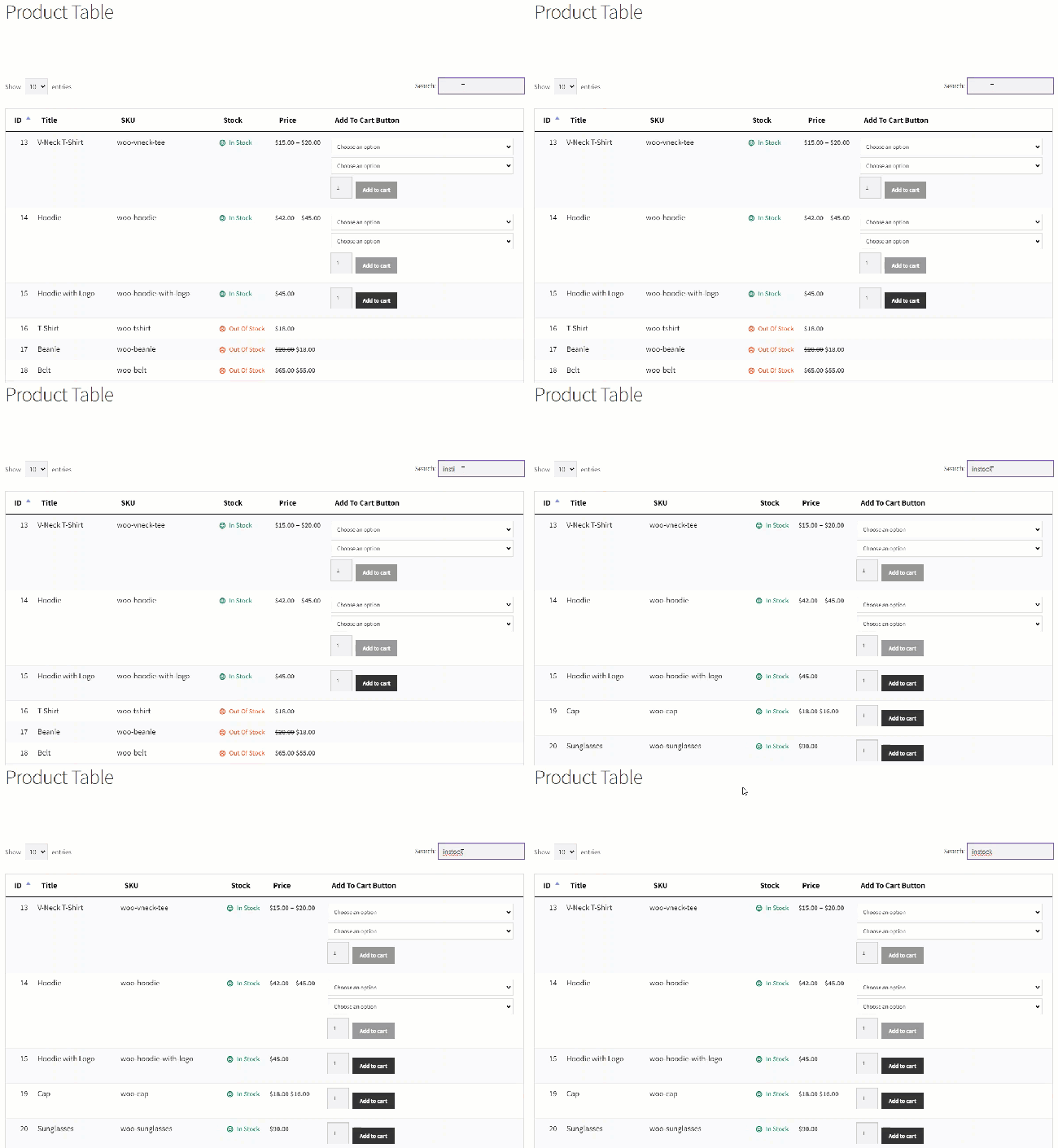
Out of stock – Search Functionality
Filter Drop Down – Product Price
- This feature enables the admin to add a filter above the product table to search products based on the following aspects.
- Go to WordPress Admin Dashboard > WooCommerce > Product Table.
- Navigate to Advance Search Settings.
- Enable the Filter appears, check button.
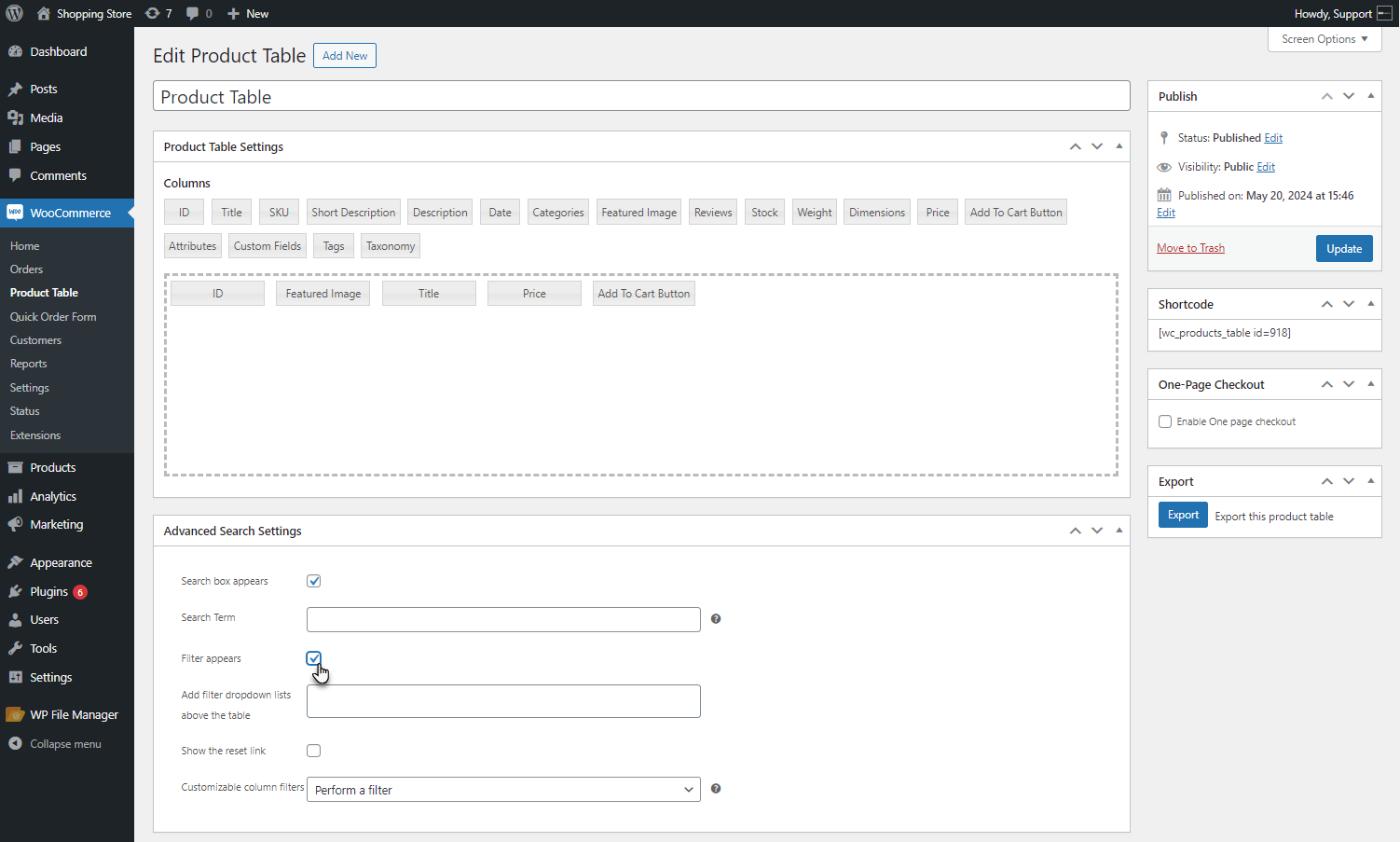
- The Add filter dropdown lists above the table field will appear.
- Select Product Price from the drop-down list.
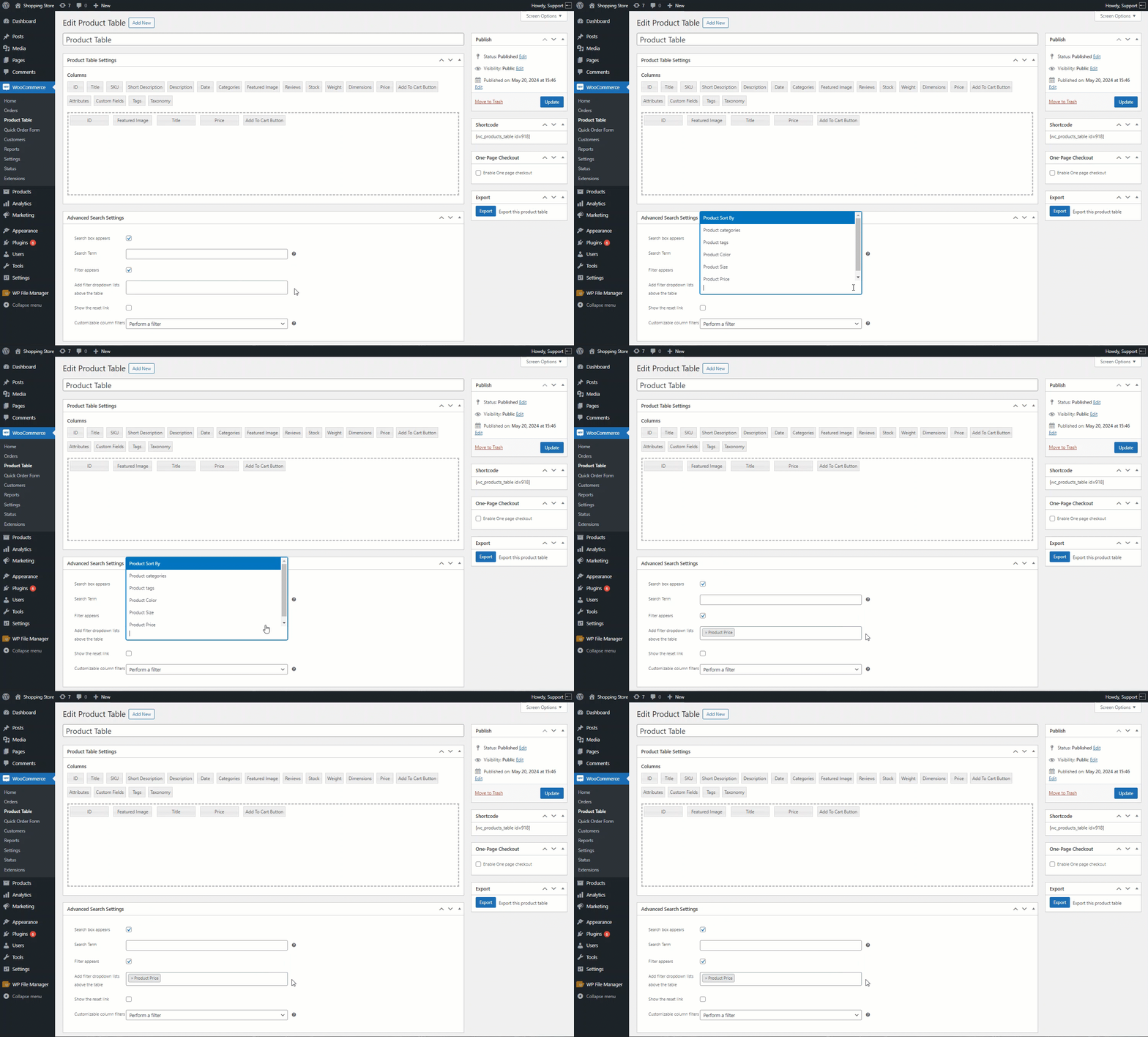
- Click on the update button to save changes.
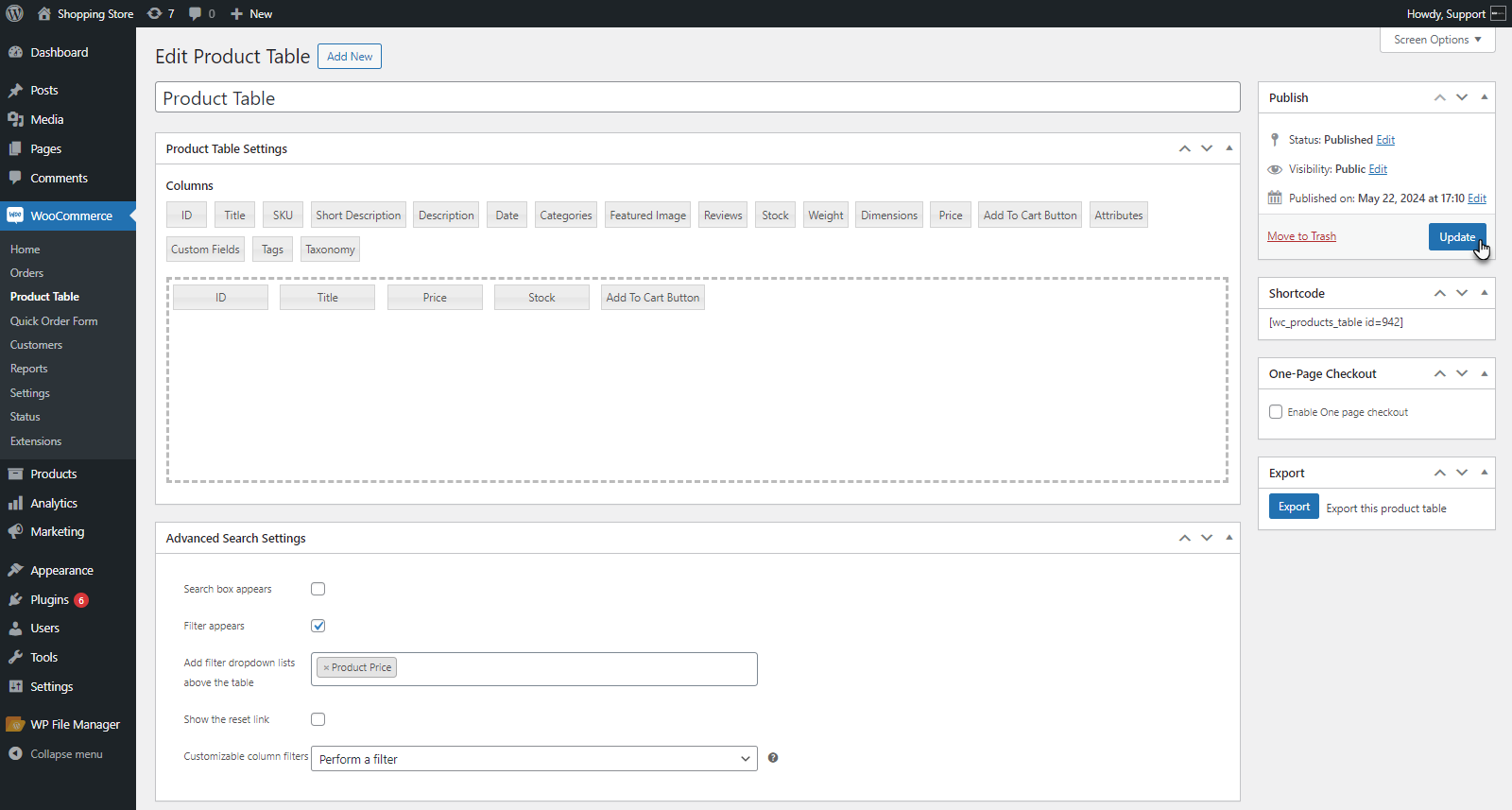
Front End Impact
- Go to the Product Table Page.
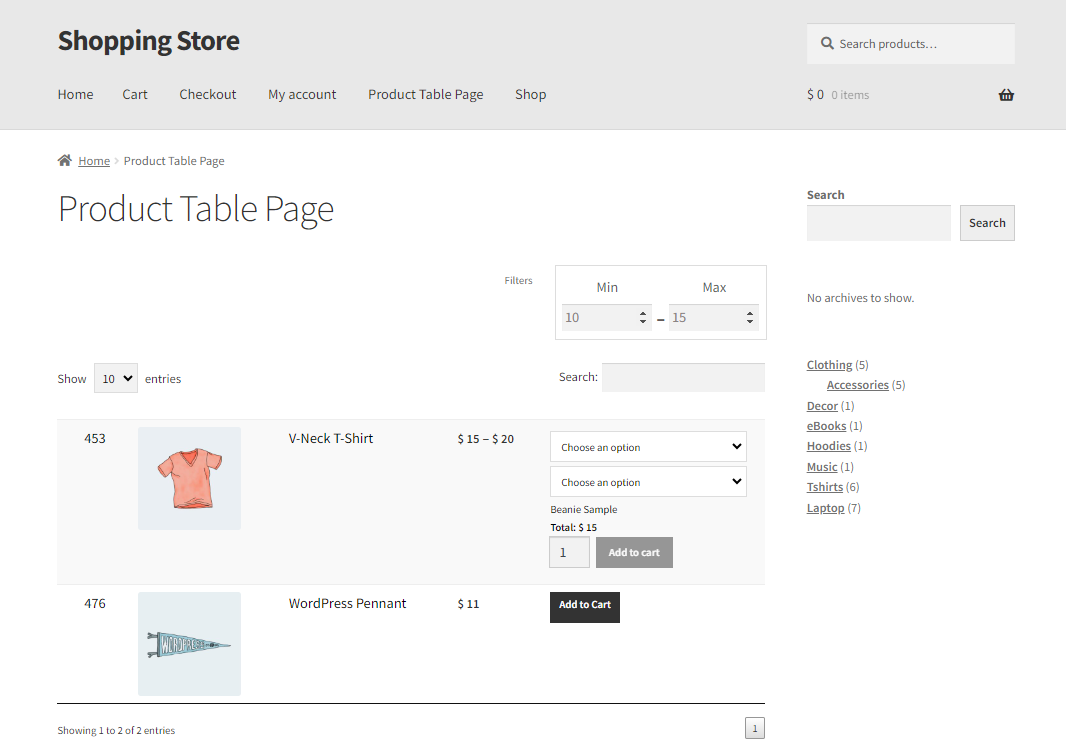
- A Price range filter will appear above the product page.
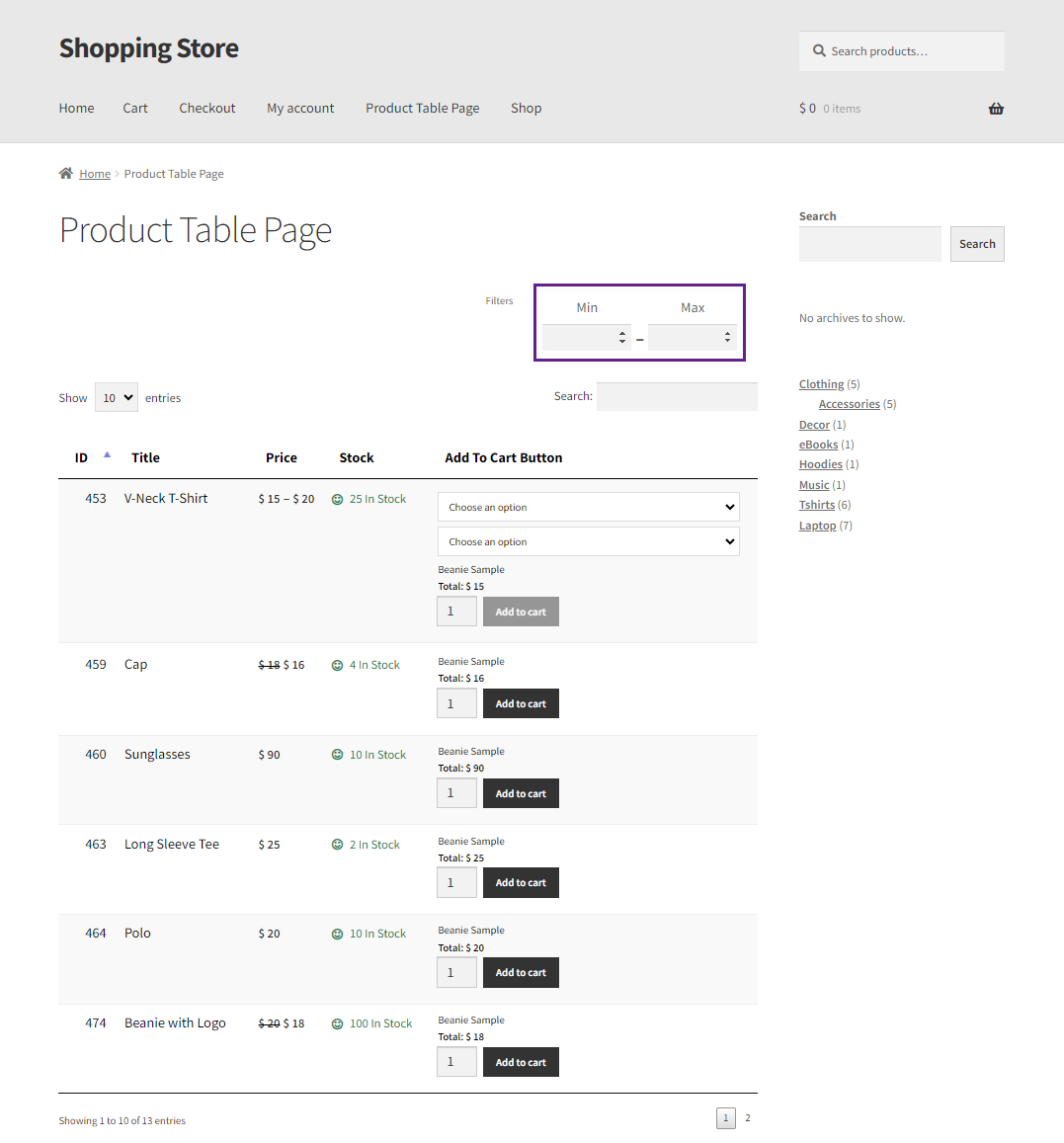
- The admin can set the price range of products to filter. The product within the set range will appear.
Filter Drop Down – Product Sort by
- Now Select Product Sort by from the drop-down list.
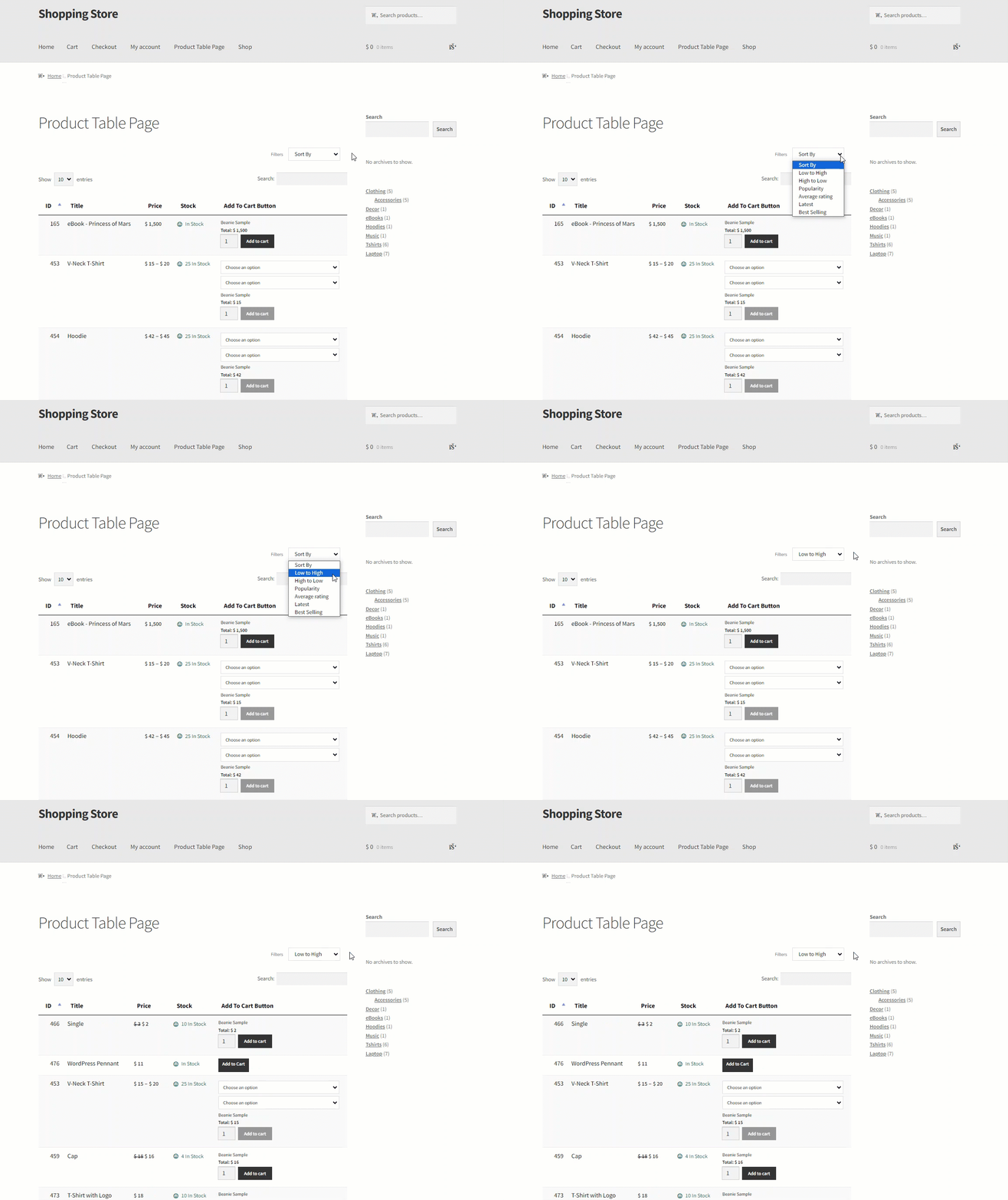
- The Product Sort by will filter the product on the following options.
- Low to High – this will sort products from low to high prices.
- High to Low – this will sort products from high to low prices
- Popularity – this is based on the WooCommerce rating.
- Average Rating – this is based on the WooCommerce rating.
- Latest – Recent products added.
- Best selling – this is based on products that are mostly sold.
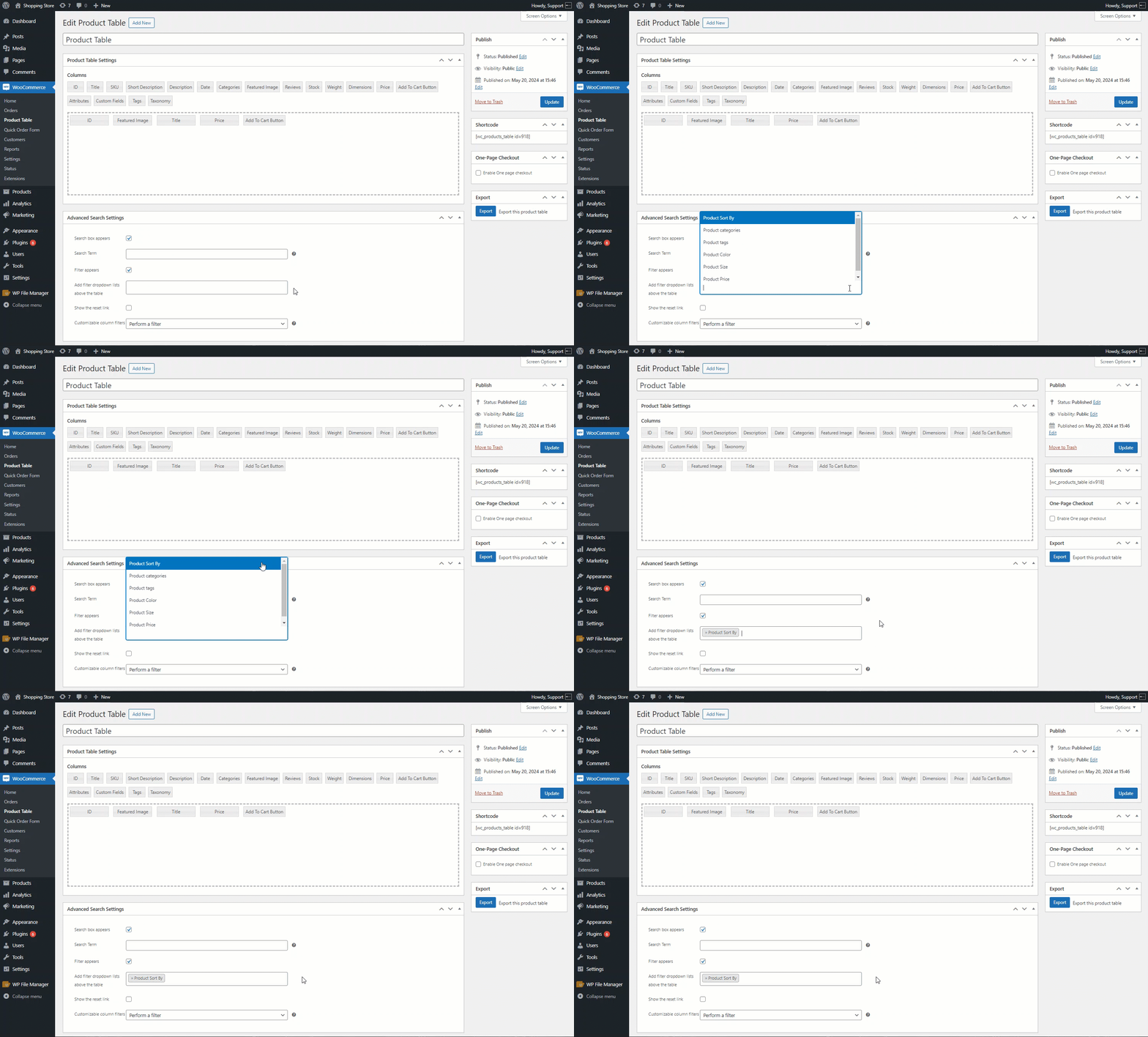
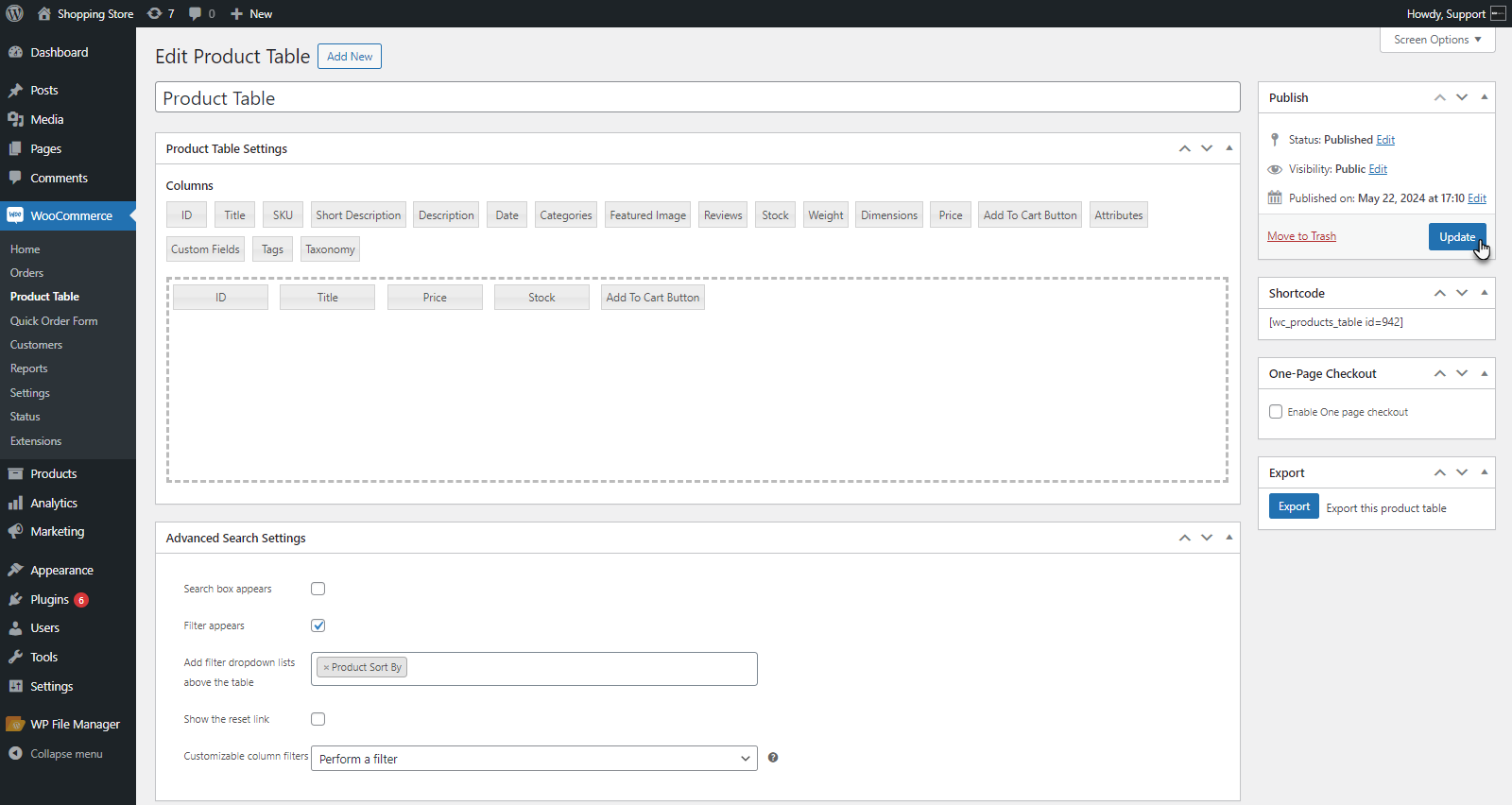
- Click on the Update button to save changes.
Front End Impact
- Go to the Product Table Page.
- A Sort By filter will appear above the product page.
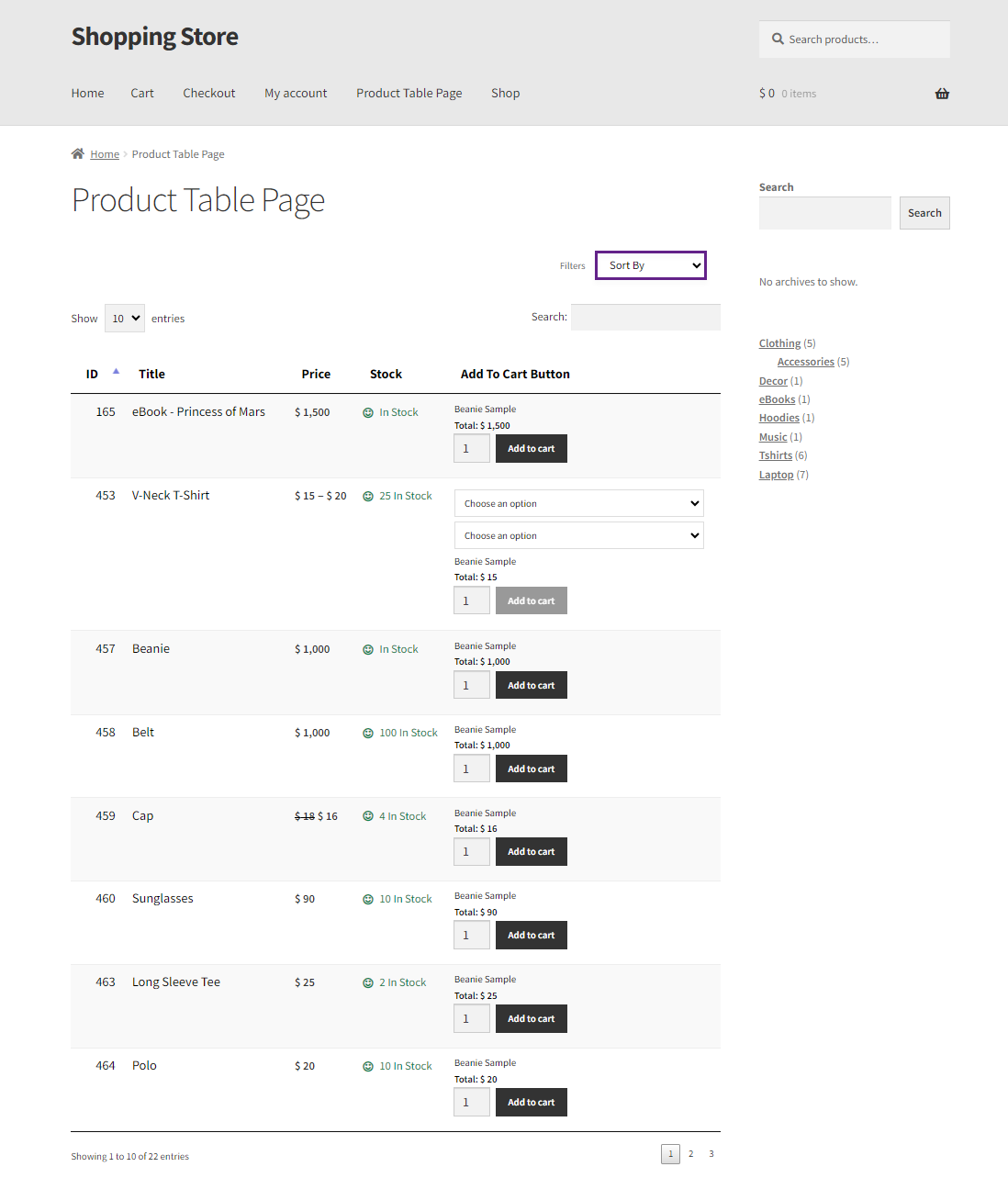
- The admin can filter the product by using the option from the drop-down list. The product will appear as per the option selected.
Reset Button for Filter
↑ Back to topA Reset button will be available for customers to quickly clear all applied filters and return to the default product view.
- Navigate to WooCommerce > Product Table.
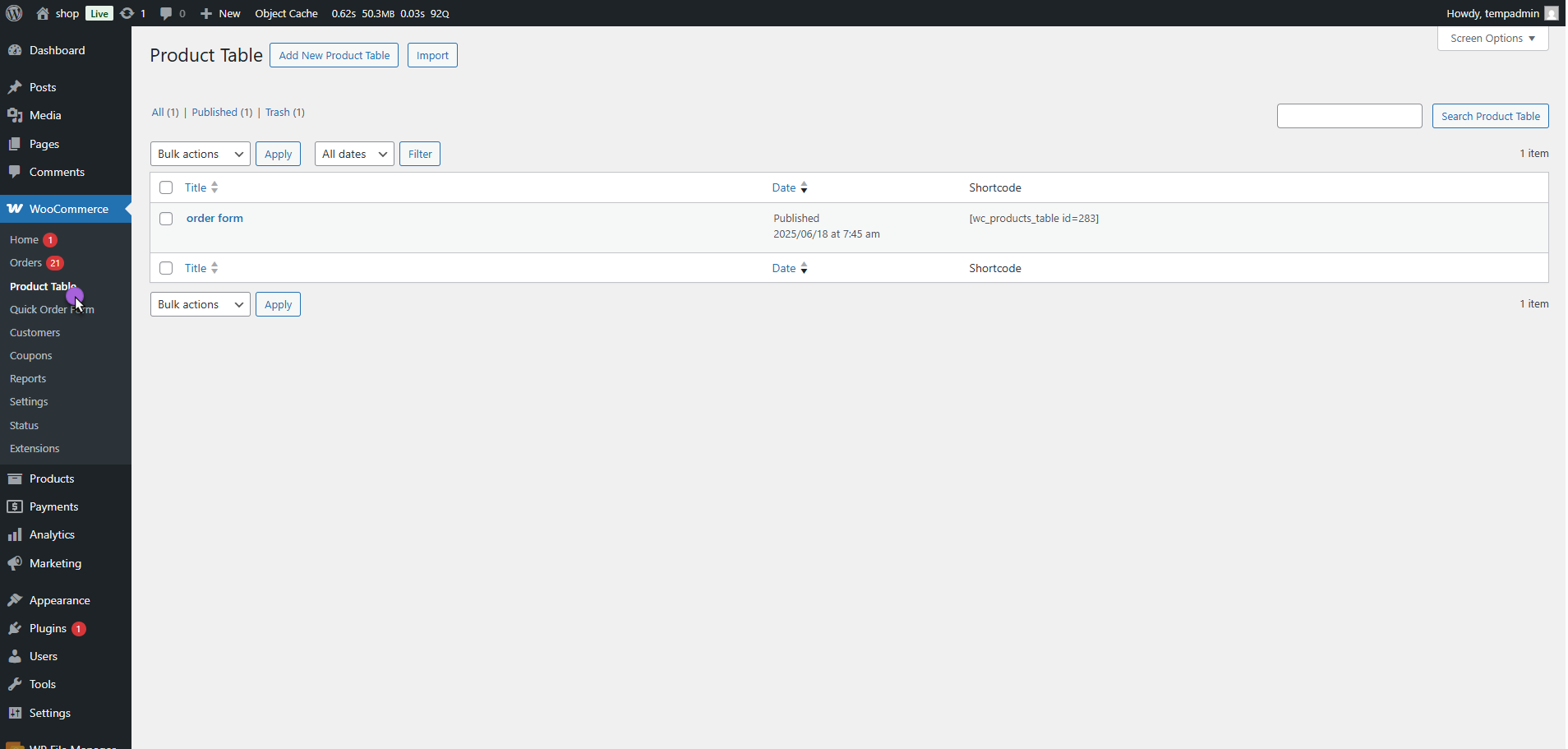
- Edit an existing table or Create a new table.
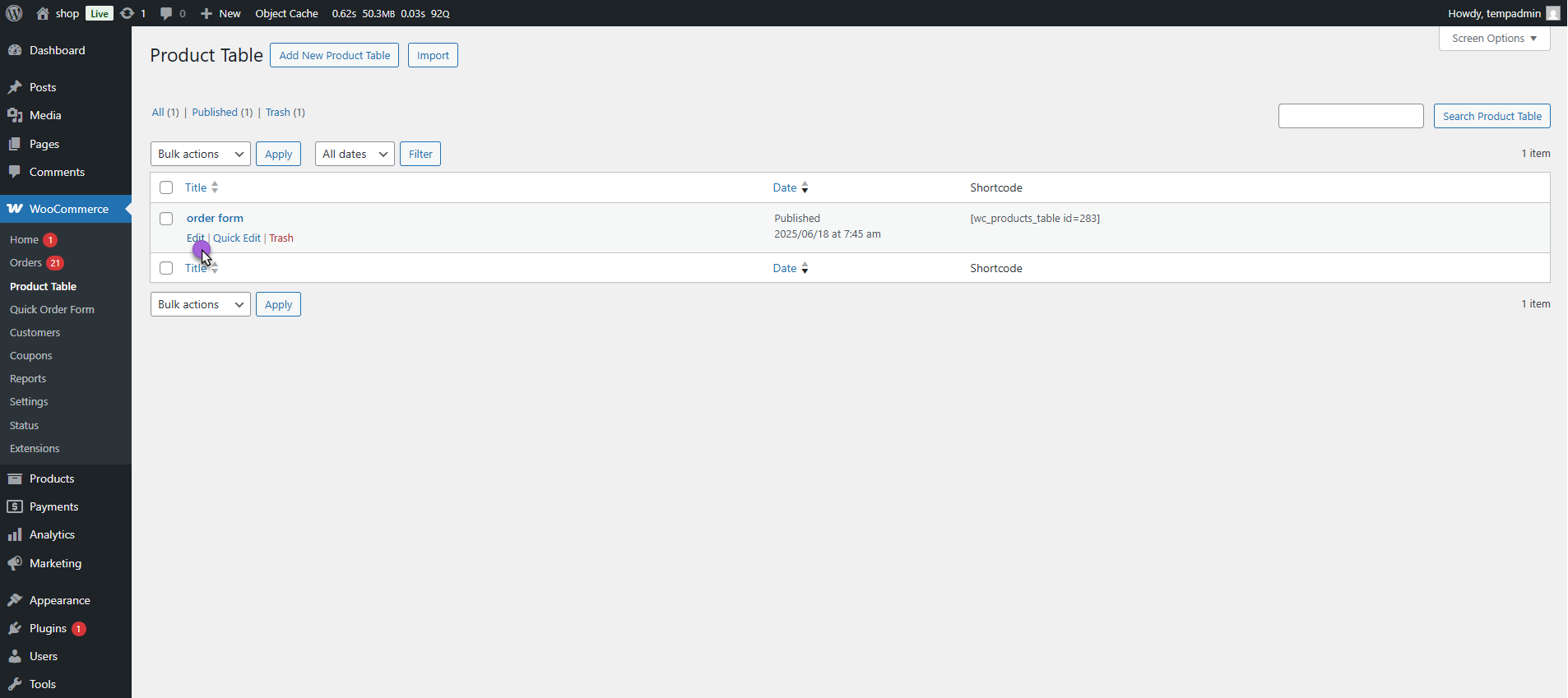
- In the Advanced Search Settings, enable “Show the reset link.”
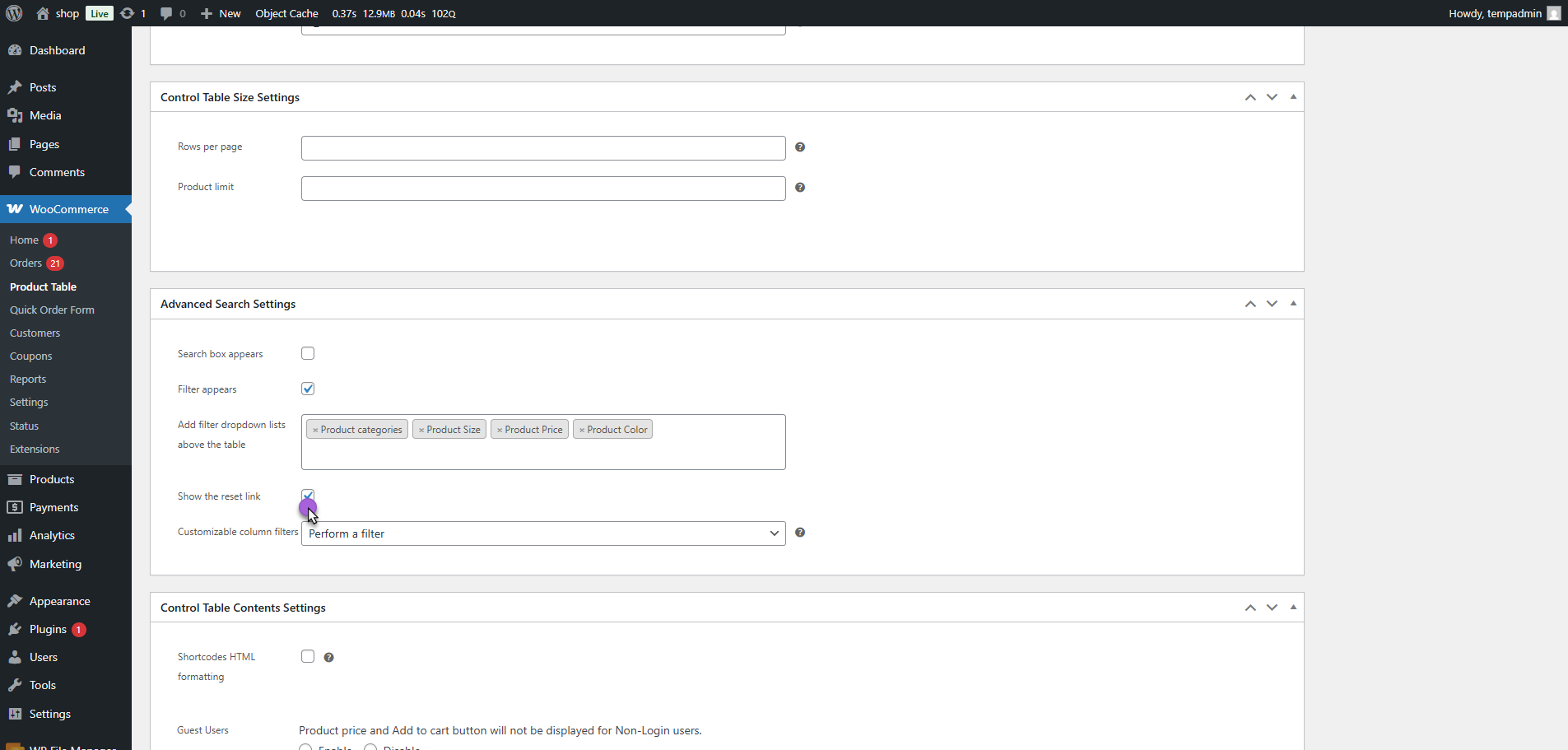
- The Reset button will appear at the end of all applied filters.
Front-End Impact
- Go to the Website.
- Navigate to the Product Table page.
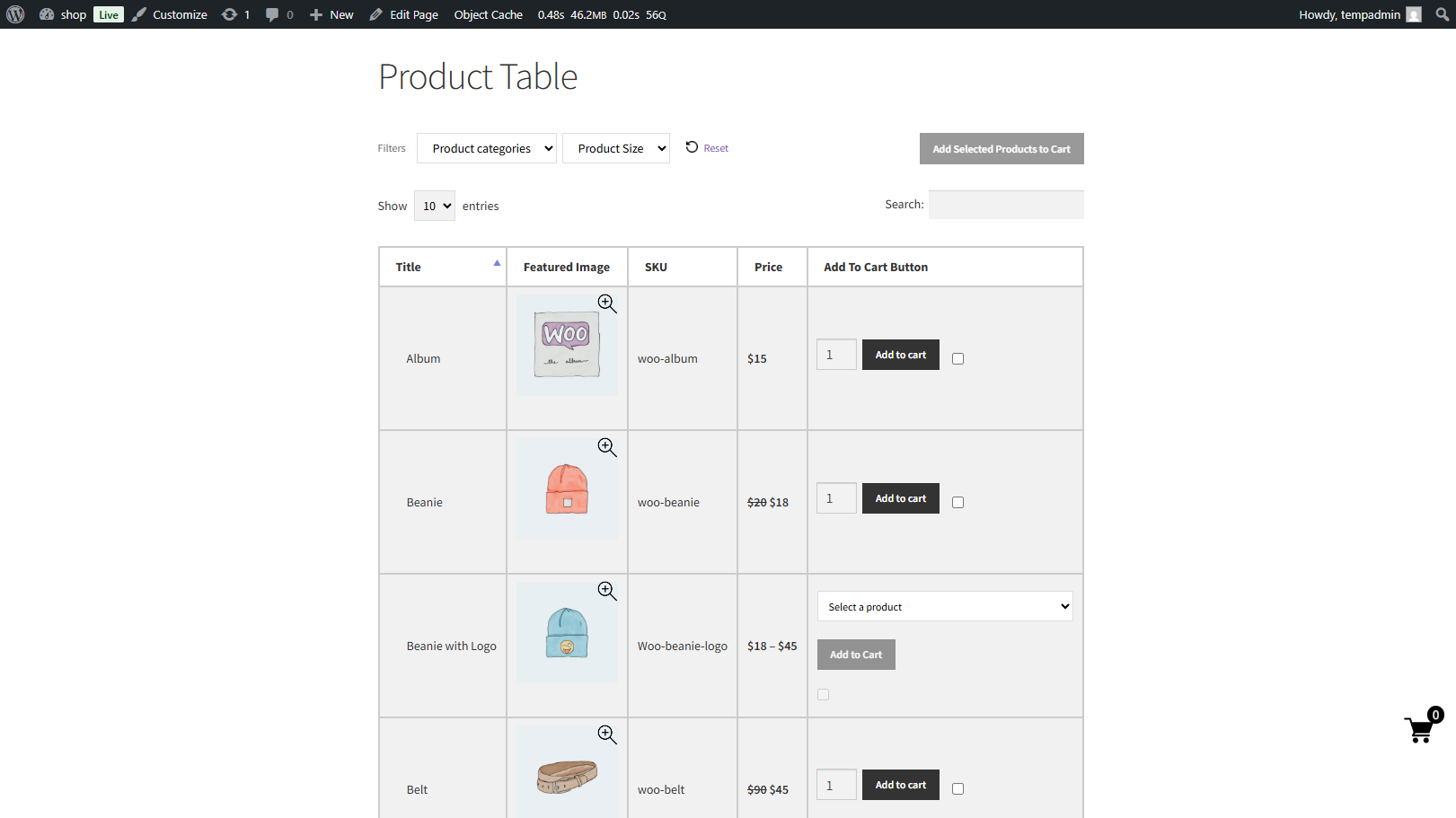
- Apply any available filters (e.g., Product Price, size, color).
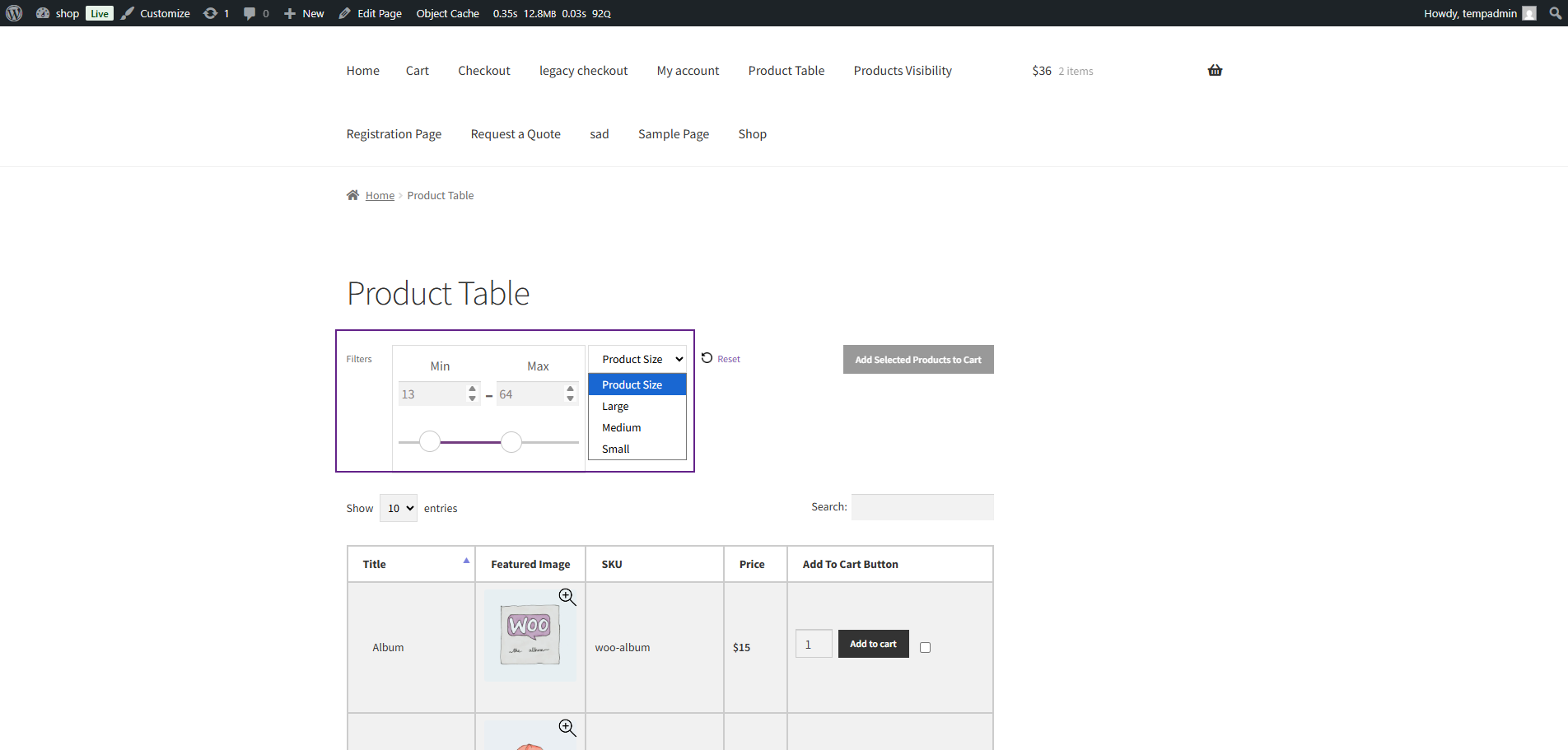
- Click the Reset button located at the end of the filters.
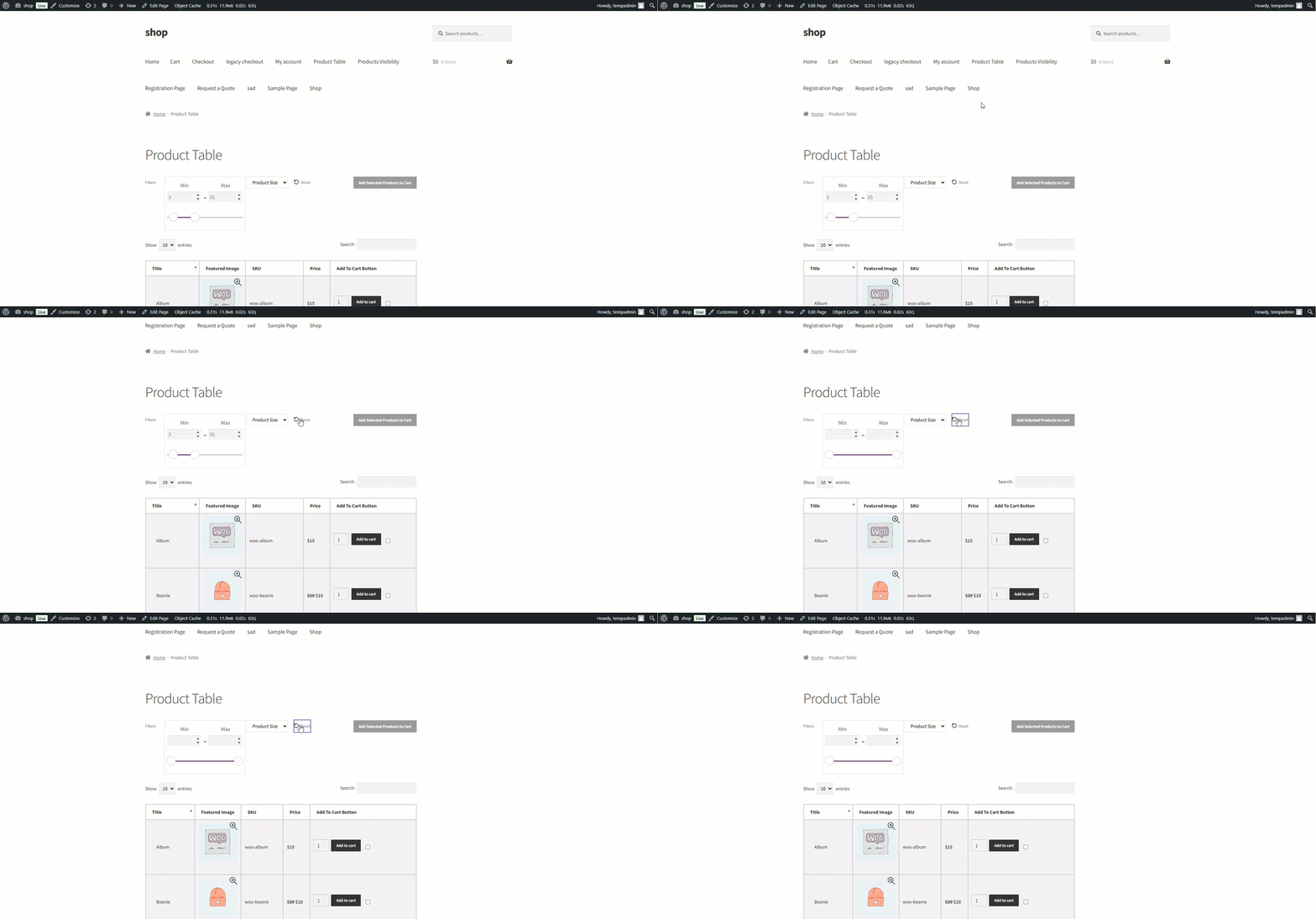
Product Sort Settings
↑ Back to top- Enable sorting through columns. Add fields to enable sorting options on that fields.
- Setup the default sorting option by field .
- Select the sorting direction either ascending or descending.

Product Visibility Settings
↑ Back to top- Included Product Categories: Enter product category to display in product table.
- Stock Status: Choose stock status to display products of only that status.

- Included Products: Enter products to include in product table.
- Excluded Products: Enter products to exclude from the product table.
- Exclude Product Category: Select categories to exclude from the product table. Product belong to these categories will not be displayed.

- Product Date: Select option to display products according to the selected date it can be before or after the selected date.
- Date format: Choose the date to display products accordingly. For E.g (if you select before selected date option and select a date (3/10/2020). Products that are published before the above date will be displayed only).

Responsive Settings
↑ Back to top- Choose responsive settings you can set on 100% responsive. Or show/hide some column on specific screen resolutions.

Mini Cart
↑ Back to top- Navigate to the Mini Cart section.
- Enable the Cart Icon option. A mini cart icon will appear on the Product table.
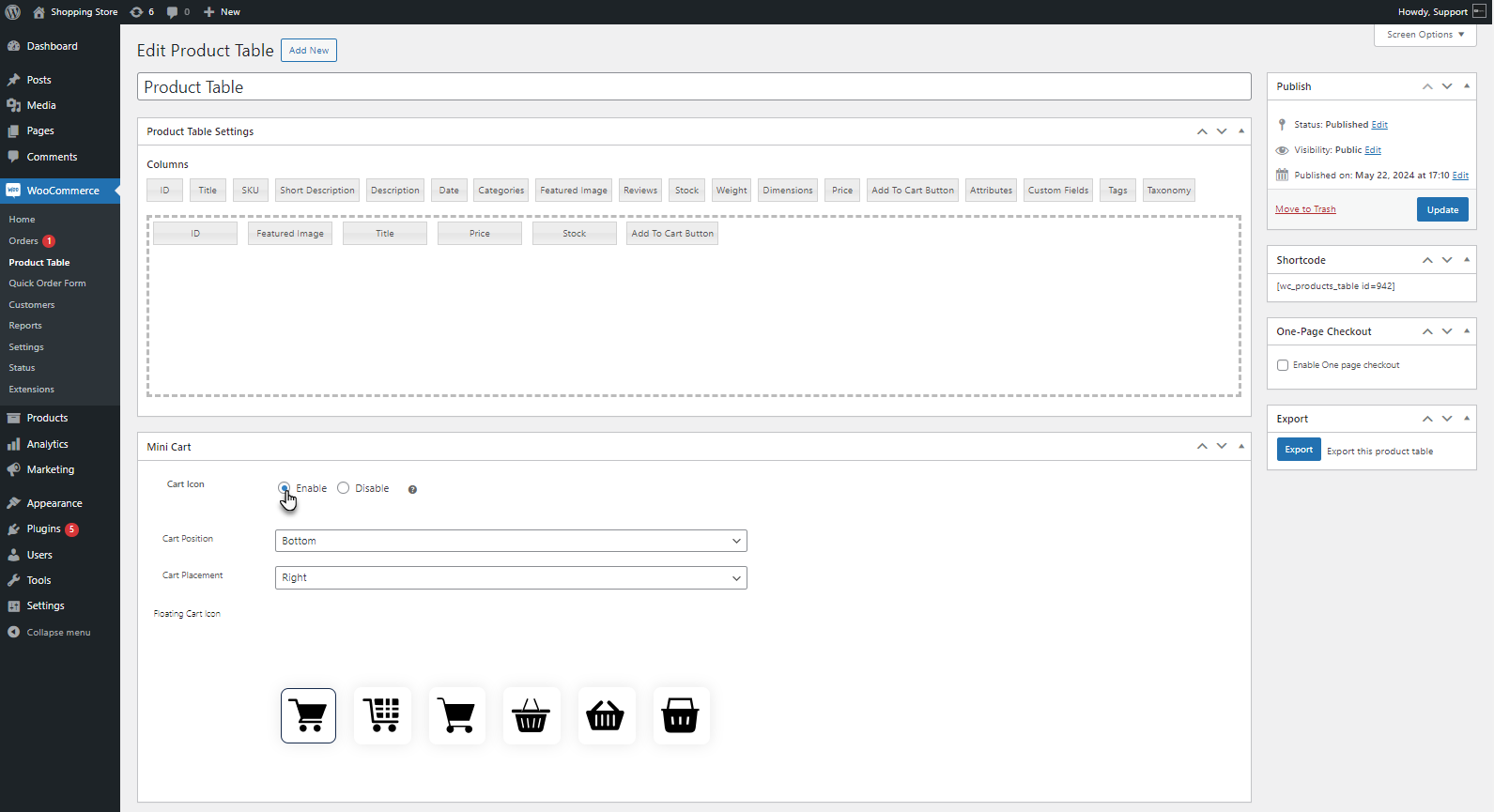
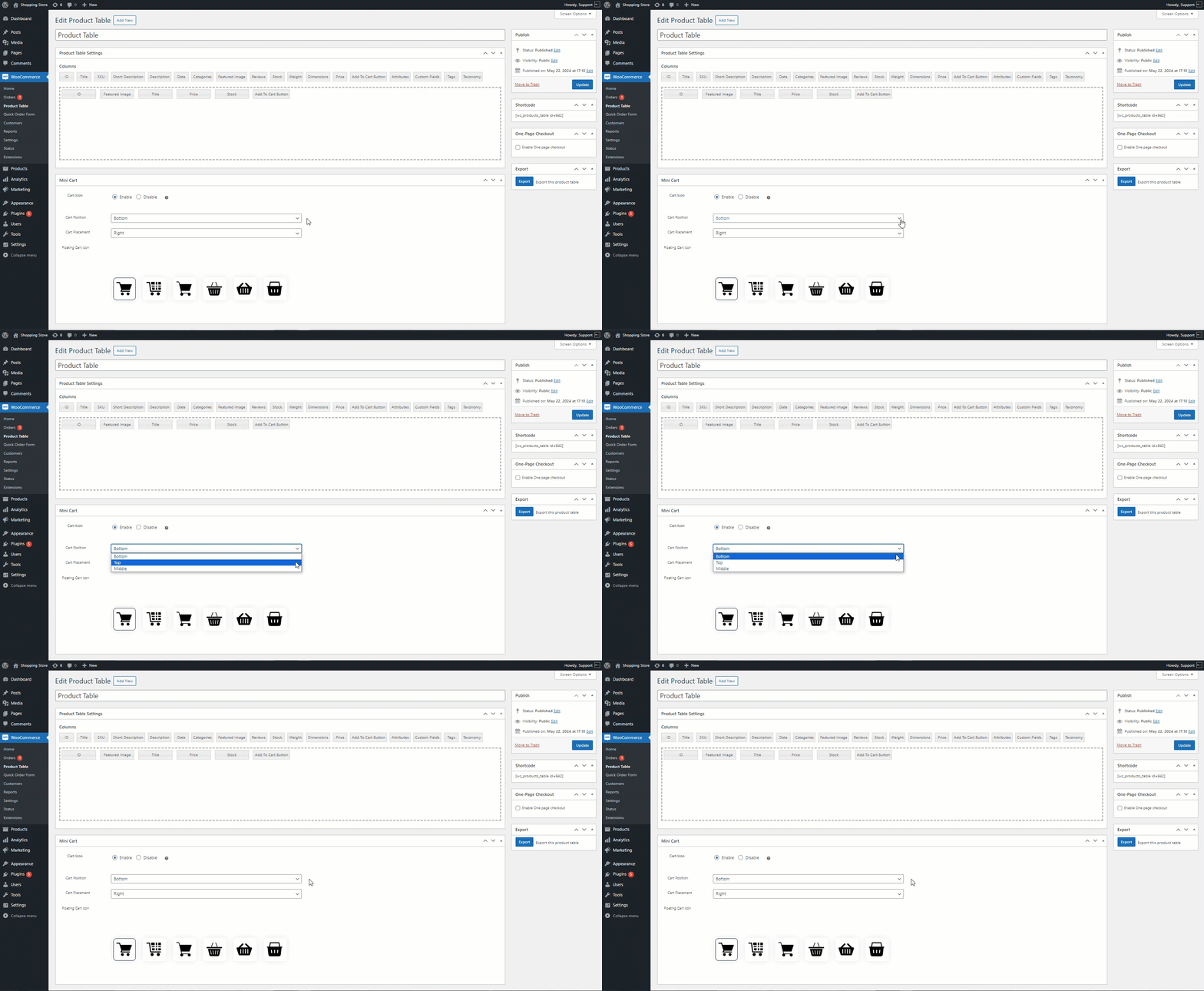
- The admin can set the Cart Position as needed.
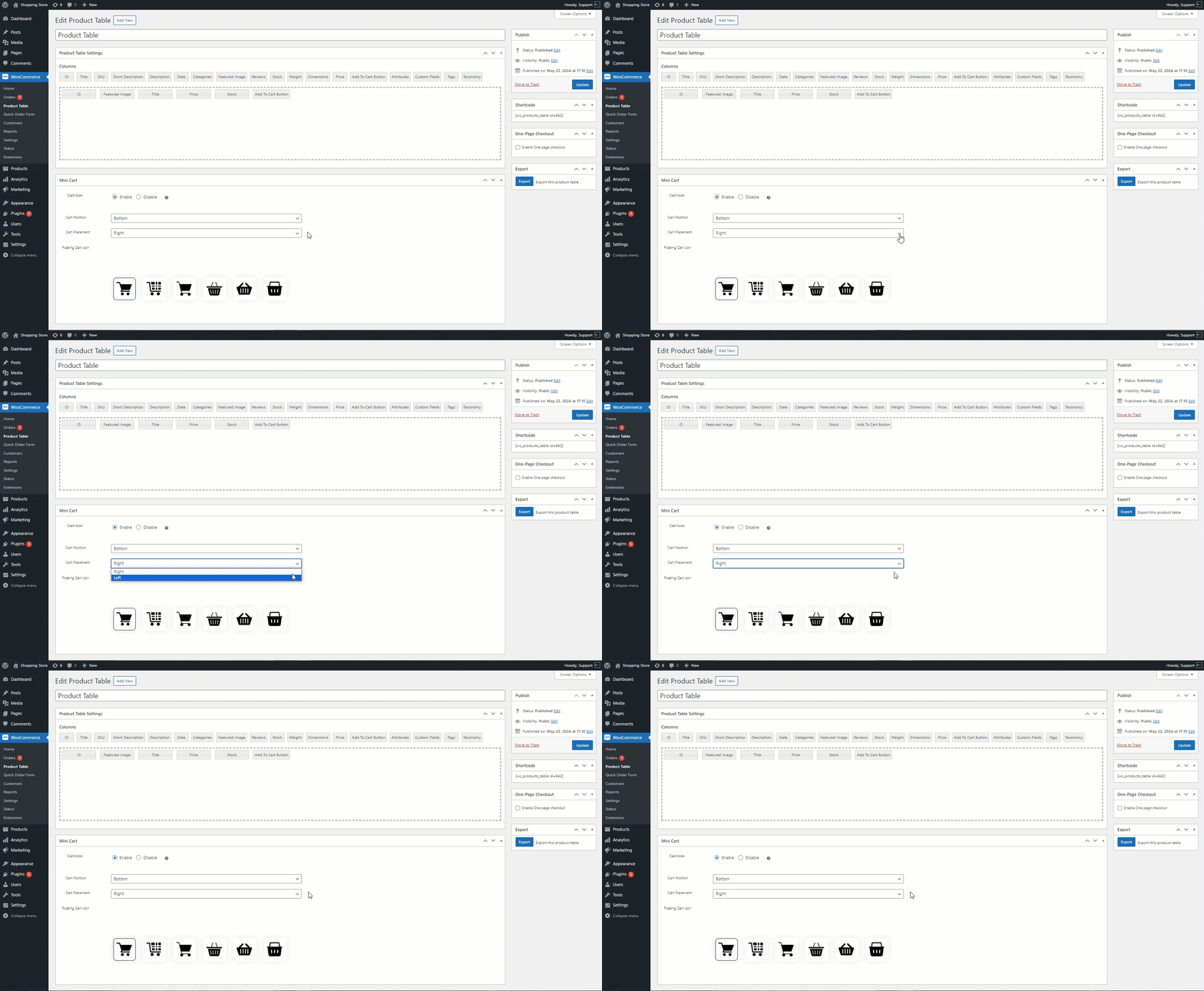
- The admin can set the Cart Placement as needed.
- The admin can choose the Floating Cart Icon from the provided icons.

- Click on the update button to save changes.
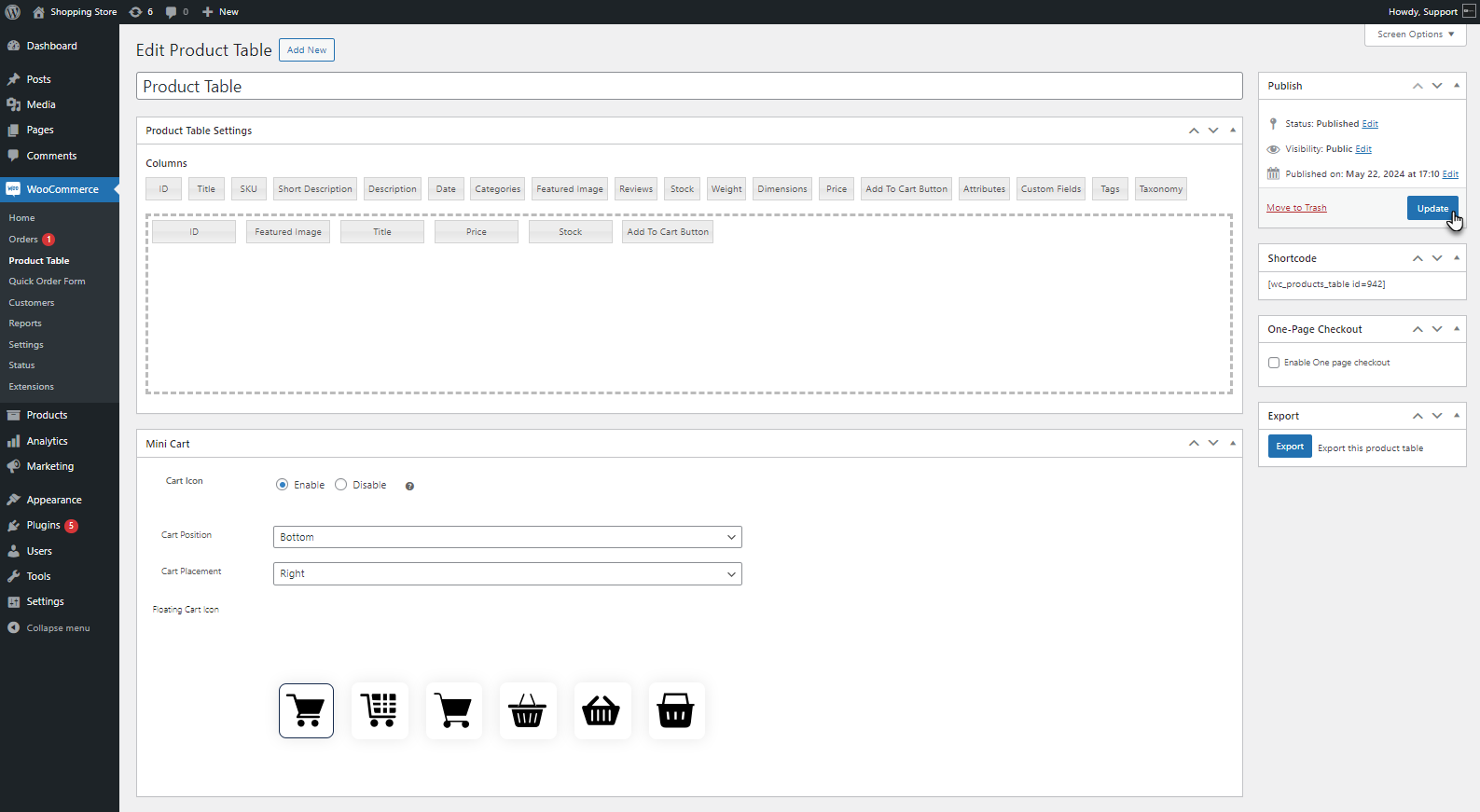
Front-End Impact
- Go to the Product Table Page.
- A Floating Mini Cart will appear on the product table.
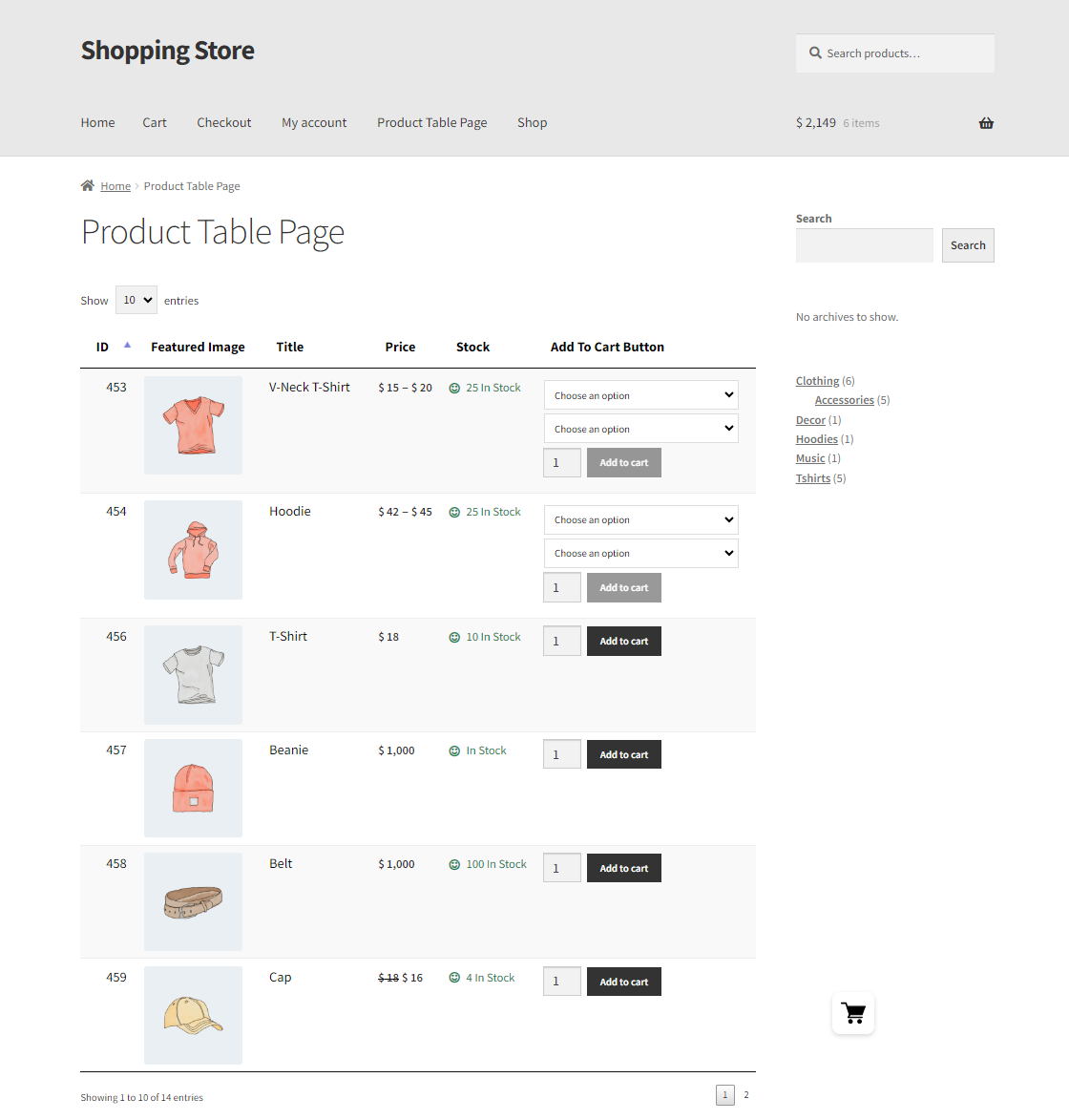
- Add an item to the cart.
- Click on the Mini Cart Icon.
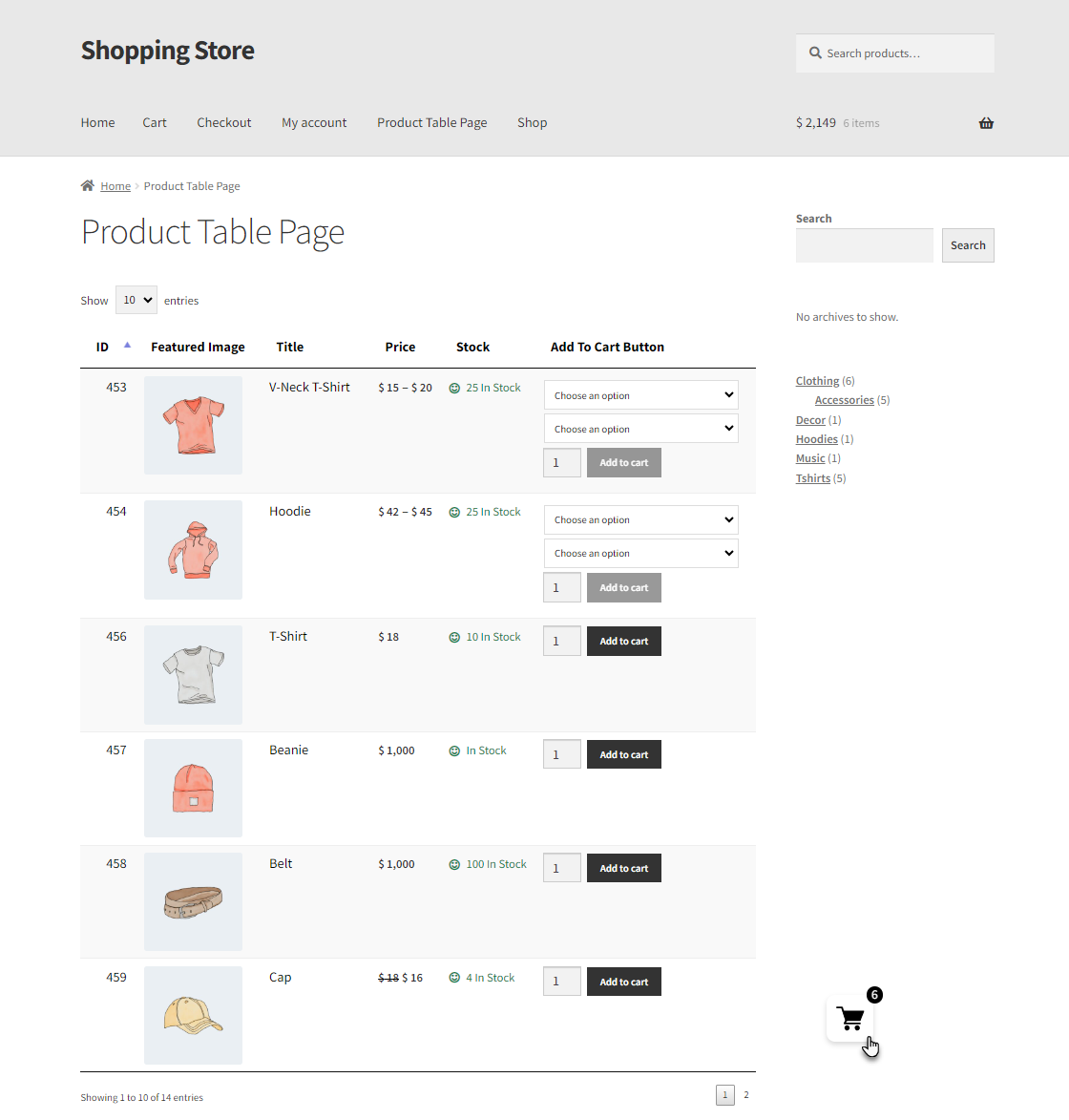
- A Mini Cart will appear on the right side.
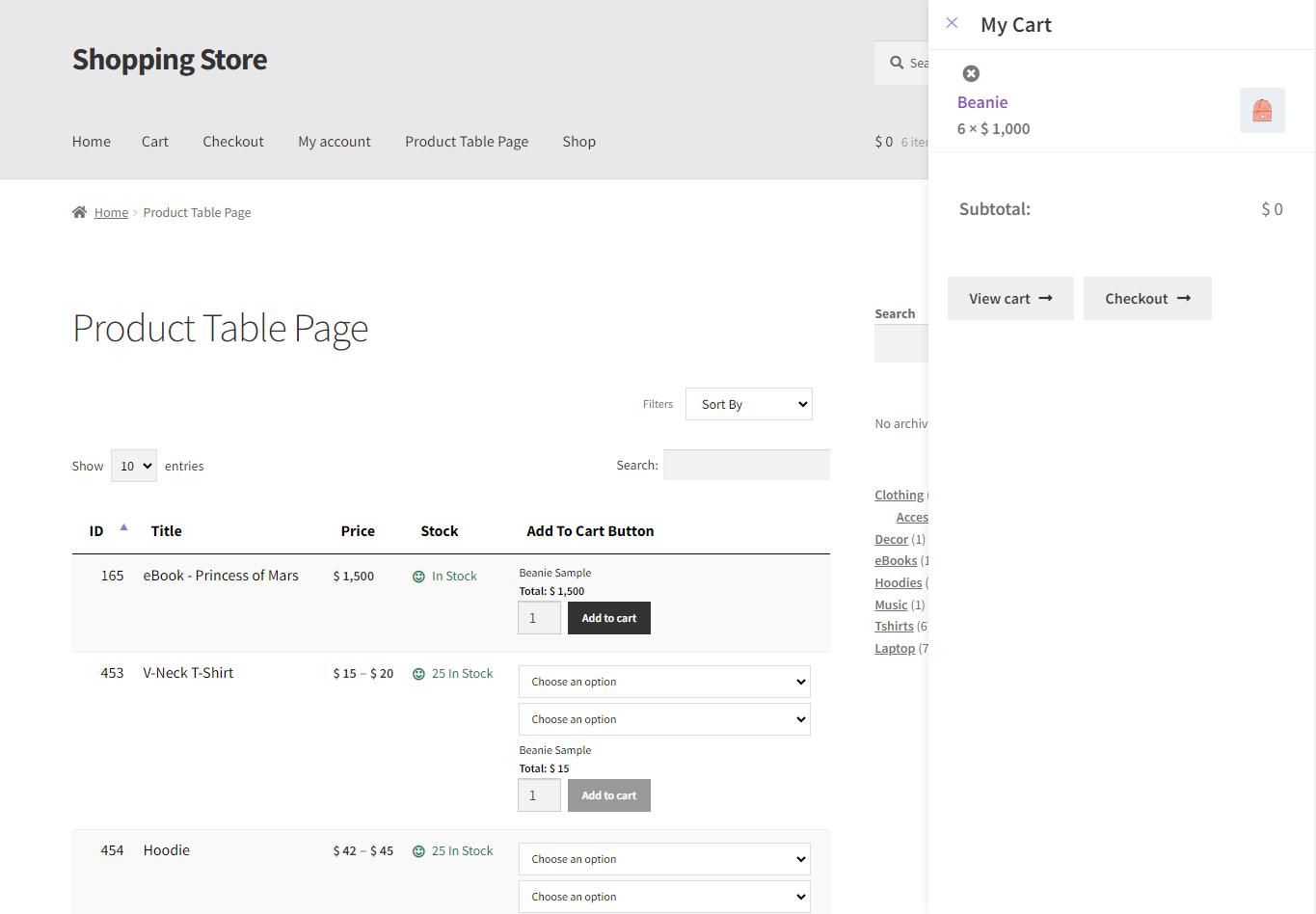
Mini Cart One-Page Checkout
↑ Back to topThis feature enables customers to complete their purchase directly from the Mini-Cart, utilizing a one-page checkout process. It reduces extra steps, providing a faster and more seamless shopping experience.
- Navigate to WooCommerce > Product Table.
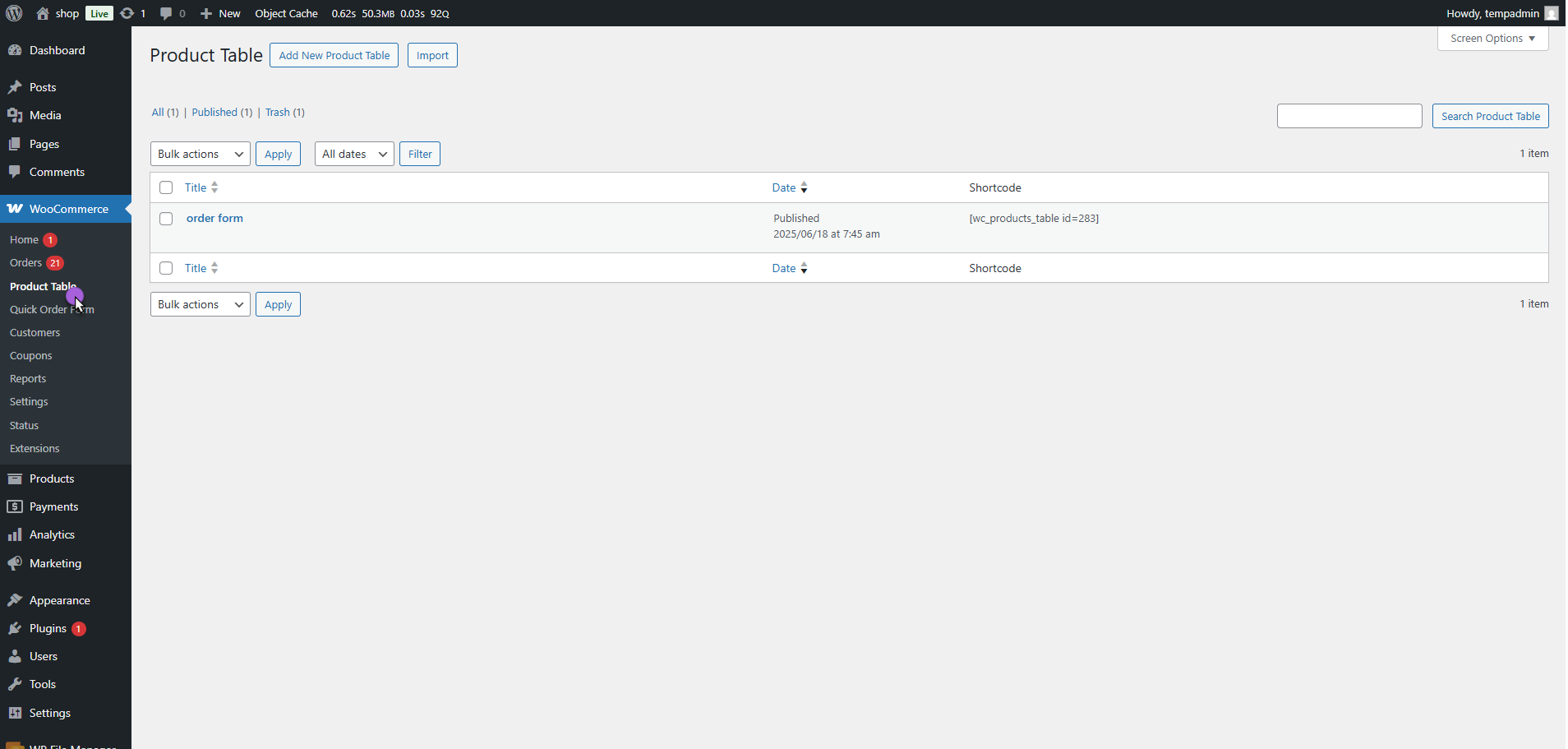
- Edit an existing table or create a new table.
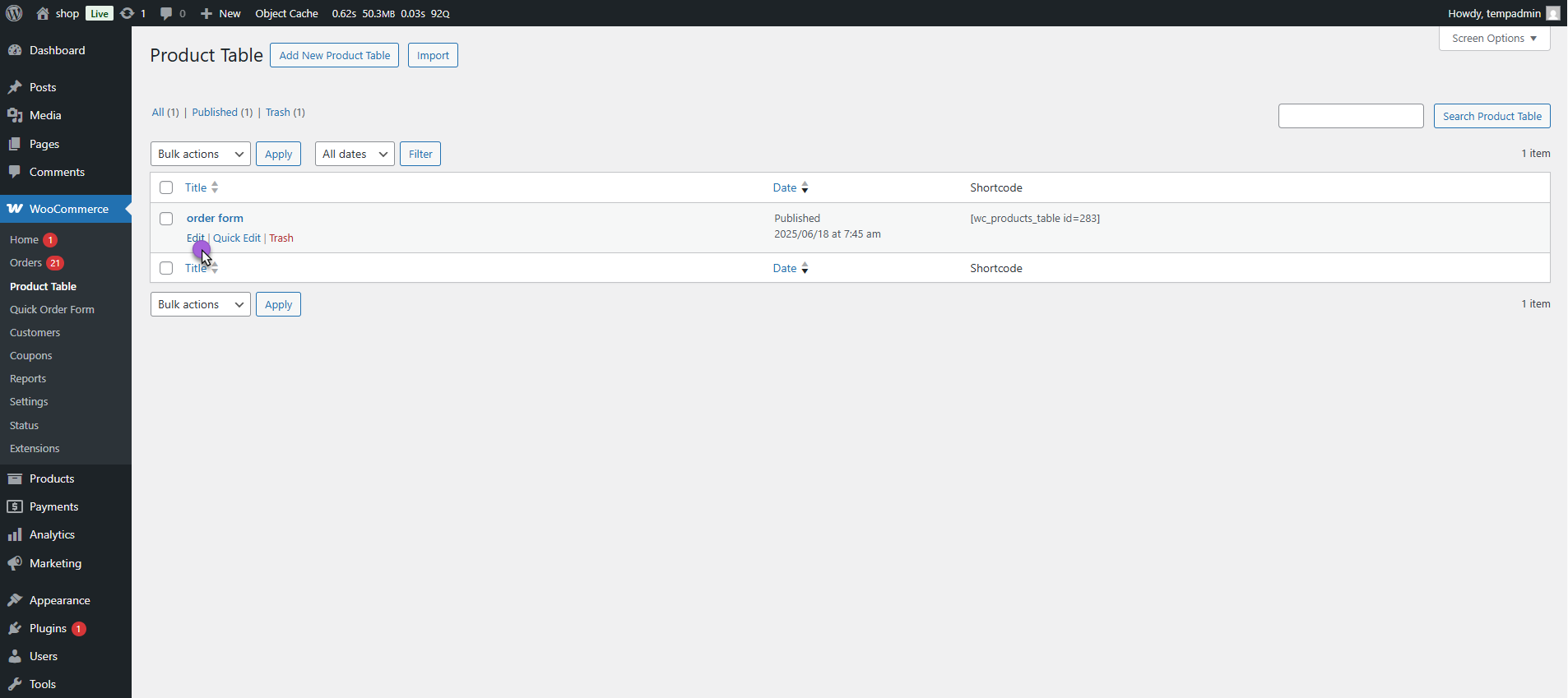
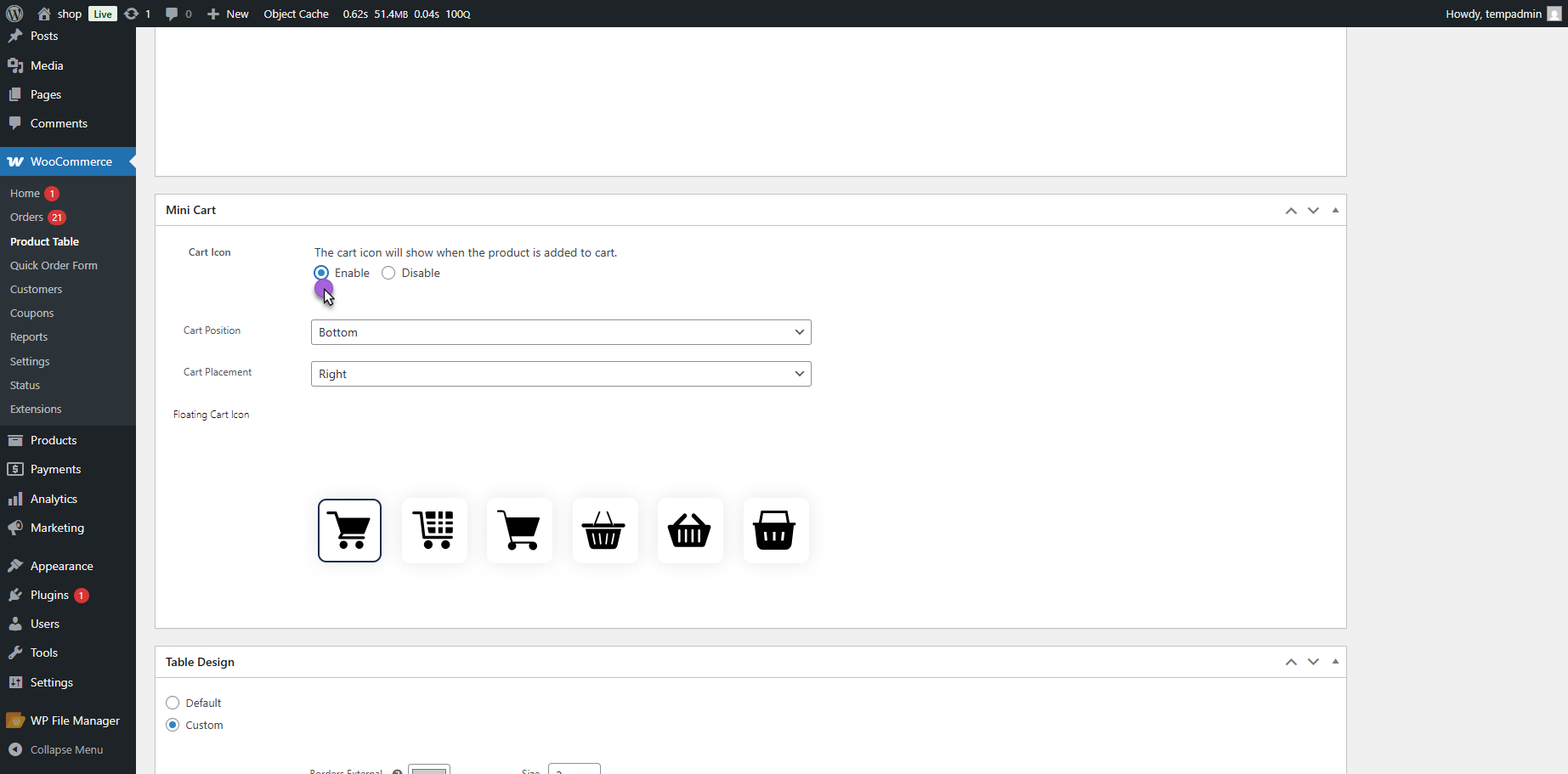
- Go to Mini Cart Settings > Enable the Cart Icon option.
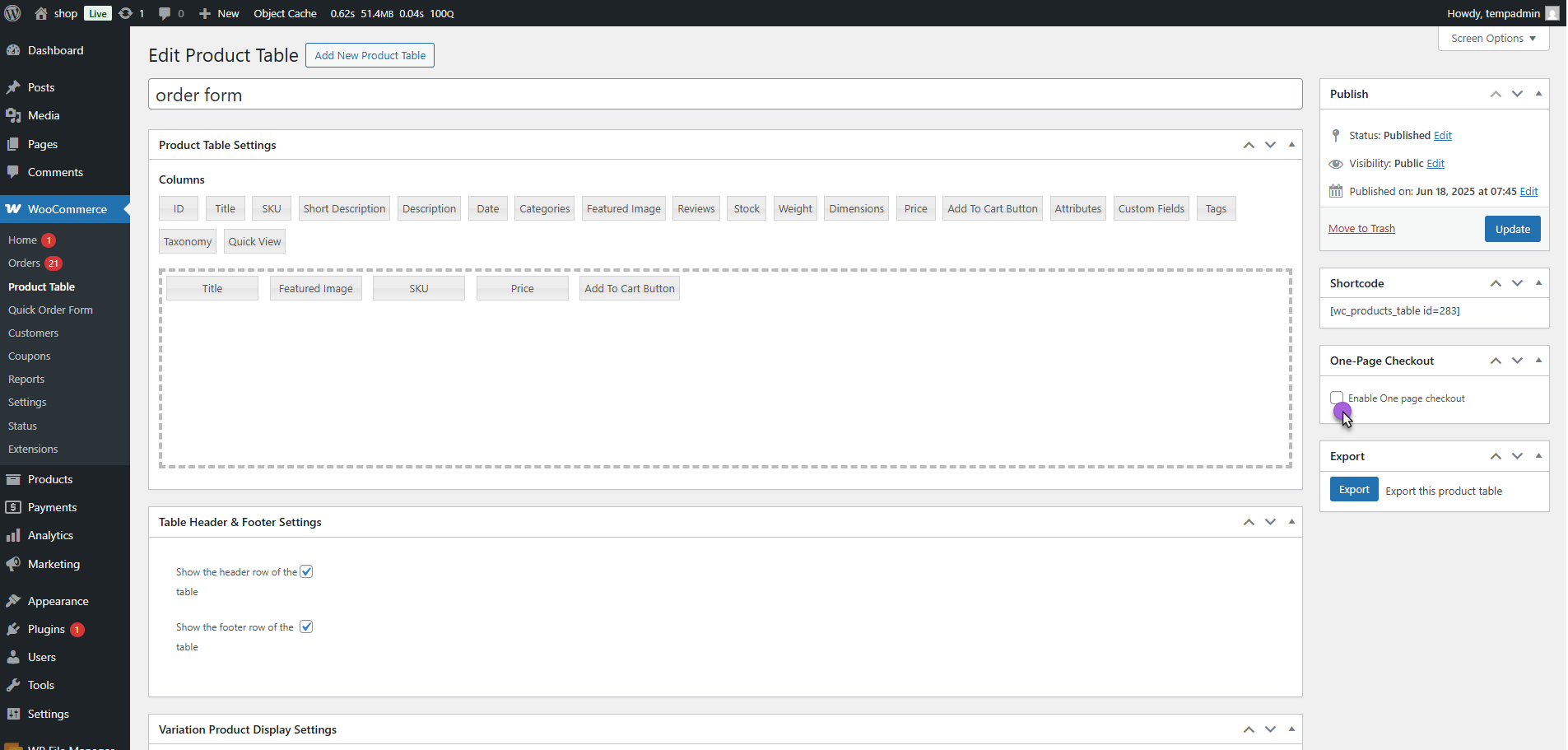
- Navigate to One-Page Checkout Settings > Enable the One-Page Checkout option.
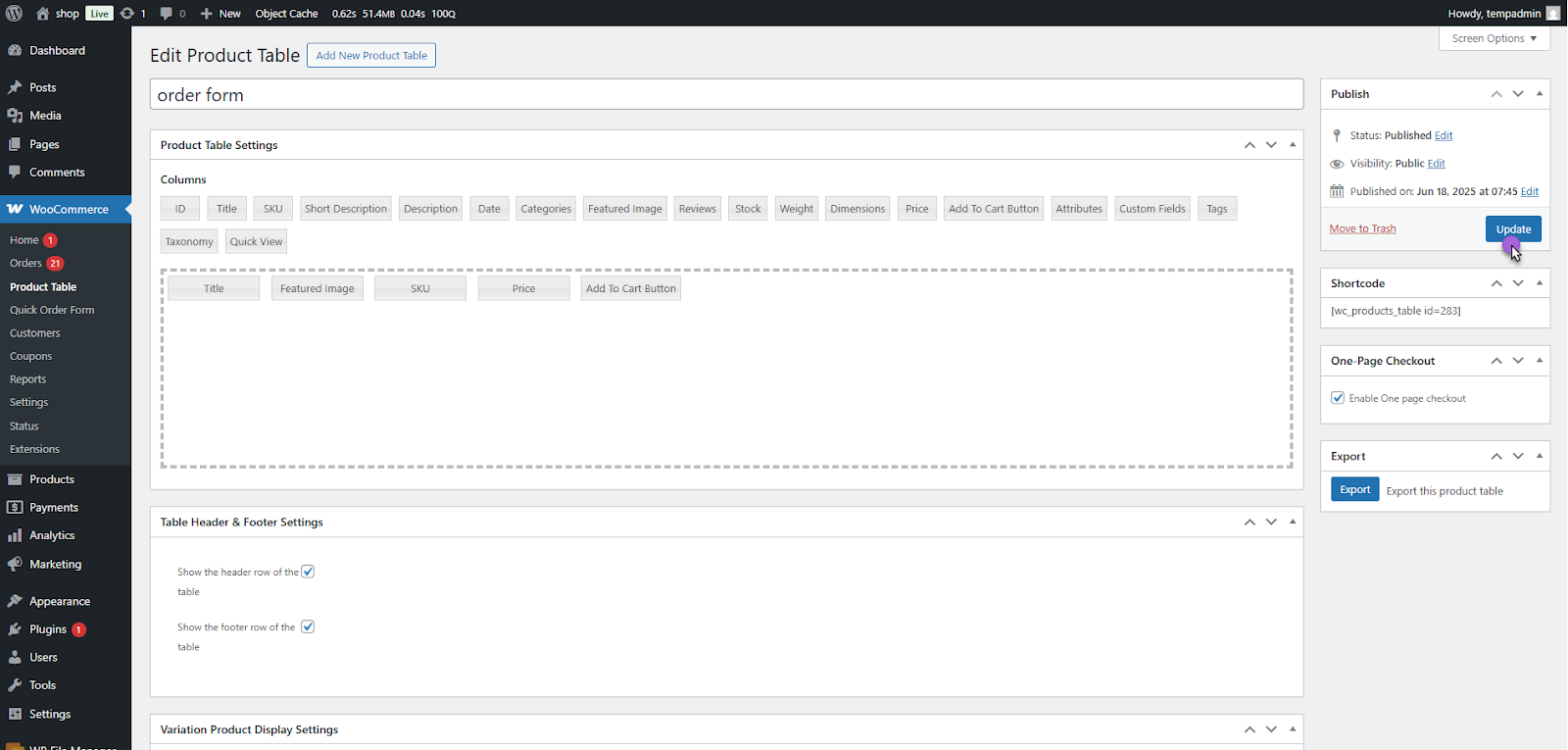
- Click the Update button to save the settings.
Front-End Impact
- Go to the Website.
- Navigate to the Product Table page.
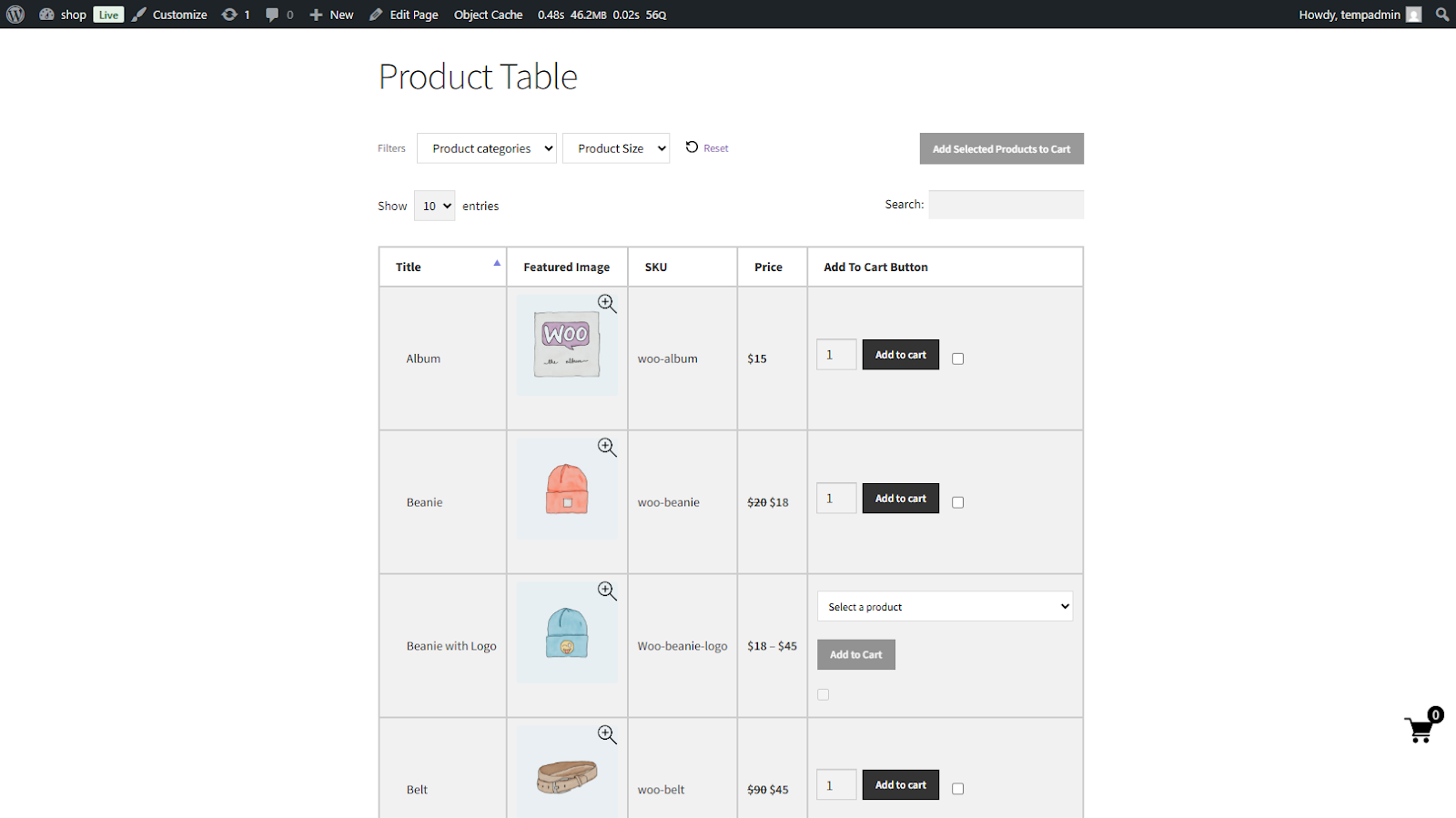
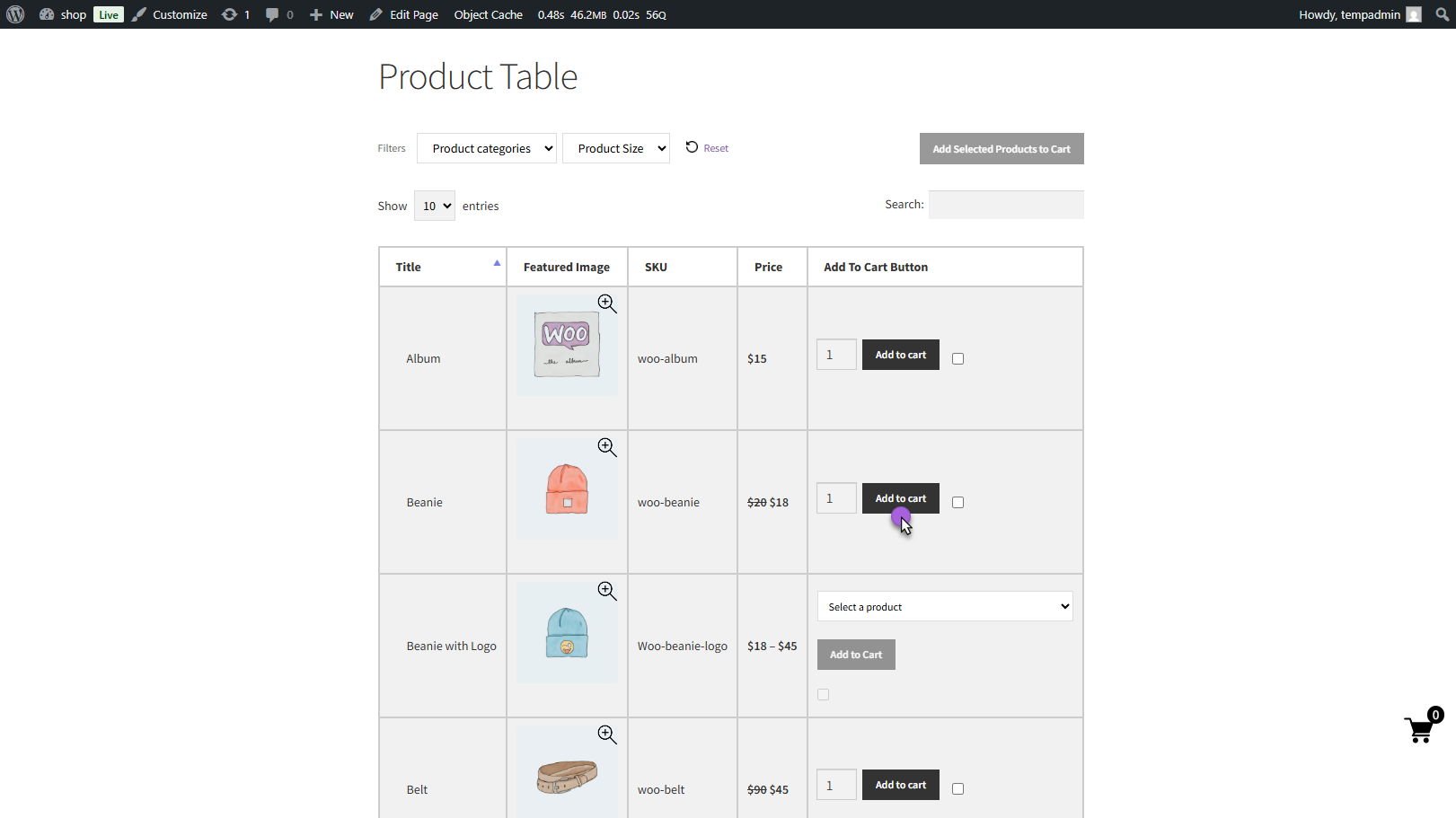
- Click the “Add to Cart” button for any product.
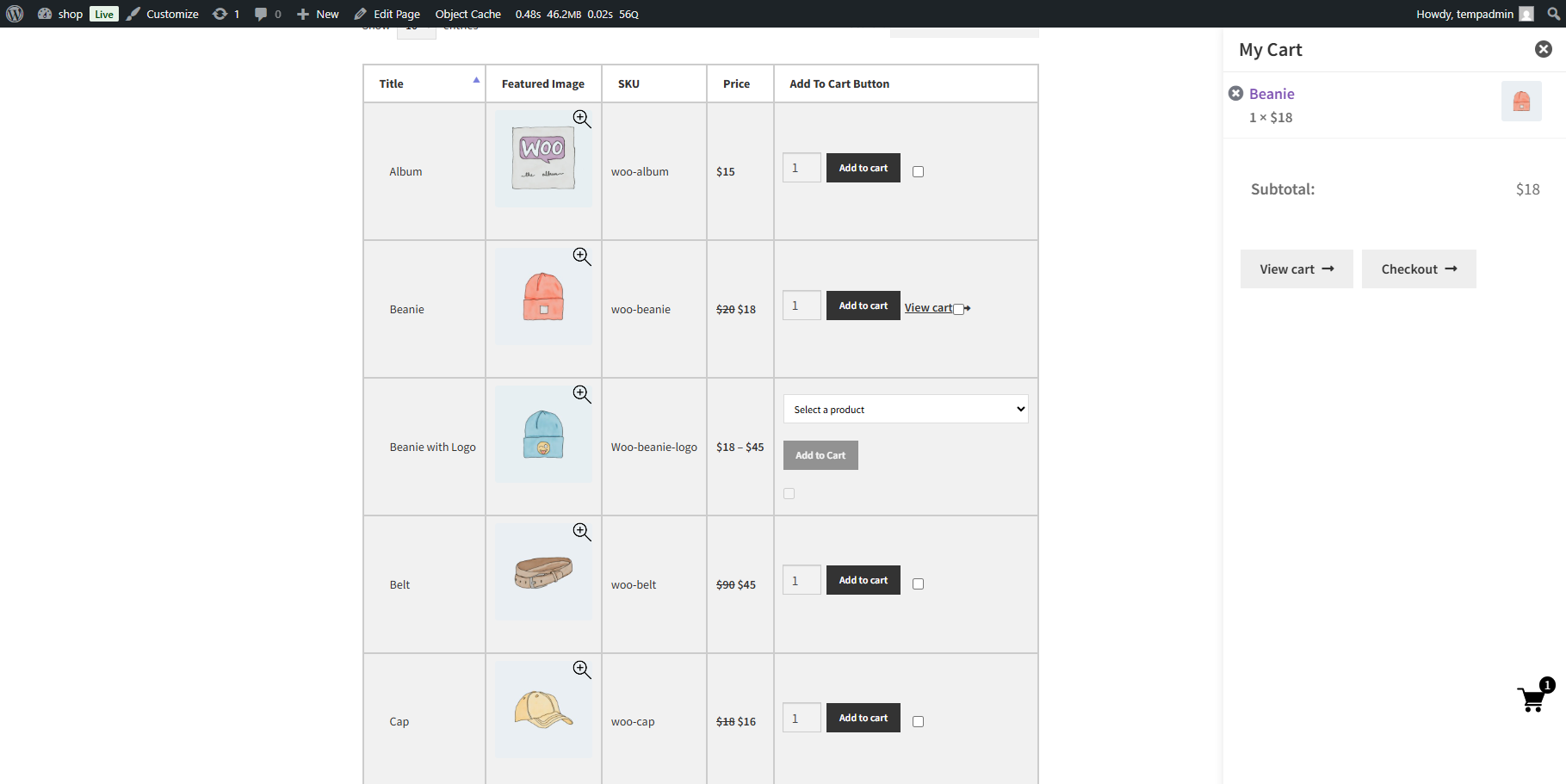
- The Mini-Cart panel opens, showing cart items.
- Click the Checkout button inside the Mini Cart to proceed.
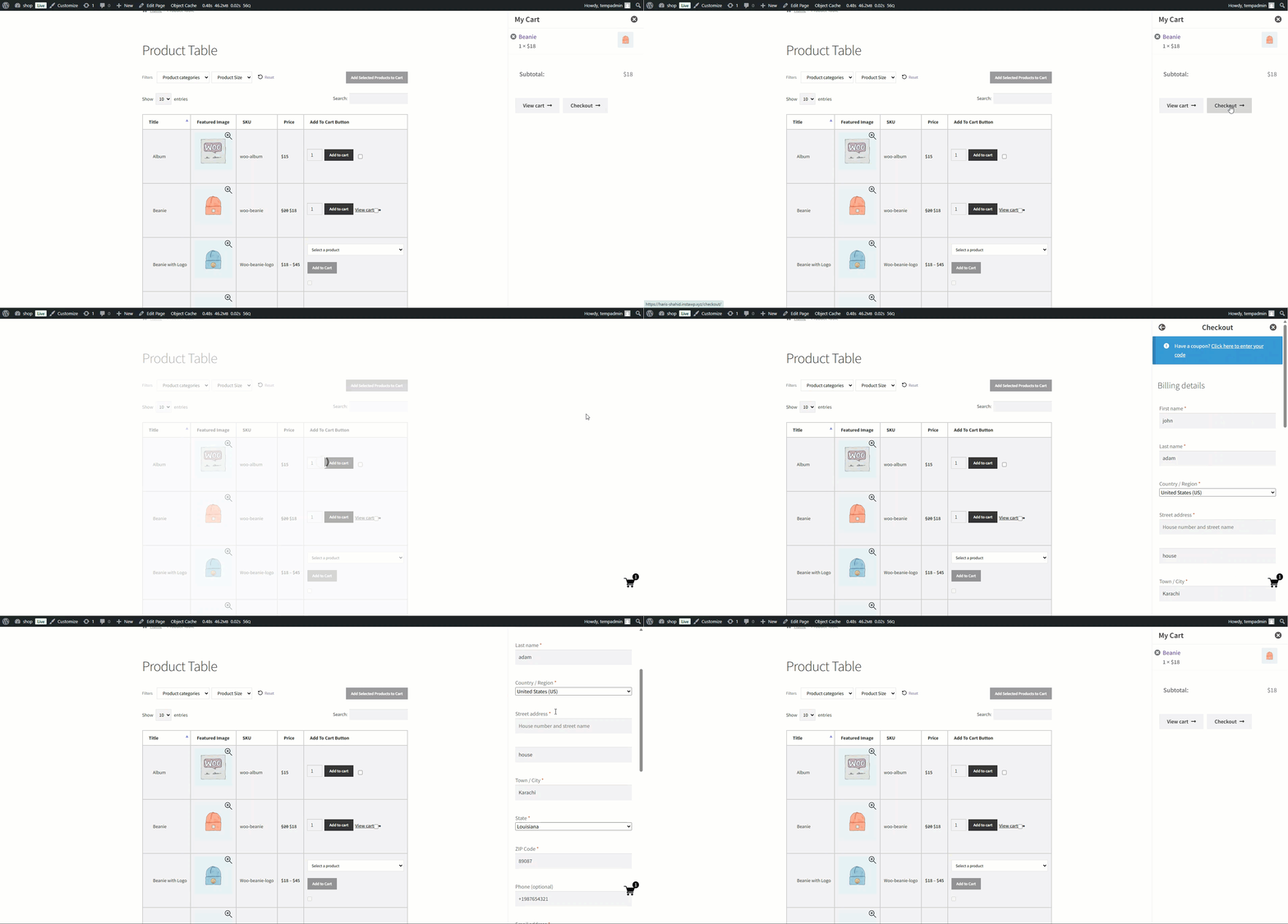
Note: If the Mini-Cart is disabled but One-Page Checkout is enabled, the checkout process will still occur directly on the Product Table page, rather than within the Mini-Cart.
Table Design – Customization
↑ Back to topThe Table Design feature of a Product Table is an innovative and user-friendly way to display product information on a website. With this feature, users can customize the appearance of their product tables to suit their brand and style. The Table Design feature provides a variety of customization options, including the ability to choose table colors, fonts, and size
- There are two sub options available in the Table Design mentioned below.
Default
↑ Back to top- When the Default sub option is selected as a Design, the following options will be locked.

Custom
↑ Back to topWhen the Custom sub option is selected as a Design, the following options will be unlocked, and the Administrator can customize all the elements and how they will appear on the Front-End.

NOTE: The following options will be unlocked if the Custom sub option is selected in the Design option.
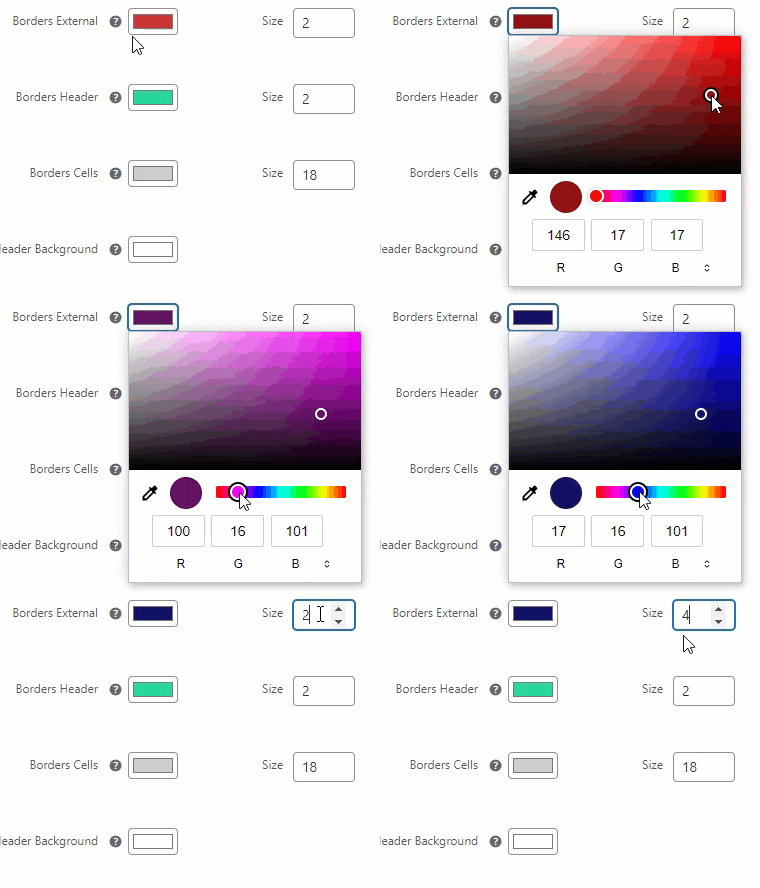
Borders External
- We can set the color and the size of Borders External for the product table.
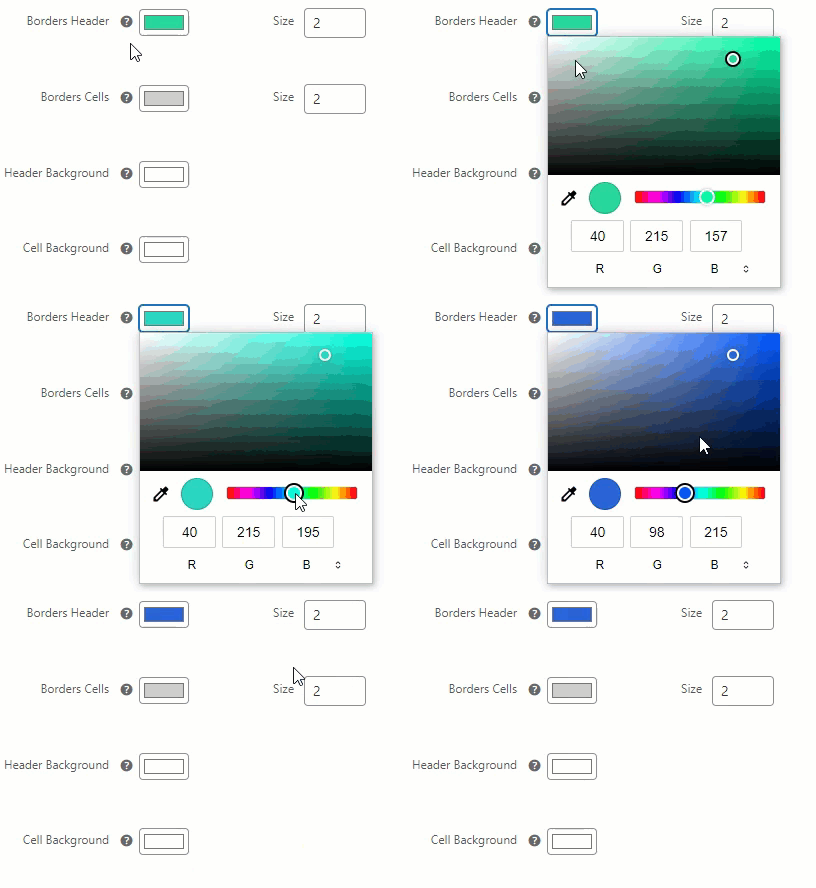
Borders Header
- Set the color and the size of the Border Header of the product table.
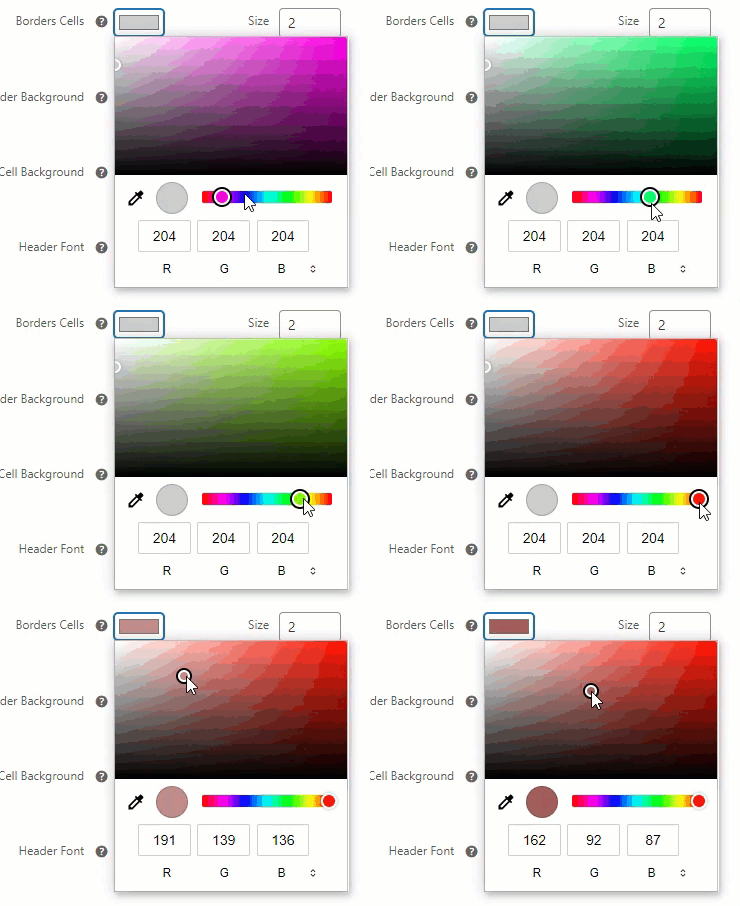
Borders Cells
- Set the color and the size of the Border Cell of the product table.
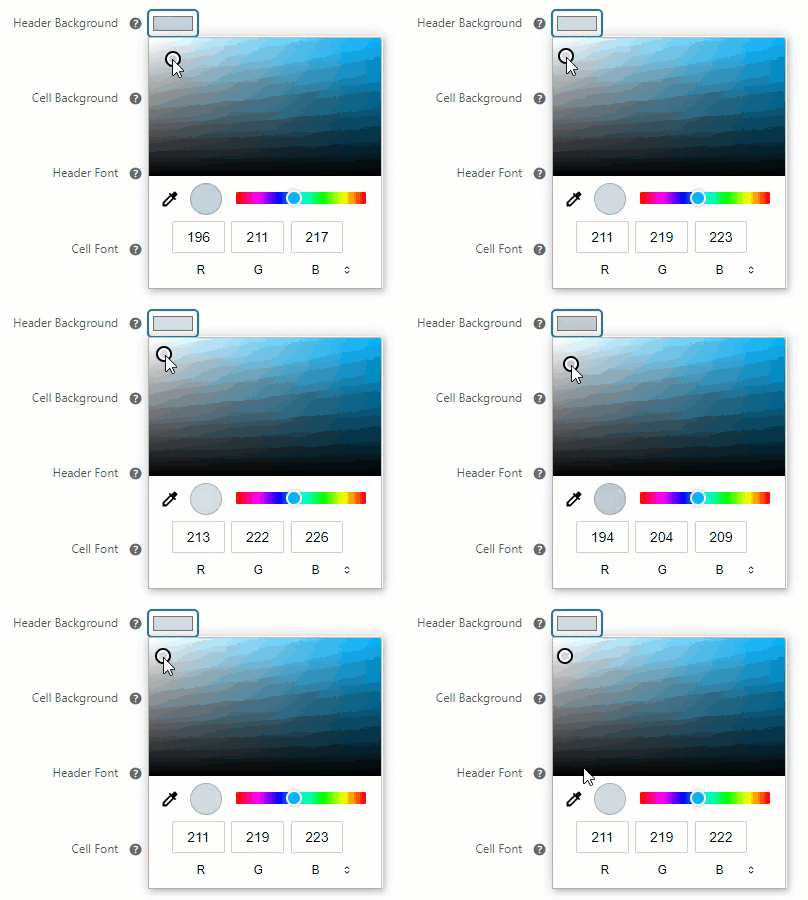
Header Background
- Select the color for the Background of the Header.
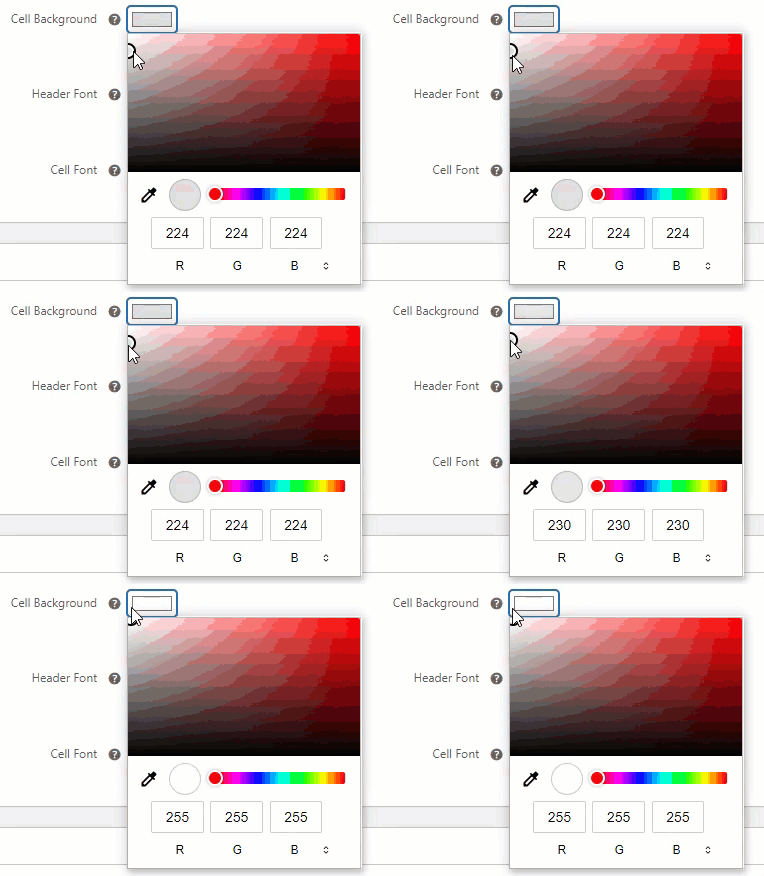
Cell Background
- Select the color for the Background of the Cell.
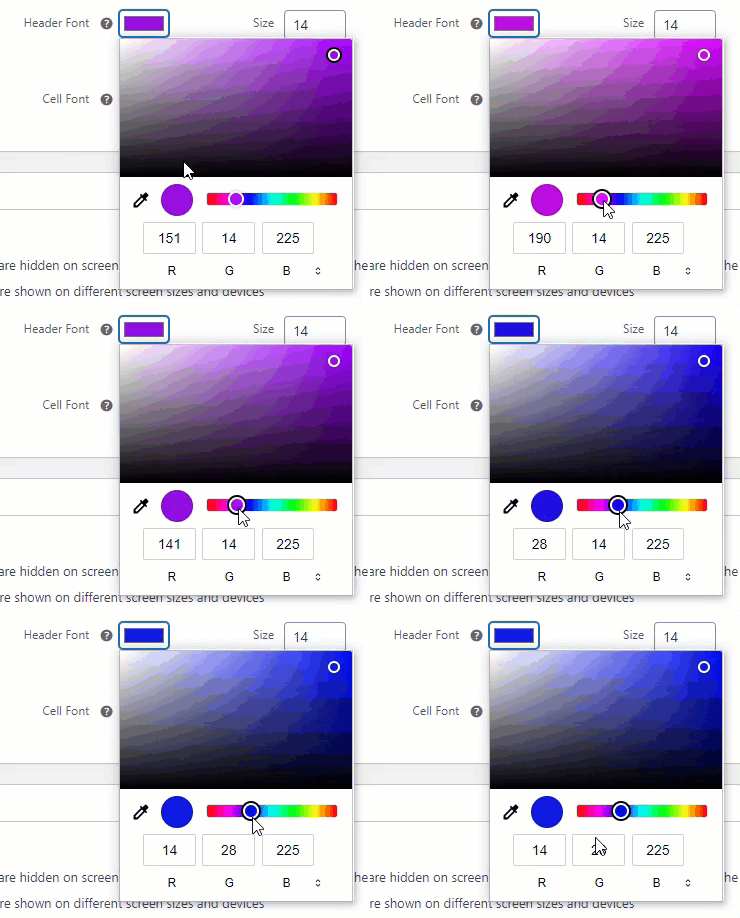
Header Font
- Set the color and the size of the Font in the Header. The size and color set in this option will cover all the Header columns.
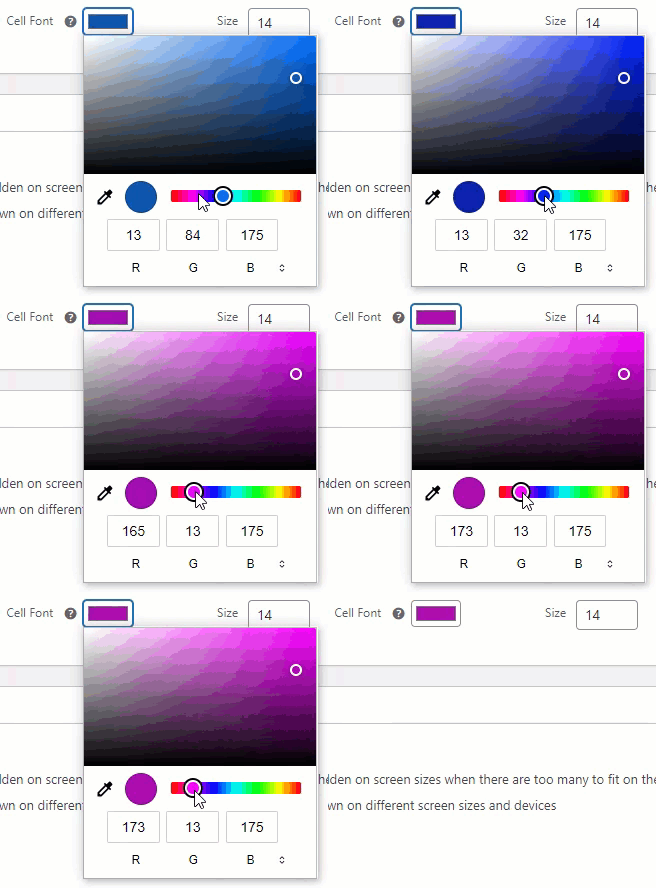
Cell Font
- Set the color and the size of the Font in the Cell. The size and color set in this option will cover all the Cell columns.
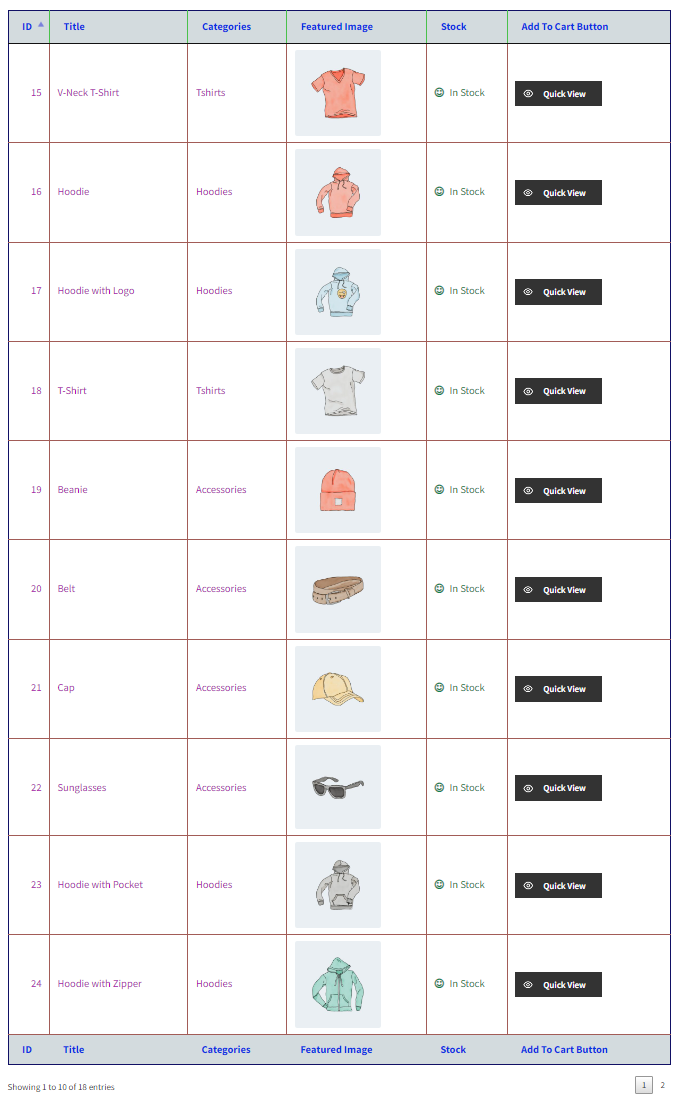
Front-End Impact
Before
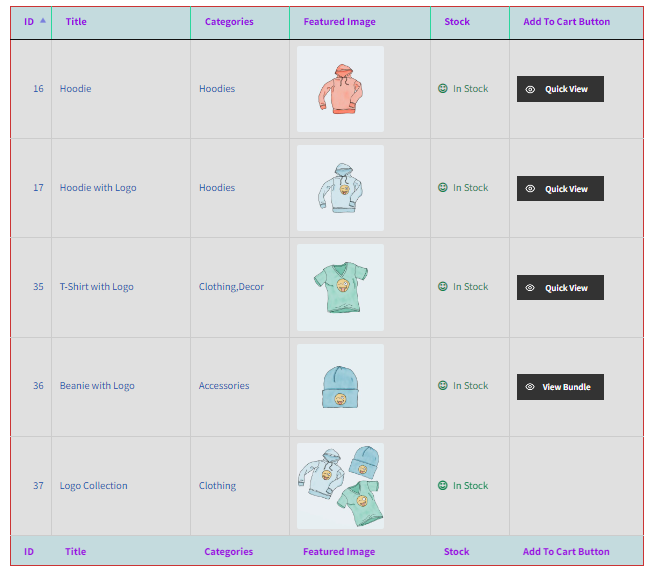
After
One-Page Checkout
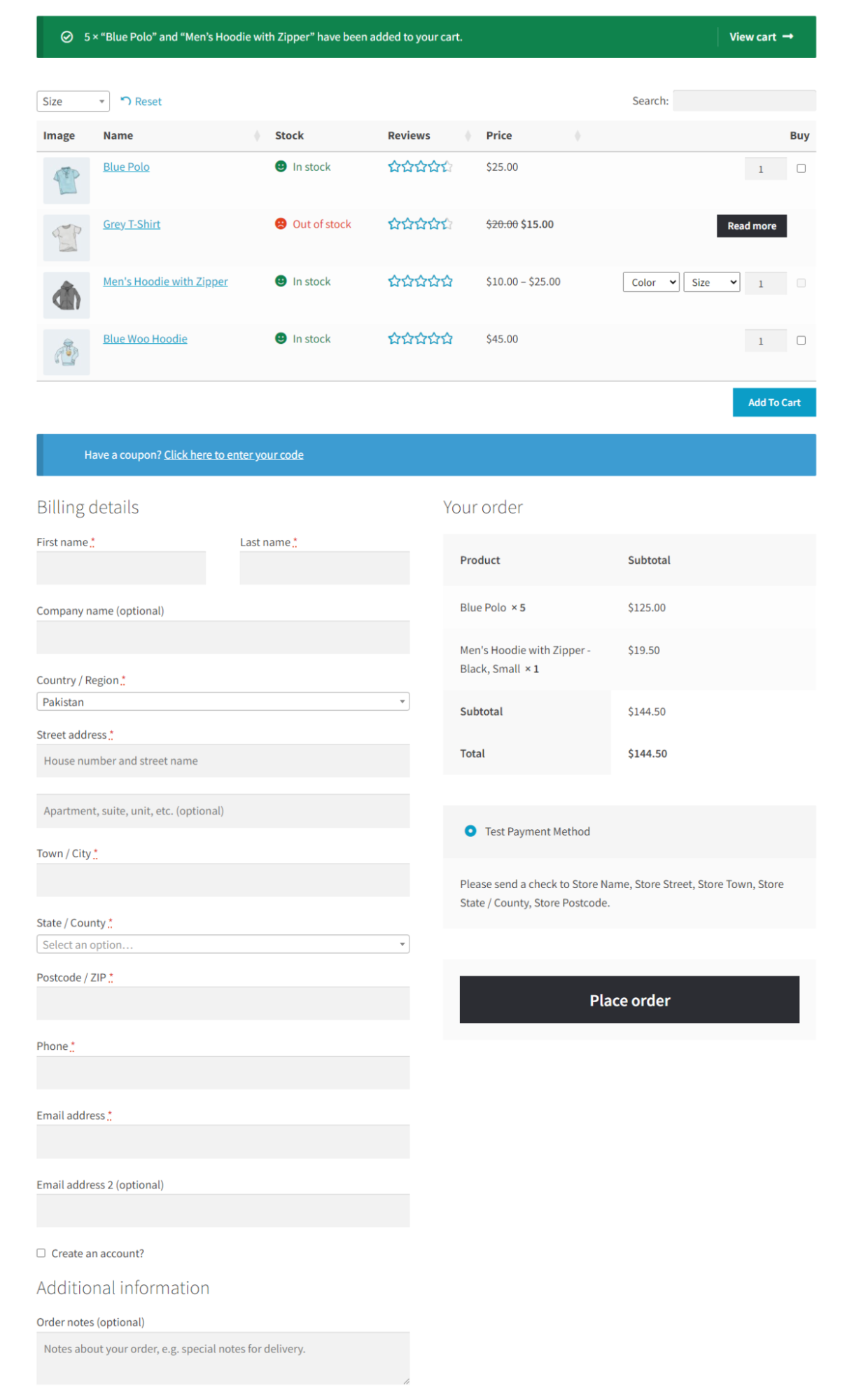
↑ Back to topCustomers can select their desired products on a single page and complete their purchases. To experience the one-page checkout, begin by adding items to your cart. Then, scroll down to locate the standard WooCommerce checkout located below the product table.
- Navigate to the Product Table.
- Checkmark the Enable One-Page Checkout checkbox in the One-Page Checkout section.
- Once done, click on the Publish/ Update button.

Front-End Impact
- On the website, navigate to the Product Table page.
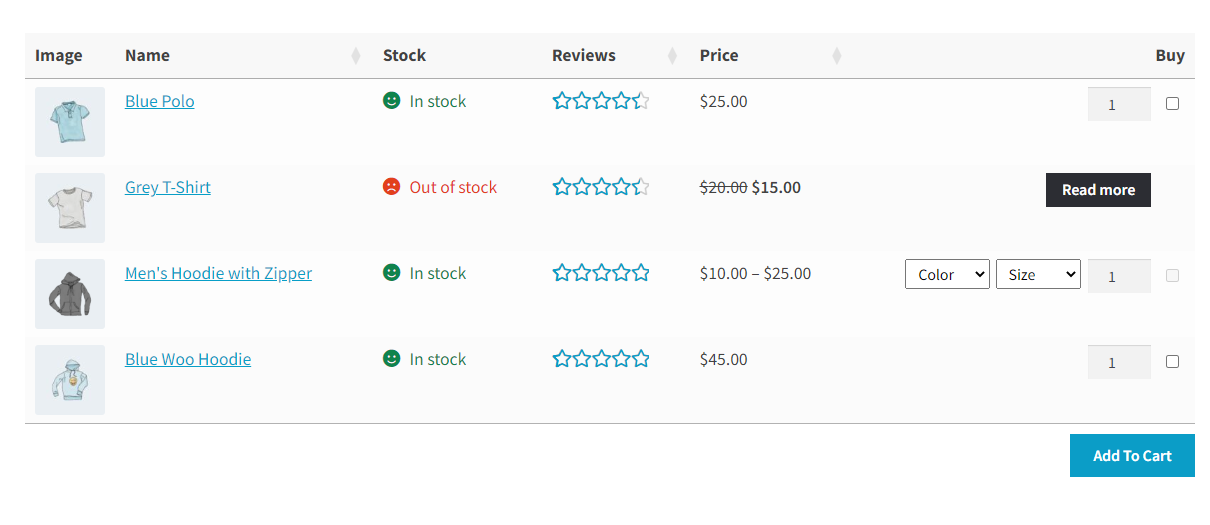
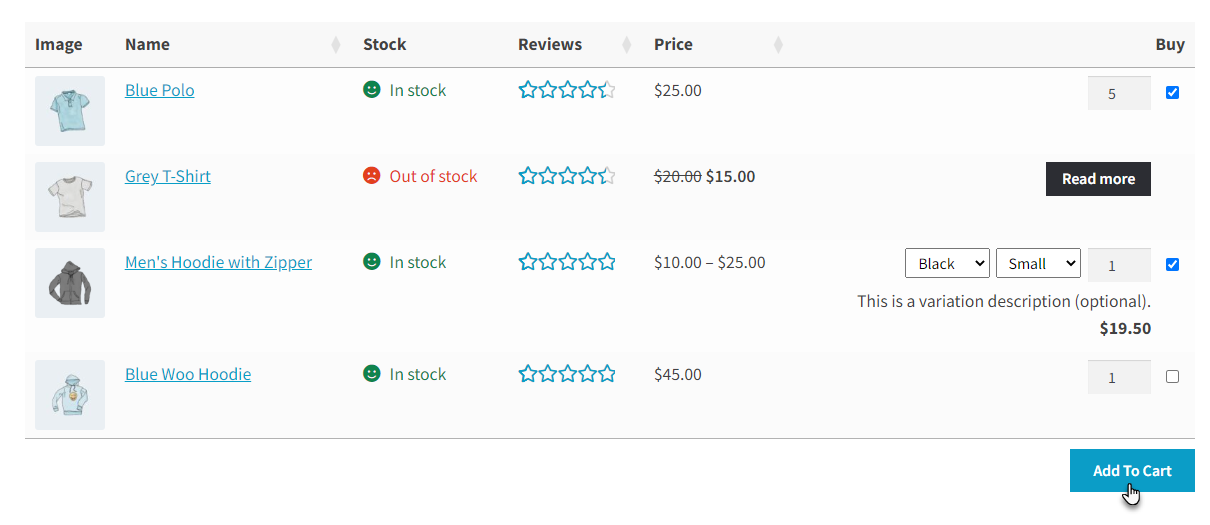
- Select items according to your requirements and then click on the Add to Cart button.
- The page will reload, and the Checkout Page will appear at the bottom of the Product Table.
NOTE: The Checkout Page will appear whenever the Add To Cart button is clicked regardless of its position on the Product Table page, which means the Add To Cart button is present against each item on the Product Table, or the Add To Cart button is present below the Product Table.
Export Product Table
↑ Back to top- The Export Product Table feature enables the admin to export a product table to the system.
- The Export is available at the sidebar of the Edit Product Table page.
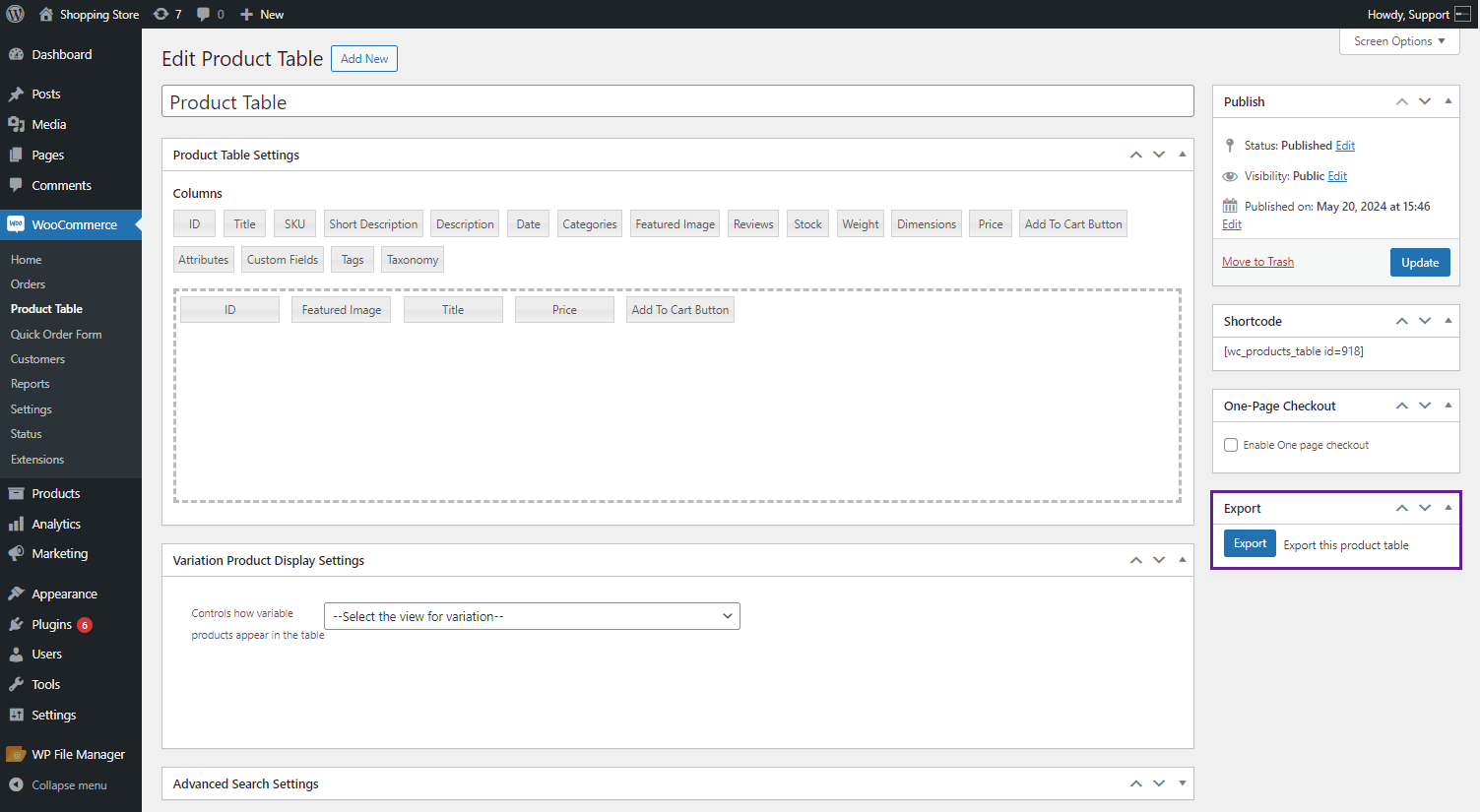
- Click on the Export Button.
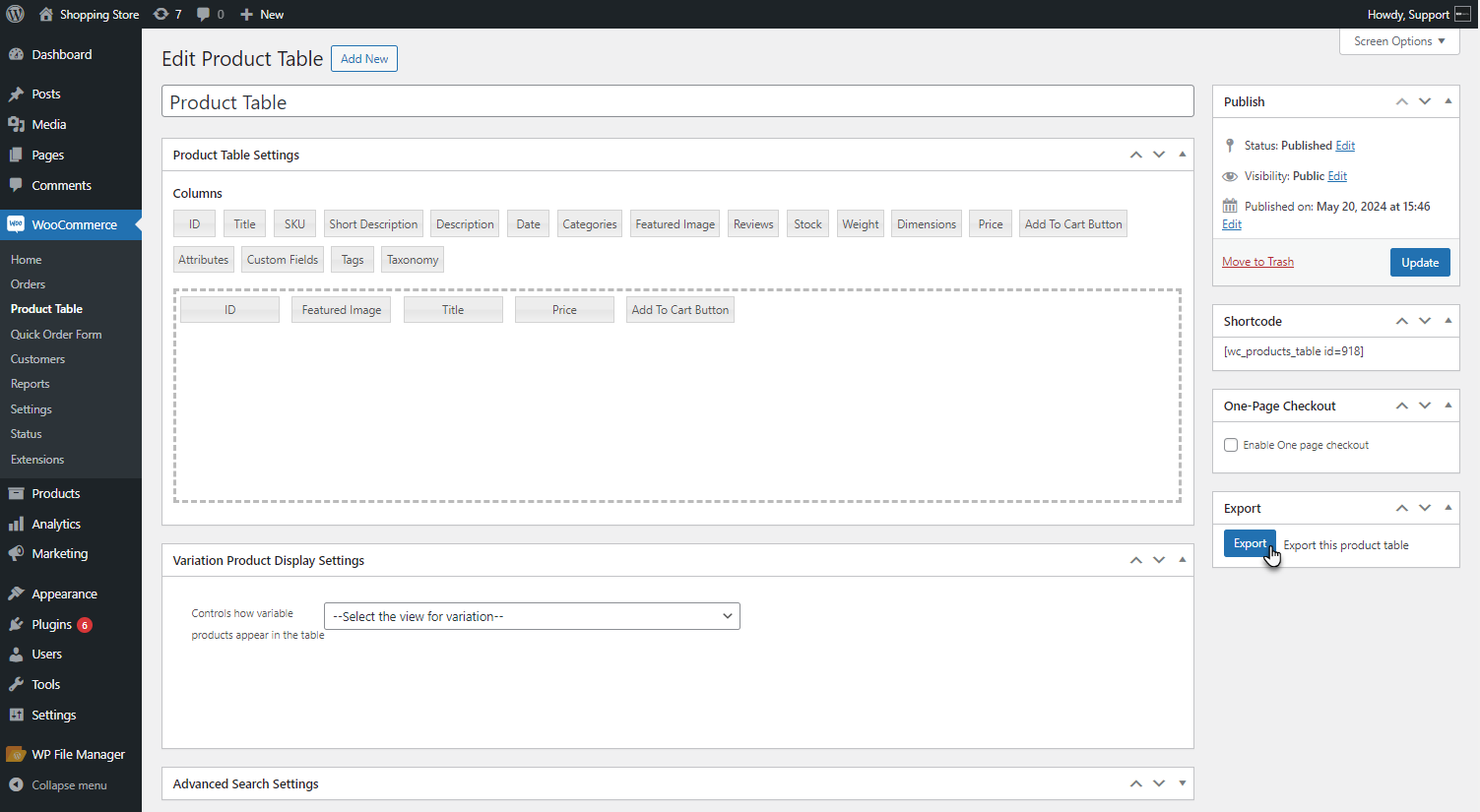
- The Product Table will be exported.
- The file will be downloaded and can be used as needed.
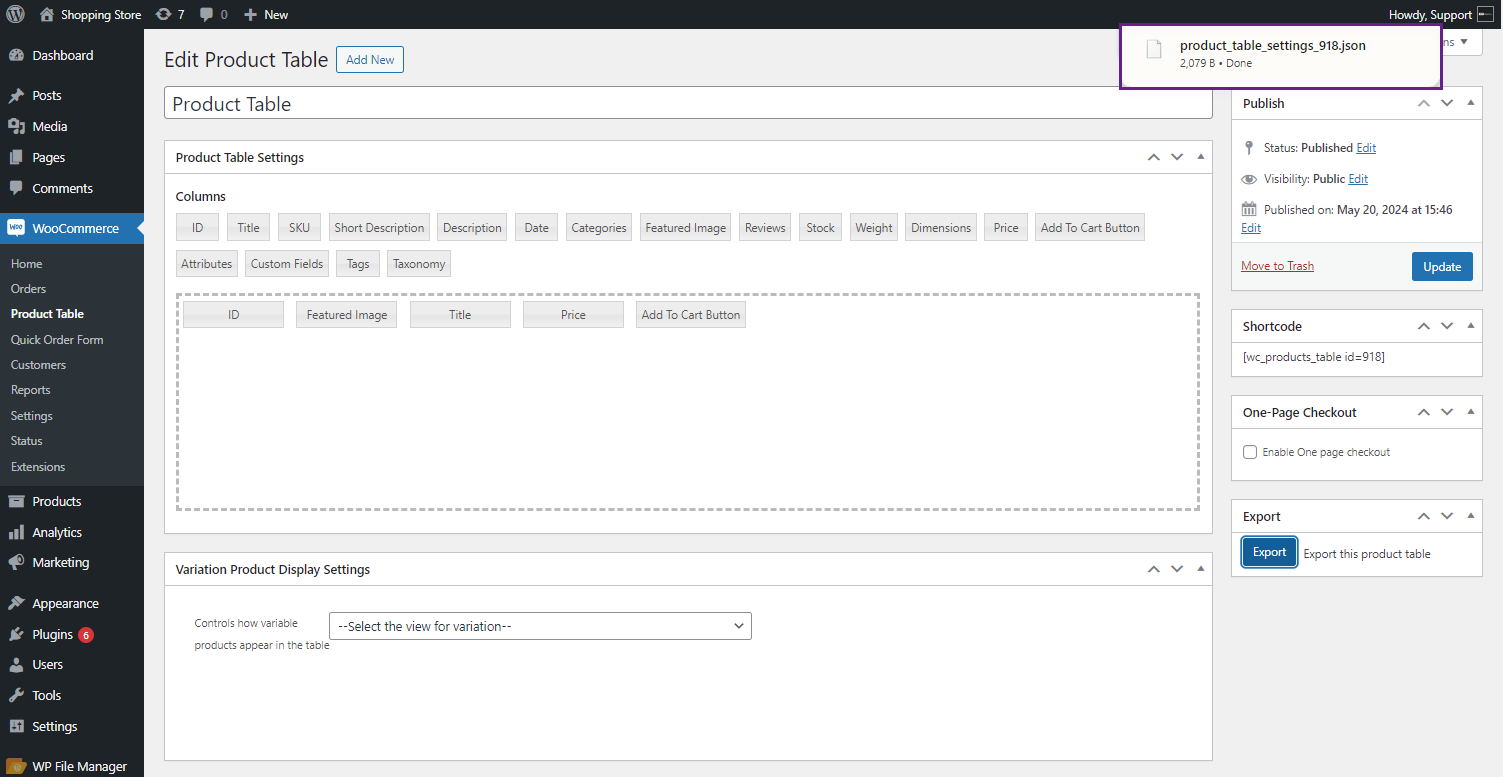
Import Product Table
↑ Back to top- The Import Product Table feature enables the admin to import a product table from the system.
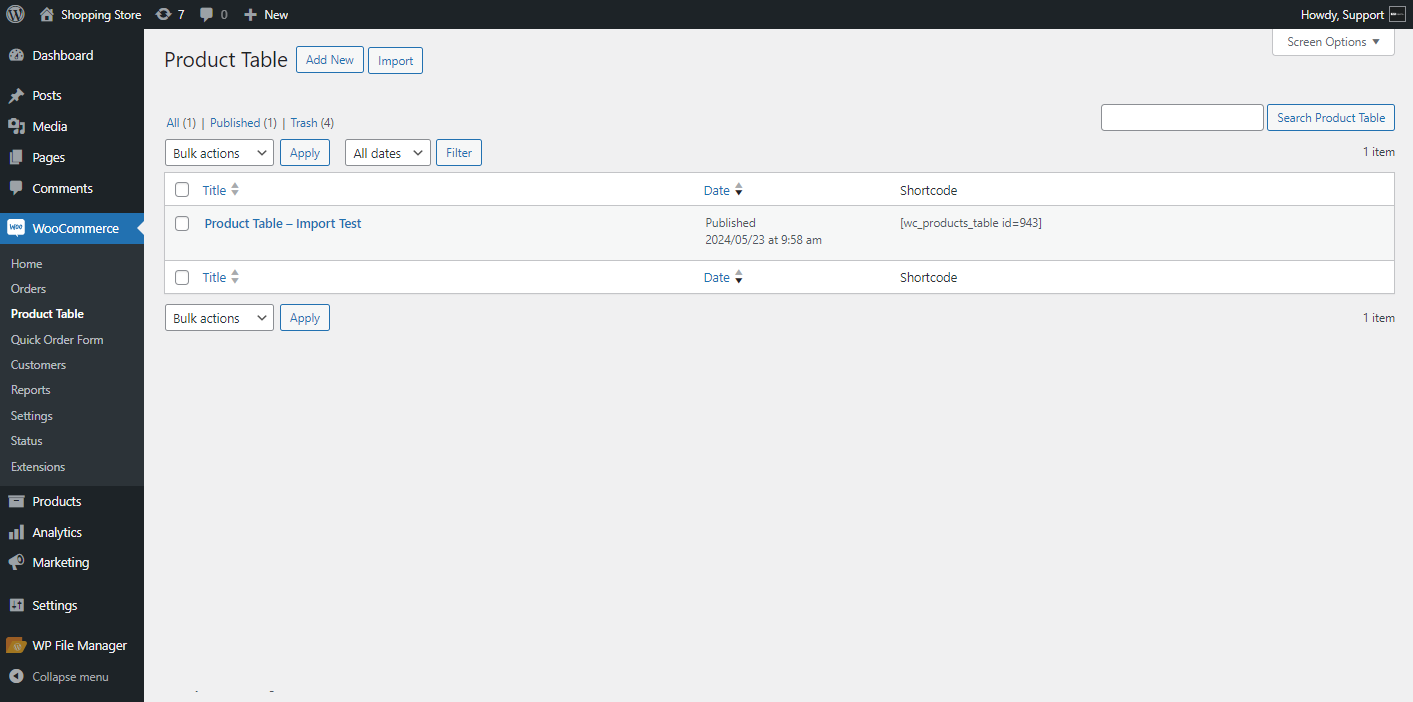
- Go to WordPress Admin Dashboard > WooCommerce > Product Table.
- The Product Table list page will appear.
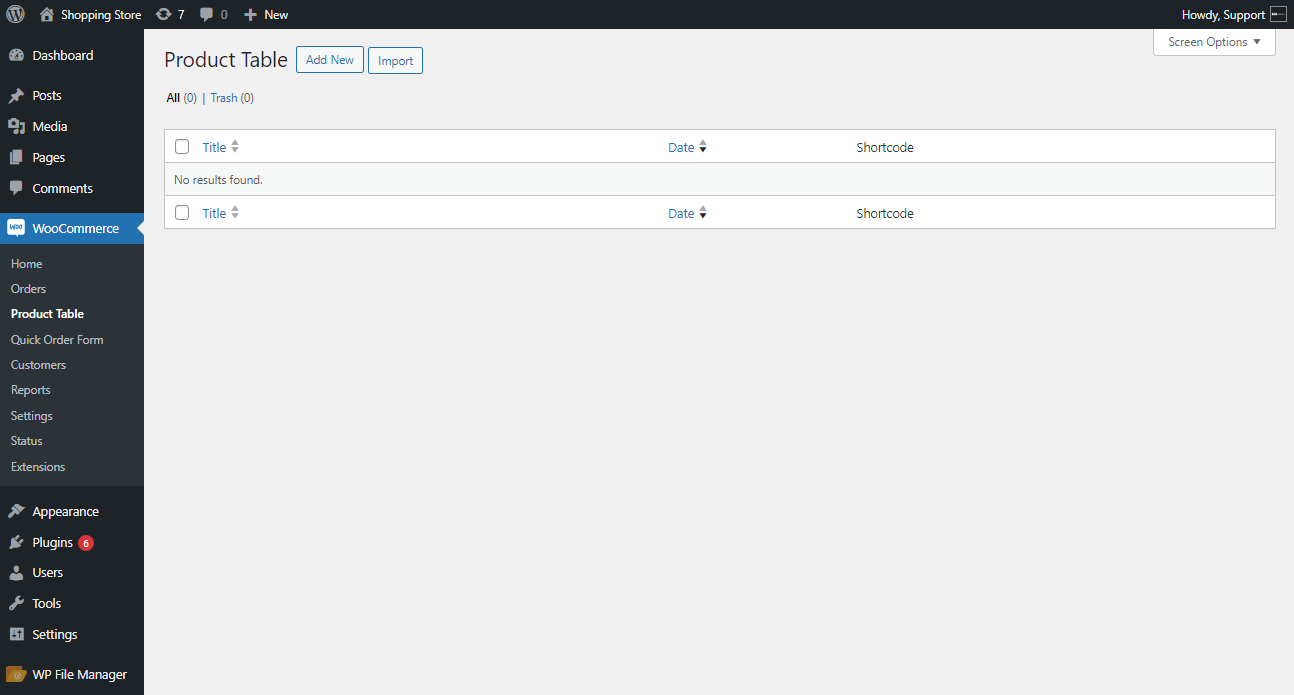
- Click on the Import Button.
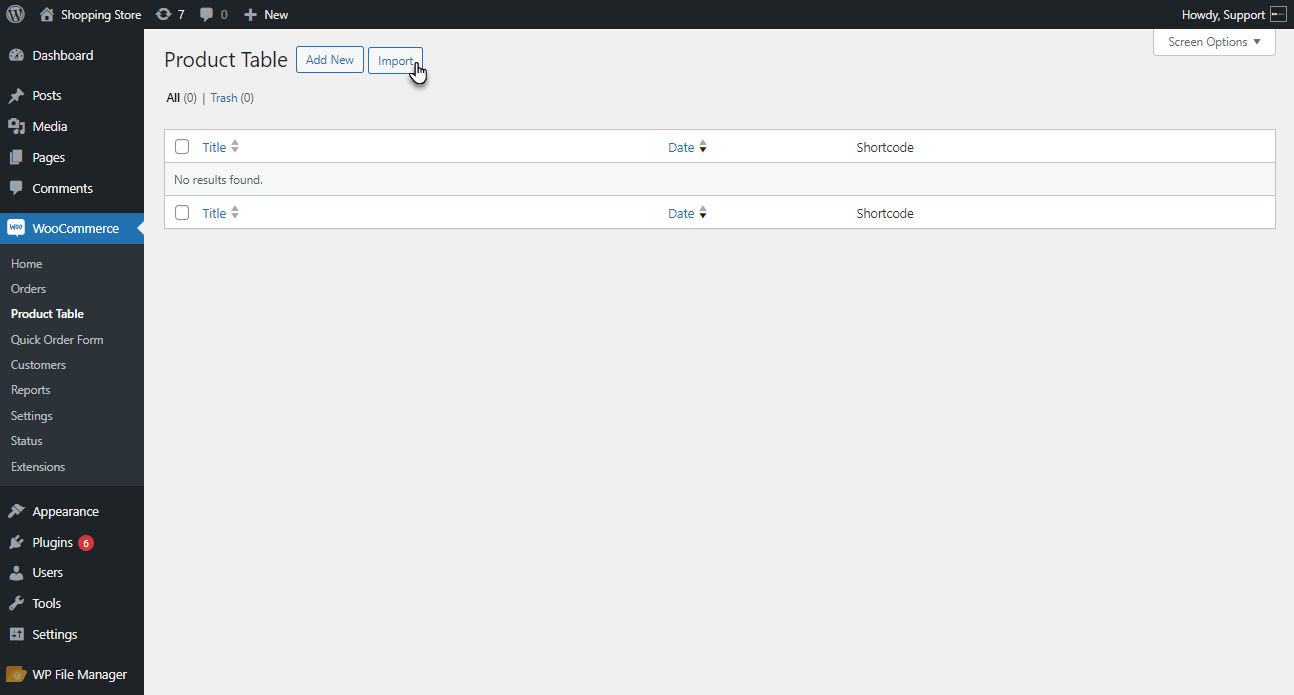
- An Upload File to Import dialogue box will appear.
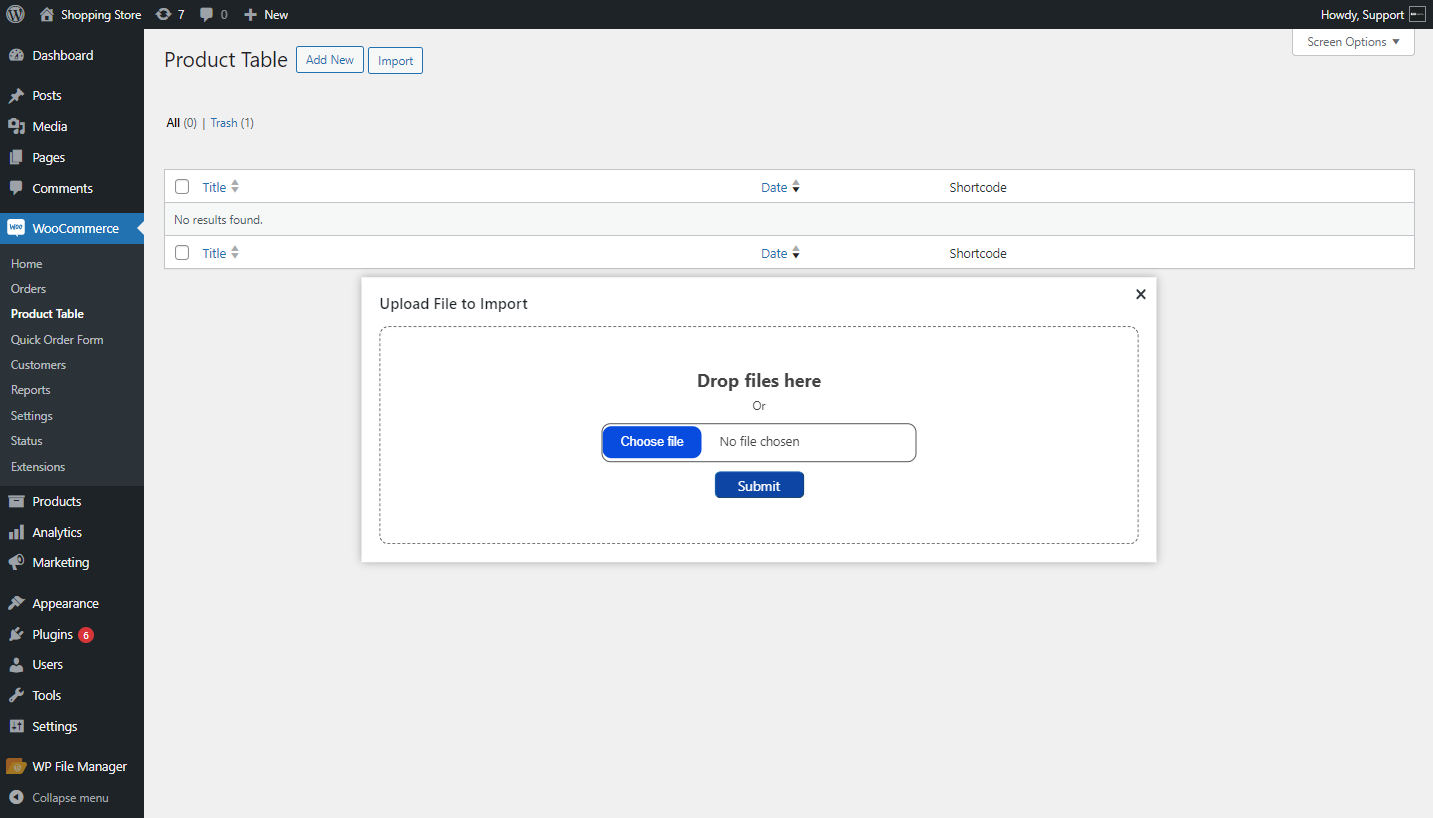
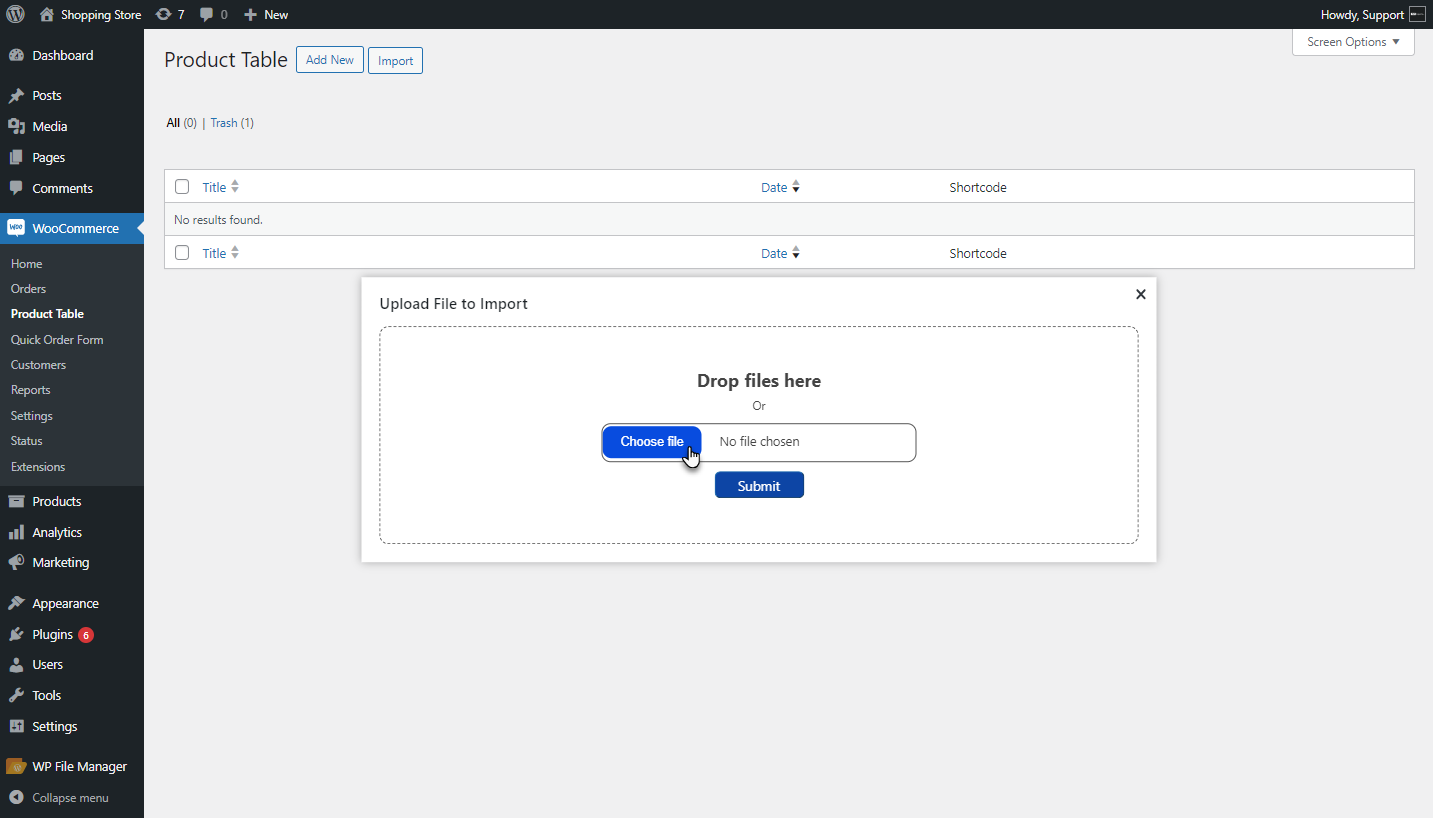
- Click on Choose a file to select the product table from your system.
- Once done with selecting the file, Click on the Submit button.
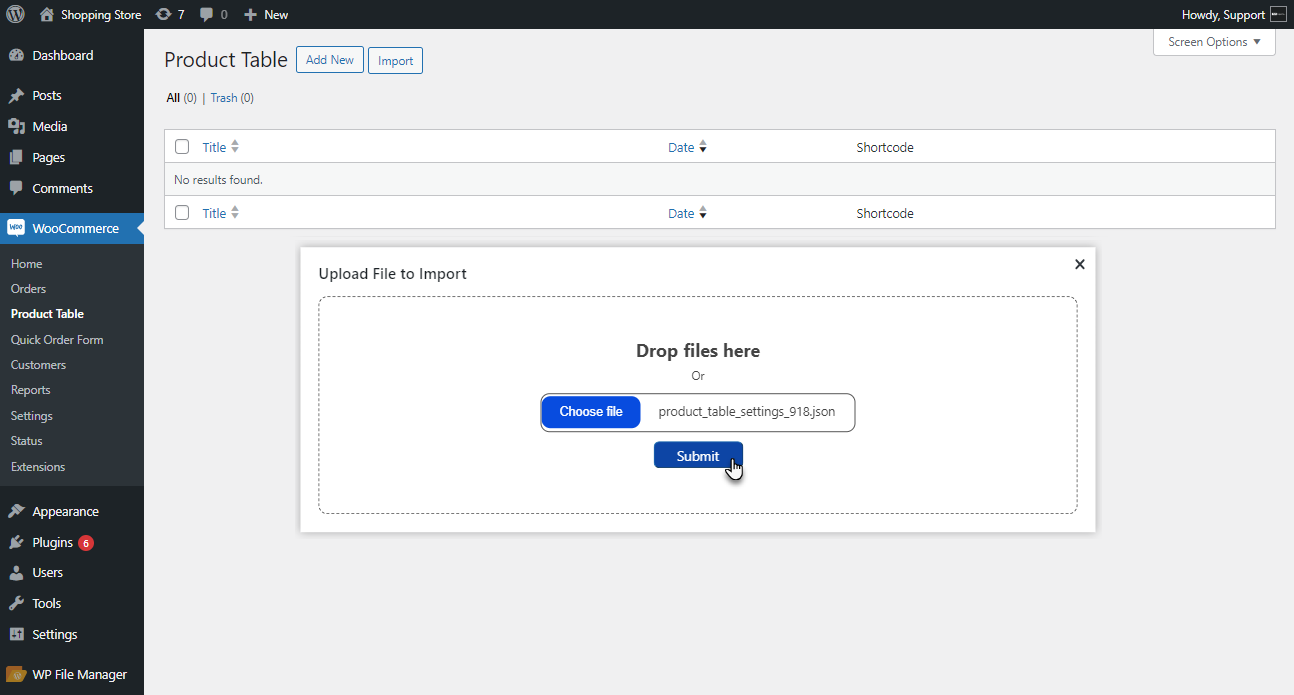
- The selected Product Table will be imported.
Gutenberg Block of Quick Order Form
↑ Back to top- Navigate to the WordPress Admin Dashboard > Pages. Choose Add New Page or Edit an existing page where the Quick Order Form block needs to be added.

- Click on Blocks and search for Quick Order Form in the search bar. Select the Quick Order Form block by clicking on it.

- From the dropdown list, choose the desired Product Table.

- Click the Publish button to save the settings.

Front End Impact
- Login to your account.
- Go to the Quick Order Form page. The Quick Order Form will appear.

Quick Order Form
↑ Back to top- The admin must have set up the WooCommerce store in order to use the Bulk Order Form
- After setting up the store and installing the bulk order form extension, navigate to WordPress Admin Dashboard > WooCommerce > Quick Order Form

- A new page will appear where the admin can see the list of Order forms.

Creating a Quick Order Form
↑ Back to top- To create a Quick Order Form, click on WooCommerce > Quick Order Form > Add New

- A new page will appear where the admin can add the details of the form.
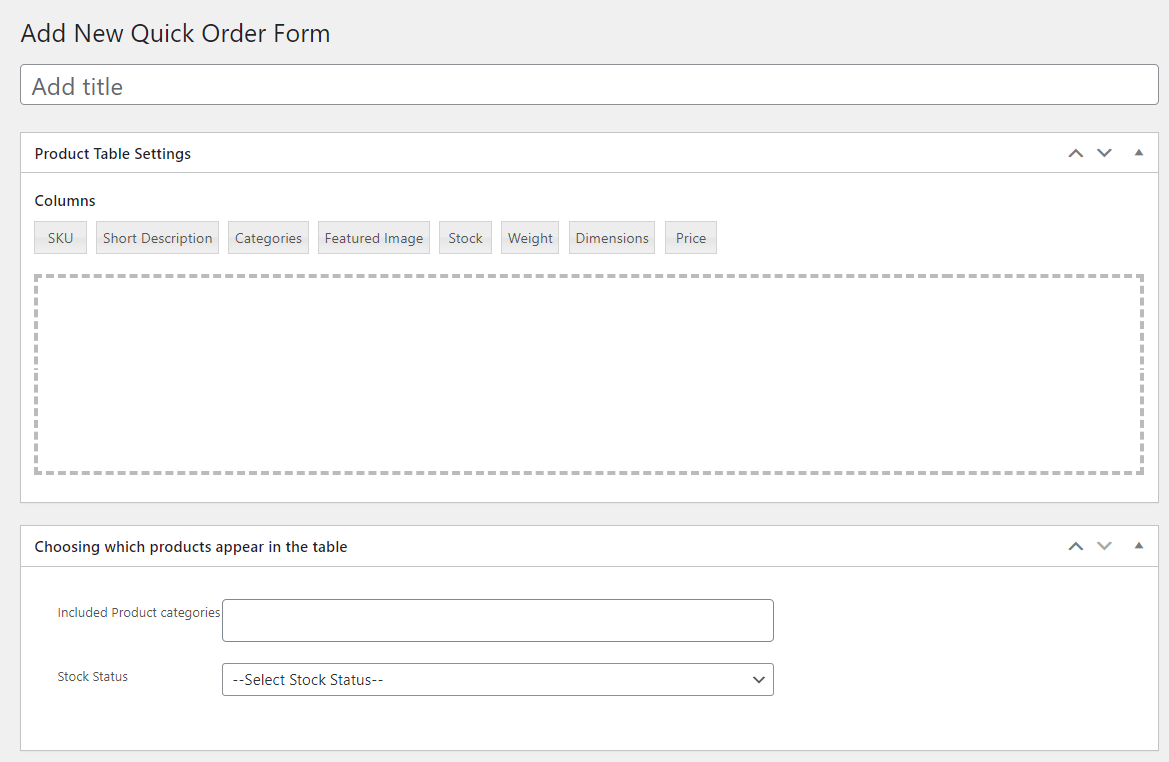
- Admin can add the title of the Quick Order Form under the Add title field.
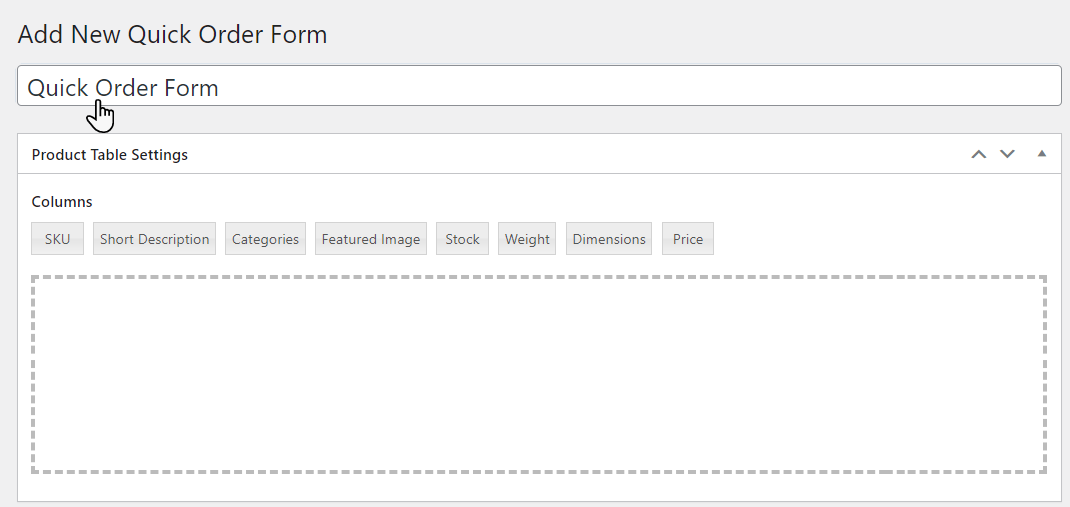
- In order to add the Product Table column drag and drop the Columns in the field under the Product Table Settings.
- Fields can be Renamed and deleted as per requirement.

- In order to Rename click on any field, and the pop-up will appear, under the Column name add the desired column name.
- Once done, click on the Featured Image, and from the Expand Image dropdown option, select Yes.
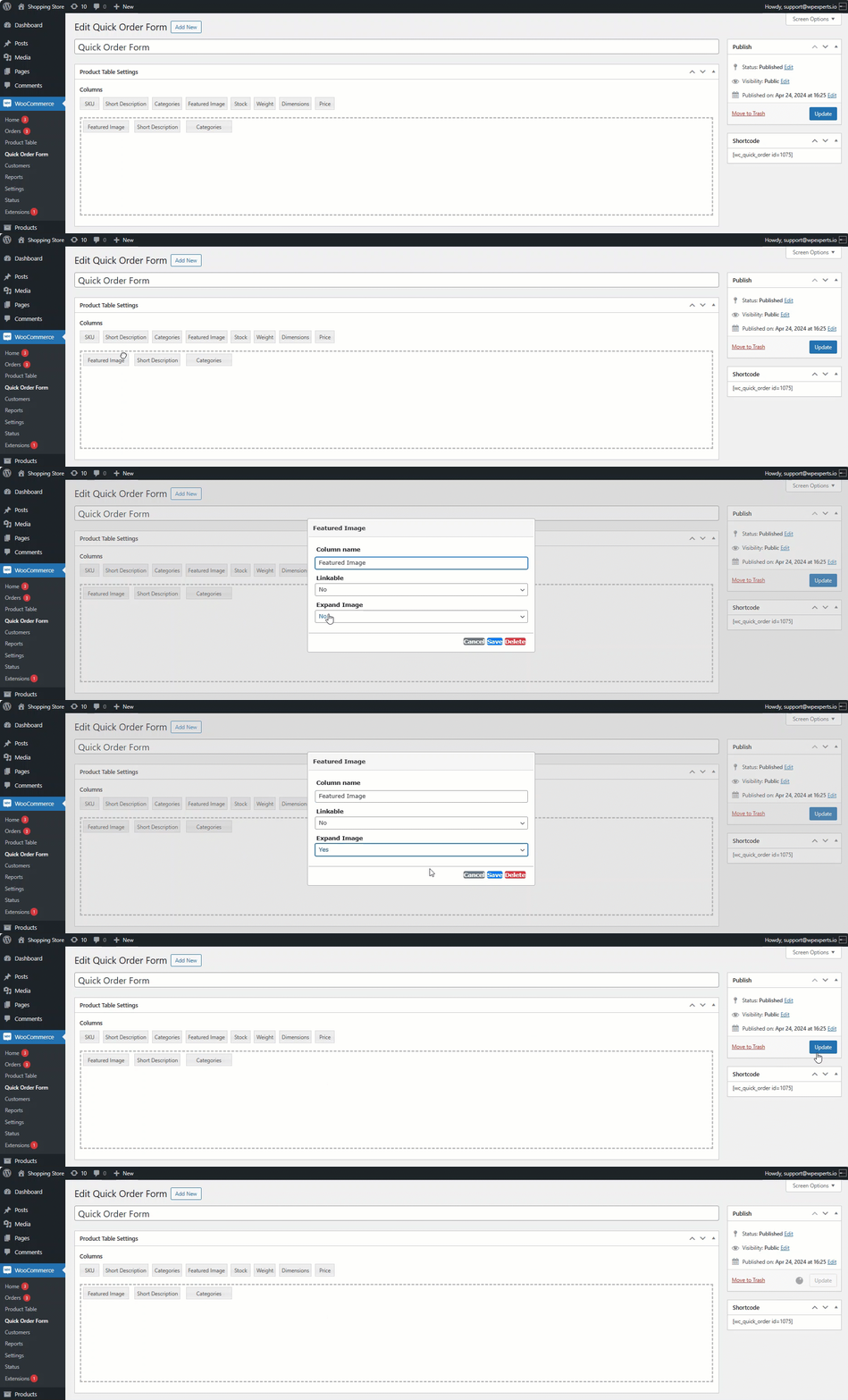
- Once done, select the Product categories under the header Choosing which product appears in the table.

NOTE: Any product other than the selected category can not be searched from the front end
- Admin can set stock status by clicking the dropdown beside the Stock Status label, which will show either In stock or Out of Stock products.
NOTE: If the Stock Status is unselected it will show all In stock and Out of stock products

- Now, after Setting all the fields, copy the shortcode, which will be pasted on the page later to display Quick Order Form.

- After that select the Publish or Update button.

- In order to show the table on the front end create a page and navigate to the WordPress admin Dashboard > Pages.

- Click Add New and create a new page.

- On the page select + and add the shortcode widget

- Paste the copied shortcode in the field under the Shortcode label and click Publish button.

Front End Impact
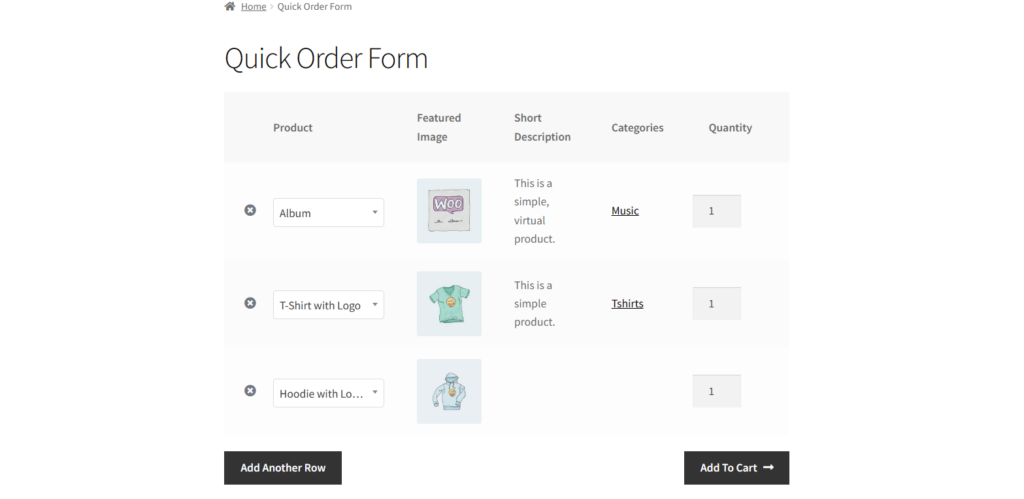
↑ Back to top- Quick Order Form will be shown on the front end according to the fields set from the back end.

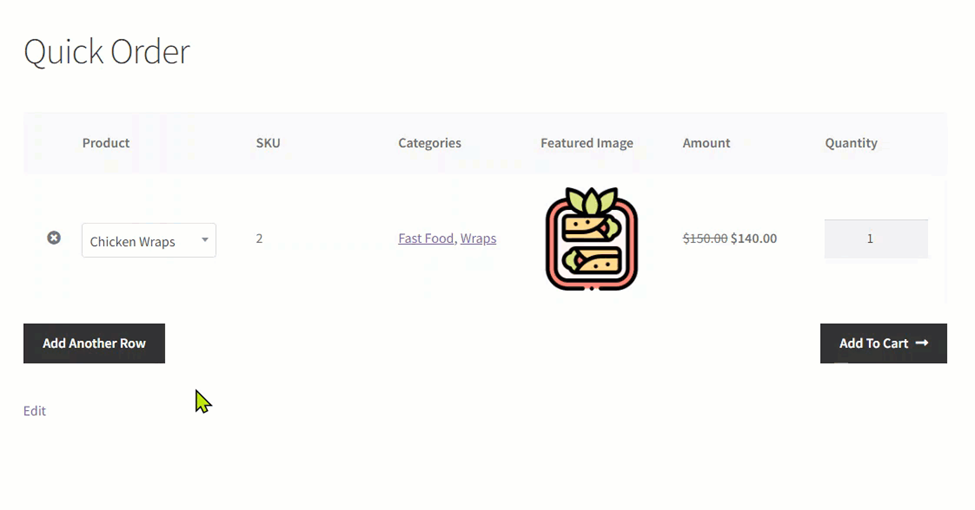
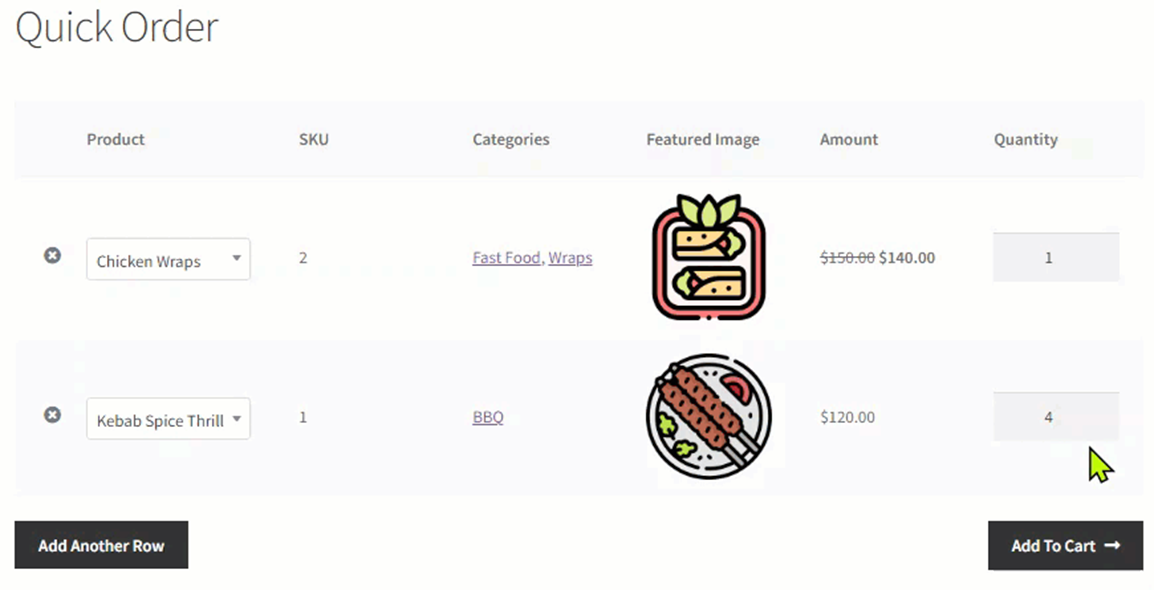
- Products can be searched from the search field. Product details will appear according to the fields set in the form. Product quantity can also be set which will be added to the cart.
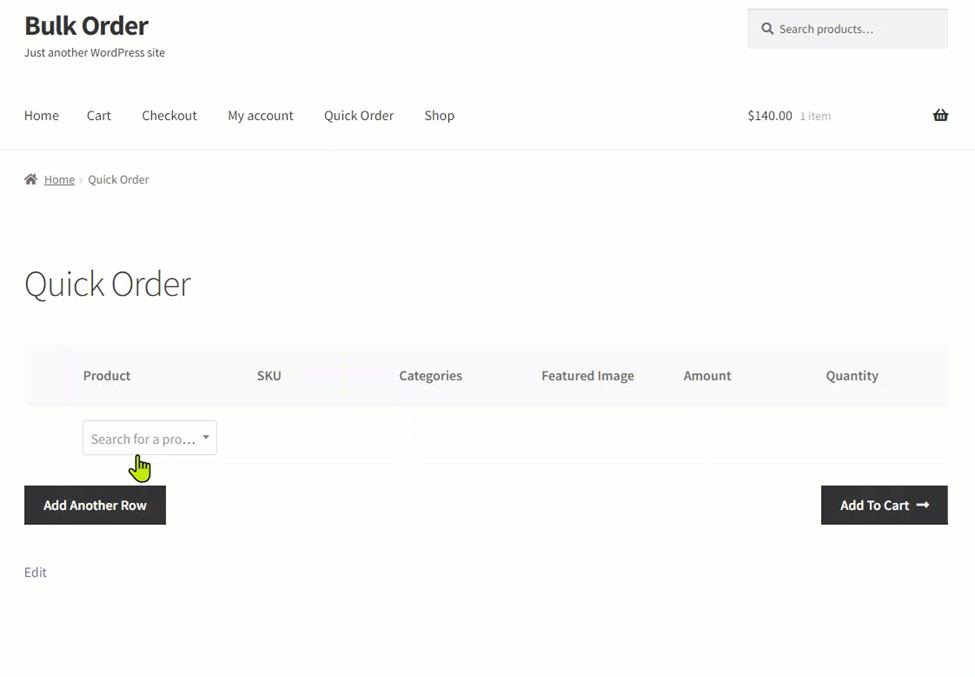
- User can add multiple rows by clicking Add Another Row button.
- To change the quantity from the quantity column.
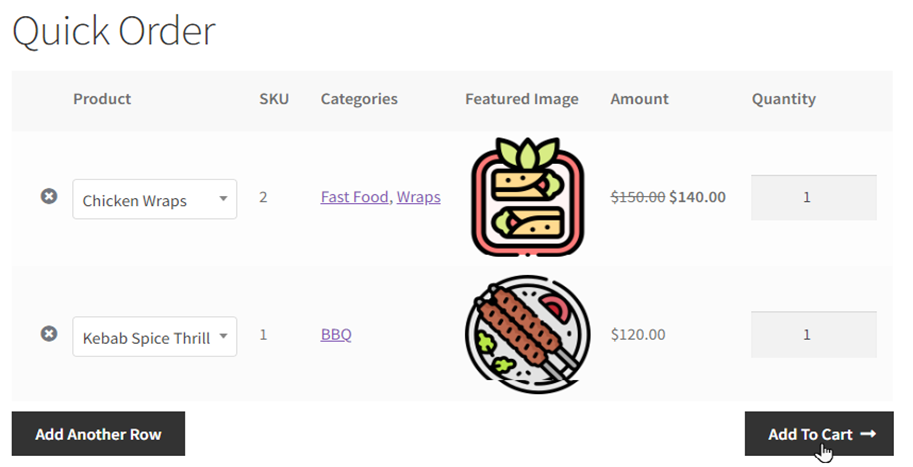
- After adding products click Add to Cart button.
NOTE: Products must be In stock or else the out of stock product will be discarded.
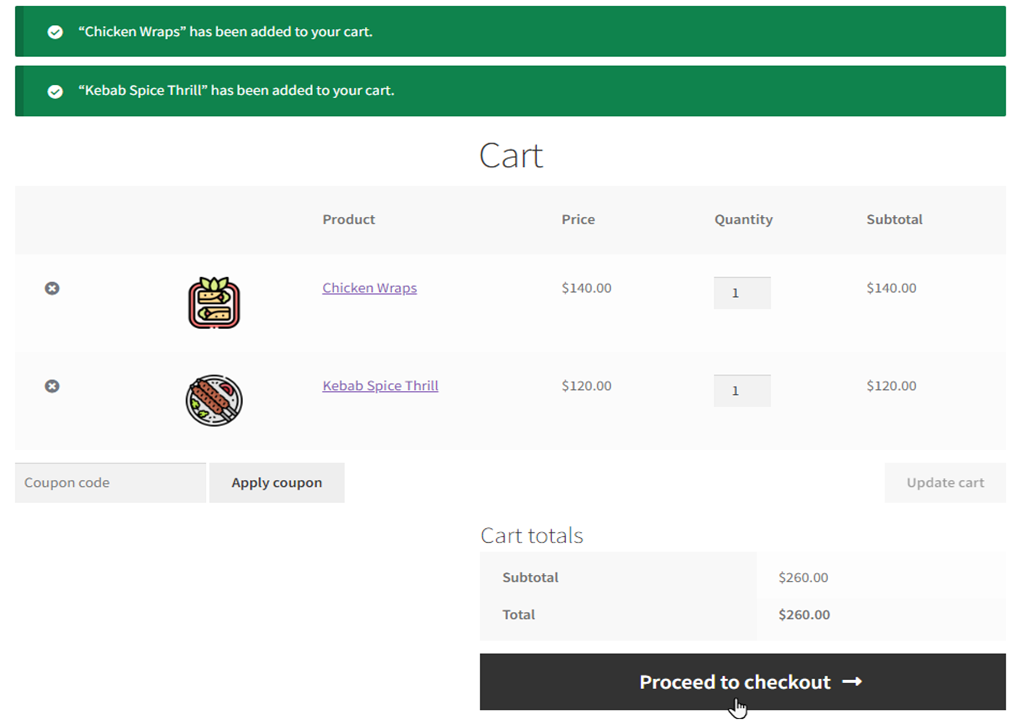
- From Cart page click on Proceed to checkout button
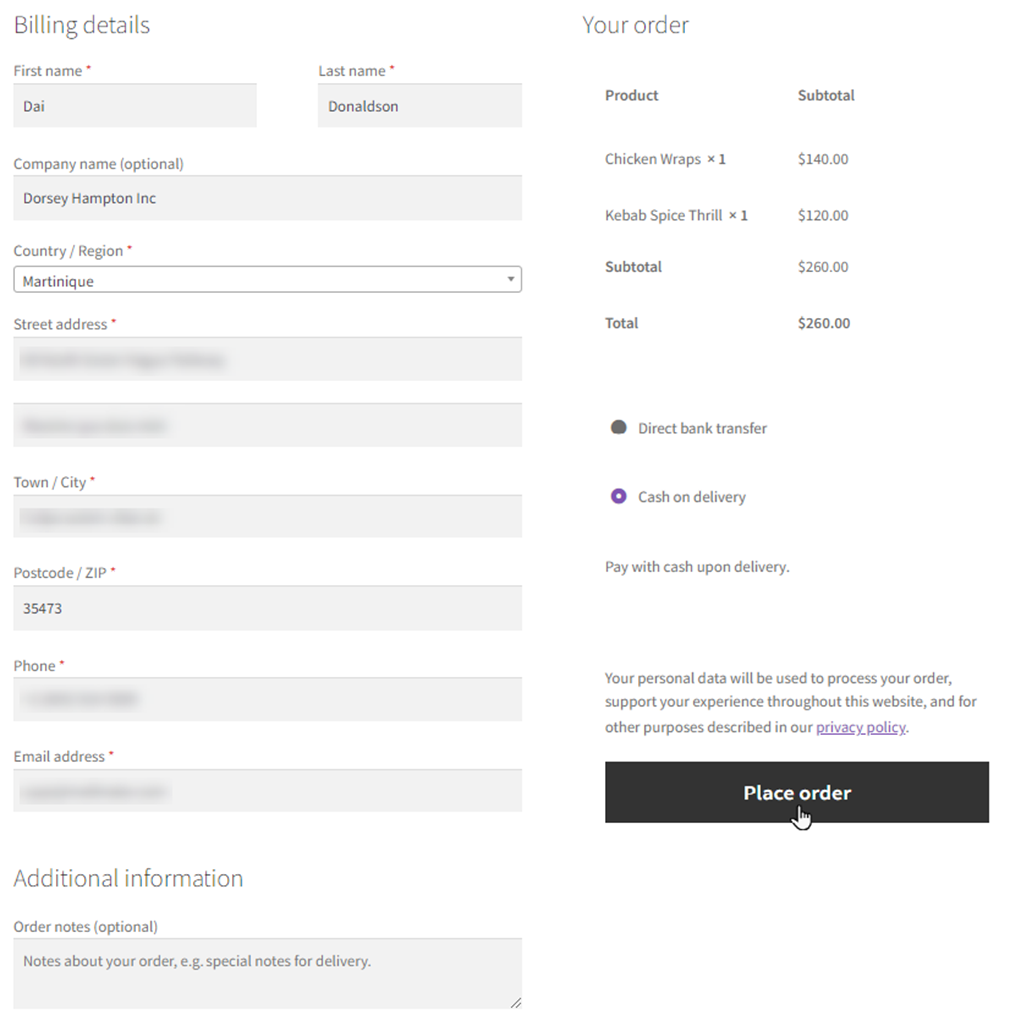
- Enter the details, select the desired payment mode, and click on the Place order button.
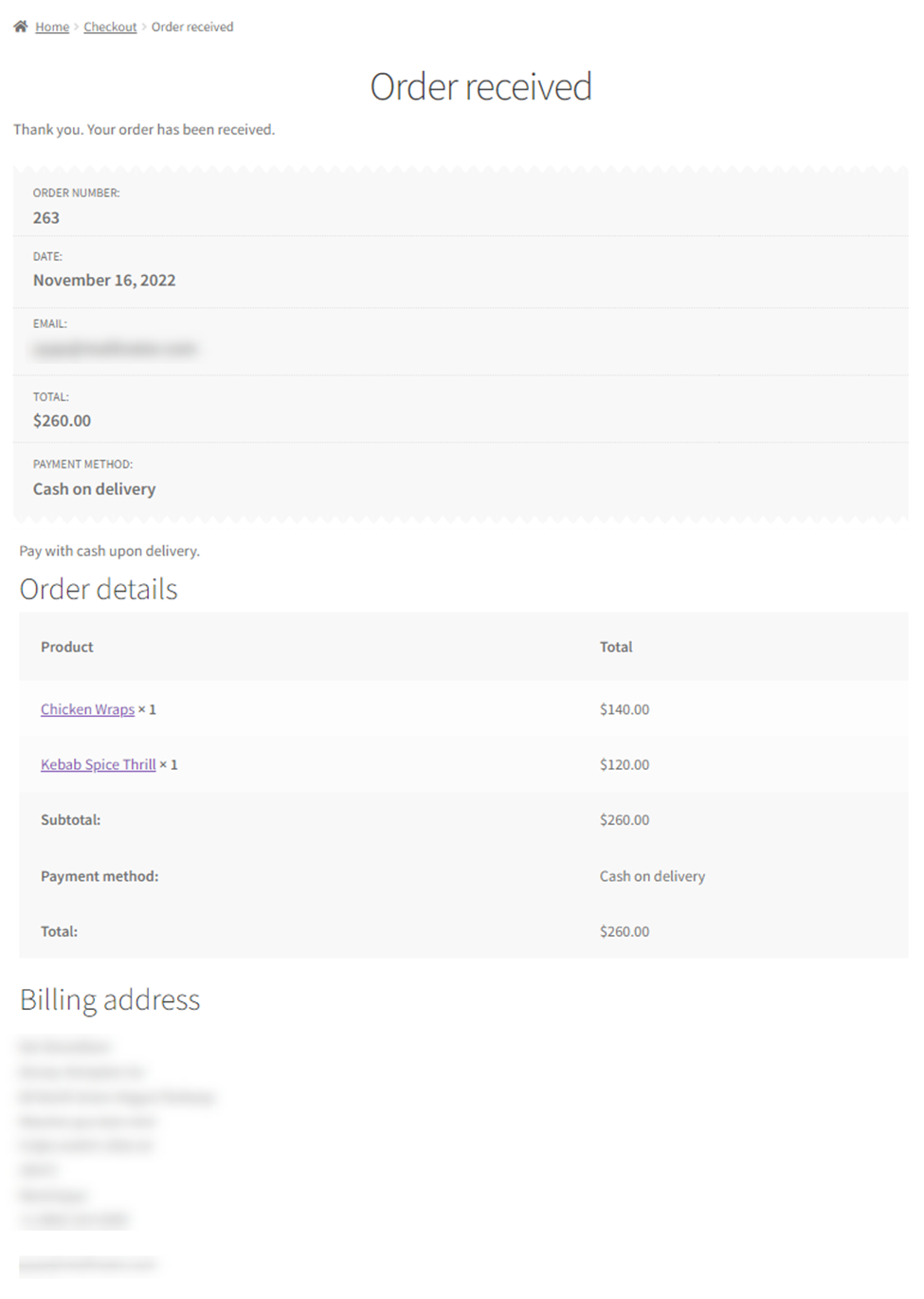
- A new page will appear with the order and personal details for the order to be received.
Front-End Impact For Featured Image
- Go to the website.
- Navigate to the Quick Order Form page
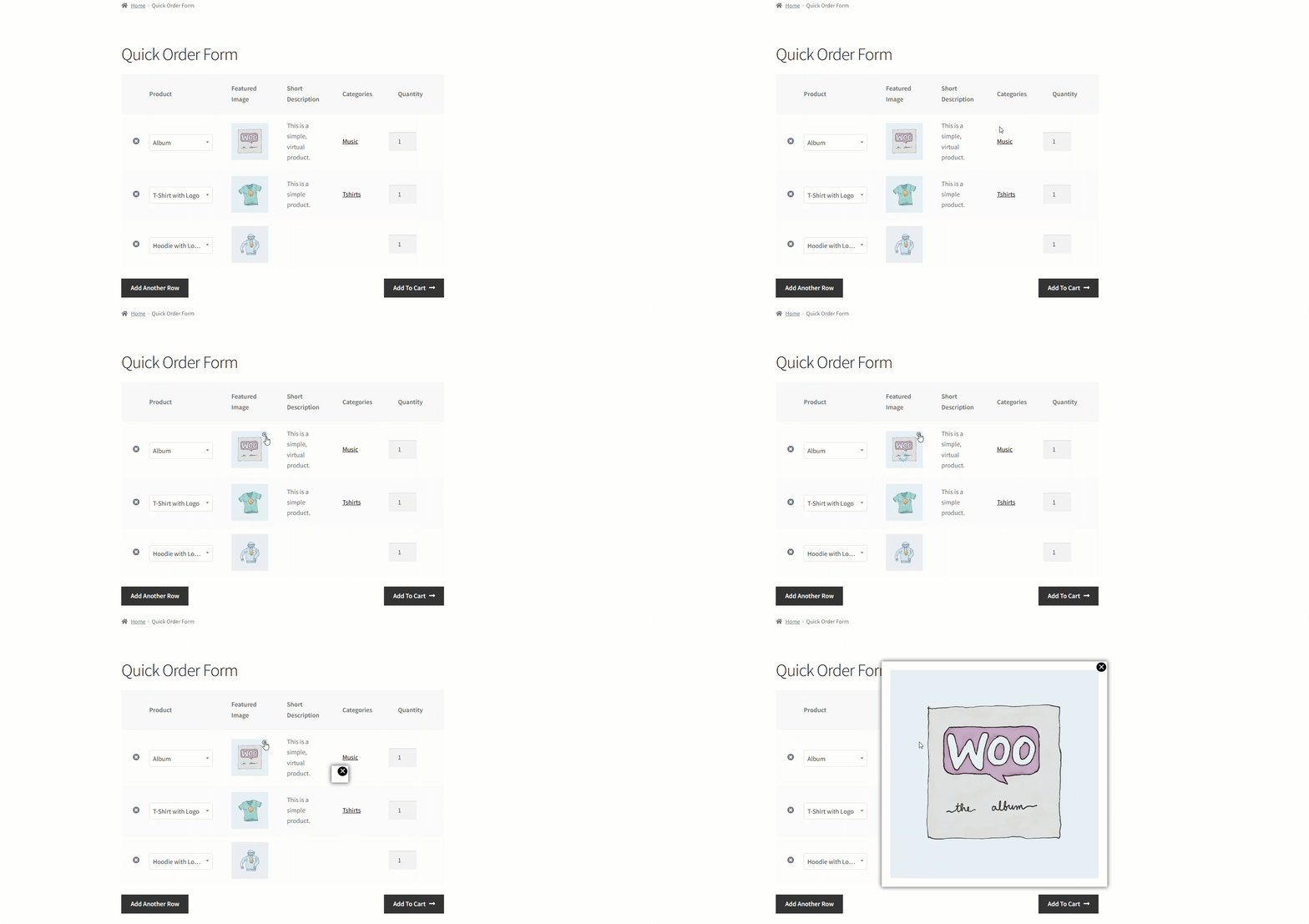
- When you hover your cursor over the Featured Image, a Magnify icon will appear. Click on the Magnify icon to zoom in on the image.
Front-End Impact – Variable Product
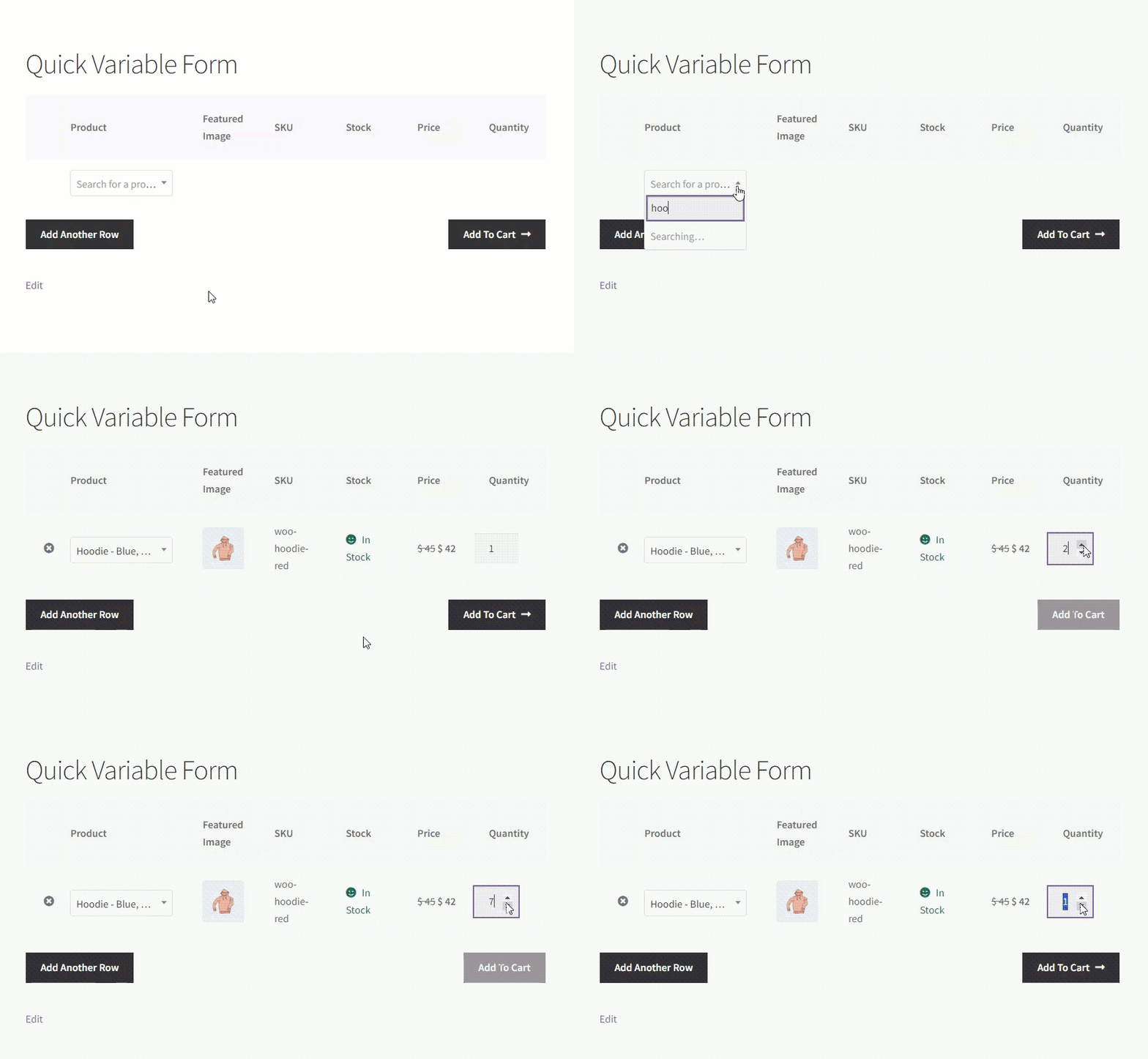
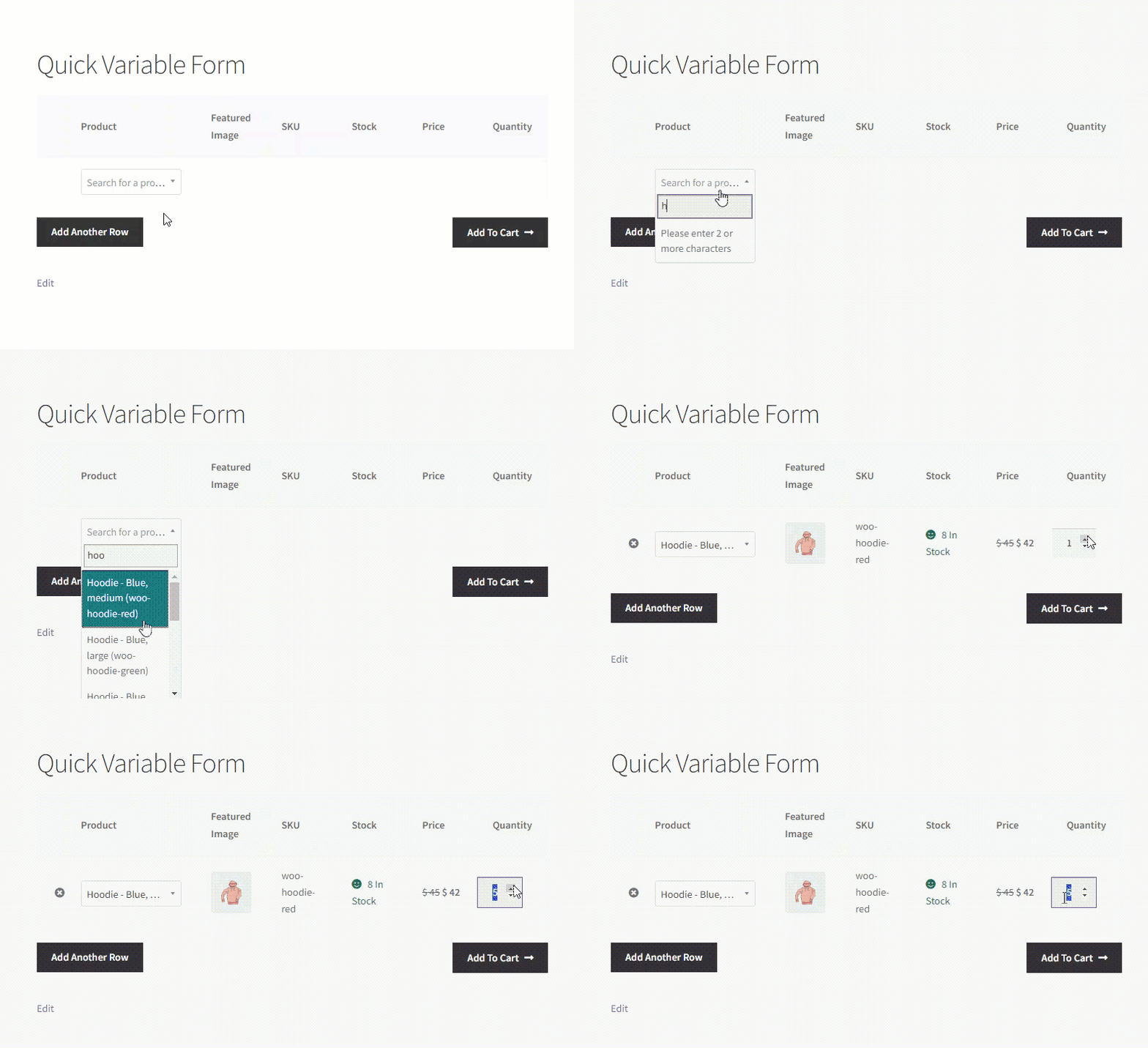
- Go to the Quick Order Form page.
- Add variable product to Quick Order Form.
Before
After
Gutenberg Block of Product Table
↑ Back to top- Navigate to the WordPress Admin Dashboard > Pages. Choose Add New Page or Edit an existing page where the Product Table block needs to be added.

- Click on Blocks and search for the Product Table in the search bar. Select the Product Table block by clicking on it.

- From the dropdown list, choose the desired Product Table.

- Click the Publish button to save the settings.

Front End Impact
- Login to your account.
- Go to the Product Table page. The Product table will appear.

User Role Restriction in Quick Order Form
↑ Back to top- Navigate to the WordPress Admin Dashboard > WooCommerce > Quick Order Form > Add New Quick Order Form/Edit Quick Order Form.

- Locate the User Role Restriction meta box on the Quick Order Form screen.

- From the User Roles dropdown list, select the User Roles for which the Quick Order Form will be visible.

- From the Users dropdown list, specify individual users for whom the Quick Order Form will be visible.

- Click the Update button to save the changes.

Front End Impact
Allowed User Role/User
- When the allowed User Role/User will navigate to the Quick Order Form page. The Quick Order Form will be visible.

Restricted User Role/User
- When the restricted User Role/User visits the Quick Order Form page, the Product table page will be hidden.

Bulk Variable Form on Single Product Page
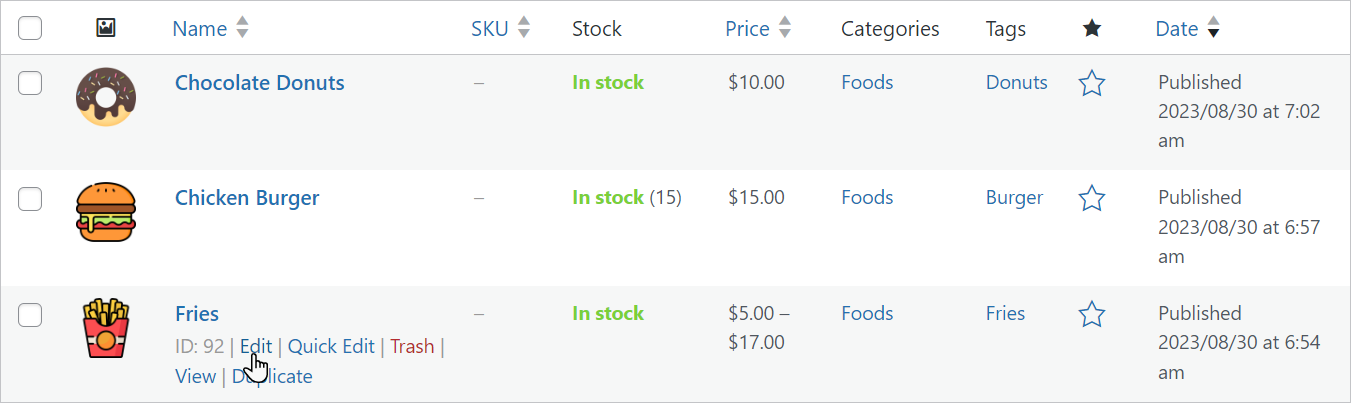
↑ Back to top- Navigate to Admin Dashboard > Products > All Products.
- Hover over any Variable Product to view suboptions.
- Click on the Edit suboptions.
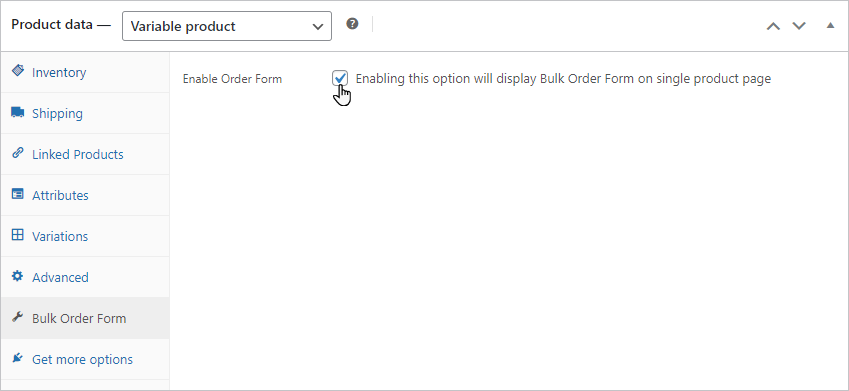
- Go to the Bulk Order Form tab in the Product data section.
- Checkmark the Enable Order Form checkbox.
Front-End Impact
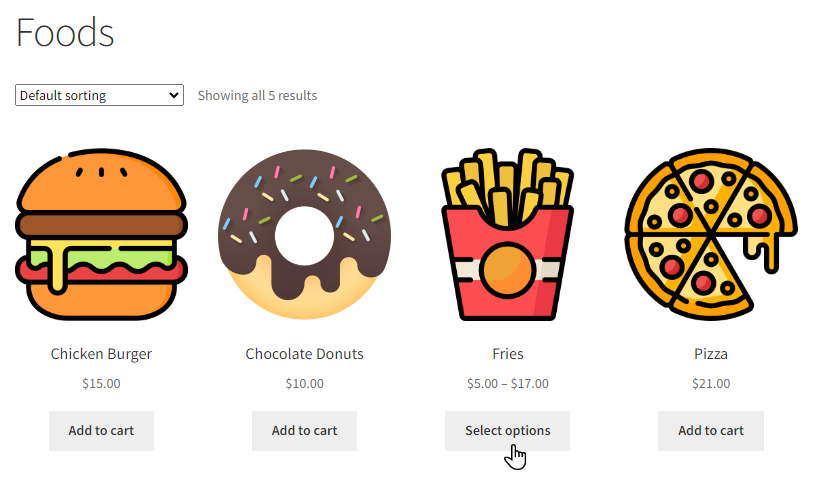
- Go to your shop and click on any Variable Product to view the Single Product Page.
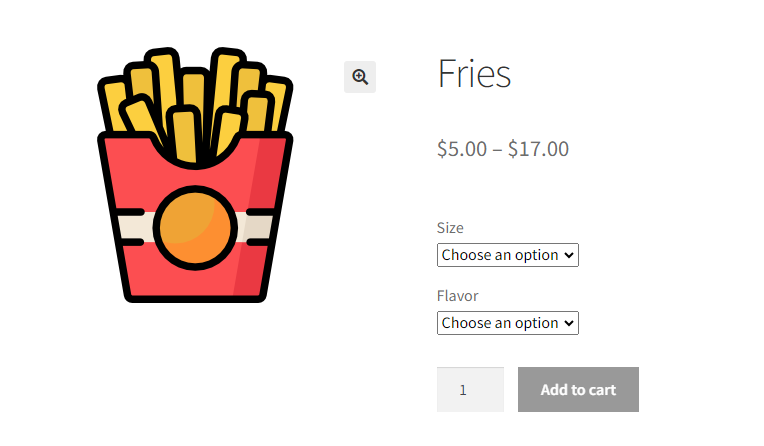
Before
- Front-End view of the Variable Product before enabling Enable Order Form option in the Bulk Order Form section.
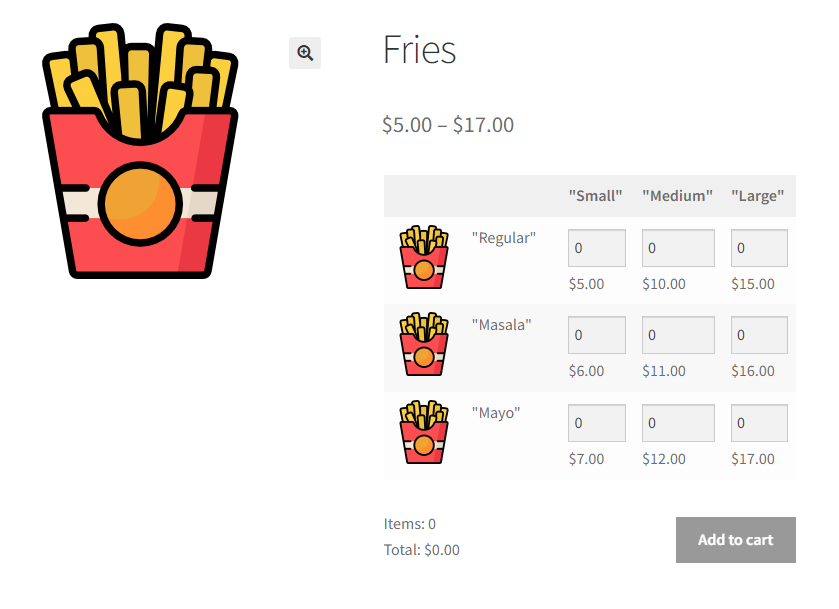
After
- Front-End view of the Variable Product after enabling Enable Order Form option in the Bulk Order Form section.
Product Table Shortcode
↑ Back to top- Copy the shortcode from the edit screen.

- Place it on any page/post to display.
- Click on Publish/Update Button
Stock Levels in Variable Product Bulk Order Form
↑ Back to top- Go to WordPress Admin Dashboard > Products > All Products.
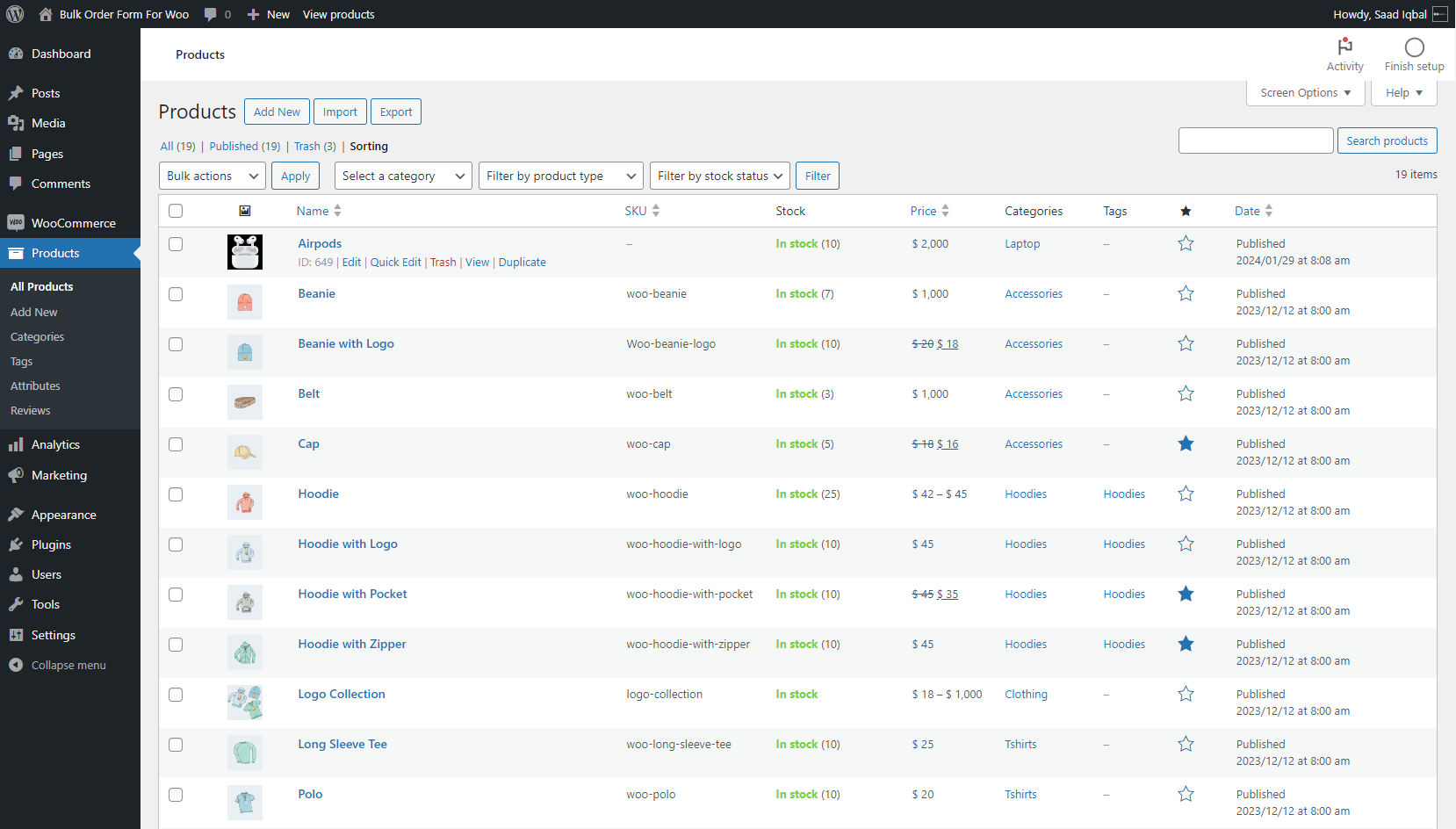
- Select Variable Product.
- Click on the Edit option.
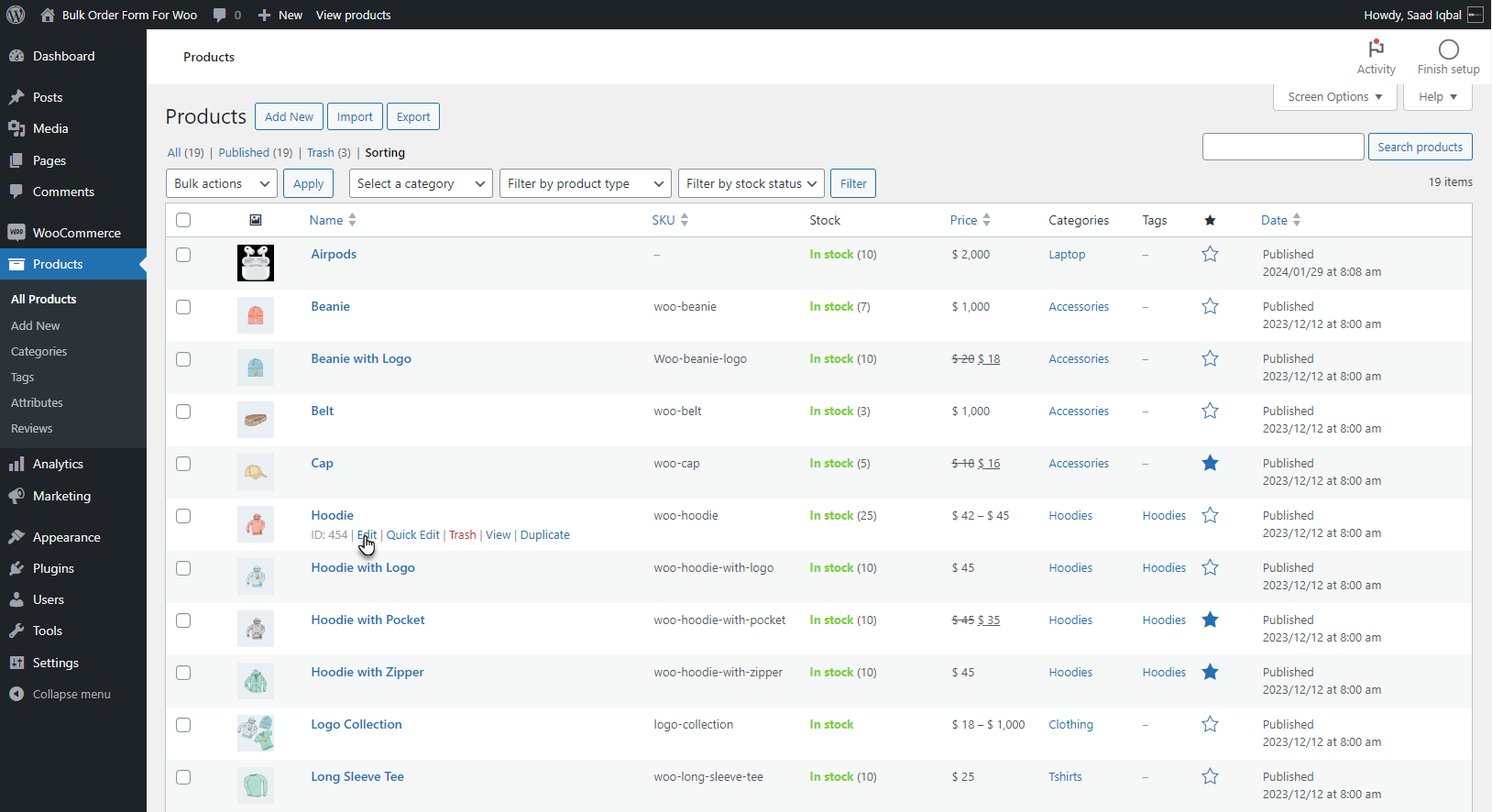
- A variable product edit screen will appear.
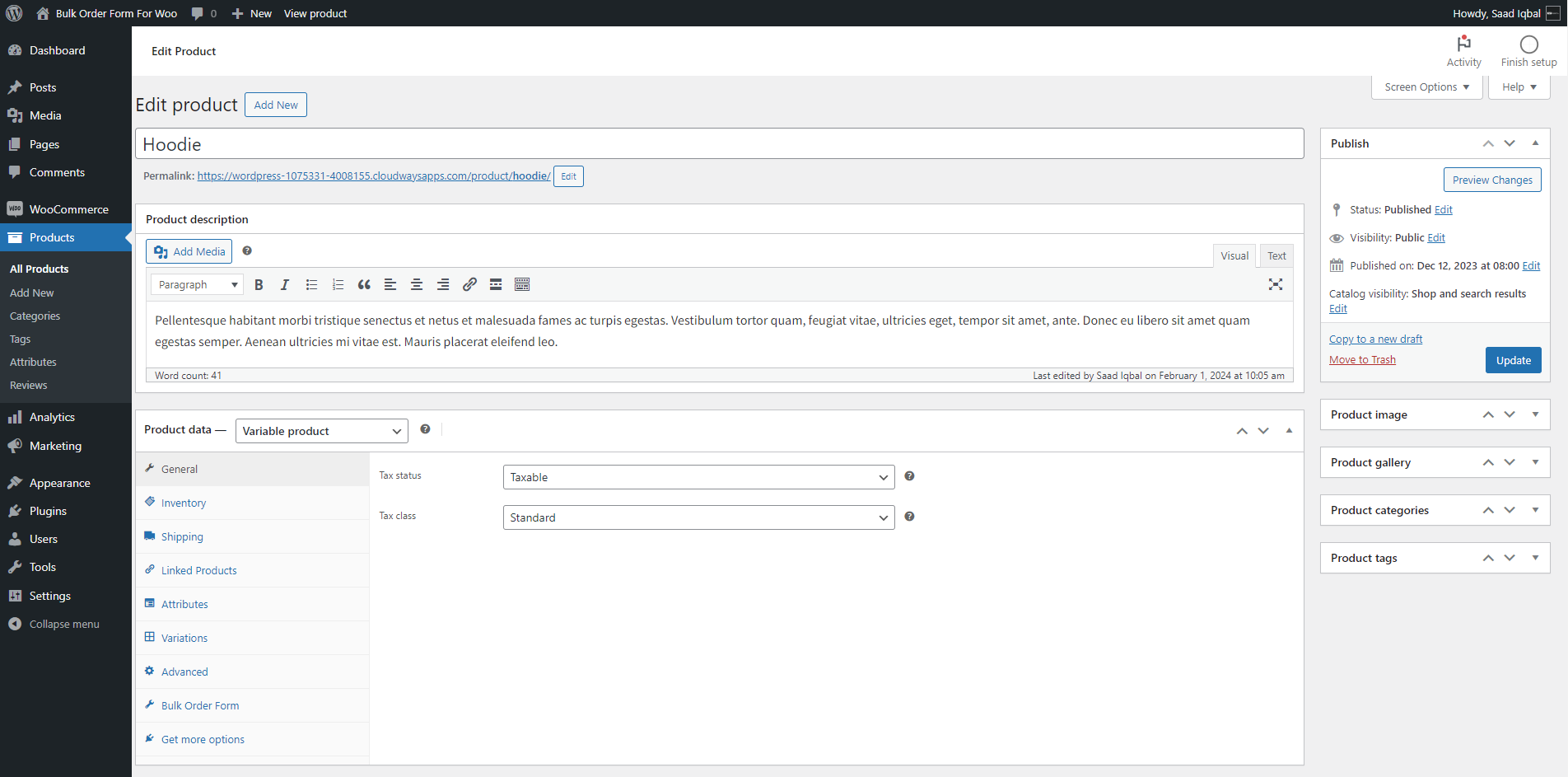
- Scroll Down to the Bulk Order Form option.
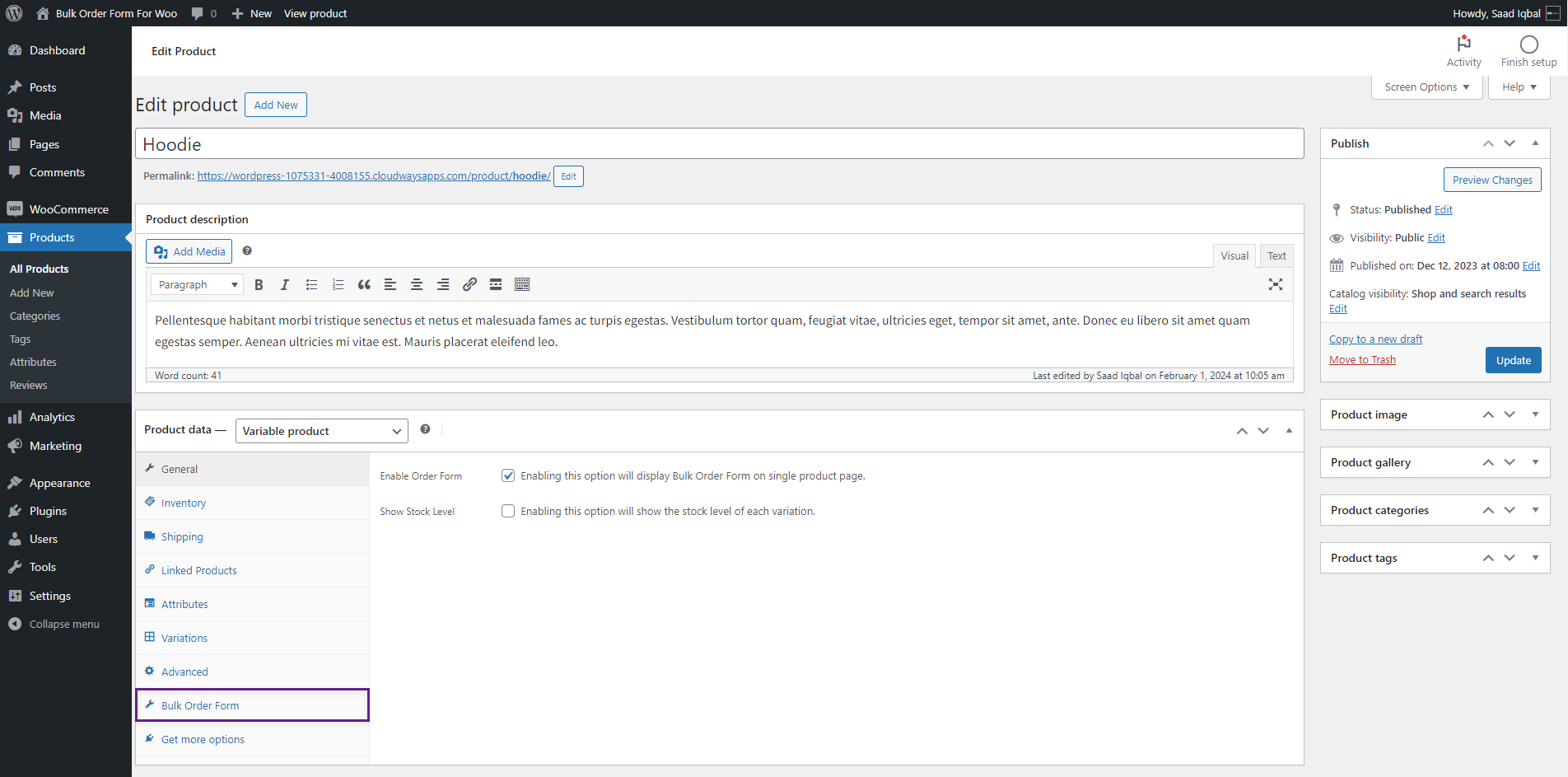
- Select the Show Stock Level radio button option provided in the Bulk Order Form.
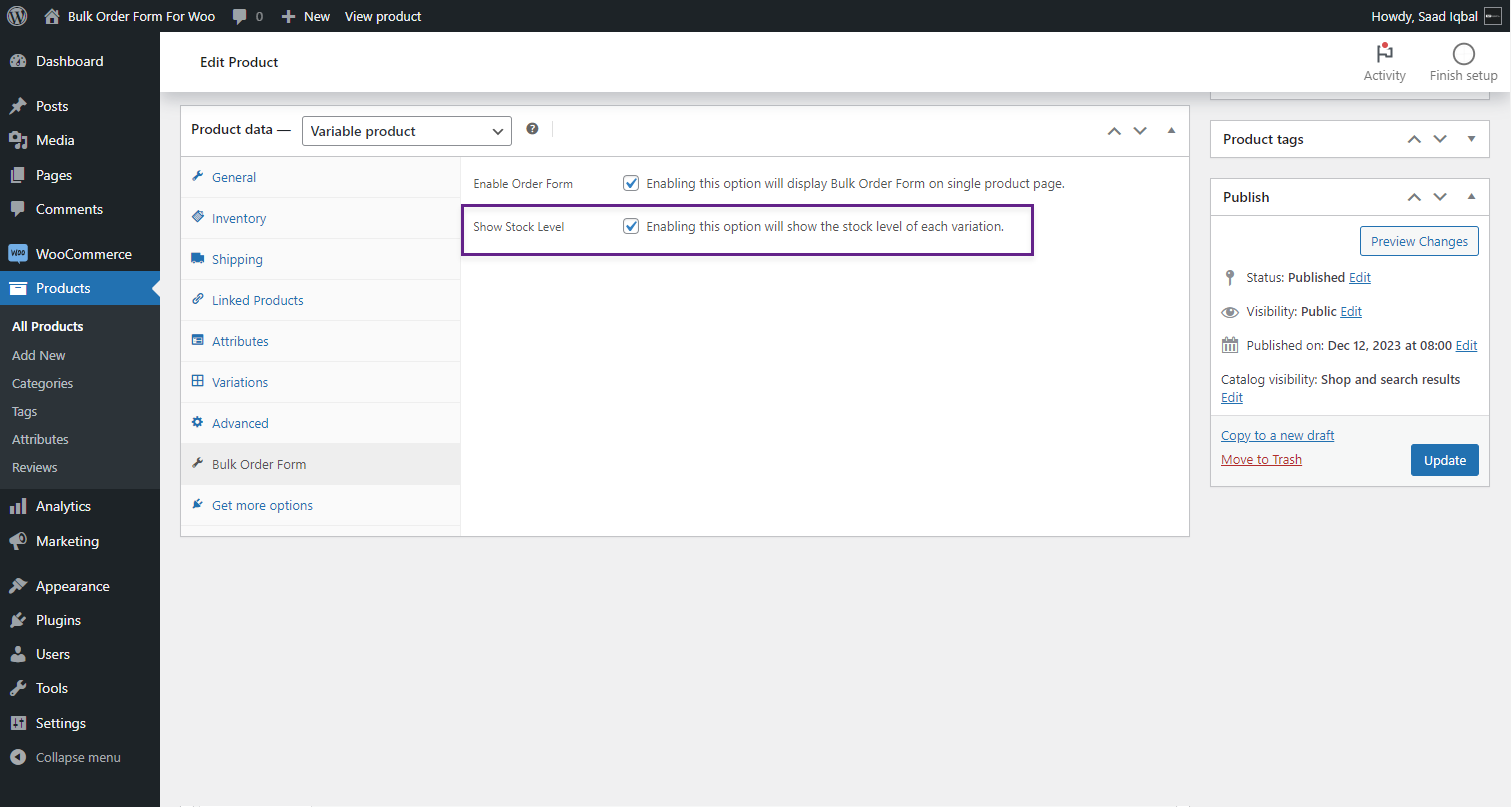
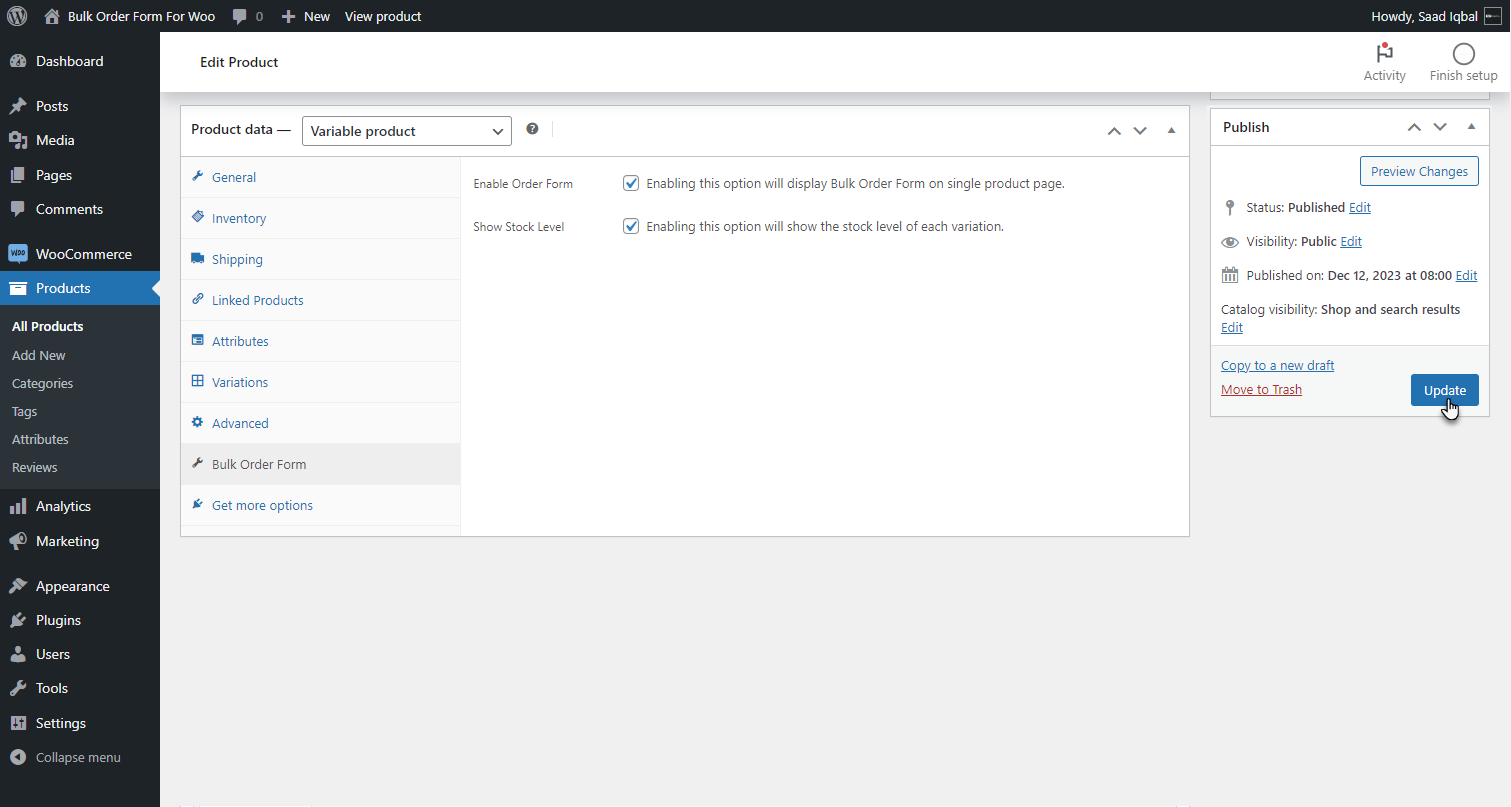
- Click on the Update button to save changes.
Front End Impact
↑ Back to top- Go to the Shop page.
- Select Variable Product.
- Navigate to the Product page of Variable Product.
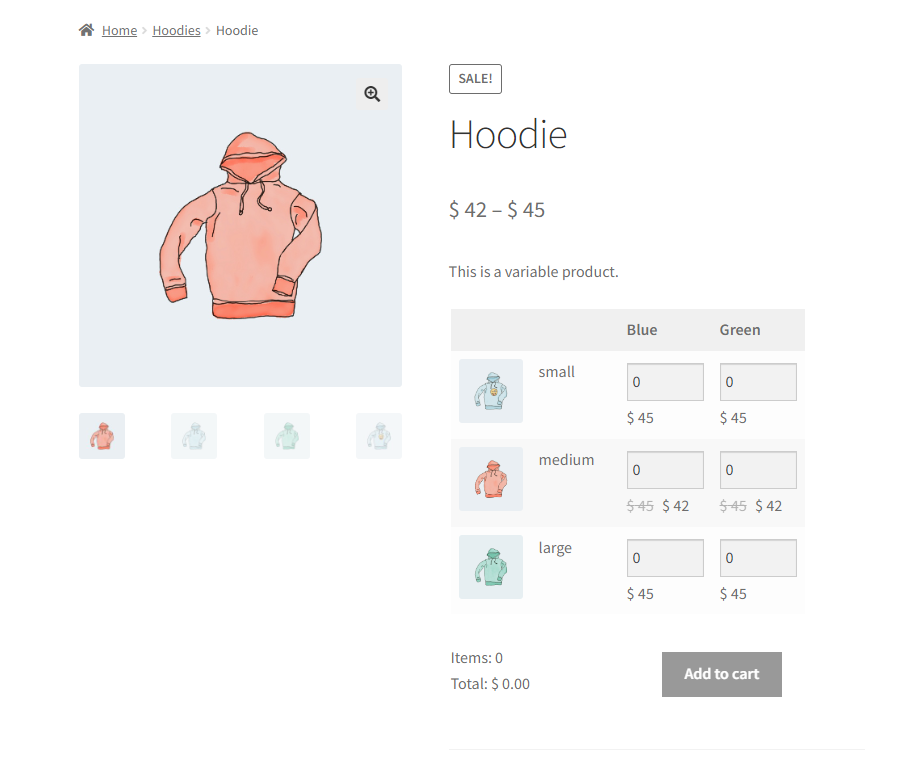
Before
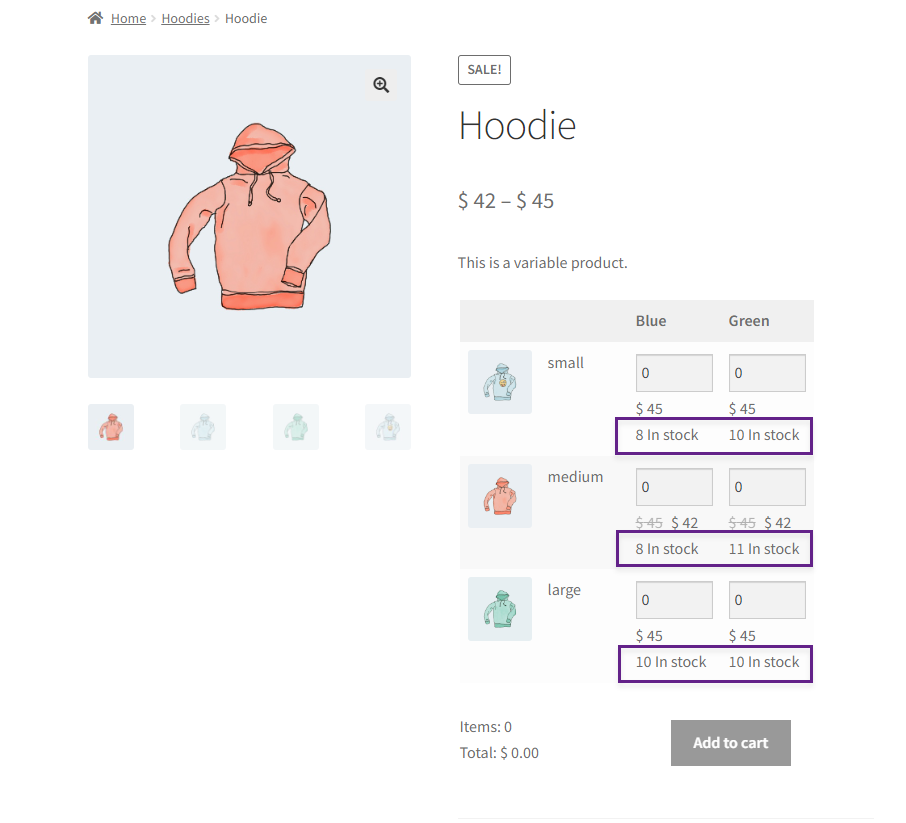
After
Compatibility
↑ Back to topSmart Product Bundle – Product Table
↑ Back to top- Navigate to the WordPress Admin Dashboard > Products
- Create or edit the Product.
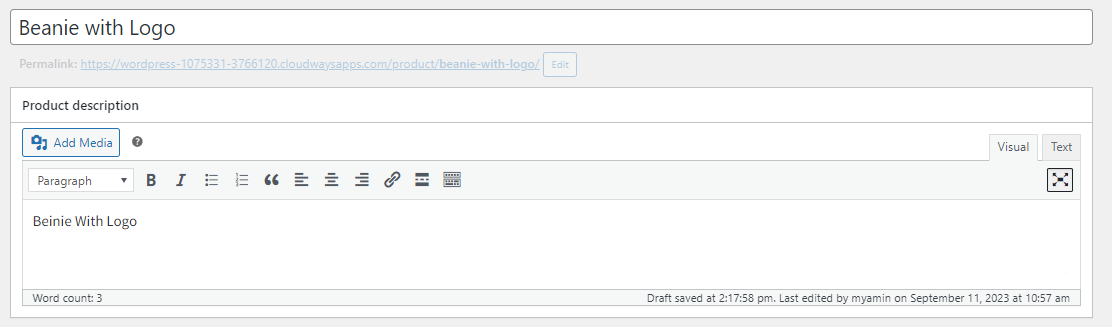
Under the product data, select bundle product.
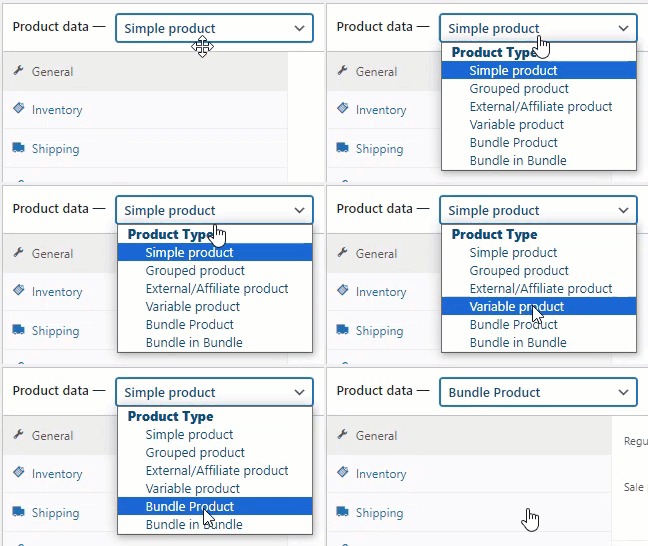
- Select the Bundle Product from the Side Bar.
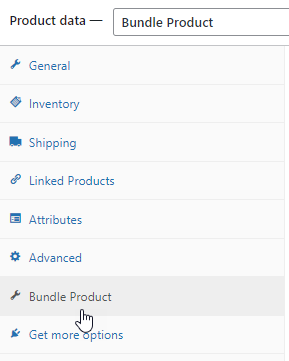
- Select the Individual Product from the dropdown to create a Bundle Product.
- Once a Product is selected, the admin can view the product and can edit the product’s details by clicking on specific products.
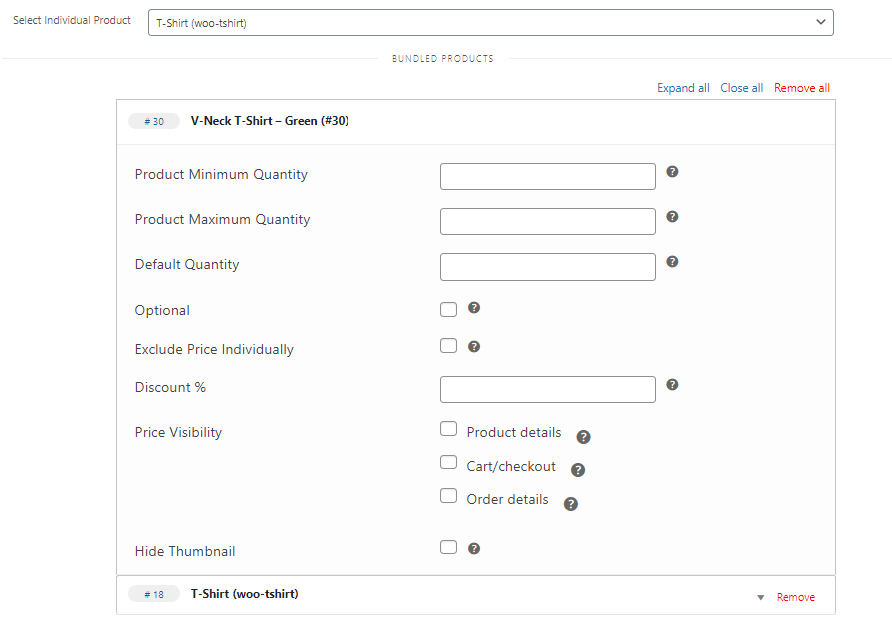
- Once done, click on the Publish/ Update button.
- Navigate to WordPress Admin Dashboard > WooCommerce > Product Table.

- Click Add New
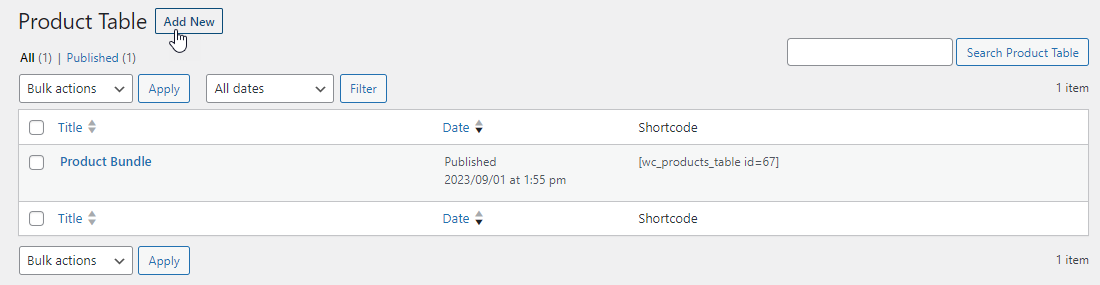
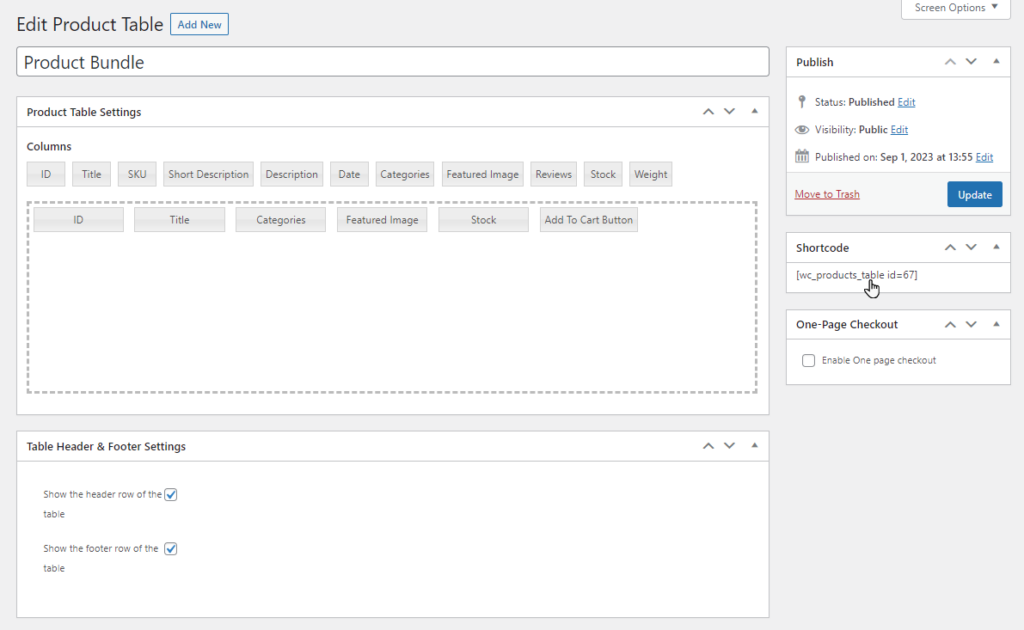
- Edit or create a Product Table
- Copy the Shortcode.
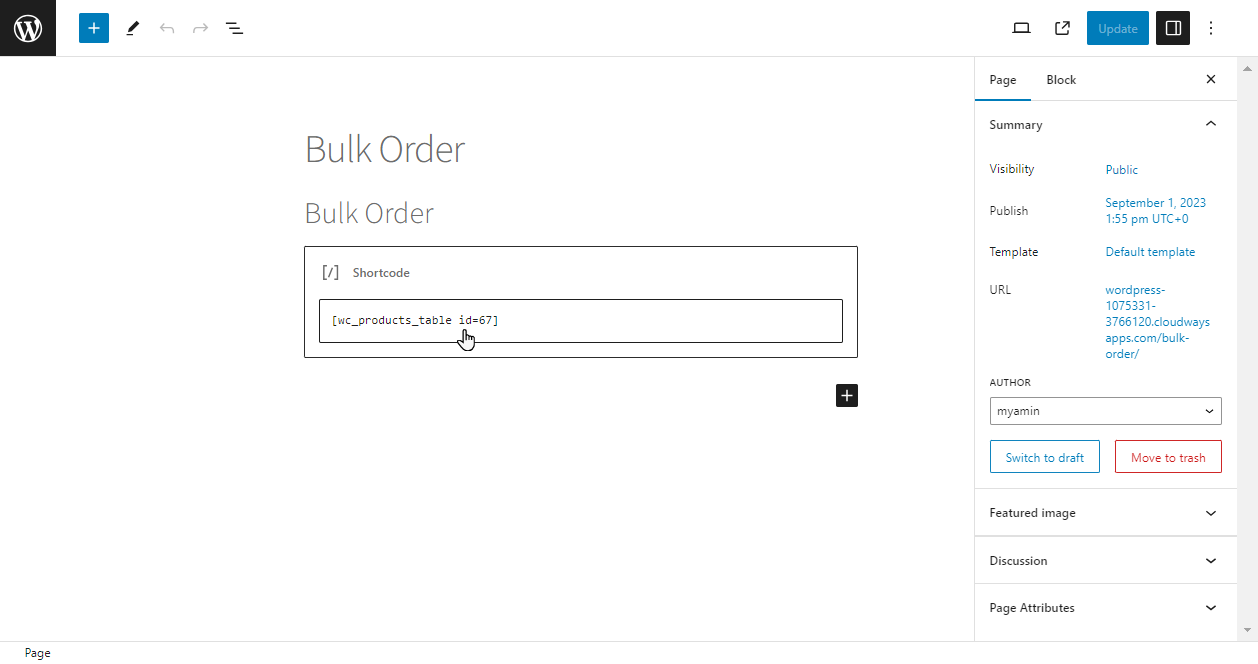
- Navigate to WordPress Admin Dashboard > Pages > Add New.

- A new page would open.
- Add the Title of the page.
- Click on the sign ➕ to add blocks.
- Select the Shortcode element.

- Once done, we can paste the shortcode.
- Now Publish or Update the page.
Front-End Impact
- Navigate to the specific page.
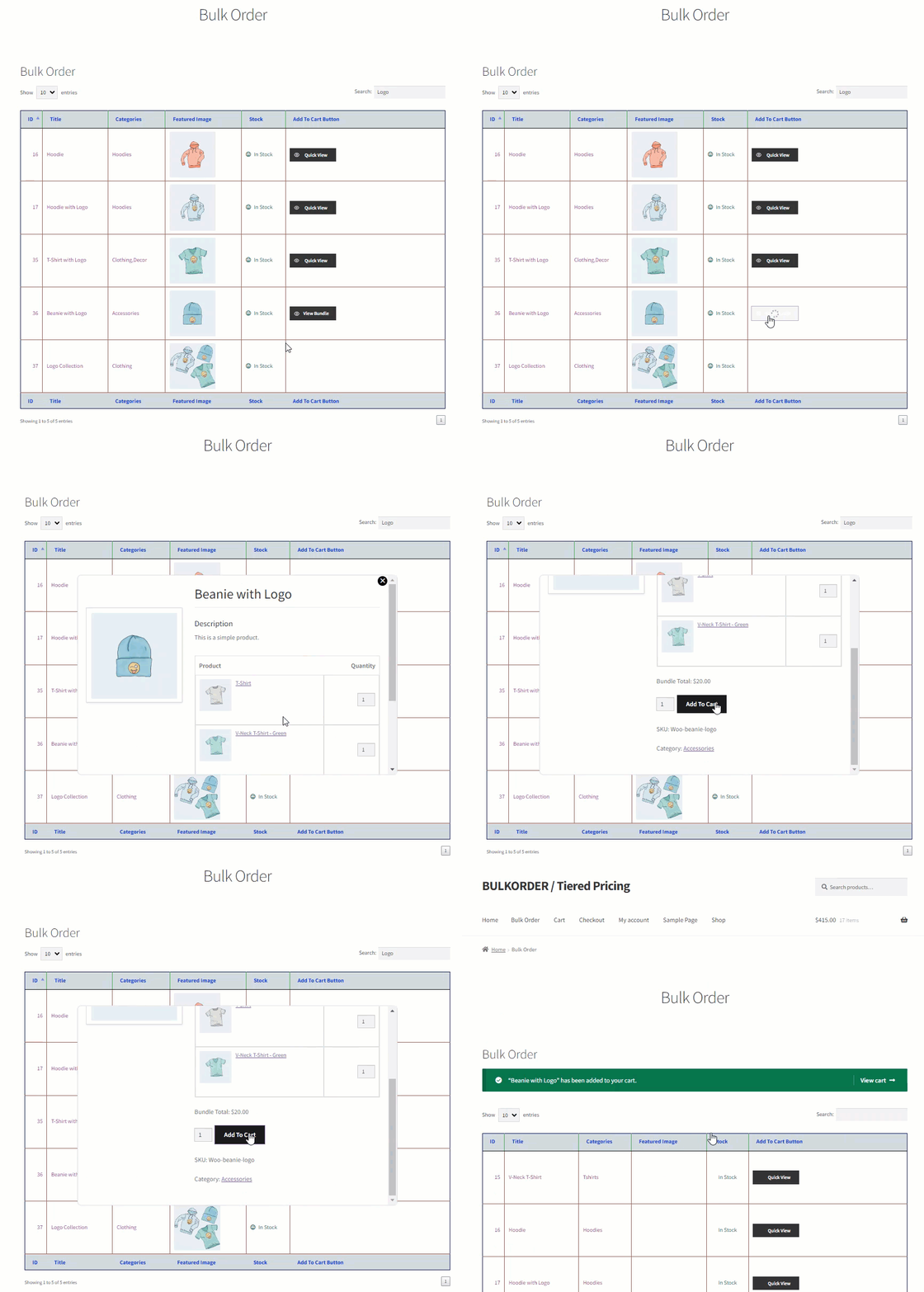
- Here, the user can buy a Smart Bundle Product through the Product Table by clicking the View Bundle button.
Group Products – Product Table
↑ Back to topThis feature ensures that grouped products are fully compatible with the plugin. Admins can configure how grouped products appear in the product table, making it easier for customers to browse and purchase.
- Navigate to Products > All Products.
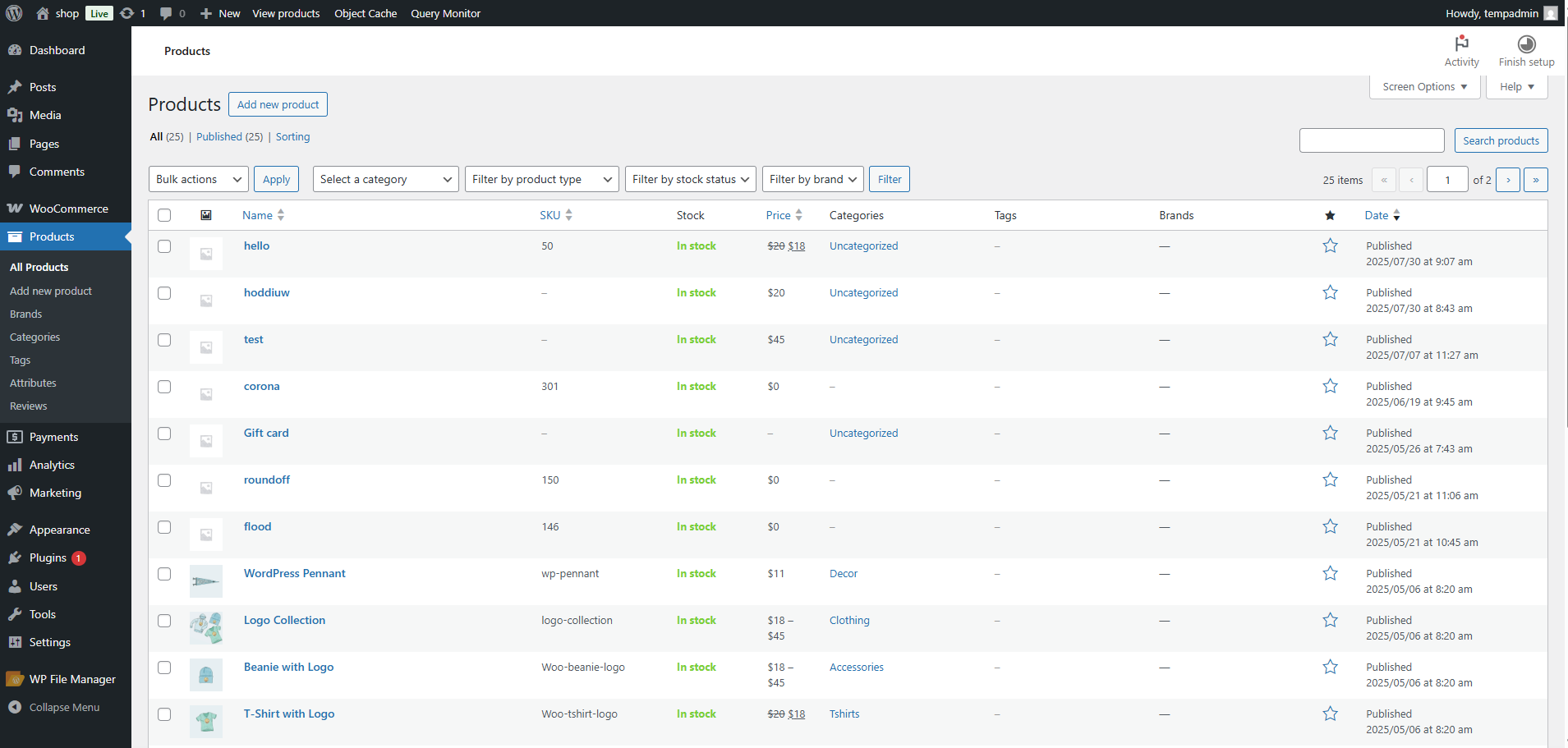
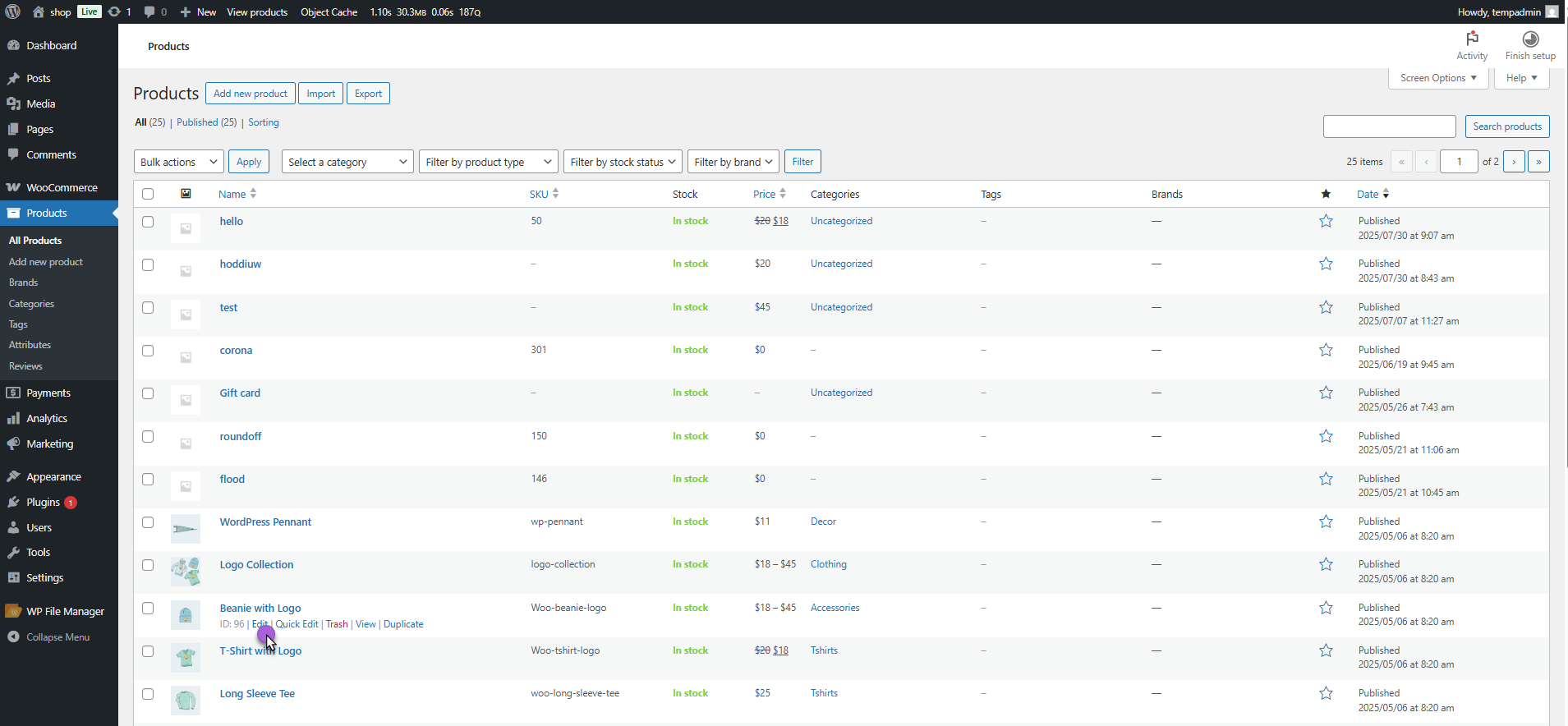
- Either create a New product or edit an existing one.
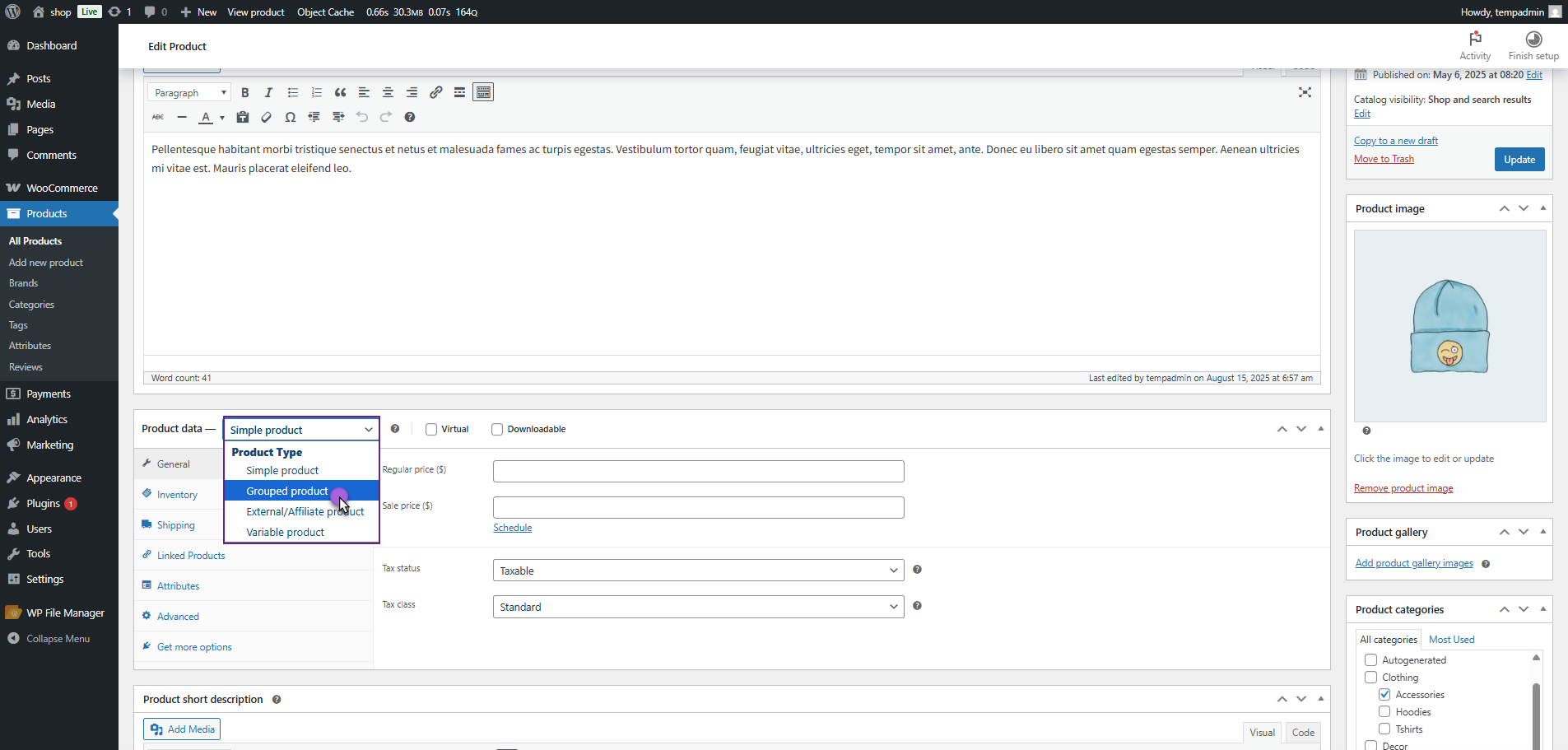
- Under Product Data, select Grouped Product.
- Go to the Linked Products tab and select the desired products to include in the group.
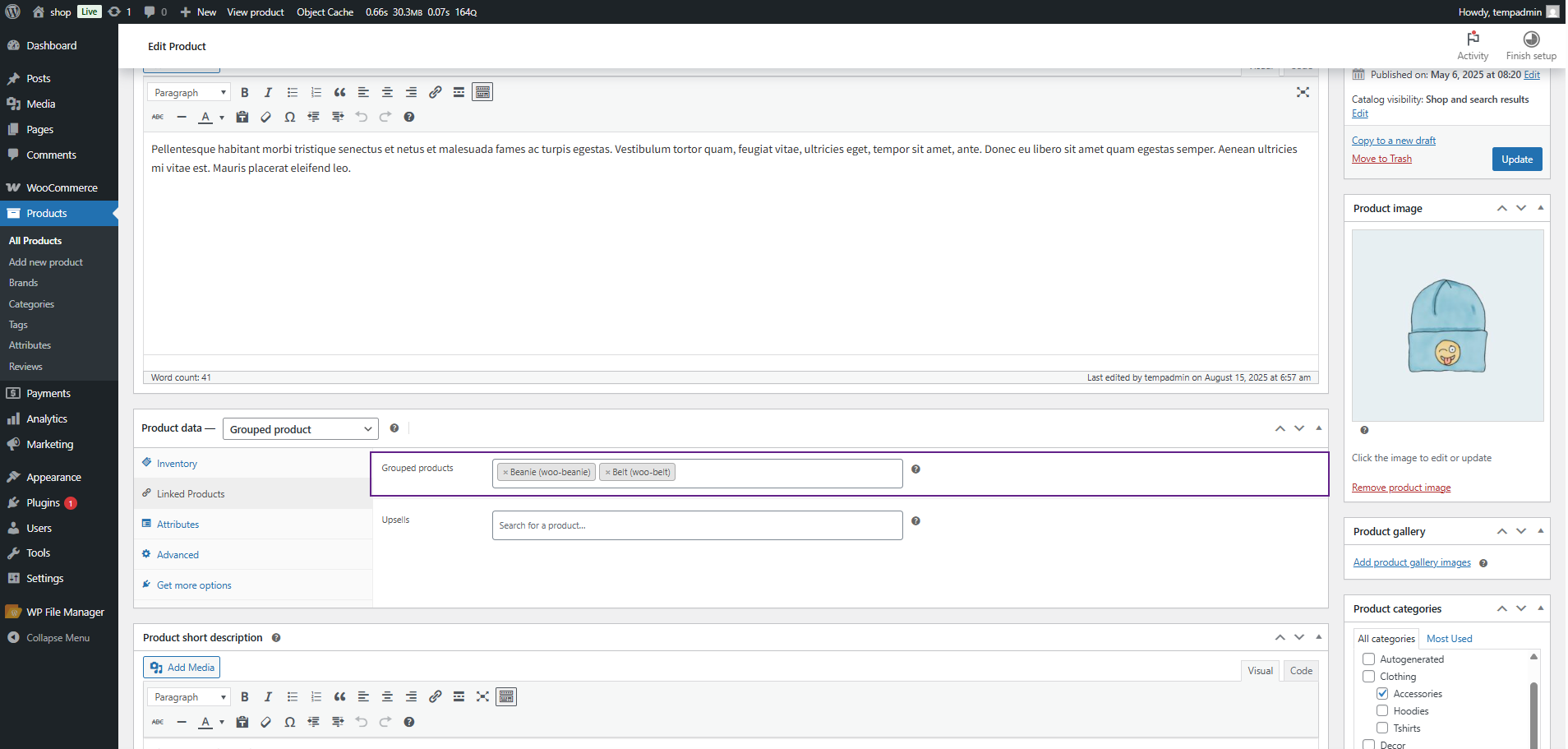
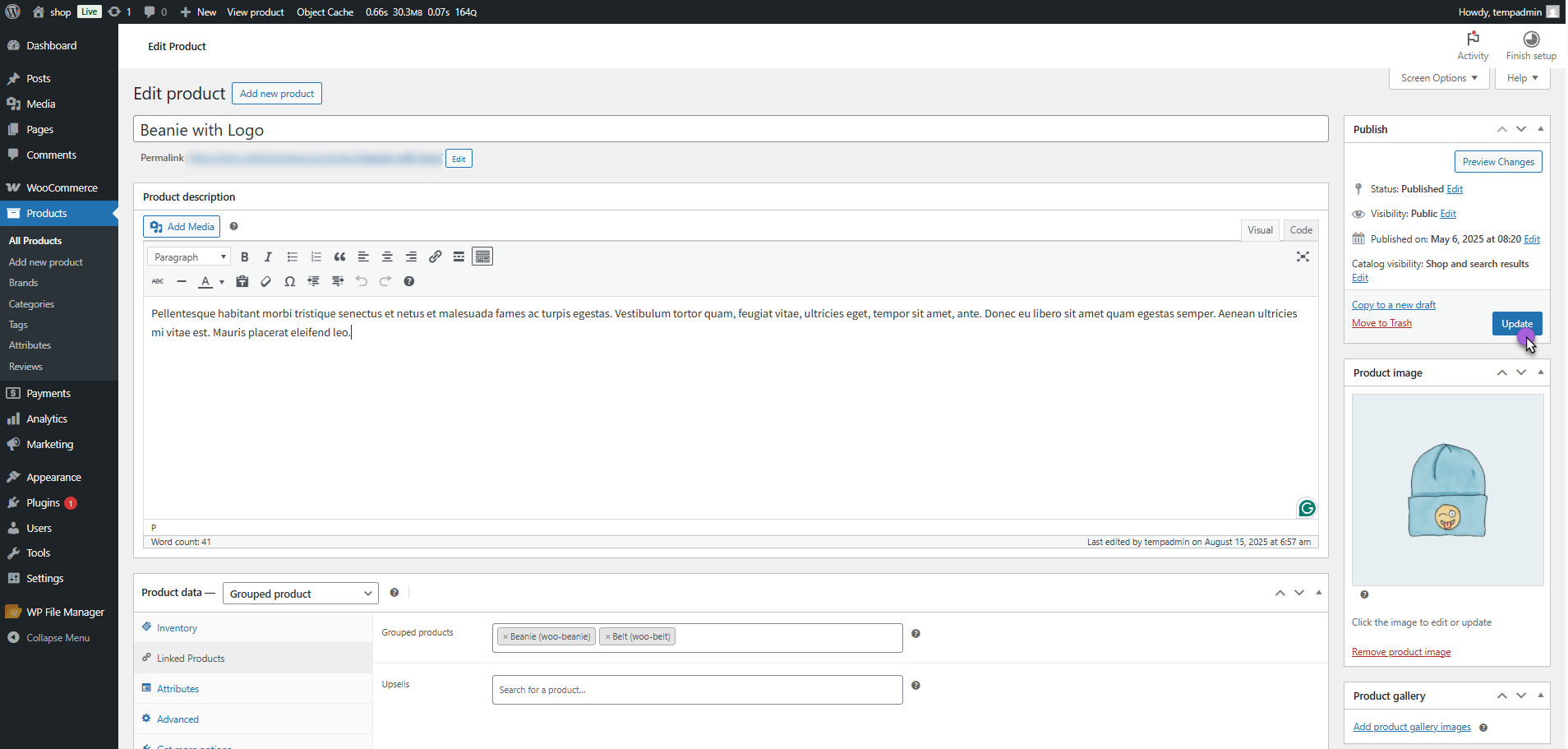
- Click on the Update button.
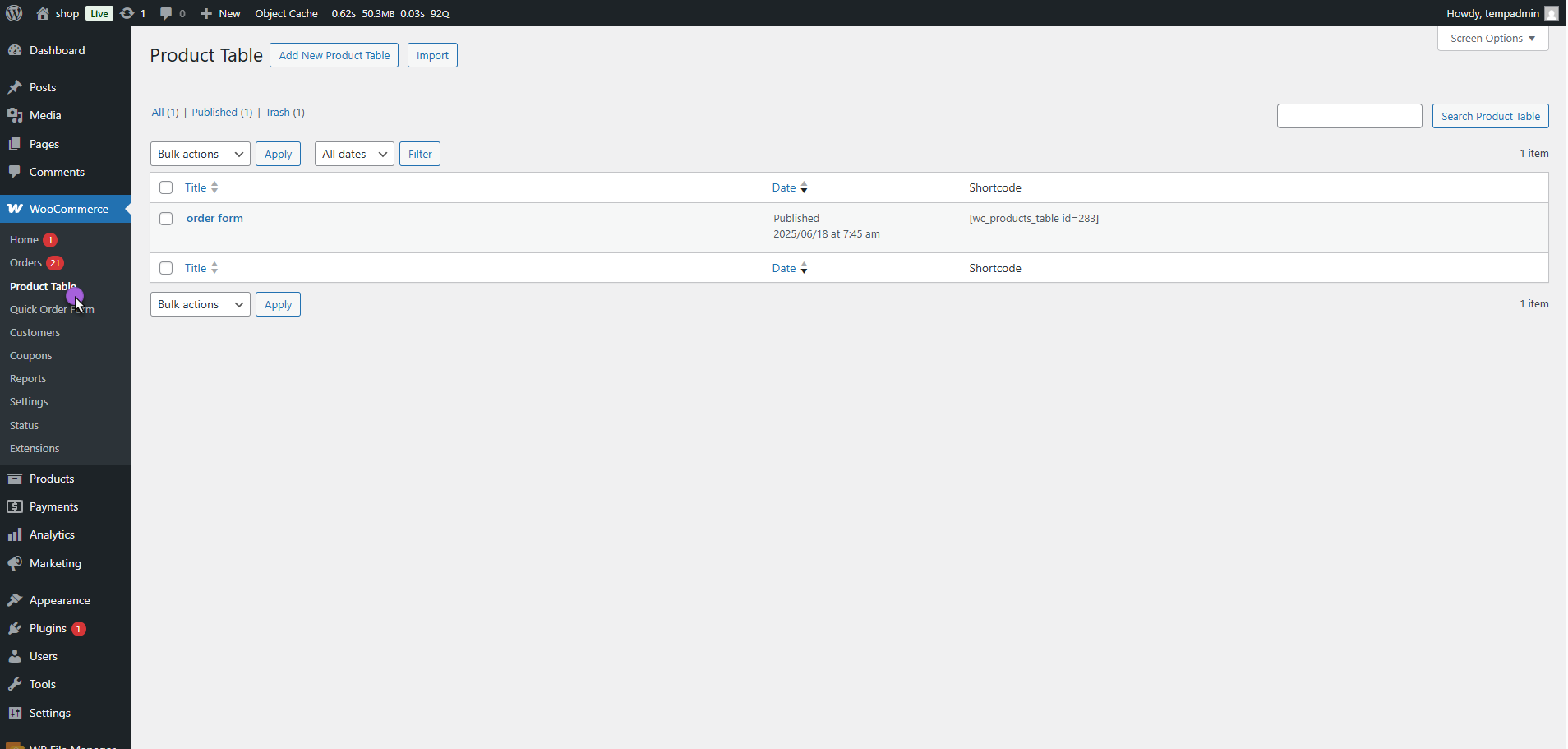
- Now, navigate to WooCommerce > Product Table.
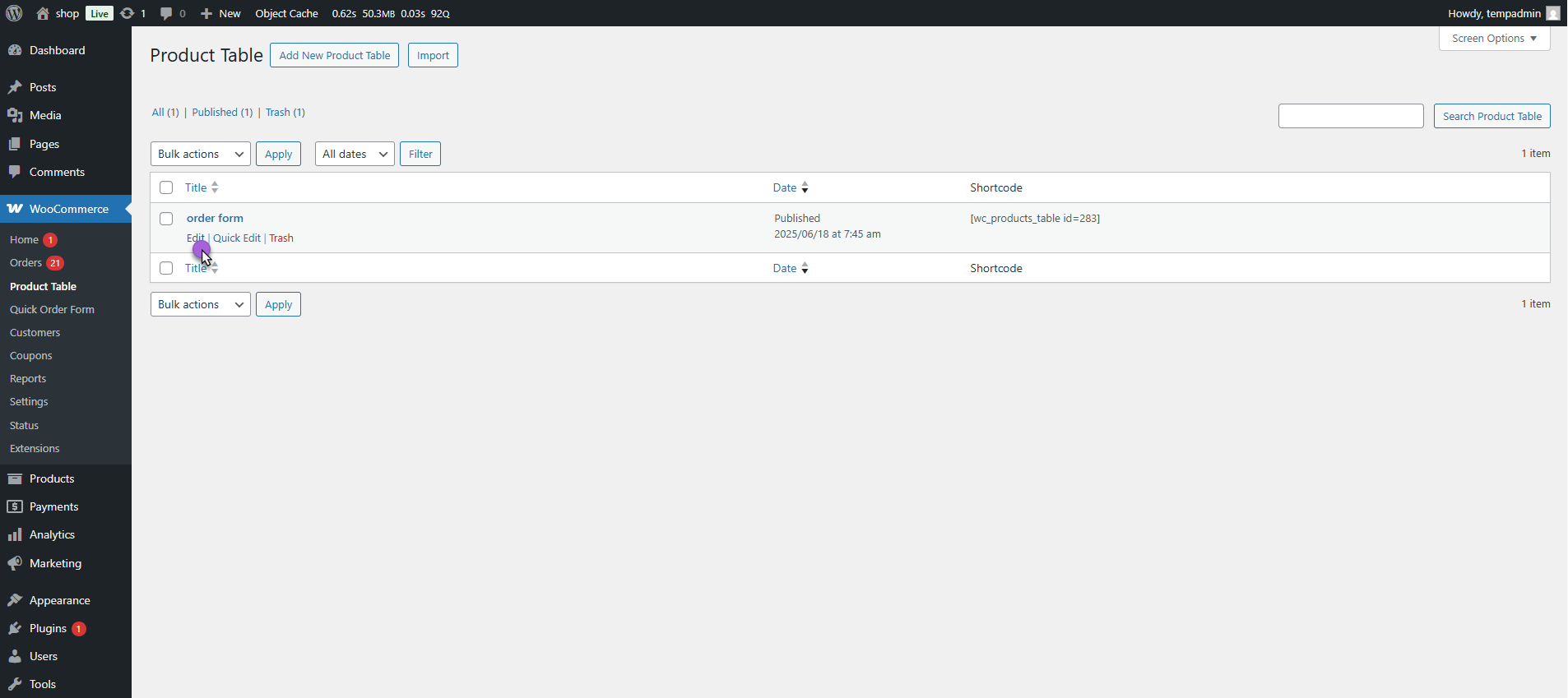
- Edit an existing table or create a new table.
- Go to Group Product Display Settings.
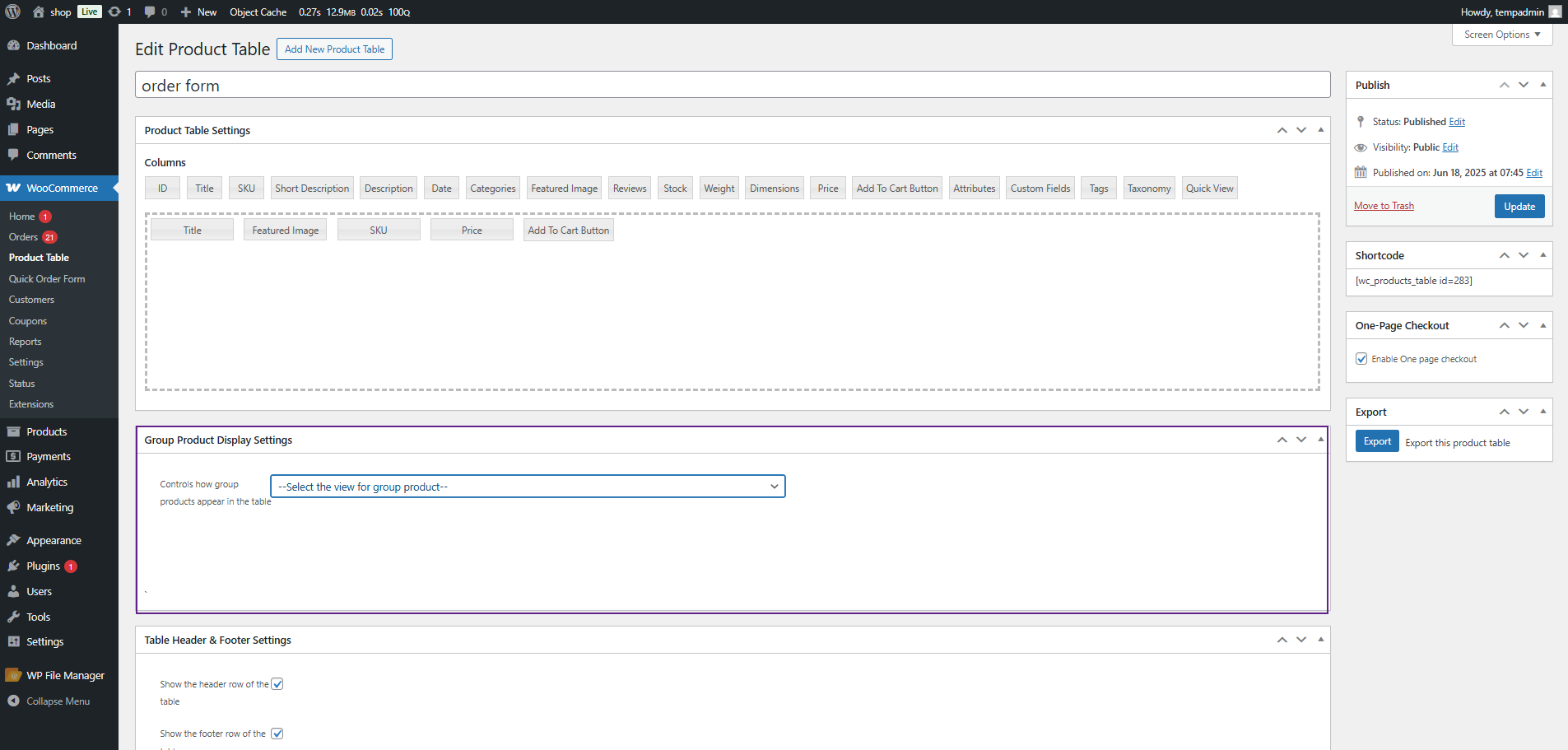
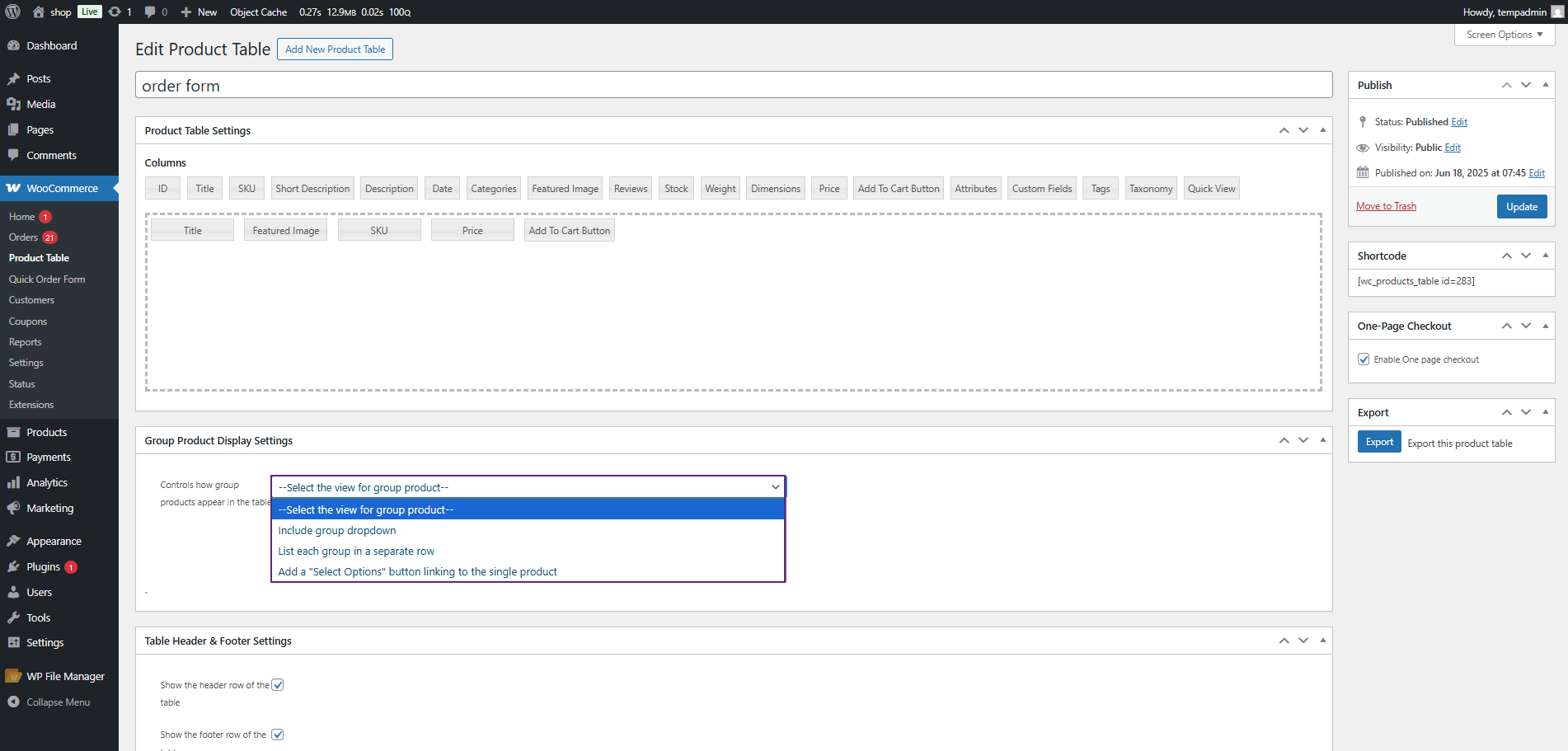
- From the dropdown, choose how grouped products will appear in the table:
- Include Group Dropdown
- List each group in a separate row
- Add a Select Options button link to the single product
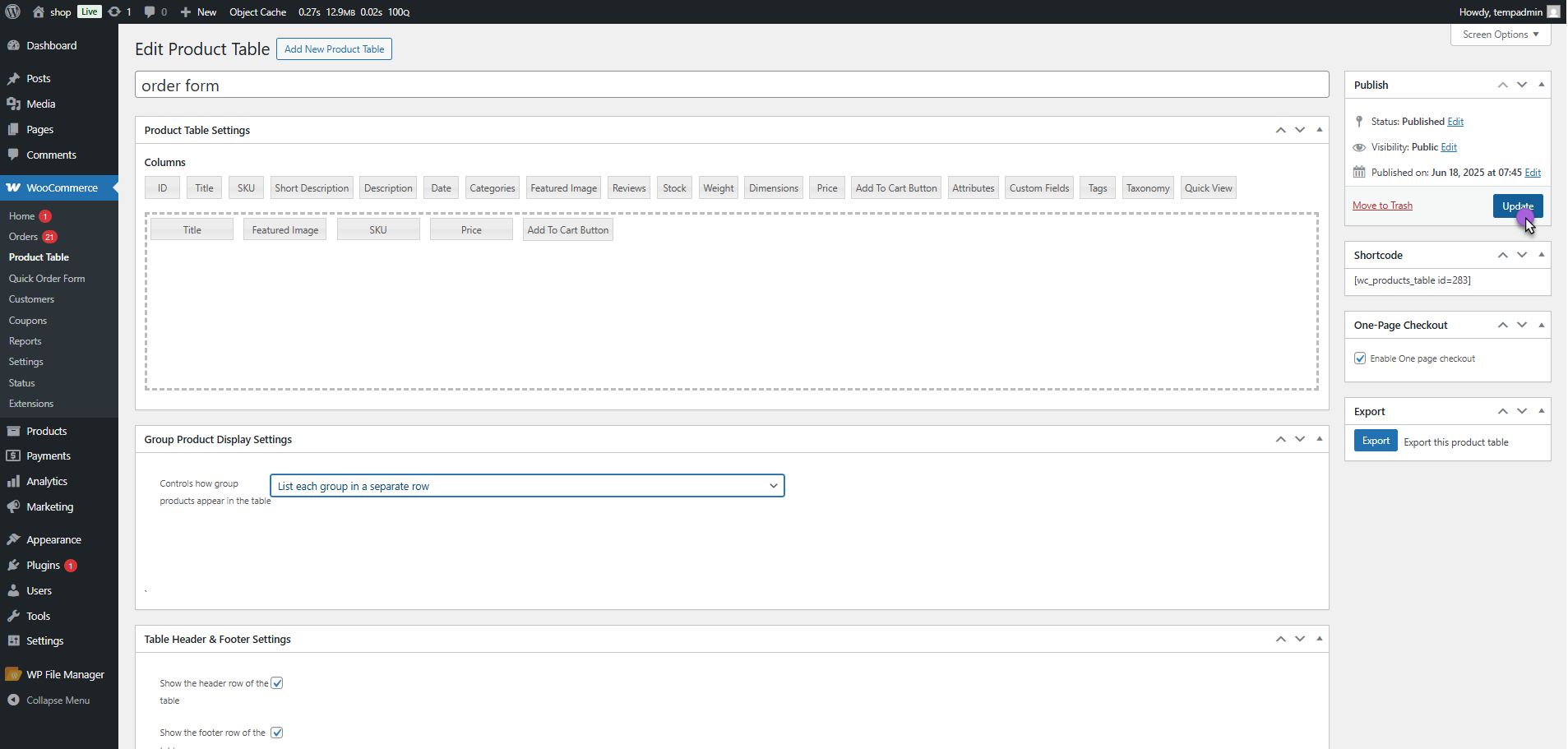
- Click on the Update button.
Front-End Impact
- Go to the Website.
- Navigate to the Product Table page.
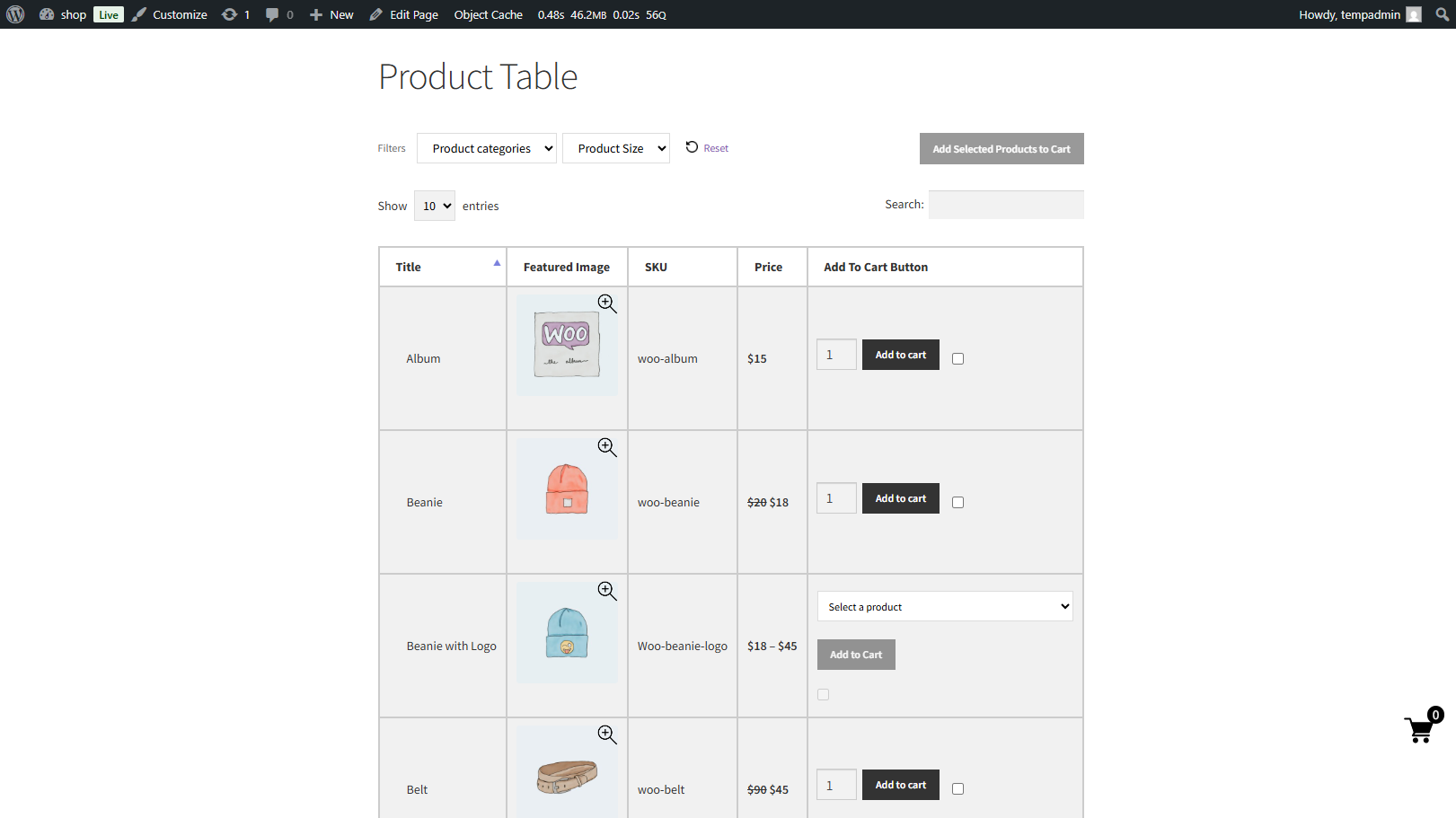
- Locate a Grouped Product in the table.
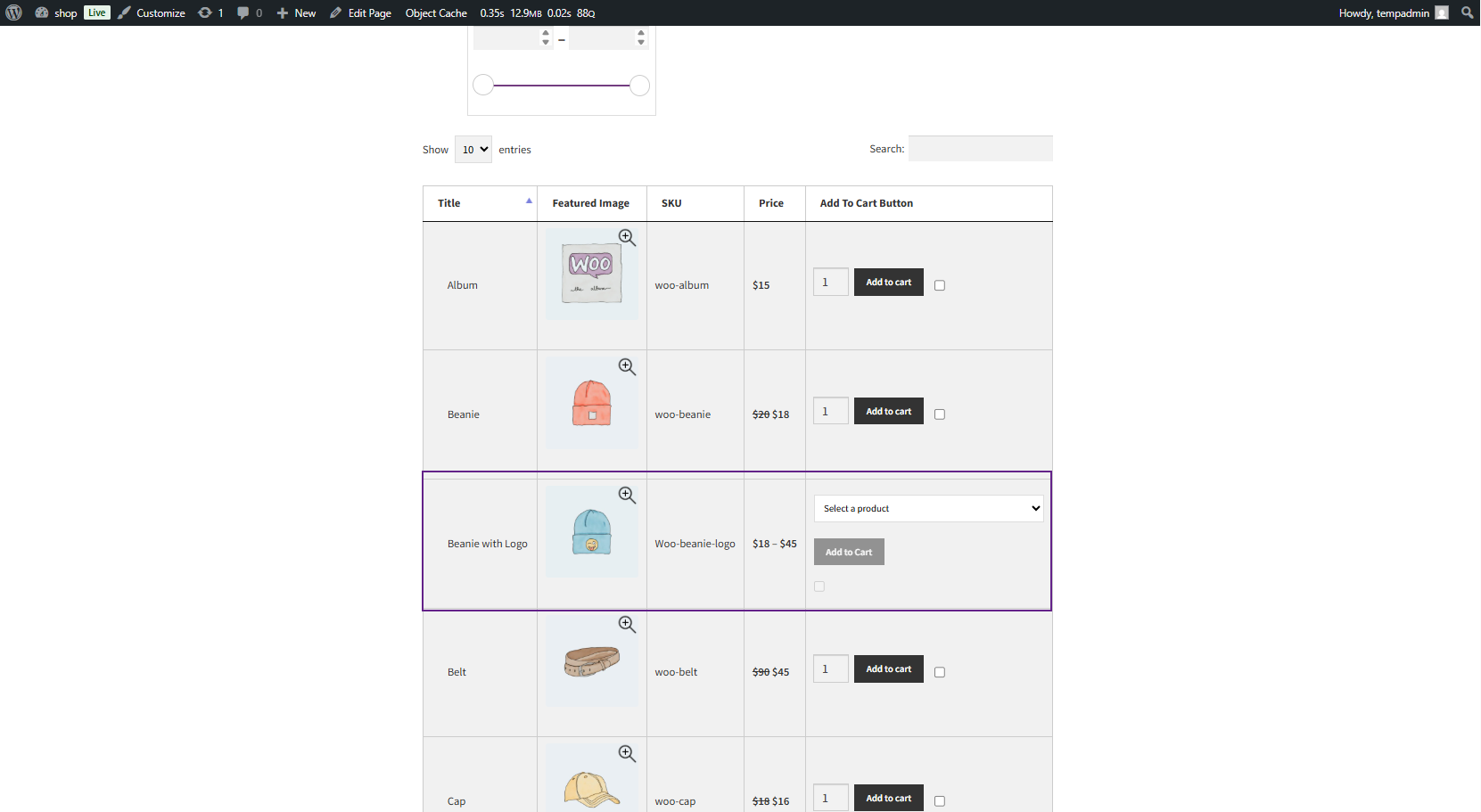
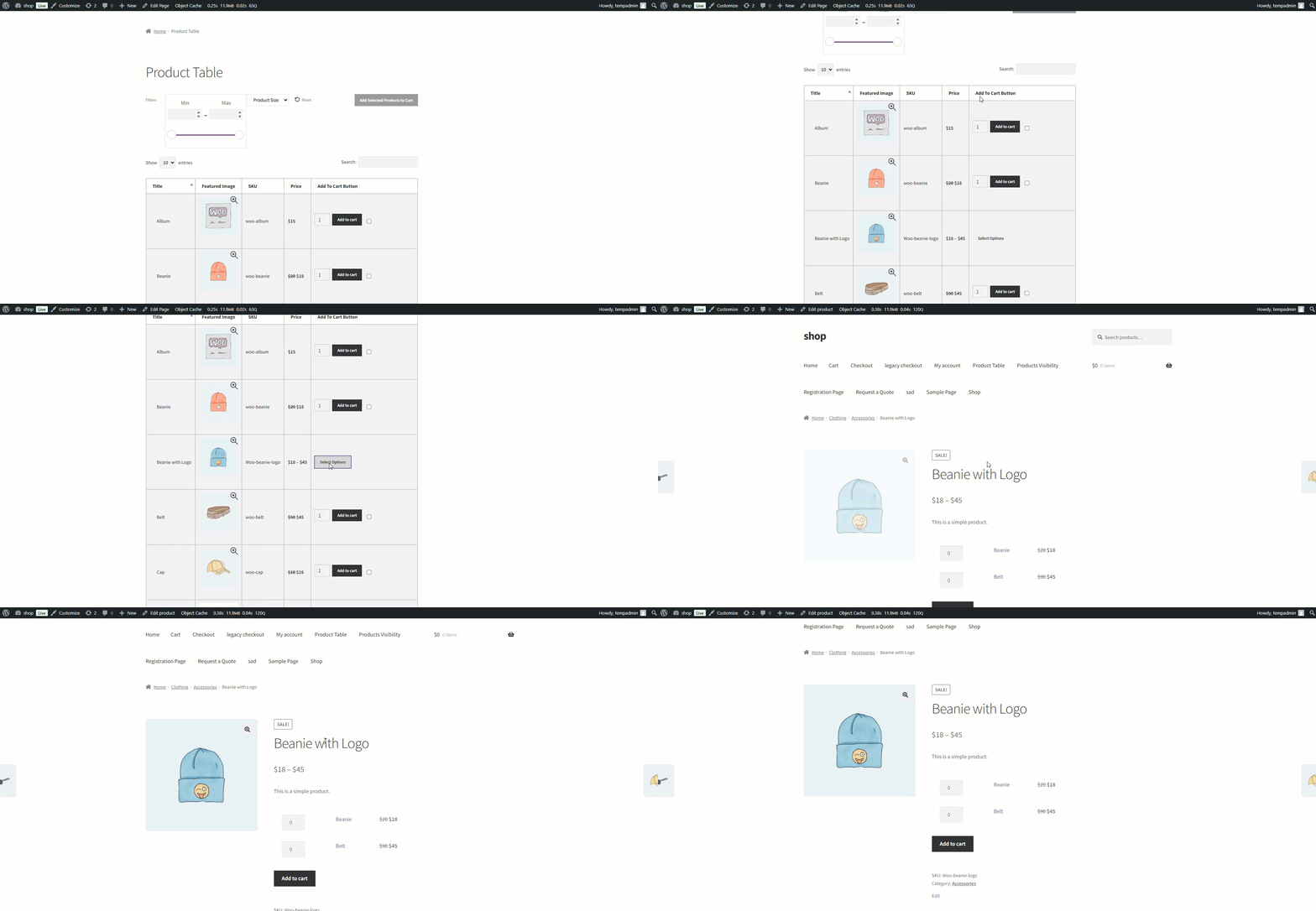
- Depending on the settings, you will see the grouped product displayed as one of the following:
- A dropdown menu to select products from the group.
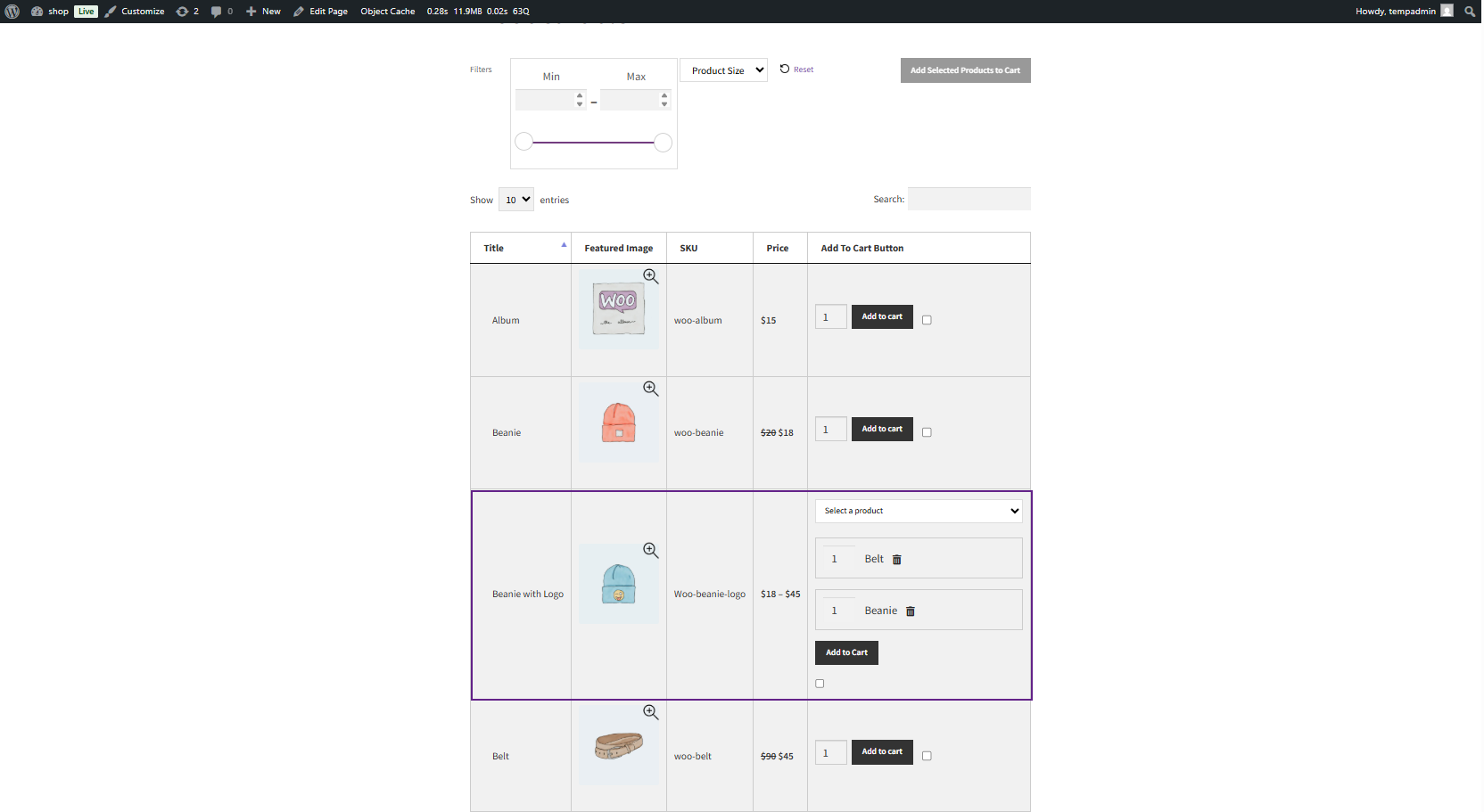
- A list of grouped products is displayed in separate rows within the table.
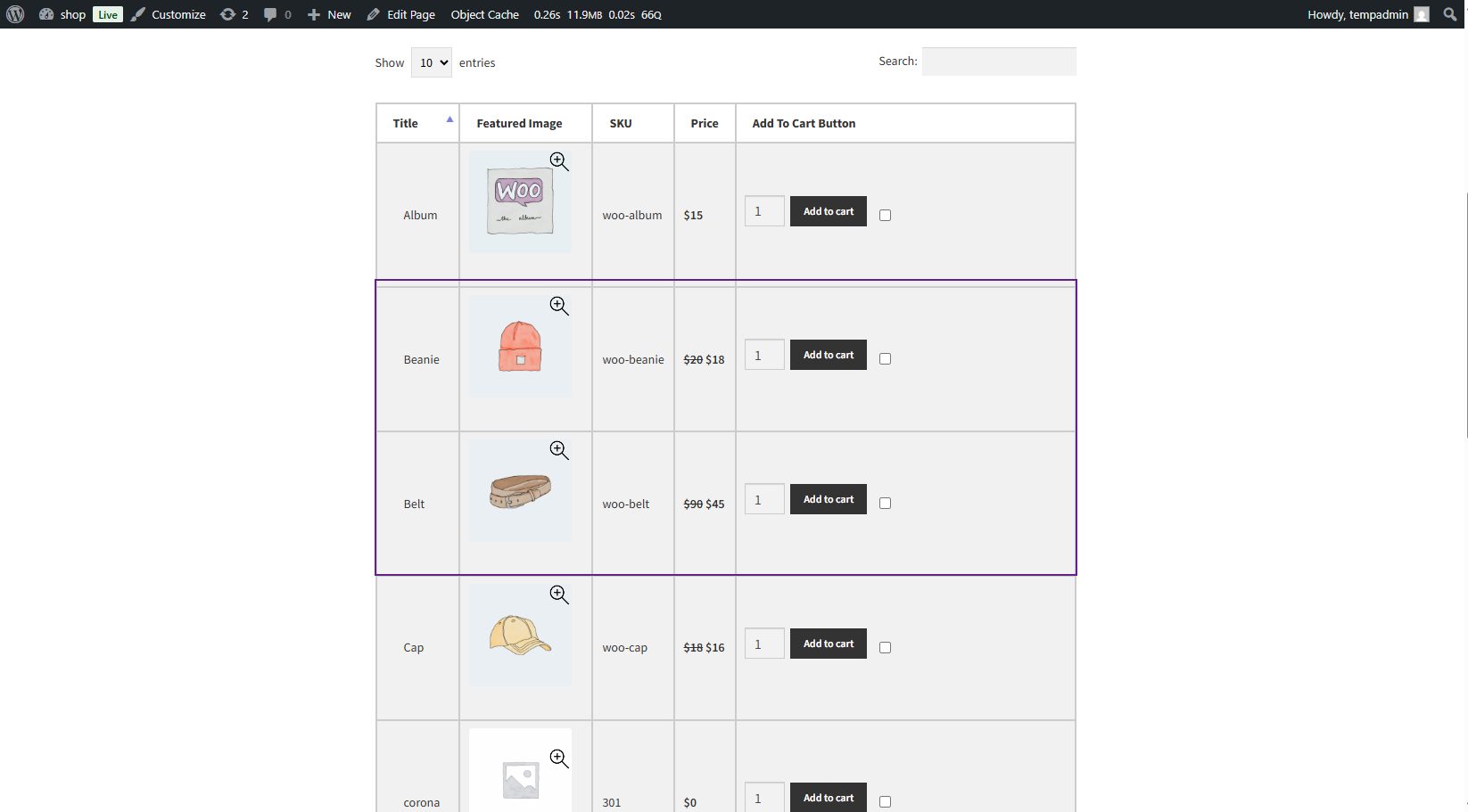
- A Select Options button that redirects to the grouped product’s single product page.
Wholesale for WooCommerce Extension
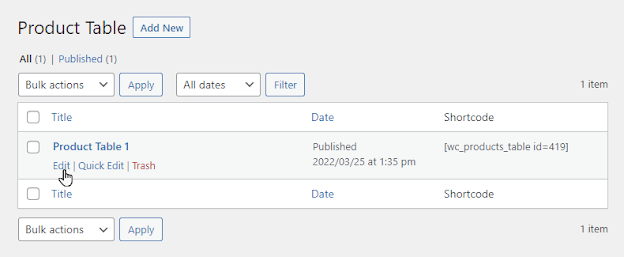
↑ Back to top- Once the Wholesale for WooCommerce plugin is installed, navigate to the Admin Dashboard > WooCommerce > Product Table.
- Now you’re on the Product Table page.
- Hover over the Product Table to view the suboptions.
- Click on the Edit suboption.
- On the Edit Product Table page, go to the Wholesale Settings section.
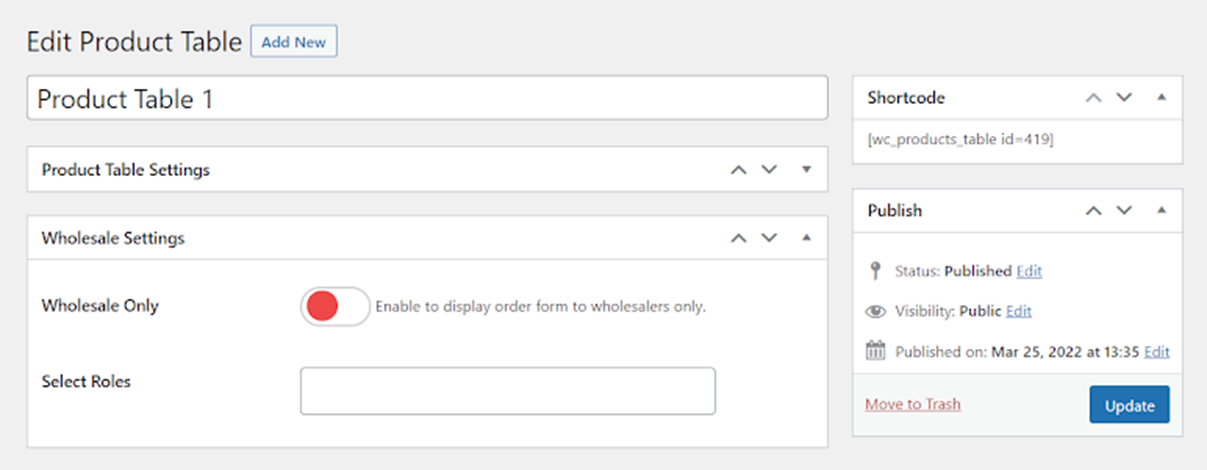
- We have two options in the Wholesale Settings section.
Wholesale Only
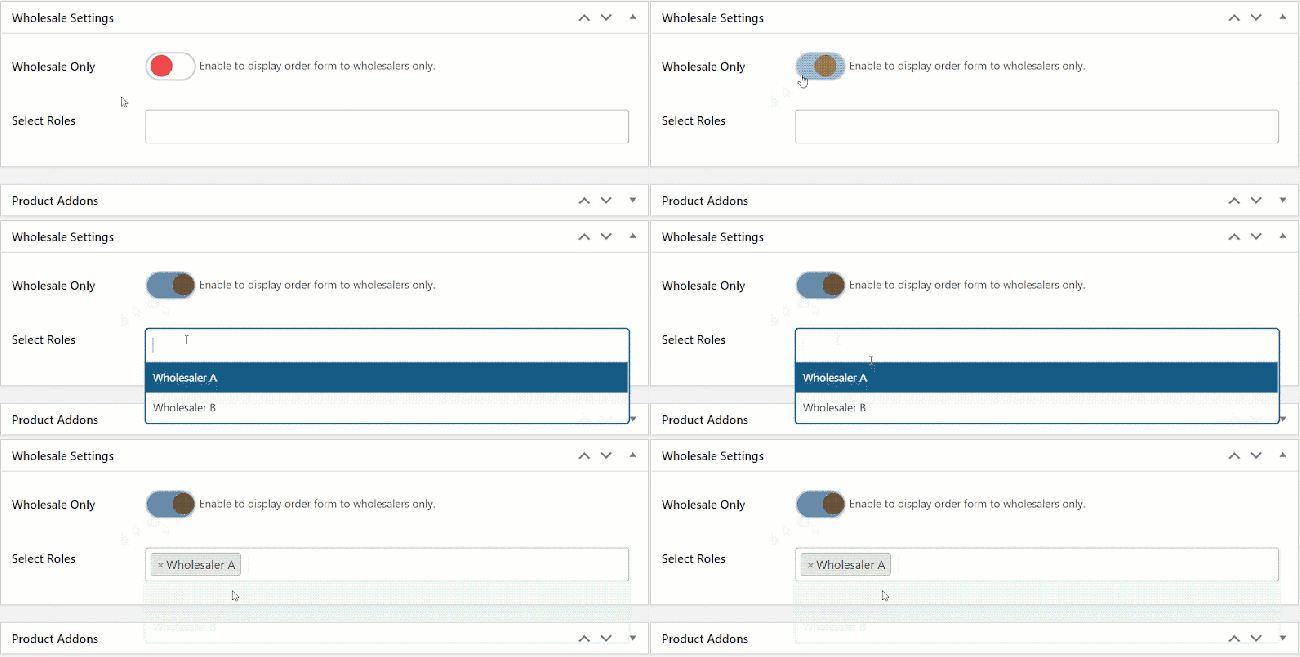
- Toggle the button to display the product table only to the selected wholesale user roles.
Selected Roles
- Select the wholesale user roles.
- The product table will only be visible to the user roles selected in this option.
Front-End Impact
For Guest Role
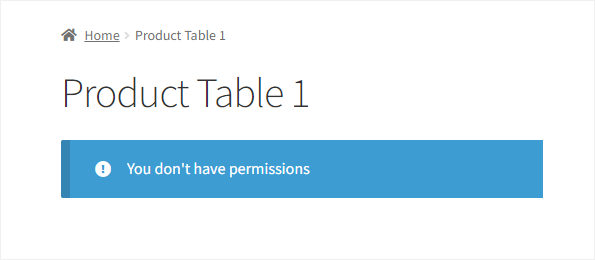
- The Product Table will not appear.
- A message will appear when any Guest User or other Wholesale User Roles are not selected in the Select Role option in the Wholesale Settings section.
For the selected Wholesaler User Role
The Product Table will appear for the Wholesale User Roles, selected in the Select Role option in the Wholesale Settings section.
Product Addons Plugin
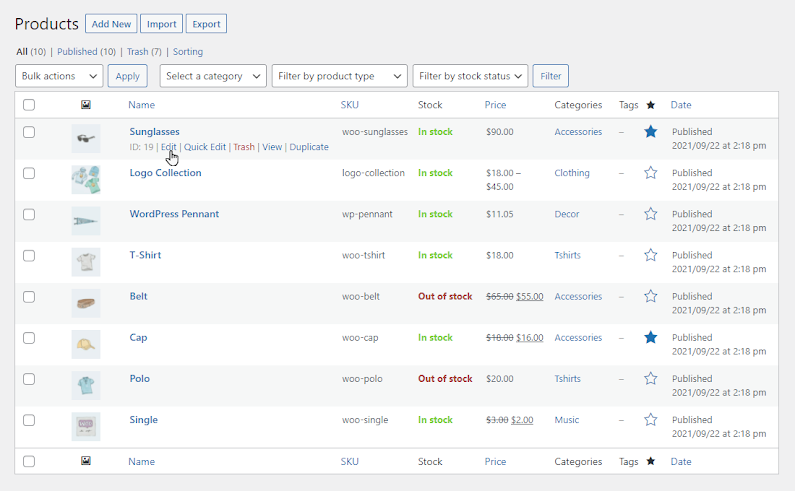
↑ Back to top- Navigate to Admin Dashboard > Products > All Products.
- Hover over any product to view suboptions.
- Click on the Edit suboptions.
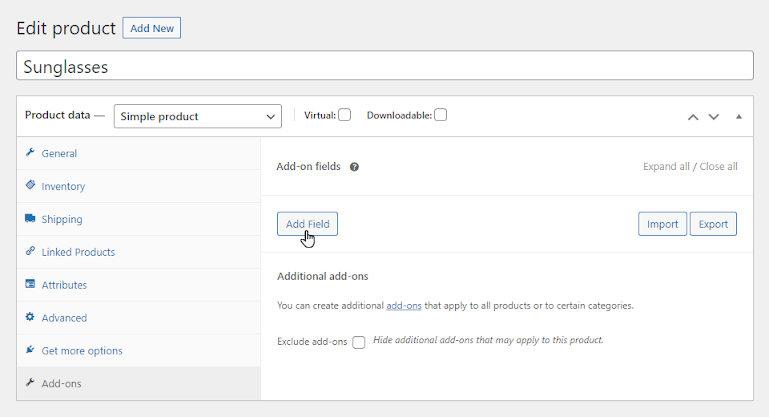
- Go to the Add-ons tab in the Product Data section.
- Click on the Add Field button to create your Add-on for the product.
- Add the title of your Add-on and create options for it.
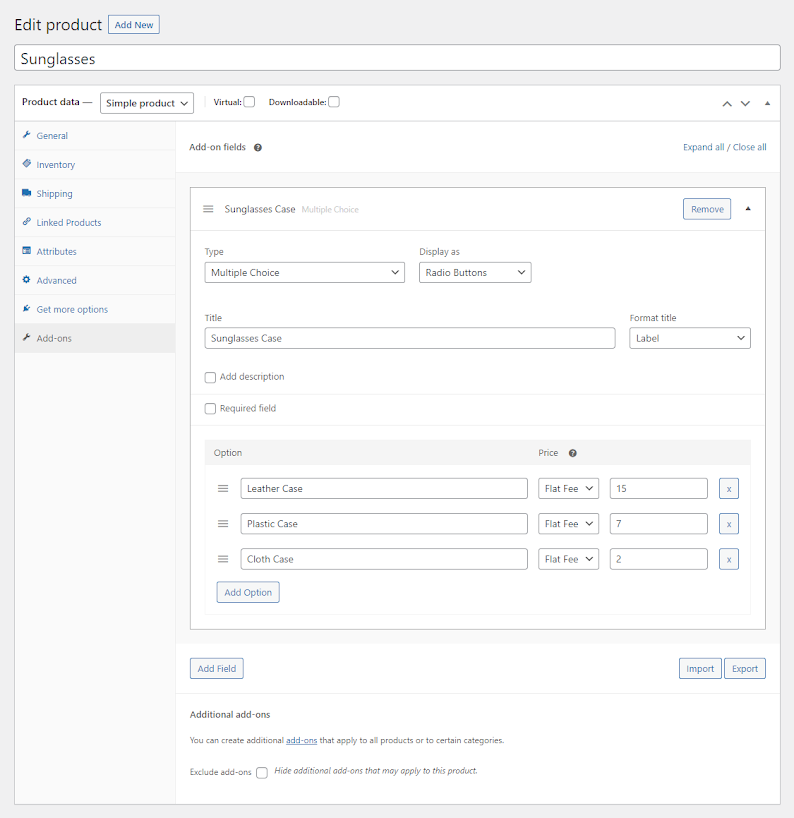
- Once done, click on the Update button.
- Now, navigate to Admin Dashboard > WooCommerce > Product Table.
- Now you’re on the Product Table page.
- Hover over the Product Table to view the suboptions.
- Click on the Edit suboption.
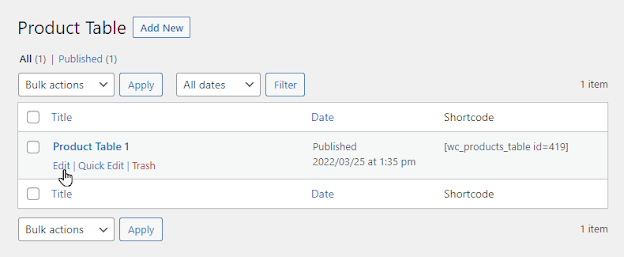
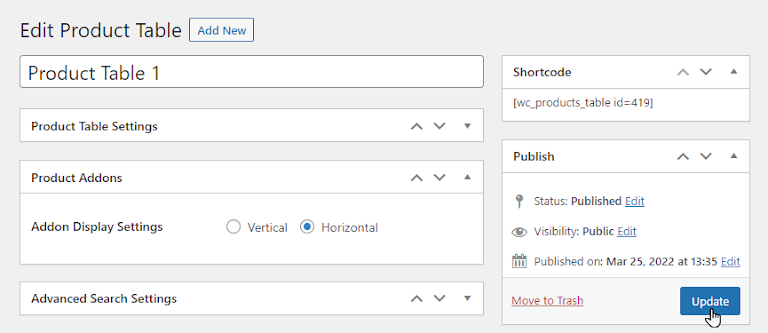
- On the Edit Product Table page, go to the Product Addons section.
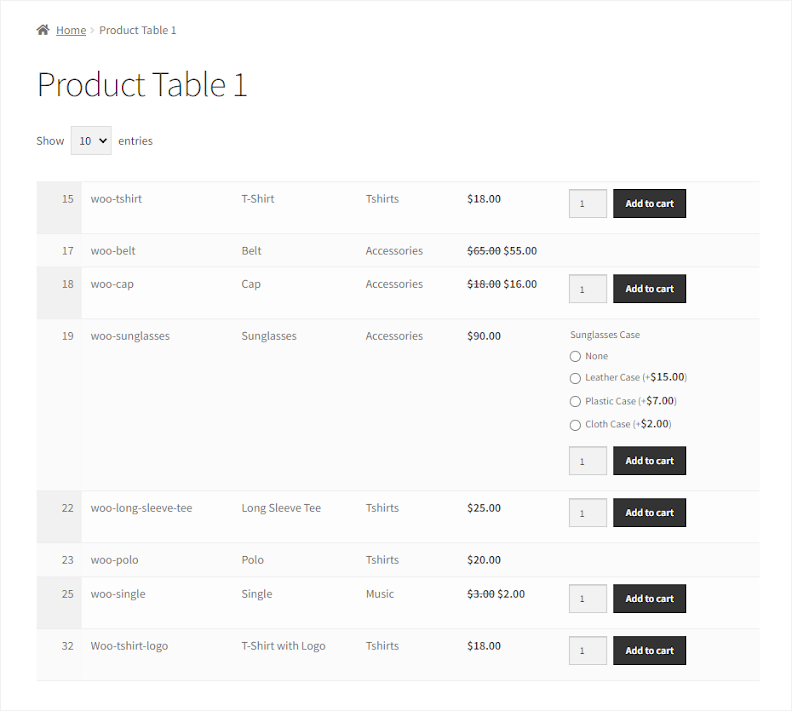
- We have an Addon Display Settings option having two display types:
Vertical
- Select the Vertical display type in the Addon Display Settings option and click the Update button.
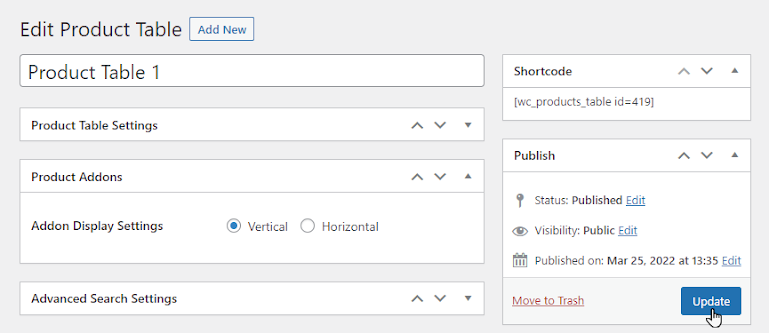
Front-End Impact
- The Addons created will appear against the product in Vertical form.

- Select any Add-on and click on the Add to Cart button.
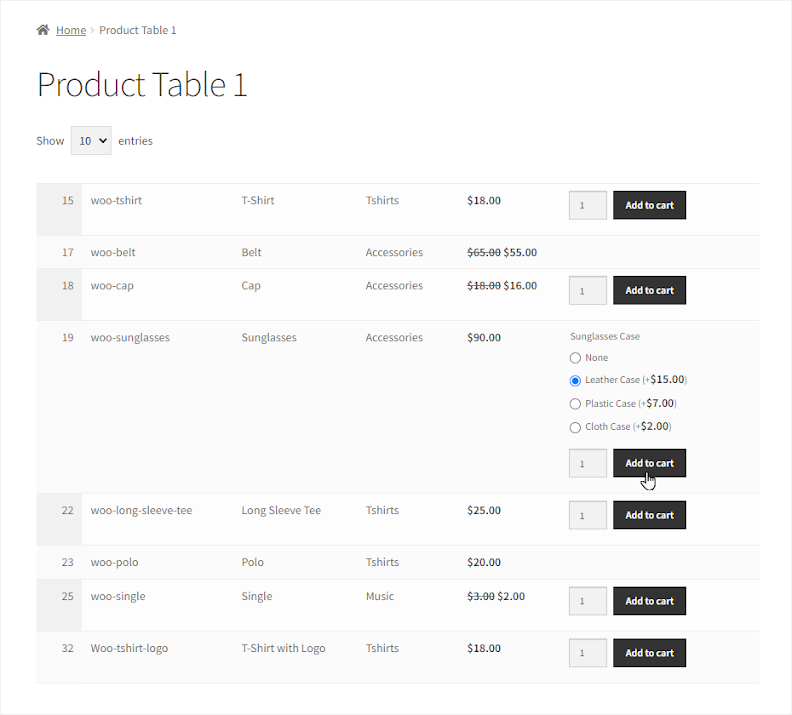
- Once done, navigate to the Cart Page.
- On the Cart page, we can see that the Addon is successfully added, and the amount is added in the Subtotal section.
- Click on the Proceed to checkout button.

- We can see that the Add-on is successfully added in the Your Order section on the Checkout page.
- Click on the Place Order button.

- Your order has been successfully placed.
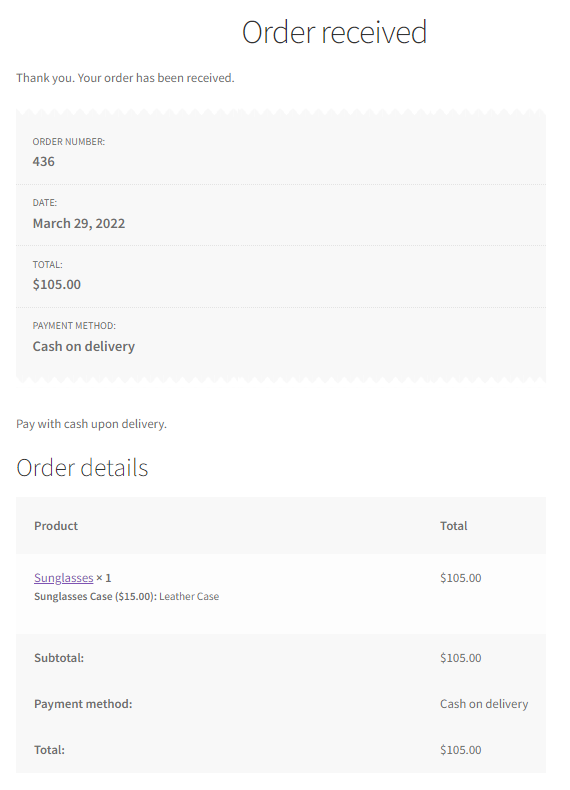
- Navigate to Admin Dashboard > WooCommerce > Orders.
- Click on the Order to view its details.
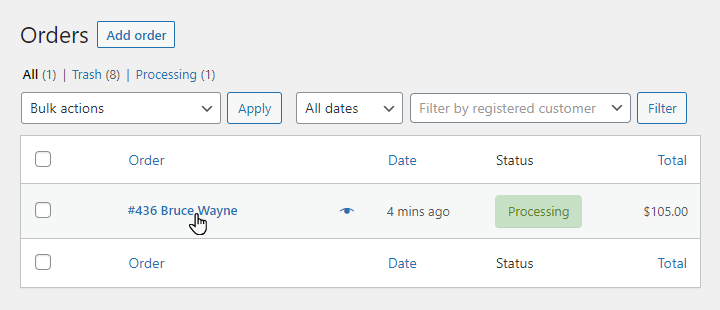
- Click on the order to open the Edit Order page.
- We can see that the Add-on is also mentioned in the Order details.

Horizontal
- Select the Horizontal display type in the Addon Display Settings option and click the Update button.
Front-End Impact
- The Add-on created will appear against the product in Vertical form.

Name Your Price Extension
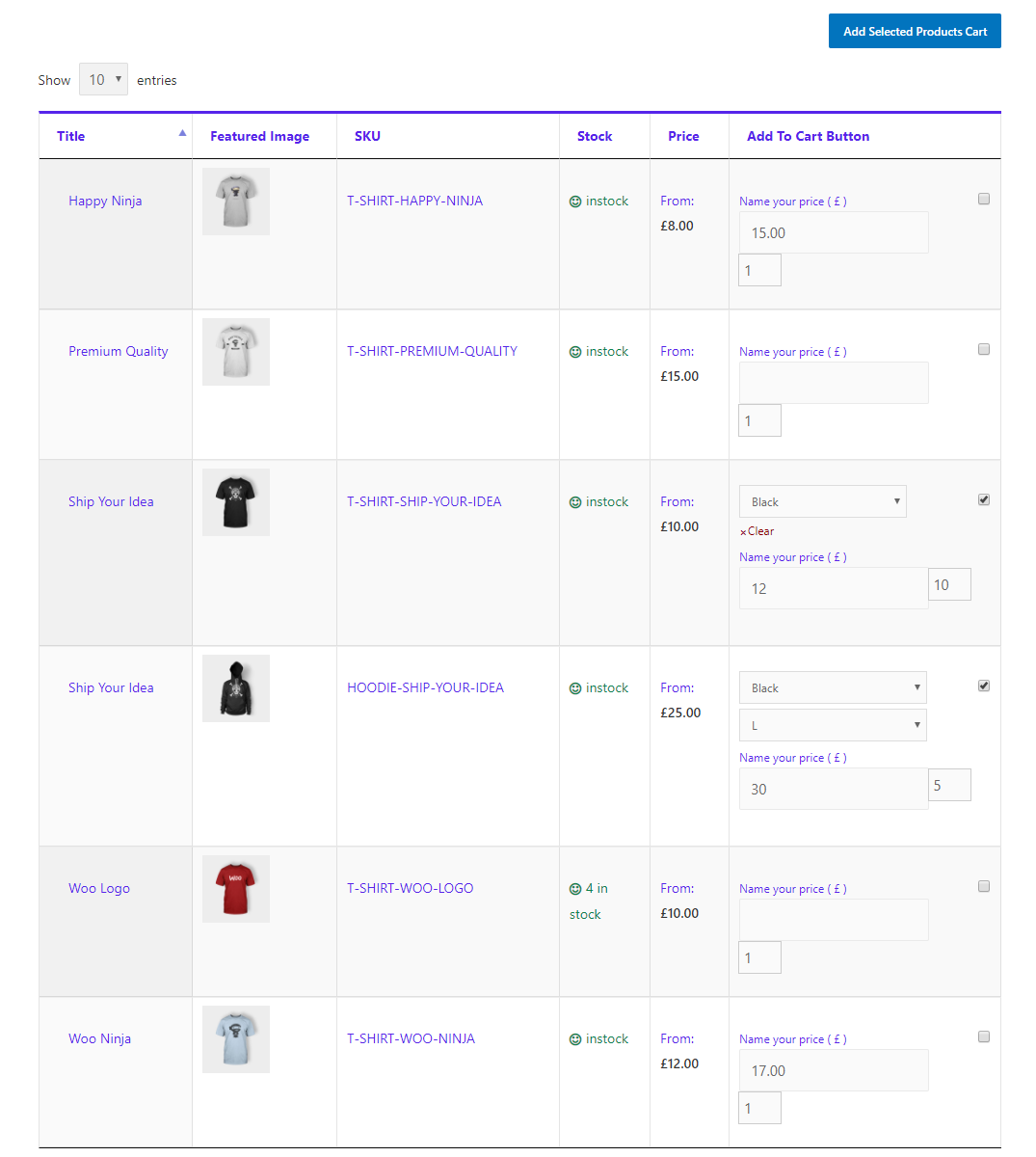
↑ Back to topThe Name Your Price extension for WooCommerce lets your customers pay what they want and allows you to be flexible in what price you are willing to accept for selected products. You can suggest a price to your customers and optionally enforce a minimum acceptable price, or leave it entirely in the hands of the customer.
- Collect data on what price customers are willing to pay.
- Collect donations for multiple campaigns from a single table
- Allow customers to set a price on all of a product’s variations or just one.
- Make a profit on products you’d otherwise give away.
Invoice Payment Gateway for WooCommerce
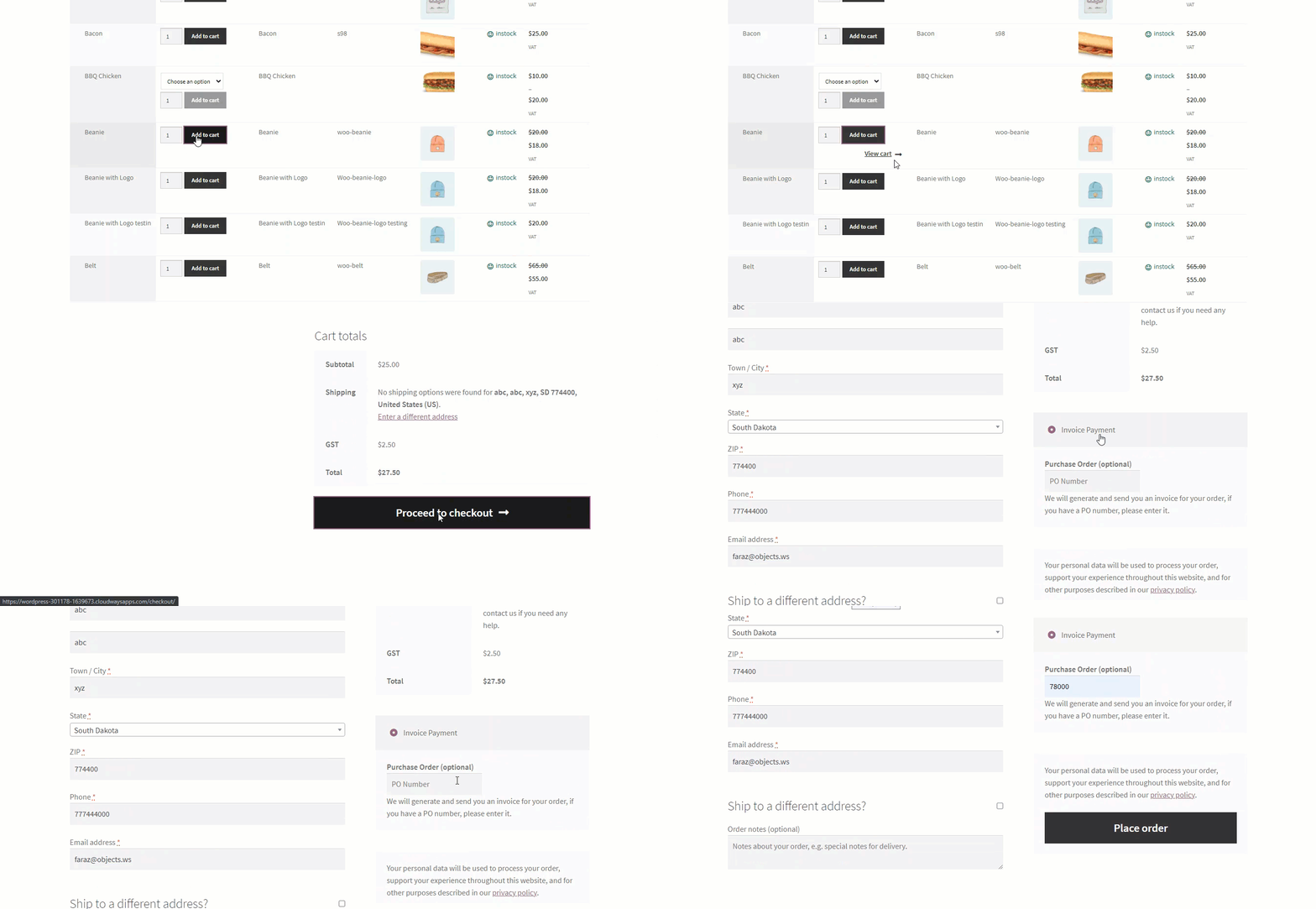
↑ Back to topThe Bulk Order Form for WooCommerce is fully compatible with the Invoice Payment Gateway for WooCommerce. Customers who send products to check out from Bulk Order Form product tables will be able to see Invoice Payment Gateway as their preferred payment option.
WPML Plugin
↑ Back to top- Once the WPML plugin is installed and configured, now navigate to the Admin Dashboard > WooCommerce > Product Table.
- Now you’re on the Product Table page.
- Hover over the Product Table to view the suboptions.
- Click on the Edit suboption.
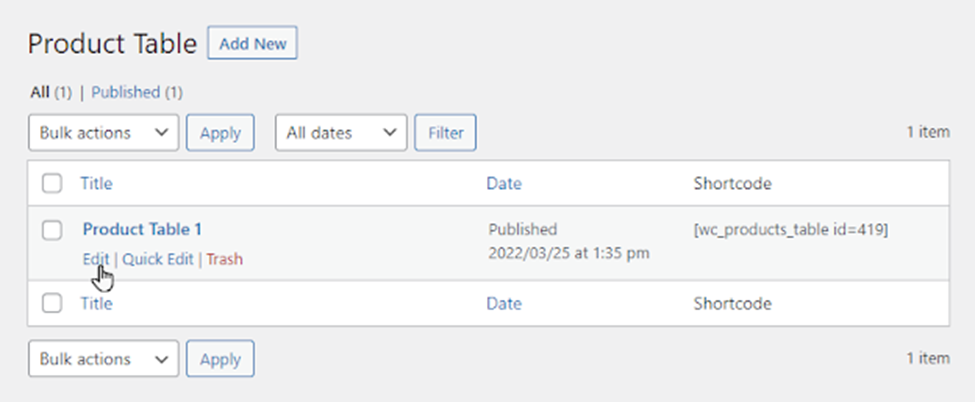
- On the Edit Product Table page, go to the Multilingual Content Setup section.
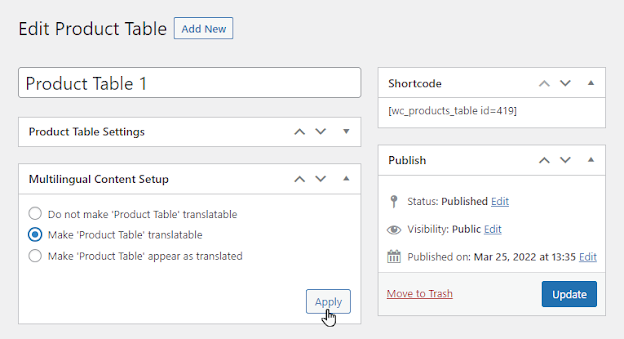
- Select the Make ‘Product Table’ translatable option and click on the Apply button.
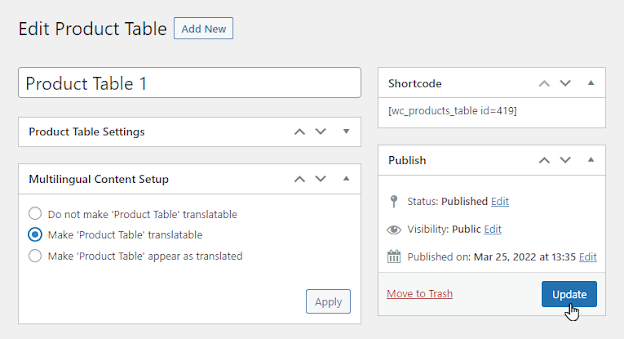
- Once done, click on the Update option.
Front-End Impact
English (Default Language of Website):
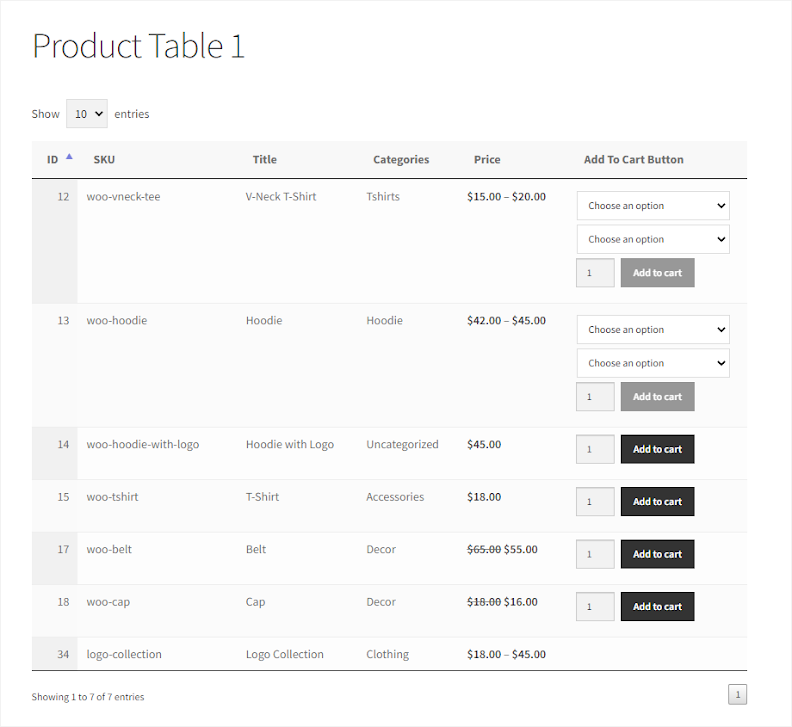
- German:
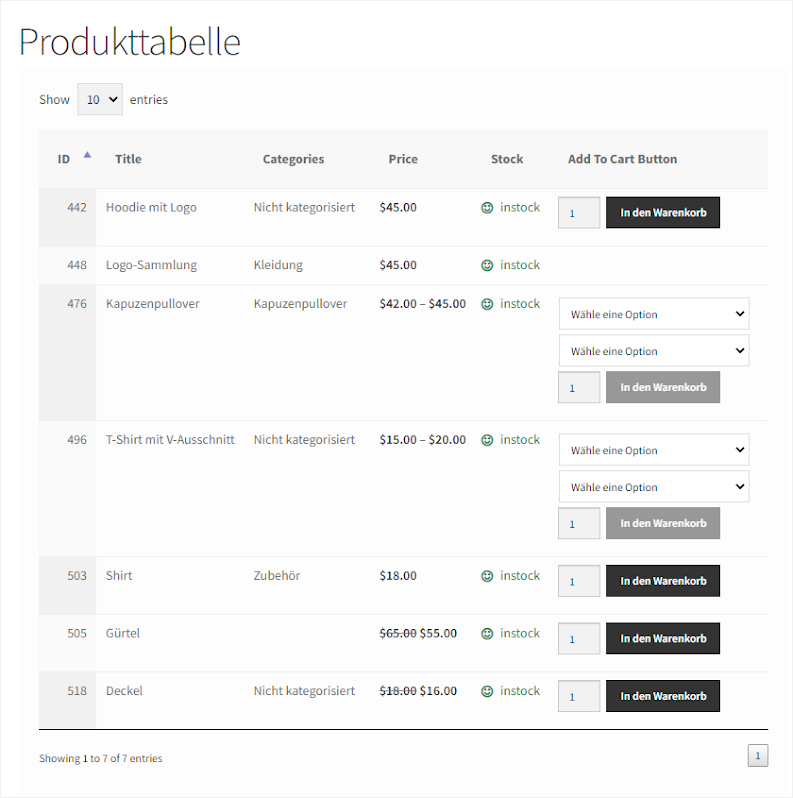
NOTE: Numeric fields will not be translated.
Min/Max Quantity by WooCommerce
↑ Back to topVariable Bulk Order Form
- Download and Install the Min/Max Quantity by WooCommerce plugin.
- Follow the Min/Max Quantity by WooCommerce plugin documentation to set up and configure the plugin.
- Once done, Navigate to WordPress Admin Dashboard > All Products > Variable Product.
- Edit the Product.
- Navigate to the Product Data > Variations.
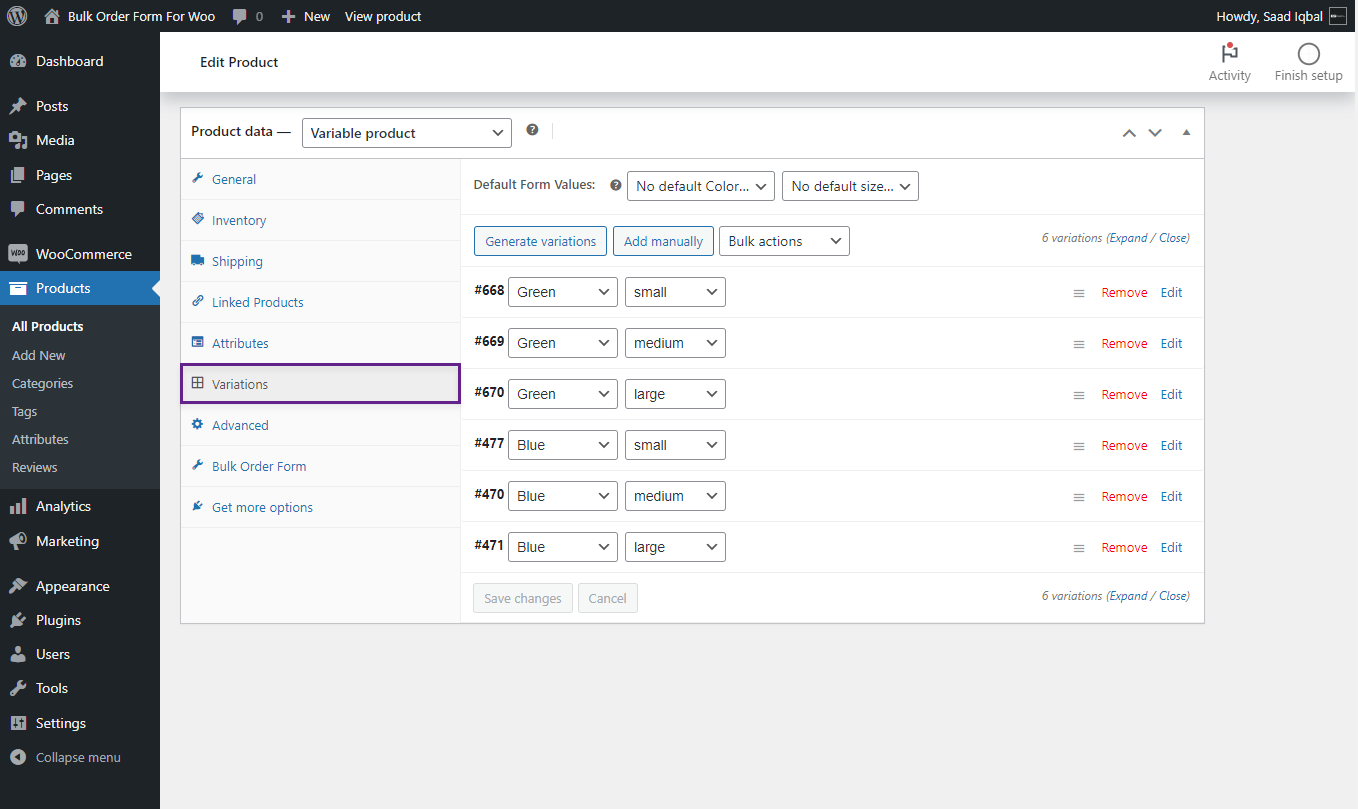
- Edit the Variation by clicking on the edit option.
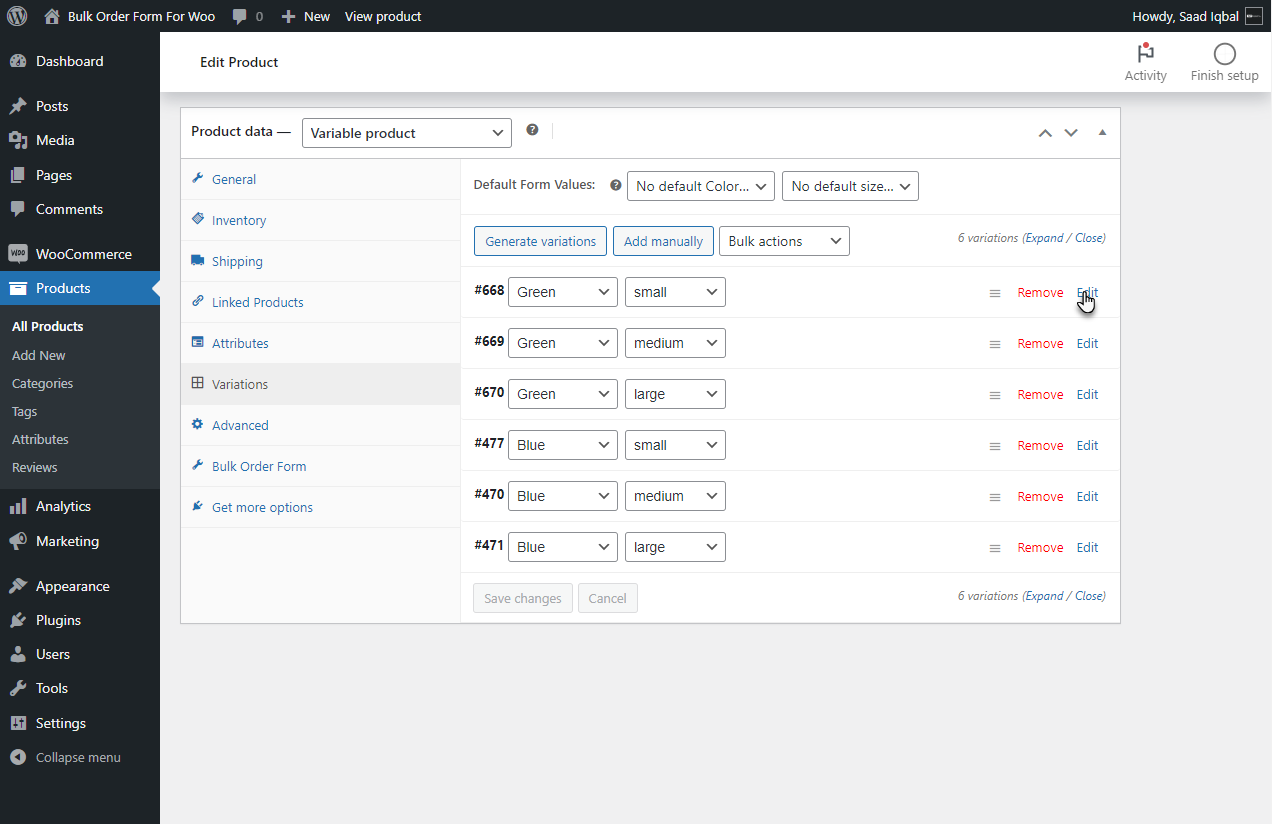
- Select the Quantity Rules radio button.
- After enabling Quantity Rules, two options will be available where you can set Minimum and Maximum Quantity for the particular Product variation.
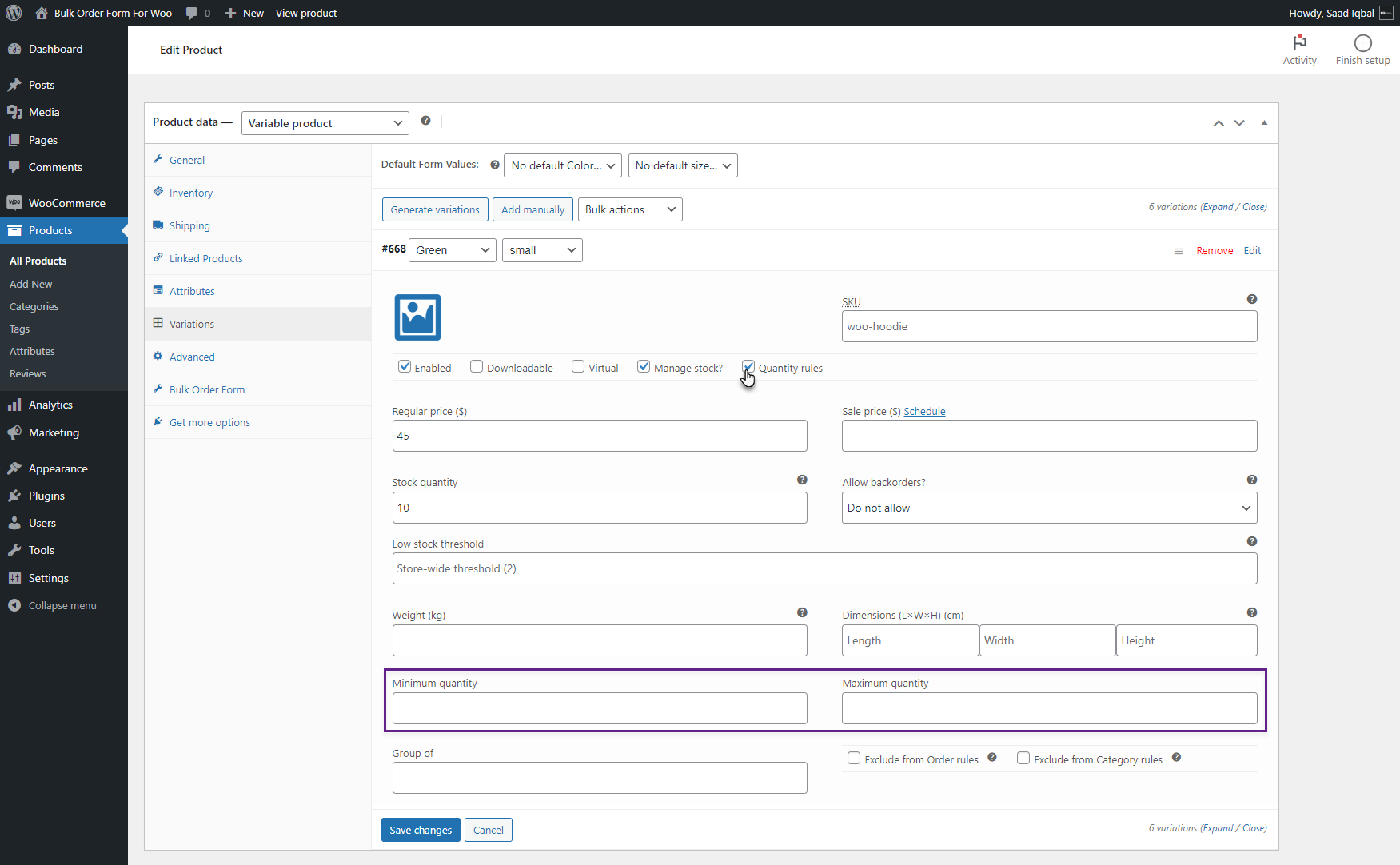
- Set the Minimum and Maximum Quantity value for the Variation.
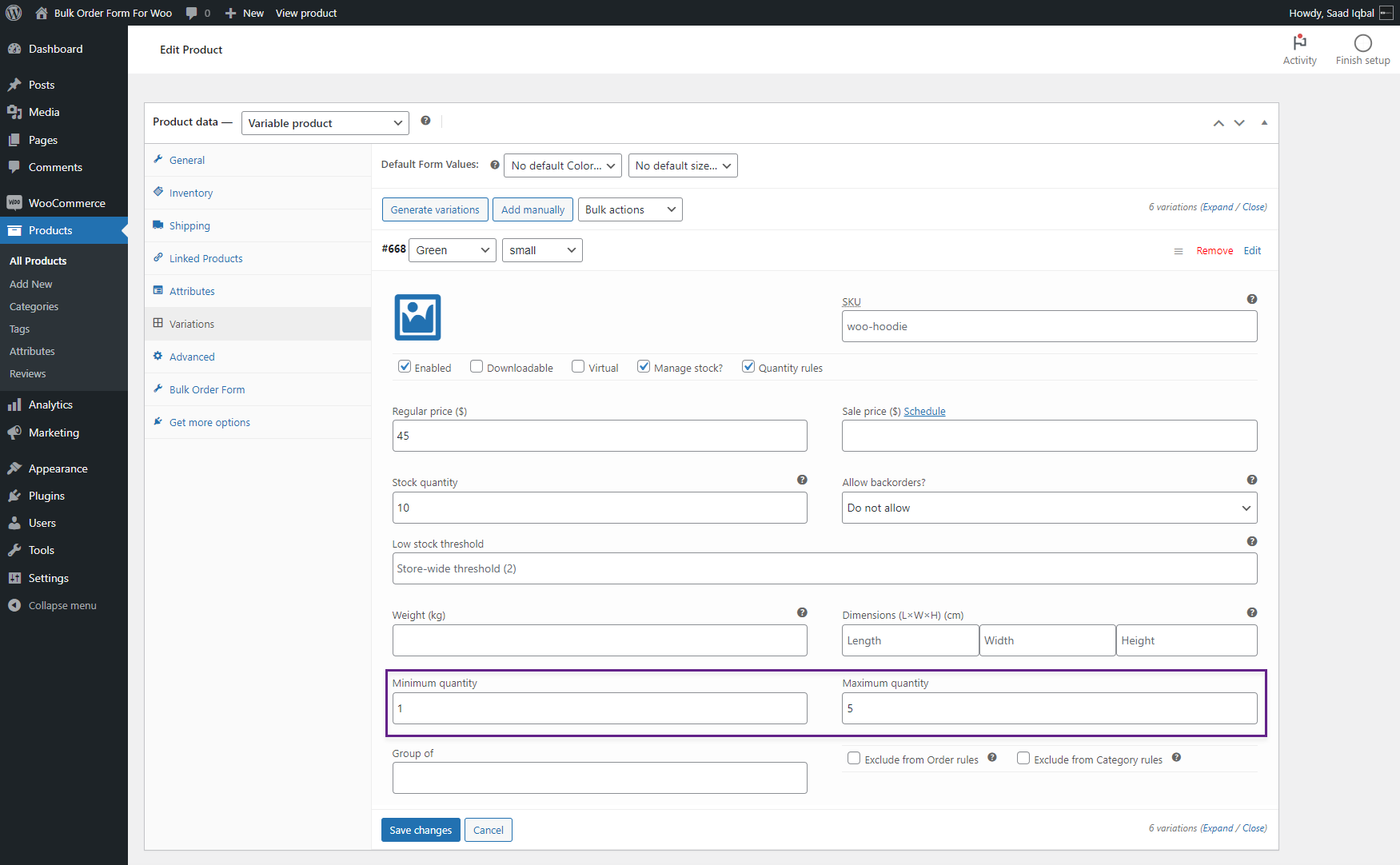
- Click on Save Changes to implement the change.
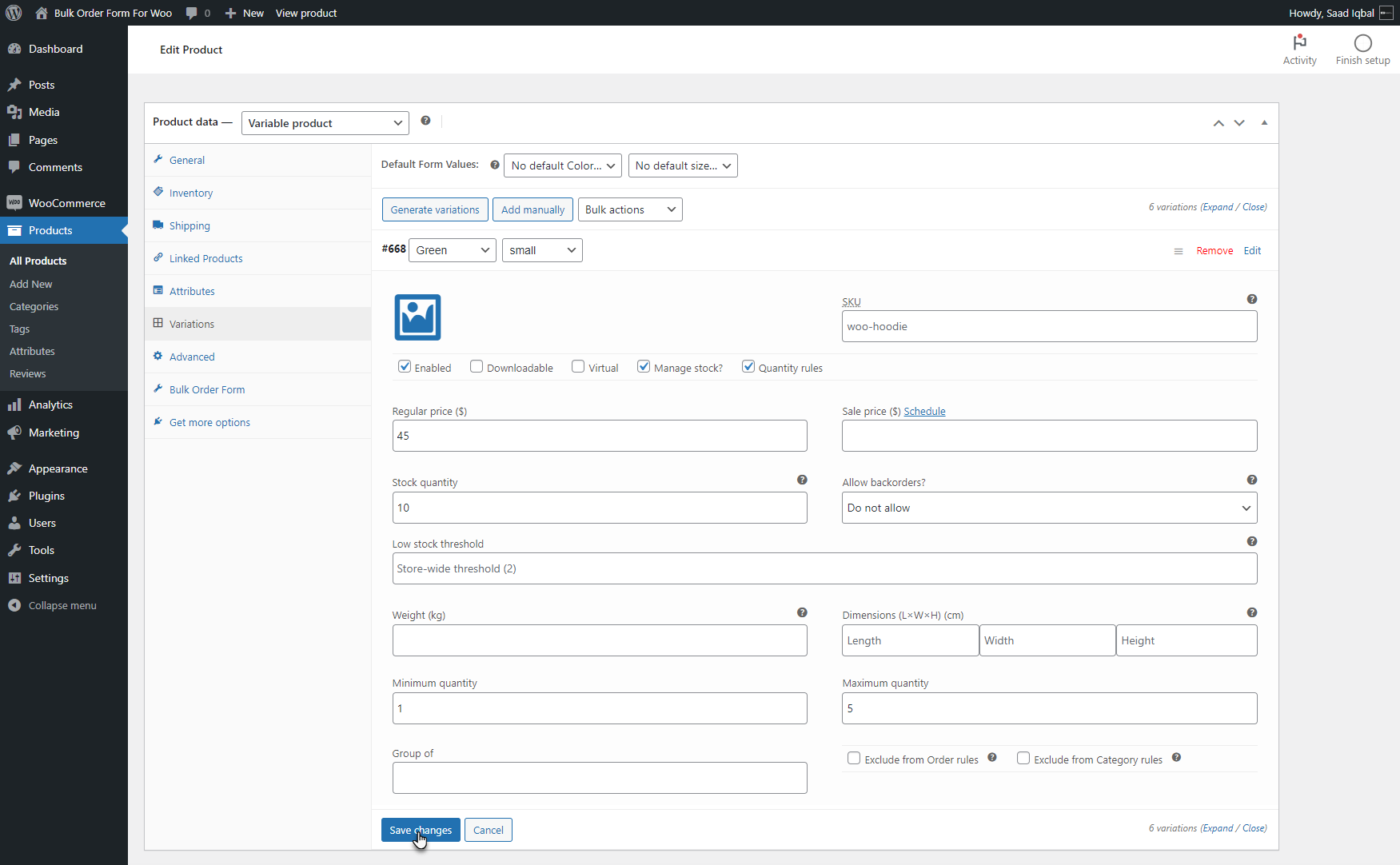
NOTE: Min/Max Quantity can be added to other variations by the same process.
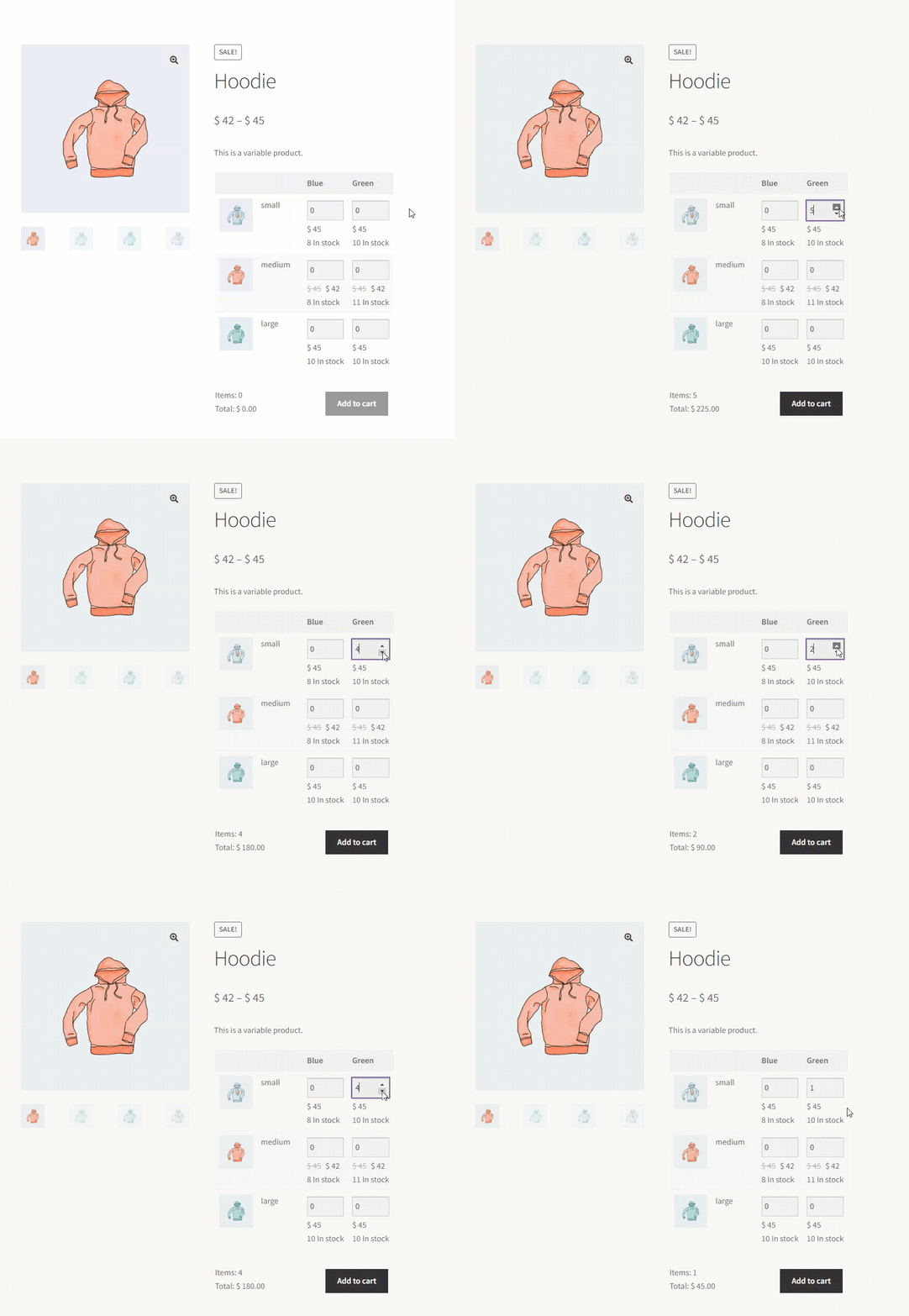
Front-End Impact
- Go to the Shop page.
- Select Variable Product.
- Navigate to the Product page of Variable Product.
Before
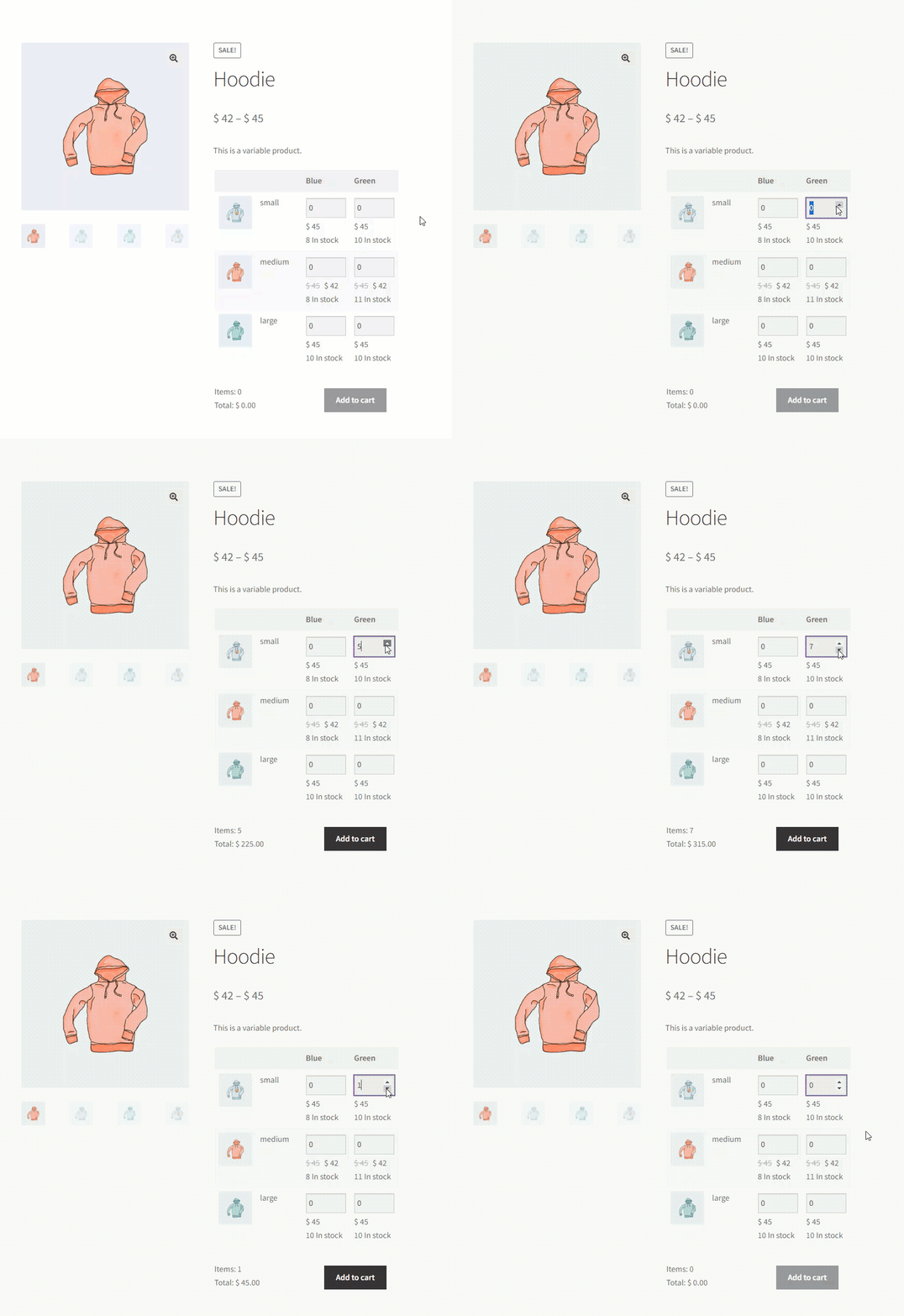
After
Variable Quick Order Form
↑ Back to top- Navigate to WordPress Admin Dashboard > WooCommerce > Quick Order Form.
- Add a new Quick Order Form.
- Drop columns in the Quick Order Form as per your needs.
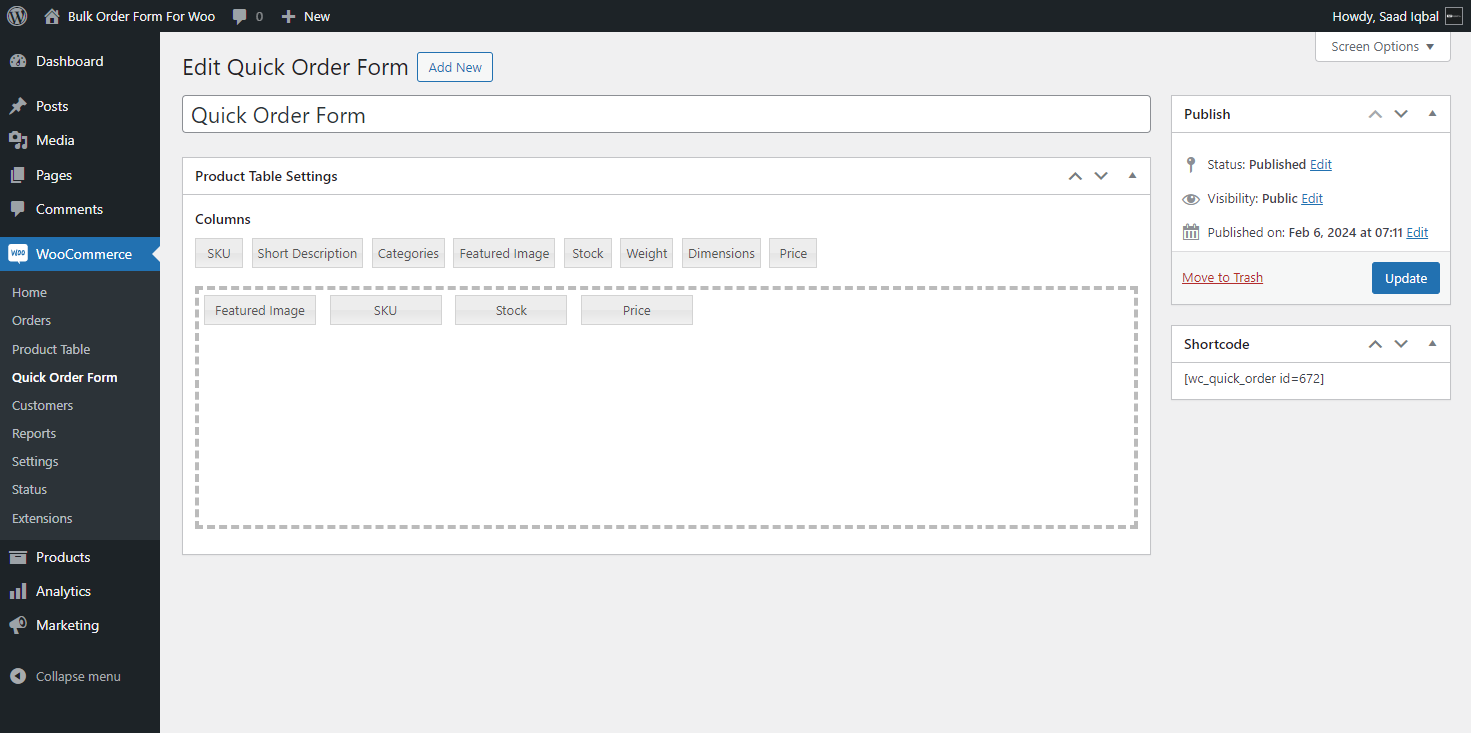
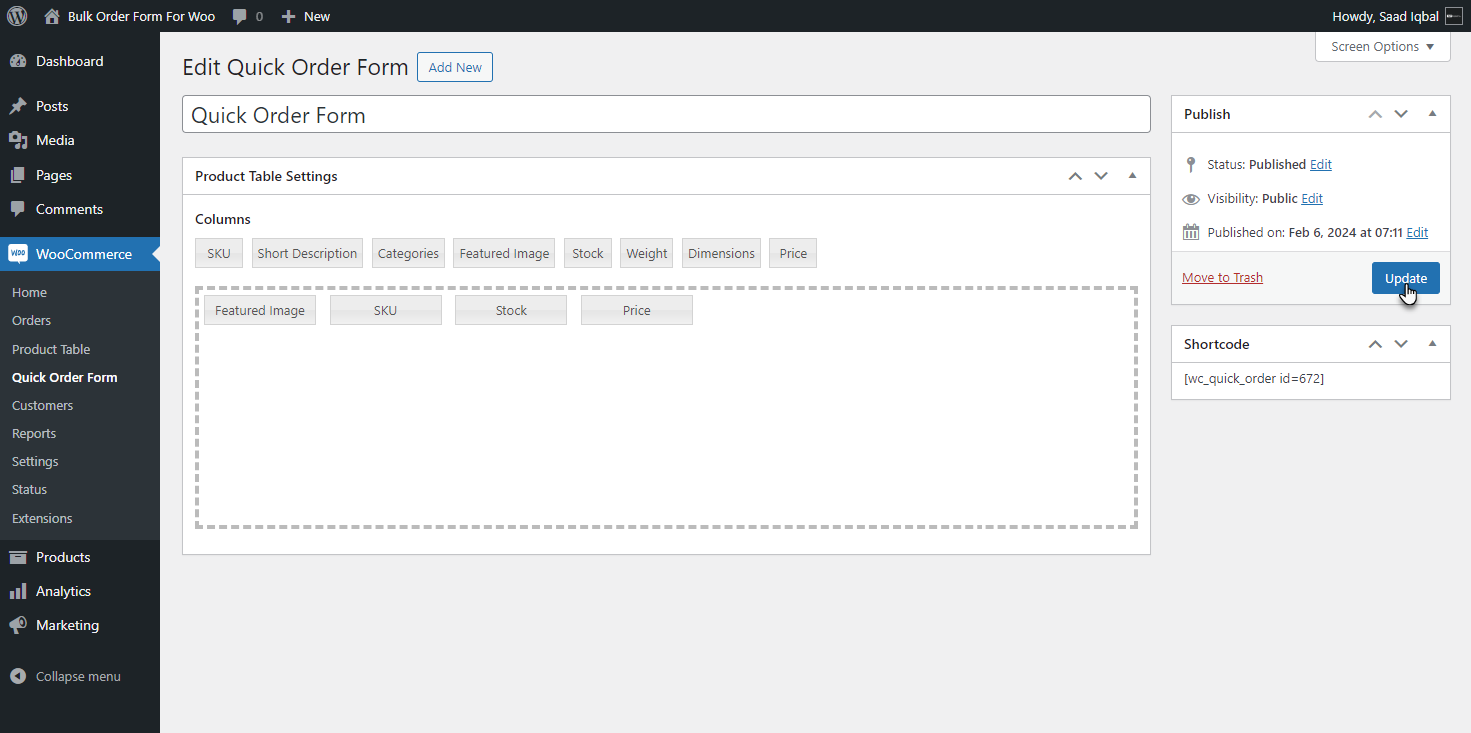
- Click on the Update button to save changes.
Manual Quantity Input
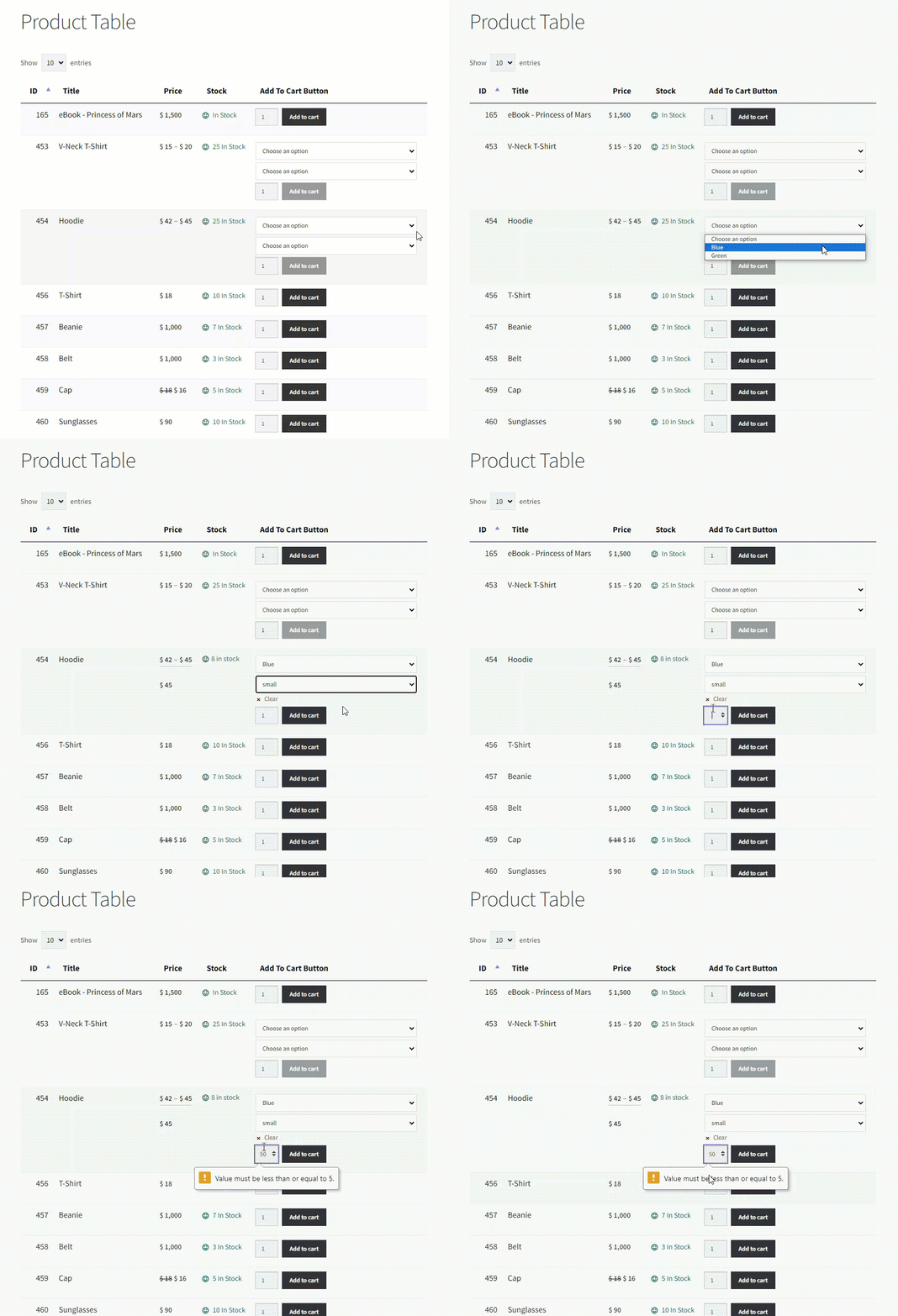
Product Table Page
- Once you have set Minimum and Maximum Quantity for the variable products.
- Go to the Product Table page.
- Select the variation of the variable product.
- Manually enter the Quantity you want to buy.
- Validation will allow you to stay within the set Quantity for the product.
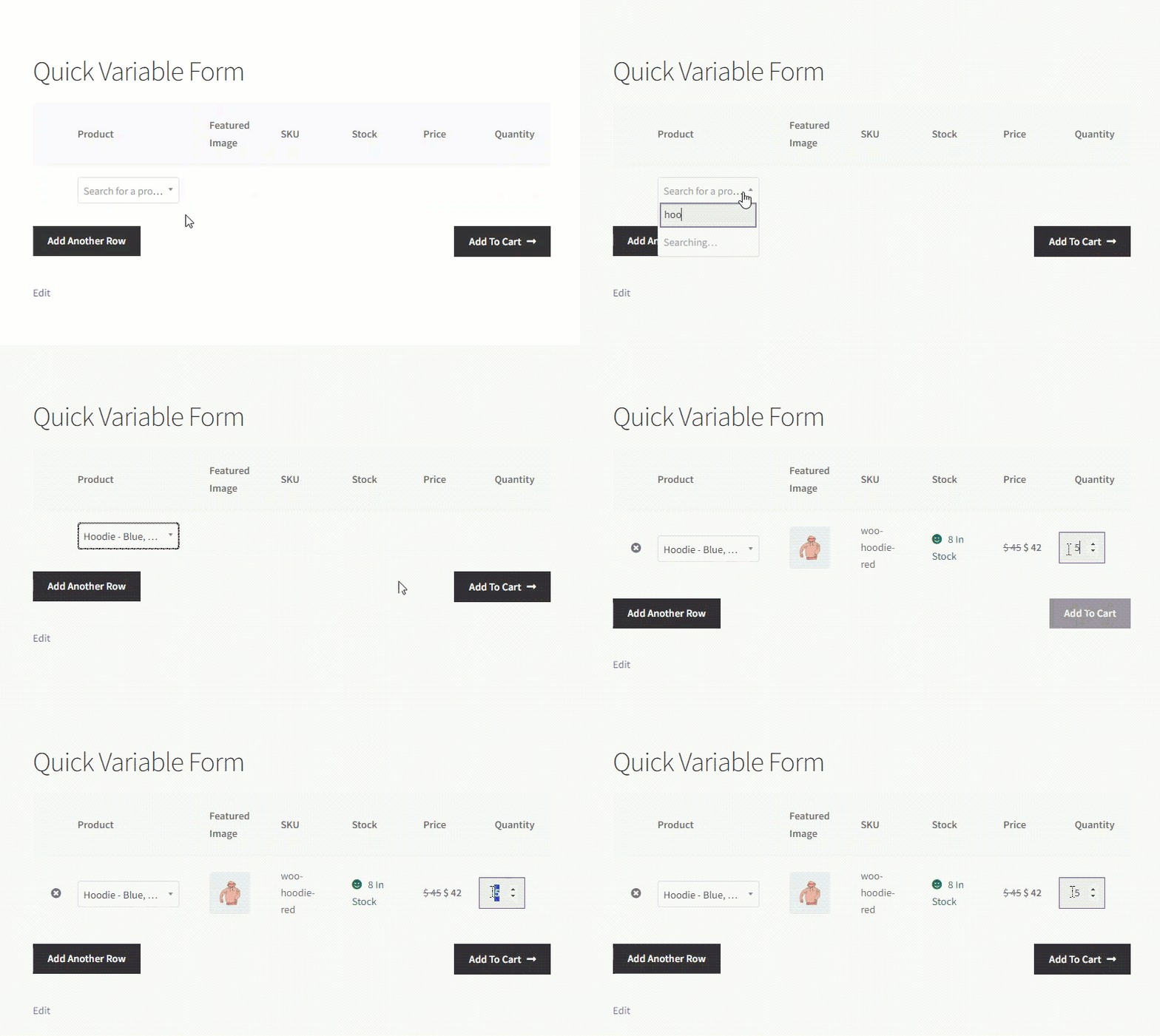
Quick Order Form Page
- Once you have set Minimum and Maximum Quantity for the variable products.
- Go to the Product Table page.
- Select the variation of the variable product.
- Manually enter the Quantity you want to buy within the defined Minimum and Maximum Quantity.
Product Bundle by WooCommerce
↑ Back to top- Download and Install the Product Bundle by WooCommerce plugin.
- Follow the Product Bundle by WooCommerce plugin documentation to set up and configure the plugin.
- Create a Product bundle as guided in the Product Bundle by WooCommerce plugin documentation.
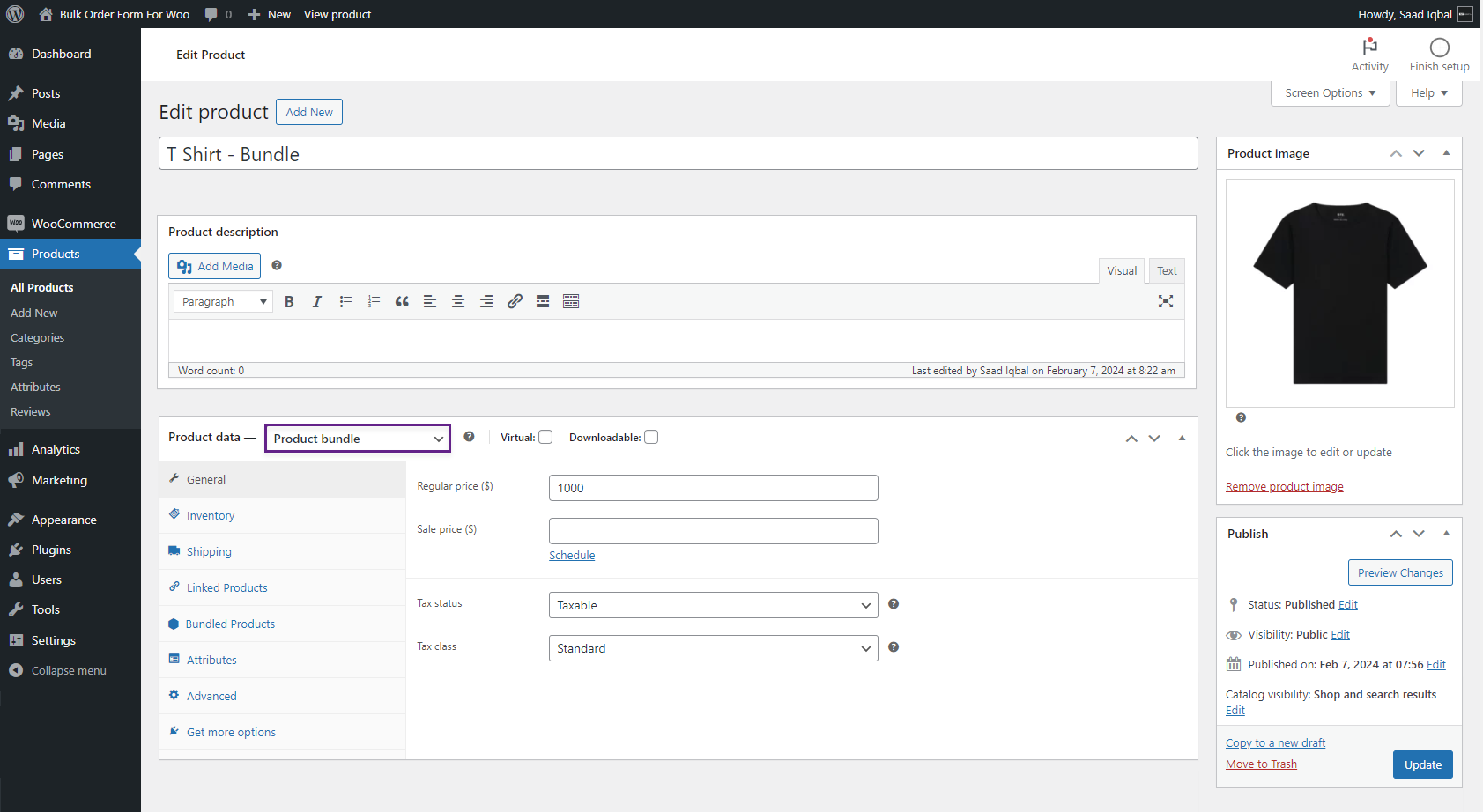
- Once done, Navigate to the Product Table Page.
- Click on the View Bundle Button on the Product Table to open Bundle Product.
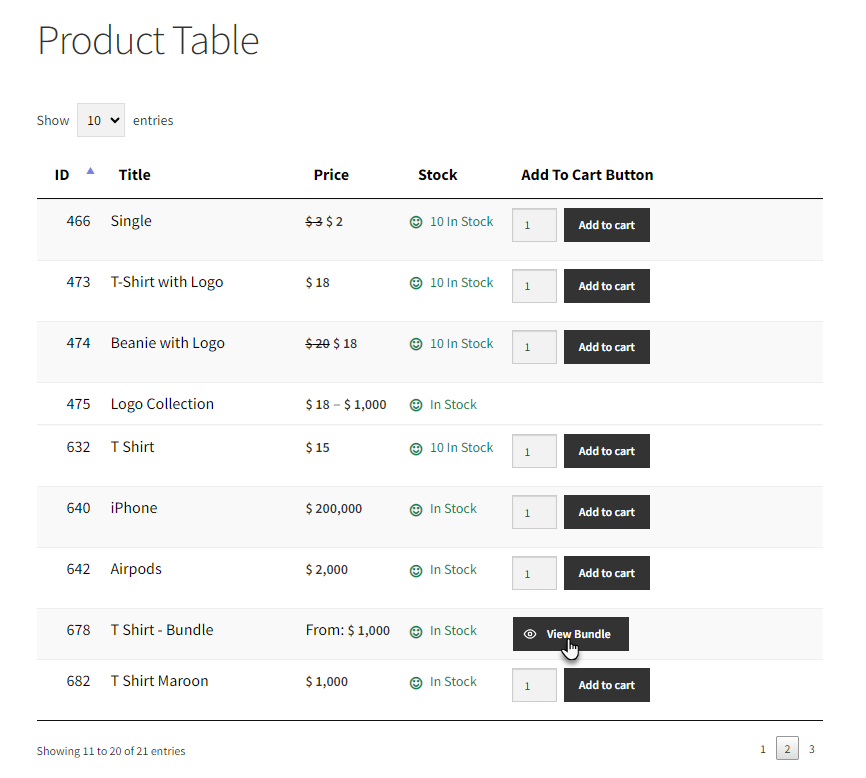
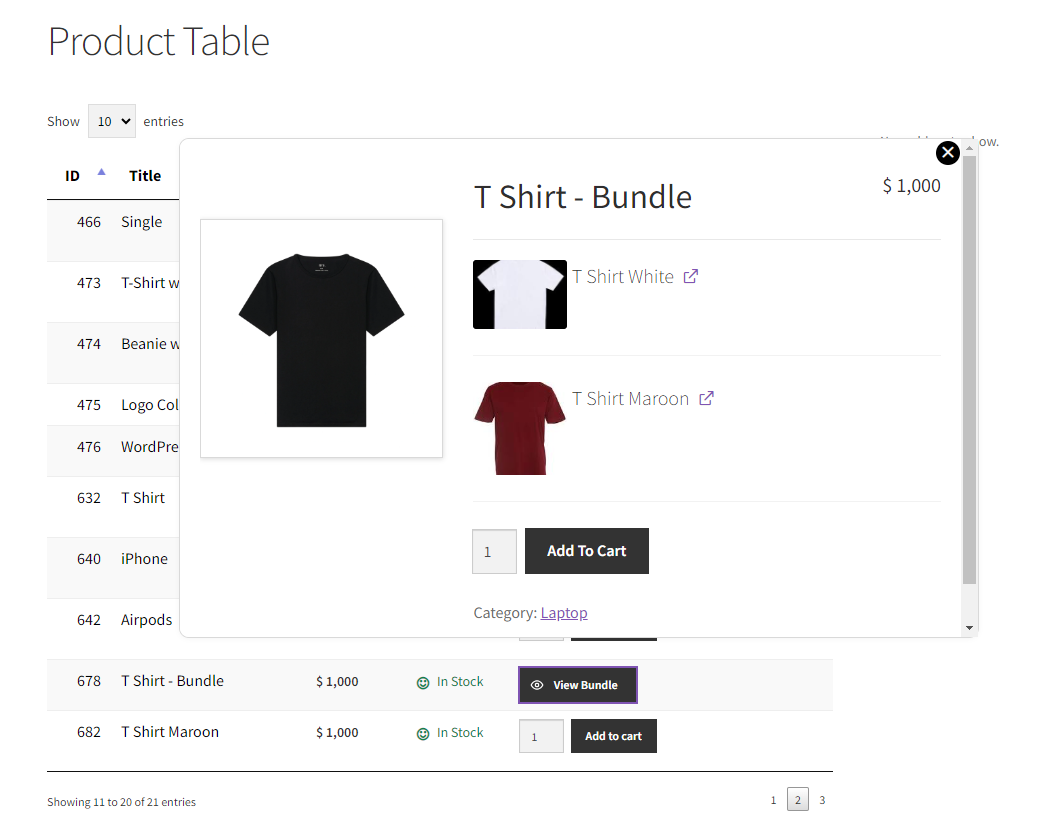
- A popup will appear next to you.
- All products associated with the Product Bundle will be listed in a popup.
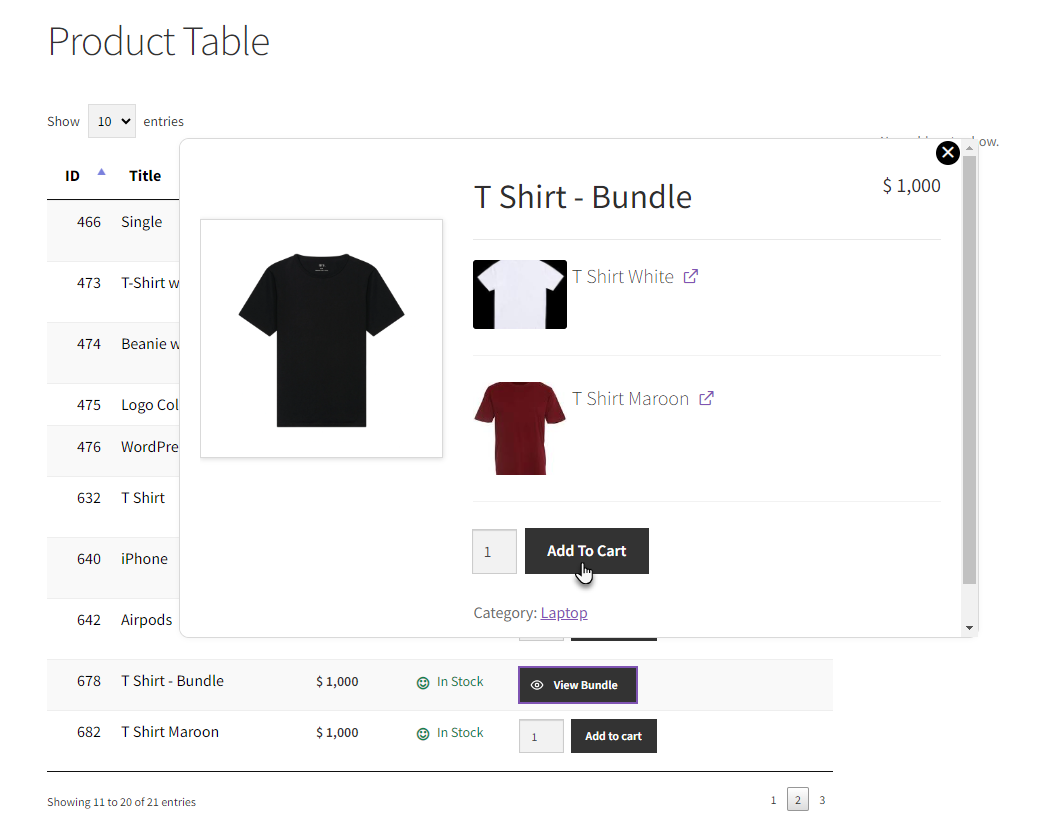
- Click on Add to Cart to add the bundle to the cart.
- Go to the Cart page.
- Navigate to the Proceed to Checkout page by clicking on the Proceed to Checkout button.
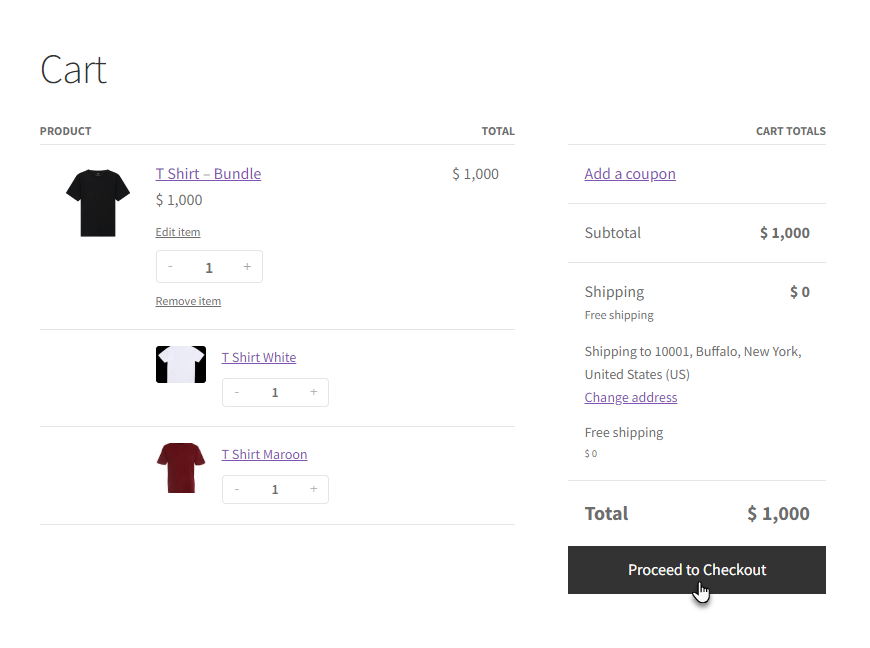
- Click on Place Order on the Checkout page to confirm your order.
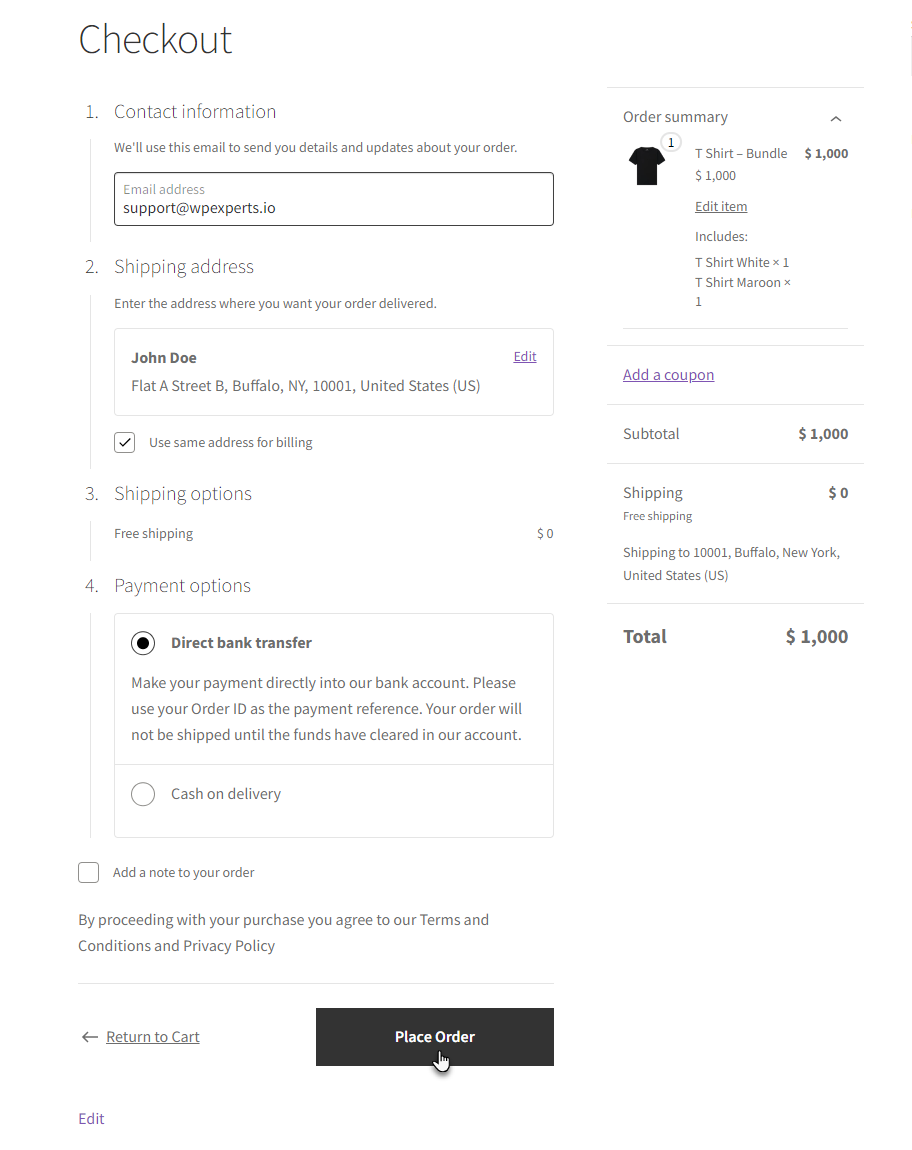
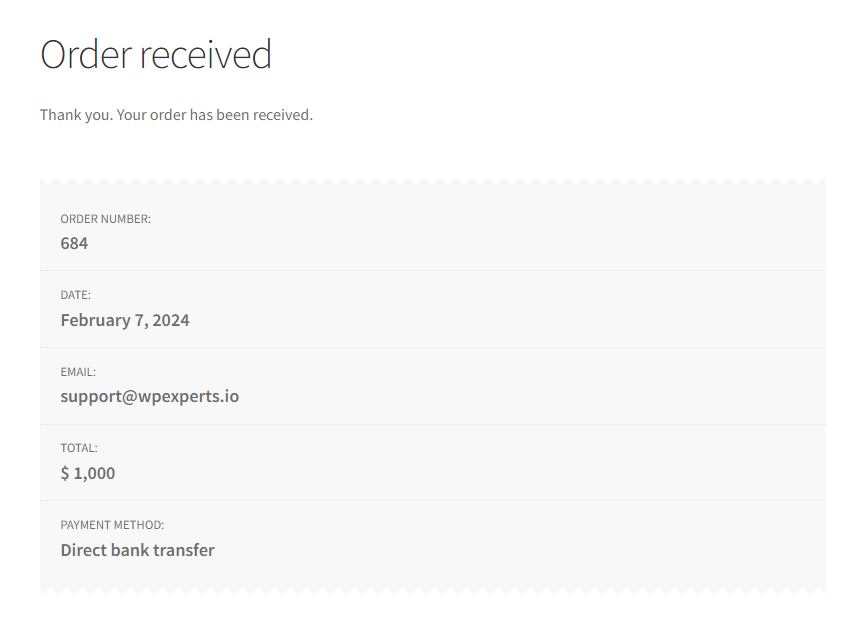
- Your Product Bundle order has been placed.
Box Office
↑ Back to top- Download the WooCommerce Box Office plugin by clicking here.
- Install the plugin and Activate it.
- For further plugin settings and information, please visit the WooCommerce Box Office.
- Go to WordPress Admin Dashboard > Products > All Products.
- Add or Edit a Product.

- Navigate to the Product Data section.
- Select the Ticket checkbox.
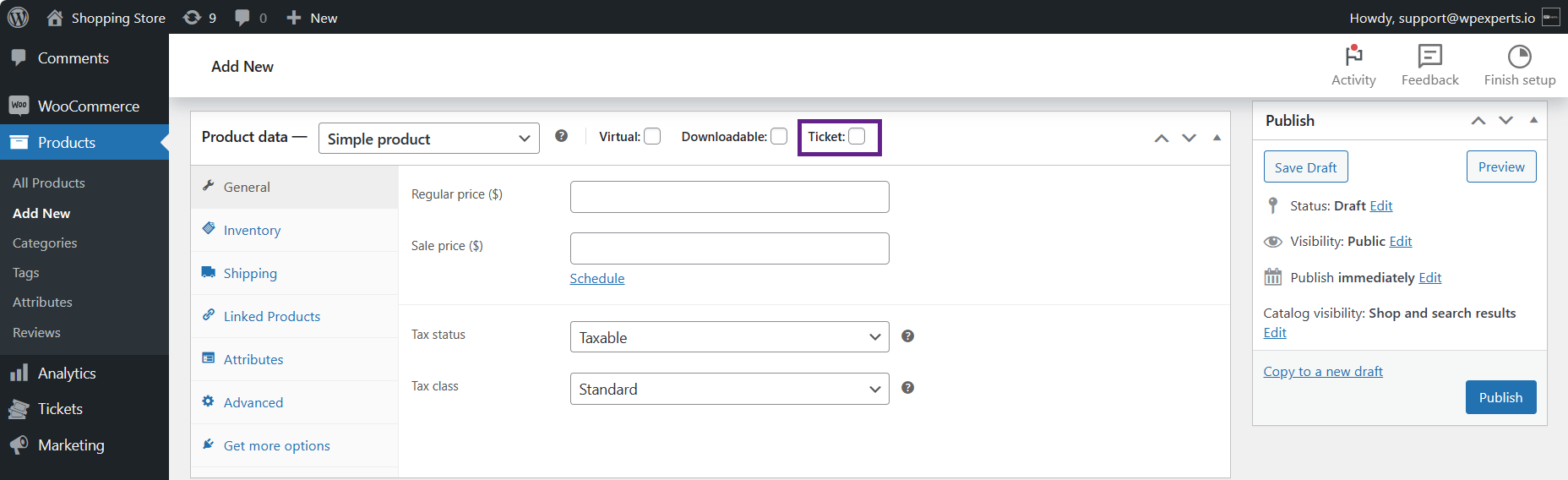
- Once done, additional ticket tabs will become accessible within the Product Data section.
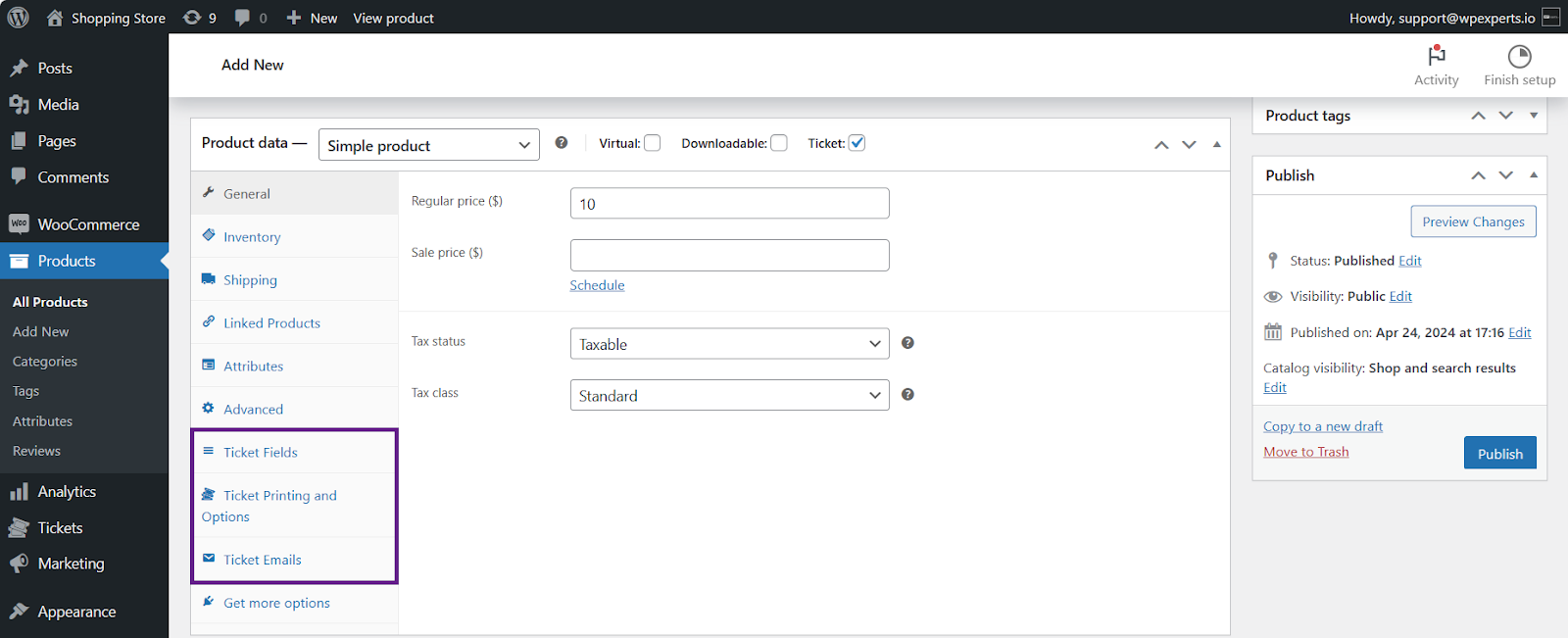
- Adjust the settings according to your needs.
- Click the Publish button.

Front-End Impact
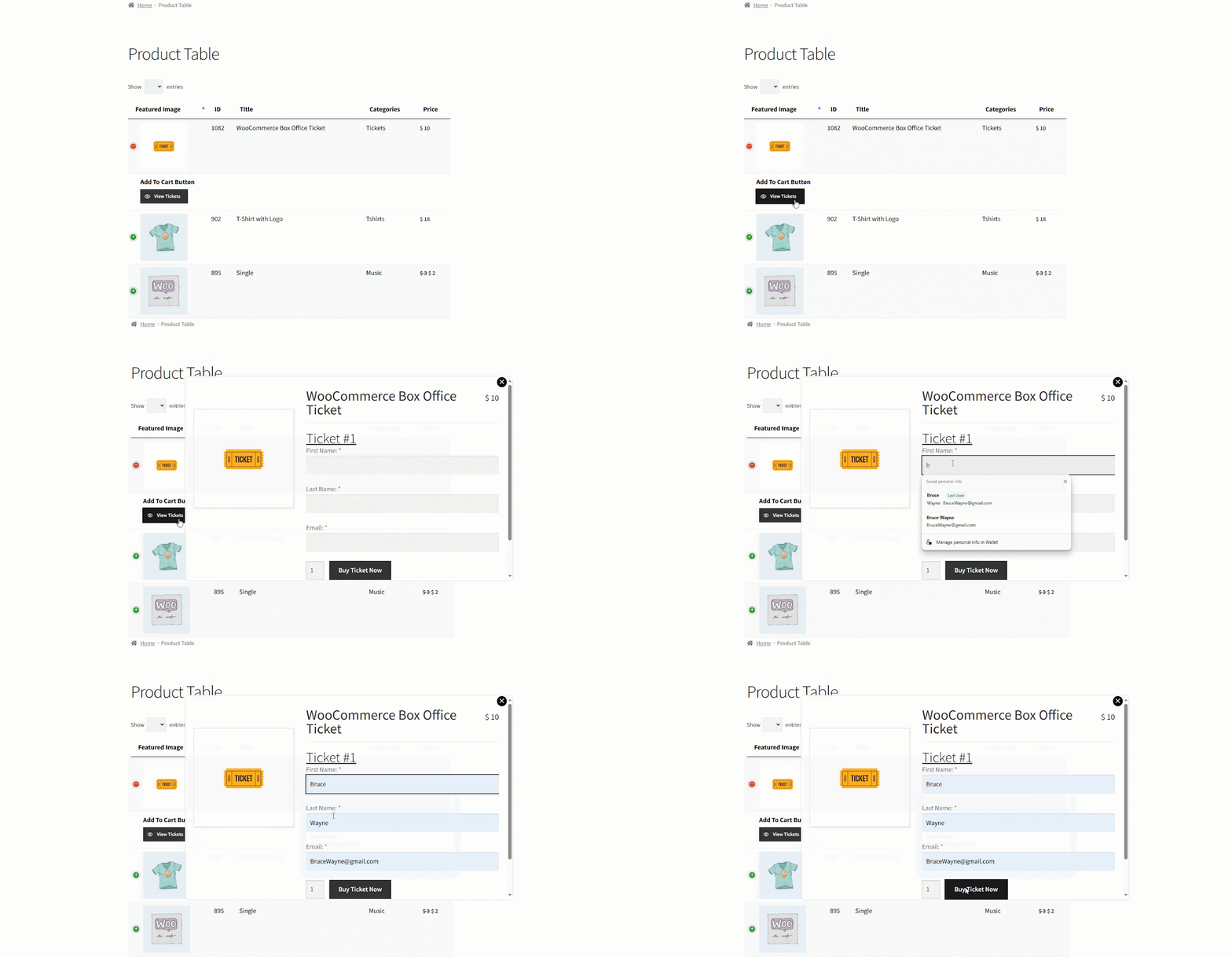
- Go to the website.
- Navigate to the Product Table page.
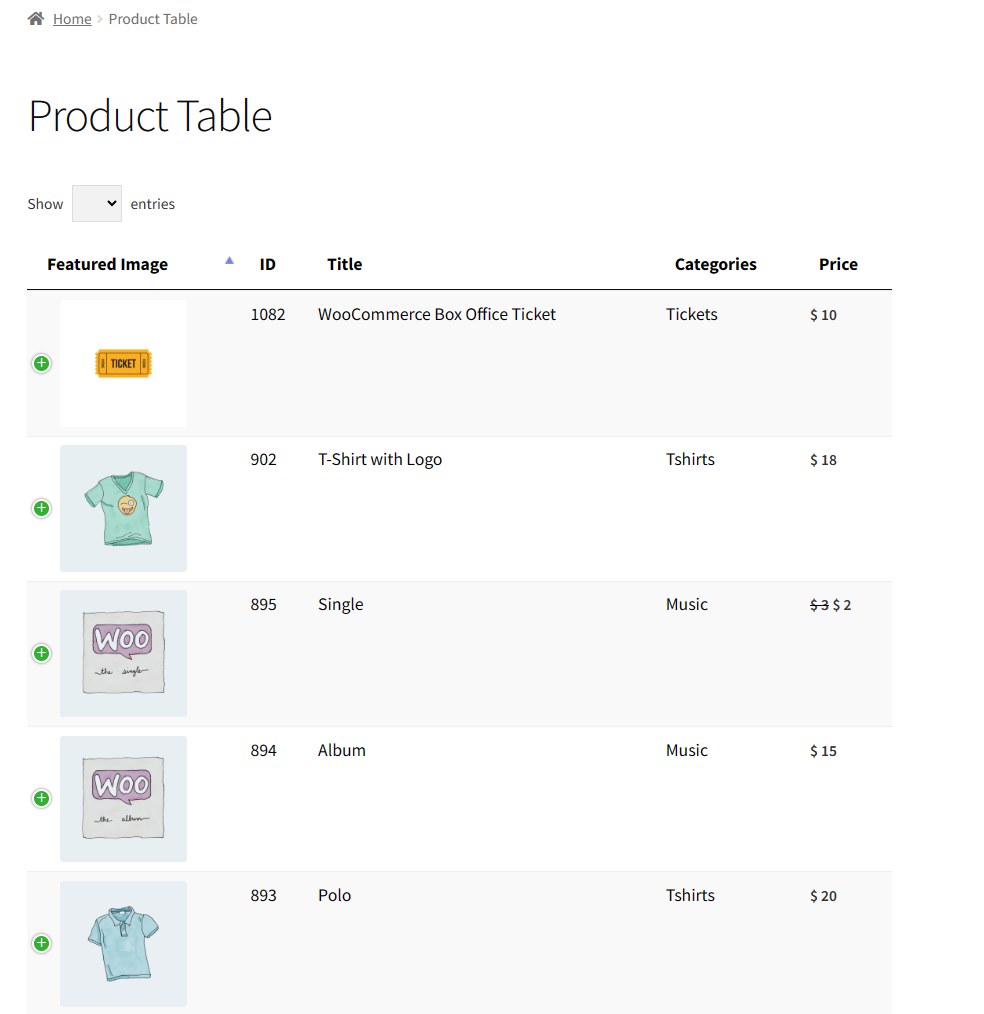
- Select the “+” icon.
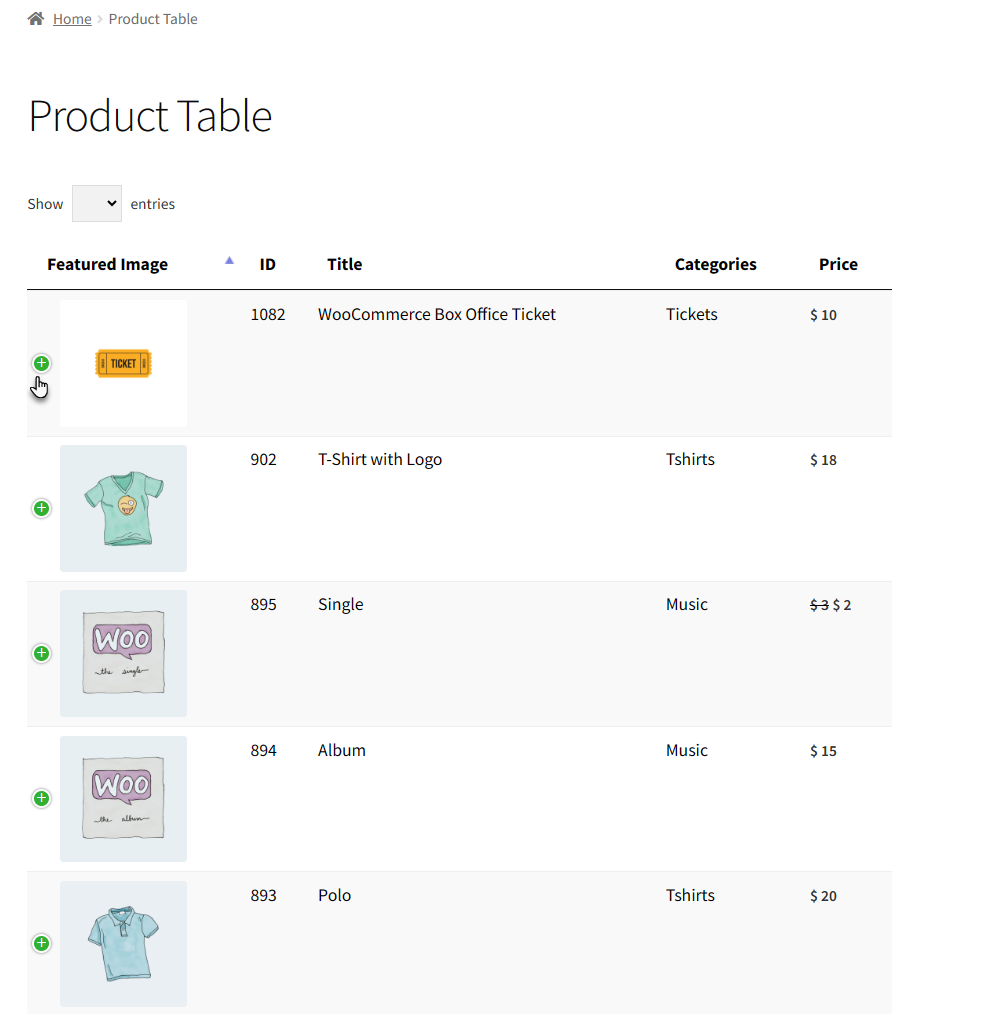
- Click the View Tickets button.
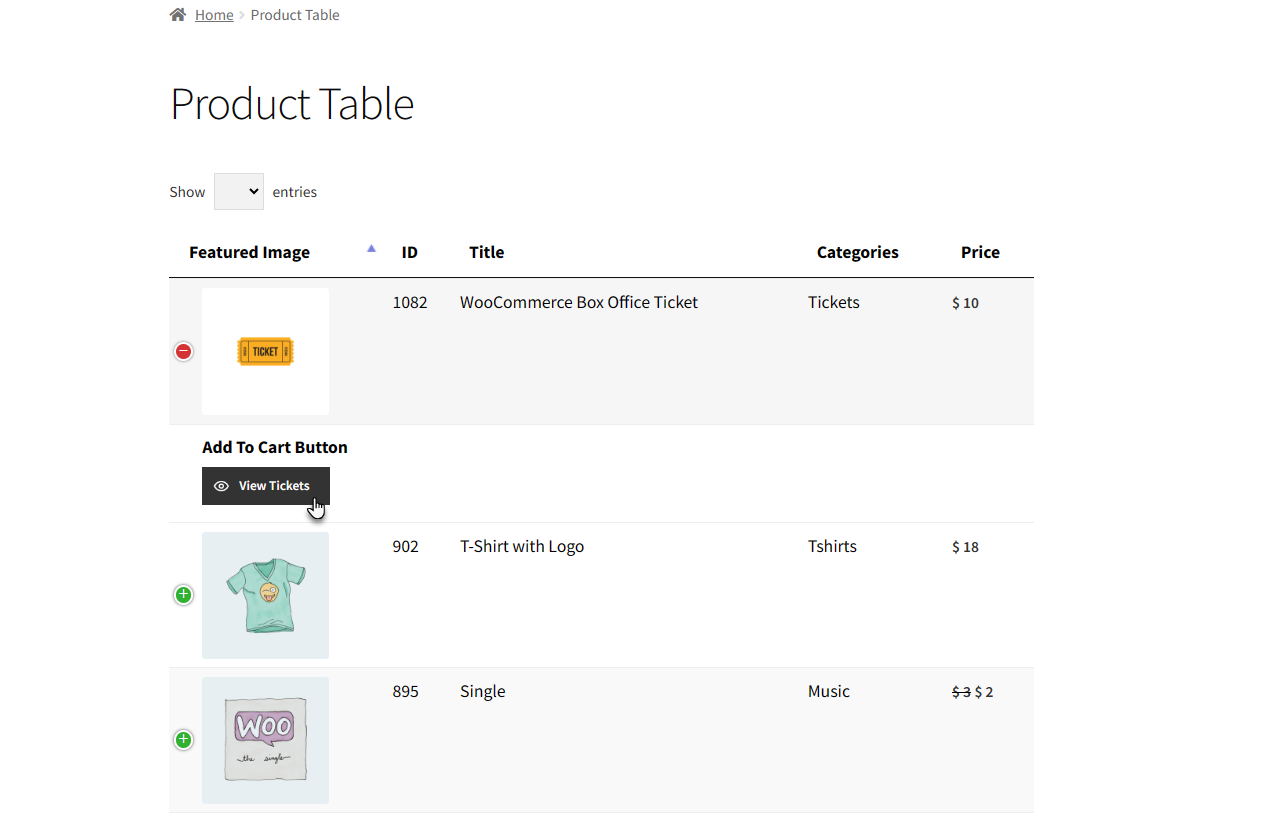
- After clicking the View Tickets button, a popup will open.
- The popup will display the Ticket Fields configured in the backend settings.
- Enter your information and click the Buy Ticket Now button.
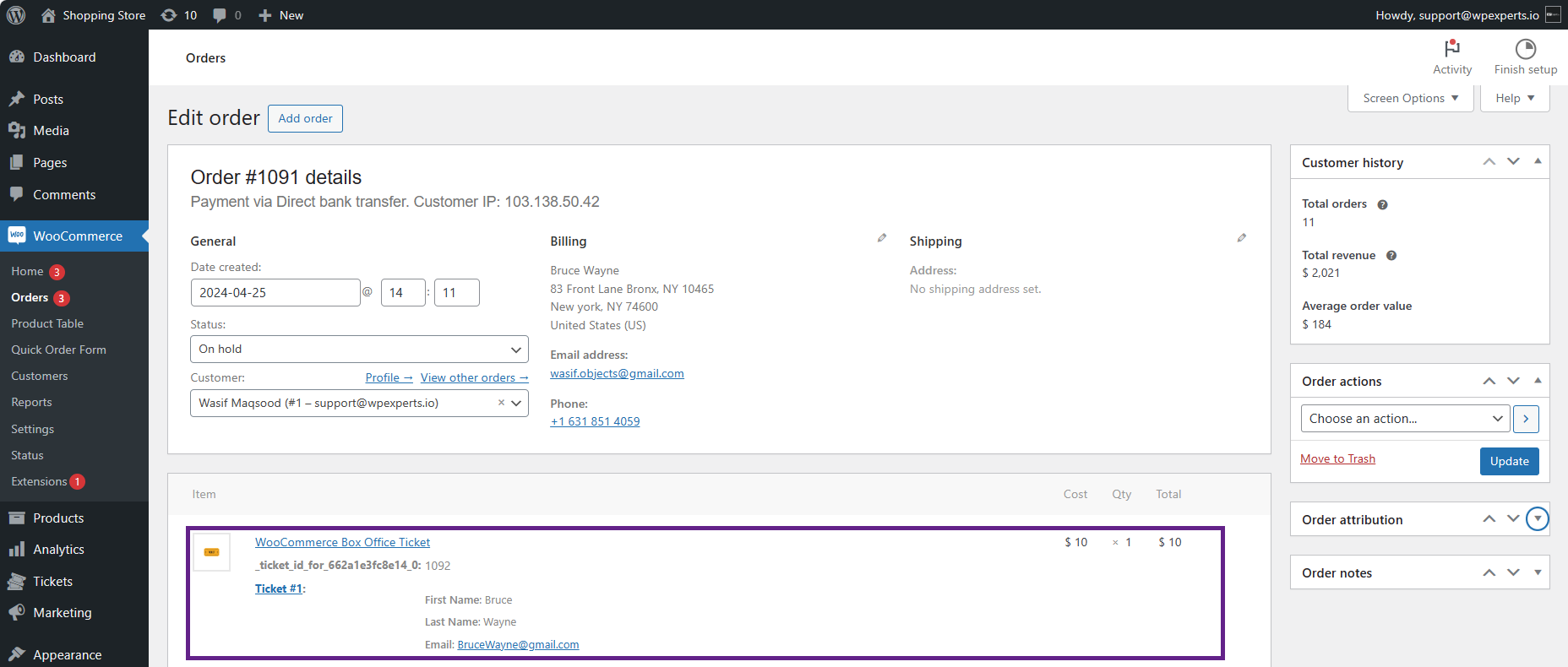
Purchased Tickets in WooCommerce Orders
- The tickets purchased by the customers can be found in the WooCommerce Orders.
- Go to WordPress Admin Dashboard > WooCommerce > Orders
- Select the Ticket order.

- As you can see, the ticket has been included within the item section of the chosen order.
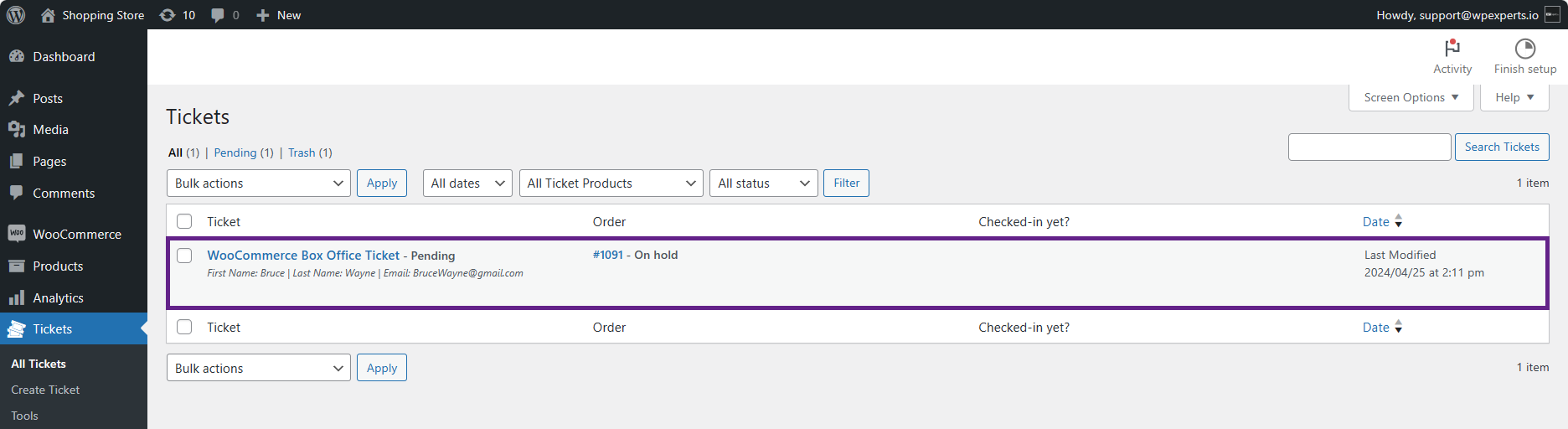
Purchased Tickets in Box Office Tickets
- The tickets bought by customers will be displayed on the Tickets backend page.
- Go to Admin Dashboard > Tickets > All Tickets.
- The ticket purchased by the customer can be seen in the All Tickets back-end settings.
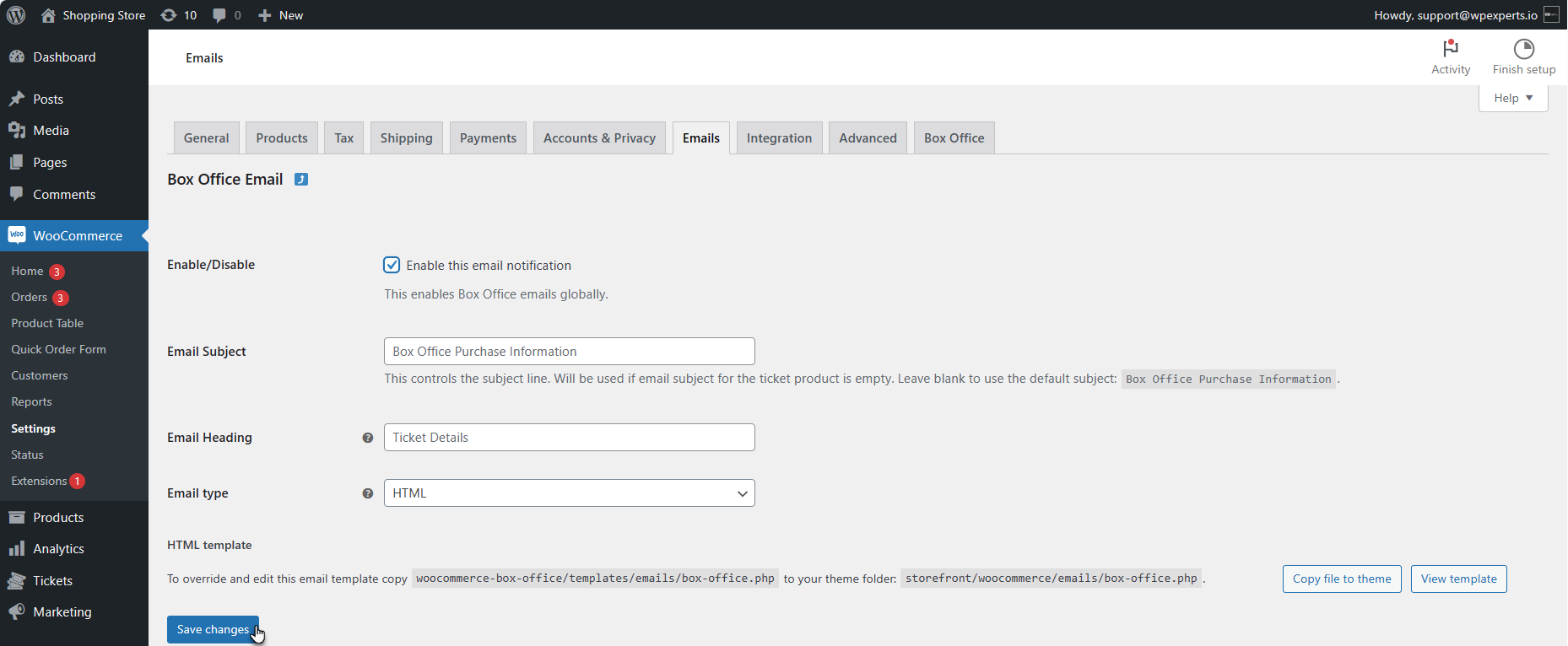
Purchased Tickets Email
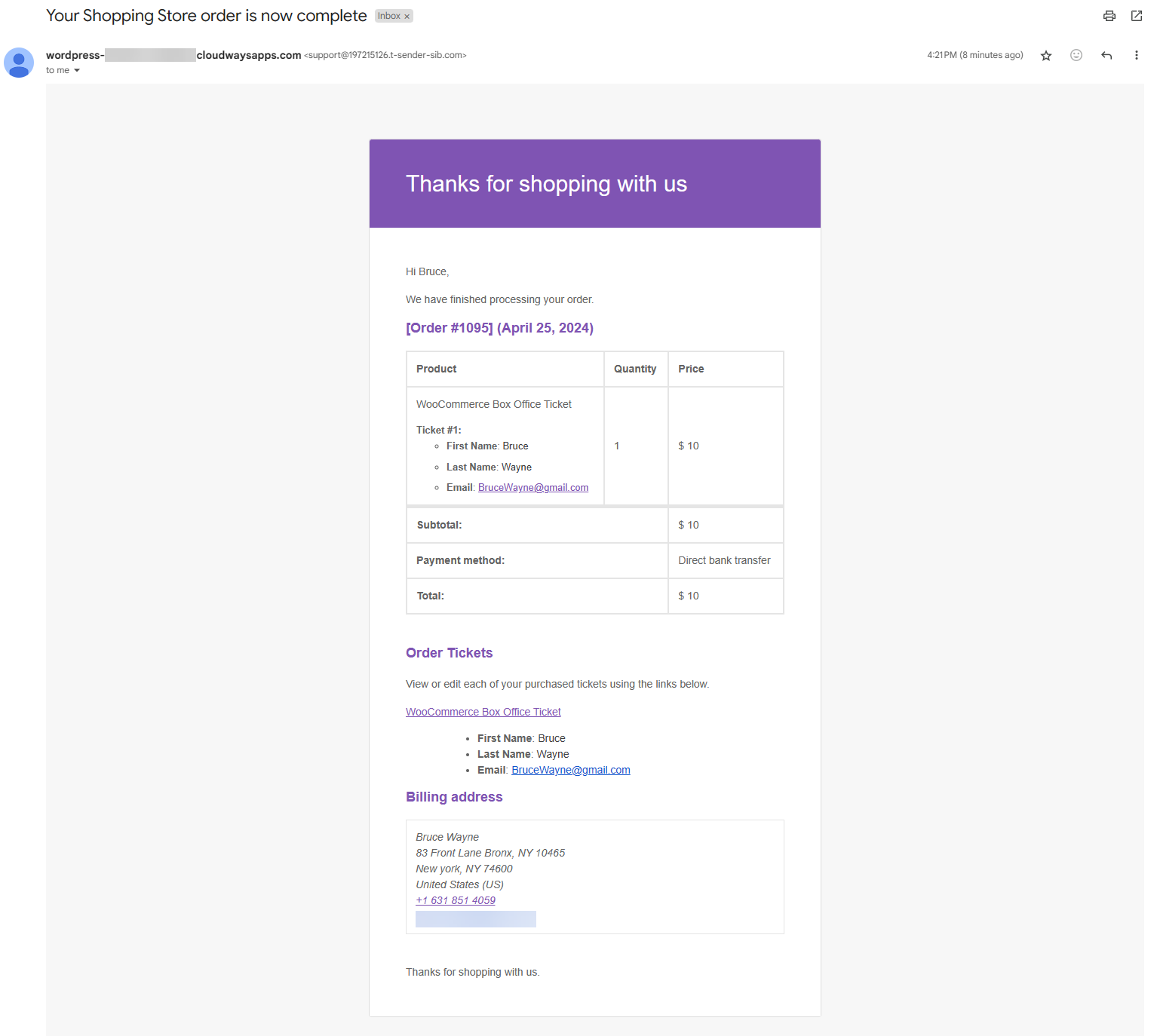
- The email will be sent to the customer upon ticket purchase and completion of the order by the admin.
- Go to Admin Dashboard > WooCommerce > Settings > Emails > Box Office Emails
- Checkmark the Enable/Disable checkbox.

- Click the Save changes button
Front-End Impact
- As you can see, the email has been sent to the customer after the order has been placed.
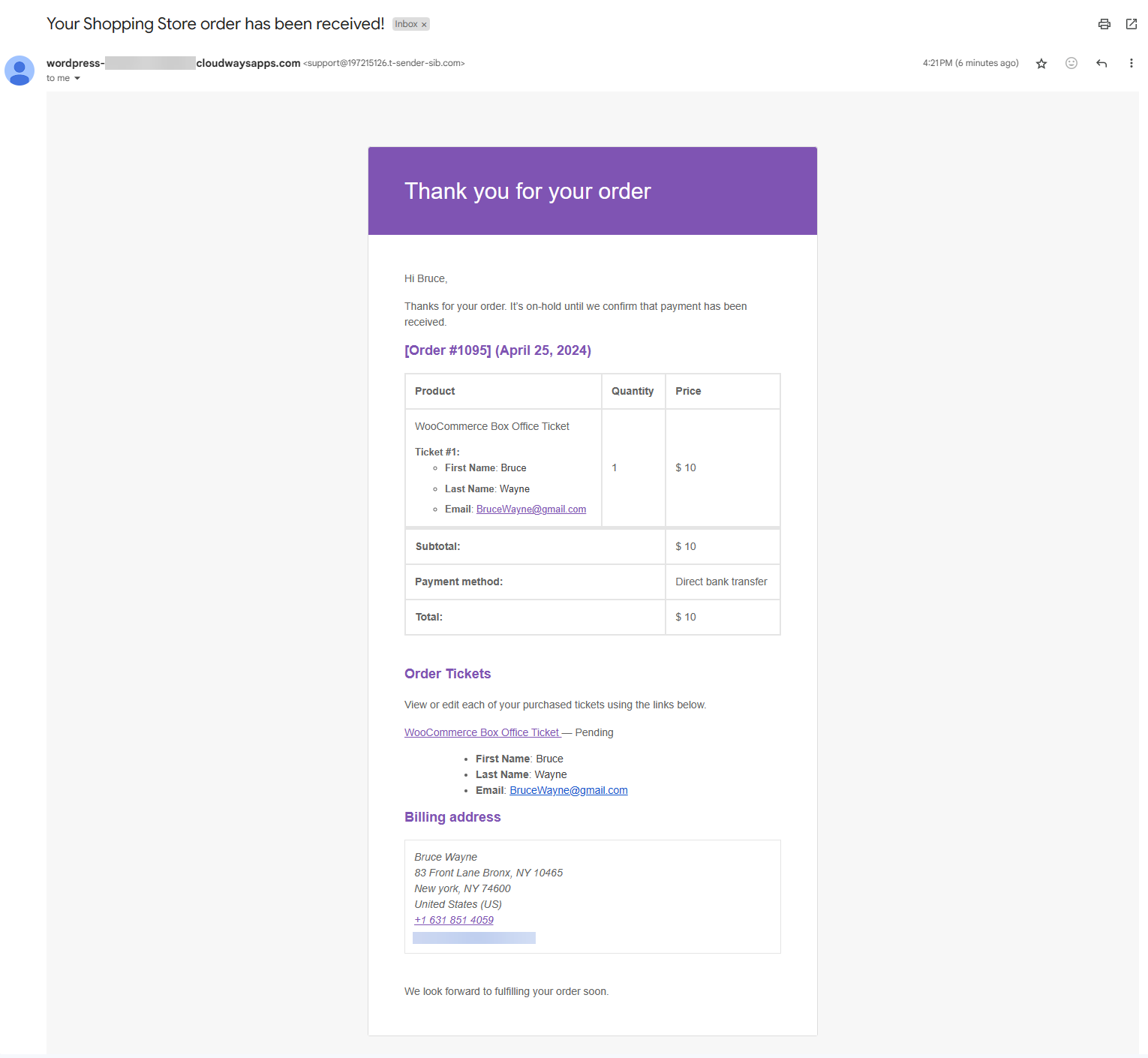
- As you can see, the email has been sent to the customer after the order status has been changed to Completed by the admin.
Multi Selector Checkbox
- When the multi-select checkbox is selected in the product table, then an individual Buy Ticket Now button will be displayed in the product table
- Go to Admin Dashboard > WooCommerce > Product Table.
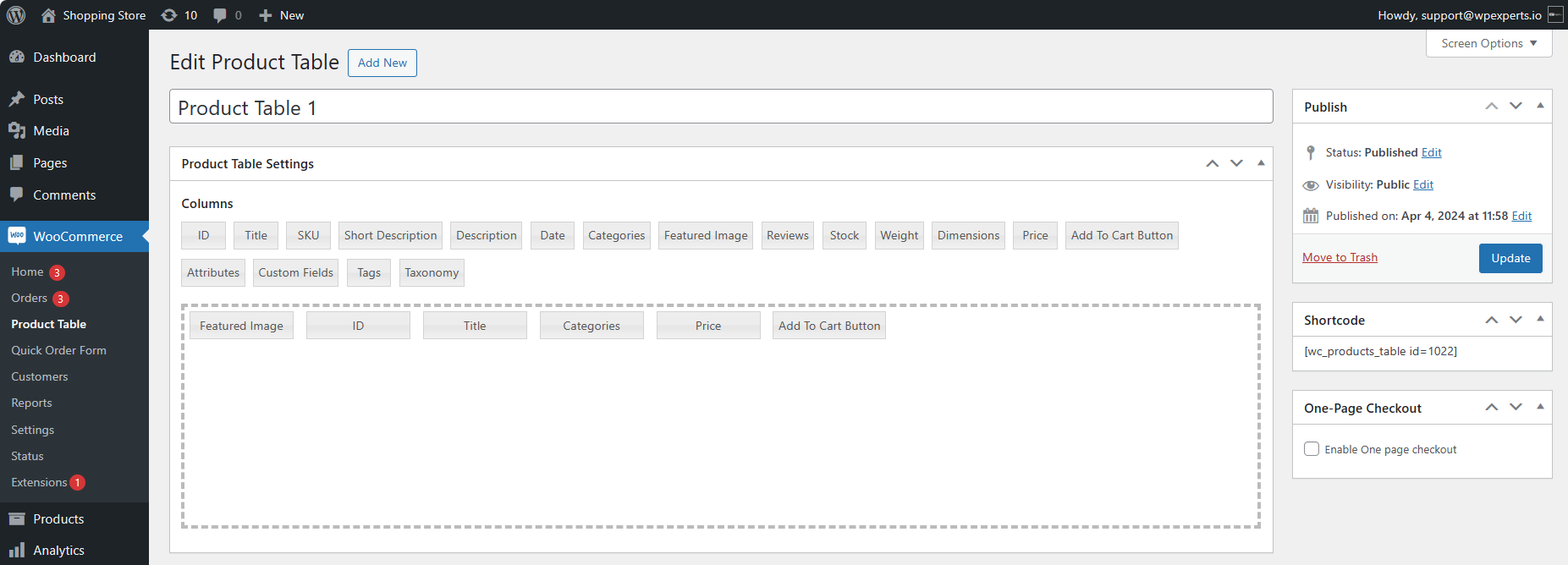
- Click the Add To Cart Button column.
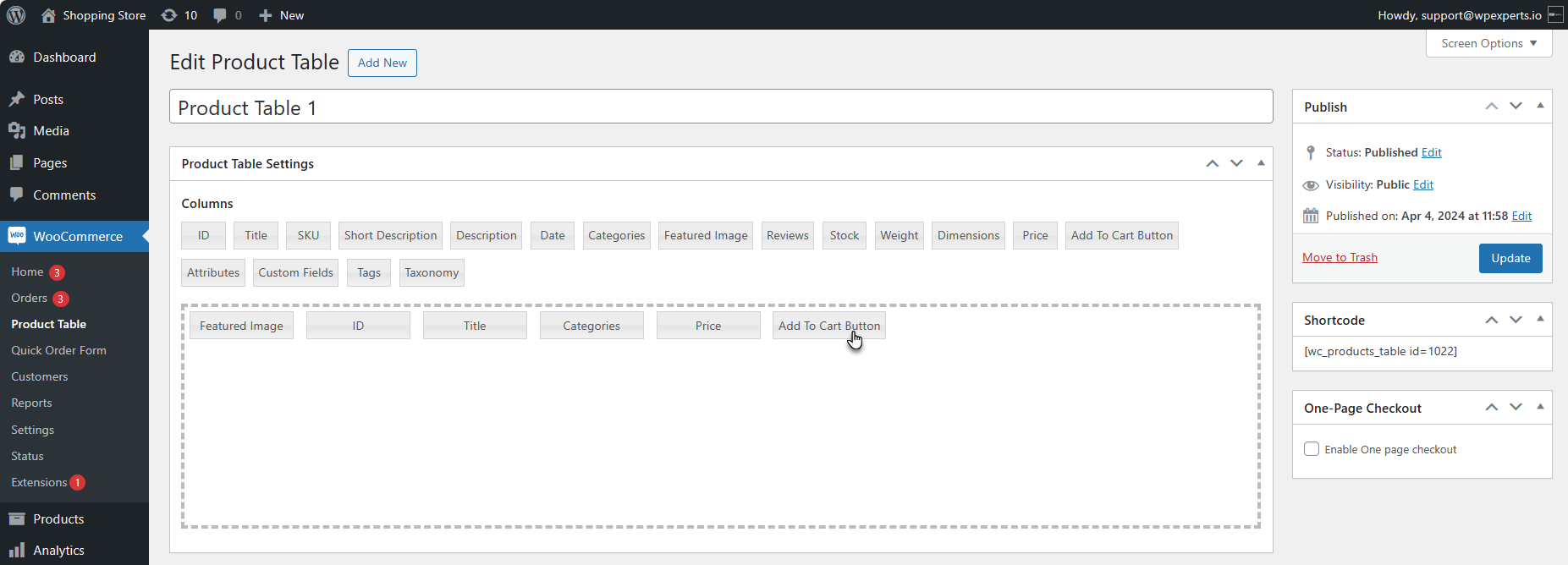
- Select the Multi-Select check-boxes option from the Add to cart buttons Types dropdown menu.
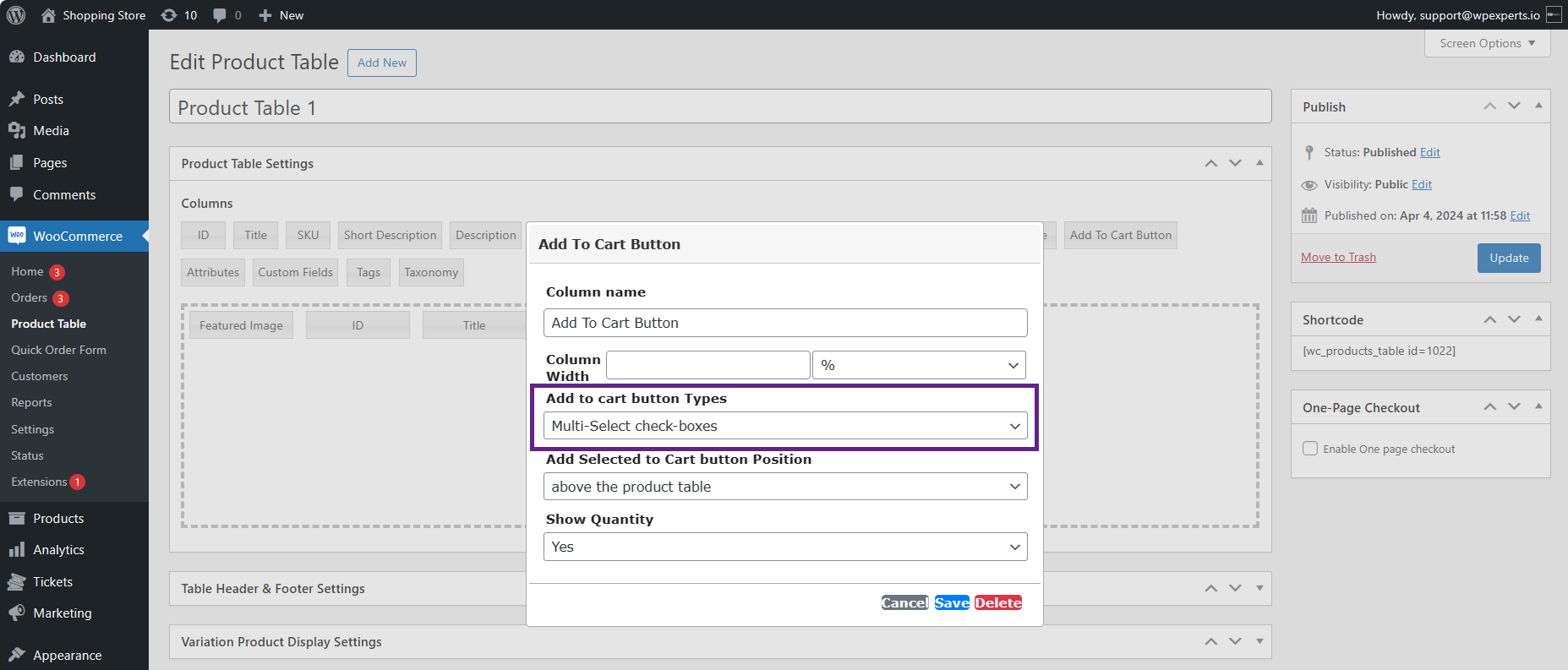
- Click the Save button.
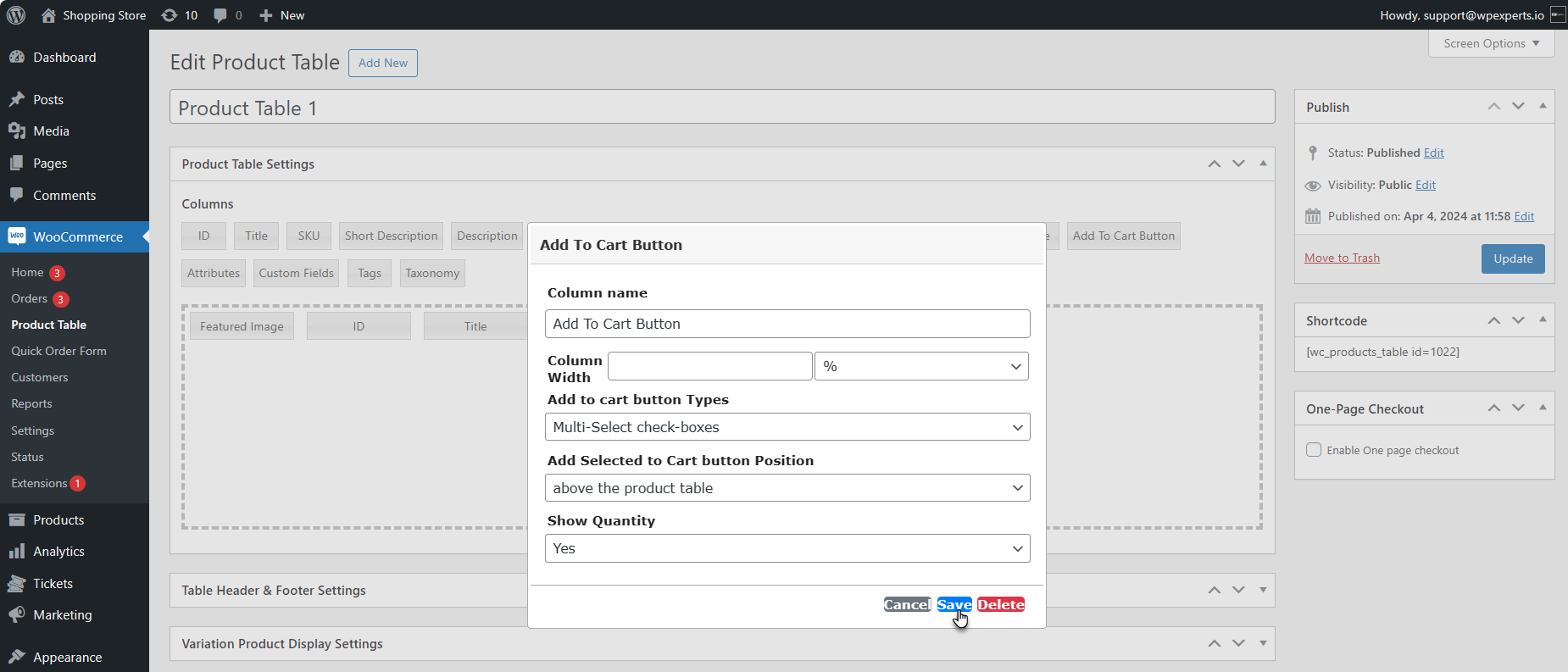
Front-End Impact
- Go to the website
- Navigate to the Product Table page.
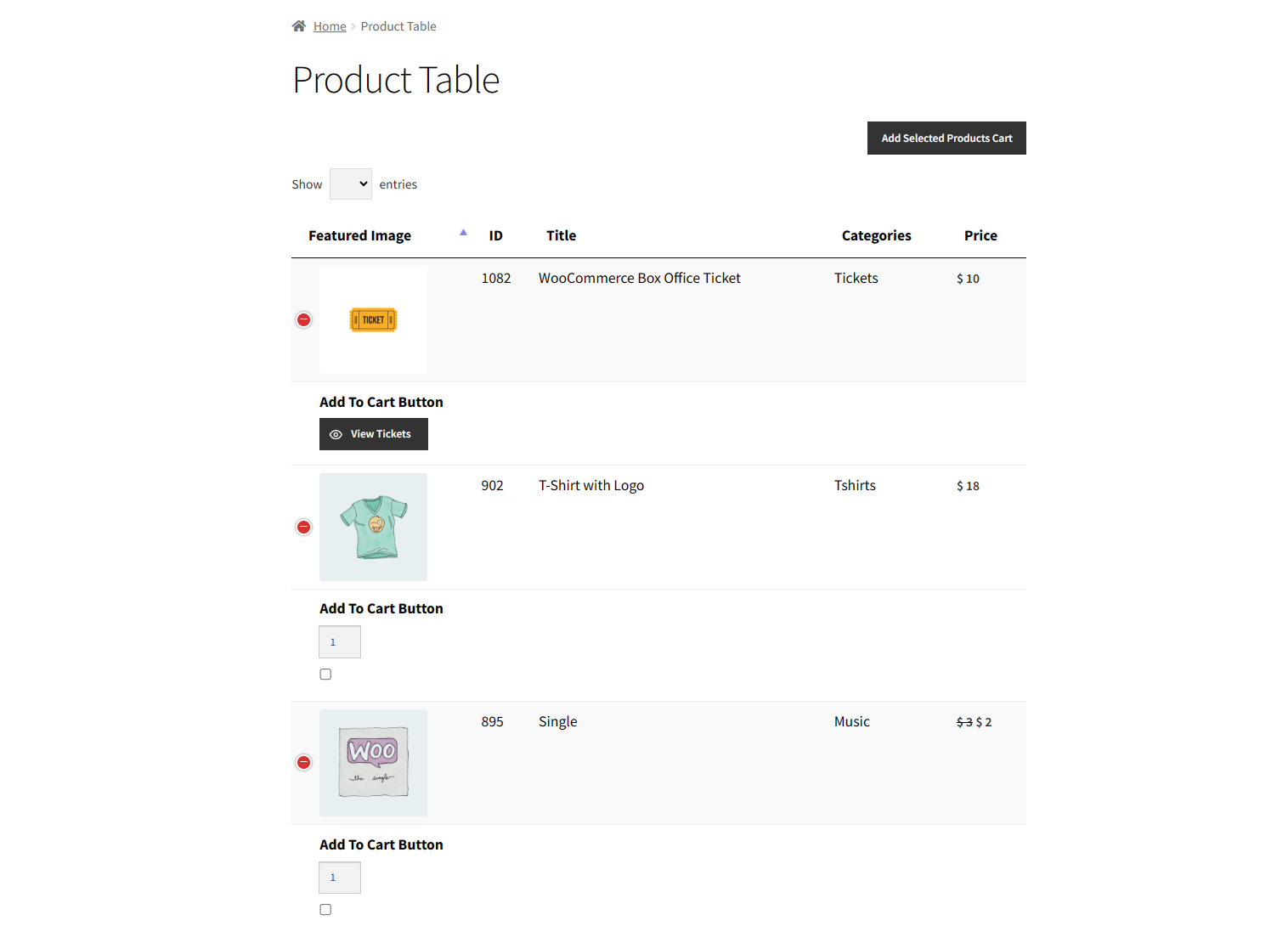
- As you can see, the View Tickets button is only visible against the box office ticket product.

WooCommerce Tier Pricing
↑ Back to topInstallation of WooCommerce Tier Pricing
↑ Back to top- Download and Install the WooCommerce Tier Pricing plugin.
- Follow the WooCommerce Tier Pricing documentation to set up and configure the plugin.
Getting Started
Tier Pricing on Product Table
↑ Back to top- Navigate to the WordPress Admin Dashboard > WooCommerce > Tier Pricing Rules > Edit Rule.

- Enable the rule by toggling the Enable Rule option.

- Configure the tier pricing rule following the WooCommerce Tier Pricing plugin documentation guidelines.

Front End Impact
- Login to your account.
- Go to the Product Table page. Click the Quick View button for a product with an active tier pricing rule.

- A popup will appear with the product’s Tier Pricing.