
PrimeLink allows your WooCommerce store to import, export, synchronize, and automate WooCommerce data from multiple sources with full control and validation.
Requirements
↑ Back to top- WordPress: 5.8 or higher
- PHP: 8.0 or higher
- WooCommerce: 10.0 or higher (recommended)
Installation
↑ Back to top- Download the .zip file from your WooCommerce account.
- From the WordPress admin panel, click on the menu: Plugins > Add New.
- Click on Upload Plugin and Choose File to upload the file you downloaded.
- Install Now and Activate Plugin.
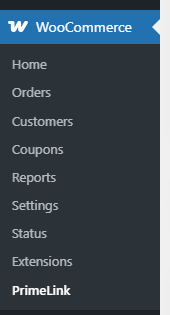
- After activation, the plugin menu, PrimeLink – Import Export Suite will appear inside the main navigation menu in WooCommerce.
Getting Started
↑ Back to topPrimeLink is organized into these main sections:
- Dashboard – Overview, statistics, and quick actions
- Imports – Create and manage import jobs
- Exports – Create and manage export jobs
- Live Feed – Real-time synchronization between stores
- Templates – Saved import/export configurations
- Statistics – Detailed import/export history
- Settings – Global plugin settings
- System Status – Server and plugin health check
Settings Overview
↑ Back to topNavigate to WooCommerce → PrimeLink → Settings to configure:
General Settings:
- Default import/export options
- Notification preferences
- Performance settings
Integrations:
- Dropbox API token
- Google Drive API credentials
- OneDrive OAuth settings
- FTP/SFTP credentials
Advanced:
- Cron mode (WP-Cron vs External)
- Batch processing size
- Memory optimization
- Logging level
Quick Start: Your First Import
↑ Back to topReady to import your first products? Follow these steps:
- Go to:
WooCommerce→PrimeLink → Imports → New Import - Select Import Type: Choose “Products”
- Follow the 8-step wizard:
- Step 1: Welcome
- Step 2: Select source (file, URL, cloud storage, or platform)
- Step 3: Import strategy (new only, update only, or both)
- Step 4: Filters and preview
- Step 5: Field mapping
- Step 6: Options and scheduling
- Step 7: Review
- Step 8: Run import
Quick Start: Your First Export
↑ Back to topTo export your WooCommerce data:
- Go to:
WooCommerce→PrimeLink → Exports → New Export - Select Export Type: Choose what to export (products, orders, customers, etc.)
- Configure:
- Step 1: Select export type
- Step 2: Field mapping (which fields to export)
- Step 3: Format and destination (CSV, XML, XLSX)
- Run Export
Field Mapping
↑ Back to topLearn how to map source data fields to WooCommerce fields using PrimeLink’s visual mapping interface
Field mapping is the process of connecting your source data fields to WooCommerce fields. PrimeLink provides a visual drag-and-drop interface that makes this process intuitive and efficient.
The mapping interface is divided into two panels: source fields on the left and WooCommerce target fields on the right. You can drag fields from left to right, configure transformations, and preview the results.
Mapping Interface
↑ Back to topLeft Panel: Source Fields
The left panel displays all fields detected from your source data:
- All columns/fields from your CSV, XML, or XLSX file
- Search functionality to quickly find fields
- Refresh button to reload fields if source changes
- Fields are draggable – click and drag to map slots
Right Panel: WooCommerce Target Fields
↑ Back to topThe right panel shows all available WooCommerce fields organized into sections:
- Collapsible sections for different field groups
- Search functionality to find target fields quickly
- Mapping slots where you drop source fields
- Visual indicators for mapped vs unmapped fields
Auto-Mapping
↑ Back to topAutomatic Field Detection
PrimeLink can automatically map fields based on name similarity:
- Click the Auto-Map button (if available)
- PrimeLink will attempt to match source fields to WooCommerce fields
- Review the auto-mapped fields and adjust as needed
Custom Aliases
↑ Back to topYou can create custom field name aliases to improve auto-mapping:
- Configure aliases in field options
- Example: Map “title” to also recognize “name”, “product_name”, “title_sku”
- This helps when source fields use different naming conventions
Field Options and Transformations
↑ Back to topAccessing Field Options
Each mapped field has advanced options you can configure:
- Click the Edit button on any mapped field
- A modal or panel will open with field options
- Configure transformations, prefixes, suffixes, and more
- Save to apply the changes
Prefix and Suffix
↑ Back to topAdd fixed text before or after field values:
- Prefix: Text added before the value (e.g., “SKU-” → “SKU-12345”)
- Suffix: Text added after the value (e.g., “-USD” → “99-USD”)
Default Values
↑ Back to topSet a fallback value if the source field is empty:
- Useful for required fields that might be missing in source data
- Example: Default stock status to “instock” if not provided
Separators
↑ Back to topFor multi-value fields (like images or categories), specify how values are separated:
- Common separators: comma (,), semicolon (;), pipe (|)
- Example: “image1.jpg,image2.jpg,image3.jpg” → splits into 3 images
Mapping Sections
↑ Back to topTitle & Content
Basic product information:
- Post Title (product name)
- Post Content (full description)
- Post Excerpt (short description)
- Slug (URL-friendly name)
- Status (published, draft, etc.)
Product Data
Organized into tabs:
- General: Product Type, Regular Price, Sale Price, Tax Status, Tax Class, Featured, Menu Order
- Inventory: SKU, Stock Quantity, Stock Status, Manage Stock, Backorders, Low Stock Threshold
- Shipping: Weight, Length, Width, Height, Shipping Class
- Attributes: Product attributes (Color, Size, etc.) with option to create variations
- Downloads: Downloadable products settings
- Variation Overrides: Override parent data for variations
- Linked Products: Upsells, Cross-sells, Grouped products
Images
Product images:
- Featured Image (main product image)
- Gallery Images (multiple images supported)
- Add multiple gallery slots for different source fields
- Supports URLs or file paths
Taxonomies
Product categories and tags:
- Product Categories
- Product Tags
- Product Brands (if installed)
- Custom taxonomies
Custom Fields
Add custom meta fields:
- Map to any custom field key
- Supports multiple custom fields
- Useful for ACF (Advanced Custom Fields) or other plugins
Advanced Mapping Features
↑ Back to topConditional Mapping
Apply mappings only when certain conditions are met:
- Set conditions based on other field values
- Example: Only map sale price if regular price > 100
- Useful for complex data transformations
Templates
Save and load mapping configurations:
- Save your mapping as a template for reuse
- Load saved templates to quickly apply mappings
- Templates are organized by entity type
Live Preview
See how your mapped data will look:
- Preview shows sample values after transformations
- Helps verify mappings are correct
- Updates in real-time as you change mappings
Scheduling
↑ Back to topSet up automatic recurring imports using WordPress cron scheduling
Scheduling allows you to automatically run imports at regular intervals without manual intervention. This is perfect for keeping your store synchronized with supplier feeds, updating prices and inventory, or importing new products on a schedule.
PrimeLink uses WordPress cron to schedule imports. You can set up hourly, daily, weekly, or monthly schedules, or use custom cron expressions for more complex timing.
Enabling Scheduling
↑ Back to topStep 1: Access Scheduling Options
In Step 6 (Options & Scheduling) of the import wizard:
- Scroll to the Automatic Scheduling section
- Check the Enable Background Import Schedule checkbox
- The scheduling options will become available
Step 2: Configure Schedule Type
↑ Back to topChoose how often the import should run:
Preset Intervals
- Hourly: Run every hour
- Twice Daily: Run twice per day (typically morning and evening)
- Daily: Run once per day
- Weekly: Run once per week
- Monthly: Run once per month
Custom Cron Expression
For advanced scheduling, you can use cron expressions:
- Format:
minute hour day month weekday - Example:
0 2 * * *= Daily at 2:00 AM - Example:
0 */6 * * *= Every 6 hours - Example:
0 9 * * 1= Every Monday at 9:00 AM
Email Notifications
↑ Back to topConfigure Notifications
Receive email notifications for scheduled imports:
- Custom notification email address
- Email on completion
- Email on errors
- Email template customization
Managing Scheduled Imports
↑ Back to topViewing Scheduled Imports
To view all scheduled imports:
- Go to WooCommerce → PrimeLink → Imports
- Look for imports with a schedule indicator
- View next run time and schedule details
Pausing Schedules
To temporarily pause a scheduled import:
- Find the import in the list
- Click Pause Schedule or edit the import
- Uncheck “Enable Background Import Schedule”
- Save the changes
Resuming Schedules
To resume a paused schedule:
- Edit the import
- Go to Step 6
- Re-enable “Enable Background Import Schedule”
- Save the changes
Editing Schedules
To modify a schedule:
- Edit the import
- Go to Step 6 (Options & Scheduling)
- Modify the schedule settings
- Save the changes
- The new schedule will take effect on the next run
API Keys & Live Feed
↑ Back to topLearn how to generate and manage API keys for third-party integrations and Live Feed connections
API keys in PrimeLink are used to authenticate external requests to your store’s Live Feed endpoint. They allow other stores or applications to securely access your product data for real-time synchronization.
API keys are generated with a unique name and can be revoked at any time. Each key is a 32-character alphanumeric string that must be included in the request headers when accessing the Live Feed API.
Accessing API Key Management
↑ Back to topTo access the API Key management interface:
- Navigate to WooCommerce → PrimeLink → Live Feed in your WordPress admin
- Click on the API Keys tab
- You’ll see a list of all existing API keys (if any)
Generating a New API Key
↑ Back to topStep 1: Open the Generate Modal
- In the API Keys tab, click the Create API Key button
- A modal window will open asking for a key name
Step 2: Enter Key Name
Enter a descriptive name for your API key. This helps you identify the key later:
- Example names: “Main Store Feed”, “Supplier Connection”, “Development Store”
- The name is for your reference only and doesn’t affect functionality
Step 3: Generate the Key
- Click the Generate button
- PrimeLink will create a unique API key and display it immediately
⚠️ Important: The API key is displayed only once. Make sure to copy and save it immediately. You won’t be able to see it again after closing the modal.
Step 4: Save the Key
Copy the API key to a secure location:
- Use a password manager
- Store it in your configuration files (securely)
- Share it with authorized team members only
Managing API Keys
↑ Back to topViewing All Keys
The API Keys tab displays all your keys with the following information:
- Key Name: The descriptive name you assigned
- Created: Date and time when the key was generated
- Last Used: Date and time when the key was last used (if ever)
- Status: Active or Revoked
Revoking API Keys
If you need to disable an API key (for security reasons or if it’s been compromised):
- Find the key in the list
- Click the Revoke button next to it
- Confirm the action in the dialog
- The key status will change to “Revoked” and it will no longer work
⚠️ Warning: Revoking an API key will immediately stop all connections using that key. Make sure to update any systems using the key before revoking it.
Platform Connectors
↑ Back to topImport data directly from Shopify, Magento, and BigCommerce stores
Platform connectors allow you to import data directly from external e-commerce platforms without downloading files first. PrimeLink connects to the platform’s API and fetches data in real-time, making it perfect for keeping multiple stores synchronized.
Supported platforms:
- Shopify – Import products, orders, and customers from Shopify stores
- Magento – Import products, orders, and customers from Magento stores
- BigCommerce – Import products, orders, customers, and coupons from BigCommerce stores
Using Platform Connectors in Import Wizard
↑ Back to topStep 1: Select Platform Source
In Step 2 (Select Data Source) of the import wizard:
- Select Import from Platform (Real-time)
- Choose your platform from the dropdown:
- Shopify
- Magento
- BigCommerce
Step 2: Enter Platform Credentials
After selecting a platform, you’ll see a credentials form specific to that platform:
Shopify Credentials
- Shop Domain: Your Shopify shop domain (e.g.,
your-shop.myshopify.com) - API Key: Shopify private app API key
- API Secret: Shopify private app API secret
- Access Token: Shopify Admin API access token
Magento Credentials
- Magento Base URL: Your Magento store URL (e.g.,
https://your-store.com) - Access Token: Magento integration access token
BigCommerce Credentials
- Store Hash: Your BigCommerce store hash (e.g.,
abc123) - Access Token: BigCommerce API access token
- Account UUID: (Optional) Alternative to Store Hash
Step 3: Test Connection
↑ Back to topBefore proceeding, test the connection:
- Fill in all required credentials
- Click Test Connection
- Wait for the connection test to complete
- If successful, you’ll see a confirmation message
- If it fails, check your credentials and try again
Step 4: Continue with Import
↑ Back to topAfter a successful connection:
- Click Next to proceed
- PrimeLink will fetch data from the platform
- Continue with the rest of the import wizard:
- Step 3: Import Strategy
- Step 4: Filters & Preview
- Step 5: Field Mapping
- Step 6: Options & Scheduling
- Step 7: Review
- Step 8: Run Import
Setting Up Shopify Credentials
↑ Back to topStep 1: Create a Private App in Shopify
- Log in to your Shopify admin panel
- Navigate to Settings → Apps and sales channels
- Scroll down and click Develop apps
- Click Create an app
- Enter an app name (e.g., “PrimeLink Import”)
- Click Create app
Step 2: Configure API Permissions
After creating the app, configure its permissions:
- Click on Configure Admin API scopes
- Enable the following permissions:
- Read products: Required to fetch product data
- Read inventory: Required to fetch inventory levels
- Read product listings: Optional, for additional product information
- Click Save
Step 3: Install the App
- Click Install app at the top of the page
- Confirm the installation
- The app will be installed and credentials will be generated
Step 4: Get API Credentials
After installation, you’ll see the API credentials:
- Go to the API credentials tab
- You’ll see:
- API Key: Your Shopify API key
- API Secret Key: Your Shopify API secret
- Admin API access token: Your access token
- Copy all three values
⚠️ Important: The API Secret Key and Admin API access token are only shown once. Make sure to copy them immediately and store them securely.
Step 5: Get Your Shop Domain
Your shop domain is your store’s URL without the protocol:
- Example: If your store URL is
https://your-shop.myshopify.com - Your shop domain is:
your-shop.myshopify.com
Setting Up Magento Credentials
↑ Back to topStep 1: Create an Integration in Magento
- Log in to your Magento admin panel
- Navigate to System → Integrations
- Click Add New Integration
- Fill in the integration details:
- Name: Enter a descriptive name (e.g., “PrimeLink Import”)
- Email: Enter your email address
Step 2: Configure API Permissions
After creating the integration, configure its API permissions:
- Click on the API tab
- Expand Resource Access
- Select the following permissions:
- Catalog: Required to fetch product data
- Inventory: Required to fetch inventory levels
- Stores: Optional, for store configuration
- Click Save
Step 3: Activate the Integration
- After saving, click Activate
- Magento will generate access credentials
- Copy the Access Token immediately
⚠️ Important: The Access Token is only shown once during activation. Make sure to copy it immediately and store it securely. If you lose it, you’ll need to regenerate the integration.
Step 4: Get Your Magento Base URL
Your Magento base URL is your store’s URL:
- Example:
https://your-store.com - Do not include trailing slashes
- Use the full URL with protocol (https://)
Setting Up BigCommerce Credentials
↑ Back to topStep 1: Find Your Store Hash
Your store hash can be found in several ways:
- From your store URL: If your store URL is
store-abc123.mybigcommerce.com, your store hash isabc123 - From API path: In any API documentation, look for
stores/{hash}/v3/... - From BigCommerce Admin: Go to Settings → Store-level API Accounts
Step 2: Create a Store-level API Account
- Log in to your BigCommerce admin panel
- Navigate to Settings → Store-level API Accounts
- Click Create API Account
- Fill in the account details:
- Account Name: Enter a descriptive name (e.g., “PrimeLink Import”)
- OAuth Scopes: Select the required permissions (see below)
Step 3: Configure OAuth Scopes
Select the required OAuth scopes for your API account:
Required Scopes
- Products: Read (required for product import)
- Orders: Read (required for order import, if needed)
- Customers: Read (required for customer import, if needed)
Important: Each resource (Products, Orders, Customers) requires separate permissions. Even if you have Products permissions, you won’t be able to import Orders unless Orders scope is also enabled.
Step 4: Generate Access Token
- After configuring scopes, click Save
- BigCommerce will generate an Access Token
- Copy the access token immediately
⚠️ Important: The Access Token is only shown once during creation. Make sure to copy it immediately and store it securely. If you lose it, you’ll need to create a new API account.
Step 5: Alternative – Using Account UUID
If you have an Account UUID instead of Store Hash:
- You can use Account UUID as an alternative to Store Hash
- PrimeLink will attempt to resolve the Store Hash from the Account UUID
- If resolution fails, you’ll need to provide the Store Hash directly
Templates & Presets
↑ Back to topTemplates in PrimeLink allow you to save your field mapping configurations and reuse them for future imports or exports. This saves time when you need to import similar data structures repeatedly, such as regular product updates from suppliers.
Templates are automatically organized by entity type (products, orders, customers, etc.) and can be loaded directly in the import/export wizard at Step 5 (Field Mapping).
Saving a Template
↑ Back to topStep 1: Configure Your Mapping
First, set up your field mapping in Step 5 of the import/export wizard:
- Map all the fields you want to save
- Configure any field transformations or options
- Set up any custom field mappings
Step 2: Save the Template
In Step 5 (Field Mapping Studio), you’ll find the “Load & Save Settings” section:
- Enter a descriptive template name in the input field
- Click the Save button
- The template will be saved with your current mapping configuration
Template Naming
Templates are automatically prefixed with the entity type:
- Products:
product:Template Name - Orders:
order:Template Name - Customers:
customer:Template Name - And so on for other entity types
This ensures templates are organized by type and prevents conflicts between different entity types.
Loading a Template
↑ Back to topStep 1: Access Template List
In Step 5 (Field Mapping Studio), the “Load & Save Settings” section includes a template dropdown:
- Click on the template dropdown/select field
- You’ll see a list of all saved templates for the current entity type
- Templates are filtered by entity type automatically
Step 2: Select and Load Template
- Select the template you want to use from the dropdown
- Click Load (or the template may load automatically on selection)
- All field mappings from the template will be applied to your current import/export
What Gets Loaded
When you load a template, the following are restored:
- All field mappings (source fields → WooCommerce fields)
- Field transformations and options (prefixes, suffixes, transforms)
- Custom field mappings
- Image mappings
- Taxonomy mappings (categories, tags)
- Other mapping configurations
Rollback & Tracking
↑ Back to topPrimeLink automatically tracks all items created or updated during imports. This tracking system allows you to rollback (undo) an entire import, restoring your store to its previous state.
Rollback is useful when an import doesn’t produce the expected results, when you need to test different import configurations, or when you need to revert changes made by mistake.
How Tracking Works
↑ Back to topAutomatic Tracking
PrimeLink automatically tracks:
- Created Items: All new items created during import (products, orders, customers, etc.)
- Updated Items: All existing items updated during import with backup of previous data
- Import Metadata: Import ID and timestamp stored on each item
What Gets Tracked
For each import, PrimeLink tracks:
- Item IDs: All created and updated item IDs
- Item Types: Product, Order, Customer, Coupon, Category, Tag, etc.
- Backup Data: Complete backup of updated items before changes
- Import Timestamp: When the import was performed
Tracking Storage
Tracking data is stored:
- In WordPress options (import-specific tracking)
- As post meta on each item (import ID and timestamp)
- Backup data stored in tracking records
Troubleshooting
↑ Back to topCommon issues and solutions for PrimeLink
Import Issues
↑ Back to topImport Not Starting
Possible Causes:
- File not uploaded or accessible
- Invalid file format
- Server permissions issue
- PHP memory limit too low
Solutions:
- Verify file is uploaded correctly
- Check file format is supported (CSV, XML, XLSX)
- Check server file permissions
- Increase PHP memory_limit
- Check import logs for specific errors
Items Not Created
↑ Back to topPossible Causes:
- Required fields not mapped
- Data format incorrect
- Validation errors
- Matching criteria issues
Solutions:
- Check all required fields are mapped
- Verify data format matches field requirements
- Review validation errors in logs
- Check matching criteria is correct
- Use Dry Run mode to test first
Import Too Slow
↑ Back to topPossible Causes:
- Large file size
- Server performance issues
- Not using iterative processing
- Too many validations
Solutions:
- Enable iterative processing
- Enable speed optimization
- Reduce records per iteration
- Optimize source data
- Check server performance
Fields Not Mapping
↑ Back to topPossible Causes:
- Source field names don’t match
- Field not detected in source file
- File encoding issues
Solutions:
- Manually map fields using drag-and-drop
- Check source file column headers
- Verify file encoding (UTF-8 recommended)
- Preview source data to verify fields
Data Not Importing Correctly
↑ Back to topPossible Causes:
- Data format mismatch
- Field transformations needed
- Data encoding issues
Solutions:
- Check data format matches target field
- Use field transformations if available
- Verify data encoding
- Preview mapped data before importing
File Not Found
↑ Back to topPossible Causes:
- File path incorrect
- File moved or deleted
- Permissions issue
Solutions:
- Verify file path is correct
- Check file still exists
- Verify file permissions
- Re-upload file if needed
Scheduled Imports Not Running
↑ Back to topPossible Causes:
- WordPress Cron not working
- Low site traffic
- Schedule disabled
- Cron events not firing
Solutions:
- Check WordPress Cron is working
- Visit your site to trigger cron
- Verify schedule is enabled
- Consider using External Cron
- Check cron event logs

