
Adding collaborators to your WooCommerce.com account allows another person to help manage your store/site on your behalf. This safe, secure feature grants them access to your account without providing them your login and password.
Who and what are collaborators?
↑ Back to topCollaborators are usually developers, members of an agency, or consultants you enlist or hire to help manage your WooCommerce store.
What can collaborators do?
↑ Back to topWhen you add a collaborator to your WooCommerce.com account, they can:
- View and manage downloads.
- View and manage subscriptions (including canceling subscriptions).
- View order information.
- Create and manage support tickets on your behalf.
- Add shared subscriptions to sites that are already connected to your WooCommerce.com account (requires both Subscriptions and Connected Sites permissions).
What can collaborators not do?
↑ Back to topA collaborator does not have the ability to:
- Purchase items from our Marketplace on your behalf.
- Set subscriptions for purchased products to auto-renew.
- Access your private account information, including stored payment method details.
- Perform the initial connection between your site and your WooCommerce.com account. You (the account owner) must do this yourself before a collaborator can add subscriptions to the site.
- Manage subscriptions that are included in a managed hosting plan. These subscriptions are tied to the hosting account and cannot be actioned via WooCommerce.com.
Collaborator permissions
↑ Back to topWhen adding a collaborator, you can grant them one or more of the following permissions:
- Downloads: Allows the collaborator to view and download your purchased extensions and themes.
- Subscriptions: Allows the collaborator to view, manage, and cancel your subscriptions.
- Connected Sites: Allows the collaborator to install extensions on sites you have connected to your WooCommerce.com account. This permission works in combination with the Subscriptions permission.
- Orders: Allows the collaborator to view your order information.
- Support: Allows the collaborator to create and manage support tickets on your behalf.
Note: To allow a collaborator to install extensions on your connected sites, you must grant them both the Subscriptions and Connected Sites permissions.
Adding a collaborator
↑ Back to top
To add a collaborator to your account:
- Log into your WooCommerce.com account.
- From the menu in your My account dashboard, click the Collaborators tab.
- Enter the WooCommerce.com account email address of the developer/person you wish to add. If the collaborator does not have a WooCommerce.com account, you can create one for them.
- Under Select permission(s), tick the checkbox(es) of items you wish to grant them access to, then click Add.
Once a collaborator is added, their details appear under the Collaborators heading. Collaborators also receive a notification email when added to your account. They will then have an option to switch to managing permitted areas of your account in their WooCommerce.com account.
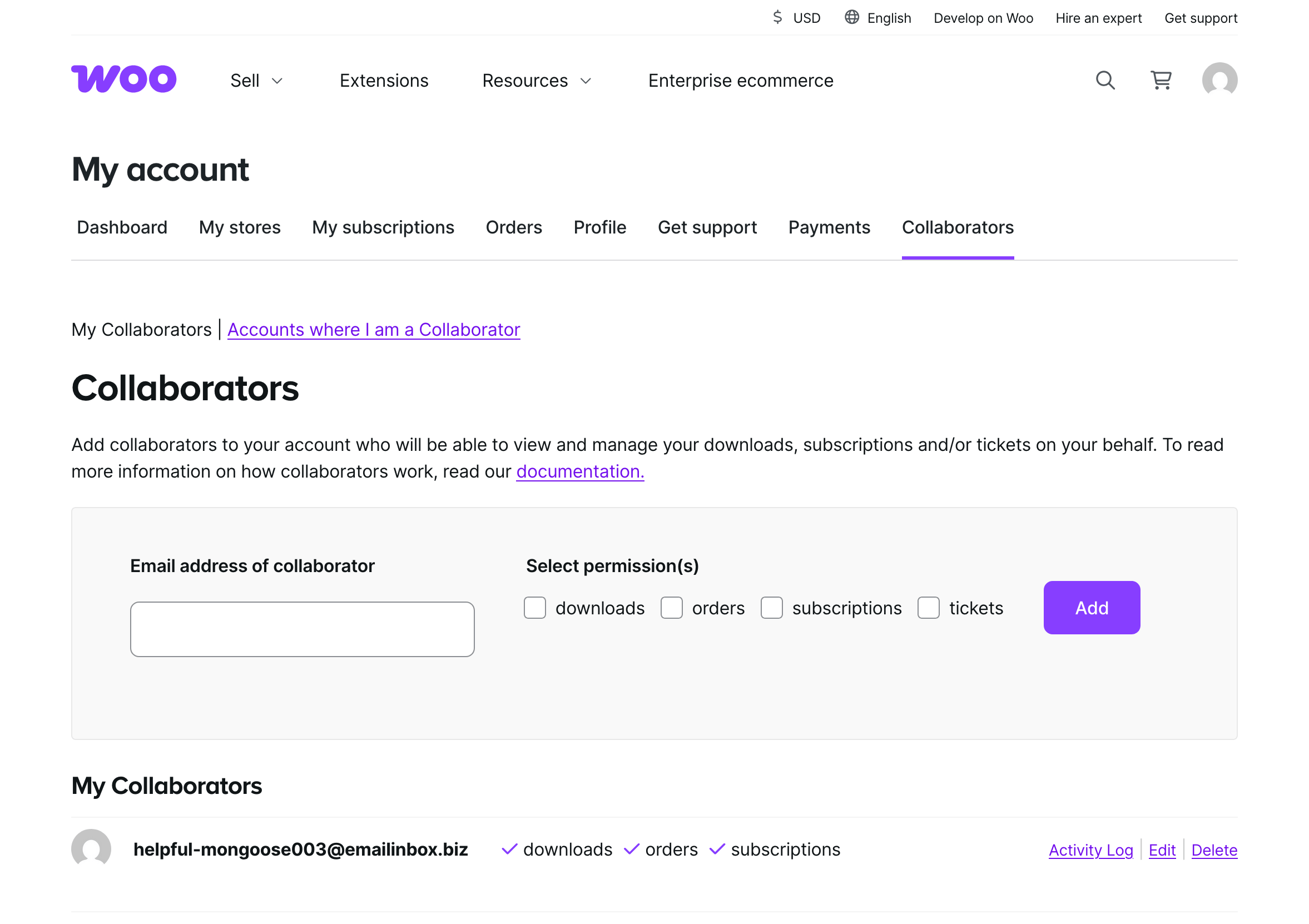
Adding account collaborators in this way gives you full control, while keeping your account safe and secure.
Managing collaborators
↑ Back to topFrom the My Collaborators section of your Collaborators page, you can:
- Update a collaborator’s permissions by clicking Edit. For example, if you want to allow a collaborator to install extensions, ensure the appropriate Subscriptions (and connected sites, if applicable) permissions are enabled.
- View an audit trail of their activities on your account — such as support ticket submissions and product downloads — by clicking Activity Log.
- Remove their access to your WooCommerce.com account by clicking Delete.
Managing a client’s account
↑ Back to top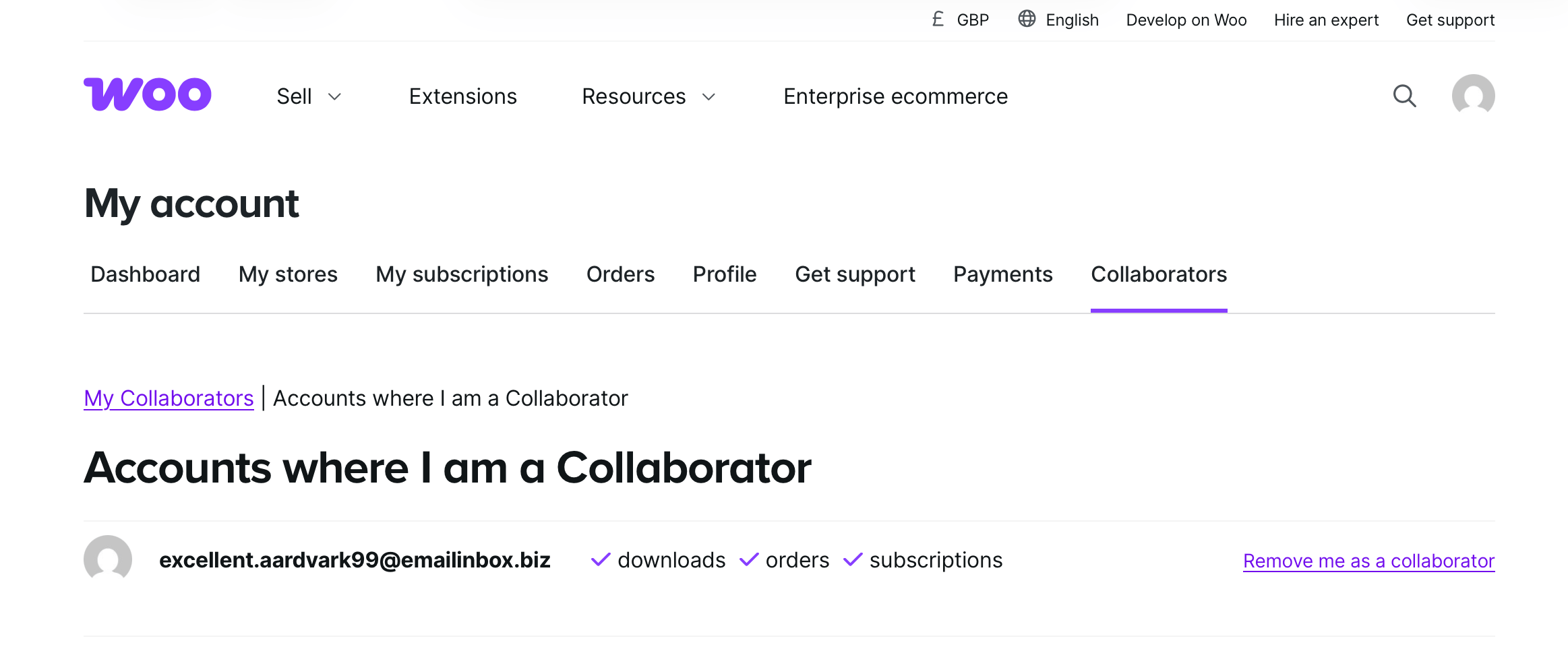
Collaborators can view and manage accounts they’ve been granted access to via the Collaborators page in their WooCommerce.com account dashboard.
To view which accounts have granted you collaborator access:
- Log into your WooCommerce.com account.
- From the menu in your My account dashboard, click the Collaborators tab.
- Click Accounts where I am a Collaborator.
To begin managing a client’s account:
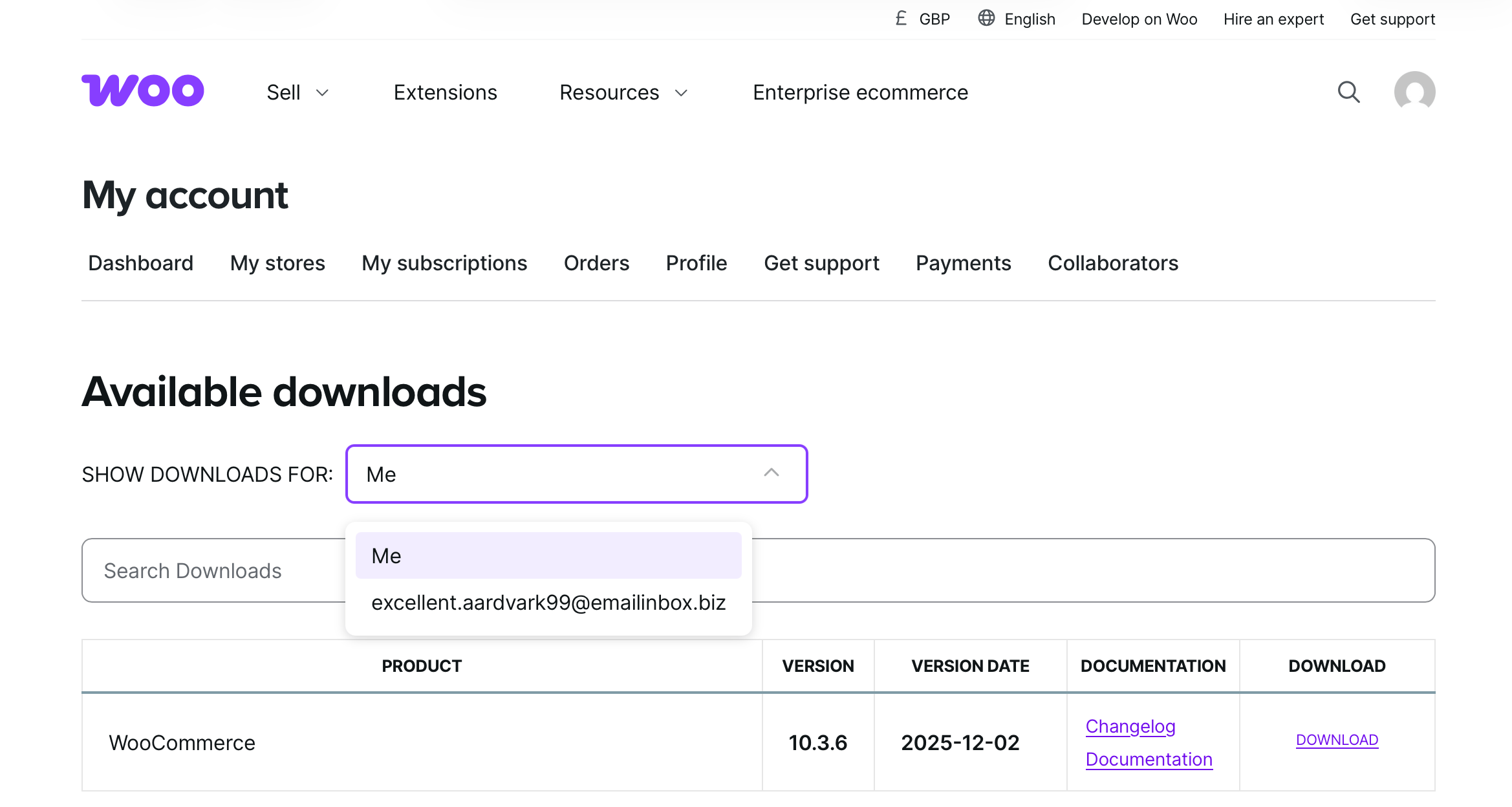
- Go to the Downloads, My subscriptions, or Get support page of your WooCommerce.com account dashboard.
- Select the client’s account email address from the relevant drop-down menu that appears; the page will display your client’s content (e.g. a list of their subscriptions, downloads, etc.).
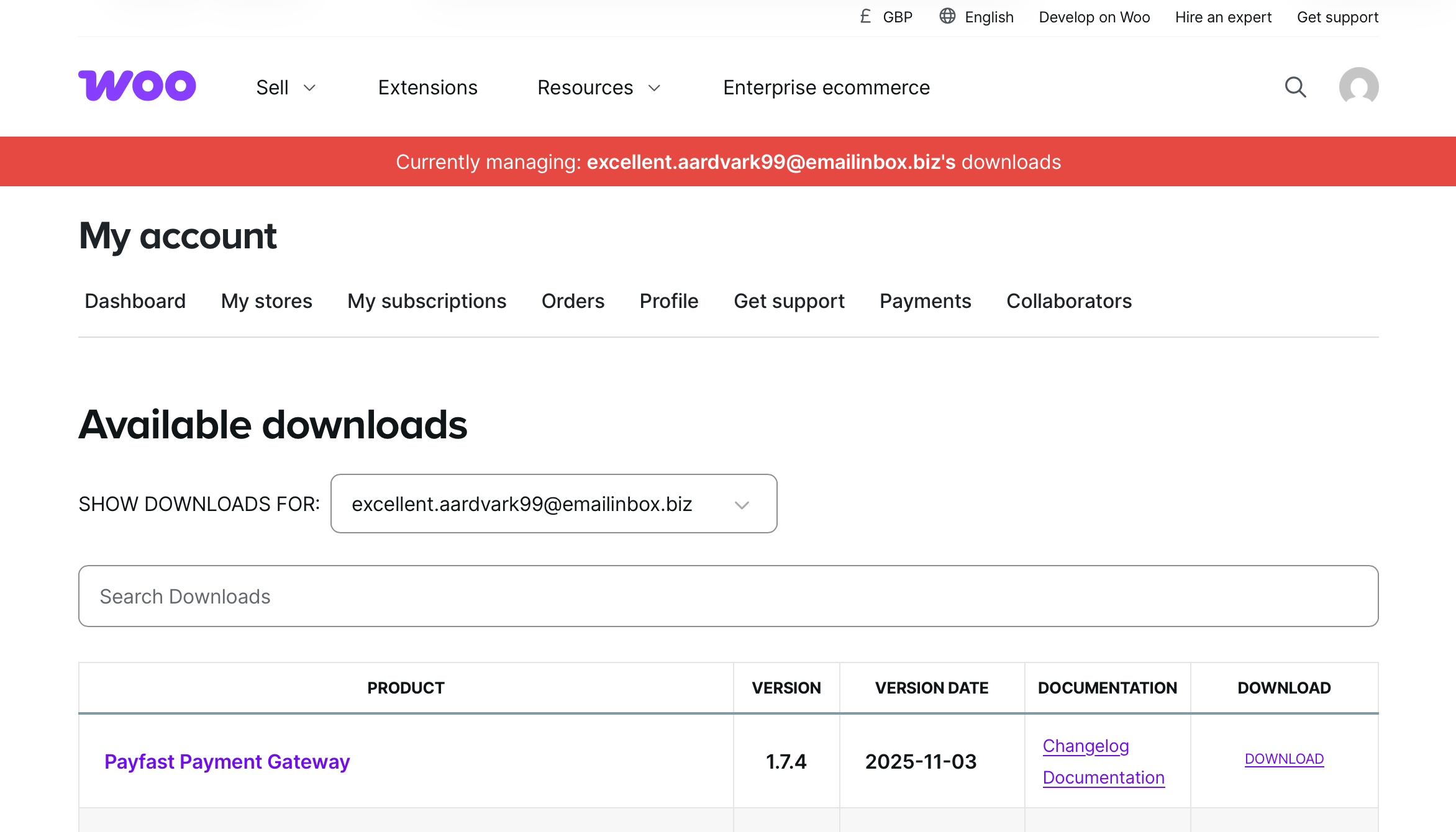
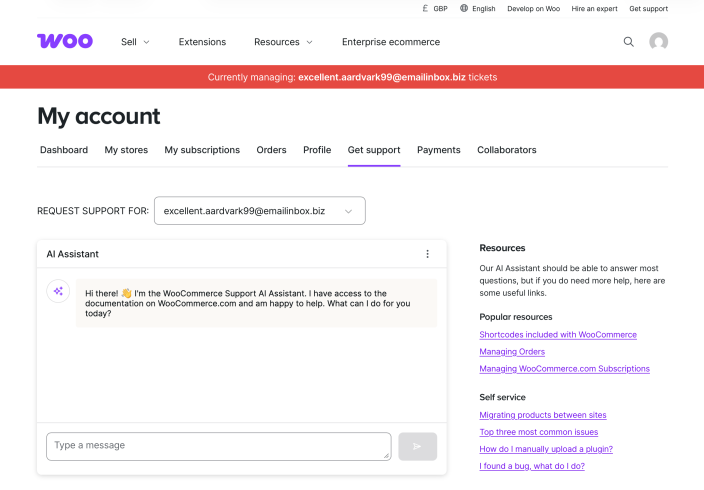
A red notification bar appears near the top the page when managing items on behalf of a client to ensure you are aware of which account you are accessing.
Subscriptions
↑ Back to topAs a collaborator with Subscriptions permission, you can:
- Access your client’s list of subscribed products (extensions) to see when they expire.
- Cancel subscriptions on your client’s behalf.
- Add subscriptions to your client’s site (see limitations below).
You cannot:
- Set products to auto-renew; your client must do this themselves.
- Perform the initial connection between your client’s site and their WooCommerce.com account. Your client must do this first.
Adding subscriptions to your client’s site
↑ Back to topImportant: Before you can add subscriptions to your client’s site:
- Your client must grant you both the Subscriptions and Connected Sites permissions.
- Your client must first connect their site to their WooCommerce.com account (collaborators cannot perform this initial connection).
To add an extension or theme subscription to your client’s site, please ensure that your collaborator account has both the Subscriptions and Connected Sites permissions granted by your client. This allows you to manage your client’s subscriptions on their behalf, except for renewals.
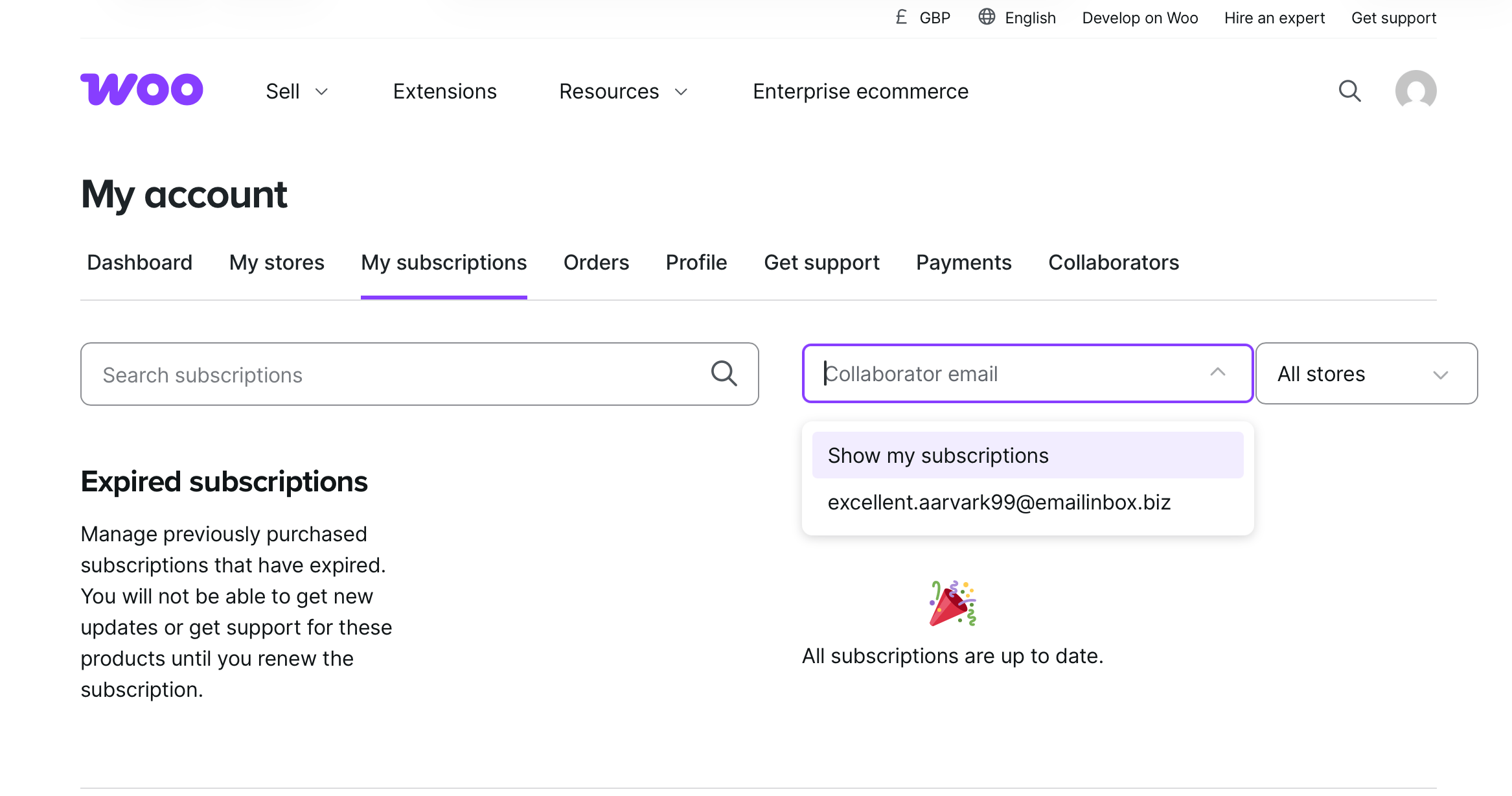
Log in to your WooCommerce.com account, then click the My subscriptions tab. Here, you need to select your client’s email address from the Show my subscriptions drop-down menu to see the list of subscriptions your client has shared with you:
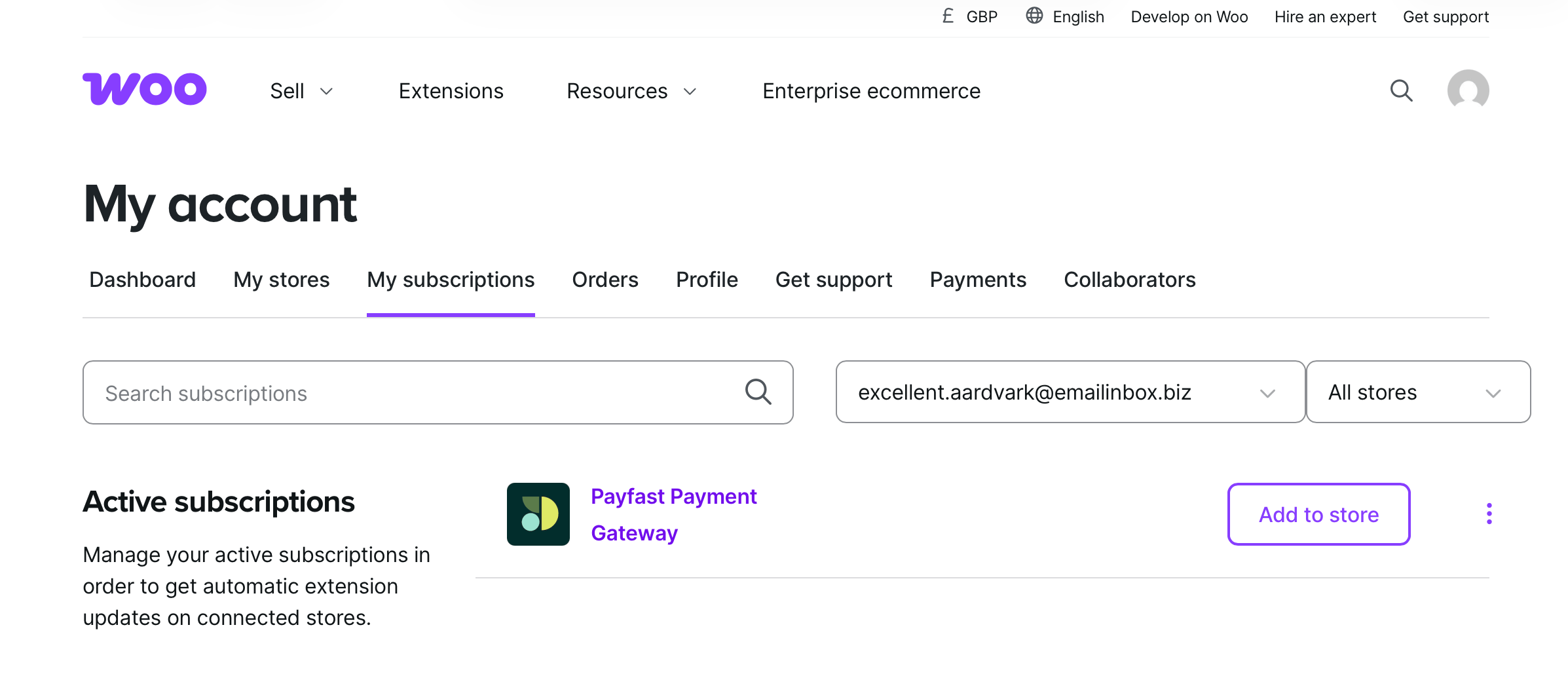
Once your client’s email address is selected, you will be able to see which extension and/or theme subscriptions are shared, and an Add to store button next to each one:
Click Add to store to begin the installation process; this will redirect you to your client’s site.
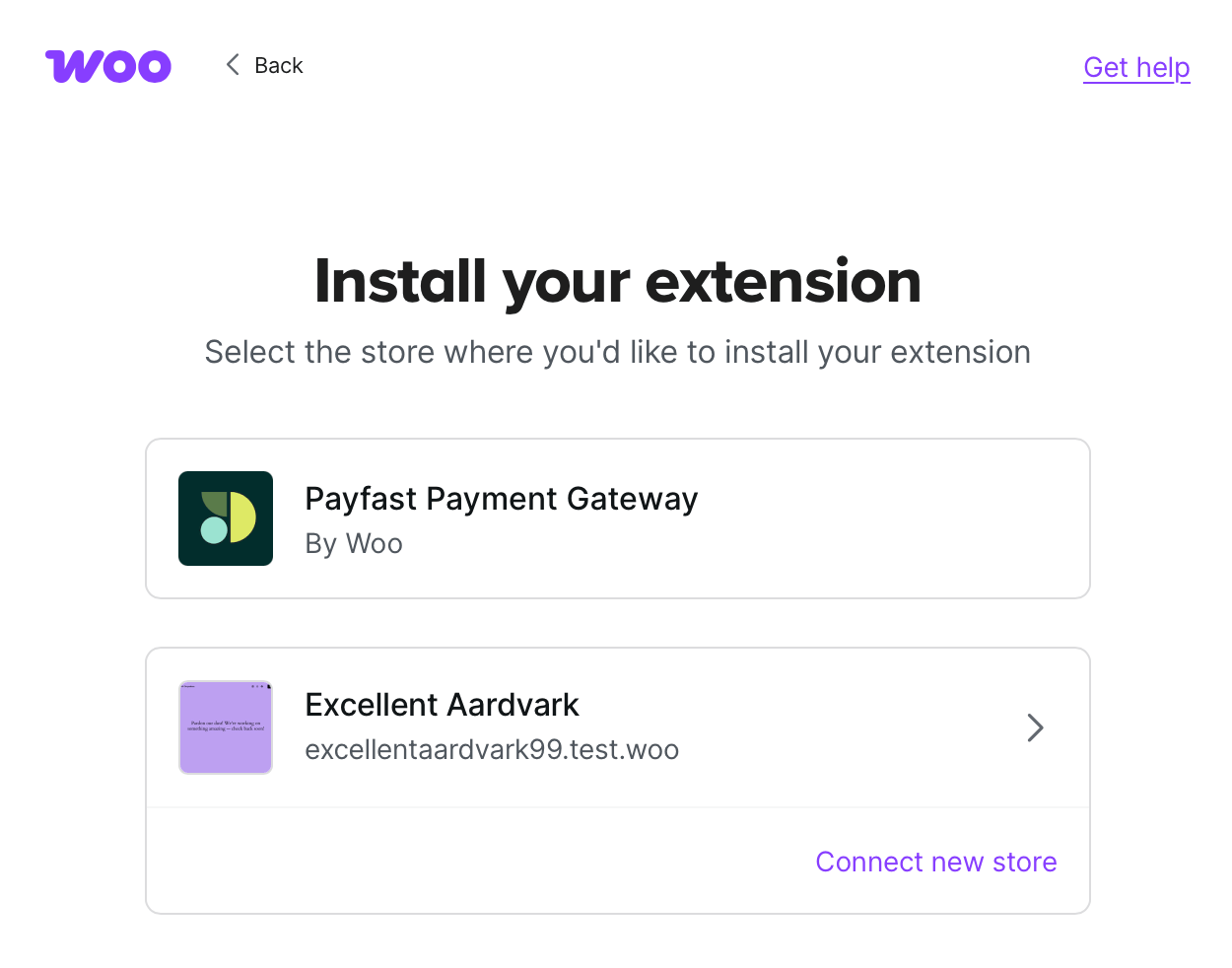
Please note that you must log in to your client’s site using your collaborator account, not the client’s account.
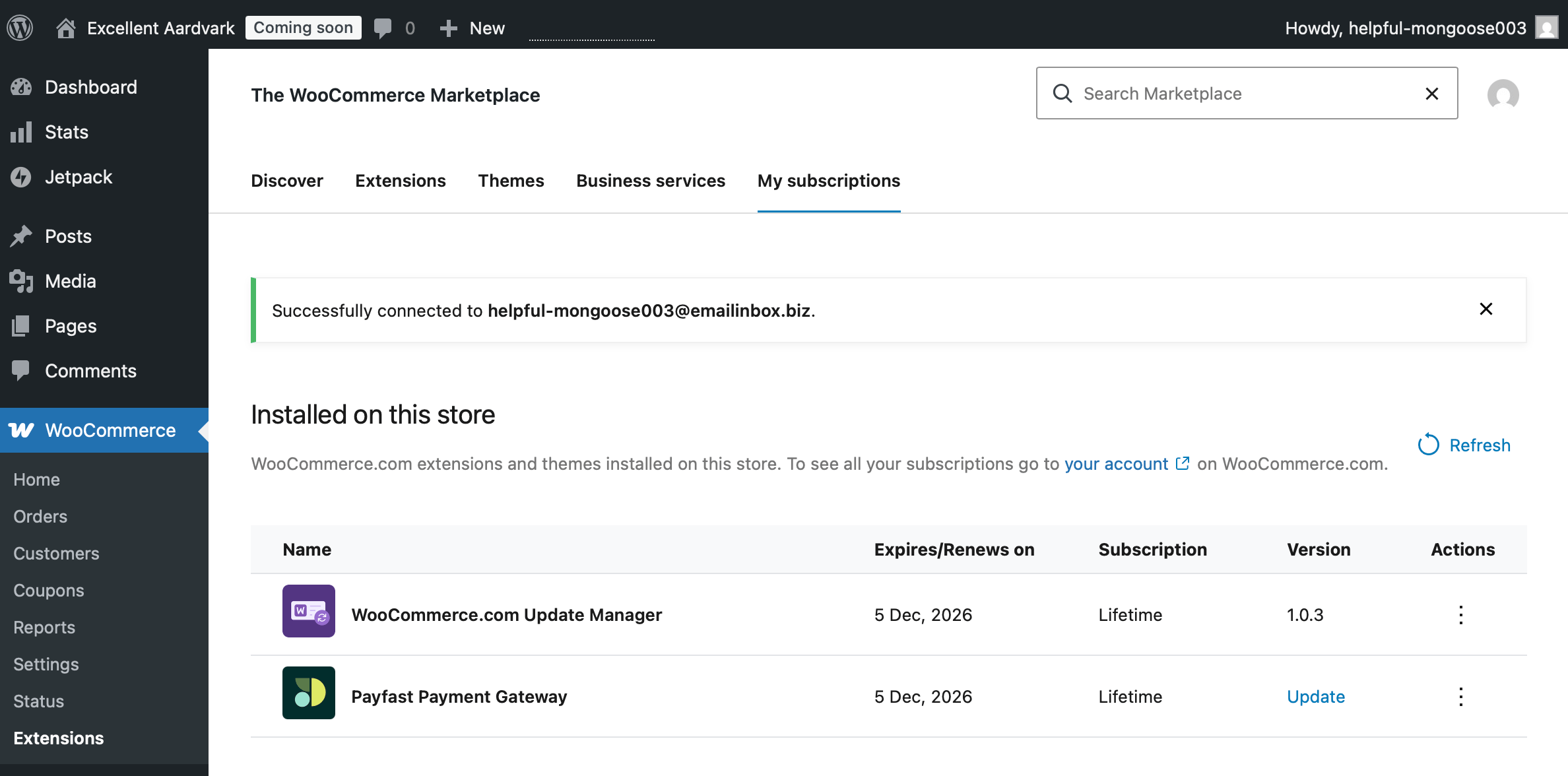
Once the installation process is completed, installed extensions can be found in the WP Admin dashboard of your client’s site at WooCommerce > Extensions > My Subscriptions:
Downloads
↑ Back to top- You can download a .zip file of your client’s extension or theme and upload them directly to their site. You can also access links to relevant documentation and view this item’s changelog.
- Your activity is logged on your client’s account.
Tickets
↑ Back to topTo submit a support ticket on your client’s behalf, select their account from the Request support for: drop-down menu.
Subscriptions included in managed hosting plans
↑ Back to topSubscriptions that are included as part of a managed hosting plan (such as those bundled with WooCommerce hosting tiers) cannot be managed via WooCommerce.com by collaborators or account owners. These subscriptions are tied directly to the hosting account.