
This plugin automatically calculates shipping costs for admin orders in WooCommerce when editing them, just like at checkout — ideal for helpdesk teams and phone orders.
Installation
↑ Back to topTo start using a product from WooCommerce.com, you can use the “Add to store” functionality on the order confirmation page or the My subscriptions section in your account.
- Navigate to My subscriptions.
- Find the Add to store button next to the product you’re planning to install.
- Follow the instructions on the screen, and the product will be automatically added to your store.
Alternative options and more information at:
Managing WooCommerce.com subscriptions.

First steps
↑ Back to topNo setup is required. The plugin works out of the box, using your existing shipping methods.
Create or edit an order — you will see a tooltip pointing to the “Add item(s)” button:
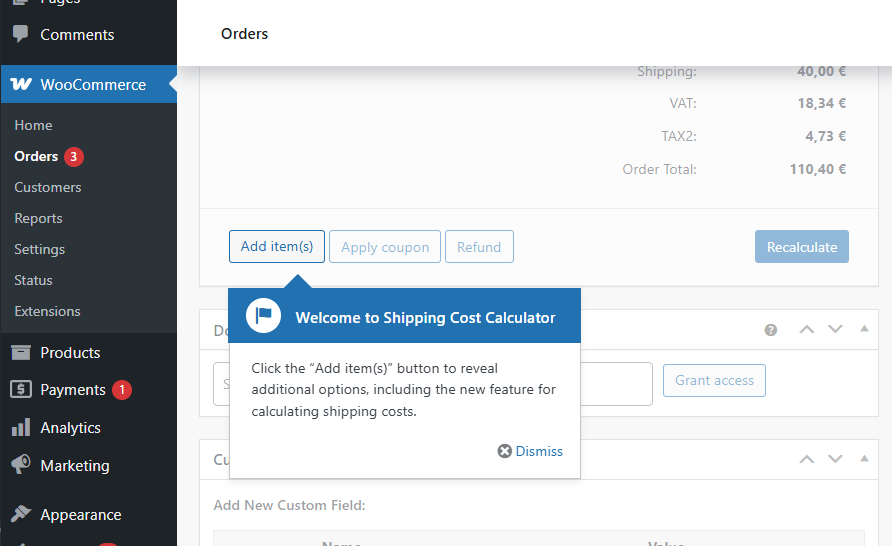
Click it to see two new buttons: “Calculate shipping” and “Add products (front)”:
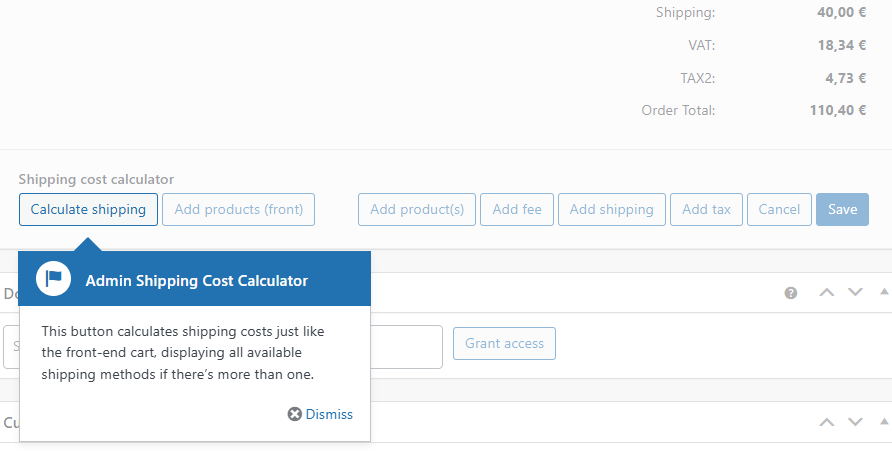
Calculate and add a new shipping cost to the order
↑ Back to topPlease, ensure fitst that the order has a shipping address.
Click on “Add item(s)” first, then click “Calculate shipping”. This will trigger the shipping rate calculation and display the available shipping methods.
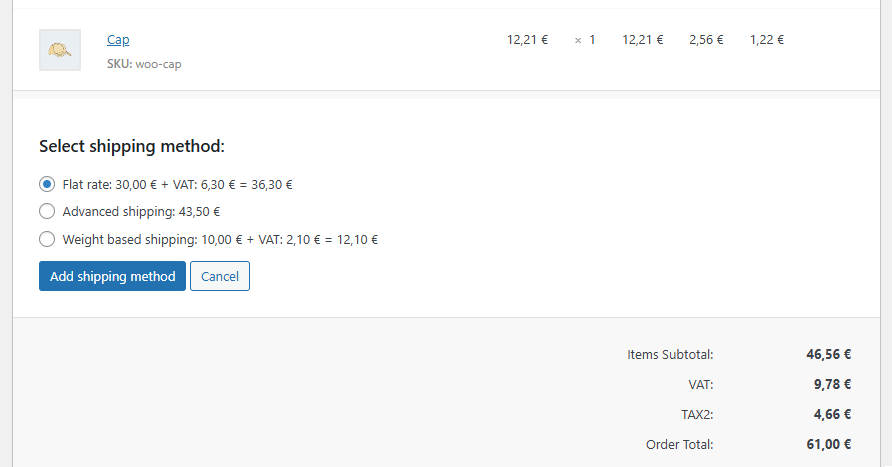
Select the desired shipping method and click “Add shipping method”.
Note: The WooCommerce shipping calculation needs the shipping address to work. If there isn’t any shipping address, you’ll receive a message indicating this.
Edit a Shipping cost
↑ Back to topYou can also edit a shipping cost without deleting and re-adding it. This feature is ideal after changing a product or the customer’s shipping address. Click on the pencil icon:
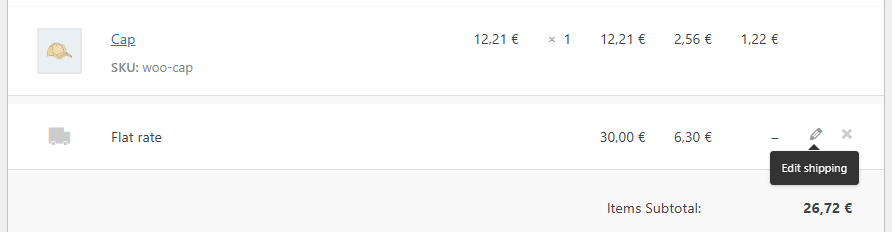
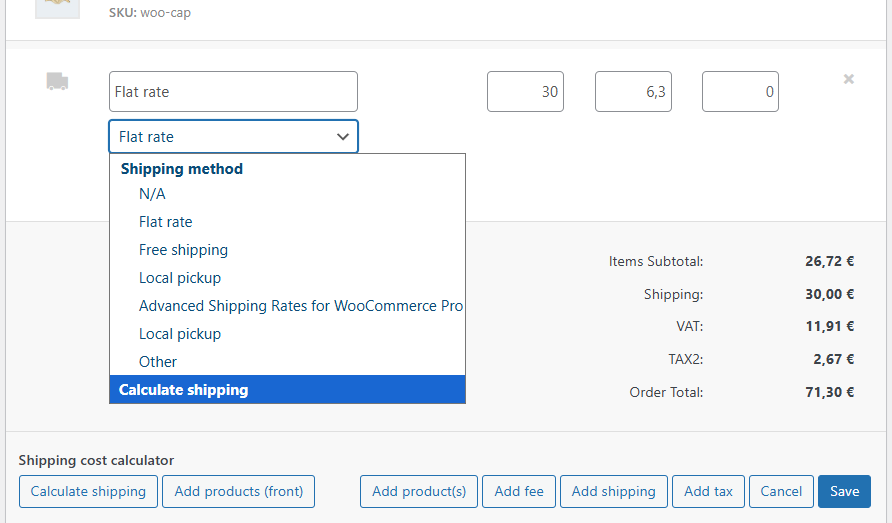
Open the drop-down and select the new option “Calculate shipping”. This will display the available shipping methods with the recalculated cost.
Support for Multiple packages
↑ Back to topIf your site already uses a plugin that splits the cart into multiple packages, this plugin fully supports it:
You can add one shipping method for each package: after each “Add shipping method” click, the methods for the remaining packages will still be available to add.
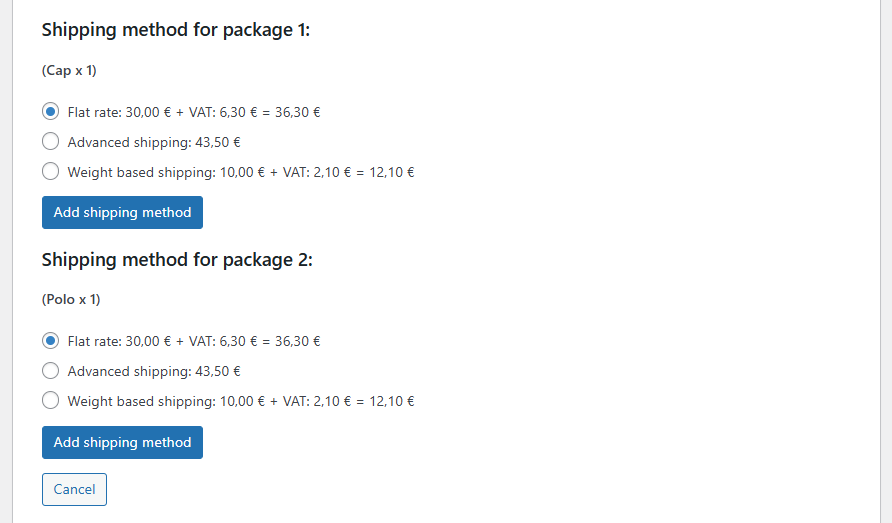
Note: You don’t need to add methods for each package: You can click “Cancel” when you’ve added the methods you want.
Support for Product add-ons
↑ Back to topIf you have products with options or custom fields that only appear on the front-end, and these customer choices affect the shipping costs, you can also add these products through our front-end popup.
Click the “Add products (front)” button:
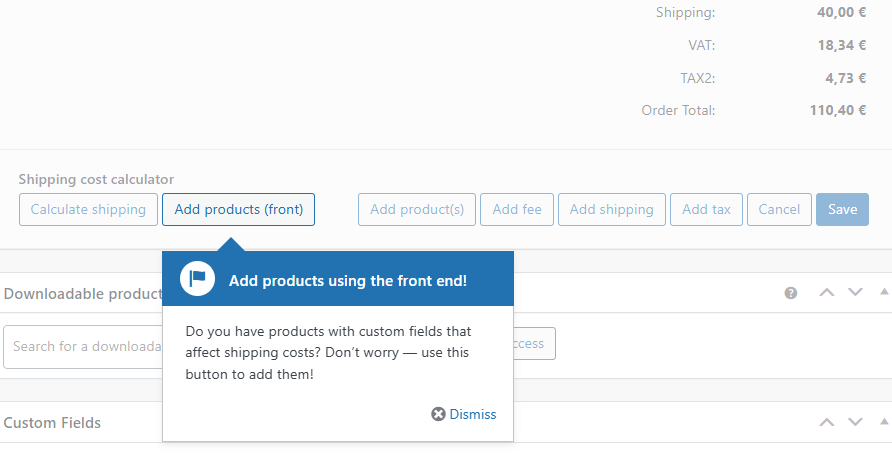
And select a product and click on “Go product page”:
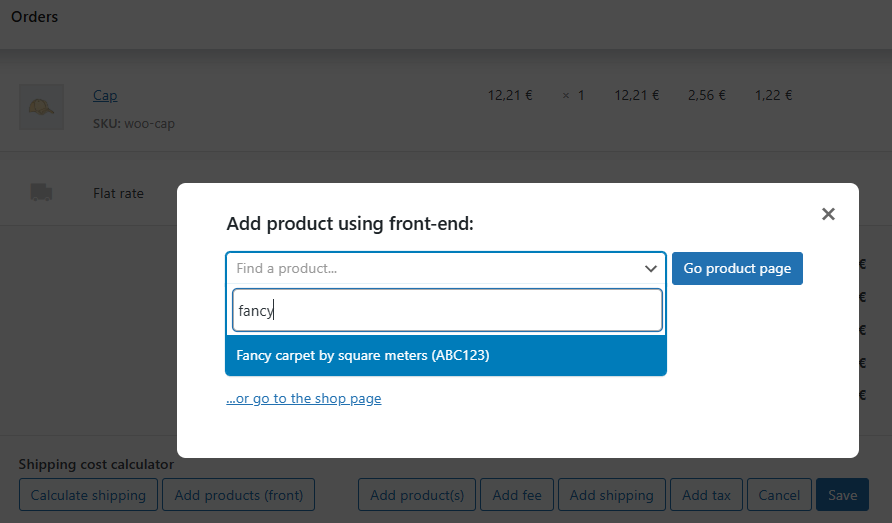
This opens a popup with the product front-end page:
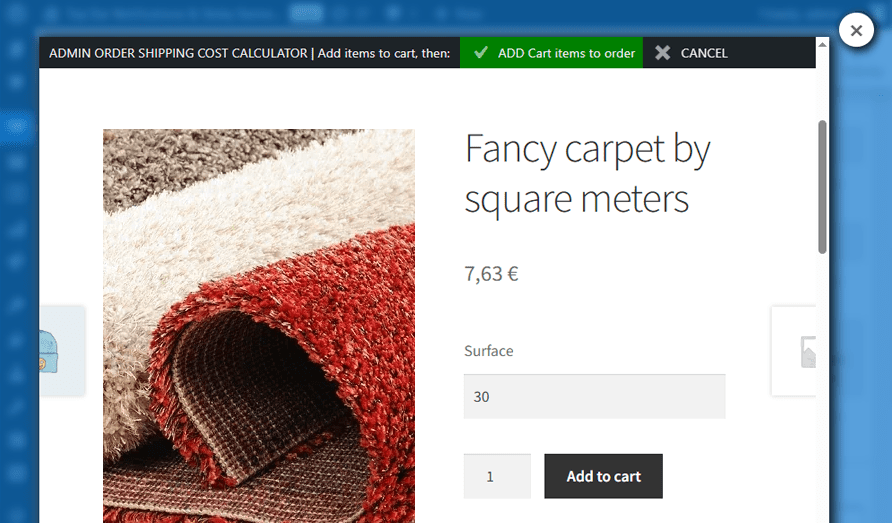
Set the product fields and click on “Add to cart” button. You can browse the website to add more products. When you have finished, click on the green “ADD Cart items to order” button, to close the popup and get back to the admin side.
The products in the cart will be added to the order, with the data of the custom fields. Those values will be used for all future shipping calculations.
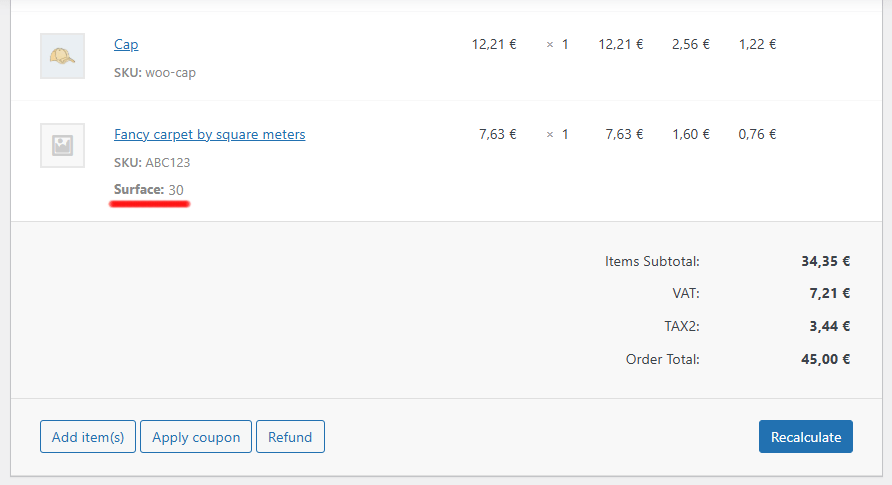
Note: this feature will take effect on shipping prices for shipping methods that support product fields on the front-end.
Support for Customer roles
↑ Back to topIf you use different shipping rates based on customer role (for example, member, affiliate, or guest), our plugin recreates the customer role for shipping calculation:
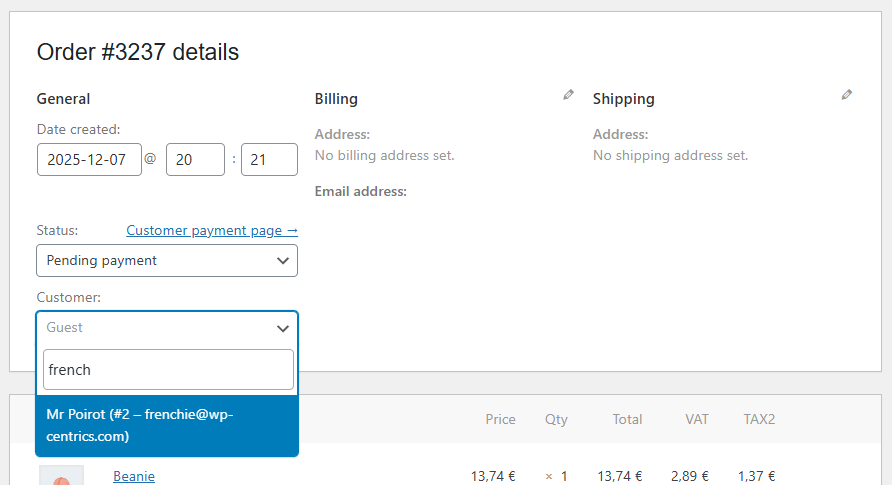
Make sure the customer is selected before calculating shipping. Otherwise, the guest role will be used for shipping calculation:
Note: this feature will take effect on shipping prices on calculations of shipping methods that support the use of user roles.

