
Securely and swiftly migrate products, orders, and customers from Square to WooCommerce without any data loss.
Installation
↑ Back to topTo start using a product from WooCommerce.com, you can use the “Add to store” functionality on the order confirmation page or the My subscriptions section in your account.
- Navigate to My subscriptions.
- Find the Add to store button next to the product you’re planning to install.
- Follow the instructions on the screen, and the product will be automatically added to your store.
Alternative options and more information at:
Managing WooCommerce.com subscriptions.

Setup and configuration
↑ Back to topAfter activating this extension, you should see Square to Woo in your store’s WP Admin dashboard under the WooCommerce menu. Under the Square to Woo menu, you can see the following 6 sections,
- API Settings
- Products Import Settings
- Orders Import Settings
- Customers Import Settings
- Run Import
- Import Status
API settings
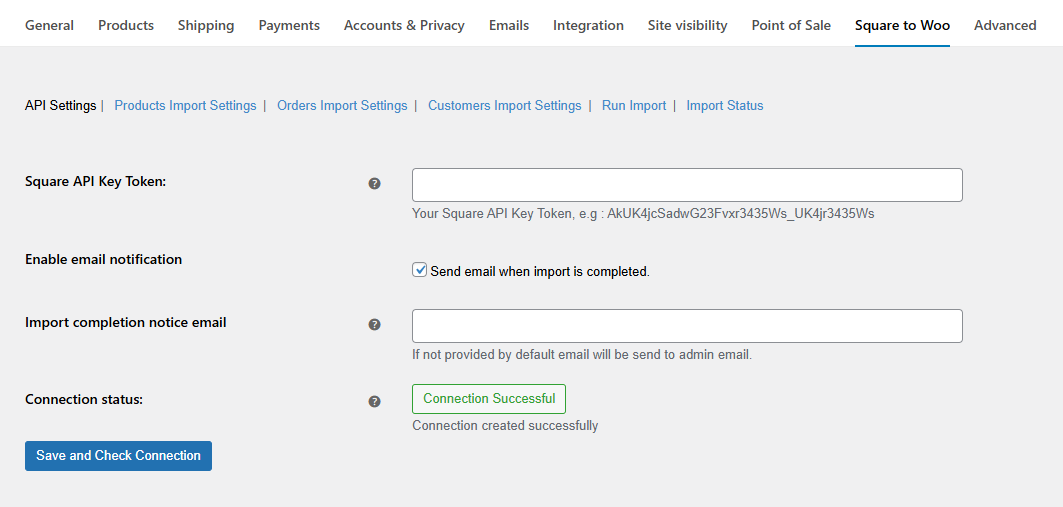
↑ Back to topIn this section, you can configure the API key for a secure connection between the two stores. Configure the following settings:
- Square API Key Token: Enter the API key token of your Square store. It will be something like:
AkUK4jcSadwG23Fvxr3435Ws_UK4jr3435Ws - Enable Email Notification: Select the checkbox to get email notifications once the import is completed.
- Import Completion Notice Email: Enter the email on which you want to receive email notifications. If not provided by default email will be sent to the admin email.
- Connection Status: Connection status will be displayed here
Once configured, click on the Save and Check Connection button to apply the settings.
Product import settings
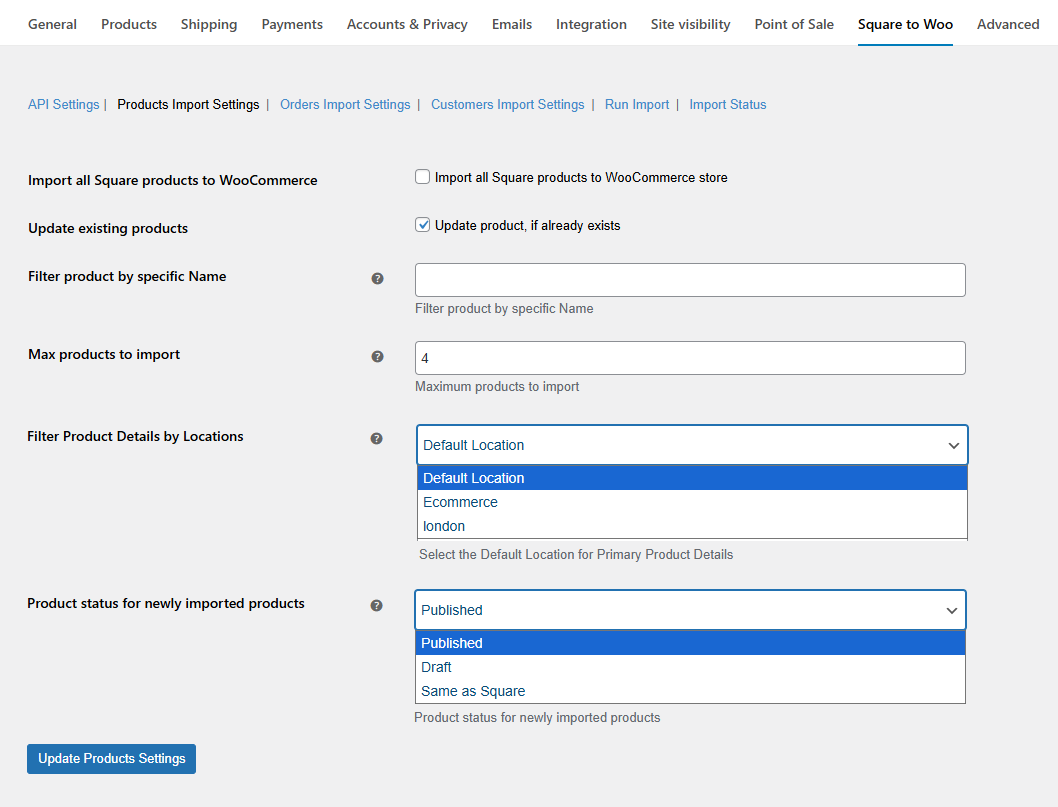
↑ Back to topIn this tab, you can configure the settings and configurations for importing products from Square to WooCommerce. To configure, go to WooCommerce > Square to Woo > Product Import Settings in your store’s WP Admin dashboard and configure the following:
- Import all Square Products to WooCommerce: Select the checkbox to import all products from Square to WooCommerce.
- Update Existing Products: Click the checkbox if you want to update products that already exist in the store.
- Filter Product By Specific Name: Choose products that you want to import. You can filter products by their name.
- Max Products To Import: Set the maximum number of products to be imported.
- Filter Product Details By Locations: Select the default location for primary product details.
- Product Status For Newly Imported Products: Select the status for newly imported products. You can choose one of the following:
- Published
- Draft
- Same as Square
Click the Update Product Settings button to enable the configuration.
Order import settings
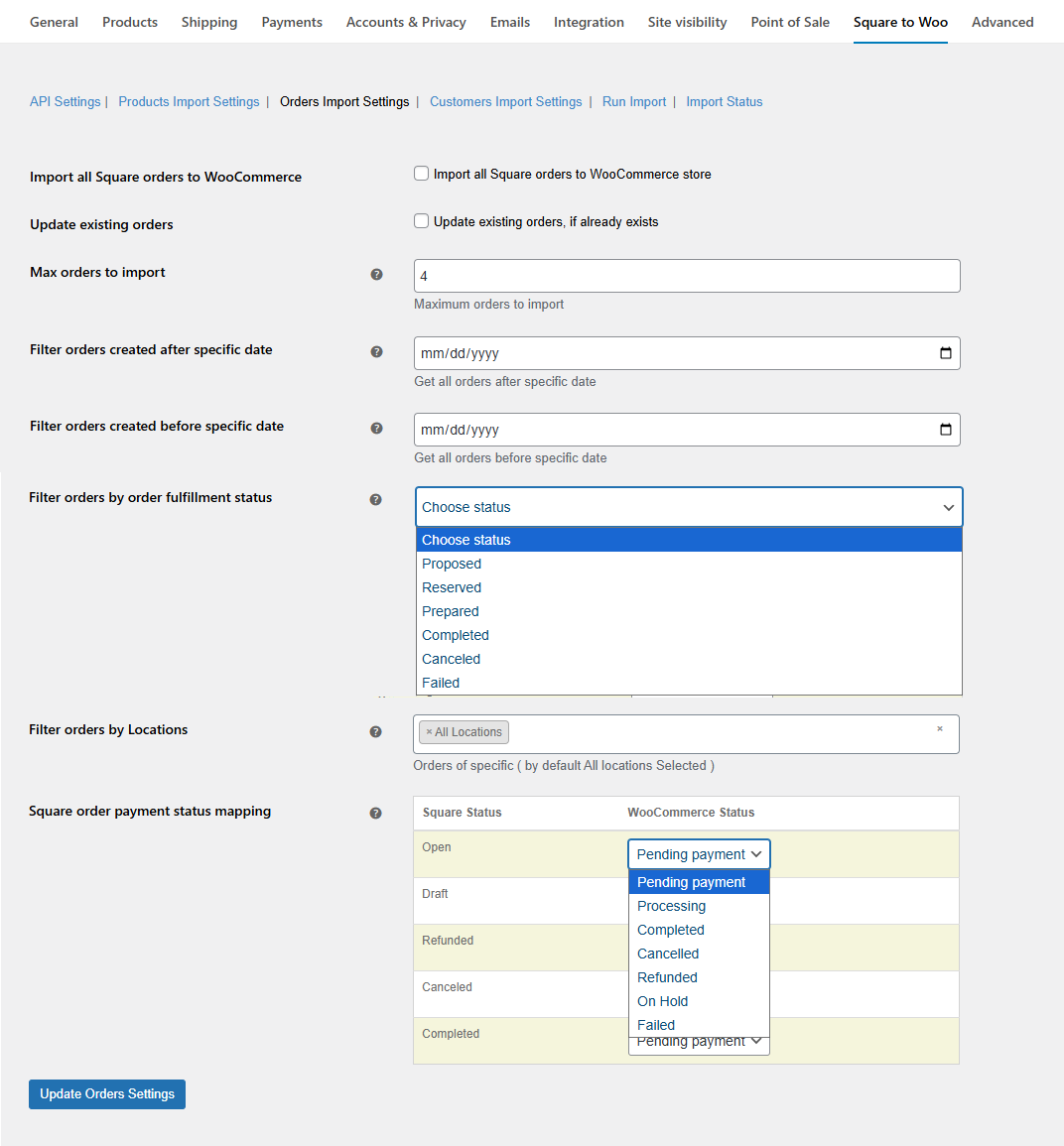
↑ Back to topTo customize settings for importing orders, navigate to WooCommerce > Square to Woo > Orders Import Settings and configure the following:
- Import all Square Orders to WooCommerce: Select the checkbox to import all orders from Square to WooCommerce.
- Update Existing Orders: Select the checkbox to update orders that already exist.
- Max Orders To Import: Enter the maximum number of products that can be imported.
- Filter Orders Created After Specific Date: Select the date to import all orders that are created after that specific date.
- Filter Orders Created Before Specific Date: Select a date to import all orders before that specific date.
- Filter Orders By Order Fulfillment Status: Filter orders based on their fulfillment status. You can select the following statuses:
- Proposed
- Reserved
- Prepared
- Completed
- Cancelled
- Failed
- Filter Orders By Locations: Select location(s) to filter orders based on specific locations.
- Square Order Payment Status Mapping: Select the mapping status for each order status in Square. In Square, the order statuses are as follows:
- Open
- Draft
- Refunded
- Canceled
- Completed
You can select an order status for each of these in WooCommerce. Choose from the following:
- Pending Payment
- Processing
- Completed
- Cancelled
- Refunded
- On Hold
- Failed
Customer import settings
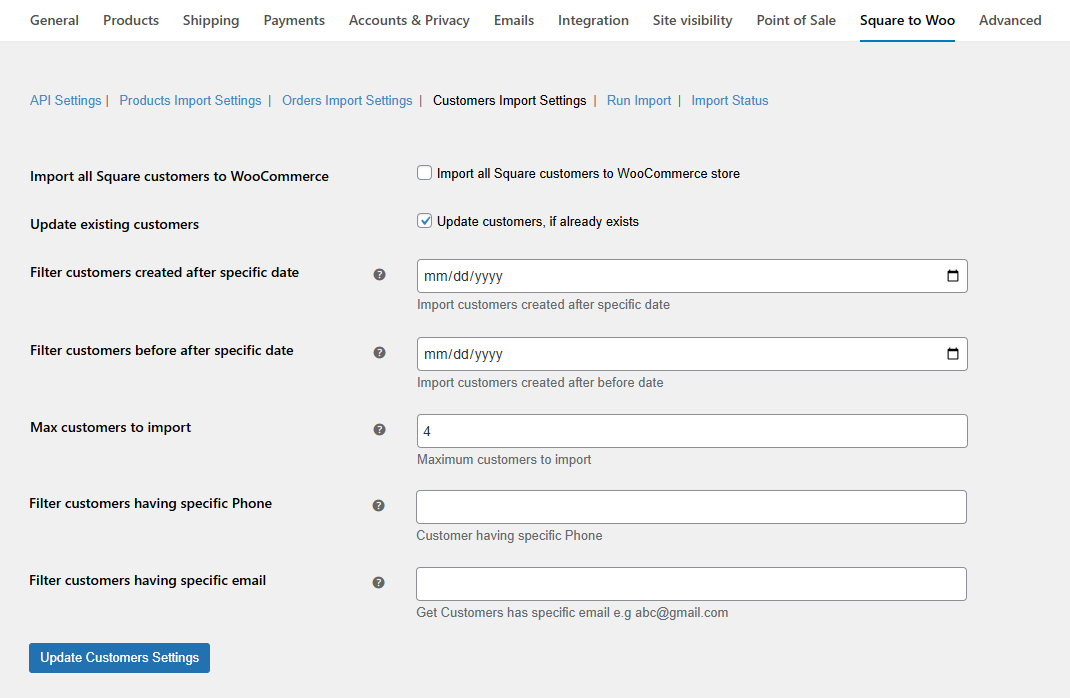
↑ Back to topTo customize settings for importing customers, go to WooCommerce > Square to Woo > Customer Import Settings and configure the following:
- Import All Square Customers To WooCommerce: Select the checkbox to import all customers from Square to WooCommerce.
- Update Existing Customers: Update any imported customers if they already exist.
- Filter Customers Created After Specific Date: Select a specific date to filter customers created after that particular date.
- Filter Customers Before After Specific Date: Choose a date to filter customers to import before that specific date.
- Max Customers To Import: Enter the maximum number of customers to be imported.
- Filter Customers Having Specific Phone Numbers: Filter customers having specific phone numbers.
- Filter Customers Having Specific Email: Enter an email to filter and import customers based on specific email.
Click the Update Customer Settings button to save and enable the settings.
Run an import
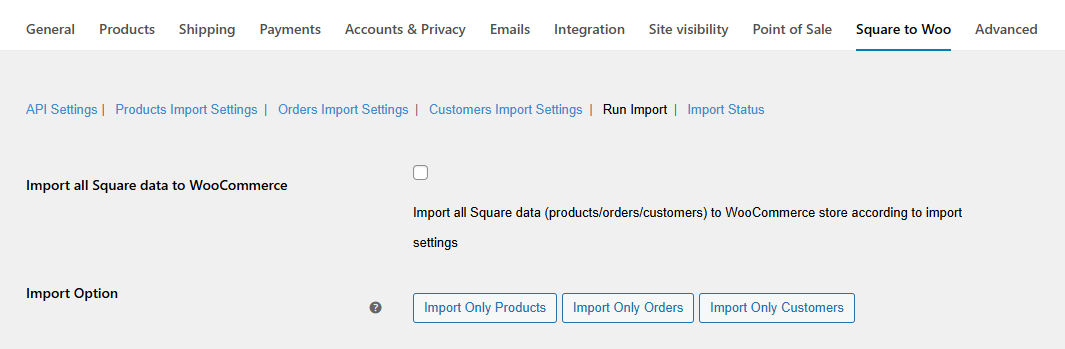
↑ Back to topTo begin the import from Square to WooCommerce, go to WooCommerce > Square to Woo > Run Import and configure the following:
- Import all Square Data to WooCommerce: Import all Square data (products/orders/customers) to the WooCommerce store according to the import settings you configured.
- Import Option: Choose the option to import specific data from Square to WooCommerce. You can select the following options:
- Import Only Products
- Import Only Orders
- Import Only Customers
Import status
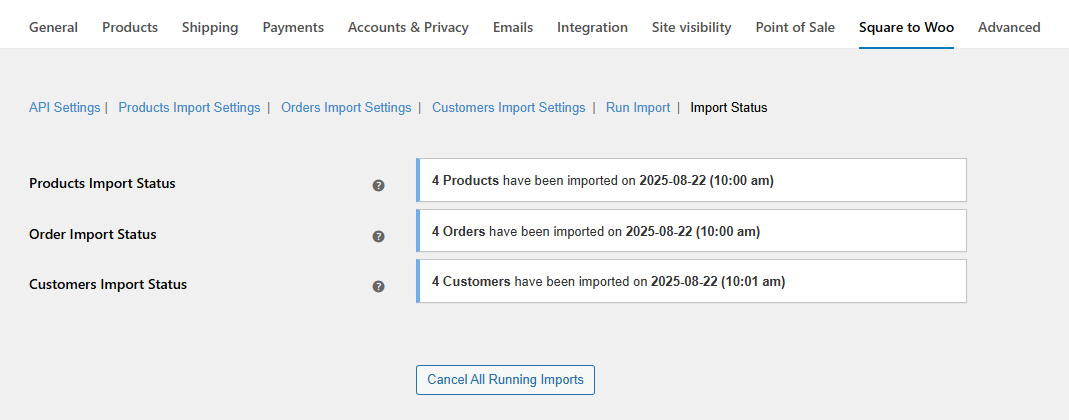
↑ Back to topReview the import status for all the ongoing migrations by navigating to WooCommerce > Square to Woo > Import Status and checking the following:
- Products Import Status: Check the status of the product import.
- Order Import Status: Check the status of the order import.
- Customers Import Status: Check the status of the customer import.
Click the Cancel All Running Imports button to cancel all ongoing migrations immediately.
Frequently asked auestions
↑ Back to topHow do I connect my Square store to WooCommerce for migration?
↑ Back to topTo connect Square to WooCommerce, go to WooCommerce > Square to Woo > API Settings in your store’s WP Admin dashboard, enter your Square API Key Token, enable email notifications, and click Save Changes. A successful connection ensures the secure migration of products, orders, and customers without data loss.
Can I import only selected products from Square to WooCommerce?
↑ Back to topYes. From WooCommerce > Square to Woo > Product Import Settings, you can filter products by name, set a maximum number of products to import, and choose the product status for new imports (Published, Draft, or Same as Square).
How can I filter orders to import from Square to WooCommerce?
↑ Back to topIn Orders Import Settings, you can filter by creation date, fulfillment status (Proposed, Reserved, Prepared, Completed, Cancelled, or Failed), and location. You can also set a maximum number of orders to import.
How do I map Square order statuses to WooCommerce order statuses?
↑ Back to topThe extension allows full mapping under Orders Import Settings. For each Square order status (Open, Draft, Refunded, Canceled, Completed), you can select the corresponding WooCommerce status (Pending Payment, Processing, Completed, Cancelled, Refunded, On Hold, Failed).
How do I run a full migration from Square to WooCommerce?
↑ Back to topNavigate to WooCommerce > Square to Woo > Run Import, click Import all Square Data to WooCommerce, and the extension will migrate products, orders, and customers based on your configured settings.
Can I import only products, orders, or customers individually?
↑ Back to topYes. The Import Option in Run Import allows you to select Import Only Products, Import Only Orders, or Import Only Customers, giving you flexibility for partial migrations.
How can I monitor the migration progress?
↑ Back to topVisit WooCommerce > Square to Woo > Import Status in your store’s WP Admin dashboard to see live status updates for products, orders, and customers. You can also cancel ongoing imports instantly using the Cancel All Running Imports button.
Will I receive a notification after the import is complete?
↑ Back to topYes. By enabling Email Notification in API Settings and entering your preferred email address, the extension will notify you once the migration is successfully completed.

