
Quaderno simplifies tax compliance for your WooCommerce store by handling all your tax calculations, issuing tax-compliant invoices, generating insightful reports, and even notifying you of new tax collection obligations worldwide.
Requirements
↑ Back to topMinimum Requirements
- PHP 7.4 or greater is required (PHP 8.0 or greater is recommended)
- WooCommerce 3.2 or greater
- A Quaderno account.
Installation
↑ Back to topTo start using a product from WooCommerce.com, you can use the “Add to store” functionality on the order confirmation page or the My subscriptions section in your account.
- Navigate to My subscriptions.
- Find the Add to store button next to the product you’re planning to install.
- Follow the instructions on the screen, and the product will be automatically added to your store.
Alternative options and more information at:
Managing WooCommerce.com subscriptions.

Setup
↑ Back to topReady to connect your WooCommerce store to your Quaderno account? Let’s get started!
First, you’ll need to install the Quaderno plugin and activate WooCommerce’s built-in tax calculation feature.
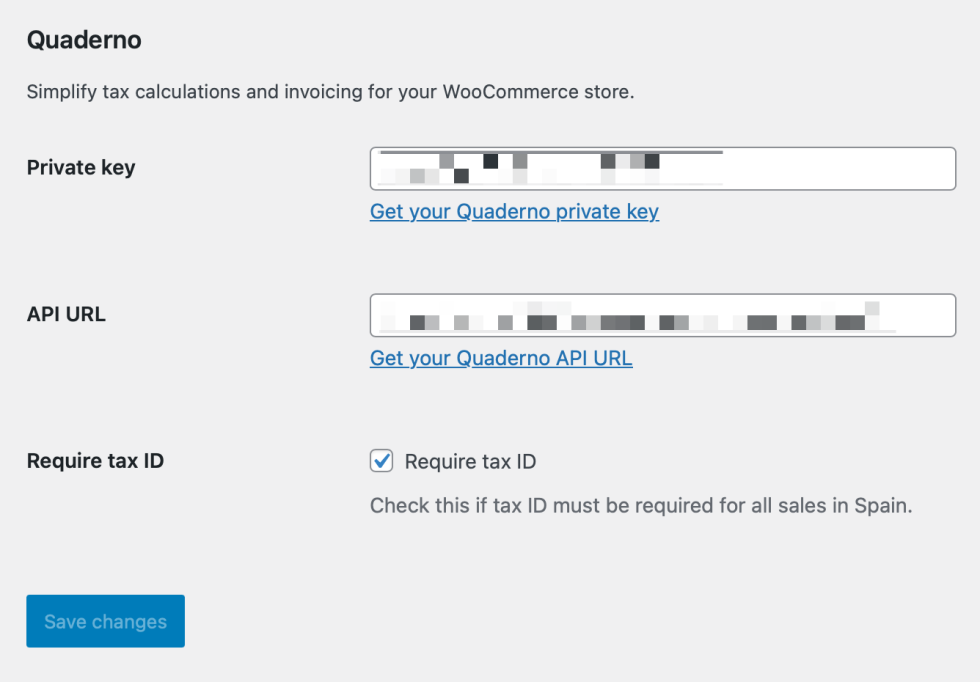
- Get started by installing our official plugin for WooCommerce.
- Connect WooCommerce with Quaderno:
- Navigate to WooCommerce > Settings > Integration > Quaderno.
- Paste your
Private keyandAPI URLinto the respective fields. You can find this information on the API keys page within your Quaderno account. - Click
Save changes.
- Enable WooCommerce taxes:
- Go to WooCommerce > Settings > General.
- Activate the option
Enable tax rates and calculations. - Click
Save changes.
Configure your tax preferences
↑ Back to topNow, let’s set up how you want taxes calculated in your WooCommerce store.
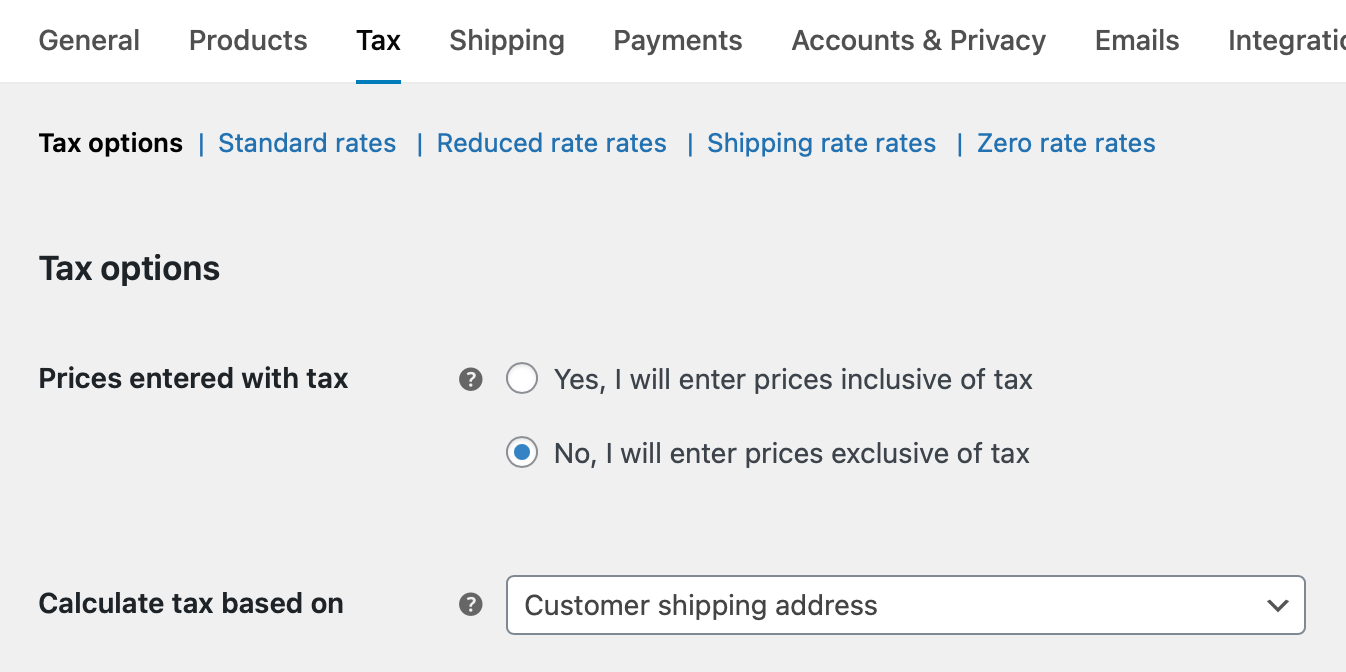
- Navigate to WooCommerce > Settings > Tax > Tax options.
- Select how your prices will be entered. For the simplest setup, choose tax-exclusive prices (meaning tax is added on top of your product prices). If you prefer tax-inclusive prices (where taxes are already factored into your product prices), please refer to these detailed steps.
- Choose tax calculation basis. For the
Calculate tax based onfield, select the option that best suits your products:- Choose Customer shipping address if you primarily sell physical goods.
- Choose Customer billing address if you primarily sell digital products.
- Choose Shop based address if you’re selling tickets for in-person events or pick-up orders.
- Click
Save changes.
If you sell products with varying tax rates, you’ll need to assign them specific Quaderno tax codes. Check this article for more information.
You’re all set!
↑ Back to topThat’s it! With this straightforward configuration, Quaderno will automatically generate an invoice or credit note for any sale or refund as soon as the order is marked “paid” or “completed” in your WooCommerce store.
🚨 Do not connect any payment processor (like Stripe or PayPal) you’re using in WooCommerce directly to your Quaderno account. Doing so may result in duplicate invoices.
Important notes
↑ Back to top- Accurate tax calculations: For precise tax calculations on your checkout and invoices, ensure you’ve configured all tax jurisdictions where your business is registered for tax collection.
- Checkout blocks: The new Checkout Blocks are not currently supported. You will need to switch to the Classic Checkout.
- Multiple shipping locations: The WooCommerce API doesn’t provide information about the point of exit for goods, meaning our plugin cannot support scenarios where orders ship from different locations.
- Recurring payments: Only “simple subscriptions” are currently supported for recurring payments; “variable subscriptions” are not.

