
Customer Price Offer – Offer Your Price allows customers to negotiate product prices directly on your WooCommerce store.
Store owners can approve, reject, or counter offers manually or automatically, enabling flexible pricing while maintaining full control.
This plugin is suitable for:
- B2C & B2B stores
- Wholesale pricing
- Private / RFQ-based stores
- High-value or negotiable products
Installation
↑ Back to topTo start using a product from WooCommerce.com, you can use the “Add to store” functionality on the order confirmation page or the My subscriptions section in your account.
- Navigate to My subscriptions.
- Find the Add to store button next to the product you’re planning to install.
- Follow the instructions on the screen, and the product will be automatically added to your store.
Alternative options and more information at:
Managing WooCommerce.com subscriptions.

Setup and Configuration
↑ Back to top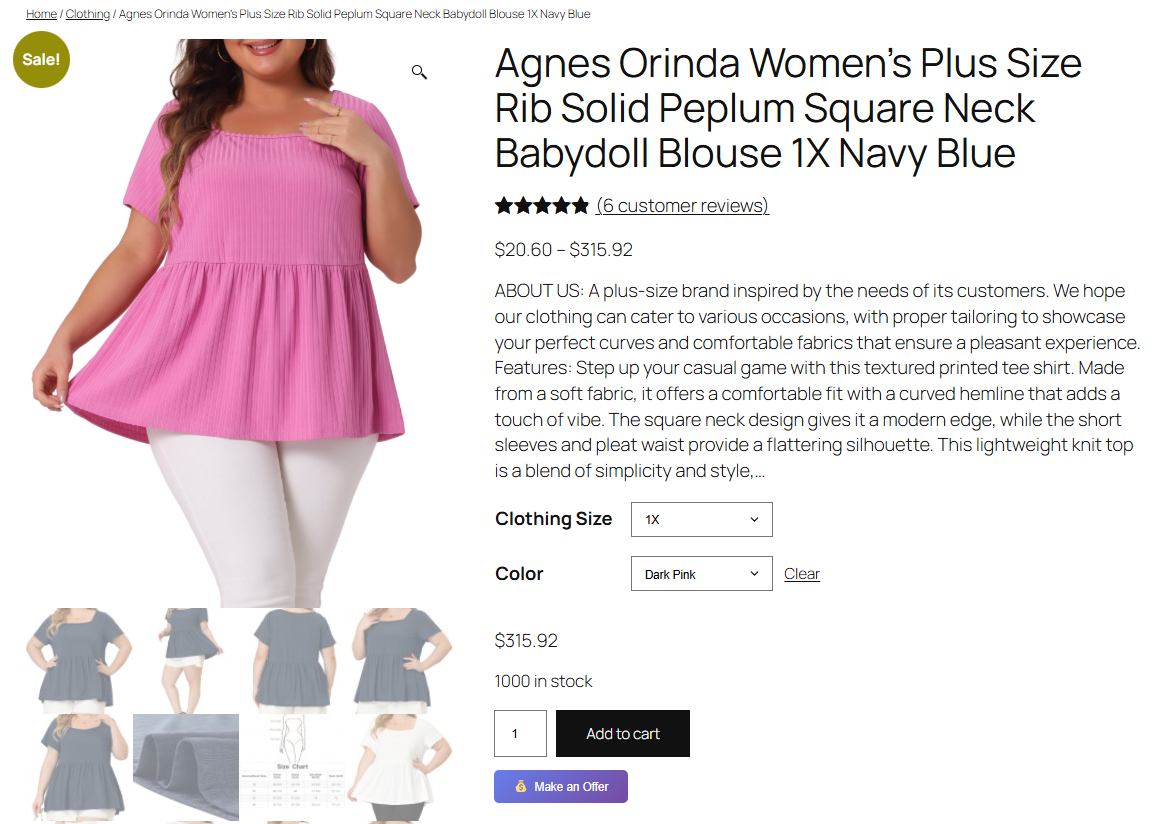
Getting started
↑ Back to topTo set up your store with Customer Price Offer – Offer Your Price:
- Go to: WooCommerce > Settings > Price Offers.
- Tick the checkbox to Enable
- Set the plugin configuration options according to your preferences.
- Save changes.
Usage
↑ Back to topHow the Offer System Works
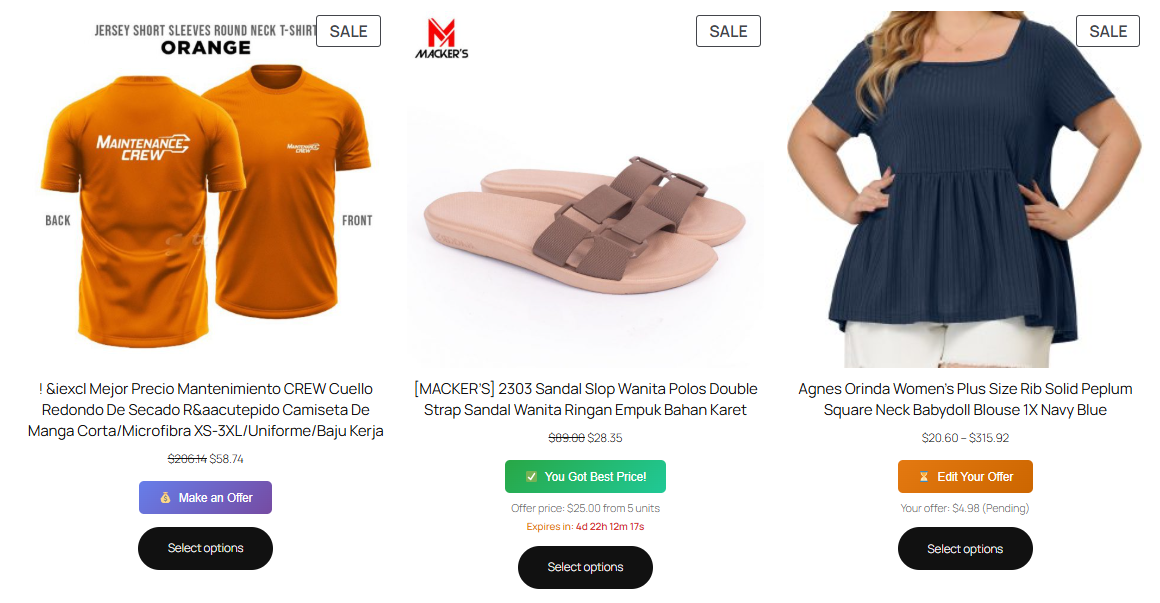
↑ Back to top- Customer clicks “Make an Offer”
- Customer submits:
- Offered price
- Quantity
- Optional message
- Offer is:
- Auto-approved (if rules match)
- Auto-rejected (if rules match)
- Sent to admin for moderation
- Admin can:
- Approve
- Reject
- Send counter-offer
- Customer receives email notification
- Approved offer generates a special purchase link
- Order usage is tracked per offer
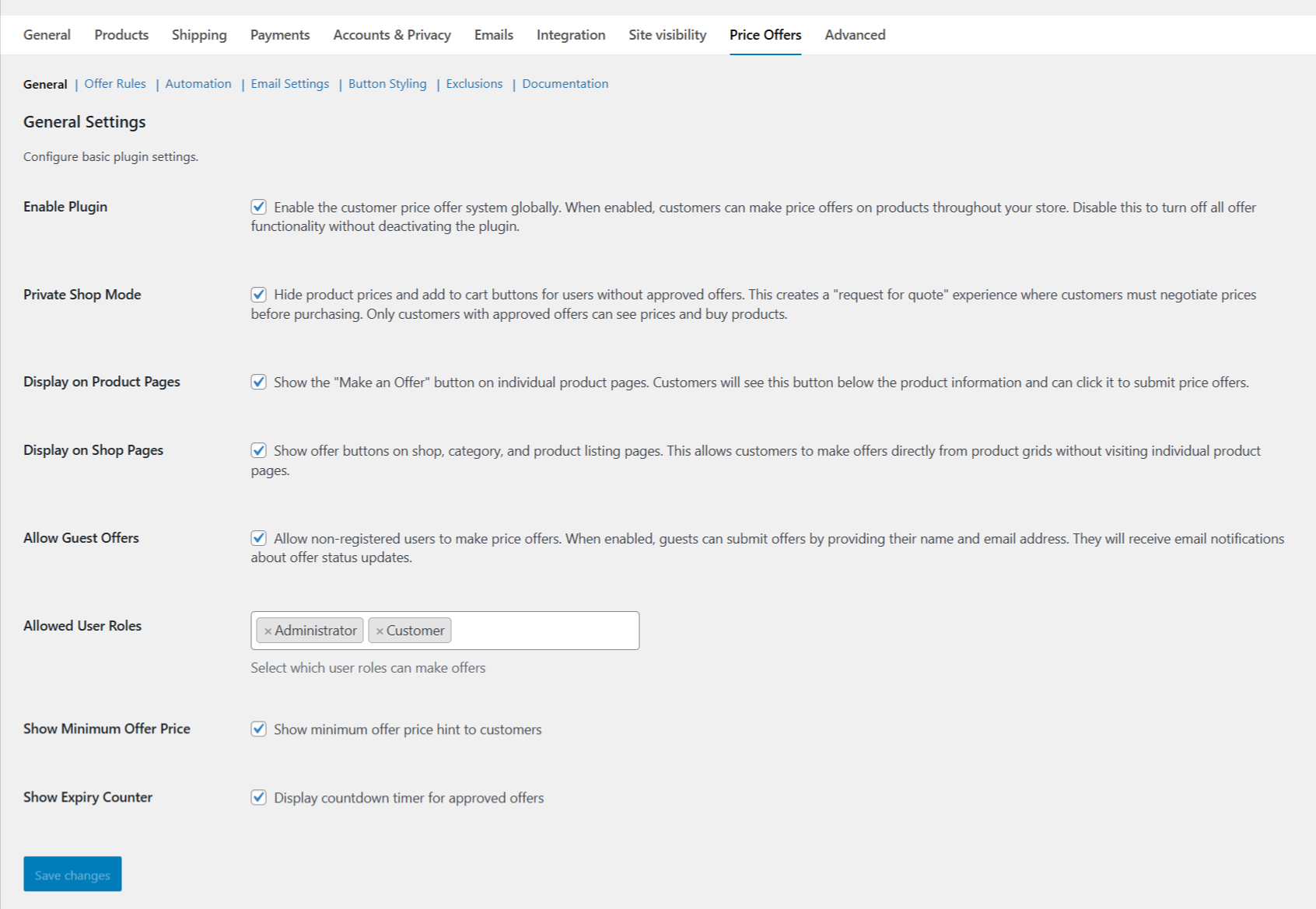
General Settings
↑ Back to topLocation:WooCommerce → Settings → Price Offers → General
Option | Description |
|---|---|
| Enable Plugin | Enable or disable offer system globally |
| Private Shop Mode | Hide prices & Add to Cart until offer is approved |
| Display on Product Pages | Show “Make an Offer” on product pages |
| Display on Shop Pages | Enable offers on shop & category pages |
| Allow Guest Offers | Allow non-logged-in users to submit offers |
| Allowed User Roles | Restrict which roles can make offers |
| Show Minimum Offer Price | Display minimum acceptable price hint |
| Show Expiry Counter | Show countdown for approved offers |
Offer Rules
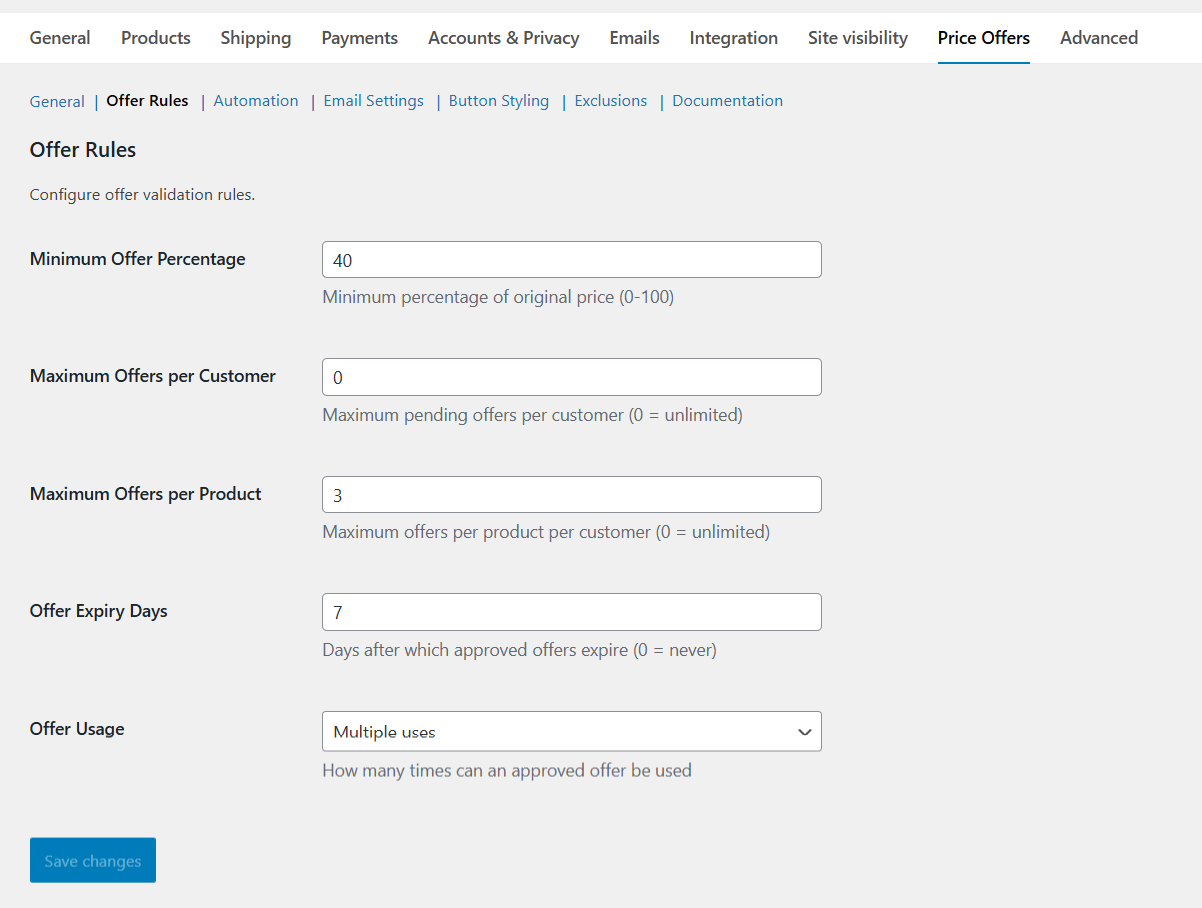
↑ Back to topLocation:WooCommerce → Settings → Price Offers → Offer Rules
| Rule | Purpose |
|---|---|
| Minimum Offer Percentage | Lowest acceptable offer vs original price |
| Maximum Offers per Customer | Limit pending offers per user |
| Maximum Offers per Product | Prevent offer spam |
| Offer Expiry Days | Automatically expire approved offers |
| Offer Usage | Single-use or multiple-use offers |
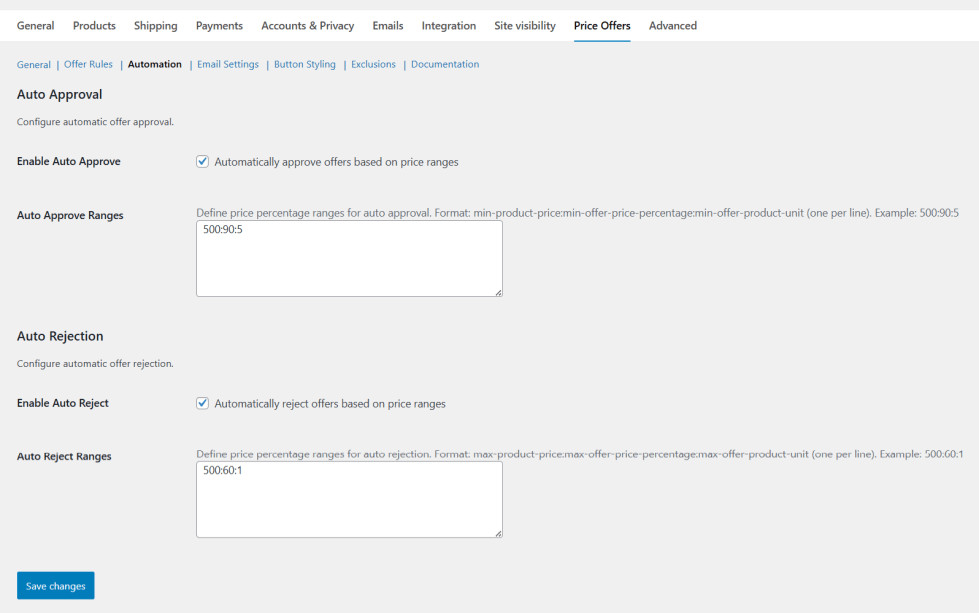
Automation (Auto Approval & Rejection)
↑ Back to topLocation:WooCommerce → Settings → Price Offers → Automation
Auto Approval Format:
min_product_price:min_offer_percentage:min_quantity
Example
500:90:5
✔ Auto-approve offers ≥ 90% for products priced above 500 with quantity ≥ 5
Auto Rejection Format:
max_product_price:max_offer_percentage:max_quantity
Example
500:60:1
✔ Auto-reject offers below 60% for products priced under 500
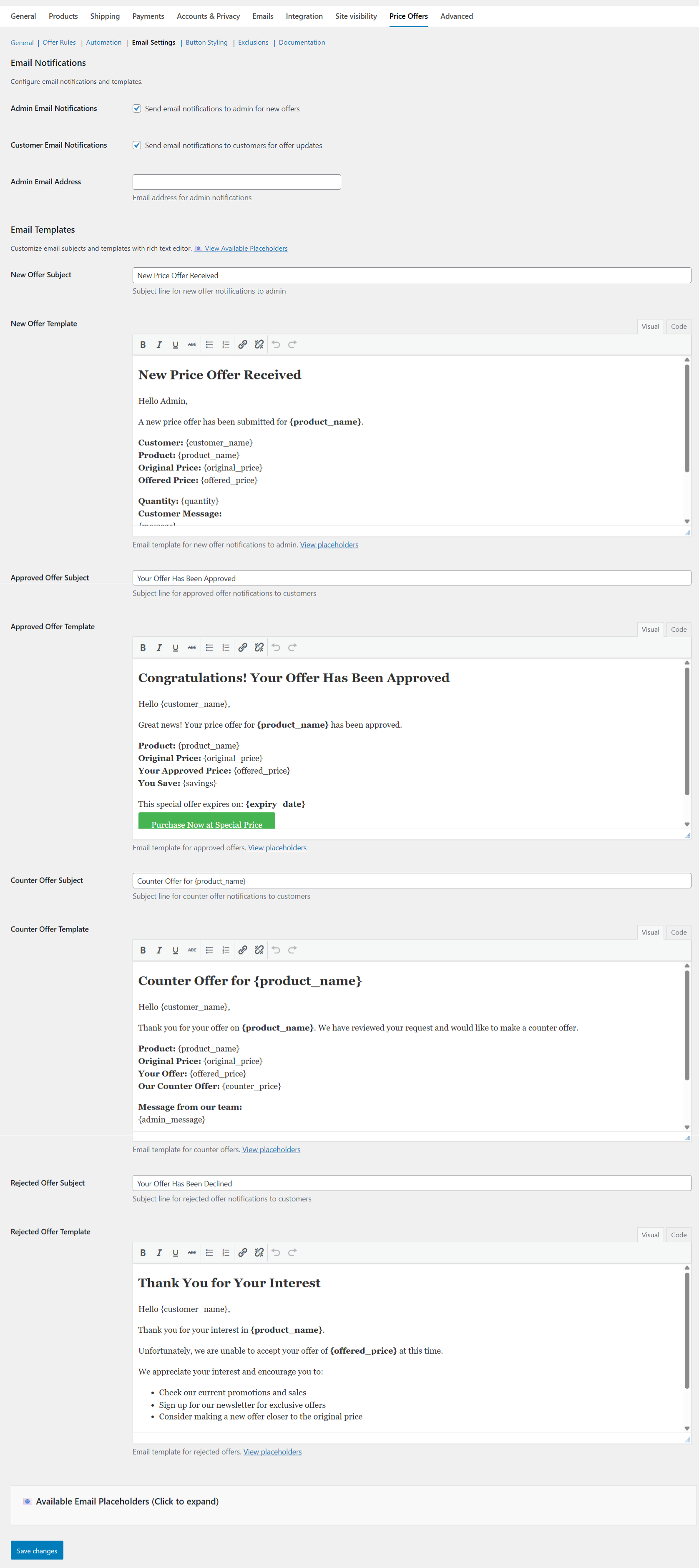
Email Notifications
↑ Back to topLocation:WooCommerce → Settings → Price Offers → Email Settings
Available Emails
- New Offer (Admin)
- Offer Approved (Customer)
- Counter Offer (Customer)
- Offer Rejected (Customer)
✔ Rich text editor
✔ Custom subjects
✔ Dynamic placeholders
✔ Custom admin email address
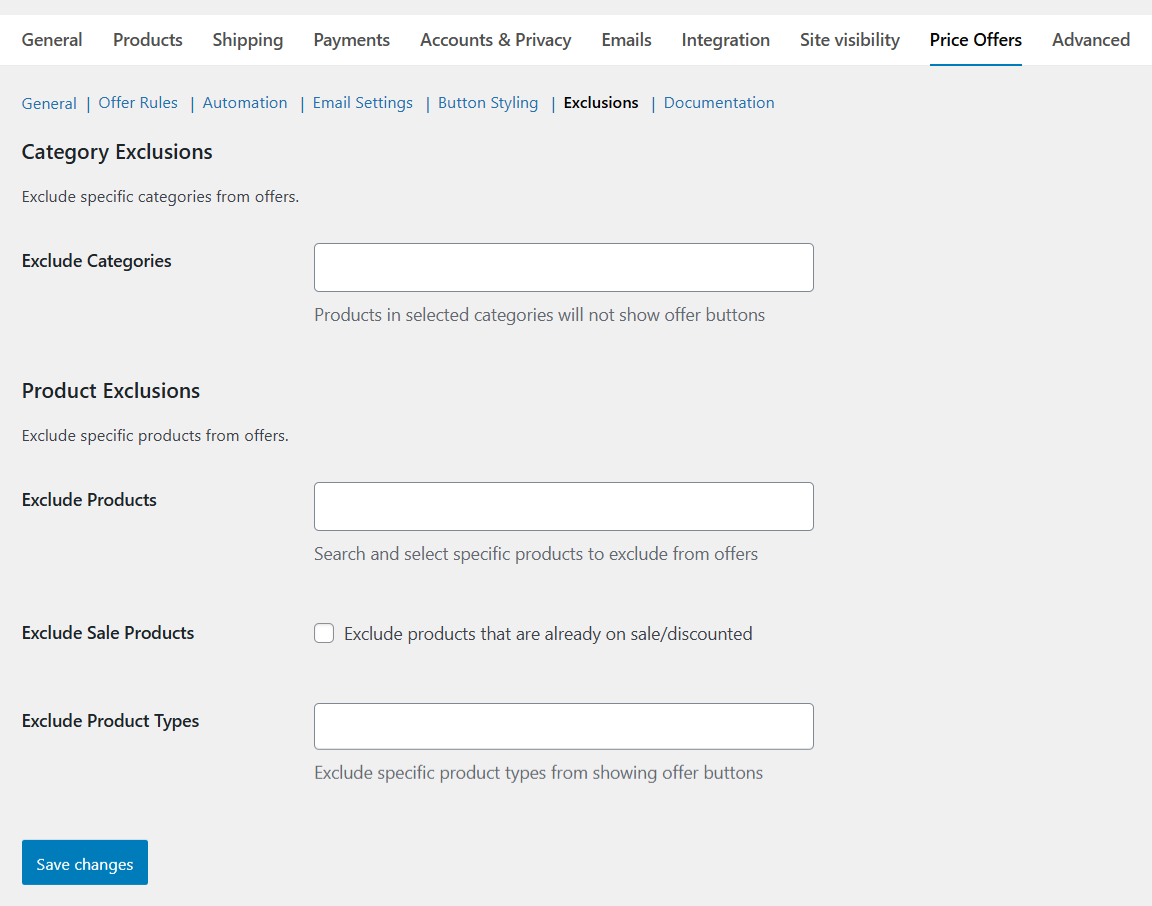
Exclusions
↑ Back to topLocation:WooCommerce → Settings → Price Offers → Exclusions
| Exclusion Type | Description |
|---|---|
| Categories | Disable offers for selected categories |
| Products | Disable offers for specific products |
| Sale Products | Disable offers on discounted items |
| Product Types | Exclude grouped / external / others |
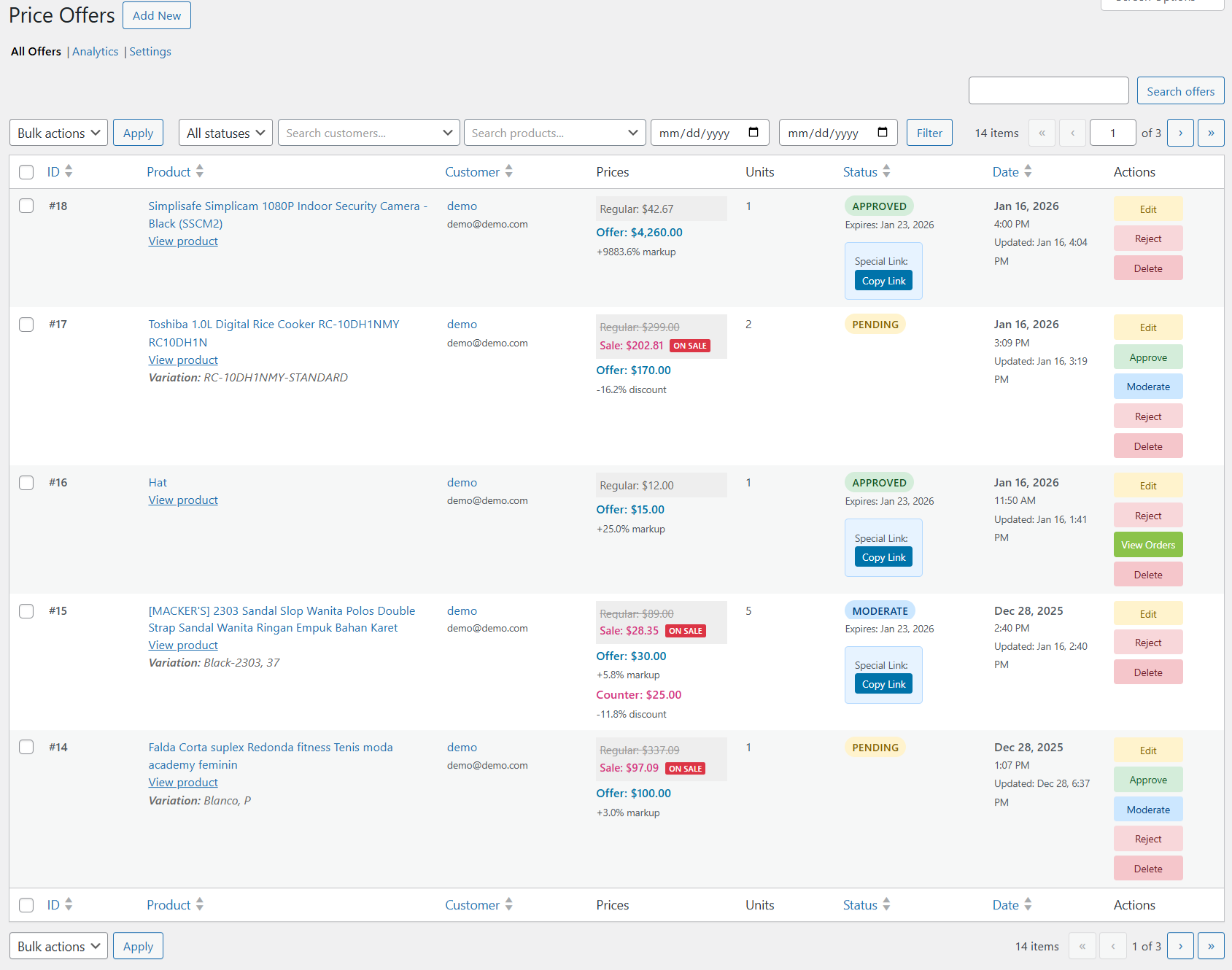
Admin Offer Management
↑ Back to topLocation:WooCommerce → Price Offers
Admins can:
- View all offers in one table
- Filter by status, date, customer, product
- Approve / Reject / Counter offers
- Add/Edit offers manually
- View expiry dates
- Copy special purchase links
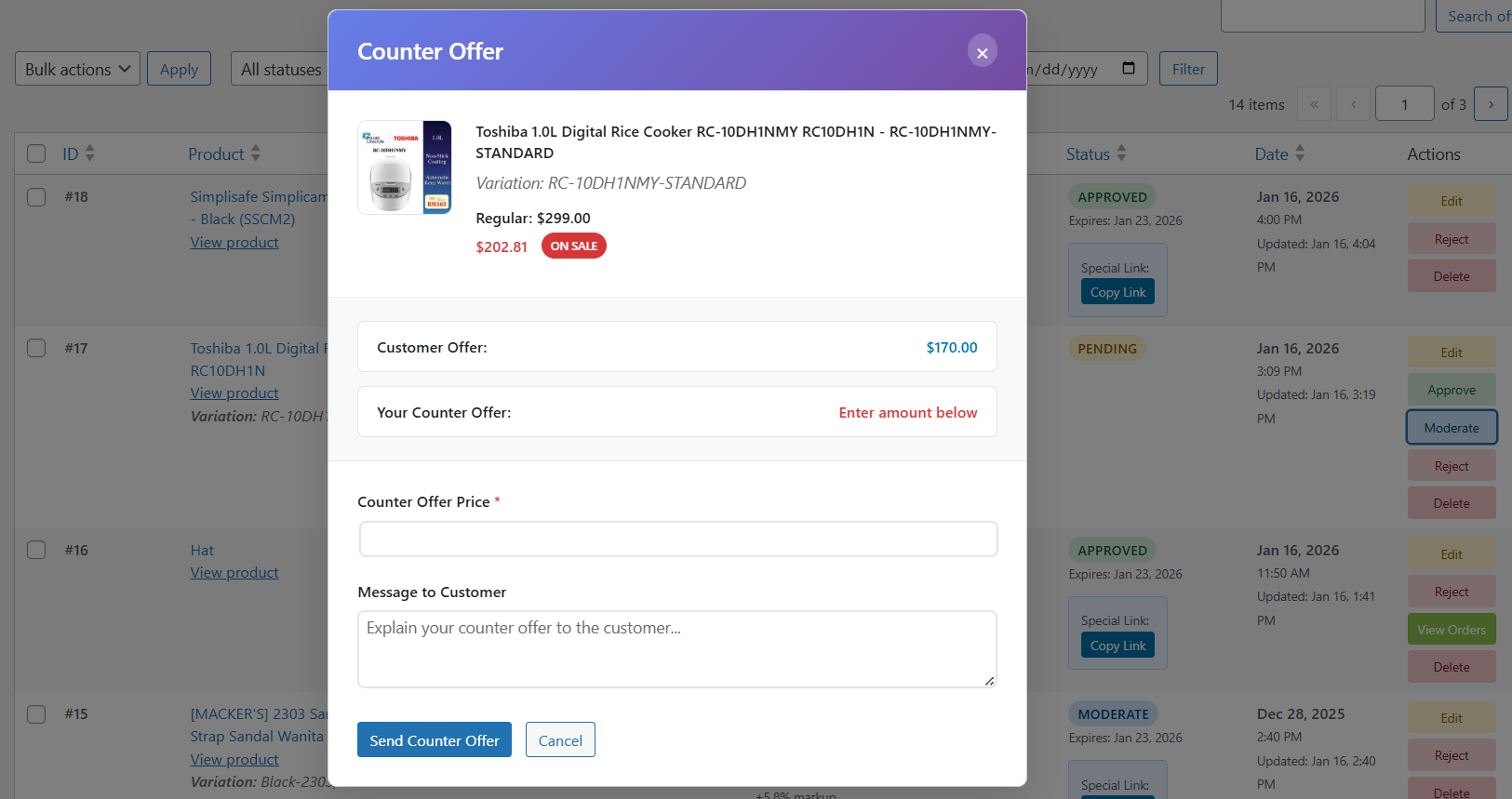
Counter Offers
↑ Back to top- Admin sends counter price
- Optional message included
- Customer receives email
- Offer status updated automatically
Offer Orders Tracking
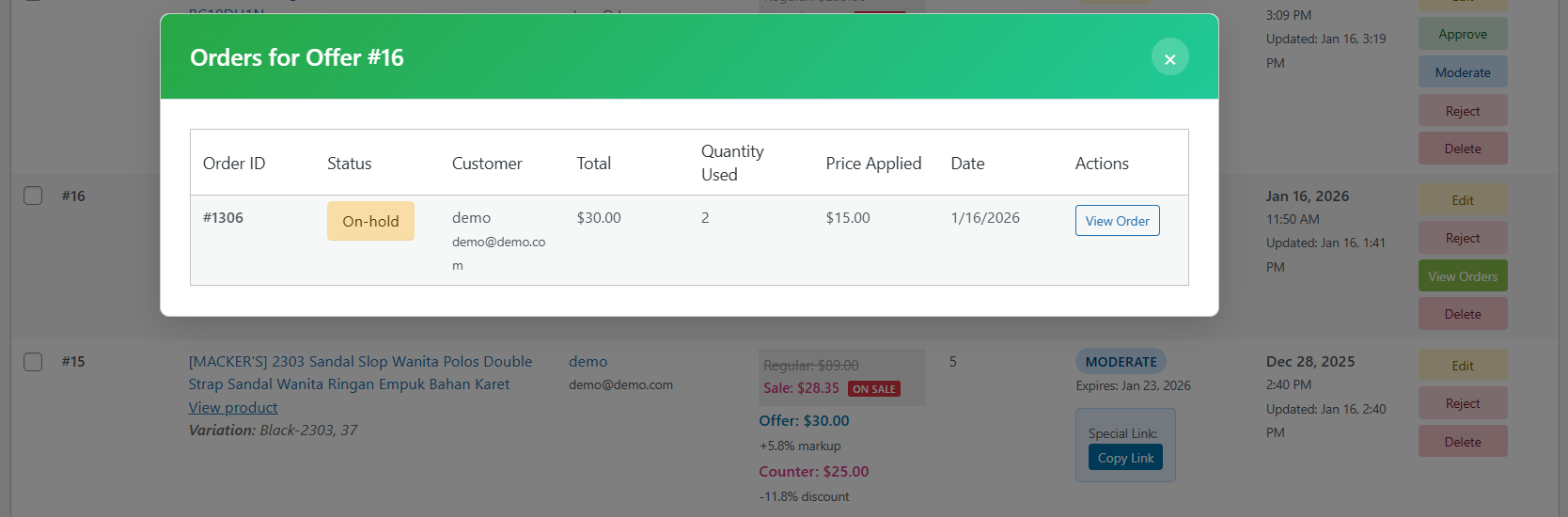
↑ Back to topEach approved offer tracks:
- Orders placed
- Quantity used
- Remaining usage
- Linked WooCommerce orders
Admin-Created & Editable Price Offers
↑ Back to topCreate New Offers from Admin
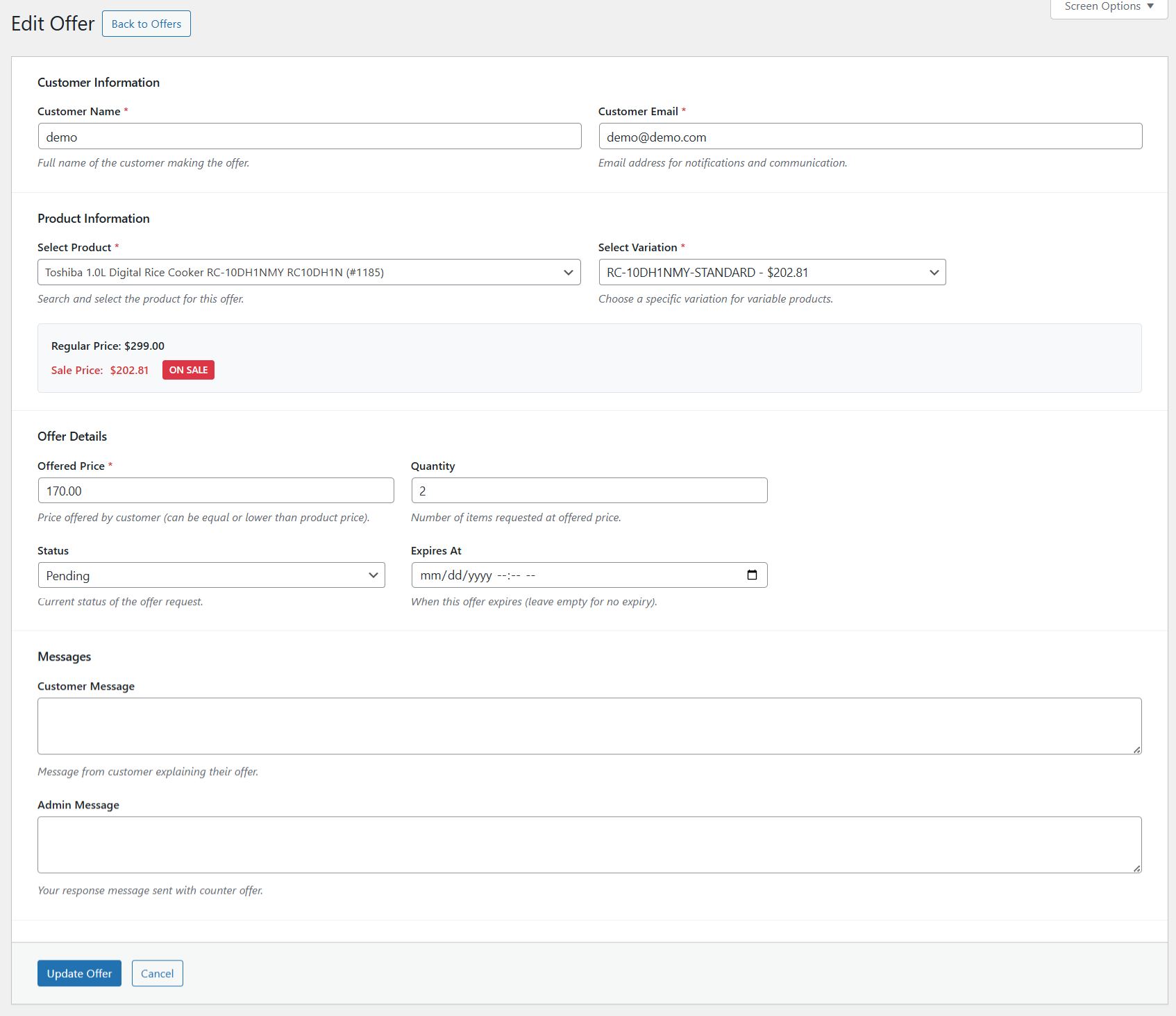
↑ Back to topAdmins can manually create price offers without customer interaction.
Location:WooCommerce → Price Offers → Add New
Admin can define:
- Customer name & email
- Product and variation
- Offered price
- Quantity
- Offer status
- Expiry date
- Admin message
This allows store owners to:
- Offer custom prices to specific customers
- Handle offline negotiations
- Create offers via phone, WhatsApp, or email discussions
Edit Existing Offers
↑ Back to topAdmins can edit any existing offer at any time, including:
- Offered price
- Quantity
- Status (Pending / Approved / Rejected)
- Expiry date
- Admin response message
Edits are immediately reflected for the customer.
Approved Offer Shareable Link (Universal Access)
↑ Back to topEach approved offer generates a unique, secure purchase link.
How It Works
↑ Back to top- Admin copies the offer link
- Link can be shared via:
- SMS
- CRM tools
- Any external platform
- Anyone with the link can use the offer
Key Characteristics
↑ Back to top✔ No login required
✔ No coupon code needed
✔ Automatically applies approved price
✔ Linked to specific product & quantity
✔ Usage tracked per offer
Private Shop Mode – Full Price Control
↑ Back to topWhat Is Private Shop Mode?
↑ Back to topPrivate Shop Mode completely hides:
- Product prices
- Add to Cart buttons
Customers cannot purchase anything without an approved offer.
Behavior in Private Shop Mode
↑ Back to top| Scenario | Result |
|---|---|
| Customer visits product page | Price hidden |
| Add to cart button | Hidden & blocked |
| Offer approved | Only approved price shown |
| Real product price | Never visible |
Critical Advantage
↑ Back to topWith Private Shop Mode enabled:
- Admin can sell products at any price
- Approved price does NOT depend on real product price
- Works for both lower and higher negotiated prices
Admin-Controlled Pricing Override
↑ Back to topWhen an offer is approved:
- The approved offer price replaces the product price
- Original product price remains hidden
- Price override applies also via offer link
Admin can:
- Sell high-value products at premium prices
- Sell low-priced products at higher negotiated values
- Fully decouple offer price from catalog price
Security & Performance
↑ Back to top- WordPress nonces
- Role-based access
- Sanitized inputs
- Optimized queries
- WooCommerce coding standards
Compatibility
↑ Back to top- WooCommerce supported
- Variable products supported
- Translation-ready
- WPML compatible
- RTL ready
Troubleshooting
↑ Back to topThis section helps resolve common issues related to offer submission, automation rules, emails, and order usage.
1. “Make an Offer” Button Not Visible
↑ Back to topPossible Causes
↑ Back to top- Plugin is disabled
- Product or category is excluded
- Product is already on sale
- Product type is excluded
- User role is not allowed
Solutions
↑ Back to top✔ Go to WooCommerce → Settings → Price Offers → General
- Ensure Enable Plugin is checked
- Enable Display on Product Pages or Shop Pages
✔ Go to Exclusions tab
- Remove the product or category from exclusions
- Disable Exclude Sale Products if needed
✔ Check Allowed User Roles
- Ensure the current user role is allowed to make offers
2. Guest Users Cannot Submit Offers
↑ Back to topPossible Causes
↑ Back to top- Guest offers are disabled
- Email field validation error
Solutions
↑ Back to top✔ Go to General Settings
- Enable Allow Guest Offers
✔ Verify email notifications are enabled
- Guest users rely on email for offer updates
3. Offers Are Not Auto-Approved
↑ Back to topPossible Causes
↑ Back to top- Automation is disabled
- Incorrect rule format
- Offer price or quantity does not meet conditions
Solutions
↑ Back to top✔ Go to Automation tab
- Enable Auto Approve
✔ Check rule format carefully:
min_product_price:min_offer_percentage:min_quantity
✔ Example:
500:90:5
✔ Ensure:
- Product price ≥ min_product_price
- Offered price ≥ percentage rule
- Quantity ≥ min_quantity
4. Offers Are Not Auto-Rejected
↑ Back to topPossible Causes
↑ Back to top- Auto rejection is disabled
- Rule logic does not match product price
- Offer percentage is higher than rejection threshold
Solutions
↑ Back to top✔ Enable Auto Reject in Automation settings
✔ Verify rule format:
max_product_price:max_offer_percentage:max_quantity
✔ Example:
500:60:1
5. Customer Did Not Receive Offer Emails
↑ Back to topPossible Causes
↑ Back to top- Email notifications disabled
- Incorrect admin email
- Hosting mail configuration issue
Solutions
↑ Back to top✔ Go to Email Settings
- Enable customer and admin notifications
- Verify admin email address
✔ Test WordPress email sending
✔ Recommended: use SMTP plugin (WP Mail SMTP, FluentSMTP)
6. Counter Offer Not Delivered to Customer
↑ Back to topPossible Causes
↑ Back to top- Email template removed placeholders
- Email notification disabled
- Spam filtering
Solutions
↑ Back to top✔ Restore default email template
✔ Ensure {counter_price} placeholder exists
✔ Test using a valid customer email
✔ Check spam folder
7. Approved Offer Cannot Be Used at Checkout
↑ Back to topPossible Causes
↑ Back to top- Offer expired
- Offer usage limit reached
- Product variation mismatch
Solutions
↑ Back to top✔ Check offer expiry date
✔ Verify offer usage type:
- Single-use vs Multiple-use
✔ Ensure customer uses the special offer link
8. Offer Expiry Countdown Not Displaying
↑ Back to topPossible Causes
↑ Back to top- Expiry days set to 0
- Countdown disabled
- Theme conflict
Solutions
↑ Back to top✔ Go to General Settings
- Enable Show Expiry Counter
- Set Offer Expiry Days
✔ Test with default WooCommerce theme
9. Order Not Appearing Under Offer Orders
↑ Back to topPossible Causes
↑ Back to top- Order not completed
- Offer not applied via special link
- Quantity mismatch
Solutions
↑ Back to top✔ Ensure order status is valid
✔ Verify order was placed using offer link
✔ Check offer usage quantity limit
10. Automation Works for Some Products Only
↑ Back to topExplanation
↑ Back to topAutomation rules depend on:
- Product price
- Offered percentage
- Quantity requested
Different products may not meet the same rule criteria.
Solution
↑ Back to top✔ Add multiple automation rules (one per line)
✔ Use tiered rules for different price ranges
FAQs
↑ Back to topHelp customers by answering commonly asked questions.
What is a Customer Price Offer?
A customer price offer allows shoppers to propose their own price for a product. Store admins can approve, reject, or counter the offer before purchase.
Does it work with variable products?
Yes. Customers can submit offers for specific product variations, and each variation is handled independently.
Can guests submit price offers?
Yes. Guests can submit offers without creating an account. Guest requests are securely tracked using browser tokens.
Can I limit how low customers can offer?
Absolutely. You can define:
1. Minimum acceptable price
2. Maximum discount limits
3. Offer availability by product or category
How does checkout work after approval?
Once an offer is approved, the customer receives a secure add-to-cart or purchase link that applies the approved price automatically.
Will customers see other users’ offers?
No. Each offer is private and visible only to the customer who submitted it and store administrators.
Are email notifications included?
Yes. Both admins and customers receive automatic email notifications for:
1. New offers
2. Offer updates
3. Approvals, rejections, or counters
Is the plugin performance-safe?
Yes. The plugin is optimized for performance and does not affect product browsing or checkout speed.

