
Global Cart for WooCommerce implements a unified WooCommerce cart, checkout, and login across a WordPress Multisite, giving customers one account and a persistent cart, seamless purchasing across subsites, and administrators centralized users, orders, reporting, and support management.
Installation
↑ Back to topTo start using a product from WooCommerce.com, you can use the “Add to store” functionality on the order confirmation page or the My subscriptions section in your account.
- Navigate to My subscriptions.
- Find the Add to store button next to the product you’re planning to install.
- Follow the instructions on the screen, and the product will be automatically added to your store.
Alternative options and more information at:
Managing WooCommerce.com subscriptions.

Plugin Requirements
↑ Back to topThe plugin does not require any special server configuration and can run on any standard WordPress-compatible hosting environment.
A WordPress Multisite installation is required. The plugin supports subdomain, subdirectory, and mapped domain ( TLD domains ) configurations. For more details, see Setting up different domains for shops within the same Multisite environment.
WooCommerce must be installed and active on at least the main (primary) site. It is not mandatory to activate WooCommerce on all network sites; administrators may enable it only on selected shops, according to their needs.
Server requirements are minimal. The plugin is compact, well-optimized, and designed for fast execution. It consumes no more resources than a small plugin and accounts for less than 5% of WooCommerce’s execution time. Any server capable of running WordPress will run this plugin reliably.
No core file modifications are required. All functionality is implemented using WordPress and WooCommerce actions and filters, ensuring maximum compatibility with other plugins and custom code.
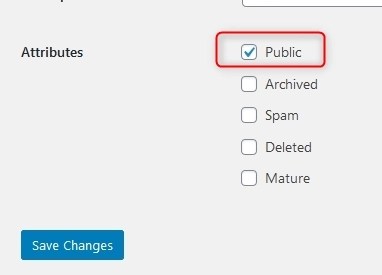
To be included in the plugin’s processes, each shop must have its Public attribute enabled.
Plugin Settings Overview
↑ Back to topOnce activated, the plugin adds a settings page to the Super Admin Network Dashboard at:
Settings → WooCommerce Global Cart
This page is accessible only to Super Admin users and serves as the central location for configuring all plugin features.
Checkout Type
↑ Back to topBecause the cart operates globally across all shops in the network, multiple checkout strategies are supported to match different business requirements. Two checkout types are available:
Single Checkout
All products in the global cart—regardless of their originating shop—are purchased in a single checkout process. Payment is collected in full during one transaction. The checkout can take place on a predefined site or, optionally, on a site selected by the customer (see Cart Checkout Location).
Each Store Checkout
Each shop processes its portion of the cart independently. After checkout, every store receives its own order and payment. There are no restrictions on payment methods; each shop may configure and use its own payment gateways.
Cart Checkout Location
↑ Back to topThis setting determines where the checkout process takes place when customers add products from multiple shops.
Checkout can be completed:
- On any shop, or
- On a specific, fixed shop selected by the administrator
When checkout is completed, the resulting order is created in the shop where the checkout occurs. If a fixed checkout location is configured, all orders will always be created in that shop.
This option is applicable only when Checkout Type is set to Single Checkout.
Sequential Order Numbers
↑ Back to topThis option enforces a unified, sequential order numbering system across the entire WooCommerce Multisite network. Orders receive consecutive IDs regardless of the originating shop, ensuring consistency and clarity in order management.
Sequential Order Numbers are especially useful when the checkout location is not fixed, as they maintain continuity across all transactions. This feature simplifies order tracking, reporting, and processing, and is strongly recommended for multi-shop environments.
Enable Products Synchronization Interface
↑ Back to topWhen enabled, this option activates the Products Synchronization interface, allowing product data to be synchronized across multiple WooCommerce shops.
Synchronized data may include:
- Inventory levels
- Pricing
- Product attributes
This feature reduces manual management, minimizes errors, and ensures consistent product information across all stores. Customers benefit from accurate, up-to-date product data regardless of which shop they are browsing.
For more details, see Synchronizing WooCommerce Products Across WordPress Multisite Shops.
Replace Cart Products with Origin Version
↑ Back to topWhen this option is enabled, any product added to the cart from a different shop is automatically replaced with its original (source) version, regardless of product synchronization settings.
This guarantees that pricing, inventory, and attributes always reflect the primary product data. It ensures consistency across the network and simplifies administration in multi-shop setups.
Replace Cart Products with Local Version
↑ Back to topThis option automatically replaces synchronized products in the cart with their local equivalents, when available in the current shop.
Product matching is performed using SKU comparison, and substitutions only occur between products of the same type. This ensures data integrity while optimizing checkout and inventory handling. The result is a smoother customer experience and more efficient stock management across the network.
Use Global Cart for Selected Sites
↑ Back to topThe Global Cart can be enabled only for specific sites selected by the administrator. WooCommerce must be installed and active on each designated shop.
If WooCommerce is missing or temporarily unavailable on a site, WooCommerce Global Cart will automatically skip that shop.
Individual shops can also be programmatically excluded using the following filter:
woogc/disable_global_cart
Troubleshooting
↑ Back to topMy Account Orders Compatibility
The My Account → Orders section displays orders from all connected shops, allowing customers to view their full order history from any site. However, some themes are not designed to handle orders from multiple shops and may show empty results or trigger fatal errors, such as:
Fatal error: Uncaught Error: Call to a member function get_item_count()
This occurs when the theme assumes orders belong to the current shop and fails to switch context when rendering orders from other sites.
The issue can be resolved with a small, safe adjustment (just two additional lines of code) in the My Orders template. This ensures the correct shop context is used, allowing WooCommerce to retrieve order items and metadata properly.
If you have questions not covered in this area, see our detailed Documentation. Oterwise please Contact Support. Our amazing Happiness Engineers are standing by and ready to answer any questions about Global Cart for WooCommerce in general.
FAQs
↑ Back to topHelp customers by answering commonly asked questions.

