The Advanced Notifications extension for WooCommerce lets you set up order and stock notifications for users other than the admin user. These can be used for anything; notifying staff and users of sales, sending stock notices to suppliers, or even sending new orders to drop shippers.
To get started, go to WooCommerce > Notifications and click on the “Add notification” button:

Creating a Notification
When creating an advanced notification, the first section asks for information about the recipient:
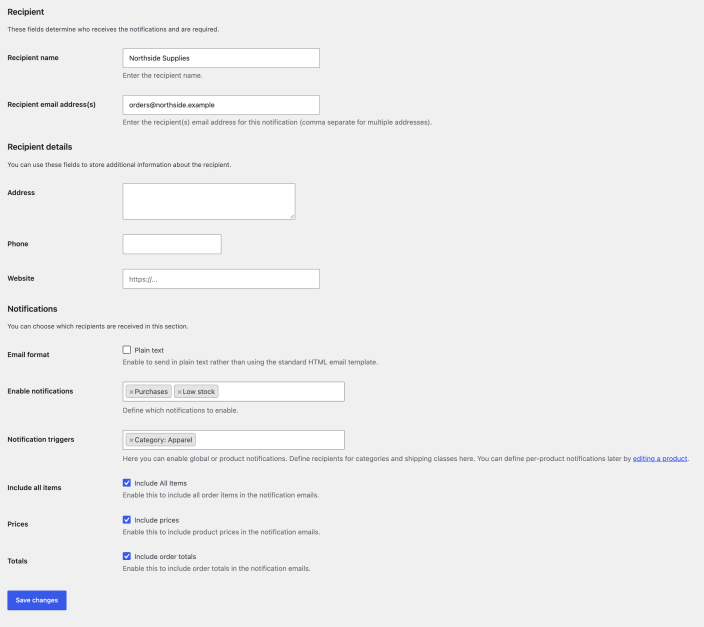
The name of the recipient will be displayed in the emails the recipient receives.
The email addresses (which can be comma-separated if multiple addresses should be used) will receive the notifications.
Below those fields you can add some additional details such as telephone and address; these are not used by the plugin but may be useful for your reference.
In the next section, you can choose what notifications your recipient should receive, and in what format.
The following options are available:
Email format
↑ Back to topChoose plain text or HTML emails (default). Some users may prefer plain text, as they might be less likely to get caught in spam filters.
Enable notifications
↑ Back to topChoose from:
- Purchases – Sent when an order is paid: when its status changes from Pending payment, On hold or Failed to Processing or Completed (or Partial payment, if you use Deposits). Not sent when the order is first created. These notifications contain order and customer details.
- Low stock – Sent when an item’s stock reaches its Low stock threshold. Set a store-wide threshold in WooCommerce settings, or override it on individual products. These emails contain stock and product information.
- Out of stock – Sent when an item is out of stock. These emails contain stock and product information.
- Backorders – Sent when an item is backordered (stock < 0 ). These emails contain stock and product information.
- Refunds – Sent when a refund is issued.
Purchases notifications aren’t sent for orders that change from Pending payment to On hold. To send them, see Send Purchases notifications for on-hold orders.
These are the types of notifications this recipient will receive.
Include all items
↑ Back to topSelect if you would like to include all order items in the email.
Include prices
↑ Back to topChoose whether or not prices for products will be hidden in the email.
Include order totals
↑ Back to topChoose whether or not order totals for products will be hidden in the email.
Notification triggers
↑ Back to topTriggers determine which products and orders trigger notifications to be sent. You may select the below from the drop-down:
- All purchases – Any order item will trigger a notification
- Product categories – Purchases of products in the product category will trigger a notification.
- Product shipping classes – Purchases of products in the product shipping class will trigger a notification.
Depending on how you set up your triggers, it is possible to send multiple people an email regarding a single customer’s purchase (whether it be one product or multiple).
You can leave this blank if you want to use per-product trigger (see below). When using this, only the matching trigger’s product will be displayed in the notification – this keeps other products hidden and private.
If you choose All purchases, all products will be included in the email.
Assigning per-product triggers to notifications
↑ Back to topAfter setting up a notification with per-product triggers, you can set up notifications to apply to selected products only. To do this, edit the product itself and look for the notifications box:
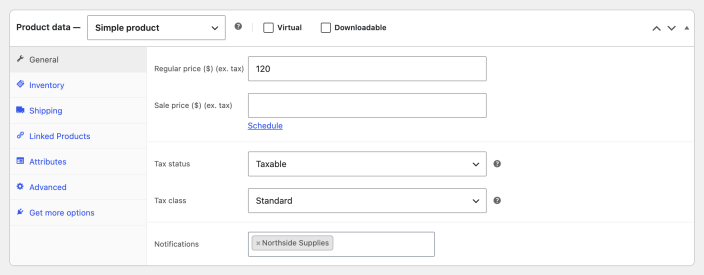
Choose the recipients who should get notifications for the product. This will apply to all of the recipients configured notifications.
Note, this box will only be displayed if you have a per-product triggered notification setup in advance.
The Recipients List
↑ Back to topAfter adding your recipient they will be listed on the main notifications screen shown below.
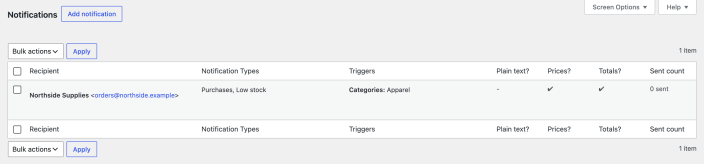
Edit or delete the recipient by hovering over their name in the list under the Recipient column.
Customize notifications with code
↑ Back to topTo send Purchases notifications for on-hold orders, or to override the email templates in your theme, see Advanced Notifications: Developer customizations.
Questions and support
↑ Back to topSomething missing from this documentation? Still have questions and need assistance?
- If you have a question about a specific extension or theme you’d like to purchase, contact us to get answers.
- If you already purchased this product and need some assistance, get in touch with a Happiness Engineer via our support page and select this product’s name from the Product dropdown.