Installation
↑ Torna in cima- Navigate to Plugins > Add New.
- Click the Upload Plugin button at the top of the screen.
- Upload the ‘order-messenger-for-woocommerce.zip’ file you’ve downloaded from WooCommerce.com
- Click the Install Now button.
- When the installation is complete, you’ll see “Plugin installed successfully.” Click the Activate Plugin button at the bottom of the page.
Setup and Configuration
↑ Torna in cimaFrontend
↑ Torna in cimaMy account
↑ Torna in cima- Order – link to tied order
- Last message – the last letter in a dialog. If the letter is a status change, it will show “Status was changed.”
- Message sending date
- Link to Messenger
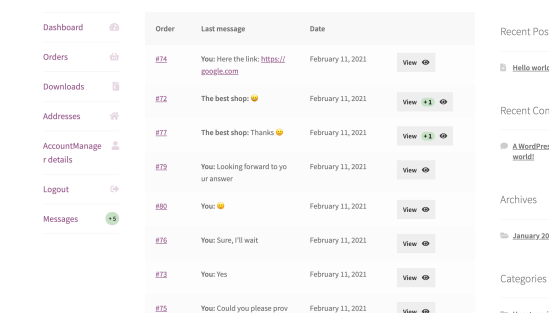
Messenger page
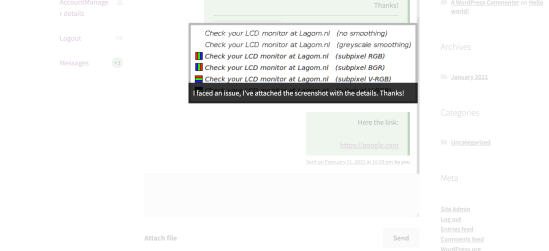
↑ Torna in cima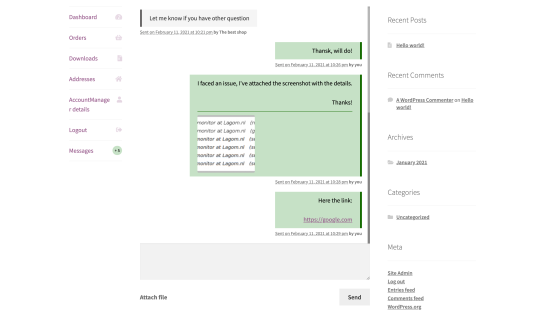 If a sent file is image type, the users will be able to preview it in a lightbox:
Notifications
↑ Torna in cima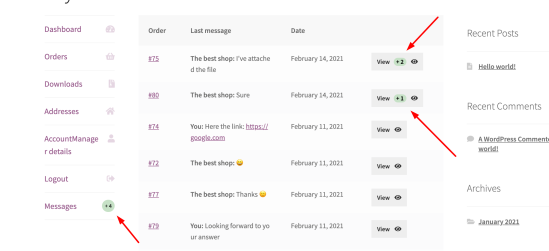
Backend
↑ Torna in cimaOrders list
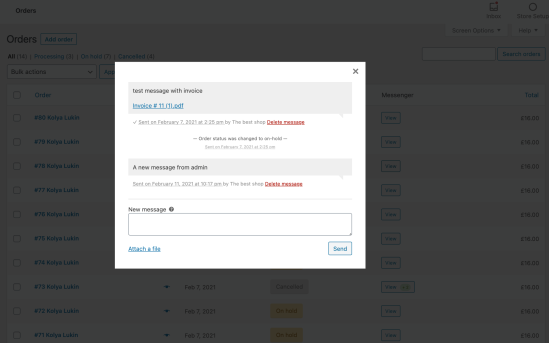
↑ Torna in cima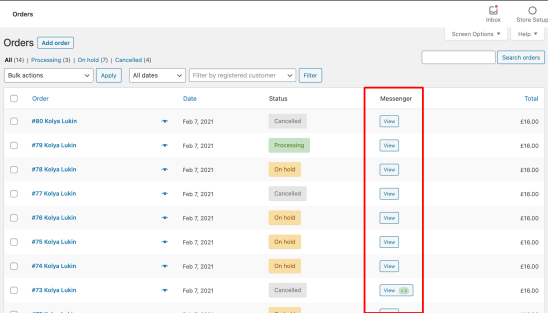 Modal box:
Order page
↑ Torna in cima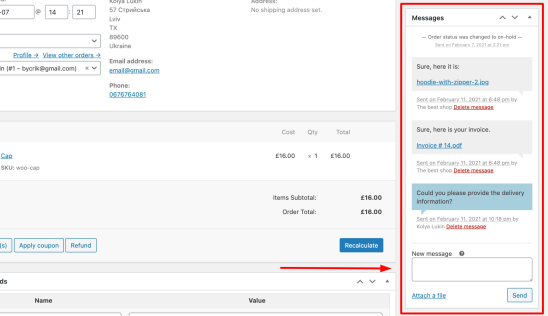
Product purchasing message
↑ Torna in cima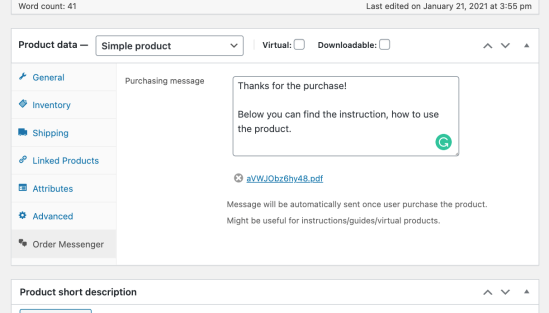 At the settings, you can choose the “purchase” trigger. Chose whether the message sends when payment is successful or when an order is placed.
Notifications
↑ Torna in cima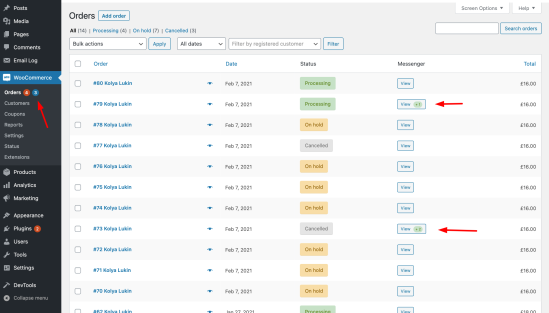
Messages types
↑ Torna in cima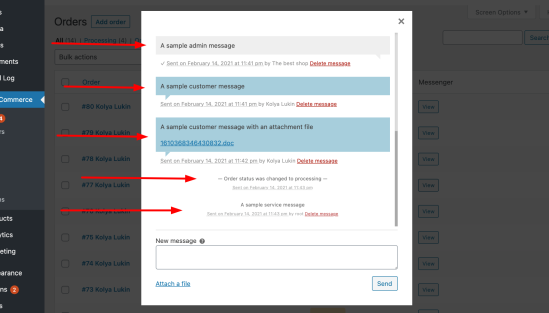 Customers:
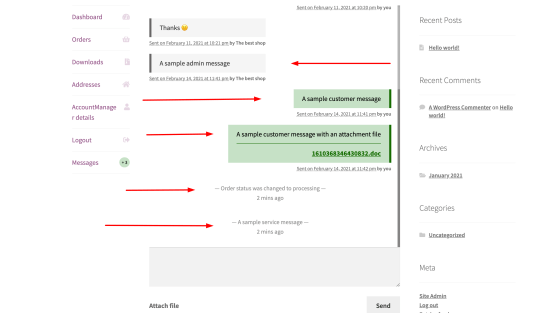 All messages are stored in the database. An admin can permanently delete them.
Regular messages
↑ Torna in cimaOrder status changing messages
↑ Torna in cimaService messages
↑ Torna in cimaEmail notifications
↑ Torna in cima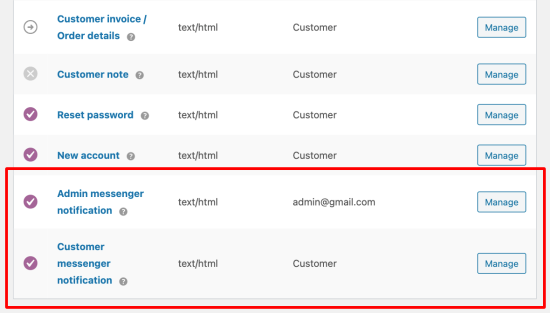 They help to don’t miss important messages. Email notifications are sent with 10 minutes delay and group on all unread messages related to an order. It helps to reduce emails amount.
Below you can find how they look:
Admin:
They help to don’t miss important messages. Email notifications are sent with 10 minutes delay and group on all unread messages related to an order. It helps to reduce emails amount.
Below you can find how they look:
Admin:
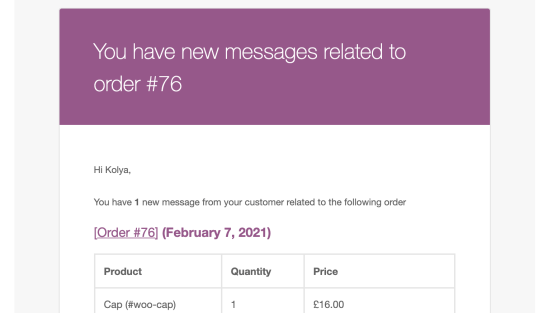 Customer:
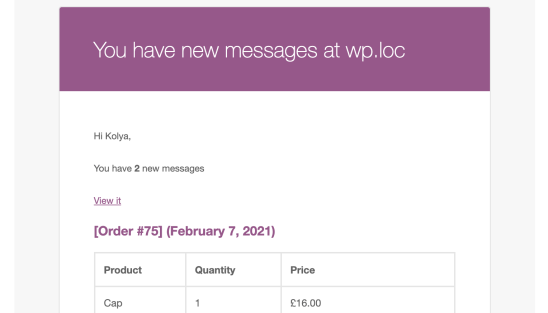 Within each email, you can:
- Change the subject
- Change the heading
- Add additional content to the bottom
- Enable/Disable sending
Settings
↑ Torna in cima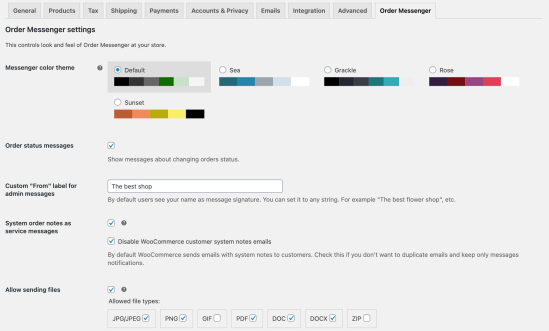
Order messenger theme
↑ Torna in cima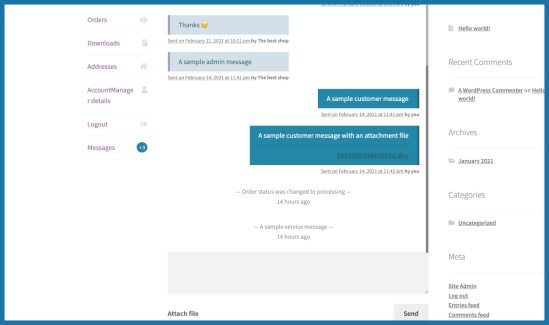
Custom signature
↑ Torna in cima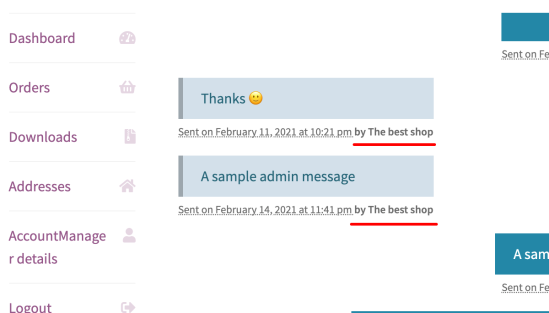
Order status messages
↑ Torna in cimaSystem order notes
↑ Torna in cimaSending files
↑ Torna in cimaPurchase message trigger
↑ Torna in cima- Order placed
Preloaded messages
↑ Torna in cimaOrder messenger link
↑ Torna in cima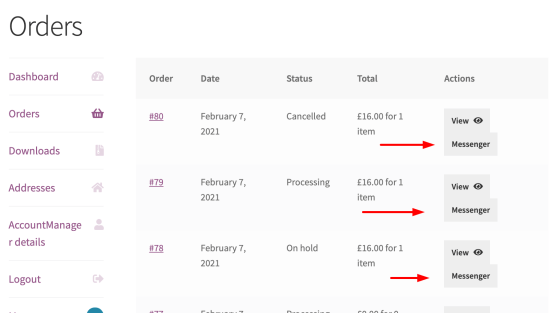
Message read checkmark
↑ Torna in cima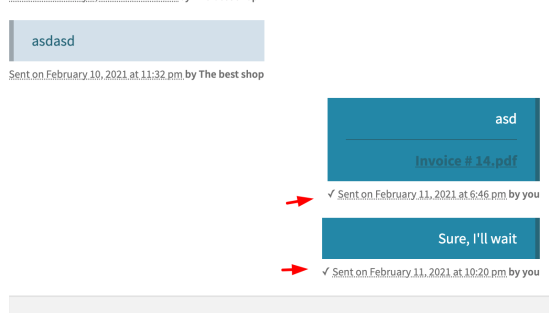
Developers
↑ Torna in cimaHow to override templates
↑ Torna in cima- Each template order-messenger-for-woocommerce/views/frontend/{template_name} can be overridden at your theme by the following path: {your_theme}/order-messenger-for-woocommerce/{template_name}
- Every plugin template goes through the “order_messenger/template/location” filter, so you can easily substitute the template path.