Antifraud – Protecting against Velocity Attacks
↑ Back to topTargeted by Card Testing? How to Effectively Stop and Prevent Fraud Orders Through the PayPal Plugin
↑ Back to topCard Attacks with PayPal and Similar Payment Gateways
In the past few weeks, a surge in card testing attacks has hit WooCommerce stores using the PayPal Payments extension (v3.1.2 and newer). These attacks flood stores with hundreds or thousands of fake transactions, often within minutes.
Many merchants only discover the problem when their PayPal account is flooded with chargebacks, flagged for suspicious activity, or temporarily restricted by PayPal.
This has led many store owners to install the Antifraud for WooCommerce extension to block these fraudulent checkout attempts — but the solution often needs proper setup to work effectively.
Why Fraud Still Happens Even After Installing Anti-Fraud:
Even after installing the extension, some stores continue to experience card attacks because:
- PayPal Advanced Card Processing (ACP) allows direct API-based payments — bypassing reCAPTCHA and normal checkout validation.
- Antifraud rules aren’t configured properly or are missing reCAPTCHA at checkout.
- The extension version in use (v7.1.2 or earlier) may not contain the latest PayPal-specific fixes.
This combination means that attackers can repeatedly hit the PayPal endpoint, generating dozens or even hundreds of fake “Order Received” and “Fraud Notification” emails – overwhelming both store owners and customers.
How to Stop Card Testing and Secure Your Store
To effectively stop card testing attacks, you need to secure your checkout and PayPal gateway at multiple layers.
Step 1 – Update to the Latest Anti-Fraud Version for Stronger Protection
A pre-release version of our extension includes updated protection for PayPal’s ACP and enhanced checks for API-based attacks.
Contact OPMC to verify you have the latest version:
Email support@opmc.co, mention “Anti-Fraud v7.1.3 Beta Download” in the subject line.
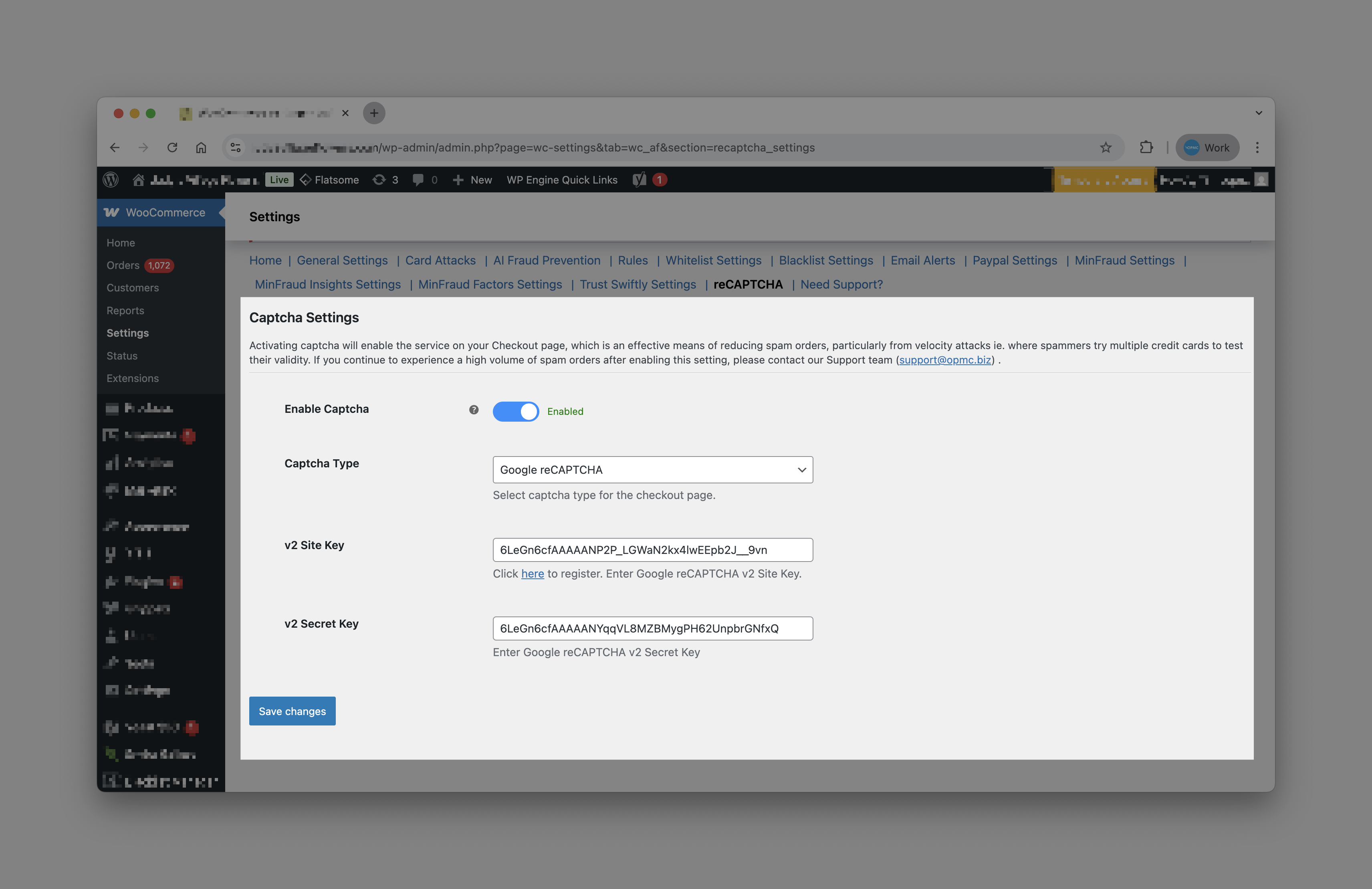
Step 2 – Add reCAPTCHA to Block Automated Bots
Once the plugin is installed, reCAPTCHA must be set up to block automated checkout submissions.
Setup guide: Configuring reCAPTCHA to Prevent Card Attacks
Ensure that:
- Site key and secret key are both valid.
- reCAPTCHA is enabled for checkout and login pages.
- Test it in an incognito window to confirm proper rendering.
Step 3 – Secure Your PayPal Gateway Settings
To prevent attacks from bypassing checkout validation:
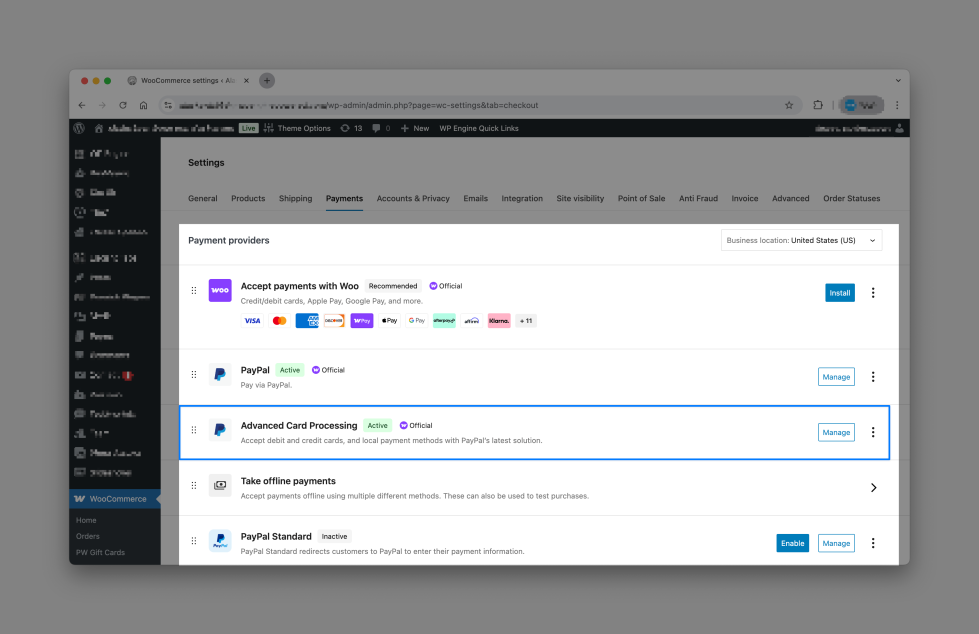
- Navigate to
WooCommerce > Settings > Payments > PayPal > Advanced Card Processing- Note: This may also be enabled via WooCommerce > Settings > Payments > Advanced Card Processing
- Disable the “Enable Advanced Card Processing” option.
This ensures all credit card transactions go through PayPal’s secure hosted flow – not your site’s public endpoint.
Your customers will still be able to pay with debit or credit cards by choosing the “Debit/Credit Card” option in the PayPal popup.

Step 4 – Activate Built-In Card Attack Protection
Go to
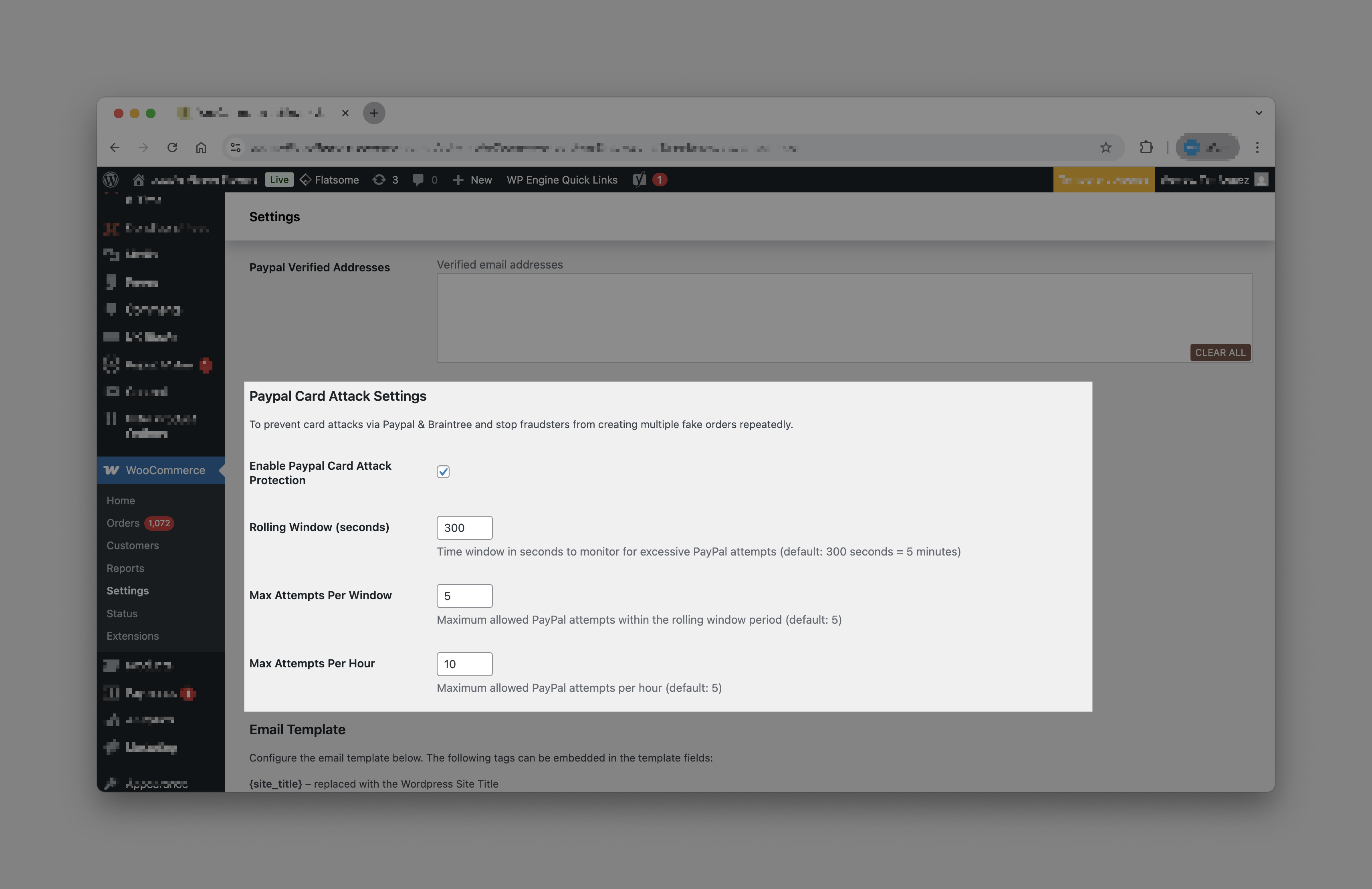
WooCommerce > Antifraud > Settings > PayPal Settings > PayPal Card Attack Settings
Enable these and ensure all three fields are filled:
| Field | Description |
|---|---|
| Rolling Window (seconds) | Recommended: 300 |
| Max Attempts per Window | Recommended: 3–5 |
| Max Attempts per Hour | Recommended: 10 |
If left blank, checkout will fail with “Too many PayPal checkout attempts” or, worse, remain unprotected from high-frequency card testing.
What to Do If Fraud Orders Continue – If You’re Still Seeing Fraud Orders
↑ Back to topCheck the Following:
- You are running Anti-Fraud v7.1.3 Beta or higher
- You have disabled PayPal ACP
- You have reCAPTCHA properly configured
- No caching plugin or firewall (like WP Engine Cache or Cloudflare) is blocking
wp-json/wc/store/v1/checkout
If attacks persist, the orders may be hitting the PayPal API directly (not the checkout page). In that case:
- Disable ACP immediately.
- Notify PayPal support that your API credentials may be under automated testing.
- Temporarily switch to PayPal Standard or a non-direct integration.
Understanding Why Card Testing Targets PayPal – Why This Happens
↑ Back to topPayPal’s Advanced Card Processing integration exposes a public REST endpoint that allows direct credit card submissions. Attackers exploit this to test stolen cards in bulk because:
- It doesn’t require reCAPTCHA.
- It doesn’t have built-in rate limiting.
- It returns fast success/failure responses for validation.
The Anti-Fraud plugin’s new version introduces API event guards and frequency locks, reducing the impact of such attacks dramatically.
Appendix: Reference Links – Helpful Resources and Setup Guides
↑ Back to top- Anti-Fraud for WooCommerce (Official Page):
https://woocommerce.com/products/anti-fraud - PayPal Payments extension (Official Page):
https://woocommerce.com/products/woocommerce-paypal-payments/ - 🔧 Configure reCAPTCHA:
Setup Instructions
Final Checklist: Keep Your Store Safe from Card Testing
↑ Back to topUse this checklist to make sure your WooCommerce store is fully protected from PayPal card testing and automated fraud attempts:
Extension and Version
- You have installed Anti-Fraud for WooCommerce v7.1.3 (Beta) or higher.
- You’ve taken a full site backup before installation.
- The extension is activated and running without errors in the System Status report.
reCAPTCHA Protection
- reCAPTCHA is enabled for both checkout and login pages.
- Site key and secret key are valid and tested in incognito mode.
- Customers can still complete checkout smoothly with reCAPTCHA active.
PayPal Security Settings
- PayPal Advanced Card Processing (ACP) is disabled.
- Customers can still pay via PayPal using the Debit/Credit Card option in the popup.
- PayPal API credentials are not exposed or reused across test/staging sites.
Anti-Fraud Configuration
- PayPal Card Attack Protection is enabled under Antifraud > Settings > PayPal Settings.
- All three fields under “Card Attack Settings” have values:
- Rolling Window (seconds): 300
- Max Attempts per Window: 3–5
- Max Attempts per Hour: 10
- You’ve confirmed no blank fields — otherwise protection won’t activate.
Monitoring and Testing
- A test order confirms that only one email notification is sent.
- The Fraud Score appears correctly in the order details.
- No repeated “Order Received” or “Failed Order” emails occur.
- You’ve checked your Action Scheduler queue — no looping or repeating jobs.
Update December 2024: Problem with repeated fake orders?
↑ Back to topProblem with repeated fake orders? Velocity Attacks & Card Testing are on the rise.
If you have noticed a significant increase fraud orders from the December 2024, please follow these steps listed here.
How to prevent fraud orders and stop repeated fake orders being placed on your store?
- Identify the ‘Attack Vector’ and understand how these orders are being placed. Most commonly this will be:
- A specific payment gateway. Contact OPMC Support to confirm if your Payment Gateway vulnerable to Fraud Attacks.
- Orders Placed via secondary checkout pages or API. Read below to understand how to use the OPMC ReCaptcha settings and API Filtering settings below.
Use the “Card Testing” Section below to configure these settings and understand how to ensure your store is correctly protected against repeated fraud orders.
- Identify and Isolate the commonalities between the various fraud orders. Fraud orders will typically have signs or shared details which indicate the order is not legitimate. Using the Antifraud plugin you can ensure multiple layers of filtering and protection to ensure only your real customer orders get through.
- Enabled ReCaptcha. Ensure your ReCaptcha V2 is enabled and configured correctly in the Antifraud settings. There are other plugins which offer ReCaptcha, the Antifraud plugin has been specifically designed and tested to secure WooCommerce checkout pages. Ensure you are using the Antifraud Recaptcha settings and ensure you disable any other ReCaptcha also present on the chekcout page to avoid ReCaptcha conflicts.
- Check for common IPs, and Block IPs used to place Fraud orders using the “IP Blacklist”
- Check for common emails and email sequences used in fraud orders. Block common emails and email sequences using the “Email Blacklist”. (Email sequences can be blocked using wildcards, for example ‘fraudster*@gmail.com’ will block all emails with this pattern including, ‘fraudster111@gmail.com’, ‘fraudster123@gmail.com’, ‘fraudster12345@gmail.com’)
- Noticing orders from Order Attribution, ‘Origin’ = ‘Unknown”? Speak to OPMC about how you can add advanced filtering to ensure all orders are correctly attributed and filter out fraudulent orders.
Handling 100’s of fraudulent orders
↑ Back to top
You may have installed our extension because you’ve been overwhelmed by a flood of fraudulent orders.
Starting your day dealing with hundreds of fake orders from overnight can be both shocking and frustrating. This kind of activity often leads to serious consequences, such as your bank or third-party merchant provider suspending your account or issuing a large unexpected bill.
This is known as a velocity attack — a common issue that, thankfully, can often be resolved quickly and effectively.
Preventing Velocity Attacks with the Antifraud extension
↑ Back to topNormally we can block these attacks by configuring the extension appropriately. The main setting you need to configure in the extension is the reCaptcha tool. Configuring reCaptcha within the Anti-Fraud extension removes the ability of a fraudster to commit mass credit card fraud. This is the easiest way to prevent this fraud, however, it is not always effective
Features
↑ Back to topAntifraud Version 6+ now comes with advanced security against velocity attacks credit card fraud. This includes:

1. Card Testing Protection via API: This feature directly addresses the growing concern of fraudulent activities, specifically card testing attacks. Card testing is when fraudsters use bots to test stolen credit card numbers by making small purchases. By leveraging the API, this update implements protective measures, ensuring that your store remains secure and compliant with payment processing regulations.
2. Velocity Attack Prevention, ReCAPTCHA and improved compatibility with WordPress Blocks: Prevent card testing before it occurs with advanced integration with Googles ReCaptcha to protect your website from fraud and abuse without creating friction.
Additionally we have updated support for WooCommerce Checkout Blocks and improved the implementation of the ReCAPTCHA feature. This ensures a seamless and secure checkout experience while providing enhanced protection against automated bot attacks.
3. Order Processing Delay Setting: Velocity Attack Order Processing Delay introduces dynamic real-time fraud detection and prevention on your checkout page. This setting empowers store owners to configure delays in order processing when suspicious or high-volume activities are detected. The delay helps mitigate potential velocity attacks where fraudsters attempt to flood the system with fraudulent orders, offering an additional layer of protection for your store.
Velocity Attack and Card Testing Configuration Options
↑ Back to topIf you are WooCommerce store owner dealing with the following challenges we encourage you to look at the following settings to ensure your store if proactively preventing fraud.
Challenges Faced by Store Owners:
↑ Back to top1. Fraudulent Card Testing Attacks: If you’re concerned about fraudulent transactions, particularly card testing, where bots use stolen card details to make small purchases, this update introduces API-based protection. With this in place, your store is better equipped to block unauthorized transactions and maintain compliance with payment regulations.
2. High-Volume, Automated Order Attempts (Velocity Attacks): Have you ever noticed a sudden flood of orders, many of which may be fraudulent? Our new “Velocity Attack Order Processing Delay” feature allows you to configure a delay in order processing during suspicious activity, helping to prevent your system from being overwhelmed and ensuring that fraudulent orders don’t slip through the cracks.
Antifraud Card Attacks Settings Page
↑ Back to topHow to Access the Card Settings Page
Navigate to WooCommerce > Settings > Antifraud > Card Attacks.

Card Velocity Attack Settings Sections:
↑ Back to top- Enable Checkout Protection: This section heading outlines the steps to configure reCAPTCHA. It also indicates if your checkout has reCAPTCHA enabled and it is active on your checkout.
- Order Attempts: The order attempts section can be used to limit number of orders per user within the time span. This will also indicate if this section is active at present.
- Payment Attempts: Similar to Order Attempts, the Payment Attempts section provides options limit the attempts between each payment within the same order.
- Order Between Times: This Order Between Times allows you to limit the number of orders between specified times. This settings is helpful to target time zones where your store operates and filter out traffic outside your store’s usual ours of business.
Enable Checkout Protection – Working with reCAPTCHA
↑ Back to topEnable Checkout Protection:

This section heading outlines the steps to configure reCAPTCHA.
- Create a reCAPTCHA account using the link.
- Configure your reCAPTCHA account in the settings page with two simple steps.
Help, reCAPTCHA is enabled but blocking orders at checkout.
If you have enabled reCAPTCHA and noticed that this is blocking orders from being placed at checkout this may indicate incorrect configuration. To fix this use the steps outlined below to ensure your configuration is correct.
If you are having issues with reCAPTCHA follow these steps to ensure your configuration is correct.
Incorrect configuration of the reCAPTCHA API Key and Secret can cause issues when using reCAPTCHA. Ensure you are using the correct API Key and Secret by following the instructions below:
To find the correct (legacy) secret key, do the following:
- In the Google Cloud console, go to the reCAPTCHA page. Go to reCAPTCHA
- In the reCAPTCHA Keys section, find the reCAPTCHA key that you created and click the key.

- On the Key Details page, under the Integration tab, click Use Legacy Key. A dialog opens with instructions on how to use the legacy secret key.

Order Attempts
↑ Back to top
The order attempts section can be used to limit number of orders per user within the time span.
- Too Many Order Attempts: Enabling this rule allows you to limit number of orders per user within a particular time span.
- Checkout Timer Delay: The checkout timer delay gradually increases with each unsuccessful payment attempt, adding more time before the customer can place another order.
Payment Attempts
↑ Back to top
Order Between Times
↑ Back to top
Velocity Attacks – FAQ
↑ Back to top1. The extension is not stopping Velocity Attacks. What to do if the plugin is configured correctly and still having issues?
The extension is highly effective at stopping velocity attacks — unless another issue on your site is preventing it from working properly. Here’s an analogy: imagine you’ve installed a strong deadlock on your front door to improve home security. However, when you leave the house, you forget to close the back door. While the front door is secure, your home is only as safe as its weakest point. The same principle applies to your website’s security.
To sum this up, when reCAPTCHA has been set up within the extension and the issue persists, it indicates one or more of the following:
- Your site has a general security vulnerability — such as non-secure hosting.
- A plugin/extension on your website has a security vulnerability.
- Your website has been hacked and is infected with malware.
Where this is the case, the extension will not work effectively and you will continue to experience problems.
2. Need further help with help with Velocity Attacks – Next Steps:
OPMC collaborates with non-technical ecommerce store owners as well as developers and agency partners who may not specialise in security. We are highly experienced in addressing a wide range of issues efficiently and cost-effectively.
For prompt expert advice, please reach out to us via WooCommerce.com Support. Simply select this extension when submitting your enquiry, and we’ll assist you in resolving the matter quickly.