
Affiliate Program for WooCommerce helps you run an affiliate program inside your WooCommerce store. Affiliates can share referral links, promote selected products, use assigned creatives, track visits and commissions, and request withdrawals when they are ready to be paid.
Store owners can manage affiliate applications, set commission rules, view reports, review withdrawals, and pay affiliates through PayPal or manual bank transfer depending on the payout settings.
Who is this plugin for?
↑ Back to topUse this plugin if you want customers, partners, influencers, bloggers, creators, or sales representatives to promote your WooCommerce products and earn commission for qualifying referred orders.
You do not need coding knowledge to use the plugin. Most setup is handled from the WordPress admin area.
## What Affiliates Can Do
What Affiliates can do?
↑ Back to topApproved affiliates can:
- View their affiliate dashboard from **My Account > Affiliate Center**
- Copy their referral link
- Share their link on enabled social channels
- View clicks, visits, conversions, and referred orders
- Use assigned creatives and promotional links
- View coupons assigned to them
- Save PayPal or bank payout details
- Request withdrawals when withdrawals are enabled
- Review past withdrawal requests
What Store Owners/Site Admins can do?
↑ Back to topStore owners and administrators can:
- Enable or pause the affiliate program
- Set global commission rules
- Set product-specific and category-specific commission rules
- Enable affiliate registration
- Approve or reject affiliate applications
- Add existing WordPress users as affiliates
- Create new affiliates from the admin area
- Create and assign creatives
- Track clicks, visits, referred orders, and conversions
- Review pending withdrawals
- Pay affiliates through PayPal payouts or manual bank transfer
- Customize affiliate emails
- Enable reCAPTCHA on the registration form
Main Admin Area
↑ Back to topAfter activation, the plugin adds an Affiliate Program menu in WordPress admin.
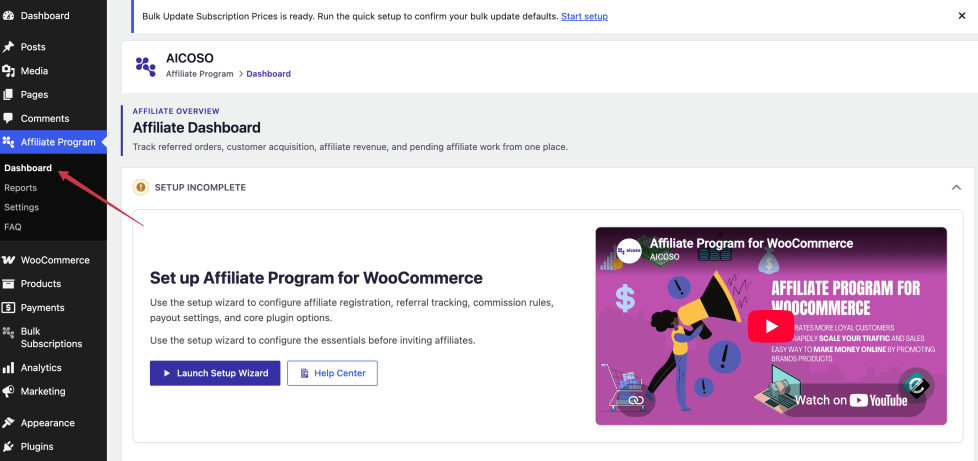
The main areas are:
Dashboard
↑ Back to topView program health, revenue, pending actions, traffic, and payout summaries.
Reports
↑ Back to topManage affiliates, referred orders, clicks, visits, creatives, and withdrawals.
Settings
↑ Back to topConfigure commissions, registration, tracking, payouts, coupons, emails, and security.
FAQ
↑ Back to topView built-in admin help for common setup questions.
Frontend Area
↑ Back to topAffiliates use the **Affiliate Center** inside WooCommerce **My Account**.
This area includes:
- Dashboard
- Visits
- CTR Analysis
- Affiliate Tools
- Reports
- Settings
How Referral Works
↑ Back to topA typical referral works like this:
1. An affiliate copies their referral link.
2. The affiliate shares the link with their audience.
3. A visitor clicks the link.
4. The plugin stores referral information in a browser cookie and logs the visit if click tracking is enabled.
5. The visitor places a qualifying WooCommerce order.
6. The plugin records the referred order and calculates commission.
7. The affiliate sees the commission in their dashboard.
8. When eligible, the affiliate requests a withdrawal.
Example:
↑ Back to topA skincare store wants beauty creators to promote a new product line. The store owner enables the affiliate program, sets a 10% commission rate, creates a registration page, approves selected creators, and gives them banners from the Creatives screen.
When a creator shares a referral link and a shopper buys through that link, the creator earns commission based on the order and the store’s configured rules.
Requirements
↑ Back to topRequirements
Affiliate Program for WooCommerce requires:
– A working WordPress site
– WooCommerce installed and active
– Administrator access to WordPress
– WooCommerce products if you want affiliates to promote product pages
– Working WordPress email delivery for registration, approval, referral, and payout messages
Installation and Activation
↑ Back to topDownload the plugin ZIP file from your WooCommerce.com account.
2. Go to **WordPress Admin > Plugins > Add New**.
3. Click **Upload Plugin**.
4. Choose the plugin ZIP file.
5. Click **Install Now**.
6. Click **Activate Plugin**.
The Onboarding Wizard
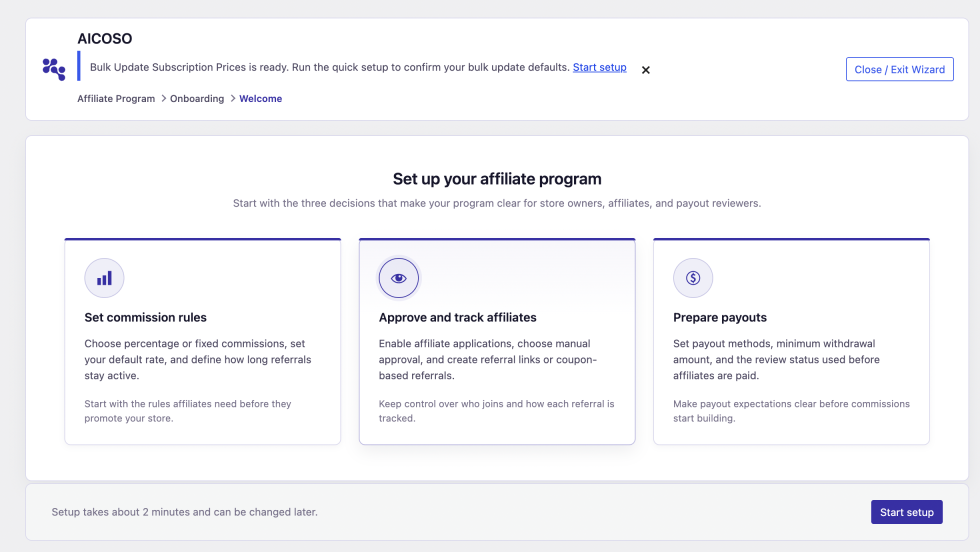
↑ Back to topAfter activation, you may see a setup prompt or be redirected to the setup wizard.
Use the wizard if you want guided setup for:
– Enabling the affiliate program
– Choosing the registration and approval workflow
– Setting commission rules
– Choosing referral link behavior
– Configuring payout settings
Getting started with setup wizard
↑ Back to topThe setup wizard helps you launch the affiliate program without visiting every settings page manually.
Why would I use it?
↑ Back to topUse the wizard when:
- You are setting up the plugin for the first time
- You want a guided checklist instead of configuring settings one by one
- You want to make sure core program, registration, commission, referral, and payout settings are not missed
Recommended Wizard Choices
For most stores:
- Enable the affiliate program.
- Allow affiliate registration if you want people to apply from the frontend.
- Keep auto approval off until you trust your applicant flow.
- Use a percentage commission for most retail stores.
- Use a 30-day cookie duration.
- Enable withdrawal requests.
- Set a minimum withdrawal amount high enough to avoid very small payouts.
Example Workflow
↑ Back to topA store owner installs the plugin and wants to recruit bloggers.
- The store owner opens the setup wizard.
- They enable the affiliate program.
- They allow affiliate registration.
- They choose manual approval so every blogger application can be reviewed.
- They set commission to 10%.
- They use a 30-day tracking cookie.
- They enable withdrawal requests with a minimum amount of 50.
- They finish setup and review the settings page.
Now the store can publish the registration page and begin accepting applicants.
Skipping the Wizard
↑ Back to topSkipping the wizard does not prevent you from using the plugin.
If you skip it:
- Go to Affiliate Program > Settings.
- Review each settings section manually.
- Save your configuration.
Best Practice: Even if you use the wizard, review the full settings page afterward. The settings page includes advanced options such as product/category commission rules, coupons, emails, reCAPTCHA, and invoice requirements.
Things to Remember
↑ Back to topWarning: Do not invite affiliates until you have confirmed commission, cookie, payout, and approval settings. These settings decide how affiliates are credited and paid.
Tip: Create one test affiliate and one test order before announcing the program.
- Go to Affiliate Program > Settings > General.
- Enter a timeout value.
- Choose a unit such as seconds, minutes, hours, days, weeks, or months.
- Save changes.
Available Options
↑ Back to top| Unit | Use Case |
|---|---|
| Seconds | Testing only. |
| Minutes | Short campaigns or QA. |
| Hours | Useful for stores with quick purchase decisions. |
| Days | Best for most stores. |
| Weeks | Useful for longer research cycles. |
| Months | Use carefully; it may undercount repeat visits. |
Example
↑ Back to topIf you set the timeout to 24 hours, a visitor who clicks the same affiliate link several times in one day is treated as one unique visit.
Best Practice
↑ Back to topUse 24 hours or 1 day for most stores.
Things to Remember
↑ Back to topWarning: A very short timeout can inflate unique visit counts. A very long timeout can hide repeat interest.
Delete Visits Log Older Than
↑ Back to topWhat Is This?
↑ Back to topThis setting controls how long old visit logs are retained.
Why Would I Use It?
↑ Back to topVisit data can grow over time. Retention helps keep reporting data manageable and reduces unnecessary database storage.
How to Configure It
↑ Back to top- Go to Affiliate Program > Settings > General.
- Find the visit log retention setting.
- Enter the number of days to keep logs.
- Save changes.
Example
↑ Back to topIf you enter 90, the plugin keeps visit logs for 90 days and can remove older records during cleanup.
Best Practice
↑ Back to topUse 30 to 180 days depending on how long you need traffic reports.
Sharing Settings
↑ Back to topWhat Is This?
↑ Back to topSharing settings decide which social sharing buttons appear near affiliate referral links.
Why Would I Use It?
↑ Back to topButtons make it easier for affiliates to share their links without manually copying and pasting into every channel.
Where Can I Find It?
↑ Back to topGo to Affiliate Program > Settings > Sharing or the sharing section inside settings.
Available Options
↑ Back to top| Option | What It Adds |
|---|---|
| Lets affiliates share their referral link to Facebook. | |
| Twitter/X | Lets affiliates share their referral link to Twitter/X. |
| Opens an email share link. | |
| Lets affiliates share using WhatsApp. |
Best Practice
↑ Back to topEnable only the channels your affiliates are likely to use. Too many buttons can make the dashboard feel cluttered.
Leaderboard Settings
↑ Back to topWhat Is This?
↑ Back to topThe leaderboard shows top-performing affiliates based on the selected criteria.
Why Would I Use It?
↑ Back to topLeaderboards can motivate affiliates by showing performance rankings. They are especially useful for contests or seasonal campaigns.
Where Can I Find It?
↑ Back to topGo to Affiliate Program > Settings > General and review the leaderboard settings.
Enable from Engagement Settings
↑ Back to topThis turns the leaderboard feature on or off.
Use Yes if you want affiliates to see ranking-style performance data. Use No if your affiliate program is private or you do not want affiliates comparing performance.
Leaderboard Criteria
↑ Back to topThis setting decides what the leaderboard uses for ranking.
Common criteria include:
- Sales or conversion performance
- Earnings
- Engagement activity such as visits or clicks
Choose the metric that matches the behavior you want to encourage.
Leaderboard Reset Period
↑ Back to topThis controls how often rankings are evaluated, such as monthly.
Use shorter periods for contests. Use monthly rankings for normal affiliate programs.
Leaderboard Display Limit
↑ Back to topThis controls how many affiliates appear in the leaderboard.
Use a small number, such as 5 or 10, so the leaderboard stays readable.
Example
↑ Back to topA store runs a monthly contest for the top 10 affiliates by conversions. The owner enables the leaderboard, chooses conversion-based ranking, sets the reset period to monthly, and displays 10 affiliates.
Things to Remember
↑ Back to topTip: Leaderboards work best when affiliates understand what behavior is being rewarded.
Tip: If affiliates are responsible for ongoing customer relationships, a higher order limit may be more motivating.
Product-Based Commission
↑ Back to topWhat Is This?
↑ Back to topProduct-based commission lets you set special commission rules for individual products.
Why Would I Use It?
↑ Back to topUse product rules when some products have different margins, strategic value, or promotional goals.
How to Configure It
↑ Back to top- Go to Affiliate Program > Settings > General.
- Enable Product-Based Commission.
- Add a product rule.
- Choose the product.
- Choose percentage or fixed commission.
- Enter the amount.
- Save changes.
Available Options
↑ Back to topEach product rule includes:
| Field | Meaning |
|---|---|
| Product | The WooCommerce product the rule applies to. |
| Commission Type | Percentage or fixed. |
| Commission Amount | The rate or amount for that product. |
Example
↑ Back to topA store sells a high-margin digital course and a low-margin printed book. The owner sets the course commission to 25% and the printed book commission to 5%.
Best Practice
↑ Back to topUse product rules for your most important products, not every product in the catalog. Too many special rules can become hard to manage.
Things to Remember
↑ Back to topWarning: Product rules can override the general commission behavior for matching products. Review them whenever you change prices or margins.
Category-Based Commission
↑ Back to topWhat Is This?
↑ Back to topCategory-based commission lets you set commission rules for products in selected WooCommerce categories.
Why Would I Use It?
↑ Back to topUse category rules when groups of products should share the same commission rate.
How to Configure It
↑ Back to top- Go to Affiliate Program > Settings > General.
- Enable Category-Based Commission.
- Add a category rule.
- Choose the category.
- Choose percentage or fixed commission.
- Enter the amount.
- Save changes.
Example
↑ Back to topA beauty store pays 15% on skincare but only 7% on tools. The owner creates separate category rules for each category.
Best Practice
↑ Back to topUse category rules when your store has clear product groups with different margins.
Things to Remember
↑ Back to topNote: If a product and category both have special rules, test the expected outcome with a test order so you know which rule applies in your installed build.
Creative-Level Commission
↑ Back to topWhat Is This?
↑ Back to topWhen creating creatives, the admin can assign a commission type and value to the creative.
Why Would I Use It?
↑ Back to topUse this when a specific promotion deserves a special reward, such as a launch campaign or seasonal banner.
Example
↑ Back to topFor a Black Friday creative, you may offer a higher commission than the normal store rate to encourage affiliates to promote it heavily.
Best Practice
↑ Back to topUse creative-level commission for short campaigns with a clear start and end strategy.
When Commission Is Created
↑ Back to topThe plugin listens to WooCommerce order events and records commission when an order reaches a qualifying point in the order lifecycle.
Commission-related order events include:
- New order
- Payment complete
- Processing
- Completed
The plugin is designed to avoid awarding the same order more than once.
Commission Statuses
↑ Back to top| Status | Meaning |
|---|---|
| Pending | Commission exists but is not paid yet. |
| Approved | Commission or withdrawal has been reviewed and approved. |
| Rejected | Commission or request was rejected. |
| Paid | Commission has been paid or included in a paid withdrawal. |
Refund Handling
↑ Back to topWhen a referred WooCommerce order is refunded, the plugin adjusts affiliate commission proportionally.
Example
↑ Back to topAn order total is 100 and the affiliate earned 10. If 50 of the order is refunded, the plugin can reduce the affiliate commission by 5.
Best Practice
↑ Back to topReview affiliate balances after large refunds, partial refunds, or manual order edits.
Things to Remember
↑ Back to topWarning: Always test commission rules with sample products before launching. Product, category, coupon, and creative rules can interact.
Tip: Keep your commission policy simple enough that affiliates can understand it.
Affiliate Registration
Affiliate registration lets people apply to join your affiliate program from the frontend of your store.
What Is This?
↑ Back to topThe registration form collects affiliate application details, creates or updates the user’s WordPress account, and assigns an affiliate status based on your approval settings.
Why Would I Use It?
↑ Back to topUse registration when you want creators, partners, customers, or sales representatives to apply without contacting you manually.
Where Can I Find It?
↑ Back to topThe registration form is shown with this shortcode:
[apf_affiliate_registration]
The plugin can create a registration page on activation. You can also place the shortcode on any page.
Admin review happens in Affiliate Program > Reports > Requests.
Default Registration Fields
↑ Back to topThe plugin creates default registration fields such as:
| Field | Required | Purpose |
|---|---|---|
| Email Address | Yes | Used for the account and affiliate communication. |
| First Name | Yes | Helps identify the applicant. |
| Last Name | Yes | Helps identify the applicant. |
| Phone Number / Skype ID / Best method to talk to you | No | Gives the store owner a way to contact the applicant. |
| Password | Yes | Used for the applicant’s WordPress account. |
| User Name | Yes | Used as the WordPress username. |
| Tell us more about yourself | No | Helps you understand how the applicant plans to promote your store. |
Supported Custom Field Types
↑ Back to topThe registration field system supports:
- Text
- Telephone
- Number
- Password
- Checkbox
- Radio
- Dropdown
- Textarea
New Visitor Registration Flow
↑ Back to top- A visitor opens the affiliate registration page.
- They complete the form.
- The plugin validates required fields.
- A WordPress customer account is created.
- The affiliate application is marked pending or approved depending on your auto approval setting.
- If automatic coupon creation is enabled, a coupon can be created and assigned.
- If the account is approved, the activation email can be sent.
Logged-In Customer Flow
↑ Back to topIf an existing logged-in customer applies, the plugin can use the current user account instead of creating a brand-new account.
This is useful when loyal customers want to become affiliates.
Approval Options
↑ Back to top| Approval Setting | What Happens |
|---|---|
| Auto Approval: Yes | The applicant is approved automatically and can start using affiliate features. |
| Auto Approval: No | The applicant appears as pending until an admin approves or rejects them. |
How to Approve an Affiliate
↑ Back to top- Go to Affiliate Program > Reports > Requests.
- Find the applicant.
- Review their name, email, contact details, PayPal email, and description.
- Click Approve.
- The user becomes an approved affiliate.
How to Reject an Affiliate
↑ Back to top- Go to Affiliate Program > Reports > Requests.
- Find the applicant.
- Click Reject.
- The applicant is marked rejected.
Example
↑ Back to topA boutique store wants affiliates to describe their Instagram account before approval. The store owner keeps auto approval off, reviews the “Tell us more about yourself” field, and approves only applicants whose audience matches the brand.
Best Practice
↑ Back to topUse manual approval when:
- Your products have strict brand guidelines
- You pay cash commissions
- You want to prevent spam accounts
- You work with influencers, creators, or partners
Use auto approval only when you are comfortable letting affiliates start immediately.
Things to Remember
↑ Back to topWarning: If affiliate registration is disabled in settings, the registration shortcode will not act as an open application form.
Tip: Add a short paragraph above the registration form explaining who your program is for and how commissions are paid.
Note: If reCAPTCHA is enabled, make sure your site key and secret key are configured correctly before sending applicants to the page.
Referral Links and Tracking
Referral tracking is the system that connects an affiliate’s promotion to a customer’s WooCommerce order.
What Is a Referral Link?
↑ Back to topA referral link is a normal store link with the affiliate’s unique code added to the URL.
Example:
https://example.com/shop/?ref=abc1234
When a visitor clicks this link, the plugin can remember the affiliate and credit them if the visitor later places a qualifying order.
Where Affiliates Find Their Link
↑ Back to topAffiliates can find their referral link in My Account > Affiliate Center > Dashboard.
Depending on enabled settings, they may also see share buttons for Facebook, Twitter/X, email, and WhatsApp.
How Tracking Works
↑ Back to top- The affiliate shares a referral link.
- A visitor clicks the link.
- The plugin reads the referral key from the URL.
- The plugin stores referral information in a browser cookie.
- If click tracking is enabled, the click or visit is logged.
- The visitor browses the store.
- At checkout, referral details are saved to the WooCommerce order.
- When the order qualifies, commission is calculated for the affiliate.
Cookie Duration
↑ Back to topCookie duration determines how long an affiliate can receive credit after a visitor clicks their link.
For example, if cookie duration is 30 days and a visitor buys 14 days after clicking the affiliate link, the affiliate can still receive credit.
If the visitor buys after the cookie expires, the referral may not be credited.
Best Practice
↑ Back to topUse 30 to 60 days for most stores.
Things to Remember
↑ Back to topWarning: Browser privacy settings, cookie consent tools, and some caching/security plugins can affect tracking cookies. Test the referral flow after making changes to those systems.
Unique Visits
↑ Back to topA unique visit is intended to count a visitor once within the configured timeout window.
This helps prevent one person repeatedly refreshing a page from inflating reports.
Example
↑ Back to topIf the unique visit timeout is 24 hours, the same visitor clicking repeatedly in one day is treated as one unique visit for reporting purposes.
Click Tracking
↑ Back to topClick tracking records affiliate traffic. This powers reports such as:
- Total clicks
- Unique clicks
- Visit status
- Source page
- Product/category target
- Conversion status
Best Practice
↑ Back to topKeep click tracking enabled so you can measure affiliate performance beyond sales.
Self-Referral Protection
↑ Back to topThe plugin checks for cases where a logged-in affiliate clicks their own referral key. This helps prevent affiliates from earning commission from their own visits.
Best Practice: Include a clear rule in your affiliate terms that self-referrals are not allowed.
Coupon Tracking
↑ Back to topIf affiliate coupons are enabled, a coupon assigned to an affiliate can also connect a customer to that affiliate.
When a customer applies an affiliate coupon, the plugin can store the affiliate referral and use it for conversion tracking.
Campaign and Creative Tracking
↑ Back to topCreatives can include campaign-style tracking data. When affiliates use assigned creatives, the plugin can record the creative or campaign source in click and visit reports.
Example
↑ Back to topAn affiliate shares a banner for a summer sale. A customer clicks the banner, visits the sale page, leaves, and returns the next week to purchase. If the cookie is still active, the plugin can connect the order to the affiliate.
Common Mistakes
↑ Back to top| Problem | Why It Happens | How to Fix It |
|---|---|---|
| Affiliate links do not track | Program disabled or wrong key name | Enable the program and confirm the referral URL uses the current key name. |
| Clicks track but orders do not | Order did not qualify yet | Check order status and commission settings. |
| Old links stopped working | Referral key name changed | Ask affiliates to update links. |
| Coupon referral not credited | Coupon was not assigned to the affiliate | Check the affiliate coupon assignment. |
Things to Remember
↑ Back to topTip: Test referral links in a private browsing window so you are not affected by existing admin cookies.
Product and Category Links
↑ Back to topIf product or category commission rules are enabled, affiliates may see links or commission information for those products or categories.
This helps affiliates focus on the promotions that matter most.
Leaderboard
↑ Back to topIf enabled, affiliates can see a ranking of top performers based on the selected leaderboard criteria.
Use this when you want to encourage friendly competition.
Visits
↑ Back to topThe Visits page shows tracked visits connected to the affiliate.
Affiliates can use it to understand whether their promotions are sending traffic.
Typical information includes:
- Visit date
- Referral URL or source
- Landing page
- Status
- Conversion information
Filters
↑ Back to topThe Visits page supports filtering by status and date range.
Example
↑ Back to topAn affiliate shares a link on Monday and sees 40 visits by Wednesday but no conversions. This tells them traffic is arriving, but the offer or audience may need improvement.
CTR Analysis
↑ Back to topCTR Analysis helps affiliates review click performance.
The page includes click-focused reporting and may show click totals, source information, and conversion-related performance.
Use it to help affiliates answer:
- Which links are getting clicked?
- Are clicks turning into conversions?
- Which promotions deserve more effort?
Affiliate Tools
↑ Back to topAffiliate Tools shows creatives assigned to the affiliate.
Creatives can include:
- Image banners
- Video creatives
- Text creatives
- Promotional URLs
- Product or category assignments
- Coupon assignments
How Affiliates Use Tools
↑ Back to top- Open My Account > Affiliate Center > Affiliate Tools.
- Review assigned creatives.
- Copy the available link or creative code.
- Share it on a website, email, social channel, or campaign.
Best Practice
↑ Back to topGive affiliates ready-made banners and campaign text so they promote your store consistently.
Reports
↑ Back to topThe Reports tab gives affiliates more detail about their referred orders and commission history.
Affiliates can use reports to answer:
- Which orders were referred?
- How much commission was earned?
- Which activity affected their balance?
- What is the total balance after each activity?
Settings
↑ Back to topThe Settings tab lets affiliates save account and payout preferences.
Depending on enabled payout settings, affiliates may be able to save:
- PayPal email address
- Bank name
- Account number
- IFSC code
- Billing details for invoice generation
- Notification preferences
- Preferred payout method
Billing Details
↑ Back to topBilling details may be required when the store requires invoices for withdrawals.
Fields can include:
- Account type
- First name
- Last name
- Company
- Country
- City
- ZIP code
- Street address
Notification Preferences
↑ Back to topAffiliates can save notification preferences from their settings page. Payout notification preferences are used for payout confirmation emails. Commission email opt-out behavior should be tested in your installed build before relying on it for strict email compliance.
Withdrawals
↑ Back to topIf withdrawals are enabled, affiliates can request payout from their dashboard.
The withdrawal form may ask for:
- Amount
- Payment method
- PayPal email or bank details
- Invoice upload or invoice generation choice
- Agreement to payout terms
Withdrawal Log
↑ Back to topAffiliates can view past withdrawal requests with:
- Amount
- Status
- Request date
- Payment method
- Transaction details when available
Things to Remember
↑ Back to topWarning: Affiliates must have enough available balance before requesting a withdrawal.
Tip: Add clear payout terms so affiliates know when they can request payment and how long approval takes.
Example
↑ Back to topIf referred orders increase but revenue stays flat, affiliates may be referring smaller purchases. You may want to promote higher-value bundles.
Affiliate Conversion Rate
↑ Back to topWhat Is This?
↑ Back to topConversion Rate compares tracked affiliate conversions to tracked affiliate visits or clicks.
Why It Matters
↑ Back to topIt tells you whether affiliate traffic is buying, not just browsing.
What Is a Good Rate?
↑ Back to topThis depends on your store and products. For many stores:
- Below 1% may need review
- 1% to 3% can be normal
- Above 3% is often strong
How to Improve It
↑ Back to top- Send traffic to stronger landing pages
- Give affiliates better creative assets
- Offer affiliate coupons
- Promote products with clear value
- Check that referral links point to relevant pages
Pending Payout Requests
↑ Back to topThis card shows withdrawal requests that need review or payment.
Use it to avoid leaving affiliates waiting.
Best Practice: Review payout requests on a fixed schedule, such as every Friday or twice per month.
Pending Affiliate Applications
↑ Back to topThis card shows affiliate applications waiting for approval.
Use it to keep your recruitment process moving.
Active Affiliates
↑ Back to topThis shows affiliates who are approved or currently participating, depending on the dashboard rules in your installed build.
Use it to measure program size.
Needs Attention
↑ Back to topNeeds Attention highlights items that require action, such as:
- Pending applications
- Pending withdrawal requests
- Payout issues
- Program setup reminders
Use this area as your daily affiliate checklist.
Revenue Trend
↑ Back to topRevenue Trend shows referred revenue over time.
Use it to identify:
- Seasonal spikes
- Campaign performance
- Drops after promotions end
- Growth from newly approved affiliates
Referral Funnel
↑ Back to topThe referral funnel helps you understand how traffic moves from visit to conversion.
Typical stages include:
- Clicks or visits
- Unique visits
- Conversions
If visits are high but conversions are low, the affiliate audience may not match your products or the landing page may need improvement.
Traffic Health Snapshot
↑ Back to topThis section summarizes traffic quality.
Look for:
- Total visits
- Unique visits
- Converted visits
- Not converted visits
- Conversion percentage
Affiliate Snapshot
↑ Back to topAffiliate Snapshot helps you understand program participation.
Use it to monitor:
- Approved affiliates
- Pending affiliates
- Affiliate growth
- Top affiliate activity
Payout Snapshot
↑ Back to topPayout Snapshot shows payout-related activity.
Use it to monitor:
- Pending payout value
- Paid withdrawal value
- Payouts in progress
- Rejected withdrawal requests
Real Workflow
↑ Back to topEvery week:
- Open Affiliate Program > Dashboard.
- Check pending applications.
- Check pending withdrawals.
- Review revenue and conversion rate.
- Open reports for any unusual traffic or commission changes.
- Approve payouts that meet your policy.
Things to Remember
↑ Back to topTip: Dashboard cards are starting points. Use reports when you need row-level detail.
Warning: If tracking is disabled, traffic-related dashboard metrics may be empty or incomplete.
Purpose
↑ Back to topReferred Orders shows WooCommerce orders connected to affiliate referrals.
Columns
↑ Back to top| Column | Meaning |
|---|---|
| Affiliate | Affiliate credited for the order. |
| Order ID | WooCommerce order connected to the referral. |
| Order Total | Total value of the order. |
| Commission | Commission earned for the order. |
| Date | When the order or commission activity occurred. |
| Status | Order or commission status. |
Business Use Case
↑ Back to topUse this report to answer: “Which orders did affiliates generate?”
Admin Reports
Reports help you review affiliates, orders, clicks, visits, creatives, and withdrawals.
Go to Affiliate Program > Reports.
Reports Overview
↑ Back to topAvailable report areas include:
- Affiliate Requests
- Affiliate Users
- Affiliate Detail
- Referred Orders
- Click Tracking
- Visits
- Creatives
- Withdrawal Requests
Affiliate Requests
↑ Back to topPurpose
↑ Back to topAffiliate Requests shows applications submitted through the registration form.
When to Use It
↑ Back to topUse this page whenever new affiliates apply and auto approval is disabled.
Common Columns
↑ Back to top| Column | Meaning |
|---|---|
| Name/User | Applicant identity. |
| Applicant email address. | |
| Status | Pending, approved, or rejected. |
| Contact | Contact fields from the registration form. |
| PayPal Email | Payment email if provided. |
| Description | Applicant’s message or introduction. |
| Action | Approve, reject, or view details. |
Actions
↑ Back to top| Action | Use It When |
|---|---|
| Approve | You want the applicant to become an affiliate. |
| Reject | You do not want the applicant to join at this time. |
| View Detail | You want a closer look at the affiliate account and activity. |
Real Workflow
↑ Back to top- Open Affiliate Program > Reports > Requests.
- Review pending applicants.
- Check their message and contact information.
- Approve trusted applicants.
- Reject applicants who do not fit your program.
Affiliate Users
↑ Back to topPurpose
↑ Back to topAffiliate Users lists approved and managed affiliates.
When to Use It
↑ Back to topUse this page to review affiliate balances, profile details, and individual performance.
Actions
↑ Back to topYou can open an affiliate detail page to review recent commissions, payout information, and account status.
Affiliate Detail
↑ Back to topPurpose
↑ Back to topThe Affiliate Detail page gives a closer view of one affiliate.
Information Shown
↑ Back to topIt can include:
- Affiliate identity
- Current balance
- Total earnings
- Paid withdrawals
- Recent commissions
- Recent withdrawals
- Status actions
- Payout information
Best Practice
↑ Back to topOpen affiliate detail before approving a large withdrawal or investigating a support question.
Referred Orders
↑ Back to topPurpose
↑ Back to topReferred Orders shows WooCommerce orders connected to affiliate referrals.
Columns
↑ Back to top| Column | Meaning |
|---|---|
| Affiliate | Affiliate credited for the order. |
| Order ID | WooCommerce order connected to the referral. |
| Order Total | Total value of the order. |
| Commission | Commission earned for the order. |
| Date | When the order or commission activity occurred. |
| Status | Order or commission status. |
Business Use Case
↑ Back to topUse this report to answer: “Which orders did affiliates generate?”
Click Tracking Report
↑ Back to topPurpose
↑ Back to topClick Tracking shows affiliate traffic activity.
Filters
↑ Back to topThe report supports filters such as:
- All time
- Today
- This week
- This month
- This year
- Affiliate
- Source
Metrics
↑ Back to top| Metric | Meaning |
|---|---|
| Total Clicks | All tracked affiliate clicks. |
| Unique Clicks | Deduplicated clicks based on timeout rules. |
| Unique Rate | Percentage of clicks that are unique. |
| Top Affiliate | Affiliate sending the most tracked clicks. |
| Top Product | Product receiving the most tracked affiliate traffic. |
Export
↑ Back to topThe report includes CSV export for click data.
Example
↑ Back to topIf one affiliate sends many clicks but no conversions, review the landing page and audience fit before changing commission rates.
Visits Report
↑ Back to topPurpose
↑ Back to topVisits show tracked affiliate visit sessions and conversion status.
Filters
↑ Back to topYou can filter by:
- Status
- Date from
- Date to
- Affiliate, on admin views
Common Statuses
↑ Back to top| Status | Meaning |
|---|---|
| Converted | The visit is connected to a conversion. |
| Not Converted | The visit has not produced a conversion. |
Export
↑ Back to topThe report can export visible visit rows.
Creatives Report
↑ Back to topPurpose
↑ Back to topCreatives lets you create, review, assign, and manage promotional assets for affiliates.
This report is covered in detail in Campaigns and Creatives.
Withdrawal Requests
↑ Back to topPurpose
↑ Back to topWithdrawal Requests shows payout requests submitted by affiliates.
Summary Cards
↑ Back to topThe page can show:
- Total withdrawal requests
- Pending requests
- In progress requests
- Paid amount
Filters
↑ Back to topYou can filter by:
- Date range
- Affiliate/user
- Status, depending on the available controls
Columns
↑ Back to top| Column | Meaning |
|---|---|
| User | Affiliate requesting payment. |
| Invoice | Uploaded or generated invoice information, when required. |
| Amount | Requested payout amount. |
| Request Date | When the withdrawal was submitted. |
| Processed | When it was processed, if applicable. |
| Status | Current payout status. |
| Action | Approve, reject, process, pay, or reapprove depending on status. |
Statuses
↑ Back to top| Status | Meaning |
|---|---|
| Pending | Submitted and waiting for review. |
| Approved | Approved but not fully processed or paid. |
| Processing | Payment is in progress, often for PayPal payouts. |
| Paid | Payment completed and balance adjusted. |
| Rejected | Request declined. |
Actions
↑ Back to top| Action | Meaning |
|---|---|
| Approve | Confirms the request is acceptable. |
| Reject | Declines the request. |
| Mark Processing | Marks the payout as being handled. |
| Pay | Starts or records payment depending on the method. |
| Reapprove | Moves a rejected or changed request back into approval flow where available. |
Export
↑ Back to topWithdrawal data can be exported to CSV.
Things to Remember
↑ Back to topWarning: Reports are only as complete as the tracking and order data available. If tracking was disabled during a period, click and visit reports may not show that traffic.
Tip: Use exports for accounting review before processing payout batches.
Campaigns and Creatives
Creatives are promotional assets that affiliates can use to share your products or campaigns.
Go to Affiliate Program > Reports > Creatives.
What Is This?
↑ Back to topThe Creatives page lets store owners create promotional materials and assign them to affiliates.
Creatives can include:
- Image banners
- Video creatives
- Text creatives
- Promotional descriptions
- Destination URLs
- Product assignments
- Category assignments
- Affiliate assignments
- Coupon assignments
- Expiry dates
- Special commission values
Why Would I Use It?
↑ Back to topUse creatives when you want affiliates to promote your store with approved messaging and visuals.
This is helpful for:
- Product launches
- Seasonal sales
- Influencer campaigns
- Category promotions
- Brand-safe advertising
- Affiliate contests
Creating a Creative
↑ Back to top- Go to Affiliate Program > Reports > Creatives.
- Add a new creative.
- Enter a title.
- Choose the creative type.
- Add the media, text, URL, or description.
- Choose whether it is assigned to products or categories.
- Select assigned products or categories.
- Select affiliates who can use it.
- Add a coupon if needed.
- Set an expiry date if the promotion is temporary.
- Set a commission type and value if this creative should use a special reward.
- Save the creative.
Creative Types
↑ Back to top| Type | What It Is | Best For |
|---|---|---|
| Image | Banner or image asset. | Blog sidebars, landing pages, email campaigns. |
| Video | Video promotional asset. | Product demos, influencer content, rich landing pages. |
| Text | Written promotional copy or link text. | Email copy, social captions, simple partner pages. |
Assign Type
↑ Back to topProduct Assignment
↑ Back to topUse product assignment when the creative promotes one or more specific WooCommerce products.
Category Assignment
↑ Back to topUse category assignment when the creative promotes a full product category.
Assigned Affiliates
↑ Back to topThis decides which affiliates can see and use the creative from My Account > Affiliate Center > Affiliate Tools.
Use assignment when:
- A promotion is only for selected partners
- A creative is designed for one influencer
- You want to test a campaign with a small group
Tip: The admin interface includes controls to select all affiliates or clear selected affiliates when managing assignments.
Assigned Coupon
↑ Back to topYou can connect a coupon to a creative. This is useful when the creative promotes a discount code.
Example:
A banner says “Save 10% with code SARAH10”. Assign the matching coupon so the creative and coupon stay connected in affiliate reporting.
Expiry Date
↑ Back to topUse expiry dates for time-limited campaigns.
Example:
A Black Friday creative should expire after the sale ends so affiliates do not continue promoting an old offer.
Creative Commission Type and Value
↑ Back to topCreatives can include a commission type and value.
Use this when a specific campaign should reward affiliates differently from the normal program rate.
Example:
Your normal commission is 10%, but you want to pay 15% for a new product launch creative.
How Affiliates Use Creatives
↑ Back to top- Affiliate signs in.
- Affiliate goes to My Account > Affiliate Center > Affiliate Tools.
- Affiliate reviews assigned creatives.
- Affiliate copies the link, text, or code.
- Affiliate shares the creative with their audience.
Best Practices
↑ Back to top- Create separate creatives for major promotions.
- Use clear titles so affiliates know what each creative is for.
- Remove or expire old promotions.
- Assign creatives only to affiliates who should use them.
- Include the destination URL affiliates should promote.
- Use product-specific creatives for high-priority products.
Things to Remember
↑ Back to topWarning: If a creative promotes an expired sale or unavailable product, affiliates may continue sharing outdated information unless you expire or remove it.
Tip: Give affiliates both image banners and short text copy. Many affiliates need ready-to-use captions, not just graphics.
Affiliate Coupons
Affiliate coupons let customers use a coupon code that is connected to an affiliate.
What Is This?
↑ Back to topAffiliate coupon features allow the plugin to create and assign WooCommerce coupons to affiliates. When a customer applies an assigned coupon, the plugin can connect the order to that affiliate.
Why Would I Use It?
↑ Back to topUse affiliate coupons when affiliates promote with discount codes instead of links.
This is especially useful for:
- Influencers on social media
- Podcasts
- Offline promotions
- Email newsletters
- Situations where customers may not click a referral link
Where Can I Find It?
↑ Back to topGo to Affiliate Program > Settings > Coupons.
Coupons are WooCommerce coupons, so you may also see created coupons under Marketing > Coupons or WooCommerce > Coupons, depending on your WooCommerce version.
Enable Automatic Coupon Creation
↑ Back to topWhat Is This?
↑ Back to topThis setting lets the plugin automatically create a WooCommerce coupon for new affiliates.
Why Would I Use It?
↑ Back to topUse it when every approved affiliate should receive their own referral coupon.
How to Configure It
↑ Back to top- Go to Affiliate Program > Settings > Coupons.
- Enable automatic coupon creation.
- Configure discount type, amount, expiry, usage limits, and name format.
- Save changes.
Example
↑ Back to topWhen Sarah becomes an affiliate, the plugin creates a coupon such as AFF_sarah. Sarah can share this code with her audience.
Best Practice
↑ Back to topEnable automatic coupons if your affiliates promote heavily through social content, video, podcasts, or offline channels.
Discount Type
↑ Back to topWhat Is This?
↑ Back to topDiscount Type decides whether the coupon gives a percentage discount or a fixed discount.
Available Options
↑ Back to top| Option | Meaning |
|---|---|
| Percentage | Customer receives a percentage off. |
| Fixed | Customer receives a fixed currency amount off. |
Example
↑ Back to topUse Percentage and amount 10 to give customers 10% off.
Best Practice
↑ Back to topPercentage discounts are easier for customers to understand across different cart values. Fixed discounts work well when you want to control the maximum discount.
Discount Value
↑ Back to topWhat Is This?
↑ Back to topThis is the discount amount used by the coupon.
Example
↑ Back to topIf Discount Type is Percentage and Discount Value is 10, the coupon gives 10% off.
If Discount Type is Fixed and Discount Value is 10, the coupon gives 10 in your store currency off the order.
Expiry in Days
↑ Back to topWhat Is This?
↑ Back to topThis controls when automatically created coupons expire.
Example
↑ Back to topIf expiry is 30 days, a coupon created today expires after 30 days.
Best Practice
↑ Back to topLeave coupons without a short expiry if affiliates are long-term partners. Use an expiry for temporary campaigns.
Usage Limit Total
↑ Back to topWhat Is This?
↑ Back to topThis limits how many total times the coupon can be used.
Example
↑ Back to topIf the total limit is 100, the coupon can be used 100 times across all customers.
Best Practice
↑ Back to topUse a total limit for exclusive launches or limited promotions. For evergreen affiliate coupons, a low total limit may frustrate affiliates.
Usage Limit Per User
↑ Back to topWhat Is This?
↑ Back to topThis limits how many times the same customer can use the coupon.
Example
↑ Back to topIf the per-user limit is 1, each customer can use the affiliate coupon once.
Best Practice
↑ Back to topUse 1 if the coupon is meant to attract new customers. Use a higher number if repeat purchases are part of your affiliate strategy.
Coupon Name Format
↑ Back to topWhat Is This?
↑ Back to topCoupon Name Format controls how affiliate coupon codes are named.
Example Formats
↑ Back to top| Format | Example Output |
|---|---|
AFF_{username} |
AFF_sarah |
aff_{user_id} |
aff_123 |
Best Practice
↑ Back to topUse a format that is readable and easy for affiliates to say out loud.
How Coupon Referrals Work
↑ Back to top- Affiliate receives an assigned coupon.
- Affiliate shares the coupon with customers.
- Customer applies the coupon at checkout.
- The plugin stores the affiliate connection.
- If the order qualifies, commission is credited to the affiliate.
Things to Remember
↑ Back to topWarning: A coupon must be assigned to the affiliate for coupon referral tracking to work.
Tip: Give affiliates both a referral link and a coupon code. Links are good for websites and email. Coupons are good for social, video, and verbal promotion.
- Fraudulent referrals may be rejected
- Bank details must be accurate
Enable PayPal Payouts
↑ Back to topWhat Is This?
↑ Back to topThis enables PayPal as a payout method.
Why Would I Use It?
↑ Back to topUse PayPal when you want to send affiliate payouts through PayPal payout credentials.
How to Configure It
↑ Back to top- Go to Affiliate Program > Settings > Payouts.
- Enable PayPal payouts.
- Choose staging or live environment.
- Enter the matching PayPal client ID and secret.
- Save changes.
- Test before paying real affiliates.
PayPal Environment
↑ Back to top| Environment | Use Case |
|---|---|
| Staging/Sandbox | Testing PayPal payouts without real payments. |
| Live | Sending real PayPal payouts. |
Warning: Do not switch to Live until you have tested your payout workflow.
PayPal Credentials
↑ Back to topThe plugin supports separate sandbox and live credential fields.
Enter sandbox credentials for testing and live credentials for real payouts.
The settings may include an option to import credentials from WooCommerce PayPal settings.
Enable Manual Bank Transfer
↑ Back to topWhat Is This?
↑ Back to topManual bank transfer lets affiliates provide bank details and lets admins record payouts manually.
Why Would I Use It?
↑ Back to topUse it if your business pays affiliates by bank transfer outside the plugin.
Affiliate Bank Fields
↑ Back to topAffiliates can save:
- Bank Name
- Account Number
- IFSC Code
Allow Affiliate to Choose Method
↑ Back to topWhat Is This?
↑ Back to topThis setting lets affiliates choose between enabled payout methods.
Example
↑ Back to topIf PayPal and bank transfer are enabled, affiliates can choose their preferred method when requesting withdrawal.
Default Payout Method
↑ Back to topWhat Is This?
↑ Back to topThis selects the payout method used when affiliates cannot choose or have not selected a preference.
Auto-Process via PayPal
↑ Back to topWhat Is This?
↑ Back to topThis setting allows approved PayPal withdrawals to be processed automatically when conditions are met.
Best Practice
↑ Back to topUse manual review first. Enable automation only after you trust your tracking, refund, and fraud review process.
Auto-Advance Status on Submit
↑ Back to topWhat Is This?
↑ Back to topThis setting controls whether a new withdrawal request moves forward automatically after submission.
Auto-Approve Up to Amount
↑ Back to topWhat Is This?
↑ Back to topThis setting lets smaller withdrawal requests be approved automatically up to a threshold.
Example
↑ Back to topIf the threshold is 25, requests of 25 or less may be approved automatically, while larger requests need review.
Auto-Mark Paid on Success
↑ Back to topWhat Is This?
↑ Back to topWhen enabled, successful PayPal payout responses can mark the withdrawal as paid automatically.
Withdrawal Statuses
↑ Back to top| Status | Meaning |
|---|---|
| Pending | Affiliate submitted a request and it needs review. |
| Approved | Admin approved the request. |
| Processing | Payment is being processed. |
| Paid | Payment is complete and affiliate balance has been reduced. |
| Rejected | Request was declined. |
Admin Payout Workflow
↑ Back to top- Go to Affiliate Program > Reports > Withdrawal Requests.
- Filter pending requests.
- Review affiliate, amount, invoice, and payout method.
- Approve or reject the request.
- Pay through PayPal or manual bank transfer.
- Mark the request paid if not handled automatically.
- Keep records for accounting.
Affiliate Workflow
↑ Back to top- Affiliate opens My Account > Affiliate Center.
- Affiliate checks available balance.
- Affiliate chooses a payout method.
- Affiliate enters payout details.
- Affiliate provides invoice information if required.
- Affiliate accepts terms.
- Affiliate submits the withdrawal request.
Things to Remember
↑ Back to topWarning: Paying an affiliate usually reduces their available balance. Confirm the request before marking it paid.
Tip: Process payouts on a predictable schedule so affiliates know when to expect payment.
Note: The reviewed source includes a Stripe-related placeholder path, but no complete active Stripe payout configuration or processing workflow was found. Do not document Stripe as a supported payout method unless your installed build adds it.
Email Notifications
Email notifications keep affiliates informed about account approval, referrals, and payouts.
Go to Affiliate Program > Settings > Emails.
Email Template Style
↑ Back to topWhat Is This?
↑ Back to topEmail Template Style controls the visual style of plugin emails.
Available Options
↑ Back to top| Option | Meaning |
|---|---|
| Plain | Simple email formatting. |
| Aicoso | Branded template styling included by the plugin. |
Best Practice
↑ Back to topUse the styled template if you want emails to feel branded. Use plain emails if your site has email deliverability issues or you prefer simple messages.
Affiliate Account Activation Email
↑ Back to topWhat Is This?
↑ Back to topThis email is sent when an affiliate account is activated or approved.
Why Would I Use It?
↑ Back to topIt tells the affiliate they can start promoting your store.
Available Placeholders
↑ Back to top| Placeholder | Inserts |
|---|---|
{user_login} |
Affiliate username. |
{password} |
Password generated or submitted during registration. |
{coupon} |
Welcome or referral coupon information when available. |
{status} |
Affiliate account status. |
[Your Site Name] |
Your site name text in the template. |
[Your Site URL] |
Your site URL text in the template. |
Example Message
↑ Back to topHello {user_login},
Your affiliate account is active. You can now log in and start sharing your referral link.
Coupon: {coupon}
Status: {status}
Best Practice
↑ Back to topInclude:
- A welcome message
- Where to log in
- How to find the referral link
- Any coupon assigned to the affiliate
- A short reminder of payout timing
Affiliate Rejection Email
↑ Back to topWhat Is This?
↑ Back to topThe plugin includes rejection email content for declined affiliate applications.
Why Would I Use It?
↑ Back to topIt gives applicants a clear response instead of leaving them unsure.
Best Practice
↑ Back to topKeep the rejection email polite and brief. Avoid detailed explanations that may invite disputes.
Referral Notification Email
↑ Back to topWhat Is This?
↑ Back to topThis email notifies an affiliate when they earn commission from a qualifying referred order, when commission notifications are enabled for the site.
Available Placeholders
↑ Back to top| Placeholder | Inserts |
|---|---|
{affiliate_name} |
Affiliate display name. |
{referral_name} |
Referred customer or referral name. |
{payment_amount} |
Commission amount. |
{payment_amount_html} |
Formatted commission amount. |
{order_total} |
Referred order total. |
{order_id} |
WooCommerce order ID. |
{site_name} |
Store name. |
{dashboard_url} |
Affiliate dashboard URL. |
Example
↑ Back to topGreat news, {affiliate_name}!
You earned {payment_amount_html} from order #{order_id}.
View your dashboard here: {dashboard_url}
Things to Remember
↑ Back to topNote: The affiliate settings screen includes notification preferences. Payout emails respect affiliate payout preferences. Test commission email opt-out behavior in your installed build before relying on it for compliance-critical email preferences.
Payout Confirmation Email
↑ Back to topWhat Is This?
↑ Back to topThis email is sent when a payout is confirmed or marked paid.
Why Would I Use It?
↑ Back to topIt lets affiliates know their withdrawal has been completed.
Common Placeholders
↑ Back to topPlaceholders can include affiliate information, payout amount, currency, payment method, transaction ID, payout status, site name, and dashboard URL.
Best Practice
↑ Back to topInclude:
- Amount paid
- Payment method
- Transaction reference when available
- Date
- Link to the affiliate dashboard
Email Deliverability
↑ Back to topIf emails are not arriving:
- Check the recipient email address.
- Check spam folders.
- Confirm WordPress can send email.
- Use an SMTP plugin or transactional email service.
- Send a test registration or payout email.
Things to Remember
↑ Back to topWarning: Email templates support placeholders, but unsupported placeholders will not be replaced. Use only placeholders provided by the plugin.
Tip: Keep emails short and action-focused. Affiliates mainly need to know what happened and what to do next.
docs/woocommerce-kb/16-woocommerce-integration-and-compatibility.md
WooCommerce Integration and Compatibility
Affiliate Program for WooCommerce works with WooCommerce orders, checkout, customers, products, categories, and coupons.
Orders
↑ Back to topThe plugin connects affiliate referrals to WooCommerce orders.
Referral data can be saved when an order is created or updated during checkout. Commission is then calculated when the order reaches a qualifying event or status.
Order Statuses
↑ Back to topCommission activity is connected to WooCommerce order events such as:
- New order
- Payment complete
- Processing
- Completed
Best Practice
↑ Back to topUse normal WooCommerce order processing. Avoid manually changing order statuses in unusual ways unless you have tested how it affects affiliate commission.
Refunds
↑ Back to topWhen a referred order is refunded, affiliate commission can be adjusted proportionally.
Example
↑ Back to topIf half of an order is refunded, the affiliate commission can be reduced by half.
Products
↑ Back to topProducts are used in:
- Product-specific commission rules
- Creative assignments
- Product links shown to affiliates
- Product-level tracking information
Categories
↑ Back to topCategories are used in:
- Category-specific commission rules
- Creative assignments
- Category links shown to affiliates
- Category-level tracking information
Coupons
↑ Back to topWooCommerce coupons are used for affiliate coupon referrals.
When automatic coupon creation is enabled, the plugin creates WooCommerce coupons and connects them to affiliates.
Checkout
↑ Back to topThe plugin stores referral information during checkout so commission can be connected to the final order.
The reviewed source includes support for classic checkout order meta and WooCommerce Store API checkout meta handling.
WooCommerce My Account
↑ Back to topThe plugin adds an Affiliate Center menu item to WooCommerce My Account.
Affiliates use this area for:
- Dashboard
- Visits
- CTR Analysis
- Affiliate Tools
- Reports
- Settings
- Withdrawals when enabled
HPOS
↑ Back to topThe plugin source declares compatibility with WooCommerce High-Performance Order Storage.
Best Practice
↑ Back to topIf your store uses HPOS, test:
- Referral link checkout
- Coupon referral checkout
- Commission creation
- Refund adjustment
- Referred order reports
WooCommerce Blocks / Store API Checkout
↑ Back to topThe source includes handling for WooCommerce Store API checkout order meta, which is used by modern checkout flows.
Best Practice
↑ Back to topIf you use Checkout Blocks, test a full referral order before launching.
WooCommerce Subscriptions
↑ Back to topNo complete WooCommerce Subscriptions-specific recurring commission workflow was found in the reviewed source.
Do not promise recurring subscription commission unless your installed build adds that feature.
Multi-Currency
↑ Back to topThe plugin stores and displays WooCommerce currency information in several payout and reporting areas, but no complete dedicated multi-currency conversion system was found in the reviewed source.
Best Practice
↑ Back to topIf your store uses a multi-currency plugin, test commission and payout reporting in each currency before launch.
Multi-Vendor
↑ Back to topNo complete multi-vendor marketplace integration was found in the reviewed source.
Gutenberg Blocks and Widgets
↑ Back to topNo Gutenberg blocks or WordPress widgets were found in the reviewed source.
Use shortcodes and the WooCommerce My Account area instead.
REST API
↑ Back to topThe plugin registers REST endpoints under:
/wp-json/apf/v1/
Endpoints found include:
best-selling-productstotal-salesusers-datasingle-user-details
These are primarily used by plugin screens and reporting features, not by typical store-owner workflows.
AJAX Features
↑ Back to topThe plugin uses AJAX for interactive admin and affiliate actions such as:
- Saving PayPal email
- Searching products for selectors
- Loading affiliate click chart data
- Loading leaderboard data by period
- Saving bank details
- Requesting withdrawals
- Saving billing information
- Exporting commission CSV data
- Saving notification preferences
- Managing withdrawal statuses
- Paying or processing withdrawal requests
- Managing creatives
Things to Remember
↑ Back to topTip: If a report or dashboard section does not update, check browser console errors, admin AJAX availability, security plugins, and user permissions.
Warning: Do not treat REST endpoints as public customer-facing features unless you have reviewed access permissions and privacy needs for your store.
Affiliates sign in and go to My Account > Affiliate Center > Dashboard.
Can affiliates share links on social media?
↑ Back to topYes, if the relevant sharing buttons are enabled in settings.
What is the best cookie duration?
↑ Back to topMost stores should use 30 to 60 days.
Does the plugin prevent self-referrals?
↑ Back to topThe plugin checks for logged-in affiliates clicking their own referral key and avoids tracking those self-referrals.
When is commission awarded?
↑ Back to topCommission is connected to qualifying WooCommerce order events such as payment complete, processing, or completed.
Does commission generate for refunded orders?
↑ Back to topRefunds can reduce affiliate commission proportionally.
Can I set different commissions for products?
↑ Back to topYes. Enable product-based commission rules and add product-specific rates.
Can I set different commissions for categories?
↑ Back to topYes. Enable category-based commission rules and add category-specific rates.
Can creatives have special commission?
↑ Back to topYes. Creatives include commission type and value fields.
Can the plugin create affiliate coupons automatically?
↑ Back to topYes. Enable automatic coupon creation in coupon settings.
How do coupon referrals work?
↑ Back to topWhen a customer applies a coupon assigned to an affiliate, the order can be connected to that affiliate.
Can affiliates request withdrawals?
↑ Back to topYes, when withdrawal requests are enabled and the affiliate has enough balance.
What payout methods are available?
↑ Back to topThe reviewed source supports PayPal payouts and manual bank transfer.
Can affiliates choose their payout method?
↑ Back to topYes, if more than one payout method is enabled and the setting allowing affiliate choice is enabled.
Can I require invoices?
↑ Back to topYes. You can require uploaded invoices, automatic invoices, or allow affiliates to choose.
What billing fields are needed for automatic invoices?
↑ Back to topAutomatic invoices may require account type, name or company, country, city, ZIP code, and street address.
Can affiliates disable notification emails?
↑ Back to topAffiliates can save notification preferences. Payout confirmation emails respect payout notification preferences. Test commission email opt-out behavior in your installed build before relying on it.
Can I customize email text?
↑ Back to topYes. Go to Affiliate Program > Settings > Emails.
Does the plugin include shortcodes?
↑ Back to topYes. See Shortcodes.
Does the plugin include Gutenberg blocks?
↑ Back to topNo Gutenberg blocks were found in the reviewed source.
Does the plugin include widgets?
↑ Back to topNo WordPress widgets were found in the reviewed source.
Does the plugin support HPOS?
↑ Back to topThe source declares compatibility with WooCommerce HPOS. Test the full order flow on your store.
Does it support WooCommerce Subscriptions recurring commissions?
↑ Back to topNo complete recurring subscription commission workflow was found in the reviewed source.
Does it support multi-currency conversion?
↑ Back to topThe plugin stores/display currency information in some areas, but no complete dedicated multi-currency conversion system was found.
Why is the Affiliate Center missing?
↑ Back to topSave WordPress permalinks, confirm WooCommerce is active, confirm the user is approved as an affiliate, and check My Account page customization.
Why is the registration form hidden?
↑ Back to topAffiliate registration may be disabled, the shortcode may be missing, or the viewer may already be logged in with an account state that changes the form.
Why are clicks counted but no commission appears?
↑ Back to topClicks show traffic. Commission requires a qualifying order connected to the affiliate.
Can I export reports?
↑ Back to topClick, visit, withdrawal, and commission-related report areas include CSV export behavior in the plugin.
Should I use auto approval?
↑ Back to topManual approval is safer for most stores. Auto approval is useful only when you are comfortable accepting affiliates immediately.
How often should I pay affiliates?
↑ Back to topMost stores use monthly or twice-monthly payouts.
Can I pause the affiliate program?
↑ Back to topYes. Turn off Enable Affiliate Program in settings.
What happens if I change the referral key name?
↑ Back to topAffiliates may need to update existing links. Old links using the previous key name may not track.
Can I assign creatives to only selected affiliates?
↑ Back to topYes. Creatives include affiliate assignment controls.
Can I use the plugin without affiliate coupons?
↑ Back to topYes. Referral links work independently from coupon referrals.
Can I use the plugin without PayPal?
↑ Back to topYes. Enable manual bank transfer if that matches your payout process.
What should I test before launch?
↑ Back to topTest registration, approval, referral link click, coupon referral, order commission, refund adjustment, withdrawal request, payout marking, and emails.
These settings control the basic functionality of the Affiliate Program, including enabling or disabling the program.

