Installation
↑ Back to top- Download the .zip file from your WooCommerce account.
- Go to: WordPress Admin > Plugins > Add New and Upload Plugin with the file you downloaded with Choose File.
- Install Now and Activate the extension.
More information at: Install and Activate Plugins/Extensions.
Setup and Configuration
↑ Back to topYou can use the Discounts for WooCommerce Subscriptions extension to manipulate the cost of subscription renewals in several ways: you can give discounts on subsequent renewals, increase the cost of those payments with each renewal or apply user role-based discounts/pricing for renewals.
Example:
You have a subscription product that costs $100/month. You may assign a 5% (or $5) discount to the second renewal (2nd month), 10% (or any other fixed) discount on months 3-5, and 20% discounts on every renewal starting from month #6.
Then the user will pay:
1st initial order (month #1) = $100
2nd renewal order (month #2) = $95
From 3rd to 5th renewal order (3-5 months) = $90 each month
And starting from the 6th month, they’ll get maximum discounts = $80 each month till the subscription expires/ends
You can also define specific discount rules in much the same way for each user role.
4.0 Version – Major update
↑ Back to topGlobal Subscription Discount Rules
↑ Back to topVersion 4.0 introduces Global Subscription Discount Rules — a new way to manage subscription discounts at the store level, without configuring them individually on each product. You can now create a single rule that applies across multiple products, categories, and customer groups at once.
Where to find it
Global rules are managed from a dedicated section in your WordPress admin: WooCommerce > Subscription Discounts.
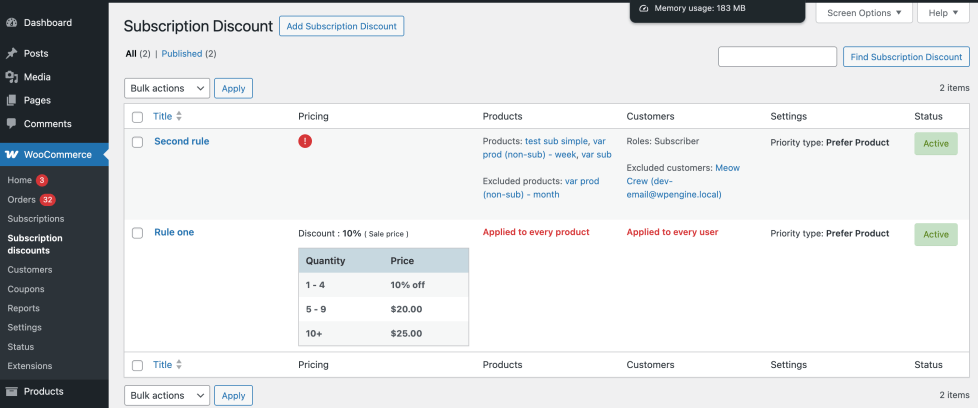
The list view shows all your created rules with four columns at a glance:
- Pricing — the discount structure applied (e.g. 10% off sale price, or a tiered flat price table by quantity/renewal)
- Products — which products or categories the rule applies to, and which are excluded
- Customers — which user roles or specific customers are included or excluded
- Settings — the priority type (e.g. Prefer Product), which controls how this global rule interacts with product-level discount rules
- Status — whether the rule is Active or not
To create a new rule, click Add Subscription Discount at the top of the page. Each rule is configured across four tabs: Pricing, Products, Users & roles, and Settings.
Tab 1 — Pricing
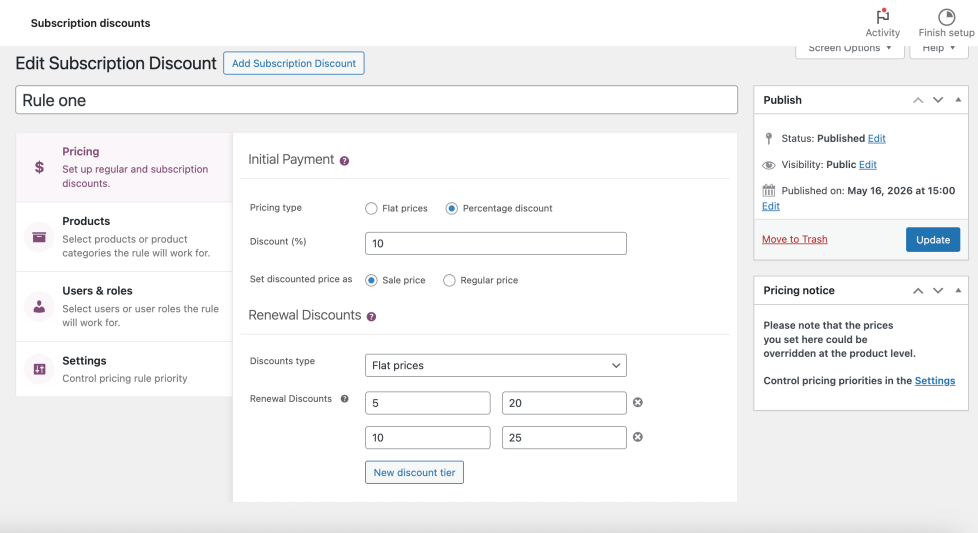
This tab is where you define the actual discount amounts — both for the initial purchase and for subsequent renewals.
Initial Payment
- Pricing type — choose between Flat prices (a fixed dollar amount) or Percentage discount (a % off the subscription cost)
- Discount (%) — enter the discount value for the first payment (e.g.
10for 10% off) - Set discounted price as — choose whether to apply the discount as a Sale price or a Regular price
Renewal Discounts
- Discounts type — choose Flat prices or Percentage discount for the renewal sequence. Note that this can differ from the initial payment type
- Renewal Discounts — define the tiered sequence using two columns: Renewal sequence number (from which renewal the price applies) and Price or Percent discount (the value at that tier). Click New discount tier to add more rows
Example from the screenshot:
| Renewal sequence | Price |
|---|---|
| 5 | $20.00 |
| 10 | $25.00 |
This means: from the 5th renewal, the subscription costs $20; from the 10th renewal, it costs $25.
Note: A “Pricing notice” reminder appears in the sidebar: prices set at the global rule level can be overridden at the product level. Control which takes priority in the Settings tab.
Tab 2 — Products
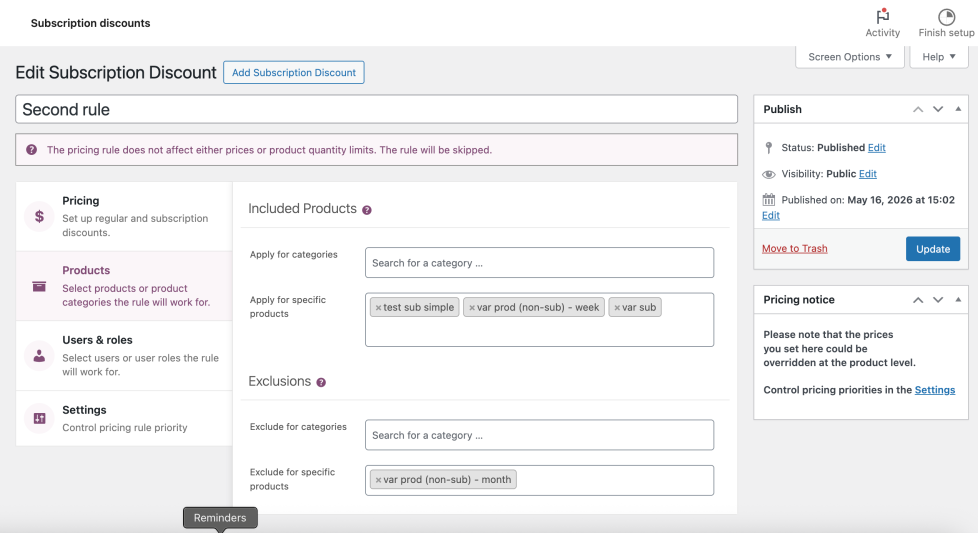
This tab controls which products the rule applies to.
Included Products
If you do not specify products or product categories, the rule will work for all products in your store (excluding any products selected in the Exclusions section).
- Apply for categories — search and select one or more product categories. The rule will apply to all subscription products within those categories
- Apply for specific products — search and select individual products by name
Exclusions
- Exclude for categories — search and select categories that should be exempt from this rule, even if they would otherwise be included
- Exclude for specific products — search and select individual products to exclude from this rule
Tab 3 — Users & role
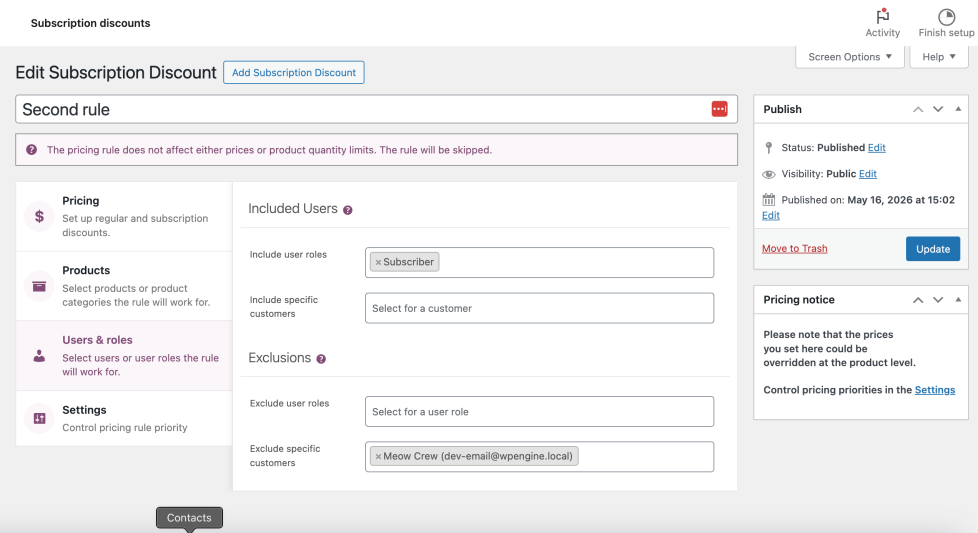
This tab controls which customers the global rule applies to.
Included Users
The rule will work for all users if you do not specify user roles or specific customers (excluding users selected in the Exclusions section).
- Include user roles — select one or more WordPress user roles (e.g. Subscriber, Wholesale Customer). Only users with these roles will receive the discount
- Include specific customers — search for and select individual customer accounts by name or email
Exclusions
- Exclude user roles — roles selected here will not receive this discount, even if they would otherwise qualify
- Exclude specific customers — individual customers selected here are exempt from this rule
Tab 4 — Settings
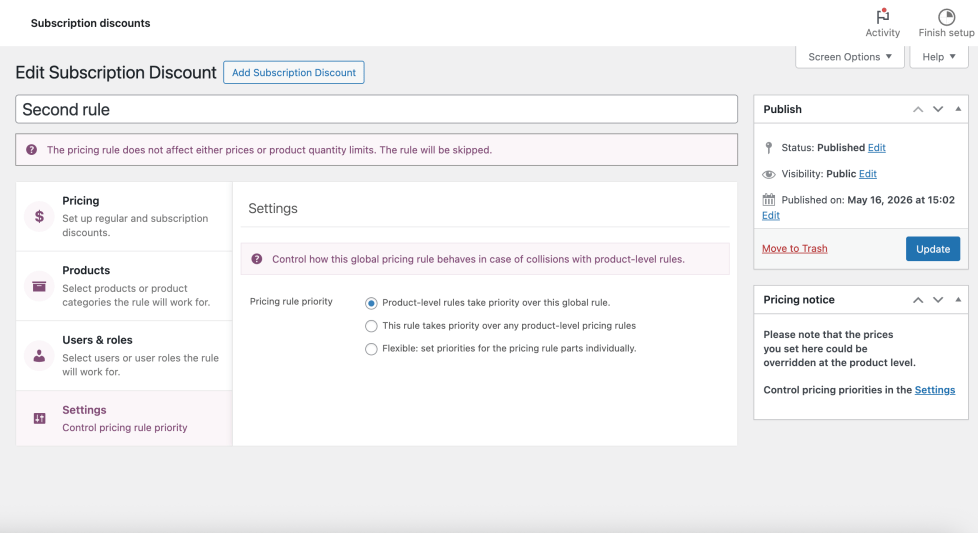
This tab controls how the global rule behaves when a product also has its own product-level discount rules configured.
Pricing rule priority — choose one of three options:
- Product-level rules take priority over this global rule (default) — if a product has its own discount sequence set up, that sequence will be used instead of this global rule. The global rule only applies to products with no individual discount configuration
- This rule takes priority over any product-level pricing rules — this global rule always wins, overriding any discounts set at the product level
- Flexible: set priorities for the pricing rule parts individually — allows you to mix and match: for example, let the global rule handle the initial payment discount while the product-level rule controls the renewal sequence, or vice versa
Use the Flexible option when you want fine-grained control across stores with a mix of product-specific and store-wide pricing strategies.
How global rules interact with product-level discounts
↑ Back to topGlobal rules and product-level discounts can coexist in your store. The Settings > Pricing rule priority option on each global rule determines which one wins when both apply to the same product and customer.
A few things to keep in mind:
- A global rule set to “Applied to every product” and “Applied to every user” will affect all subscriptions in the store unless a product-level rule takes priority
- You can have multiple global rules active simultaneously. If more than one rule matches a given product and customer, the rule marked with Prefer Product priority type will defer to the product configuration
- The rule list view shows a warning icon next to rules with missing pricing configuration — review those before going live
Here’s the full documentation section for the updated Settings. Ready for the next batch whenever you are!
Redesigned Plugin Settings
↑ Back to topVersion 4.0 brings a completely redesigned Settings area. The settings page is now organized into four tabs: General, Product Catalog, Feature Flags, and Integrations. Each tab is divided into clearly named sections.
To open the settings, go to WooCommerce > Settings > Subscription Discounts.
General tab – Template options
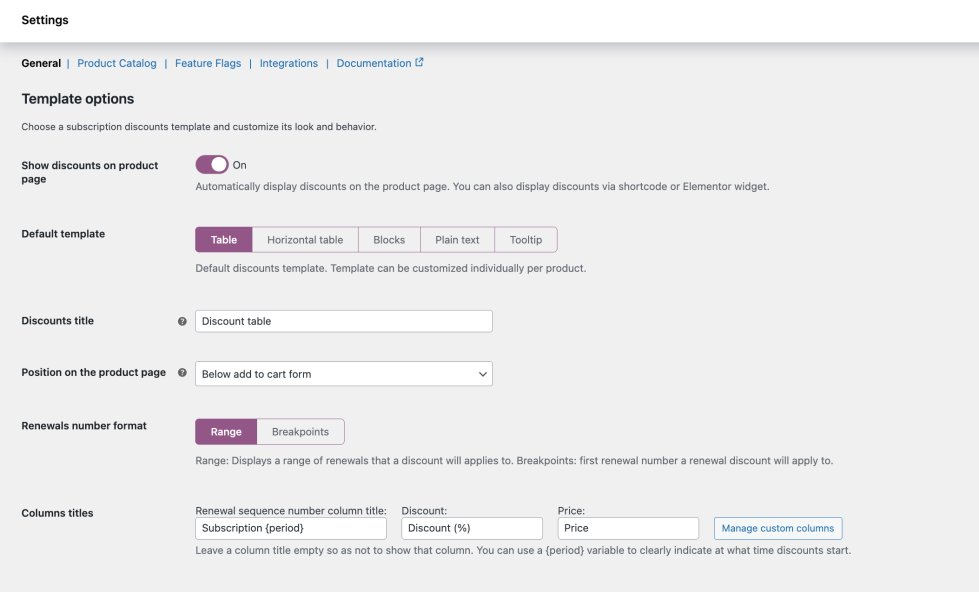
This section controls how discount information is displayed on each subscription product page. The following settings apply globally, but the template can also be overridden individually per product.
Show discounts on product page — a toggle (On/Off). When enabled, the discount table or widget is automatically displayed on the product page. You can also display it manually via shortcode or Elementor widget regardless of this toggle.
Default template — choose one of five display formats. Each is described in detail below:
- Table
- Horizontal table
- Blocks
- Plain text
- Tooltip
Discounts title — the heading shown above the discount table on the product page. Default: Discount table. Leave empty to hide the heading.
Position on the product page — controls where on the product page the discount table appears. The same 7 positions available in previous versions: above/below buy button, above/below add to cart form, above product title, before/after product summary.
Renewals number format — controls how renewal sequence numbers are presented in the table:
- Range — displays a range of renewals a discount applies to (e.g.
1–4,5–9,10+) - Breakpoints — displays only the first renewal number at which a discount kicks in (e.g.
1,5,10)
Columns titles — customize the column header labels shown in the table. Three fields: Renewal sequence number column title, Discount, and Price. Leave a field empty to hide that column entirely. You can use the {period} variable in the renewal column title to dynamically show the subscription period (e.g. Subscription {period} → “Subscription month”).
A Manage custom columns button is also available here — this allows you to add or reorder extra columns in the discount table beyond the default three.
Template types — detailed breakdown
Table (default)
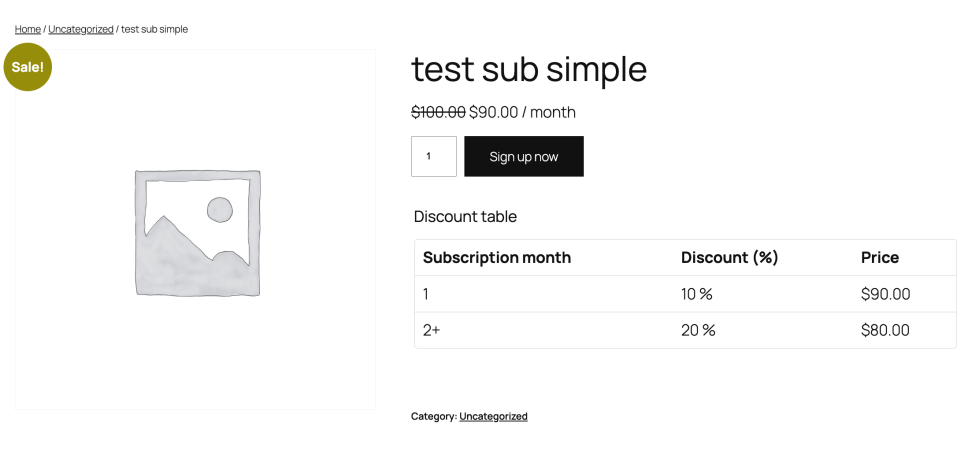
The standard vertical table format. Rows represent each discount tier, columns represent the renewal period, discount percentage, and price.
This template uses the shared settings described above (columns titles, renewals number format, position, title). No additional template-specific settings.
Product page appearance: a standard HTML table with one row per discount tier, inheriting the active theme’s table styles.
Horizontal table
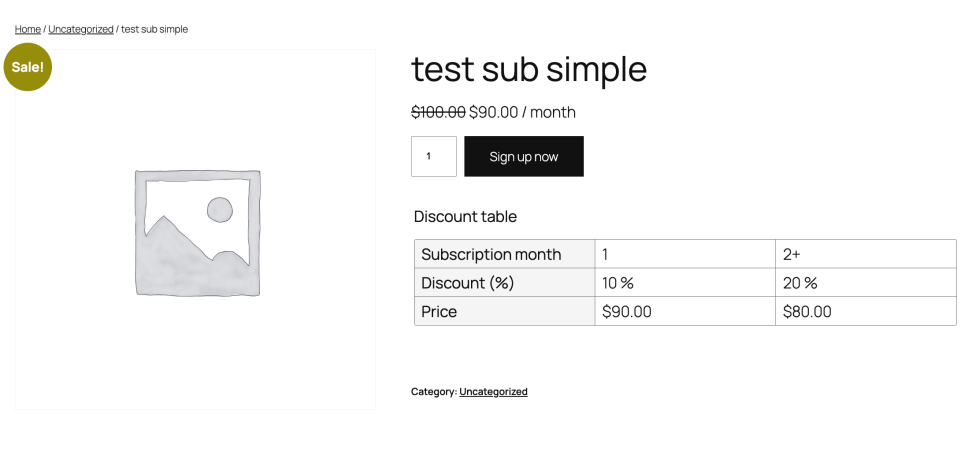
Same data as the standard Table, but transposed — periods are shown as columns, and the rows are Renewal period, Discount (%), and Price.
Settings are identical to the Table template. The only difference is the visual orientation on the product page.
Product page appearance: the table headers run horizontally across the top as column labels, with discount rows below. Useful for subscriptions with fewer tiers where a wide layout fits better than a tall one.
Blocks
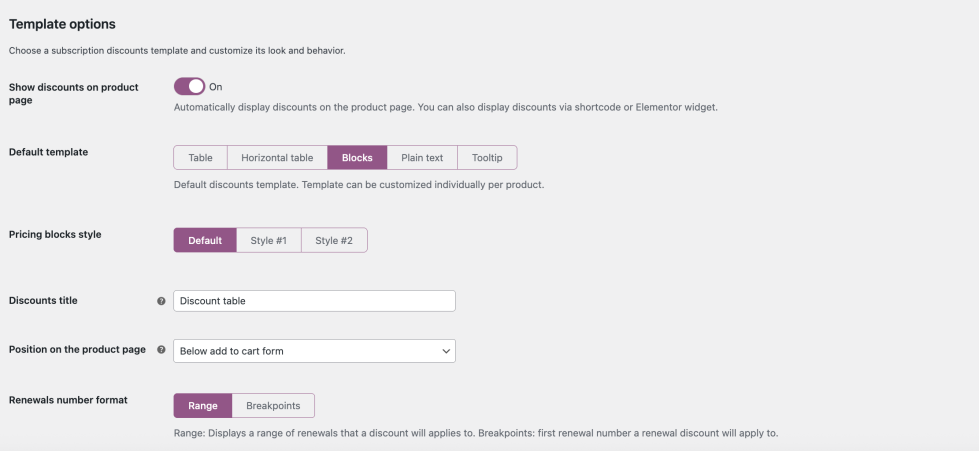
Displays each discount tier as a visual pricing block rather than a table row. This template has two additional settings:
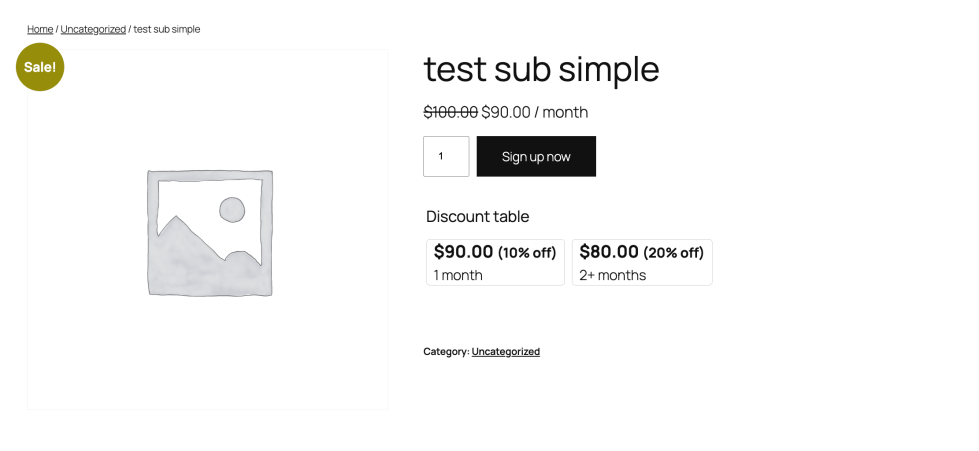
Pricing blocks style — choose from three visual styles:
- Default — standard block layout
- Style #1 — alternative block appearance
- Style #2 — second alternative style
Show percentage discount — toggle (On/Off). When enabled, the percentage discount is displayed inside each pricing block alongside the price (e.g. $90.00 (10% off)).
Product page appearance: discount tiers appear as individual card-style blocks arranged horizontally. Each block shows the price, optional discount percentage, and the renewal period label (e.g. 1 month, 2+ months).
Plain text
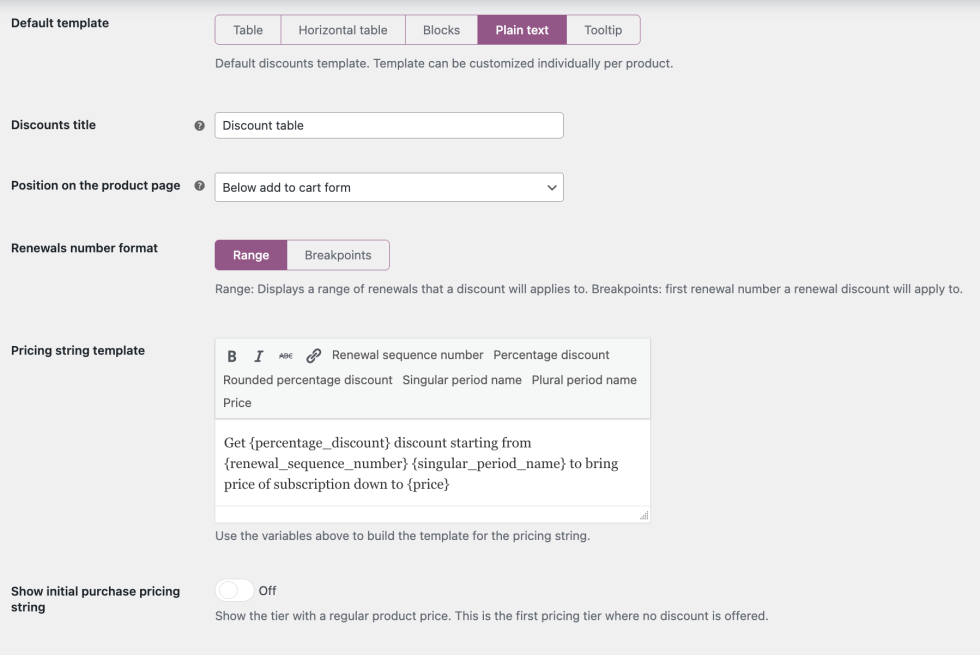
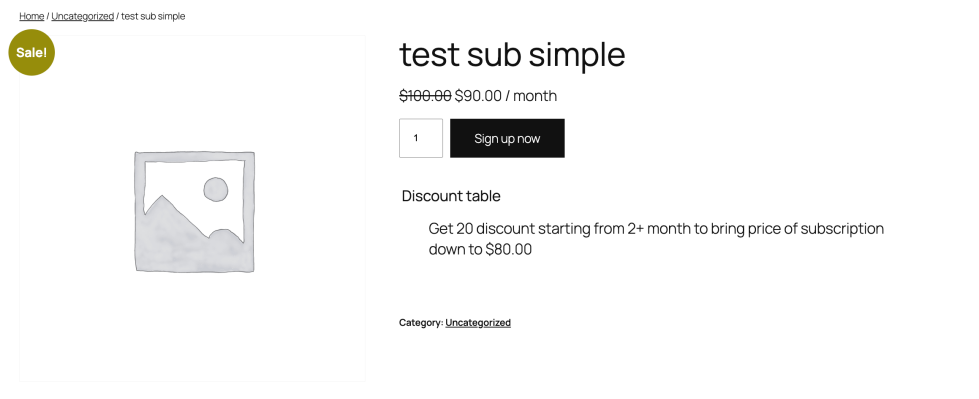
Renders the discount information as a single formatted text string rather than a table or blocks. This template replaces the table column settings with a text template builder.
Pricing string template — a freeform text field with a small toolbar. Use the available variables to build your custom string:
| Variable | Description |
|---|---|
Renewal sequence number | The renewal number |
Percentage discount | The discount percentage value |
Rounded percentage discount | Percentage rounded to the nearest integer |
Singular period name | Period name in singular form (e.g. “month”) |
Plural period name | Period name in plural form (e.g. “months”) |
Price | The discounted renewal price |
Show initial purchase pricing string — toggle (On/Off). When enabled, a pricing string is also shown for the first payment tier, even if no discount is applied. Off by default.
Product page appearance: discount information is rendered as a line of text rather than a structured layout. Useful for minimalist themes or when you want full control over the wording.
Tooltip
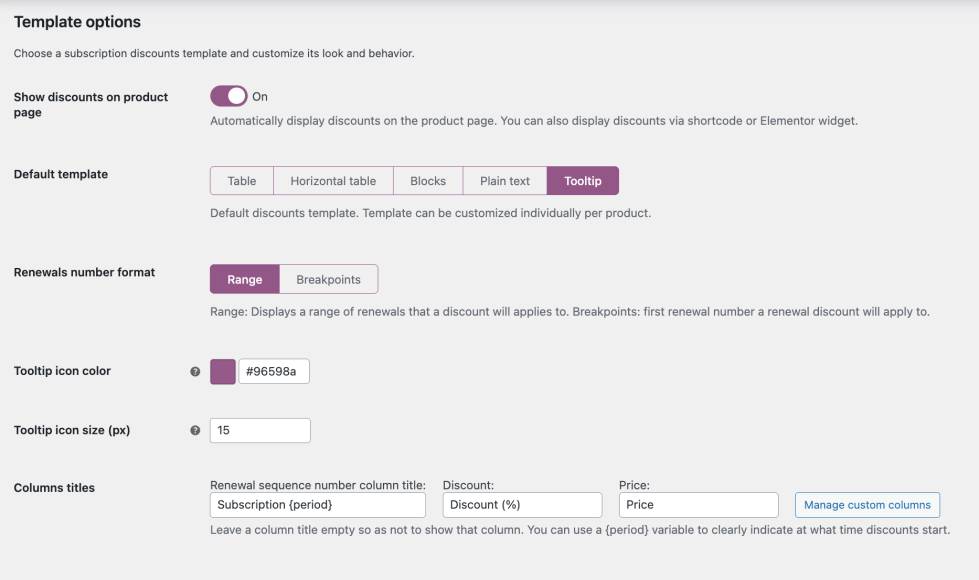
Displays a small icon next to the subscription price. Customers hover over it to see the discount table inside a tooltip popup. This template has two unique settings:
Tooltip icon color — a color picker to set the hex color of the info icon. Default: #96598a.
Tooltip icon size (px) — sets the size of the tooltip trigger icon in pixels. Default: 15.
Columns titles — same three fields as other templates (Renewal sequence number, Discount, Price), with the same {period} variable support and the Manage custom columns button.
Product page appearance: a small colored icon appears inline near the price. On hover, a tooltip opens showing the discount table. The table inside the tooltip uses the same column structure as the standard Table template.
Calculation logic
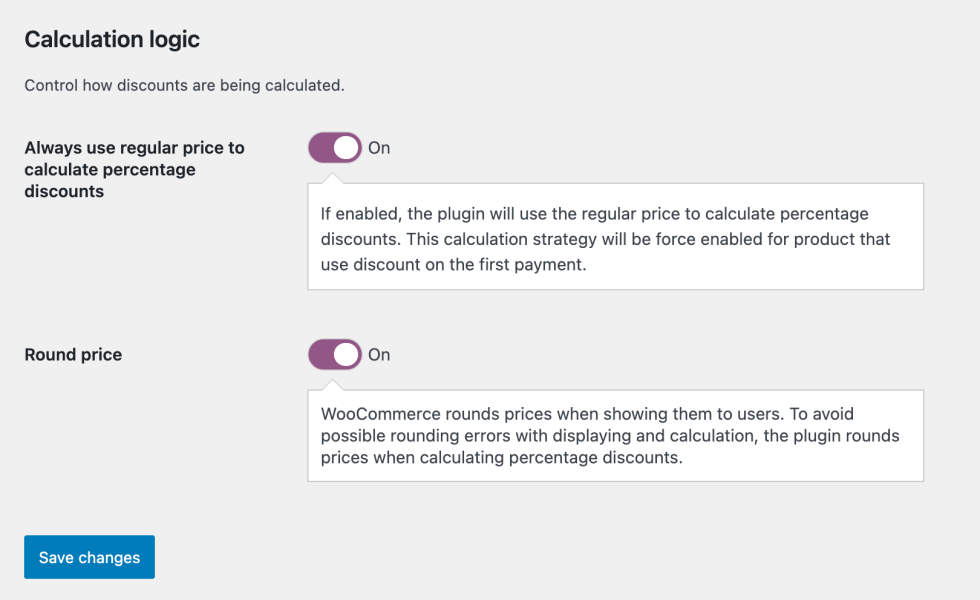
This section controls how discount amounts are calculated. It sits below the Template options on the General tab.
Always use regular price to calculate percentage discounts — toggle (On/Off).
When enabled, the plugin always uses the product’s regular price as the base for percentage discount calculations — even if a sale price is set. This ensures consistent discount amounts regardless of any sale pricing that may be active on the product.
Note: This setting is automatically force-enabled for products that use a discount on the first payment, since those products need a stable base price for the sequence to calculate correctly.
Round price — toggle (On/Off).
When enabled, the plugin rounds calculated renewal prices to avoid floating-point rounding errors. WooCommerce rounds prices when displaying them to customers; enabling this option ensures that the plugin’s internal calculations match what is shown on screen, preventing discrepancies between the displayed price and the actual charged amount.
Click Save changes after adjusting any settings in this section.
Here’s the Product Catalog tab section — clean and concise without repeating the template descriptions.
Product Catalog tab
↑ Back to top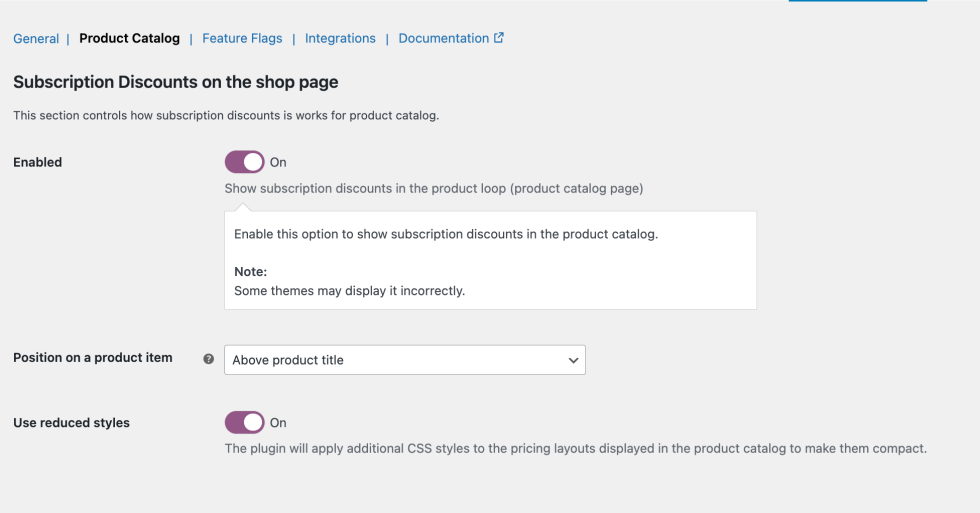
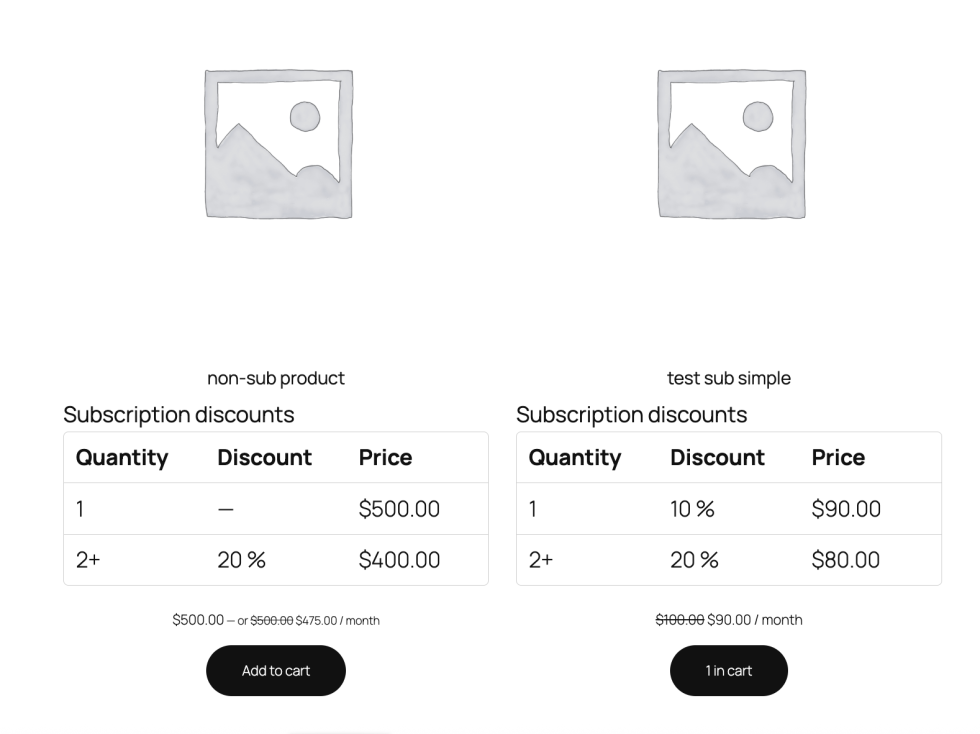
This tab controls how subscription discounts are displayed in the product catalog (shop page / product loop), separately from the individual product page settings.
Subscription Discounts on the shop page
Enabled — toggle (On/Off). When enabled, subscription discounts are shown directly on product cards in the catalog.
Note: Some themes may display this incorrectly due to how they structure the product loop markup. If the discount layout looks broken in your catalog, try enabling Use reduced styles below or disable catalog display entirely.
Position on a product item — controls where the discount information appears on each product card in the catalog. Default: Above product title.
Use reduced styles — toggle (On/Off). When enabled, the plugin applies additional compact CSS styles to the pricing layout in the catalog so it fits neatly within product card constraints.
Template options
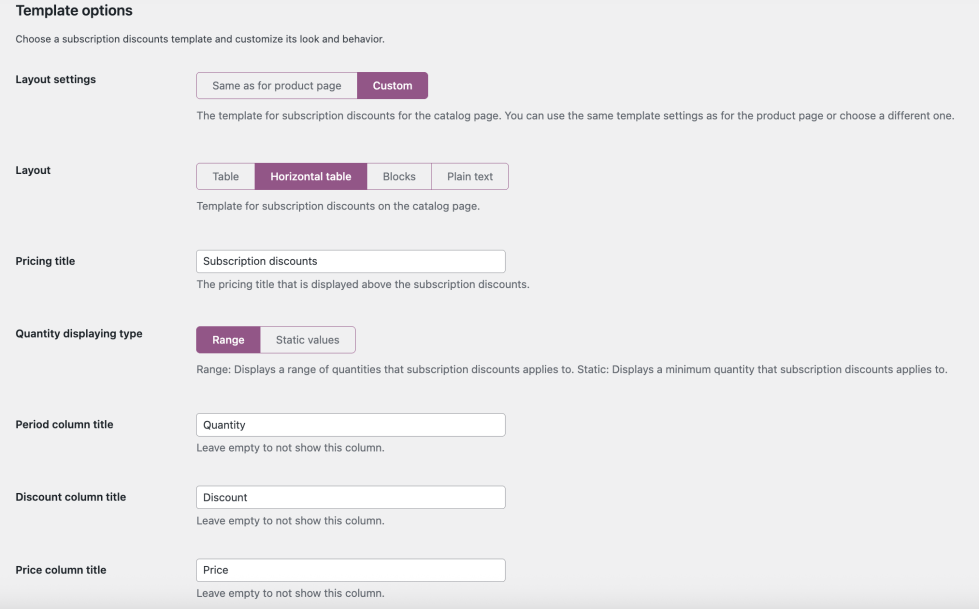
Layout settings — choose between two modes:
- Same as for product page — the catalog uses the exact same template and settings configured in the General tab. No further options appear.
- Custom — lets you define a separate template specifically for the catalog page.
When Custom is selected, the following options become available:
Layout — choose the display format for the catalog. The same templates are available as on the product page, with one exception — Tooltip is not available in the catalog view:
- Table
- Horizontal table
- Blocks
- Plain text
All four templates work the same way as described in the General tab — Template options section above. The settings and available fields for each template type are identical.
Pricing title — the heading shown above the discount information on the catalog product card. Default: Subscription discounts.
Quantity displaying type — controls how renewal sequence numbers are shown in the catalog layout:
- Range — displays a range (e.g.
1–4,5–9) - Static values — displays only the minimum quantity at which each discount applies
Column titles — customize the three column labels shown in the catalog table:
- Period column title — default:
Quantity - Discount column title — default:
Discount - Price column title — default:
Price
Leave any column title field empty to hide that column from the catalog display.
Here’s the Feature Flags tab section.
Feature Flags tab
↑ Back to top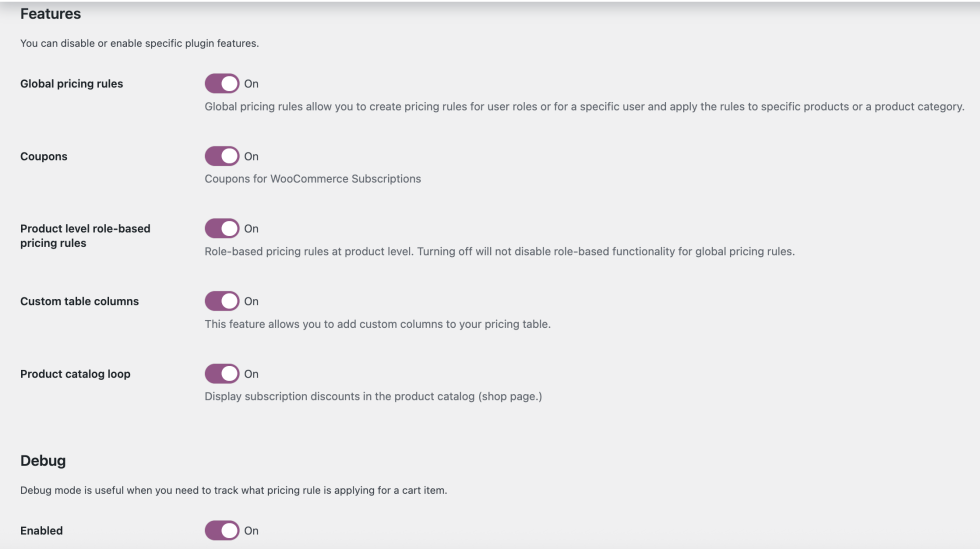
This tab lets you enable or disable individual plugin features. This is useful for avoiding conflicts with other plugins, improving performance by turning off unused functionality, or simply hiding features you don’t need in your store.
Features
Global pricing rules — toggle (On/Off). Enables the Global Subscription Discount Rules system introduced in version 4.0. When disabled, the WooCommerce > Subscription Discounts menu section is hidden and no global rules are applied. Turn this off if you only use product-level discounts.
Coupons — toggle (On/Off). Enables the coupon-based discount sequences feature (introduced in version 3.0). When disabled, the Subscription discounts tab inside the WooCommerce coupon editor is hidden and coupon-triggered discount sequences will not function.
Product level role-based pricing rules — toggle (On/Off). Enables role-based discount configuration at the individual product level. Turning this off removes the role-based discount fields from product edit pages, but does not disable role-based functionality for global pricing rules — those continue to work independently.
Custom table columns — toggle (On/Off). Enables the ability to add custom columns to the discount table displayed on product pages. When disabled, the Manage custom columns button in the General settings is hidden and only the default columns (renewal sequence, discount, price) are available.
Product catalog loop — toggle (On/Off). Enables the display of subscription discounts in the product catalog (shop page). When disabled, discount information is hidden from product cards in the catalog entirely, regardless of the settings configured in the Product Catalog tab.
Debug
Debug mode is useful when troubleshooting pricing rules — it helps you identify exactly which rule is being applied to a given cart item at checkout.
Enabled — toggle (On/Off). Off by default. When enabled, the plugin outputs diagnostic information about pricing rule evaluation directly on the cart/checkout page, visible to logged-in admins. Use this temporarily when a discount isn’t applying as expected, then turn it off before the store goes back to regular customers.
Here’s the Integrations tab section.
Integrations tab
↑ Back to top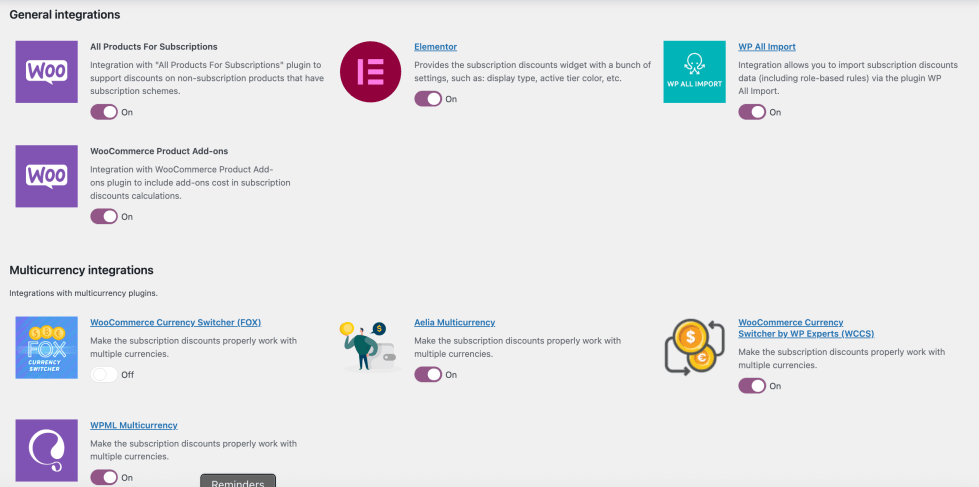
This tab lists all third-party plugin integrations supported by Discounts for WooCommerce Subscriptions. Each integration can be individually toggled on or off.
Tip: Disable any integrations you don’t use. Keeping unused integrations active adds unnecessary overhead and may cause conflicts with other plugins in your store.
General integrations
All Products for Subscriptions — enables compatibility with the “All Products for Subscriptions” plugin, which allows regular (non-subscription) products to have subscription schemes attached. Enable this if your store uses that plugin to offer subscriptions on simple, variable, or bundle products.
Elementor — provides a dedicated subscription discounts widget for the Elementor page builder. When enabled, you can place and configure the discount table anywhere on your product page using Elementor, with additional display settings such as active tier color and display type. Enable this only if you use Elementor to build your product pages.
WP All Import — enables importing subscription discount data (including role-based rules) via the WP All Import plugin. Useful for stores that manage large product catalogs and need to bulk-import or update discount configurations. Enable only if you use WP All Import.
WooCommerce Product Add-ons — enables compatibility with the WooCommerce Product Add-ons plugin. When active, the cost of any add-ons attached to a subscription product is factored into the discount calculations correctly. Enable this if your subscription products use add-ons that affect the final price.
Multicurrency integrations
These integrations ensure that subscription discounts calculate and display correctly when your store operates in multiple currencies. Enable only the one that matches the multicurrency plugin you use — there is no need to enable all of them.
WooCommerce Currency Switcher (FOX) — compatibility with the FOX Currency Switcher plugin.
Aelia Multicurrency — compatibility with the Aelia Currency Switcher plugin.
WooCommerce Currency Switcher by WP Experts (WCCS) — compatibility with the WCCS currency switcher plugin.
WPML Multicurrency — compatibility with WPML’s built-in multicurrency functionality.
If your store does not use multiple currencies, all four multicurrency integrations can safely be left off.
3.0 Version Update – Coupon codes for Subscriptions
↑ Back to topStarting from 3.0 version discount sequence can not only be created on product level and apply to each subscription, but also create coupon codes that will apply discount sequence on user subscription.
To enable the coupon codes progressive discounts you should go to WooCommerce > Settings > Subscriptions Discounts and enable option named Subscription discounts for coupons:
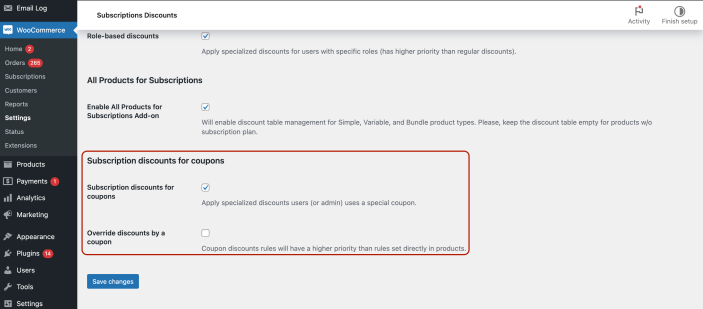
Discounts set on your product level with Discounts for WooCommerce Subscriptions can be overridden by the coupon applied if you enable function Override discounts by a coupon here. If this function stays off, then I user choose to purchase subscription product with own discounts sequence and then try to apply the coupon code – the discount sequence set in the Subscription Discount section of coupon (instructions down below) woulnd’t apply. If the function is enabled, then no matter what discount sequence is set on product level, the once from coupon code will be applied and override the discount rules set on product level.
How to create coupon code with dynamic discount rules:
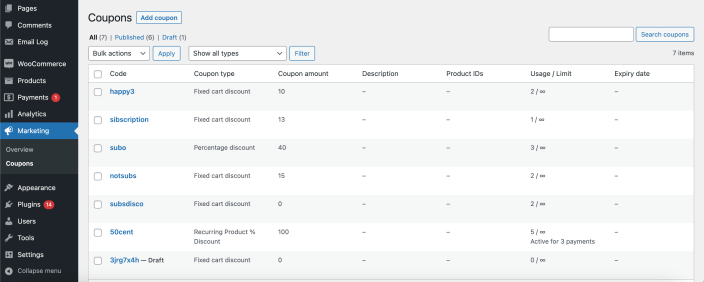
1. Go to Marketing – Coupons and choose Add Coupon or select one of recently created ones:
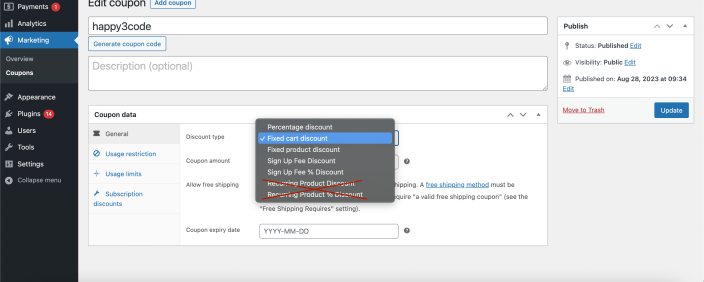
2. Select the type of coupon : it could be either Percentage Discount, Fixed Cart Discount or Fixed product discount if you want to offer discount for subscription cost (not the signup fee cost). Please note, you don’t need to select Recurring type of discount, because that type provides their own recurring way:
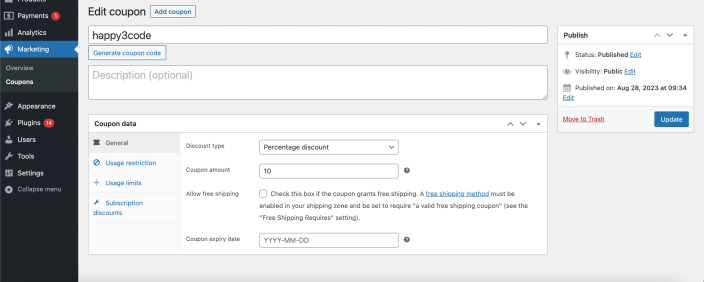
3. Set Coupon amount to the value that you need to be applied on initial purchase. So if you need $10 discount for the first payment or %10 discount set it to be like this:
4. All other coupon settings like expiry date, usage limits and restrictions are available as if it’s regular coupon code.
5. After setting discount for initial payment, please move to Subscription discounts tab and create discount sequence there. You have two types of discounts available – percentage discount and fixed price. If you set percentage discount like this:
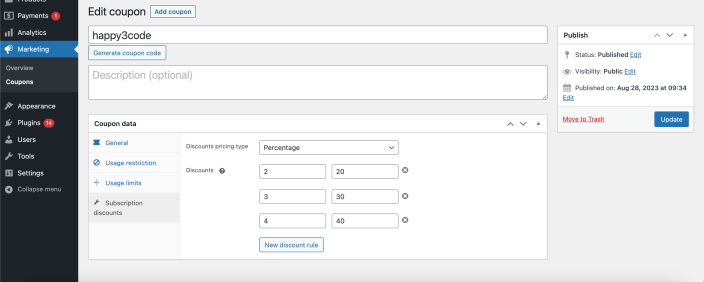
With Percentage type of discount, you will have discount progress with every renewal. So the initial discount (which we set on General tab) was 10% and according to the table you see above – the discount set from 2nd payment will be 20%, discount for 3rd payment 30%, for fourth payment = 40%. And you can continue progression depending on your needs. Just remember that the very last value in the table means that all the next payments after (in our example after 4th payment) will go with the current discount value (40% off in our case). So if you need to offer discounts for several payments and then set cost to original price – you should set 0% off from some point of renewal. Like, if we only offer discounts for 4 payments and then getting back to original price starting from 5 piece, the discount table should be like this:
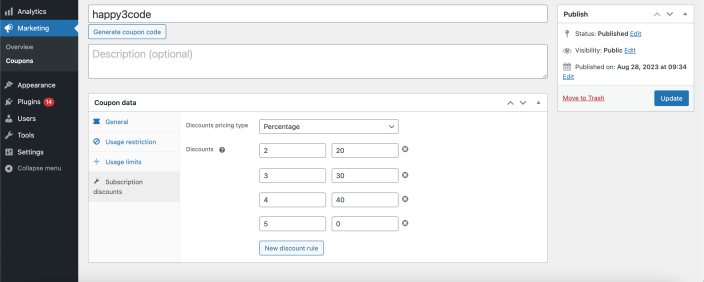
If you use fixed price, note that this is not the value that will be deducted from the subscription cost, it’s exact cost of subscription that will be set. So if you have discount table like following:
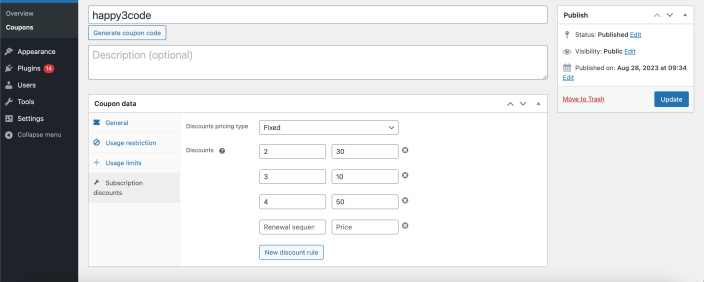
It means that 2nd payment will be equal to $20 (not the $20 discount), third payment will be $10 and starting from 4th payment cost of subscription renewal will be set to $50.
So, if you need to give discount for whatever subscription is in the cart – please use percentage discount type. And if you need to have exact prices set for subscription if user applies those coupons – use fixed type.
Cost of initial purchase
Before version 3.0 you could set only renewal cost of subscription, to give discount on first payment we recommended “sale price” usage. Starting from 3.0 version you can also replace cost of first payment and set custom prices for each next renewal. So, previously you could start discount sequence only from 2nd payment:
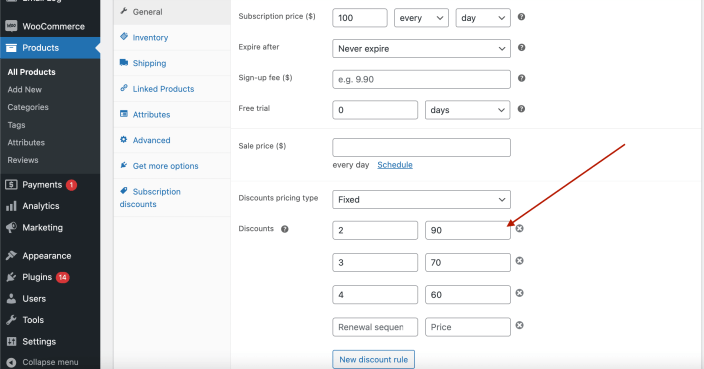
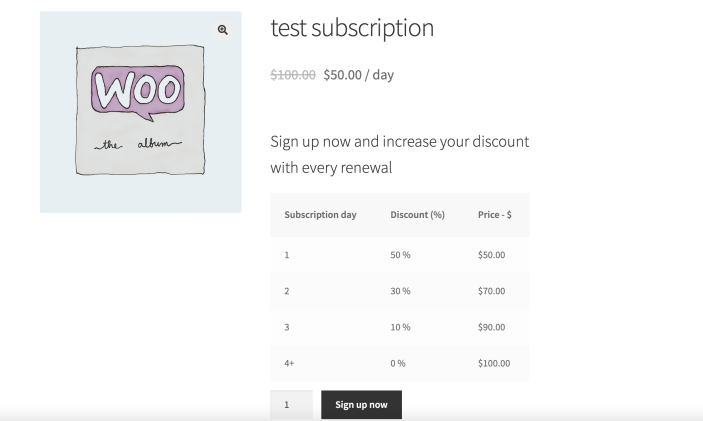
If you upgraded to 3.0 version you can continue using the same old “sale price” for 1st payment and set discounts from 2nd payment in the table. But you can also set exact cost or percentage discount for the very first payment and all the future renewals. So if you create discount table like this, starting from value =1 in first string:
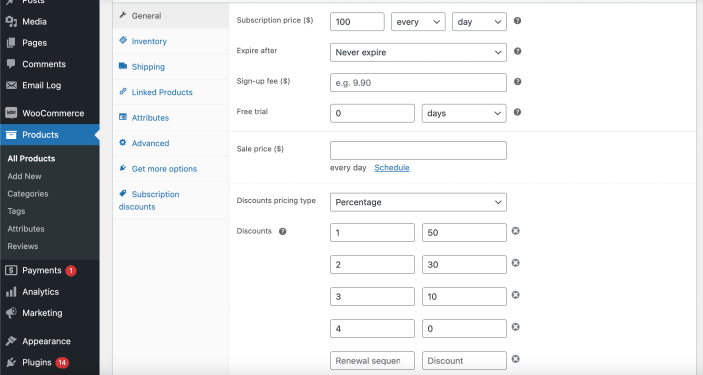
The cost of initial payment will be 50% off, second payment 30% off, third payment 10% and starting from renewal #4 there wouldn’t be discounts at all. You can also see the discounts progression on the product page if you have the discount table enabled:
2.0 Version Update – All Products for Subscription support
↑ Back to topUntil the 2.0 version, Discounts for WooCommerce Subscriptions worked only for subscription-based products (Simple and Variable subscriptions). Starting from the 2.0 version, discounts can be applied to Simple & Variable product types + Bundles products, where subscription is handled via the All Products for Subscription plugin.
Assigning discounts for All Products for Subscription plans works practically the same as for regular subscription products.
In case you have Simple products + All Products for Subscription plans, here are steps you should follow:
- Enable All Products for Subscriptions Add-on in plugin settings
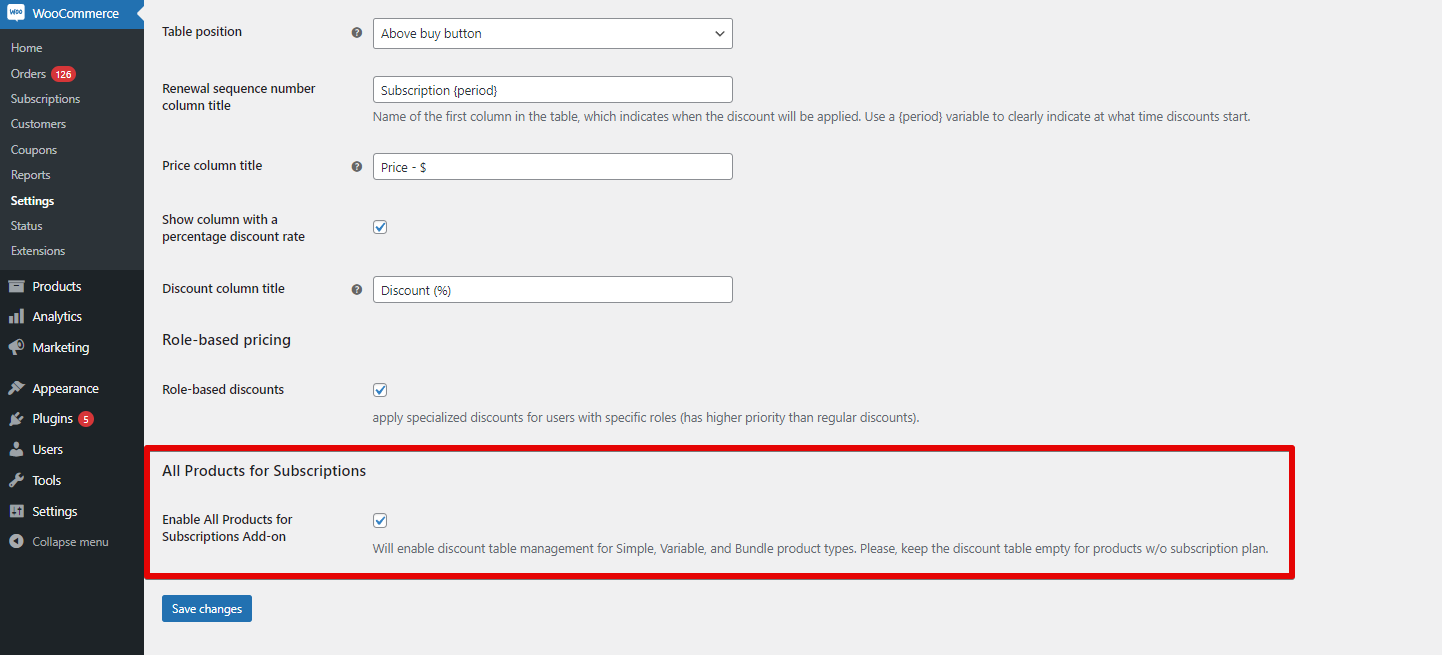
- Open your simple product, set subscription plans using All Products for Subscription, and find the Discounts section in the General tab:

- Set up discounts or fixed prices for renewal by fulfilling those fields:
Discounts pricing type – you have two choices here: percentage and fixed.
Percentage – discounts based on % from regular subscription cost.
Fixed – specify the precise price of each renewal period.
Discounts – the place to indicate dependence between renewal periods and pricing.
Renewal sequence number (1st column) – You should choose when discounted prices start to work in the first row. E.g., if you have a subscription that renews every month, you should select from what month the discount starts. Then you can add as many various discounted ranges as you want.
Percent discount (2nd column if Percentage is chosen) – specify the discount rates for various subscription ranges. E.g., you can select 10% for the 2nd month, 20% for months 3-6, and so on.
Price (2nd column if Fixed is chosen) – set accurate prices for each subscription range. E.g., $90 for the 2nd month and $80 for months 3-6, and so on.
To add a new discount range, click on the New discount rule button (you can create unlimited ranges).
- In case you choose to use Percentage Discounts you should understand which price is used as based (from what number we calculate discounts). There are 3 types of pricing, which you can find in the Subscription tab:
- Price inherited from the product without modifications:

It means whatever cost of the product is set in the General tab – this will be the cost of the subscription plan, and our discounts will be calculated from that cost.
- Price inherited from product with discount set on Subscription level:

In this case, the All Products for Subscription plugin modifies the regular product cost (by applying discount), and discounts set for Discounts for WooCommerce Subscriptions will apply to this adjusted cost.
- Override product price:

That means the subscription cost will be different from the regular product cost, and our discounts will apply to the prices set for the subscription, not the regular product price.
After you end setting up subscription plans and discounts, you will find something like this on the product page:

Everything else works in the same way as for a regular subscription, which you can find down below here in the documentation.
- When you use Fixed discount type cost of renewals then it’s simple – the cost of renewals will be as you set up in the period\discount row, no matter what pricing type for subscription plans you use. More about setting up fixed renewal costs you can read further.
When it comes to Bundle product type, the setting process is the same as for simple products (assumed that you use the official Product Bundles extension):

The discounts sequence for Bundles will work much alike for Simple products, so you should follow the same steps to set up discounts.
To set up discounts for Variable products, follow these steps:
Steps 1-5 are the same as for Simple products with a few exceptions.
- You can set up discounts rules for each product variant separately in the Variations tab:

- You can set up rules for the whole range of variations in the Subscription discounts tab. It means that each one of your variations will obey the general discount rule. So be careful when using fixed pricing, to not mess up renewal costs for all variations:
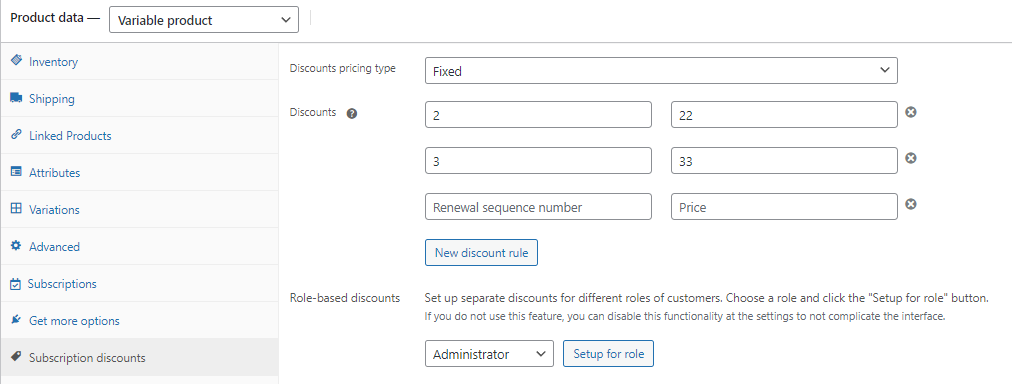
- In case you have some variations with customized discounts rules, and some are empty – the general rule will apply only to empty ones.
Otherwise, the setting of Variable Product type is no different from setting up Variable Subscription type, you can find more information here.
Step-by-step instructions
↑ Back to topHow to set up discounts for a simple subscription product
↑ Back to topAfter installing the plugin, you can find the additional discounts area on each subscription product setup page.
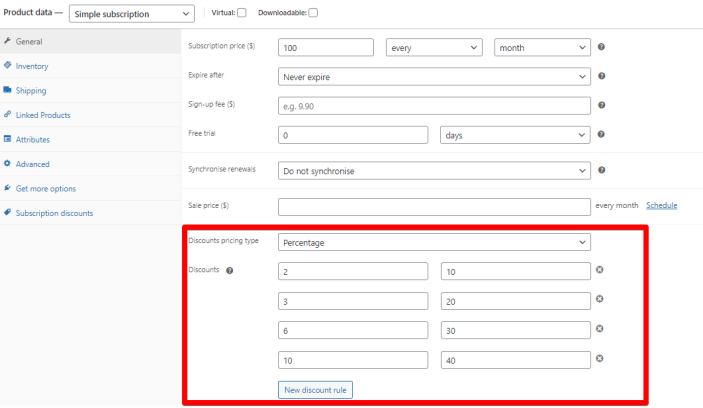
Percentage discounts pricing type
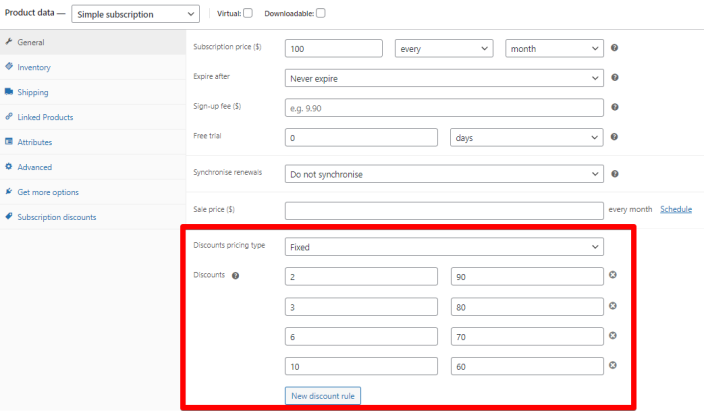
Fixed pricing type
The following fields will need to be filled:
Discounts pricing type – you have two choices here: percentage and fixed
Percentage – discounts based on % from regular subscription cost
Fixed – specify the precise price of each renewal period.
Discounts – indicate in this field the dependence between renewal periods and pricing.
Renewal sequence number (1st column) – set when discounted prices are applied. E.g., if you have a subscription that renews every month, you should select from what month the discount starts. Then you can add as many various discounted ranges as you want.
Percent discount (2nd column if Percentage is chosen) – specify the discount rates for various subscription ranges. E.g., you can select 10% for the 2nd month, 20% for months 3-6, and so on.
Price (2nd column if Fixed is chosen) – set accurate prices for each subscription range. E.g., $90 for the 2nd month and $80 for months 3-6, and so on.
To add a new discount range, click on the New discount rule button (you can create unlimited ranges).
The discount table will be displayed on the product page as follows:
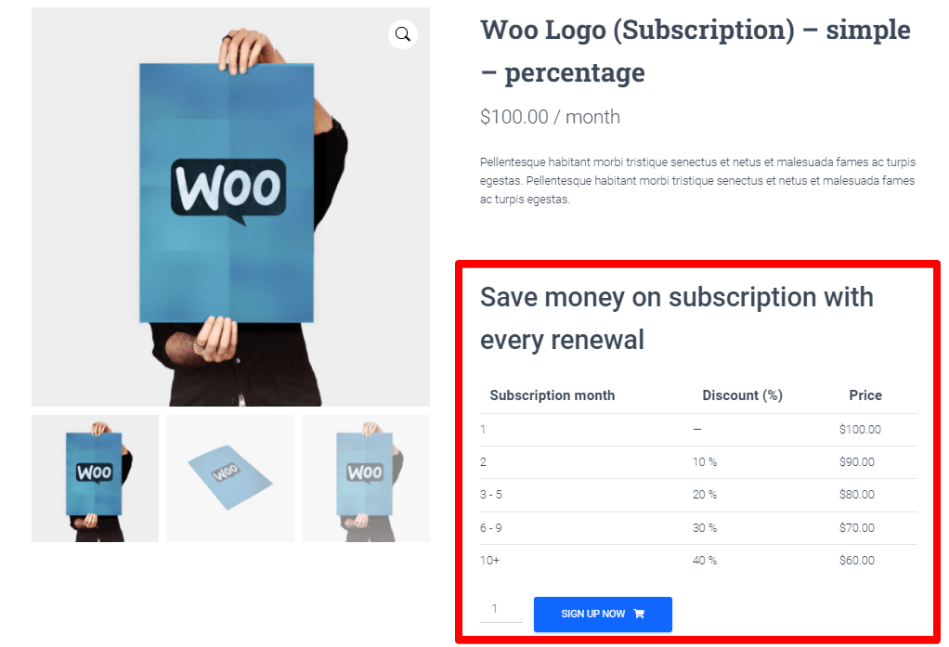
Percentage discount example
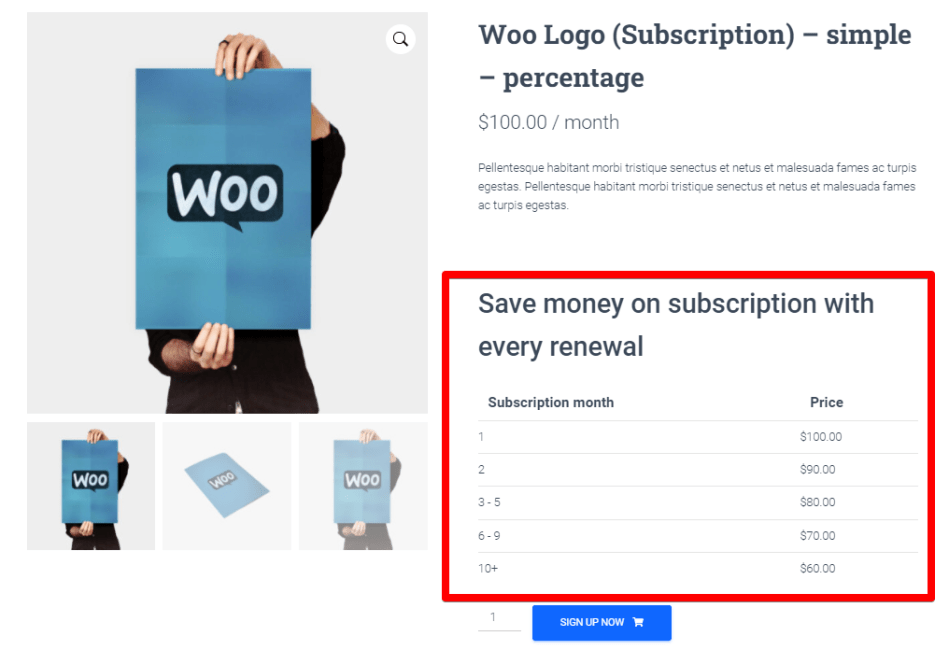
Fixed discounts exmaple
Note:
If you want to give discounts on the initial order, use the sale price field. However, please note in that case, discounts will be calculated from the sale price, not the regular one.
How to set up discounts for a variable subscription
↑ Back to topInstructions to set up discounts for variable subscriptions are the same as when setting up for simple products with one exception.
You have to set up discounts rules separately for each subscription variation.
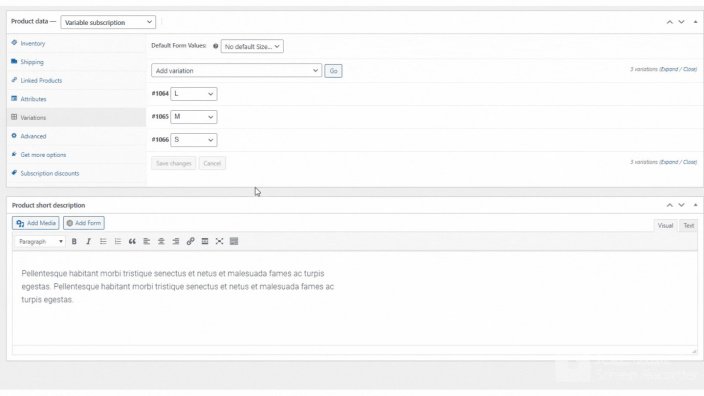
You can have independent pricing with various renewal sequence dependencies and discounts rates for each variation.
For situations when you don’t want to create discount rules separately for each product variation, you can set a general rule for all variations without their personal discounts rates in the Subscription discounts tab:
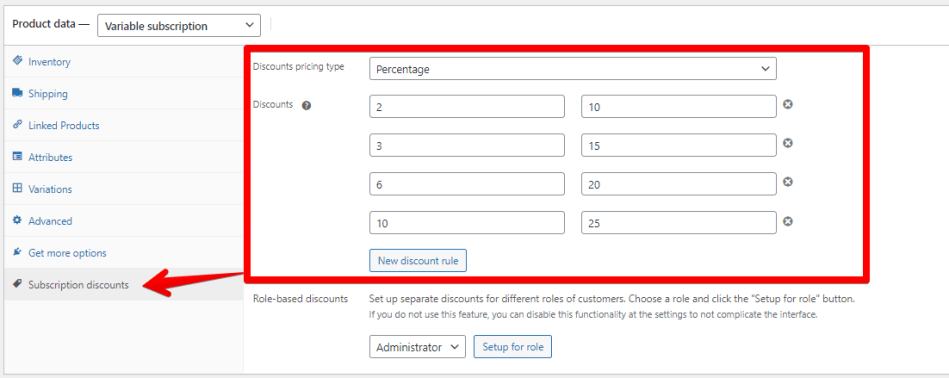
This is how it looks on the frontend:
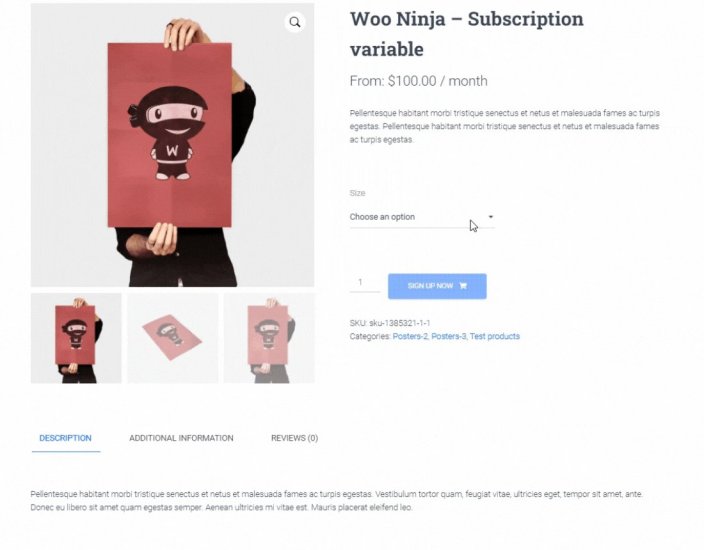
The corresponding discount table displays after the subscription variation is chosen.
After signing up for a particular variation, subscribers will receive their discounted product on terms assigned to that specific variant.
How to set up role-based discounts for subscription renewals
With role-based discounts, you can assign completely independent discounts rules on recurring events for different types of user roles.
To use this option, enable it under the general plugin Settings page. Go to WooCommerce > Settings > Subscriptions Discounts and find the Role-based discounts section.

Discounts for user roles are managed at the product level. You should go to the product page in wp-admin and find the Subscription Discounts tab in the Product Data area.
Then, select the role for which you want to create personal discounts and click on the Setup for role button.
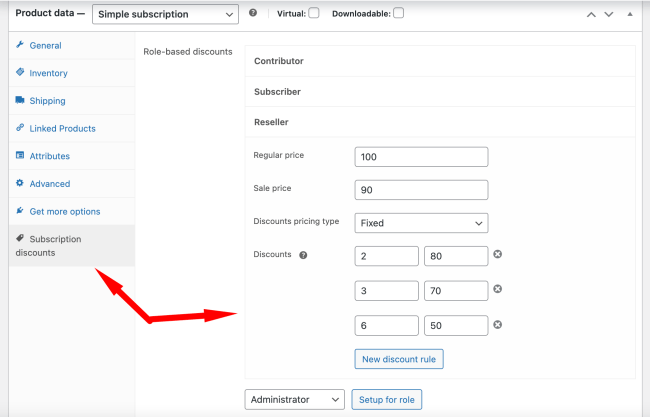
What settings you can observe here:
Regular price – regular price for this user role. If you set only this one and do not set the discount range, that means this cost will be applicable along the whole way when the subscription stays active, from the initial payment, to whenever the user drops the subscription.
Sale price – if you need to demonstrate benefits or give a discount on an initial payment and then remove it from the second payment, you can use this option and set renewal from 2nd payment to the original. Note that if you have a sale price set, the following discounts will be calculated from this cost, not the regular price.
Discount sequence – the same discount sequence as you can see above for non-role-based discounts.
When you fulfill the discount sequence and/or sale/regular price, you can log in and check personal discounts for various user roles you have established.
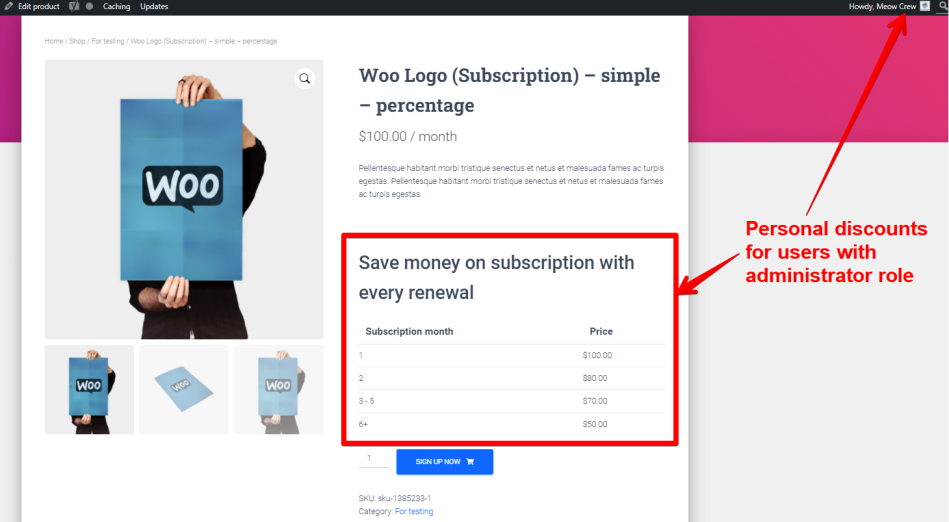
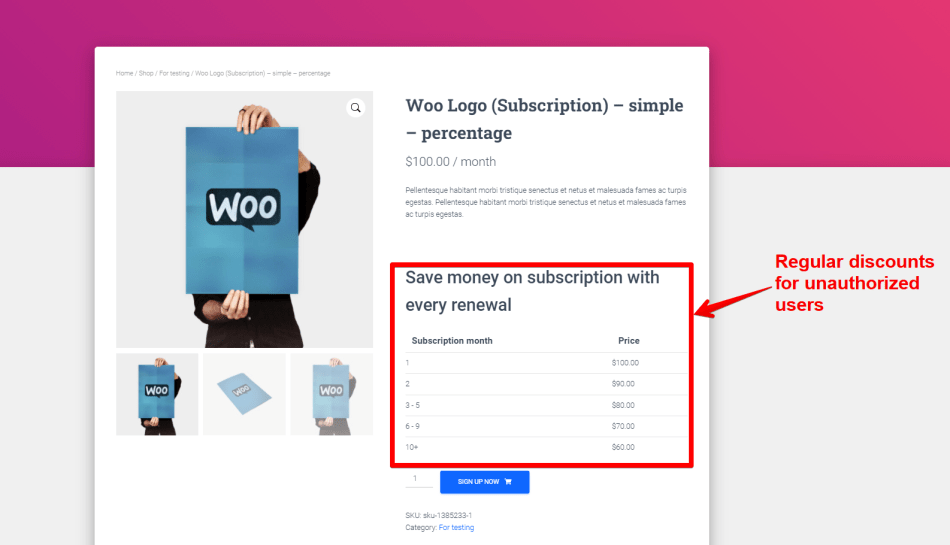
If the user isn’t logged in, they will not see their personal discounts and will be charged regularly or with available discounts applied to the product.
To change user roles after they have signed up for a subscription, you can do so within the Users settings.
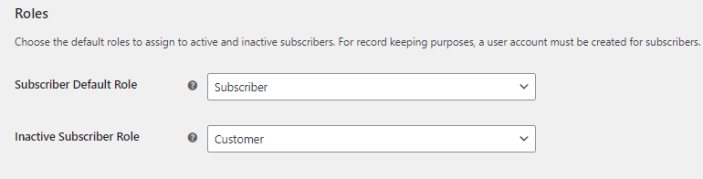
To use the role-based discounts tool in order to offer discounts on future subscriptions to all of your current subscribers, you can manage this under WooCommerce > Settings > Subscriptions > Roles.
Note:
Role-based discounts only apply at the moment a subscription is created. When the user’s role changes, discounts will not be recalculated. New discounts will be applied only on new subscriptions after users have been assigned the new role.
Product page customization
↑ Back to topTo customize the discounts view on the product page, go to the plugin settings page (WooCommerce > Settings > Subscriptions Discounts).
To enable the discount table, select the Show discount table on product page option.
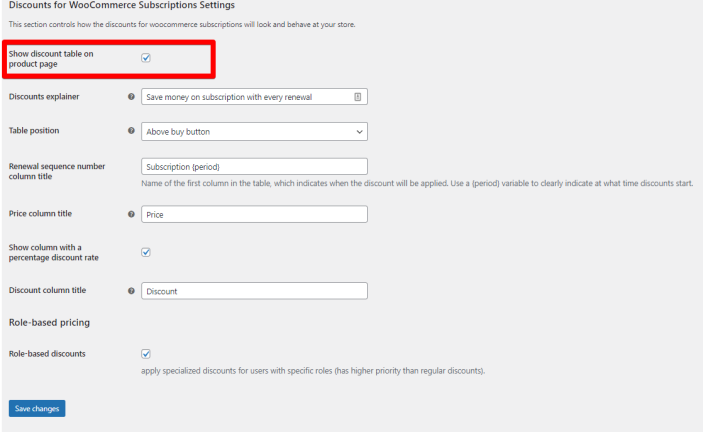
When this option is disabled, you can still use the plugin as directed, and your customers will receive discounts on the same terms.
After enabling the Show discount table on product page option, fill in the following fields to give your customers a better understanding of your discount policy.
Discounts explainer – here, you can briefly explain how your discounts work, which will be displayed right above the discount table on the product page.
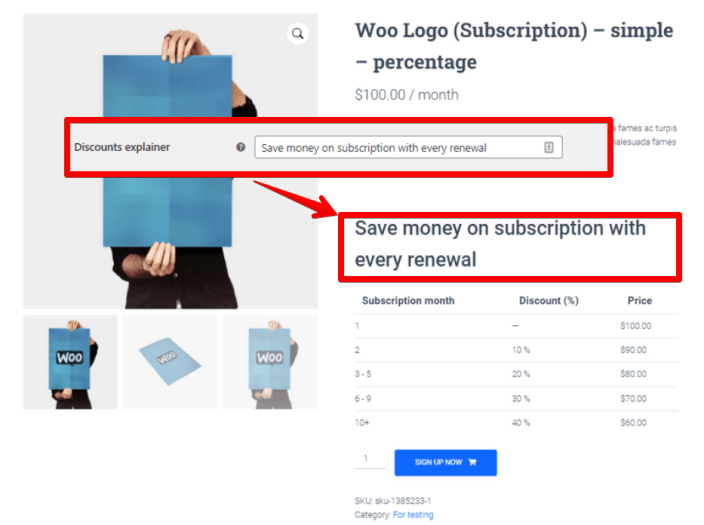
Table position – Pick a suitable location to place a discount table on the subscription product page. You have 7 options to choose with:
- Above buy button;
- Below buy button;
- Above add to cart form;
- Below add to cart form;
- Above product title;
- Before product summary;
- After product summary
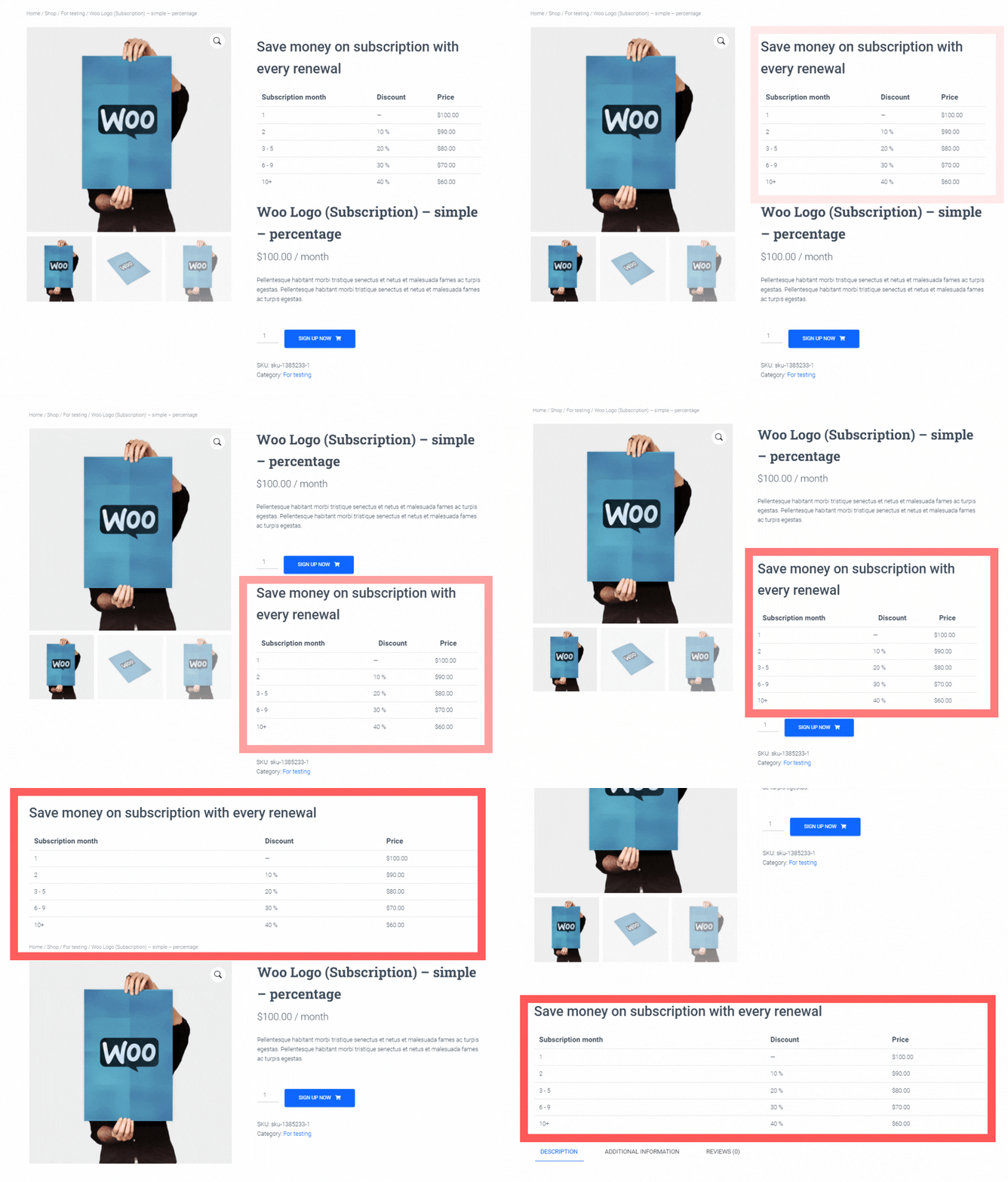
Note: table styling also depends on how tables are designed in your theme. Your theme style is applied to this table.
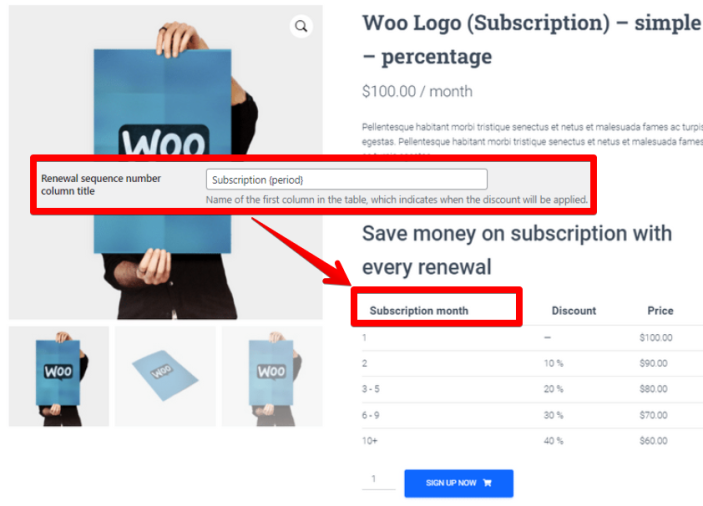
Renewal sequence number column title – first column in the table which indicates when the discount will be applied. You can use a {period} variable to show at what time discounts start clearly. So, if you have a subscription that renews every month, then {period} = month, and so on.
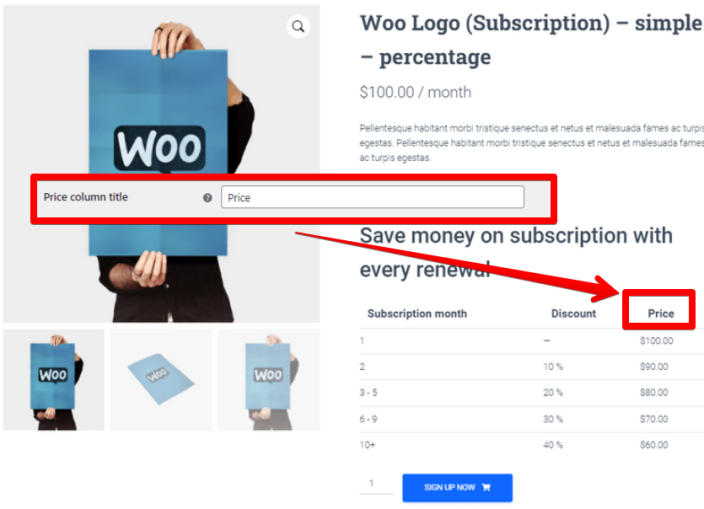
Price column title – last column in the table that indicates the subscription renewal price. No matter which type of discounts you use, percentage or fixed, this column is mandatory to let customers know the final price of each renewal.
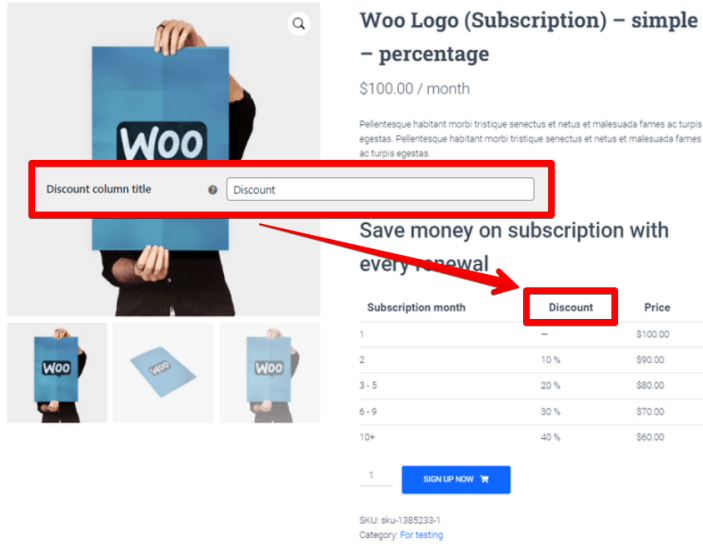
Show column with a percentage discount rate – you can decide to show or not show the second column, which contains the percentage discount rate.
Discount column title – if you enabled the second column, you can give it a name, so your clients can see the percentage discount for each renewal sequence.
Now, your subscription page is extended with a discounts area and ready to be used.
Renewal discounts management
Discounts for WooCommerce Subscriptions come with a few features to help you and your clients forecast their discount rates and help you manage those discounted subscriptions.
Store owners can find the Discounts sequence area inside each subscription which includes discounts on renewals.
In that area, you can see at what stage (if you use progressive discounts) the subscription currently is, what stages passed, and what is yet to come.
You can also see the current discounts applied as coupons for a subscription.
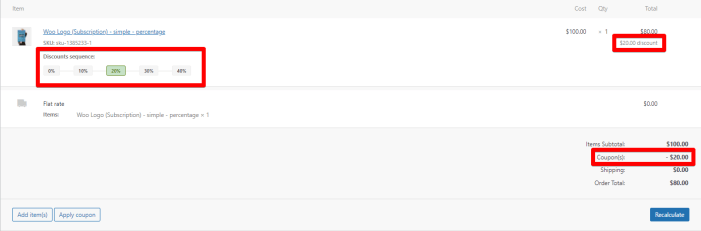
Apply discount to current subscriptions
The next important feature is Applying discounts to existing subscriptions, which were created before plugin installation.
You can manually add discounts to subscriptions which contain discounted products. To do so, you should create discounts rates for the selected products and then go to the current subscription page and find Apply discounts action in the Subscription actions area.
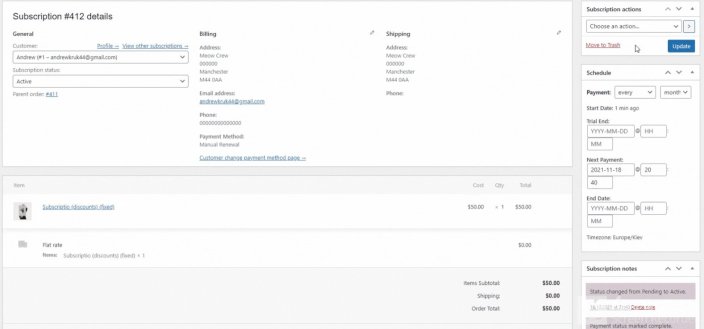
This action is only available for subscriptions which contain products w/ discounts.
After you apply discounts manually, Discounts for WooCommerce Subscriptions re-counts how many subscription renewals passed and uses a corresponding discount rate.
There is also an option to Bulk Apply Discounts for current subscriptions. For that, you should go to the subscriptions page WooCommerce > Subscriptions, choose subscriptions range, and choose bulk action Apply Discounts

It works the same way as a manual discount application. Script will visit each subscription, and in case it has a product with a set discount range, will apply it to the current subscription at the corresponding rates.
Be careful using this feature and remember that discounts will not be assigned and start counting from the current renewal sequence.
In case the client unsubscribes from the current product and resubscribes, the countdown (to increase the discount rate) begin from the first order.
Remove discount from current subscriptions
If you manually applied the discount for subscription or a user purchased it in your store, and for whatever reason, you decided to deprive him of the discount, you can do so through subscription actions.
Basically, it works the same way as applying a discount feature but visa versa in output.
On each subscription page with an ongoing discount (note that if the discount wasn’t applied for the subscription, you wouldn’t find that action), you can find Remove discount action here:
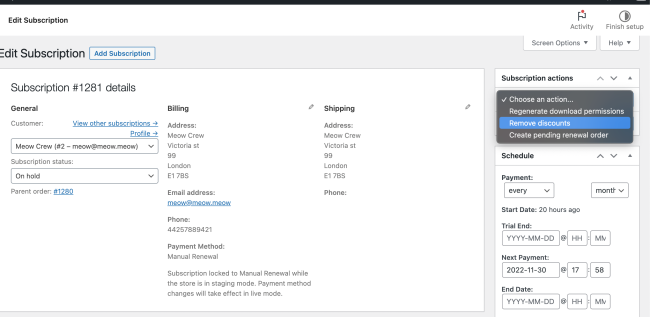
After you involve that function, you can expect the subscription to reverse into the original price, which is set on the product page at the regular or sale price field. Users will not only stop progressing in the discount sequence but will lose any discounts that they have at the current moment.
You can also Remove Discounts in Bulk from the subscription table here:
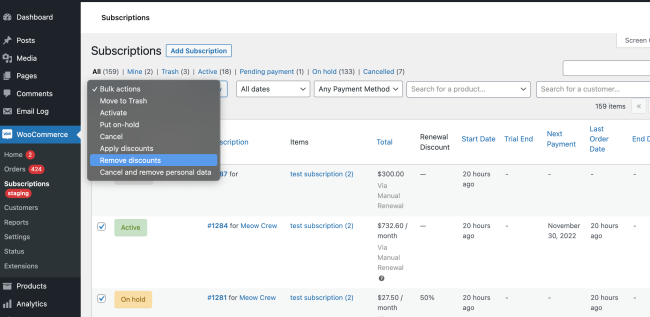
Then the plugin will remove any discounts set manually or applied at the checkout one by one.
Discounts revealed on user account level
Discounts for WooCommerce Subscriptions extends user account with additional info regarding discounts to help them forecast discounts on next renewals.
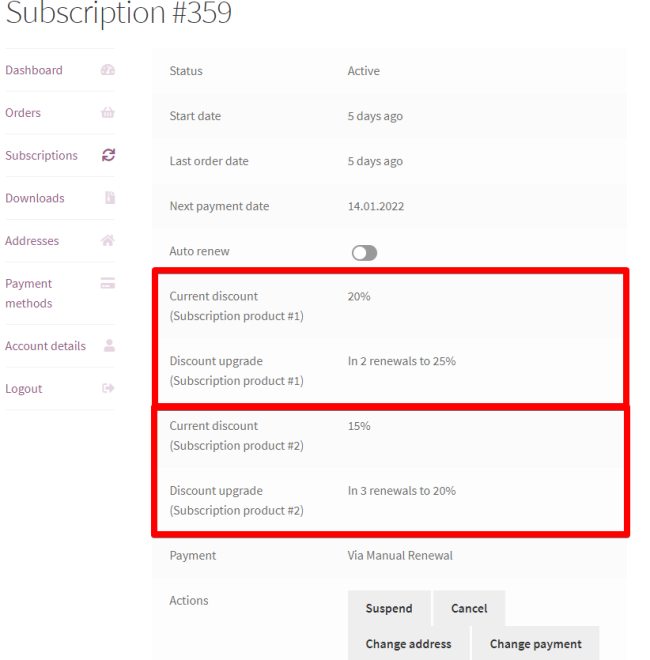
In the user’s account, there are two additions to the subscription’s data:
Current discount – the discount value that will be applied with the next renewal event.
Discount upgrade – explains when discount level may be increased and its value in X renewals.
Note, if you have several products in one subscription, you will find a few separated rows for each discounted product.
Extensions also include a current discount on cart and checkout pages when customers pay manually for renewal.
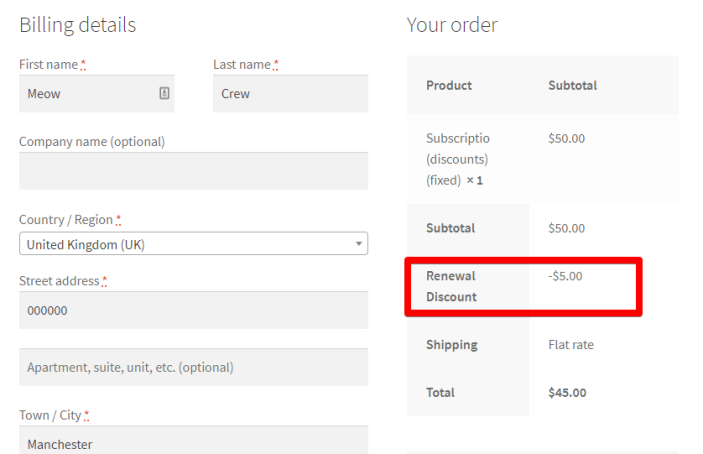
Current subscription information is also changed due to discount status. Note that subscription renewal discount and total price are calculated to display a number applied with the next renewal, not the last (previous) renewal.
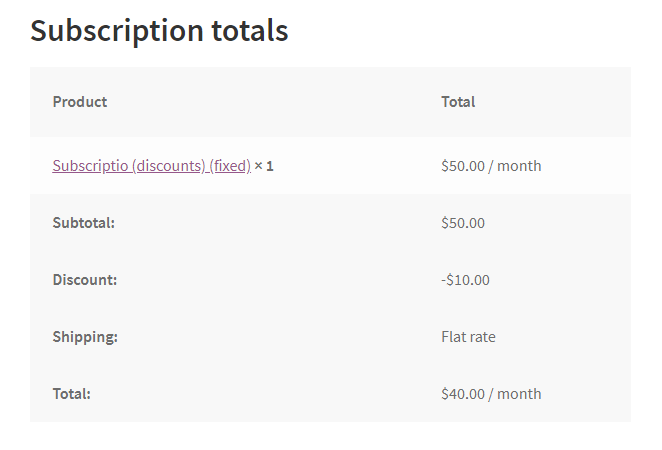
And in addition, this plugin includes renewal discount rates in regular subscription emails, which might be extremely valuable for subscriptions that renew automatically.
Limitations
↑ Back to top- This extension works only when WooCommerce Subscriptions is installed. It will not work with Woo Payments w/o Woo Subscriptions.
- We support current types of products: Simple Subscription, Variable Subscription, and Simple Product, Variable Product and Bundle when All Products for Subscriptions is installed.
- The extension doesn’t assign discounts on the user level, which is mean whenever customers unsubscribed – their discount tier will reset. For the same reason switching between subscriptions (provided by both WooCommerce Subscriptions and All Products for Subscriptions) will reset the current discount.
- We can’t promise compatibility with other plugins that change subscription costs on the go (other discount plugins, bulk updaters, etc).
FAQs
↑ Back to top
-
– Yes, but you should do it manually for every subscription. Check out the Renewal discounts management part of this documentation and follow instructions.
-
– Existing subscriptions are not impacted. Your customers will have a chance to unsubscribe and resubscribe to get discounts, or you can apply discounts to their subscriptions manually.
-
– Not a problem. You can easily disable the table displayed on the product page, and discounts will be applied no matter what.
-
– Yes, you can create only one discount rate for all subscription renewals starting from the X renewal period.
-
– Yes, the plugin works with simple and variable subscriptions as well.
-
– Issues may occur when you use other plugins like product addons or anything else, which may modify subscription price on cart\checkout level.