
Variation Monster Pro transforms your WooCommerce store by making variable products faster, easier, and more visual. Customers can choose variations with swatches, galleries, lists, and tables, add multiple options at once with bulk add-to-cart, and preview products instantly with Quick View. It’s an all-in-one, compact solution that improves user experience, boosts sales, and increases conversion rates effortlessly.
Installation
↑ Back to topTo start using a product from WooCommerce.com, you can use the “Add to store” functionality on the order confirmation page or the My subscriptions section in your account.
- Navigate to My subscriptions.
- Find the Add to store button next to the product you’re planning to install.
- Follow the instructions on the screen, and the product will be automatically added to your store.
Alternative options and more information at:
Managing WooCommerce.com subscriptions.

Setup and Configuration
↑ Back to top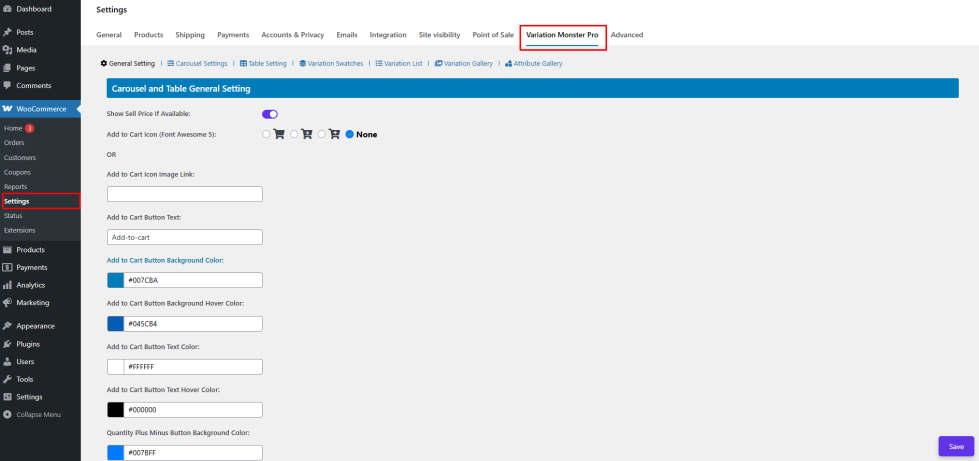
Getting started
↑ Back to topTo set up your store with Variation Monster Pro:
- Install and activate the plugin.
- Navigate to: WooCommerce > Settings > Variation Monster Pro.
- You will see seven feature tabs for easy configuration, including:
- Variation Swatches
- Variation List
- Variation Gallery
- Attribute Gallery
- Variation Table
- Variation as Simple
- Carousel ( Quick Cart & Quick View).
From here, you can customize each feature to match your store’s design and optimize the shopping experience.
Variation Swatches:
↑ Back to top- How variation swatches work
- How to set image, color, button, radio, and select
- How to set variation swatches from individual product
- How to set variation swatches in the shop/archive page as a quick cart
- How to set variation swatches in the shop/archive page for the redirect single product page
- How to configure disable attribute style
- How to configure the selected attribute icon
- How to configure attributes display limit
Variation Table:
↑ Back to top- How the variation table works
- How to configure & change the variation table template
- How to configure the variation table position in single product page
- How to configure the variation table for a mobile device in single product page
- Show hide settings for meta data into variation table
- How to replace add to cart button with table in the single product page
- New meta data add into overwrite the default add-to-cart by table
Variation List:
↑ Back to top- How the variation list works
- Show hide settings for meta data into variation list
- How to show new meta data into variation list
- How to work with variation list templates and configure per page
Variation Gallery & Attribute Gallery
↑ Back to top- How to work the variation gallery and how to configure it
- How to configure the variation gallery template, size, and colors
- How to work the attribute gallery and how to configure it
Variation as Simple Products
↑ Back to topQuick View, Quick Cart Carousel
↑ Back to top- How to work the variation quick cart carousel
- How to configure the quick cart carousel and templates
- How to configure quick view
- Carousel autoplay, position, popup show, popup content
- How to show new metadata
- How to configure custom messages and colors
FAQs
↑ Back to topHelp customers by answering commonly asked questions.
What is Variation Monster?
Variation Monster is an all-in-one WooCommerce plugin that enhances variable products with swatches, variation lists, galleries, tables, bulk add-to-cart, and quick view, improving customer experience and boosting conversions.
Which WooCommerce products does it support?
It supports all variable products, including simple variations, complex products, and wholesale/B2B variations.
Can customers add multiple variations to the cart at once?
Yes! The Bulk Add-to-Cart feature allows customers to select multiple variations and quantities on a single product page and add them to the cart in one click.
Does it work on the shop/archive pages?
Absolutely. With Variation Swatches, Quick Cart, and Quick View with Quick Cart, customers can select variations and purchase products without visiting the single product page.
Can I display multiple images for each variation?
Yes, the Variation Gallery allows you to assign multiple images to each variation, and the Attribute Gallery lets you assign images to individual attributes like color or material.
Can I customize the look of swatches and lists?
Yes. Variation Monster includes 40+ customization options for swatches, tooltips, lists, templates, gallery layouts, and more, so you can fully match your store design.
Is it compatible with other WooCommerce plugins?
Yes, it’s built to be lightweight and compatible with most WooCommerce plugins and themes.
Is it mobile-friendly?
Yes. All features, including swatches, galleries, lists, and quick view popups, are fully responsive and optimized for mobile devices.
Do I need coding knowledge to use it?
No coding required. All features can be enabled and customized via an easy-to-use admin panel.
Does it improve conversion rates?
Yes. By making variation selection faster, clearer, and more visual, Variation Monster reduces friction and increases sales, especially for stores with complex variation products.

