Advanced Flat Rate Shipping for WooCommerce is useful for WooCommerce store owners who want to charge a fixed amount of money or a flat rate for shipping products while applying different conditions on the cart.
This extension will only work when you manually create shipping methods and add the correct rules per your store’s needs. It will not work automatically just by installing it.
Requirements
↑ Back to top- WordPress 5.0 and above
Installation
↑ Back to top- Create a WooCommerce account or log into your existing WooCommerce Account.
- Download the Advanced Flat Rate Plugin for WooCommerce as a ZIP file using your account.
- Now, go to the admin dashboard of your WordPress website and open the plugin from which the new plugins are updated, i.e., WordPress Admin Dashboard > Plugins > Add New.
- Click on Upload Plugin and upload the file you’d downloaded.
- Once the uploading is complete, select Install Now.
- After successful installation, activate the WooCommerce plugin. To confirm that you’ve done it right, check the left side of your WordPress Plugin dashboard. If you can see the name of the plugin listed in the menu bar, the plugin is installed well and is ready for use.
How it works
↑ Back to topThe Advanced Flat Rate Shipping for WooCommerce lets WooCommerce store owners create unlimited flat rate shipping methods. Using the Advanced Flat Rate Shipping Method For WooCommerce plugin, it becomes an easy task to put multiple restrictions, based on different criteria, on your online shop.
Basically, you can apply rules related to the following parameters using the Advanced Flat Rate Shipping Method for WooCommerce Plugin currently –
- Country
- State
- Postal code
- Zone
- Product name
- Category name
- Tag
- SKU
- Variable product name
- Cart subtotal before the discount
- Cart subtotal after discount
- Quantity of items in cart
- Coupon code
- Product weight
- Shipping class
Alongside, store owners are allowed to set flat rates, choose start & end dates for a method, decide whether or not the shipping fee will be taxed, and do a few more flat-rate shipping-related things.
The robustly coded WordPress plugin is very flexible, offers extended features, and lets you customize your shipping process the way you want. Install it with your e-commerce website, apply flat rate shipping charges based on location, user-related properties, product-related aspects, and cart-specific parameters on the purchases happening through your store.
Here are a few quick examples for plugin usage –
- Apply free shipping to customers in New York and Sydney.
- Apply a $5 shipping charge for buyers making a purchase worth $50 or less.
- Charge $50 for shipping a mobile phone to Britain.
- Charge $2 for shipping a black-colored t-shirt (variable product) to any place in a particular state of the US.
- Charge no shipping money if a buyer purchases 15 footballs in one go.
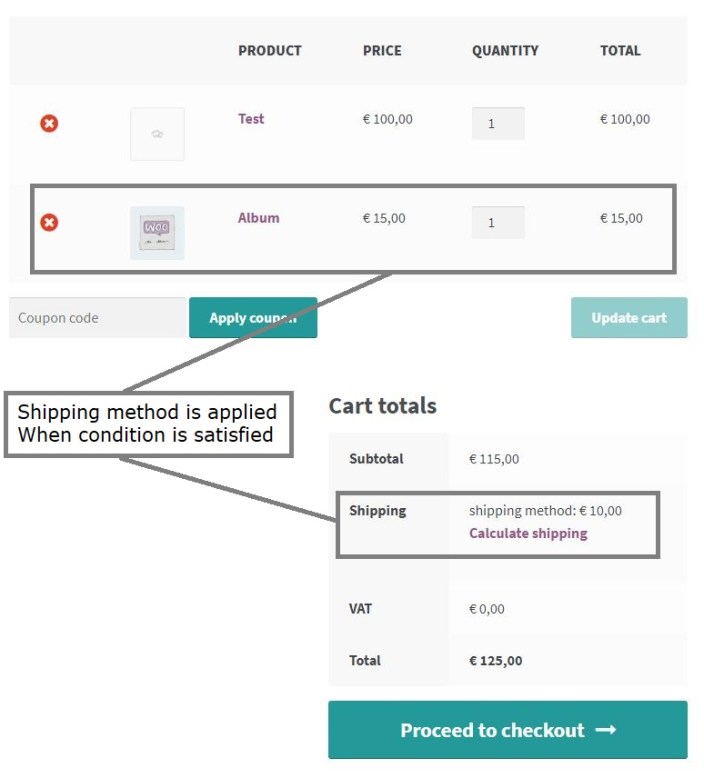
This is how it will look once applied to your customer’s cart –
Getting Started
↑ Back to topTo understand how this plugin can be deployed to add different flat rate shipping-related methods and rules for your WooCommerce store, you should understand it step-by-step. In this section, we are going to tell you about the main modules or functionalities of the plugin.
Shipping Methods
↑ Back to topWooCommerce store owners can create unlimited shipping methods from the main plugin dashboard. For this, you have to click on ‘Add Shipping Method’, add details to your method, and save it. These methods can be enabled and disabled.
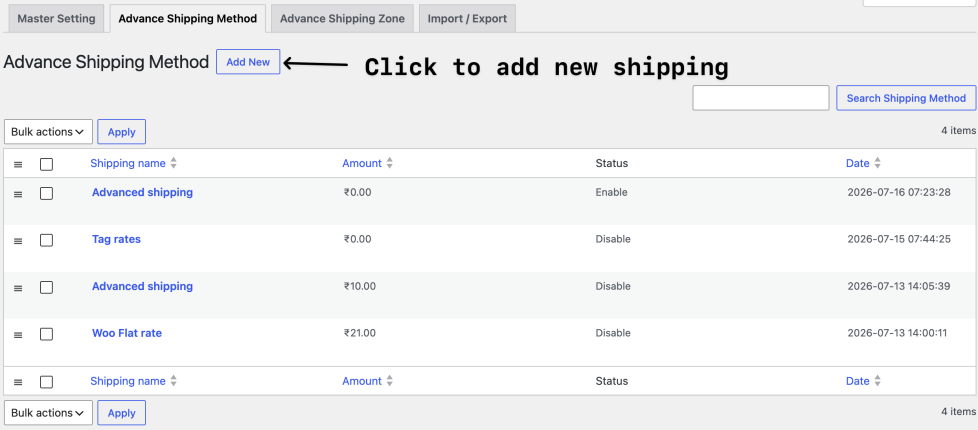
Shipping methods comprise multiple rules and details that – together – define the purpose of your method. It is the seller who provides all the information on how a particular flat-rate shipping method will operate. While shipping rules define the scope of your method and decide when or when not your method will work, configuration parameters save the details such as shipping rates to be applied for that condition and other such data. A Shipping method may have multiple shipping rules.
Fee Configuration Form
↑ Back to topWhen you click on the ‘Add New Shipping Method’, you will be redirected to a dedicated method creation page. This page will have two sections; Fee Configuration Form is the first of these and looks as under –
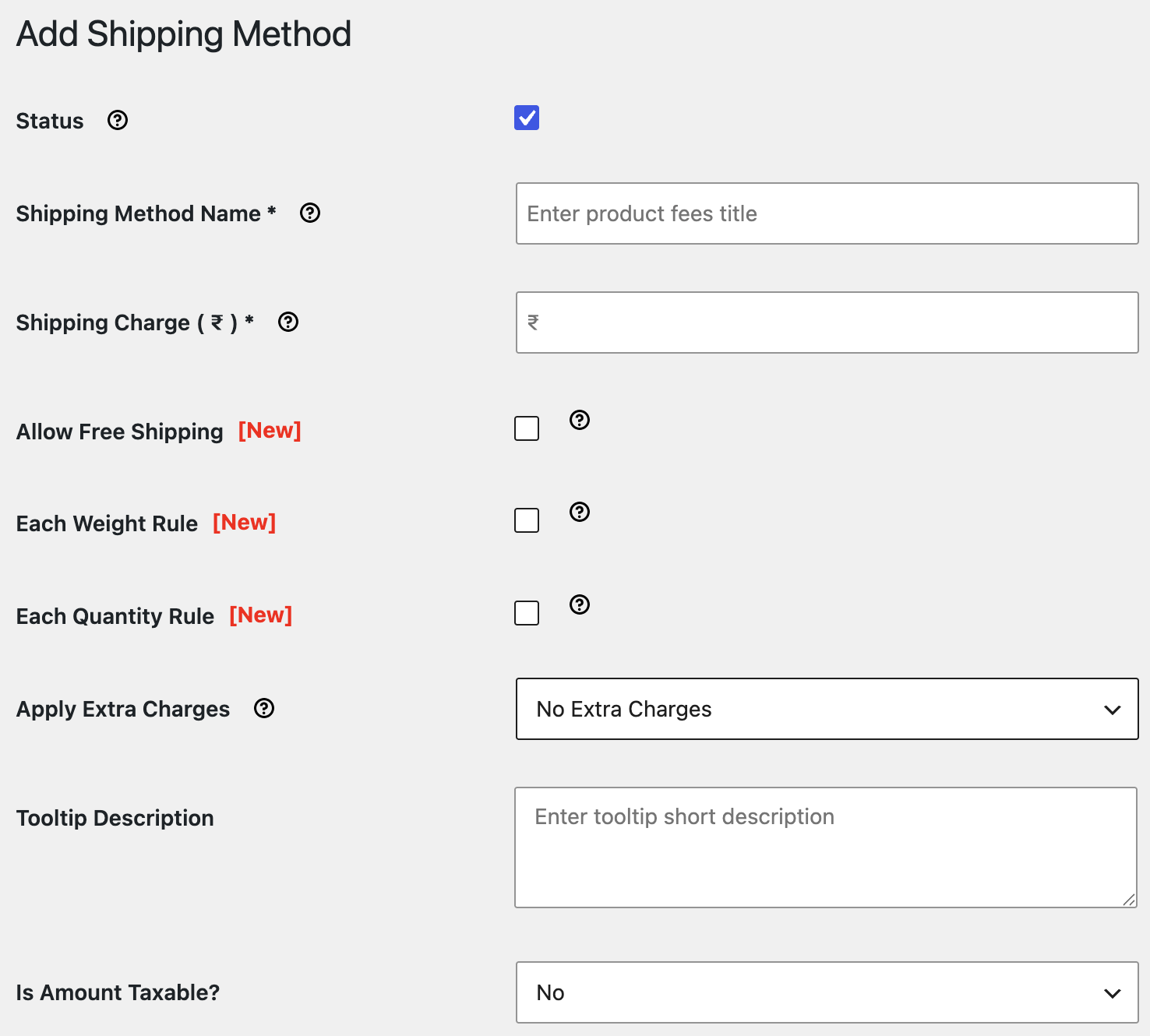
In this section, you have to add –
- The status of your shipping method can be enabled or disabled. You can set this toggle button to ‘enabled ’ if you want your method to work and ‘disabled ’ if you don’t want it to affect your WooCommerce shop.
- Shipping method name, which should be an understandable phrase as it’ll be later used for re-accessing the method. This name will also be visible to your buyers on the cart page.
- Shipping charge is the field in which you have to specify the flat rate cost for the method you’re creating.
Note – If you want to increase this flat rate charge by a particular amount of additional items are purchased, check ‘Apply per quantity’ and insert the amount to be added per item. For example, if you add a $3 shipping rate for a Cake and mention the additional charge as $0.5, then 4 cakes will be charged $4.5 ($3 + $0.5 + $0.5 + $0.5) as the shipping fee.
- Tooltip Description is a short description of your method. It will be visible to your customers if they hover over the method name in their cart.
- Is Amount Taxable?’ dropdown facilitates you to specify whether or not you want to apply taxes for the shipping amount.
- Estimated Delivery Time field is for specifying the estimated duration or day for shipping so that buyers can know about it.
- Start Date field is for adding a date from which your method will be applicable. Because of this option, you can create your shipping methods in advance and schedule their start date. It is an optional field and can be left blank.
The end date field is for adding an end date or expiry date to your method. It saves you from the troubles that may occur if you forget to disable your shipping method even after the actual sale/offer is over. This field is optional too. You may add an end date or leave this field blank, as per your eCommerce store’s needs.
Shipping Rules or Conditions
↑ Back to topThis is the next section of the Shipping Method Page. It allows the online shop owners to create multiple shipping rules so that the scope of the created method can be specified. Rules can be created for the following parameters:
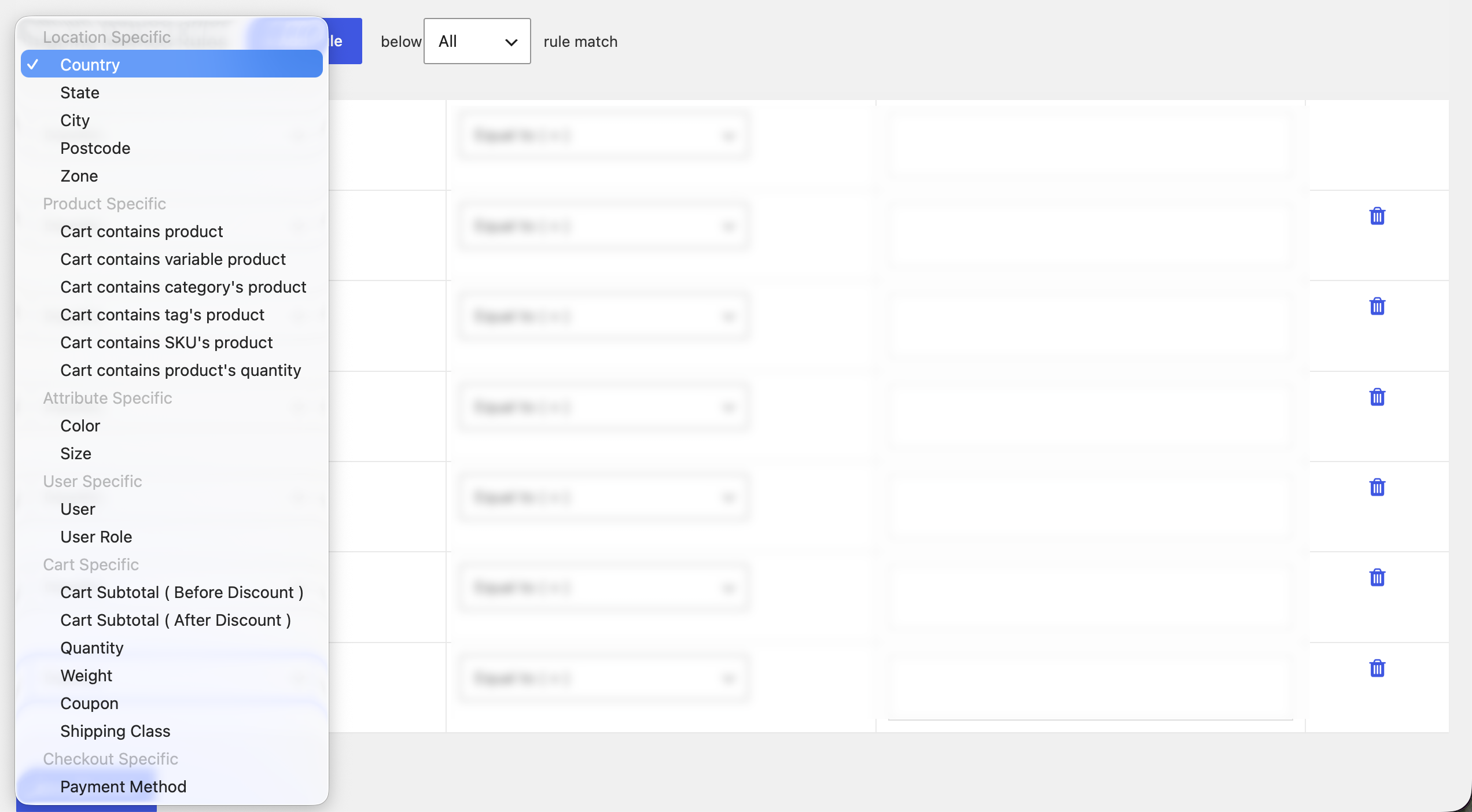
The form for adding shipping rules –
Shipping Method Rule Creation Form for adding one or more methods to your method
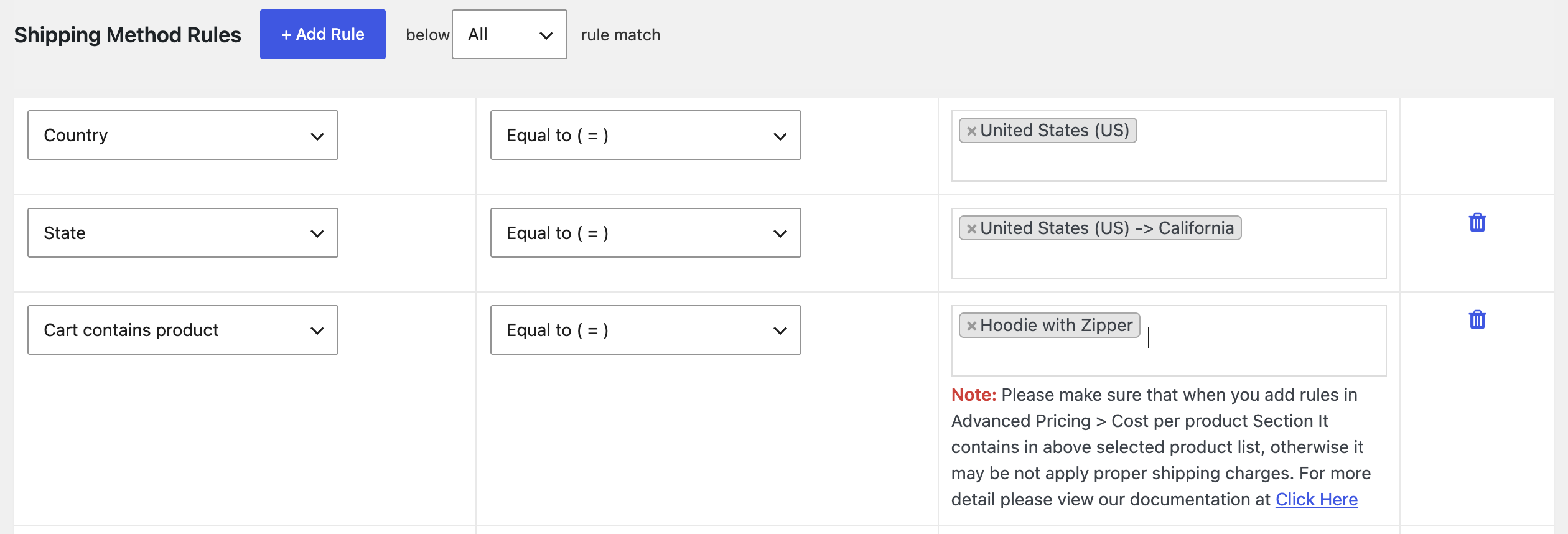
In this form, you can choose the parameter from the left dropdown list, a conditional operator from the middle dropdown list, and add the values to be compared in the right-side field. Also, you can add as many rules to a method as you want. For that, click on ‘Add Rule’ and repeat the process for creating a rule (as described in the previous paragraph).
The following conditional operators are allowed –
- Equal to (=)
- Not equal to (! =)
- Less than (<)
- Less than or equal to (< =)
- Greater than (>)
- Greater than or equal to (> =)
Advanced Flat Rate Shipping Rules
↑ Back to topWooCommerce store owners can also create Advanced Flat Rate Shipping Rules for a few commonly used conditions, such as the ones for products, categories, cart quantity, product weight, and cart weight.
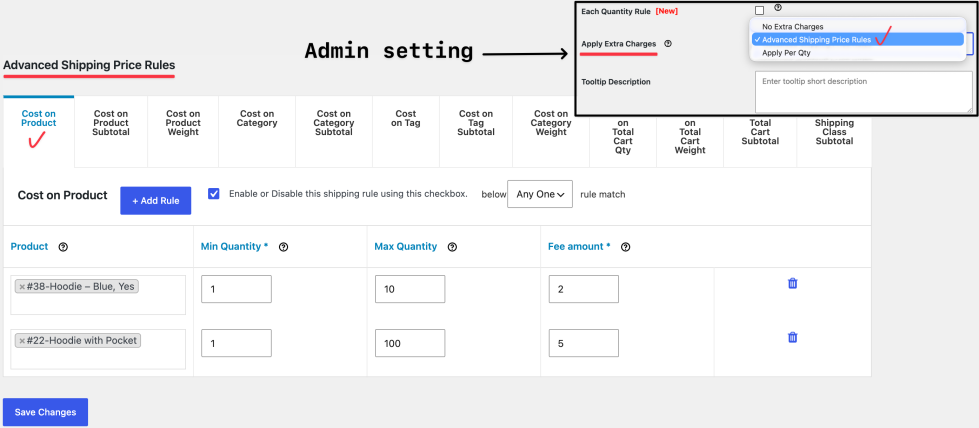
Using the Advanced Shipping Price Rules, you can add a parameter, minimum value, maximum value, and the fee amount for a rule and save yourself from creating multiple flat rate rules. It could be used when you have a few common conditions, like location, etc., and you want to apply different shipping rates based on different parameters for that condition.
| Advanced Feature | Feature Description |
|---|---|
| Cost on Product | Apply a shipping cost based on specific products in the cart. Set different shipping charges for individual products. |
| Cost on Product Subtotal | Calculate shipping based on the subtotal of selected products. Ideal for value-based shipping charges on specific items. |
| Cost on Product Weight | Charge shipping according to the total weight of selected products. Perfect for weight-based shipping calculations. |
| Cost on Category | Apply shipping charges based on the product category. Set unique shipping rates for different categories. |
| Cost on Category Subtotal | Calculate shipping using the subtotal of products from selected categories. Great for category-specific pricing rules. |
| Cost on Tag | Add shipping charges based on product tags. Create flexible shipping rules for tagged products. |
| Cost on Tag Subtotal | Calculate shipping based on the subtotal of products with selected tags. Useful for promotional or grouped products. |
| Cost on Category Weight | Charge shipping according to the combined weight of products in selected categories. Best for heavy or bulky category items. |
| Cost on Total Cart Qty | Set shipping charges based on the total quantity of items in the cart. Encourage bulk purchases with quantity-based rates. |
| Cost on Total Cart Weight | Calculate shipping using the total weight of all cart items. Ideal for stores with weight-based shipping requirements. |
| Cost on Total Cart Subtotal | Apply shipping based on the overall cart subtotal. Create flexible shipping rates based on the customer’s order value. |
| Cost on Shipping Class Subtotal | Calculate shipping using the subtotal of products assigned to a specific shipping class. Perfect for handling different shipping costs by product type. |
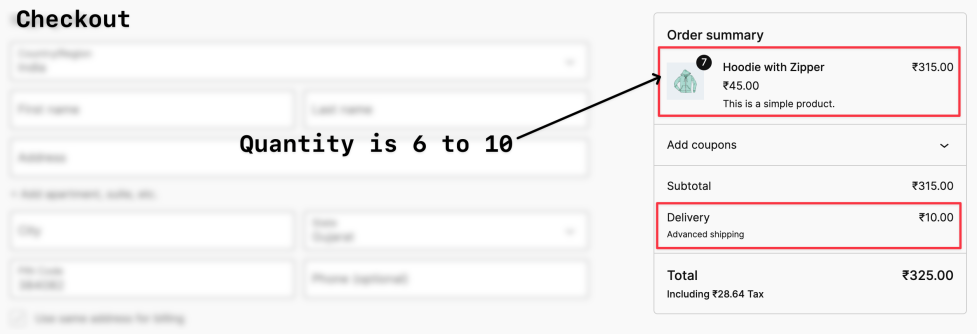
Let’s create one example use case to get an idea of how the Advanced Shipping Price Rules work.
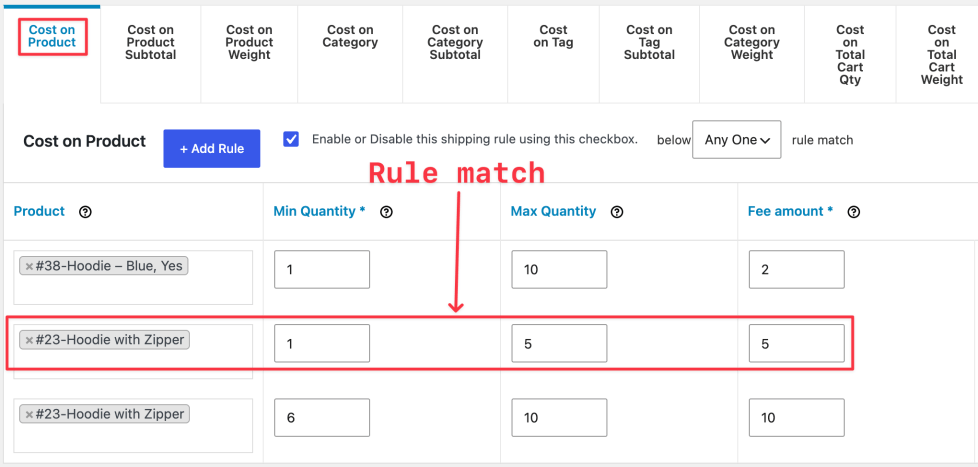
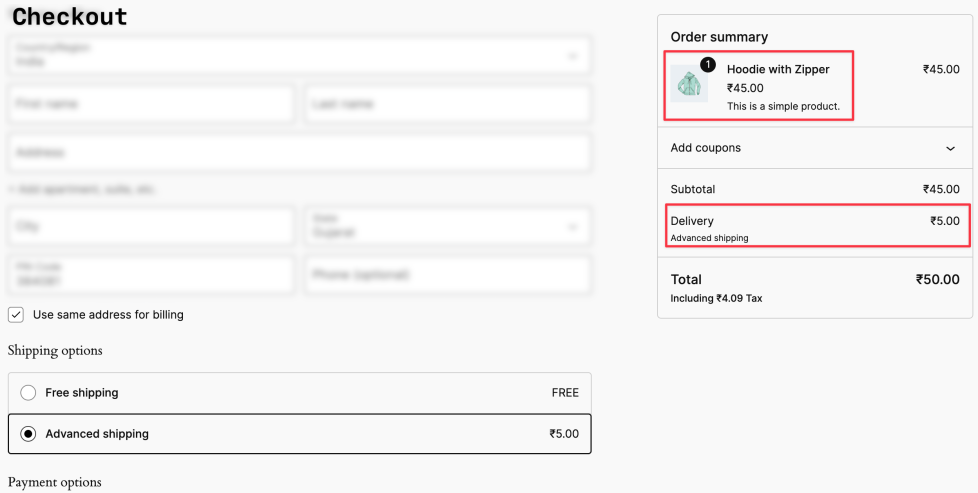
Once the product quantity range is 6 to 10, it will auto-update the advanced shipping charges.
Custom Shipping Zones
↑ Back to topIt is common for e-commerce shop owners to create similar shipping methods for a set of locations. You might be thinking that you will have to add all the locations separately to your shipping methods, but this is not required. To simplify your work, we allow the creation of custom shipping zones. These zones can be created by online shop owners and utilized in the shipping methods later on.
Custom shipping Zones could be of 3 types –
- For countries
- For states and countries
- For zip codes (cities or regions from different countries)
To create a zone, you just have to go to Manage Shipping Zones > Add Shipping Zones and add details like shipping zone name, shipping zone type (radio button), and places for the zone we’re creating.
This is the form for adding a custom shipping zone –
Countries-Based Shipping Zone
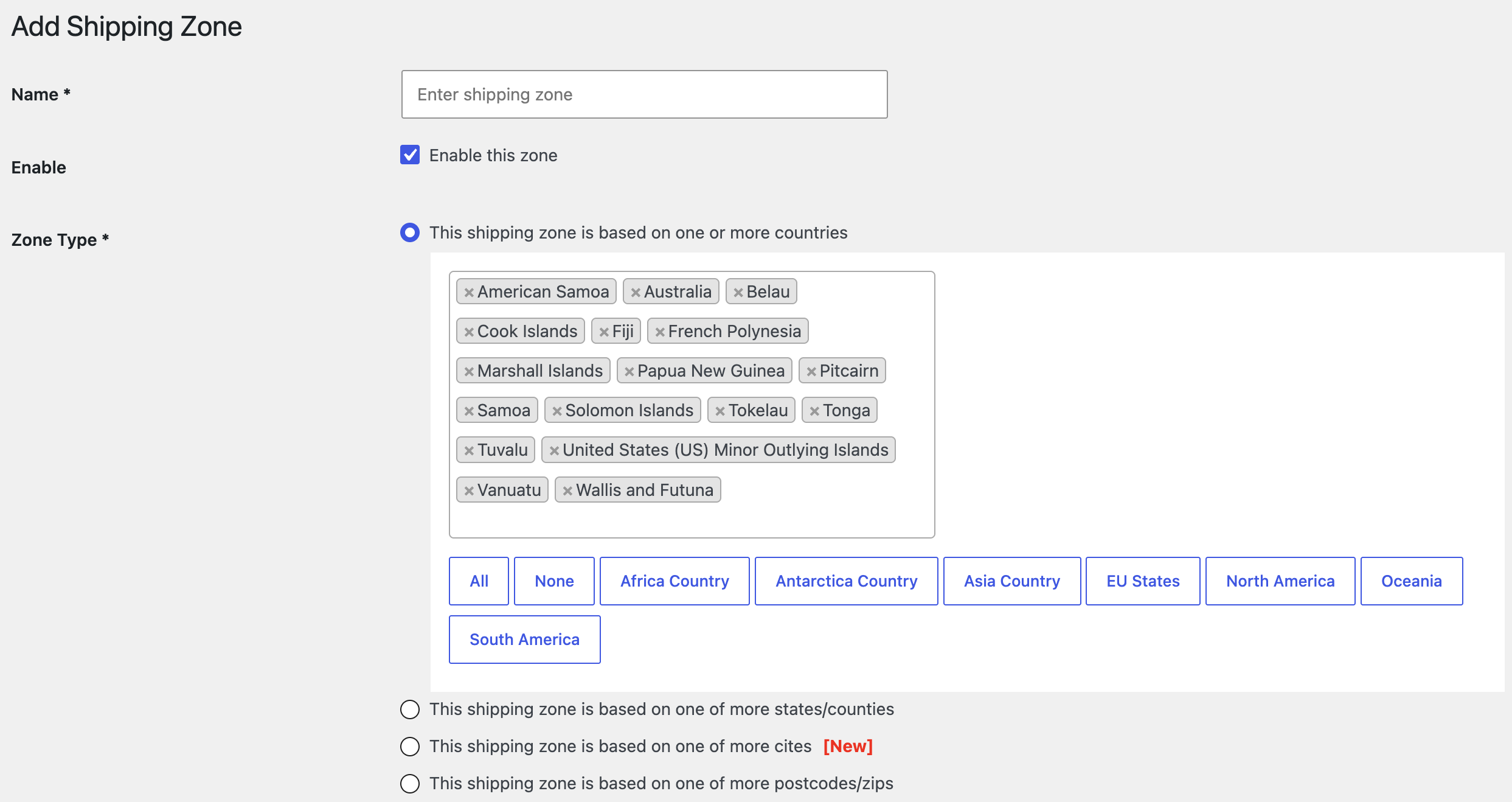
↑ Back to topAdd one or more countries to your shipping zone and reuse the set of countries by adding the shipping zone to your shipping methods.
States and countries-based Shipping Zone
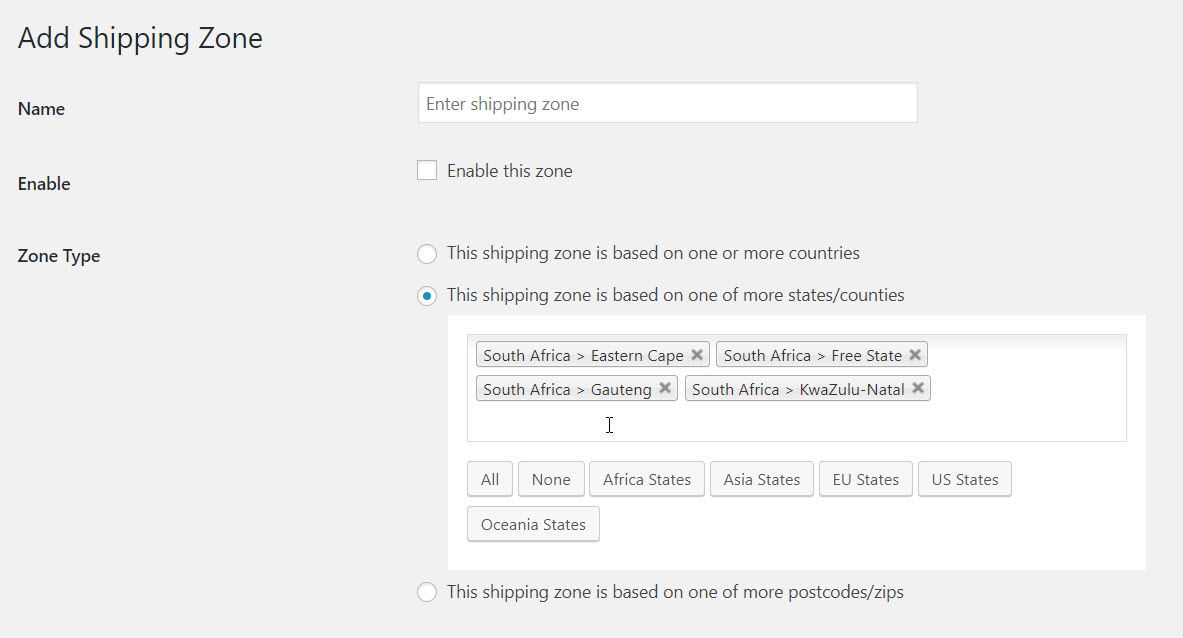
↑ Back to topAdd one or more states and countries to your shipping zone and save your zone. You can always add the name of shipping zones while creating a shipping method.
Postcode-Based Shipping Zone
↑ Back to topAdd one or multiple postal codes for one country to your custom shipping zones.
By creating these custom zones, you can avoid the hassle of adding multiple locations in your methods multiple times. So, avoid repetition and work faster.
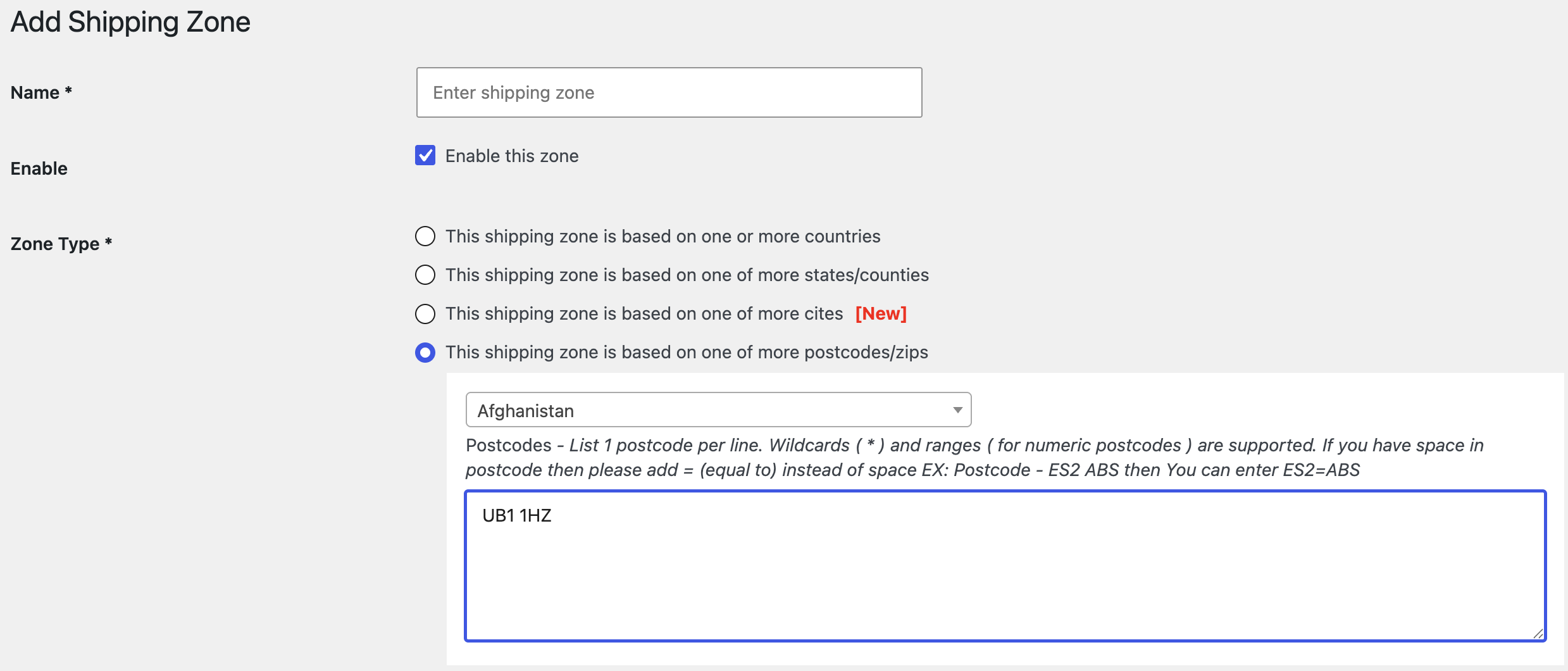
Once you’ve added these details, save your custom shipping zone and use it in the shipping methods whenever you want.
Master Settings
↑ Back to topThere are a few times when your buyers’ cart has more than one shipping method applied to it. In such cases, you might want to apply all or one shipping methods as per the optimality. Master settings help you in that. You can find the master settings section on the main plugin page itself. It is present just below the list of shipping methods you’ve added to the date.
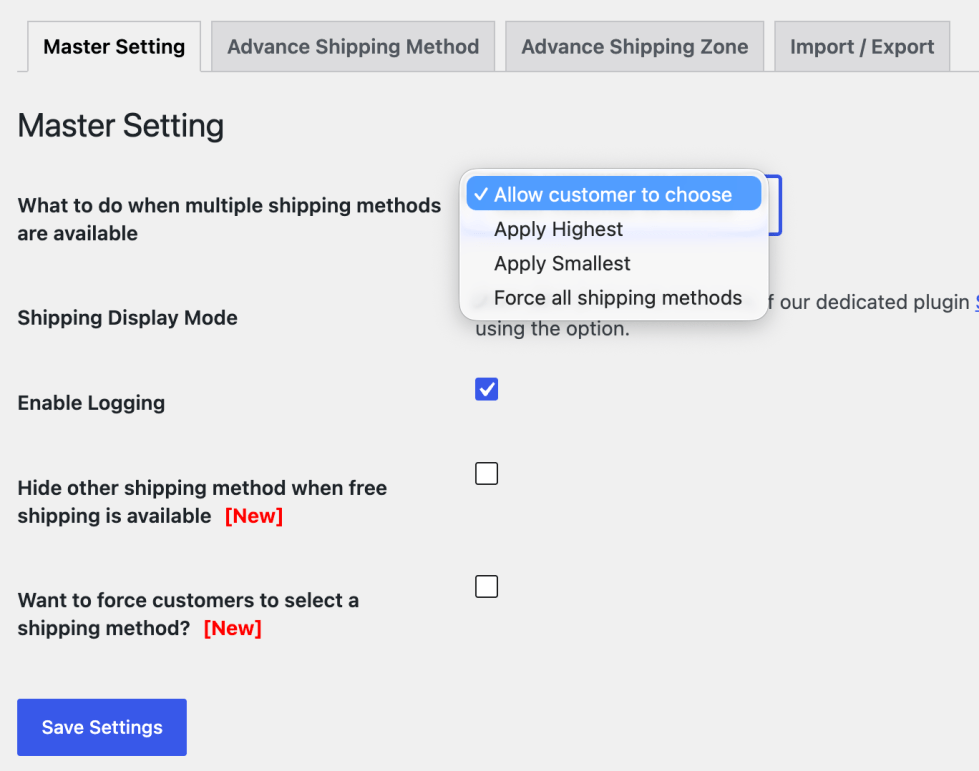
There are 4 ways you can resolve the conflict of multiple shipping methods:
- Minimum shipping charges
- Maximum shipping charges
- Let your customer choose an optimal shipping method to be applied to the cart.
- Force all the shipping methods on the plugin
Using master settings, it can be done easily. You just have to choose your preference and save the settings.
Now, to quickly summarize the scope of the Advanced Flat Rate Plugin and define the operations’ meaning, here is a quick table:
| Parameter | Modifier | What does it do? |
| Country | Equal to (=) | It matches if the cart contains a particular country or a set of countries. |
| Not equal to (!=) | It matches if the cart excludes a particular country or a set of countries. | |
| State | Equal to (=) | It matches if the cart contains a particular state or a set of states. |
| Not equal to (!=) | It matches if the cart excludes a particular state or a set of states. | |
| Postcode | Equal to (=) | It matches if the cart contains a particular postcode or a set of postcodes. |
| Not equal to (!=) | It matches if the cart excludes a particular postcode or a set of postcodes. | |
| Zone
[You can create zones using this plugin itself] | Equal to (=) | It matches if the cart contains a particular zone or a set of zones. |
| Not equal to (!=) | It matches if the cart excludes a particular zone or a set of zones. | |
| Product Name | Equal to (=) | It matches if the cart contains a particular product or a set of products. |
| Not equal to (!=) | It matches if the cart does not contain a particular product or a set of products. | |
| Variable Product | Equal to (=) | It matches if the cart contains a particular variation of a product or a set of variable products. |
| Not equal to (!=) | It matches if the cart does not contain a particular variation of a product or a set of variable products. | |
| Category | Equal to (=) | It matches if the cart contains products belonging to a particular category or more categories. |
| Not equal to (!=) | It matches if the cart does not contain products belonging to a particular category or more categories. | |
| Tag | Equal to (=) | It matches if the cart contains a particular tag or a set of tags on its items. |
| Not equal to (!=) | It matches if the cart does not contain a particular tag or a set of tags on its items. | |
| SKU | Equal to (=) | It matches if the cart contains a particular Product SKU or a set of product SKUs. |
| Not equal to (!=) | It matches if the cart does not contain a particular Product SKU or a set of product SKUs. | |
| User | Equal to (=) | It matches if the cart contains a particular username or a set of usernames. |
| Not equal to (!=) | It matches if the cart does not contain a particular username or a set of usernames. | |
| User Role | Equal to (=) | It matches if the cart contains users with a particular user role. You can add one or more user roles for this query. |
| Not equal to (!=) | It matches if the cart excludes users with a particular user role. You can add one or more user roles for this query. | |
| Cart subtotal (You can determine whether you want to apply this condition to the cart subtotal before the discount or the cart subtotal after Discount) | Equal to (=) | It checks if the cart subtotal is equal to a particular amount. |
| Not equal to (!=) | It checks if the cart subtotal is NOT equal to a particular amount. | |
| Less than or equal to (<=) | It checks if the cart subtotal is less than or equal to a particular amount. | |
| Less than (<) | It checks if the cart subtotal is less than a particular amount. | |
| Greater than or equal to (>=) | It checks if the cart subtotal is greater than or equal to a particular amount. | |
| Greater than (>) | It checks if the cart subtotal is greater than a particular amount. | |
| Quantity | Equal to (=) | It checks if the quantity of items in user’s cart is equal to a particular amount. |
| Not equal to (!=) | It checks if the quantity of items in user’s cart is NOT equal to a particular amount. | |
| Less than or equal to (<=) | It checks if the quantity of items in user’s cart is less than or equal to a particular amount. | |
| Less than (<) | It checks if the quantity of items in user’s cart is less than a particular amount. | |
| Greater than or equal to (>=) | It checks if the quantity of items in user’s cart is greater than or equal to a particular amount. | |
| Greater than (>) | It checks if the quantity of items in user’s cart is greater than a particular amount. | |
| Weight | Equal to (=) | It checks if the weight of cart or product (in case of additional conditions) is equal to a particular amount. |
| Not equal to (!=) | It checks if the weight of cart or product (in case of additional conditions) is NOT equal to a particular amount. | |
| Less than or equal to (<=) | It checks if the weight of cart or product (in case of additional conditions) is less than or equal to a particular amount. | |
| Less than (<) | It checks if the weight of cart or product (in case of additional conditions) is less than a particular amount. | |
| Greater than or equal to (>=) | It checks if the weight of cart or product (in case of additional conditions) is greater than or equal to a particular amount. | |
| Greater than (>) | It checks if the weight of cart or product (in case of additional conditions) is greater than a particular amount. | |
| Shipping Class | Equal to (=) | It matches if the cart contains a shipping class out of the one or more shipping classes as added to this list. |
| Not equal to (!=) | It matches if the cart does not contain a shipping class out of the one or more shipping classes as added to this list. | |
| Coupon | Equal to (=) | It matches if the cart contains a coupon code out of the one or more coupons added to this list. |
| Not equal to (!=) | It matches if the cart does not contain a coupon code out of the one or more coupons added to this list. |
Examples
↑ Back to topNote – For all the flat rate shipping methods, the fee configuration form will be filled in a similar manner. As we’ve already specified how to fill that form and what the fields of the fee configuration form mean, we are skipping that part. In this section, our focus will be on giving examples of how to create conditional shipping rules [one or multiple] for your store.
Example 1 – Enable free shipping for your WooCommerce Store
In the fee configuration form, specify the shipping charge to be zero (0). If you want to apply free shipping for your whole cart, do not add any condition in the conditional shipping rule section, and save the settings.
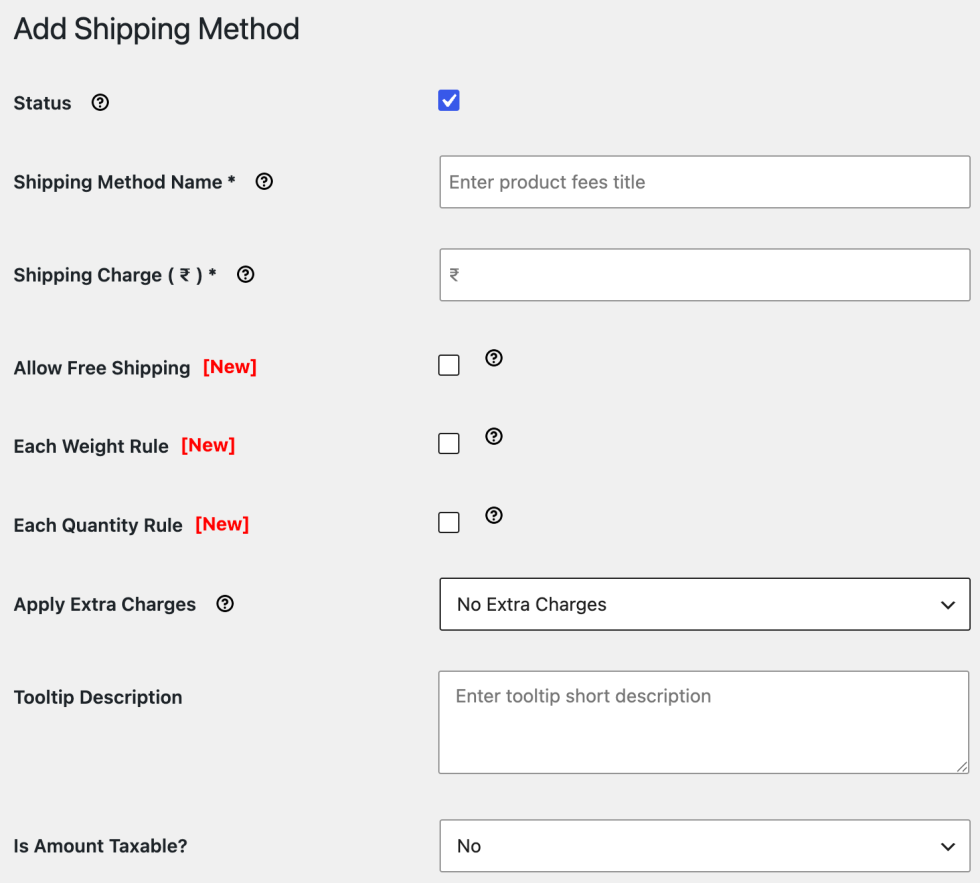
If you want to apply free shipping charges for a particular condition, add rules related to it, for example –
- For running a free shipping offer in a particular state (let’s say California), add a state-specific rule and mention the name of that state.
- To offer your customers free shipping services for the Televisions category, add a category-specific rule and mention the category as ‘televisions’.
- If you want to supply Televisions to California for free, apply both the conditional rules that we’d created above.
Save settings to apply your changes.
Example 2 – Creating a Flat Rate Shipping Method for Buyers belonging to Albania
For this, create a country-specific rule and fill ‘Albania’ in the value field for comparison. Add the flat rate charges in the fee configuration form and save the settings.

Example 3 – Create a Shipping Rule for a Variable Product
Consider that you want to charge $2 for shipping of the black large-size variant of a Product named ‘WordPress Pennant’. To do so, you will have to select the ‘cart containing variable product’ option and type the name of the variant so that the desired product can be added to the right-side box.
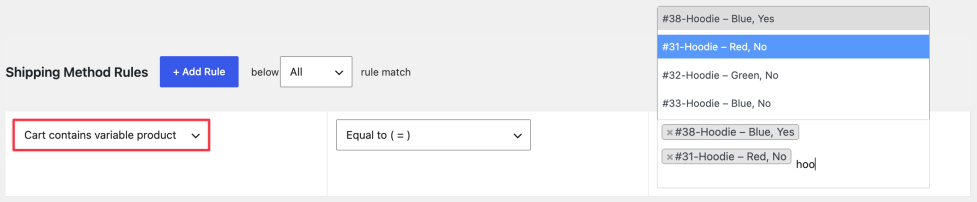
Specify the flat rate shipping cost ($2) and other details in the fee configuration form before you save the settings.
Example 4 – Set Flat Rate Shipping Rule for your Subscribers
Want to give your subscribers a shipping discount?
Do it by specifying a separate cost for shipping using the Advanced Flat Rate Shipping for WooCommerce Plugin. Just add a User role-specific rule and mention ‘subscriber’ as its value for comparison.

Now, specify the shipping charge for them, and you’re done!
Example 5 – Set Shipping Cost Based on Coupons
Are you running any sales on your e-commerce store through coupons?
You can give your customers a shipping discount for applying coupons using our plugin.
For this, shop owners just have to apply a coupon-specific conditional rule [in this example – code939615] and add the shipping charge for this overall method in the fee configuration form. Finally, save settings.

Example #6 – Applying Specific Flat Rate Shipping Charges when purchasing 5 or More items of the same product.
In all the above examples, we’ve added 1 rule per method. However, it is not a restriction. You can add as many rules to your shipping rules to your methods as you want.
For instance –
If you are willing to specify a shipping charge for 5 items of a Hoodie with Logo product, you’ll specify it similarly to what we’ve done in the screenshot below.
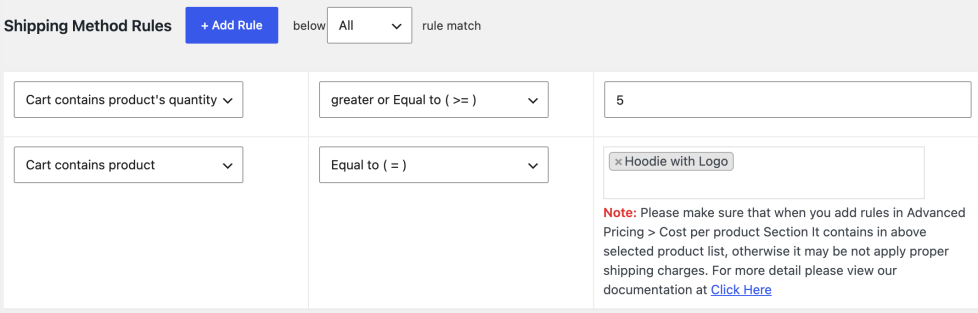
Similarly, you can create hundreds of such methods and rules as per your e-commerce store’s needs.
FAQs
↑ Back to topHow can I charge two different shipping rates for two variants of one product?
Basically, this WordPress extension supports adding flat rate shipping charges for variable products. So yes, it is possible and very easy to do using this WooCommerce plugin.
Procedure – You just have to create two separate flat rate shipping methods with different shipping charges. Now, add the conditional rule with ‘cart containing variable product’ to both the shipping methods while adding the value of variant 1 in one method and the value of variant 2 in the other method. Save both, and your task is done.
Is it possible to apply free shipping for my online store using this plugin with some restrictions, like for one city, or one product, or so on?
Totally. You can hassle-free apply the free shipping rule to your WooCommerce store – with or without restrictions. Just specify the shipping cost as Zero (0) and add your rules (or add no rules if you want to apply a free shipping rule for the whole shop). Scroll a bit back in this page itself and refer to Example 1 for more details.
I need this plugin, though I cannot use it for my requirement directly. Can I get it customized if I pay for that?
Our team is always here to listen to customization queries and support requests. We can make it work for your store and customize the plugin as per your requirements. Just reach out to us and get a quote.
Is it compatible with multilingual eCommerce Stores?
Yes. Advanced flat rate shipping plugin is compatible with WPML, and therefore, you won’t need to deploy it with the multilingual shop. With it, serving multiple locations/countries and applying flat rate shipping charges for those locations is an easy task.
Support
↑ Back to topIf you have any queries before making the purchase of this plugin, you can always reach out to us by filling out this pre-sale form. Additionally, you can send us plugin customization requests, too.
However, it might add to the cost.
If you’ve already purchased our plugin and want support, contact us through the helpdesk.