
Installation
↑ Back to topTo start using a product from WooCommerce.com, you can use the “Add to store” functionality on the order confirmation page or the My subscriptions section in your account.
- Navigate to My subscriptions.
- Find the Add to store button next to the product you’re planning to install.
- Follow the instructions on the screen, and the product will be automatically added to your store.
Alternative options and more information at:
Managing WooCommerce.com subscriptions.

How the Redirects Work
↑ Back to topThe plugin performs the redirect after the item has been added to the cart. There are several ways to configure where the add to cart redirect should lead to. The following order is maintained when searching for a available URL to redirect to:
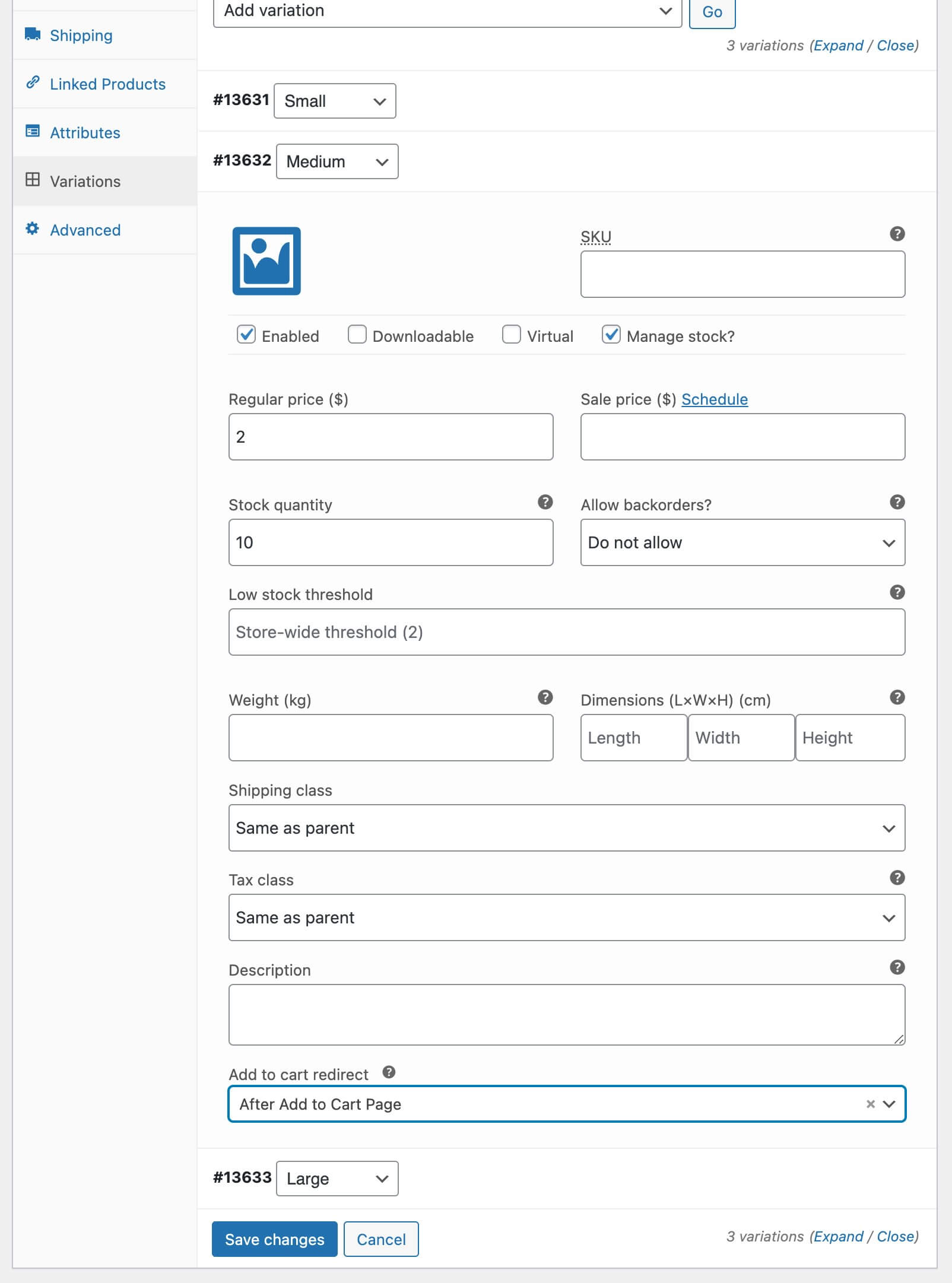
- Variable product setting (set in the ‘Variations‘ tab)
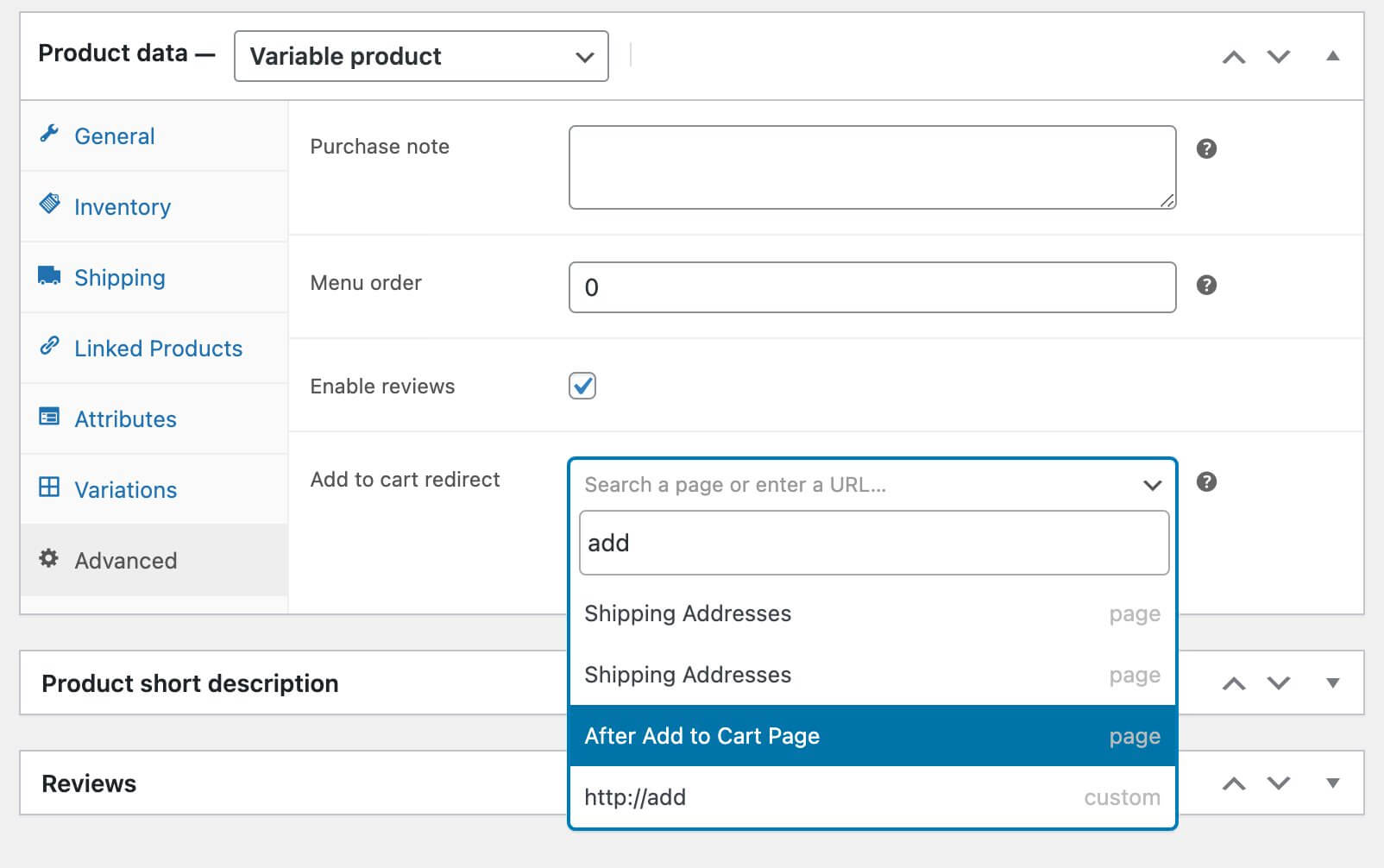
- The product settings (set in the ‘Advanced‘ tab)
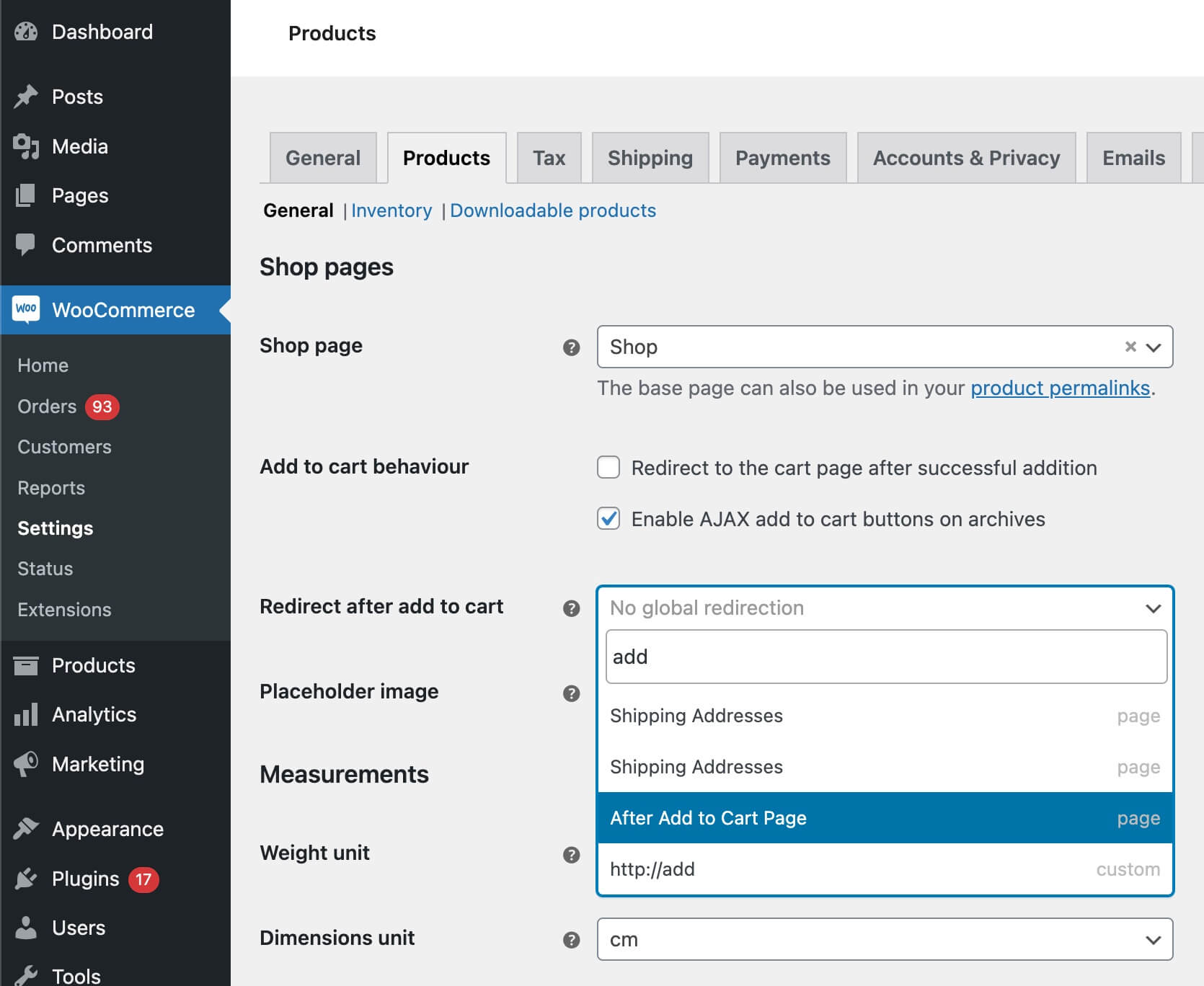
- Global setting (set in the WooCommerce > Settings > Products section)
- Default behaviour (either redirect to cart or stay on the same page).
When nothing is configured in the #1 it will look to see if a redirect is configured in #2 etc.
Redirecting AJAX and non-AJAX Add to Cart Buttons
↑ Back to topIn the WooCommerce > Products > Display page you can configure if you’d like to add products to the cart through AJAX or not on archive pages. The Add to Cart Redirect plugin works with either mode, so you don’t have to worry about that.
Configuring a Redirect After Add to Cart
↑ Back to topThe points above list the different locations where a after add to cart redirect can be configured. Each location has the same type of setting field for configuring a redirect.
The redirect setting field has the ability to search for (custom) post type posts, or enter a custom URL. Whenever you start typing in the field it will start searching for posts and present you with the found options. At the bottom it will always show the ‘Custom’ option which is the entered value as a URL.
The search feature looks in all the public (custom) post types. For example when you’re running a clean WP and WC install it will search between posts, pages and products. If you have additional plugins installed that add public post types it will also search within those.
Questions & Support
↑ Back to topHave a question before you buy? Please fill out this pre-sales form.
Already purchased and need some assistance? Get in touch with the developer via the Help Desk.

