
Install a theme from a ZIP file in your WordPress dashboard, then activate it when you are ready to change your store’s appearance. Installing a theme and activating it are separate steps.
Before you begin
↑ Back to top- Use an administrator account with permission to install themes. If your site does not show the installation controls, ask your site administrator or host about the available permissions.
- Download the theme ZIP file from your WooCommerce.com Downloads page or the theme provider. Keep the file zipped for the upload.
- Before replacing your current theme, make a backup and test the new theme on a staging copy of your store. Review the theme’s WordPress, PHP, and WooCommerce requirements.
Upload the theme in WordPress
↑ Back to top- Go to Appearance > Themes.
- Select Add Theme, then Upload Theme.
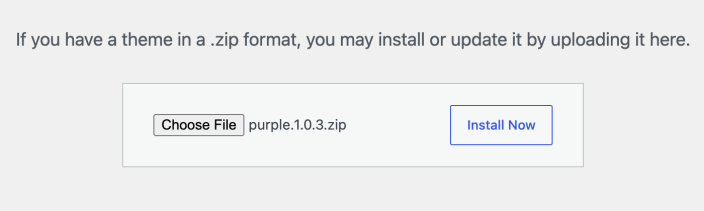
- Select Choose File and choose the theme ZIP file you downloaded.
- Select Install Now and wait for WordPress to confirm that the theme installed successfully.
- Select Activate when you are ready to use the theme. You can also activate an installed theme from Appearance > Themes.
If WordPress reports that the theme is already installed, check whether you intended to update the existing theme instead. Review the existing and uploaded versions before confirming a replacement.
Automatic installation
↑ Back to topFor a theme purchased from WooCommerce.com, you may also have an Add to store option in your account. Follow the automatic installation instructions to connect the intended store and install the purchase. Then check Appearance > Themes on that store and activate the theme when you are ready.
Set up and check your theme
↑ Back to topOpen the documentation for your theme and follow its setup instructions. The example design may depend on specific templates, menus, widgets, or demo content; installing the theme alone does not recreate every part of its demo.
Confirm that the intended theme is marked Active under Appearance > Themes. On your staging store, check the home page, navigation, product pages, Cart, Checkout, and My Account on desktop and mobile. Complete a test-mode order before making the change on your live store. If the new theme causes a problem, reactivate your previous theme on staging and compare the same pages.
Troubleshooting
↑ Back to topThe theme is missing its stylesheet
↑ Back to topIf WordPress reports The theme is missing the style.css stylesheet, check that you selected an installable WordPress theme ZIP. A plugin ZIP, design file, or package containing documentation and other downloads is not the theme installation file. Download the theme package again, or ask the provider which ZIP to upload. Do not create a replacement stylesheet to bypass the error.
The ZIP file cannot be unpacked
↑ Back to topA PCLZIP_ERR_BAD_FORMAT error or a message about an invalid archive can indicate an incomplete download or a file that is not a valid ZIP archive. Download a fresh copy from the provider and upload the theme ZIP again. If it still fails, share the exact error with the provider or your host.
What happens to content when you switch themes?
↑ Back to topSwitching themes keeps core WordPress content such as posts and pages, but it can change how your site displays that content. Theme-specific layouts, menus, widgets, and features may need to be set up again. Content supplied by a feature built into the previous theme, such as a portfolio, may stop appearing in the new theme. Check with the theme provider before switching if your store depends on those features.
Questions and support
↑ Back to topSomething missing from this documentation? Still have questions and need assistance?
- If you have a question about a specific extension or theme you’d like to purchase, contact us to get answers.
- If you already purchased this product and need some assistance, get in touch with a Happiness Engineer via our support page and select this product’s name from the Product dropdown.