Sell dated museum admission with adult and child prices, a Sunday discount, and a daily visitor limit. WooCommerce Order Barcodes can add one scannable code to each order for staff to look up at the entrance.
Scenario
↑ Back to top- Admission is for one date, without a timed entry slot.
- The museum accepts up to 250 visitors each day and closes on Mondays, December 25, and January 1.
- Regular admission costs $10 per adult and $5 per child. On Sundays, adults pay $5 and children enter free.
- Every booking includes at least one adult. The optional barcode covers the whole order, rather than each visitor.
Before you begin
↑ Back to topYou need WooCommerce and WooCommerce Bookings installed and active, and administrator access to create products. For the optional barcode steps, also activate WooCommerce Order Barcodes. Prices below are before any taxes or fees.
This setup reserves a daily visitor count. It does not issue separate tickets or track admission for each person in a group. Plan how staff will handle groups arriving together and orders containing more than one booking.
Set up museum admission
↑ Back to topCreate a bookable product
↑ Back to top- Go to Products > Add new product and enter Museum Admission as the name.
- In Product data, select Bookable product.
- Select Virtual and Has persons. Leave Has resources unchecked.
Set the booking duration
↑ Back to top- On General, set Booking duration to Fixed blocks of 1 Day(s).
- Set Calendar display mode to Calendar always visible.
- Leave Requires confirmation? unchecked so customers can pay during checkout.
Virtual removes the need to ship an item. An order containing only virtual bookings can complete automatically after payment; an unpaid bank-transfer order still needs payment to be confirmed.
Set daily capacity and closures
↑ Back to top- Select Availability and set Max bookings per block to 250. The person-count setting below makes this a visitor limit.
- Set Minimum block bookable to 0 Day(s) and Maximum block bookable to 12 Month(s). This allows same-day reservations up to a year ahead.
- Keep the buffer at zero, All dates are… set to available by default, and Check rules against… set to All blocks being booked.
- Add a Range of days rule from Monday to Monday, with Bookable set to No and priority 10.
- Add two Date range rules: December 25, 2026 to December 25, 2026, and January 1, 2027 to January 1, 2027. Set both to No, priority 10.
Date ranges do not repeat each year. Add both holiday closures for every year within your booking window. Existing store-wide availability rules can also restrict dates.
Configure adult and child prices
↑ Back to topUse a shared $5 base cost for each visitor, plus a $5 adult surcharge. The Sunday rule will remove the shared amount while leaving the adult surcharge in place.
- On Costs, set Base cost to 5, Block cost to 0, and leave Display cost empty.
- On Persons, set Min persons to 1 and Max persons to 250.
- Enable Multiply all costs by person count to charge the shared base cost for every visitor.
- Enable Count persons as bookings so each adult and child uses one daily place.
- Enable Enable person types.
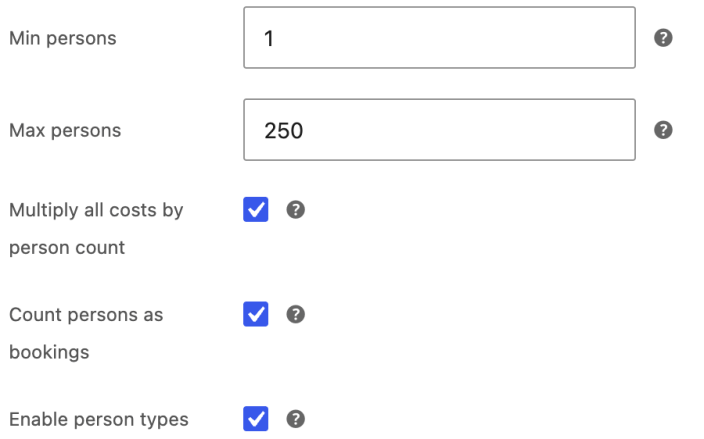
Select Add Person Type for each row below. These person-type costs are surcharges, not the final ticket prices. Leave descriptions empty unless customers need more information.
| Person type | Base Cost | Block Cost | Min | Max |
|---|---|---|---|---|
| Adults | 5 | 0 | 1 | 250 |
| Children | 0 | 0 | 0 | 250 |
The overall maximum remains 250 visitors, even though each person type has its own maximum. The adult minimum requires an accompanying adult in every booking.
Add the Sunday discount
↑ Back to top- Return to Costs and select Add Range.
- Set Range type to Range of days, from Sunday to Sunday.
- Under Base cost, select the minus operator and enter 5. Leave the Block cost adjustment at + 0.
On Sunday the shared base cost becomes zero before it is multiplied by visitor count. Adults retain their $5 surcharge, while children have no surcharge. Subtracting $5 once from a booking priced at $10 per adult and $5 per child would not produce these prices for groups.
| Visitor | Regular day | Sunday |
|---|---|---|
| Adult | $10 | $5 |
| Child | $5 | $0 |
Publish the product
↑ Back to topAdd a description explaining the admission date, opening hours, age categories, and arrival requirements. Add a product image if useful, then select Publish or Update to save the product.
Add order barcodes (optional)
↑ Back to top- With WooCommerce Order Barcodes active, go to WooCommerce > Settings > General and find Order Barcodes.
- Enable Enable Barcodes and set Barcode Type to QR Code.
- Select Save changes. New orders receive an order barcode.
The code appears in order emails and customer order details. Customers can show it on a device or print it. For scanning-page setup and supported scanners, follow the WooCommerce Order Barcodes guide. Staff need permission to manage WooCommerce to use its scanner by default.
One code identifies the whole order. A check-in changes the order’s check-in status; it does not check in each visitor separately or verify that the visit date and payment are valid. Staff should look up the order, confirm payment and the booking date, and check the adult and child counts before admitting the group. A repeat check-in reports that the customer is already checked in.
Test the customer experience
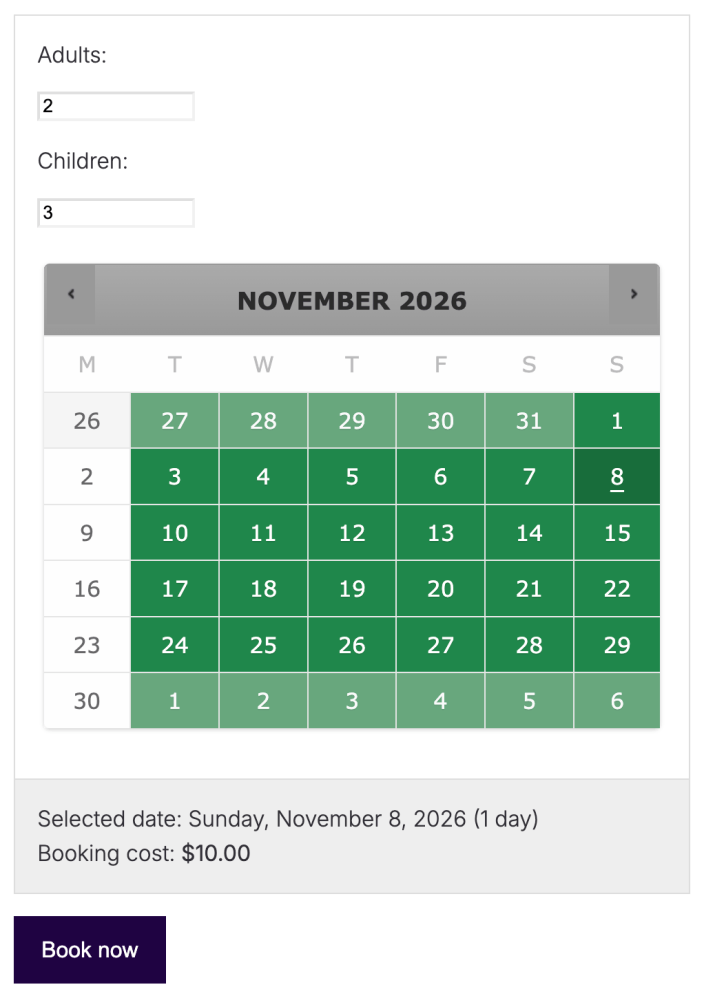
↑ Back to top- Open the product on your storefront and select an available regular date. Two adults and three children should cost $35.
- Select a Sunday with the same visitor counts. The total should become $10. Mondays and your holiday closures should be unavailable.
- Select Book now and confirm the date, visitor counts, and total in the cart. On a test store, complete checkout with a test or offline payment method.
- Confirm payment for the test order, then check its booking details and barcode. A five-person booking should leave 245 places on that date, provided no other bookings use capacity.
- Use the scanning page to look up the order and check it in. Repeat the check-in to confirm that the already-checked-in notice appears. Cancel the test booking afterward and confirm capacity is restored.
Check unexpected results
↑ Back to top- The Sunday total is wrong: check the shared base cost of 5, the adult surcharge of 5, the child surcharge of 0, and the cost multiplier. The Sunday rule must subtract 5 from the base cost.
- Groups use only one daily place: enable Count persons as bookings. Free child admission still uses capacity.
- A date is unavailable: check closures, the booking window, existing bookings, and store-wide rules.
- An order has no barcode: check that Order Barcodes is active and enabled. Open an older order in the admin to generate its missing barcode. Verify the customer order details as well as the email.
Questions and support
↑ Back to topSomething missing from this documentation? Still have questions and need assistance?
- If you have a question about a specific extension or theme you’d like to purchase, contact us to get answers.
- If you already purchased this product and need some assistance, get in touch with a Happiness Engineer via our support page and select this product’s name from the Product dropdown.