
Installation
↑ Back to top- Download the .zip file from your WooCommerce account.
- Go to: WordPress Admin > Plugins > Add New and Upload Plugin with the file you downloaded with Choose File.
- Install Now and Activate the extension.
More information at: Install and Activate Plugins/Extensions.
Setup and Configuration
↑ Back to topThe extension has three main parts: hidden price rules, groups for your wholesale customers, and group and tiered prices on each product. The sections below cover each of them in turn.
1. Hide Prices For Users/Guests/Groups
↑ Back to topThe plugin allows you to hide prices for all or specific products and categories, for guests, specific users or groups, in various combinations. To configure this:
Go to Wholesale Prices > Rules and click “Create new rule” at the top. Under “Rule Type”, choose “Hidden Price”.
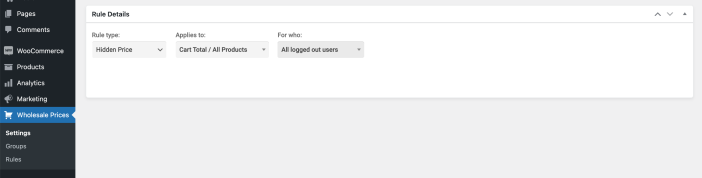
Example 1: Hide all prices for logged out users
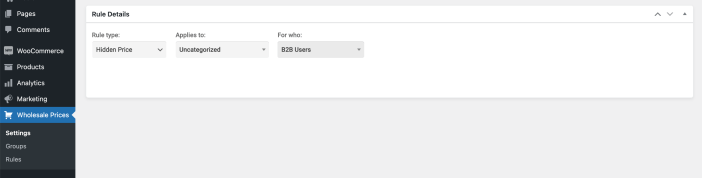
Example 2: Hide prices for a specific category, for a B2B users group
Rules can be edited or deleted at any time from the same Rules screen.
2. Assign Users to Groups
↑ Back to topRather than WordPress roles, the plugin uses its own system of groups, which gives you more flexibility when organizing customers and setting prices.
2.1 Create groups
To set up prices by group, the first step is to go to Wholesale Prices > Groups and create at least one group.
2.2 Assign users to groups
Once groups are created, you can go to each user’s backend profile in Users and assign the user to a group like this (see the user profile screen if you’re not sure where to find it):

Don’t forget to click “Update User”.
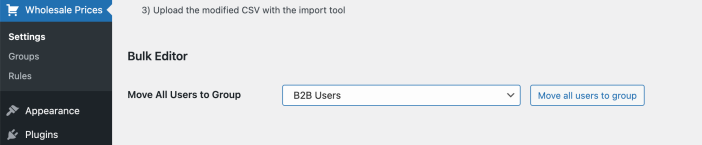
To assign all users to a group, go to Wholesale Prices > Settings > Tools and use the bulk editor to move all users to a group:
Another option is to assign users via metadata (advanced). To do this, 2 meta keys must be set for a user:
- wptpw_b2buser = ‘yes’
- wptpw_customergroup = group id (e.g. 2542). To get a group’s id, go to Wholesale Prices > Groups and click on the group. The number in the URL is the ID.
This is useful when importing a large number of customers, as both keys can be set during the import.
3. Configure Wholesale Prices and Tiered Prices
↑ Back to topFirst of all, make sure you have followed the instructions in chapter #2 and have assigned users to groups.
To configure wholesale prices, go to Products > click on the product (see adding and editing products in WooCommerce), and you will see additional price fields:
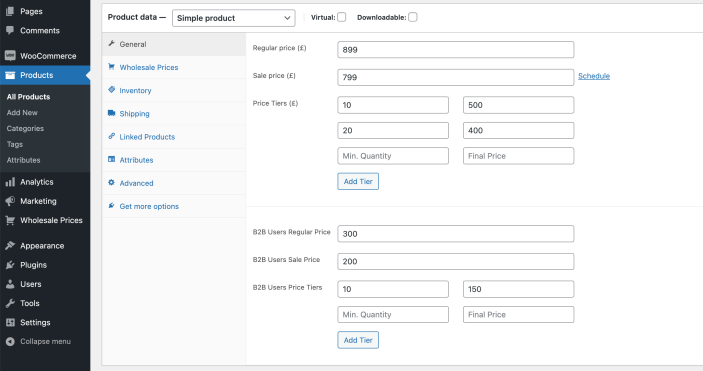
You can set a regular and sale price for each individual group, as well as set tiered pricing by choosing a minimum quantity and the final price for each tier.
Group prices are entered the same way as your regular product prices, including or excluding tax depending on your WooCommerce tax settings. For more ways to structure B2B pricing, such as percentage discounts by category or customer-specific prices, see this guide on wholesale prices.
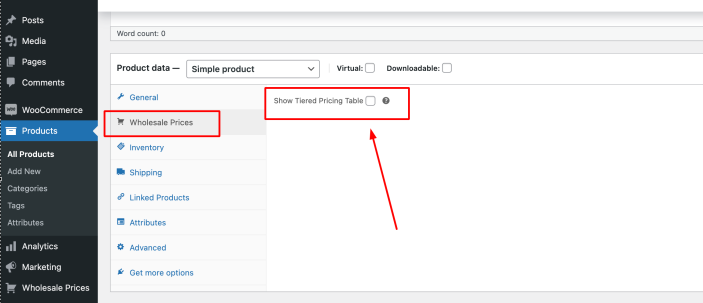
To enable or disable the tiered pricing table, go to the “Wholesale Prices” tab in the product page and check or uncheck the “Show tiered price table” checkbox.
Plugin Usage by Customers
↑ Back to topCustomers log in, and based on their group or logged in / logged out status, they see the prices configured in each product’s backend.
Troubleshooting
↑ Back to topCustomers see the wrong prices after logging in
This is almost always caused by page caching. Because different customers see different prices, logged in users must not share the same cached pages. In your caching plugin or hosting settings, disable page caching for logged in users, or enable a separate cache per user if that option is available.
FAQs
↑ Back to topWhat themes is this extension compatible with?
The extension was built to be compatible with all themes in the market, and has been tested with the most popular ones today.

