
Bulk Update Subscription Prices for WooCommerce makes it simple to update prices on existing subscriptions whenever you change product prices in your store.
When you sell subscription products, you might eventually need to adjust your prices. By default in WooCommerce Subscriptions, when you edit a product’s price, existing subscribers stay locked into the old price they signed up with.
Bulk Update Subscription Prices for WooCommerce solves this by letting you automatically or manually update the prices of existing subscriptions to match your latest product pricing.
Key Benefits
↑ Back to top- Keep subscription prices up to date: Automatically apply new product prices to existing active subscriptions.
- Safe background processing: Updates run in small batches in the background so your site stays fast and never crashes or times out.
- Status control: Choose exactly which subscription statuses get updated (such as Active, Pending cancellation, or On hold).
- Customer notifications: Decide whether to notify customers by email when their subscription price is updated.
- Easy setup wizard: Get up and running in under 2 minutes with friendly guided setup.
Requirements and Installation
↑ Back to topRequirements
↑ Back to topBefore installing the plugin, ensure your site meets the following requirements:
- WordPress: 6.9 or higher (tested up to 7.1)
- WooCommerce: 3.1 or higher (tested up to 11.1)
- WooCommerce Subscriptions: Installed and activated (this plugin requires WooCommerce Subscriptions to work)
- PHP: 5.6 or higher (PHP 7.4 or 8.x recommended)
Note: If WooCommerce or WooCommerce Subscriptions is not installed or active, the plugin will display a helpful notice and keep the update features safely disabled until the required plugins are turned on.
Installation
↑ Back to topYou can install the plugin directly from your WordPress dashboard or by uploading the zip file.
Option 1: Install from WordPress Plugin Search (Recommended)
- Log in to your WordPress Admin Dashboard.
- Go to Plugins > Add New Plugin.
- In the search box at the top right, search for Bulk Update Subscription Prices.
- Find Bulk Update Subscription Prices for WooCommerce in the search results.
- Click Install Now.
- Once the installation is finished, click Activate.
Option 2: Upload via WordPress Admin
- Download the plugin .zip file from your purchase receipt or account.
- Log in to your WordPress Admin Dashboard.
- Go to Plugins > Add New Plugin.
- Click the Upload Plugin button at the top of the page.
- Click Choose File and select the downloaded .zip file.
- Click Install Now.
- Once installed, click Activate Plugin.
Upon activation, the plugin will automatically open the Setup Wizard to help you configure your store’s settings.
Initial Setup & Onboarding
↑ Back to topThe Setup Wizard walks you through the essential settings in just a few quick steps. It takes about 2 minutes to complete, and you can change any of these settings later.
You can also return to this wizard at any time from your WordPress dashboard by navigating to Bulk Subscriptions > Setup Wizard.
Step 1: Welcome Screen
↑ Back to top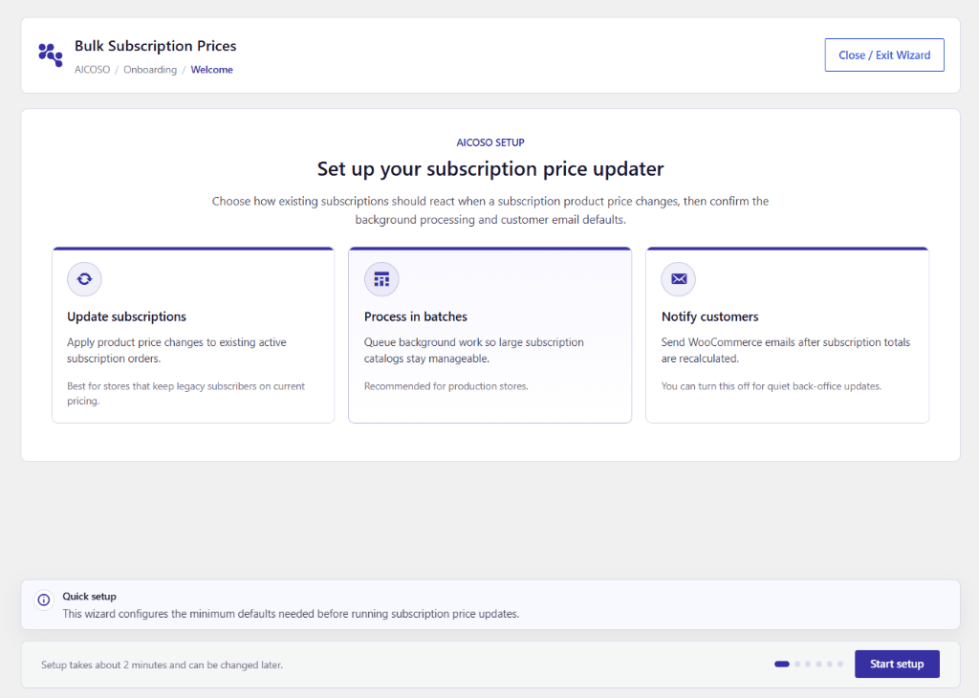
When the setup wizard opens, you will see a brief introduction to the three main things you will configure:
- Update subscriptions: How price changes should apply to your existing subscriptions.
- Process in batches: How background tasks are scheduled so your server stays fast and reliable.
- Notify customers: Whether customers receive an email confirmation when their subscription price changes.
Click the Start setup button in the bottom right corner to begin.
Step 2: Update Rules
↑ Back to top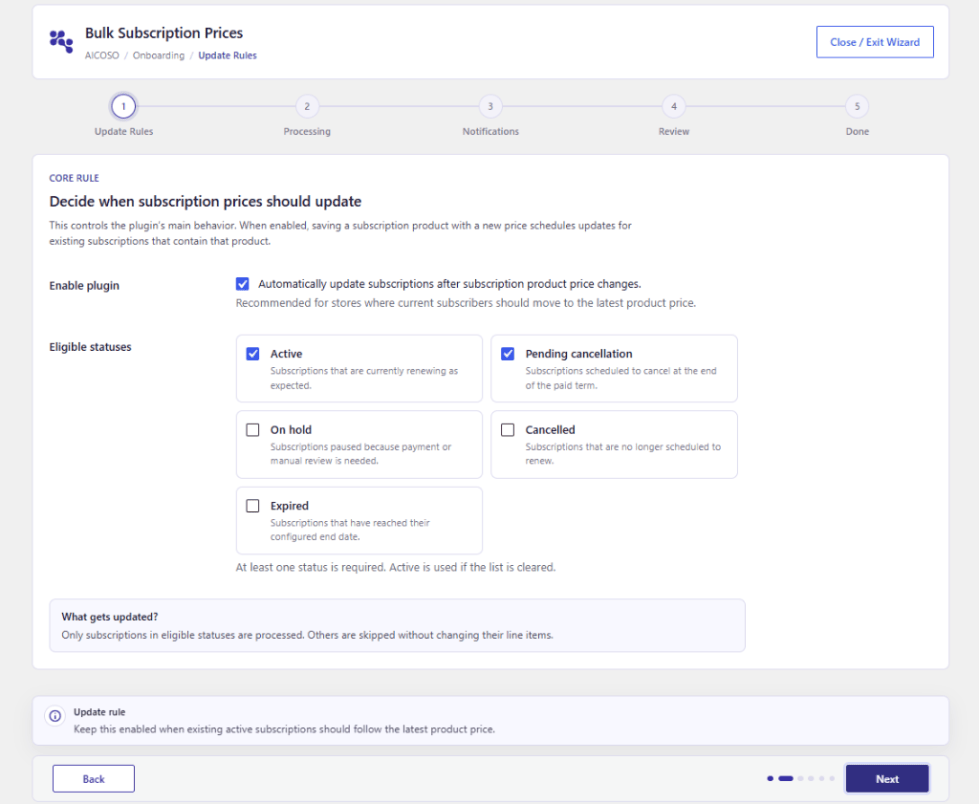
This step lets you set the core behavior of the plugin.
- Enable plugin:
- Check the box for “Automatically update subscriptions after subscription product price changes.”
- When enabled, whenever you edit a subscription product and save a new price, the plugin will automatically queue updates for all existing subscriptions containing that product.
- Tip: Keep this checked if you want your current subscribers to always move to the latest price.
- Eligible statuses:
- Select which subscription statuses should receive price updates. Available options include:
- Active: Subscriptions currently renewing as normal (recommended).
- Pending cancellation: Subscriptions scheduled to end at the billing period (recommended).
- On hold: Subscriptions paused due to payment retry or manual review.
- Cancelled: Subscriptions that are no longer scheduled to renew.
- Expired: Subscriptions that reached their end date.
- Note: At least one status must be selected. If you uncheck all of them, the plugin defaults to Active. Only subscriptions in selected statuses will be updated all others will be skipped safely.
- Select which subscription statuses should receive price updates. Available options include:
Click Next to continue.
Step 3: Processing (Background Jobs)
↑ Back to top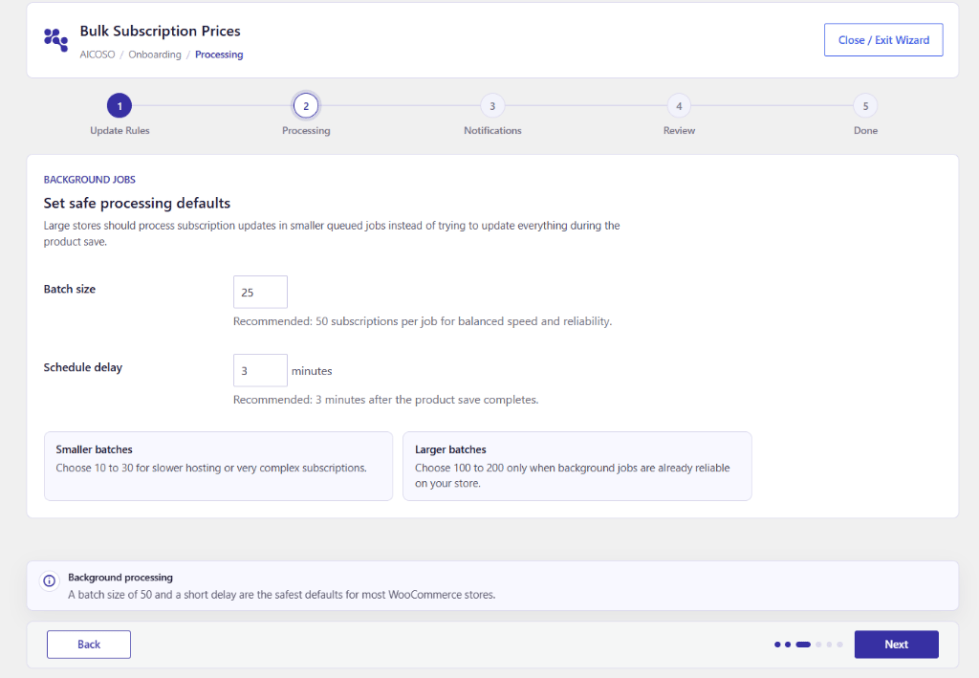
To make sure your website never slows down or freezes when updating hundreds or thousands of subscriptions, the plugin processes updates in small batches behind the scenes.
- Batch size:
- Enter the number of subscriptions to process in each background job.
- Recommended: 50 subscriptions per job for the best balance of speed and stability.
- Schedule delay:
- Enter how many minutes to wait after saving a product before the update job begins running.
- Recommended: 3 minutes.
- This short buffer gives you time to fix typos or adjust pricing before the automatic batch begins processing.
Click Next to continue.
Step 4: Notifications (Customer Communication)
↑ Back to top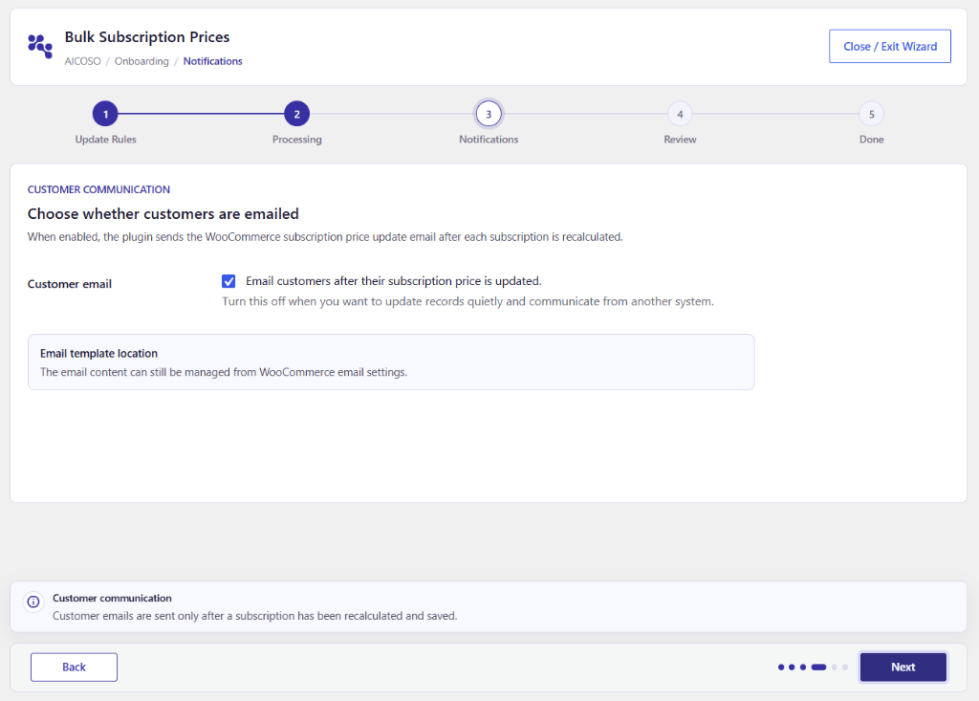
Decide whether your customers should be notified when their subscription price changes.
- Customer email:
- Check “Email customers after their subscription price is updated” if you want WooCommerce to automatically send an email to the subscriber after their renewal price has been recalculated.
- Uncheck this box if you prefer quiet, back-office updates (for example, if you plan to notify subscribers yourself through a newsletter or separate email marketing tool).
- Email Template Notice:
- You can customize the email wording, subject line, and design at any time under WooCommerce > Settings > Emails.
Click Next to continue.
Step 5: Review and Complete Setup
↑ Back to top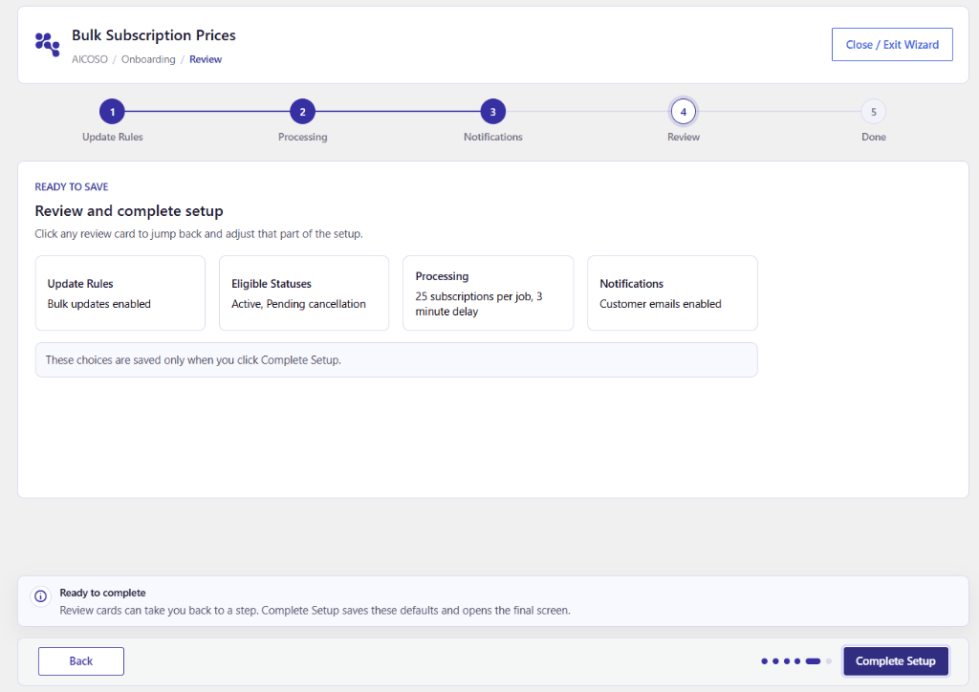
Before saving, the wizard shows you a summary of your choices:
- Update Rules: Confirms if automatic updates are enabled.
- Eligible Statuses: Displays the subscription statuses you chose (e.g., Active and Pending cancellation).
- Processing: Displays your selected batch size and schedule delay.
- Notifications: Confirms whether customer emails are enabled or disabled.
Need to make a change? You can click directly on any of the summary cards to jump back to that step and adjust your choice.
Once you are happy with your settings, click the Complete Setup button in the bottom right corner.
Step 6: You’re All Set!
↑ Back to top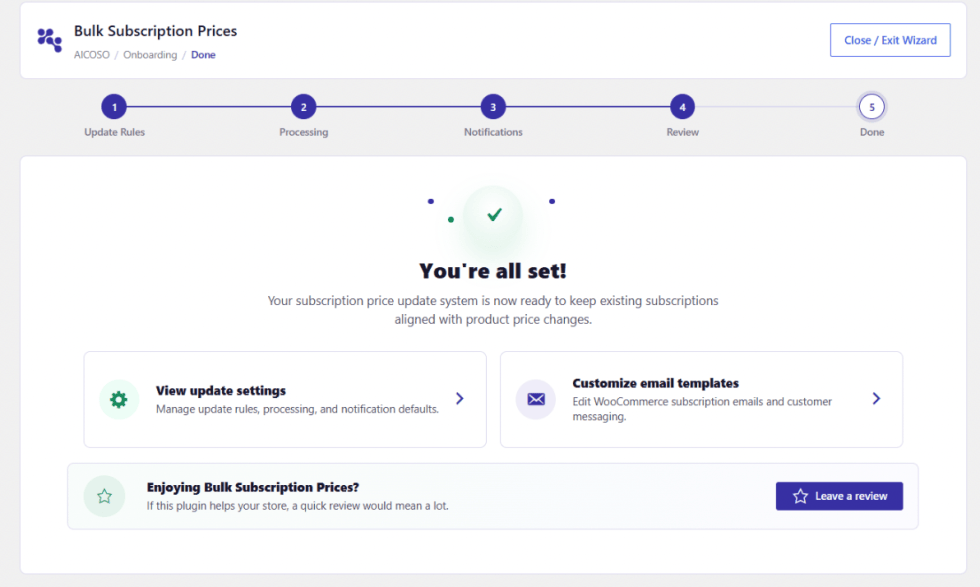
Congratulations! Your subscription price updater is now configured and ready to work.
From the completion screen, you can:
- View update settings: Go to Bulk Subscriptions > Settings to view your plugin options.
- Customize email templates: Open your WooCommerce email settings to adjust the look and wording of your subscription emails.
Settings and Configuration
↑ Back to topYou can access and adjust all plugin options at any time. To open the settings page:
- Log in to your WordPress Admin Dashboard.
- In the left sidebar, click Bulk Subscriptions > Settings (or Woocommerce > Settings > Subscriptions and locate the bulk update section).
- Use the tabs at the top of the page to switch between different settings screens.
The settings are organized into 7 clear sections:
- General
- Statuses
- Processing
- Notifications
- WooCommerce
- MCP Integration
- Help
1. General Settings
↑ Back to topLocation: Bulk Subscription > setting > General
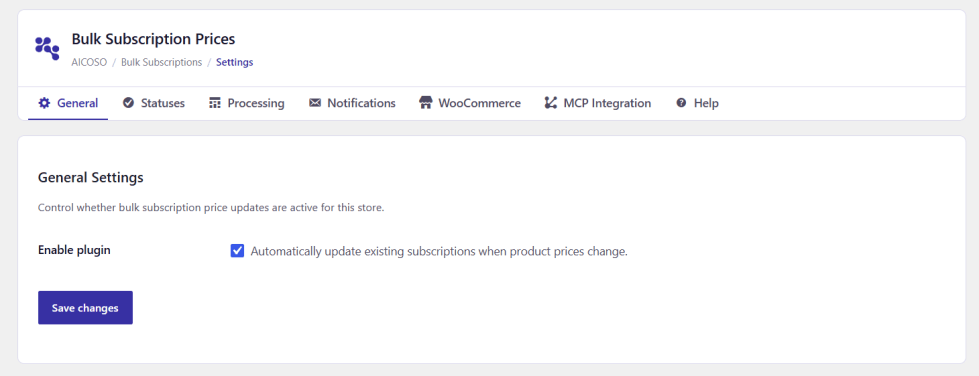
The General tab controls the primary on/off switch for automatic subscription updates.
- Enable plugin:
- Option: Check the box for Automatically update existing subscriptions when product prices change.
Click Save changes to store your preferences.
2. Status Controls
↑ Back to topLocation: Bulk Subscription > setting > Statuses
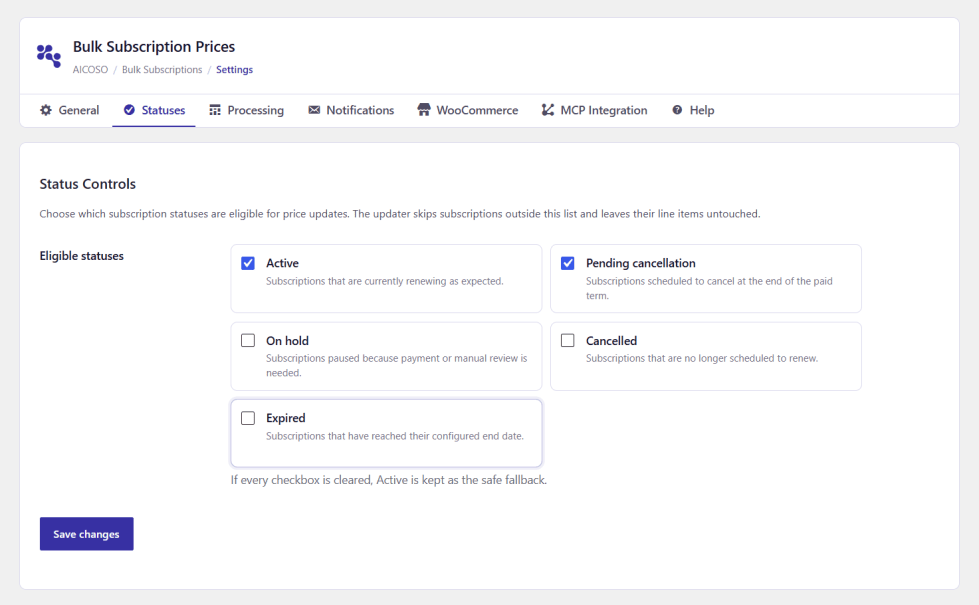
Not every subscription in your store should necessarily receive price changes. For instance, you likely do not want to change pricing on subscriptions that customers have already cancelled or that have expired.
The Statuses tab lets you choose exactly which subscription statuses are allowed to receive price updates:
- Eligible statuses:
- Active: Subscriptions that are currently active and renewing on schedule. (Recommended to keep enabled)
- Pending cancellation: Subscriptions where a customer asked to cancel, but the subscription is still running until the end of their pre-paid period.
- On hold: Subscriptions temporarily paused (e.g. while waiting for customer payment or manual review).
- Cancelled: Subscriptions that have officially ended and will not renew.
- Expired: Subscriptions that have finished their full duration.
Click Save changes to update your eligible statuses.
3. Processing Settings
↑ Back to topLocation: Bulk Subscription > setting > Processing
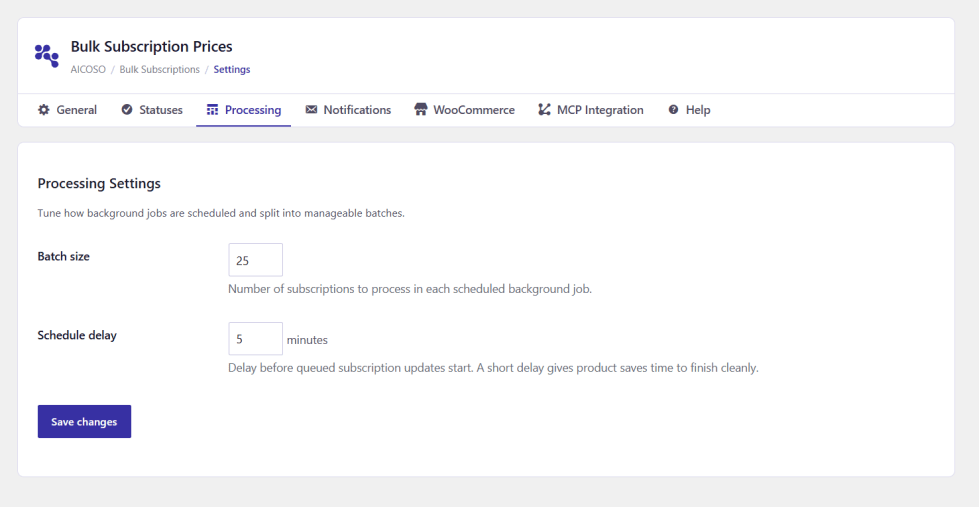
If your store has hundreds or thousands of subscribers, updating them all at the exact second you save a product could overload your web server.
The Processing tab lets you fine-tune safe background processing so updates happen smoothly and invisibly without slowing down your store for customers.
- Batch size:
- What it is: The number of subscriptions processed in each background run.
- Allowed range: Between 10 and 200 (in increments of 10).
- Default / Recommended: 50 subscriptions per batch.
- Schedule delay:
- What it is: How many minutes the plugin waits before beginning the update job after you save a product.
- Allowed range: Between 1 and 60 minutes.
- Default / Recommended: 3 minutes.
Click Save changes to apply your processing settings.
4. Notification Settings
↑ Back to topLocation: Bulk Subscription > setting > Notification
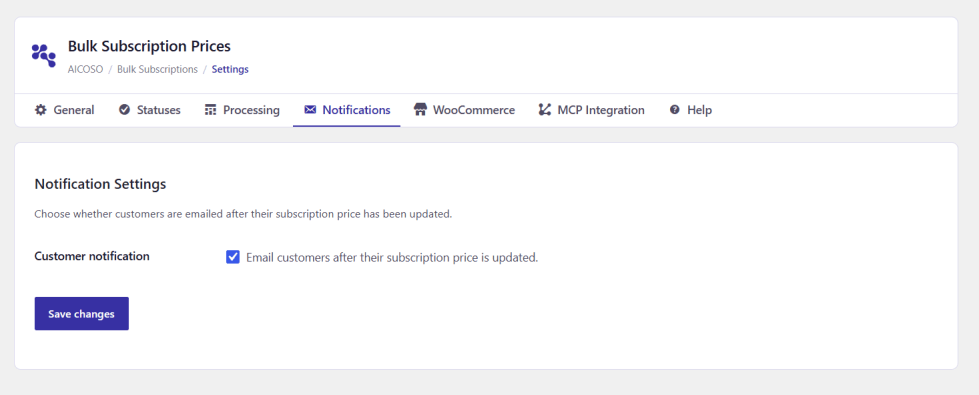
When a subscription price changes, you can choose whether or not customers receive an automatic confirmation email.
- Customer notification:
- Option: Check the box for Email customers after their subscription price is updated.
- How it works: When enabled, Woocommerce automatically sends an email to the subscriber as soon as their subscription totals have been updated and saved.
Customizing the email: You can change the subject line, email heading, and design at any time in WooCommerce > Settings > Emails under the Updated Subscription email template.
Click Save changes to save your notification preference.
5. WooCommerce Reference Tab
↑ Back to topLocation: Bulk Subscription > setting > WooCommerce
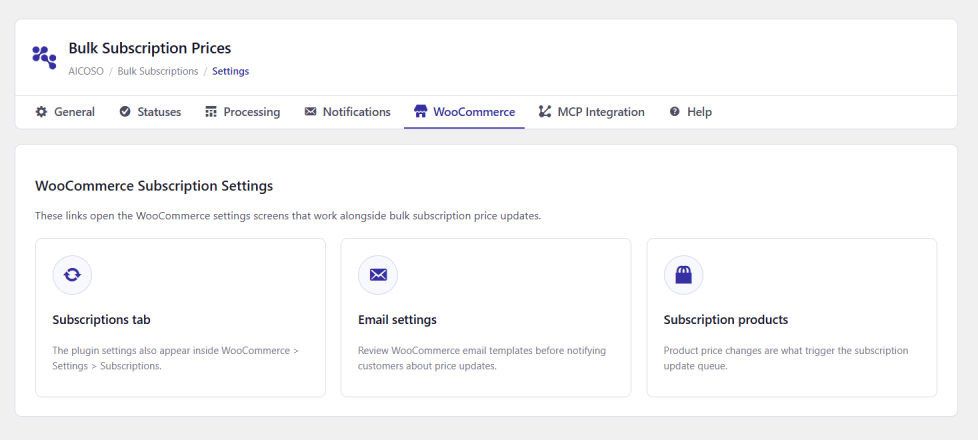
The WooCommerce tab acts as a convenient control hub that links directly to related WooCommerce areas:
- Subscriptions tab:
- Opens WooCommerce > Settings > Subscriptions.
- Useful for managing standard subscription settings like renewal retry rules, payment gateways, and subscription switching.
- Email settings:
- Opens WooCommerce > Settings > Emails.
- Allows you to quickly review and edit your store’s customer notification templates.
- Subscription products:
- Opens your product list (Products > All Products).
- Takes you straight to your catalog where you can edit subscription products and update prices.
6. MCP Integration (Connect with AI Tools)
↑ Back to topLocation: Bulk Subscription > setting > MCP Integration
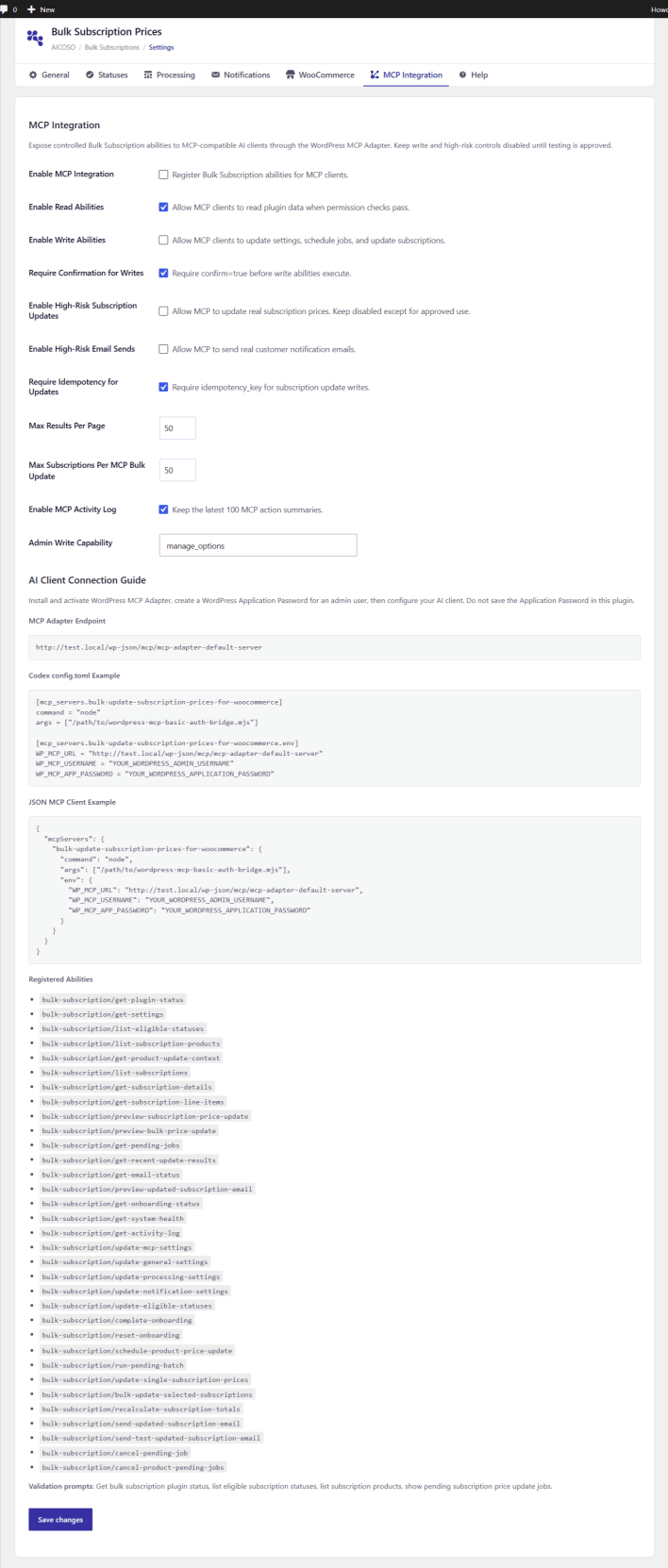
The MCP Integration tab allows you to connect this plugin to AI tools and coding assistants (like Claude, Cursor, Antigravity, or ChatGPT) using the open Model Context Protocol (MCP) standard.
What is MCP?
Model Context Protocol (MCP) is an open standard that lets AI assistants safely talk to software tools and databases. By connecting MCP to your store, your AI assistant can understand your subscription products, inspect pending price update jobs, preview price changes, and even trigger updates all directly through simple chat prompts.
How It Works
- The plugin exposes secure abilities through the official WordPress MCP Adapter.
- Your AI client connects using your store’s secure REST API endpoint.
- Every request is verified using a WordPress Application Password from an administrator account.
- High-risk actions (such as actually modifying live subscription prices or sending real customer emails) have strict built-in safety gates that remain disabled by default.
MCP Settings Reference
| Setting | What it Does | Recommended Value |
| Enable MCP Integration | The master switch. Turns on MCP abilities for AI clients. | Checked (if using AI tools) |
| Enable Read Abilities | Allows AI to read plugin status, products, subscriptions, and job queues. Completely safe. | Checked |
| Enable Write Abilities | Allows AI to make changes (update settings, schedule jobs). | Keep unchecked until tested |
| Require Confirmation for Writes | Forces the AI client to ask you for explicit confirmation (confirm=true) before making any change. | Checked |
| Enable High-Risk Subscription Updates | Safety gate allowing AI to change real customer subscription prices. | Keep unchecked until ready |
| Enable High-Risk Email Sends | Safety gate allowing AI to send real emails to your customers. | Keep unchecked |
| Require Idempotency for Updates | Requires a unique request key so duplicate requests cannot accidentally apply a price change twice. | Checked |
| Max Results Per Page | Limits how many products or subscriptions the AI can fetch in a single request (1 to 100). | 50 |
| Max Subscriptions Per MCP Bulk Update | The maximum number of subscriptions an AI tool can update at one time (1 to 200). | 50 |
| Enable MCP Activity Log | Stores an audit log of the last 100 actions taken via MCP for your peace of mind. | Checked |
| Admin Write Capability | The WordPress permission required to execute write actions. Defaults to manage_options. | manage_options |
How to Set Up MCP (Step-by-Step)
Setting up an AI client with your store takes just 4 simple steps:
Step 1: Install WordPress MCP Adapter
Ensure you have the free WordPress MCP Adapter plugin installed and activated on your WordPress site.
Step 2: Create a WordPress Application Password
- Go to Users > Profile in your WordPress dashboard.
- Scroll down to the Application Passwords section.
- In the New Application Password Name field, enter a name (e.g., AI Assistant).
- Click Add New Application Password.
- Copy the generated password. (Note: Never share this password publicly, and never paste it into public forums).
Step 3: Enable MCP in this Plugin
- Go to Bulk Subscriptions > Settings > MCP Integration.
- Check the box for Enable MCP Integration.
- Check Enable Read Abilities.
- Click Save changes.
Step 4: Configure Your AI Client
Copy the configuration snippet shown on your MCP Integration settings page and add it to your AI client’s configuration file.
For JSON-based MCP Clients (like Claude Desktop, Cursor, or Antigravity):
{
  "mcpServers": {
    "bulk-update-subscription-prices-for-woocommerce": {
      "command": "node",
      "args": ["/path/to/wordpress-mcp-basic-auth-bridge.mjs"],
      "env": {
        "WP_MCP_URL": "https://yourstore.com/wp-json/mcp/mcp-adapter-default-server",
        "WP_MCP_USERNAME": "YOUR_WORDPRESS_ADMIN_USERNAME",
        "WP_MCP_APP_PASSWORD": "YOUR_WORDPRESS_APPLICATION_PASSWORD"
      }
    }
  }
}
For TOML / Codex Clients:
[mcp_servers.bulk-update-subscription-prices-for-woocommerce]
command = "node"
args = ["/path/to/wordpress-mcp-basic-auth-bridge.mjs"]

[mcp_servers.bulk-update-subscription-prices-for-woocommerce.env]
WP_MCP_URL = "https://yourstore.com/wp-json/mcp/mcp-adapter-default-server"
WP_MCP_USERNAME = "YOUR_WORDPRESS_ADMIN_USERNAME"
WP_MCP_APP_PASSWORD = "YOUR_WORDPRESS_APPLICATION_PASSWORD"
How to Use MCP (Example Prompts)
Once connected, you can ask your AI assistant questions in natural language:
- Check store & plugin status:
- What is the current status and health of the Bulk Subscription plugin?
- Inspect products:
- List all my active subscription products and their current prices.
- Check pending jobs:
- Are there any subscription price update jobs currently scheduled or processing?
- Preview a price update:
- Show me a preview of what will happen if I change product ID #105 from $19 to $25.
- Review activity history:
- Show the last 10 actions in the MCP activity log.
Because safety guardrails are turned on default, you can freely inspect data and preview updates without any danger of accidental price modifications.
7. Help Tab (How Bulk Updates Work)
↑ Back to topLocation: Bulk Subscription > setting > Help
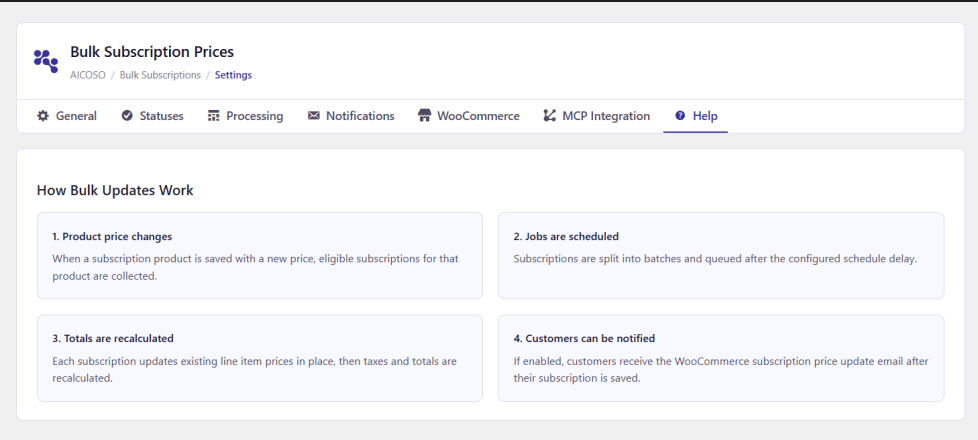
The Help tab provides a quick reference visual summary of how the plugin handles price updates behind the scenes:
- Product price changes: When a subscription product is saved with a new price, all eligible existing subscriptions for that product are automatically gathered.
- Jobs are scheduled: The subscriptions are split into manageable batches based on your batch size and queued to begin after your schedule delay.
- Totals are recalculated: Each subscription has its line item prices updated in place (preserving quantities, discounts, and item notes). Then, taxes and totals are automatically recalculated.
- Customers can be notified: If customer notifications are turned on, the subscriber receives the updated subscription confirmation email once their new price is saved.
Bulk Update Center Workflow
↑ Back to topLocation: Bulk Subscriptions > Bulk Update Center
The Bulk Update Center is your central control dashboard for updating subscription prices across multiple customers with complete safety, financial previews, and background progress tracking.
Step-by-Step Update Workflow
↑ Back to topThe Bulk Update Center guides you through a safe 4-stage process:
- Search: Select your product, filter subscribers, and set the new price.
- Preview: Review the financial impact and payment gateway readiness before saving.
- Confirm: Verify your update summary and safety checks.
- Results: Monitor live background processing with cancel and retry recovery tools.
Stage 1: Search and Filter (Define Your Scope)
In this stage, you choose which subscription product to update and select your targeting criteria.
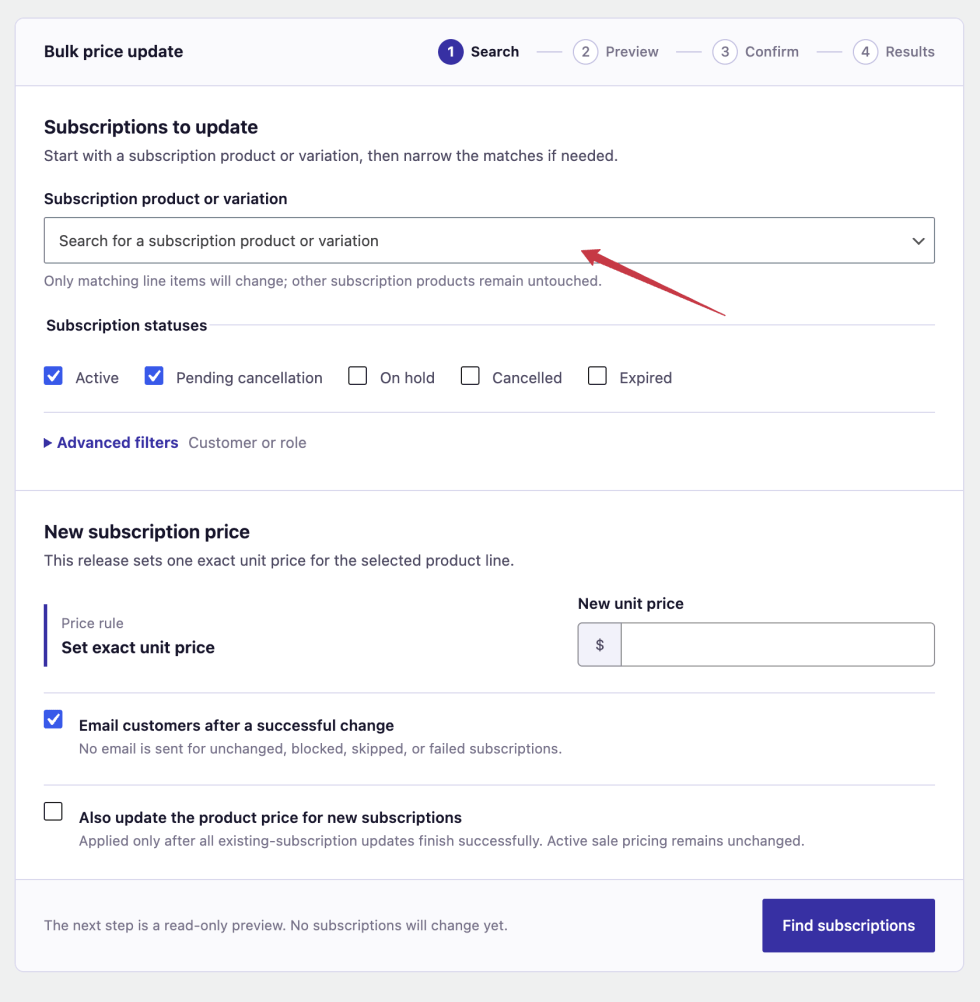
Settings and Toggle Controls (True vs. False Behavior)
| Field / Setting | What it Does | If Enabled (Checked / True) | If Disabled (Unchecked / False) |
| Subscription product or variation (Required) | Selects the product line whose price will change. | Only line items matching this exact product or variation will receive the new price. Other products in multi-item subscriptions remain untouched. | You must select a product before moving forward. |
| Subscription statuses (Active, Pending cancellation, On hold, Cancelled, Expired) | Determines which customer subscription statuses qualify for the update. | Subscriptions matching any checked status will be included in the update. (Recommended: Active, Pending cancellation, On hold) | Subscriptions with unchecked statuses are completely skipped and protected; their prices will not change. |
| Advanced filter: Customer (Optional) | Targets subscriptions belonging to a specific customer. | Updates only subscriptions belonging to the selected customer. | Leaving this as “Any customer” updates matching subscriptions across all your subscribers. |
| Advanced filter: Customer role (Optional) | Targets subscriptions belonging to users with a specific WordPress role. | Updates only subscriptions where the customer has the chosen role (e.g. Subscriber, Customer, VIP). | Leaving this as “Any role” updates matching subscriptions regardless of user role. |
| New unit price (Required) | The new regular recurring price per unit. | Sets this exact price as the new recurring rate on each matching line item. | Cannot be left empty or negative. |
| Email customers after a successful change | Controls whether customers receive an automated email confirmation. | WooCommerce automatically sends an email to subscribers whose prices were successfully updated. | Quiet update. No emails are sent to customers (ideal for back-office adjustments or pre-announced price increases). |
| Also update the product price for new subscriptions | Controls whether your main store product catalog also updates to this new price. | After existing subscriptions finish updating, the plugin automatically changes the product’s regular catalog price so new customers also pay the new price. | Only existing subscriptions are updated; your storefront product price remains at its current catalog price. |
Once your options are configured, click Find subscriptions to generate a read-only preview.
Stage 2: Preview (Review Proposed Changes)
↑ Back to topStage 2 generates a complete financial preview. No changes are made to your database in this step.
What You Can See in the Preview:
- Metric Summary Cards:
- Matching: Total number of subscriptions matching your product and filters.
- Ready: Subscriptions that are 100% ready to update immediately.
- Warnings: Subscriptions where the payment gateway requires review (e.g. manual payment or specific gateway rules).
- Unchanged: Subscriptions that already have this exact price.
- Blocked: Subscriptions that cannot be updated (e.g. gateway does not support recurring price changes).
- Price Filter Bar: Allows you to filter the preview list by a minimum or maximum existing unit price.
- Subscription Breakdown Table:
- Subscription ID & Customer: Direct links to the customer record and subscription.
- Unit price: Shows old price vs. new proposed price with percentage difference (e.g., ₹20.00 → ₹25.00 (+25.0%)).
- Subscription total: Shows the old recurring total vs. the new recurring total.
- Next renewal date: Shows when the customer will next be billed at the new price.
- Gateway & Readiness: Shows the payment method (e.g., Cash on delivery, Stripe) and readiness badge.
- Catalog Price Notice: Summarizes whether the product catalog price will also change once processing completes.
If everything looks correct, click Continue to confirmation. To adjust your filters, click Edit scope.
Stage 3: Confirm (Final Safety Review)
↑ Back to topStage 3 provides an explicit summary of the update before any data is written to your database.
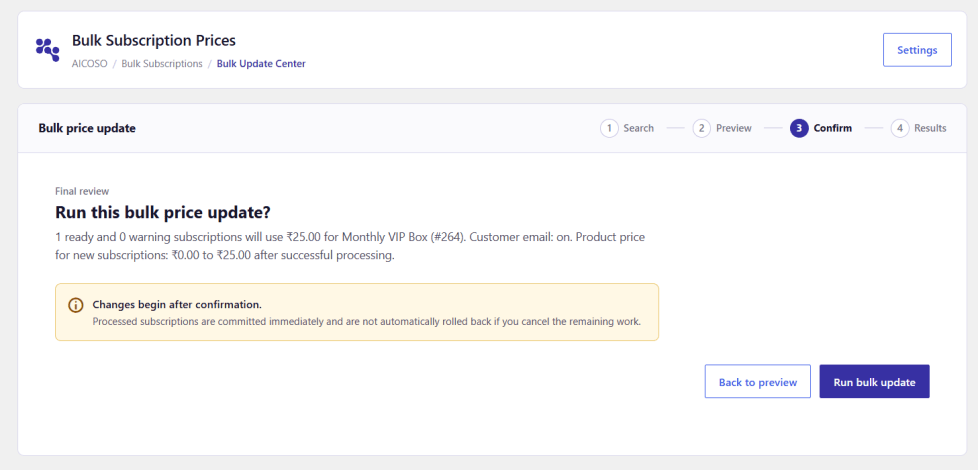
Safety Protections in This Stage:
- Explicit Summary: Details the total number of ready subscriptions, product name, new price amount, customer email setting, and catalog price behavior.
- Gateway Acknowledgment: If any subscriptions carry gateway warnings, a checkbox appears requiring your confirmation before starting.
- Immediate Commitment Notice: Reminds you that subscriptions are updated in small batches; completed items are committed immediately.
To proceed, click Run bulk update. To go back without changing anything, click Back to preview.
Stage 4: Results (Live Background Processing)
↑ Back to topOnce confirmed, the plugin initiates background processing so your server stays fast and responsive.
- Processing in the Background: The update runs in queued batches. You can monitor progress in real time via the side rail or continue working in other tabs while it processes.
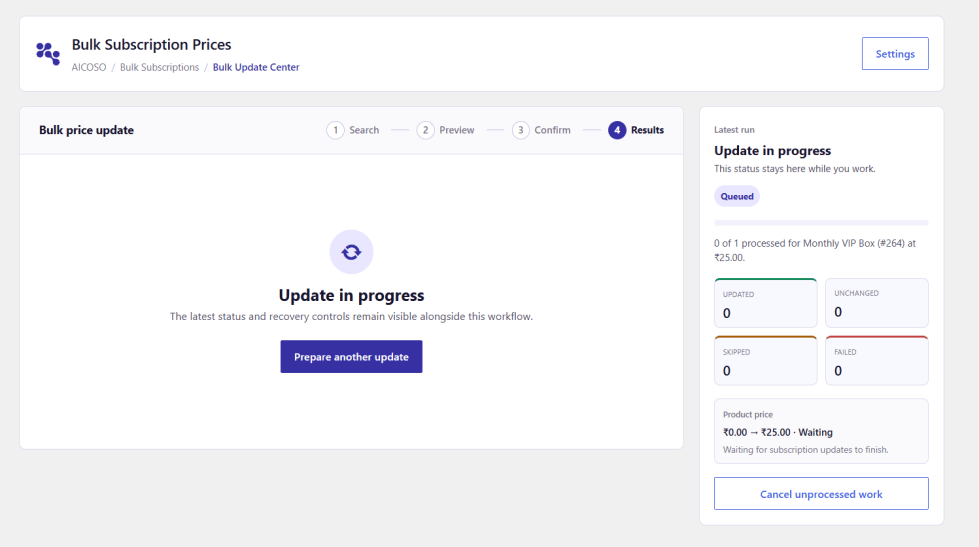
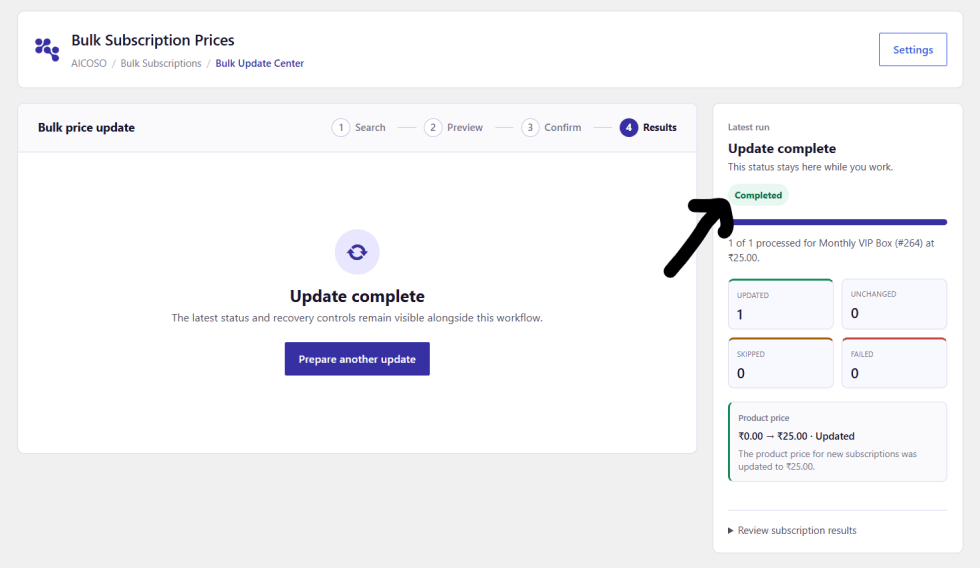
- Update Complete: Once all items are processed, the status badge changes to
- Completed with full metrics on updated, skipped, and failed items.
Before and After the Price Change
↑ Back to topHere is how subscriptions and orders look before and after running a bulk update:
1. Before the Price Change (Original State)
↑ Back to topBefore running an update, customer subscriptions are active at their original sign-up price point.
- Storefront Checkout: The customer originally signed up for the subscription at the existing regular price (for example, ₹20.00 / month).
- Customer Account (Before Update): When viewing their subscription under My Account > Subscriptions, the recurring total reflects the original price of ₹20.00 / month.
2. After the Price Change (Updated State)
↑ Back to topOnce the update finishes, the new price takes effect for upcoming renewals while preserving historical accounting records.
- WooCommerce Subscriptions List Table: Under WooCommerce > Subscriptions, your subscriptions now reflect the new recurring total (for example, ₹25.00 / month).
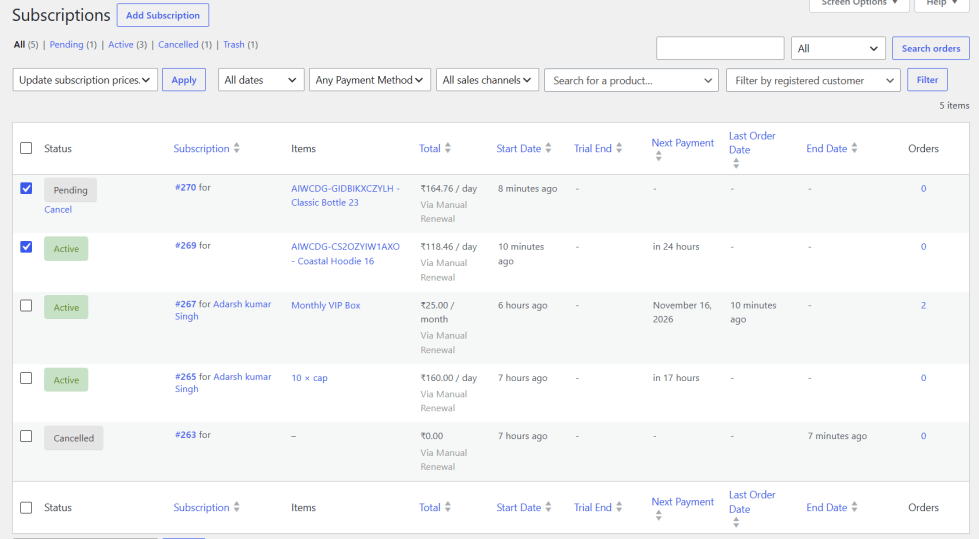
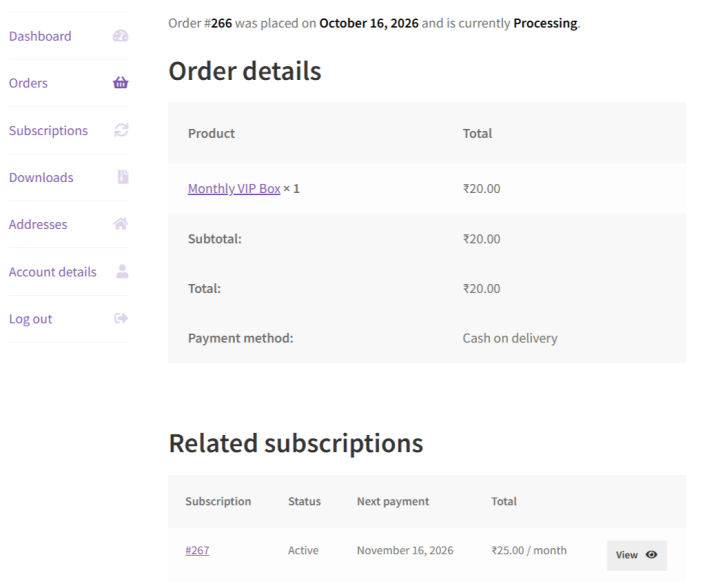
- Historical Order Integrity (Past Orders Stay Untouched): The customer’s past orders (such as the initial signup order #266) remain completely untouched at the original purchase amount (₹20.00). The plugin updates future recurring billing for Subscription #267 (₹25.00 / month), ensuring past financial and tax reports stay 100% accurate.
Manual Single Subscription Update (With Live Preview & Instant Undo)
↑ Back to topWhen you need to adjust pricing for an individual customer (such as honoring a custom discount, VIP upgrade, or fixing an account error), you can edit the recurring price directly on that subscription’s edit page.
Location: WooCommerce > Subscriptions > [Click Any Subscription]
Step-by-Step Guide:
- Locate the Update Tool: Open the subscription edit screen. In the right sidebar (or below the order items), you will find the Subscription Price Update metabox.
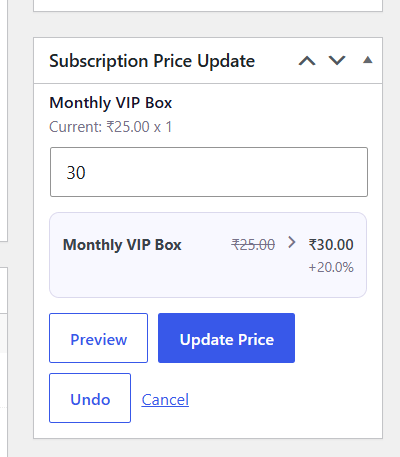
- Review Current Rates: Each product line item displays its current unit price and quantity (for example: Monthly VIP Box – Current: ₹25.00 x 1).
- Enter the New Unit Price: Type your desired new price into the input field (for example, change 25 to 30).
- Preview the Change: Click the Preview button. A highlighted card shows the proposed change, including percentage difference and recalculated totals, before anything touches your database.
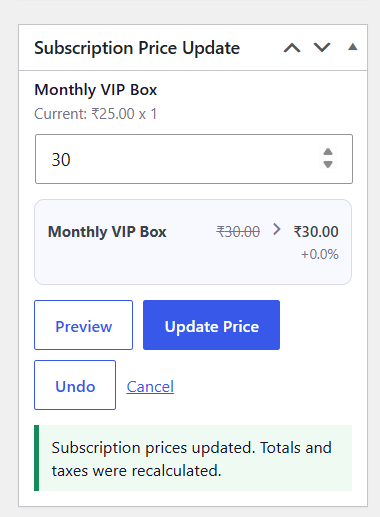
- Apply the Update: Click the blue Update Price button.
- The plugin recalculates line item totals, taxes, and order totals in place.
- A green confirmation banner appears: “Subscription prices updated. Totals and taxes were recalculated.”
- Past order history remains untouched.
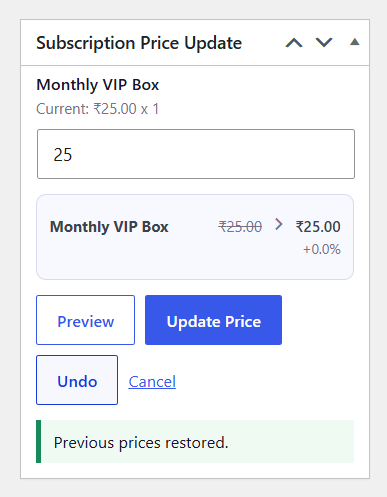
- Instant One-Click Undo: If you made a typo or changed your mind, click the Undo button.
- The previous prices are immediately restored.
- A confirmation notice confirms: “Previous prices restored.”
- An internal note is automatically logged recording both the update and the reversal for audit compliance.
Subscription List Table Bulk Action (Product-Aware Dialog)
↑ Back to topWhen you want to update multiple subscriptions simultaneously without navigating to the main Bulk Update Center, you can do it directly from the standard WooCommerce Subscriptions list table.
Location: WooCommerce > Subscriptions
Step-by-Step Guide:
- Select Target Subscriptions: Go to WooCommerce > Subscriptions. Tick the checkboxes next to the subscriptions you want to update.
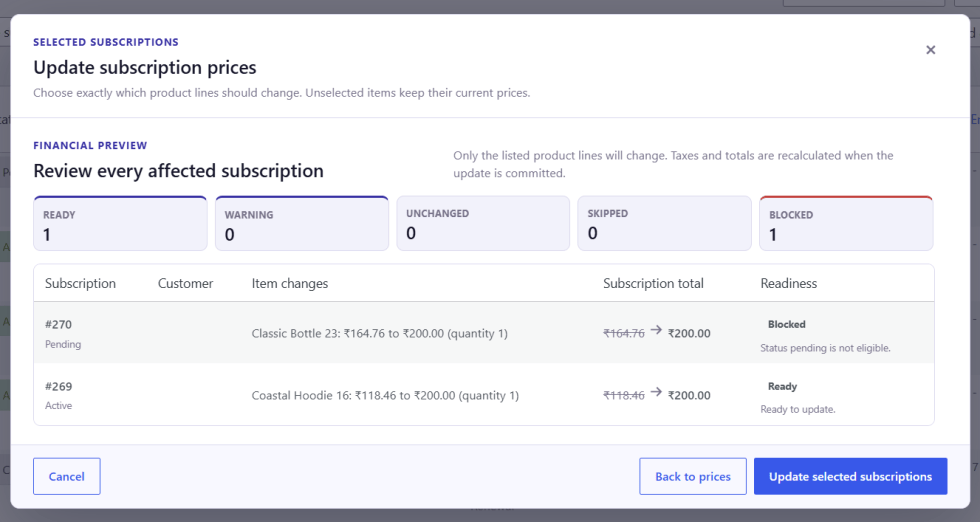
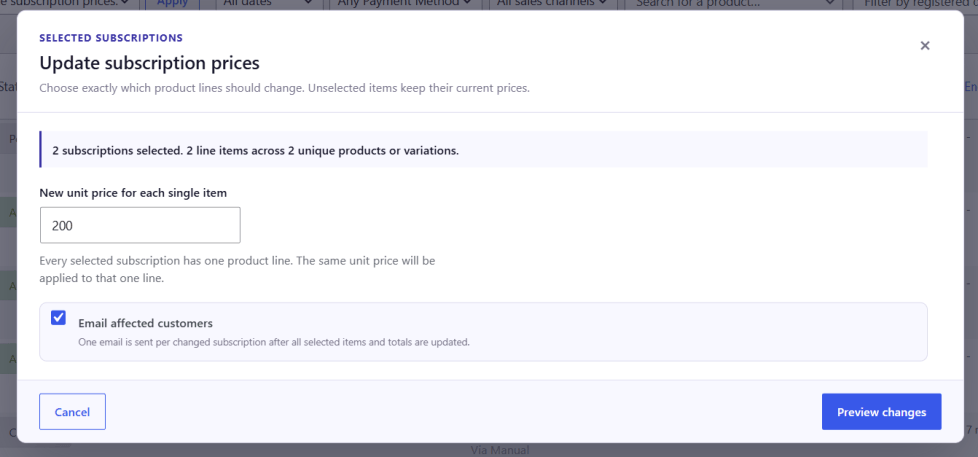
- Open the Product-Aware Modal: Click Apply. A modal dialog titled “Update subscription prices” appears over the screen.
- Set the New Unit Price:
- Enter the new price per unit (for example: 200).
- Choose whether to notify subscribers by checking or unchecking Email affected customers.
- Review Pre-Update Status & Safety Validation:
Click Preview changes. The modal displays an itemized readiness report with status validation - [!IMPORTANT]
Why Subscriptions in “Pending” Status Cannot Have Their Price Changed:
Subscriptions in Pending status represent orders that have not completed initial checkout or payment authorization. By design and safety policy, the plugin blocks price changes on pending subscriptions because:
- Customer Consent: Modifying recurring prices before the initial checkout contract is confirmed would result in charging customers an amount different from what they saw during checkout.
- Financial Safety: Eligible statuses are controlled under Bulk Subscriptions > Settings > Statuses (by default, only Active and Pending Cancellation are allowed). Ineligible statuses like Pending, On Hold, Cancelled, or Expired are automatically blocked from accidental bulk price modifications.
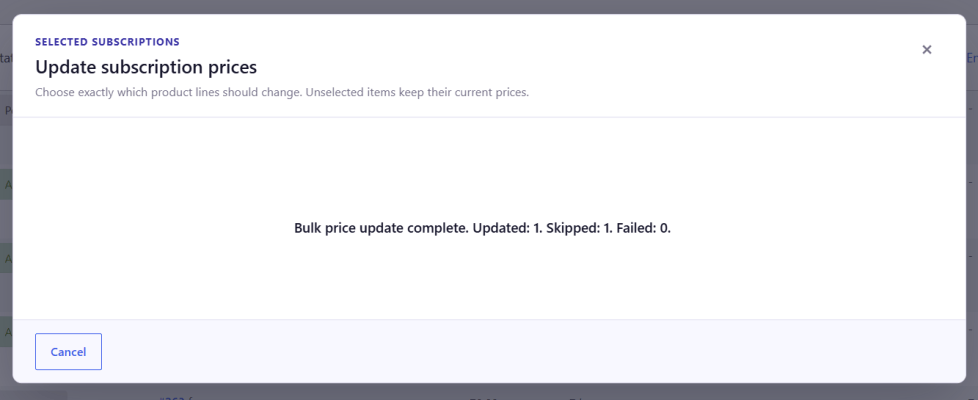
- Run the Update: Click Update selected subscriptions.
- The plugin updates eligible subscriptions in small, safe chunks with a live progress indicator.
- Ineligible subscriptions are safely skipped without halting the batch.
Automatic Updates on Product Price Change (Catalog Sync)
↑ Back to topWhen you change the retail price of a subscription product in your WooCommerce store catalog, this feature automatically queues and updates all matching existing subscriptions in the background.
Location: Products > All Products > Edit Product
Step-by-Step Guide:
- Configure Processing Controls (One-Time Setup):
- Go to Bulk Subscriptions > Settings > Processing.
- Set your preferred Update Delay (Minutes) (default is 3 minutes; you can set 1 minute for faster testing).
- Set your Batch Size (default is 50 subscriptions per background job).
- Update the Catalog Product Price:
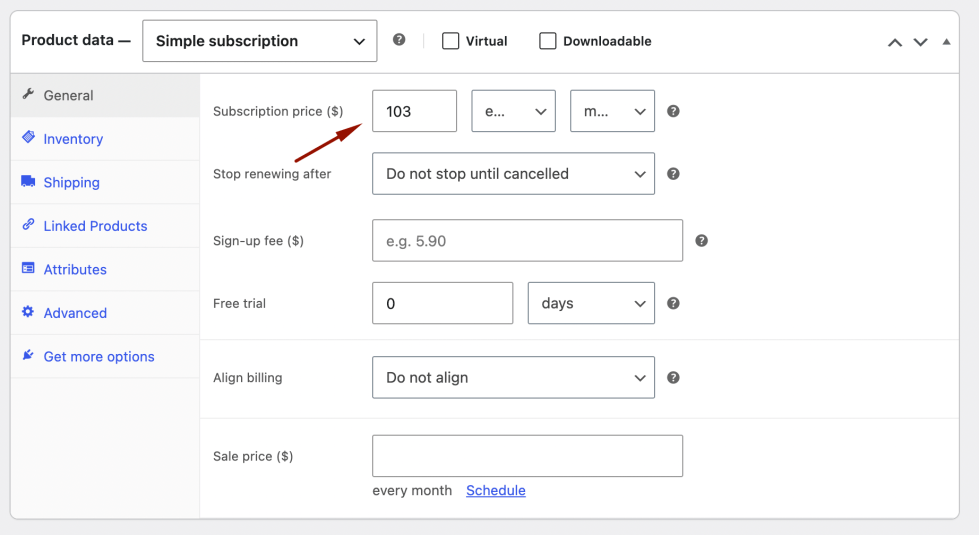
- Go to Products > All Products and edit your subscription product (for example, Monthly VIP Box or Simple Product with subscriptions).
- In the Product Data panel under the General tab, change the Regular price (₹) (for example, change from 25 to 50).
- Click the blue Update button on the right to save the product.
- How the Automatic Background Queue Works:
- The plugin listens for product and variation price saves.
- Rather than immediately updating thousands of subscriptions while the product saves (which would cause server timeouts or slow page loads), it schedules a deferred background action using WooCommerce’s native Action Scheduler (ep_subscriptions_bulk_update).
- The configurable delay (e.g., 3 minutes) ensures all variations, tax settings, and country-based pricing tiers finish saving first.
- Verifying or Triggering the Scheduled Action:
- To inspect or immediately run the queued task without waiting for the timer:
- Go to WooCommerce > Status > Scheduled Actions.
- Search for ep_subscriptions_bulk_update.
- Hover over the scheduled task and click Run.
- Open your matching subscriptions under WooCommerce > Subscriptions: every eligible subscription now reflects the new ₹50.00 recurring price!
- To inspect or immediately run the queued task without waiting for the timer:
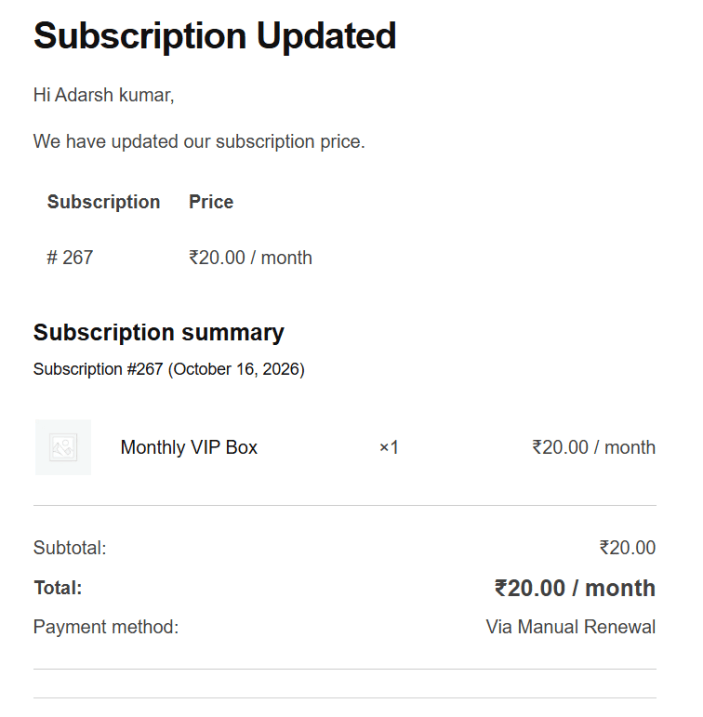
Customer Email Notification (“Updated Subscription”)
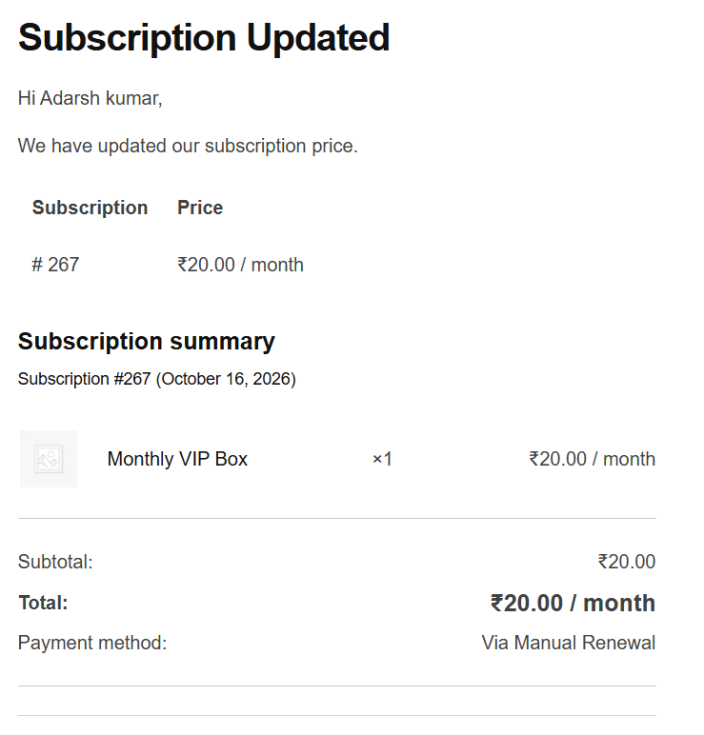
↑ Back to topTransparent communication prevents customer disputes. The plugin includes a dedicated, professionally formatted WooCommerce email that automatically notifies subscribers whenever their recurring price changes.
Location: WooCommerce > Settings > Emails > Updated Subscription & Bulk Subscriptions > Settings > Notifications
Step-by-Step Guide:
- Enable Notifications in Plugin Settings:
- Go to Bulk Subscriptions > Settings > Notifications.
- Ensure Customer Notifications is set to ON (checked).
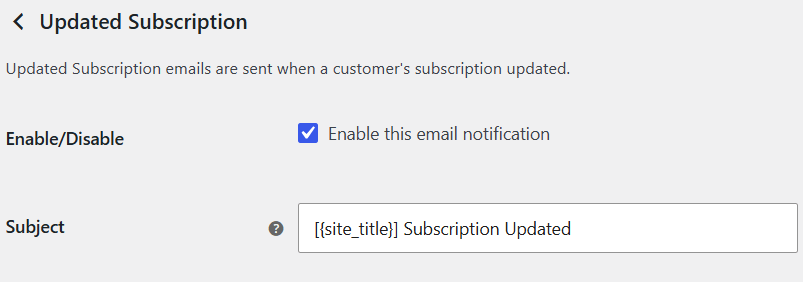
- Customize the WooCommerce Email Template:
- Go to WooCommerce > Settings > Emails.
- Find Updated Subscription in the list of email templates and click Manage
- Customer Email Delivery:
- Whenever a subscription price is updated (via the Bulk Update Center, List Bulk Action, or Single Update with notifications enabled), one clean email is sent per subscriber.
- If you are testing locally (e.g., using Local by flywheel), outgoing emails are captured in the Local app under Tools > Mail (Mailpit / MailHog).
Private Internal Audit Notes (Order History Log)
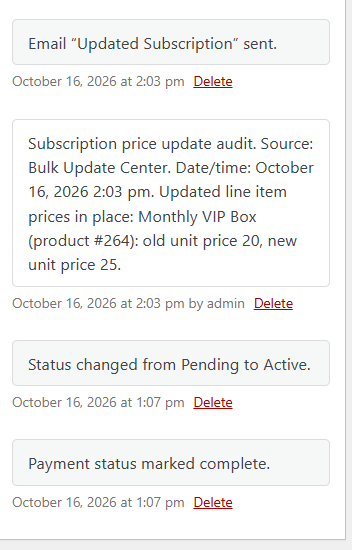
↑ Back to topFor compliance, accounting accuracy, and team transparency, every single price change generates an automated, detailed order note in WooCommerce.
Location: WooCommerce > Subscriptions > [Select Subscription] > Subscription Notes
Step-by-Step Guide:
- Open any subscription that underwent a price update.
- In the right-hand column, inspect the Subscription Notes stream.
Key Audit Details:
- Tracks the Exact Update Source: The note explicitly states whether the price was changed by the Bulk Update Center, Subscription edit page, Subscription list bulk action, or the Product price change queue.
- Precise Price Differential: Documents the exact old unit price and new unit price (e.g. old unit price 20, new unit price 25).
- 100% Private (Internal Note): The note is logged as a private store note. It is visible only to store managers and administrators in the WordPress dashboard. It is never displayed to the customer on their front-end “My Account” page.
Troubleshooting & Diagnostic Logs
↑ Back to topIf you encounter unexpected behavior during a price update, this section explains how to inspect diagnostic logs, check background queue progress, and resolve common scenarios quickly.
1. Viewing Plugin Activity Logs
↑ Back to topThe plugin logs all batch updates, skipped subscriptions, and error messages to standard WooCommerce log files.
Location: WooCommerce > Status > Logs
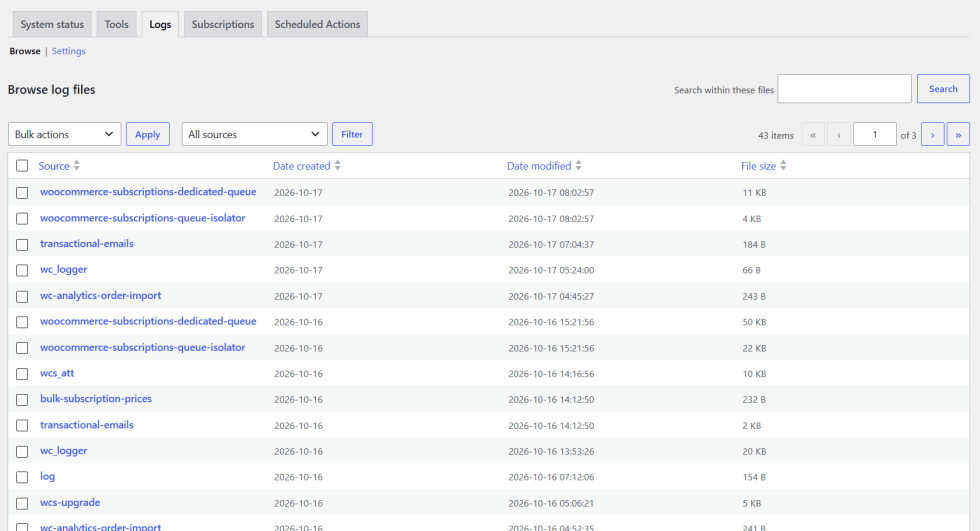
How to Check the Logs:
- Go to WooCommerce > status and click the Logs tab at the top.
- Click View to inspect the entries.
Understanding What Gets Logged:
- [info] Entries: Record when a batch of subscriptions is scheduled, started, or successfully finished, along with subscription IDs and new prices.
- [warning] Entries: Note subscriptions that were safely skipped (e.g. because their status is currently On Hold or Pending under your settings).
- [error] Entries: Record temporary gateway timeouts, database locks, or unexpected exceptions so you have an exact record of what happened and which subscription IDs were affected.
2. Monitoring Background Processing (Action Scheduler)
↑ Back to topWhenever an update runs across multiple subscriptions, the plugin uses WooCommerce’s built-in Action Scheduler to process them in the background. This ensures your store stays fast and prevents server timeouts.
Location: WooCommerce > Status > Scheduled Actions
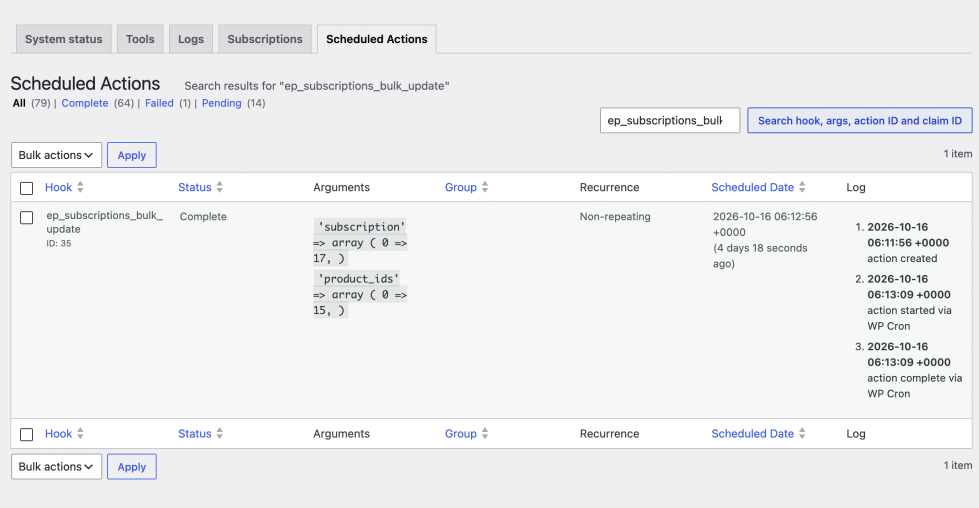
How to Check Scheduled Update Tasks:
- Go to WooCommerce > Status > Scheduled Actions.
- In the search box at the top right, type ep_subscriptions_bulk_update and click Search.
- You will see the scheduled actions along with their current status:
- Pending: The update job is waiting for the configured schedule delay (e.g. 3 minutes) or the next WP-Cron cycle.
- In-Progress: The job is actively processing a batch of subscriptions right now.
- Complete: The batch has finished updating successfully.
- Failed: The server encountered an unexpected PHP timeout or memory limit (you can hover over it and click Run to retry).
3. Common Issues and How to Solve Them
↑ Back to topA. Existing subscriptions did not update after saving a new product price
- Check the Enable Toggle: Go to Bulk Subscriptions > Settings > General and make sure Enable Price Updates is checked (ON).
- Check the Schedule Delay: By default, the plugin waits 3 minutes after you click “Update” on a product before running the batch. This buffer lets you finish editing before updates begin. You can lower this delay under Bulk Subscriptions > Settings > Processing.
- Check the Subscription Status: Only statuses checked under Bulk Subscriptions > Settings > Statuses (e.g. Active) will update. If the customer’s subscription is Pending, On Hold, or Cancelled, it is safely skipped by default.
- Check WP-Cron Activity: On low-traffic stores, WordPress background tasks run only when someone visits the site. Visiting any page on your store will trigger pending tasks.
B. Subscriptions show as “Blocked” or “Skipped” in the preview
- Eligible Status Protection: A subscription is marked Blocked if its status is not selected under Bulk Subscriptions > Settings > Statuses. For instance, subscriptions in Pending status (awaiting initial payment) are blocked by default to protect customer contracts.
- No Price Difference: Subscriptions that already carry the requested price are marked as Unchanged or Skipped to avoid unnecessary database writes and duplicate email alerts.
C. An update was interrupted or frozen midway
- If your internet drops or your server restarts while an update is in progress, navigate back to Bulk Subscriptions > Bulk Update Center.
- Cancel Unprocessed Work: Stops all queued batches so remaining subscriptions stay untouched.
- Retry Failed Work: Re-runs only the subscriptions that failed to complete, without touching or duplicating already-updated subscriptions.
D. Customers did not receive an update email
- Verify Plugin Notifications: Confirm that Customer Notifications is checked under Bulk Subscriptions > Settings > Notifications.
- Verify WooCommerce Email Settings: Go to WooCommerce > Settings > Emails > Updated Subscription and confirm that Enable this email notification is checked.
- Check the Bulk Update Toggle: During a Bulk Update Center or List Bulk action, verify that the Email affected customers checkbox was ticked.
- Local Staging Environments: If you are testing on Local by Flywheel, WordPress does not send real outbound emails to the internet. Outgoing messages are captured in the Local app under Tools > Mail (Mailpit/MailHog).
4. Getting Diagnostic Help and Support
↑ Back to topIf you ever need assistance or run into a persistent issue:
- Go to Bulk Subscriptions > Settings > Help.
- Locate the System Status & Diagnostics panel.
- Click Copy System Report to copy your environment details (WordPress version, WooCommerce Subscriptions version, PHP version, and active plugins).
- Include the recent log entries from WooCommerce > Status > Logs > bulk-subscription-prices-*.log when submitting a support ticket.
Frequently Asked Questions (FAQ)
↑ Back to top1. Why are some subscriptions marked “Blocked” or “Skipped”?
↑ Back to topSubscriptions are blocked or skipped if their status is not included in your eligible statuses under Bulk Subscriptions > Settings > Statuses. By default, only Active and Pending Cancellation subscriptions are eligible. Subscriptions in Pending, On Hold, Cancelled, or Expired states are automatically protected from bulk modifications to prevent unauthorized price changes.
2. Can I update prices for subscriptions with custom quantities or discounts?
↑ Back to topYes. The plugin updates unit prices in place. If a customer subscribes to 3 units at a new unit price of ₹25, their new recurring subtotal correctly calculates to 3 x ₹25 = ₹75.00. All associated line-item taxes and totals are automatically recomputed using your WooCommerce tax rules.
3. Will updating subscription prices alter my past accounting or sales reports?
↑ Back to topNo. The plugin modifies only the future recurring billing structure on the subscription object. Past orders and renewal orders (such as initial signup orders or previous month invoices) remain completely untouched at their historical transaction amounts.
4. How can I undo a price update if I entered the wrong amount?
↑ Back to top- On Individual Subscriptions: Use the Undo button in the Subscription Price Update metabox right after the update to restore previous rates instantly.
- In Bulk Update Center: If you notice an error while an update is running, click Cancel unprocessed work immediately. To revert already-processed subscriptions, run a new update targeting that product with the original price.
5. Can I test price updates safely without notifying real customers?
↑ Back to topYes. Simply ensure the Email affected customers toggle is turned OFF in the Bulk Update Center or List Bulk Action dialog. If testing in a staging or local environment (such as Local by Flywheel), outgoing emails are safely intercepted by built-in local mail catchers (Mailpit/MailHog).

