Overview
↑ Back to topEU VAT Number for WooCommerce allows you to:
- Collect and validate EU VAT numbers at checkout.
- Exempt businesses from paying value-added tax (VAT), if necessary.
- Collect and validate user location in B2C transactions.
- Handle EU tax requirements for digital goods.
This documentation covers how to set up tax rates in WooCommerce, as well as how the platform handles taxes/VAT/GST based on these settings — not when or what to charge.
We are not tax professionals; our advice only applies to how to use our software. For advice on what — or when — to charge tax/VAT/GST etc., we recommend consulting a tax professional or accountant.
Every business is unique, and we are unable to cover all possibilities here.
Requirements
↑ Back to top- WooCommerce version 10.9 or higher
- WordPress version 6.9 or higher
- PHP version 7.4 or higher
Installation
↑ Back to topTo start using a product from WooCommerce.com, you can use the “Add to store” functionality on the order confirmation page or the My subscriptions section in your account.
- Navigate to My subscriptions.
- Find the Add to store button next to the product you’re planning to install.
- Follow the instructions on the screen, and the product will be automatically added to your store.
Alternative options and more information at:
Managing WooCommerce.com subscriptions.

Setup and configuration
↑ Back to top- From your store’s WP Admin dashboard, navigate to WooCommerce > Settings > Tax and scroll down the page.
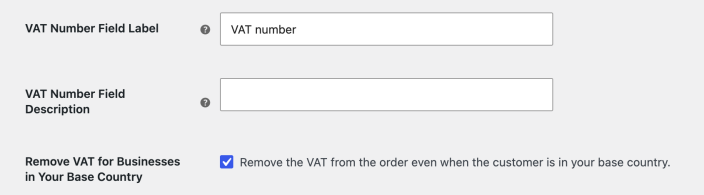
EU VAT number handling
↑ Back to top- VAT Number Field Label: Shown to customers at checkout. The default is VAT NUMBER.
- VAT Number Field Description: Shown below the VAT field on the checkout page when the field is in focus. The default is blank.
- Remove VAT for Businesses in Your Base Country: If activated, businesses with a valid number in your base country will be VAT exempt.
- Failed Validation Handling: Tell the extension what to do if a VAT number fails validation:
- Reject the order and show an error
- Accept the order without removing VAT, or
- Accept the order and remove VAT as normal
- Enable B2B Transactions: This will force users to check out with a VAT number; useful for sites that transact purely from B2B.
EU VAT digital goods handling
↑ Back to top
EU VAT laws for digital goods changed on January 1, 2015, affecting B2C transactions only. VAT on digital goods must be calculated based on customer location, and store owners need to collect evidence of this via IP address and Billing Address.
There are two settings:
- Tax Classes for Digital Goods: Select which of your tax classes is specifically for digital goods. This ensures the user is charged tax based on their billing address and not the base or shipping address that physical good taxes are often calculated with.
- Collect and Validate Evidence: Tick the box to validate the user’s IP address against their billing country. If they mismatch, the user is required to confirm their address is correct (self-declaration). Data is stored in the order.
Save changes.
Set up EU VAT rates for digital goods
↑ Back to topFor EU VAT on digital goods, you need to input VAT rates into WooCommerce. Review our guide to set up EU VAT rates for digital products.
Manage VAT number
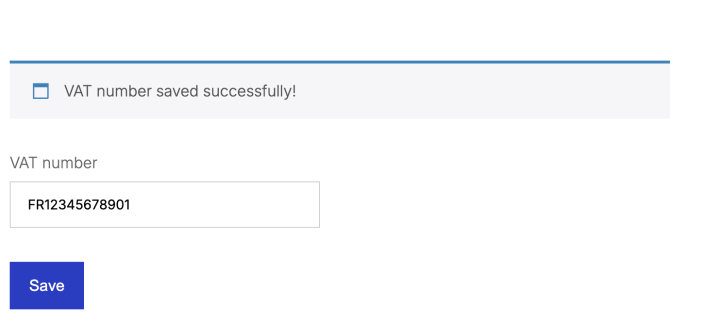
↑ Back to topCustomers can add their VAT number on their My account page. A saved VAT number populates automatically at checkout when your store uses the Checkout shortcode. EU VAT Number also works with the Cart and Checkout blocks, where customers can enter and validate their VAT number directly during checkout.
Checkout process
↑ Back to topThe checkout process varies depending on the type of customer. Customers located outside the EU will not see any VAT fields because they are out of scope for EU VAT.
EU-based B2B transactions
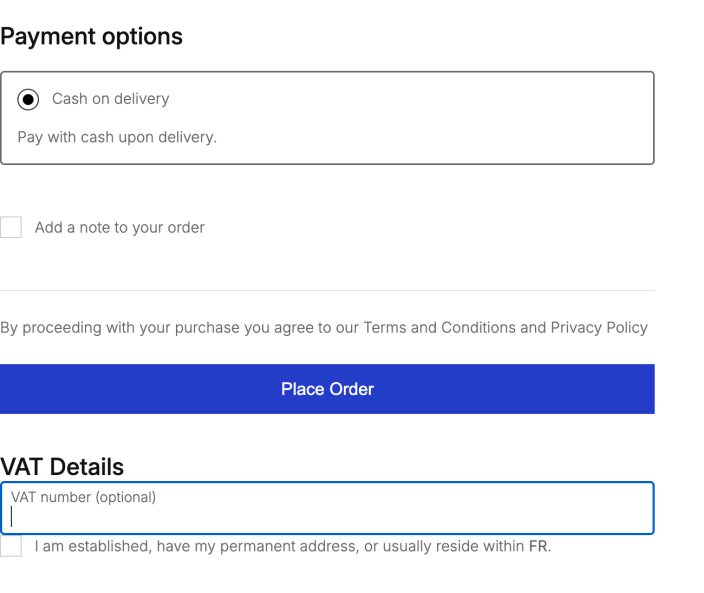
↑ Back to topBusinesses fill out the VAT Number field that appears in the billing section of checkout:
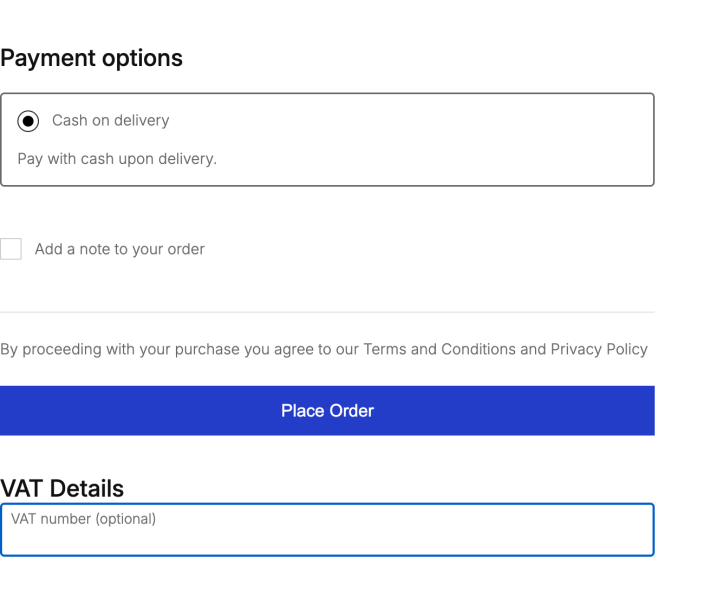
The standard WooCommerce checkout fields now include the EU VAT Number field at the bottom of the billing details. The field label and description can be edited in the settings. The description becomes visible when the field is focused.
The system then validates the number via our EU VAT Number Validation API, which takes data from VIES. If it matches, VAT exemption is done automatically. If it fails to validate, the user sees the following error:
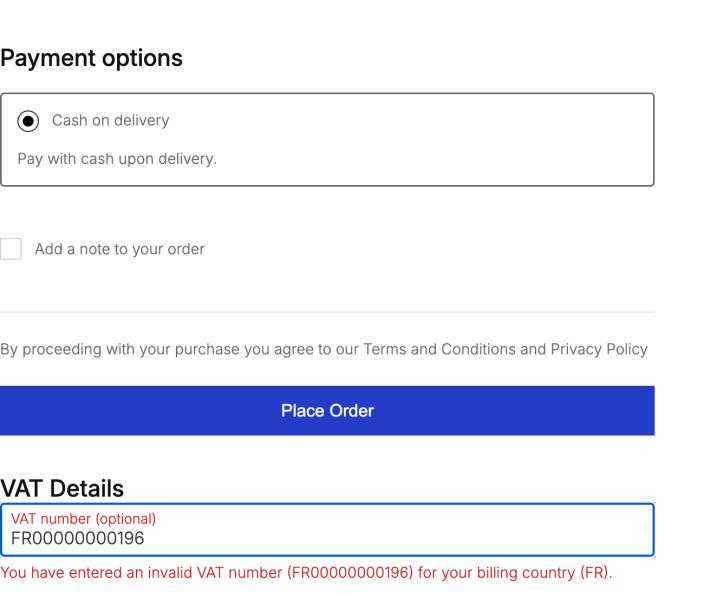
For UK-based numbers: If you encounter an “invalid VAT number” error, you may need to add the GB prefix and try again (example: GB00000000190).
EU-based B2C transactions
↑ Back to topIf you configured the extension to handle EU VAT digital goods for rules implemented from January 2015, the checkout process differs slightly if the cart contains a digital (non-shippable, virtual) product.
First, the IP address is validated against the billing country behind the scenes.
- If they match, it is stored as evidence of the user’s location.
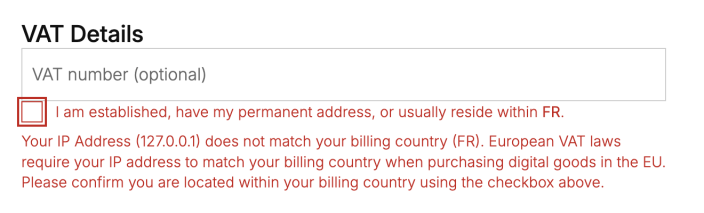
- If they do not match, a checkbox asking them to confirm their location appears.
This is required to place the order. Failure to confirm returns the following error:
Customers can view and modify their VAT number on their My account page. The VAT number country must match the country in the billing address.
Troubleshooting
↑ Back to topInvalid VAT number
↑ Back to topIf checkout reports that a VAT number is invalid, work through these checks:
- Ensure the latest version of the extension is installed.
- Enter the VAT number and the country it is from in the VIES database to confirm that it is valid.
- If VAT numbers from a specific country are not working, check the VIES Self Monitoring tool.
- Confirm that there is not a theme or plugin/extension conflict.
- Check whether a security or firewall plugin is blocking the extension from validating the VAT number with VIES.
- If only one number fails while others validate, try clearing transients at WooCommerce > Status > Tools in your store’s WP Admin dashboard.
VIES server communication error
↑ Back to topIf VAT validation fails at checkout with “Error communicating with the VAT validation server – please try again.”, but the VAT number is valid in the VIES database, your store’s server may be unable to establish a verified TLS connection to ec.europa.eu.
On self-hosted servers, especially Windows/IIS servers, a common cause is an outdated CA certificate bundle (cacert.pem). Ask your hosting provider or server administrator to update the bundle used by PHP/OpenSSL, then retry VAT validation.
Certificate-verification errors or “unexpected EOF” TLS errors when connecting to the VIES WSDL endpoint point to a problem with the server’s CA bundle or TLS connection. If updating the bundle does not resolve the error, ask your hosting provider to check outbound HTTPS access and the PHP/OpenSSL certificate configuration.
Viewing collected data
↑ Back to topCollected data displays in several locations in your WP Admin dashboard:
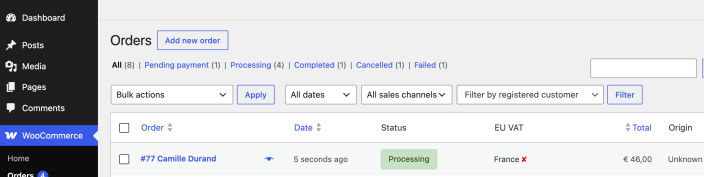
Orders list
↑ Back to topIn the Orders list, it shows an overview of the collected data:
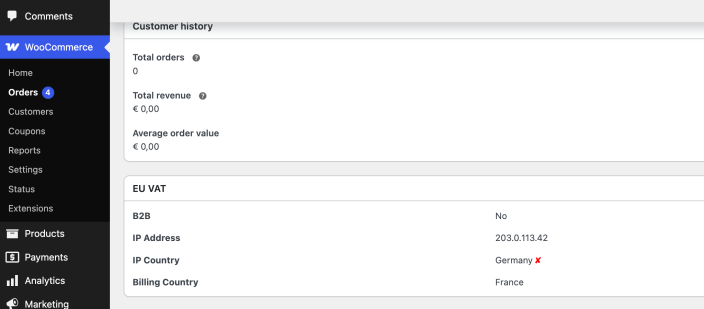
Individual order view metabox
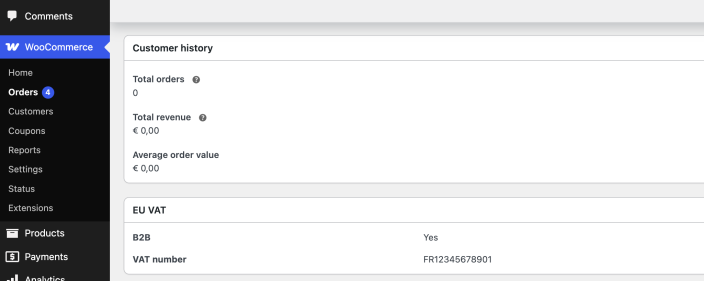
↑ Back to topIn the order view, it shows a meta box with the information:
Individual order view customer billing details
↑ Back to topIn order addresses, VAT numbers are automatically appended to the end of formatted addresses:
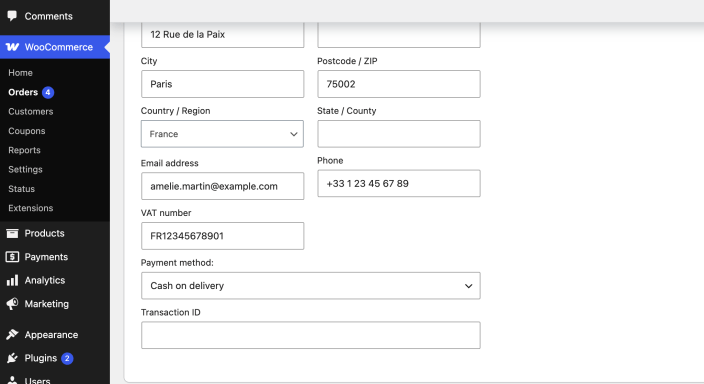
The label is defined in the “VAT Number Field Label” setting.
Reports
↑ Back to topEU VAT Number adds two reports to the reporting section in WP Admin at WooCommerce > Reports that may be useful.
- Reports > Taxes > EC Sales List: Lists countries and order amounts from EU-based B2B customers grouped by VAT number.
- Reports > Taxes > EU VAT by State: Shows taxes collected and order amounts grouped by country.
Each report has pre-set ranges to view data by quarter.
Brexit
↑ Back to topNow that the United Kingdom (UK) has officially left the European Union (EU), we’ve assembled some resources for businesses using WooCommerce and trading into or out of the UK, to help navigate some of the changes that you’ll encounter from now on.
Read our Brexit guide for store owners.
EU VAT July 2021 changes, ecommerce, and WooCommerce
↑ Back to topOn July 1, 2021, the EU introduced additional VAT regulations. Merchants selling across borders within the EU (or importing to the EU) need to comply with these regulations.
Customization
↑ Back to topFor developer customization options, including changing which countries display the VAT number field and moving the field on checkout, see EU VAT Number developer snippets.