
WooCommerce Dynamic Pricing is a WooCommerce extension that applies pricing adjustments to products and carts: quantity discounts, tiered pricing, buy X get Y (BOGO) offers, wholesale and role-based pricing, and category and cart-total discounts. It is built for store developers and agencies configuring pricing for a client, and for wholesale (B2B) stores.
Can Dynamic Pricing do this?
↑ Back to top| Question | Answer |
|---|---|
| Quantity discounts and bulk discounts | Yes. Dynamic Pricing gives a product a lower unit price once the cart holds a set quantity, configured on the product’s Dynamic Pricing tab in Bulk mode. |
| Tiered pricing | Yes. Dynamic Pricing takes a table of quantity tiers per product, and every unit in the cart is priced at the tier the quantity reaches. Each tier is a percentage off, a flat amount off each unit, or a fixed unit price. |
| BOGO and buy X get Y | Yes. Dynamic Pricing’s Special Offer mode gives the customer a set number of items free or discounted after buying a set number, once per order or repeating, on a product or across a category. |
| Wholesale and role-based pricing | Yes. Dynamic Pricing applies a discount for any WordPress user role, store-wide on the Role Pricing tab or on individual products, and shows logged-in customers in that role the adjusted price in the shop. |
| Category and brand discounts | Yes. Dynamic Pricing discounts every product in a category or brand, and can also discount by the quantity bought across a category. |
| Cart-total discounts | Yes. Dynamic Pricing takes a percentage off orders above an amount you set, for everyone, guests or specific roles. |
| Scheduled sale dates | Yes. In Dynamic Pricing, product rules, Advanced Category and Advanced Brand rules, and order-total rules take start and end dates. |
| Variable products | Yes. Dynamic Pricing counts quantities across all variations of a product or per variation, and a rule can be limited to specific variations. |
| Discounted price on the product page | Yes. Dynamic Pricing shows the adjusted price in the shop and on the product page for role, category and brand pricing, and for product tiers that start at a quantity of 1. |
| Other extensions | Dynamic Pricing includes integrations for WooCommerce Memberships, Product Bundles, Product Add-ons, Groups and WooCommerce Brands, counts Gravity Forms Product Add-ons configurations one cart line at a time, and is declared compatible with the Cart and Checkout blocks and High-Performance Order Storage. See Dynamic Pricing compatibility for what each one does. |
| Coupons | Coupons apply on top of Dynamic Pricing adjustments by default. A filter makes coupons set to exclude sale items skip adjusted lines. |
The three most common setups follow, each with the cart totals to expect. The reference below covers every other setting.
Requirements
↑ Back to top- WordPress 6.5 or later
- WooCommerce 9.0 or later
- PHP 7.4 or later
Installation
↑ Back to topTo start using a product from WooCommerce.com, you can use the “Add to store” functionality on the order confirmation page or the My subscriptions section in your account.
- Navigate to My subscriptions.
- Find the Add to store button next to the product you’re planning to install.
- Follow the instructions on the screen, and the product will be automatically added to your store.
Alternative options and more information at:
Managing WooCommerce.com subscriptions.

Which screen do I need?
↑ Back to top| You want | Where it is configured |
|---|---|
| Buy 2, get 1 free, or any buy X get Y offer on a product | The product’s Dynamic Pricing tab, Special Offer mode |
| Lower unit prices as quantity goes up | The product’s Dynamic Pricing tab, Bulk mode |
| A trade or wholesale price for a user role | WooCommerce > Dynamic Pricing > Role Pricing, or the product’s tab for one product |
| A percentage off orders above an amount | WooCommerce > Dynamic Pricing > Order Totals Pricing |
| The same discount on a whole category or brand | WooCommerce > Dynamic Pricing > Category Pricing or Brand Pricing |
Quick start 1: Buy 2, get 1 free
↑ Back to topThe customer pays for two and receives a third free. The offer applies to each block of three items in the cart.
- Edit the product and open the Dynamic Pricing tab in the Product data panel.
- Click Add Pricing Group.
- Leave Applies To on Everyone and Quantities based on on Product Quantity.
- Set Rule Processing Mode to Special Offer, the mode for free and discounted items.
- Fill the row: Purchase 2, Receive 1, Type Percentage Discount, Amount 100, Repeating Yes.
- Click Update.
Measured on a $30 product with this rule:
| In cart | Full price | Charged | Free items |
|---|---|---|---|
| 2 | $60.00 | $60.00 | 0 |
| 3 | $90.00 | $60.00 | 1 |
| 6 | $180.00 | $120.00 | 2 |
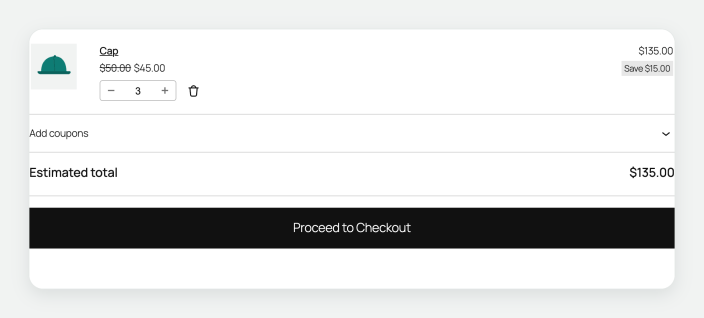
The cart shows three items at $20 each: a cart line holds one price per item, so the discount is spread across the line. Set Repeating to No for one free item per order, or the amount to 50 for half price.
Full recipe, with every variation: Buy 2, get 1 free.
Quick start 2: Quantity pricing
↑ Back to topThe more a customer buys, the lower the unit price. When the cart reaches a tier, every unit in it gets that tier’s price.
- Edit the product and open the Dynamic Pricing tab.
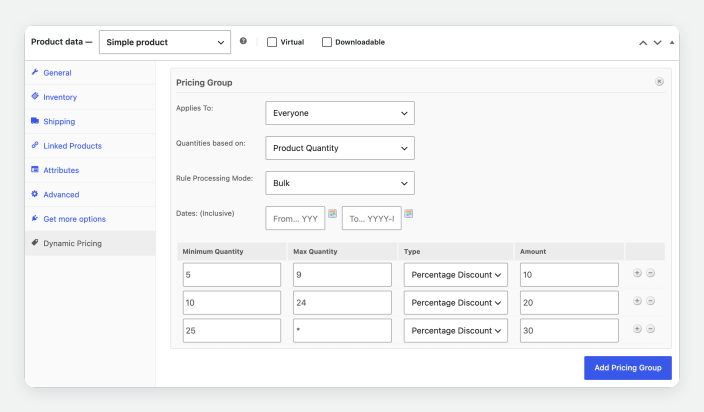
- Click Add Pricing Group. Leave Applies To on Everyone, Quantities based on on Product Quantity and Rule Processing Mode on Bulk.
- Fill the first row: Minimum Quantity 5, Max Quantity 9, Type Percentage Discount, Amount 10.
- Click + to add a row: 10, 24, Percentage Discount, 20.
- Add a third: 25,
*, Percentage Discount, 30. The*covers every higher quantity. - Click Update.
Measured on a $100 product with these tiers:
| In cart | Unit price | Charged |
|---|---|---|
| 4 | $100.00 | $400.00 |
| 5 | $90.00 | $450.00 |
| 10 | $80.00 | $800.00 |
| 25 | $70.00 | $1,750.00 |
Quantities 1 to 4 stay at the regular price.
Tiers on a variable product
↑ Back to topOn a variable product, the setting that decides the price is Quantities based on. Product Quantity adds up every variation of the product; Variation Quantity counts each variation on its own. To give the tiers to selected variations, set Product / Variations to Specific Variations.
Measured on a hoodie in sizes S, M and L, every size $100, with two rows: 5 to 9 at 10% off and 10 to * at 20% off.
| In cart | Quantities based on | Charged |
|---|---|---|
| 3 S + 2 L | Product Quantity | $450.00, every unit at $90 |
| 3 S + 2 L | Variation Quantity | $500.00, each size below 5 |
| 5 S + 2 L | Variation Quantity | $650.00, S at $90 and L at $100 |
| 4 S + 3 M + 3 L | Product Quantity | $800.00, every unit at $80 |
| 10 S | Variation Quantity | $800.00, every unit at $80 |
Use Product Quantity when the customer thinks of the order as “10 hoodies”, and Variation Quantity when each size or colour is priced as its own item.
Full recipe, including variable products: Tiered quantity discounts.
Quick start 3: Wholesale pricing by role
↑ Back to topCustomers in a user role, such as a wholesale role, see a lower price as soon as they log in: in the shop, on the product page and in the cart. Everyone else sees the regular price. Create the role first, with at least one customer in it to check the result.
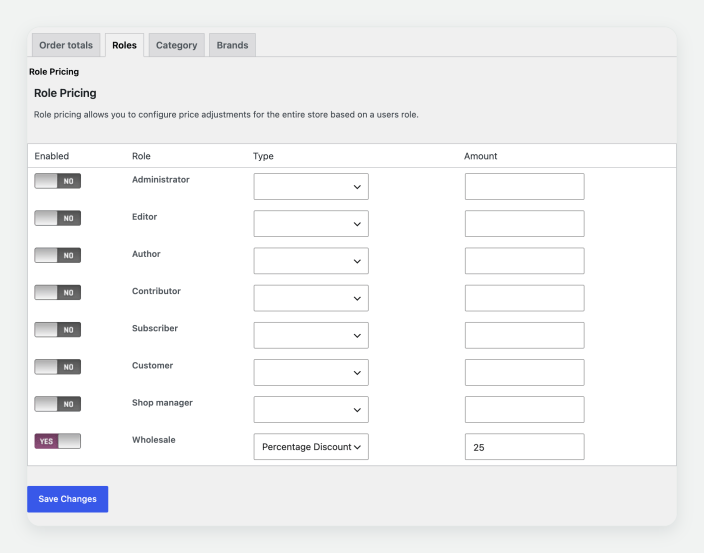
- Go to WooCommerce > Dynamic Pricing and open the Role Pricing tab.
- Find the row for your wholesale role and tick Enabled.
- Set Type to Percentage Discount and Amount to 25.
- Click Save Changes.
Measured with this rule:
| Signed in as | Regular price | Charged |
|---|---|---|
| Retail customer | $100.00 | $100.00 |
| Wholesale customer | $100.00 | $75.00 |
| Wholesale customer | $40.00 | $30.00 |
If the trade discount differs by product, use the product’s Dynamic Pricing tab: set Applies To to Specific Roles, pick the role, and add one Bulk row with Minimum Quantity 1 and Max Quantity *. Where a product has its own rule, that rule sets the product’s price.
Full recipe, including both routes side by side: Wholesale pricing by role.
How rules work together
↑ Back to top- Shop and product page prices. The shop and product page show the adjusted price next to the struck-through regular price for role, category and brand pricing, and for product tiers whose first tier starts at a quantity of 0 or 1. Quantity tiers and buy X get Y offers update the cart price as the customer adds items.
- A product’s own rule takes priority over role pricing. A cart line priced by a product rule keeps that price.
- Category and brand pricing combine with role pricing by default. Category Pricing applies first, then the role discount applies to the result. Developers can change whether rules stack with the
woocommerce_dynamic_pricing_is_cumulativefilter. - Order totals pricing applies last, to items at their regular price.
- Within a product, pricing groups are checked top to bottom and the first one that matches is used.
- Special offers discount the cheapest qualifying item first.
- Coupons apply on top of pricing adjustments. See the FAQ to make “Exclude sale items” coupons skip adjusted lines.
Reference: product rules
↑ Back to topConfigured on the product, under Product data > Dynamic Pricing > Add Pricing Group. You can add several pricing groups to one product.
| Setting | What it does |
|---|---|
| Product / Variations | For a variable product, apply the group to All Variations or to Specific Variations. |
| Applies To | Everyone, Guests, or Specific Roles to limit the rule to customers in the roles you select. |
| Quantities based on | Product Quantity counts every variation of the product together. Variation Quantity counts each variation separately. Cart Line Item Quantity counts each cart line separately, which suits products configured with Product Add-ons or Gravity Forms Product Add-ons. Quantity of Category counts items from the categories you select, so a product can be adjusted when enough items from a category are in the cart. |
| Rule Processing Mode | Bulk adjusts every unit once a quantity tier is reached. Special Offer adjusts a set number of units: buy X, get Y adjusted. |
| Dates: (Inclusive) | Optional start and end dates, as YYYY-MM-DD. Leave blank to run the rule at all times. |
Bulk rows
↑ Back to top| Field | What it does |
|---|---|
| Minimum Quantity | The quantity at which the row starts applying. When the first row starts at 0 or 1, its price is also shown in the shop and on the product page. |
| Max Quantity | The last quantity the row applies to. Use * to cover every higher quantity. |
| Type | Price Discount takes a flat amount off each unit, Percentage Discount takes a percentage off, and Fixed Price sets the unit price. |
| Amount | A plain number, such as 25. |
Special Offer rows
↑ Back to top| Field | What it does |
|---|---|
| Purchase | How many items the customer pays for. |
| Receive | How many further items are adjusted. |
| Type | Price Discount, Percentage Discount or Fixed Price. Percentage Discount 100 makes the received items free. |
| Amount | A plain number. |
| Repeating | Yes applies the offer again for every further block. No applies it once per order. |
Click + at the end of a row to add another, then click Update to save the product.
Reference: order totals pricing
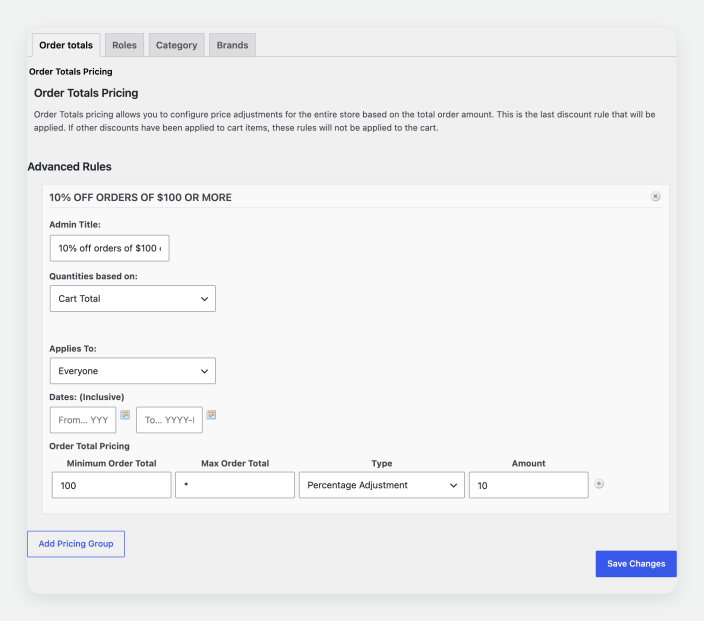
↑ Back to topGo to WooCommerce > Dynamic Pricing > Order Totals Pricing and click Add Pricing Group. You can add more than one group, for example one for a role and one for everyone else.
| Setting | What it does |
|---|---|
| Admin Title | A name for the group, for store managers. |
| Quantities based on | Cart Total uses the whole cart. Category Total uses items from the categories you select, and lets you choose which categories are adjusted. |
| Applies To | Everyone, Guests, or Specific Roles. |
| Dates | Optional start and end dates. |
| Minimum / Max Order Total | The range of cart totals the row applies to. Use * to cover every higher total. |
| Type and Amount | A percentage. Enter 10 for 10% off. |
For 10% off orders of $100 or more: Cart Total, Everyone, Minimum 100, Max *, amount 10. Click Save Changes.
Reference: role pricing
↑ Back to topGo to WooCommerce > Dynamic Pricing > Role Pricing. Every role on the store is listed. Tick Enabled for a role, choose Price Discount or Percentage Discount, enter the amount as a number, and click Save Changes. The discount applies to every product at every quantity.
To create roles of your own, use a plugin such as User Role Editor. If the Groups plugin is active, a Group Pricing tab works the same way for groups.
Reference: category and brand pricing
↑ Back to topCategory Pricing
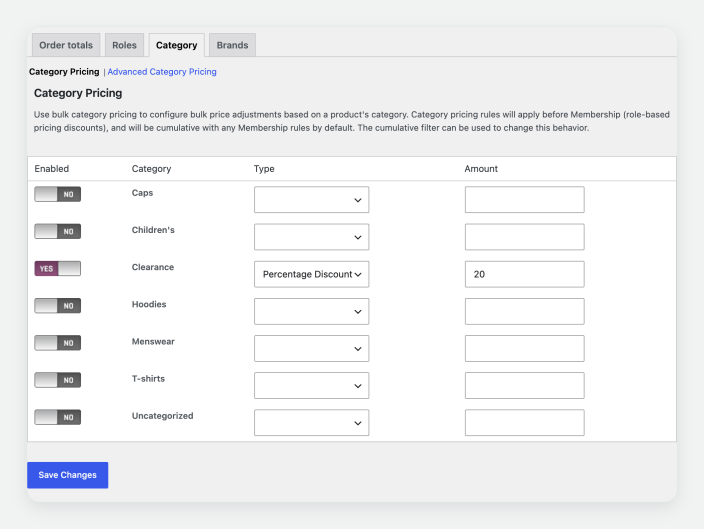
↑ Back to topGo to WooCommerce > Dynamic Pricing > Category Pricing. Every product category is listed. Tick Enabled, choose Price Discount or Percentage Discount, enter the amount and click Save Changes. Adjusted products show in the shop with the regular price struck through. If a product is in two discounted categories, the larger discount applies.
Advanced Category Pricing
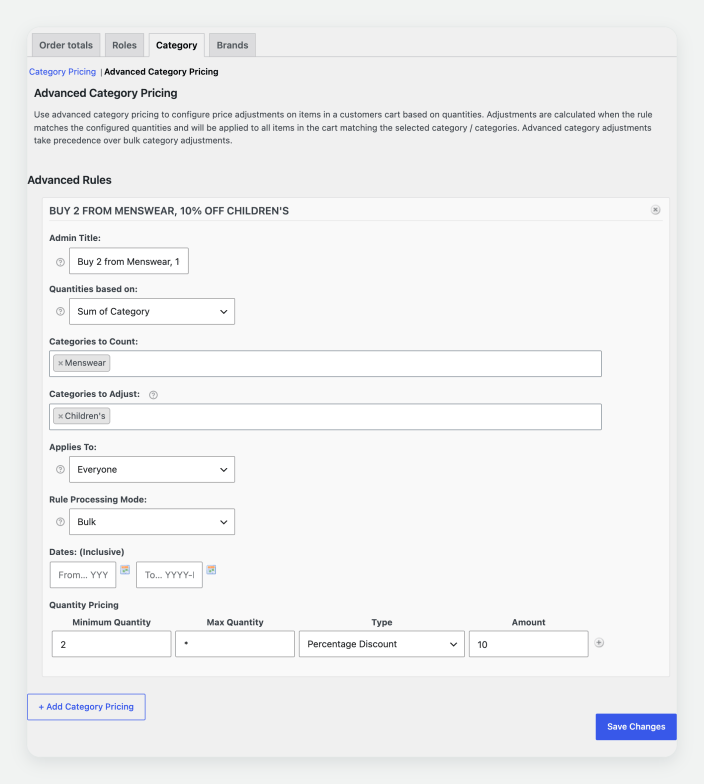
↑ Back to topQuantity rules across a category, under the Advanced Category Pricing view of the same tab. Click Add Category Pricing.
| Setting | What it does |
|---|---|
| Admin Title | A name for the rule, for store managers. |
| Quantities based on | Sum of Category adds up every item from the selected categories. Sum of Category Per Product counts each product separately. Cart Line Item Quantity counts each cart line separately. |
| Categories | Items from any of these categories count toward the quantity. |
| Categories to apply adjustment to | Which categories are adjusted. These can differ from the counted ones, for example buy any 2 from Menswear and get 10% off Children’s. |
| Applies To, Rule Processing Mode, Dates | As for product rules. Bulk and Special Offer rows take the same fields as on the product, with a minimum quantity of at least 1. |
Brand Pricing
↑ Back to topWhen WooCommerce Brands is in use, Brand Pricing and Advanced Brand Pricing work like the category screens, keyed on product_brand. Developers can add pricing screens for other product taxonomies with the wc_dynamic_pricing_get_discount_taxonomies filter.
Entering amounts
↑ Back to top- Enter plain numbers: 25 for 25% or $25.
- Write large numbers as digits: 1000.
- If your store’s decimal separator is a comma, use a comma for decimal amounts.
FAQ
↑ Back to topWhich prices show on the product page?
↑ Back to topThe product page shows the adjusted price next to the struck-through regular price for role, category and brand pricing. A product whose first tier starts at a quantity of 0 or 1 shows that tier’s price. Quantity tiers and buy X get Y offers update the cart price as the customer adds items.
Do coupons apply on top of Dynamic Pricing?
↑ Back to topYes, coupons apply on top of pricing adjustments. To make coupons with Exclude sale items ticked skip lines that Dynamic Pricing has adjusted, add this to your theme’s functions.php or a code snippets plugin:
add_filter( 'wc_dynamic_pricing_check_coupons', '__return_true' );
Can I leave sale items out of pricing adjustments?
↑ Back to topFor product rules and Advanced Category Pricing, yes. The woocommerce_dynamic_pricing_process_product_discounts filter receives the product, and returning false for it leaves that cart line at its own price.
Which item is free in a buy X get Y offer?
↑ Back to topThe cheapest qualifying item in the cart.
How do rules work with Product Bundles?
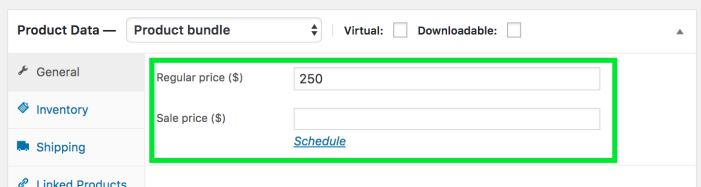
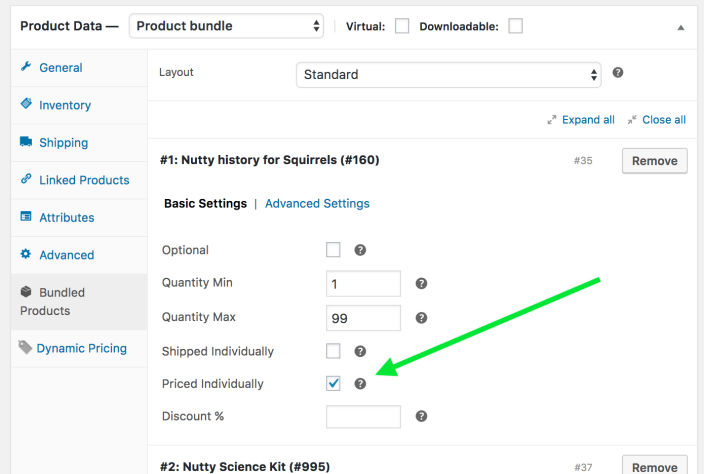
↑ Back to topIt depends on the bundle’s pricing. A bundle with its own price is treated as one product. If bundled items are priced individually, rules apply to each item, so a bundle of 2 games and 2 books counts as 4 items for a product quantity rule.
How do pricing adjustments work with orders edited in the admin?
↑ Back to topPricing adjustments apply in the cart and at checkout. For an order you edit by hand in the admin, set its totals on the order screen.
Why do administrators see every role discount?
↑ Back to topOn multisite, a network administrator counts as every role, so every role rule applies to them. Test role pricing with a customer account in that role.
Can I round to more decimal places?
↑ Back to topDynamic Pricing rounds to your WooCommerce decimal setting. To calculate with four decimal places:
add_filter( 'woocommerce_dynamic_pricing_get_decimals', function () { return 4; } );
Prices display at your store’s decimal setting.
I see an array of data under each cart item
↑ Back to topThat is debug output from WP_DEBUG. Set WP_DEBUG to false in wp-config.php on a live store. See Debugging in WordPress.
Questions and support
↑ Back to topHave a question before you buy? Please fill out the pre-sales form.
Already purchased and need help? Open a ticket with the developer. Support tickets are answered by the Dynamic Pricing developer, as described in the WooCommerce.com Support Policy.

