Buying more usually means a store can afford to give up more margin per unit. A tiered discount rewards customers for larger orders instead of applying the same flat percentage to everyone.
This doc covers how to set up quantity-based tiered discounts, where the discount percentage increases as customers buy more of a product.
For example, a customer buying 2–5 T-shirts gets 5% off, 6–10 T-shirts gets 10% off, and 11–15 T-shirts gets 15% off.
You create a separate auto-applying coupon for each quantity tier using Smart Coupons, and the right one applies automatically based on how many units are in the cart.
Steps to create quantity-based tiered discount
↑ Back to topTo provide tiered or stackable discounts, you would need to create multiple coupons. For instance, we are going to provide a 5%, 10%, and 15% discount when a customer purchases T-shirts in ranges of 2–5, 6–10, and 11–15. Following are the steps:
Creating Coupons
↑ Back to top- Navigate to your WordPress admin panel. Then go to Marketing > Coupons.
- Auto generate or add your own coupon code.
- Create a new coupon with ‘Discount type: Percentage discount’.
- Enter coupon amount as 5.
- Enable auto apply.
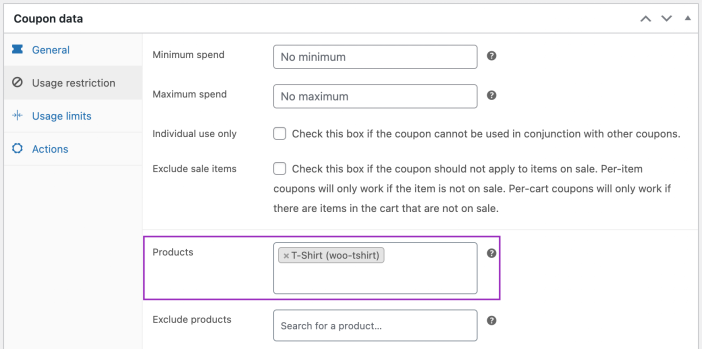
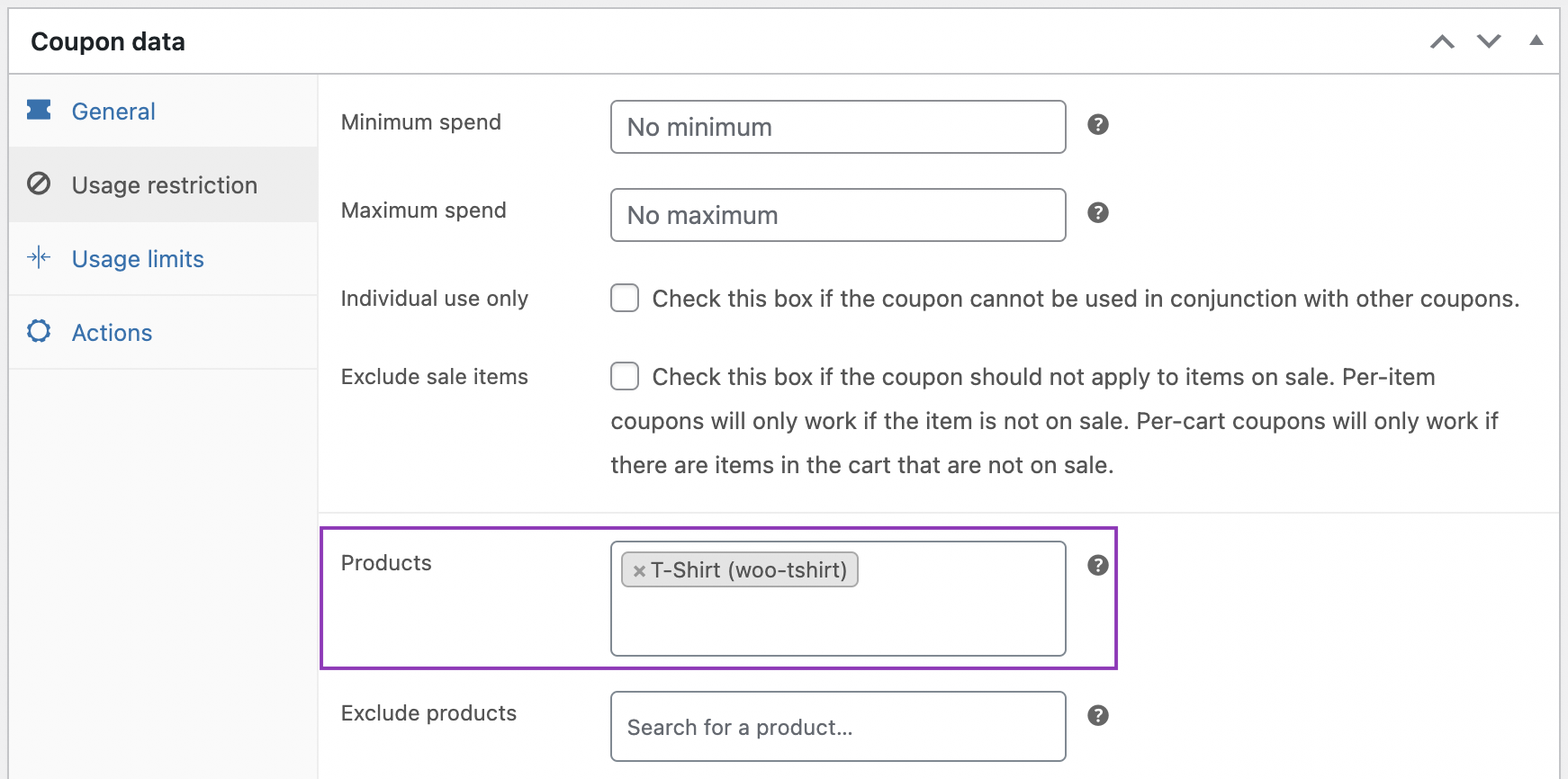
- Navigate to ‘Usage restriction’ tab. Include the product that you want to give as discount in the ‘Product’ field. Here we are opting for T-shirt.
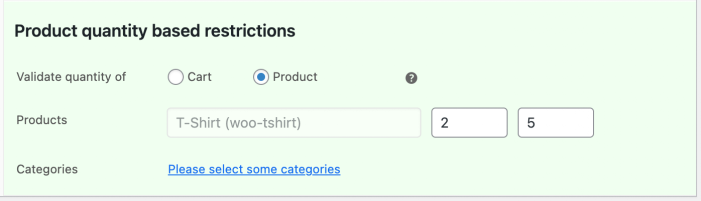
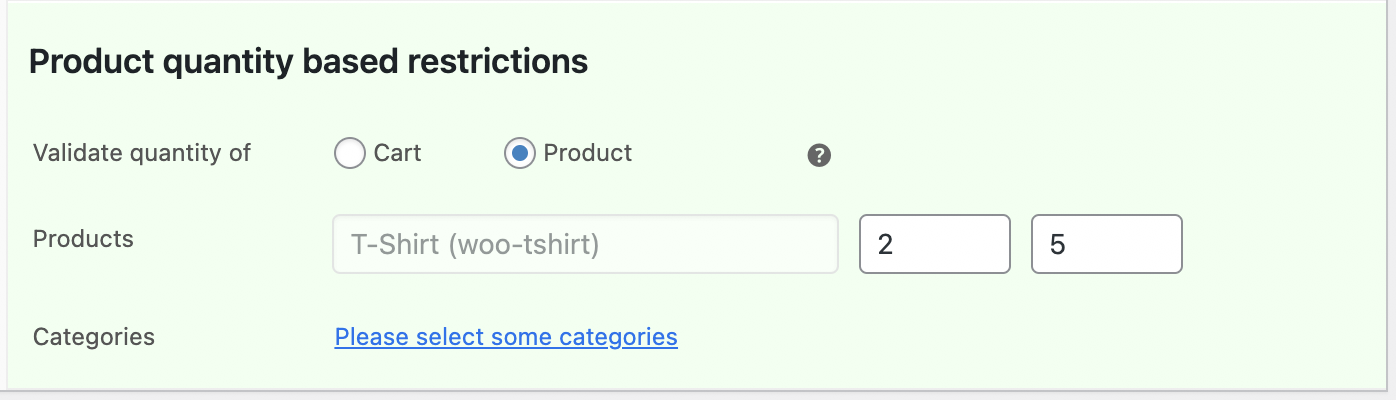
- Scroll below and you will find the “Product quantity based restriction” section. Here, you can add the minimum quantity as 2 and the maximum quantity as 5 on the respective fields.
- Publish the coupon.
That’s it!
Repeat steps 2–6 for two more coupons, changing only the quantity range and discount amount each time — 6–10 units at 10% off, then 11–15 units at 15% off.
You’ll now have 3 coupons covering the full tiered range. Since auto apply is enabled on each, the right discount applies automatically once a customer’s cart quantity falls within that coupon’s range.
Here are two documents that make the above possible: