“Paywall” is a WooCommerce extension that allows creating products with restricted access to content
Installation
↑ Back to topTo start using a product from WooCommerce.com, you can use the “Add to store” functionality on the order confirmation page or the My subscriptions section in your account.
- Navigate to My subscriptions.
- Find the Add to store button next to the product you’re planning to install.
- Follow the instructions on the screen, and the product will be automatically added to your store.
Alternative options and more information at:
Managing WooCommerce.com subscriptions.

Setup and Configuration
↑ Back to topProduct type
↑ Back to topWhen you create a new WooCommerce product, choose the “Paywall” product type in the dropdown menu:

There are two product types available: Paywall (for individual content items) and Paywall Pass (grants access to all Paywall products in the store). See the Paywall Pass documentation for details.
The “Paywall” product data tab
↑ Back to top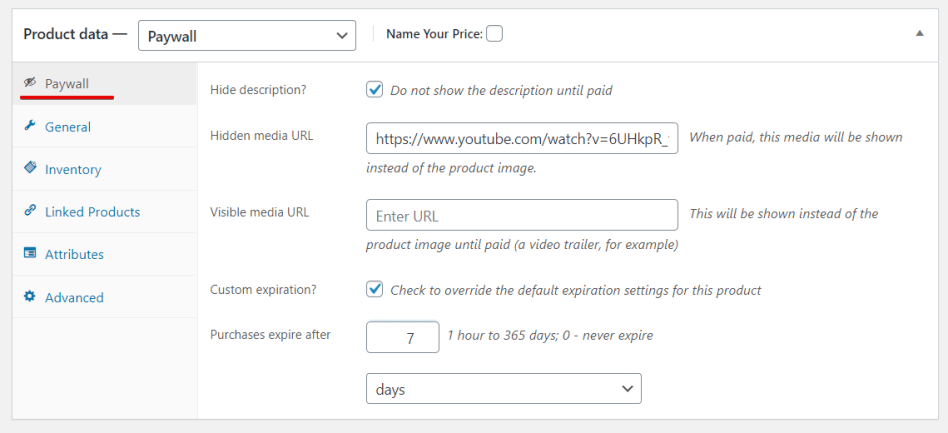
When the product type is selected, the “Paywall” tab appears with the following fields:
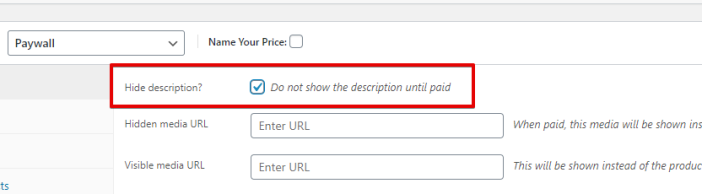
- Hide description? checkbox – if checked, the entire “Description” field will be hidden at the frontend until the product is purchased. This is the simplest way to sell premium content: you can place text, links, coupon codes and so on in the description field and reveal it only to the paid customers.
- Hidden media URL – here you can put a URL to YouTube, Vimeo, TikTok, TED, Issuu, Google Docs, PDF, and other embeddable media. An image URL will work, too. After payment, the regular product image (or product Gallery) will be replaced with the content the URL points to. See the full list of supported media types below.
- Visible media URL – optionally, you can use this URL to show an embeddable media instead of the product images – for unpaid products. An example could be a video trailer, a low-resolution image, etc.
- Custom expiration? – check to override the global expiration settings for this product. You can set a different expiration period from 1 hour to 365 days, or set 0 for no expiration.
Settings panel
↑ Back to top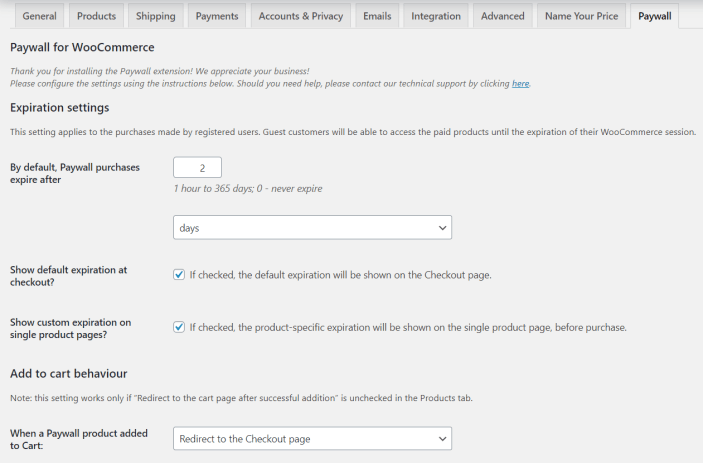
Go to the WooCommerce > Settings > Paywall tab to see the settings panel.
Expiration settings
↑ Back to topHere you can specify the default expiration period for all Paywall products.
If you set the “expire after” to a non-zero value, the registered buyers will retain access to the paid products until their order is “expired”.
- Zero value means “no expiration”.
Note:
The expiration settings apply to the purchases made by registered users only.
If your store allows purchases without registration, the “guest” customers will be able to access the paid products until the expiration of their WooCommerce session.
- The default expiration settings can be overridden for each product.
- Administrators can override the expiration date/time on individual orders.
Expiration notifications
↑ Back to topWhen enabled, registered customers receive an email reminder when their product access is near expiration or has expired. You can configure how many days before expiration the notification is sent.
Expiration terms messages
↑ Back to topYou can display the expiration terms on Checkout and Single Product pages.
On the Checkout page, the terms can be displayed if the expiration value is non-zero:
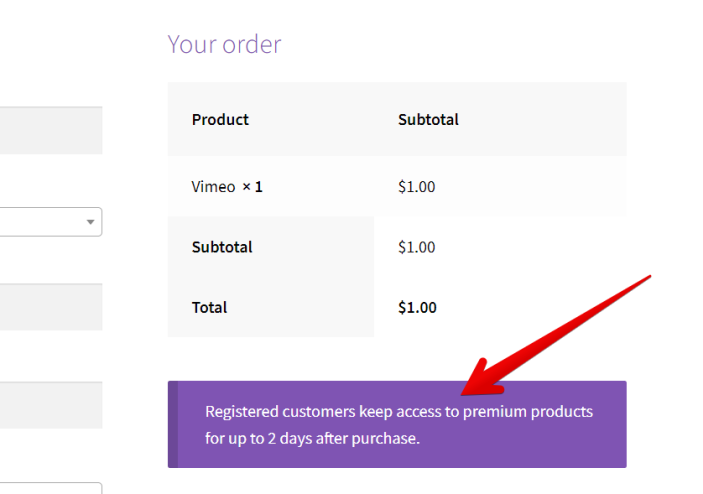
Displaying expiration terms on the Checkout page works best if you only apply expiration settings globally and not on a per-product basis.
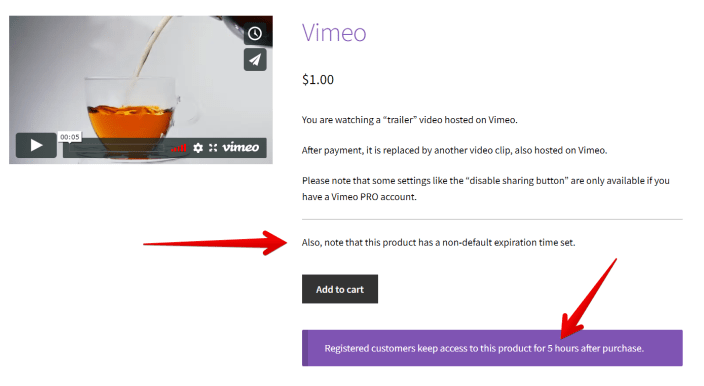
On Single Product pages, the expiration terms are (optionally) shown if they differ from the global expiration settings:
Add-to-cart behavior
↑ Back to topYou can force automatic redirect to Cart or to Checkout when a Paywall product is added to the cart. For sites mostly selling Paywall, going directly to Checkout should work best.
Note: there is a checkbox "Redirect to the cart page after successful addition" on the Products tab. Its priority is higher than the redirect settings on the Paywall panel.
Video player
↑ Back to topFor YouTube and Vimeo content, you can choose between the default WordPress embedded player and Presto Player. If you have the Presto Player plugin installed, select it in the Paywall settings for enhanced playback controls.
Caching
↑ Back to topPaywall is fully integrated with WP Super Cache and WP Rocket. For other page caching plugins, Paywall provides a built-in cache buster to ensure that paid and unpaid visitors see the correct version of product pages.
My Account: Purchased Products
↑ Back to topPaywall adds a “Purchased Products” tab to the WooCommerce My Account page. Customers can see all their purchased Paywall products with the remaining access time. The same list is shown on the “Order Received” (Thank You) page after checkout.
Registered customers also receive a “View” link in the Order Completed email, taking them directly to the paid product page.
Pay-to-view media
↑ Back to top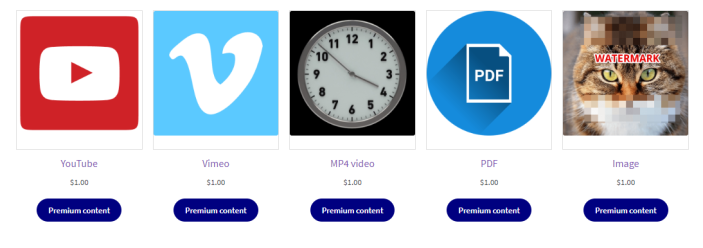
Generally, any media URL that WordPress supports through oembed can be used with Paywall. The media types that we specifically support are:
- YouTube: standard URLs (
youtube.com/watch?v=...), short URLs (youtu.be/...), YouTube Shorts, and YouTube Playlists. - Vimeo: all URL formats including private/unlisted videos.
- TikTok, TED, Issuu: embed URLs from these platforms.
- Google Docs, Sheets, Slides, Drawings: published or shared document URLs.
- Google Drive: images and PDF files stored on Google Drive.
- Cloudflare Stream: video delivery URLs (
iframe.videodelivery.net). - Direct video files: mp4, webm, mov and other formats. Can be stored locally or externally.
- Audio files: mp3, wav, ogg and other browser-supported formats.
- PDF files: any URL with a
.pdfextension. - Images: JPG, PNG, or any other image format that the browser can display.
You can see these media types in action on our Demo Site.
Show/hide premium content
↑ Back to top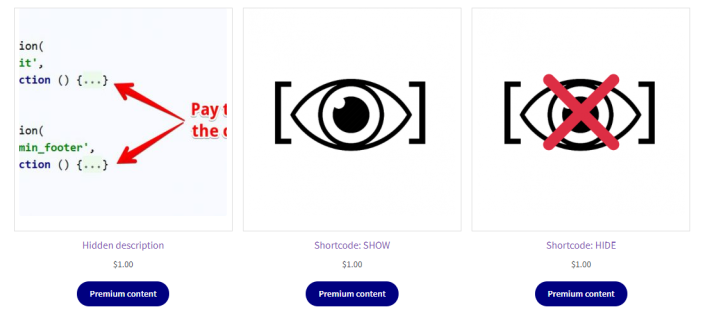
Using special Paywall shortcodes, you can show or hide certain parts of the content.
[woopaywall_show_after_purchase]
↑ Back to topThis shortcode allows you to hide a part of the content (short or full description, for instance) and show it only after the customer purchased the product.
[woopaywall_show_after_purchase]

The content placed here is hidden until paid.
For example, you can hide a YouTube video here:
[video src="https://www.youtube.com/watch?v=z6e_W6L6sTg"]

[/woopaywall_show_after_purchase]
[woopaywall_hide_after_purchase]
↑ Back to topYou can use the woopaywall_hide_after_purchase shortcode to hide some parts of the content that have no value after the purchase:
[woopaywall_hide_after_purchase]

The content placed here is shown only until paid.

Hey, here is a sales pitch! You definitely must buy this NOW!

[/woopaywall_hide_after_purchase]
Shortcodes in PHP
↑ Back to topYou can use the shortcodes in PHP (functions.php of your theme or a custom plugin). For example:
<?php
 echo do_shortcode('[woopaywall_show_after_purchase]' .
 '<p>Hidden content</p>' .
 '[/woopaywall_show_after_purchase]');
?>
Hide the “Description” tab
↑ Back to topYou can also hide the entire “Description” tab until paid.
Admin tools
↑ Back to top- Admin bar preview: view any Paywall product as Paid or Unpaid from the admin bar, without placing an order.
- Bulk Edit and Quick Edit: update prices and custom expiration settings for multiple products at once from the product list.
- Order expiration override: set or remove a custom expiration date/time on any order from the order edit screen.
- WooCommerce Status: Paywall information is included in the WooCommerce Status page for diagnostics.
- Reset tool: reset all Paywall settings to defaults from WooCommerce > Status > Tools.
Paywall Pass
↑ Back to topPaywall Pass is an all-access product type that grants customers access to all Paywall products in the store for a specified period. Store managers can create multiple passes with different durations and prices.