
WooCommerce has no built-in way to sell gift cards. If a customer wants to buy store credit for someone else, there’s nothing native to handle it.
This doc covers how to sell gift cards of any amount, let customers schedule delivery to a recipient, and set up other gift card types like fixed amounts, fixed denominations, discounted cards, and physical cards.
Smart Coupons adds gift cards by treating them as real credit which is similar to a prepaid card rather than a typical percentage-off coupon.
What is a gift card / store credit?
↑ Back to topA store credit or gift certificate is a monetary value assigned as a credit to the customer. The customer can use that credit all at once or across multiple purchases until it’s exhausted or expires. If the available balance is less than the total order amount, the remaining amount can be paid with another payment method.
In Smart Coupons, a store credit/gift certificate is available as a discount type coupon. If you want customers to redeem credit multiple times until it runs out, don’t set a usage limit on it.
How gift cards work in Smart Coupons
↑ Back to topGift cards don’t introduce a dedicated product type. Instead, a Simple or Variable product is used as the basis for selling them. Gift card products are Virtual, so the extension can issue e-gift cards or digital gift card tokens only.
These are also advanced e-gift cards. You can apply restrictions like geolocation, payment method, or email address on top of the gift card type you choose.
How to create a gift card of any amount
↑ Back to topTo allow customers to purchase a gift card/store credit of any amount and quantity of their choice, you need to first create a coupon and then a product.
Creating an e-gift card coupon
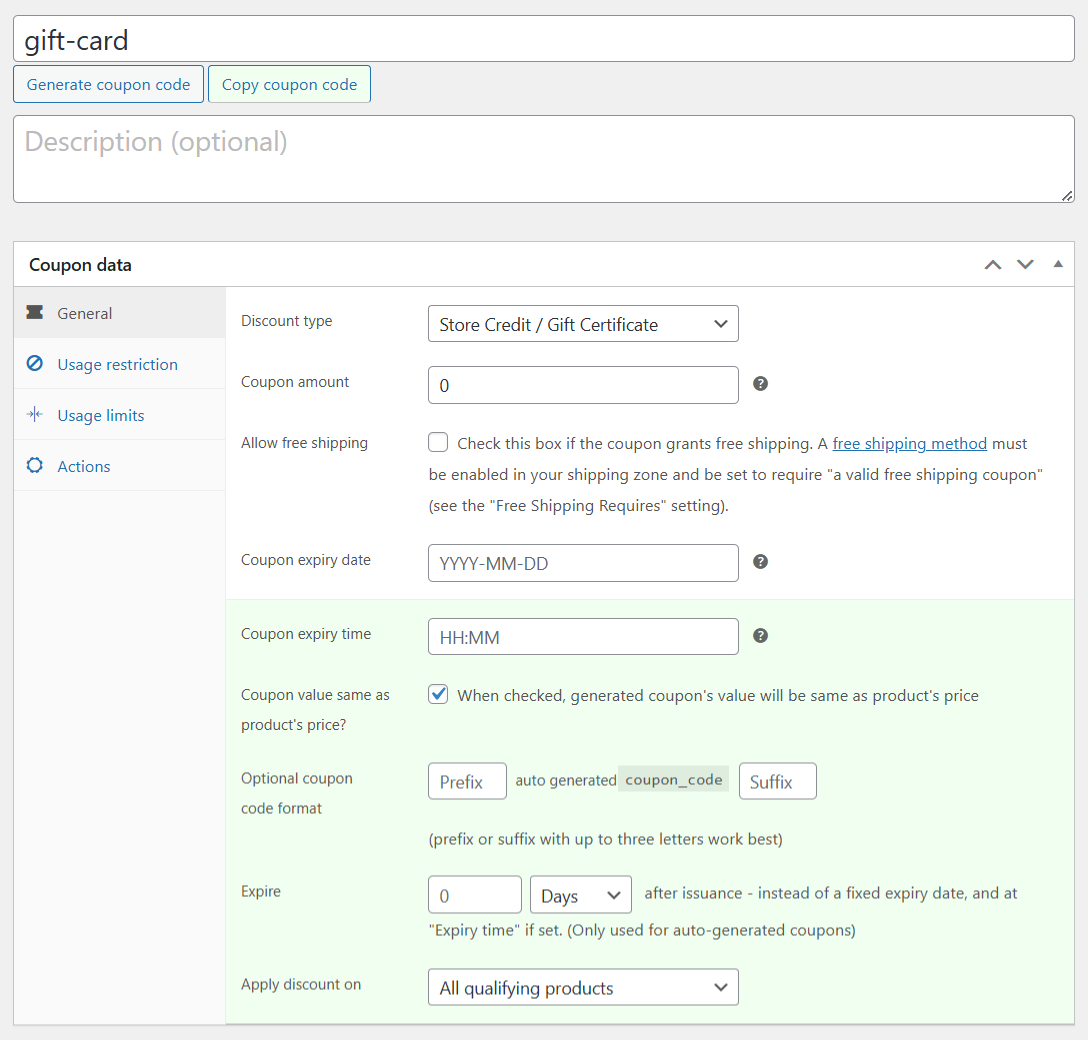
↑ Back to top- Go to your WordPress Admin panel > Marketing > Coupons > Add new coupon.
- Click on ‘Generate coupon code’ or enter your own code.
Important: Coupon code should not have any spaces. - Select ‘Store Credit/Gift Certificate’ as the Discount type from the drop-down.
Important: Leave coupon amount blank. - Enable the ‘Coupon Value Same as Product’s Price?’ option.
- Publish the coupon.

Creating a product
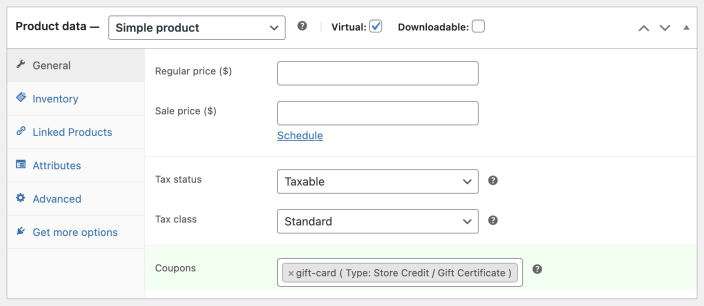
↑ Back to top- Add or edit an existing Simple product.
- Name the product, i.e., Store Credit / Gift Certificate.
- Important: Leave the Regular price & Sale price fields blank.
- If you do not want to charge shipping for this product, mark the product as Virtual.
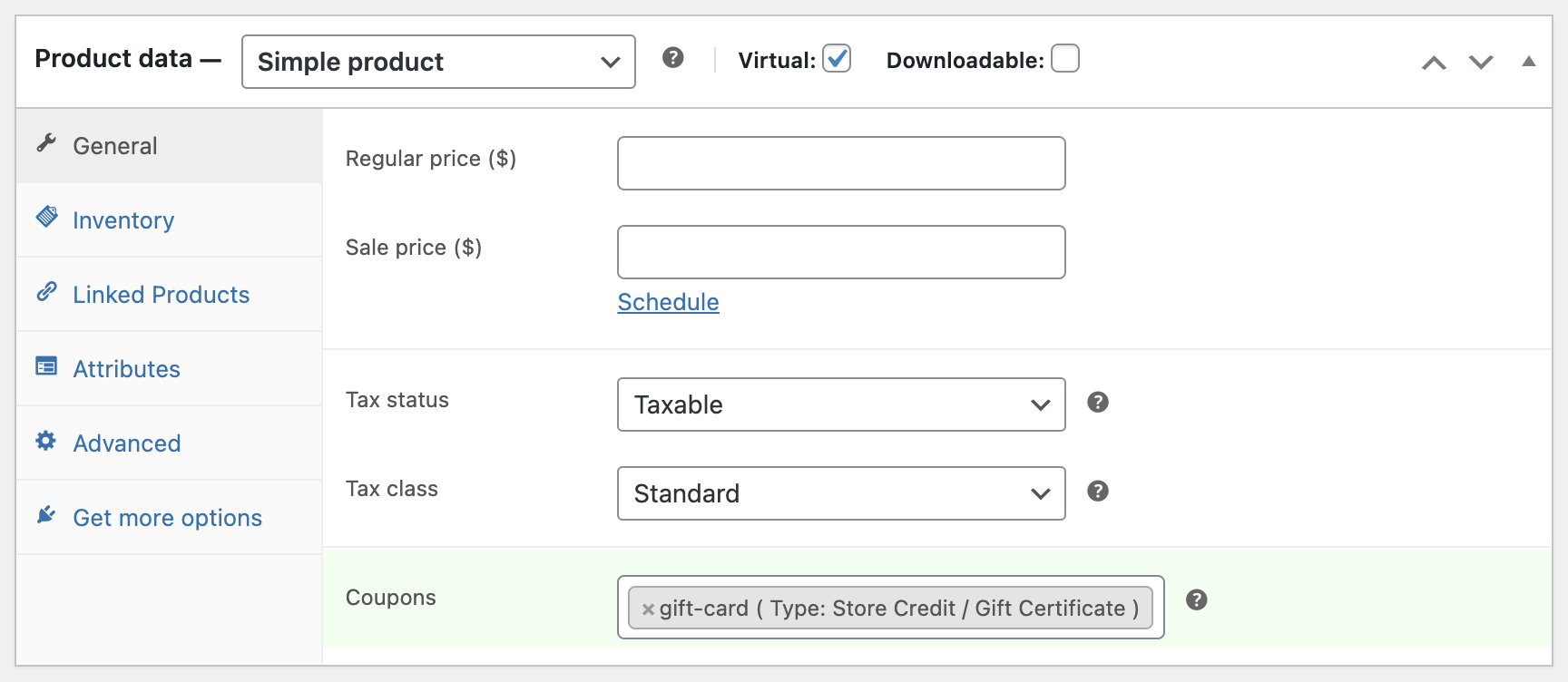
- Under ‘Coupons’, search for and select the coupon created above.
- Publish/Update the product.
That’s it.
You have added a gift card to your WooCommerce store. Your customers can now purchase a store credit/gift card of any amount like $9, $21, $45, $60, etc.
Note: This feature is compatible with the Name Your Price plugin.
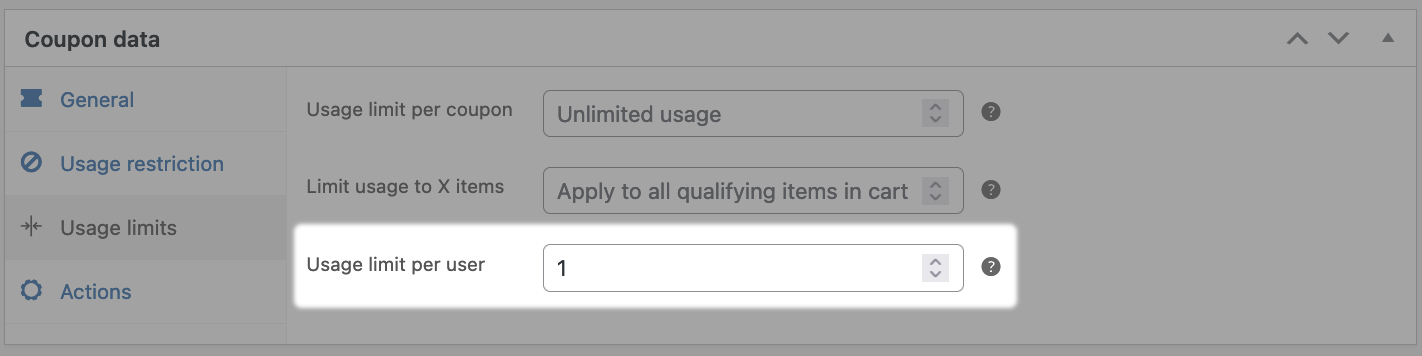
Important: If you have any coupon in your store that can be used to buy the above gift card/store credit, make sure to set ‘Usage limit per user’ under ‘Usage Limits’ to 1 for that coupon. Otherwise, your customer will get real credit at a discounted rate multiple times, resulting in a loss for you.
How customers can purchase and schedule gift cards
↑ Back to top- A customer visits the gift card product page and enters the amount to be purchased.
- The quantity can be adjusted if they want to purchase more than one gift card. For example, credit for $600 in the form of gifts of $300 each for two people. Customers would enter 300 in the provided box and increase the quantity to 2.
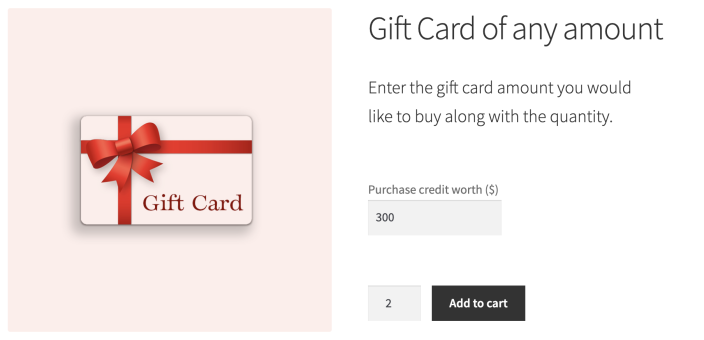
- They go through the normal purchase process: Add to cart > Cart > Checkout > Payment.
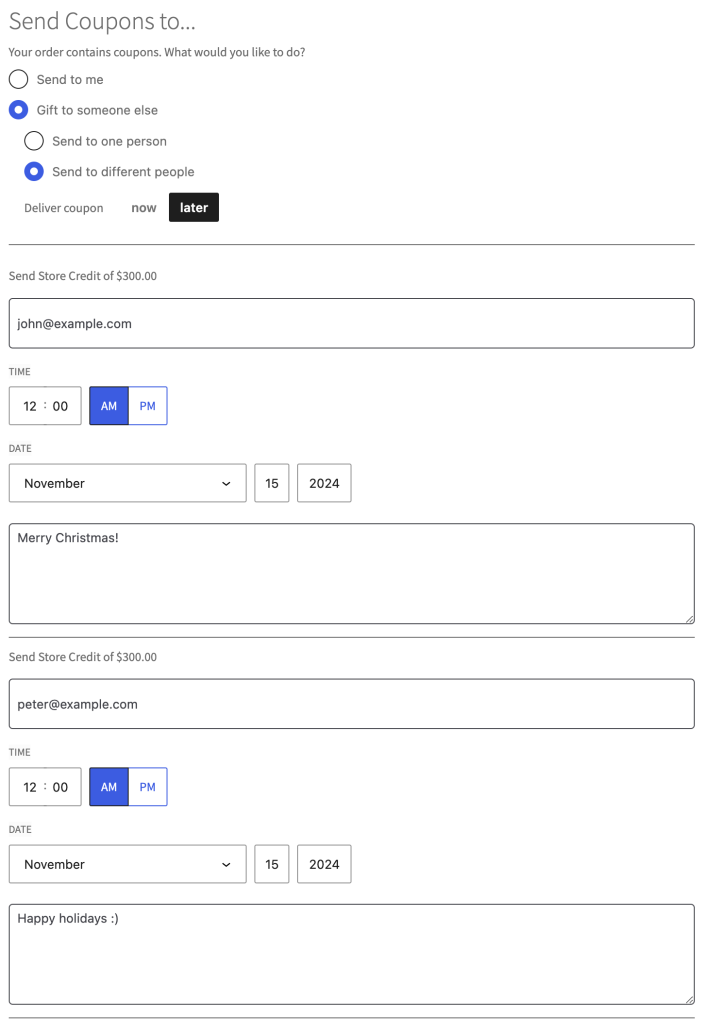
- On the checkout page, the customer will have two options to send the gift card coupon:
- Send to me
- Gift to someone else
- Clicking on ‘Gift to someone else’ will give two more options:
- Send to one person
- Send to different people
- There’s also a Toggle to send the coupon NOW or LATER.
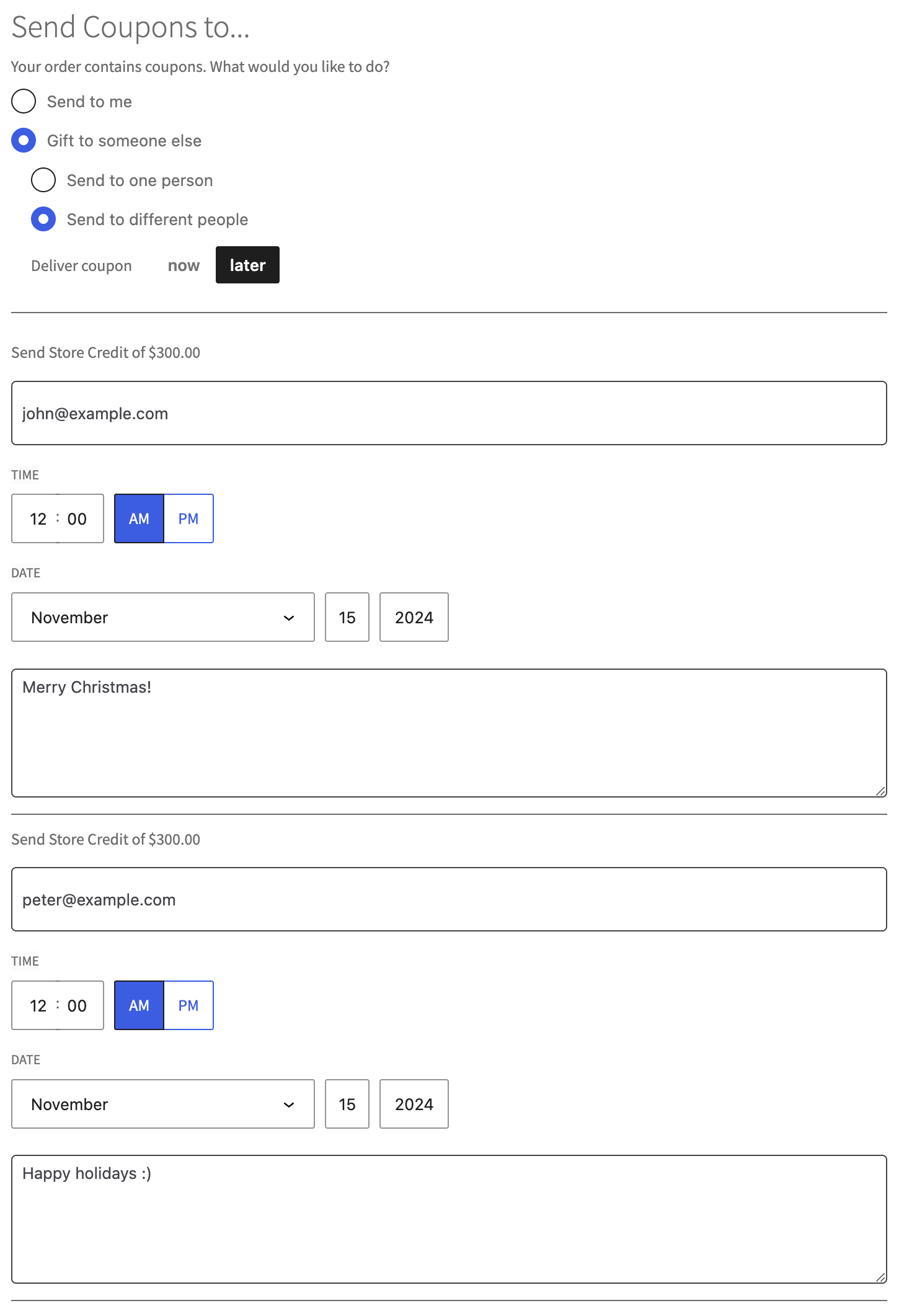
- Next is to enter the recipient’s Email address and a message for the recipient(s).
- If the LATER option is chosen, the date and time need to be selected. Learn more about scheduling.
- The customer then makes the payment.

That’s it.
Recipient form on the product page
↑ Back to topThe “Send Coupons to” form is available by default on the product page if you are using Smart Coupons version 9.65.0 or higher.
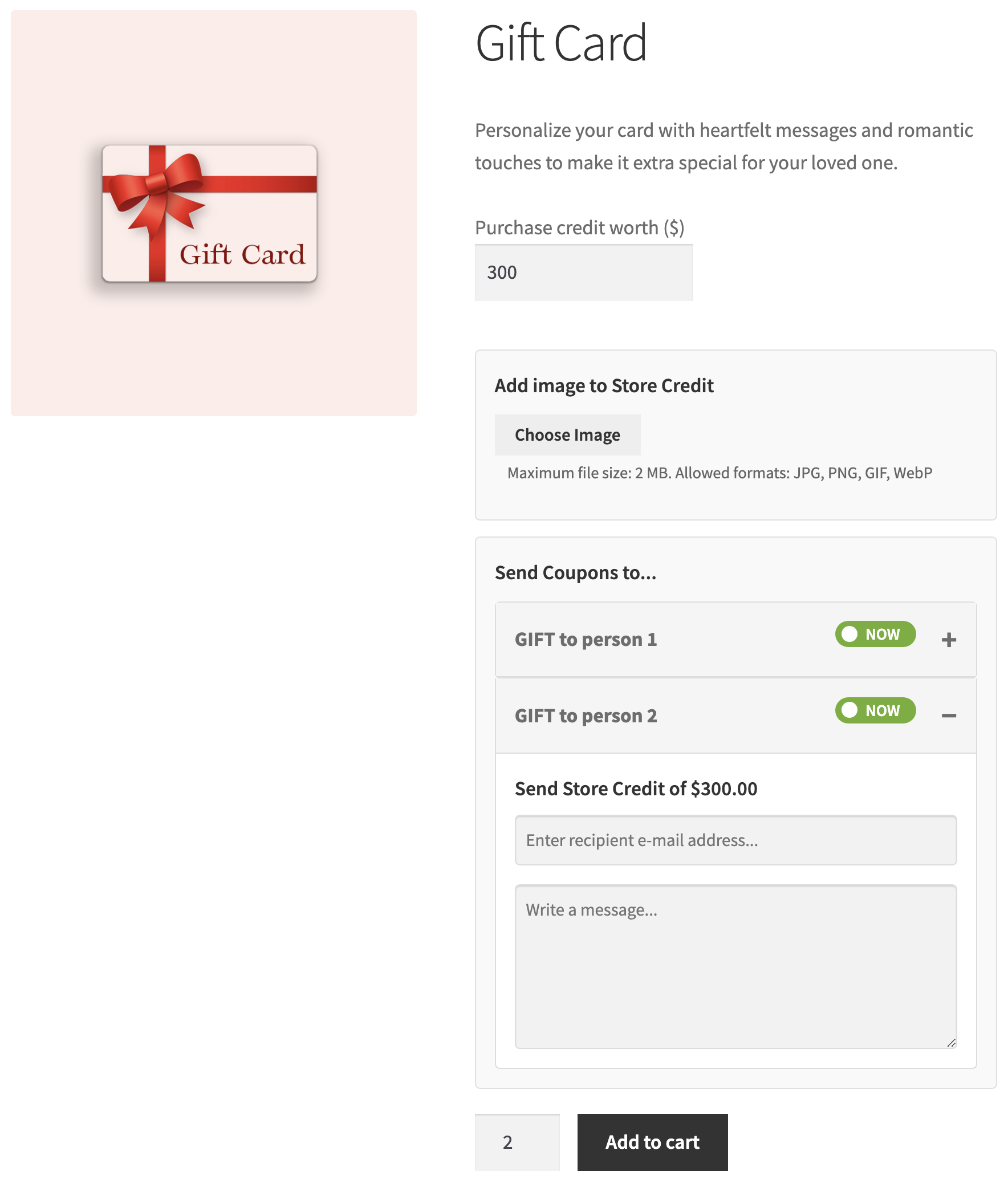
Note: Customers can send multiple gift cards to the same or different people at once using the above feature. For example, $5 and $9 gift cards to Martha; $20 gift cards to Marco, Andrew, Lisa…
However, for sending the same value gift card to multiple people, make sure the gift card quantity is equal to the number of people. In the above example, three $20 gift cards are required to send to Marco, Andrew, and Lisa respectively.
After the payment is completed, a gift certificate is generated and forwarded via email to the recipient(s).
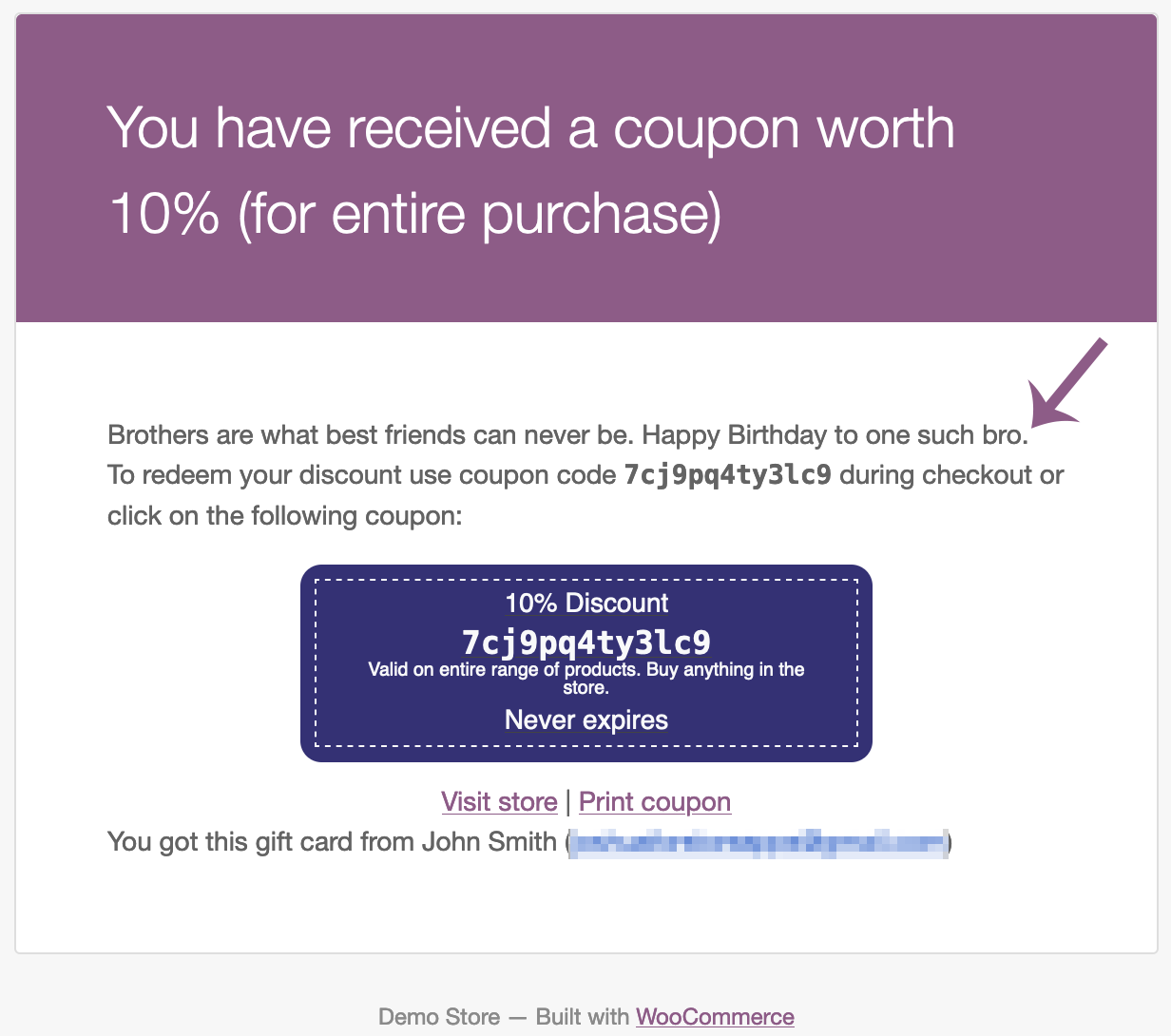
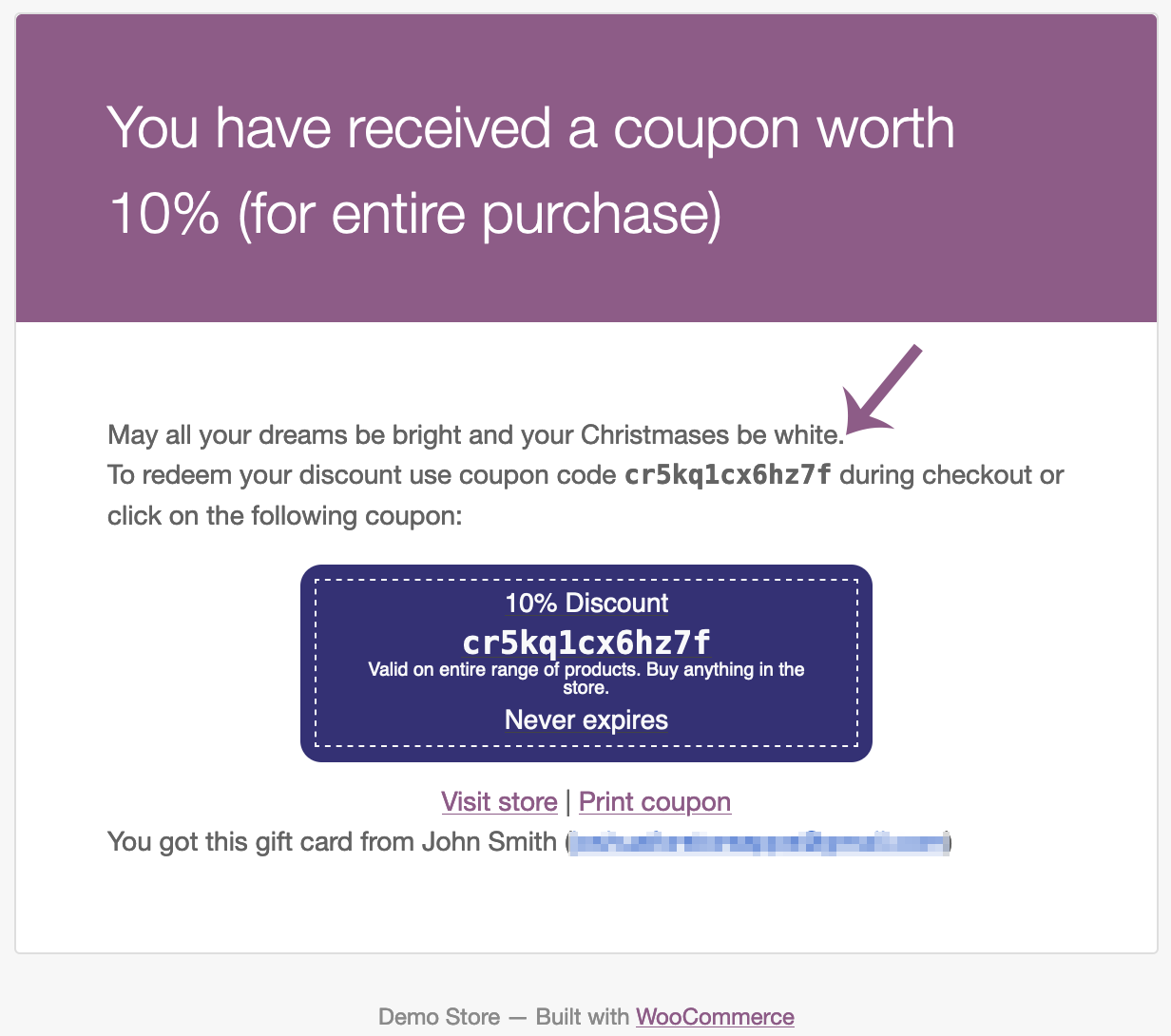
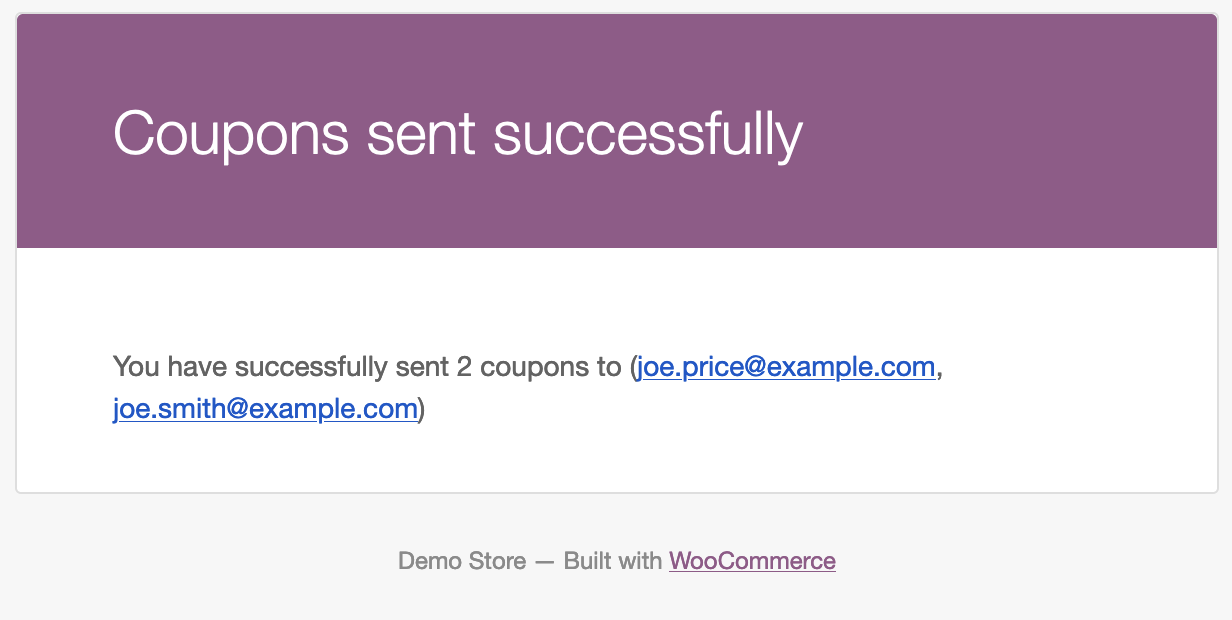
The sender is also notified by an acknowledgment email.
Other WooCommerce gift card types
↑ Back to topBeyond any-amount gift cards, Smart Coupons supports a few other formats depending on how you want to sell them:
Fixed amount gift card
↑ Back to topUseful for smaller stores that want to sell only a limited set of amounts, like $9, $19, and $29. The steps are the same as creating an any-amount gift card, except you enter the value under the ‘Regular price’ field.
Refer to the steps for creating a fixed amount gift card.
Fixed denomination gift cards
↑ Back to topCustomers purchase gift certificates within set limits, like $10, $20, $50, and $100. Unlike any-amount and fixed-amount cards (Simple products), each denomination is created as a product variation with its own price.
Refer to the steps for creating fixed denomination gift cards.
Discounted gift card
↑ Back to topSell a gift card for less than its value, e.g., a $20 gift card for $15 (a 25% discount). Both fixed amount and fixed denomination gift cards can be discounted.
Create a gift card coupon and product as usual, enter the Regular price and Sale price, and enable ‘Sell store credit at less price?’.
Refer to the steps for creating a discounted gift card.
Physical gift card
↑ Back to topThis can be used to delight loved ones on their birthdays, Christmas or any other occasion.
Print the gift card voucher or coupon. After printing, decorate it on your own, and then deliver it to the respective person.
Refer to the steps for creating a physical gift card.

